Corsair PSU
Power up your computing experience with a reliable PSU that ensures seamless performance and efficiency. Discover a range of robust power supply units designed to meet the demands of gamers, professionals, and tech enthusiasts alike. Whether you're building a high-performance gaming rig or upgrading your existing setup, finding the right PSU is crucial for optimal functionality and longevity. Explore options that cater to various needs, offering stability and peace of mind as you push the limits of your system's capabilities. Let your hardware shine with a PSU that delivers consistent power and supports your most ambitious digital endeavors.
Sort
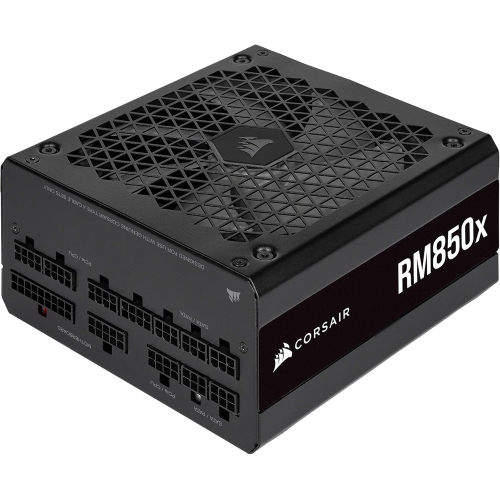
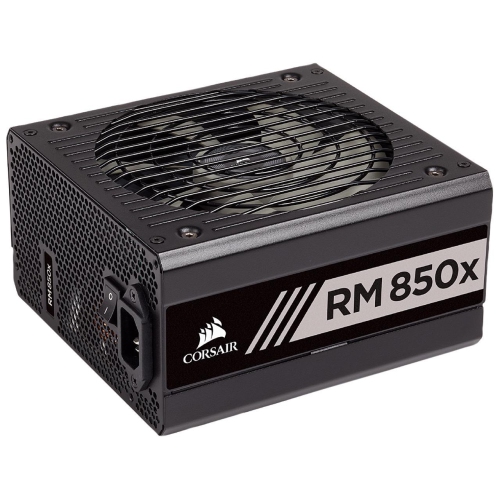
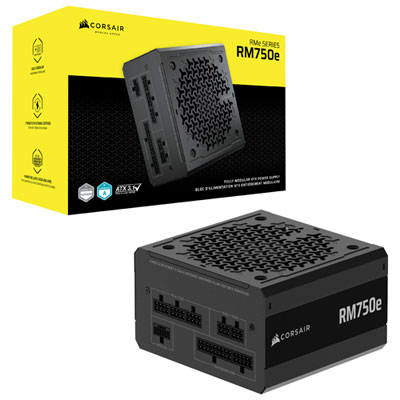
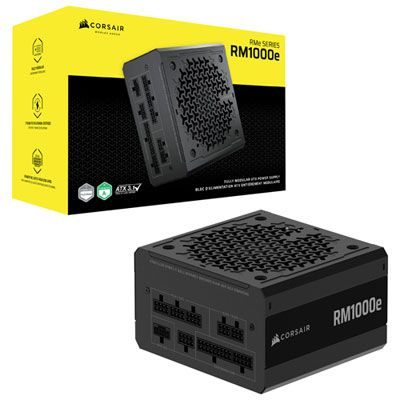
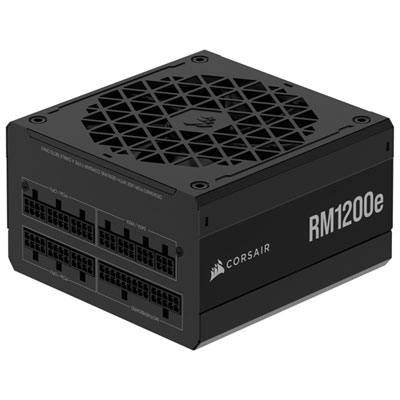
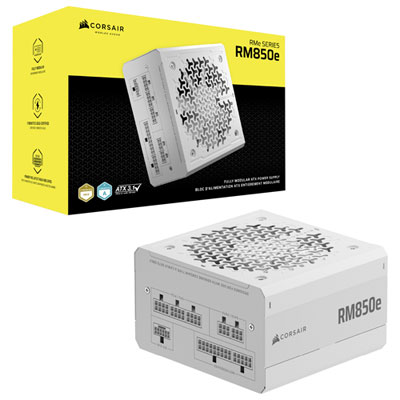
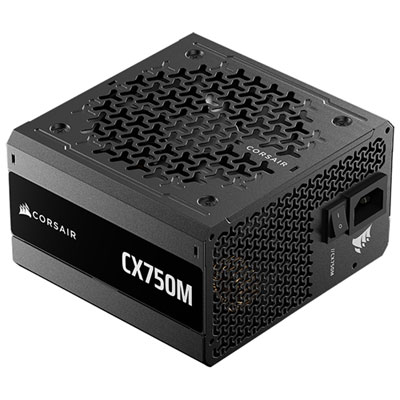
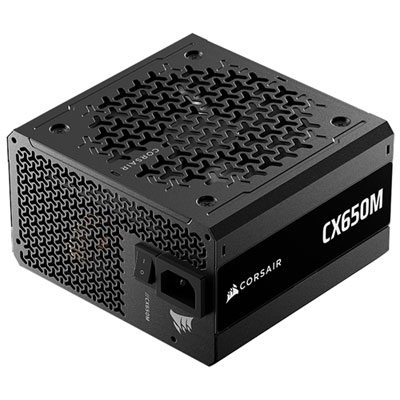
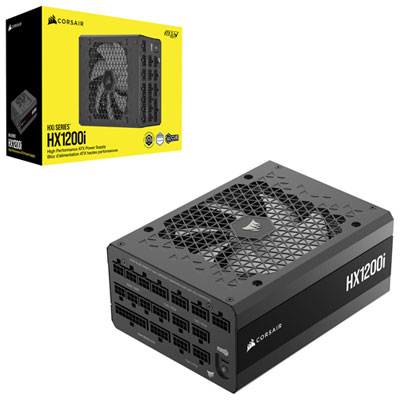
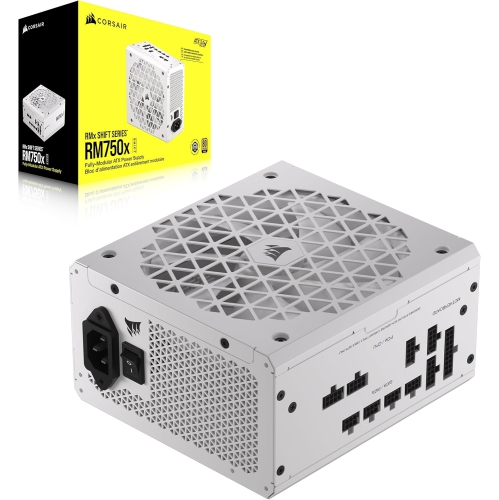
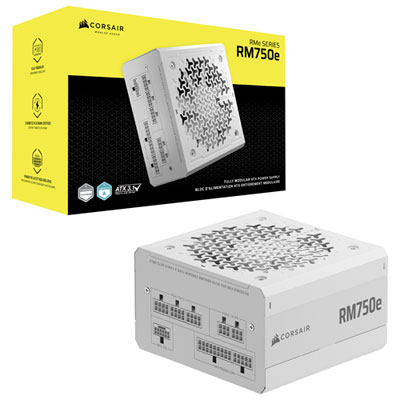
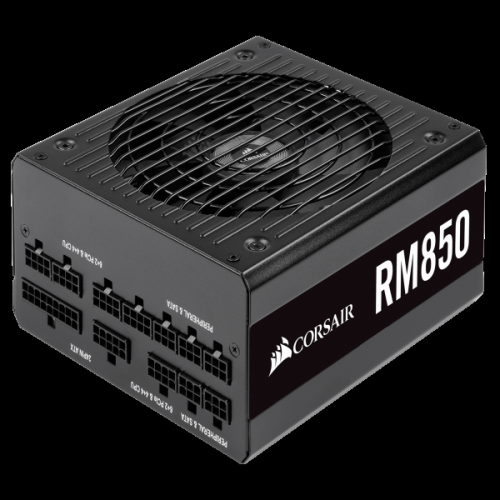
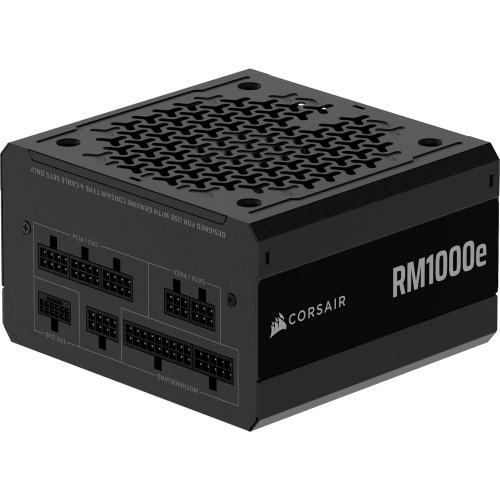
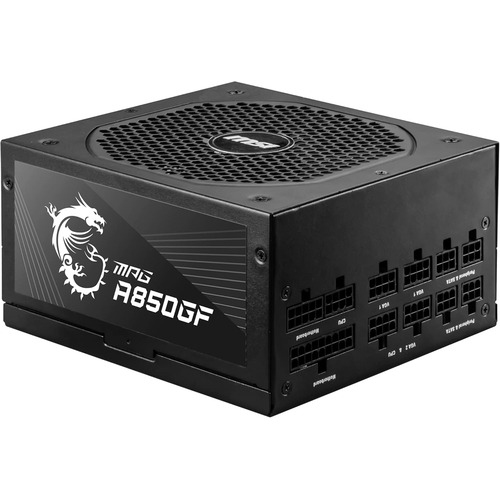
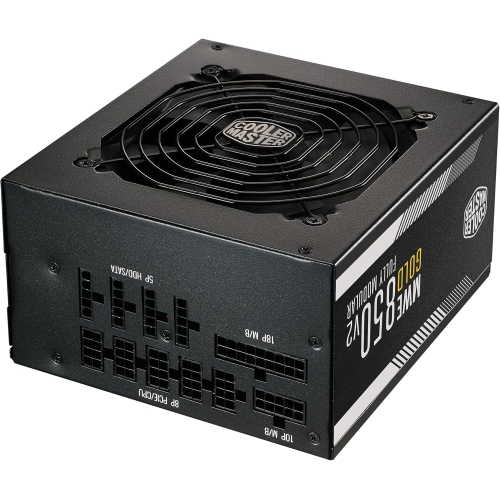
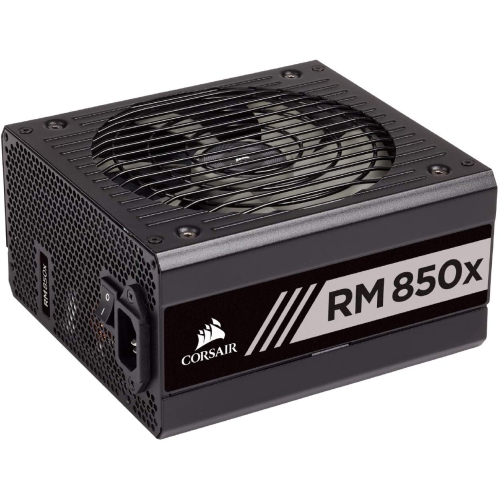
The essentials behind a stable and compatible desktop build
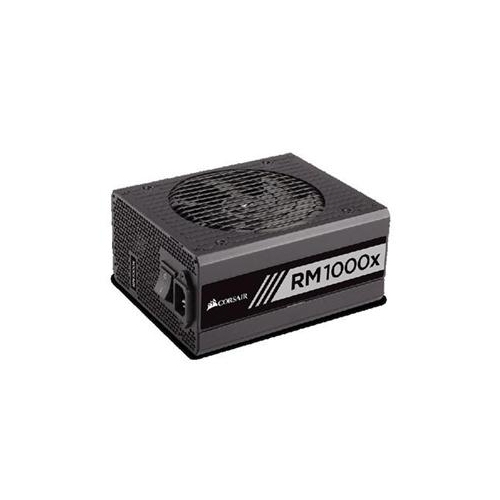
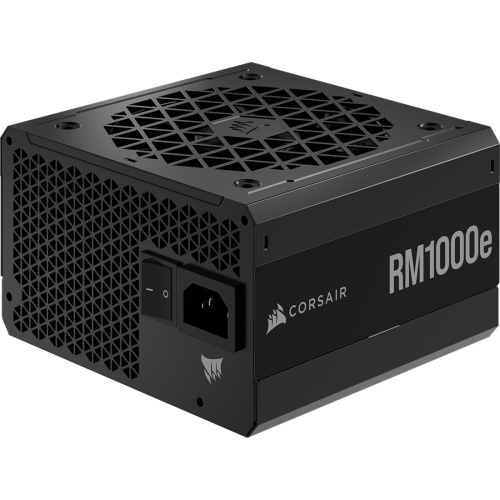
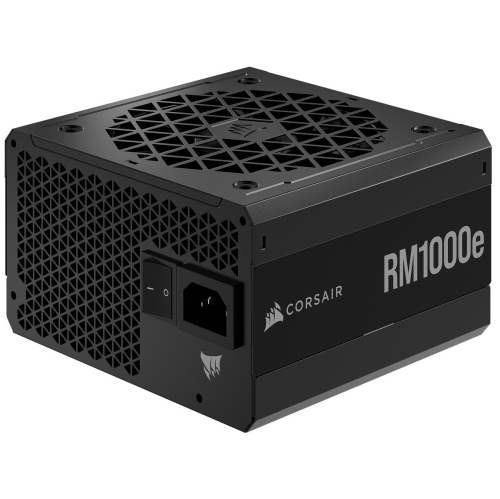
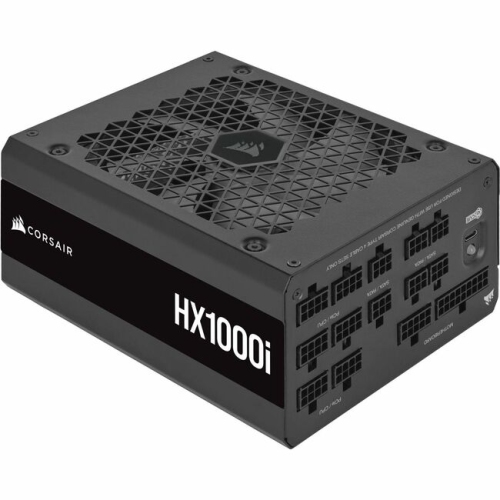
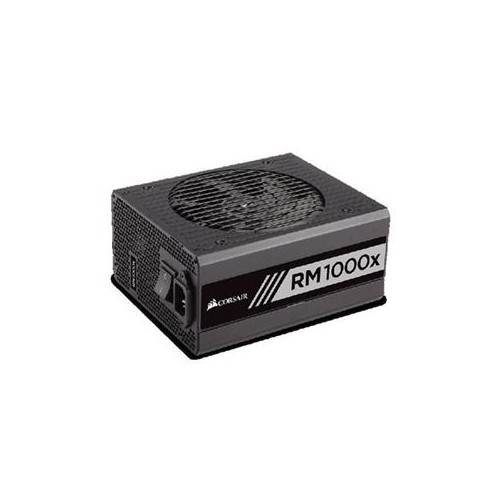
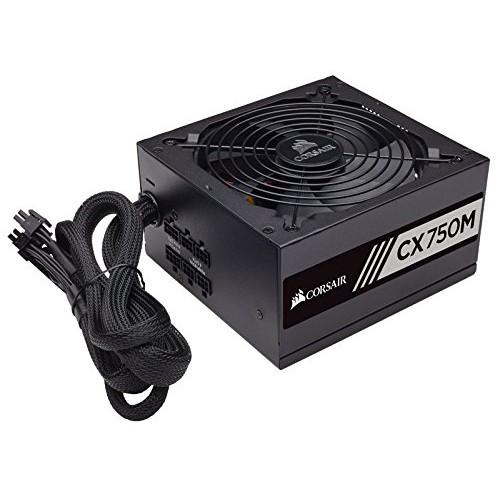
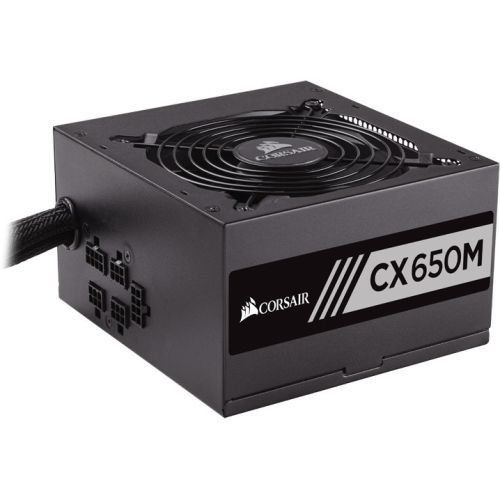
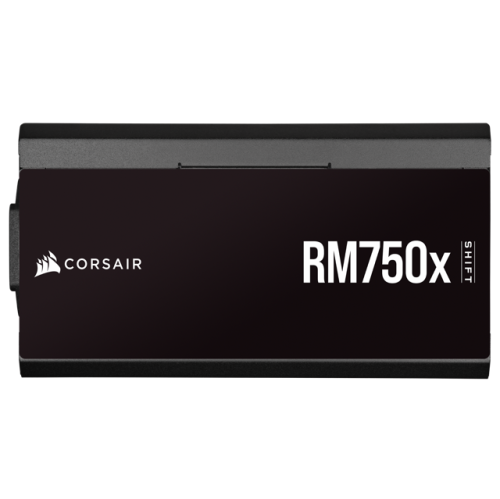
A power supply unit (PSU) is the foundation of a desktop computer, converting electricity from a wall outlet into the stable power required by the processor, graphics card, motherboard, storage drives, cooling fans, and connected accessories. A dependable PSU can help a new computer build run consistently during long gaming sessions, demanding creative work, streaming, software development, and everyday multitasking. When browsing Corsair PSU options, begin by matching the unit’s wattage to the complete system rather than choosing based only on the graphics card or processor. A basic computer used for web browsing, office work, and media playback may need considerably less power than a gaming desktop with a high-performance graphics card, several storage drives, liquid cooling, and multiple displays. Check the recommended PSU wattage listed for the graphics card, then account for the processor, motherboard, memory, drives, cooling system, USB accessories, and possible future upgrades. Some components can draw brief bursts of power that are higher than their typical rating, so leaving reasonable headroom can support more stable operation and reduce the chance of running the unit close to its limit. A PSU should also fit the computer case’s form factor. Full-size ATX units are common in mid-tower and full-tower cases, while compact SFX or SFX-L units are designed for smaller systems. Measuring the available space and checking the case specifications before ordering can prevent installation problems, particularly in compact builds where cable connectors and airflow space are limited. It is also worth confirming that the unit includes the connections required by the rest of the computer, including the motherboard power connector, CPU power connector, graphics card cable, and SATA power connections for compatible drives or accessories.
Efficiency ratings provide another useful way to compare PSUs. An 80 PLUS rating describes how effectively the unit converts incoming AC power into the DC power used by computer components, with Bronze, Gold, Platinum, and Titanium levels representing progressively higher efficiency under defined testing conditions. Efficiency is not the same as overall quality, maximum output, or electrical protection, so it should be considered alongside wattage, construction, compatibility, warranty coverage, and user reviews. A higher-efficiency unit may produce less excess heat while operating, which can be helpful in a warm room or a densely packed computer case. Noise is another practical consideration, especially for a desktop placed in a bedroom, home office, studio, or shared living space. Some PSUs use a semi-passive or Zero RPM mode that keeps the fan off during light workloads and turns it on as demand and temperature increase. This can make a computer quieter during browsing, writing, video playback, or other low-load tasks, while active cooling remains available during demanding work. Modular cabling can make the building process easier as well. With a fully modular PSU, unused cables can be left out of the case, leaving fewer loose wires in front of fans and making it simpler to route cables behind the motherboard tray. Semi-modular units typically have essential cables attached and optional cables that can be added as needed, while non-modular models have all cables permanently connected. Cable management is more than a visual detail: careful routing can help preserve airflow, make future upgrades less frustrating, and keep connectors from being pulled or sharply bent. Always use the cables supplied with the PSU or cables specifically confirmed as compatible with that exact series. Modular PSU cables may look similar while using different wiring layouts, and mixing cables from another unit can damage computer components.
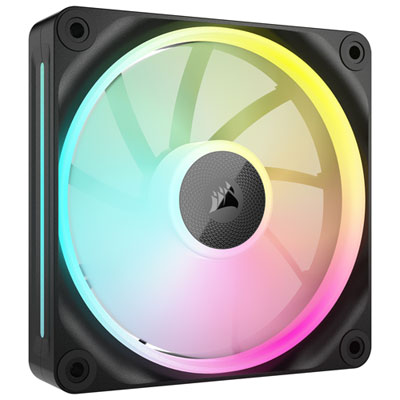
The right choice depends on how the computer will be used and how much flexibility the owner wants from the build. A family member assembling a first desktop may appreciate a straightforward PSU with clear connections, sensible wattage, and dependable protection features. A PC enthusiast upgrading a graphics card may prioritize generous headroom, modern high-power graphics connections, fully modular cabling, and support for the latest ATX standards. A small-form-factor builder may need to focus first on dimensions, cable length, connector orientation, and the limited space available for ventilation. A workstation user running virtual machines, photo libraries, 3D applications, or extended rendering sessions may value quiet operation, strong continuous output, and a long warranty. A PSU can also be a practical gift for someone planning a new computer build, particularly when the recipient has already selected a case, motherboard, processor, and graphics card but still needs to complete the system. For a gift, checking the intended components or asking for a parts list is important because wattage, form factor, and connector requirements vary widely. Many people replace a PSU as part of a larger upgrade rather than because it has failed, allowing a newer unit to support a more powerful graphics card or a cleaner internal layout. If troubleshooting an existing desktop, signs such as unexpected shutdowns, difficulty starting under load, unusual fan noise, or instability after a component upgrade may justify checking the PSU, although these symptoms can also come from overheating, memory, drivers, or other hardware. Installation should be done with the computer unplugged and the power switch turned off, with the unit secured firmly to the case and every connection seated completely. Avoid opening the PSU enclosure, keep vents clear, and confirm that the input voltage setting, when applicable, matches the local electrical supply. Pairing a suitable power supply with related components such as Corsair Fans can help create a balanced cooling setup, while choosing compatible cables, leaving practical wattage headroom, and allowing adequate airflow can support a reliable desktop through everyday work, gaming, and intensive applications during the cooler months and beyond.
Efficiency ratings provide another useful way to compare PSUs. An 80 PLUS rating describes how effectively the unit converts incoming AC power into the DC power used by computer components, with Bronze, Gold, Platinum, and Titanium levels representing progressively higher efficiency under defined testing conditions. Efficiency is not the same as overall quality, maximum output, or electrical protection, so it should be considered alongside wattage, construction, compatibility, warranty coverage, and user reviews. A higher-efficiency unit may produce less excess heat while operating, which can be helpful in a warm room or a densely packed computer case. Noise is another practical consideration, especially for a desktop placed in a bedroom, home office, studio, or shared living space. Some PSUs use a semi-passive or Zero RPM mode that keeps the fan off during light workloads and turns it on as demand and temperature increase. This can make a computer quieter during browsing, writing, video playback, or other low-load tasks, while active cooling remains available during demanding work. Modular cabling can make the building process easier as well. With a fully modular PSU, unused cables can be left out of the case, leaving fewer loose wires in front of fans and making it simpler to route cables behind the motherboard tray. Semi-modular units typically have essential cables attached and optional cables that can be added as needed, while non-modular models have all cables permanently connected. Cable management is more than a visual detail: careful routing can help preserve airflow, make future upgrades less frustrating, and keep connectors from being pulled or sharply bent. Always use the cables supplied with the PSU or cables specifically confirmed as compatible with that exact series. Modular PSU cables may look similar while using different wiring layouts, and mixing cables from another unit can damage computer components.
The right choice depends on how the computer will be used and how much flexibility the owner wants from the build. A family member assembling a first desktop may appreciate a straightforward PSU with clear connections, sensible wattage, and dependable protection features. A PC enthusiast upgrading a graphics card may prioritize generous headroom, modern high-power graphics connections, fully modular cabling, and support for the latest ATX standards. A small-form-factor builder may need to focus first on dimensions, cable length, connector orientation, and the limited space available for ventilation. A workstation user running virtual machines, photo libraries, 3D applications, or extended rendering sessions may value quiet operation, strong continuous output, and a long warranty. A PSU can also be a practical gift for someone planning a new computer build, particularly when the recipient has already selected a case, motherboard, processor, and graphics card but still needs to complete the system. For a gift, checking the intended components or asking for a parts list is important because wattage, form factor, and connector requirements vary widely. Many people replace a PSU as part of a larger upgrade rather than because it has failed, allowing a newer unit to support a more powerful graphics card or a cleaner internal layout. If troubleshooting an existing desktop, signs such as unexpected shutdowns, difficulty starting under load, unusual fan noise, or instability after a component upgrade may justify checking the PSU, although these symptoms can also come from overheating, memory, drivers, or other hardware. Installation should be done with the computer unplugged and the power switch turned off, with the unit secured firmly to the case and every connection seated completely. Avoid opening the PSU enclosure, keep vents clear, and confirm that the input voltage setting, when applicable, matches the local electrical supply. Pairing a suitable power supply with related components such as Corsair Fans can help create a balanced cooling setup, while choosing compatible cables, leaving practical wattage headroom, and allowing adequate airflow can support a reliable desktop through everyday work, gaming, and intensive applications during the cooler months and beyond.
Top selling and popular products
-
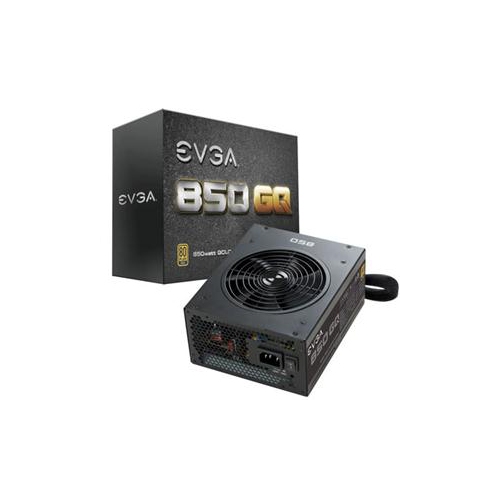 Your price for this item is $264.68
 -
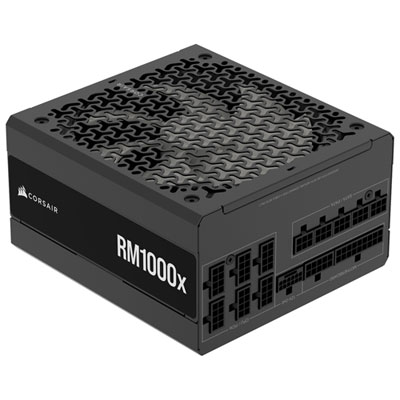 Your price for this item is $234.98
 -
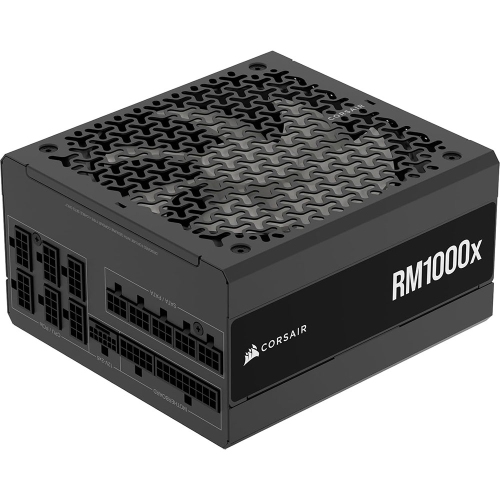 Your price for this item is $294.99
 -
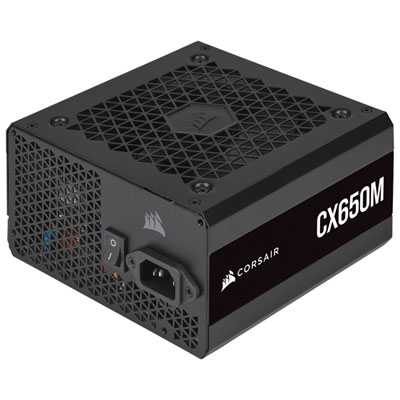 Your price for this item is $99.95
 -
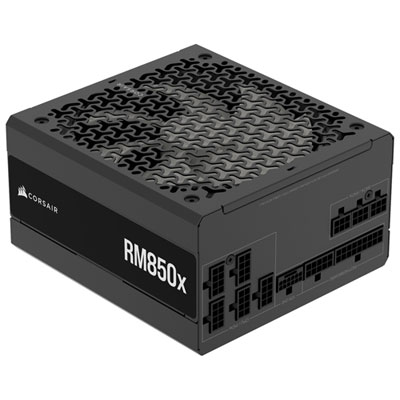 Your price for this item is $209.99
 -
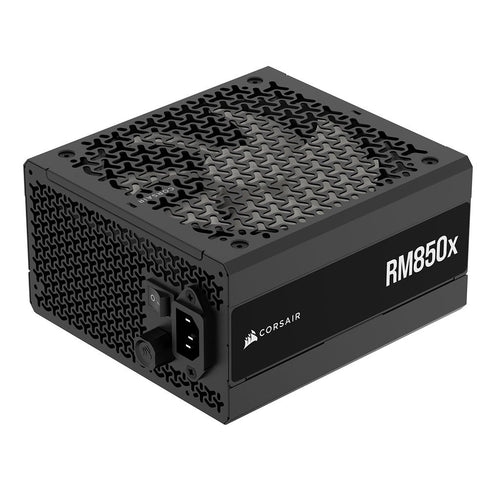 Your price for this item is $199.99
 -
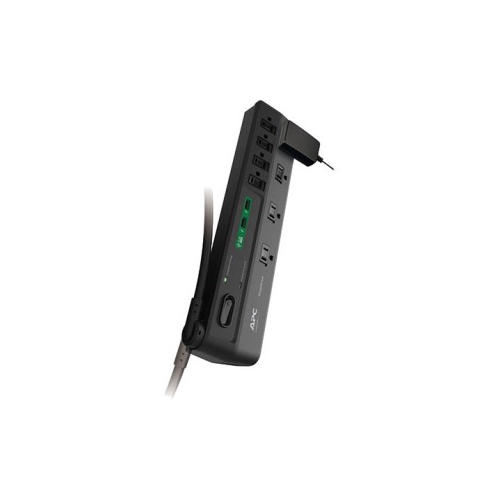 Your price for this item is $60.47
 -
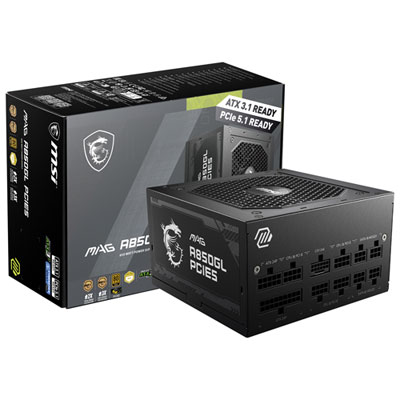 Your price for this item is $144.98
Discover more categories related to Corsair PSU
Top Collections:
Pokemon Centers, Kindle Devices, Best Budget Office Chairs, Apple iPhones 16, Best Laptops for Writers, iPhone 15 Apple, Canon G7X Cameras, Refurbished Apple Laptops, Alarm Clock, Motorola Razr Phones
Some products may be subject to Environmental Handling Fees
(EHF) depending on your province.
Learn more about EHFs.