Data Backup for Small Businesses
Data backup for small businesses is essential to keep important information protected and easily accessible. Whether you’re storing financial records, client files, or day-to-day documents, reliable backup solutions help ensure your business runs smoothly without interruption. Explore a wide range of options designed to meet the unique needs of small businesses, so you can focus on growth and productivity with confidence.
Sort

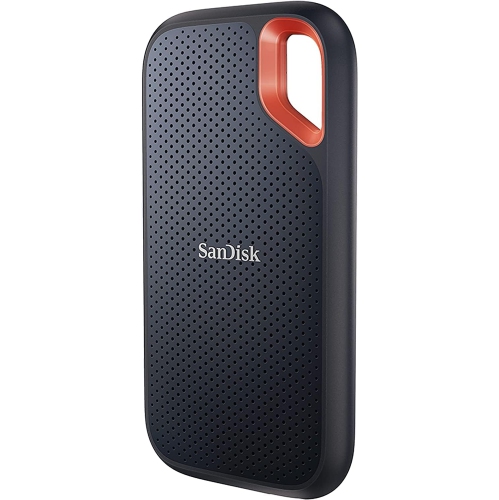
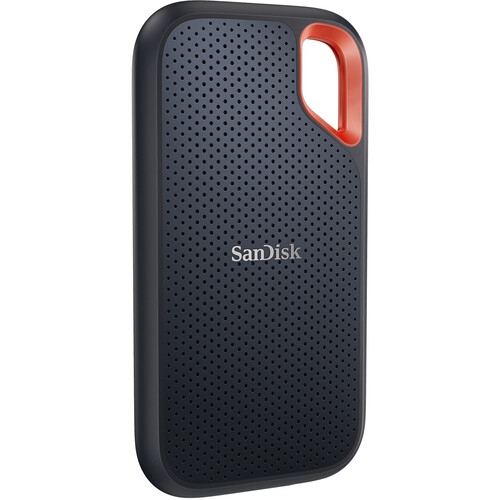
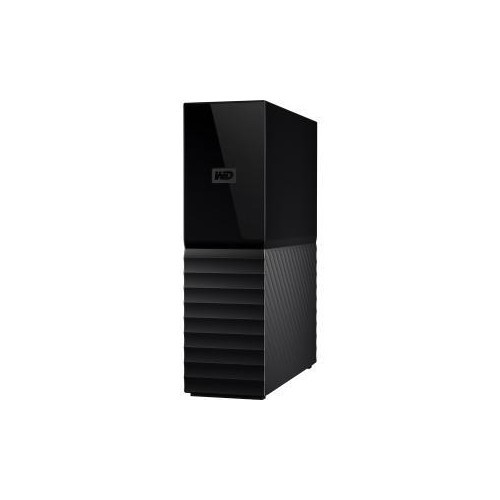
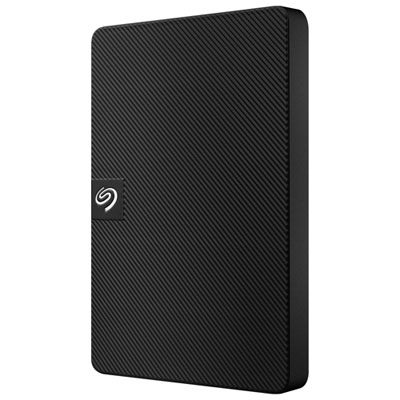
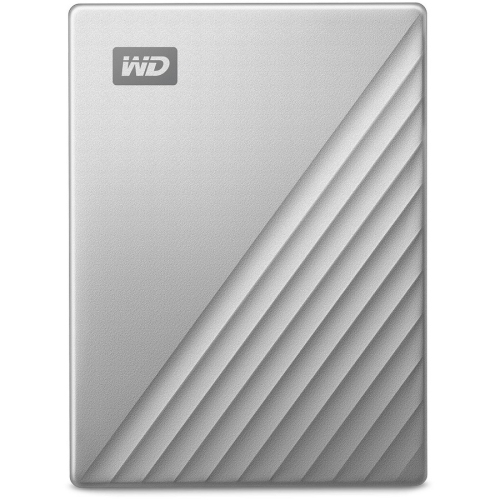
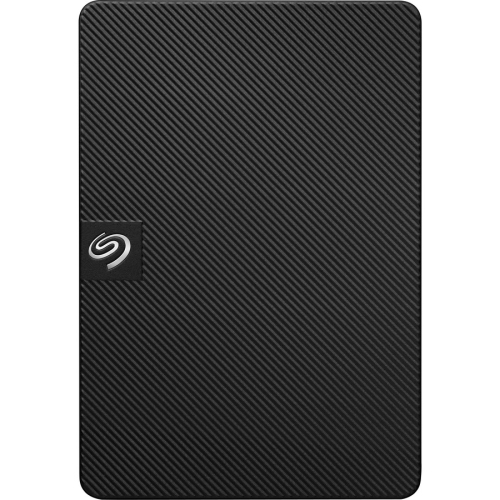

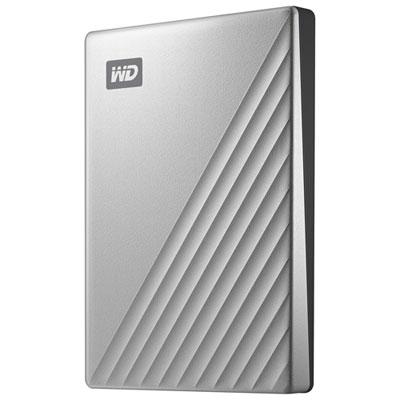
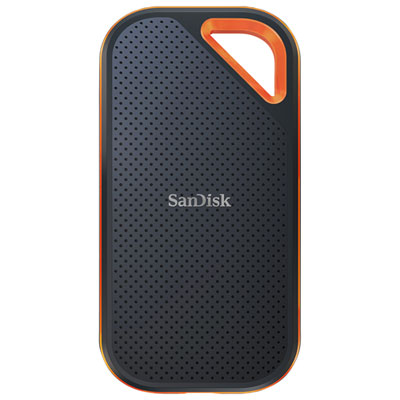
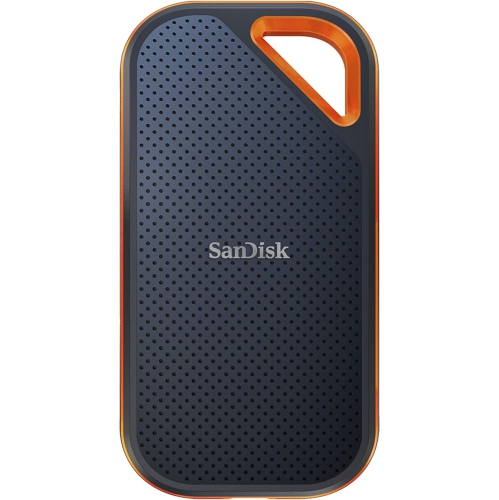
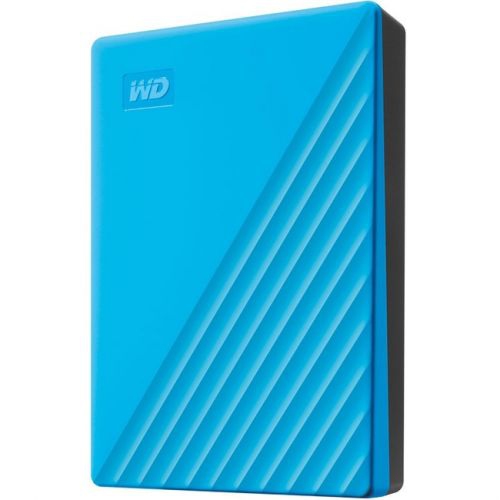
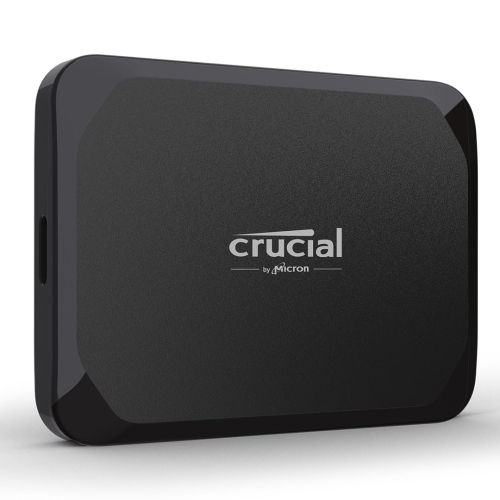
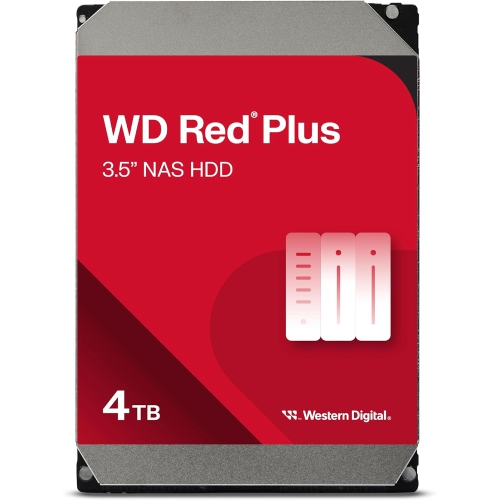
Business file recovery takes more than extra storage
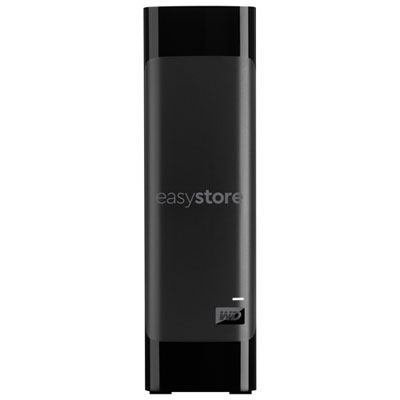
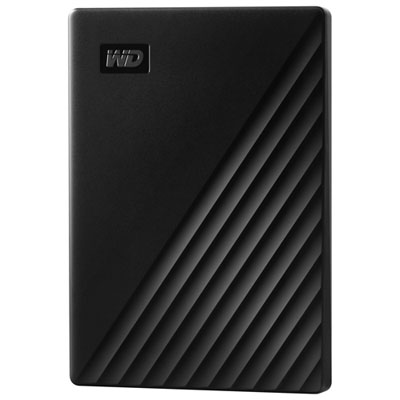
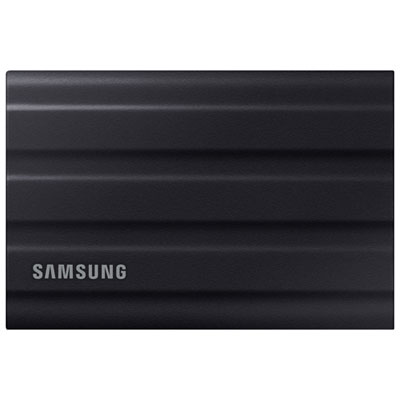
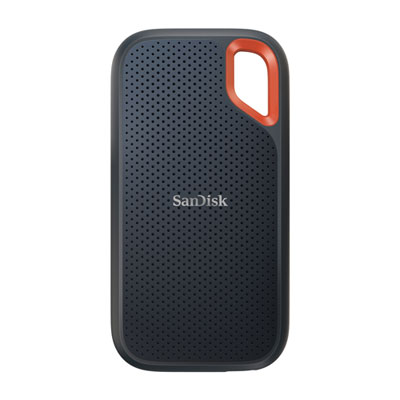
Data backup for small businesses centres on keeping separate, recoverable copies of the files and systems that support daily work. For a bookkeeping office, that might mean payroll records and client documents; for a design studio, large project folders, image libraries, and approved artwork. External hard drives, portable solid-state drives, network-attached storage, and backup software serve different roles in protecting that information from accidental deletion, device failure, theft, or a cyberattack. A hybrid backup setup combines local storage with an off-site copy, often through a cloud backup service. Local copies can make restoring a large folder convenient, while an off-site copy helps protect against an incident that affects the entire office. The commonly used 3-2-1 approach means keeping three copies of important data, including the working copy, across two types of storage media, with one copy off-site. It reduces dependence on any single device or location, but it does not guarantee protection from every threat. For a sole proprietor working from one laptop, a dedicated external drive paired with automated backup software may provide a straightforward local option. A team sharing files across several computers may benefit from network-attached storage that supports scheduled backups and individual access permissions. The right capacity depends on more than the size of today's folders: retained versions, new projects, and full-system backups can add substantially to storage needs. A business handling mostly invoices and spreadsheets has different requirements from one producing video or maintaining extensive technical drawings. Backup frequency matters, too. Losing a day's changes may be manageable for an occasional archive, but disruptive for a busy office updating customer records throughout the day. Products that support frequent, automated backups can reduce the work left exposed between saved copies. Together, capacity, scheduling, and the ability to restore the required files help define a useful backup setup, rather than storage size alone. Clear completion alerts also make it easier for the person responsible to notice a missed backup before an urgent file request reveals it.
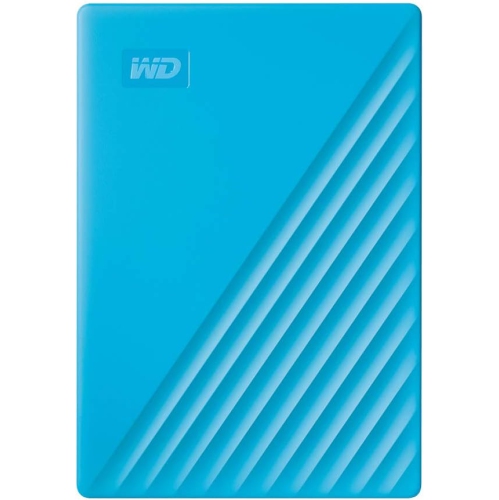
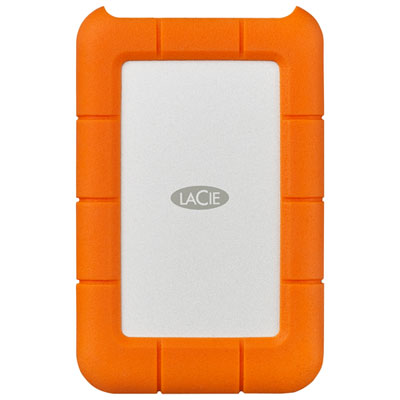
Physical storage choices affect how comfortably a backup routine fits into the working day. Desktop external hard drives typically suit a fixed workspace and larger archives, while portable drives are easier to move between a home office and a business location. Solid-state drives have no moving parts and generally tolerate everyday movement better than mechanical hard drives, although neither should be treated as damage-proof. Enclosure materials, connector strength, and a protective carrying case matter when a drive travels in a laptop bag. A metal casing may feel sturdy, but material alone does not establish drop resistance or protection against liquids; those capabilities depend on the device's stated specifications. A portable drive holding sensitive business records also needs appropriate access protection, particularly when it leaves the office. Connection compatibility deserves equal attention. USB-C describes a connector shape, not a guaranteed transfer speed, so performance depends on the drive, cable, port, and supported connection standard together. Copying a few documents is a different task from backing up a workstation containing years of photographs or large media projects. Network-attached storage can offer a central destination for several users, but transfer speeds depend on the storage system and the network serving it. Wired Ethernet may provide more consistent performance for large transfers than a busy Wi-Fi connection. Multi-bay storage systems can use RAID to maintain access after certain drive failures, depending on the configuration, but RAID is not a substitute for a separate backup: deleted or encrypted files may still affect the shared storage. Usable capacity can also be lower than the combined capacity of the installed drives when space is allocated to redundancy. For everyday care, drives need secure placement, unobstructed ventilation, and protection from spills and knocks. Safely ejecting removable storage before disconnecting it helps avoid interrupted writes. A compatible uninterruptible power supply can give supported storage equipment time to shut down properly during a power interruption, although it does not create another copy of the data. These practical details matter for businesses without dedicated IT staff, where equipment needs to remain manageable alongside customer calls, deliveries, and routine administration.
Backup software determines what gets saved, how often it happens, and how easily the business can bring information back. File-level backup suits documents and shared folders, while image-based backup may support restoring an operating system, applications, settings, and files after a computer failure, subject to the software's capabilities and hardware compatibility. Version history is particularly useful when an employee overwrites a spreadsheet or discovers that a project file was damaged several days earlier. Retention settings determine how far back those copies remain accessible and how much storage they occupy. File synchronization serves a different purpose: keeping folders consistent across devices can also spread deletions or unwanted changes, so a synchronized folder should not automatically be considered an independent backup. Similarly, access to a cloud productivity application does not necessarily include the backup history or restoration options a business needs. Software compatibility should cover the actual operating systems, shared storage, and applications in use, with clear support for any databases or files that remain open during work. Encryption, multifactor authentication, and restricted administrative access can help protect backup copies, while offline or appropriately configured immutable copies can reduce exposure to ransomware. No connected storage device or cloud service is automatically immune to attack. Canadian businesses handling customer or employee information may also need to assess where backup data is stored, who can access it, and whether the arrangement meets their contractual and applicable privacy obligations. Broader safeguards are explored through Data Protection for Small Businesses, alongside the role of recoverable copies. Restoration remains the practical test of any backup purchase: retrieving one missing invoice and rebuilding an entire workstation require different amounts of time and preparation. Cloud restoration depends partly on internet bandwidth and the volume of data, while local restoration depends on connection speed and working hardware. Clear status reports and periodic test restores help confirm that saved copies are usable. For a small team, the most useful combination is one that protects the necessary information, fits existing equipment, and makes getting back to work a realistic, repeatable process.
Physical storage choices affect how comfortably a backup routine fits into the working day. Desktop external hard drives typically suit a fixed workspace and larger archives, while portable drives are easier to move between a home office and a business location. Solid-state drives have no moving parts and generally tolerate everyday movement better than mechanical hard drives, although neither should be treated as damage-proof. Enclosure materials, connector strength, and a protective carrying case matter when a drive travels in a laptop bag. A metal casing may feel sturdy, but material alone does not establish drop resistance or protection against liquids; those capabilities depend on the device's stated specifications. A portable drive holding sensitive business records also needs appropriate access protection, particularly when it leaves the office. Connection compatibility deserves equal attention. USB-C describes a connector shape, not a guaranteed transfer speed, so performance depends on the drive, cable, port, and supported connection standard together. Copying a few documents is a different task from backing up a workstation containing years of photographs or large media projects. Network-attached storage can offer a central destination for several users, but transfer speeds depend on the storage system and the network serving it. Wired Ethernet may provide more consistent performance for large transfers than a busy Wi-Fi connection. Multi-bay storage systems can use RAID to maintain access after certain drive failures, depending on the configuration, but RAID is not a substitute for a separate backup: deleted or encrypted files may still affect the shared storage. Usable capacity can also be lower than the combined capacity of the installed drives when space is allocated to redundancy. For everyday care, drives need secure placement, unobstructed ventilation, and protection from spills and knocks. Safely ejecting removable storage before disconnecting it helps avoid interrupted writes. A compatible uninterruptible power supply can give supported storage equipment time to shut down properly during a power interruption, although it does not create another copy of the data. These practical details matter for businesses without dedicated IT staff, where equipment needs to remain manageable alongside customer calls, deliveries, and routine administration.
Backup software determines what gets saved, how often it happens, and how easily the business can bring information back. File-level backup suits documents and shared folders, while image-based backup may support restoring an operating system, applications, settings, and files after a computer failure, subject to the software's capabilities and hardware compatibility. Version history is particularly useful when an employee overwrites a spreadsheet or discovers that a project file was damaged several days earlier. Retention settings determine how far back those copies remain accessible and how much storage they occupy. File synchronization serves a different purpose: keeping folders consistent across devices can also spread deletions or unwanted changes, so a synchronized folder should not automatically be considered an independent backup. Similarly, access to a cloud productivity application does not necessarily include the backup history or restoration options a business needs. Software compatibility should cover the actual operating systems, shared storage, and applications in use, with clear support for any databases or files that remain open during work. Encryption, multifactor authentication, and restricted administrative access can help protect backup copies, while offline or appropriately configured immutable copies can reduce exposure to ransomware. No connected storage device or cloud service is automatically immune to attack. Canadian businesses handling customer or employee information may also need to assess where backup data is stored, who can access it, and whether the arrangement meets their contractual and applicable privacy obligations. Broader safeguards are explored through Data Protection for Small Businesses, alongside the role of recoverable copies. Restoration remains the practical test of any backup purchase: retrieving one missing invoice and rebuilding an entire workstation require different amounts of time and preparation. Cloud restoration depends partly on internet bandwidth and the volume of data, while local restoration depends on connection speed and working hardware. Clear status reports and periodic test restores help confirm that saved copies are usable. For a small team, the most useful combination is one that protects the necessary information, fits existing equipment, and makes getting back to work a realistic, repeatable process.
Top selling and popular products
-
 Your price for this item is $234.99
 -
 Your price for this item is $389.99
 -
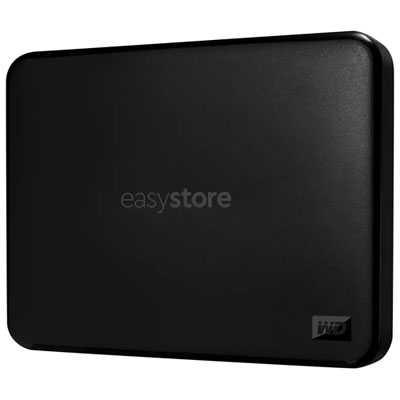 Your price for this item is $179.99
 -
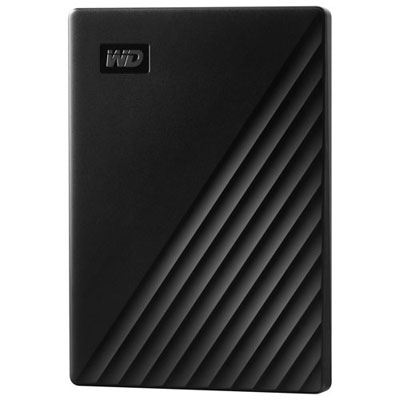 Your price for this item is $239.99
 -
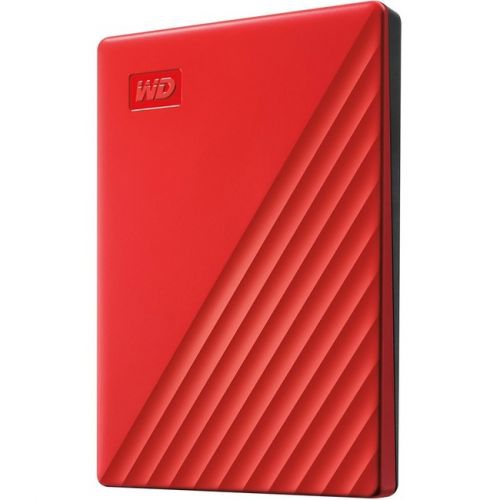 Your price for this item is $270.68
 -
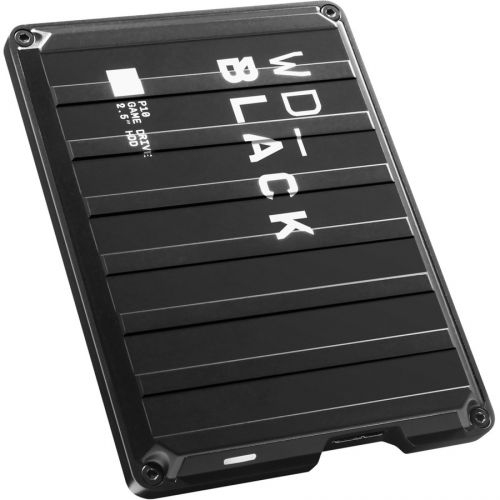 Your price for this item is $329.99
 -
 Your price for this item is $282.68
 -
 Your price for this item is $209.99
Discover more categories related to Data Backup for Small Businesses
Top Collections:
Pokemon Centers, Kindle Devices, Best Budget Office Chairs, Apple iPhones 16, Best Laptops for Writers, iPhone 15 Apple, Canon G7X Cameras, Refurbished Apple Laptops, Alarm Clock, Motorola Razr Phones
Some products may be subject to Environmental Handling Fees
(EHF) depending on your province.
Learn more about EHFs.