Dell OptiPlex 3070
Discover the Dell OptiPlex 3070, designed to streamline your workspace and boost productivity. Whether setting up a new office or upgrading your current setup, the Dell OptiPlex 3070 offers reliable performance for a wide range of business and home computing needs. Explore options that fit your workflow and enjoy a seamless experience with this versatile desktop solution. Find the right configuration of the Dell OptiPlex 3070 to match your requirements and take your computing to the next level.
Sort
How desktop size shapes your everyday workspace
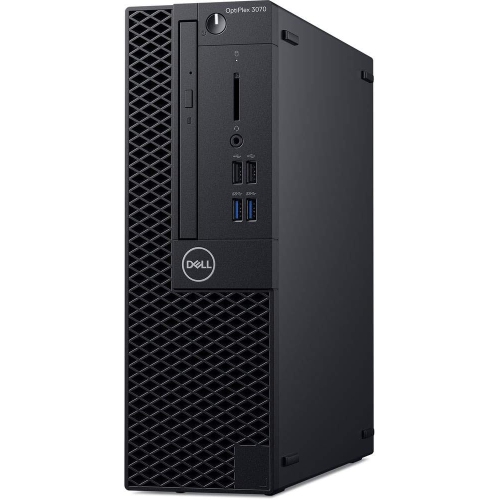
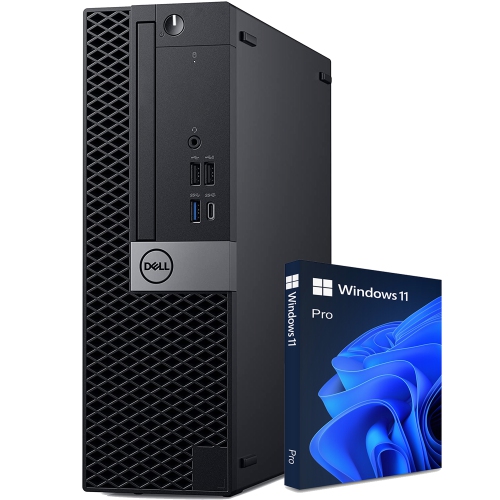
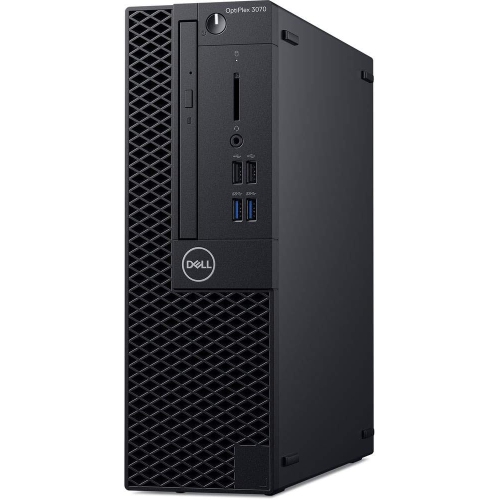
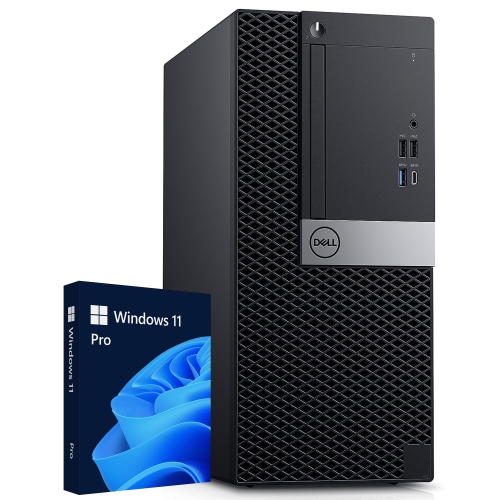
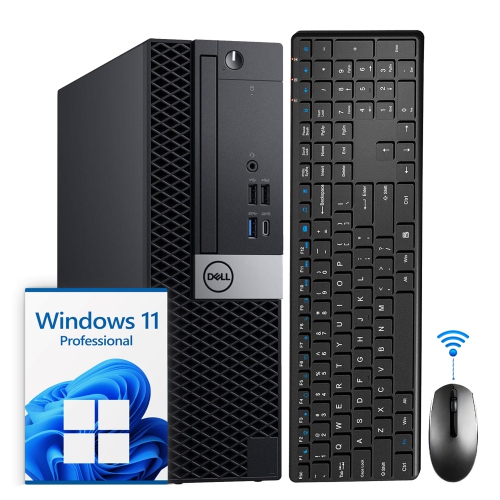
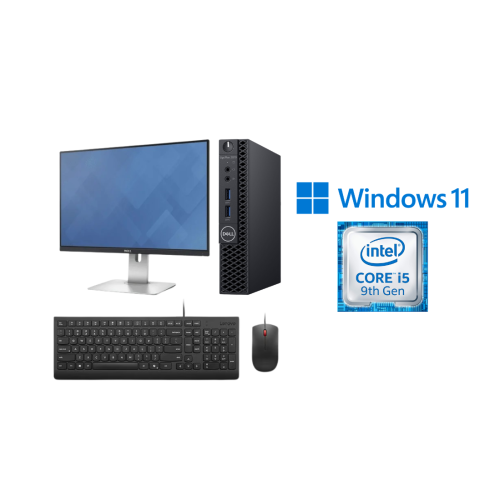
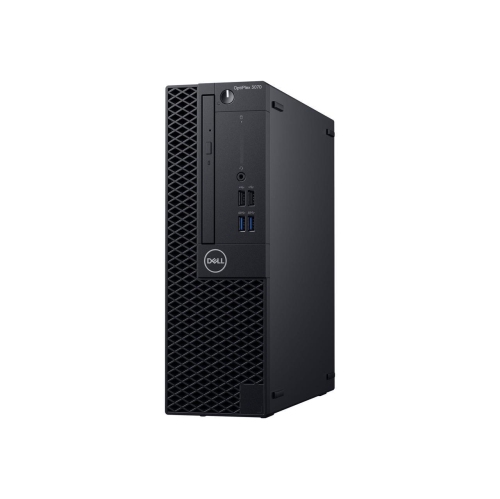
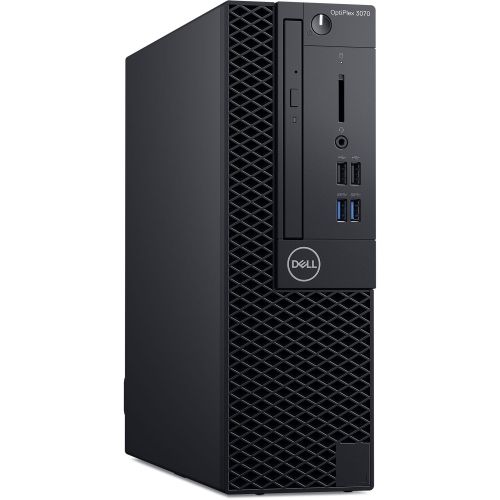
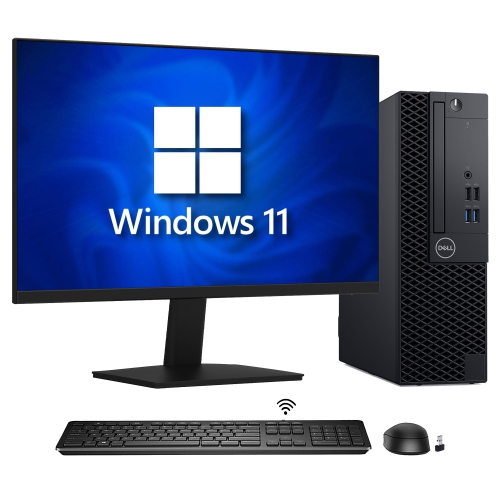
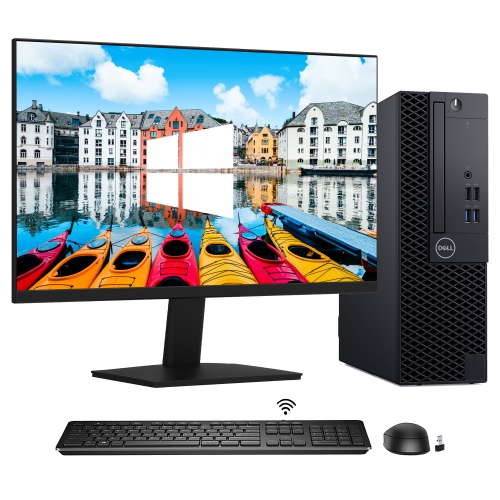
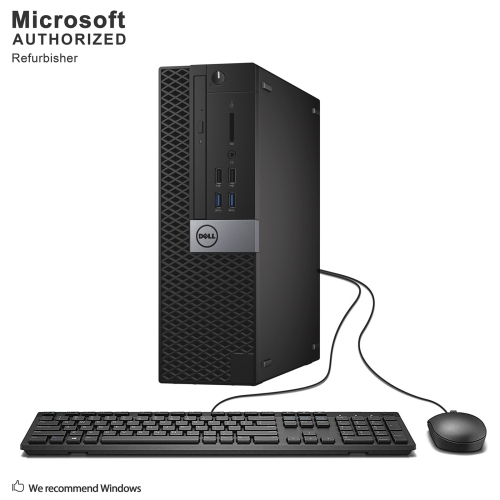
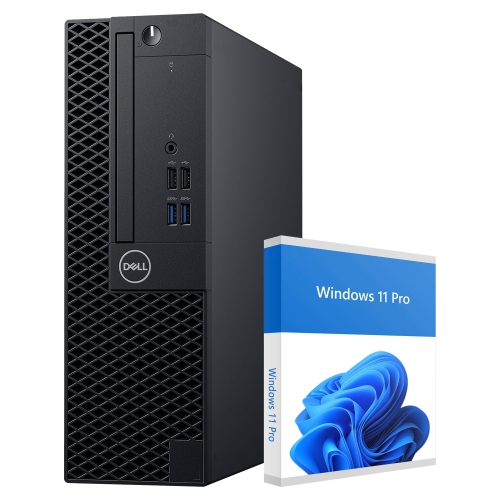
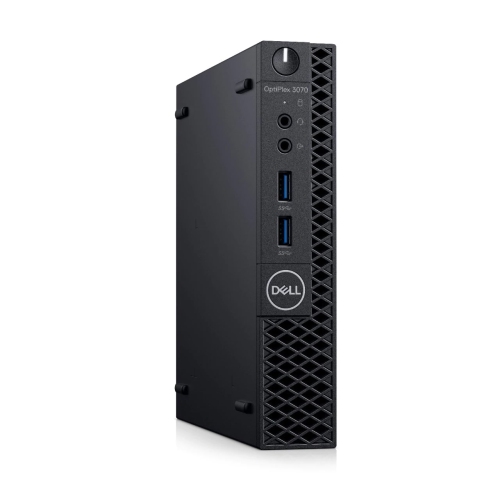
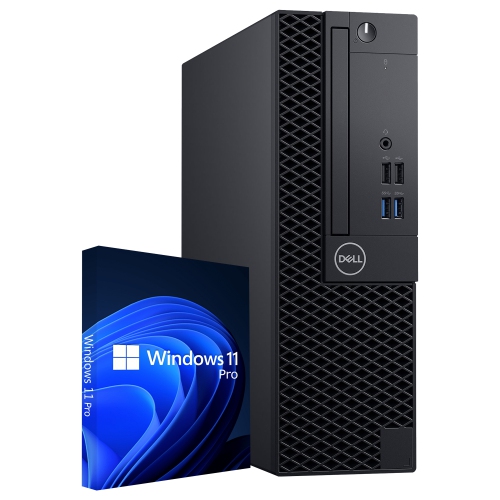
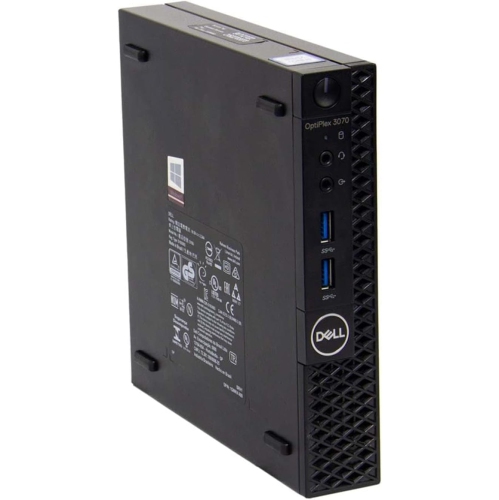
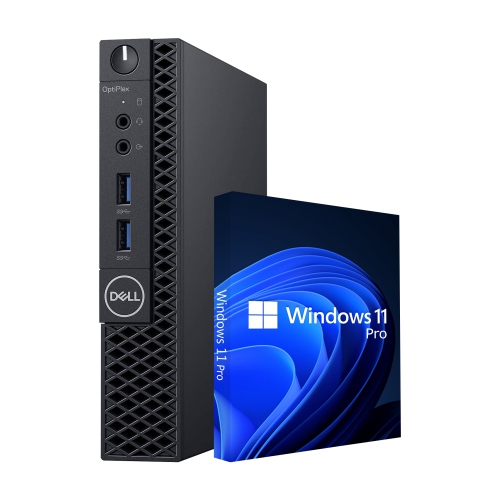
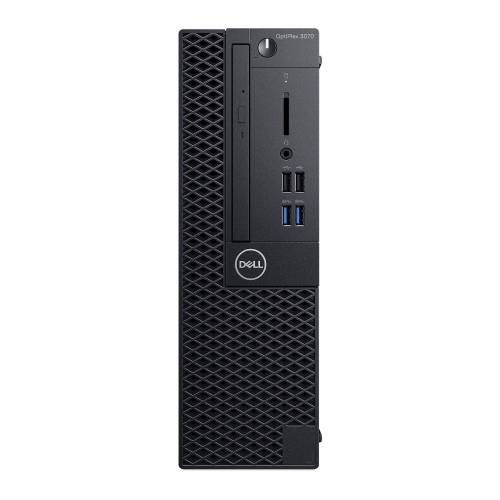
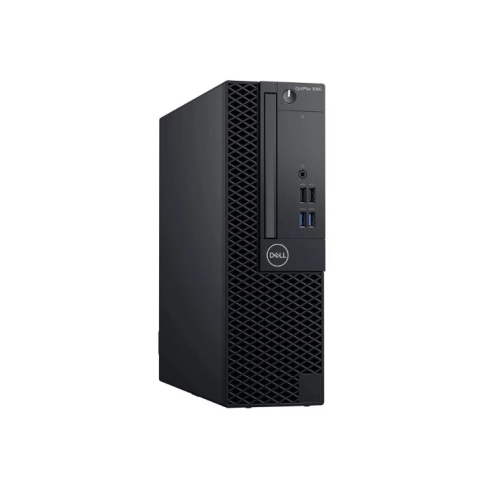
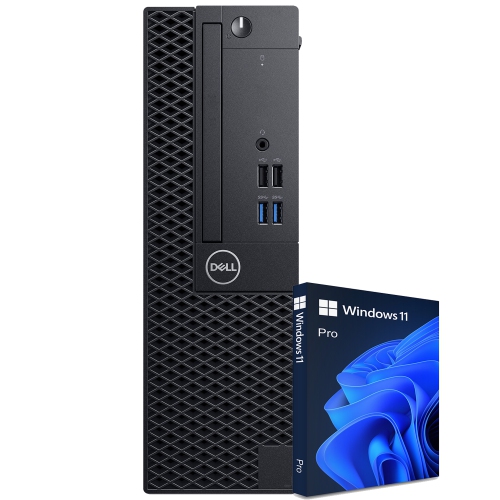
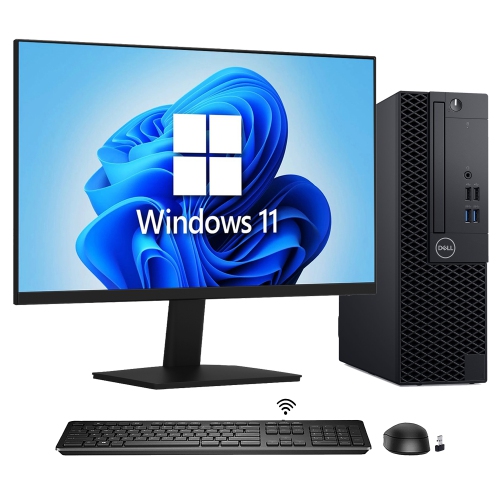
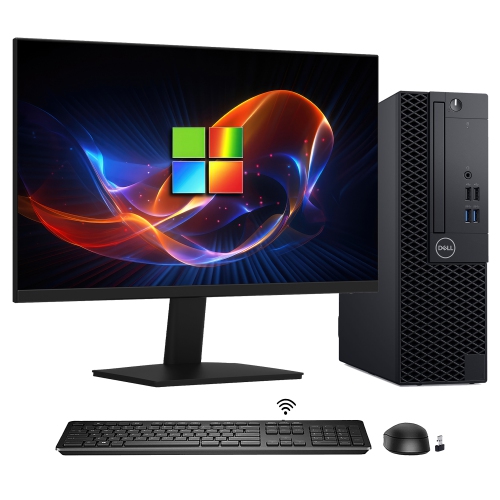
Business desktop computers are built around the everyday work that fills a home office, reception desk, or study space: opening documents, managing email, joining video calls, and keeping several browser tabs within reach. Their appeal lies in a practical combination of desktop performance, straightforward connections, and chassis sizes suited to different workspaces. Tower, small form factor, and micro designs serve similar purposes but differ substantially in how much room they occupy and what can fit inside. A tower usually offers more space for internal drives and expansion cards, making it a useful fit for a desk with a dedicated computer shelf. A small form factor desktop reduces the footprint while retaining some internal expansion options, although compatible cards may need low-profile brackets and must fit the system’s power limits. A micro desktop is easier to position beside a monitor or beneath a counter, and some support mounting behind a display with a compatible bracket. That compact shape generally means fewer internal upgrade options and an external power adapter. Metal chassis panels and moulded plastic front sections are common across business desktops, providing a sturdy enclosure without adding decorative bulk. For someone handling invoices at a small business, writing assignments at home, or organizing household paperwork, the most useful design is often the one that fits comfortably into an existing routine. A front-facing USB port can make transferring files less awkward, while an accessible audio connection keeps a wired headset close at hand. Placement matters just as much as size: a computer tucked into a tightly enclosed cupboard can be harder to connect, clean, and ventilate than one positioned on an open shelf. These systems are primarily intended for stationary use with a separate monitor, keyboard, and mouse, allowing the screen height and input devices to be arranged independently for a comfortable working position. Their understated appearance also suits shared spaces where the computer needs to support the work rather than dominate the room.
Performance in this desktop category depends on the exact processor, memory, and storage configuration rather than the enclosure alone. Systems built around ninth-generation processors can be well suited to document editing, web-based applications, bookkeeping, and other routine office workloads, but processor tier and core count still influence how smoothly several tasks run together. Memory provides working space for active applications. An 8GB configuration may suit lighter use, while 16GB gives more breathing room when a spreadsheet, a video meeting, and multiple browser windows are open at once. Larger workloads may call for more memory, subject to the motherboard’s supported capacity and the number of accessible slots. DDR4 memory is common in desktops from this generation, although compatible module sizes and formats differ between chassis designs. Storage has a separate role: it holds the operating system, applications, and saved files. A solid state drive helps a desktop start up and open applications promptly, while its capacity determines how much can be stored locally. A 128GB drive leaves considerably less space for files and software than a 512GB or 1TB drive, particularly once operating system files and updates are included. For a household digitizing paperwork or a business keeping years of documents, storage capacity and a separate backup arrangement both deserve attention. Integrated graphics generally suit office applications, video playback, and everyday display use; demanding games, complex three-dimensional work, and intensive video editing have different requirements. A dedicated graphics card is not a universal upgrade, especially in micro systems, and larger enclosures still impose limits through their power supply, card clearance, and expansion slots. Software compatibility is equally important. Support for an operating system depends on the exact hardware, firmware settings, and software requirements, not simply on whether the desktop powers on and runs familiar applications. For work involving specialist accounting software, accessibility tools, or a particular video meeting platform, matching those requirements to the listed configuration provides a clearer picture of suitability than a broad performance label.
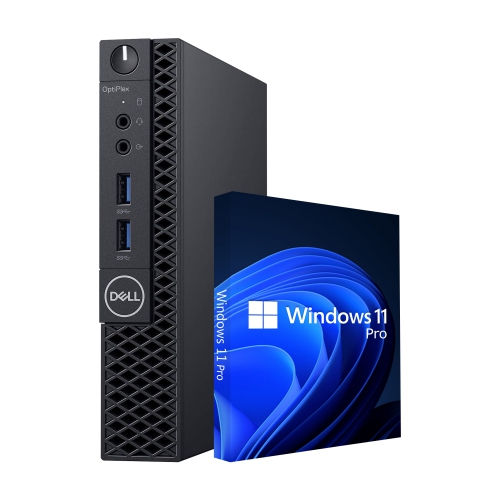
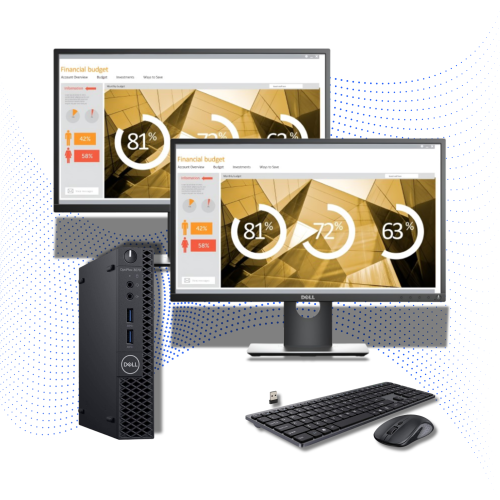
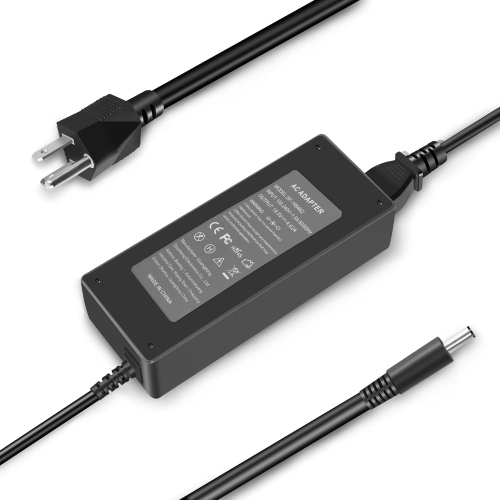
Connections, condition, and included accessories help determine how readily a business desktop fits into an established setup. DisplayPort and HDMI connections can support modern monitors, but the presence and number of each connection vary by configuration. A two-screen workstation needs compatible display outputs and support for the intended resolutions, along with the correct cables or adapters. USB connections serve keyboards, mice, printers, webcams, and external storage, with faster ports offering an advantage when moving large files to a compatible drive. Wired Ethernet provides a direct network connection for a fixed workstation, while Wi-Fi and Bluetooth may require installed hardware or a separate adapter. These details matter in ordinary situations: a student working across the room from a router needs a suitable network connection, and a reception desk using a wireless headset needs compatible audio hardware. Built-in speakers, where present, are not a substitute for checking whether a microphone, webcam, or headset is needed for calls. For refurbished desktops, cosmetic condition, testing details, warranty coverage, and the supplied operating system are meaningful parts of the description. Marks on an outer panel are different from damage to a port or a loose connector, and a complete setup may still require a monitor and other peripherals. Micro designs also need the correct external power adapter, while any included mounting hardware should match the intended installation. Related business desktop families, including Dell Optiplex 7050, can be assessed on the same practical factors: processor generation, chassis size, memory, storage, connections, and software support. Long-term care is generally straightforward. Clear ventilation openings, secure cable routing, and a stable surface help protect a desktop during daily use. Exterior cleaning with a soft cloth, following the manufacturer’s instructions and disconnecting power beforehand, helps keep dust from accumulating around accessible openings. Internal servicing requires the correct procedures and compatible parts. With a configuration matched to the workload, a business desktop can provide a practical centre for focused study, household administration, or day-to-day office tasks without taking up more workspace than necessary.
Performance in this desktop category depends on the exact processor, memory, and storage configuration rather than the enclosure alone. Systems built around ninth-generation processors can be well suited to document editing, web-based applications, bookkeeping, and other routine office workloads, but processor tier and core count still influence how smoothly several tasks run together. Memory provides working space for active applications. An 8GB configuration may suit lighter use, while 16GB gives more breathing room when a spreadsheet, a video meeting, and multiple browser windows are open at once. Larger workloads may call for more memory, subject to the motherboard’s supported capacity and the number of accessible slots. DDR4 memory is common in desktops from this generation, although compatible module sizes and formats differ between chassis designs. Storage has a separate role: it holds the operating system, applications, and saved files. A solid state drive helps a desktop start up and open applications promptly, while its capacity determines how much can be stored locally. A 128GB drive leaves considerably less space for files and software than a 512GB or 1TB drive, particularly once operating system files and updates are included. For a household digitizing paperwork or a business keeping years of documents, storage capacity and a separate backup arrangement both deserve attention. Integrated graphics generally suit office applications, video playback, and everyday display use; demanding games, complex three-dimensional work, and intensive video editing have different requirements. A dedicated graphics card is not a universal upgrade, especially in micro systems, and larger enclosures still impose limits through their power supply, card clearance, and expansion slots. Software compatibility is equally important. Support for an operating system depends on the exact hardware, firmware settings, and software requirements, not simply on whether the desktop powers on and runs familiar applications. For work involving specialist accounting software, accessibility tools, or a particular video meeting platform, matching those requirements to the listed configuration provides a clearer picture of suitability than a broad performance label.
Connections, condition, and included accessories help determine how readily a business desktop fits into an established setup. DisplayPort and HDMI connections can support modern monitors, but the presence and number of each connection vary by configuration. A two-screen workstation needs compatible display outputs and support for the intended resolutions, along with the correct cables or adapters. USB connections serve keyboards, mice, printers, webcams, and external storage, with faster ports offering an advantage when moving large files to a compatible drive. Wired Ethernet provides a direct network connection for a fixed workstation, while Wi-Fi and Bluetooth may require installed hardware or a separate adapter. These details matter in ordinary situations: a student working across the room from a router needs a suitable network connection, and a reception desk using a wireless headset needs compatible audio hardware. Built-in speakers, where present, are not a substitute for checking whether a microphone, webcam, or headset is needed for calls. For refurbished desktops, cosmetic condition, testing details, warranty coverage, and the supplied operating system are meaningful parts of the description. Marks on an outer panel are different from damage to a port or a loose connector, and a complete setup may still require a monitor and other peripherals. Micro designs also need the correct external power adapter, while any included mounting hardware should match the intended installation. Related business desktop families, including Dell Optiplex 7050, can be assessed on the same practical factors: processor generation, chassis size, memory, storage, connections, and software support. Long-term care is generally straightforward. Clear ventilation openings, secure cable routing, and a stable surface help protect a desktop during daily use. Exterior cleaning with a soft cloth, following the manufacturer’s instructions and disconnecting power beforehand, helps keep dust from accumulating around accessible openings. Internal servicing requires the correct procedures and compatible parts. With a configuration matched to the workload, a business desktop can provide a practical centre for focused study, household administration, or day-to-day office tasks without taking up more workspace than necessary.
Top selling and popular products
-
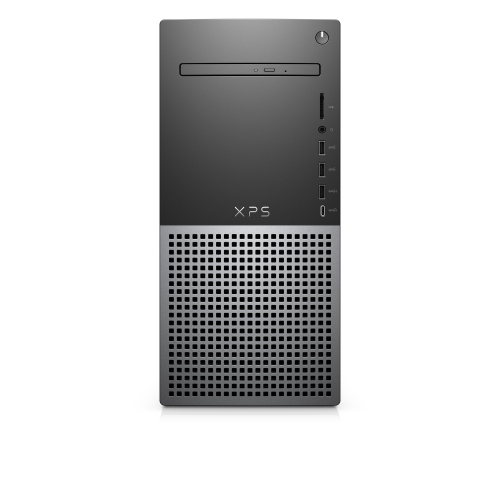 Your price for this item is $1599
 -
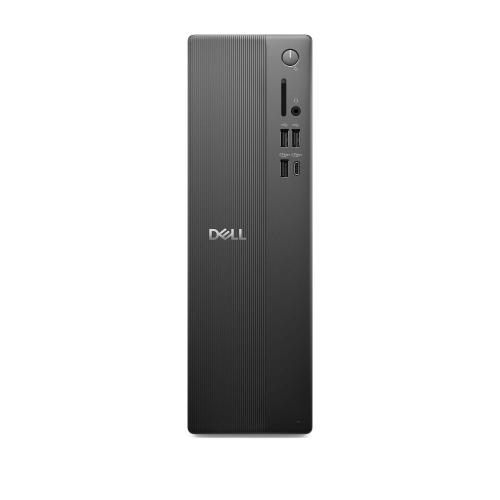 Your price for this item is $1629.79
 -
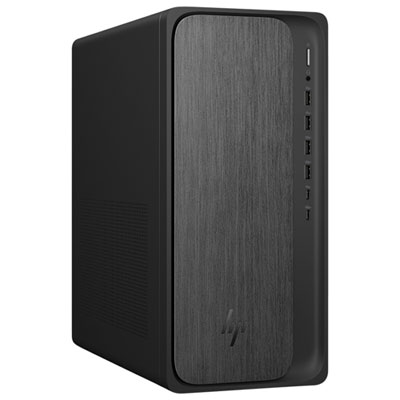 Your price for this item is $1999.99
 -
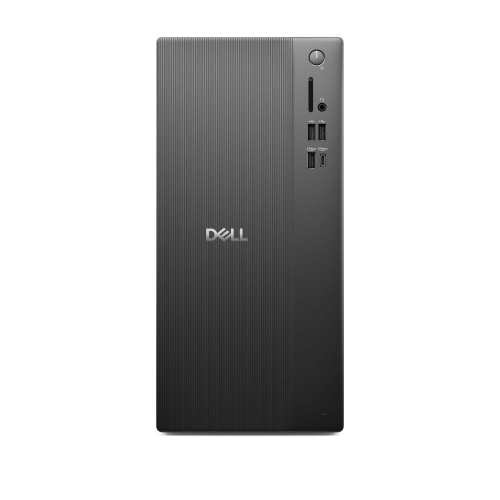 Your price for this item is $1459.79
 -
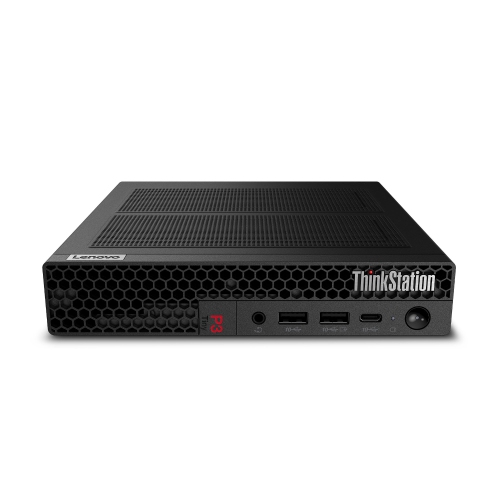 Your price for this item is $879
 -
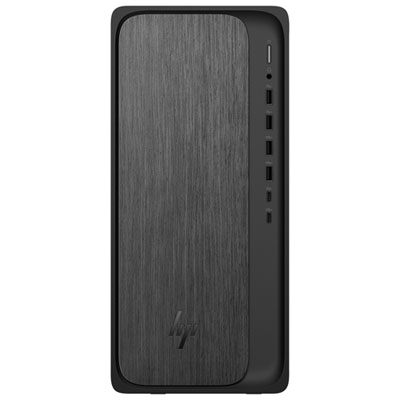 Your price for this item is $1199.99
 -
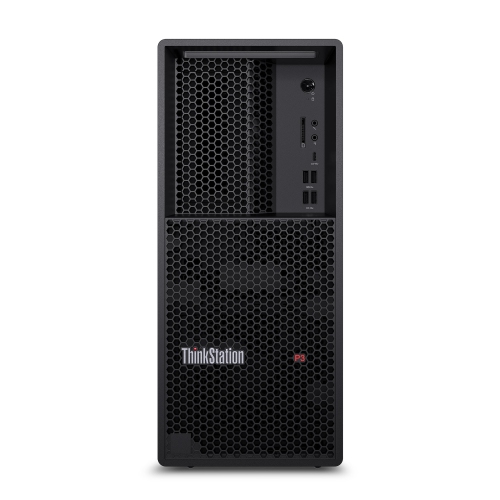 Your price for this item is $1839
 -
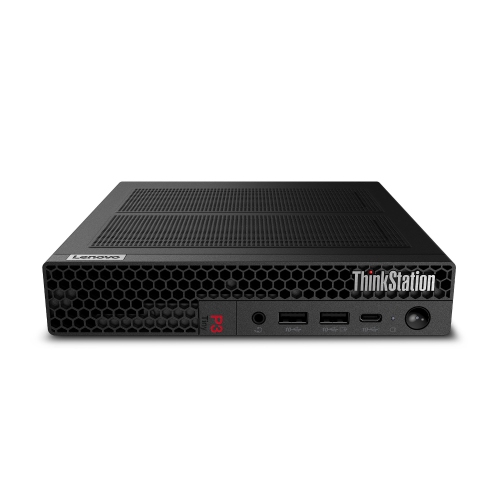 Your price for this item is $879
Discover more categories related to Dell OptiPlex 3070
Top Collections:
Pokemon Centers, Kindle Devices, Best Budget Office Chairs, Apple iPhones 16, Best Laptops for Writers, iPhone 15 Apple, Canon G7X Cameras, Refurbished Apple Laptops, Alarm Clock, Motorola Razr Phones
Some products may be subject to Environmental Handling Fees
(EHF) depending on your province.
Learn more about EHFs.