Desktop Computers For Home Study And Remote Learning
Desktop computers for home study and remote learning provide a reliable solution for students and professionals who need a dedicated workspace at home. With a range of models designed to handle everyday tasks, these desktop computers offer the performance and versatility needed for virtual classes, homework assignments, video conferencing, and more. Whether setting up a new study area or upgrading an existing one, exploring the selection of desktop computers for home study and remote learning can help create an efficient and comfortable space for productivity.
Sort



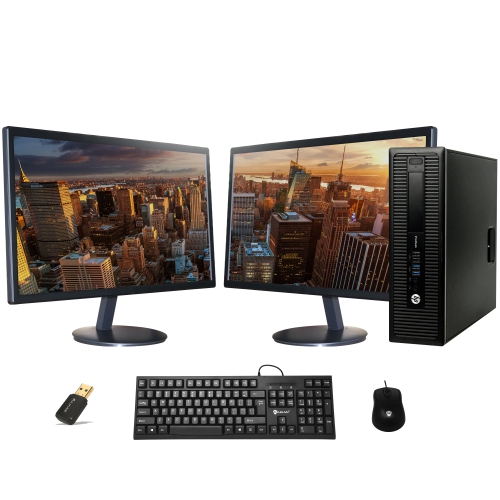
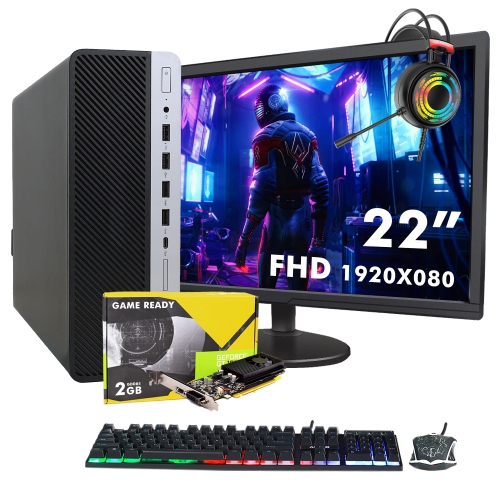
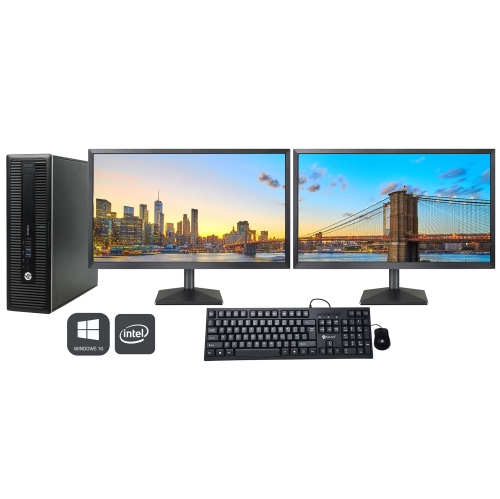
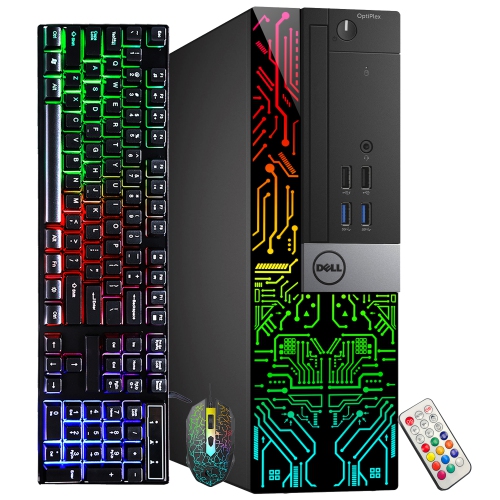


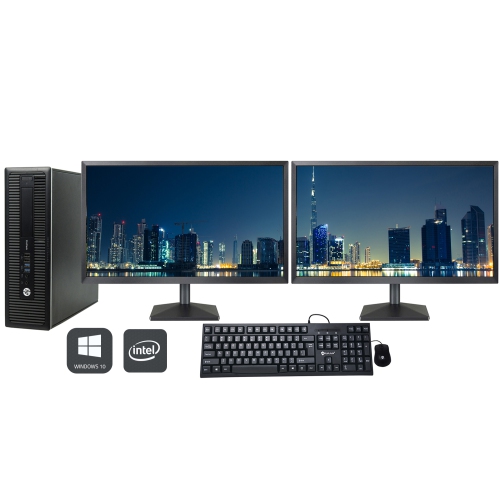
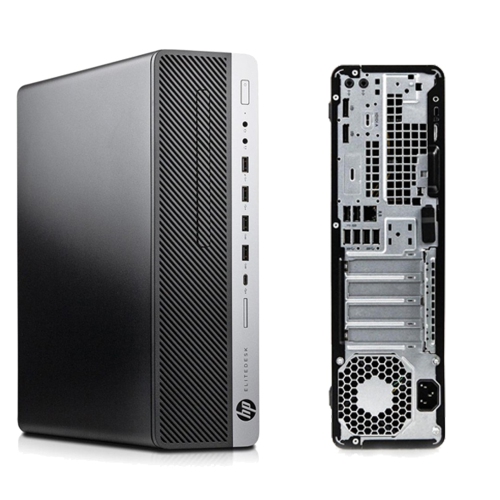
A dependable study setup takes more than processing power
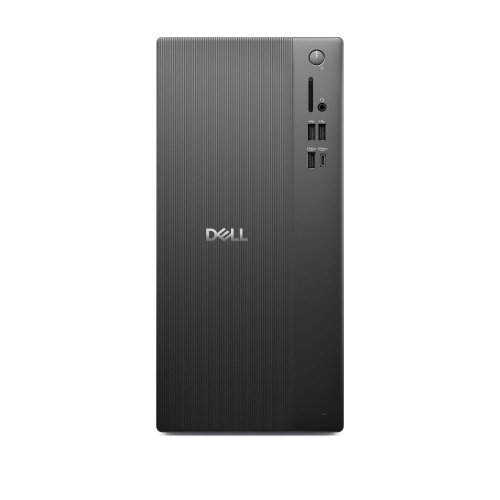
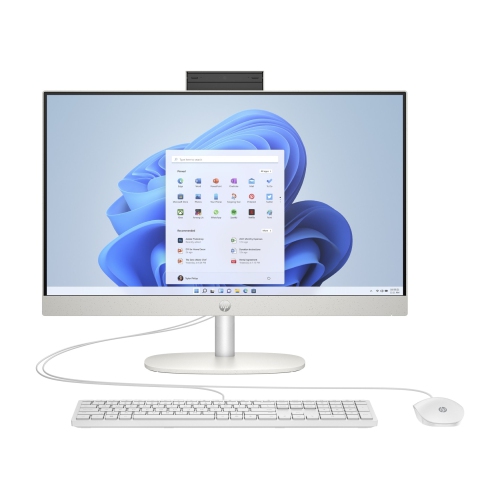
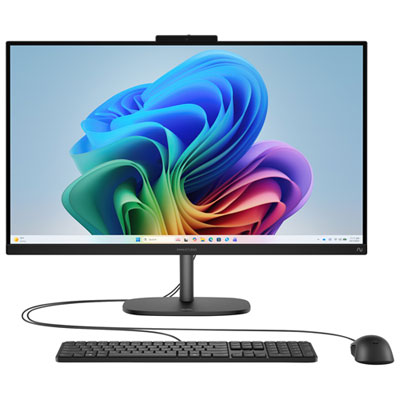
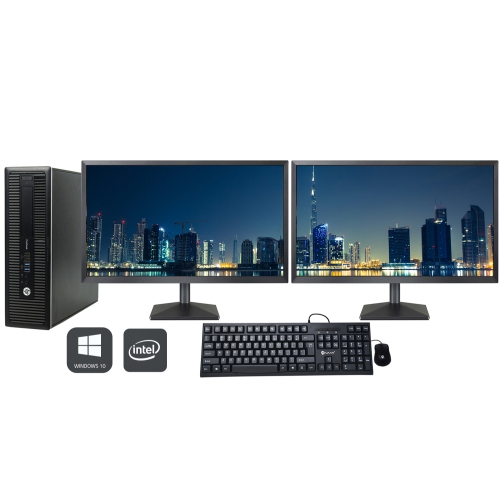
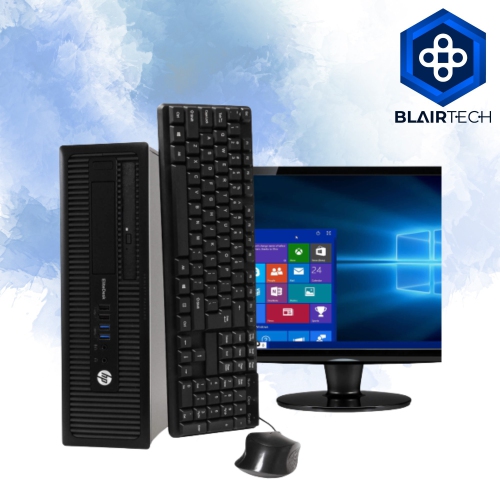
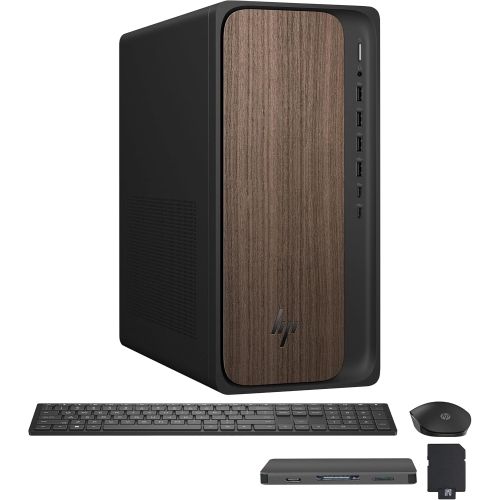
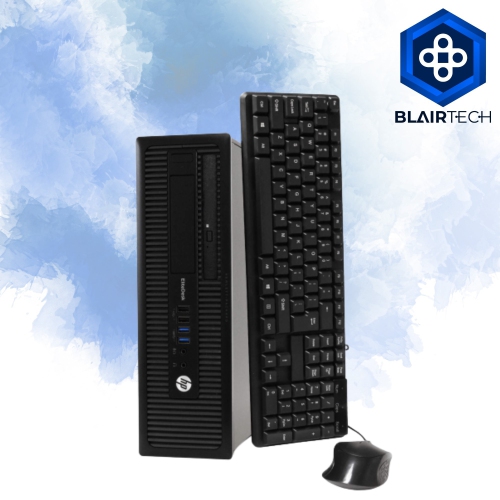
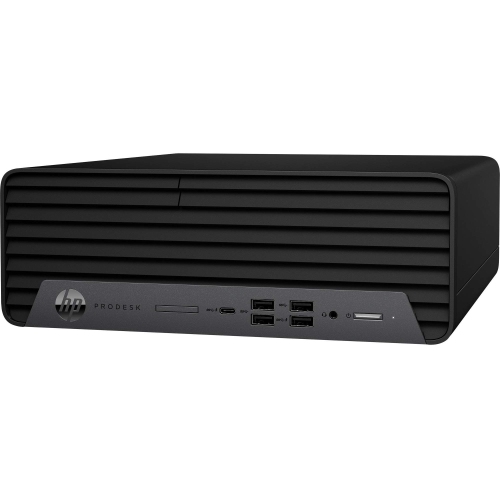
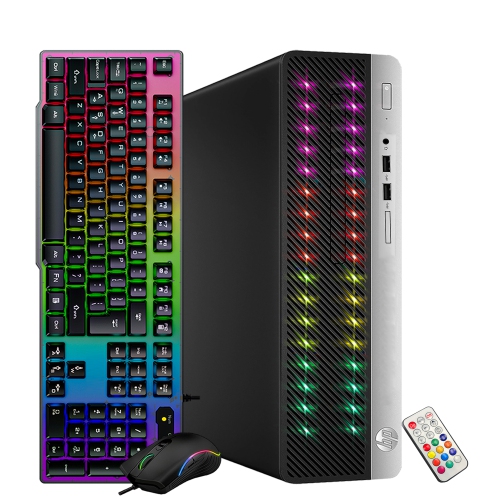
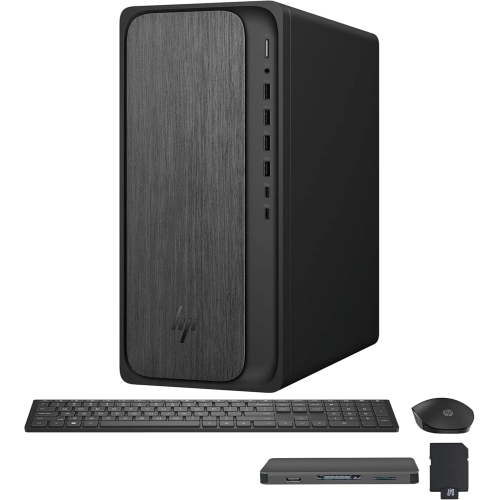
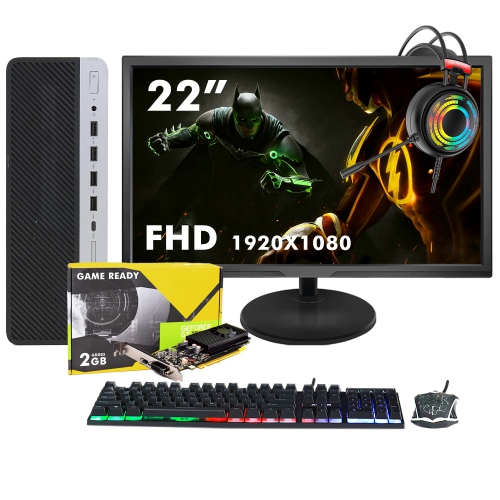
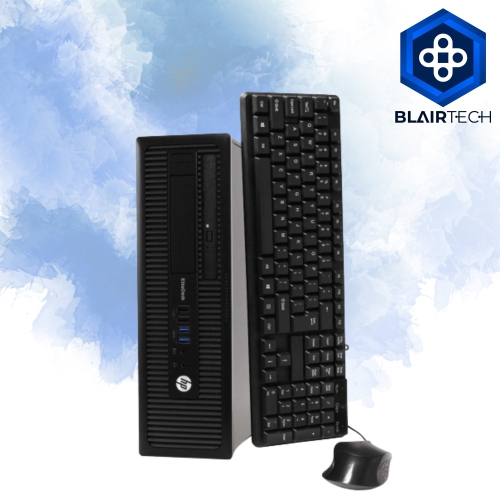
Desktop computers for home study and remote learning provide a dedicated place for lessons, research, assignments, and face-to-face conversations with teachers or classmates. A fixed workstation keeps the screen, keyboard, and learning materials ready between sessions, whether a younger student is practising reading with a parent nearby or a university student is moving between lecture recordings and written coursework. The main desktop formats suit different spaces and habits. A traditional tower connects to a separate monitor and can offer flexibility in screen size, accessory connections, and future upgrades, depending on its design. An all-in-one desktop places the main computer components behind the display, reducing the number of separate pieces on the work surface. A compact desktop occupies less space than a full-size tower but still needs a compatible display and input devices. None of these formats automatically includes every accessory needed for online classes, so the listed specifications matter, particularly for cameras, microphones, speakers, keyboards, and mice. Physical fit matters just as much as appearance: a tower needs room for ventilation and accessible connections, while an all-in-one needs enough desktop depth for a comfortable viewing distance. A stable work surface can accommodate the computer alongside a notebook, textbook, or drawing pad without leaving the keyboard balanced at the edge. For shared family spaces, a smaller chassis and tidy cable routing can make it easier to keep study materials organized. In a dedicated study area, a separate monitor may allow more freedom to adjust screen height or expand to a second display later. Desktop computers can support elementary schoolwork, secondary school assignments, distance education, adult upgrading, and professional certification programs. The most suitable configuration reflects the actual work involved, from browser-based activities and video calls to programming, design, and technical coursework. A dependable study setup is less about having the most powerful hardware and more about matching the computer to daily lessons, required software, and the space where learning happens.
Performance becomes noticeable when several activities overlap: a live lesson is playing, a shared document is open, and a collection of research tabs sits beside a presentation. A modern multi-core processor and sufficient memory help a desktop handle these tasks together. For regular video classes, document editing, and browser multitasking, 16GB of RAM is a practical starting point; demanding creative applications, large datasets, or virtual machines may call for more. Course software requirements remain the clearest reference for specialized study, particularly when a program specifies a processor class, memory capacity, operating system, or graphics capability. Integrated graphics can be suitable for everyday coursework and video playback, while some 3D design, animation, and engineering applications benefit from dedicated graphics. A solid-state drive, or SSD, helps the computer start up and open applications quickly, although actual speed depends on the complete system. Storage needs grow with downloaded lectures, media projects, and locally saved files; a 512GB SSD may suit document-focused study, while larger capacities provide more room for substantial project folders. Separate backups remain important regardless of drive size. Screen space also shapes the experience. A 24-inch to 27-inch display can provide room for a lesson window beside notes, with resolution, text scaling, and viewing distance affecting readability. A larger screen is not automatically clearer if text appears too small at its default settings. For remote learning, a clear webcam, an intelligible microphone, and comfortable audio make participation easier, but these features are not built into every desktop or monitor. Headphones can help a student hear spoken instructions in a shared room, while a microphone mute control is useful during group calls. Wi-Fi offers flexible placement, and an Ethernet connection can provide a stable wired link where cabling is practical. Neither replaces the need for a suitable internet connection. Accessible USB ports, compatible display outputs, and Bluetooth support, where included, help connect the accessories used throughout the school day.
Comfort, care, and household routines help a desktop remain useful beyond a single course. The screen should be positioned so the student can read without leaning forward, with the keyboard and mouse close enough to use while keeping the shoulders relaxed. Adjustable seating and screen placement are especially helpful when different family members share the same computer. A full-size keyboard may suit extended essays and data entry, while a smaller keyboard can leave more room for a mouse or handwritten notes. Accessibility features such as text enlargement, dictation, captions, and alternative input devices can also influence which operating system and accessories fit a learner’s needs. Separate user accounts help keep each person’s files and settings distinct, and appropriate account permissions can reduce accidental changes on a shared machine. Families planning structured lessons at home can also explore Desktop Computers for Homeschooling for a closely related selection. For long-term ownership, chassis construction and service access deserve attention alongside processing power. Desktop housings commonly use metal, plastic, or a combination of both; secure panels, sturdy stands, and well-supported connections matter more in daily use than a finish alone. Upgrade options vary considerably, and compact systems or all-in-one designs may have limited access to memory, storage, or other internal components. Checking those details helps set realistic expectations as coursework changes. Routine care is straightforward: keep ventilation openings clear, leave the clearance specified by the manufacturer, and remove surface dust using the recommended method. Cleaning liquid should not be sprayed directly onto the screen or chassis, and drinks are best kept away from keyboards and connection points. Software updates, account security, and regular file backups support dependable use alongside physical care. A desktop can also be a thoughtful gift for a student beginning a new stage of study, provided it matches their course requirements and existing accessories. With the right fit, a home computer becomes a consistent place to join discussions, work through difficult concepts, and return to unfinished assignments without rebuilding the setup each day.
Performance becomes noticeable when several activities overlap: a live lesson is playing, a shared document is open, and a collection of research tabs sits beside a presentation. A modern multi-core processor and sufficient memory help a desktop handle these tasks together. For regular video classes, document editing, and browser multitasking, 16GB of RAM is a practical starting point; demanding creative applications, large datasets, or virtual machines may call for more. Course software requirements remain the clearest reference for specialized study, particularly when a program specifies a processor class, memory capacity, operating system, or graphics capability. Integrated graphics can be suitable for everyday coursework and video playback, while some 3D design, animation, and engineering applications benefit from dedicated graphics. A solid-state drive, or SSD, helps the computer start up and open applications quickly, although actual speed depends on the complete system. Storage needs grow with downloaded lectures, media projects, and locally saved files; a 512GB SSD may suit document-focused study, while larger capacities provide more room for substantial project folders. Separate backups remain important regardless of drive size. Screen space also shapes the experience. A 24-inch to 27-inch display can provide room for a lesson window beside notes, with resolution, text scaling, and viewing distance affecting readability. A larger screen is not automatically clearer if text appears too small at its default settings. For remote learning, a clear webcam, an intelligible microphone, and comfortable audio make participation easier, but these features are not built into every desktop or monitor. Headphones can help a student hear spoken instructions in a shared room, while a microphone mute control is useful during group calls. Wi-Fi offers flexible placement, and an Ethernet connection can provide a stable wired link where cabling is practical. Neither replaces the need for a suitable internet connection. Accessible USB ports, compatible display outputs, and Bluetooth support, where included, help connect the accessories used throughout the school day.
Comfort, care, and household routines help a desktop remain useful beyond a single course. The screen should be positioned so the student can read without leaning forward, with the keyboard and mouse close enough to use while keeping the shoulders relaxed. Adjustable seating and screen placement are especially helpful when different family members share the same computer. A full-size keyboard may suit extended essays and data entry, while a smaller keyboard can leave more room for a mouse or handwritten notes. Accessibility features such as text enlargement, dictation, captions, and alternative input devices can also influence which operating system and accessories fit a learner’s needs. Separate user accounts help keep each person’s files and settings distinct, and appropriate account permissions can reduce accidental changes on a shared machine. Families planning structured lessons at home can also explore Desktop Computers for Homeschooling for a closely related selection. For long-term ownership, chassis construction and service access deserve attention alongside processing power. Desktop housings commonly use metal, plastic, or a combination of both; secure panels, sturdy stands, and well-supported connections matter more in daily use than a finish alone. Upgrade options vary considerably, and compact systems or all-in-one designs may have limited access to memory, storage, or other internal components. Checking those details helps set realistic expectations as coursework changes. Routine care is straightforward: keep ventilation openings clear, leave the clearance specified by the manufacturer, and remove surface dust using the recommended method. Cleaning liquid should not be sprayed directly onto the screen or chassis, and drinks are best kept away from keyboards and connection points. Software updates, account security, and regular file backups support dependable use alongside physical care. A desktop can also be a thoughtful gift for a student beginning a new stage of study, provided it matches their course requirements and existing accessories. With the right fit, a home computer becomes a consistent place to join discussions, work through difficult concepts, and return to unfinished assignments without rebuilding the setup each day.
Top selling and popular products
-
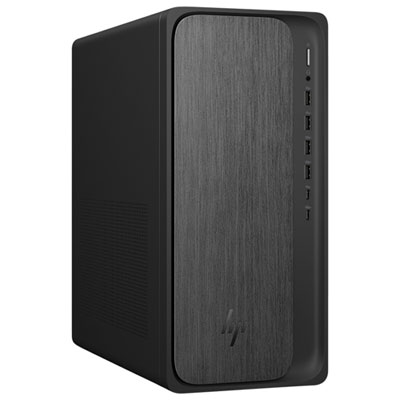 Your price for this item is $1999.99
-
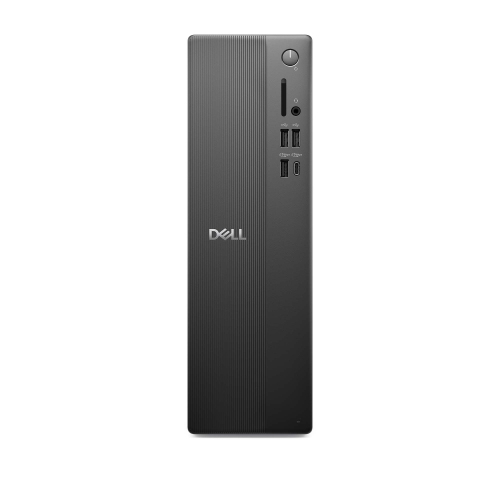 Your price for this item is $1629.79
-
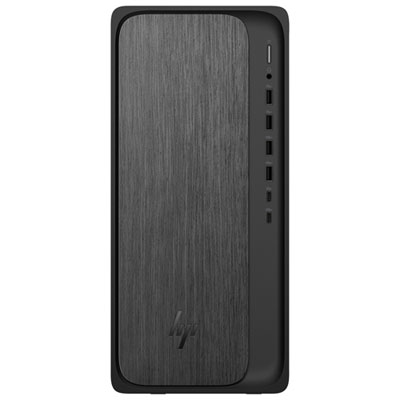 Your price for this item is $1399.99
-
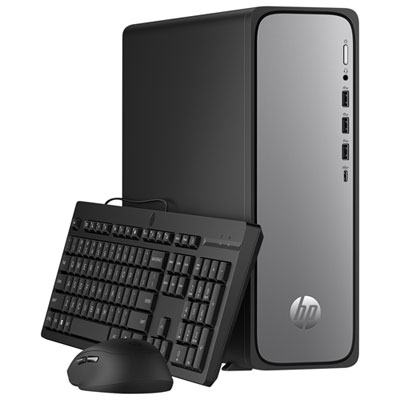 Your price for this item is $649.99
-
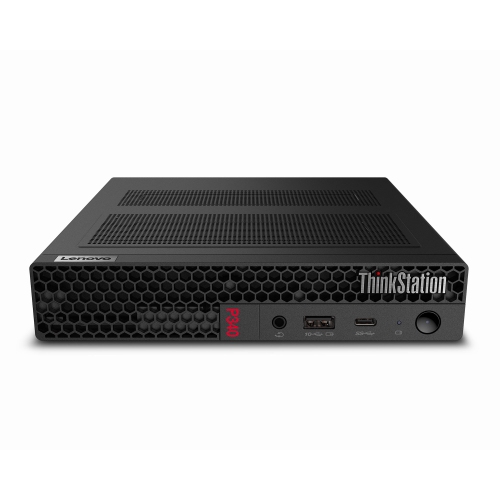 Your price for this item is $699.79
-
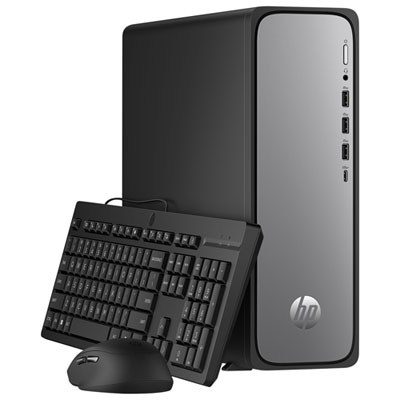 Your price for this item is $1759.99
-
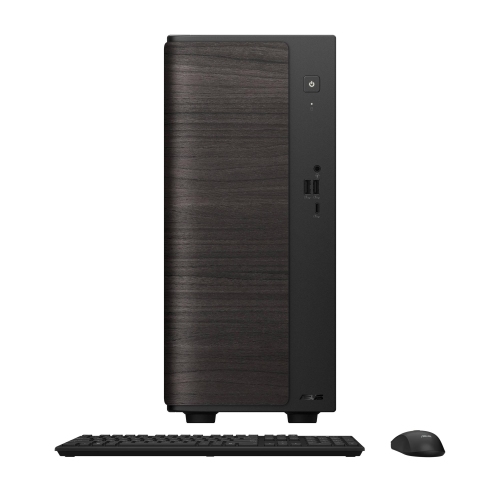 Your price for this item is $3149
-
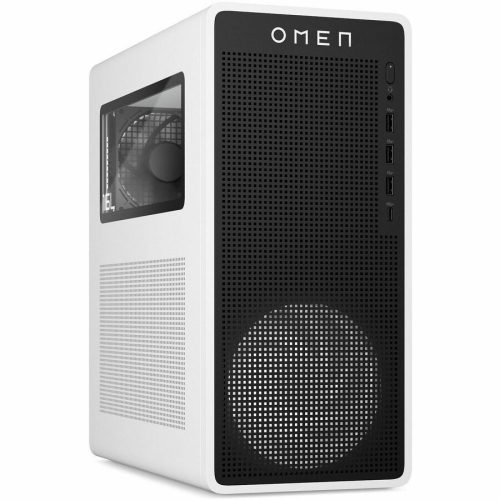 Your price for this item is $2513.59
Discover more categories related to Desktop Computers For Home Study And Remote Learning

Top Collections:
Pokemon Centers, Kindle Devices, Best Black Friday Deals This Year, Pokémon 30th Celebration Cards, Best Black Friday Deals On Electronics, Best Cameras for Sports Photography, Best Black Friday Deals On Apple Products, Canon G7X Cameras, iPhone 15 Apple, Candle Warmer Lights
Some products may be subject to Environmental Handling Fees
(EHF) depending on your province.
Learn more about EHFs.