DVI To HDMI Cables
Upgrade your home or office setup with a DVI To HDMI Cable, designed to make connecting your devices simple and efficient. Whether you’re linking monitors, projectors, or other compatible electronics, these cables provide the versatility needed for seamless video connections. Find the right DVI To HDMI Cable to support your entertainment, work, or gaming needs and enjoy easy integration across a variety of devices.
Sort
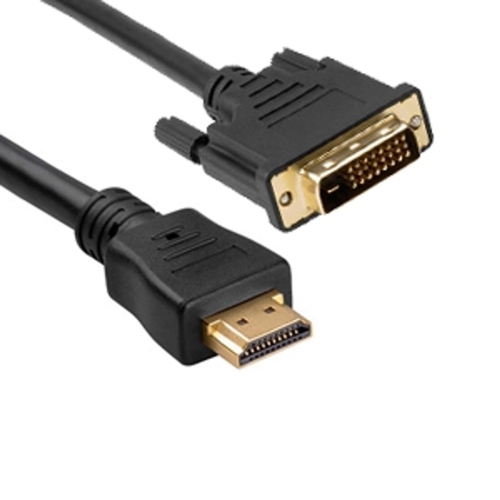

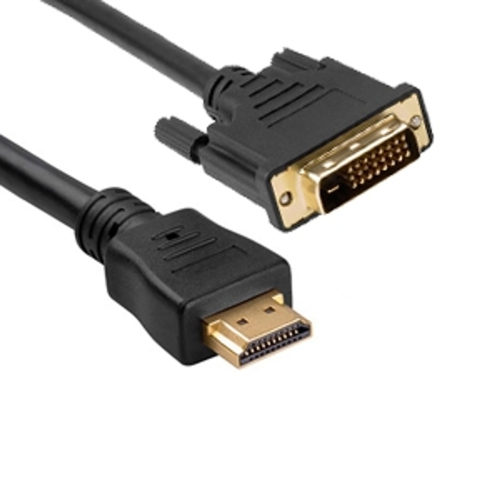
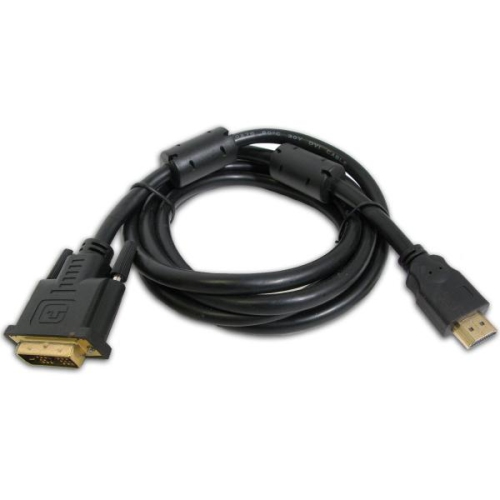
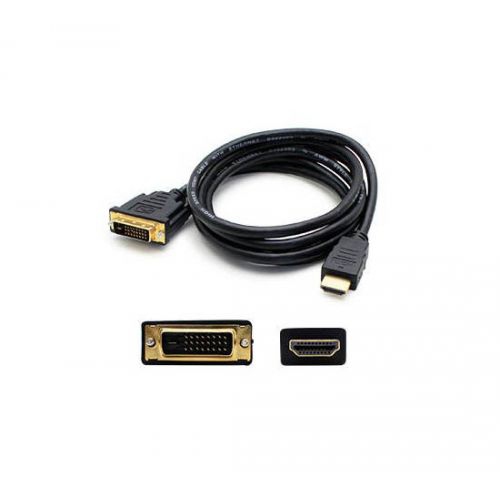
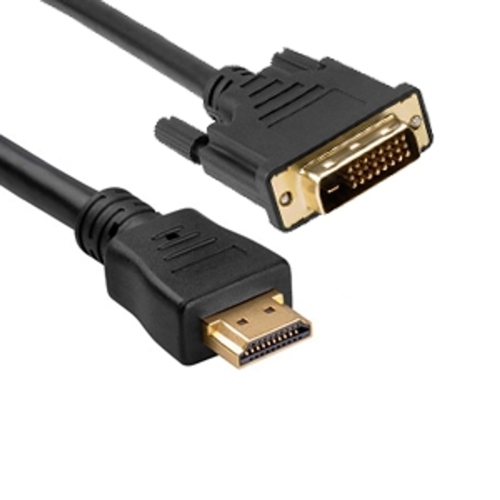
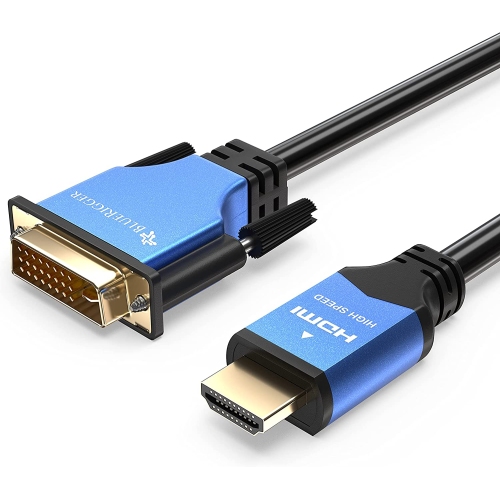
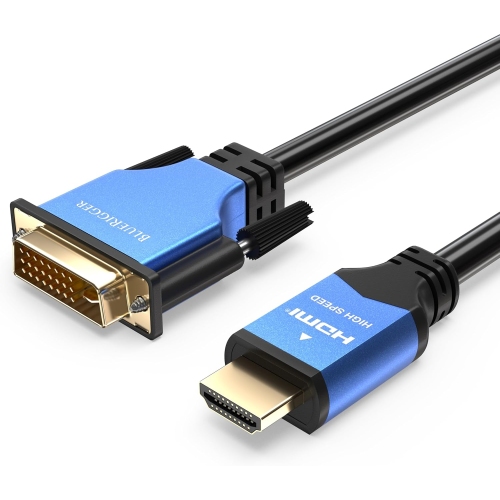
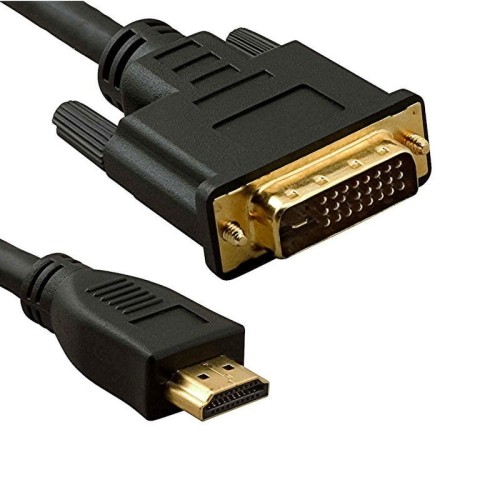

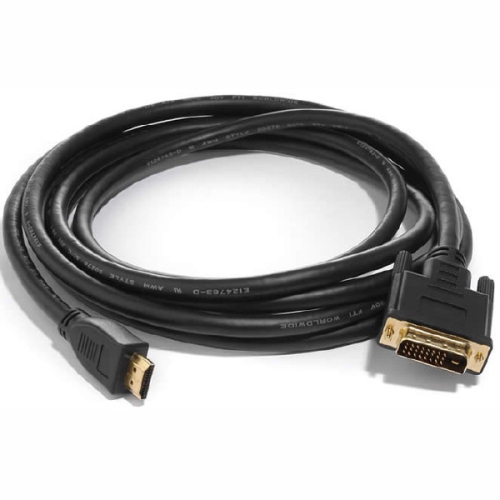
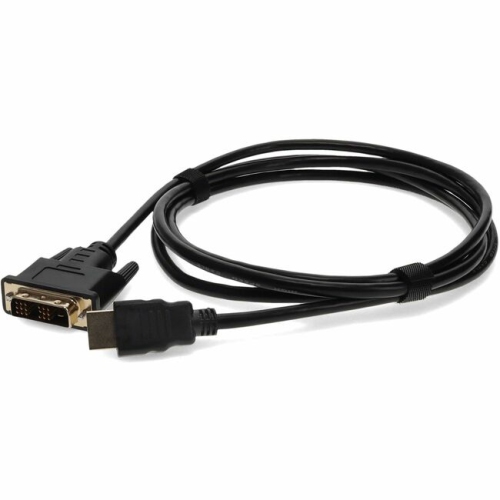
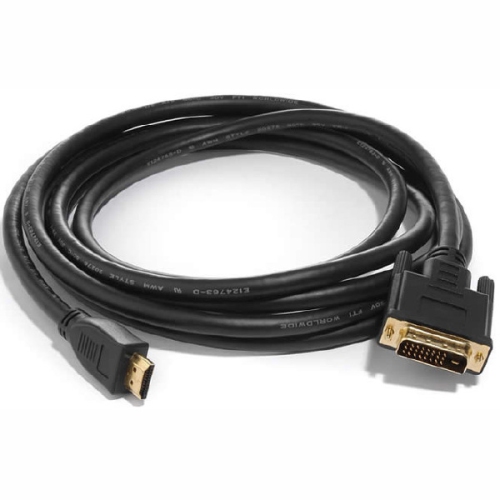
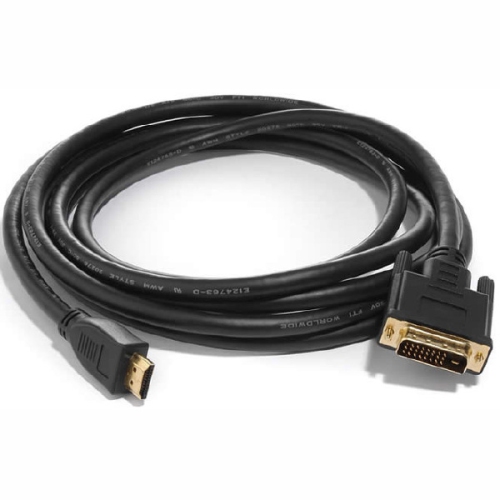

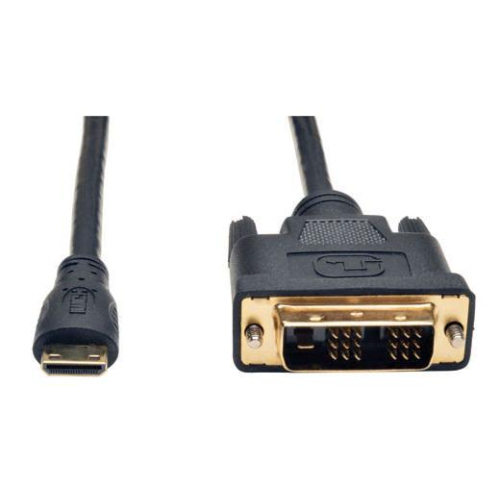
Older computers and newer displays can work together
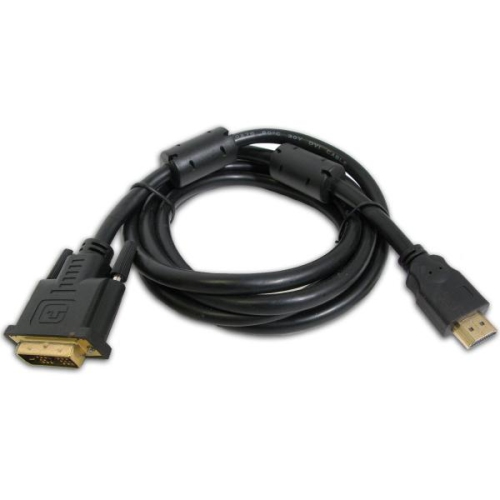
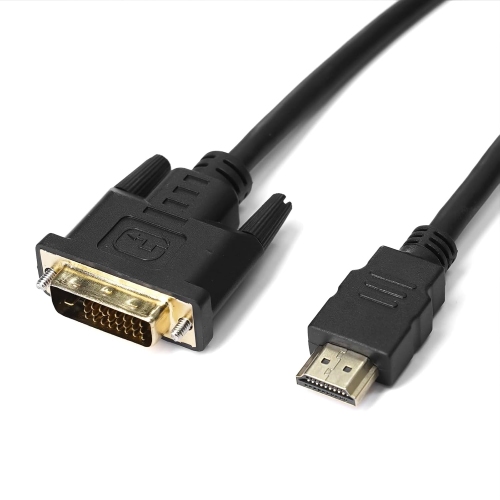
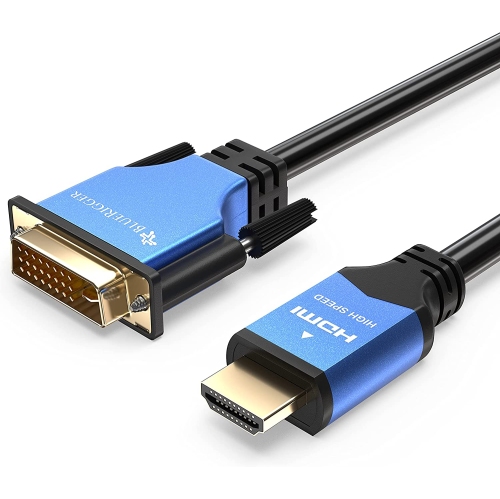
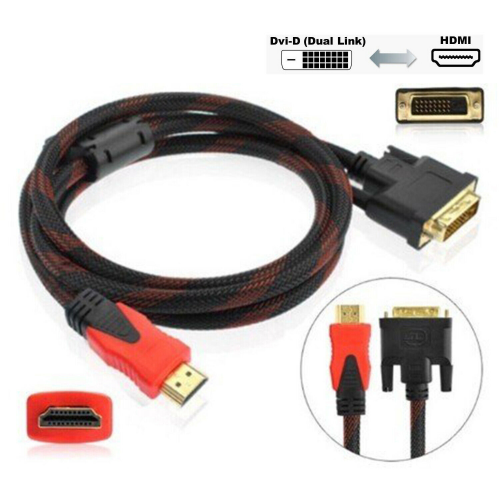
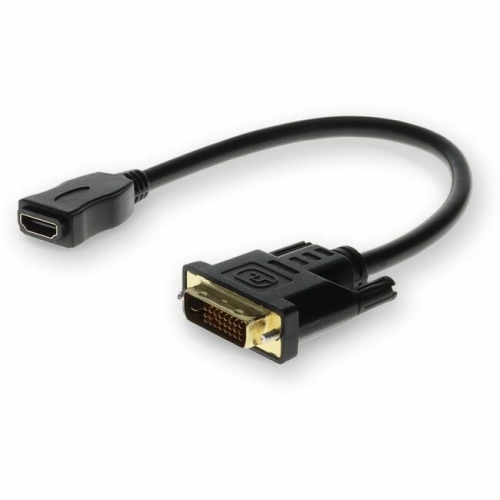
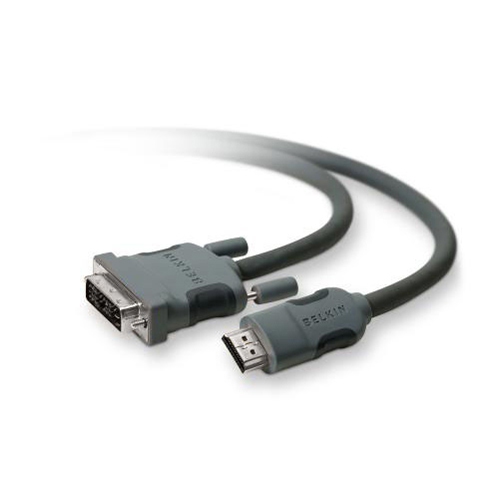
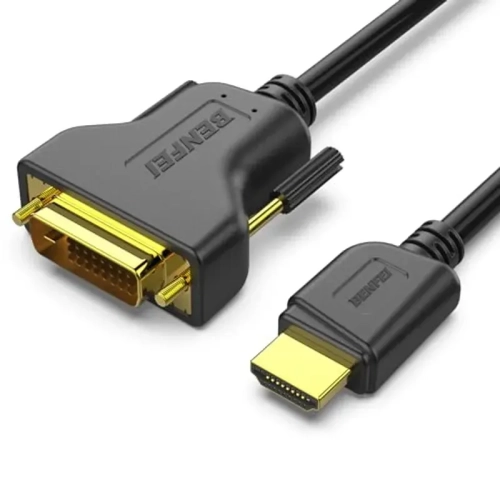
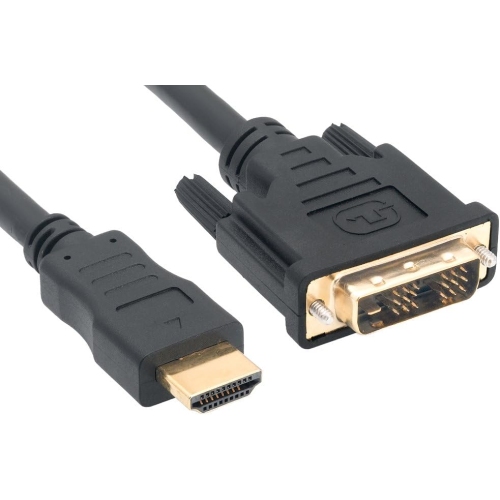
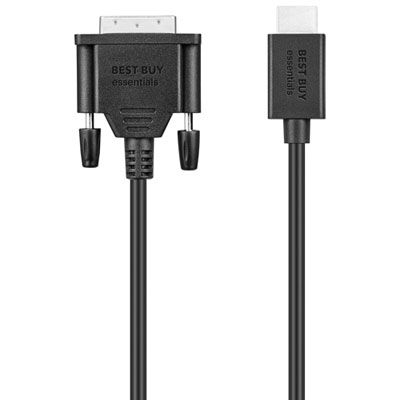
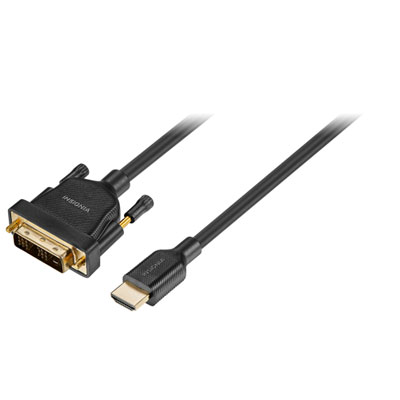
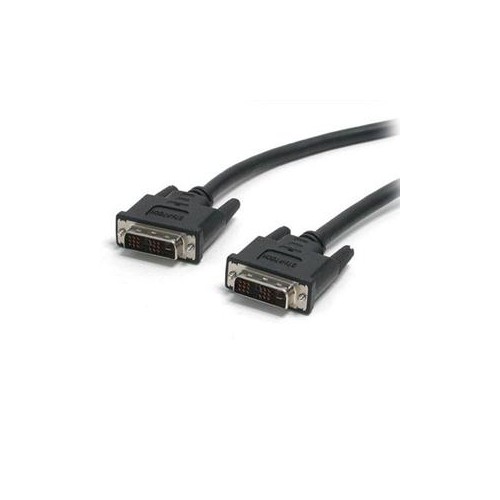
DVI-to-HDMI cables connect a digital DVI port on a computer or other video device to an HDMI port on a monitor, television or projector. They are commonly used to link an older desktop computer or graphics card to a newer display, keeping a familiar workstation useful when its connections do not match those on the screen. Many passive DVI-to-HDMI cables also work in the opposite direction, carrying video from an HDMI source to a compatible DVI display, although any stated direction requirements still matter. These cables bridge two connector types that share compatible digital video signalling; they do not add processing power or improve the resolution produced by the source. For a home office, that can mean connecting a dependable desktop to a larger monitor for spreadsheets and video calls. In a study space, it might mean using an existing DVI monitor as an additional screen for research, reference documents or coursework. The important distinction is between digital and analogue DVI connections. DVI-D carries digital video, while DVI-I can support both digital and analogue signals when the connected equipment provides them. A passive DVI-to-HDMI cable uses the digital portion of a compatible connection. DVI-A is analogue only and requires appropriate active conversion rather than a simple passive cable. Connector shape and pin layout matter as much as the port name, since a plug with additional pins may not fit every DVI socket. Most everyday connections use male plugs at both ends, but adapters, wall plates and extension arrangements can call for a different connector combination. A clear view of the ports on both devices helps distinguish the required connection from similar-looking sockets before a cable is selected. The threaded fasteners beside a DVI plug are another identifying feature: they secure the connection to matching posts, which is useful behind a desktop tower or on a monitor that is regularly repositioned.
Picture performance depends on the complete connection, including the source, display, cable and supported video settings. Full HD at 1920 by 1080 pixels and 60 Hz is a common use for DVI-to-HDMI cables, while some compatible combinations also support resolutions such as 1920 by 1200. A higher resolution or refresh rate should not be assumed simply because the HDMI device supports it. DVI single-link limitations often remain part of the connection, and a DVI plug with a full set of digital pins does not automatically provide dual-link performance through HDMI. High-refresh-rate gaming monitors and higher-resolution displays may need a different connection or a purpose-built active adapter to reach their intended settings. For office documents, browser windows and everyday video, matching the display’s native resolution helps keep small text and interface details clear. If a television trims the edges of the desktop, its picture-size or overscan settings may need adjustment; a different cable alone will not necessarily correct that behaviour. Audio is a separate consideration. Standard DVI connections are designed for video, so a typical DVI-to-HDMI setup should not be expected to carry sound, even though HDMI normally supports both picture and audio. Speakers, headphones or a separate audio connection may be needed, depending on the equipment. Some hardware supports exceptions, but that capability belongs to the devices and should not be assumed for the cable. Protected video content can also depend on compatible HDCP support across the source, connection and display. A visible desktop does not guarantee that every streaming service or protected video will play through the same setup. These distinctions are especially useful when connecting a computer to a living-room television: a sharp picture, working sound and successful playback each depend on their own part of the arrangement, rather than on the connector fit alone. A passive cable generally needs no separate power supply or driver installation, although the computer may still need its display mode, resolution or audio output adjusted.
Cable construction and physical fit make a noticeable difference in daily use, particularly where equipment sits close to a wall or inside a crowded workstation. A slim HDMI plug can be easier to fit beside neighbouring ports, while the wider DVI housing needs clearance for both its body and fastening screws. Overall connector dimensions matter when a display has recessed sockets or when several cables leave a graphics card side by side. Cable length should accommodate the actual route around a desk, down a monitor arm or behind an entertainment unit, with enough slack to avoid pulling on the ports. Excess length can be awkward to organize, while a cable stretched tightly between devices places unnecessary strain on its connectors. Longer passive runs can be more demanding for signal reliability, especially at higher supported resolutions, so the shortest practical route is often preferable. Flexible plastic jackets suit many fixed installations, and braided coverings can add resistance to everyday scuffing, although a thicker cable may be harder to route through a narrow opening. Shielding helps protect the video signal from electrical interference, while strain relief at each connector supports the area most likely to flex. Gold-plated contacts resist corrosion, but plating alone does not increase resolution or guarantee a better picture than another properly functioning digital connection. For setups that already use a suitable HDMI cable, HDMI to DVI converters may provide an adapter-based alternative, with the added connection and available clearance worth considering. During installation or removal, handling the connector housing rather than tugging the cord helps protect the internal conductors. DVI screws need only gentle tightening, and both ends should enter their sockets without force. Loose coils, gradual bends and a dry storage space help keep a spare cable ready for a presentation, a relocated desktop or an additional monitor. For students, home-office users and anyone maintaining mixed-generation equipment, a well-matched cable is a practical accessory that keeps the focus on the screen rather than the connection behind it.
Top selling and popular products
-
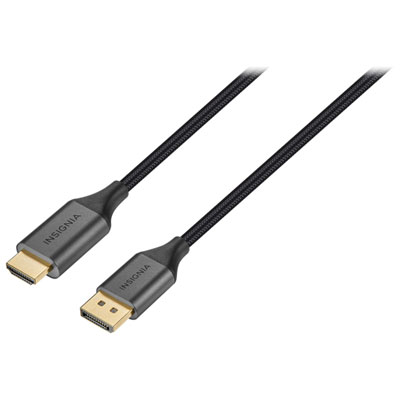 Your price for this item is $39.95
-
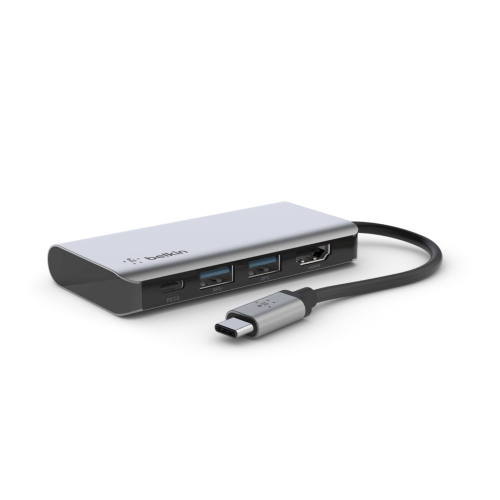 Your price for this item is $63.99
-
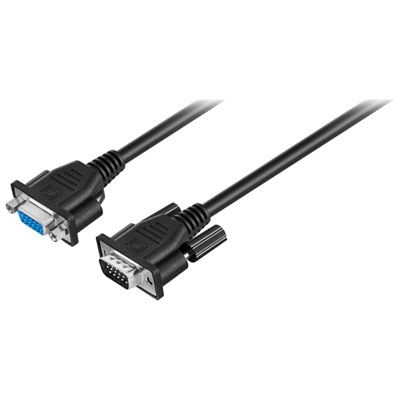 Your price for this item is $29.95
-
 Your price for this item is $14.99
-
 Your price for this item is $29.99
-
 Your price for this item is $39.99
-
 Your price for this item is $29.99
-
 Your price for this item is $29.99
Discover more categories related to DVI To HDMI Cables

Top Collections:
Best Black Friday Deals This Year, Best Black Friday Deals On Electronics, Kindle Devices, Pokemon Centers, Best Black Friday Deals On Apple Products, Best Cameras for Sports Photography, Dyson Airwrap, Pokémon 30th Celebration Cards, Apple iPhone 17 Pro, Canon G7X Cameras
Some products may be subject to Environmental Handling Fees
(EHF) depending on your province.
Learn more about EHFs.