High-Performance Monitors for Home Office
High-performance monitors for home office are essential for boosting productivity and creating a comfortable workspace. Whether you’re managing multiple projects, attending virtual meetings, or editing detailed documents, the right monitor can make a significant difference in your daily workflow. Explore a wide selection of high-performance monitors designed to deliver crisp visuals and smooth operation, helping you stay focused and efficient throughout your workday. Find the perfect fit for your home office setup and take your productivity to the next level.
Sort
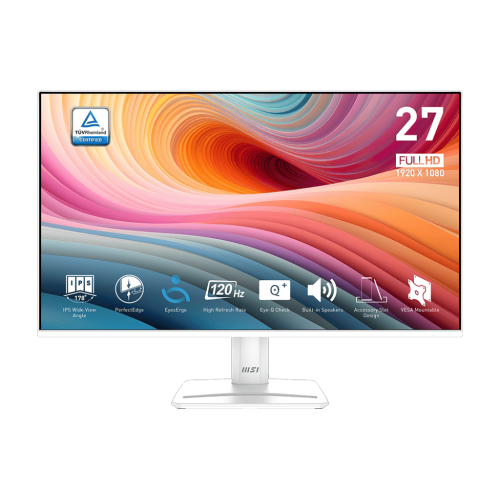
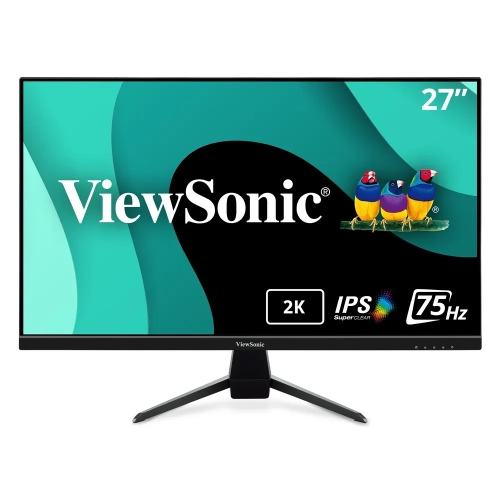
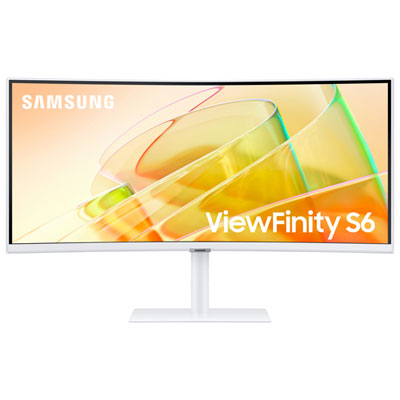


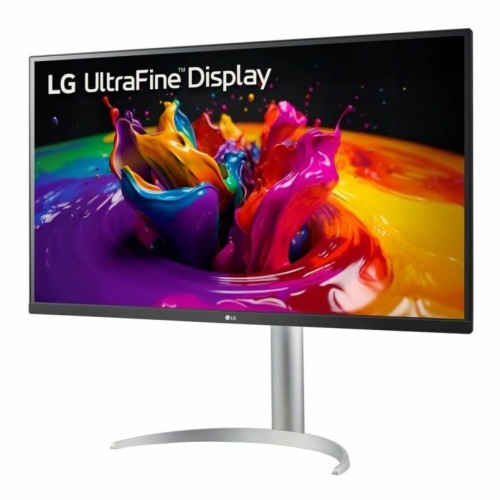
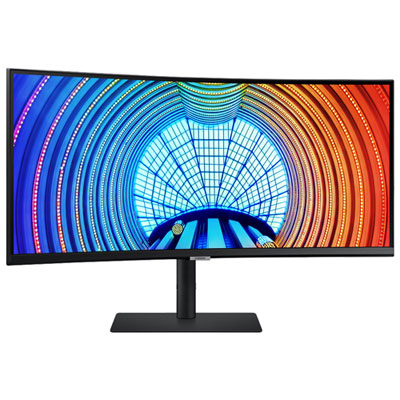
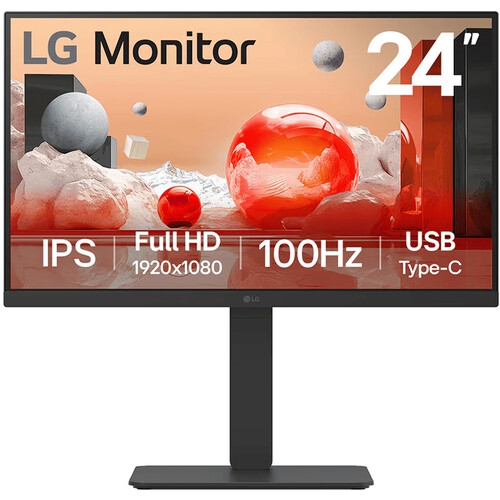
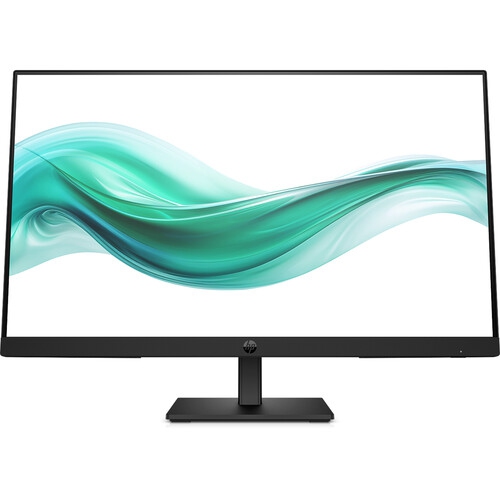
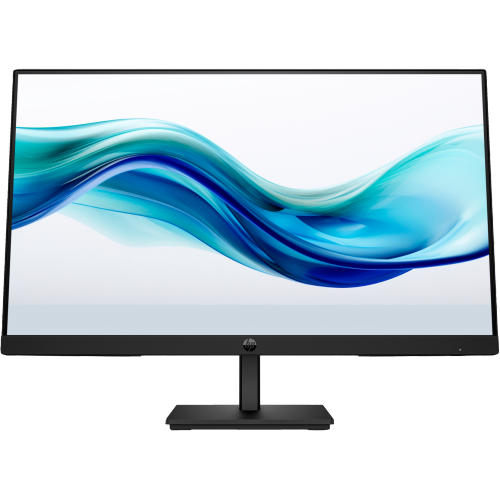
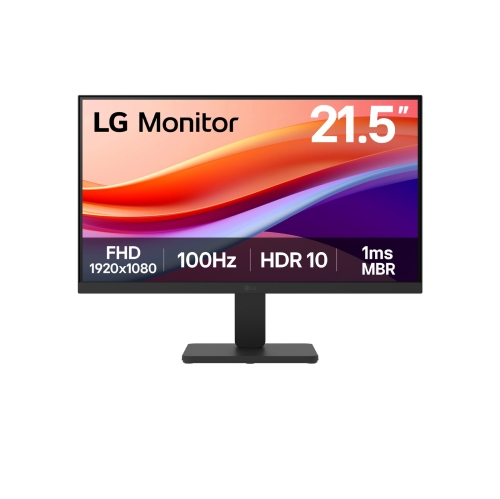
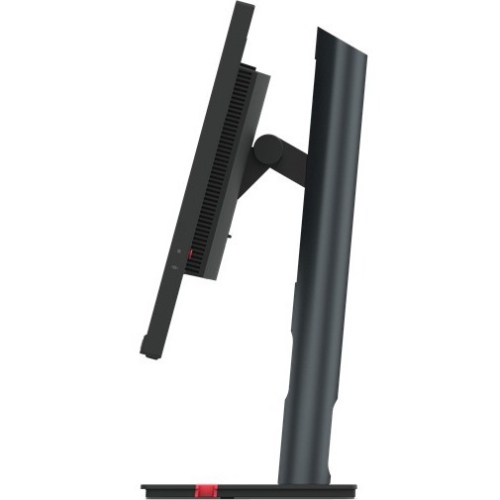
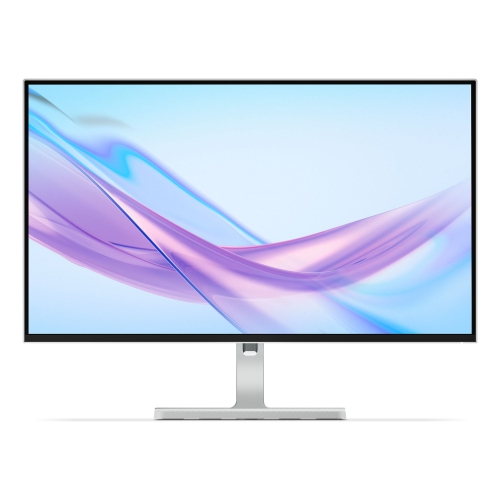

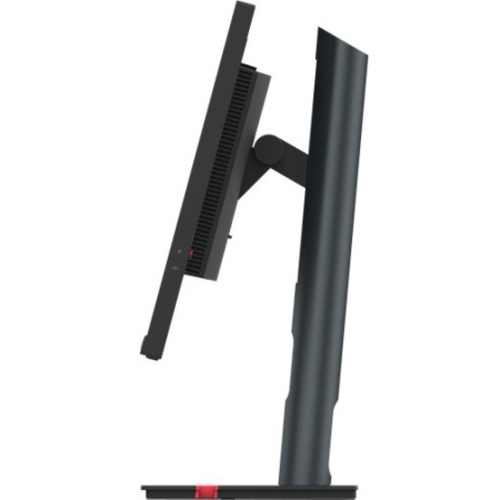
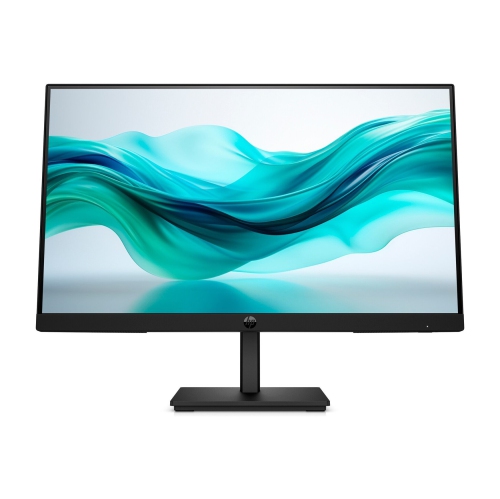
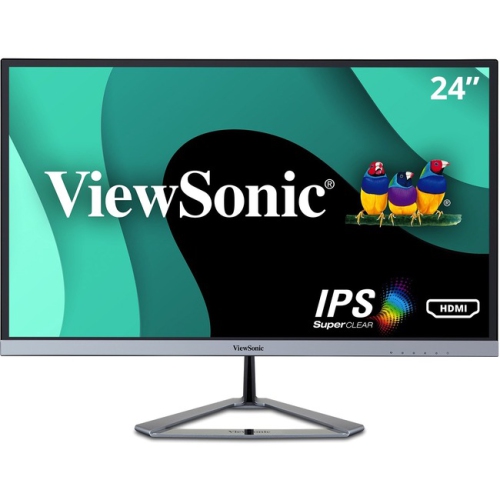
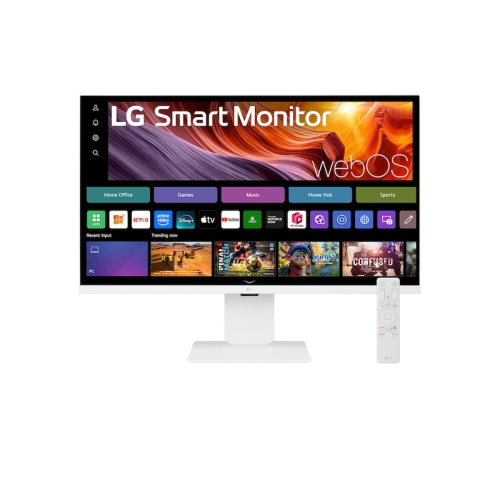

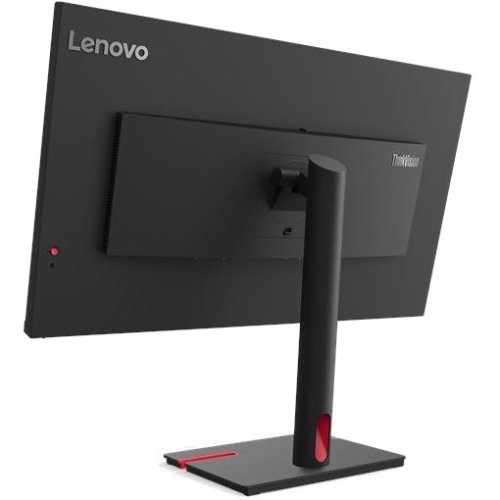
Monitor performance starts with how you work
High-performance monitors for a home office combine sharp resolution, comfortable viewing, dependable connectivity, and smooth motion to support focused work across documents, spreadsheets, video calls, and creative applications. Performance is not simply a matter of choosing the largest screen or the highest specification; it comes from matching the display to the tasks that fill the working day. A detailed spreadsheet benefits from crisp text and enough space to keep column headings visible, while photo editing calls for consistent colour and clear tonal differences. Resolution determines how many pixels form the image, but screen size and viewing distance affect how that detail appears. A 27-inch monitor with QHD resolution provides more workspace than a Full HD display at the same scaling, while a 4K monitor can make fine text and image details look especially defined. Higher resolutions may require display scaling to keep menus and lettering comfortably readable, so the usable workspace also depends on the computer’s settings. The Full HD Monitors for Home Office collection offers another resolution category for everyday tasks, particularly where a smaller display fits the desk better. Panel characteristics also shape the experience. IPS panels typically maintain consistent colour across wider viewing angles, which is useful when reviewing work beside a colleague or moving between different seating positions. VA panels often provide stronger native contrast, helping darker areas appear more distinct. For colour-sensitive work, measured accuracy, suitable colour-space coverage, and calibration options matter more than vivid-looking presets alone. Refresh rate describes how often the display updates each second. Although 60Hz can handle standard office applications, higher refresh rates can make scrolling through long reports, moving windows, and following the pointer feel smoother. That extra fluidity is useful beyond gaming, especially for people who spend much of the day navigating large files or switching between several applications.
Connections make a substantial difference to how a home office functions, particularly when a laptop moves between a desk and other workspaces. A compatible USB-C monitor can carry video, transfer data, and supply power through a single cable, reducing the number of connections needed at the start of the day. Those capabilities are not guaranteed by the connector’s shape: the monitor, computer port, and cable must support the required functions. Charging output also needs to suit the laptop, since a power level that works for a lightweight notebook may not keep up with a more demanding workstation under load. HDMI and DisplayPort provide other common ways to connect a computer, with supported resolution and refresh rate depending on the capabilities of the entire connection. A built-in USB hub can keep a keyboard, mouse, and other peripherals connected at the desk, while a monitor with an Ethernet port may provide a wired network connection through a compatible upstream link. These features can simplify a workspace without requiring every accessory to connect directly to the laptop. For people who use both a work computer and a personal computer, multiple video inputs make switching sources more convenient. Some displays also include a keyboard, video, and mouse switch, commonly called a KVM switch, which allows compatible peripherals to serve more than one connected computer. Screen layout deserves equal attention. Two monitors can separate a video meeting from reference documents, while an ultrawide display can place a timeline, spreadsheet, or several windows across one continuous surface. An ultrawide screen does not automatically behave like two separate monitors, and sharing the entire display during a meeting can make text appear small for other participants. Window-sharing features and application layouts help make that space practical. Built-in speakers, webcams, and microphones can further reduce desk clutter, although their quality and positioning vary. The most useful combination is one that supports the actual workflow, whether that means a compact laptop workstation or a desk used for design, analysis, and frequent calls.
Physical fit and everyday comfort are just as important as image quality when a monitor becomes part of a regularly used workspace. Screen dimensions should suit both the desk’s width and its depth, leaving enough room for a keyboard, mouse, and a comfortable viewing distance. A large display on a shallow desk can be difficult to take in without repeated head movements, while a deep stand may occupy space needed for paperwork. Height adjustment, tilt, and swivel allow the screen to be positioned around the user rather than forcing an awkward sitting position. Pivot adjustment can turn a compatible display into portrait orientation, which is particularly useful for reading lengthy documents, reviewing code, or working through a page layout. A compatible monitor arm can free the desktop, provided the mounting pattern, screen size, and weight fall within the arm’s specifications. Stable stands, secure adjustment mechanisms, and well-supported connections contribute to durability, especially where the display is repositioned often. Monitor housings commonly combine plastic with metal supports, while the screen surface may have a delicate coating that needs careful handling. A matte finish can soften visible reflections from windows and lamps, although placement still matters; positioning a bright window directly behind or opposite the screen can make comfortable viewing more difficult. Adjustable brightness helps the display suit the surrounding light, and flicker-reduction features may improve comfort for some users. Regular breaks and readable text sizes remain useful alongside those features. For care, a powered-off screen can be gently wiped with a clean, soft microfibre cloth, following the manufacturer’s cleaning directions and avoiding pressure on the panel. Liquid should never be sprayed directly onto the display, and ventilation openings should remain clear. These practical details matter for remote employees, students, freelancers, and anyone sharing a home workspace. A well-matched monitor supports the ordinary moments that make up a working day: reading a dense contract, comparing two drawings, checking a presentation, or keeping meeting notes visible without constantly rearranging windows.
Top selling and popular products
-
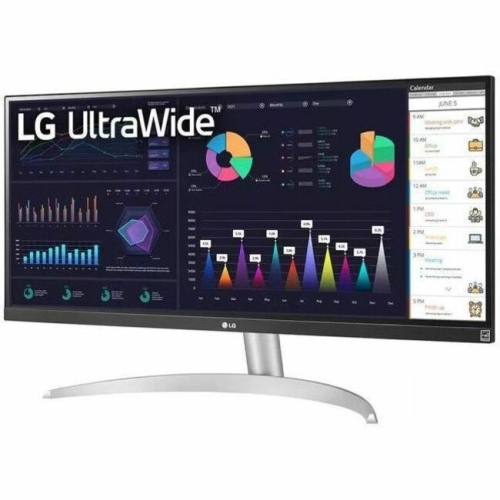 Your price for this item is $2237.68
-
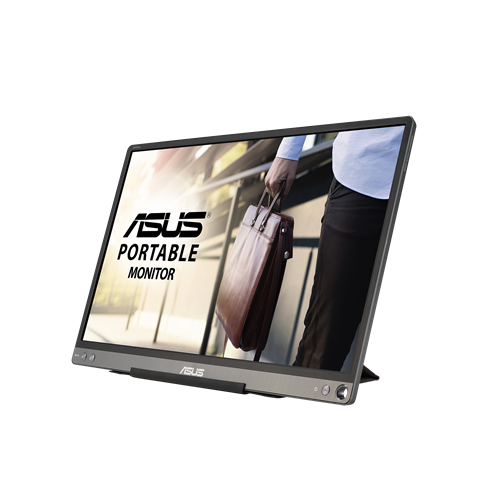 Your price for this item is $320.68
-
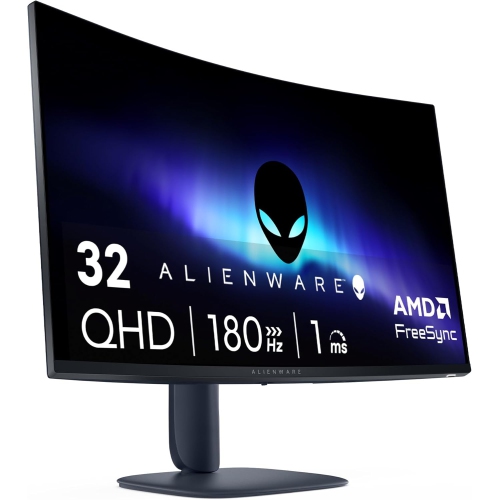 Your price for this item is $469
-
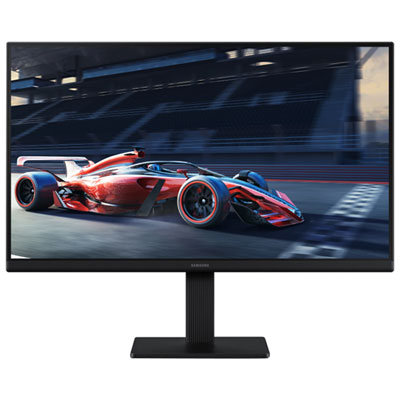 Your price for this item is $149.99
-
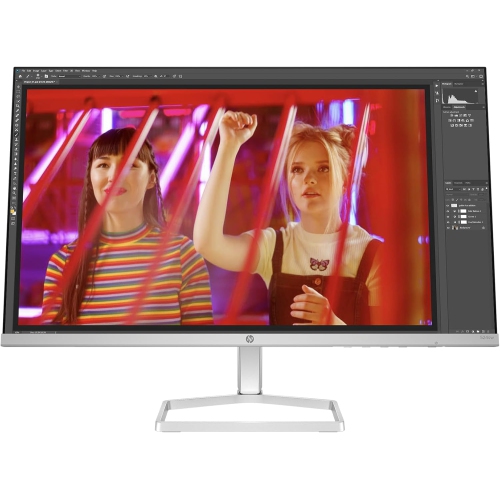 Your price for this item is $265.99
-
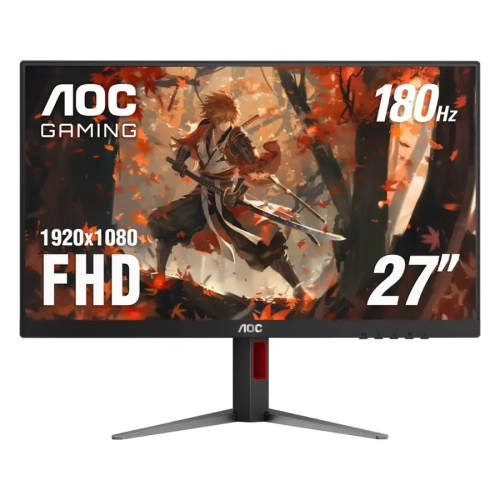 Your price for this item is $229.99
-
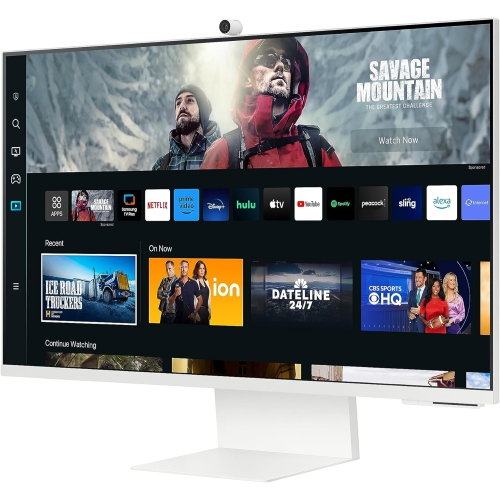 Your price for this item is $1138.68
-
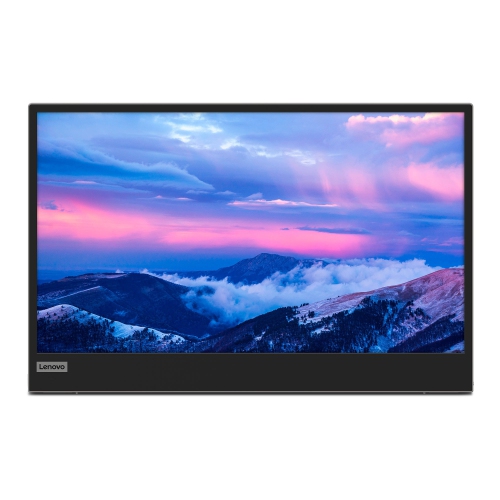 Your price for this item is $355.68
Discover more categories related to High-Performance Monitors for Home Office
Top Collections:
Best Black Friday Deals This Year, Best Black Friday Deals On Electronics, Kindle Devices, Pokemon Centers, Best Black Friday Deals On Apple Products, Best Cameras for Sports Photography, Dyson Airwrap, Pokémon 30th Celebration Cards, Apple iPhone 17 Pro, Canon G7X Cameras
Some products may be subject to Environmental Handling Fees
(EHF) depending on your province.
Learn more about EHFs.