Monitors for Home Office Upgrade
Enhance your workspace with monitors for home office upgrade and experience a new level of productivity and comfort. Whether you're working, studying, or managing daily tasks, the right monitor can transform your setup into an efficient and enjoyable place to get things done. Discover a wide selection designed to fit various work styles and preferences, making it easy to find the perfect addition for your home office.
Sort
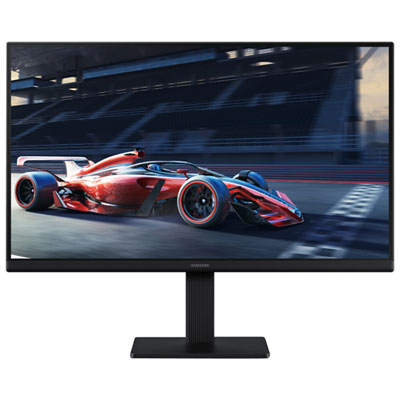

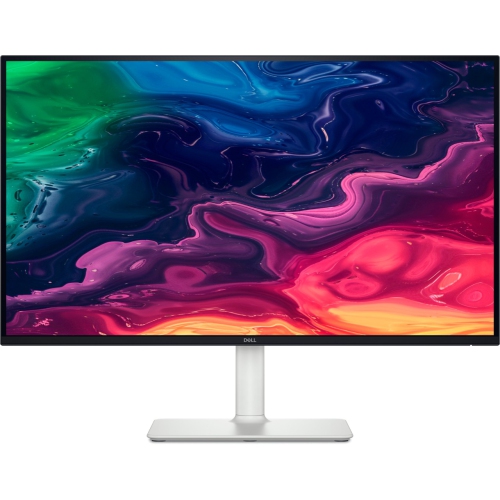

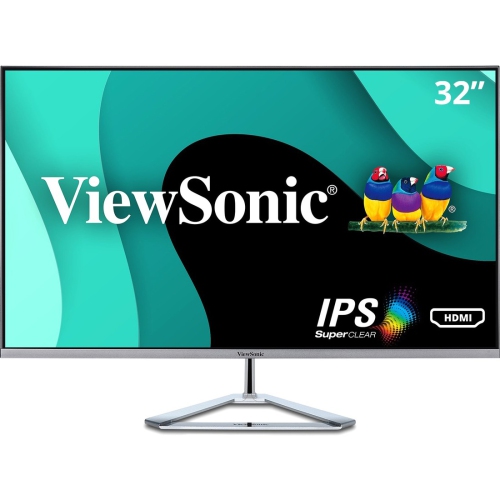


Why 27-inch QHD monitors suit everyday multitasking
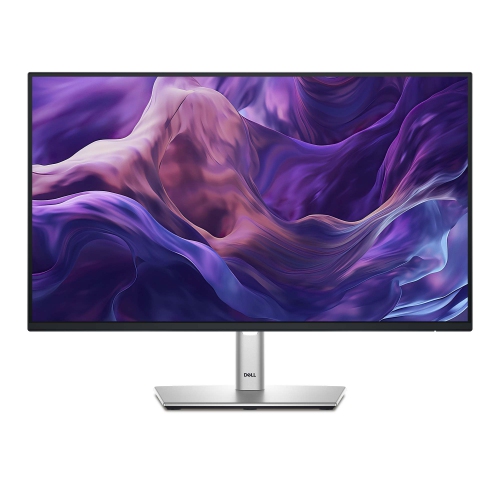
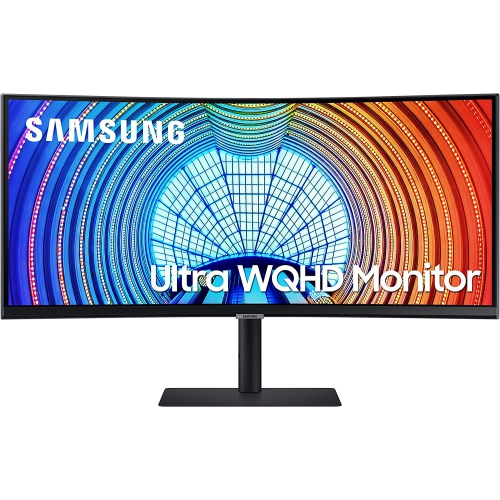
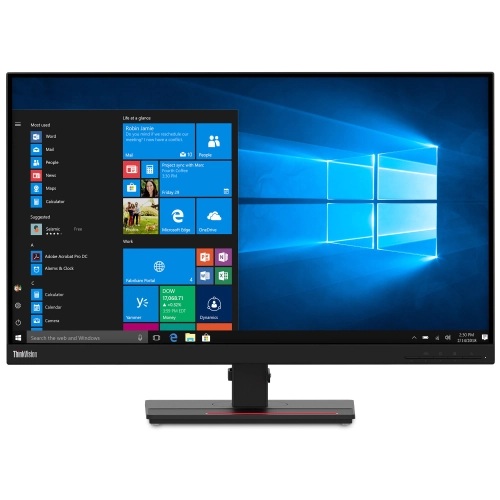
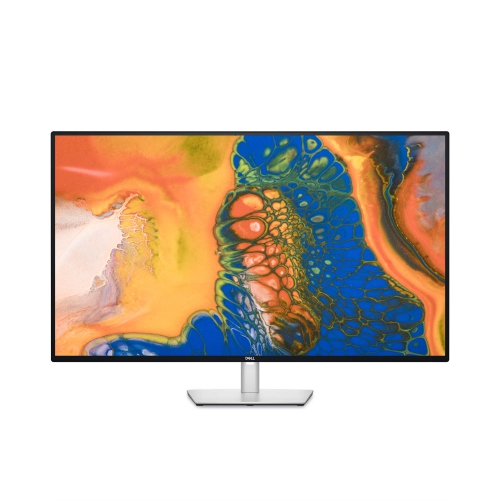
For many home office upgrades, a 27-inch QHD monitor offers a practical balance of screen space, text clarity, and desktop fit. Its 2560 × 1440 resolution provides more room for documents and side-by-side windows than Full HD, with finer detail than a similarly sized 1920 × 1080 display. That extra workspace is useful when a spreadsheet needs to stay visible beside an email thread, or a video meeting shares the screen with notes. A 24-inch Full HD monitor is a compact choice for email, word processing, and everyday administration, especially on a shallow work surface or in a room that serves several purposes. Larger displays suit different priorities: a 32-inch 4K monitor can accommodate detailed layouts and multiple applications, provided there is enough viewing distance to see the screen comfortably. Screen size and resolution work together, so a larger display does not automatically mean sharper text. A 4K resolution of 3840 × 2160 brings finer detail, while operating system scaling can make menus and lettering easier to read without giving up all the benefits of the higher pixel count. Ultrawide monitors offer another approach, stretching the workspace horizontally for timelines, wide spreadsheets, or several open windows. Their broad format can reduce the need to switch between applications, although shared screens may appear smaller to meeting participants using standard displays. A dual-monitor setup creates distinct spaces for separate tasks, such as keeping a reference document on one screen while writing on the other. Matching screen heights, resolutions, and scaling settings can make moving between displays feel more consistent. The most useful arrangement reflects the work being done: a writer may value crisp text above all else, while an analyst may prioritize visible columns and a designer may need room for both a canvas and editing tools. For someone moving from a laptop screen alone, even a single external monitor can make daily multitasking feel less cramped.
Panel characteristics affect how that workspace looks throughout the day. IPS panels typically maintain consistent colour and visibility across wider viewing angles, which is helpful when sharing a screen with someone seated beside the desk. VA panels often provide stronger contrast, giving dark areas more depth, though performance varies between displays. For photography, illustration, or other colour-sensitive tasks, colour gamut coverage and documented colour accuracy deserve attention alongside resolution. A wide gamut alone does not guarantee accurate colour, and display settings, calibration, and application support all influence the result. For general office tasks, readable text, balanced brightness, and a comfortable finish usually matter more than highly saturated colours. A matte or anti-glare screen can soften reflections from a nearby window or desk lamp, but placement still makes a difference; facing a bright window can leave the screen difficult to see, while having one directly behind the chair may introduce reflections. Adjustable brightness helps match the display to the room rather than leaving a bright rectangle against a dim background. Refresh rate also affects everyday use. A 60Hz display can handle routine office work, while higher refresh rates can make scrolling, pointer movement, and supported motion appear smoother. The computer, cable, and connection must support the chosen resolution and refresh rate together. HDMI and DisplayPort are common video connections, while compatible USB-C connections can simplify a laptop setup by carrying video, data, and charging through one cable. USB-C ports do not all provide the same functions, so video support and power delivery need to match the laptop’s requirements. An integrated USB hub can keep a keyboard, mouse, or webcam connected at the desk, although it requires an appropriate data connection to the computer. Built-in speakers and webcams may reduce clutter for occasional calls, while separate accessories offer more flexibility in positioning. These details matter when a laptop is connected and disconnected every day, or when one desk needs to serve both a work computer and a personal computer.
Physical fit is just as important as the picture. The advertised screen measurement describes the diagonal display area, not the total width, height, or depth of the monitor and stand. A broad stand can take up space needed for a keyboard, notebook, or drawing tablet, particularly on a compact desk. Height adjustment, tilt, swivel, and portrait rotation provide different ways to position the screen around the person using it. Portrait orientation can be useful for long documents or code, while a height-adjustable stand helps align an external display with a raised laptop. A compatible monitor arm can free up work surface space, provided its weight capacity, mounting pattern, and desk attachment suit both the screen and the furniture. There should also be room for cables to bend naturally without pulling at the ports. Many monitors combine plastic housings with metal supports or bases; sturdy hinges, a stable stand, and accessible controls contribute more to everyday usability than appearance alone. A slim bezel can make two screens sit together neatly, but stability remains important on a desk that moves when typing. Care is generally straightforward: switch the display off, use a clean microfibre cloth, and follow the manufacturer’s directions for any cleaning solution. Avoid spraying liquid directly onto the panel or pressing hard on the surface, since screen coatings and thin panels can be damaged by unsuitable cleaners or rough handling. Keeping ventilation openings clear and routing cables away from chair wheels also helps protect the setup during daily use. These considerations apply whether the workspace belongs to a remote employee handling meetings, a student balancing research and assignments, or someone managing household paperwork alongside personal projects. A monitor can also be a useful gift for someone establishing a dedicated work area when its dimensions and computer compatibility are known. Explore Office Monitors for Home Office Setups with the desk measurements, available connections, and everyday tasks in mind, so the display becomes a natural part of the workspace rather than something the rest of the desk has to accommodate.
Top selling and popular products
-
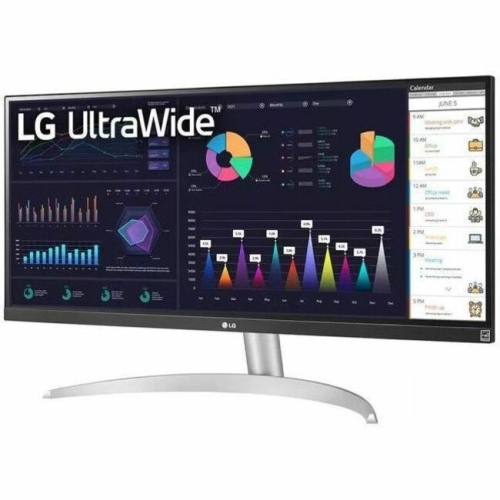 Your price for this item is $2237.68
-
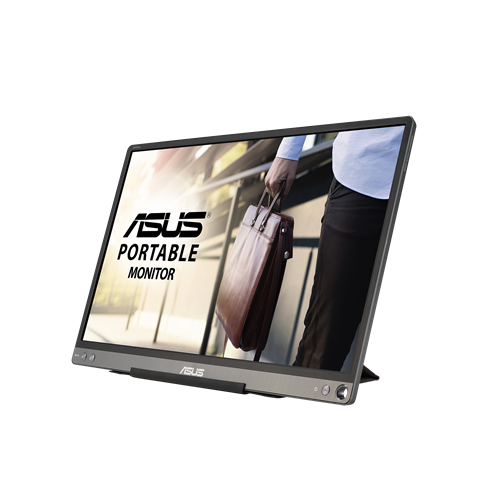 Your price for this item is $320.68
-
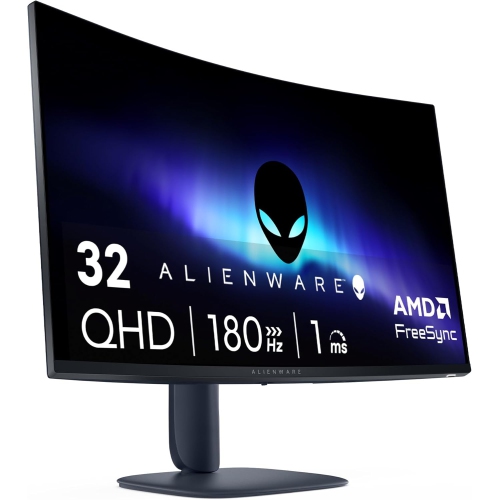 Your price for this item is $469
-
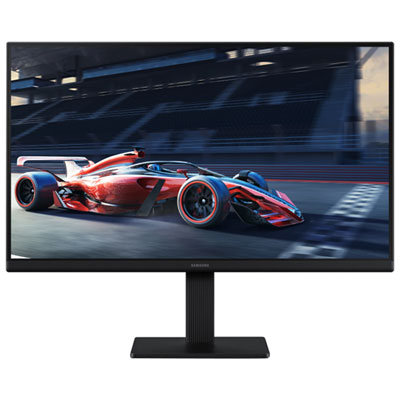 Your price for this item is $149.99
-
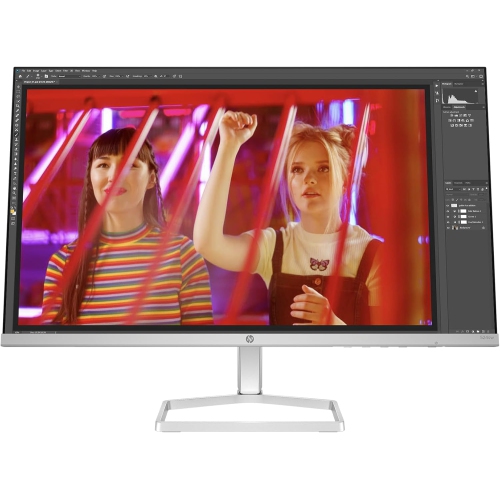 Your price for this item is $265.99
-
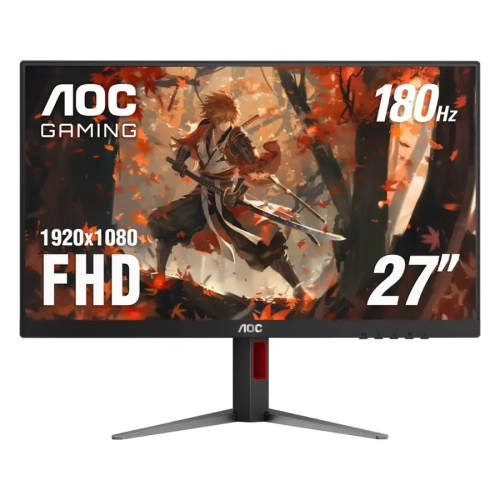 Your price for this item is $229.99
-
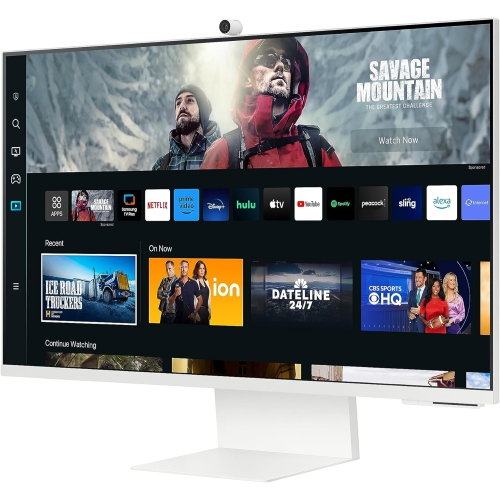 Your price for this item is $1138.68
-
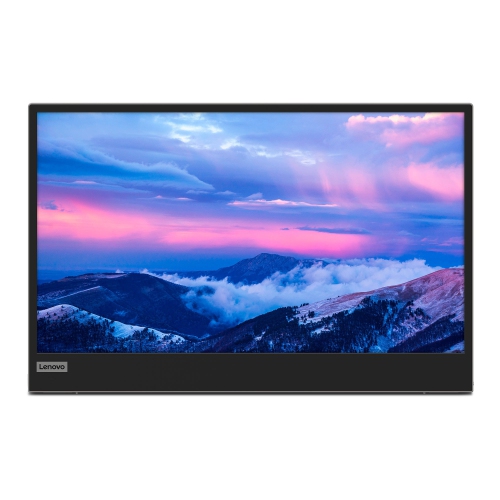 Your price for this item is $355.68
Discover more categories related to Monitors for Home Office Upgrade

Top Collections:
Best Black Friday Deals This Year, Best Black Friday Deals On Electronics, Kindle Devices, Pokemon Centers, Best Black Friday Deals On Apple Products, Best Cameras for Sports Photography, Dyson Airwrap, Pokémon 30th Celebration Cards, Apple iPhone 17 Pro, Canon G7X Cameras
Some products may be subject to Environmental Handling Fees
(EHF) depending on your province.
Learn more about EHFs.