Monitors for Home Office
Monitors for home office are essential for creating a productive and comfortable workspace. Whether you're setting up a new office or upgrading your current setup, the right monitor can make all the difference in your daily workflow. Explore a wide selection of monitors designed to enhance your home office experience, with options to fit any space and work style. Find the perfect match to support your tasks, meetings, and creative projects, all while enjoying clear visuals and reliable performance.
Sort
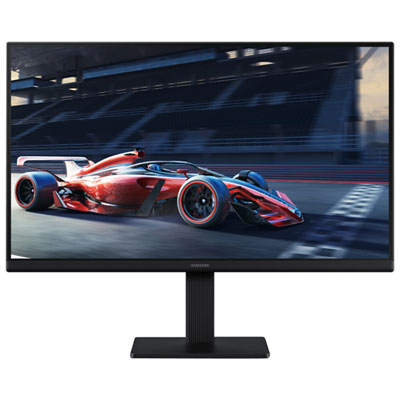

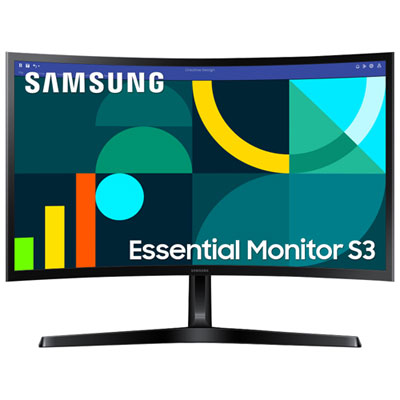
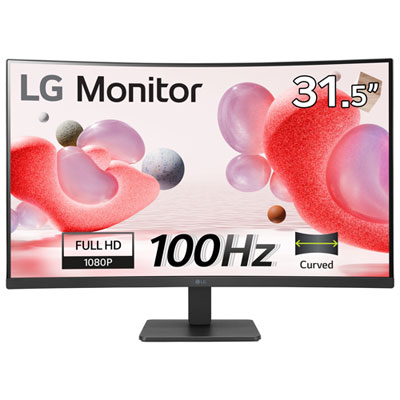

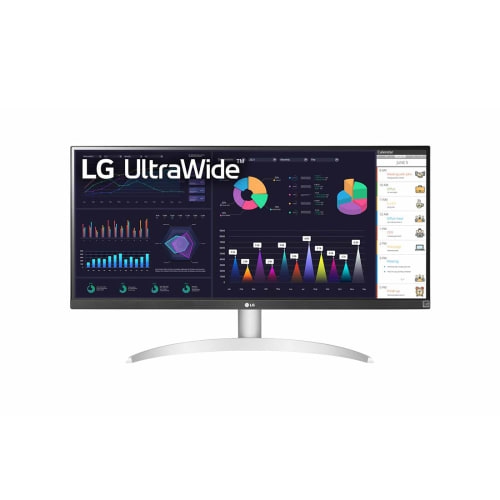
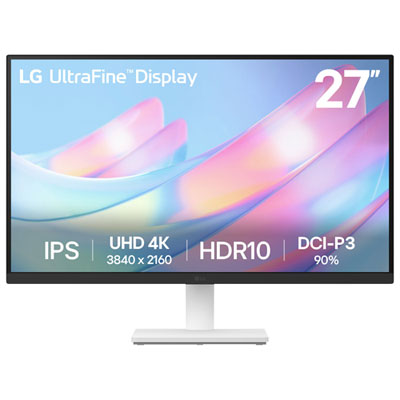
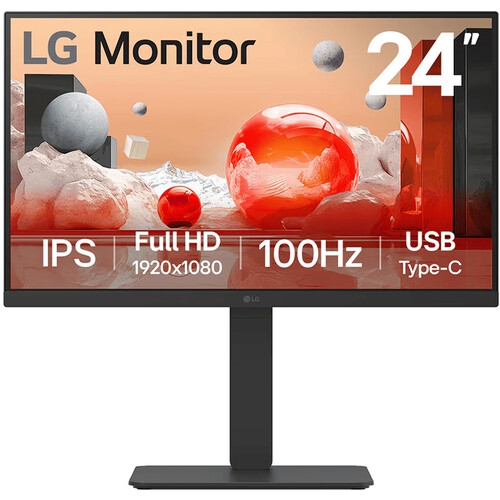
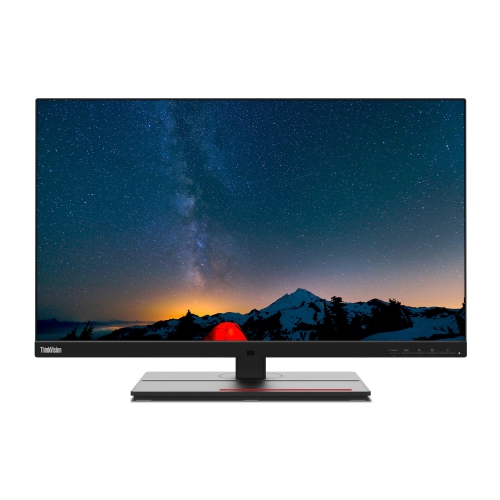
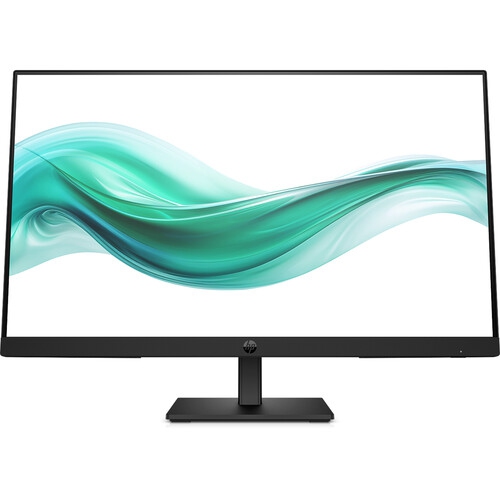
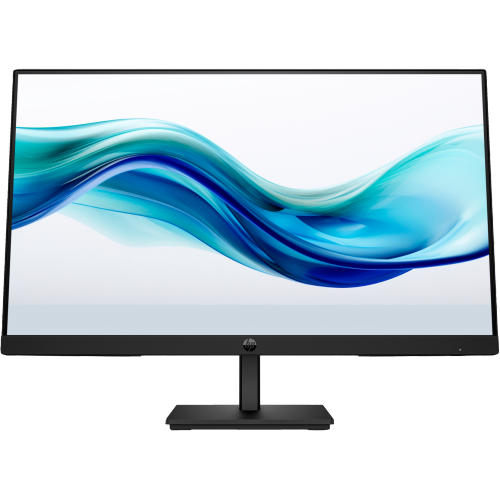
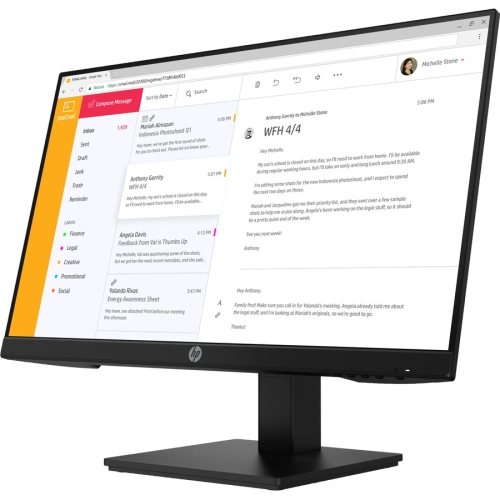
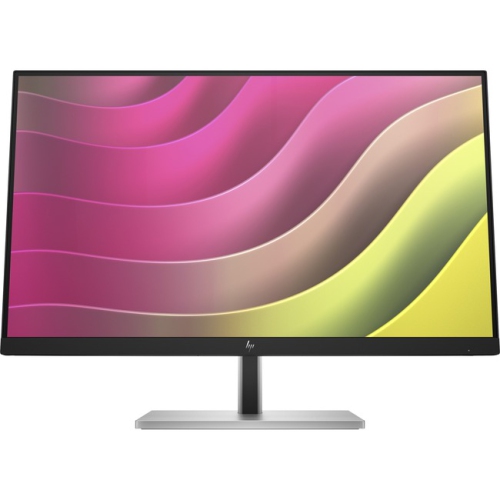
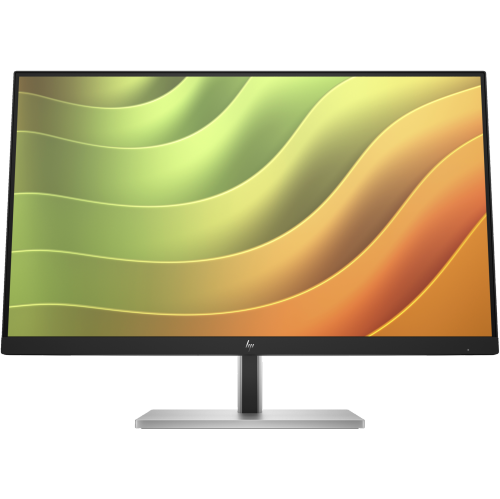
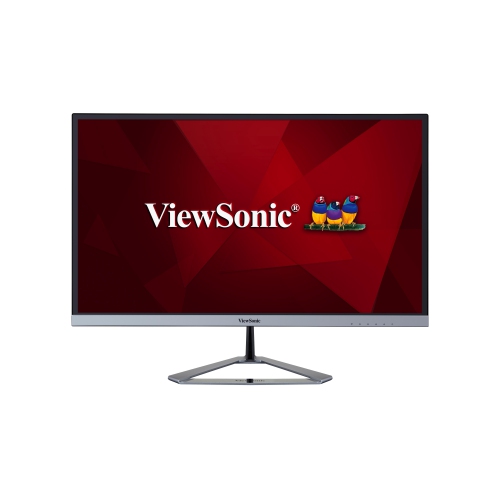

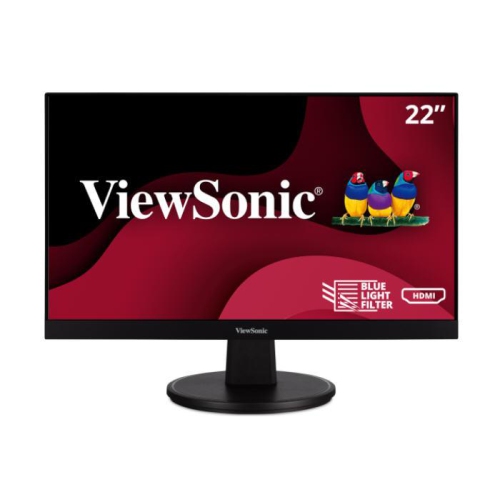
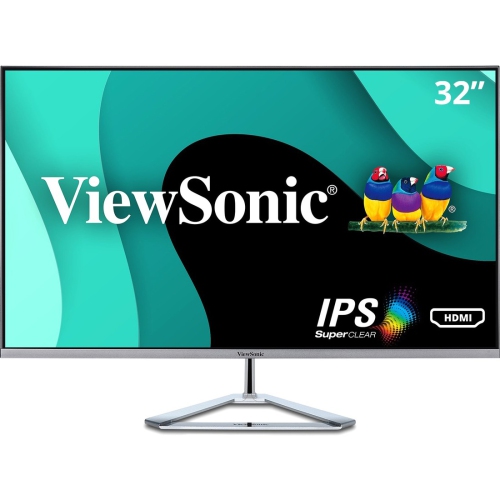
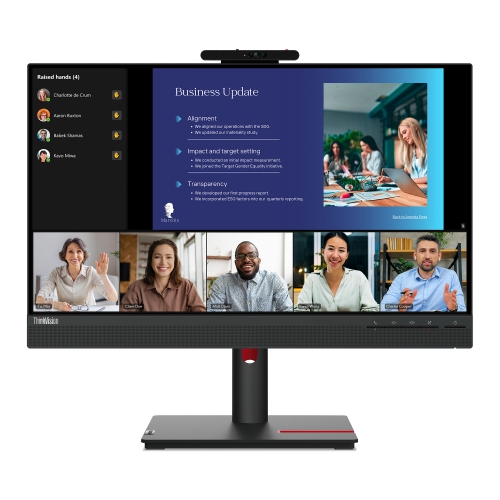

More room for work without crowding your desk
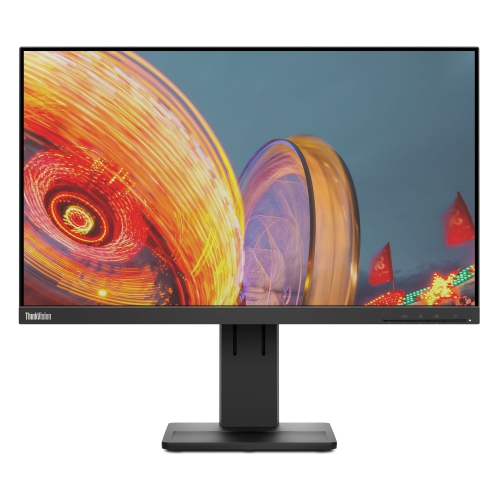
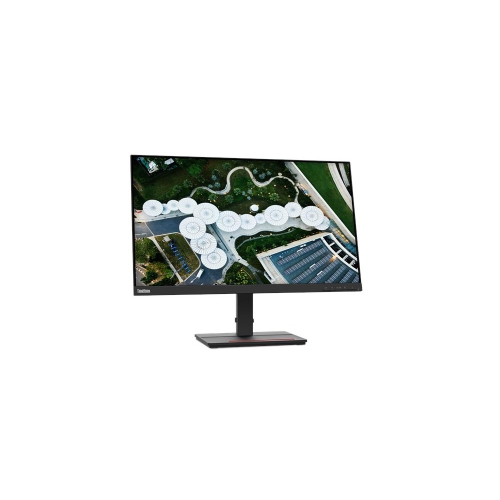
Monitors for a home office give everyday work more room, whether that means keeping a spreadsheet beside an invoice, reviewing a document during a video call, or moving between research and a draft. The most useful screen size depends on desk depth, viewing distance, and how many windows need to remain visible. A 24-inch monitor often fits a compact workstation and provides a practical workspace for email, documents, and browser-based tasks. A 27-inch monitor offers a larger viewing area without necessarily requiring the width of two separate displays. Screen size is measured diagonally, so the monitor’s overall width, stand depth, and height are also important when fitting it beneath shelves or beside a laptop. Resolution determines how much detail the display can show. Full HD, at 1920 x 1080 pixels, is a common match for a 24-inch screen; QHD, at 2560 x 1440 pixels, generally provides sharper text and more workspace on a 27-inch display. A 4K monitor, at 3840 x 2160 pixels, can make fine text, detailed images, and complex layouts clearer, although display scaling may be needed to keep menus and text comfortably sized. A larger screen at the same resolution makes content bigger, but does not add more pixels or increase the amount of information that fits on screen. For work built around separate applications, dual monitors let email and chat stay on one display while the main task occupies the other. An ultrawide monitor provides a broad, continuous workspace without a bezel dividing the centre, which can suit large spreadsheets, timelines, and side-by-side documents. Its extra width needs adequate desk space, and sharing the entire screen during a meeting may make content appear small for participants using narrower displays. Remote employees, freelancers, students, and people managing household paperwork can all benefit from a layout matched to their actual routines rather than screen size alone.
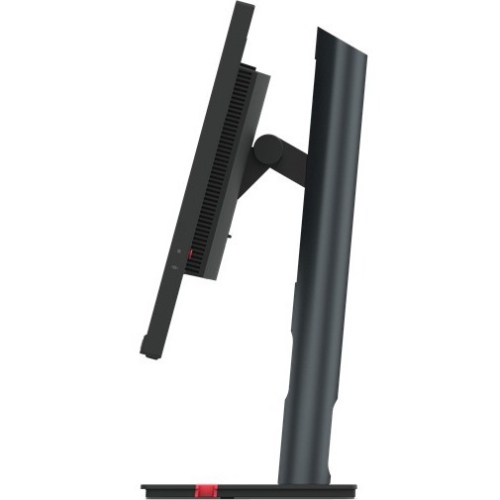
Physical comfort matters when a monitor is used for hours of reading, typing, and meetings. A height-adjustable stand makes it easier to position the screen with its top edge at or slightly below eye level, although the most comfortable position can vary with posture and eyewear. Tilt helps refine the viewing angle, while swivel allows the display to turn towards another person without moving the entire base. Pivot adjustment can rotate a compatible screen into portrait orientation, a useful format for long documents, code, and page layouts. The stand’s footprint deserves attention on a shallow desk: a wide base may compete with a keyboard, notebook, or drawing tablet even when the screen itself fits. A compatible monitor arm can free space beneath the display, provided the mounting pattern, monitor weight, and desk attachment all match the arm’s specifications. Viewing distance should leave text readable without leaning forward, with enough room to see the screen comfortably. Panel type also affects the experience. IPS displays typically maintain more consistent colour and image appearance when viewed from an angle, while VA displays often provide stronger contrast and deeper-looking blacks. Actual performance varies between monitors, especially for work that depends on accurate colour. Photo editing, design, and video work may call for documented colour-gamut coverage and calibration rather than a screen selected mainly for office documents. Matte finishes help reduce reflections from nearby windows and lamps, but placement still matters; a bright reflection behind a page of small text can be distracting. Adjustable brightness allows the display to suit the lighting in the room. Flicker-free operation and reduced-blue-light settings may be useful comfort features, though they do not replace regular breaks or a comfortable workstation. Higher refresh rates can make scrolling and pointer movement appear smoother, but fast response times are usually less important for office work than clear text, suitable resolution, and useful adjustment options.
Connectivity determines how easily a monitor fits into the rest of a home office. HDMI and DisplayPort are common ways to carry video from a computer, while USB-C can simplify a laptop setup when both the computer and display support the required features. The connector’s shape alone does not confirm its capabilities: a USB-C connection may support data, video, power delivery, or a combination of these. A monitor with compatible video input and sufficient USB-C power delivery can connect and charge a supported laptop through one cable, leaving fewer connections to manage at the start of the working day. Available charging power still needs to meet the laptop’s requirements, and the cable must support the intended functions. Built-in USB hubs can provide convenient connections for a keyboard, mouse, or webcam; some monitors also include an Ethernet port for a compatible wired network connection. Dual-screen setups require a computer or dock that supports the intended number of external displays at the desired resolution and refresh rate. Not every laptop supports two external monitors, even when enough physical ports appear to be available. Built-in speakers can handle basic audio, although separate speakers or a headset may be more suitable for frequent calls. Durability depends partly on everyday handling: sturdy stands, secure mounting hardware, and well-supported cables help keep a busy desk orderly and reduce strain on connections. Monitor housings commonly combine plastic panels with metal structural components, while the screen surface may have coatings that require gentle care. Dust is best removed with a clean, soft microfibre cloth, following the manufacturer’s cleaning directions; liquid should not be sprayed directly onto the display. Pressure against the panel and harsh cleaners can damage its surface. Cable routing also helps prevent cords from catching when the screen is adjusted or the desk is moved. A collection of monitors for home office productivity can suit workspaces ranging from a compact laptop station to a dedicated desk with multiple displays, with practical differences in screen clarity, adjustment, and connections shaping how each setup works day to day.
Top selling and popular products
-
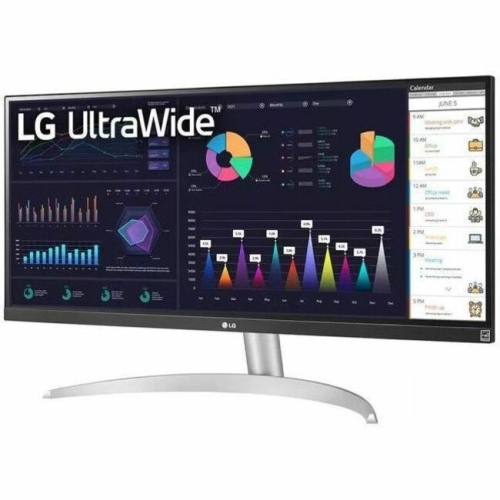 Your price for this item is $2237.68
-
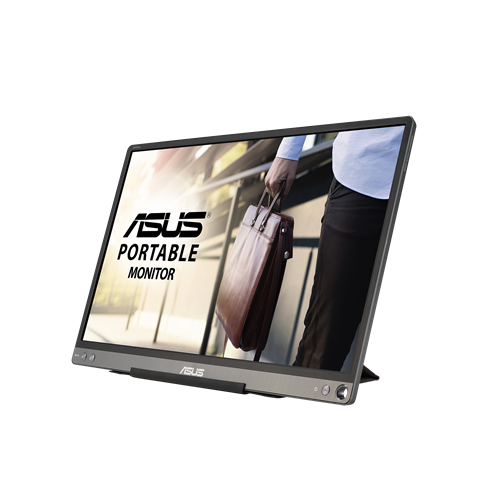 Your price for this item is $320.68
-
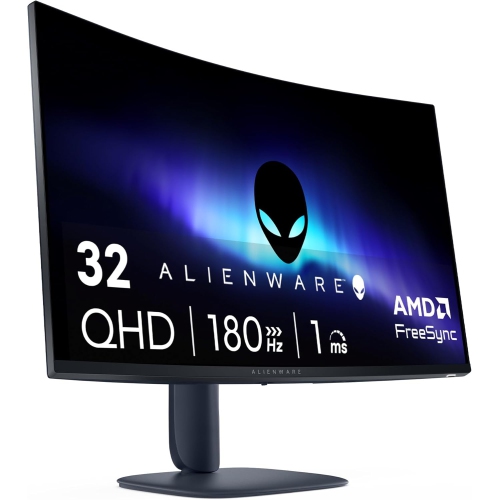 Your price for this item is $469
-
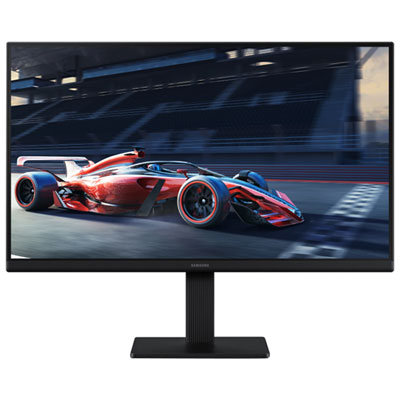 Your price for this item is $149.99
-
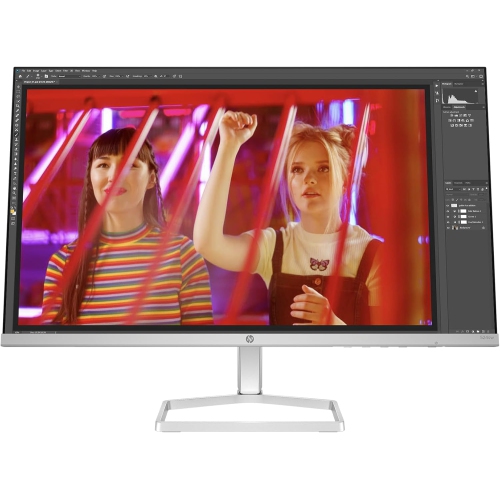 Your price for this item is $265.99
-
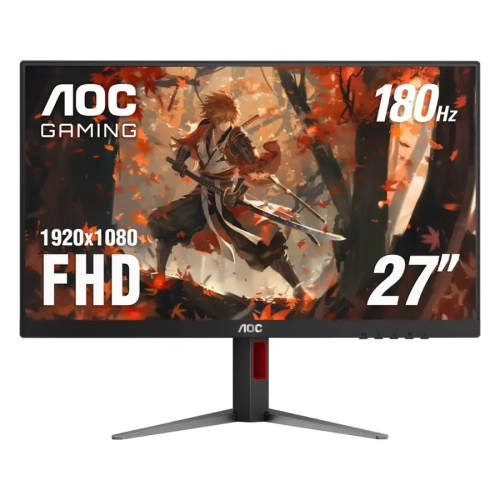 Your price for this item is $229.99
-
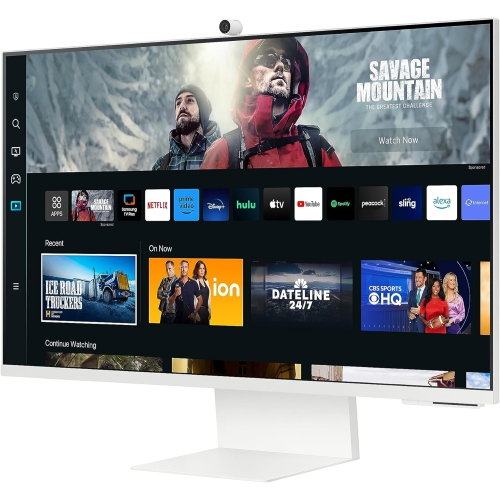 Your price for this item is $1138.68
-
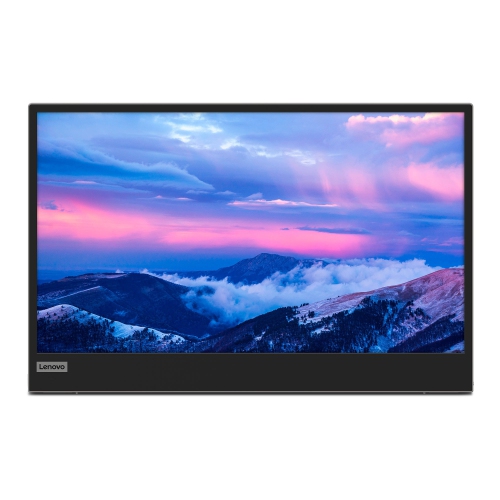 Your price for this item is $355.68
Discover more categories related to Monitors for Home Office
Top Collections:
Best Black Friday Deals This Year, Best Black Friday Deals On Electronics, Kindle Devices, Pokemon Centers, Best Black Friday Deals On Apple Products, Best Cameras for Sports Photography, Dyson Airwrap, Pokémon 30th Celebration Cards, Apple iPhone 17 Pro, Canon G7X Cameras
Some products may be subject to Environmental Handling Fees
(EHF) depending on your province.
Learn more about EHFs.