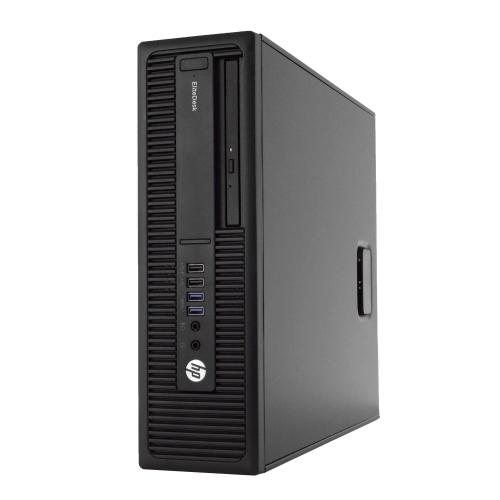
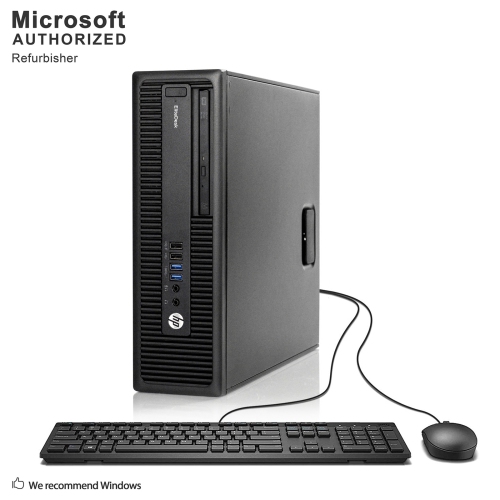
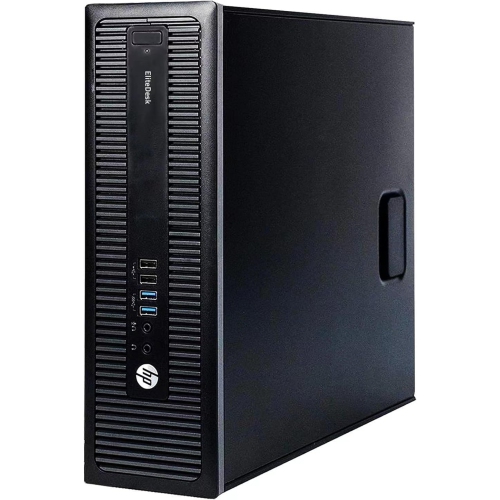
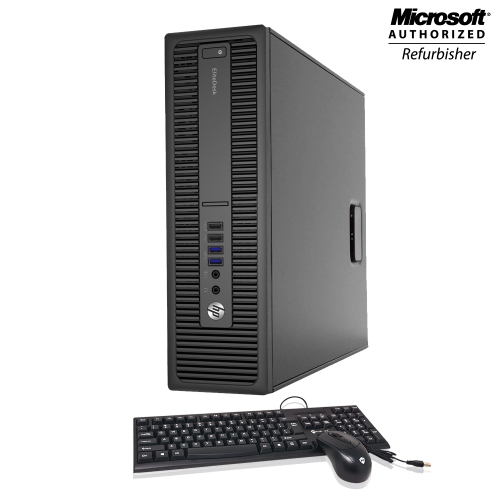
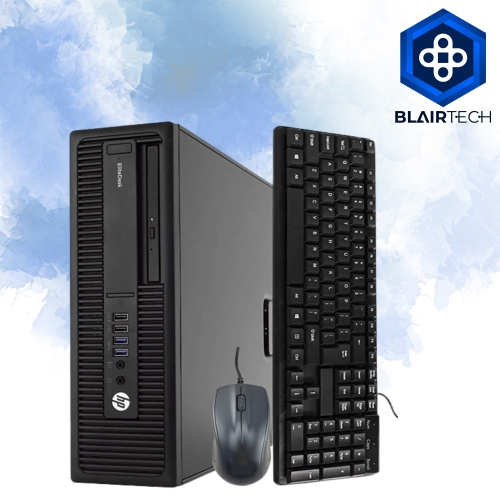
HP EliteDesk 800 G2
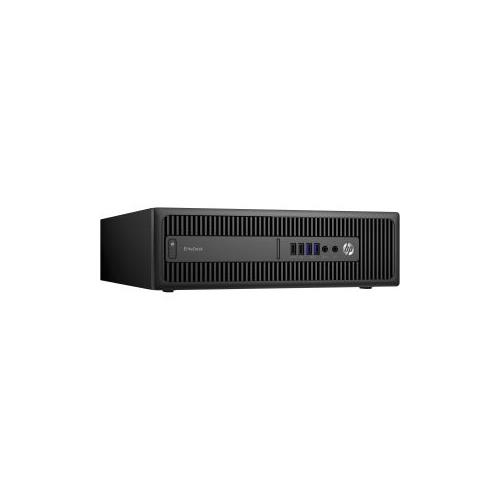
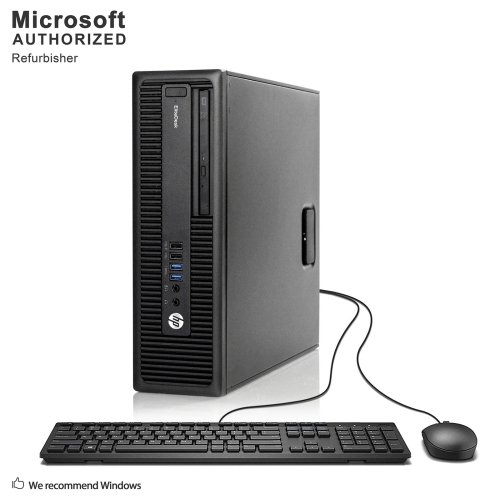
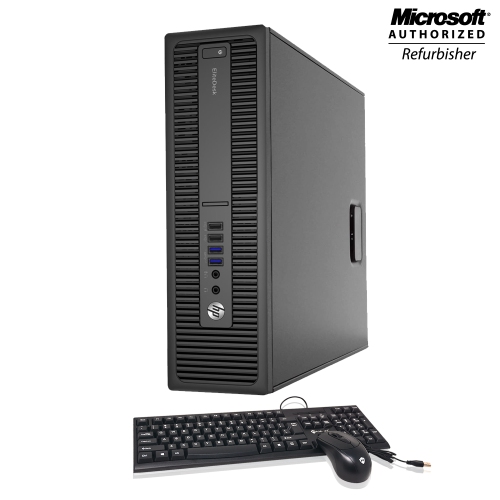
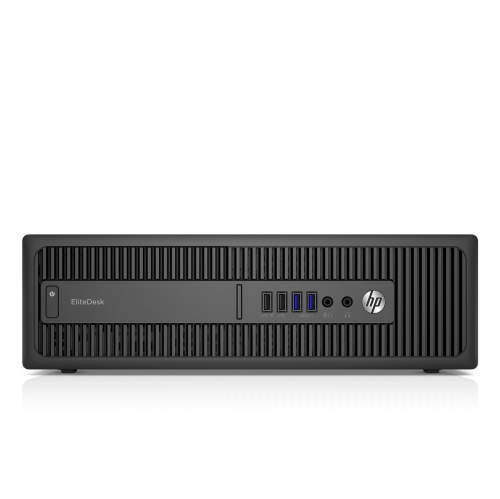
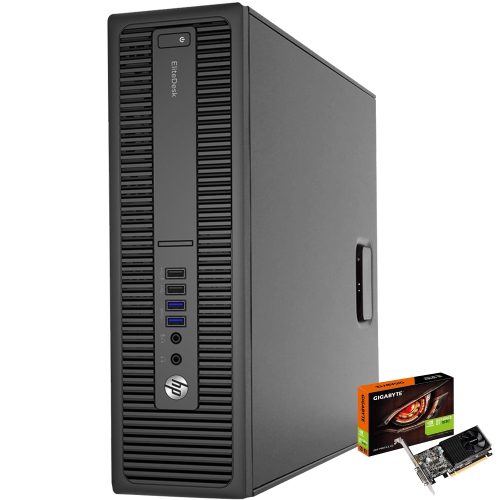
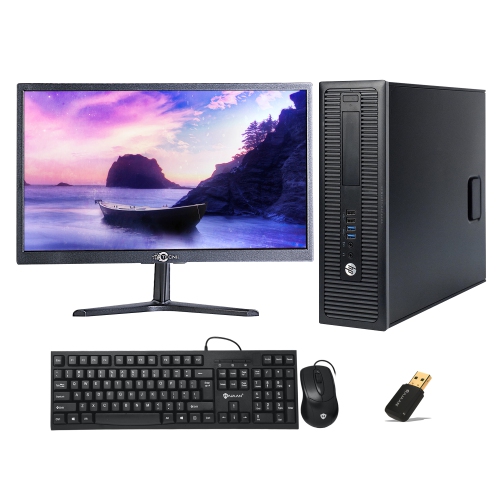
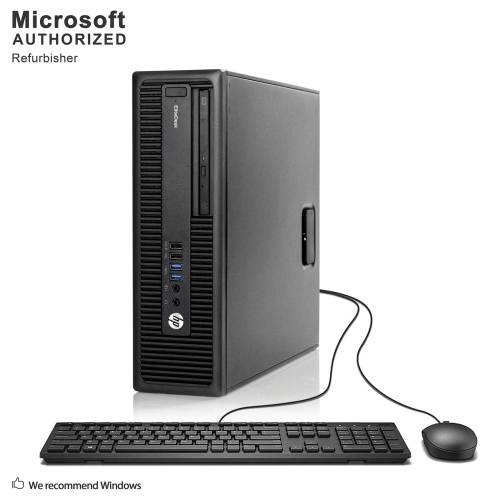
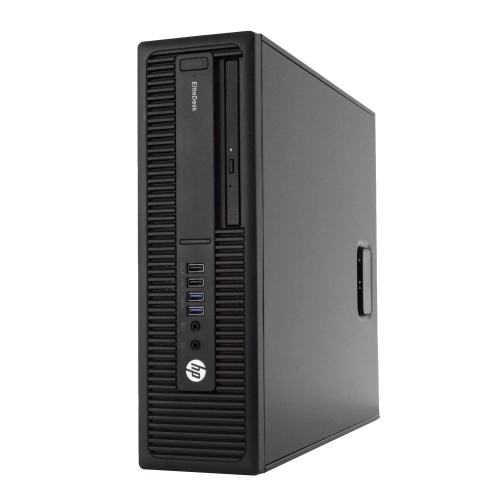
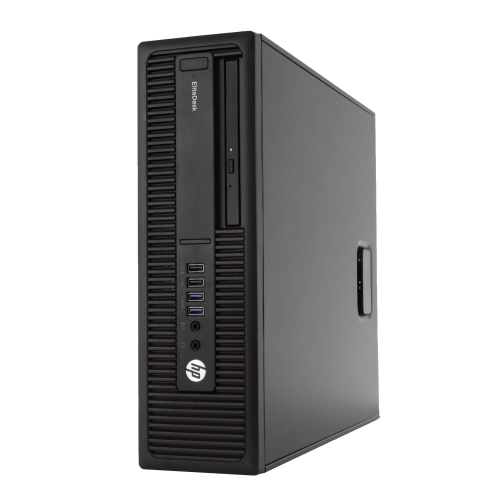
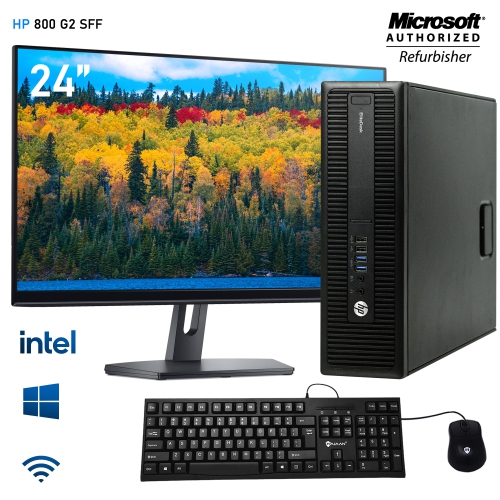
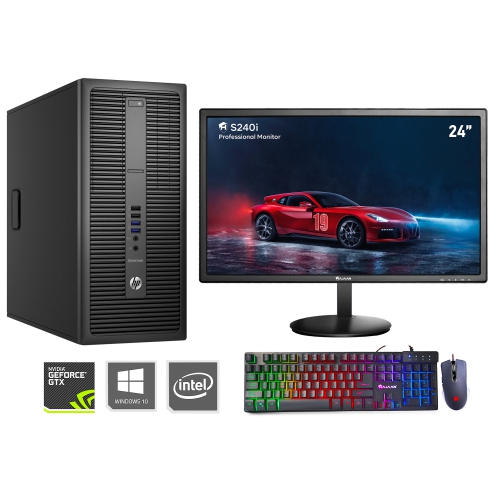
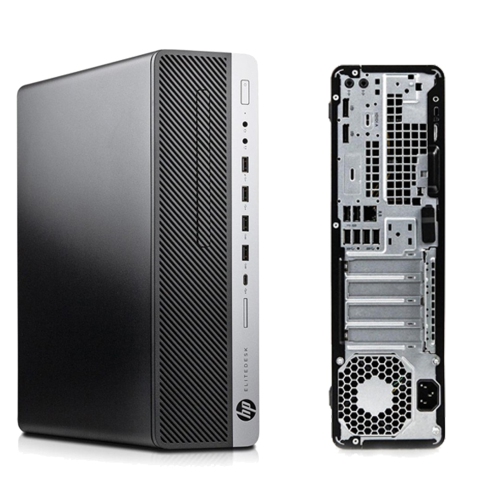
Discover the HP EliteDesk 800 G2, a reliable choice for those seeking efficient performance in a compact design. Perfect for both home and office environments, the HP EliteDesk 800 G2 offers versatility to handle everyday tasks with ease. Explore a range of configurations to find the right fit for your workspace and enjoy seamless computing tailored to your needs.
Sort
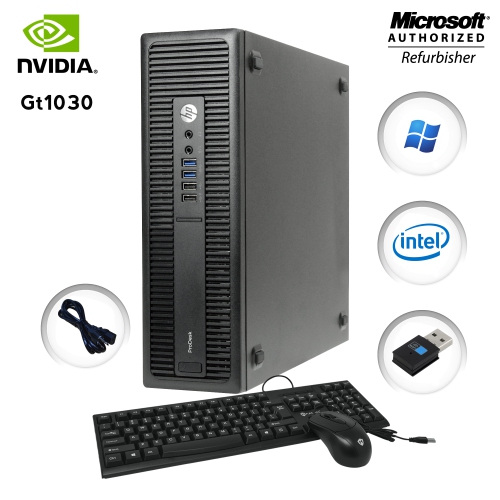
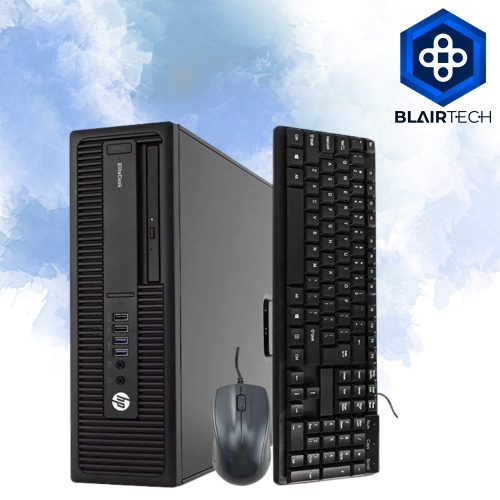
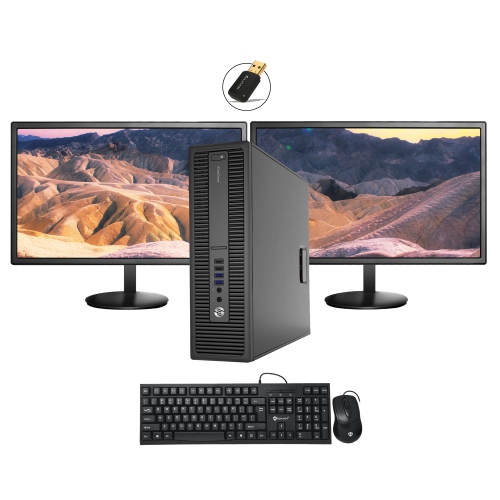
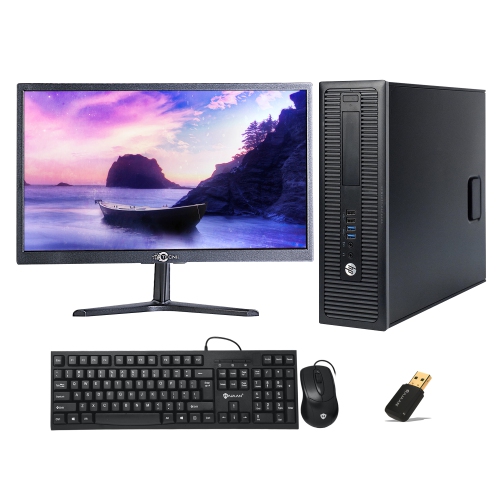

Where older business desktops fit into everyday work
Enterprise-class desktop computers are built around the practical demands of a working day: keeping documents open, handling spreadsheets, supporting browser-based tools, and connecting the peripherals that make a desk useful. Business desktops from the mid-2010s often remain relevant to these tasks, although their suitability depends on the installed components, software requirements, and condition of the individual computer. This generation commonly pairs sixth-generation processors with DDR4 memory and integrated graphics, providing a foundation for everyday productivity rather than demanding modern games or intensive creative work. For a home office, that might mean writing reports with reference material on another screen; for a student, it could mean preparing assignments, attending online lessons, and organising course files. In a small business, a desktop can serve as a workstation for appointments, invoicing, or routine administration when the required applications are compatible. Processor specifications deserve more attention than a familiar performance tier alone: generation, core count, and power limits all affect how a computer behaves under load. Compact versions may use lower-power processors, while larger chassis can have different cooling arrangements and expansion options. Memory and storage also influence the experience considerably. Enough memory helps several applications stay responsive at once, while a solid-state drive generally makes startup, application loading, and file searches feel quicker than a mechanical hard drive. Storage capacity matters separately from speed, especially when a computer will hold scanned documents, family photos, or sizeable work folders. Integrated graphics are generally intended for desktop applications and video playback, not a substitute for a dedicated graphics card in workloads that require one. For households considering a desktop as a practical gift, the most useful match is usually one that suits the recipient’s existing software, monitor, and workspace. A computer for a relative who writes, browses, and manages household paperwork calls for a different balance of features than a machine intended for video production or engineering applications.
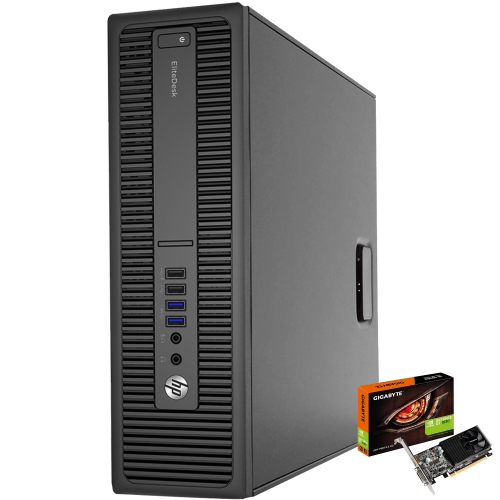
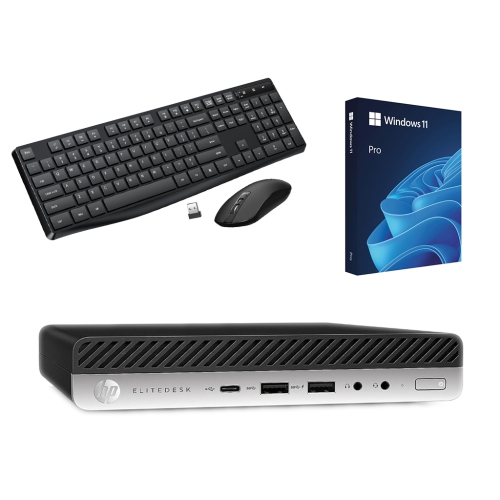
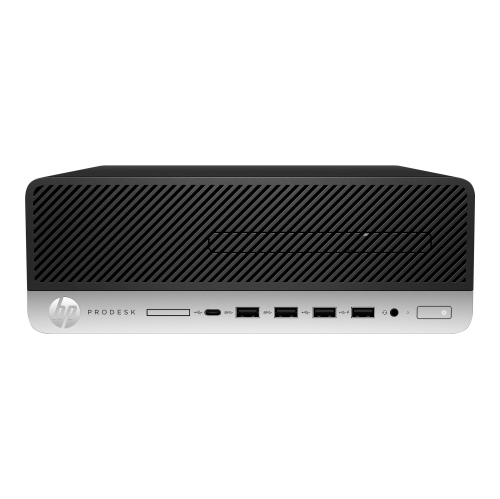
Physical format makes a substantial difference to how a business desktop fits into a room and what can be changed inside it. Mini desktops occupy little desk space and may fit behind a compatible monitor using a suitable mounting bracket, leaving more room for a keyboard, notebook, and desk lamp. Their compact layout can be convenient in a shared study area, but it usually means fewer internal expansion choices and, in many cases, an external power adapter that also needs a place to sit. Small form factor desktops offer a middle ground, with a relatively compact chassis and more room for serviceable components than many mini systems. Towers require more space but can provide additional drive bays, expansion slots, and access around internal parts. These differences matter when adding storage, replacing memory, or considering a graphics card later. A low-profile expansion slot cannot accept every full-height card, and physical clearance alone does not establish compatibility: power supply capacity, connectors, cooling, and firmware support also come into play. Memory limits likewise depend on the motherboard, number of slots, and supported module type, so a maximum capacity associated with one chassis should not be assumed for another. Metal panels and rigid internal frames are common in business desktop construction, often paired with plastic front trim. This practical build can withstand ordinary office handling, though dents, damaged ports, or loose fittings still warrant attention on a previously used machine. Placement is just as important as size. A desktop tucked tightly against a cabinet wall may have less breathing room than its fans need, while a floor-level position can draw in more dust. Leave ventilation openings clear and allow space to reach power and display connections without sharply bending cables. For comparison with a related business desktop family, HP ProDesk 600 G3 offers another point of reference when weighing chassis size, connection options, and everyday computing needs. The useful comparison is between complete configurations, not simply the names on their cases.
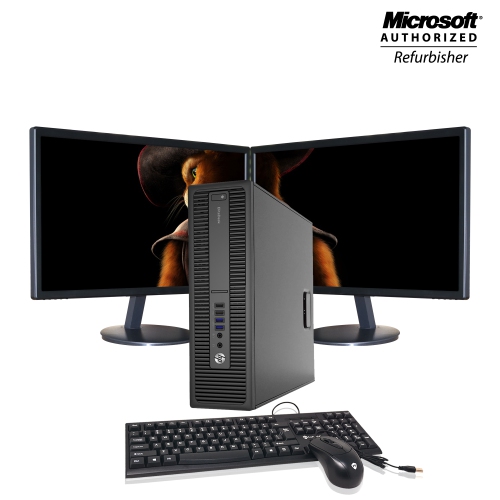
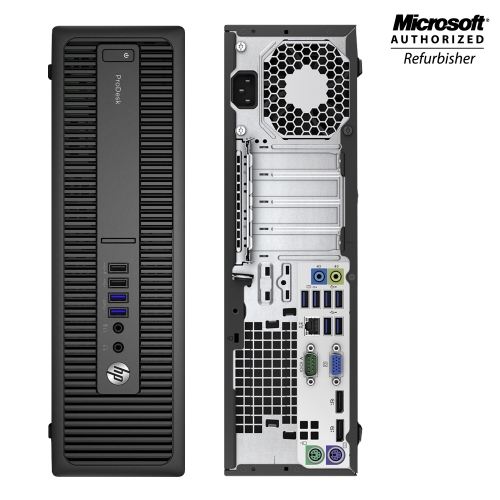
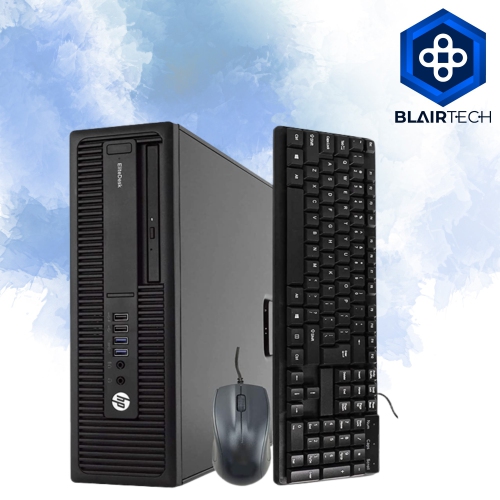
Connections, software support, and refurbishment details help establish how comfortably an older business desktop will settle into daily use. Display outputs should match the monitor’s inputs, or a suitable adapter may be needed; support for two screens also depends on the computer’s graphics capabilities and connection arrangement. A pair of monitors can make routine work more comfortable by keeping an email window beside a spreadsheet or a lesson beside a document, but resolution and refresh-rate requirements still need to match the hardware. Wired networking is common on business desktops, whereas built-in Wi-Fi and Bluetooth should not be assumed. This matters in a spare bedroom or dining area where the router is several rooms away. Front-facing USB ports can make connecting a headset, flash drive, or other frequently used accessory easier, while rear ports are useful for devices that stay attached. Speakers, a webcam, a keyboard, and a mouse may need separate consideration rather than being treated as part of every desktop setup. For refurbished computers, cosmetic grading, testing information, included accessories, and warranty terms provide more meaningful context than the description alone. A replaced storage drive or added memory can change the configuration from its original specification, so the installed components are what matter for practical use. Software compatibility requires particular care with older hardware. An installed operating system is not proof that the processor meets its official requirements or that security updates remain supported. Confirming both operating system support and application requirements is especially important for a computer used for banking, customer information, or work accounts. Routine care is straightforward: shut down and unplug the computer before cleaning, keep liquids away from openings, and remove dust using methods appropriate to the hardware. Backups help protect important files independently of the computer’s age or condition. With a suitable configuration, sensible placement, and supported software, a business desktop can provide a focused workstation for familiar tasks without taking over the room.
Physical format makes a substantial difference to how a business desktop fits into a room and what can be changed inside it. Mini desktops occupy little desk space and may fit behind a compatible monitor using a suitable mounting bracket, leaving more room for a keyboard, notebook, and desk lamp. Their compact layout can be convenient in a shared study area, but it usually means fewer internal expansion choices and, in many cases, an external power adapter that also needs a place to sit. Small form factor desktops offer a middle ground, with a relatively compact chassis and more room for serviceable components than many mini systems. Towers require more space but can provide additional drive bays, expansion slots, and access around internal parts. These differences matter when adding storage, replacing memory, or considering a graphics card later. A low-profile expansion slot cannot accept every full-height card, and physical clearance alone does not establish compatibility: power supply capacity, connectors, cooling, and firmware support also come into play. Memory limits likewise depend on the motherboard, number of slots, and supported module type, so a maximum capacity associated with one chassis should not be assumed for another. Metal panels and rigid internal frames are common in business desktop construction, often paired with plastic front trim. This practical build can withstand ordinary office handling, though dents, damaged ports, or loose fittings still warrant attention on a previously used machine. Placement is just as important as size. A desktop tucked tightly against a cabinet wall may have less breathing room than its fans need, while a floor-level position can draw in more dust. Leave ventilation openings clear and allow space to reach power and display connections without sharply bending cables. For comparison with a related business desktop family, HP ProDesk 600 G3 offers another point of reference when weighing chassis size, connection options, and everyday computing needs. The useful comparison is between complete configurations, not simply the names on their cases.
Connections, software support, and refurbishment details help establish how comfortably an older business desktop will settle into daily use. Display outputs should match the monitor’s inputs, or a suitable adapter may be needed; support for two screens also depends on the computer’s graphics capabilities and connection arrangement. A pair of monitors can make routine work more comfortable by keeping an email window beside a spreadsheet or a lesson beside a document, but resolution and refresh-rate requirements still need to match the hardware. Wired networking is common on business desktops, whereas built-in Wi-Fi and Bluetooth should not be assumed. This matters in a spare bedroom or dining area where the router is several rooms away. Front-facing USB ports can make connecting a headset, flash drive, or other frequently used accessory easier, while rear ports are useful for devices that stay attached. Speakers, a webcam, a keyboard, and a mouse may need separate consideration rather than being treated as part of every desktop setup. For refurbished computers, cosmetic grading, testing information, included accessories, and warranty terms provide more meaningful context than the description alone. A replaced storage drive or added memory can change the configuration from its original specification, so the installed components are what matter for practical use. Software compatibility requires particular care with older hardware. An installed operating system is not proof that the processor meets its official requirements or that security updates remain supported. Confirming both operating system support and application requirements is especially important for a computer used for banking, customer information, or work accounts. Routine care is straightforward: shut down and unplug the computer before cleaning, keep liquids away from openings, and remove dust using methods appropriate to the hardware. Backups help protect important files independently of the computer’s age or condition. With a suitable configuration, sensible placement, and supported software, a business desktop can provide a focused workstation for familiar tasks without taking over the room.
Top selling and popular products
-
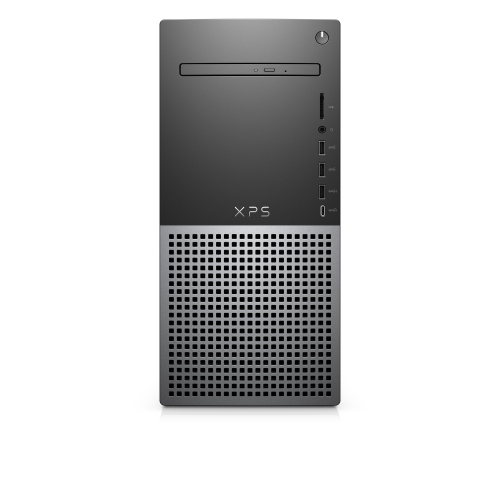 Your price for this item is $1599
 -
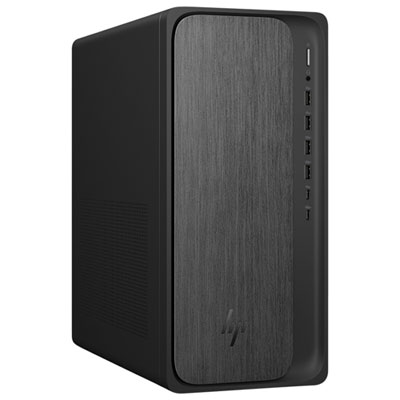 Your price for this item is $1299.99
 -
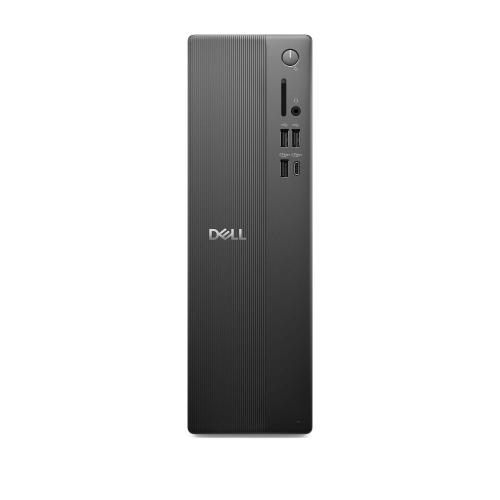 Your price for this item is $1629.79
 -
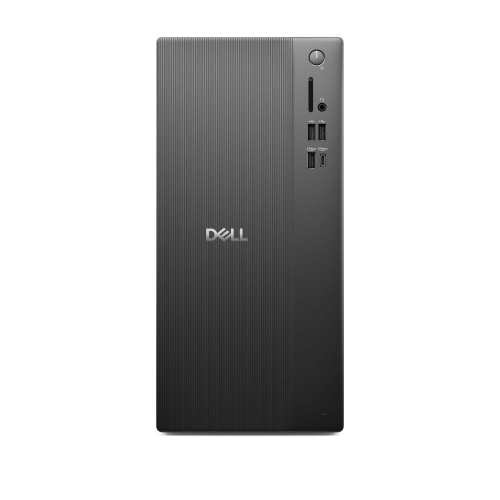 Your price for this item is $1459.79
 -
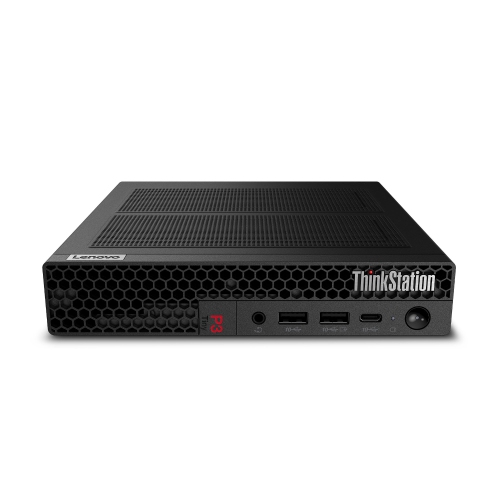 Your price for this item is $929
 -
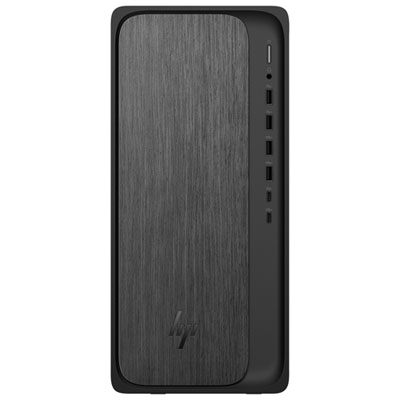 Your price for this item is $2299.99
 -
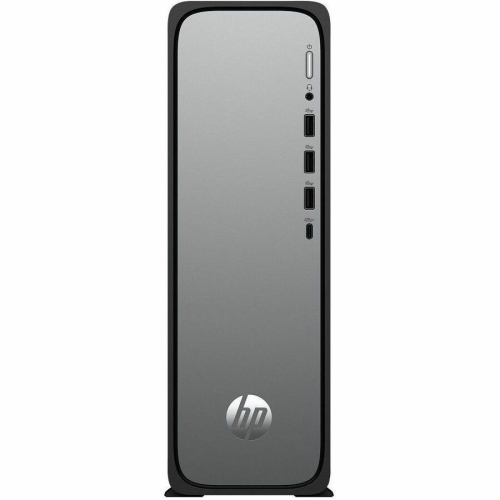 Your price for this item is $1076.55
 -
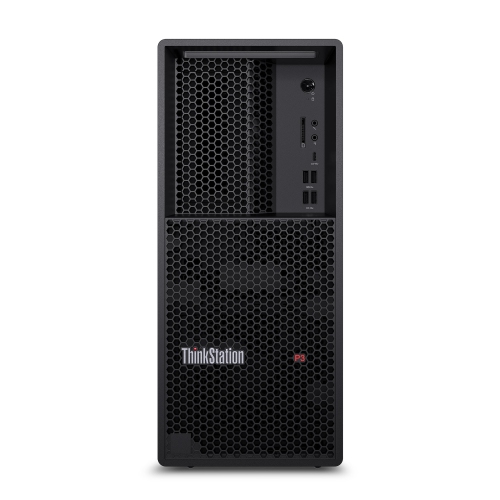 Your price for this item is $1839
Discover more categories related to HP EliteDesk 800 G2
Top Collections:
Pokemon Centers, Kindle Devices, Best Budget Office Chairs, Canon G7X Cameras, Apple iPhones 16, Samsung Galaxy Phones, Refurbished Apple Laptops, Laptops for Students, iPhone 15 Apple, Budget Smartphones
Some products may be subject to Environmental Handling Fees
(EHF) depending on your province.
Learn more about EHFs.