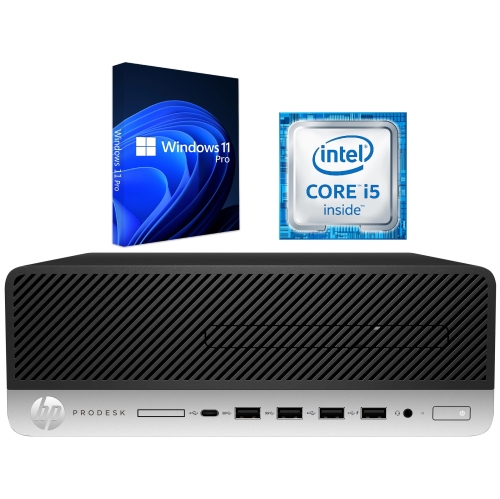
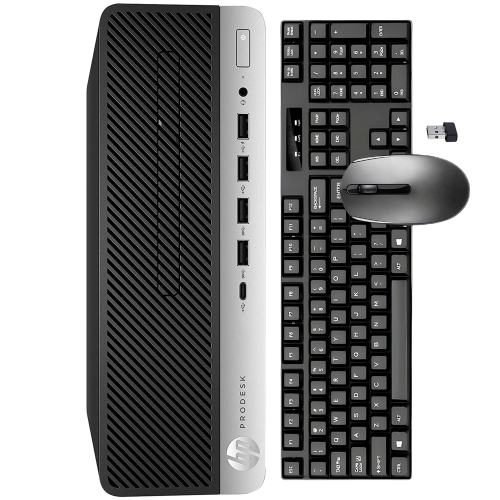
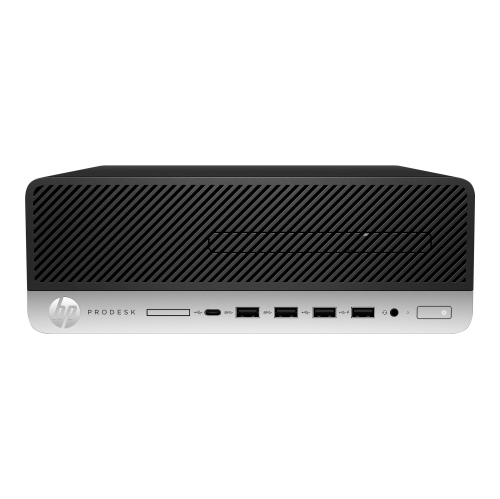
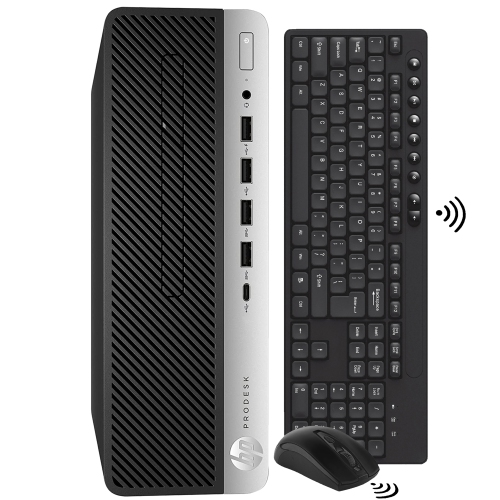
HP ProDesk 600 G3
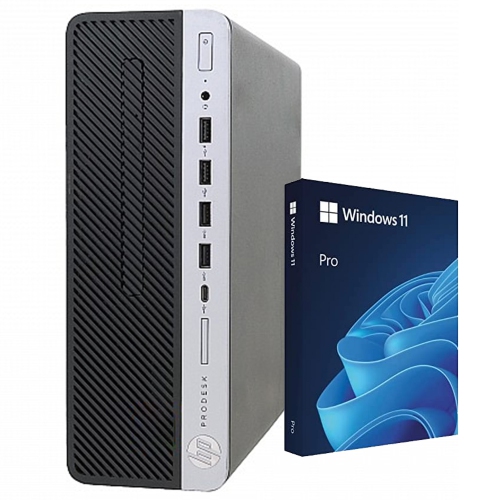
Discover reliable performance and streamlined efficiency with the HP ProDesk 600 G3. Perfect for both home and office environments, this desktop computer offers a balance of power and versatility to support your daily computing needs. Whether you're managing tasks, handling documents, or staying connected, the HP ProDesk 600 G3 is designed to help you stay productive and organized throughout your workday. Explore a range of configurations to find the ideal fit for your workspace.
Sort
Why configuration matters more than a familiar desktop name
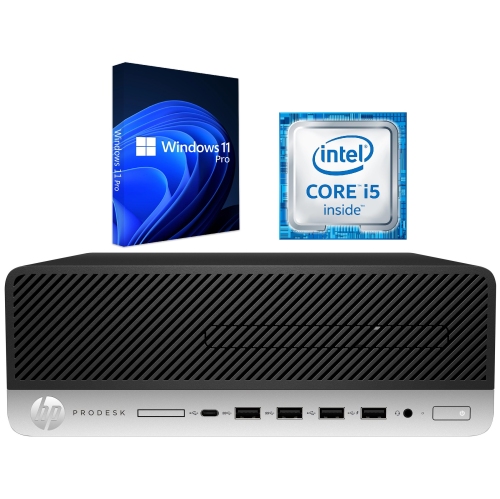
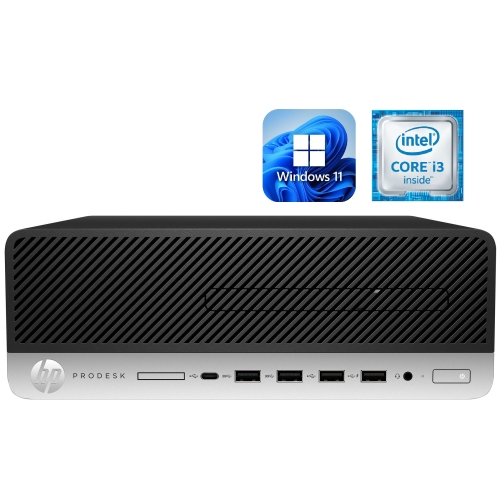
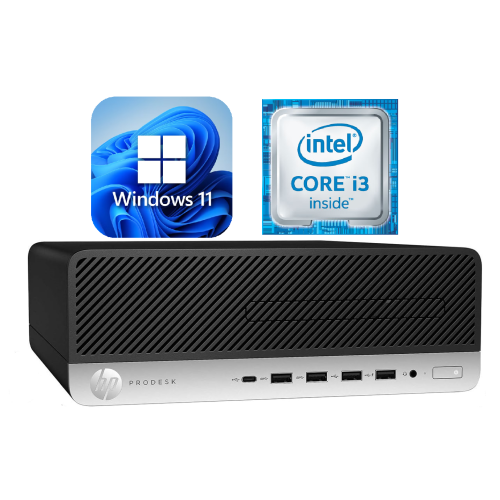
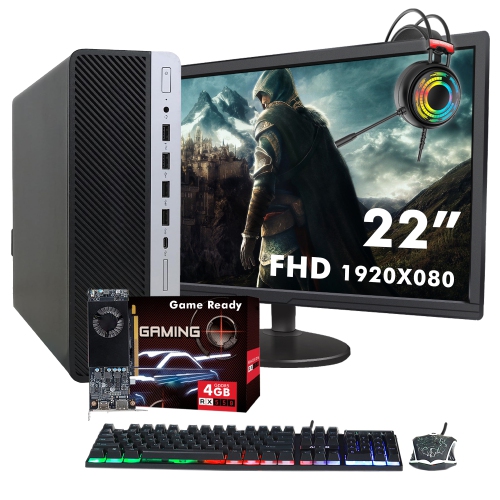
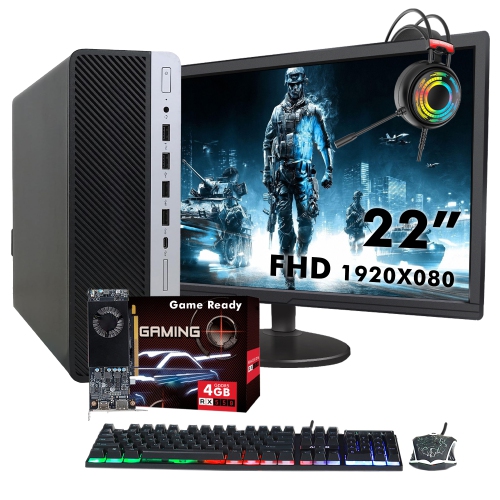
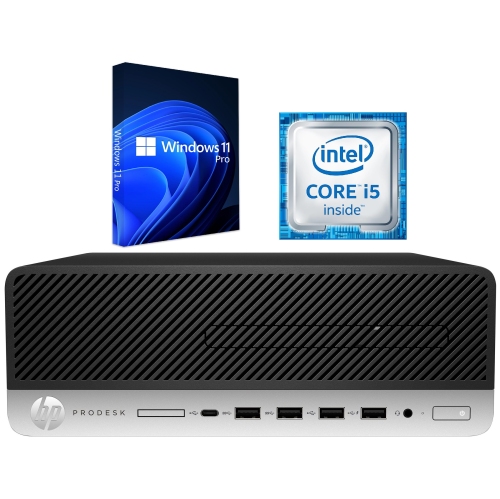
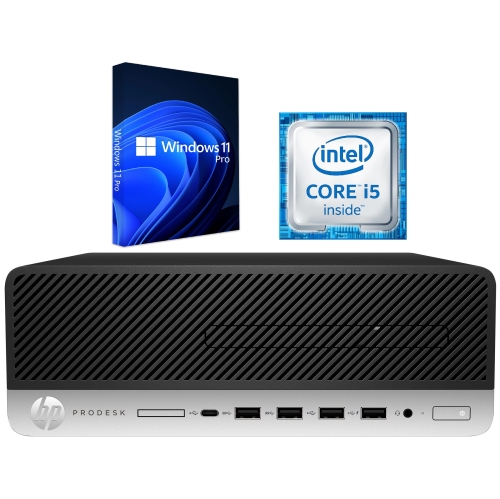
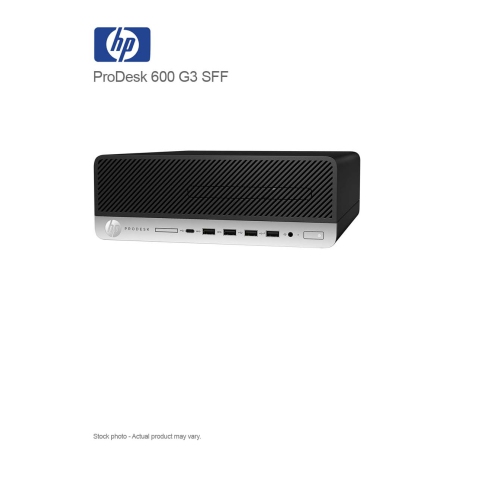
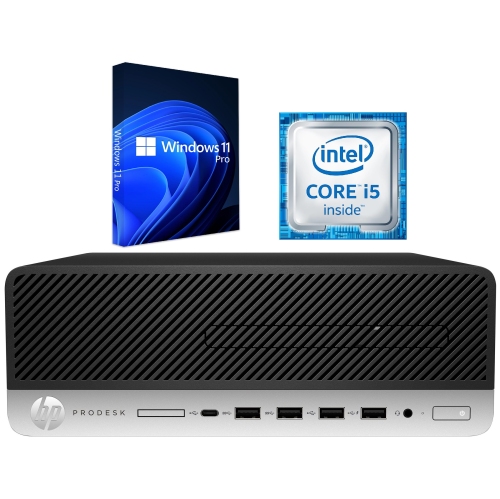
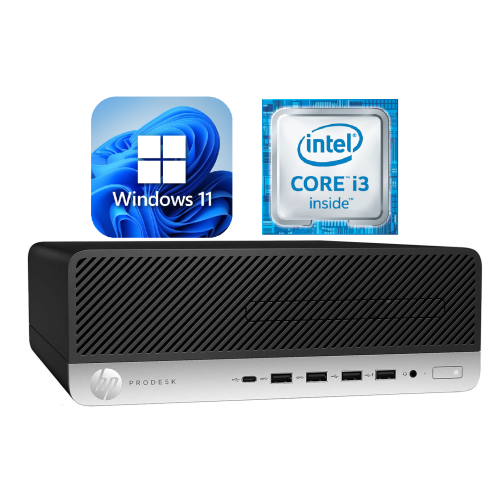
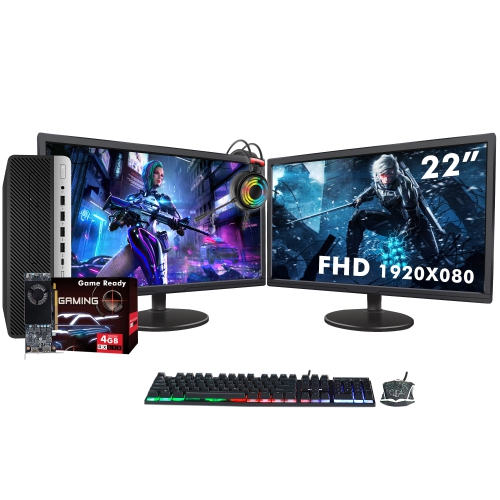
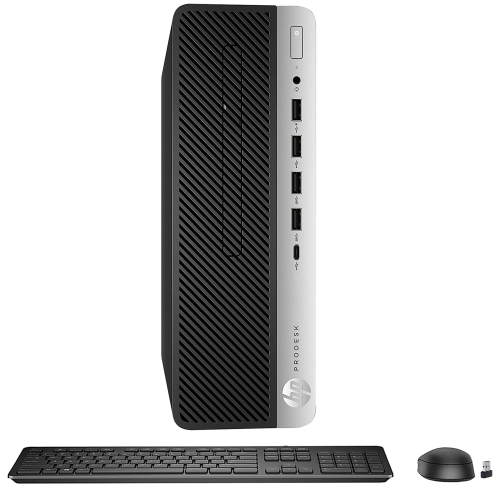
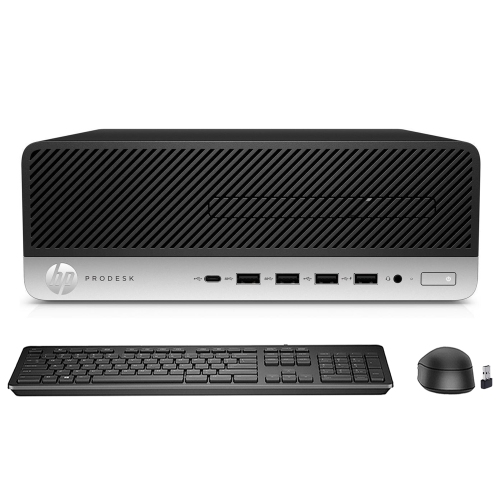
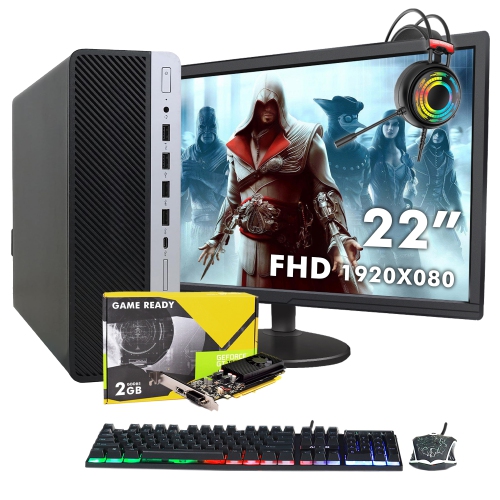
Business-class desktop computers bring a practical, workspace-focused approach to everyday computing, with configurations suited to documents, spreadsheets, email, browser-based tools, and routine administrative tasks. Their appeal lies in a balance of useful connections, serviceable construction, and a choice of chassis sizes rather than elaborate styling. In this class of older office desktops, sixth- and seventh-generation processors and DDR4 memory are common, although the installed processor, memory capacity, and storage can differ considerably between otherwise similar-looking systems. Those differences matter when a computer needs to keep a large spreadsheet, several browser tabs, and a video meeting running together. A solid-state drive helps applications open promptly and makes everyday navigation feel more responsive, while sufficient memory gives active programs room to work without repeatedly moving data to slower storage. For a home office, that might mean handling invoices and scanned receipts beside a connected printer; for a student, it could mean writing assignments while consulting reference material and attending online lessons. Small businesses may use this type of desktop for reception, scheduling, bookkeeping, or other tasks that do not demand advanced graphics performance. The broader HP ProDesk 600 Desktops family provides context for shoppers comparing business desktops across different generations and configurations. A shared family name does not guarantee identical components, so the individual specifications remain important to how each computer will perform. Processor generation alone does not describe the whole experience: core count, memory, drive type, software requirements, and the condition of a previously used system all contribute. Integrated graphics are generally intended for office applications, video playback, and ordinary desktop work rather than demanding modern games or complex three-dimensional projects. For someone moving from a sluggish older computer, a well-matched office desktop can make familiar tasks more comfortable without introducing features that have little relevance to their daily routine. It is the match between the configuration and the workload that gives this category its lasting usefulness.
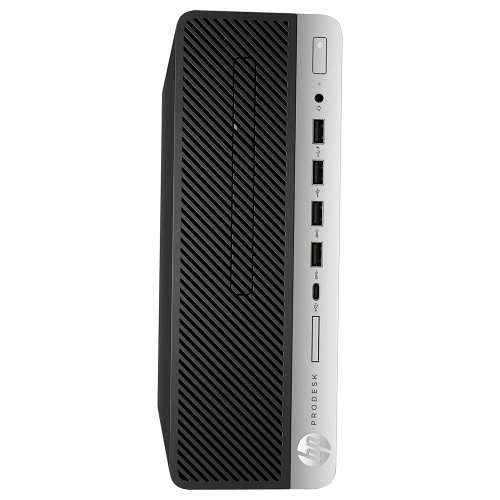
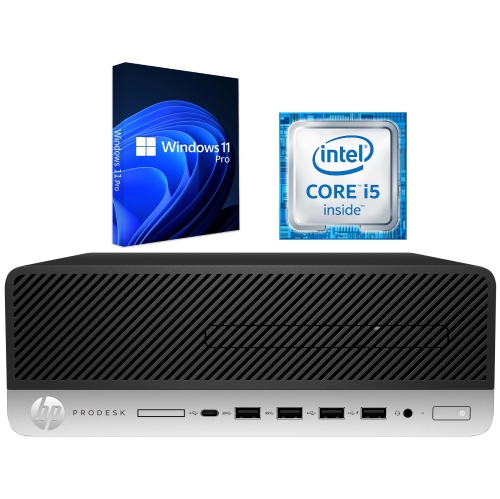
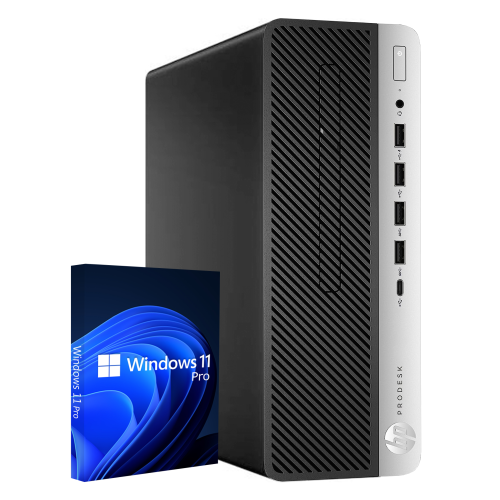
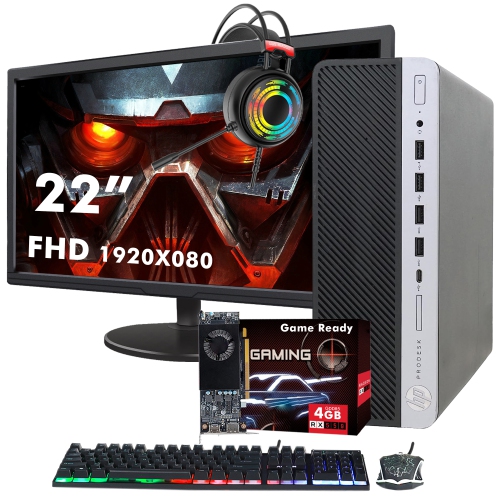
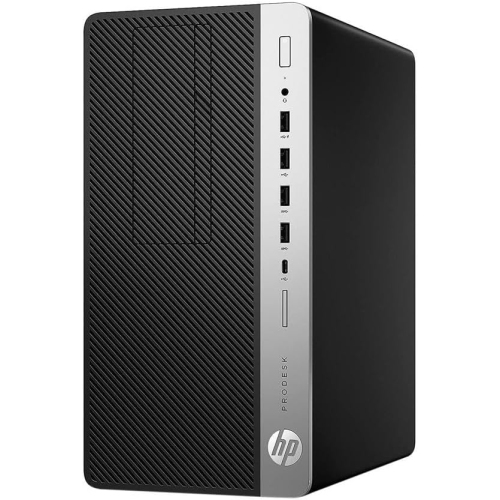
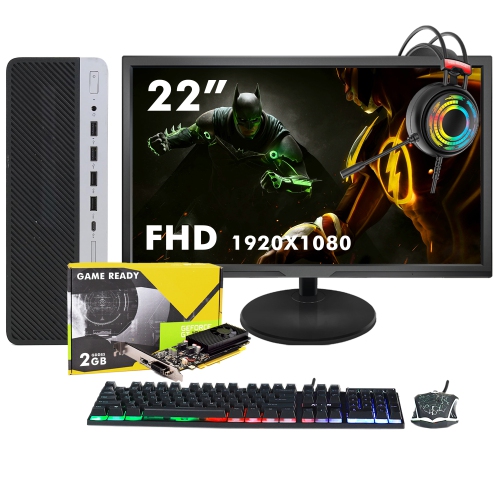
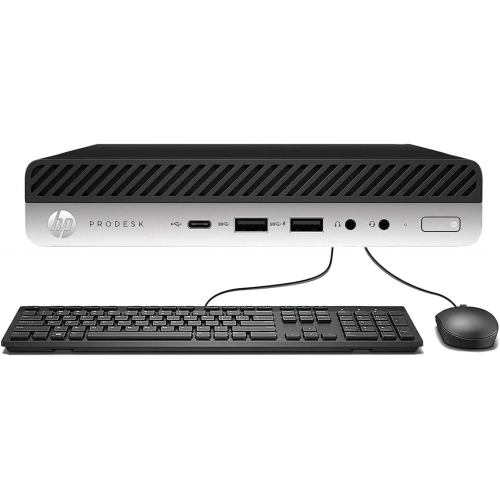
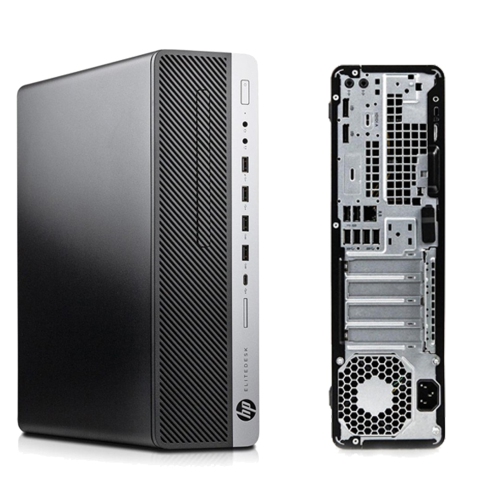
Physical fit is another defining part of a business desktop setup. Small form factor chassis take up less desk space than larger towers, leaving more room for a keyboard, paperwork, or a second monitor, but their compact dimensions also affect internal expansion. A low-profile expansion card may fit where a full-height card will not, and the power supply can limit which graphics cards or other components are suitable. Larger tower cases generally provide more room for drives and expansion cards, although actual slots, mounting points, and power connections vary by configuration. Metal chassis panels and moulded plastic front sections are common construction choices, combining a rigid enclosure with accessible buttons, ports, and ventilation openings. Surface scratches on a used case may be cosmetic, while damaged connectors, loose panels, or obstructed fans can affect everyday use. Placement matters as much as appearance: a desktop tucked beneath a counter still needs clear ventilation and enough space behind it for cables without sharp bends. Front-facing USB ports are useful for a flash drive or headset, while rear connections help keep a printer, keyboard, and mouse attached without cluttering the front of the workspace. Display connections deserve particular attention when pairing an older business computer with an existing monitor. A monitor cable that fits one system may need an adapter on another, and support for multiple displays depends on the installed graphics hardware and outputs. Wired Ethernet is useful for a fixed workstation; Wi-Fi and Bluetooth should not be assumed unless they are listed. Video calls may also require a separate webcam, microphone, or speakers. Storage expansion depends on more than free space inside the case, since drive bays, brackets, cables, and supported interfaces all play a part. A 2.5-inch SATA drive and an M.2 drive use different physical connections, and an M.2 slot does not automatically support every M.2 storage type. Similarly, memory upgrades depend on the correct module format, supported capacity, and available slots rather than the DDR4 label alone.
Refurbished and previously used business desktops introduce a few additional considerations that are especially relevant to a computer intended for regular work or study. Refurbishment descriptions can cover different testing, cleaning, and replacement procedures, so condition details, included accessories, and warranty terms help establish what to expect. A listing that specifies the installed memory and drive capacity is more informative than a general description of what the chassis can support. Maximum supported memory is an upgrade ceiling, not a statement of what comes installed, and empty drive bays do not necessarily include the hardware needed to add storage. The operating system is equally important. Older processors may not meet the official requirements of newer operating systems, even when the computer remains capable of handling basic applications. Compatibility with required software and access to security updates are therefore part of the desktop’s suitability for handling personal records, schoolwork, or business information. For a shared household computer, separate user accounts can keep documents organized, while regular backups protect files independently of the internal drive. A desktop used for bookkeeping benefits from the same precautions as a more powerful workstation: supported software, appropriate account permissions, and a reliable backup routine. Physical care is straightforward but worthwhile. Keeping vents clear, removing dust according to the manufacturer’s maintenance instructions, and switching off and unplugging the computer before approved internal maintenance help protect its working components. Liquid cleaners should not be sprayed directly into ports or ventilation openings. Serviceable designs can make repairs and selected upgrades practical, but proprietary power supplies, cooling assemblies, and connectors may restrict replacement choices. These desktops are a natural fit for people who prefer a fixed workstation with a full-size keyboard and a comfortably positioned monitor. They can also suit a family member who needs a dedicated place for email, forms, and personal projects, provided the setup includes the necessary peripherals. With suitable specifications and realistic expectations about older hardware, a business desktop can remain a useful centre for focused, everyday computing.
Physical fit is another defining part of a business desktop setup. Small form factor chassis take up less desk space than larger towers, leaving more room for a keyboard, paperwork, or a second monitor, but their compact dimensions also affect internal expansion. A low-profile expansion card may fit where a full-height card will not, and the power supply can limit which graphics cards or other components are suitable. Larger tower cases generally provide more room for drives and expansion cards, although actual slots, mounting points, and power connections vary by configuration. Metal chassis panels and moulded plastic front sections are common construction choices, combining a rigid enclosure with accessible buttons, ports, and ventilation openings. Surface scratches on a used case may be cosmetic, while damaged connectors, loose panels, or obstructed fans can affect everyday use. Placement matters as much as appearance: a desktop tucked beneath a counter still needs clear ventilation and enough space behind it for cables without sharp bends. Front-facing USB ports are useful for a flash drive or headset, while rear connections help keep a printer, keyboard, and mouse attached without cluttering the front of the workspace. Display connections deserve particular attention when pairing an older business computer with an existing monitor. A monitor cable that fits one system may need an adapter on another, and support for multiple displays depends on the installed graphics hardware and outputs. Wired Ethernet is useful for a fixed workstation; Wi-Fi and Bluetooth should not be assumed unless they are listed. Video calls may also require a separate webcam, microphone, or speakers. Storage expansion depends on more than free space inside the case, since drive bays, brackets, cables, and supported interfaces all play a part. A 2.5-inch SATA drive and an M.2 drive use different physical connections, and an M.2 slot does not automatically support every M.2 storage type. Similarly, memory upgrades depend on the correct module format, supported capacity, and available slots rather than the DDR4 label alone.
Refurbished and previously used business desktops introduce a few additional considerations that are especially relevant to a computer intended for regular work or study. Refurbishment descriptions can cover different testing, cleaning, and replacement procedures, so condition details, included accessories, and warranty terms help establish what to expect. A listing that specifies the installed memory and drive capacity is more informative than a general description of what the chassis can support. Maximum supported memory is an upgrade ceiling, not a statement of what comes installed, and empty drive bays do not necessarily include the hardware needed to add storage. The operating system is equally important. Older processors may not meet the official requirements of newer operating systems, even when the computer remains capable of handling basic applications. Compatibility with required software and access to security updates are therefore part of the desktop’s suitability for handling personal records, schoolwork, or business information. For a shared household computer, separate user accounts can keep documents organized, while regular backups protect files independently of the internal drive. A desktop used for bookkeeping benefits from the same precautions as a more powerful workstation: supported software, appropriate account permissions, and a reliable backup routine. Physical care is straightforward but worthwhile. Keeping vents clear, removing dust according to the manufacturer’s maintenance instructions, and switching off and unplugging the computer before approved internal maintenance help protect its working components. Liquid cleaners should not be sprayed directly into ports or ventilation openings. Serviceable designs can make repairs and selected upgrades practical, but proprietary power supplies, cooling assemblies, and connectors may restrict replacement choices. These desktops are a natural fit for people who prefer a fixed workstation with a full-size keyboard and a comfortably positioned monitor. They can also suit a family member who needs a dedicated place for email, forms, and personal projects, provided the setup includes the necessary peripherals. With suitable specifications and realistic expectations about older hardware, a business desktop can remain a useful centre for focused, everyday computing.
Top selling and popular products
-
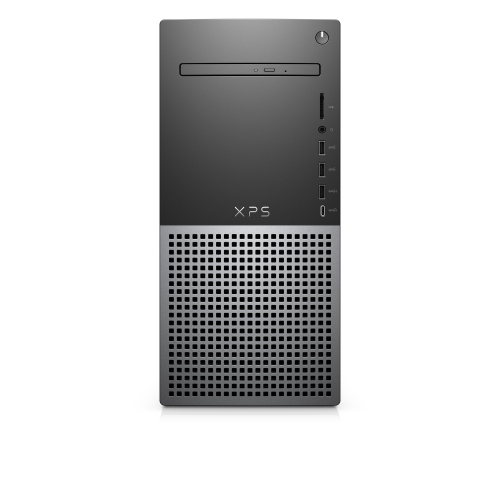 Your price for this item is $1599
 -
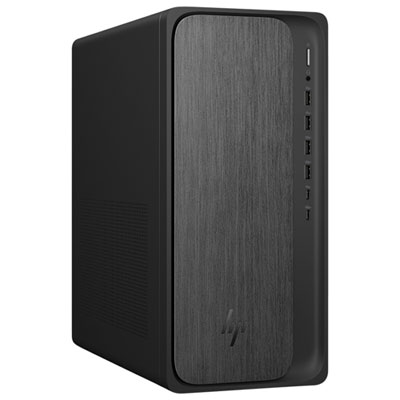 Your price for this item is $1299.99
 -
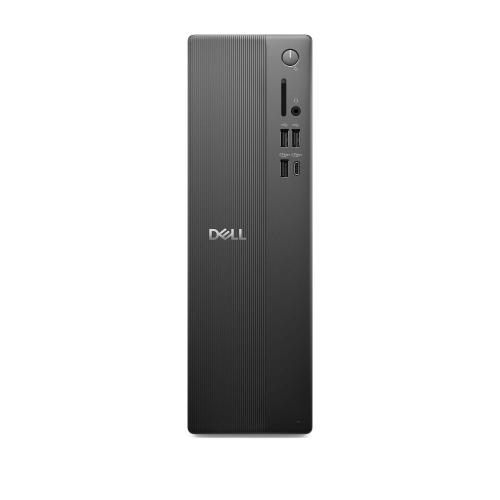 Your price for this item is $1629.79
 -
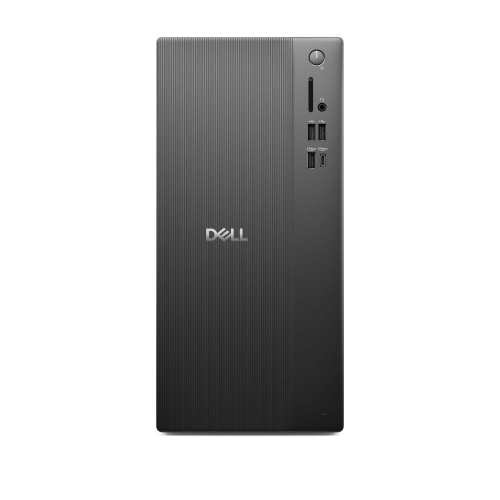 Your price for this item is $1459.79
 -
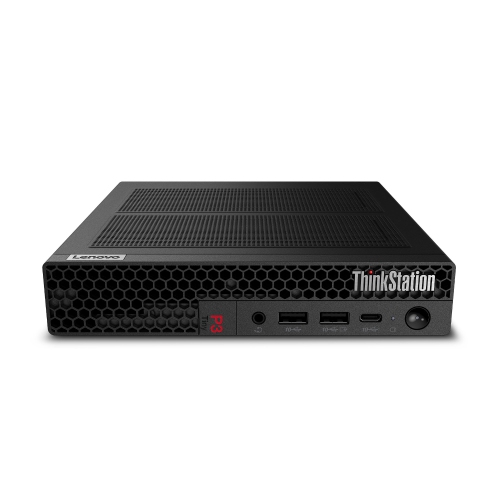 Your price for this item is $929
 -
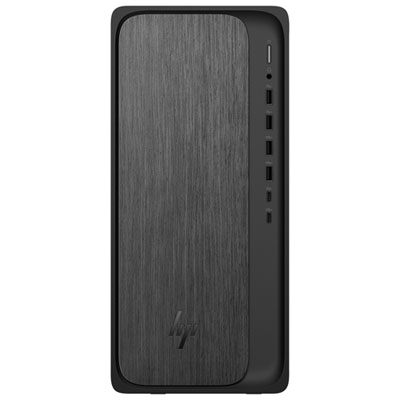 Your price for this item is $2299.99
 -
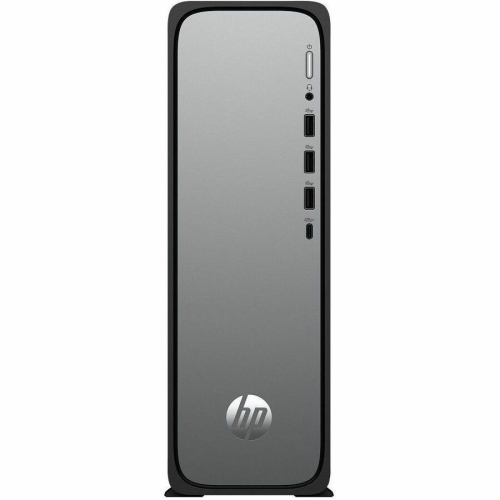 Your price for this item is $1076.55
 -
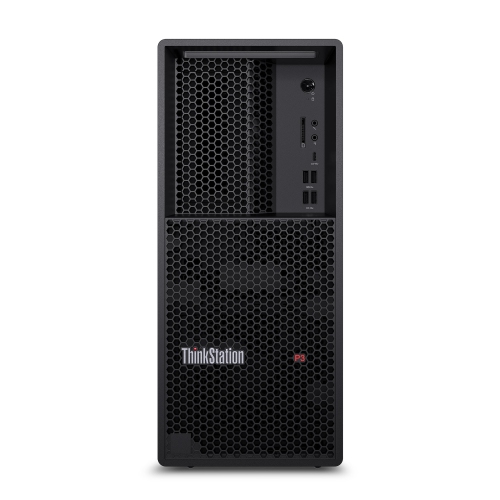 Your price for this item is $1839
Discover more categories related to HP ProDesk 600 G3

Top Collections:
Pokemon Centers, Kindle Devices, Best Budget Office Chairs, Canon G7X Cameras, Apple iPhones 16, Samsung Galaxy Phones, Refurbished Apple Laptops, Laptops for Students, iPhone 15 Apple, Budget Smartphones
Some products may be subject to Environmental Handling Fees
(EHF) depending on your province.
Learn more about EHFs.