HP ProDesk 400 G4 PCs
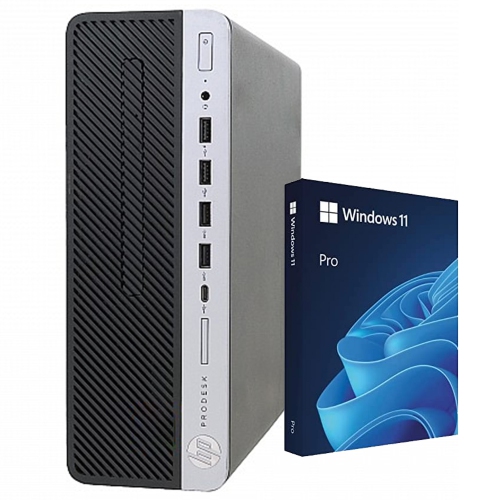
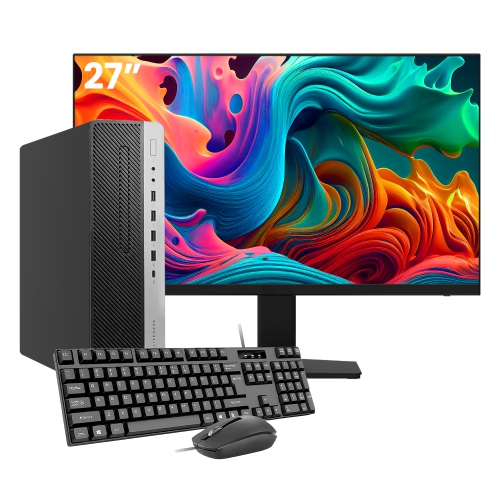
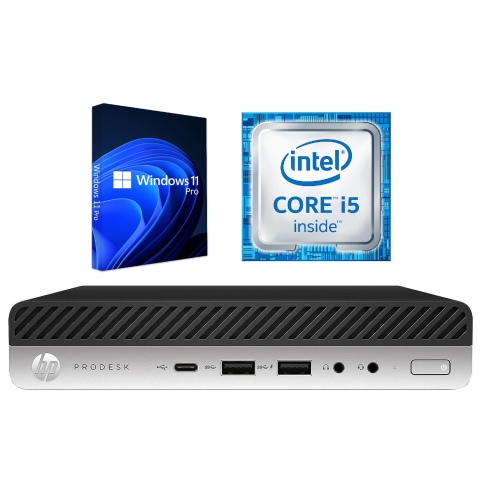
Discover the HP ProDesk 400 G4 PC, designed to meet the demands of modern workspaces and busy professionals. Whether setting up a new office or upgrading your current setup, this reliable desktop offers the performance and flexibility needed for everyday tasks. Explore a range of configurations and options to find the perfect fit for your productivity needs with the HP ProDesk 400 G4 PC.
Sort




How desktop size and specifications shape everyday work
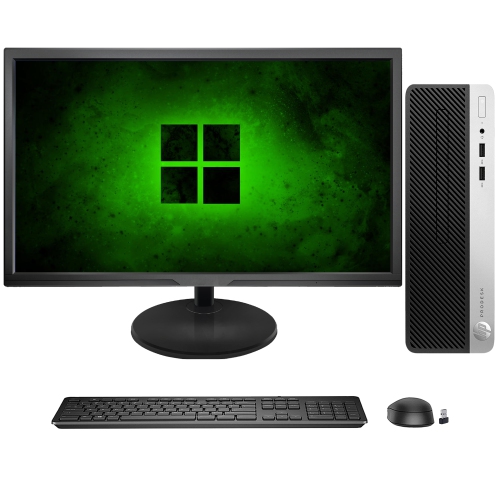
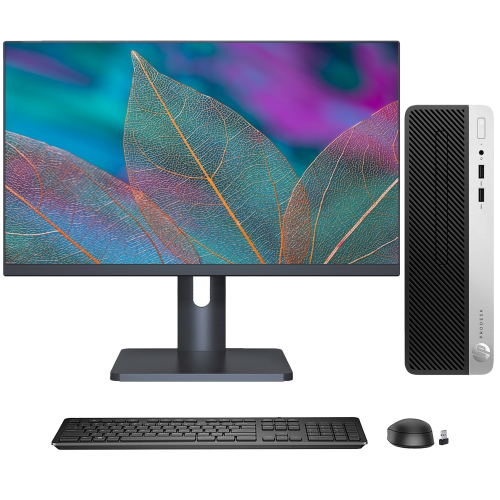
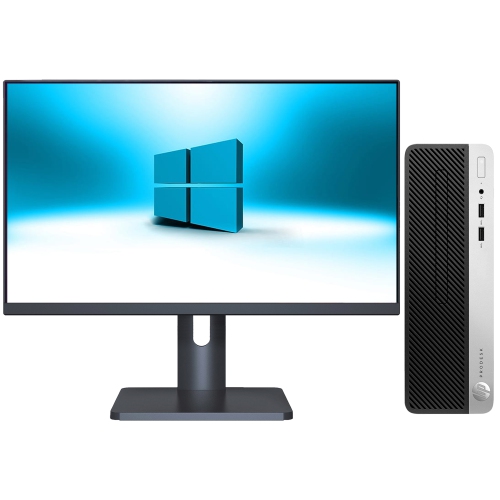
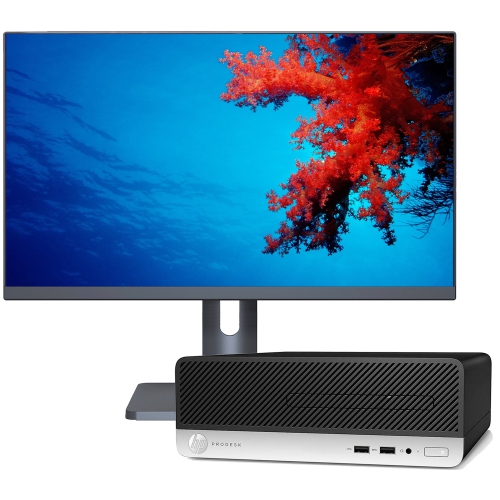
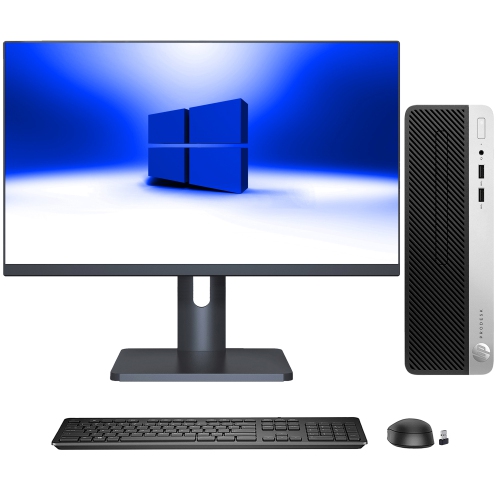
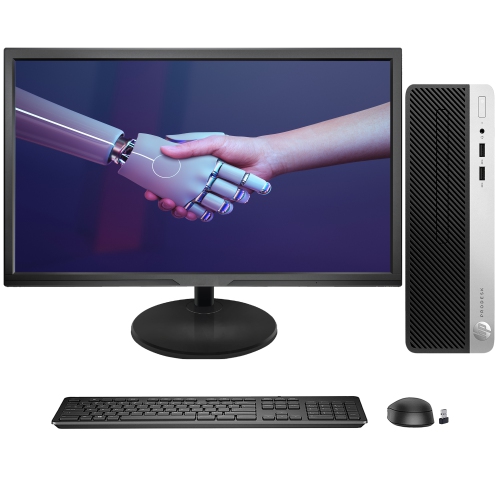
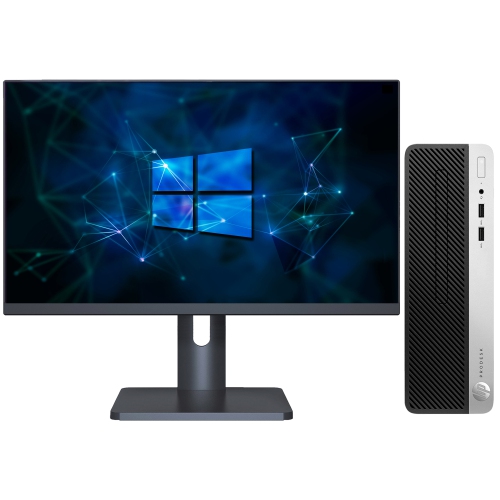
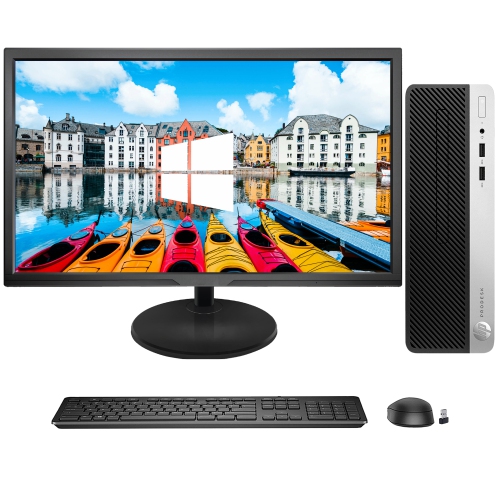
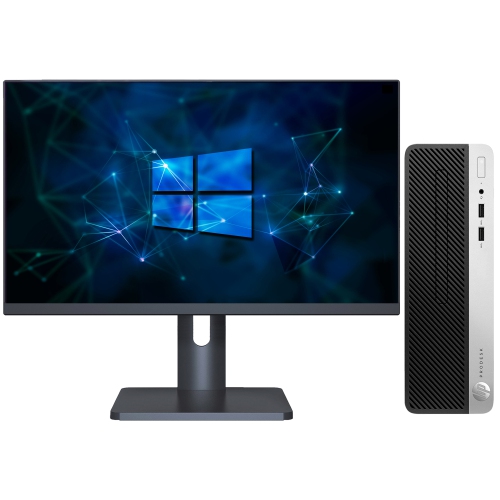
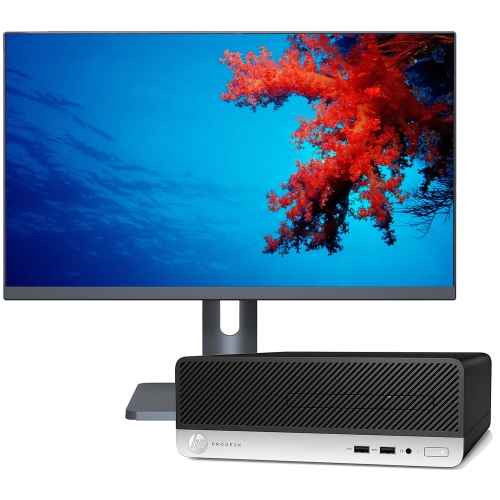
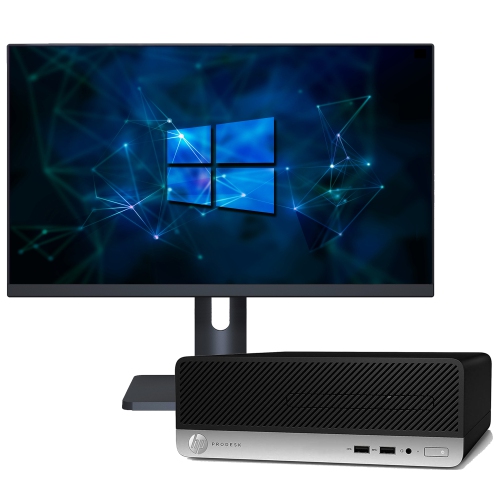
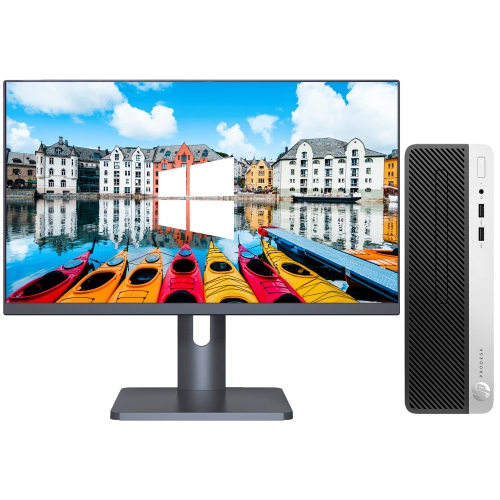
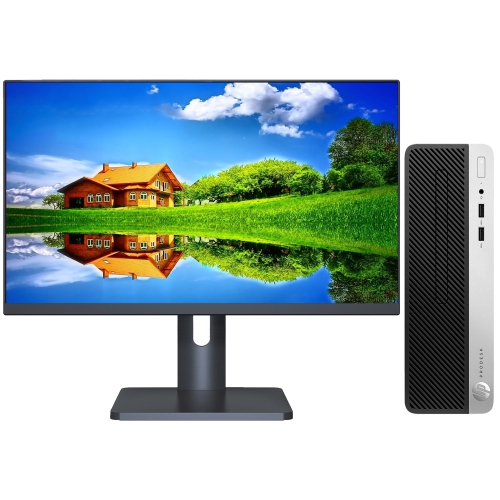
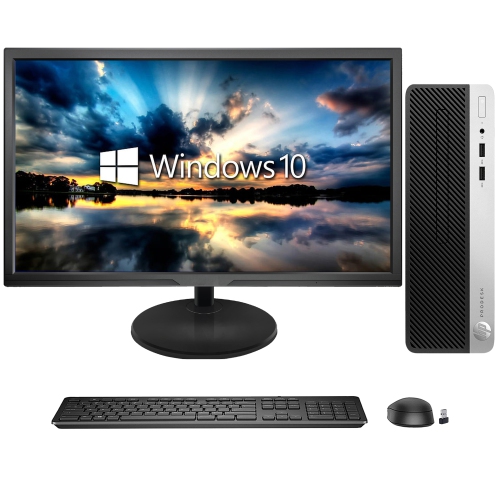
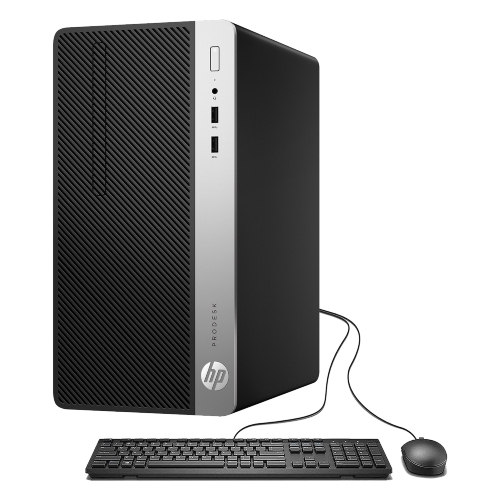
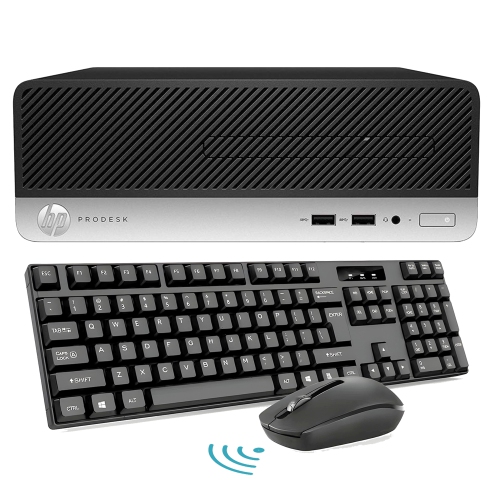
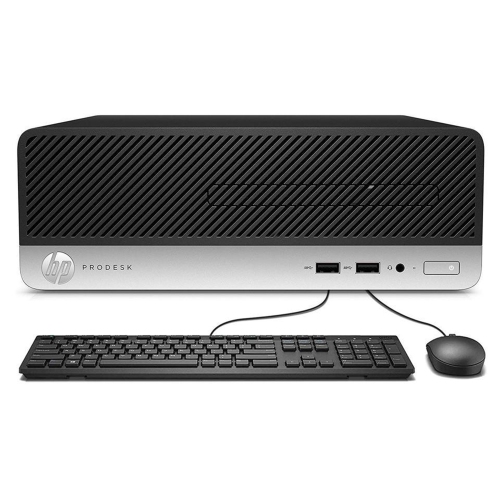
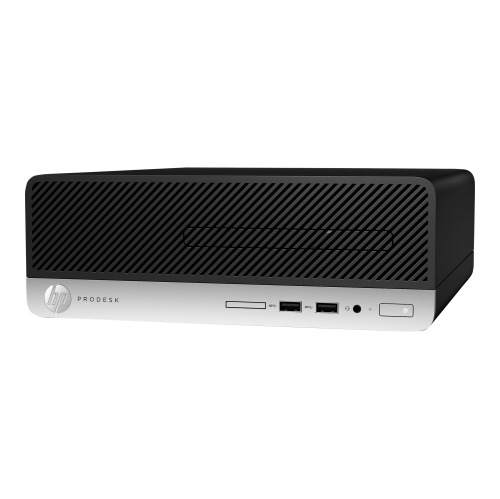
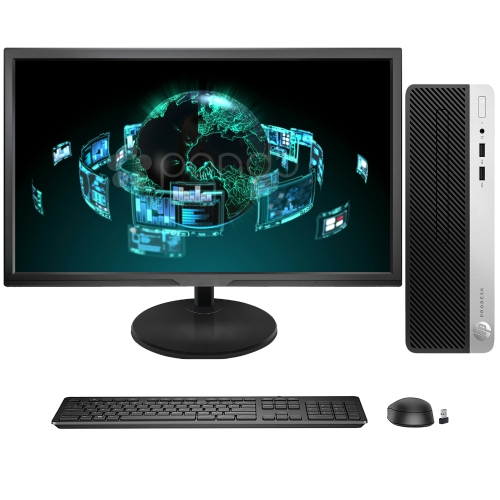
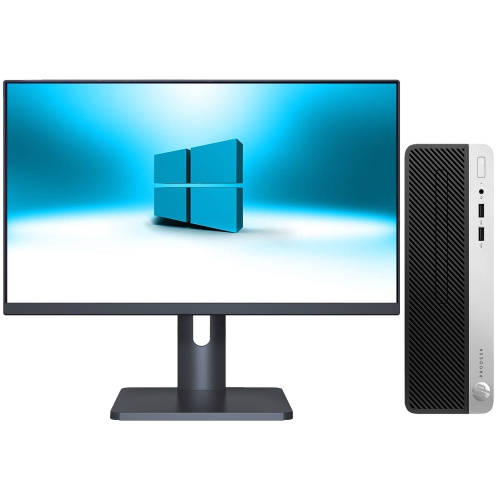
Business desktop PCs are built around the practical demands of a working day: opening documents, managing email, updating spreadsheets, joining video calls, and keeping browser-based tools within easy reach. Their appeal lies in a straightforward desktop setup with a separate monitor, keyboard, and mouse, allowing each part of the workspace to suit the person using it. These computers can serve as office workstations, reception terminals, home administration centres, or dedicated study computers for students whose coursework relies on everyday productivity applications. Chassis size is an important distinction within this type of desktop family. Small form factor systems keep the case relatively compact while retaining some internal expansion options; microtowers take up more room but may provide additional space for drives and compatible cards. Desktop mini designs prioritize a smaller footprint, although their internal layout and expansion possibilities differ from those of larger cases. A mounting bracket may allow a compatible mini computer to sit behind a monitor, but bracket compatibility and access to cables still matter. Similar-looking cases do not necessarily contain the same processor generation, memory capacity, or storage hardware, so the configuration matters more than appearance alone. For a shared household desk, a compact case can leave space for notebooks and a printer without placing the computer on the floor. In an office, a larger chassis may be useful where future hardware changes are part of the plan. Metal chassis panels and moulded front trim are common in business desktops, offering a practical structure for stationary use rather than frequent travel. Panel condition, secure feet, intact ports, and a properly closing case all contribute to everyday usability. These systems are primarily intended for desk-based work; demanding 3D rendering, recent games, and professional video production require closer attention to graphics capability, processor performance, and power capacity than routine document work does.
Processor, memory, and storage specifications explain much of the difference between configurations. A processor’s generation and exact model are more informative than a broad performance label, especially when comparing computers from different chassis families. Memory capacity influences how comfortably a desktop handles several applications at once. A workstation used for a few documents and a browser has different needs from one running large spreadsheets, multiple browser windows, and a video meeting together. Installed memory and maximum supported memory are separate specifications: an upgrade depends on the motherboard’s limit, the number of slots, the modules already fitted, and the type of memory required. Larger business desktop cases commonly use desktop-sized memory modules, while mini systems may use smaller modules, so physically similar capacities are not automatically interchangeable. Storage deserves equally close attention. A solid-state drive generally makes startup, application launches, and file access feel more responsive than a mechanical hard drive. A hard drive can still provide useful space for larger document archives, but capacity alone does not indicate speed. An M.2 connection describes a physical format, not a guarantee that every drive using it will work; supported interfaces, drive dimensions, and mounting hardware also affect compatibility. For a bookkeeping desk, responsive storage and enough memory may make a more noticeable difference to daily work than an unused expansion slot. For someone handling large photo folders, storage capacity and a separate backup routine become more important. Display connections should match the monitor or monitors already in use, and the number of video sockets does not by itself establish every supported screen arrangement. Integrated graphics are often suitable for office displays and video playback, but higher resolutions and multiple screens depend on the complete configuration. Wired network access can suit a fixed workstation, while Wi-Fi and Bluetooth should be confirmed rather than assumed. USB port counts, audio connections, and the placement of front ports also matter when a webcam, headset, external drive, and other accessories share the same desk.
The fit between a desktop and its workspace extends beyond the case dimensions. Room behind the computer is needed for display plugs, network cables, and power connections, while clear ventilation openings help internal fans move air as intended. A small form factor case is not automatically suitable for every orientation, and a mini system may use an external power adapter that also needs a convenient place to sit. Keeping the case on a stable surface and following the manufacturer’s cleaning directions helps protect ports, panels, and internal components. For routine exterior care, the computer should be shut down and unplugged before a soft, dry cloth is used; liquids should not be sprayed into openings. Dust buildup, damaged cables, and unusual fan noise deserve attention, particularly on a machine expected to run throughout the working day. Where a desktop is described as refurbished, cosmetic condition, testing details, warranty terms, and included accessories help clarify what that description means. A keyboard, mouse, wireless adapter, or monitor should not be treated as part of the setup unless explicitly included. The installed operating system also needs to suit the intended applications and have an appropriate security support path. An operating system being installed is not, on its own, proof that the hardware meets its official requirements, and processor eligibility can differ between configurations that share a desktop family name. For business use, account permissions, device encryption compatibility, and backup arrangements may matter as much as processing speed. Expansion plans need similar care: a graphics card must fit the chassis and its power limits, while an extra drive may require a suitable bay, cable, and connector. Comparing the listed specifications with those on the HP ProDesk 400 G5 page can help distinguish differences in processor generation, chassis design, and connectivity without assuming that every configuration is alike. A well-matched business desktop brings these practical details together, giving a student, household administrator, or office worker a dependable place to handle familiar tasks with the screens and accessories that make the desk comfortable to use.
Processor, memory, and storage specifications explain much of the difference between configurations. A processor’s generation and exact model are more informative than a broad performance label, especially when comparing computers from different chassis families. Memory capacity influences how comfortably a desktop handles several applications at once. A workstation used for a few documents and a browser has different needs from one running large spreadsheets, multiple browser windows, and a video meeting together. Installed memory and maximum supported memory are separate specifications: an upgrade depends on the motherboard’s limit, the number of slots, the modules already fitted, and the type of memory required. Larger business desktop cases commonly use desktop-sized memory modules, while mini systems may use smaller modules, so physically similar capacities are not automatically interchangeable. Storage deserves equally close attention. A solid-state drive generally makes startup, application launches, and file access feel more responsive than a mechanical hard drive. A hard drive can still provide useful space for larger document archives, but capacity alone does not indicate speed. An M.2 connection describes a physical format, not a guarantee that every drive using it will work; supported interfaces, drive dimensions, and mounting hardware also affect compatibility. For a bookkeeping desk, responsive storage and enough memory may make a more noticeable difference to daily work than an unused expansion slot. For someone handling large photo folders, storage capacity and a separate backup routine become more important. Display connections should match the monitor or monitors already in use, and the number of video sockets does not by itself establish every supported screen arrangement. Integrated graphics are often suitable for office displays and video playback, but higher resolutions and multiple screens depend on the complete configuration. Wired network access can suit a fixed workstation, while Wi-Fi and Bluetooth should be confirmed rather than assumed. USB port counts, audio connections, and the placement of front ports also matter when a webcam, headset, external drive, and other accessories share the same desk.
The fit between a desktop and its workspace extends beyond the case dimensions. Room behind the computer is needed for display plugs, network cables, and power connections, while clear ventilation openings help internal fans move air as intended. A small form factor case is not automatically suitable for every orientation, and a mini system may use an external power adapter that also needs a convenient place to sit. Keeping the case on a stable surface and following the manufacturer’s cleaning directions helps protect ports, panels, and internal components. For routine exterior care, the computer should be shut down and unplugged before a soft, dry cloth is used; liquids should not be sprayed into openings. Dust buildup, damaged cables, and unusual fan noise deserve attention, particularly on a machine expected to run throughout the working day. Where a desktop is described as refurbished, cosmetic condition, testing details, warranty terms, and included accessories help clarify what that description means. A keyboard, mouse, wireless adapter, or monitor should not be treated as part of the setup unless explicitly included. The installed operating system also needs to suit the intended applications and have an appropriate security support path. An operating system being installed is not, on its own, proof that the hardware meets its official requirements, and processor eligibility can differ between configurations that share a desktop family name. For business use, account permissions, device encryption compatibility, and backup arrangements may matter as much as processing speed. Expansion plans need similar care: a graphics card must fit the chassis and its power limits, while an extra drive may require a suitable bay, cable, and connector. Comparing the listed specifications with those on the HP ProDesk 400 G5 page can help distinguish differences in processor generation, chassis design, and connectivity without assuming that every configuration is alike. A well-matched business desktop brings these practical details together, giving a student, household administrator, or office worker a dependable place to handle familiar tasks with the screens and accessories that make the desk comfortable to use.
Top selling and popular products
-
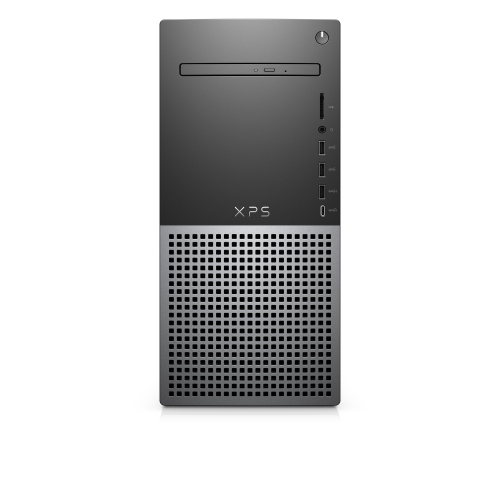 Your price for this item is $1599
 -
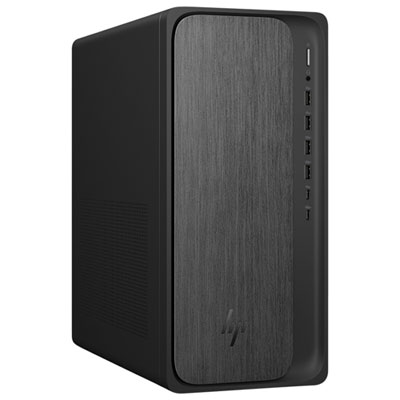 Your price for this item is $1299.99
 -
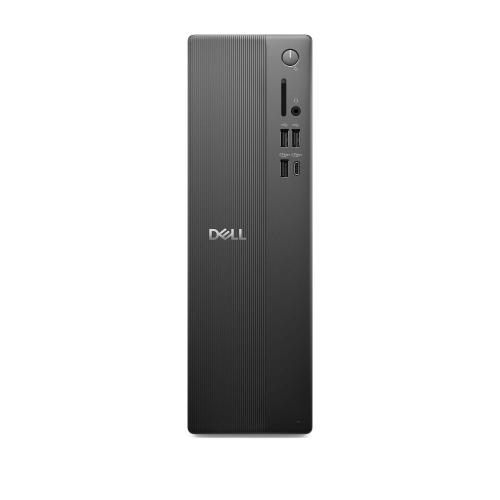 Your price for this item is $1629.79
 -
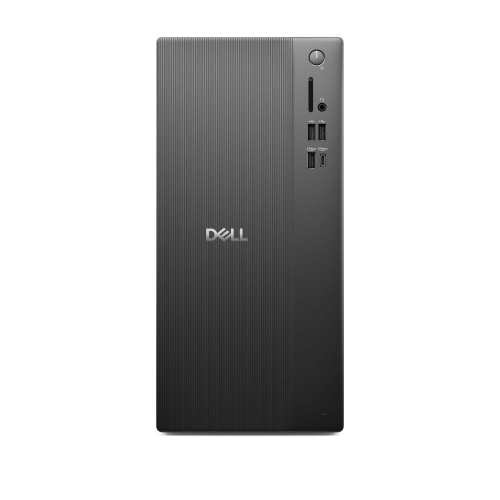 Your price for this item is $1459.79
 -
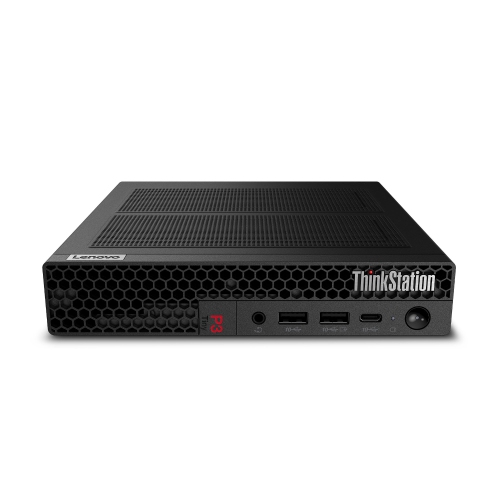 Your price for this item is $929
 -
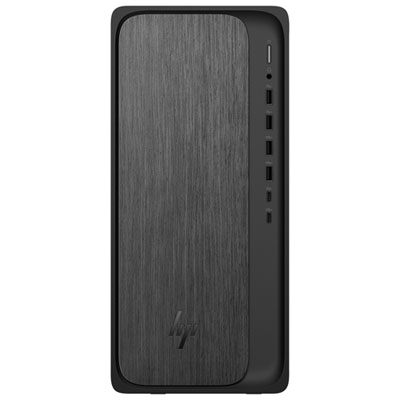 Your price for this item is $2299.99
 -
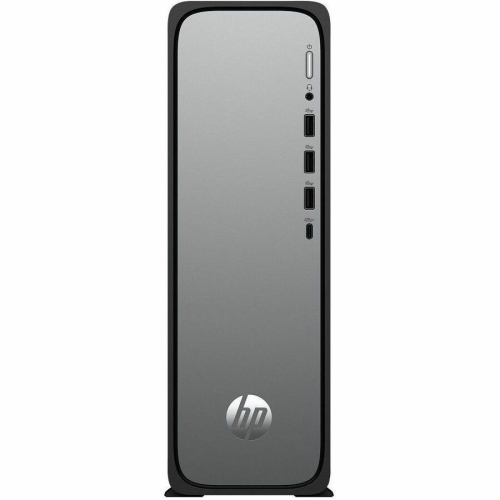 Your price for this item is $1076.55
 -
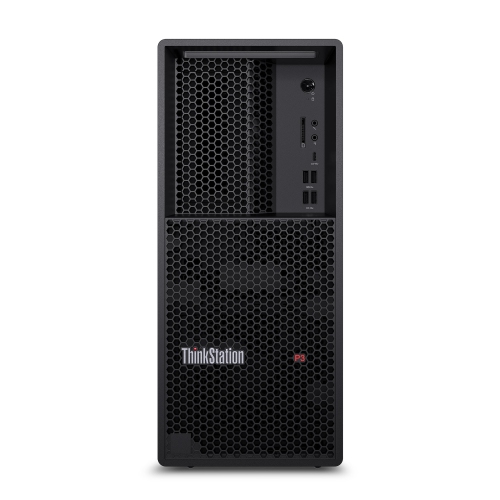 Your price for this item is $1839
Discover more categories related to HP ProDesk 400 G4 PCs
Top Collections:
Pokemon Centers, Kindle Devices, Best Budget Office Chairs, Canon G7X Cameras, Apple iPhones 16, Samsung Galaxy Phones, Refurbished Apple Laptops, Laptops for Students, iPhone 15 Apple, Budget Smartphones
Some products may be subject to Environmental Handling Fees
(EHF) depending on your province.
Learn more about EHFs.