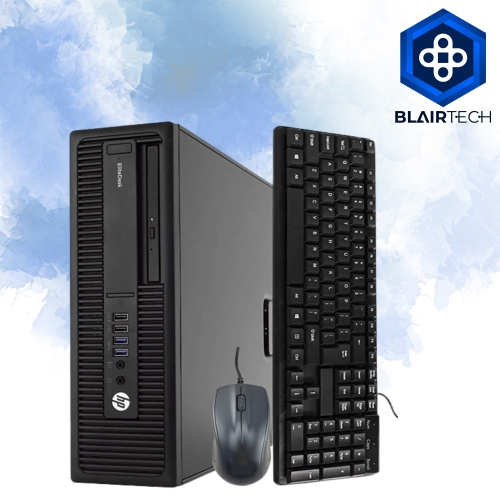
HP ProDesk 600 Desktops
Discover the versatility and reliability of the HP ProDesk 600 Desktop, designed to meet the demands of modern workspaces. With options that cater to both business professionals and home office users, the HP ProDesk 600 Desktop combines performance and efficiency for everyday computing tasks. Explore a range of configurations to find the perfect fit for your needs, whether you're handling daily productivity or managing complex projects. Upgrade your workspace with a desktop solution that helps you stay organized and focused.
Sort


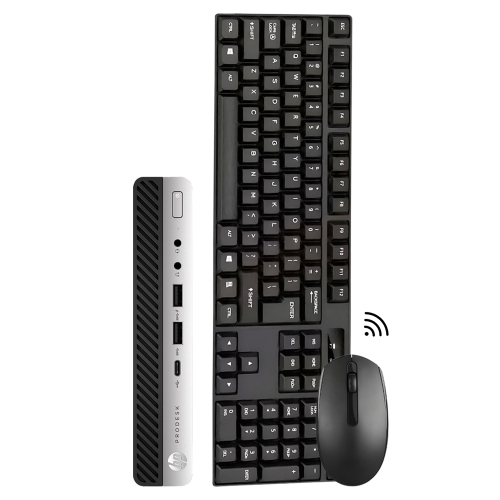
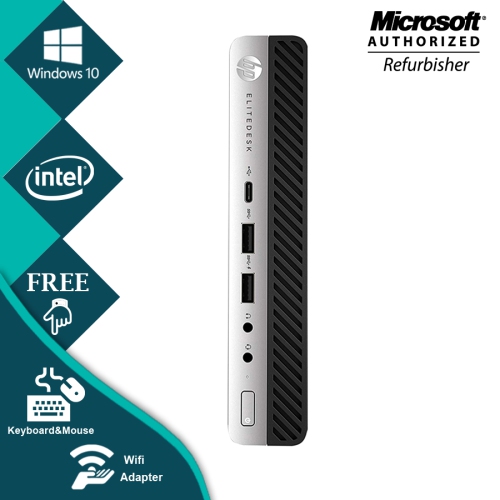
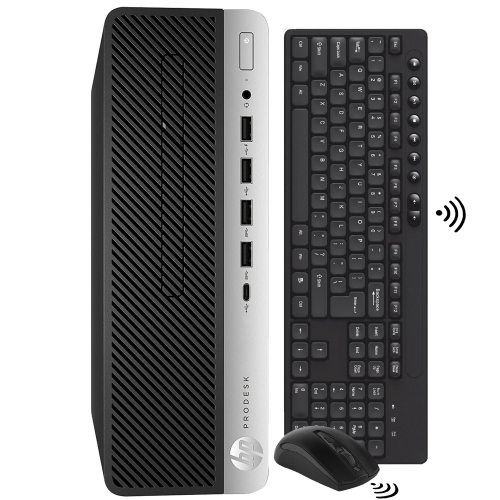
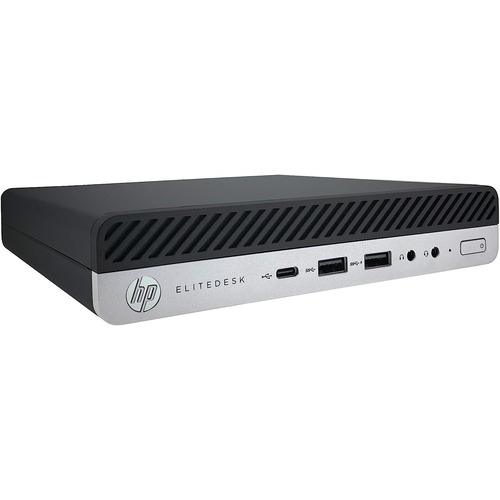
Why similar-looking desktops can offer very different capabilities
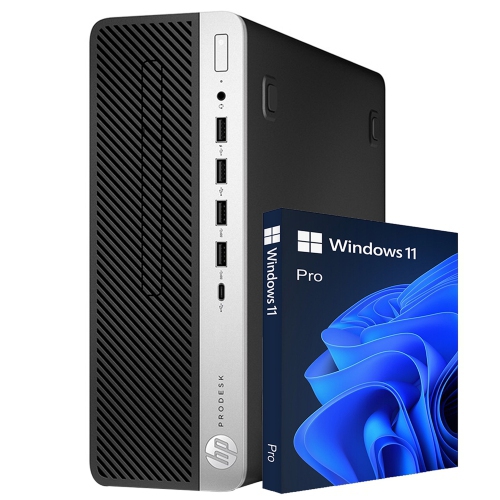
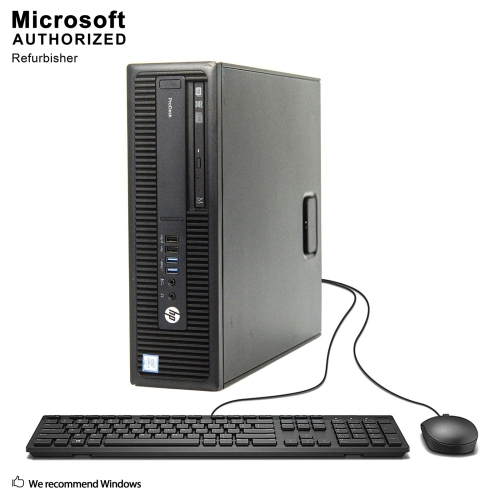
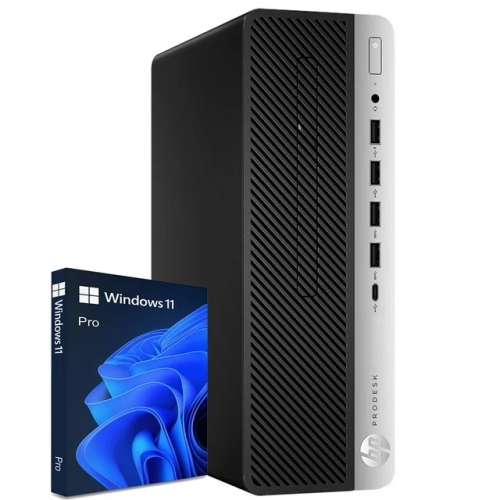
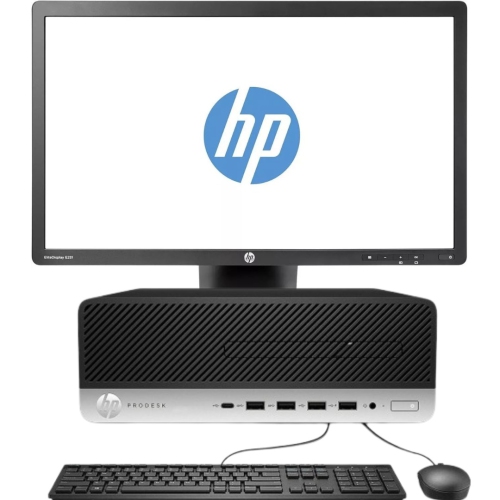
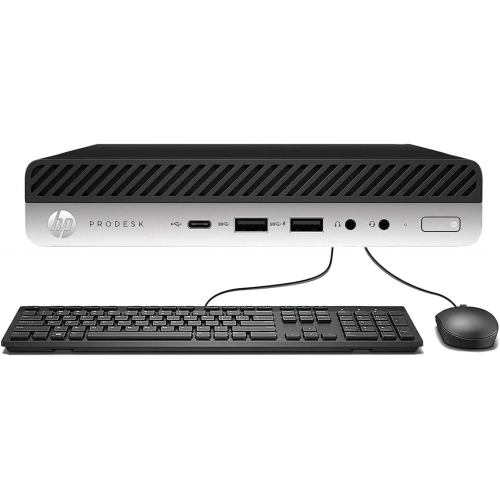
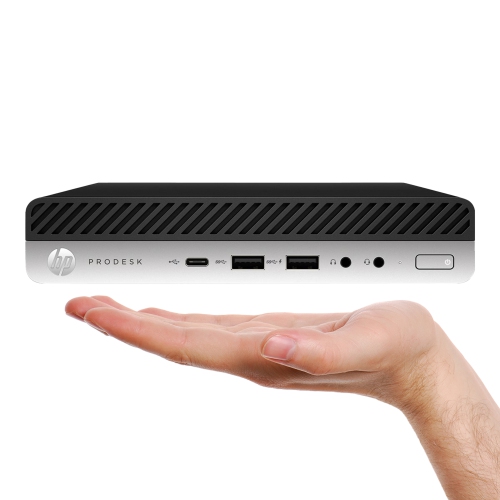
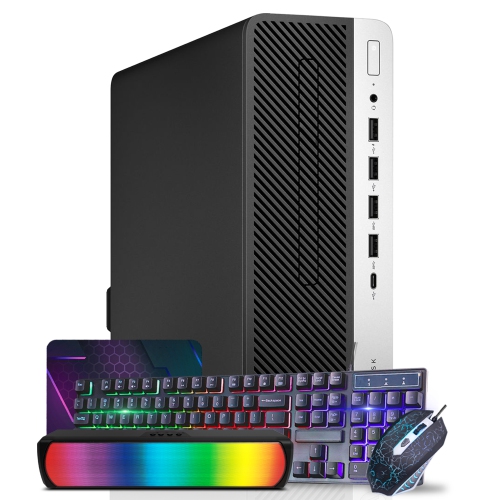
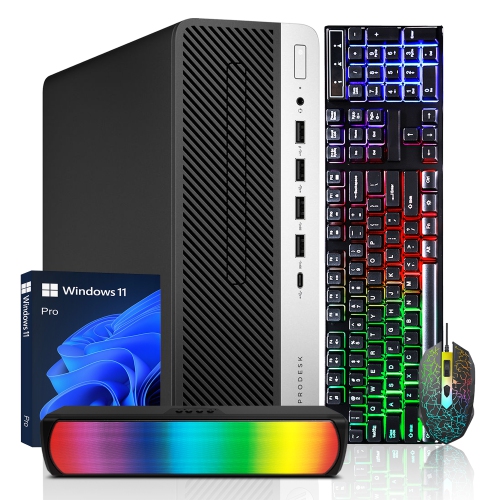
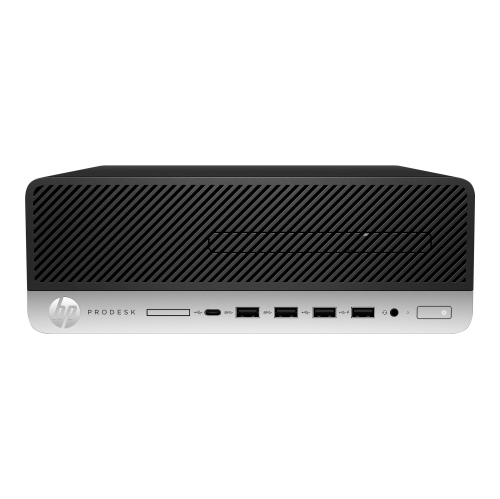
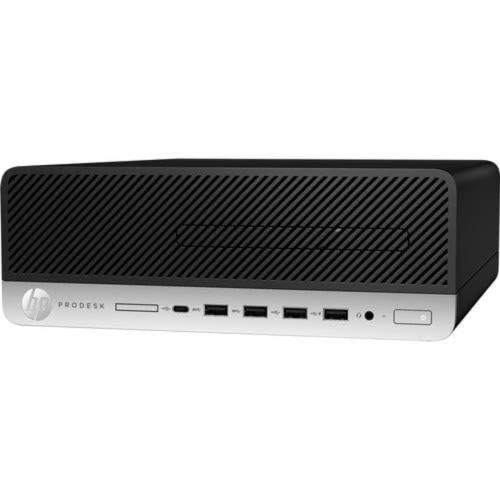
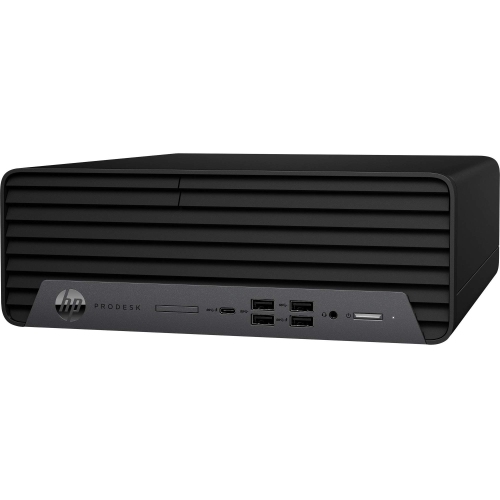
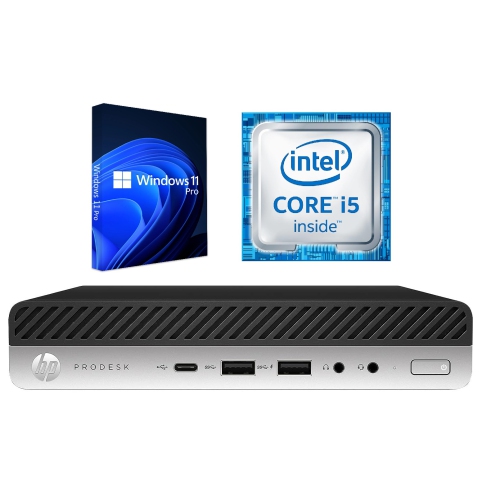
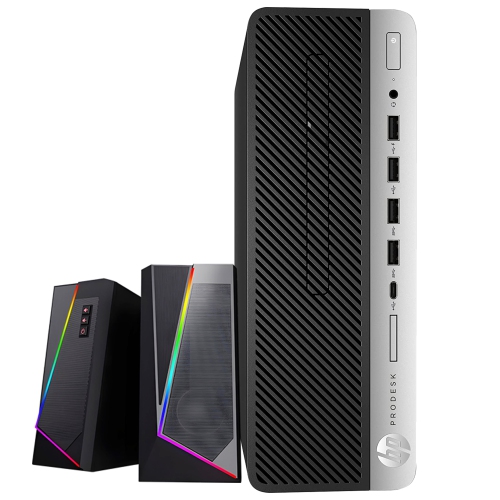
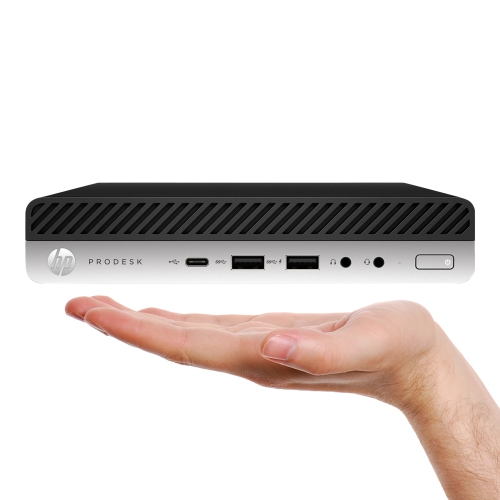
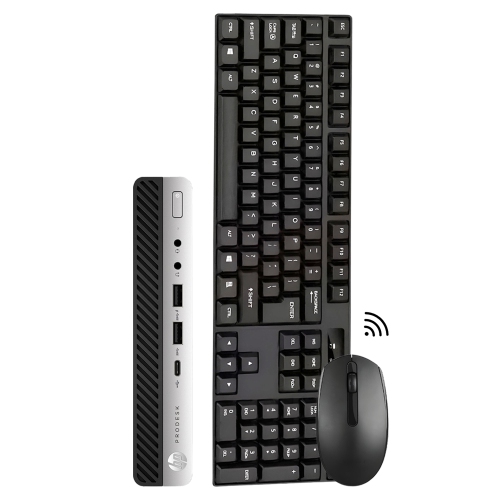
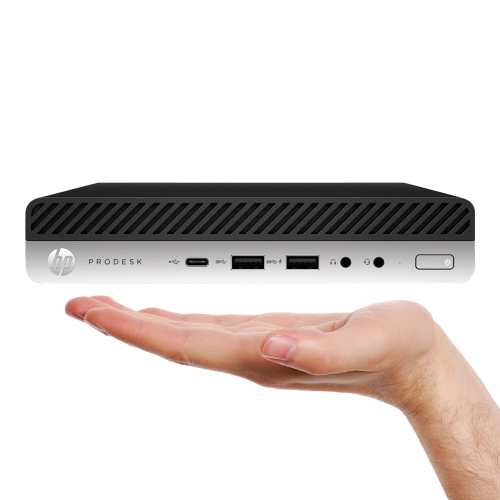
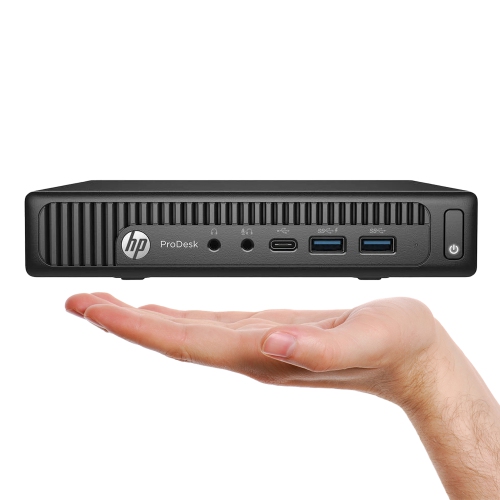
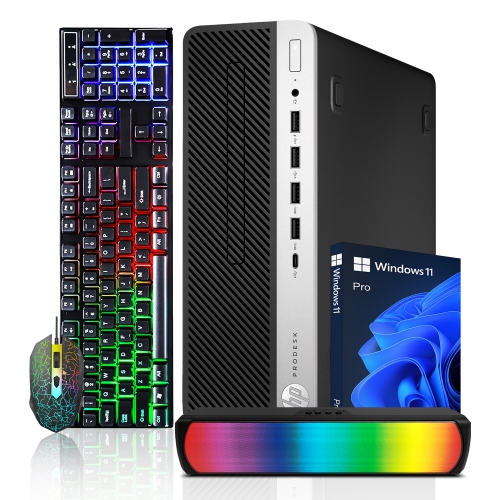
Business-class desktop computers bring a practical balance of everyday performance, compact design, and workstation flexibility to offices, home studies, and shared workspaces. They suit the familiar rhythm of a working day: opening spreadsheets, moving between browser tabs, joining video meetings, and keeping documents close at hand without crowding the desk. Within a desktop family, the generation and configuration matter as much as the series name. Computers with similar cases can have different processors, memory capacities, storage connections, and operating system support, so outward appearance alone does not establish what a machine can do. A small form factor desktop typically provides a middle ground between a tiny footprint and room for internal components, while a microtower generally offers more space for expansion. Mini designs take up less room but often have fewer options for adding internal hardware. These distinctions are especially useful when a computer needs to fit beside a reception monitor, beneath a student’s desk, or on a shelf in a home office. Dimensions, supported placement, and ventilation clearance all affect how comfortably a desktop fits into its intended space. The chassis is commonly built with a metal structure and moulded front panels, combining a sturdy enclosure with accessible controls and ports. Business-focused styling tends to be understated, making these computers easy to integrate with existing monitors, keyboards, and office furniture. For administrative work, school assignments, bookkeeping, and general household computing, a well-matched configuration can provide a straightforward alternative to a portable computer that rarely leaves the desk. A desktop can also serve as a useful gift for a student or family member with an established workspace, particularly when the monitor and accessories are already in place. The most suitable choice depends on the recipient’s software, available desk space, and need for future upgrades rather than the case size alone.
Processor capability, memory, and storage work together to shape how responsive a desktop feels. A processor’s generation is important because a newer design may deliver different performance and platform support even when its name resembles that of an older model. Core count and clock speed provide useful context, but neither tells the whole story without considering the applications involved. Writing documents and managing email place different demands on a computer than compiling software, handling large spreadsheets, or editing high-resolution images. Memory gives active applications room to work: 8GB may suit lighter tasks, while 16GB can provide more breathing room for a busy mix of browser tabs, office software, and video calls. Larger capacities may benefit heavier workloads, provided the system supports them. Installed memory, maximum supported capacity, and the number of free slots are separate details, and compact designs can differ considerably in their upgrade options. Storage type also makes a noticeable difference. A solid-state drive generally helps the system start and applications open more quickly than a mechanical hard drive. Where supported, an NVMe drive uses a faster interface than a SATA drive, although the difference felt during routine tasks depends on the workload. Capacity deserves separate attention: documents take relatively little space, while photo libraries, downloaded media, and large project files can fill a smaller drive much faster. Additional internal storage requires compatible connections, mounting space, and sometimes brackets or cables. Comparing generations within the same family, including HP ProDesk 600 G3, is most meaningful when the exact configuration is considered alongside the model designation. Integrated graphics are often appropriate for office applications, video playback, and everyday display use, but demanding games, complex 3D work, and some creative applications may call for dedicated graphics. A compact chassis can limit graphics card dimensions, power requirements, and cooling capacity, so an open expansion slot does not automatically mean every card will fit.
Connections and day-to-day usability help turn a desktop into a comfortable workstation. Front-facing USB ports make it easier to attach a headset or removable drive, while rear connections keep a keyboard, mouse, and other regularly used accessories neatly routed behind the case. Port type matters as much as quantity: a monitor’s input must match the computer’s video output or use a suitable adapter. Support for multiple displays depends on the graphics hardware and supported output combinations, not simply the number of sockets visible on the back. A two-screen arrangement can make invoice entry or research less cramped, with reference material on one display and the main task on the other. Wired networking is useful for a fixed desk, while Wi-Fi and Bluetooth should be confirmed in the specifications rather than assumed from the desktop’s size or generation. Video meetings may also require a separate webcam, microphone, and speakers. Operating system compatibility is another important distinction, especially with older hardware: an installed operating system does not by itself confirm official hardware support or eligibility for future updates. Business security capabilities can include firmware protections, a trusted platform module, and access controls, but their presence and functionality vary by configuration. For refurbished desktops, the stated condition, testing details, warranty terms, and included accessories help clarify what to expect; cosmetic wear does not describe internal performance, and a familiar case does not guarantee its original components remain installed. Long-term care is mostly practical. Clear airflow paths, stable placement, and routine removal of surface dust help keep the workstation tidy and avoid obstructing cooling vents. Cleaning should follow the manufacturer’s directions, with the computer powered down and liquids kept away from openings. A snug cupboard or stack of paperwork against an exhaust vent can interfere with cooling even when the desktop itself occupies very little space. Accessible internal layouts can simplify servicing on some designs, although repair and upgrade procedures vary. Regular file backups remain important regardless of the drive type or the computer’s condition. Together, suitable hardware, compatible accessories, and sensible placement make a business desktop a dependable centre for focused work, study, and everyday household tasks.
Processor capability, memory, and storage work together to shape how responsive a desktop feels. A processor’s generation is important because a newer design may deliver different performance and platform support even when its name resembles that of an older model. Core count and clock speed provide useful context, but neither tells the whole story without considering the applications involved. Writing documents and managing email place different demands on a computer than compiling software, handling large spreadsheets, or editing high-resolution images. Memory gives active applications room to work: 8GB may suit lighter tasks, while 16GB can provide more breathing room for a busy mix of browser tabs, office software, and video calls. Larger capacities may benefit heavier workloads, provided the system supports them. Installed memory, maximum supported capacity, and the number of free slots are separate details, and compact designs can differ considerably in their upgrade options. Storage type also makes a noticeable difference. A solid-state drive generally helps the system start and applications open more quickly than a mechanical hard drive. Where supported, an NVMe drive uses a faster interface than a SATA drive, although the difference felt during routine tasks depends on the workload. Capacity deserves separate attention: documents take relatively little space, while photo libraries, downloaded media, and large project files can fill a smaller drive much faster. Additional internal storage requires compatible connections, mounting space, and sometimes brackets or cables. Comparing generations within the same family, including HP ProDesk 600 G3, is most meaningful when the exact configuration is considered alongside the model designation. Integrated graphics are often appropriate for office applications, video playback, and everyday display use, but demanding games, complex 3D work, and some creative applications may call for dedicated graphics. A compact chassis can limit graphics card dimensions, power requirements, and cooling capacity, so an open expansion slot does not automatically mean every card will fit.
Connections and day-to-day usability help turn a desktop into a comfortable workstation. Front-facing USB ports make it easier to attach a headset or removable drive, while rear connections keep a keyboard, mouse, and other regularly used accessories neatly routed behind the case. Port type matters as much as quantity: a monitor’s input must match the computer’s video output or use a suitable adapter. Support for multiple displays depends on the graphics hardware and supported output combinations, not simply the number of sockets visible on the back. A two-screen arrangement can make invoice entry or research less cramped, with reference material on one display and the main task on the other. Wired networking is useful for a fixed desk, while Wi-Fi and Bluetooth should be confirmed in the specifications rather than assumed from the desktop’s size or generation. Video meetings may also require a separate webcam, microphone, and speakers. Operating system compatibility is another important distinction, especially with older hardware: an installed operating system does not by itself confirm official hardware support or eligibility for future updates. Business security capabilities can include firmware protections, a trusted platform module, and access controls, but their presence and functionality vary by configuration. For refurbished desktops, the stated condition, testing details, warranty terms, and included accessories help clarify what to expect; cosmetic wear does not describe internal performance, and a familiar case does not guarantee its original components remain installed. Long-term care is mostly practical. Clear airflow paths, stable placement, and routine removal of surface dust help keep the workstation tidy and avoid obstructing cooling vents. Cleaning should follow the manufacturer’s directions, with the computer powered down and liquids kept away from openings. A snug cupboard or stack of paperwork against an exhaust vent can interfere with cooling even when the desktop itself occupies very little space. Accessible internal layouts can simplify servicing on some designs, although repair and upgrade procedures vary. Regular file backups remain important regardless of the drive type or the computer’s condition. Together, suitable hardware, compatible accessories, and sensible placement make a business desktop a dependable centre for focused work, study, and everyday household tasks.
Top selling and popular products
-
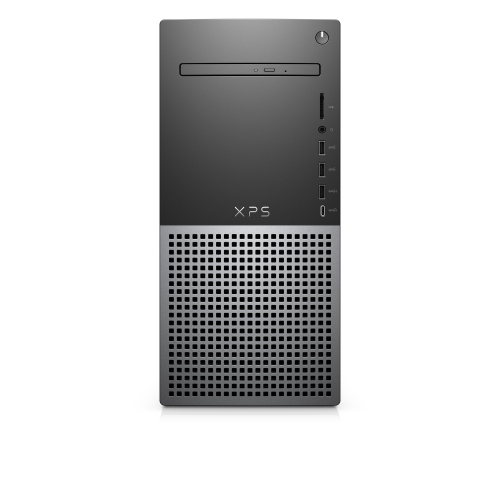 Your price for this item is $1599
 -
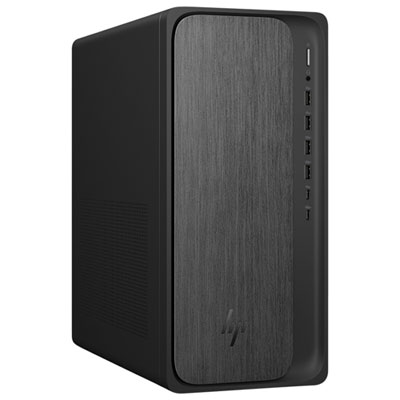 Your price for this item is $1299.99
 -
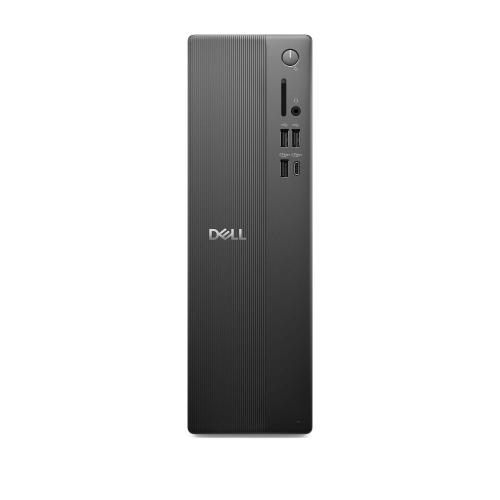 Your price for this item is $1629.79
 -
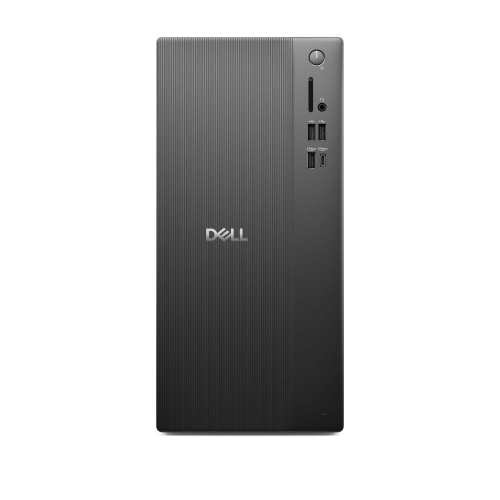 Your price for this item is $1459.79
 -
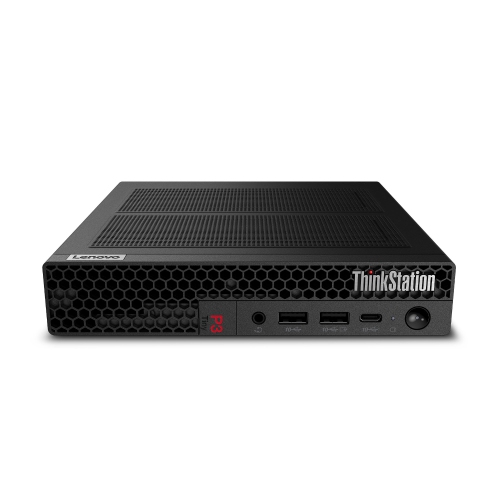 Your price for this item is $929
 -
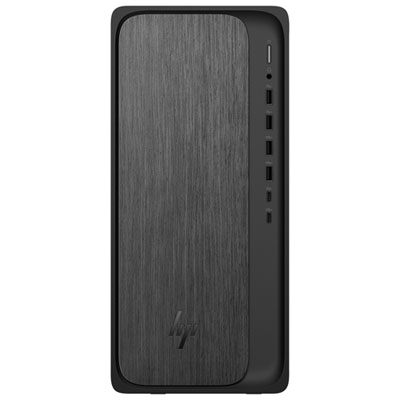 Your price for this item is $2299.99
 -
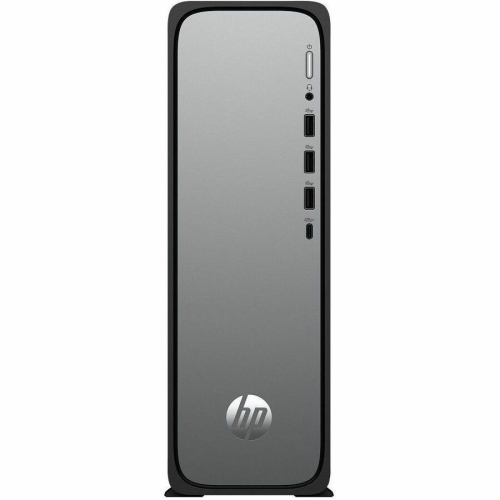 Your price for this item is $1076.55
 -
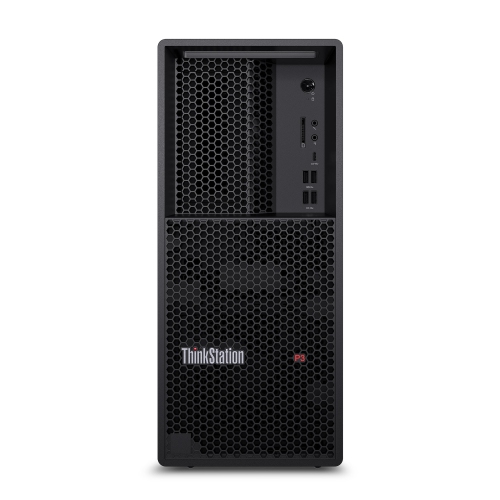 Your price for this item is $1839
Discover more categories related to HP ProDesk 600 Desktops
Top Collections:
Pokemon Centers, Kindle Devices, Best Budget Office Chairs, Canon G7X Cameras, Apple iPhones 16, Samsung Galaxy Phones, Refurbished Apple Laptops, Laptops for Students, iPhone 15 Apple, Budget Smartphones
Some products may be subject to Environmental Handling Fees
(EHF) depending on your province.
Learn more about EHFs.