Laptop VGA Port
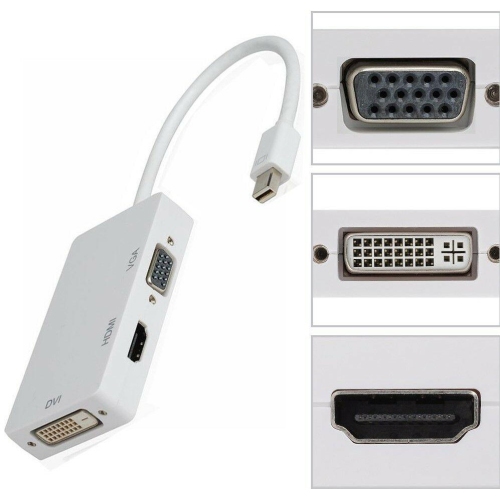
Looking to connect your laptop to an external display or projector? Look no further than the laptop VGA port. These versatile and widely used features allow you to easily transmit video signals from your laptop to a larger screen, making them perfect for presentations, gaming, or simply enjoying a movie on a bigger display. Whether you're a student, professional, or avid gamer, the laptop VGA port opens up a world of possibilities by providing a seamless connection between your device and other compatible devices. Here are some great options available.
Sort
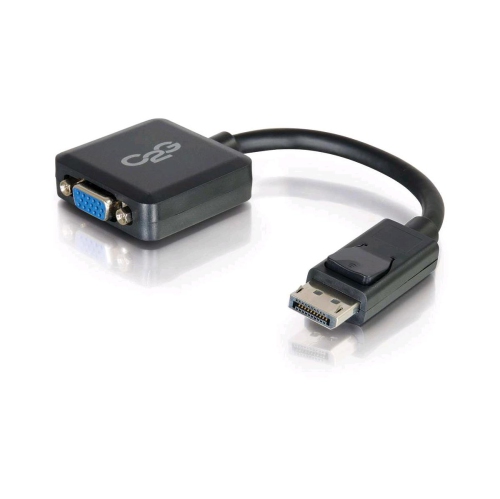
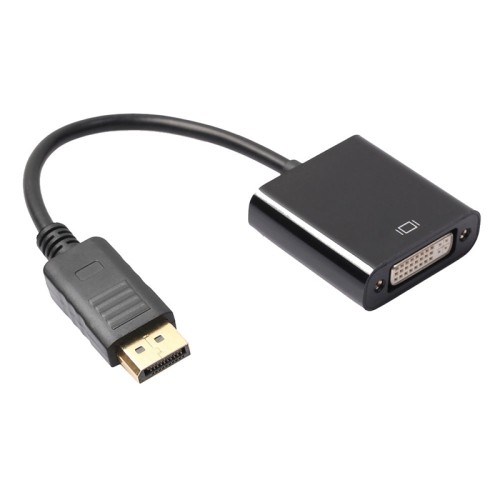
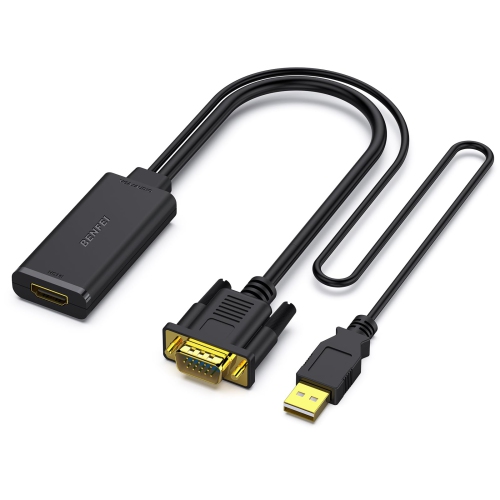
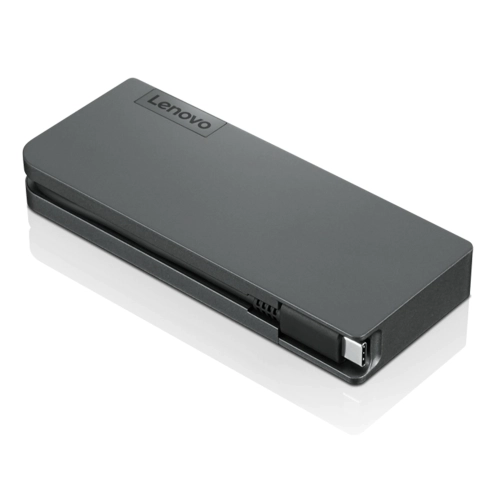
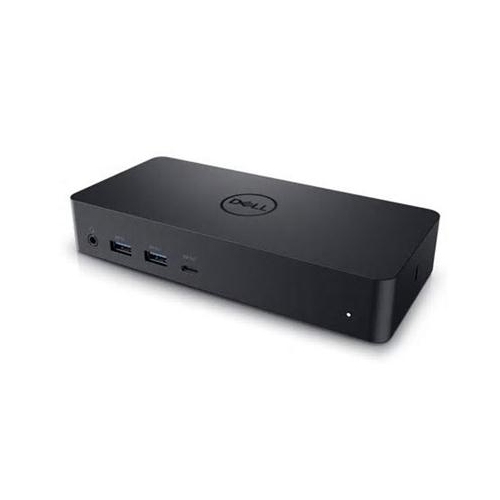
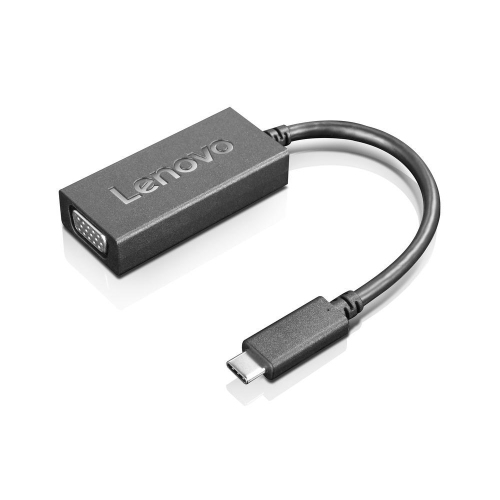
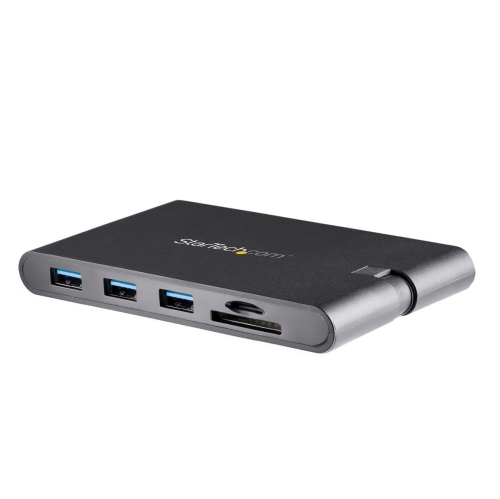
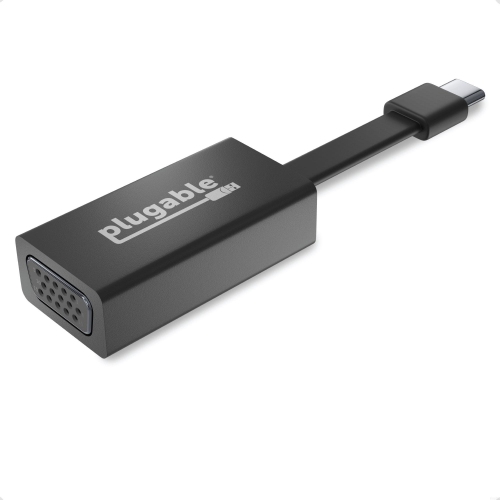

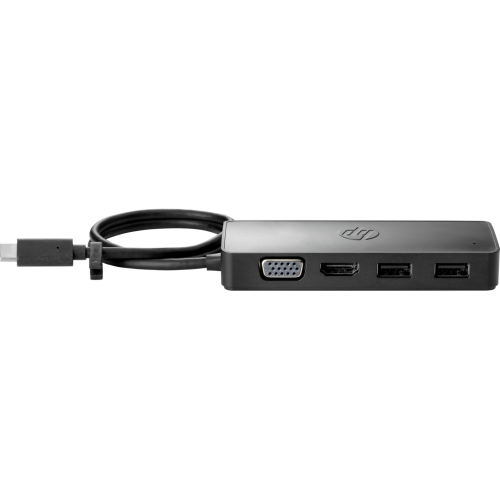
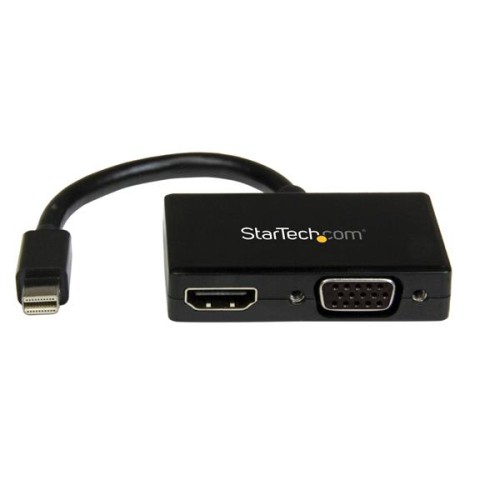
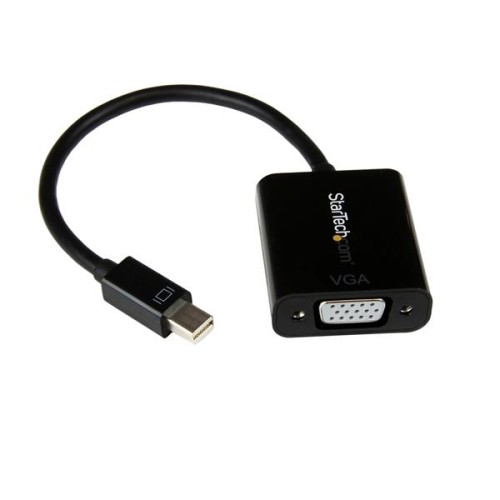
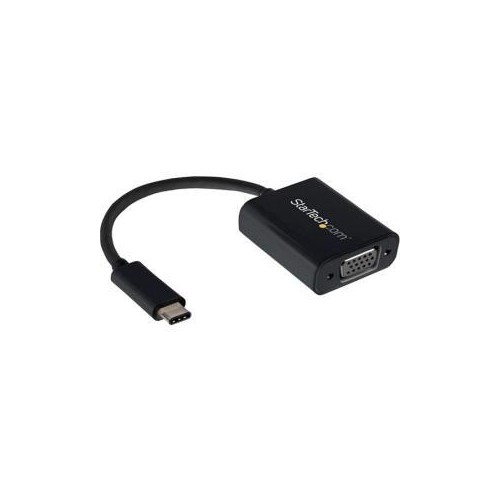
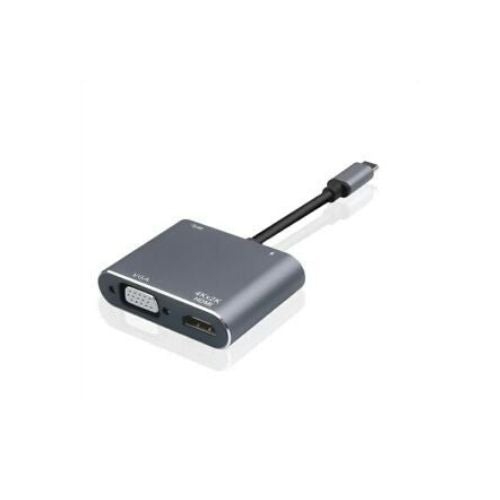
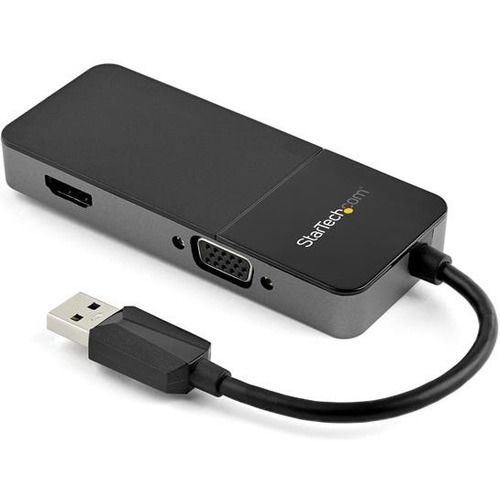
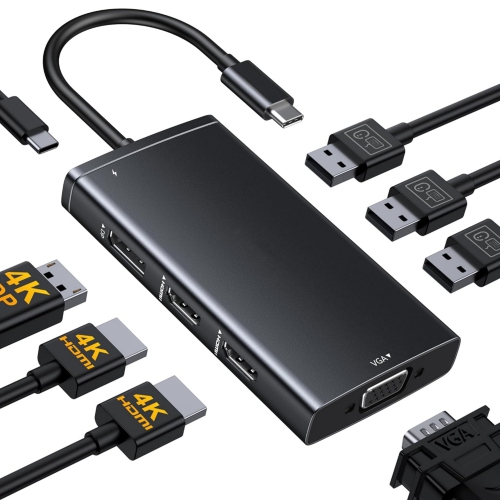
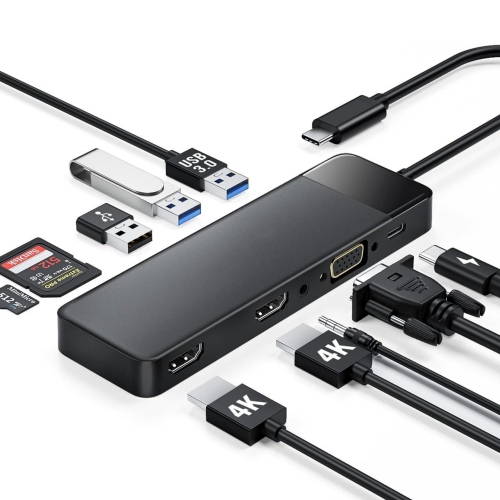
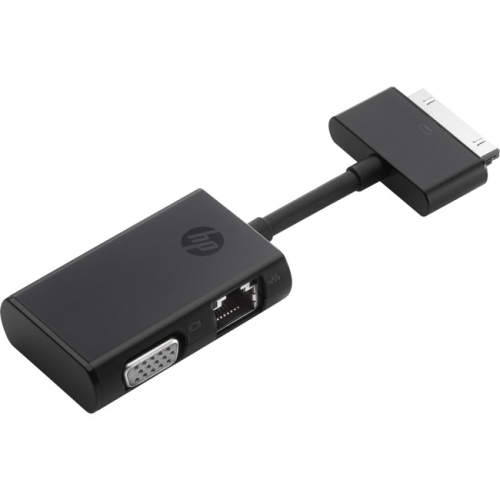
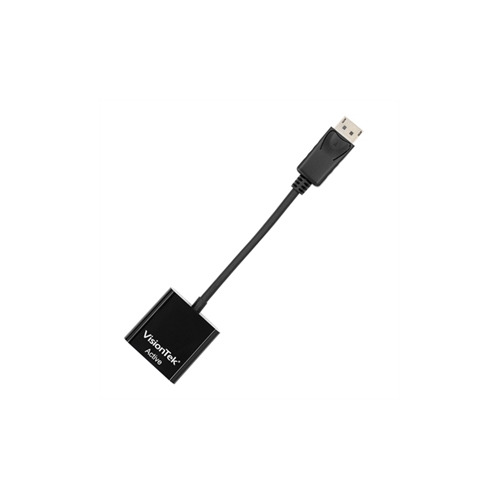

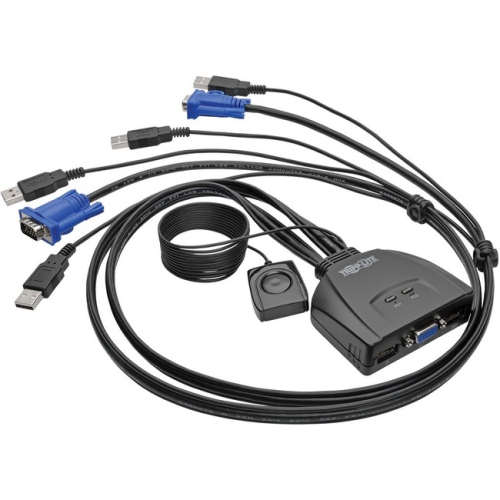
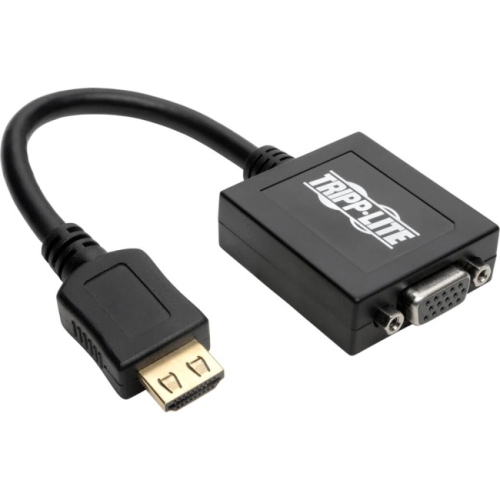
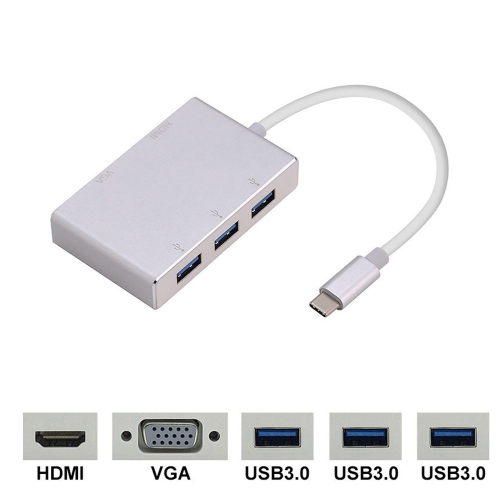
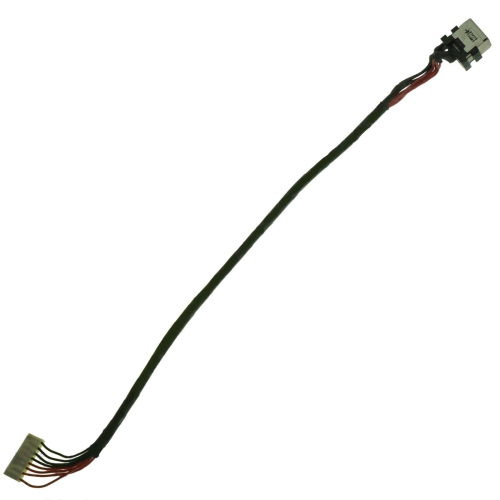
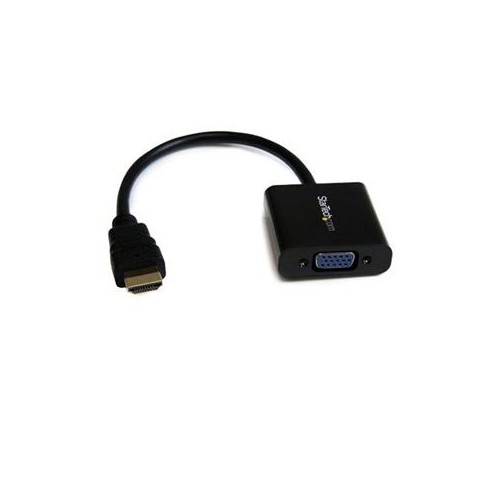
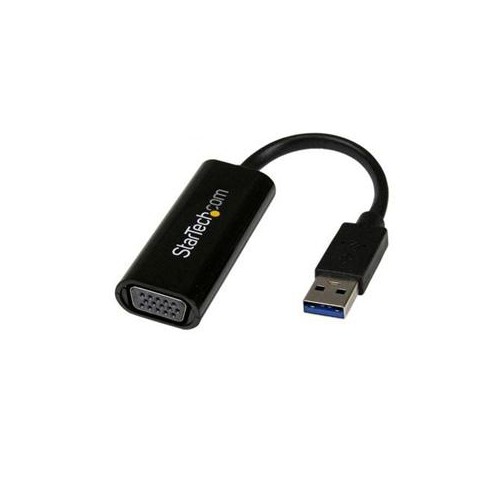


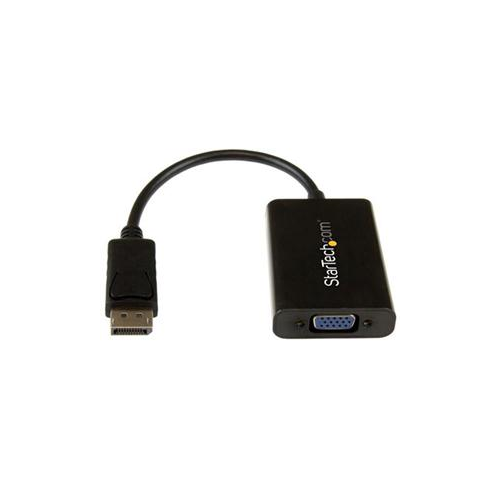

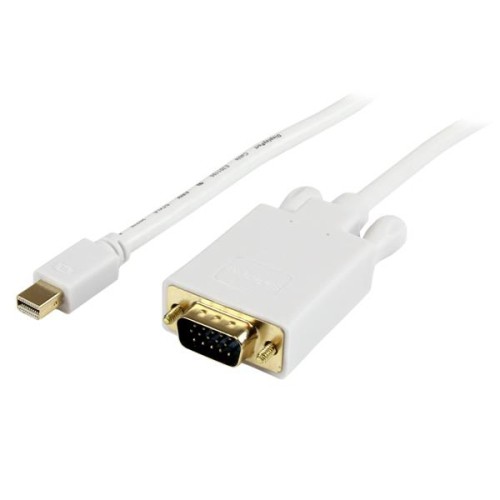
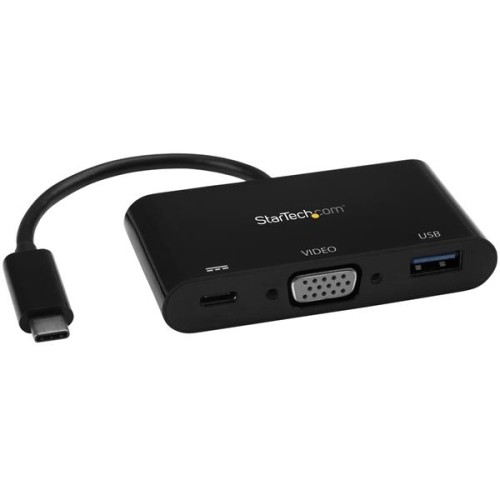
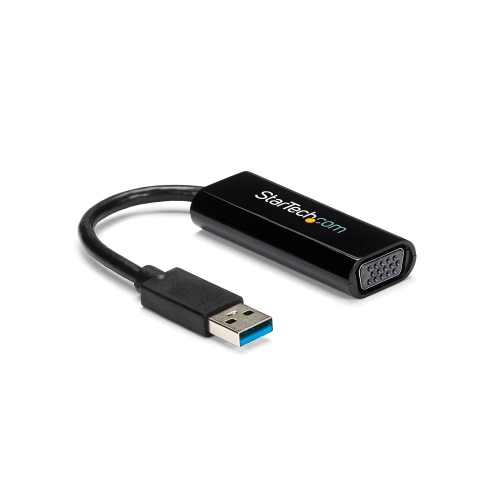
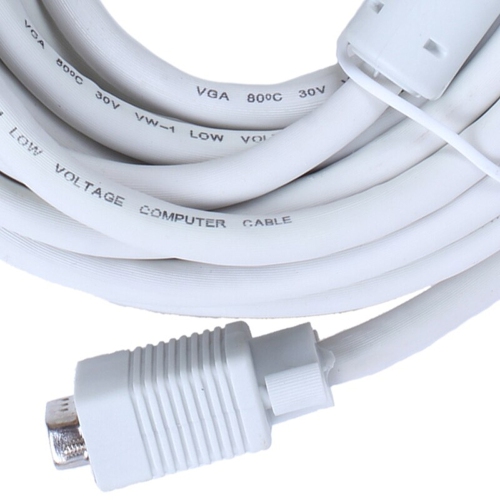
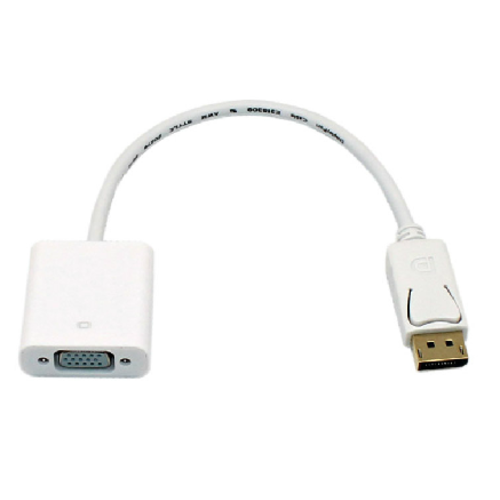
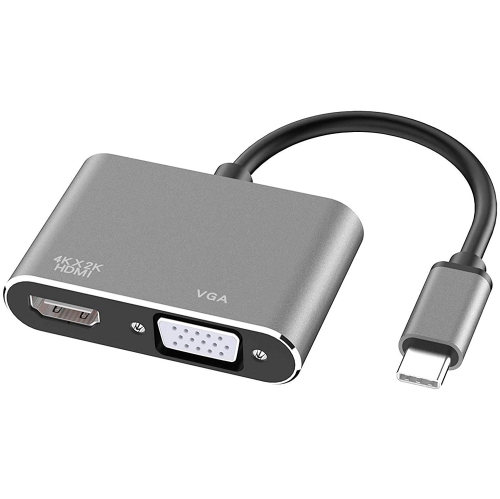
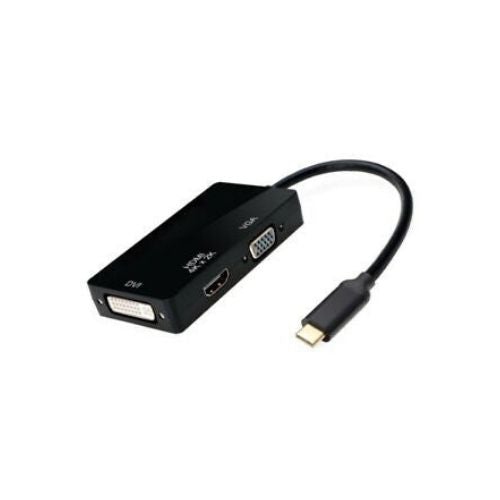
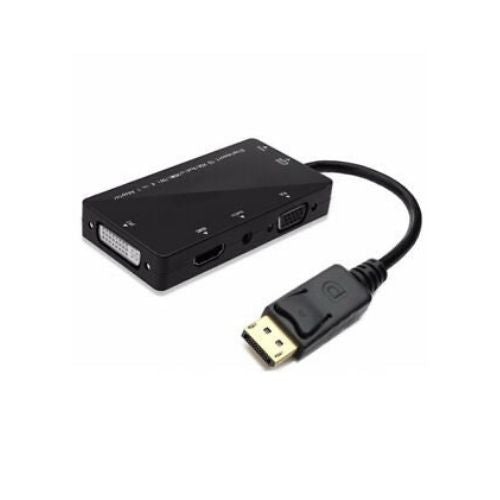
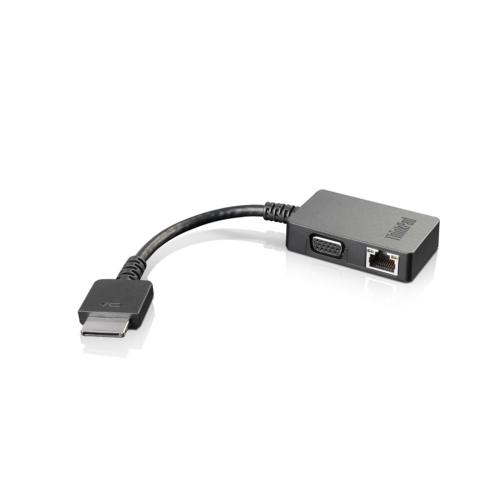
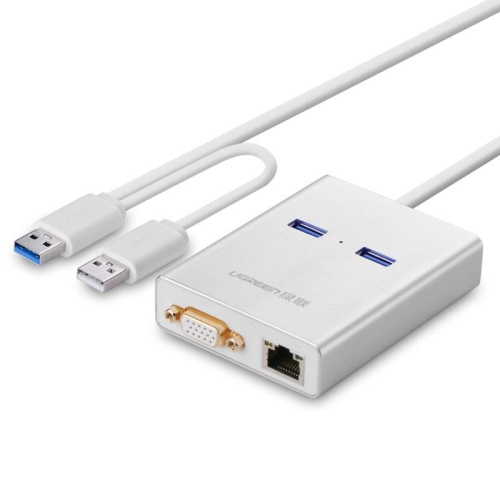
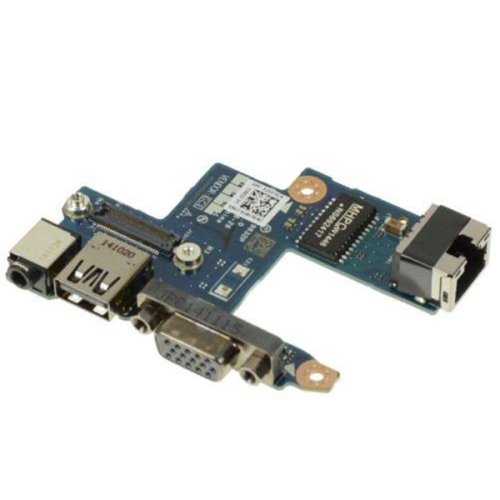
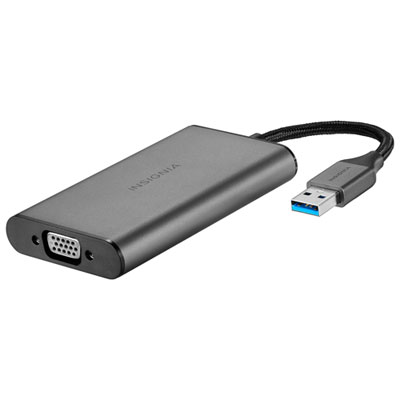
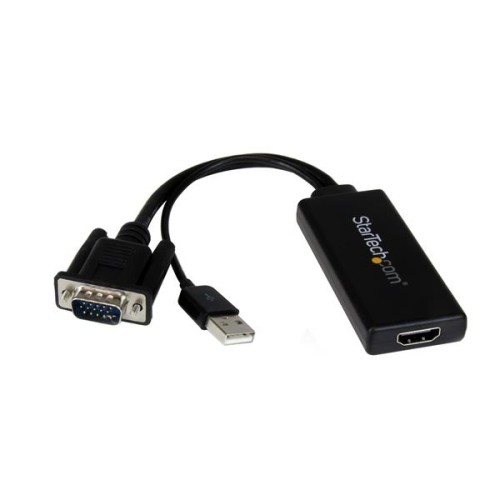
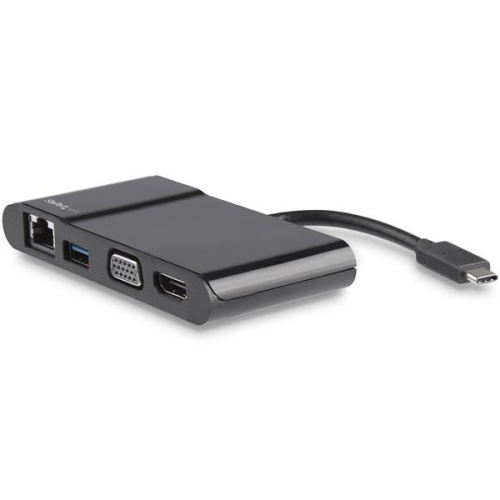
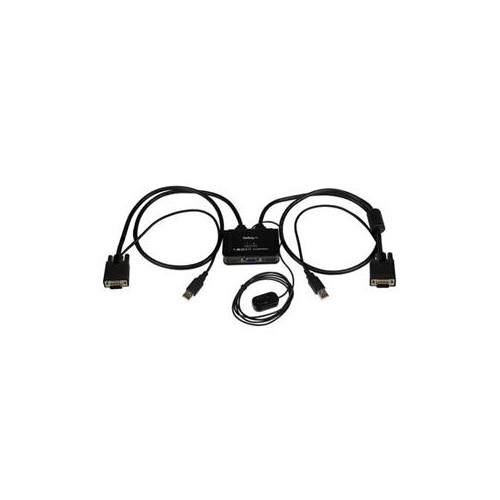
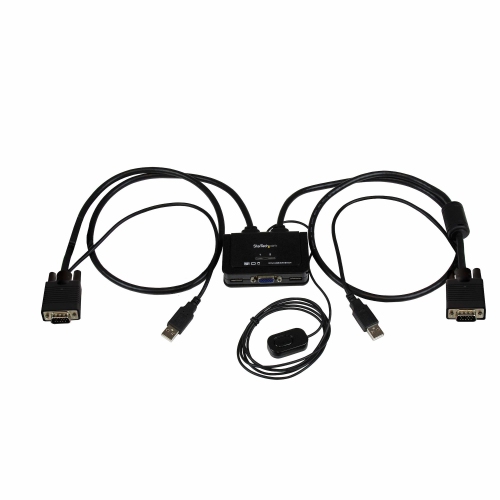

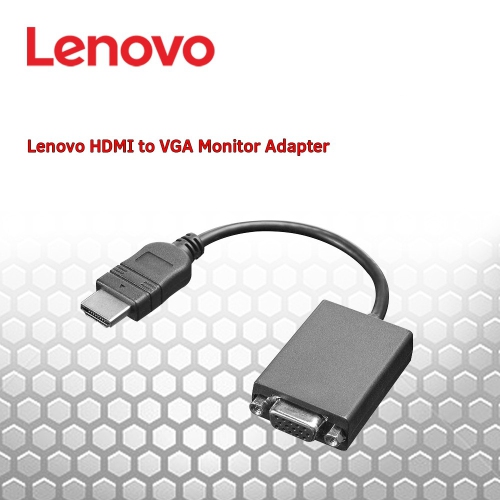
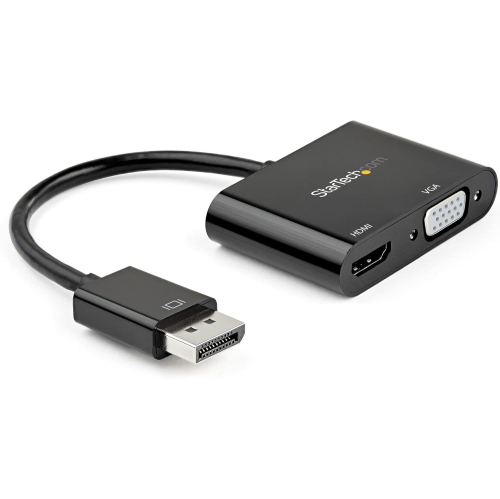
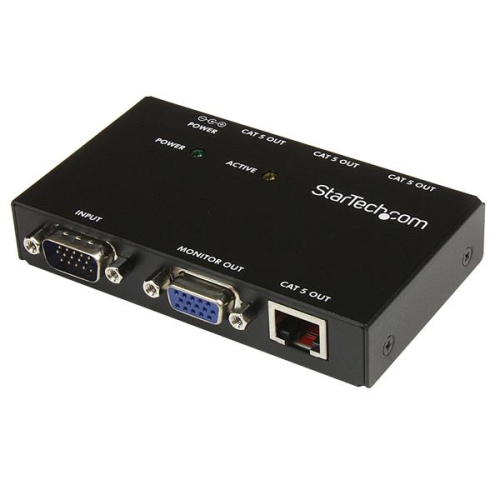
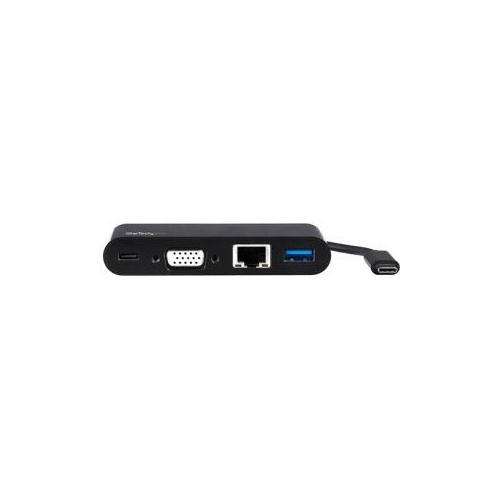
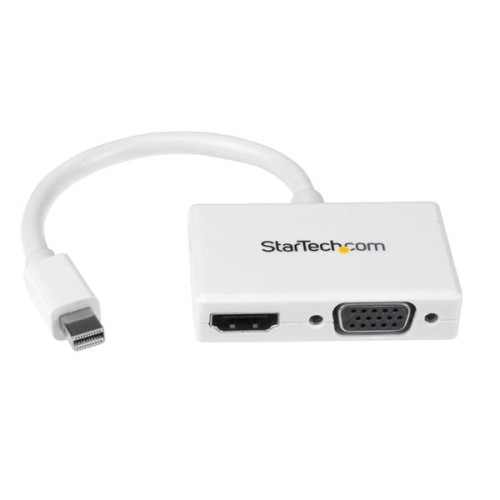
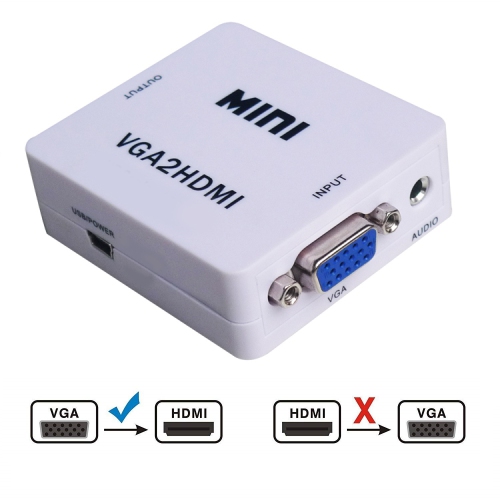
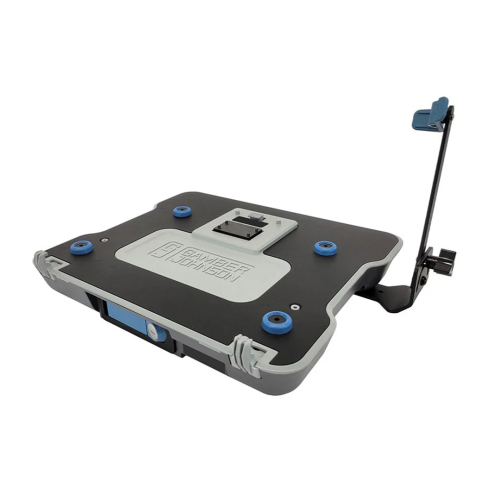

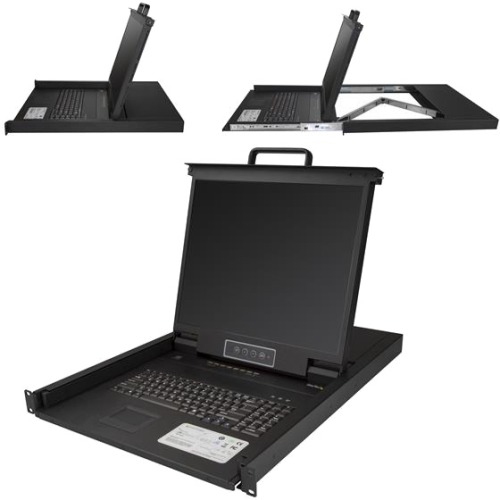
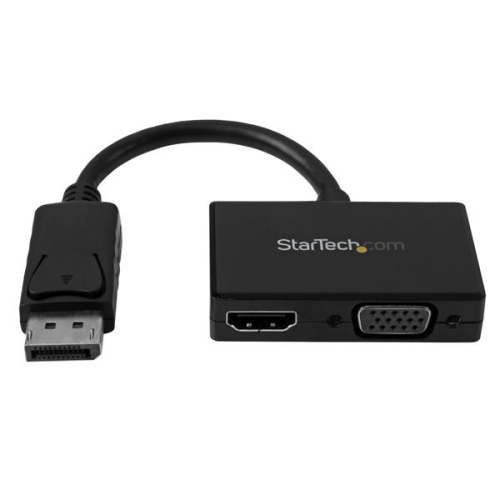
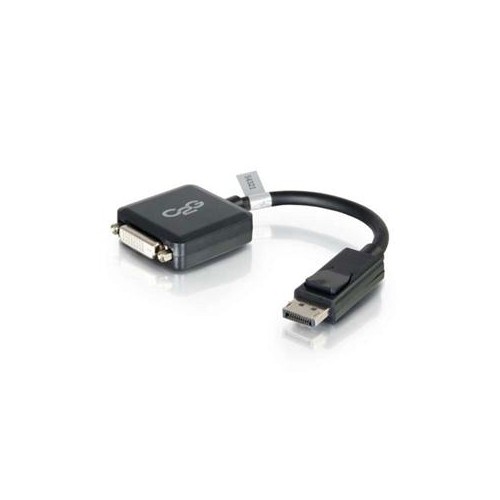
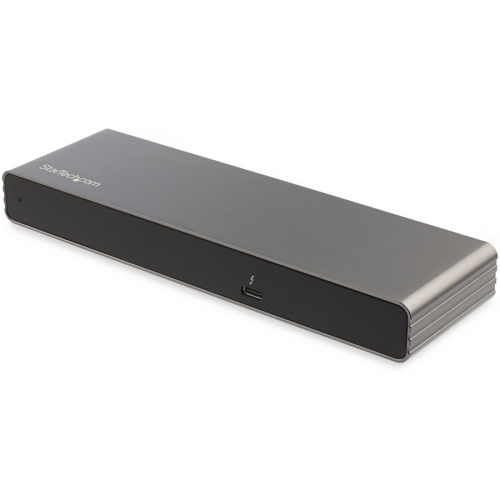
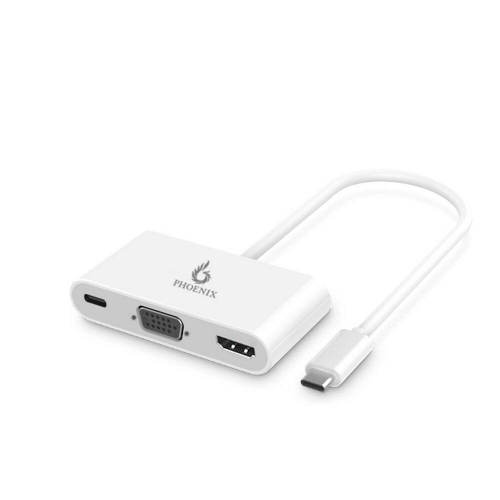
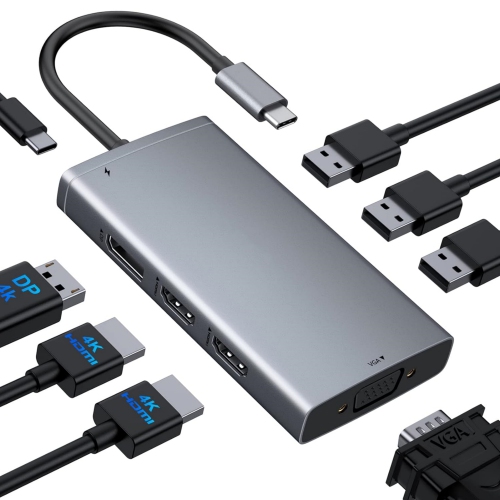
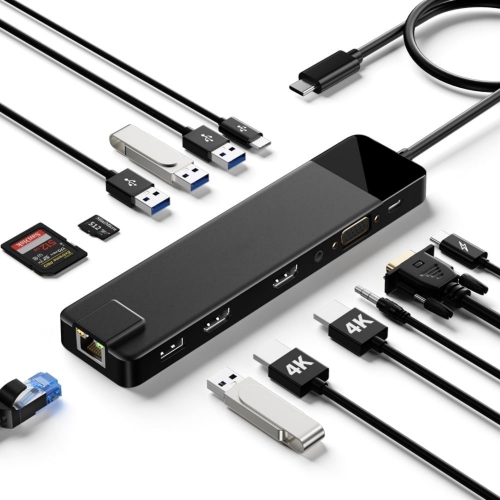
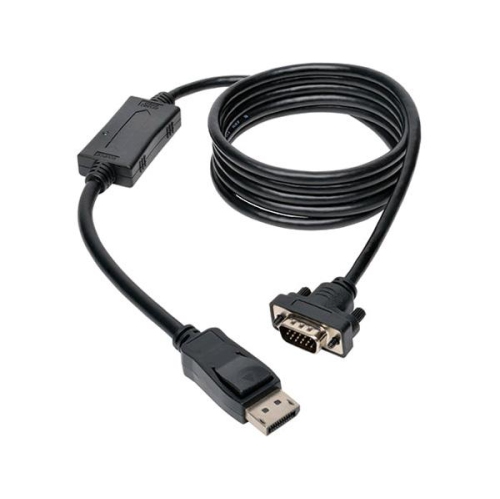
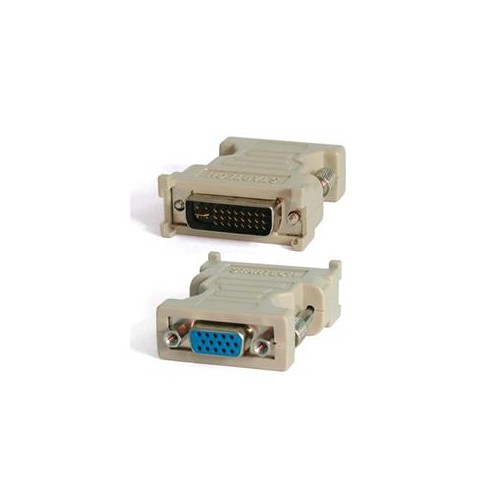
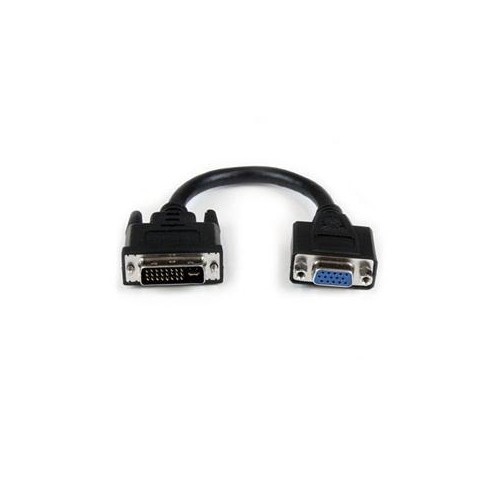
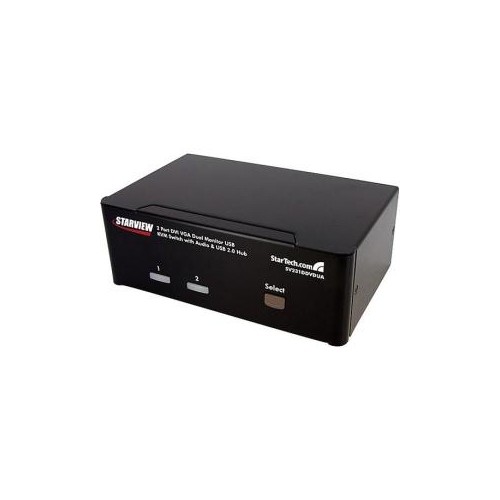
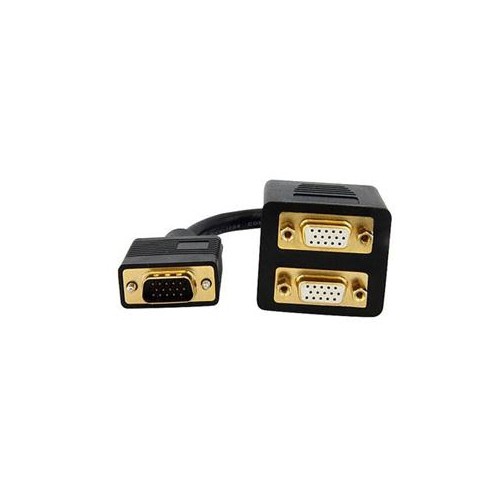
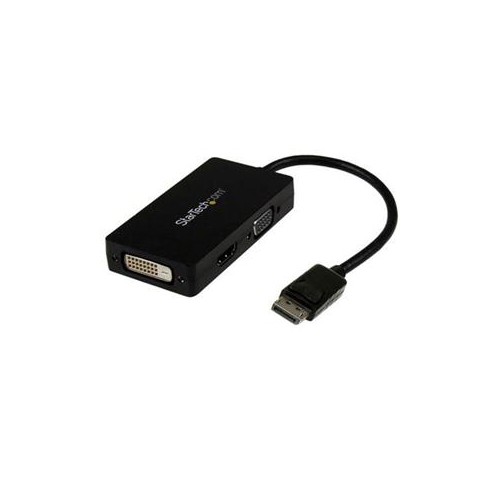
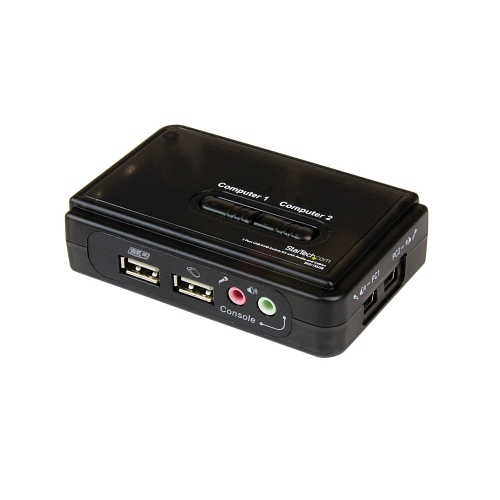
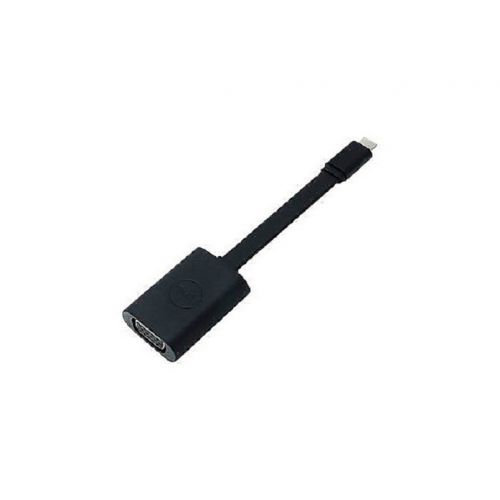
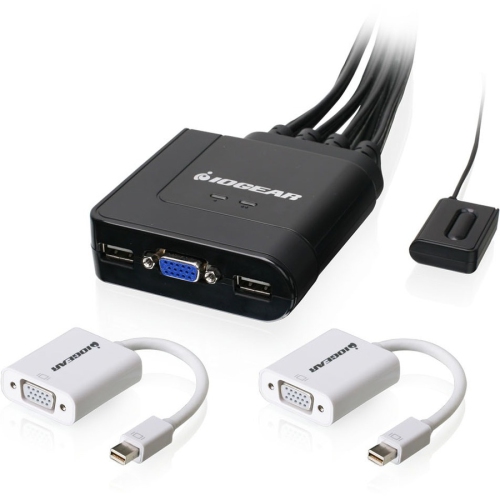
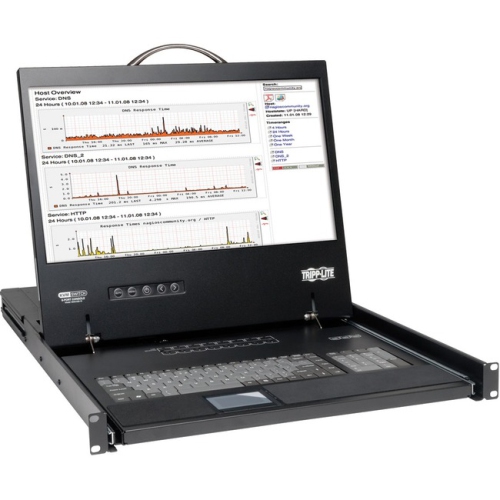
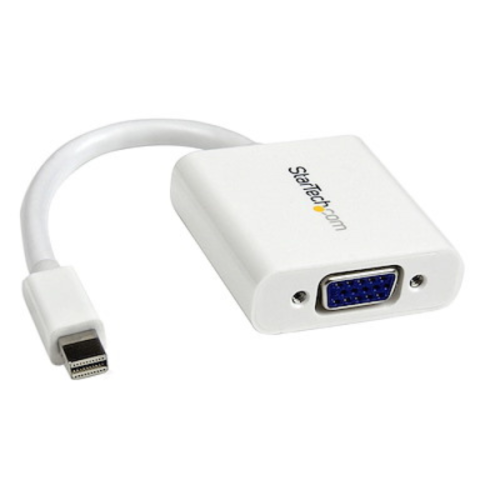
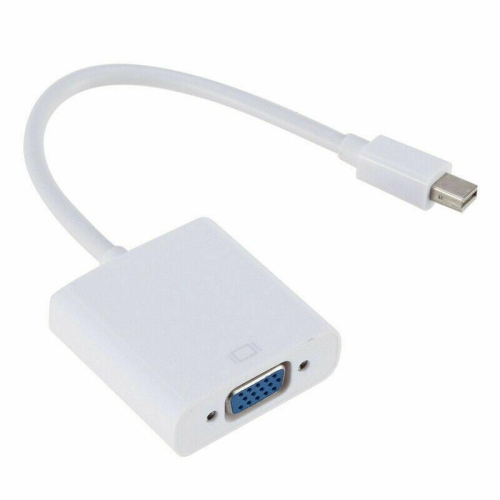
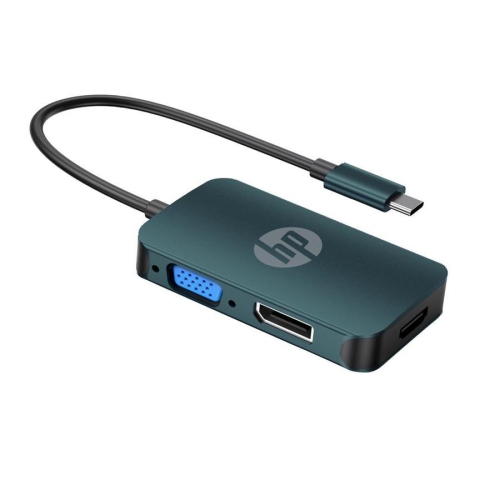
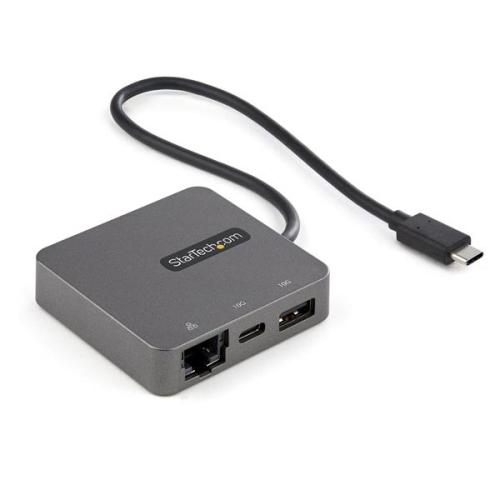
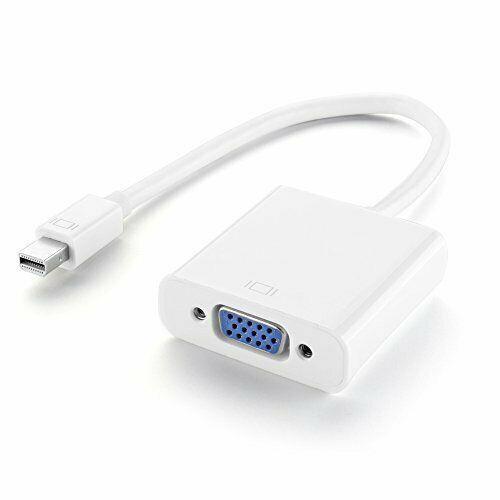
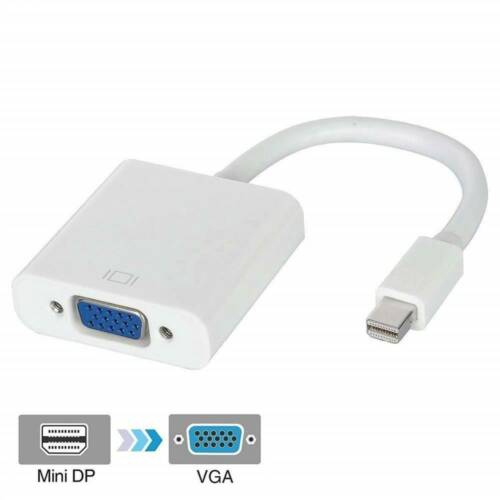
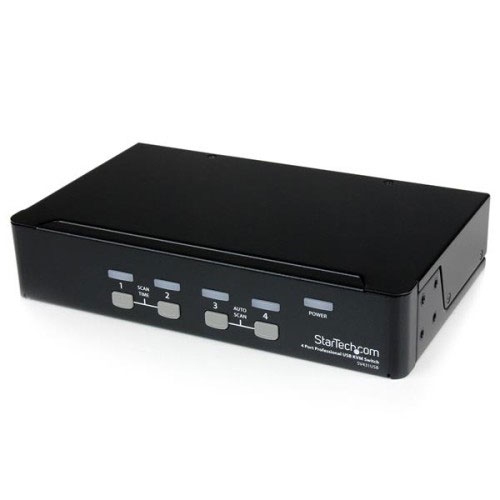
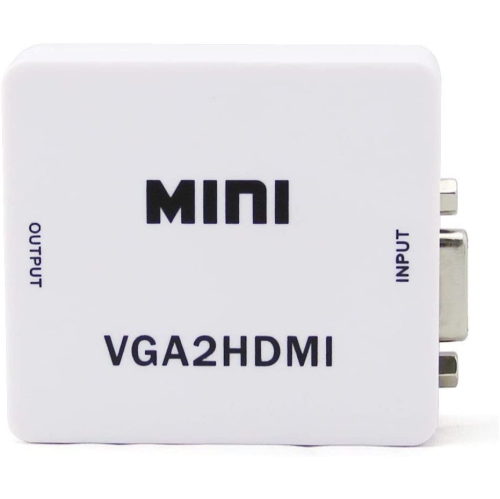

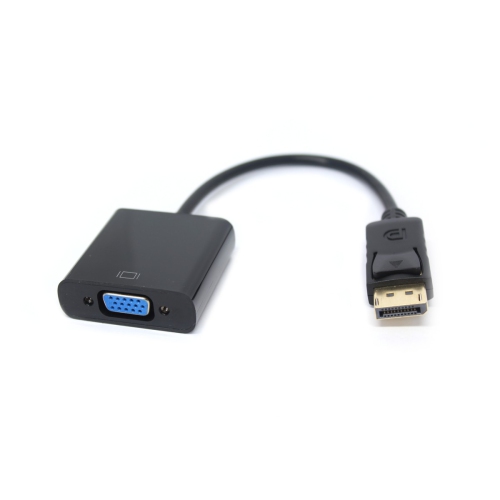
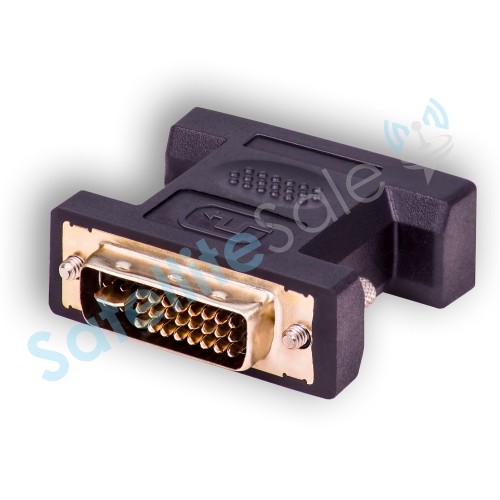
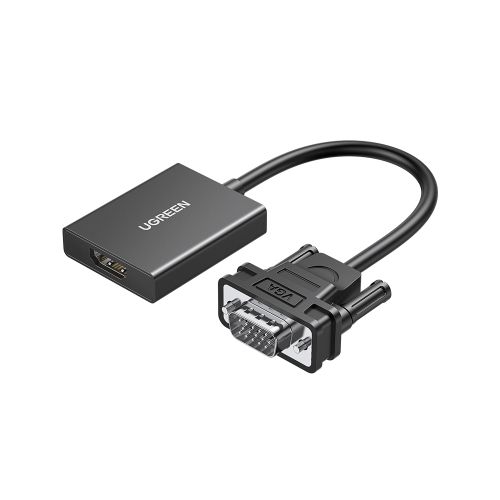
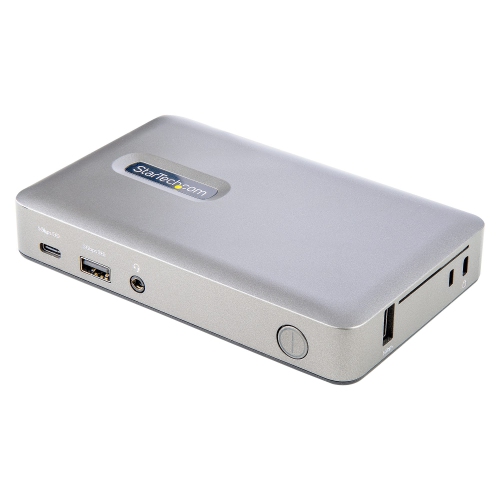
What to know about connecting laptops to VGA displays
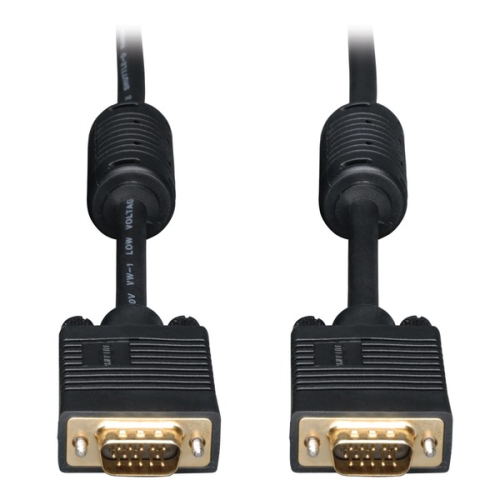
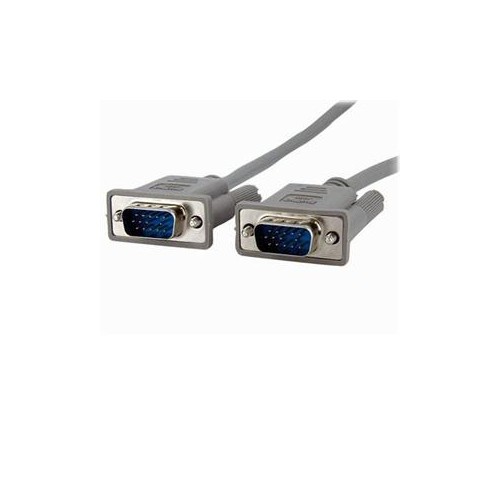
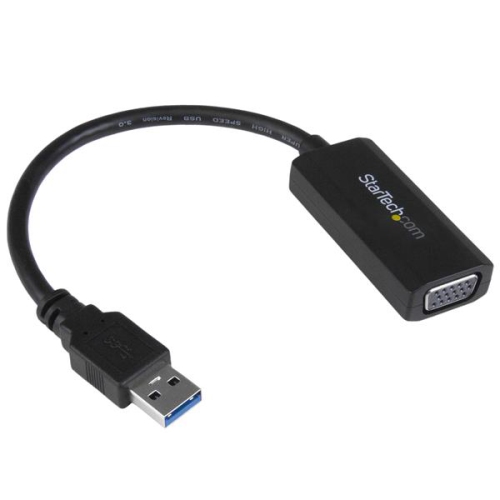
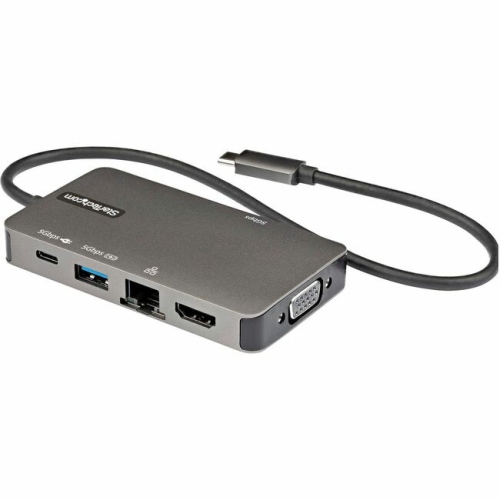
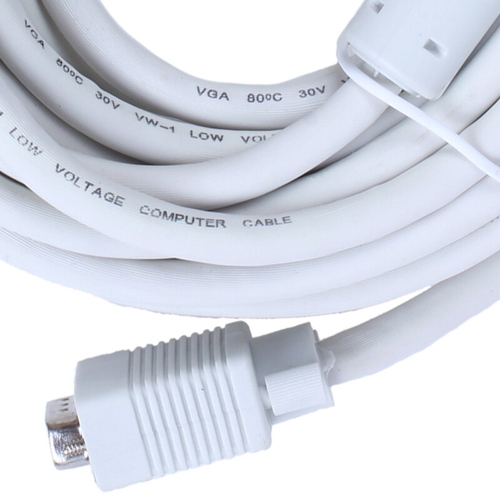
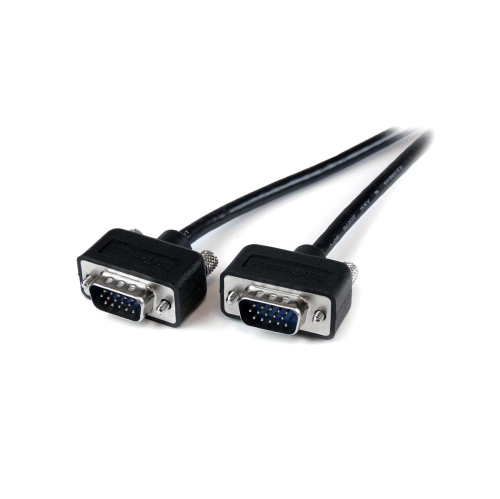
A laptop VGA port is a 15-pin, trapezoid-shaped connector used to send an analog video signal from a laptop to a compatible monitor, projector, television, or other display. The connector usually has three rows of five pin holes and may include screw posts on either side to keep the cable firmly attached. VGA carries video only, so it does not transmit audio through the same connection. It is also an older display standard, which means image quality and supported resolutions can vary depending on the laptop, cable, display, and signal conditions. For many office presentations, classroom setups, point-of-sale systems, industrial equipment, and older home computers, VGA remains useful because existing displays may still rely on this familiar connection. A laptop with a built-in VGA port can be especially practical in workplaces or schools where projectors and monitors have not been replaced recently. The connection is straightforward: plug one end of the VGA cable into the laptop, connect the other end to the display, select the appropriate input on the monitor or projector, and use the laptop’s display settings to mirror or extend the desktop. Depending on the operating system and hardware, a function-key shortcut may also switch between the laptop screen and the connected display. VGA is often dependable for presentations containing documents, slides, charts, and basic graphics, although text may look softer than it would over a newer digital connection. This can be noticeable when displaying small fonts, detailed spreadsheets, photographs, or high-resolution video.
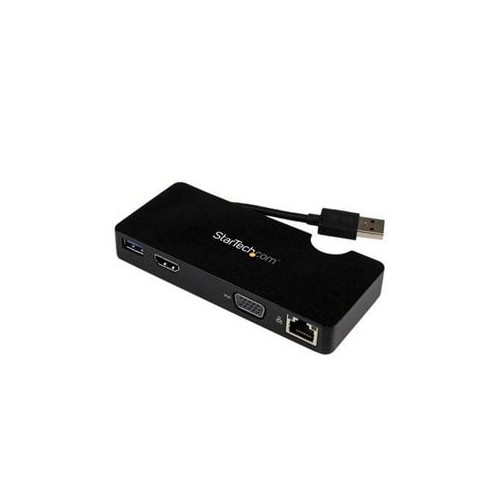
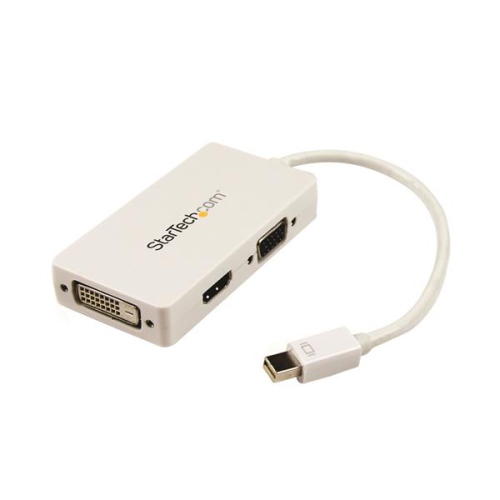
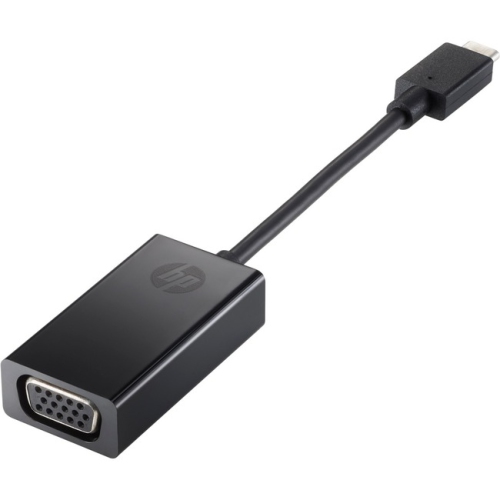
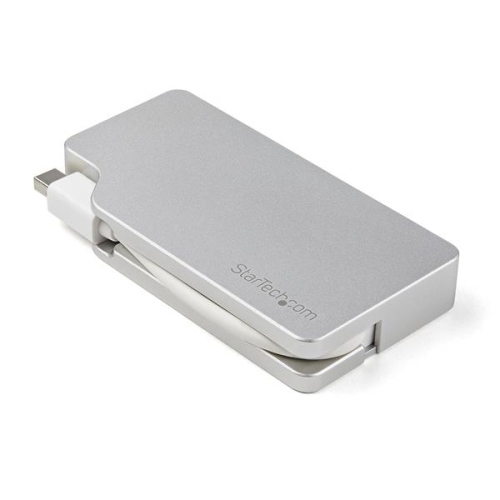
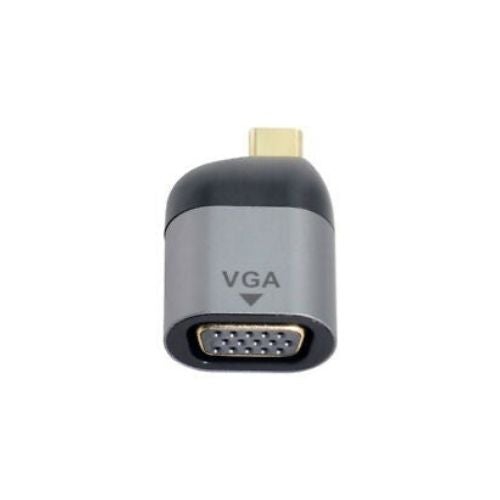
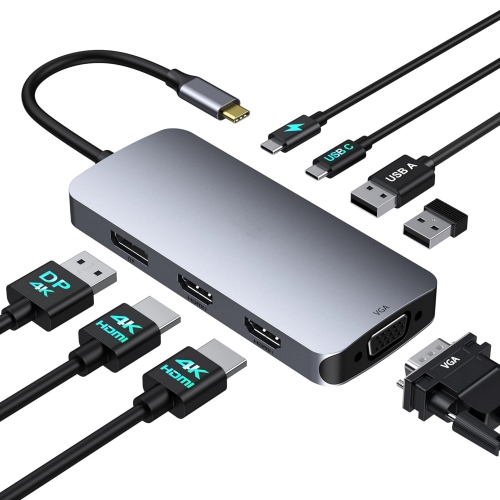
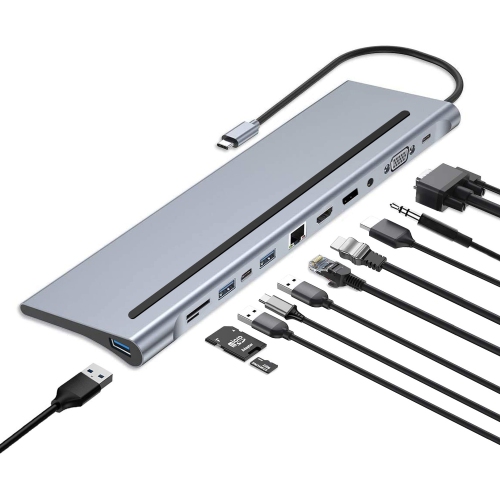
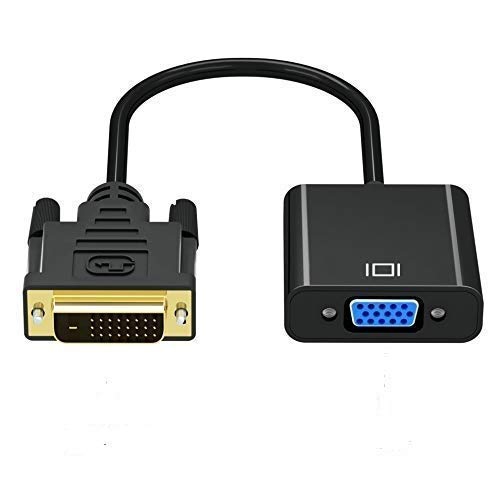
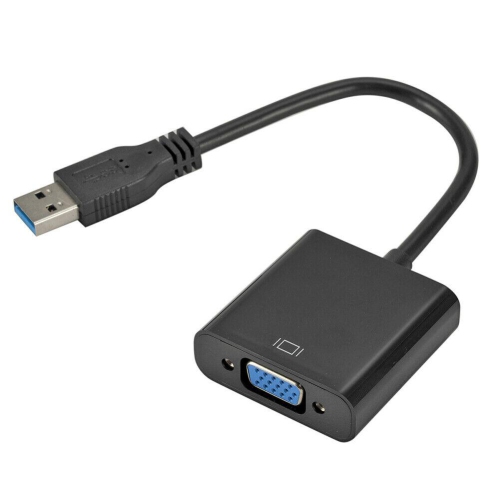
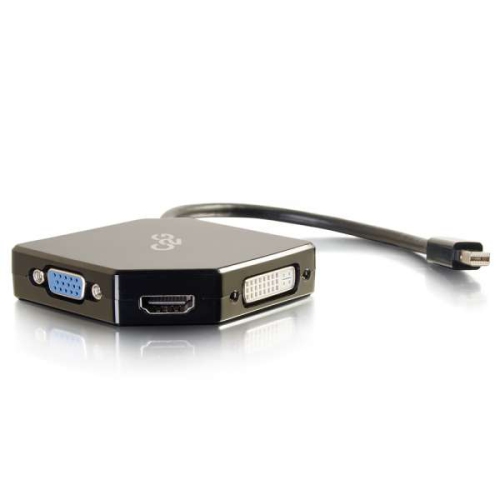
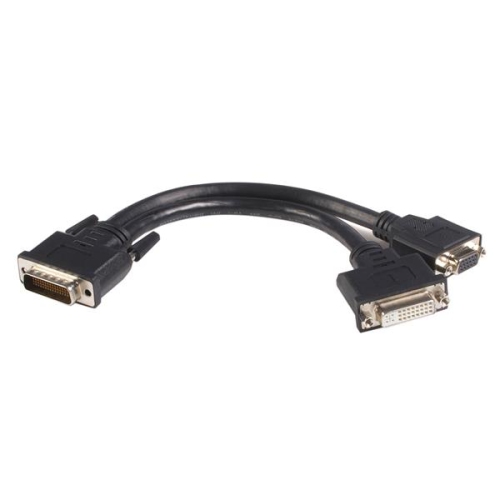
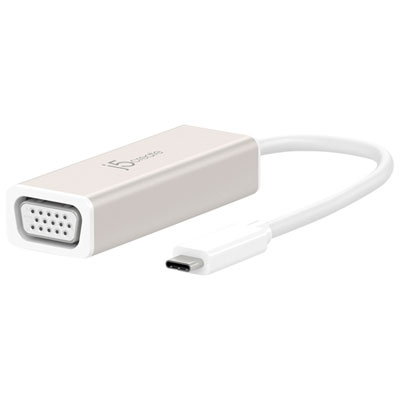
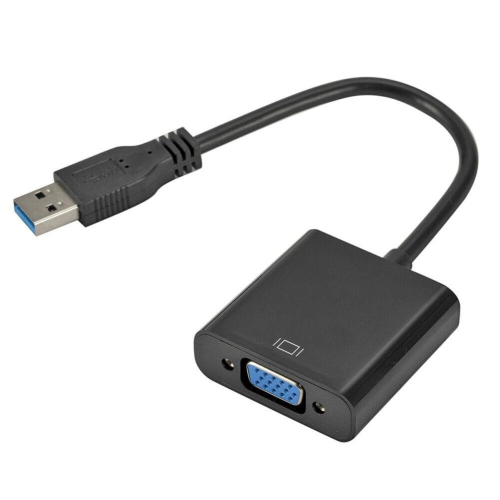
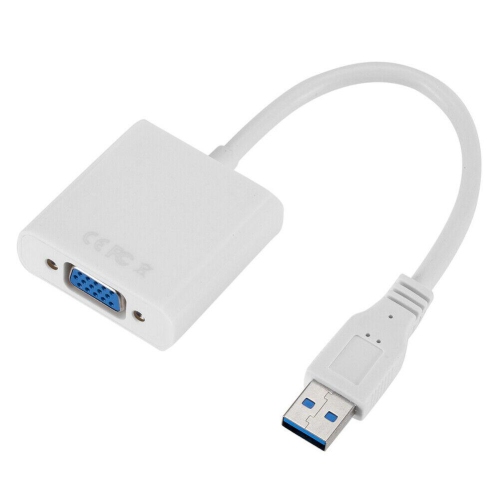
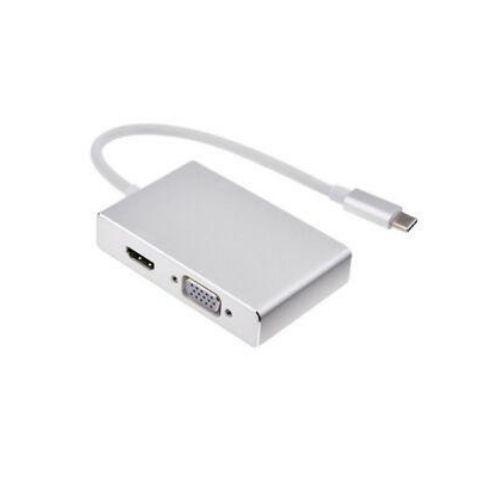
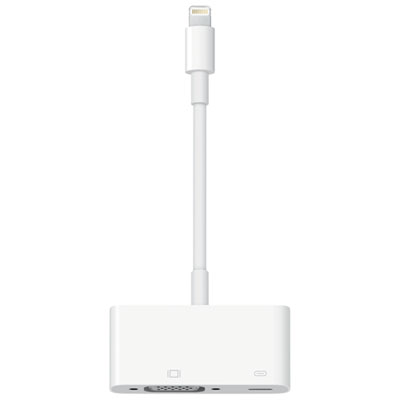
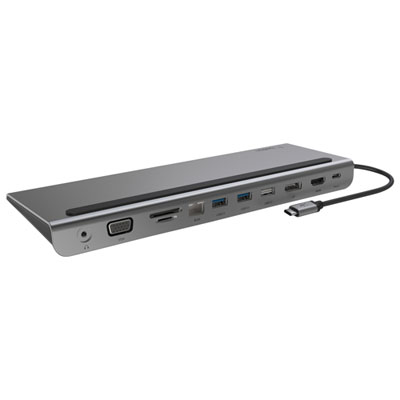
When choosing a laptop with a VGA port, begin by checking the exact port layout and the display equipment you plan to use. A built-in VGA port is the simplest option when you regularly connect to older projectors or monitors, since it avoids carrying a separate converter. Confirm that the laptop’s supported output resolution matches the display’s capabilities, particularly if you need a clear image for spreadsheets, design work, or long reading sessions. The cable itself also matters: look for a VGA cable with a suitable length for your desk, meeting room, or classroom arrangement, and use the side screws when available to reduce accidental disconnection. Longer cable runs can be more sensitive to signal interference, which may appear as faint ghosting, flickering, colour shifts, or a less sharp picture. If the laptop does not have a built-in VGA port, an adapter may provide a practical alternative, but compatibility should be checked carefully. A USB-C to VGA adapter generally requires a USB-C port that supports video output, while an HDMI to VGA adapter usually performs an active conversion between a digital source and an analog display. These adapters are not always interchangeable, and a simple cable may not work when the source and destination use different signal types. Check whether the adapter supports the intended resolution and refresh rate, whether it needs power, and whether the laptop’s operating system recognizes the connection automatically. Since VGA does not carry sound, audio may need to come from the laptop’s speakers, a separate audio cable, or another connected device. These details are easy to overlook when preparing for a presentation, so testing the complete setup in advance can prevent last-minute surprises.
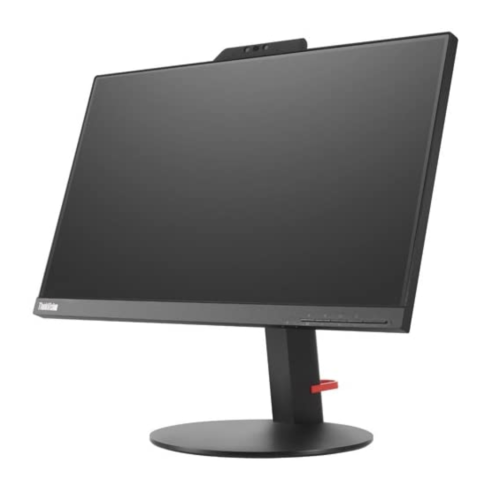
Laptops with VGA connectivity can suit students moving between classrooms, instructors using established presentation equipment, office workers connecting to legacy displays, and technicians working with older systems that are still in active service. They can also be useful as a thoughtful gift for someone setting up a home office around an existing monitor or helping a family member get an older computer and display working together. During the cooler months, a dependable connection can make it easier to work from a home desk, review coursework on a larger screen, or organize photographs and documents on a familiar monitor without replacing every part of the setup. If you are shopping for a compatible display as well, explore VGA Monitors to compare screen options designed around this type of connection. Keep in mind that VGA is intended for video rather than modern high-bandwidth uses: it is not the best choice for high-definition movie playback, gaming with fast motion, or applications where precise image detail is essential. Digital connections such as HDMI, DisplayPort, and compatible USB-C outputs generally provide sharper images and may carry audio, while VGA remains valuable for its broad compatibility with older equipment. Before making a purchase, inspect the ports on both the laptop and display, note the available inputs, confirm the desired screen resolution, and consider whether you need mirrored or extended desktop use. A little preparation helps ensure that the laptop, cable, adapter, and monitor work together as expected, whether the setup is being used at a lectern, a shared office desk, a workshop bench, or a quiet workspace at home.
When choosing a laptop with a VGA port, begin by checking the exact port layout and the display equipment you plan to use. A built-in VGA port is the simplest option when you regularly connect to older projectors or monitors, since it avoids carrying a separate converter. Confirm that the laptop’s supported output resolution matches the display’s capabilities, particularly if you need a clear image for spreadsheets, design work, or long reading sessions. The cable itself also matters: look for a VGA cable with a suitable length for your desk, meeting room, or classroom arrangement, and use the side screws when available to reduce accidental disconnection. Longer cable runs can be more sensitive to signal interference, which may appear as faint ghosting, flickering, colour shifts, or a less sharp picture. If the laptop does not have a built-in VGA port, an adapter may provide a practical alternative, but compatibility should be checked carefully. A USB-C to VGA adapter generally requires a USB-C port that supports video output, while an HDMI to VGA adapter usually performs an active conversion between a digital source and an analog display. These adapters are not always interchangeable, and a simple cable may not work when the source and destination use different signal types. Check whether the adapter supports the intended resolution and refresh rate, whether it needs power, and whether the laptop’s operating system recognizes the connection automatically. Since VGA does not carry sound, audio may need to come from the laptop’s speakers, a separate audio cable, or another connected device. These details are easy to overlook when preparing for a presentation, so testing the complete setup in advance can prevent last-minute surprises.
Laptops with VGA connectivity can suit students moving between classrooms, instructors using established presentation equipment, office workers connecting to legacy displays, and technicians working with older systems that are still in active service. They can also be useful as a thoughtful gift for someone setting up a home office around an existing monitor or helping a family member get an older computer and display working together. During the cooler months, a dependable connection can make it easier to work from a home desk, review coursework on a larger screen, or organize photographs and documents on a familiar monitor without replacing every part of the setup. If you are shopping for a compatible display as well, explore VGA Monitors to compare screen options designed around this type of connection. Keep in mind that VGA is intended for video rather than modern high-bandwidth uses: it is not the best choice for high-definition movie playback, gaming with fast motion, or applications where precise image detail is essential. Digital connections such as HDMI, DisplayPort, and compatible USB-C outputs generally provide sharper images and may carry audio, while VGA remains valuable for its broad compatibility with older equipment. Before making a purchase, inspect the ports on both the laptop and display, note the available inputs, confirm the desired screen resolution, and consider whether you need mirrored or extended desktop use. A little preparation helps ensure that the laptop, cable, adapter, and monitor work together as expected, whether the setup is being used at a lectern, a shared office desk, a workshop bench, or a quiet workspace at home.
Top selling and popular products
-
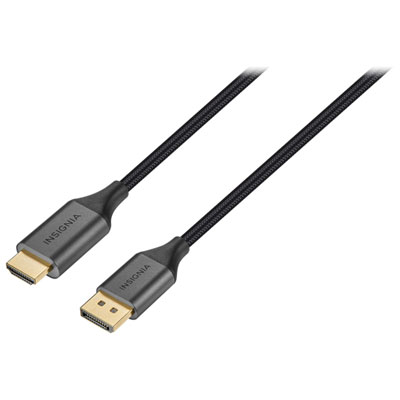 Your price for this item is $39.95
 -
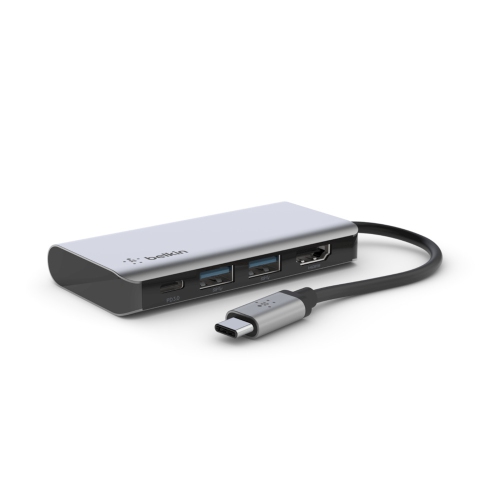 Your price for this item is $62.99
 -
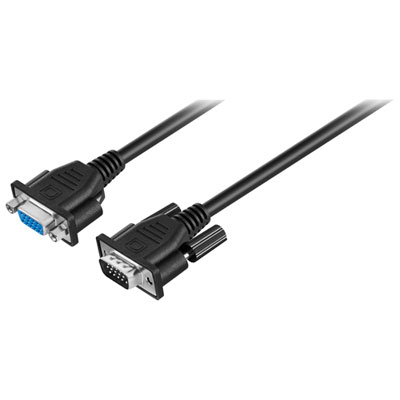 Your price for this item is $29.95
 -
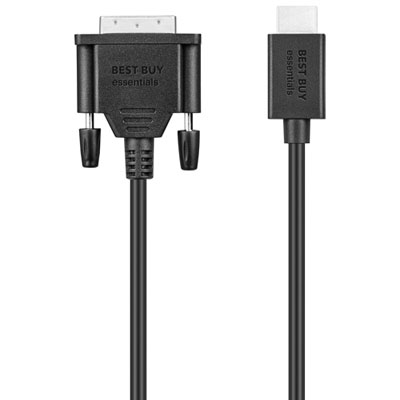 Your price for this item is $14.99
 -
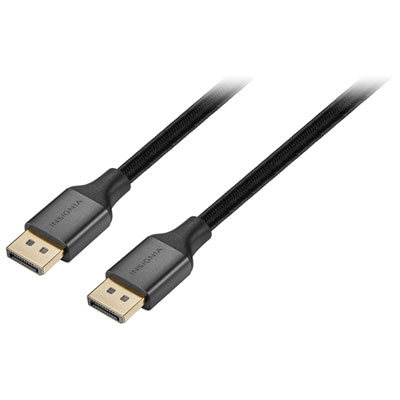 Your price for this item is $29.99
 -
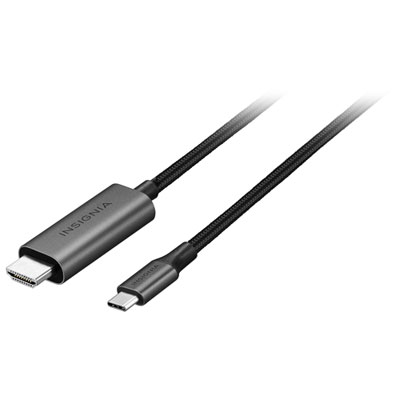 Your price for this item is $39.99
 -
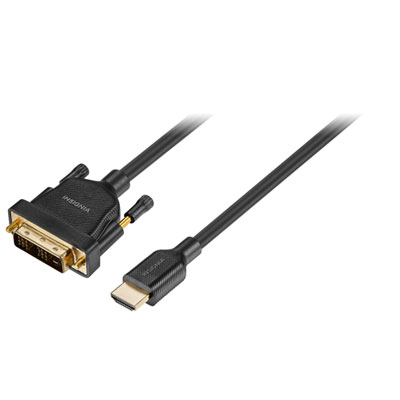 Your price for this item is $29.99
 -
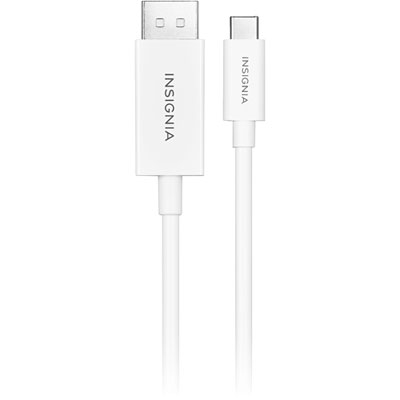 Your price for this item is $24.97
Discover more categories related to Laptop VGA Port
Top Collections:
Pokemon Centers, Kindle Devices, Best Budget Office Chairs, Apple iPhones 16, Best Laptops for Writers, iPhone 15 Apple, Canon G7X Cameras, Refurbished Apple Laptops, Alarm Clock, Motorola Razr Phones
Some products may be subject to Environmental Handling Fees
(EHF) depending on your province.
Learn more about EHFs.