Lenovo ThinkCentre M910q
Discover the versatility and performance of the Lenovo ThinkCentre M910q, designed to meet the demands of modern workspaces. Perfect for both home offices and professional environments, the Lenovo ThinkCentre M910q delivers reliable computing power in a compact form factor. Explore a range of configurations and options to find the ideal solution for your productivity needs. Elevate your workstation with the Lenovo ThinkCentre M910q and experience efficient, streamlined computing every day.
Sort


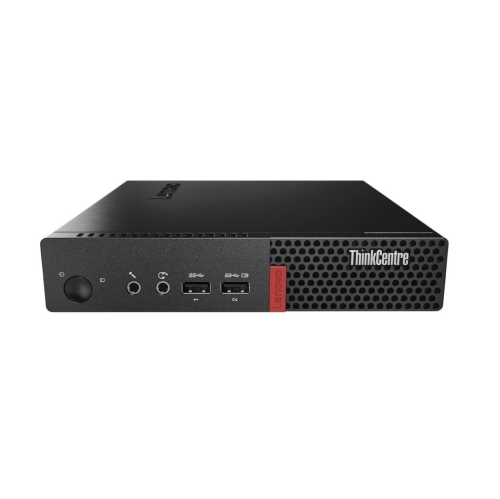


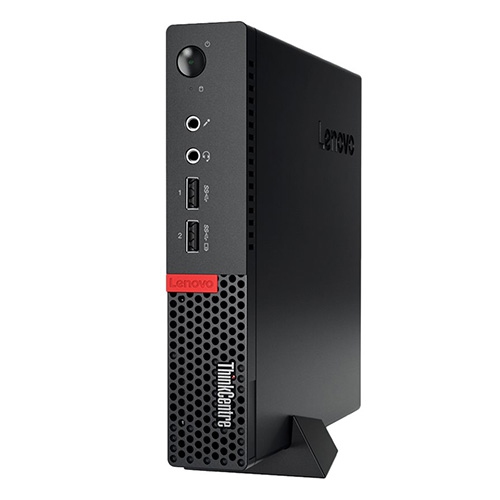


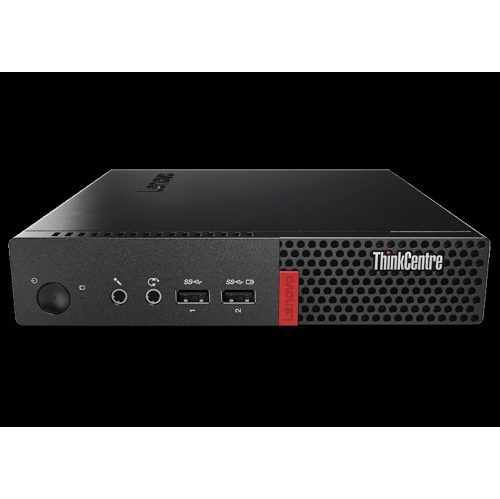


Everyday desktop capability without a full-size tower
For a desk where every centimetre matters, the ThinkCentre M910Q collection highlights the practical appeal of ultra-small business desktops. This category of computer puts everyday desktop capability into a compact enclosure, often around one litre in volume, rather than a full-size tower. That leaves more room for a monitor, paperwork, and a comfortable keyboard position without moving the computer to the floor. A tiny desktop can suit a home office, a reception counter, a student’s study space, or a shared workstation where a large case would get in the way. Its strengths are usually familiar daily tasks: working on documents, managing email, using browser-based business tools, attending video meetings, and playing streaming media. The experience depends on the installed processor, memory, and storage, so two computers with similar-looking cases can feel quite different in use. For someone moving between a spreadsheet, a meeting application, and several browser tabs, adequate memory and a solid-state drive generally matter more than the size of the enclosure. These systems are also distinct from all-in-one computers: the display is separate, which allows a suitable monitor to stay in place when the desktop changes. A compatible mounting bracket may let the computer sit behind a display or beneath a desk, but mounting hardware, screw patterns, and weight limits need to match. Leaving the power button and frequently used ports within reach makes that arrangement easier to live with. A shelf can work just as well, provided the computer has a stable surface and clear ventilation openings. For a household sharing one work area, the small footprint can make a permanent desktop setup practical without letting it dominate the room. It can also be a useful gift for someone who already has a screen and peripherals, although checking their software needs and comfort with setup helps make the gift a good fit.
The most useful distinctions between compact desktop configurations are inside the case. Processor generation, core count, and power rating all influence suitability, particularly when several applications run at once or a task continues for long periods. Lower-power processors are common in tiny business computers because they suit the limited space for cooling, but a familiar processor tier alone does not establish how an older desktop compares with a newer one. Memory capacity affects how comfortably the system handles open applications, while the number of slots and supported module type determine the scope for later changes. Small desktops often use laptop-sized memory modules rather than the larger modules found in towers. Maximum supported capacity should come from the technical specifications for the exact configuration, not from a general assumption about the chassis. Storage deserves the same attention. A solid-state drive helps with startup, opening applications, and accessing files; its capacity determines how much room remains for documents, photos, and installed software. Some designs support both an M.2 drive and a separate 2.5-inch drive, but the required bay, cable, or mounting caddy may not be included. M.2 describes a physical format, so interface compatibility also matters when considering a replacement. Connections shape the rest of the setup. DisplayPort and HDMI are different connections, and a monitor may require a suitable cable or an adapter that supports the correct signal direction. Multiple display sockets do not, by themselves, confirm every possible combination of screen count and resolution. USB connections serve keyboards, mice, webcams, external drives, and other accessories, with front-facing ports particularly convenient for devices that are unplugged regularly. Wired Ethernet offers a straightforward network connection at a fixed desk. Wi-Fi and Bluetooth should be confirmed separately, along with any necessary antenna, rather than assumed from the computer’s size. For video calls, a separate webcam, microphone, or headset may also be needed. Accounting for these details helps a small desktop fit into an existing workspace without unexpected gaps between the computer and the equipment around it.
Condition, construction, and software support are especially important with older business-class desktops. These computers commonly combine a metal chassis with plastic front trim, giving them a firm structure while keeping controls and connections accessible. Cosmetic wear on a previously used enclosure is different from damage to a port, a loose power connection, or a cooling fan that no longer runs properly. A refurbished designation does not describe one universal testing process, so the stated condition, included accessories, warranty coverage, and return terms deserve close attention. The external power adapter is particularly important: its connector and electrical rating must match the system’s requirements. Inside, compact layouts leave less room for expansion than a tower, and a tiny desktop is generally not the right starting point for someone planning to install a large graphics card. Integrated graphics can suit office displays and media playback, while demanding games, complex 3D work, and heavy video editing call for a closer look at application requirements. An older processor may also limit eligibility for newer operating systems, even when the computer still feels responsive during basic tasks. Checking official hardware requirements and security support helps establish whether the system suits connected daily use. For hobbyists, compact business desktops can provide a manageable platform for learning about virtual machines, small servers, or container-based applications. Those uses depend on memory, storage, network hardware, and software compatibility; a basic desktop configuration is not automatically ready for every home lab role. Everyday care is straightforward but worthwhile. Keep vents unobstructed, avoid stacking papers over the case, and shut down and unplug the computer before exterior cleaning. A soft, dry cloth is appropriate for routine surface care, while internal cleaning should follow the manufacturer’s service instructions. Cables should have enough slack to avoid pulling on sockets, especially when the computer is mounted out of sight. With a configuration matched to the workload and a setup that allows access and airflow, a tiny desktop can be a practical, unobtrusive part of a well-organized workspace.
The most useful distinctions between compact desktop configurations are inside the case. Processor generation, core count, and power rating all influence suitability, particularly when several applications run at once or a task continues for long periods. Lower-power processors are common in tiny business computers because they suit the limited space for cooling, but a familiar processor tier alone does not establish how an older desktop compares with a newer one. Memory capacity affects how comfortably the system handles open applications, while the number of slots and supported module type determine the scope for later changes. Small desktops often use laptop-sized memory modules rather than the larger modules found in towers. Maximum supported capacity should come from the technical specifications for the exact configuration, not from a general assumption about the chassis. Storage deserves the same attention. A solid-state drive helps with startup, opening applications, and accessing files; its capacity determines how much room remains for documents, photos, and installed software. Some designs support both an M.2 drive and a separate 2.5-inch drive, but the required bay, cable, or mounting caddy may not be included. M.2 describes a physical format, so interface compatibility also matters when considering a replacement. Connections shape the rest of the setup. DisplayPort and HDMI are different connections, and a monitor may require a suitable cable or an adapter that supports the correct signal direction. Multiple display sockets do not, by themselves, confirm every possible combination of screen count and resolution. USB connections serve keyboards, mice, webcams, external drives, and other accessories, with front-facing ports particularly convenient for devices that are unplugged regularly. Wired Ethernet offers a straightforward network connection at a fixed desk. Wi-Fi and Bluetooth should be confirmed separately, along with any necessary antenna, rather than assumed from the computer’s size. For video calls, a separate webcam, microphone, or headset may also be needed. Accounting for these details helps a small desktop fit into an existing workspace without unexpected gaps between the computer and the equipment around it.
Condition, construction, and software support are especially important with older business-class desktops. These computers commonly combine a metal chassis with plastic front trim, giving them a firm structure while keeping controls and connections accessible. Cosmetic wear on a previously used enclosure is different from damage to a port, a loose power connection, or a cooling fan that no longer runs properly. A refurbished designation does not describe one universal testing process, so the stated condition, included accessories, warranty coverage, and return terms deserve close attention. The external power adapter is particularly important: its connector and electrical rating must match the system’s requirements. Inside, compact layouts leave less room for expansion than a tower, and a tiny desktop is generally not the right starting point for someone planning to install a large graphics card. Integrated graphics can suit office displays and media playback, while demanding games, complex 3D work, and heavy video editing call for a closer look at application requirements. An older processor may also limit eligibility for newer operating systems, even when the computer still feels responsive during basic tasks. Checking official hardware requirements and security support helps establish whether the system suits connected daily use. For hobbyists, compact business desktops can provide a manageable platform for learning about virtual machines, small servers, or container-based applications. Those uses depend on memory, storage, network hardware, and software compatibility; a basic desktop configuration is not automatically ready for every home lab role. Everyday care is straightforward but worthwhile. Keep vents unobstructed, avoid stacking papers over the case, and shut down and unplug the computer before exterior cleaning. A soft, dry cloth is appropriate for routine surface care, while internal cleaning should follow the manufacturer’s service instructions. Cables should have enough slack to avoid pulling on sockets, especially when the computer is mounted out of sight. With a configuration matched to the workload and a setup that allows access and airflow, a tiny desktop can be a practical, unobtrusive part of a well-organized workspace.
Top selling and popular products
-
 Your price for this item is $1399.99
-
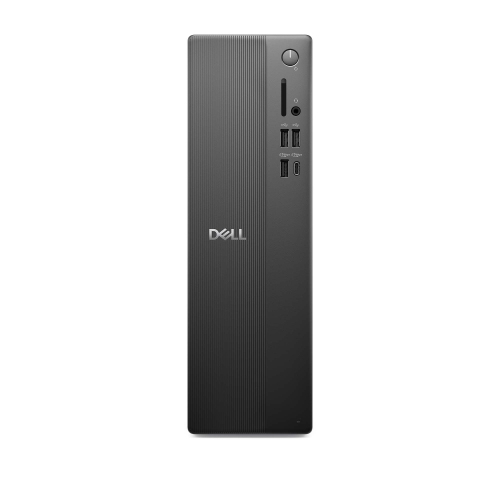 Your price for this item is $1629.79
-
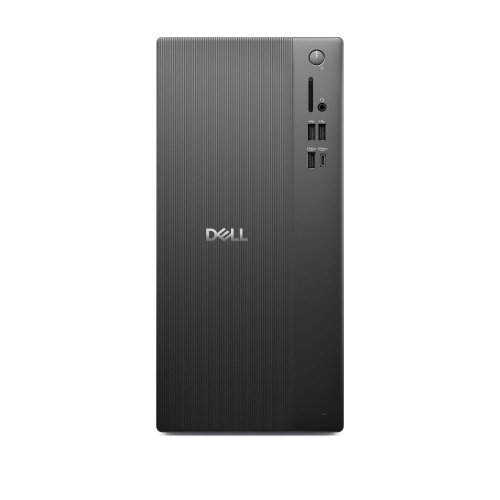 Your price for this item is $1459.79
-
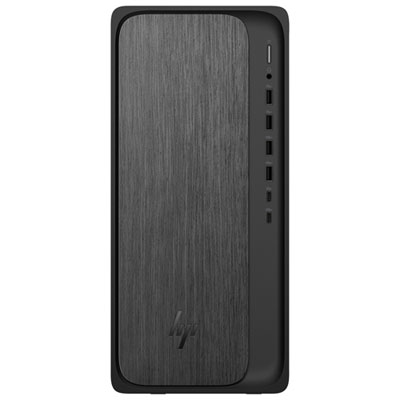 Your price for this item is $2299.99
-
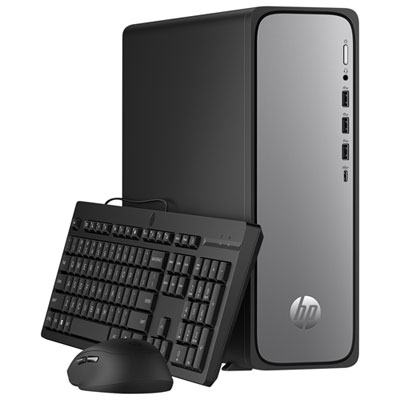 Your price for this item is $1469.99
-
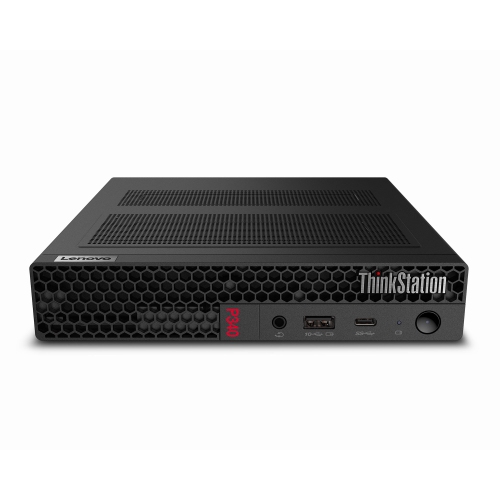 Your price for this item is $699.79
-
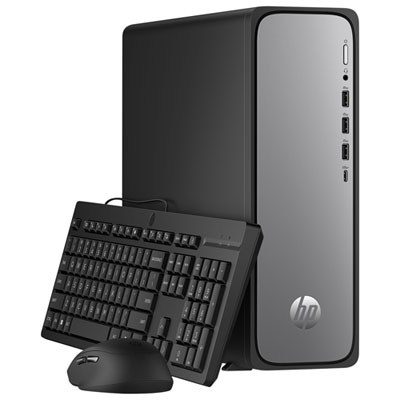 Your price for this item is $1759.99
-
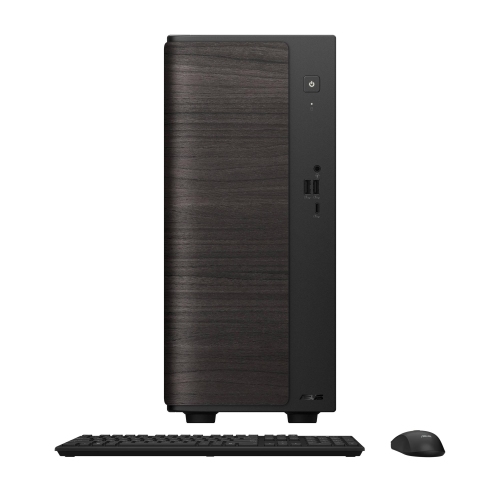 Your price for this item is $3149
Discover more categories related to Lenovo ThinkCentre M910q


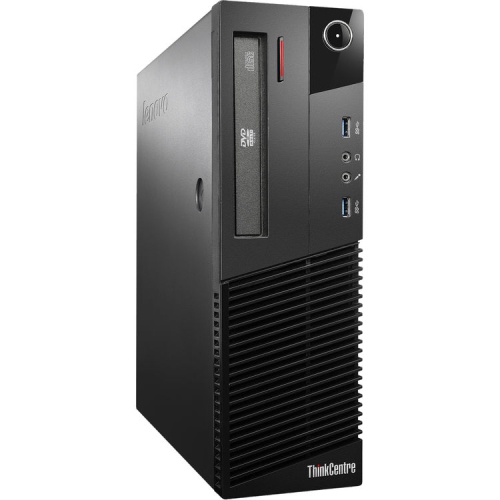
Top Collections:
Pokemon Centers, Best Black Friday Deals This Year, Best Black Friday Deals On Electronics, Kindle Devices, Best Budget Office Chairs, Best Black Friday Deals On Apple Products, Best Cameras for Sports Photography, Pokémon 30th Celebration Cards, Dyson Airwrap, Canon G7X Cameras
Some products may be subject to Environmental Handling Fees
(EHF) depending on your province.
Learn more about EHFs.