MacBook Pro With Touchbar
Experience a new level of innovation and convenience with the macbook pro with touchbar. Designed for those who value performance and versatility, this advanced laptop lineup offers a seamless blend of style and productivity. Whether you're editing videos, managing projects, or staying connected on the go, the macbook pro with touchbar brings efficiency to your fingertips. Explore a range of models and configurations to find the perfect fit for your professional or personal needs.
Sort

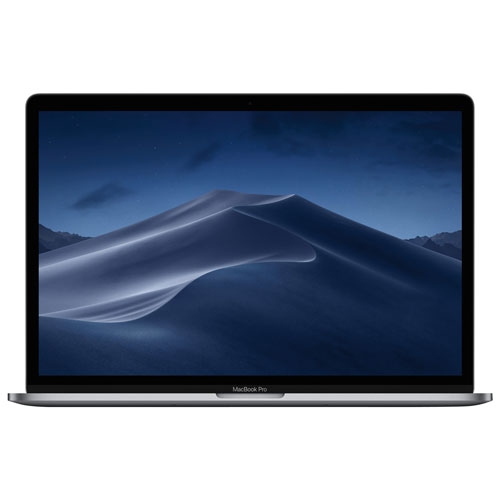
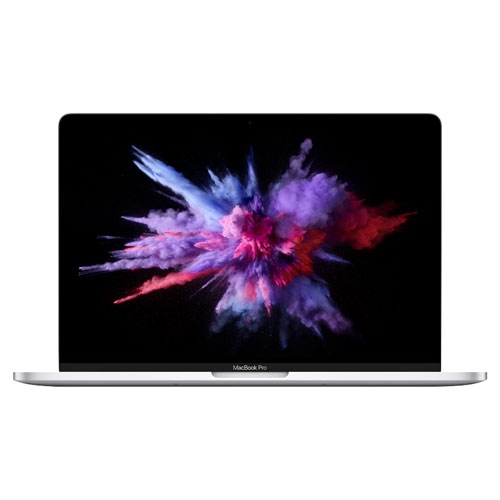
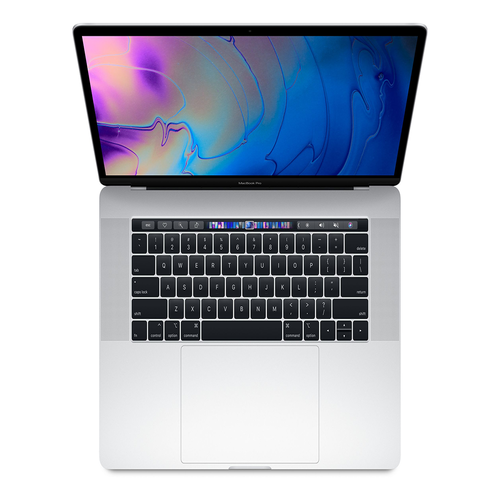
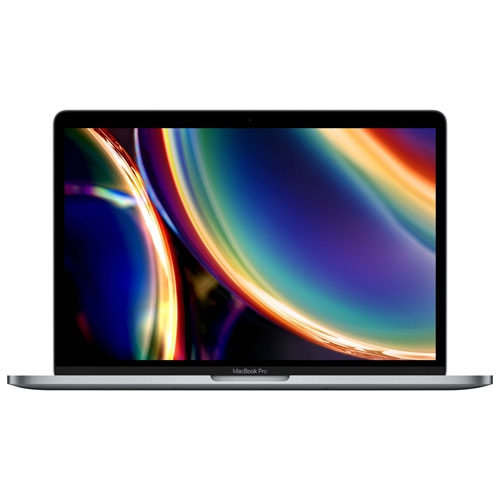
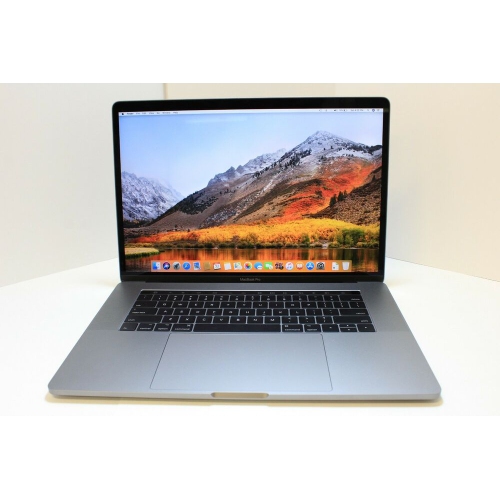

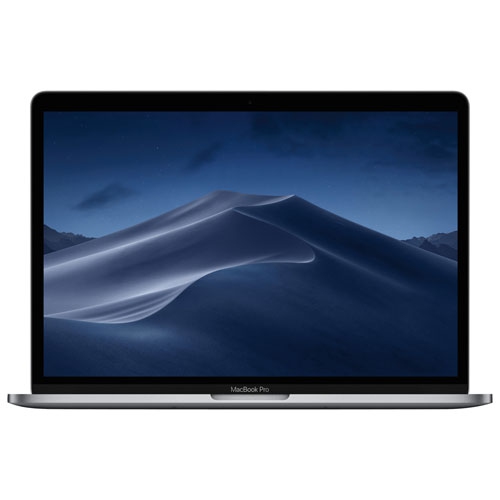
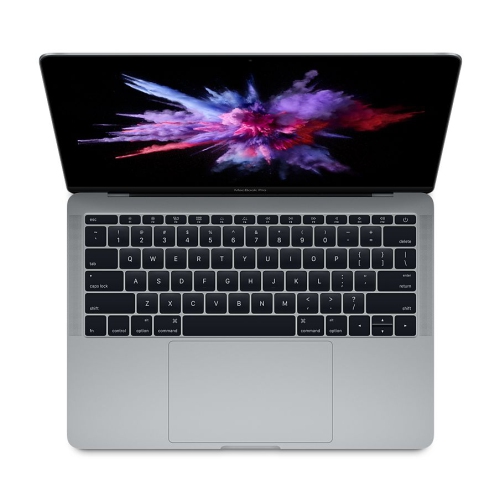

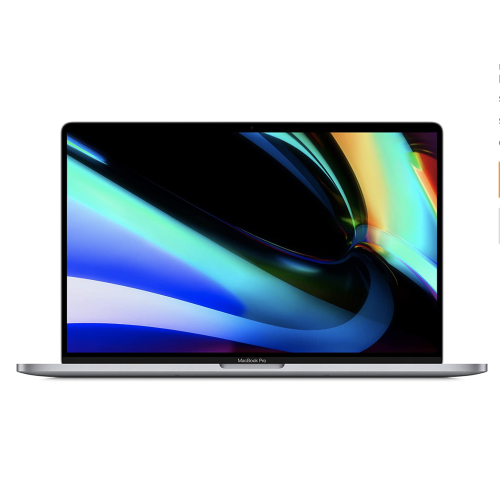

What the Touch Bar adds and what matters more
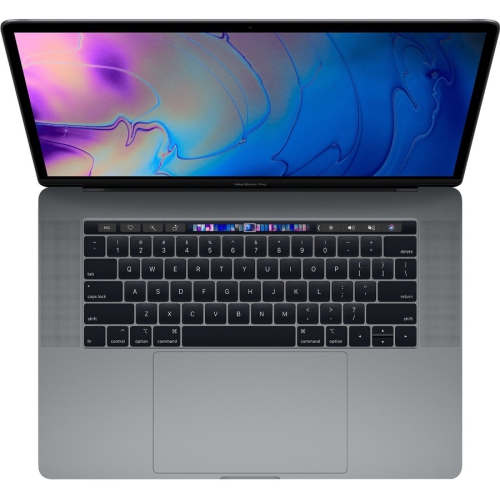
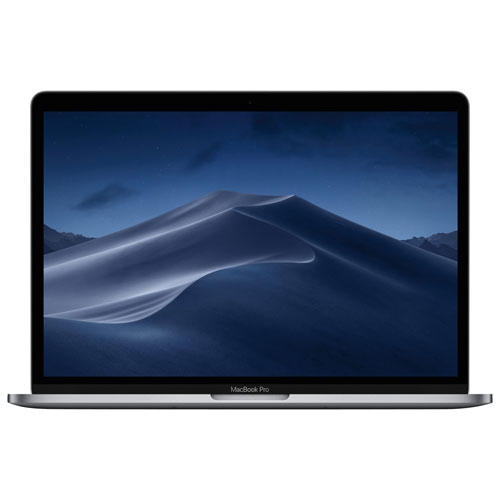
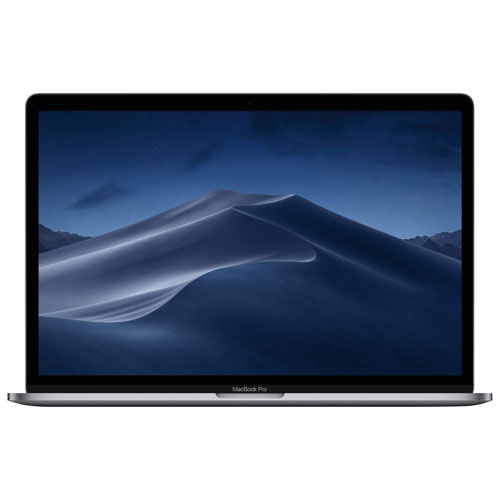
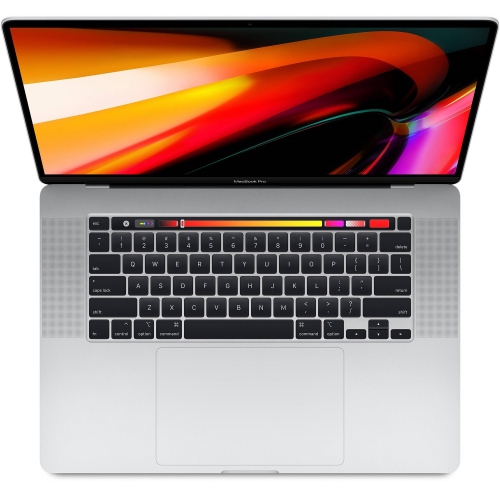
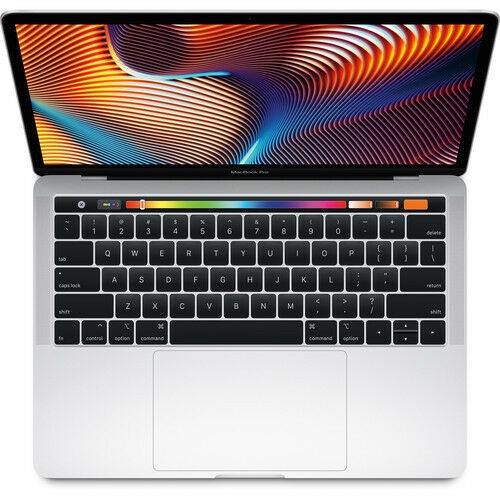
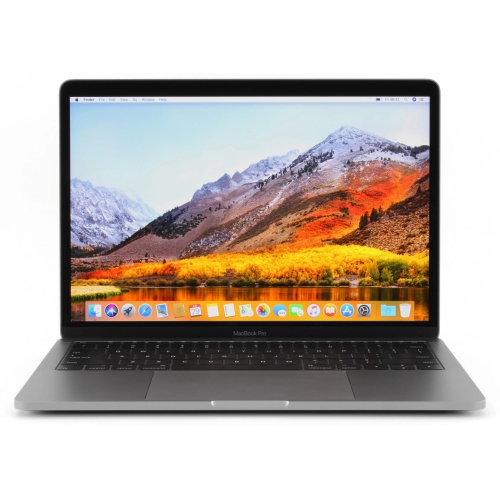
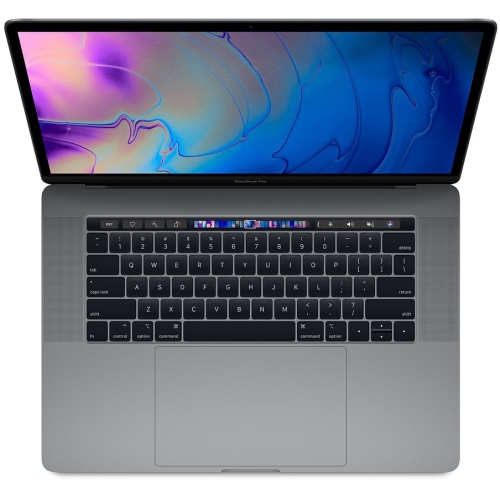
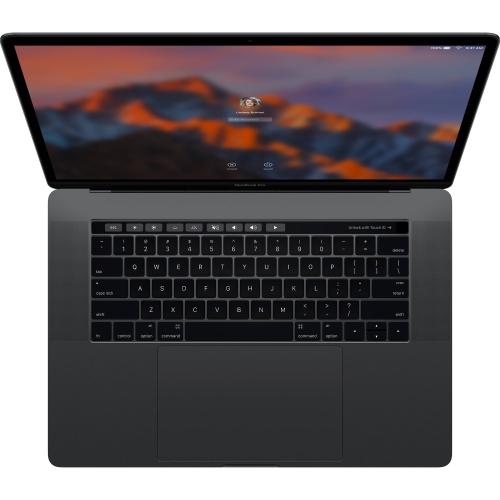
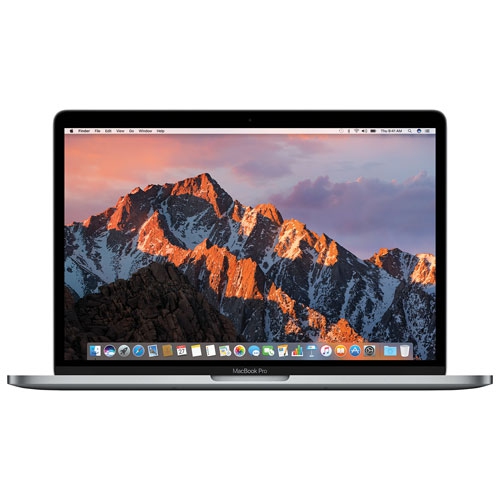
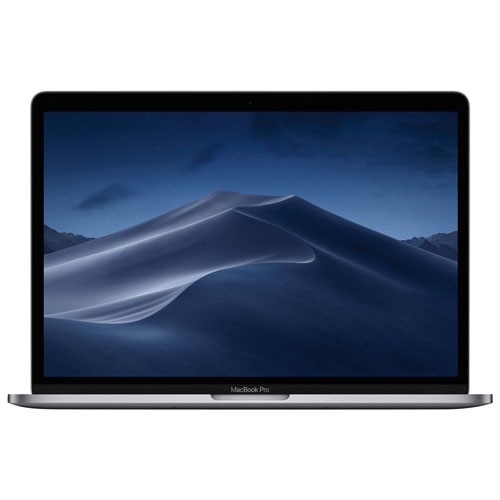
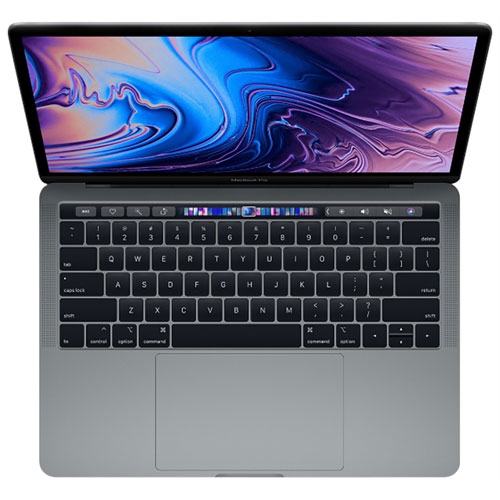
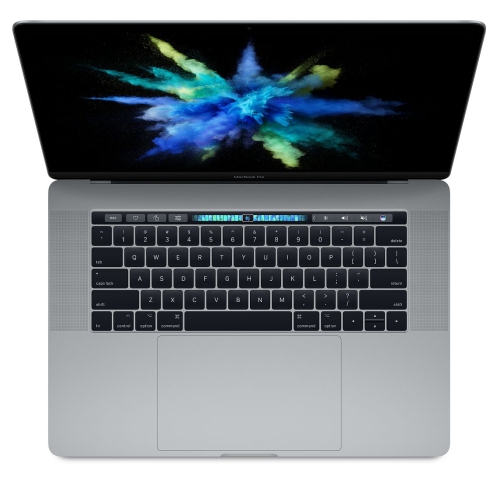
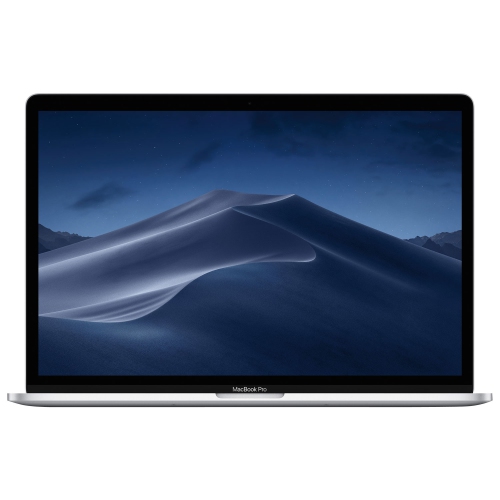
MacBook Pro laptops with a Touch Bar have a narrow OLED touchscreen above the keyboard in place of the usual row of physical function keys. The strip changes what it shows to match the app or task. In a supported video player, it can display a playback timeline; in a photo editor, it might bring frequently used tools within reach. A separate set of controls handles everyday adjustments such as screen brightness and volume, and the standard function keys can be displayed when needed. Touch ID is a separate fingerprint sensor beside the strip, not part of the touchscreen itself. It can unlock the laptop and approve certain sign-ins without requiring a password every time. The Touch Bar debuted on select MacBook Pro laptops in 2016 and was retired from the line in 2023. The 2017 Macbook Pro generation included 13-inch versions both with and without the strip, so the year and screen size alone don’t tell the whole story. The layout also changed over the years: some keyboards put Escape on the strip, while others have a physical Escape key. That distinction can matter more than the extra shortcuts for someone who presses Escape repeatedly while writing code or working in a design app. The strip can save a trip through a menu when it shows the right control at the right time, but it doesn’t give fingers the same landmarks as a row of raised keys. For someone who adjusts volume by feel while keeping an eye on a document, that difference may be more noticeable than any of the app-specific features.
Screen size, keyboard feel and the work the laptop needs to do are often more important to everyday fit than the Touch Bar itself. Screen sizes across the range span 13 to 16 inches. A smaller laptop leaves room for a notebook on a narrow library desk and takes up less space in a bag. A larger screen makes it easier to read a reference document beside a draft or see more of an editing timeline without constantly scrolling. For a laptop that spends most of its time on a desktop, the ability to connect a monitor and other accessories can matter more than the size of the built-in display. Touch Bar models use USB-C ports for charging and connecting accessories, but the number of ports and the external display configurations they support vary. A desk setup with a monitor, a backup drive and a charger is a useful way to think through those differences. For a photographer who transfers files from a memory card, a reader or hub may also be part of that setup. Processor generation, memory and storage are separate considerations: two laptops with nearly identical keyboards can differ in how comfortably they handle a large photo library, a video call with several apps open or a project with many layers. The operating system version a laptop supports also matters if a course or workplace requires particular software. As a gift, a Touch Bar laptop can make sense for a student who needs a portable computer for reading, writing and research, or for someone who already likes the feel of this keyboard layout. The recipient’s software and everyday habits are better clues to a good fit than the novelty of the strip.
The aluminium body feels rigid in the hand and gives these laptops a slim profile, but it can still pick up dents around the corners or scuffs where it slides in and out of a bag. A padded sleeve that fits the laptop’s actual dimensions offers more protection than a loose one with room for the laptop to shift. Carrying the charger in a separate pocket also keeps the plug from rubbing against the lid. On a laptop that has seen regular use, a small mark on the case tends to matter less than a hinge that won’t hold the display steady, a key that repeats unexpectedly or a charging port that loses its connection when the cable moves. The Touch Bar is worth considering as its own component: uneven brightness or a section that doesn’t register taps can make a frequently used shortcut harder to reach. Battery health is another consideration that can’t be judged from the outside. Charge cycle count gives some context about past use, while the battery’s reported condition can help set expectations for working away from an outlet. Actual runtime will still depend on the workload and screen brightness; typing notes and exporting a video place very different demands on the same battery. For routine care, a soft, lint-free cloth can lift fingerprints from the display and Touch Bar without the need to spray cleaner onto either surface. Keeping grit out of the sleeve and crumbs away from the keyboard helps protect the areas that see the most contact. A well-kept keyboard, a clear display and a battery suited to the way the laptop will be used can make a greater difference over a full day than a nearly spotless lid.
Top selling and popular products
-
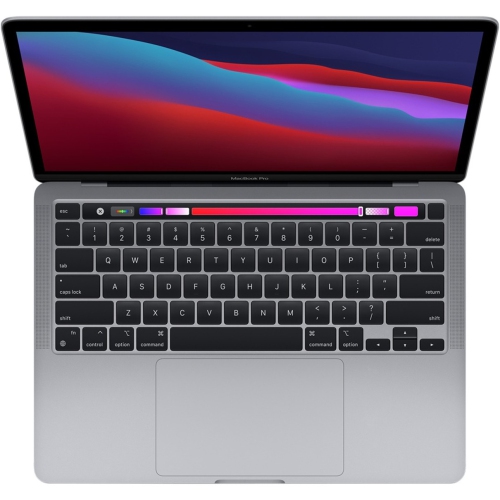 Your price for this item is $1500
-
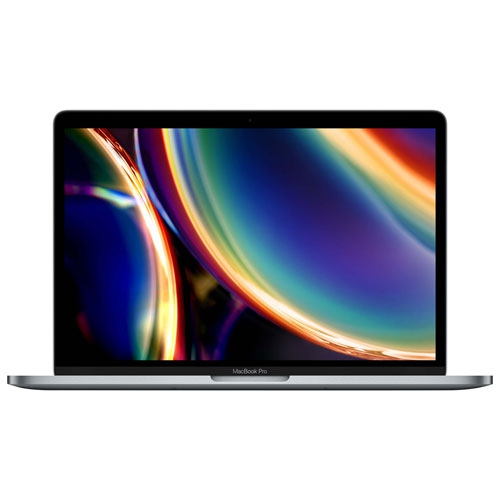 Your price for this item is $749.77
-
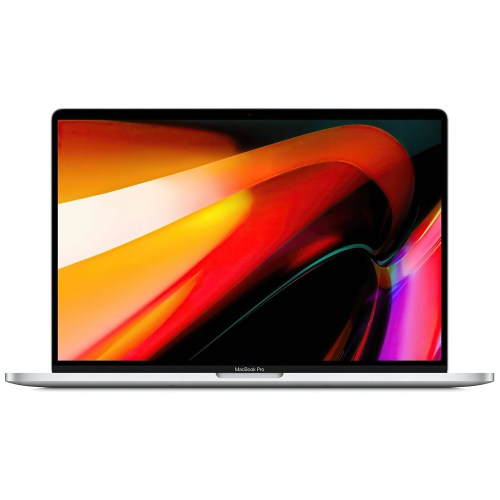 Your price for this item is $659.99
-
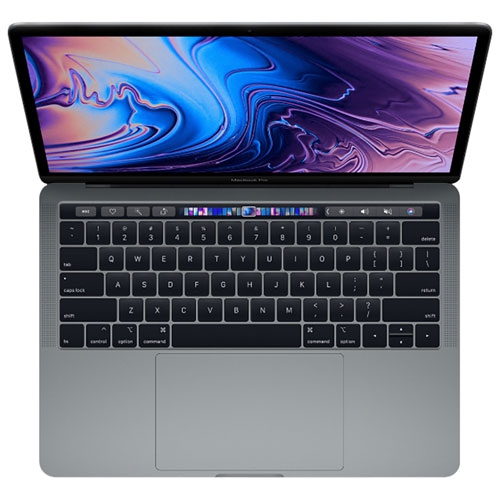 Your price for this item is $499.96
-
 Your price for this item is $549.77
-
 Your price for this item is $629.77
-
 Your price for this item is $629.77
-
 Your price for this item is $519.99
Discover more categories related to MacBook Pro With Touchbar

Top Collections:
Best Black Friday Deals This Year, Best Black Friday Deals On Electronics, Kindle Devices, Pokemon Centers, Best Black Friday Deals On Apple Products, Best Cameras for Sports Photography, Dyson Airwrap, Pokémon 30th Celebration Cards, Apple iPhone 17 Pro, Canon G7X Cameras
Some products may be subject to Environmental Handling Fees
(EHF) depending on your province.
Learn more about EHFs.