Microsoft Student
Microsoft Student brings together a range of tools and resources designed to support learning, productivity, and creativity for students at every level. Whether tackling assignments, collaborating on group projects, or organizing study schedules, these solutions help streamline everyday tasks and enhance academic performance. Discover options tailored to make studying more efficient and engaging with Microsoft Student.
Sort



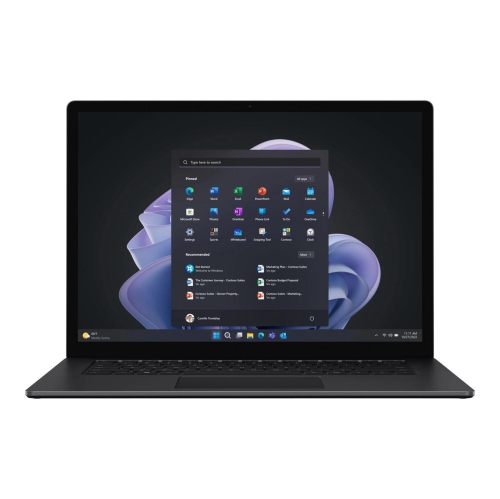

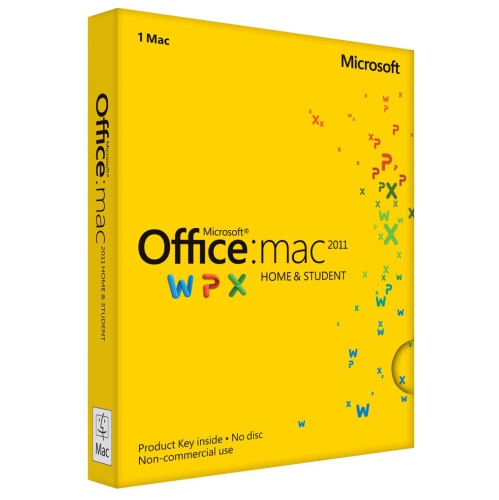
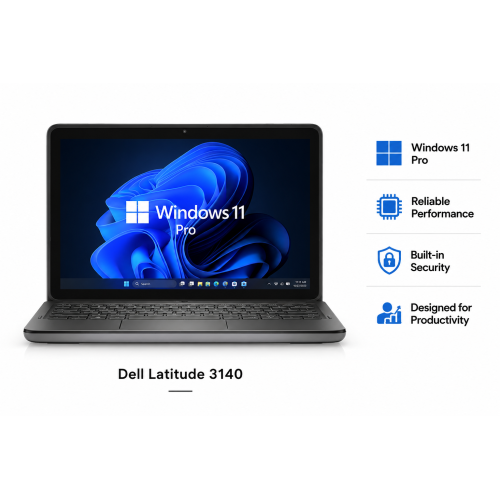

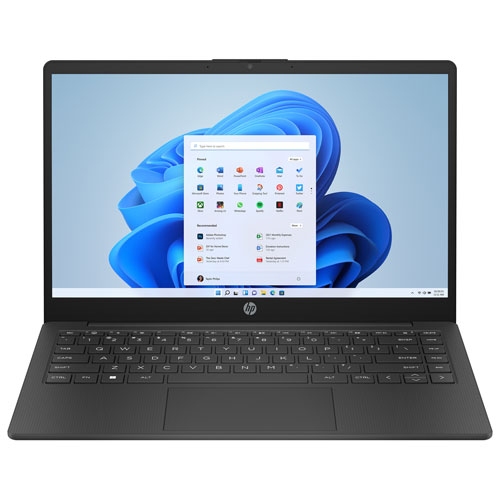



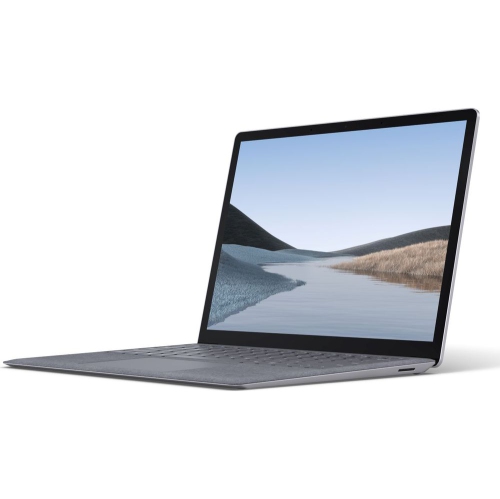


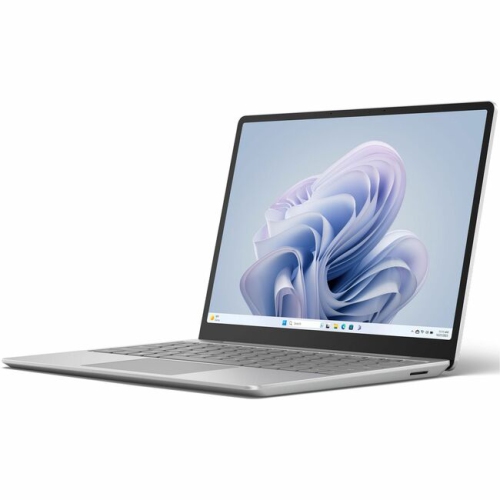
Student software that matches the demands of your coursework
Student productivity software supports the work that happens between a lecture, a study session and a finished assignment: writing papers, organizing notes, calculating results and presenting ideas clearly. The most relevant software categories include word processing, spreadsheets, presentations, digital notebooks and cloud storage, with different licensing arrangements suited to individual students or participating educational institutions. Education access generally depends on the institution’s eligibility and the services it assigns to students; a school email address alone does not establish which applications or features are included. An individual subscription is separate from school-managed access, and its terms determine the applications, storage and permitted devices. These distinctions matter when a course requires more than opening a document in a browser. Browser-based applications can handle many everyday tasks, while installed desktop applications may offer more advanced formatting, analysis tools or offline functionality, depending on the software. A student drafting a short response may need only basic editing and sharing, whereas someone preparing a dissertation could need detailed citation support, section breaks, captions and reliable handling of a long document. Spreadsheet work can range from a simple weekly timetable to lab calculations, charts and larger datasets, making course requirements a useful starting point for understanding which features matter. Presentation tools bring together slides, speaker notes and visual material for classroom talks or group projects. Digital notebooks give lecture notes, diagrams and reading summaries a common home, especially when pages can be searched or arranged by course. The broader category of Software for Students can also support assignments that call for capabilities beyond everyday document creation. For secondary school, college, university and continuing education students, the practical value lies in having tools that match the actual workload and produce files that instructors and classmates can open. Familiar file formats, accessible controls and dependable saving often matter more in daily use than a long list of features that a course never requires. The right fit leaves room for both routine homework and more demanding projects as studies progress.
Compatibility shapes how comfortably student software fits into an existing study setup. Operating system support, processor requirements, memory and storage needs affect whether an application can be installed and how smoothly it runs alongside a video call, several readings and an unfinished assignment. A browser version and a desktop version may not have identical features, even when they use similar layouts or open the same file types. A course that relies on spreadsheet add-ins, macros, specialized templates or precise page formatting may therefore need a particular application version or operating system. File fidelity is another practical consideration: fonts, equations, charts and slide layouts should remain readable when work moves from a personal computer to a classroom display or an instructor’s device. Exporting a final submission to a fixed-layout format can help preserve its appearance when that format is accepted, while keeping an editable original makes later revisions easier. Students who study away from a dependable internet connection benefit from understanding which tasks work offline and which require a connection for sign-in, activation, collaboration or syncing. Cloud storage can make it easier to move between study locations, but files need to finish uploading before the latest changes appear elsewhere. A locally saved copy and a separate backup provide additional protection for important work. Shared editing is particularly useful for group assignments, where comments, permissions and version history can help separate a teammate’s suggestions from changes to the final text. Sharing a file with named collaborators rather than opening access broadly can also help keep course material and personal details private. Accessibility features deserve equal attention: dictation, read-aloud functions, keyboard navigation, captions and adjustable display settings can make long study sessions more manageable, although support varies by application and device. For students working in English and French, proofing languages and keyboard settings may also influence everyday usability. Together, these details determine whether software supports a natural working rhythm or adds extra steps each time an assignment is opened, edited and submitted.
Licensing and account ownership affect how student software fits into life beyond a single assignment. A subscription typically grants access for a defined term under its licensing conditions, while a one-time licence applies to the version and usage rights specified with it; neither description alone confirms the number of installations, included upgrades or cloud services. School-managed accounts may also have different permissions and retention rules from personal accounts. Access can change when enrolment ends or an institution changes its arrangements, so keeping permitted copies of personal coursework outside a school-managed account helps preserve useful notes and completed projects. Account security matters throughout that process, particularly on shared computers: strong sign-in protection and signing out after use help protect stored files and personal information. For families choosing educational software as a gift, the recipient’s course requirements, existing access and preferred device are more useful than assumptions based on age or program name. A student beginning a writing-heavy course may value robust document tools, while someone managing research data may need more capable spreadsheet functions. Where a study setup also includes a portable computer or accessories, physical fit and durability contribute to the software experience. A readable screen, comfortable keyboard and responsive pointing device make a difference during extended writing and editing. Weight, dimensions and battery performance affect how practical a computer is to carry between home, campus and a study space. Casing materials, hinge construction and a well-fitting padded sleeve influence how it stands up to regular handling, while compatible ports help with external displays and storage. Routine care includes following the manufacturer’s cleaning directions, keeping liquids away from electronics and leaving ventilation openings clear. Software needs upkeep as well, including supported updates and occasional checks that backups can be opened. A thoughtfully matched combination of applications, licensing and compatible equipment supports the ordinary details of student life: finding yesterday’s lecture notes, finishing a shared presentation and submitting a readable assignment without unnecessary last-minute file conversions.
Compatibility shapes how comfortably student software fits into an existing study setup. Operating system support, processor requirements, memory and storage needs affect whether an application can be installed and how smoothly it runs alongside a video call, several readings and an unfinished assignment. A browser version and a desktop version may not have identical features, even when they use similar layouts or open the same file types. A course that relies on spreadsheet add-ins, macros, specialized templates or precise page formatting may therefore need a particular application version or operating system. File fidelity is another practical consideration: fonts, equations, charts and slide layouts should remain readable when work moves from a personal computer to a classroom display or an instructor’s device. Exporting a final submission to a fixed-layout format can help preserve its appearance when that format is accepted, while keeping an editable original makes later revisions easier. Students who study away from a dependable internet connection benefit from understanding which tasks work offline and which require a connection for sign-in, activation, collaboration or syncing. Cloud storage can make it easier to move between study locations, but files need to finish uploading before the latest changes appear elsewhere. A locally saved copy and a separate backup provide additional protection for important work. Shared editing is particularly useful for group assignments, where comments, permissions and version history can help separate a teammate’s suggestions from changes to the final text. Sharing a file with named collaborators rather than opening access broadly can also help keep course material and personal details private. Accessibility features deserve equal attention: dictation, read-aloud functions, keyboard navigation, captions and adjustable display settings can make long study sessions more manageable, although support varies by application and device. For students working in English and French, proofing languages and keyboard settings may also influence everyday usability. Together, these details determine whether software supports a natural working rhythm or adds extra steps each time an assignment is opened, edited and submitted.
Licensing and account ownership affect how student software fits into life beyond a single assignment. A subscription typically grants access for a defined term under its licensing conditions, while a one-time licence applies to the version and usage rights specified with it; neither description alone confirms the number of installations, included upgrades or cloud services. School-managed accounts may also have different permissions and retention rules from personal accounts. Access can change when enrolment ends or an institution changes its arrangements, so keeping permitted copies of personal coursework outside a school-managed account helps preserve useful notes and completed projects. Account security matters throughout that process, particularly on shared computers: strong sign-in protection and signing out after use help protect stored files and personal information. For families choosing educational software as a gift, the recipient’s course requirements, existing access and preferred device are more useful than assumptions based on age or program name. A student beginning a writing-heavy course may value robust document tools, while someone managing research data may need more capable spreadsheet functions. Where a study setup also includes a portable computer or accessories, physical fit and durability contribute to the software experience. A readable screen, comfortable keyboard and responsive pointing device make a difference during extended writing and editing. Weight, dimensions and battery performance affect how practical a computer is to carry between home, campus and a study space. Casing materials, hinge construction and a well-fitting padded sleeve influence how it stands up to regular handling, while compatible ports help with external displays and storage. Routine care includes following the manufacturer’s cleaning directions, keeping liquids away from electronics and leaving ventilation openings clear. Software needs upkeep as well, including supported updates and occasional checks that backups can be opened. A thoughtfully matched combination of applications, licensing and compatible equipment supports the ordinary details of student life: finding yesterday’s lecture notes, finishing a shared presentation and submitting a readable assignment without unnecessary last-minute file conversions.
Top selling and popular products
-
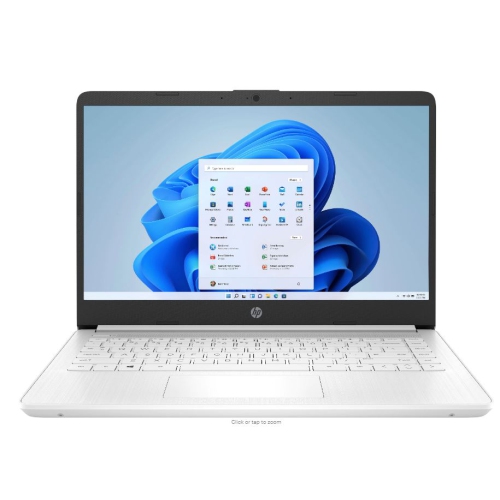 Your price for this item is $449
-
 Your price for this item is $3099
-
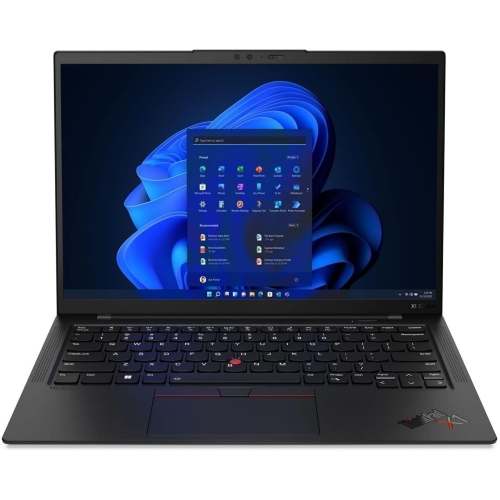 Your price for this item is $429.99
-
 Your price for this item is $1800.68
-
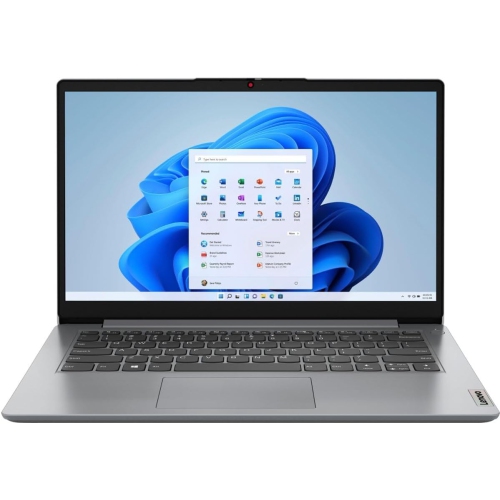 Your price for this item is $664.05
-
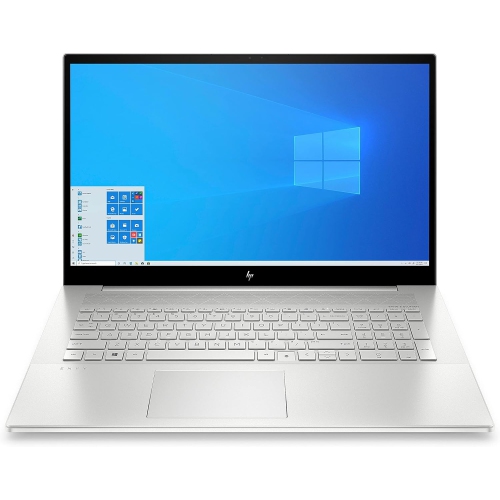 Your price for this item is $869.99
-
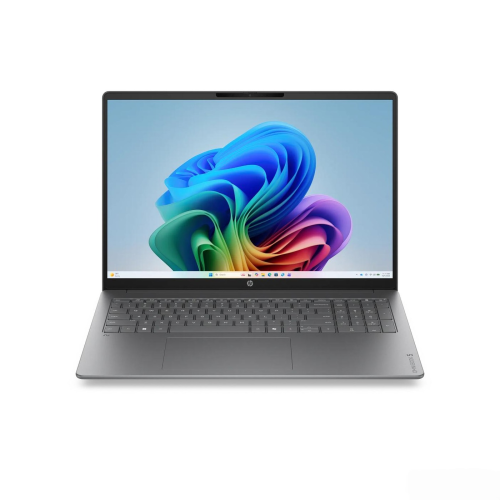 Your price for this item is $2960.48
-
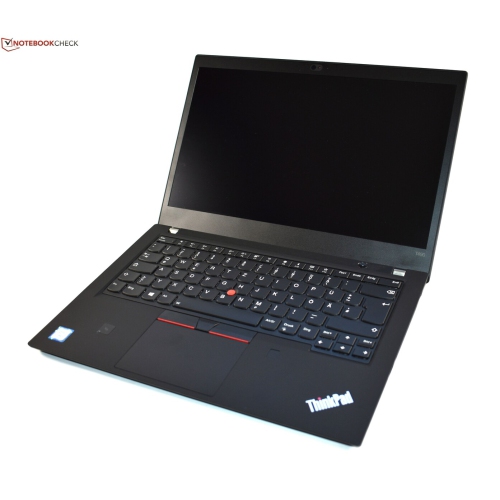 Your price for this item is $479.68
Discover more categories related to Microsoft Student
Top Collections:
Pokemon Centers, Pokémon 30th Celebration Cards, Best Budget Office Chairs, Kindle Devices, Best Cameras for Sports Photography, Canon G7X Cameras, Best Black Friday Deals On Electronics, Best Laptops for Writers, iPhone 15 Apple, Jackery Power Stations
Some products may be subject to Environmental Handling Fees
(EHF) depending on your province.
Learn more about EHFs.