Pc Memory Upgrades
Looking to give your PC a performance boost? Look no further than our wide range of PC memory upgrades. Upgrading your computer's memory can significantly enhance its speed and overall efficiency, allowing you to run multiple programs simultaneously without any lag. Whether you're a gamer looking to maximize your gaming experience or a professional in need of seamless multitasking capabilities, our selection of PC memory upgrades has got you covered. With various options available, you can easily find the perfect upgrade that suits your specific needs and budget.
Sort
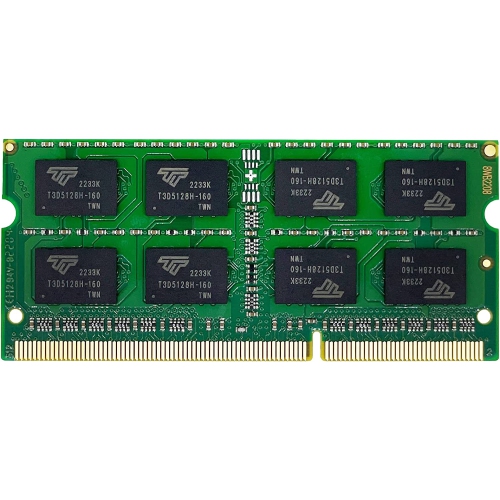
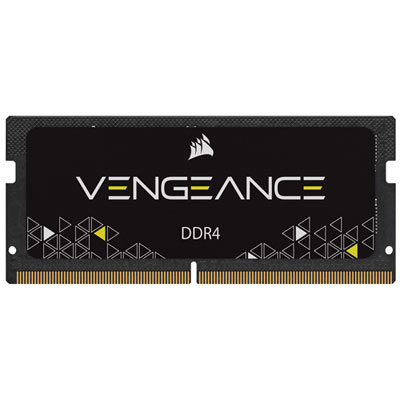
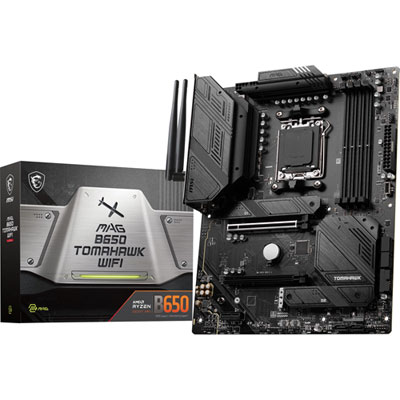
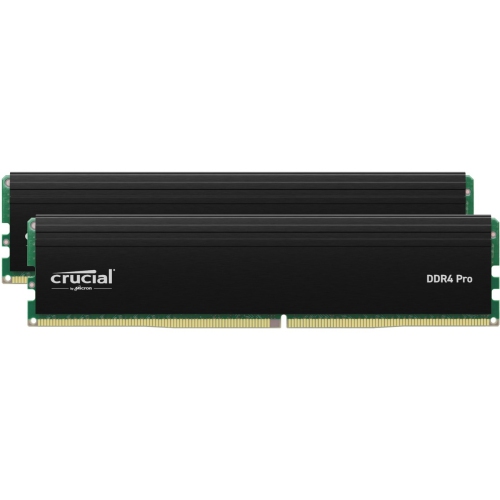


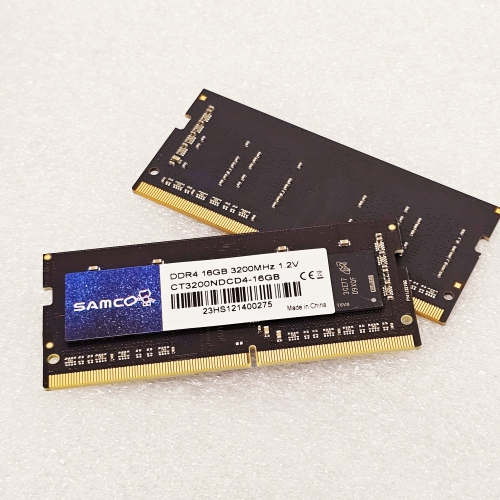
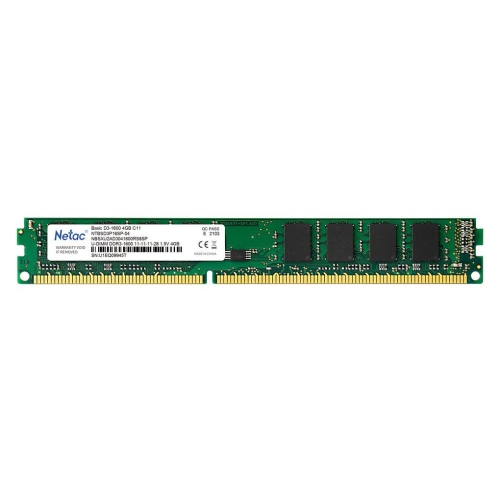
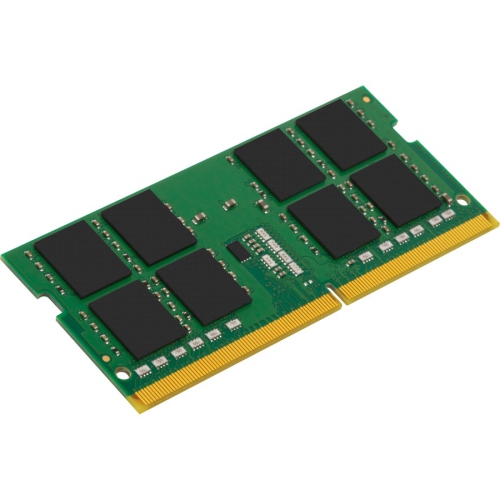
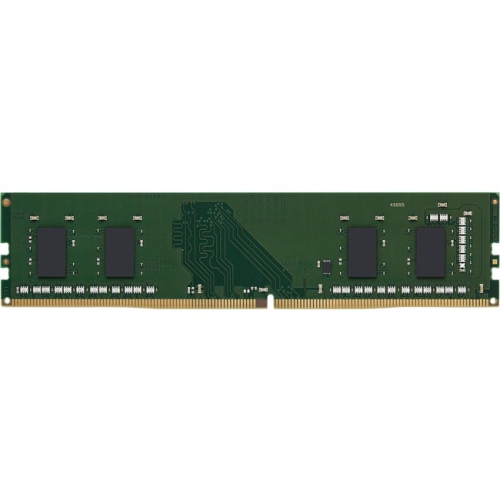

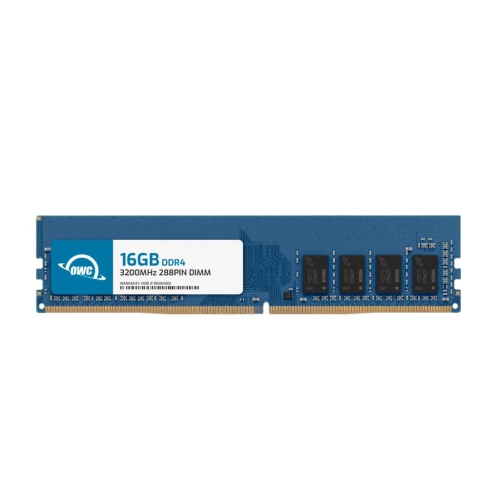
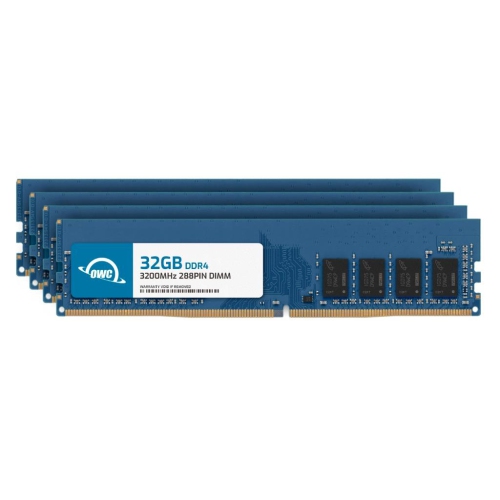
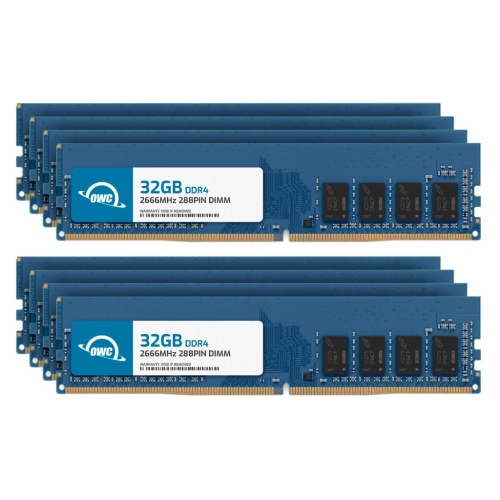
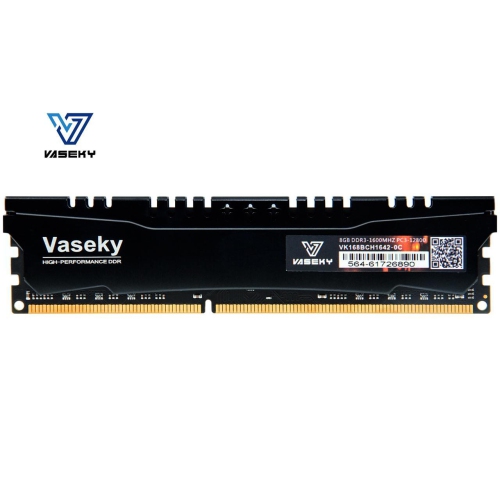
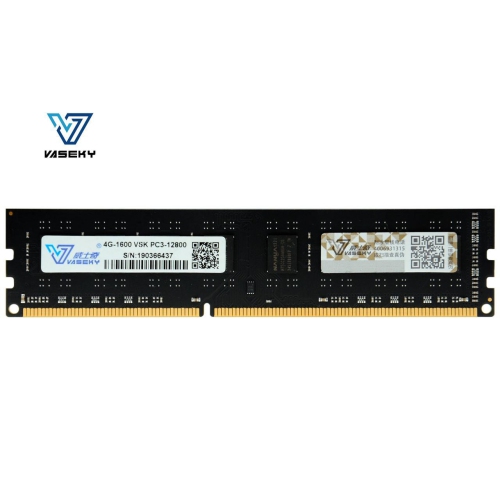
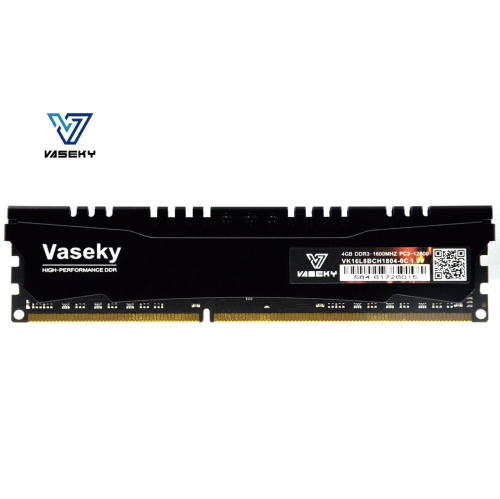
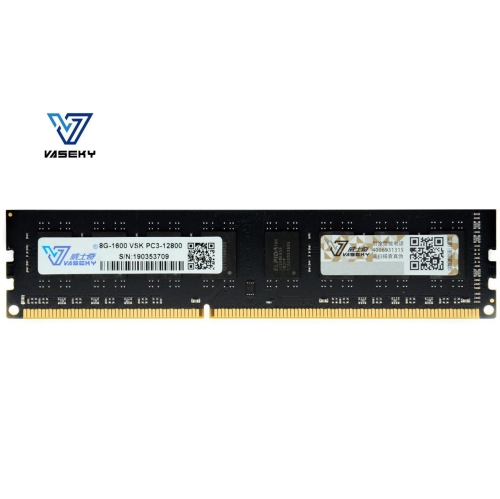
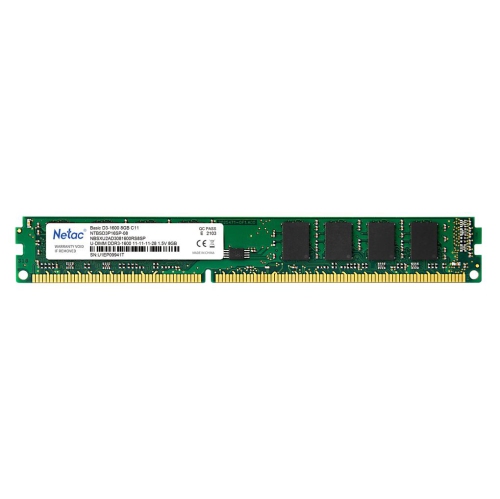



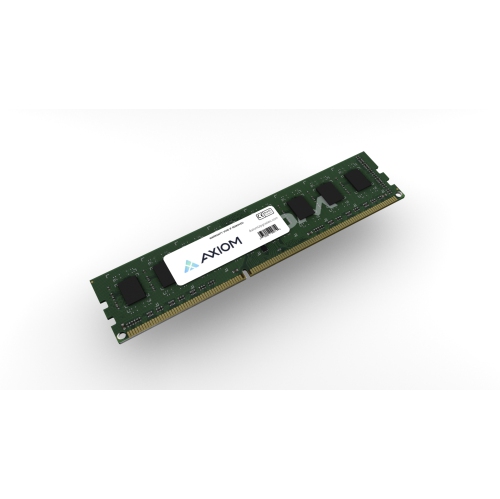
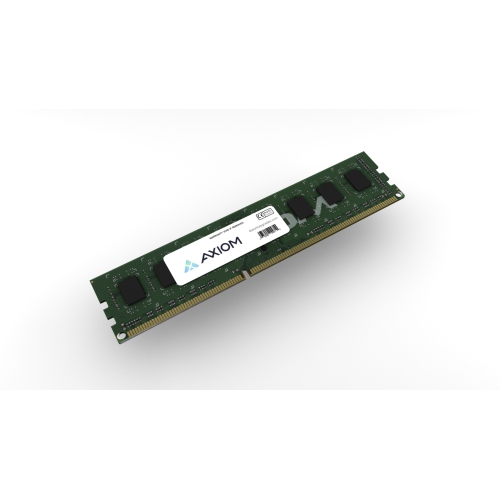
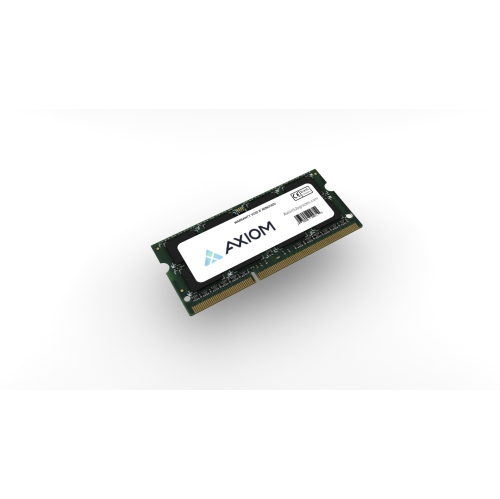
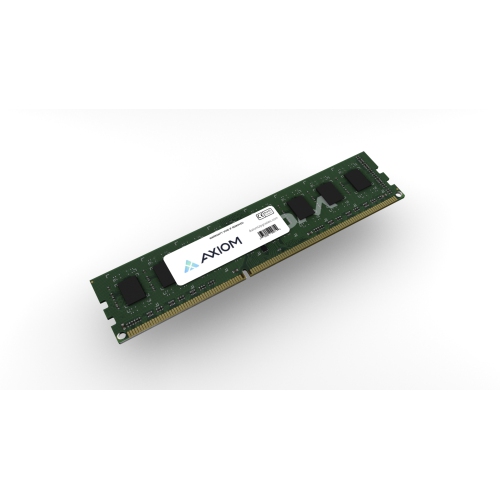

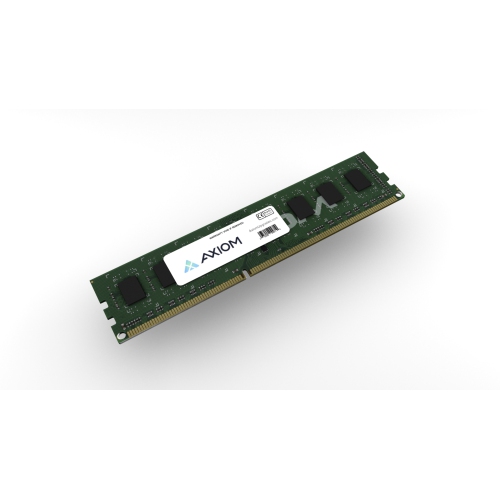
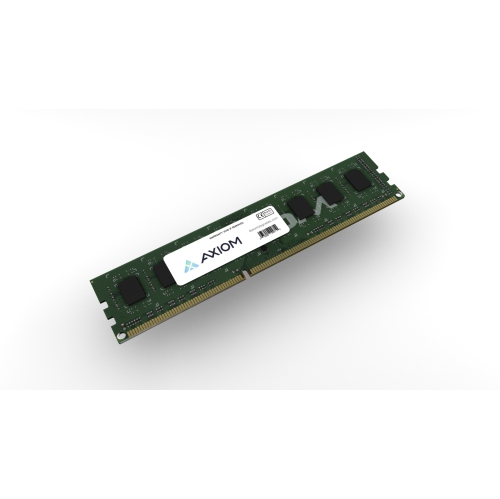
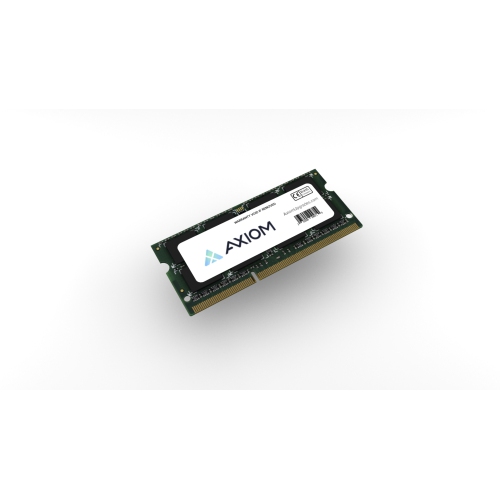
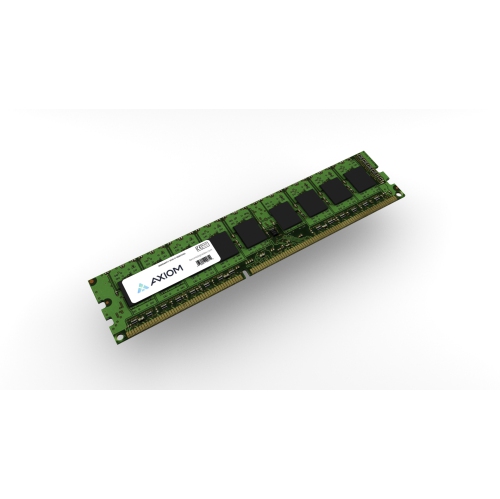
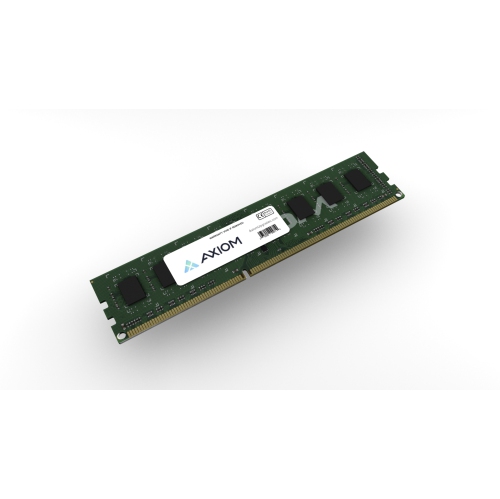
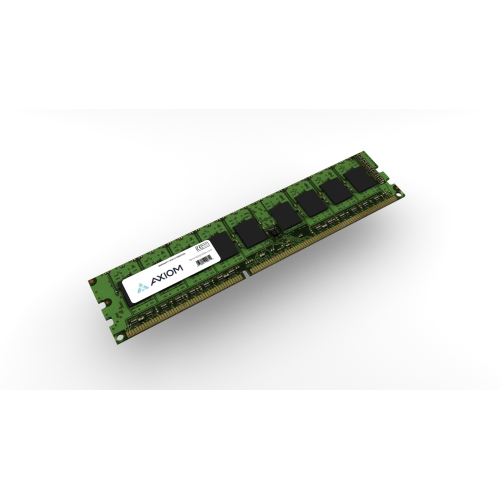
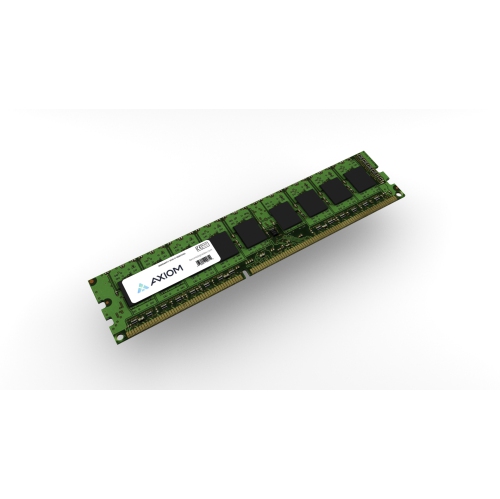
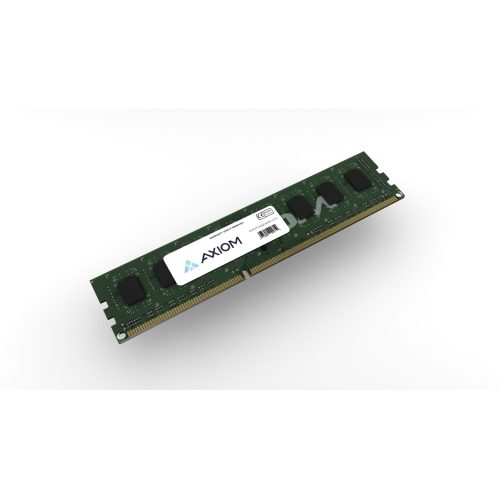
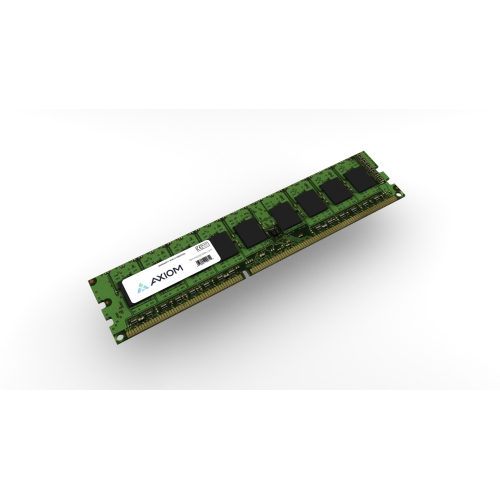
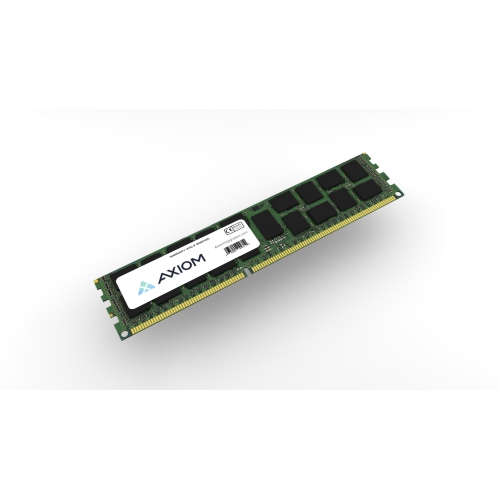
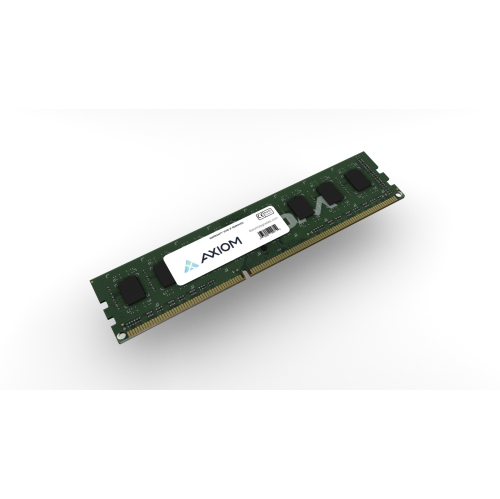
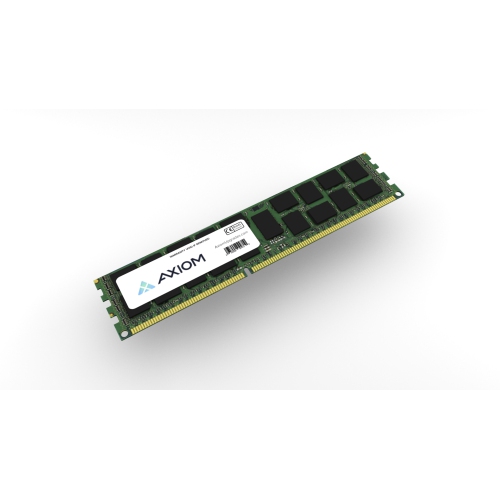




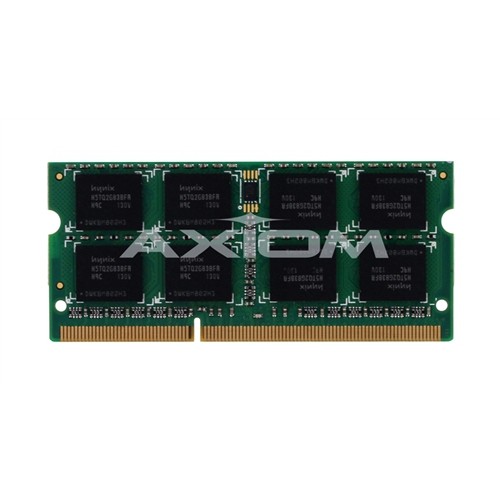
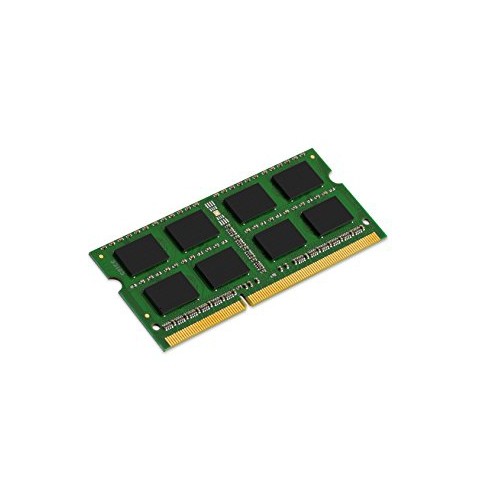

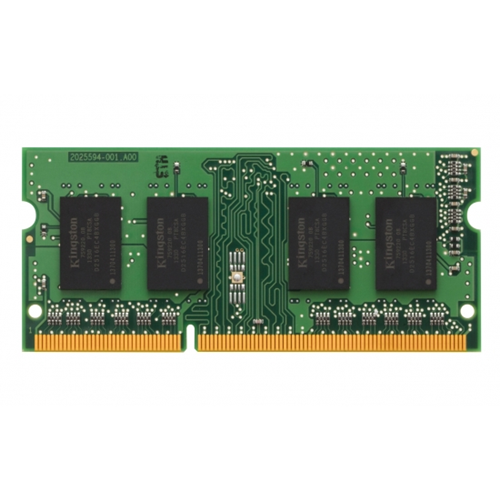
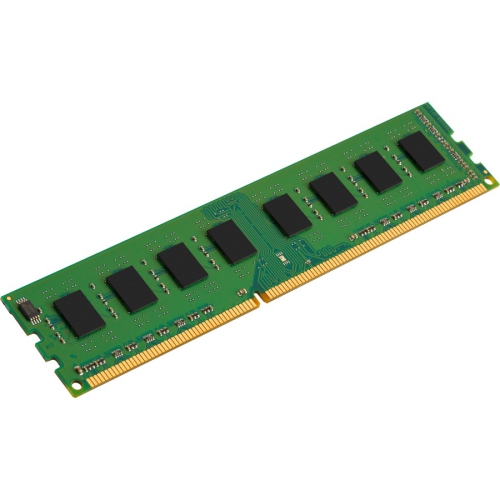

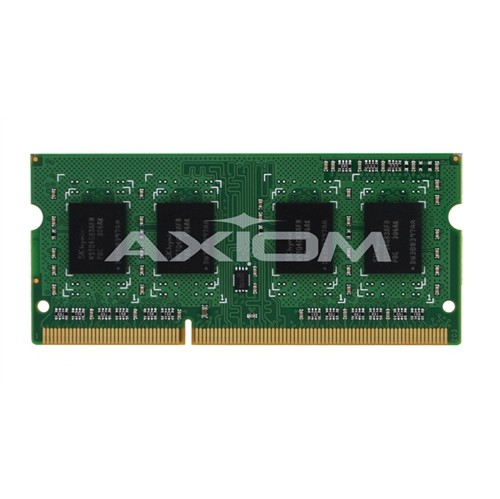
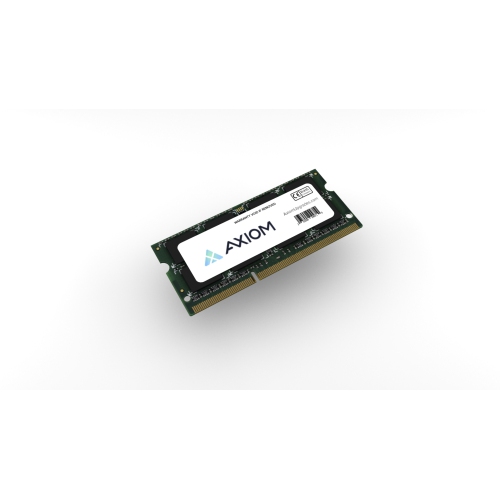
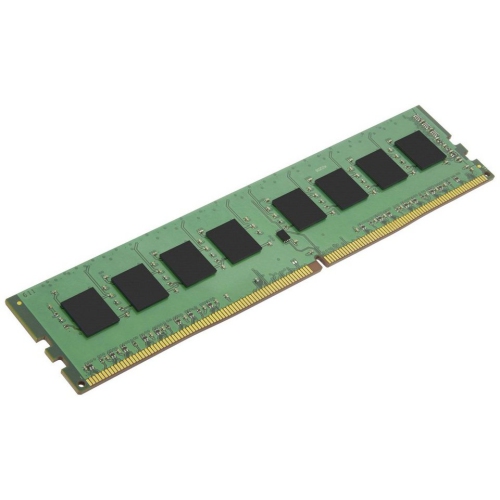
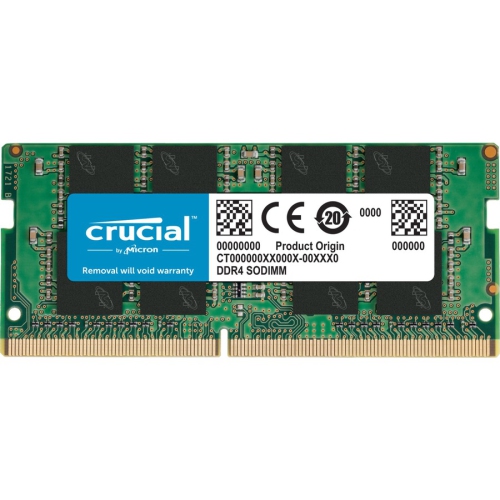
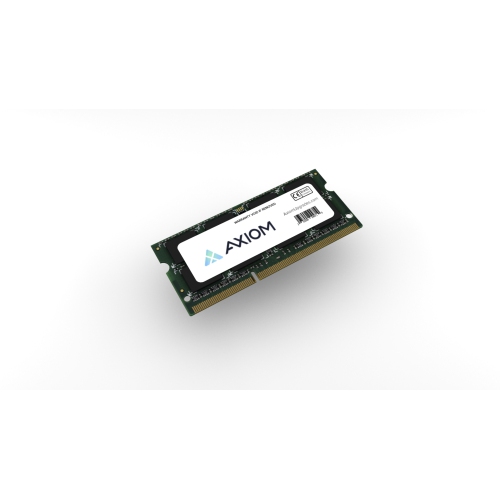
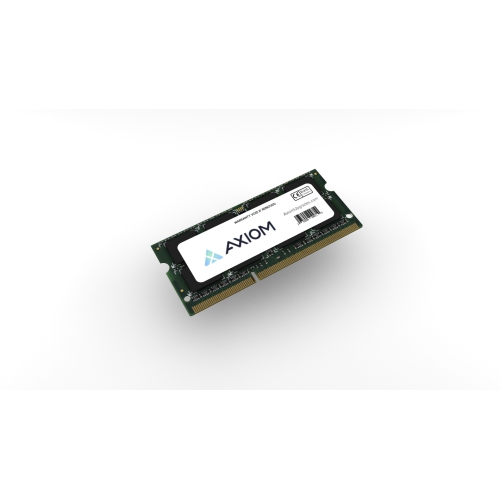
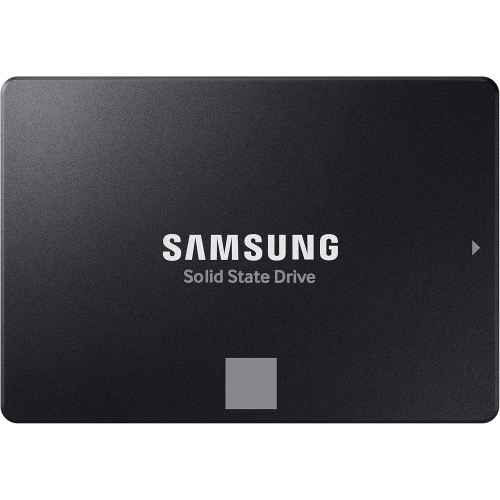
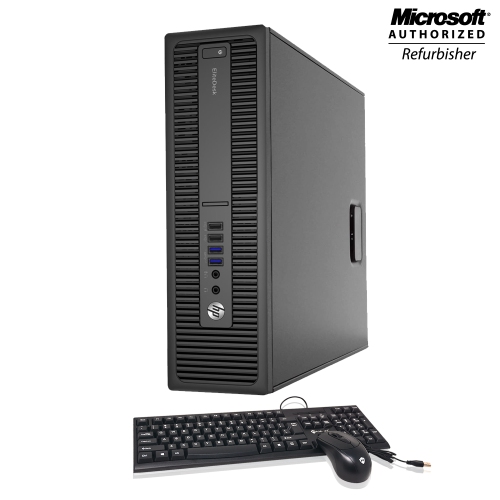
The right RAM can make everyday multitasking feel smoother
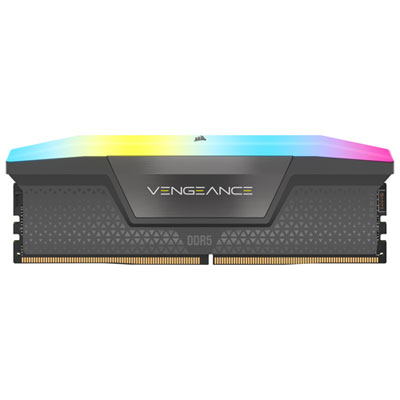
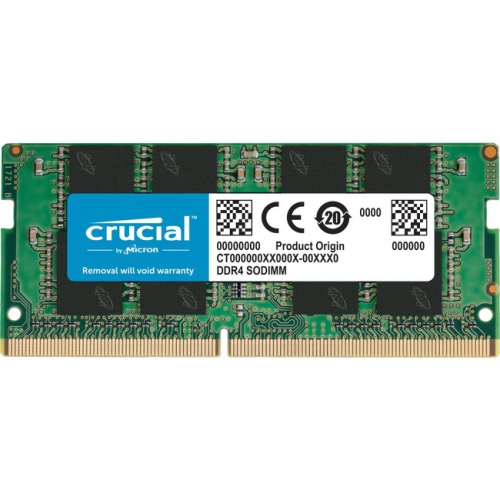
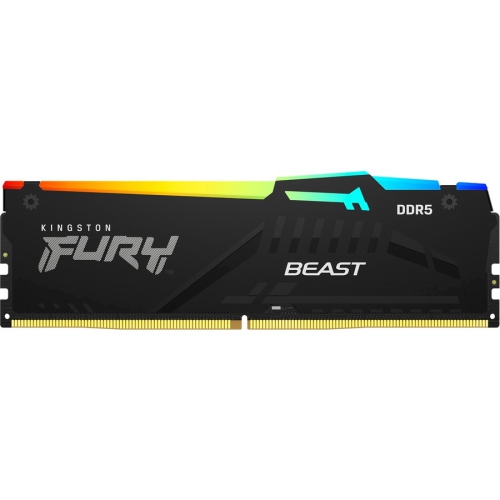
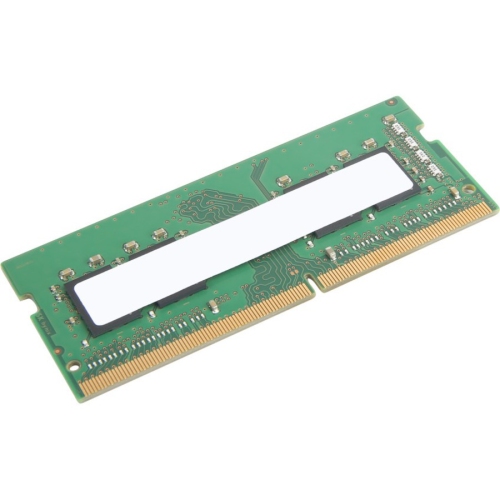
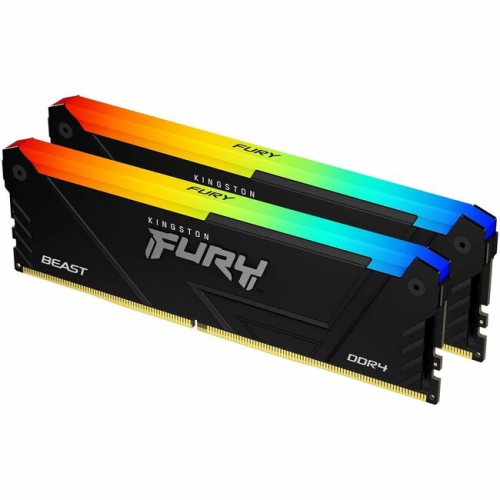
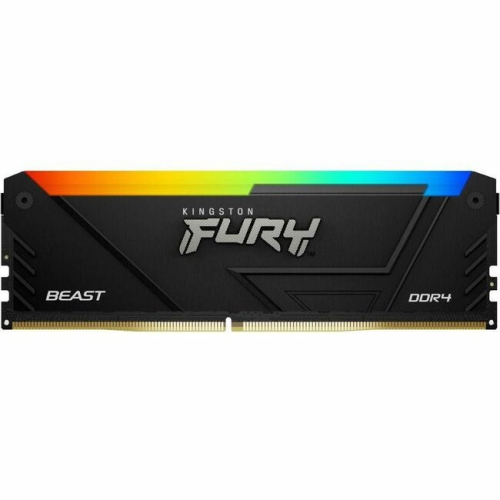
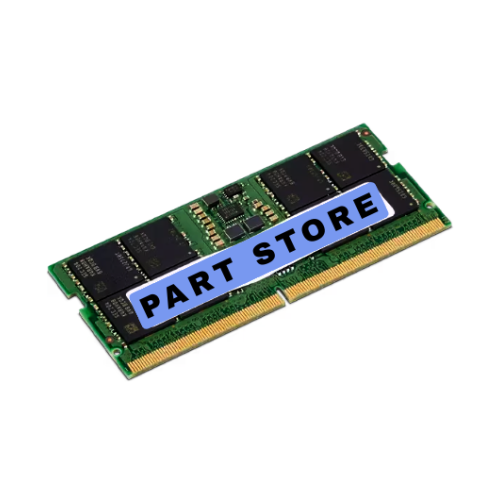
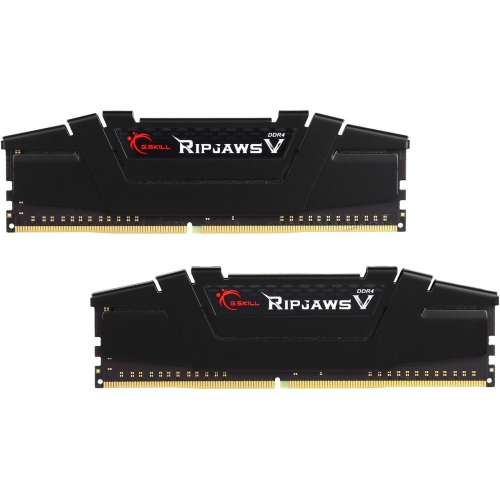
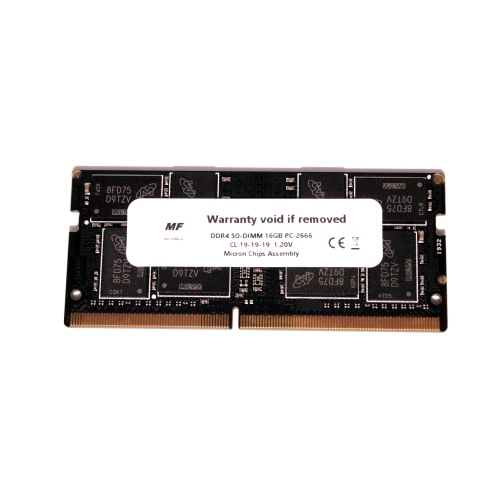
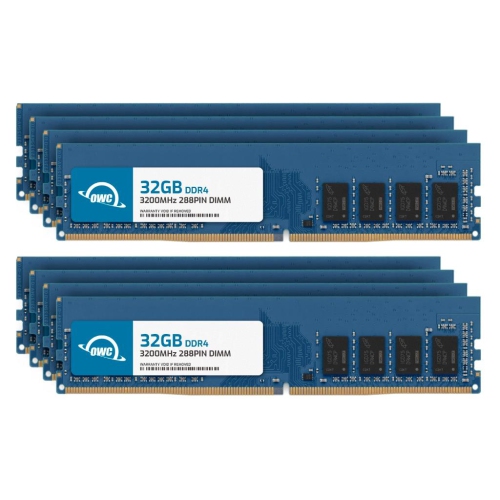
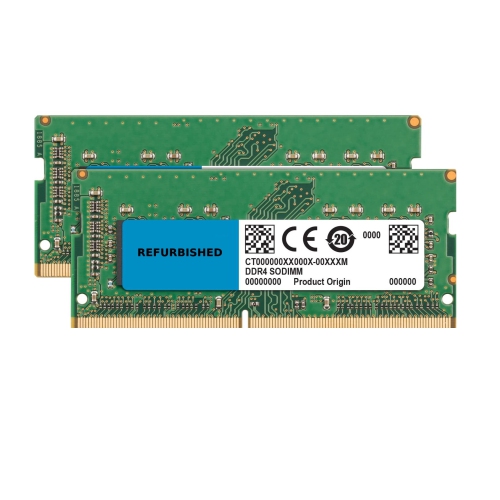
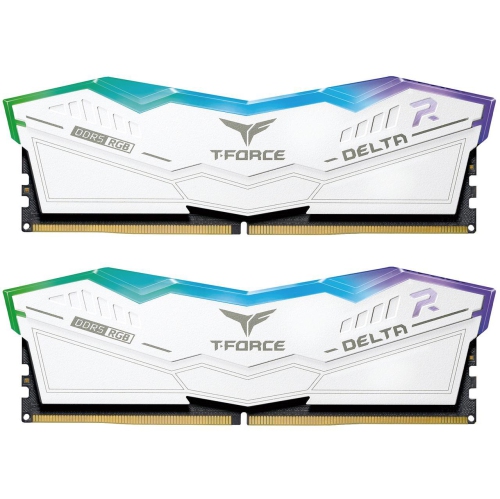
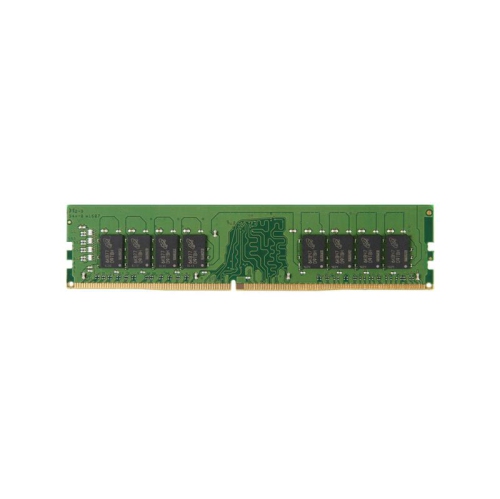
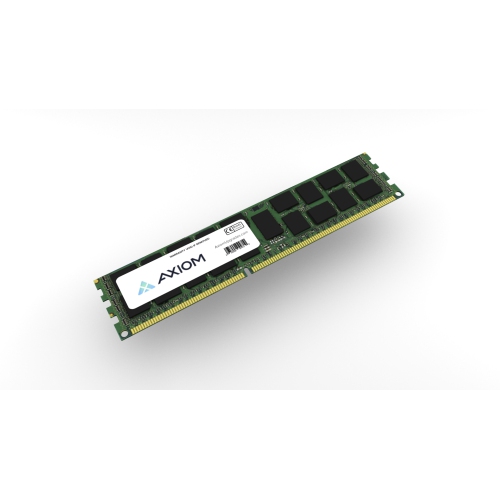
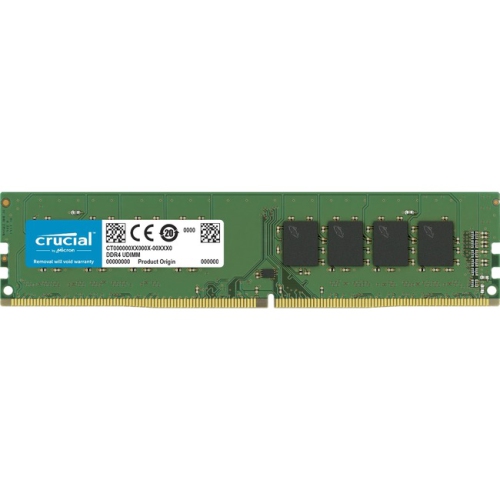
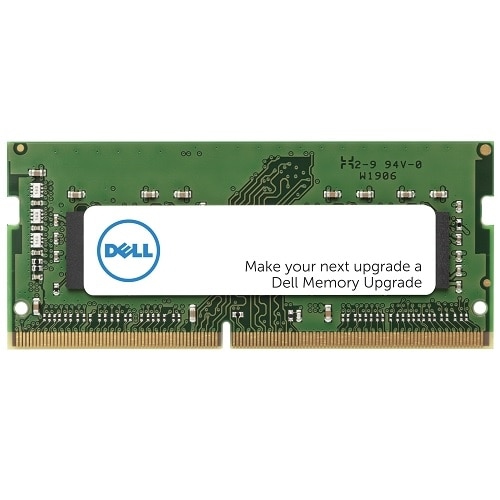
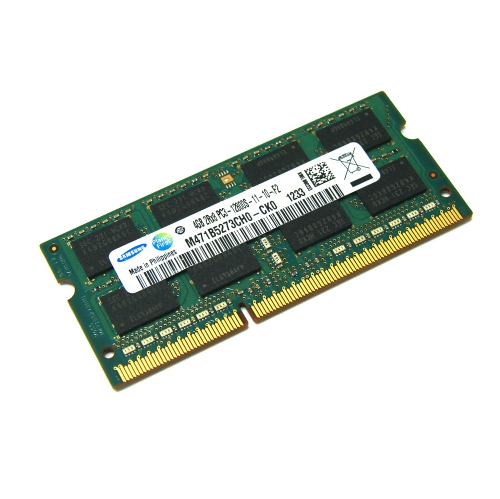
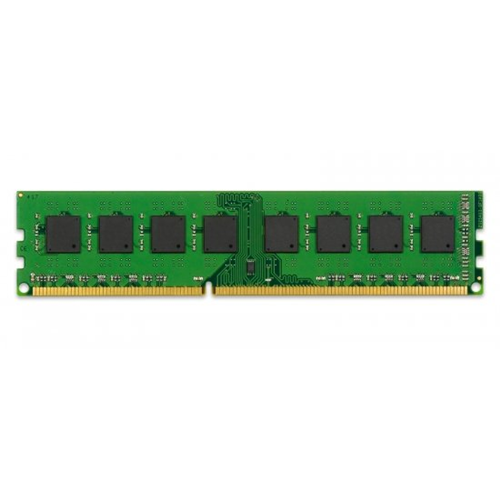
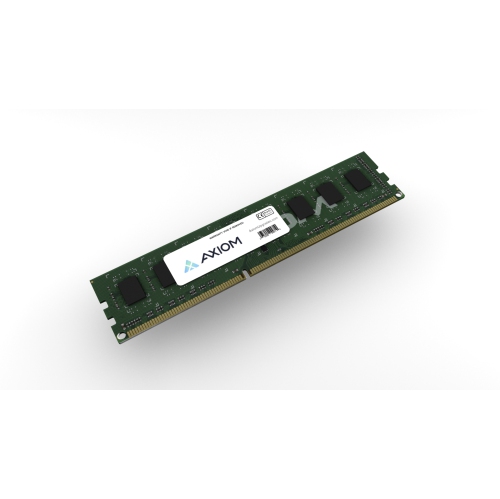
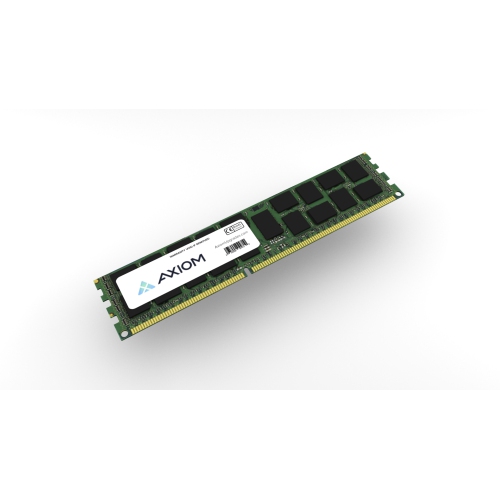
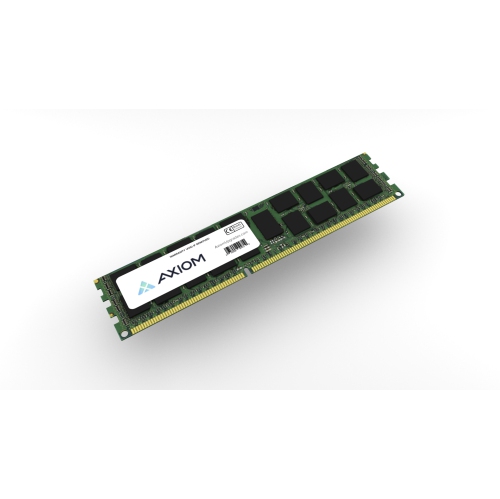
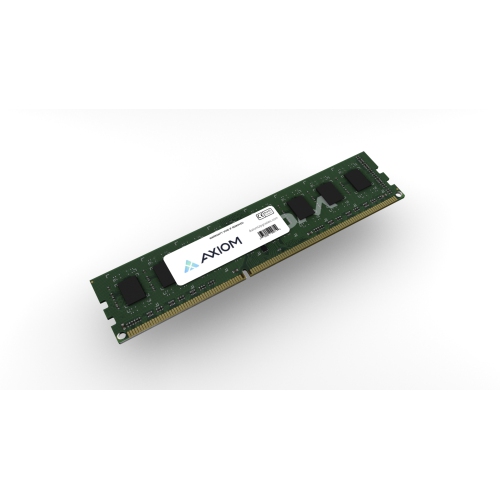
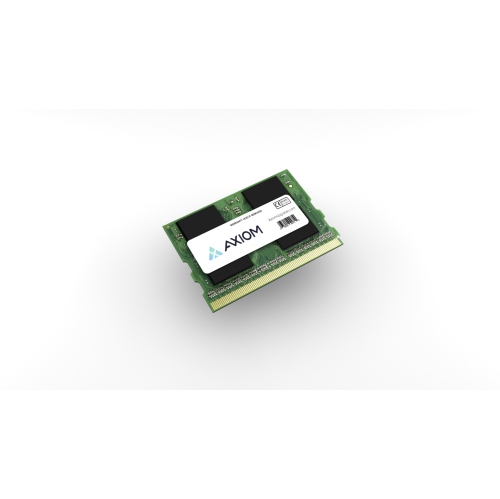
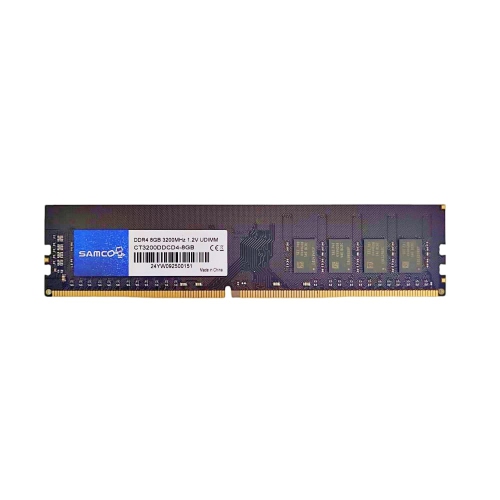
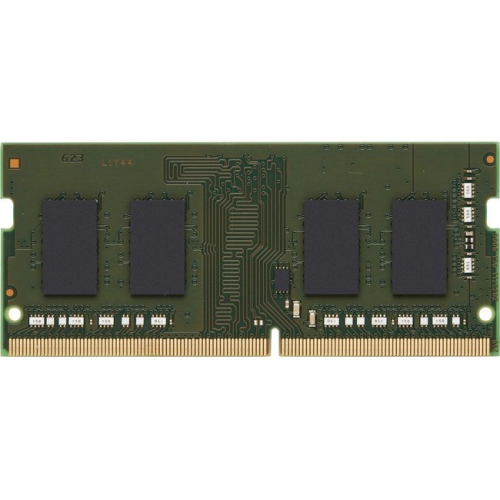
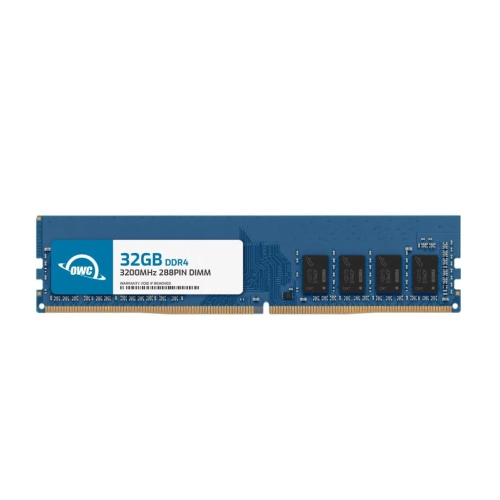
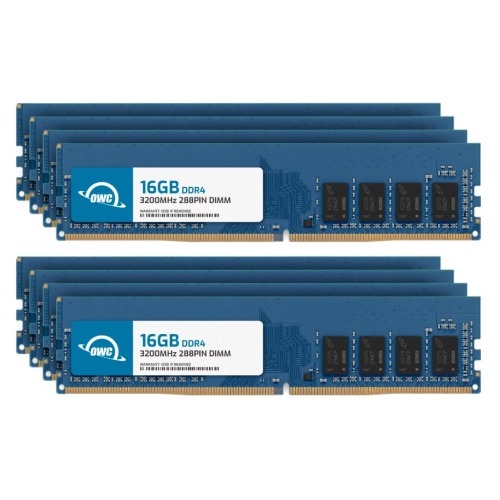
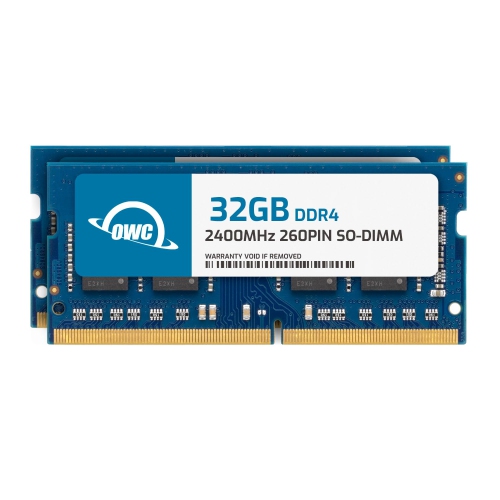
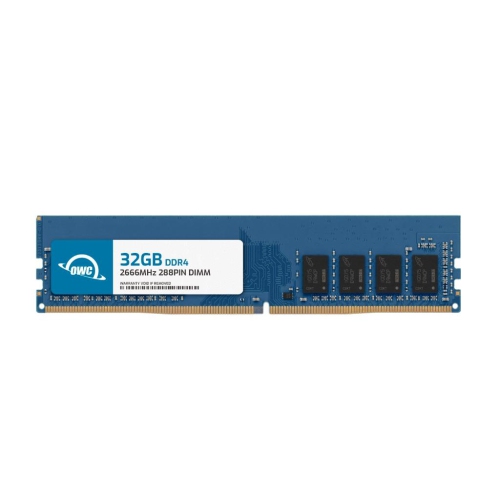
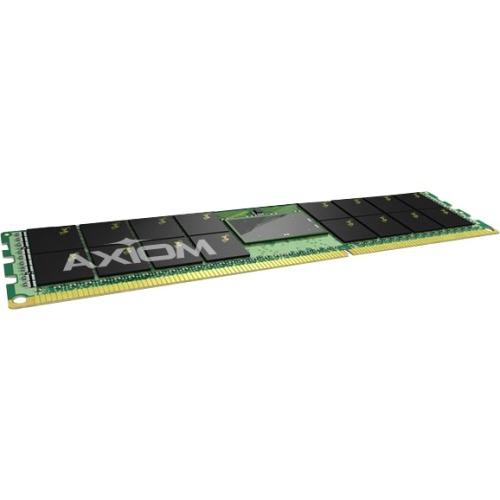
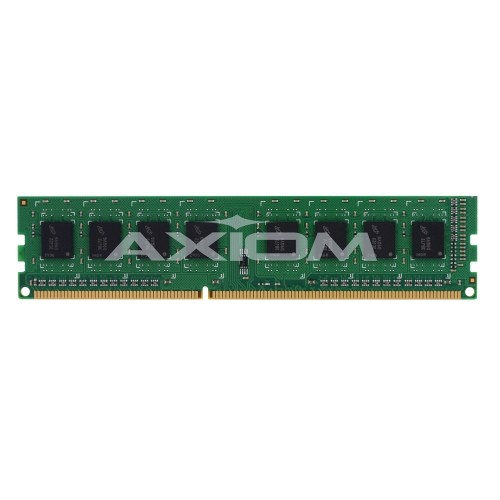
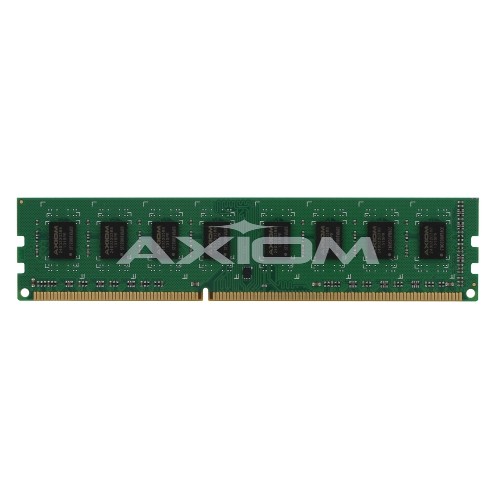
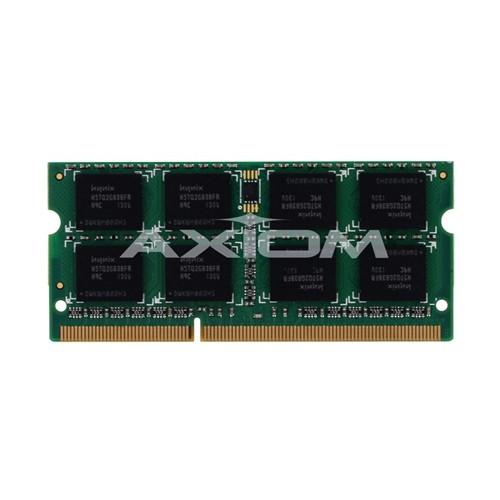
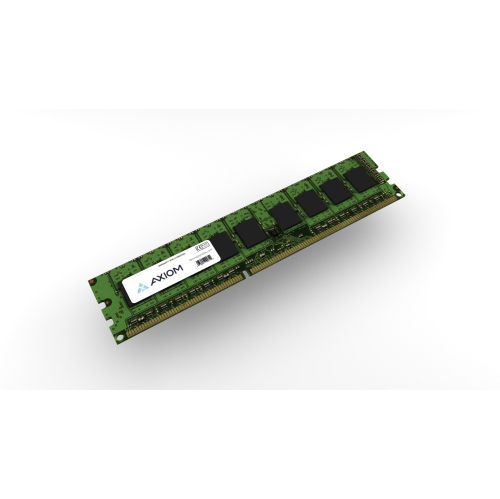
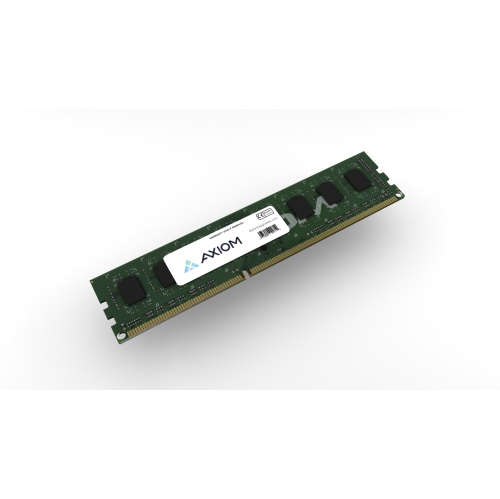
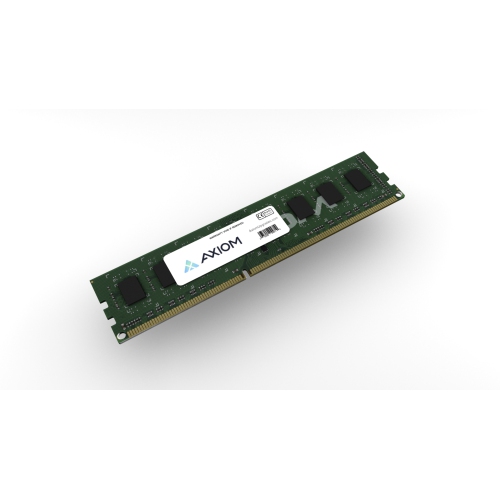
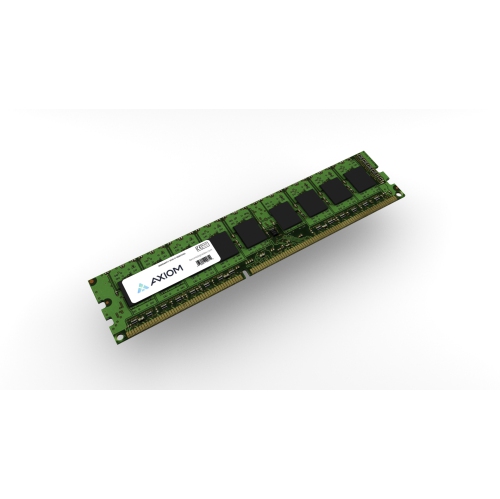
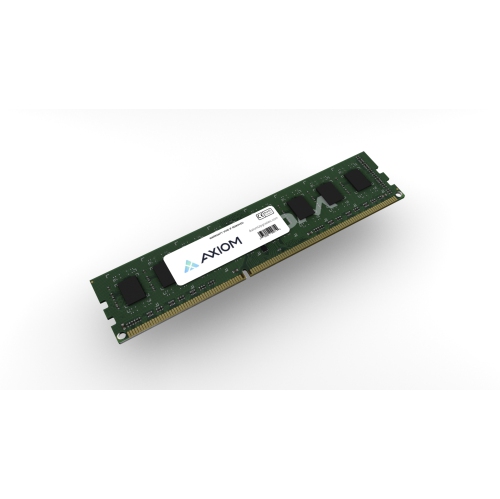
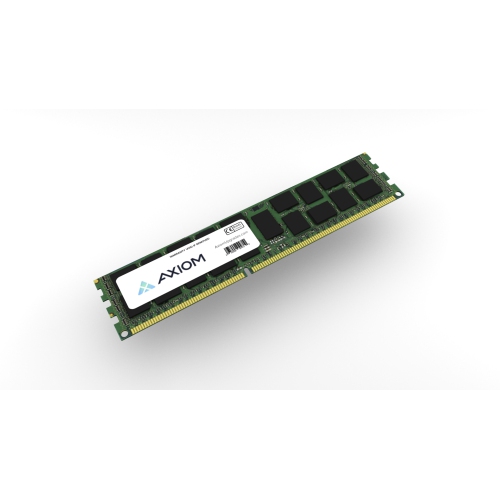
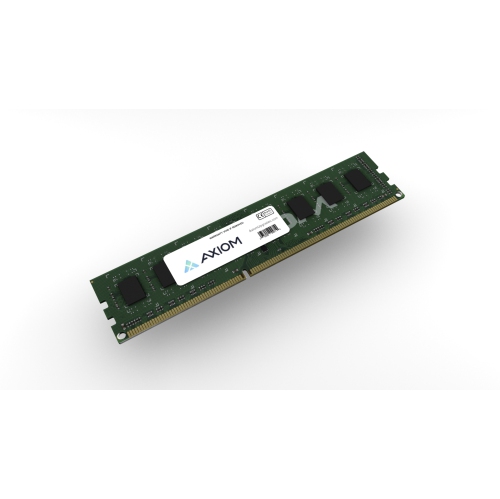
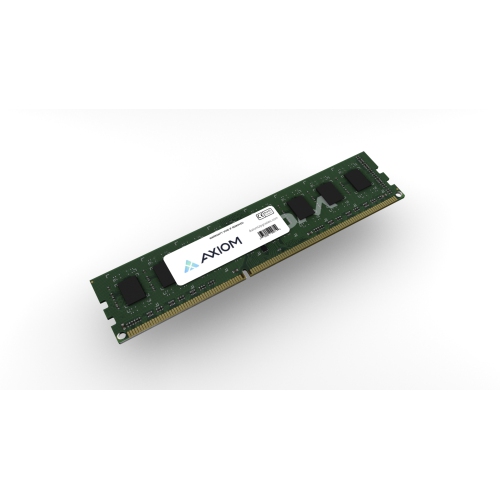
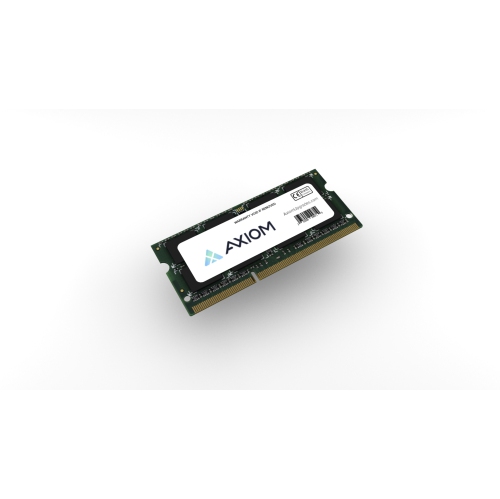
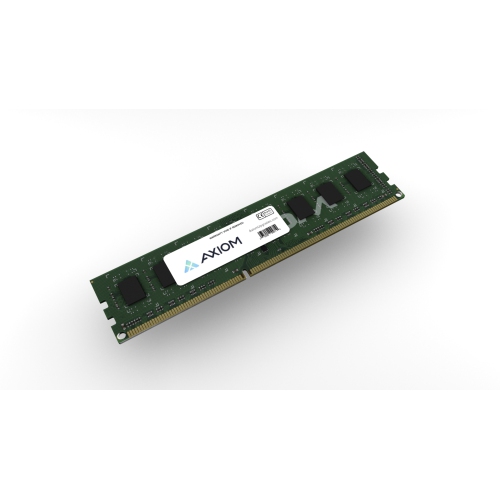
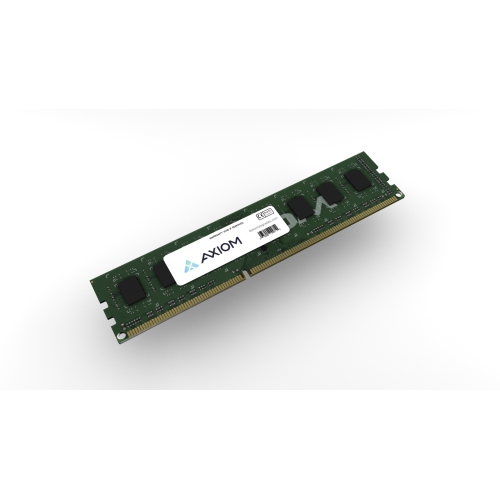
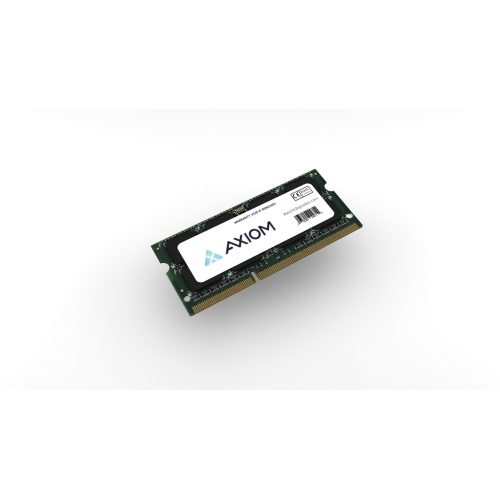
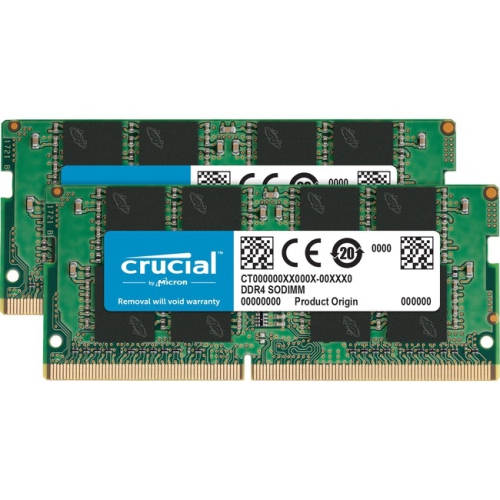
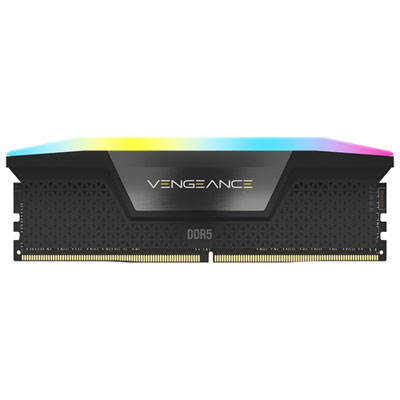
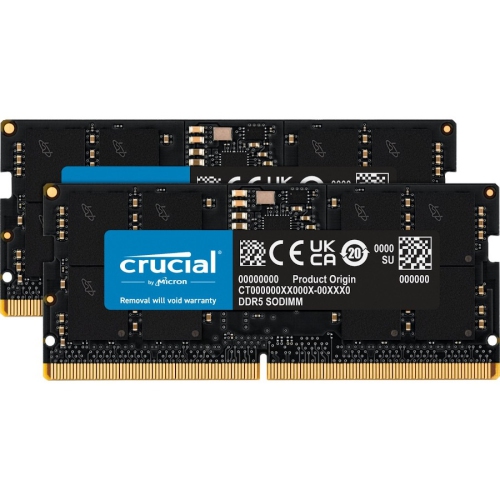
PC memory upgrades are a practical way to give a compatible desktop computer more room to work, especially when everyday tasks begin to feel crowded. Random access memory, commonly called RAM, is the short-term workspace your PC uses to keep active applications, browser tabs, game files, creative projects, and system processes readily available. When that workspace becomes full, the computer may rely more heavily on slower storage, which can lead to lag, longer loading times, pauses when switching between programs, or a generally sluggish response. Adding RAM does not replace the processor or storage drive, but it can make multitasking feel smoother and help a PC handle demanding software more comfortably. A family computer used for online learning, video calls, documents, and dozens of browser tabs may benefit from moving beyond a basic memory configuration, while a gaming PC can feel more responsive when it has enough RAM for the game, background chat, updates, and other active services. People who edit photos, work with large spreadsheets, create music, render video, or use technical applications may also appreciate the extra headroom. For a gift, PC memory upgrades can be a thoughtful choice for someone building or refreshing a desktop, provided the recipient’s system details are checked first. Memory is not universal, and choosing the right kit begins with identifying the computer’s motherboard, processor platform, current RAM, and available slots. A desktop typically uses full-size DIMM modules, while compact computers and laptops often use smaller SO-DIMM modules. Those formats are not interchangeable, even when their capacities and speeds appear similar. Anyone shopping for a portable computer should browse a dedicated category such as Laptop RAM Upgrades to focus on the appropriate form factor.
Compatibility is the most important consideration when selecting PC memory upgrades. Start by confirming whether the motherboard supports DDR4 or DDR5 memory, since these generations have different physical designs and cannot be mixed in the same memory slot. The computer’s manual, motherboard manufacturer’s specifications, or system information can usually identify the supported memory type, maximum capacity, number of slots, and supported speeds. It is also useful to check how much RAM is already installed and whether one or more slots are free. A system with two matching modules may perform differently from one with a single module, because many desktop platforms can use dual-channel operation when memory is installed in the recommended paired configuration. Matching modules are generally preferable to combining unrelated capacities or specifications, and replacing an existing set with a properly matched kit may be a better fit than adding one more module at random. Capacity should reflect the way the computer is used. Around 16GB of total RAM is a sensible target for many current home, school, office, and gaming computers, while 32GB can provide a more comfortable margin for heavier multitasking, demanding games, content creation, virtual machines, and large creative files. Higher capacities can suit specialized workflows, but the motherboard and operating system must support the total amount. Speed is another factor, although the highest listed number is not automatically the best choice for every PC. The motherboard and processor determine which speeds are supported, and memory may operate at a lower setting if the system cannot use its full rated performance. Some modules include profile settings that allow supported systems to run at advertised speeds, but those settings may need to be enabled in the motherboard’s firmware and should be used only when compatible with the computer. Latency, voltage, module count, heat spreader height, and physical clearance can matter as well, particularly in compact cases or systems with large air coolers. Checking these details before purchase helps avoid the familiar frustration of opening a case and discovering that the modules do not fit the slots, exceed the system’s limits, or cannot run together as expected.
PC memory upgrades are most useful when they address a real limitation in the computer rather than simply adding a larger number to the specification sheet. If the system slows down while several applications are open, the browser becomes unresponsive during research, or a game stutters whenever background programs are running, insufficient RAM may be part of the problem. A memory upgrade can help keep more of that active information available, making transitions between tasks feel less like waiting for a door to open and more like moving through a room with clear floor space. It will not usually fix a failing hard drive, an overheating processor, poor network performance, or a graphics card that cannot meet the needs of a demanding game, so it is worth considering the whole system before choosing components. For many desktop owners, the upgrade is appealing because it can extend the useful life of a computer that still has a capable processor and a suitable motherboard. It can also be a convenient project for someone preparing a home office, setting up a study area during the cooler months, or getting a family PC ready for heavier school and creative workloads. Before ordering, record the exact PC or motherboard model, current memory capacity, memory generation, number of occupied and open slots, and the maximum supported configuration. Keep the original modules and packaging details until the new memory has been tested, and after installation confirm that the full capacity is recognized by the operating system. A stable result should include normal booting, accurate system information, and dependable performance across the applications that matter most. With the correct form factor, generation, capacity, speed, and configuration, PC memory upgrades can be a straightforward way to improve everyday responsiveness and create more breathing room for work, entertainment, learning, and play.
Compatibility is the most important consideration when selecting PC memory upgrades. Start by confirming whether the motherboard supports DDR4 or DDR5 memory, since these generations have different physical designs and cannot be mixed in the same memory slot. The computer’s manual, motherboard manufacturer’s specifications, or system information can usually identify the supported memory type, maximum capacity, number of slots, and supported speeds. It is also useful to check how much RAM is already installed and whether one or more slots are free. A system with two matching modules may perform differently from one with a single module, because many desktop platforms can use dual-channel operation when memory is installed in the recommended paired configuration. Matching modules are generally preferable to combining unrelated capacities or specifications, and replacing an existing set with a properly matched kit may be a better fit than adding one more module at random. Capacity should reflect the way the computer is used. Around 16GB of total RAM is a sensible target for many current home, school, office, and gaming computers, while 32GB can provide a more comfortable margin for heavier multitasking, demanding games, content creation, virtual machines, and large creative files. Higher capacities can suit specialized workflows, but the motherboard and operating system must support the total amount. Speed is another factor, although the highest listed number is not automatically the best choice for every PC. The motherboard and processor determine which speeds are supported, and memory may operate at a lower setting if the system cannot use its full rated performance. Some modules include profile settings that allow supported systems to run at advertised speeds, but those settings may need to be enabled in the motherboard’s firmware and should be used only when compatible with the computer. Latency, voltage, module count, heat spreader height, and physical clearance can matter as well, particularly in compact cases or systems with large air coolers. Checking these details before purchase helps avoid the familiar frustration of opening a case and discovering that the modules do not fit the slots, exceed the system’s limits, or cannot run together as expected.
PC memory upgrades are most useful when they address a real limitation in the computer rather than simply adding a larger number to the specification sheet. If the system slows down while several applications are open, the browser becomes unresponsive during research, or a game stutters whenever background programs are running, insufficient RAM may be part of the problem. A memory upgrade can help keep more of that active information available, making transitions between tasks feel less like waiting for a door to open and more like moving through a room with clear floor space. It will not usually fix a failing hard drive, an overheating processor, poor network performance, or a graphics card that cannot meet the needs of a demanding game, so it is worth considering the whole system before choosing components. For many desktop owners, the upgrade is appealing because it can extend the useful life of a computer that still has a capable processor and a suitable motherboard. It can also be a convenient project for someone preparing a home office, setting up a study area during the cooler months, or getting a family PC ready for heavier school and creative workloads. Before ordering, record the exact PC or motherboard model, current memory capacity, memory generation, number of occupied and open slots, and the maximum supported configuration. Keep the original modules and packaging details until the new memory has been tested, and after installation confirm that the full capacity is recognized by the operating system. A stable result should include normal booting, accurate system information, and dependable performance across the applications that matter most. With the correct form factor, generation, capacity, speed, and configuration, PC memory upgrades can be a straightforward way to improve everyday responsiveness and create more breathing room for work, entertainment, learning, and play.
Top selling and popular products
-
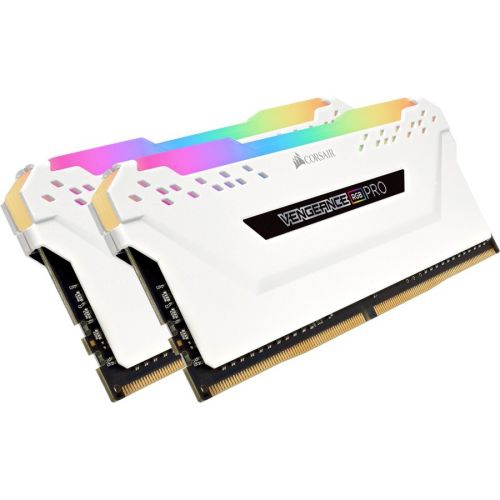 Your price for this item is $307.68
 -
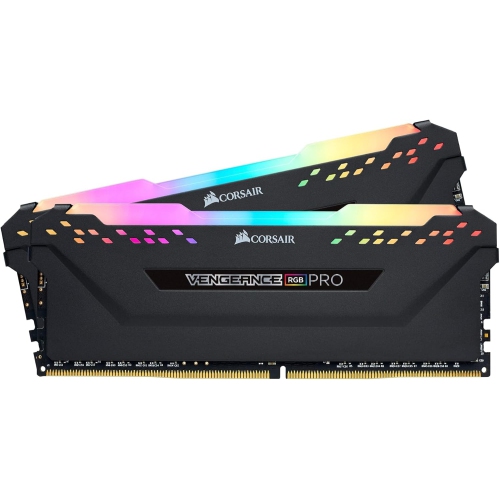 Your price for this item is $329.99
 -
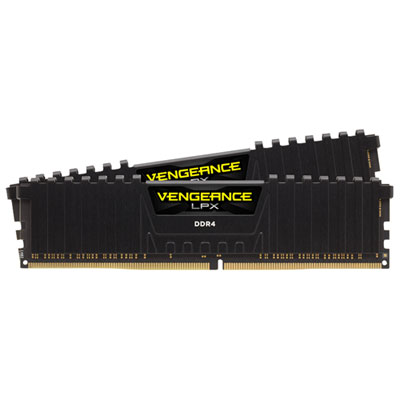 Your price for this item is $349.99
 -
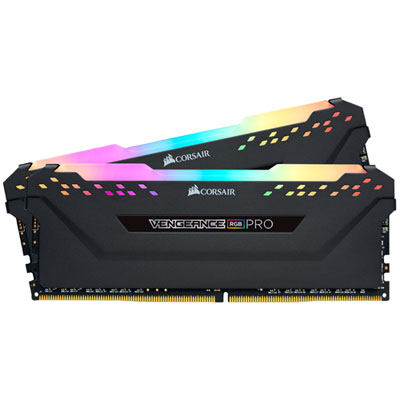 Your price for this item is $369.99
 -
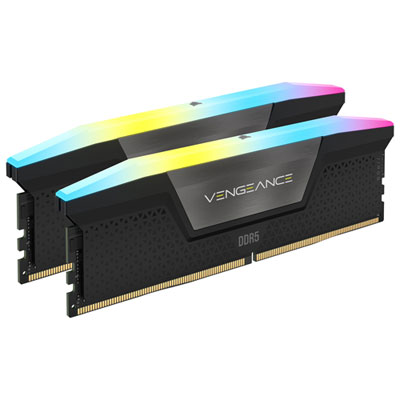 Your price for this item is $679.99
 -
 Your price for this item is $379.99
 -
 Your price for this item is $1793.99
 -
 Your price for this item is $1039.68
Discover more categories related to Pc Memory Upgrades
Top Collections:
Pokemon Centers, Kindle Devices, Best Budget Office Chairs, Apple iPhones 16, Samsung Galaxy Phones, Canon G7X Cameras, iPhone 15 Apple, Flip Phones, Best Laptops for Writers, Alarm Clock
Some products may be subject to Environmental Handling Fees
(EHF) depending on your province.
Learn more about EHFs.