Power Supply Replacements
Power supply replacements are essential components for keeping your electronic devices running smoothly and efficiently. Whether you're upgrading your current setup or replacing a worn-out unit, finding the right power supply ensures your technology performs at its best. From home office setups to gaming rigs, a reliable power supply replacement is key to maintaining consistent performance and protecting your equipment from potential damage. Explore a variety of options to suit different needs and preferences, ensuring you have the power solution that fits your lifestyle.
Sort
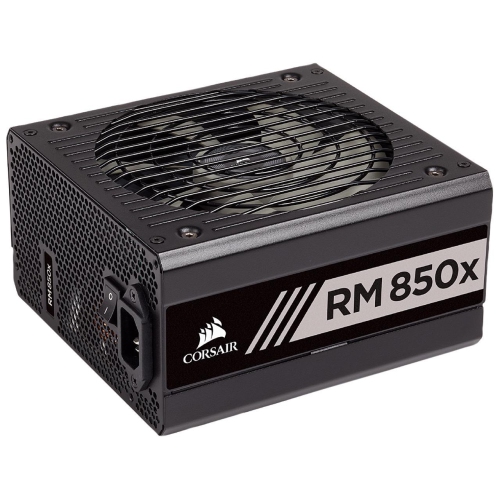
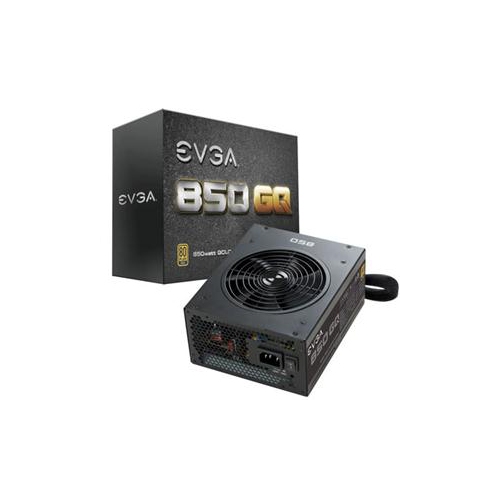
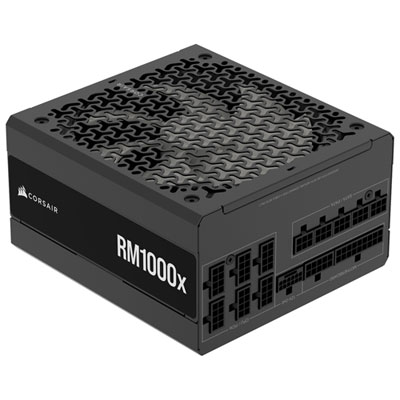
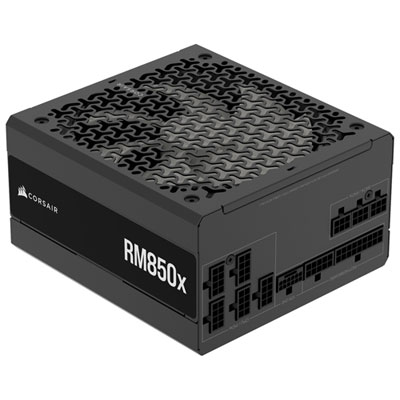
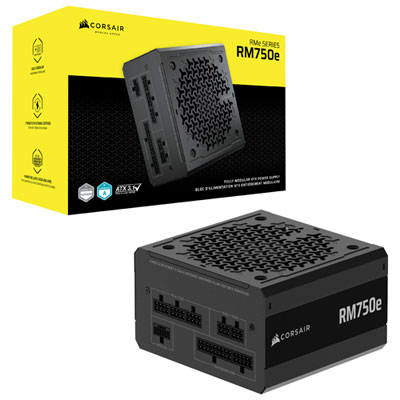
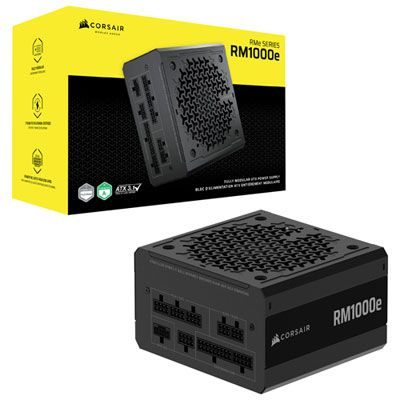
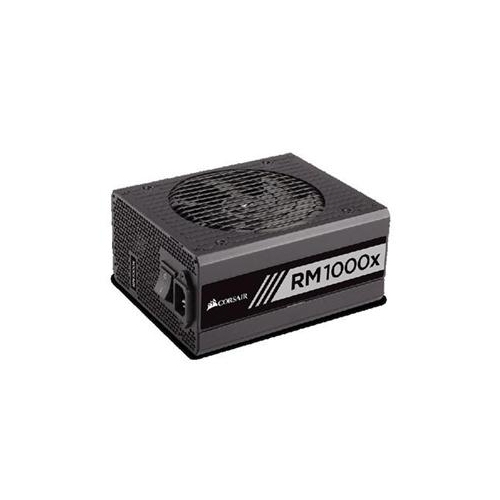
The right fit and wattage support dependable desktop performance
Power supply replacements are designed for desktop computers that need a new source of stable, reliable power. A power supply unit (PSU) converts electricity from a wall outlet into the specific voltages required by the motherboard, processor, graphics card, storage drives, cooling fans, and other internal components. When a PSU begins to fail, a computer may shut down without warning, restart during demanding tasks, refuse to turn on, make unusual noises, or show inconsistent symptoms that can be mistaken for a graphics card or motherboard problem. Replacing the PSU can also be a practical way to prepare a desktop for a more powerful graphics card or processor, provided the replacement matches the computer’s available space and power requirements. These products are most often purchased by PC owners, home-office users, gamers, students, and anyone maintaining or upgrading a custom-built desktop. They can be a thoughtful gift for someone who enjoys building computers, but compatibility details matter more than appearance, so it is best to know the recipient’s case, components, and upgrade plans before choosing one. For certain systems, especially compact desktops, prebuilt computers, and proprietary business machines, the original manufacturer may use a non-standard power supply or connector layout. Checking the computer model, internal measurements, connector arrangement, and replacement requirements before purchasing helps prevent an otherwise well-intended upgrade from being unsuitable.
The most important selection factor is wattage, but the number printed on the unit should be considered alongside the computer’s actual components. A system with a basic processor and integrated graphics generally requires less power than a desktop with a high-performance graphics card, multiple drives, additional cooling, or other expansion hardware. Choose a replacement with enough capacity for the current configuration and reasonable headroom for normal load changes and future upgrades; selecting a unit solely by matching the old wattage can leave little flexibility, while choosing an unnecessarily large unit may create space and cable-management challenges. The graphics card’s recommended power supply capacity and required power connectors are useful starting points, as are the processor model and the number of drives or accessories installed. Form factor is equally important. Full-size desktop cases commonly accept ATX-style units, while small-form-factor and slim computers may require shorter or differently shaped replacements. Measure the available space and check the mounting points before ordering. Cable design is another practical consideration. A non-modular power supply has its cables permanently attached, which can simplify selection but may leave unused cables inside the case. A modular or semi-modular design allows some cables to be connected only when needed, which can make routing easier in a crowded build. Never reuse detachable modular cables from an old PSU with a new one unless the manufacturer confirms that they are compatible; cables with similar plugs may have different wiring and can damage internal components. Confirm that the replacement includes the connections needed for the motherboard, processor, graphics card, SATA drives, and any other installed hardware.
Replacing a desktop PSU is generally a straightforward hardware task for someone comfortable working inside a computer, but it should be approached carefully. Shut down the computer completely, turn off the switch on the old PSU if it has one, unplug the power cord from the wall, and disconnect all peripheral cables. Pressing the computer’s power button for a few seconds after it has been unplugged can help discharge remaining power, but the unit should never be opened; internal components can retain dangerous electrical charge. Remove the side panel, take a clear photo of the existing cable connections, and trace each cable before disconnecting it from the motherboard, graphics card, drives, and accessories. Unscrew the old PSU from the rear of the case while supporting its weight, then slide it out without pulling against connected parts. Position the replacement in the same orientation, secure it with the appropriate screws, and connect only the cables required by the system. The main motherboard connector and processor power connector must be firmly seated, and a dedicated graphics-card cable should be used when the card requires one rather than relying on an unsuitable adapter. Route cables away from fans and sharp edges, replace the side panel, reconnect the external devices, and then test the computer. If the system does not start, switch it off and recheck every connection, including the rear power switch and wall outlet, rather than repeatedly attempting to power it on. Some computers use a separate board or internal power component instead of a standard desktop PSU. In those cases, shoppers may need to compare specifications for Power Supply Boards or consult the computer manufacturer and a qualified technician. Keeping the original model number, connector photos, case measurements, and component list nearby makes comparison easier and helps ensure the replacement delivers the right fit and capacity for dependable everyday computing through work, study, entertainment, and demanding creative tasks.
The most important selection factor is wattage, but the number printed on the unit should be considered alongside the computer’s actual components. A system with a basic processor and integrated graphics generally requires less power than a desktop with a high-performance graphics card, multiple drives, additional cooling, or other expansion hardware. Choose a replacement with enough capacity for the current configuration and reasonable headroom for normal load changes and future upgrades; selecting a unit solely by matching the old wattage can leave little flexibility, while choosing an unnecessarily large unit may create space and cable-management challenges. The graphics card’s recommended power supply capacity and required power connectors are useful starting points, as are the processor model and the number of drives or accessories installed. Form factor is equally important. Full-size desktop cases commonly accept ATX-style units, while small-form-factor and slim computers may require shorter or differently shaped replacements. Measure the available space and check the mounting points before ordering. Cable design is another practical consideration. A non-modular power supply has its cables permanently attached, which can simplify selection but may leave unused cables inside the case. A modular or semi-modular design allows some cables to be connected only when needed, which can make routing easier in a crowded build. Never reuse detachable modular cables from an old PSU with a new one unless the manufacturer confirms that they are compatible; cables with similar plugs may have different wiring and can damage internal components. Confirm that the replacement includes the connections needed for the motherboard, processor, graphics card, SATA drives, and any other installed hardware.
Replacing a desktop PSU is generally a straightforward hardware task for someone comfortable working inside a computer, but it should be approached carefully. Shut down the computer completely, turn off the switch on the old PSU if it has one, unplug the power cord from the wall, and disconnect all peripheral cables. Pressing the computer’s power button for a few seconds after it has been unplugged can help discharge remaining power, but the unit should never be opened; internal components can retain dangerous electrical charge. Remove the side panel, take a clear photo of the existing cable connections, and trace each cable before disconnecting it from the motherboard, graphics card, drives, and accessories. Unscrew the old PSU from the rear of the case while supporting its weight, then slide it out without pulling against connected parts. Position the replacement in the same orientation, secure it with the appropriate screws, and connect only the cables required by the system. The main motherboard connector and processor power connector must be firmly seated, and a dedicated graphics-card cable should be used when the card requires one rather than relying on an unsuitable adapter. Route cables away from fans and sharp edges, replace the side panel, reconnect the external devices, and then test the computer. If the system does not start, switch it off and recheck every connection, including the rear power switch and wall outlet, rather than repeatedly attempting to power it on. Some computers use a separate board or internal power component instead of a standard desktop PSU. In those cases, shoppers may need to compare specifications for Power Supply Boards or consult the computer manufacturer and a qualified technician. Keeping the original model number, connector photos, case measurements, and component list nearby makes comparison easier and helps ensure the replacement delivers the right fit and capacity for dependable everyday computing through work, study, entertainment, and demanding creative tasks.
Top selling and popular products
-
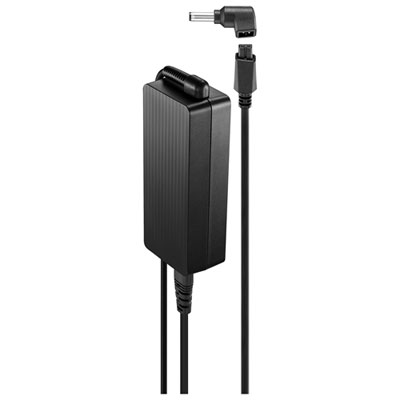 Your price for this item is $69.99
 -
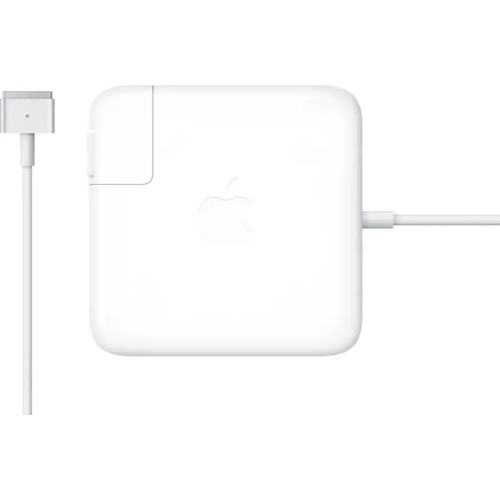 Your price for this item is $135.39
 -
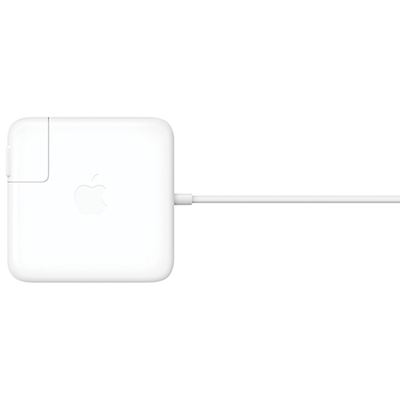 Your price for this item is $95
 -
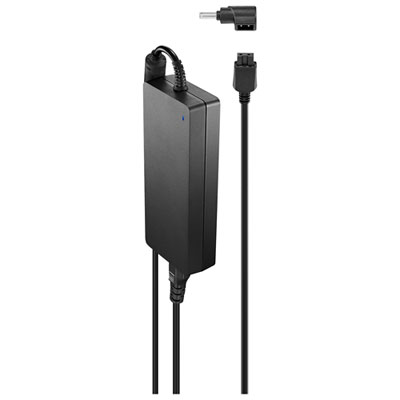 Your price for this item is $109.99
 -
 Your price for this item is $49.99
 -
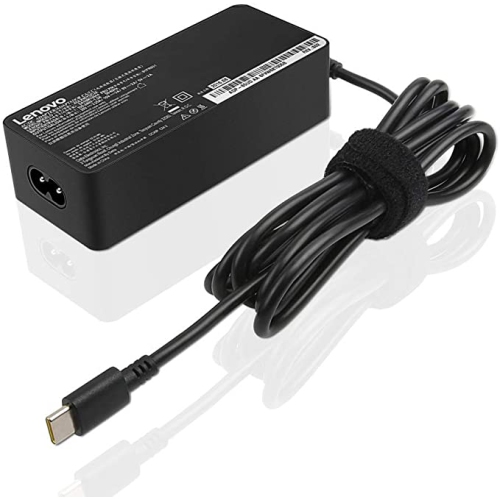 Your price for this item is $67
 -
 Your price for this item is $71
 -
 Your price for this item is $51.99
Discover more categories related to Power Supply Replacements
Top Collections:
Pokemon Centers, Kindle Devices, Best Budget Office Chairs, Apple iPhones 16, Best Laptops for Writers, iPhone 15 Apple, Canon G7X Cameras, Refurbished Apple Laptops, Alarm Clock, Motorola Razr Phones
Some products may be subject to Environmental Handling Fees
(EHF) depending on your province.
Learn more about EHFs.