Samsung 34 Monitors
Experience a new level of productivity and entertainment with the Samsung 34 Monitor. Designed to elevate your workspace or home setup, this monitor offers ample screen real estate for multitasking, immersive viewing, and seamless transitions between tasks. Whether you're working on detailed projects, streaming your favorite content, or gaming, the Samsung 34 Monitor delivers impressive visuals and reliable performance. Explore a range of options to find the perfect fit for your needs and enjoy a more engaging display experience.
Sort
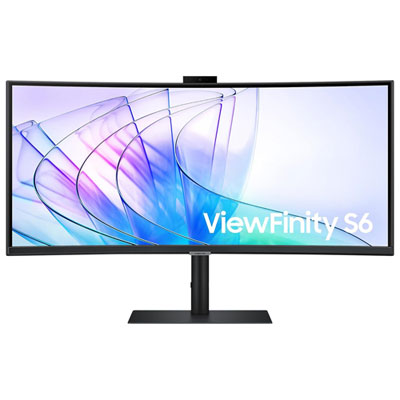
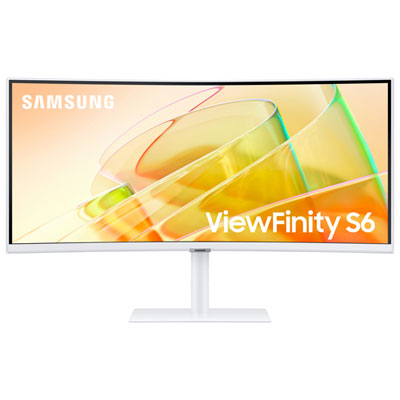
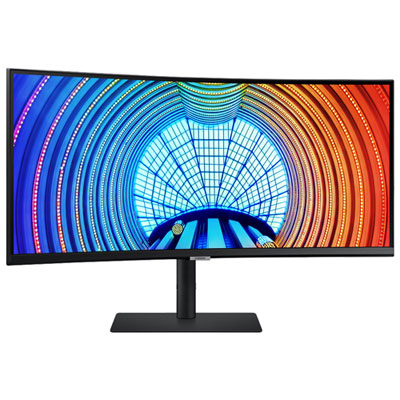
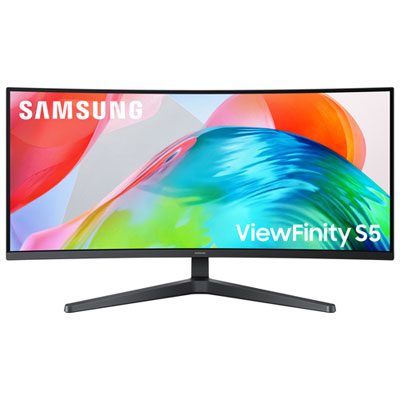
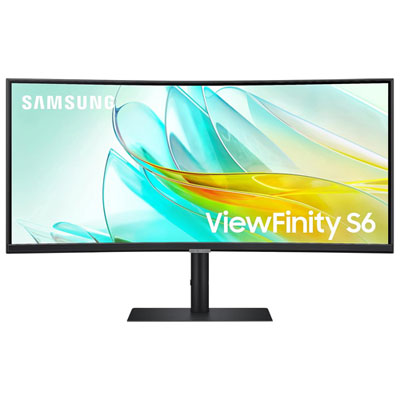
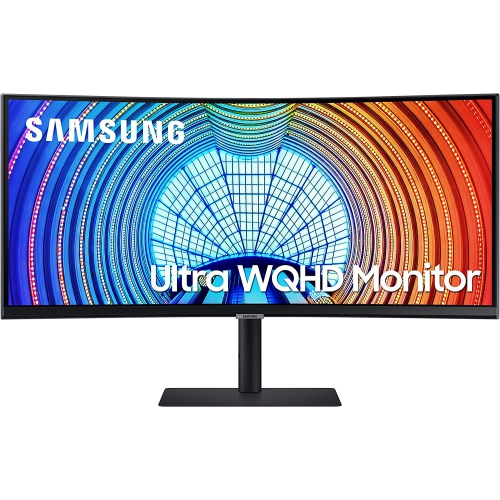
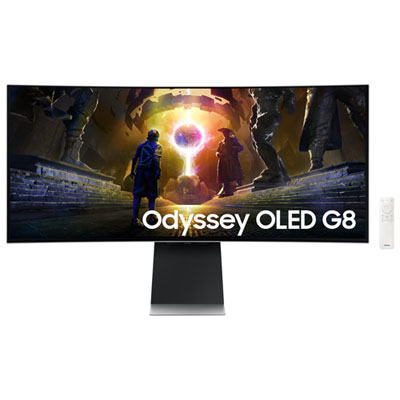
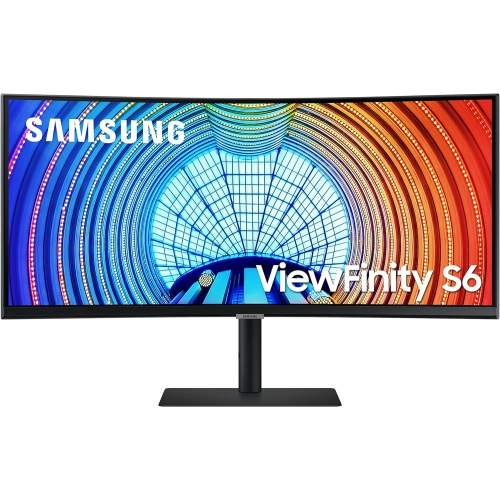
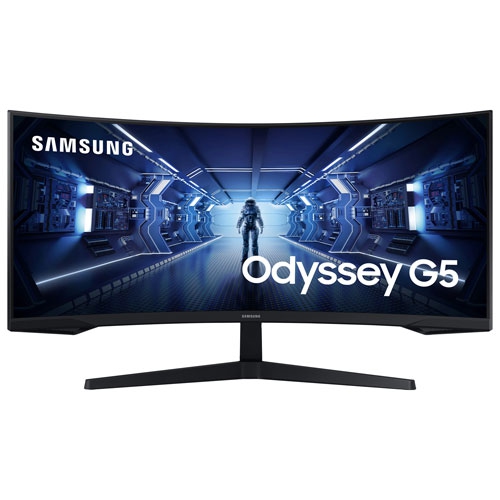
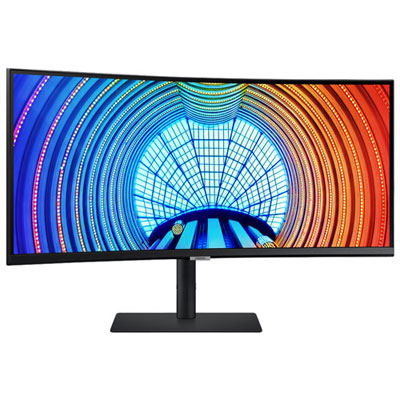
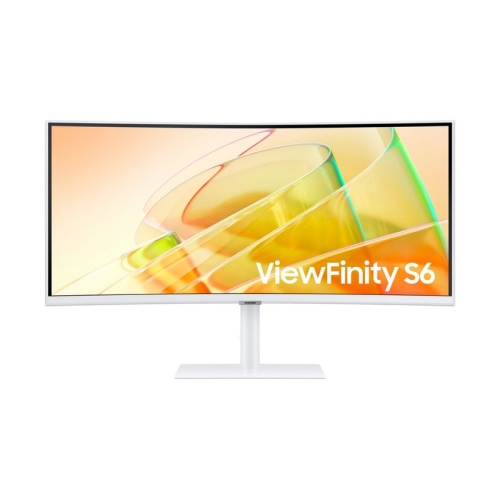
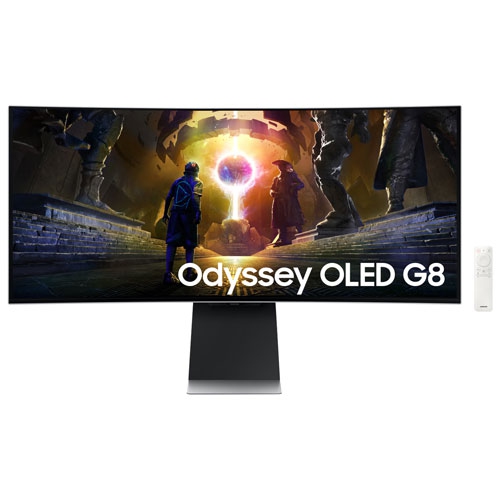

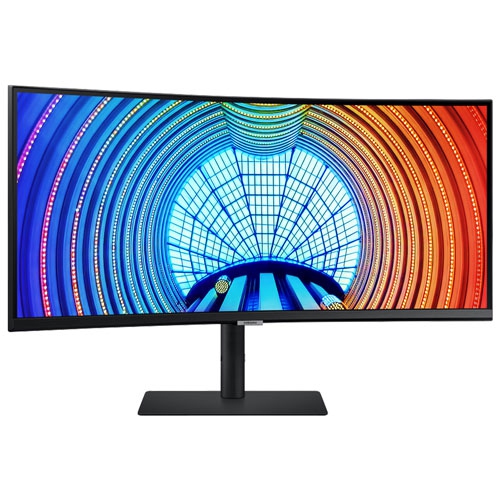
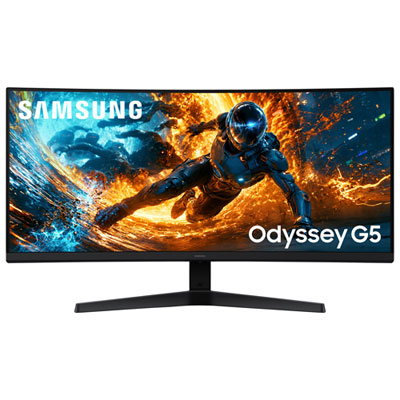

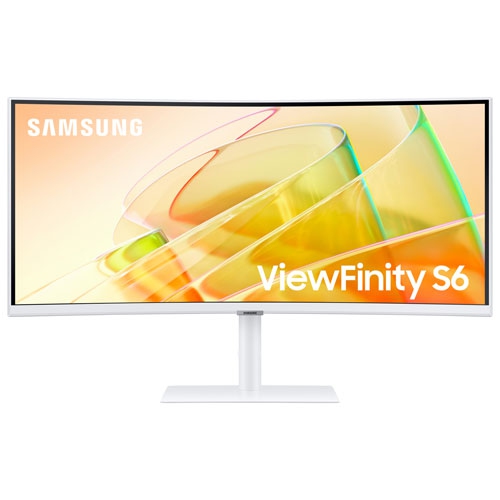
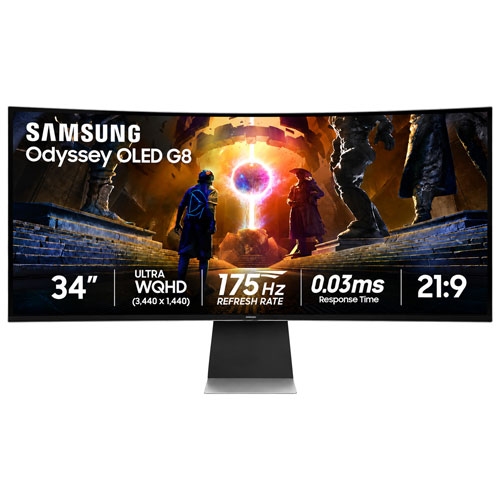
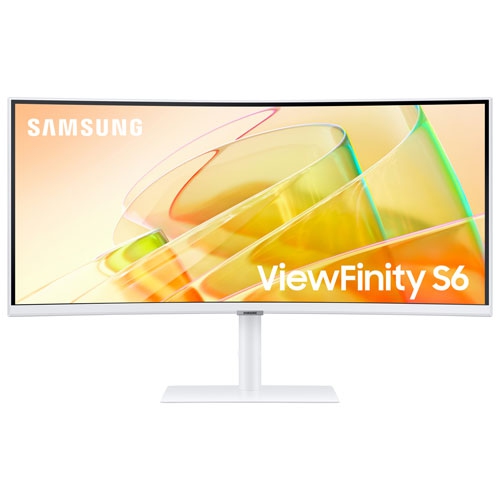

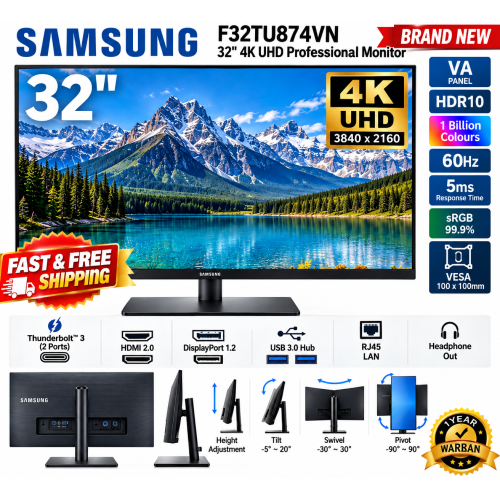
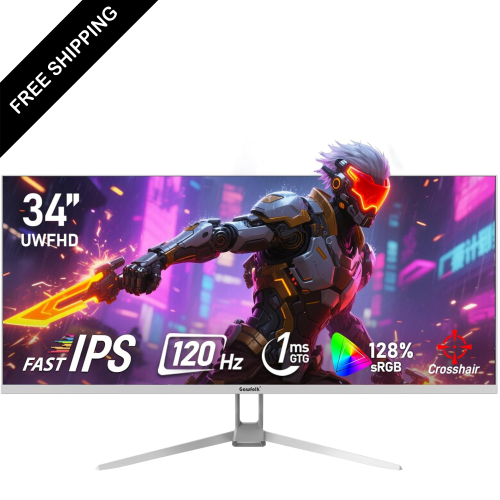
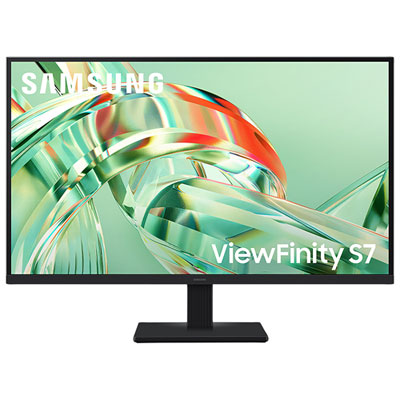
More room for multiple windows on one ultrawide screen
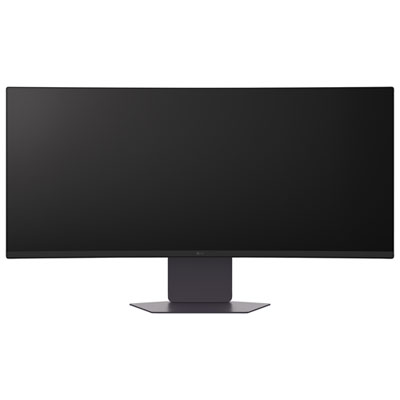
A 34-inch monitor gives a desktop a broad, continuous workspace for office tasks, creative projects, entertainment, and gaming. Many monitors in this size use an ultrawide 21:9 aspect ratio, providing more horizontal room than a conventional 16:9 screen. The 34-inch measurement refers to the screen’s diagonal, not its width, so the overall footprint also depends on the frame and stand. A common ultrawide resolution is 3440 × 1440, which provides space for several windows while keeping text and interface elements comfortably sized for many users. Resolution varies by model, however, and screen size alone does not determine sharpness. For someone working with spreadsheets, the extra width can keep more columns visible without constant horizontal scrolling. A student can place research beside an assignment, while a programmer can arrange code, documentation, and a preview across one display. Unlike a pair of separate monitors, an ultrawide screen has no central bezel interrupting a large timeline or drawing. It also remains a single display, so window arrangement tools can help divide the space into useful sections. Curved screens bring the outer edges closer to the viewer and can make a wide display feel more cohesive from a centred seating position. The effect depends on the curve, viewing distance, and personal preference; a lower curvature number generally indicates a tighter curve. Flat screens provide another option, particularly for shared viewing or workflows where a straight display surface feels more familiar. Neither shape automatically guarantees better image quality. For remote workers, an ultrawide layout can keep a video meeting beside notes and reference material, although sharing the entire screen may make content appear small to colleagues using narrower displays. Sharing a single application window is often a more readable approach. The appeal is less about filling every inch with information and more about keeping the right material visible without repeatedly switching between overlapping windows.
Display performance determines how that workspace feels throughout the day. Refresh rate describes how often the screen updates, and higher rates can make scrolling, pointer movement, and supported games appear smoother. For gaming, the benefit also depends on the computer’s graphics hardware and the frame rate the game can deliver at the monitor’s native resolution. Driving a 3440 × 1440 display requires more graphics processing than a 2560 × 1440 display at similar settings, which matters when balancing detail and responsiveness. Adaptive sync can help reduce screen tearing when the monitor and graphics source support compatible operation. Response time is a separate consideration: it relates to pixel transitions, and a low advertised figure does not describe every aspect of motion clarity. Dark-scene smearing, overshoot, and performance at different refresh rates can also affect the picture. Ultrawide support varies between games and video sources. Compatible games may provide a wider view, while unsupported content may show black bars or use a narrower image. Most conventional television programming and many videos will not fill a 21:9 screen without cropping or stretching. For photography, design, and video editing, useful specifications include colour gamut, colour accuracy, brightness, and viewing-angle consistency. A wide colour gamut is not the same as accurate colour, and work intended for print or client delivery may benefit from calibration. HDR support also varies substantially; the label alone does not guarantee bright highlights or detailed contrast. Connections shape everyday convenience just as much as picture specifications. HDMI and DisplayPort capabilities need to match the desired resolution and refresh rate, including any limits imposed by the computer, cable, or adapter. Some monitors include USB-C with video input and laptop charging, but those functions and the supported charging wattage are model-dependent. A compatible single-cable connection can simplify moving a laptop between a desk and another workspace, while a USB hub can keep a keyboard, mouse, or other accessories connected at the desk.
Physical fit deserves as much attention as the display specifications. A wide screen can fit across a desk yet leave too little depth for a comfortable viewing position once its stand, keyboard, and other essentials are in place. Stand depth and base shape affect how much usable surface remains in front of the monitor, especially on compact desks. Height adjustment, tilt, and swivel can make it easier to position the display without improvised supports. A monitor arm may free desk space, provided the mounting pattern, weight limit, and clearance requirements match the screen; a curved display can also place different demands on an arm than a flat one of similar weight. For a smaller desk or a comparison with a more compact curved format, Samsung 27" Curved Monitors provide another size category to consider. Materials commonly include plastic housings and metal stand components, but construction quality, joint stability, and adjustment mechanisms matter more than appearance alone. A stable base helps keep the picture steady when typing, while accessible ports and sensible cable routing make routine connections less awkward. Glare also affects comfort: a matte screen finish can soften reflections, but positioning the monitor away from a bright window or exposed lamp often makes a noticeable difference. For cleaning, a soft, clean microfibre cloth and the manufacturer’s recommended method help protect the screen coating. Liquid should not be sprayed directly onto the display, and pressure or abrasive cleaners can damage its surface. Ventilation openings need clearance, and cables should have enough slack to avoid strain when the screen is adjusted. If the display uses OLED technology, following its screen-care features and guidance is particularly relevant when static toolbars or application panels remain visible for long periods. As a gift for a student, gamer, or home-office user, a 34-inch monitor is most useful when it suits the recipient’s desk, computer connections, and everyday activities. A spacious screen earns its place through that practical fit, whether it holds an editing timeline, a detailed spreadsheet, or an expansive game world.
Top selling and popular products
-
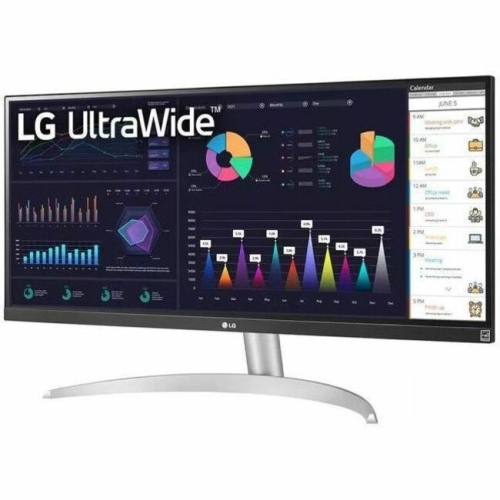 Your price for this item is $2237.68
-
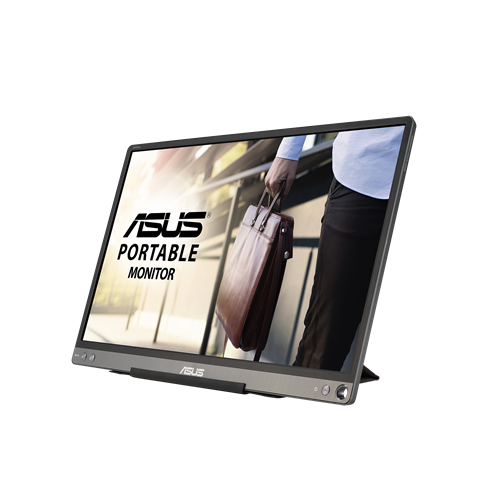 Your price for this item is $320.68
-
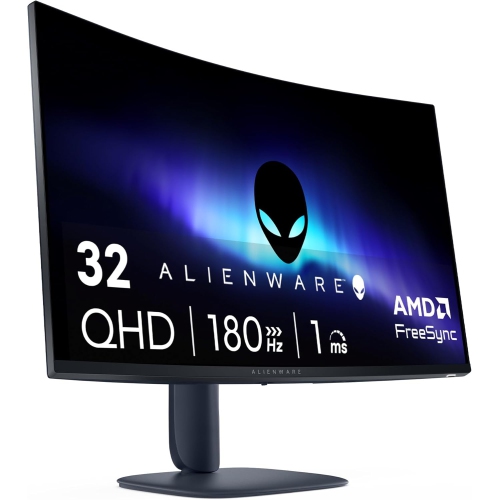 Your price for this item is $469
-
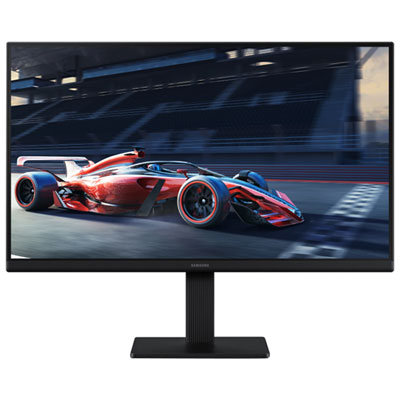 Your price for this item is $149.99
-
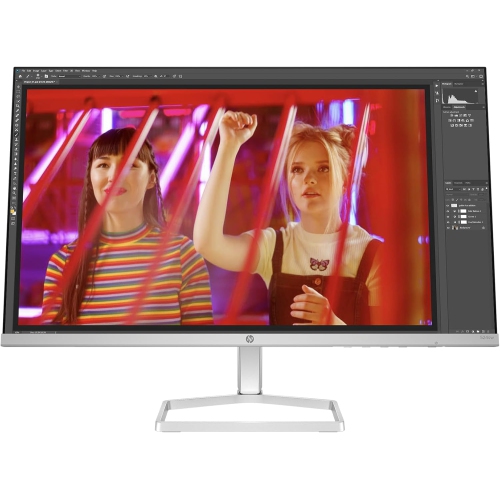 Your price for this item is $265.99
-
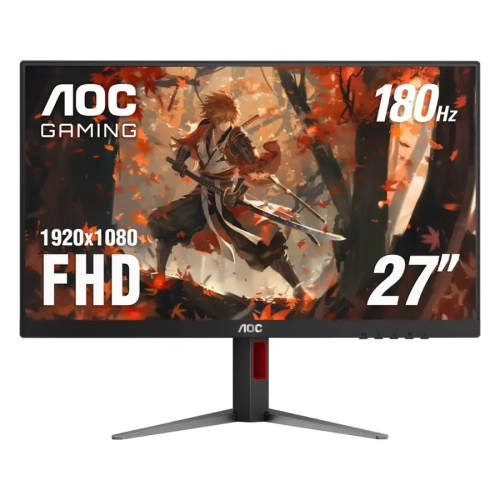 Your price for this item is $229.99
-
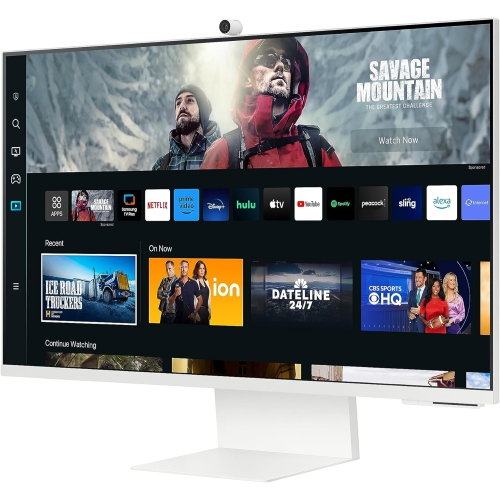 Your price for this item is $1138.68
-
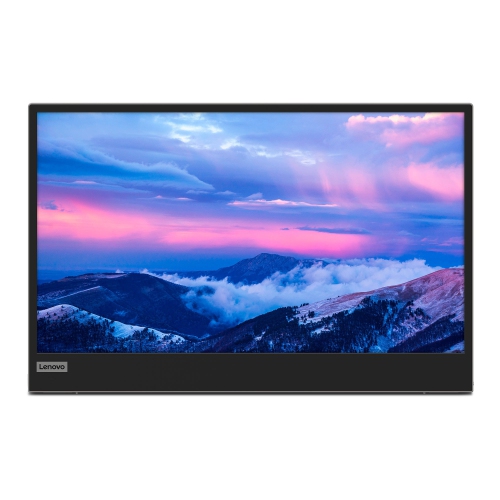 Your price for this item is $355.68
Discover more categories related to Samsung 34 Monitors
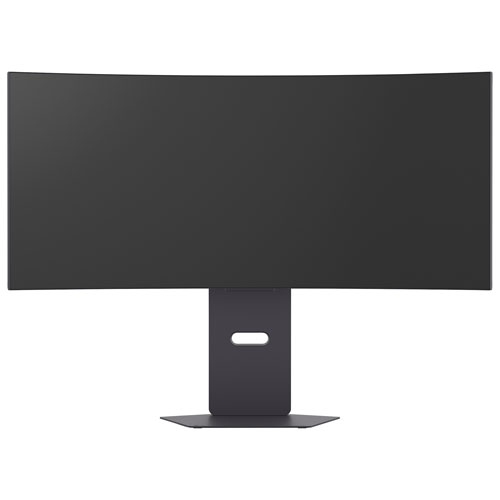
Top Collections:
Best Black Friday Deals This Year, Best Black Friday Deals On Electronics, Kindle Devices, Pokemon Centers, Best Black Friday Deals On Apple Products, Best Cameras for Sports Photography, Dyson Airwrap, Pokémon 30th Celebration Cards, Apple iPhone 17 Pro, Canon G7X Cameras
Some products may be subject to Environmental Handling Fees
(EHF) depending on your province.
Learn more about EHFs.