Thunderbolt To Hdmi Adapters
Looking to enhance your connectivity options and streamline your multimedia experience? Our Thunderbolt to HDMI adapters are the perfect solution for seamlessly connecting your Thunderbolt-enabled devices to HDMI displays, such as monitors, projectors, or TVs. With high-quality video and audio transmission capabilities, these adapters provide a reliable and efficient way to enjoy crisp visuals and immersive sound. Whether you're a professional needing to deliver presentations or a home user looking to expand your entertainment setup, our Thunderbolt to HDMI adapters offer versatility and convenience for all your connectivity needs.
Sort
![YELLOW-PRICE USB C to HDMI Adapter 4K60Hz Cable [Thunderbolt 3 Compatible]+HDMI 2.0 HD Cable](https://multimedia.bbycastatic.ca/multimedia/products/500x500/166/16600/16600781.jpeg)
![BENFEI Mini Displayport to HDMI Adapter[Thunderbolt 2 Compatible], Gold-Plated Connectors& Aluminium Shell](https://multimedia.bbycastatic.ca/multimedia/products/500x500/184/18483/18483184.jpeg)
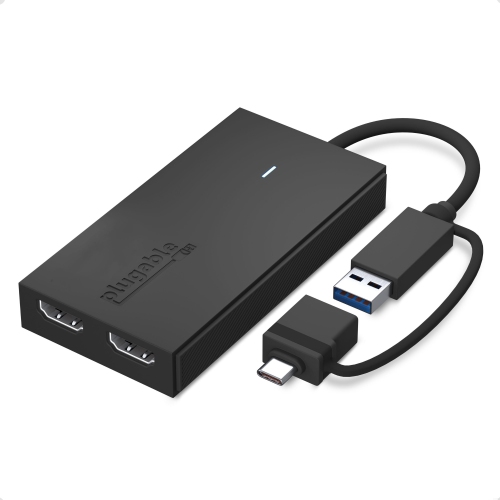
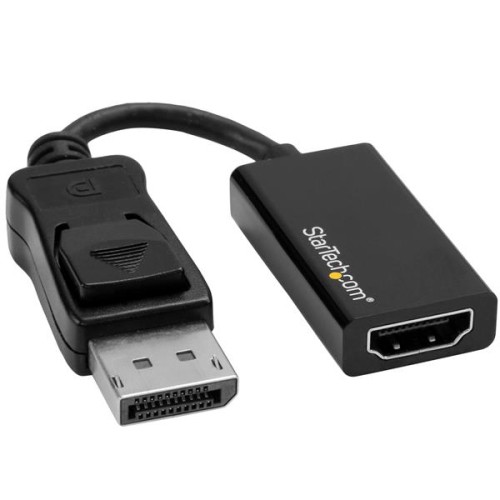
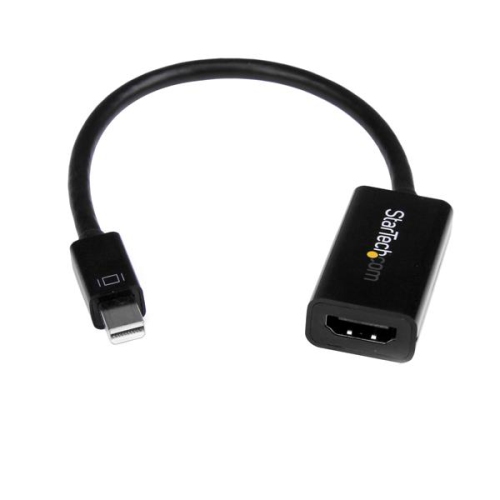
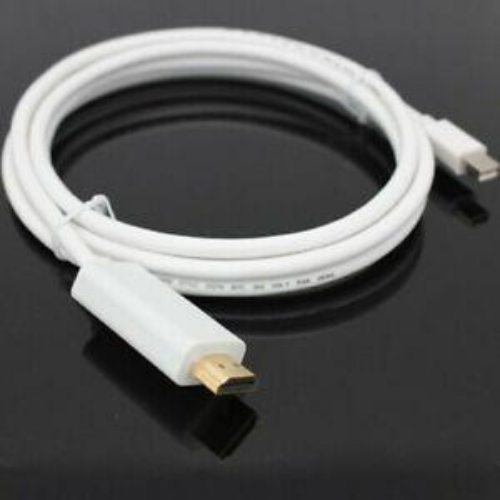
![YELLOW-PRICE USB C to HDMI Adapter 4K60Hz Cable [Thunderbolt 3 Compatible]+HDMI 2.0 HD Cable](https://multimedia.bbycastatic.ca/multimedia/products/500x500/166/16600/16600790.jpeg)
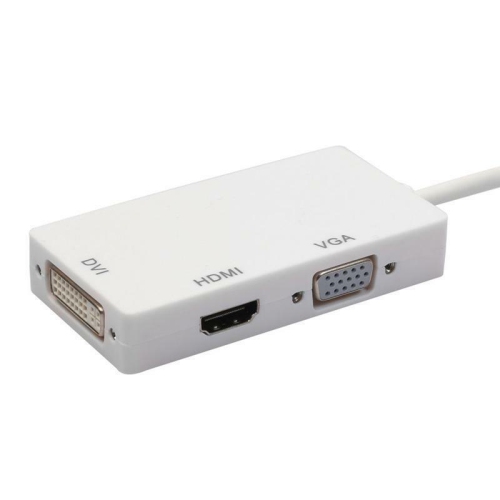
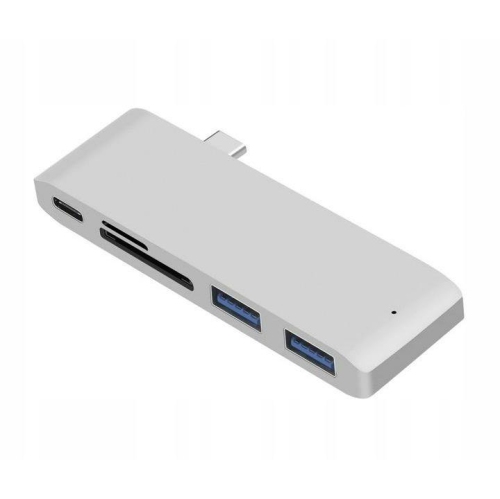
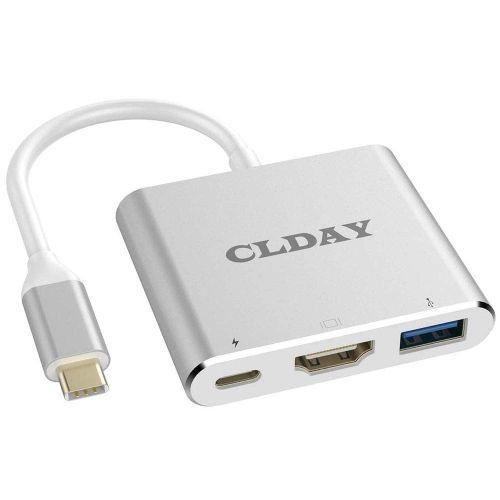
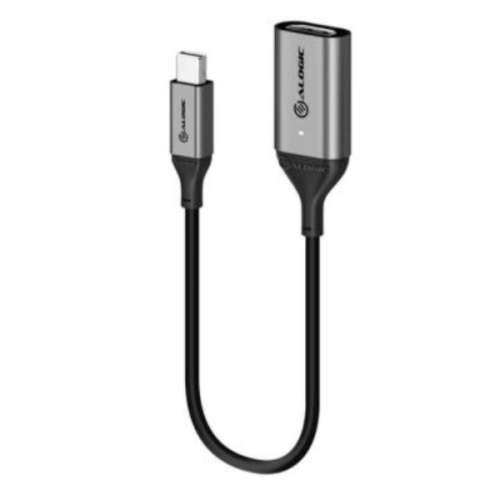
![YELLOW-PRICE USB C to HDMI Adapter 4K60Hz Cable [Thunderbolt 3 Compatible]+HDMI 2.0 HD Cable](https://multimedia.bbycastatic.ca/multimedia/products/500x500/166/16600/16600783.jpeg)




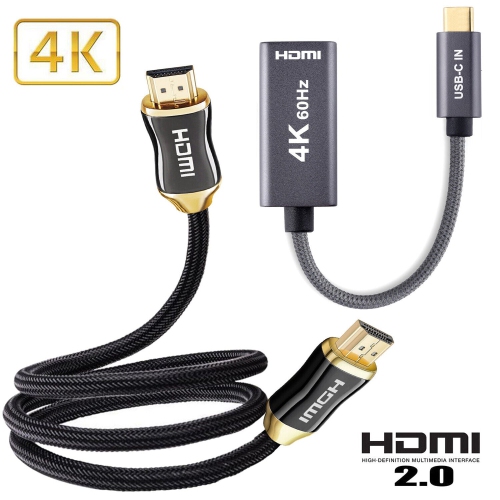
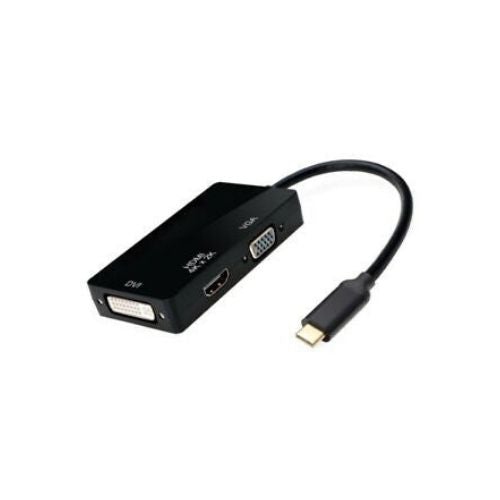
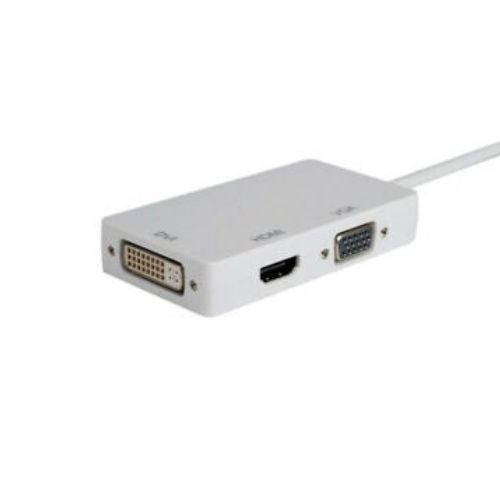
Port and display compatibility shape every adapter decision
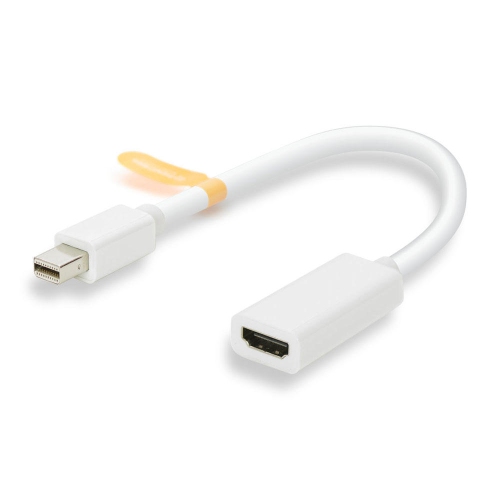
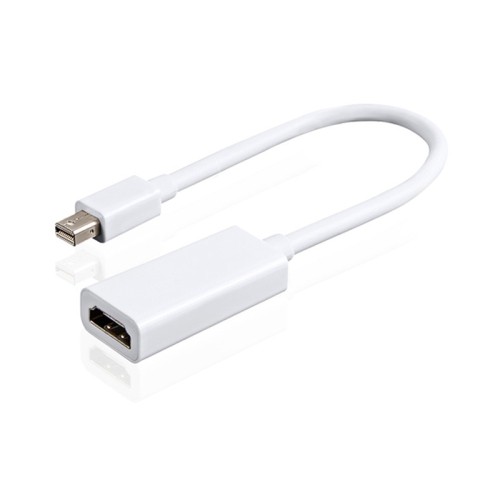
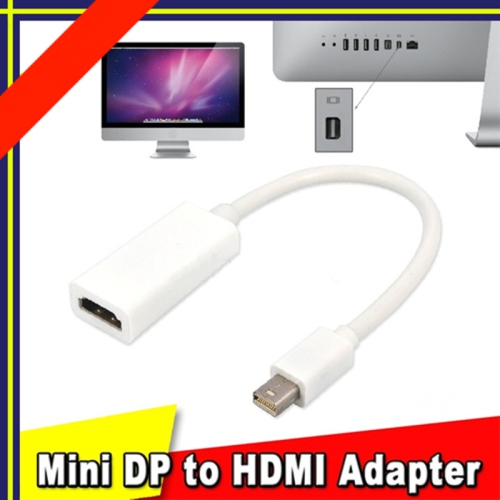
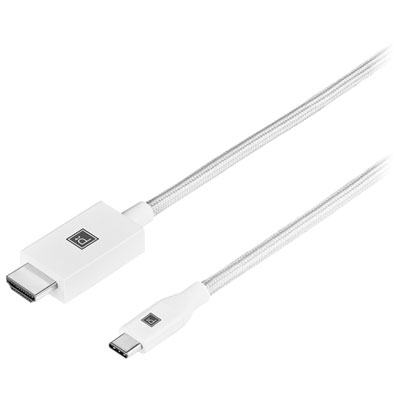
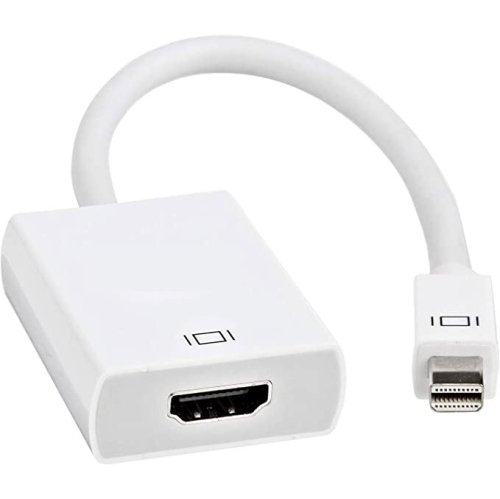
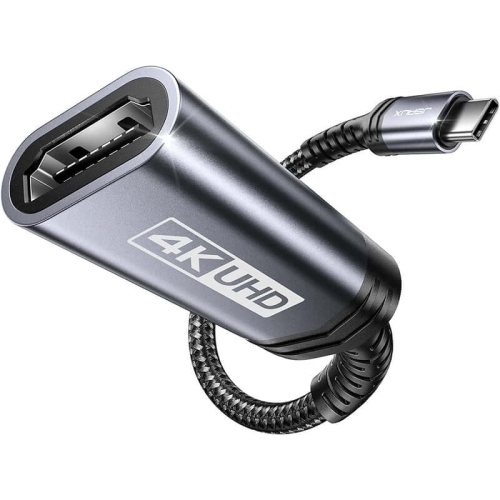
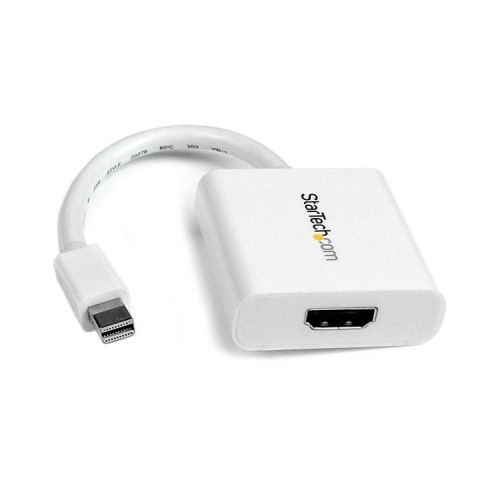
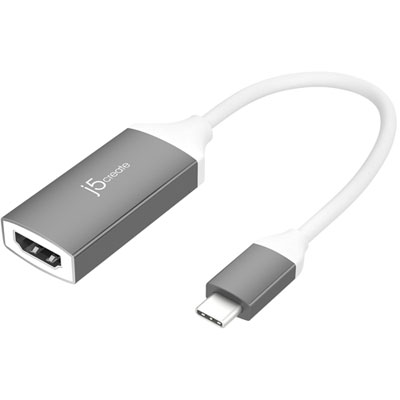
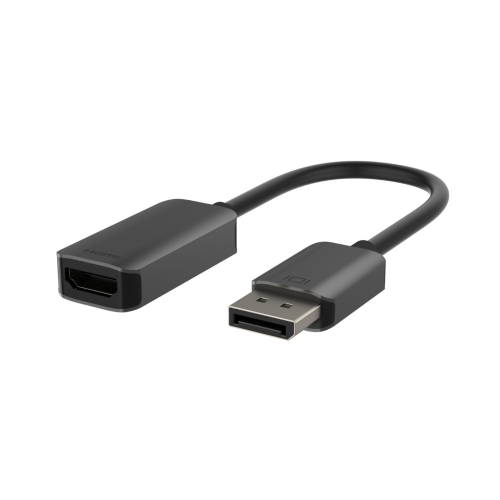
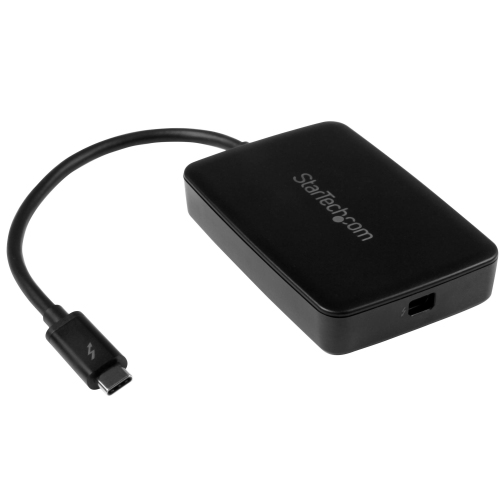
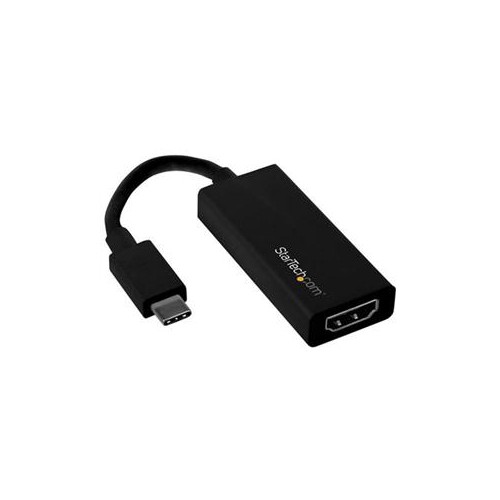
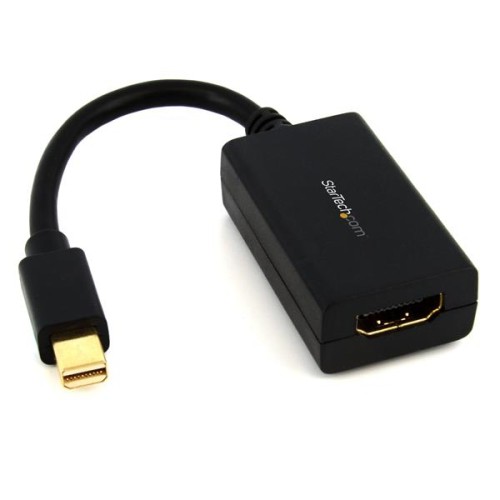
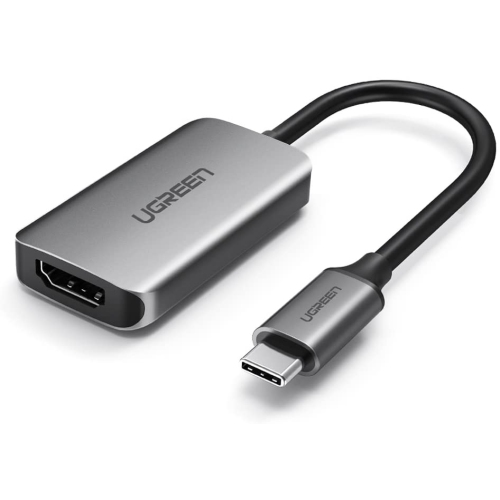
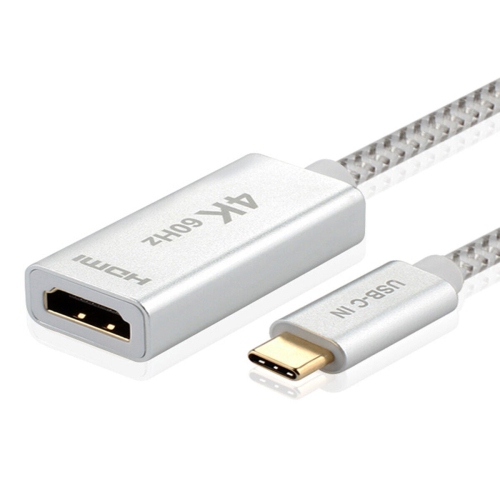
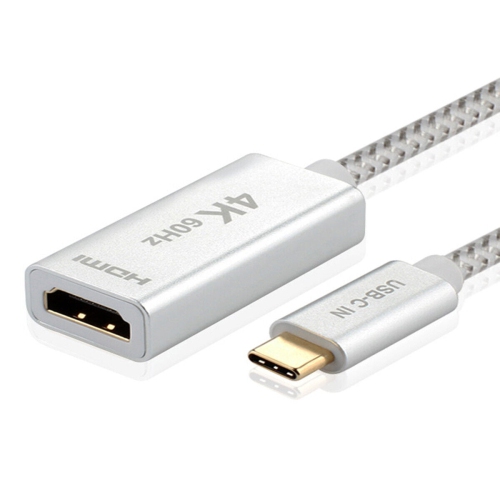
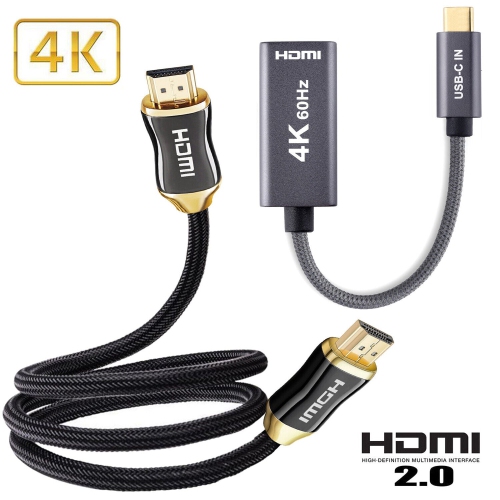
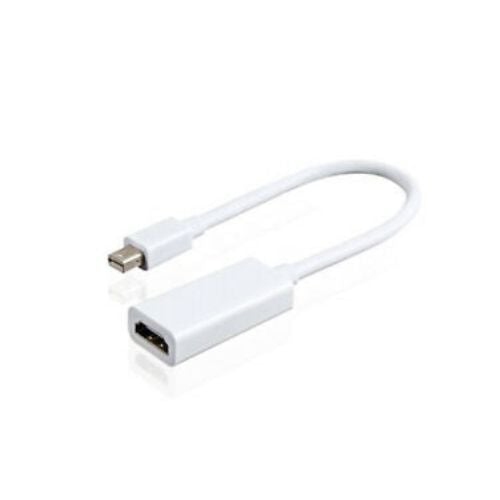
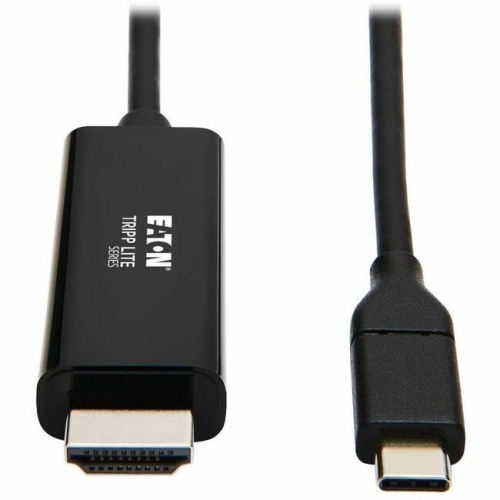
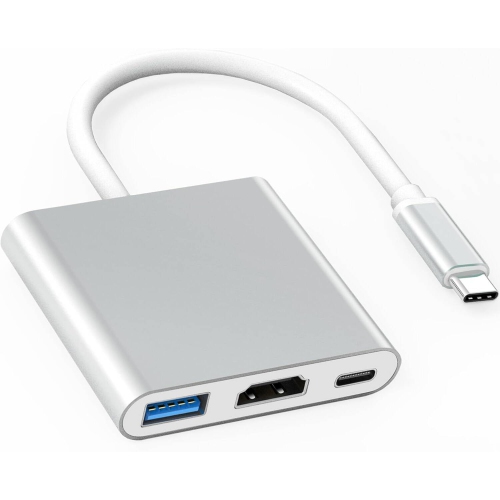
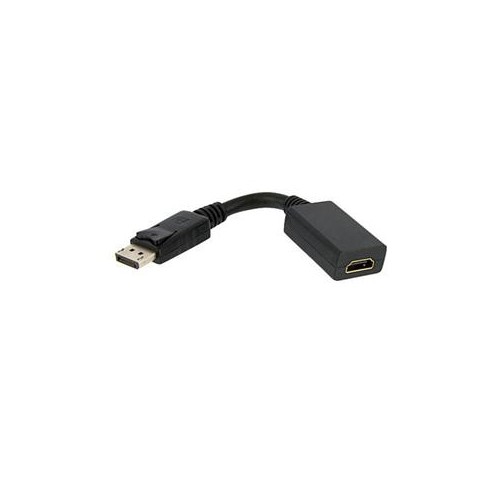
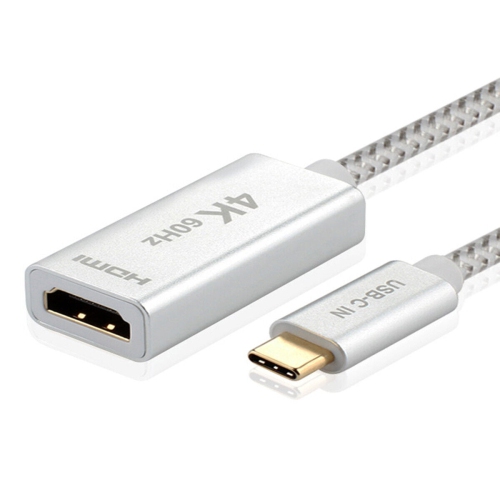
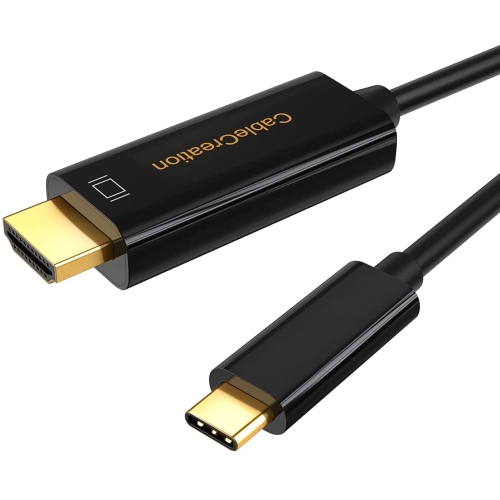
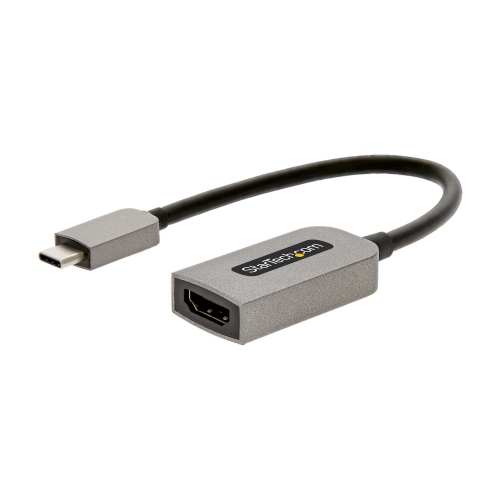
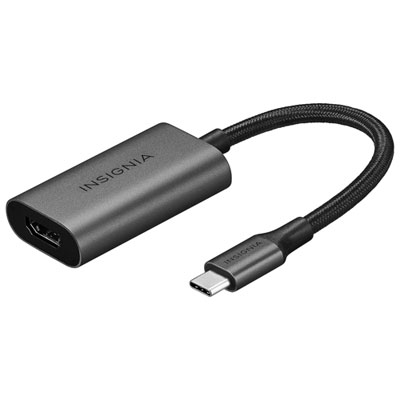
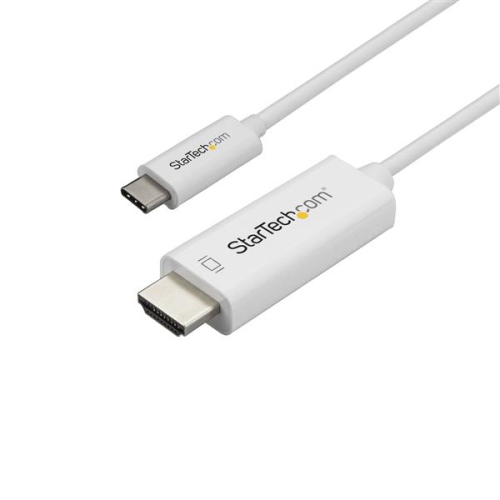
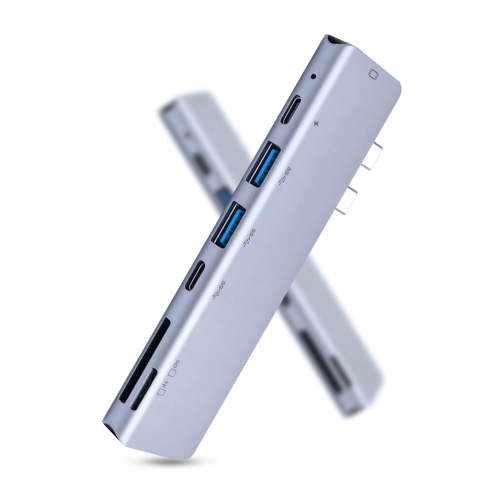
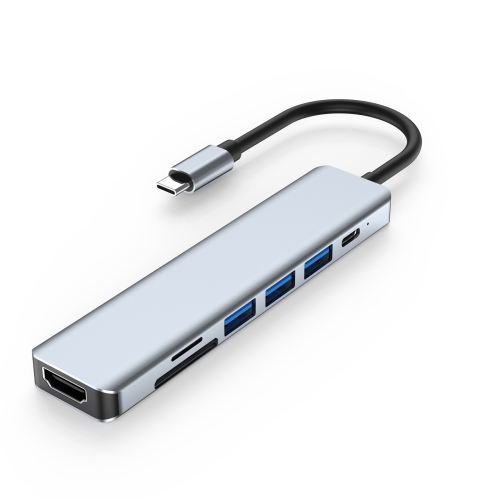
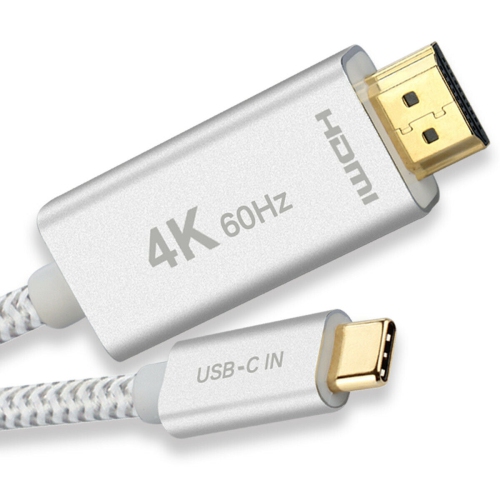
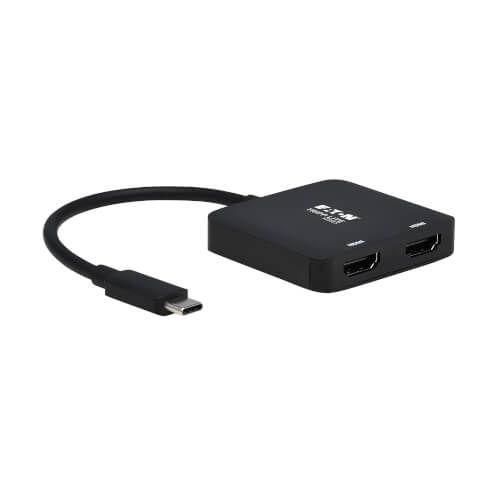
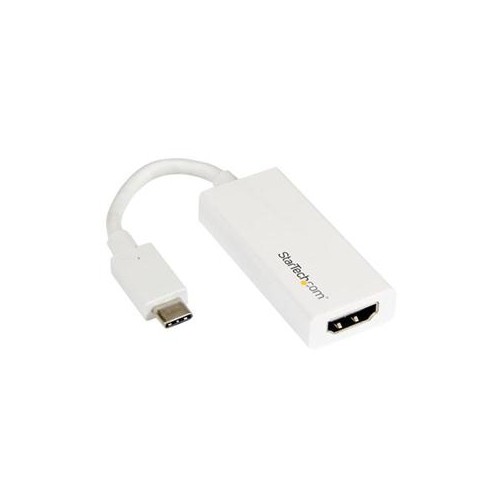
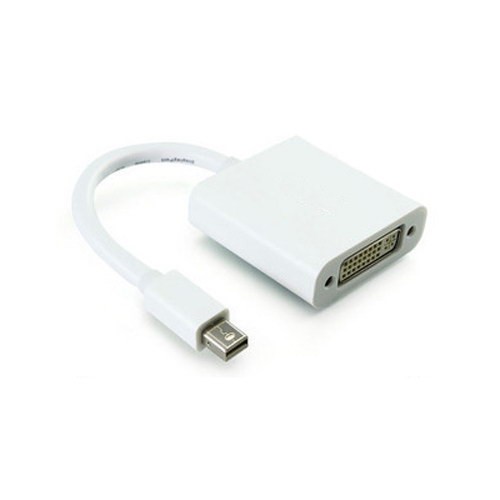
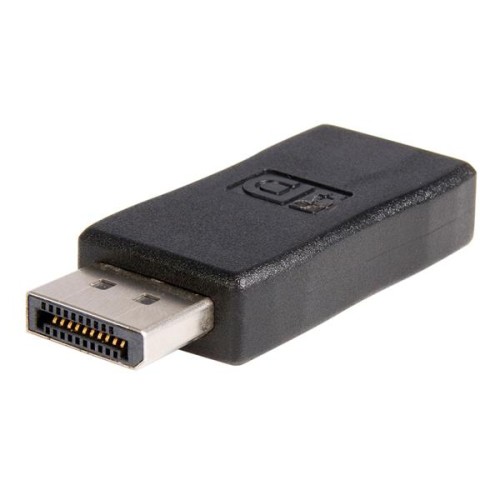
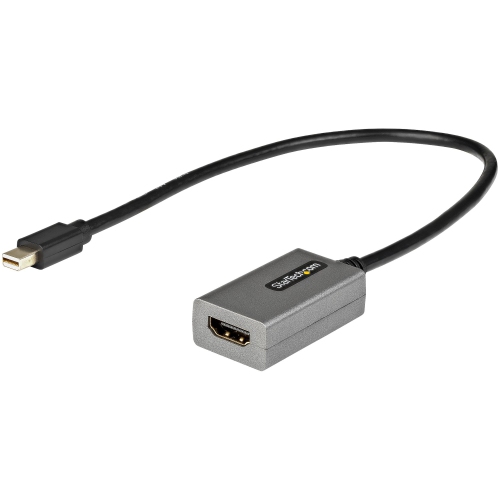
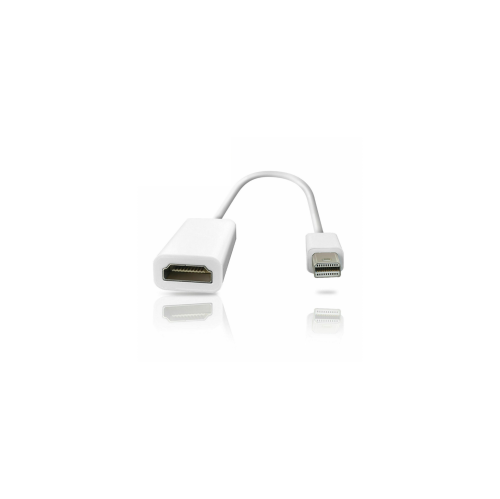
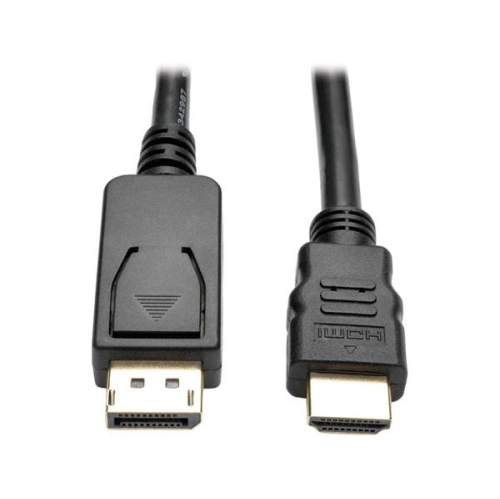
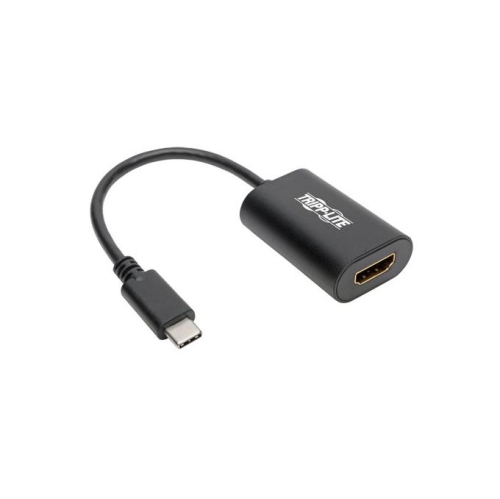
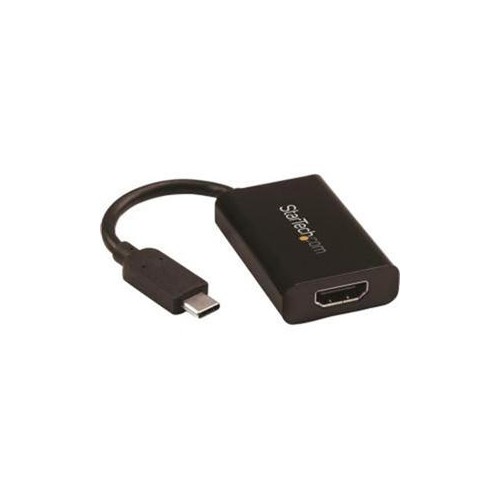
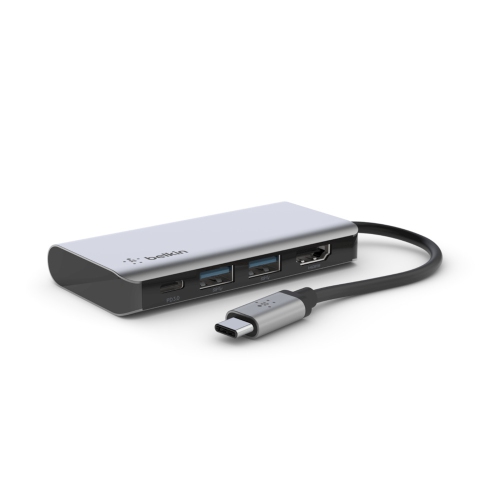
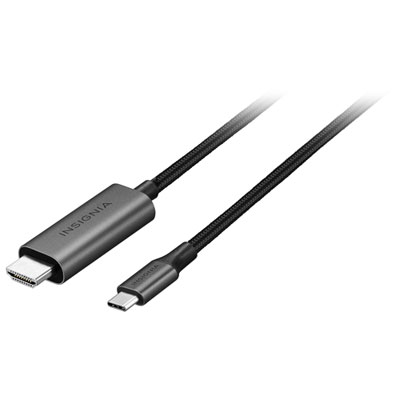
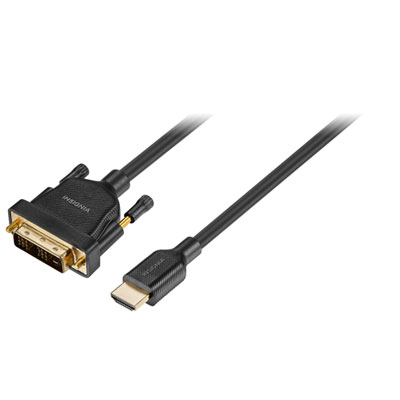
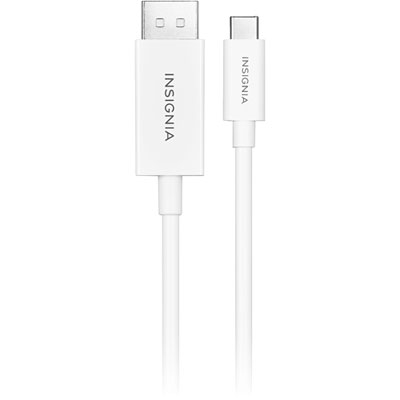
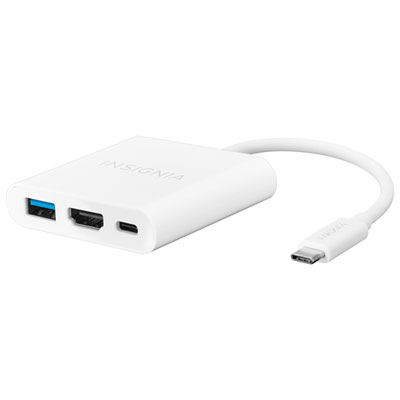
Thunderbolt to HDMI adapters make it easier to connect a compatible computer to an HDMI-equipped monitor, television, projector, or classroom display. They are especially useful for extending a laptop workstation, presenting from a computer, viewing photos and videos on a larger screen, or adding a comfortable second display during the cooler months when more work and entertainment may happen indoors. Modern Thunderbolt 3, Thunderbolt 4, and Thunderbolt 5 ports use the familiar USB-C shape, while Thunderbolt 1 and Thunderbolt 2 ports use a Mini DisplayPort-shaped connection. That physical difference is one of the most important details to check before buying, since an adapter made for a USB-C Thunderbolt port will not fit an older Mini DisplayPort-style Thunderbolt port. It is also important to remember that not every USB-C port carries a video signal. A USB-C port must support DisplayPort Alt Mode or Thunderbolt video output for an HDMI adapter to work, and some computers have USB-C ports intended only for charging or data. Checking the computer’s specifications, port symbols, and manufacturer documentation can prevent an inconvenient mismatch. For a straightforward single-screen setup, a compact active USB-C to HDMI adapter or dedicated converter cable can translate the computer’s video signal into HDMI for a television or monitor. Active conversion is particularly important when the connection needs to translate between different signal standards rather than simply pass a compatible signal through. Older Thunderbolt computers may require an adapter that matches the Mini DisplayPort-style port before connecting to HDMI. The HDMI version supported by the adapter and display also matters: basic setups may be suitable for everyday office work, streaming, web browsing, and presentations, while higher-resolution or higher-refresh-rate use requires careful attention to supported specifications. Look for the maximum resolution and refresh rate, such as 4K at 60Hz where supported, and confirm that the computer, adapter, HDMI cable, and display can all work at that level. A 4K display may still operate at a lower refresh rate if one part of the connection has more limited capabilities. For smooth cursor movement, clear text, and comfortable multitasking, matching the adapter to the display’s native resolution and intended refresh rate is more useful than choosing based on the connector shape alone.
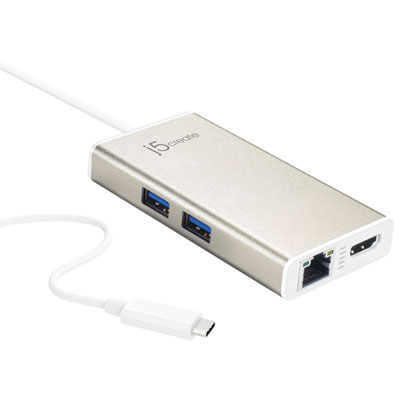
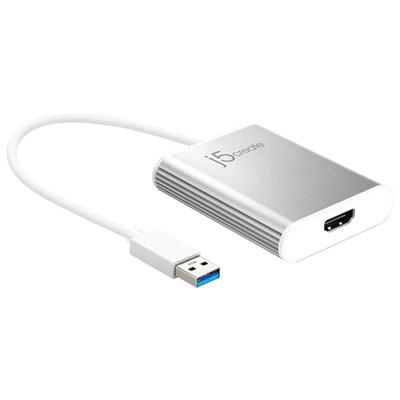
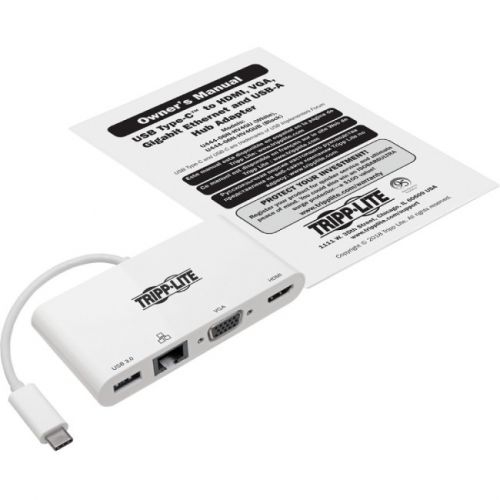
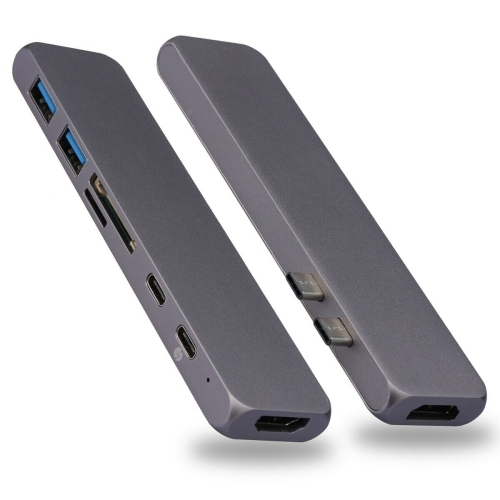
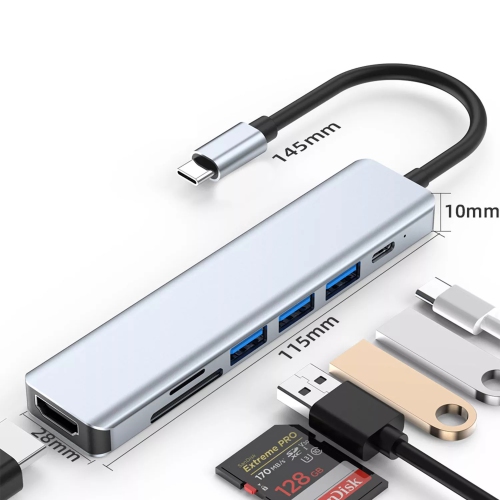
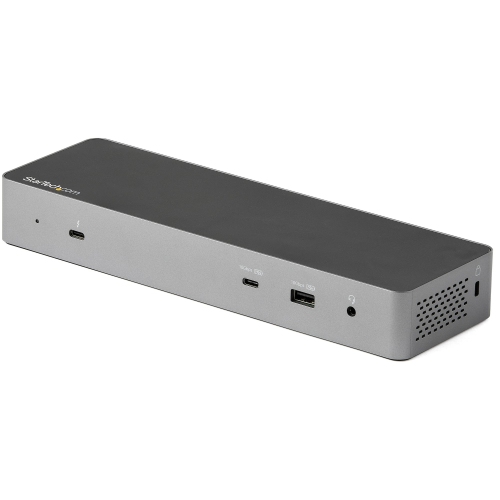
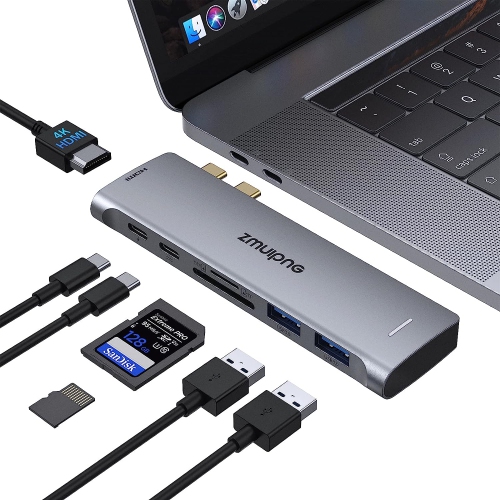
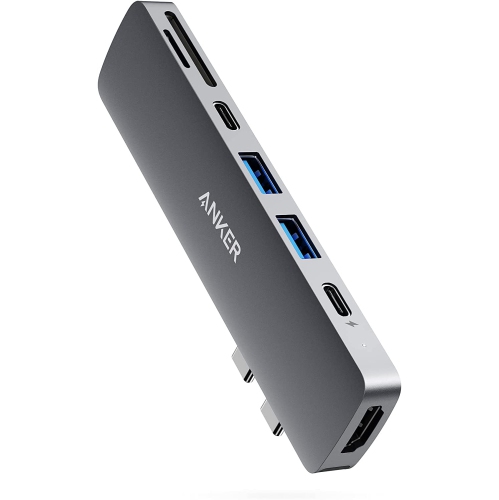
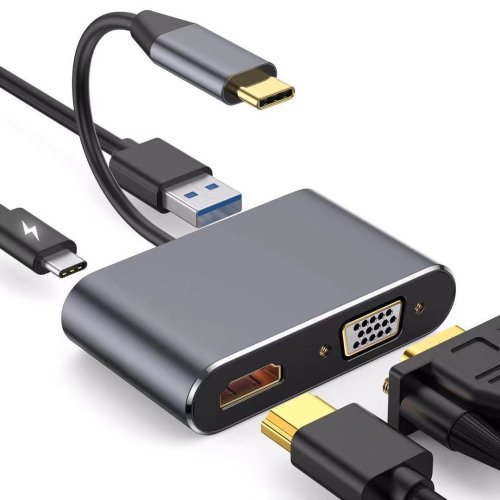
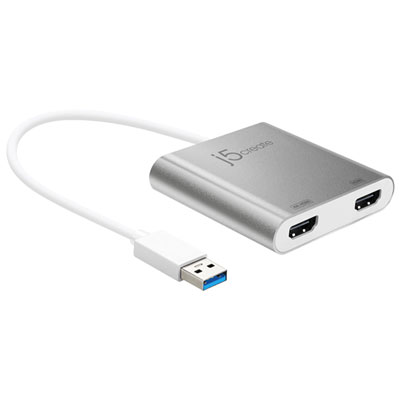
The right Thunderbolt to HDMI adapter depends on how many screens you plan to use, how far the display will be from the computer, and what you need to do on that screen. A single-output adapter is often enough for a home office, a study area, a living room television, or a presentation kit that needs to fit neatly into a laptop bag. Someone who regularly moves between rooms may appreciate a small adapter with a firmly attached connector, while a permanent desk setup may benefit from a longer cable, a compact hub arrangement, or a design that leaves nearby ports accessible. If you want two independent monitors from one Thunderbolt port, look for a multi-display solution that specifically supports dual HDMI output and verify how it handles extended desktops. Some adapters mirror the same image on both screens, while others allow each display to show separate content; this distinction is essential for spreadsheets, timelines, research, coding, and other tasks that benefit from extra desktop space. Multi-display performance can also depend on the computer’s graphics hardware, operating system, Thunderbolt generation, and display settings, so confirm the supported combination before ordering. Audio is another useful consideration when connecting to a television or monitor with built-in speakers. Many compatible HDMI connections can carry both video and audio, but operating system settings may need to be adjusted to select the HDMI display as the sound output. Copy-protected streaming content, HDR, colour depth, and other advanced features may depend on support from every part of the connection, including the source computer, adapter, HDMI cable, display, and software. For presentations, check whether the adapter maintains a stable connection and whether the display accepts the computer’s output resolution; a reliable image is more valuable than a collection of unused features. These adapters can also make practical gifts for students setting up a dorm or apartment workspace, remote workers upgrading a desk, photographers reviewing images on a larger screen, or family members who want to share laptop content on a television. Mac users with different generations of ports can also browse MacBook HDMI Adapters for options suited to their computer’s connection type. Before completing a purchase, identify the exact Thunderbolt generation and physical port, confirm that the port supports video output, note the number of HDMI displays required, and compare resolution, refresh rate, audio, and operating system compatibility. These checks help ensure the adapter delivers a clean, dependable connection for work, learning, entertainment, and presentations.
The right Thunderbolt to HDMI adapter depends on how many screens you plan to use, how far the display will be from the computer, and what you need to do on that screen. A single-output adapter is often enough for a home office, a study area, a living room television, or a presentation kit that needs to fit neatly into a laptop bag. Someone who regularly moves between rooms may appreciate a small adapter with a firmly attached connector, while a permanent desk setup may benefit from a longer cable, a compact hub arrangement, or a design that leaves nearby ports accessible. If you want two independent monitors from one Thunderbolt port, look for a multi-display solution that specifically supports dual HDMI output and verify how it handles extended desktops. Some adapters mirror the same image on both screens, while others allow each display to show separate content; this distinction is essential for spreadsheets, timelines, research, coding, and other tasks that benefit from extra desktop space. Multi-display performance can also depend on the computer’s graphics hardware, operating system, Thunderbolt generation, and display settings, so confirm the supported combination before ordering. Audio is another useful consideration when connecting to a television or monitor with built-in speakers. Many compatible HDMI connections can carry both video and audio, but operating system settings may need to be adjusted to select the HDMI display as the sound output. Copy-protected streaming content, HDR, colour depth, and other advanced features may depend on support from every part of the connection, including the source computer, adapter, HDMI cable, display, and software. For presentations, check whether the adapter maintains a stable connection and whether the display accepts the computer’s output resolution; a reliable image is more valuable than a collection of unused features. These adapters can also make practical gifts for students setting up a dorm or apartment workspace, remote workers upgrading a desk, photographers reviewing images on a larger screen, or family members who want to share laptop content on a television. Mac users with different generations of ports can also browse MacBook HDMI Adapters for options suited to their computer’s connection type. Before completing a purchase, identify the exact Thunderbolt generation and physical port, confirm that the port supports video output, note the number of HDMI displays required, and compare resolution, refresh rate, audio, and operating system compatibility. These checks help ensure the adapter delivers a clean, dependable connection for work, learning, entertainment, and presentations.
Top selling and popular products
-
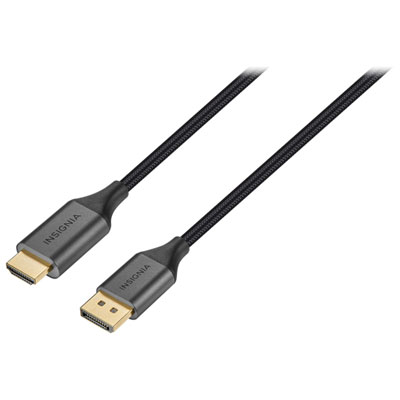 Your price for this item is $39.95
 -
 Your price for this item is $62.99
 -
 Your price for this item is $29.95
 -
 Your price for this item is $14.99
 -
 Your price for this item is $29.99
 -
 Your price for this item is $39.99
 -
 Your price for this item is $29.99
 -
 Your price for this item is $24.97
Discover more categories related to Thunderbolt To Hdmi Adapters
Top Collections:
Pokemon Centers, Kindle Devices, Best Budget Office Chairs, Apple iPhones 16, Best Laptops for Writers, iPhone 15 Apple, Canon G7X Cameras, Refurbished Apple Laptops, Alarm Clock, Motorola Razr Phones
Some products may be subject to Environmental Handling Fees
(EHF) depending on your province.
Learn more about EHFs.