Thunderbolt To HDMI Cables
Looking to enhance your multimedia experience? Our Thunderbolt to HDMI cables are the perfect solution for connecting your devices to high-definition displays with ease. Whether you're streaming your favorite shows, giving a presentation, or gaming on a larger screen, these cables provide seamless connectivity and crystal-clear picture quality. Upgrade your setup today and enjoy a hassle-free connection between your Thunderbolt-compatible devices and HDMI displays.
Sort
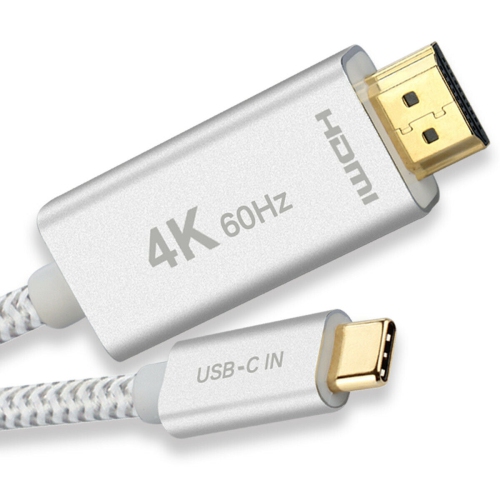
![YELLOW-PRICE USB C to HDMI Adapter 4K60Hz Cable [Thunderbolt 3 Compatible]+HDMI 2.0 HD Cable](https://multimedia.bbycastatic.ca/multimedia/products/500x500/166/16600/16600781.jpeg)
![YELLOW-PRICE USB C to HDMI Adapter 4K60Hz Cable [Thunderbolt 3 Compatible]+HDMI 2.0 HD Cable](https://multimedia.bbycastatic.ca/multimedia/products/500x500/166/16600/16600790.jpeg)
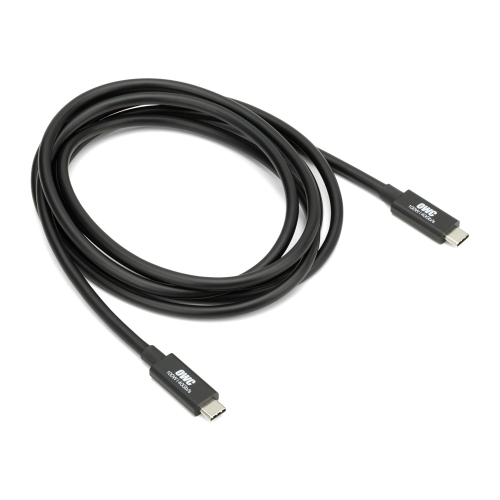
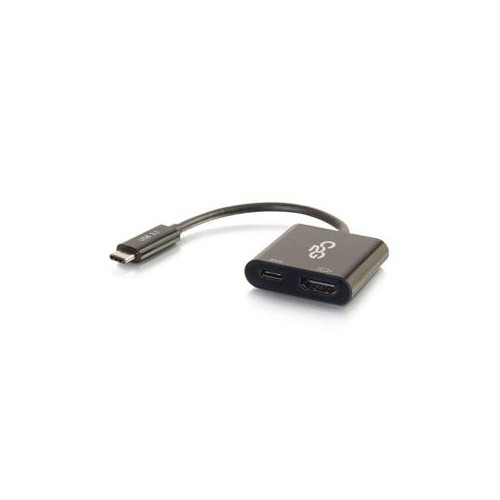
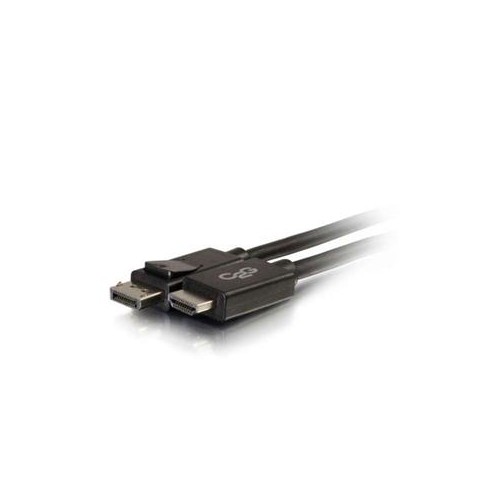
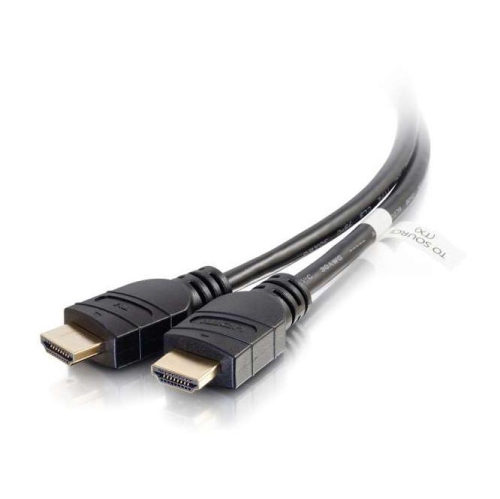
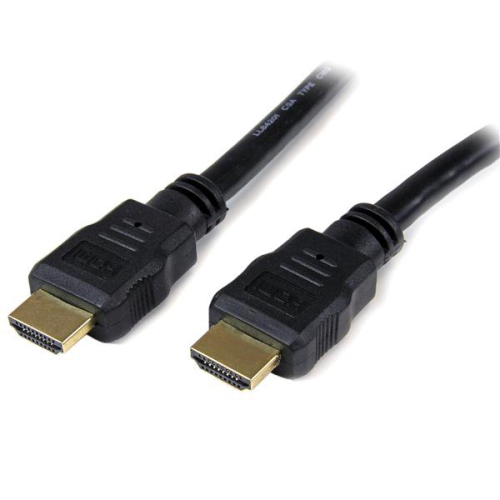
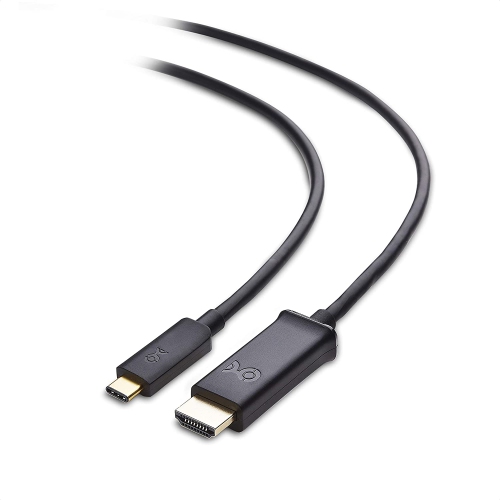
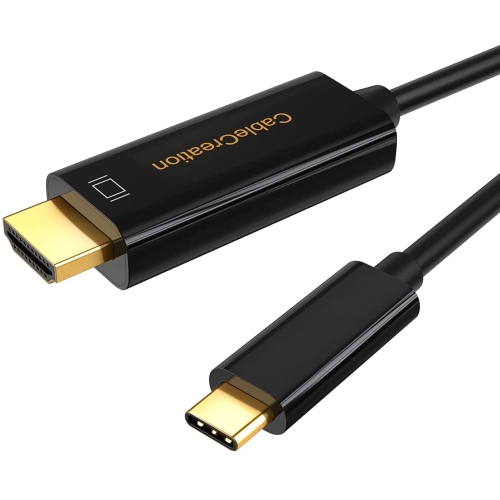
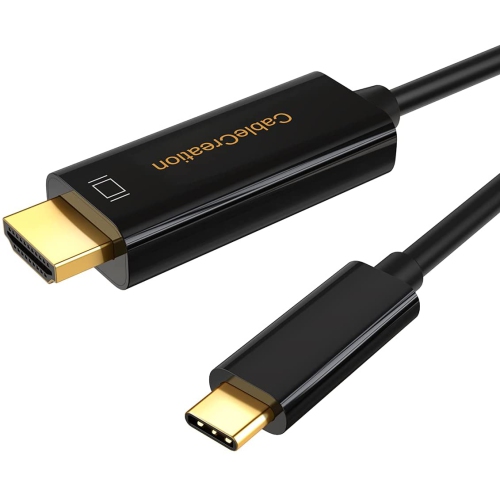
![YELLOW-PRICE USB C to HDMI Adapter 4K60Hz Cable [Thunderbolt 3 Compatible]+HDMI 2.0 HD Cable](https://multimedia.bbycastatic.ca/multimedia/products/500x500/166/16600/16600783.jpeg)

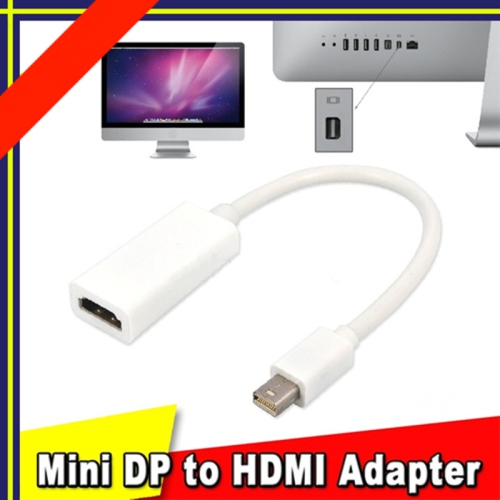
![BENFEI Mini Displayport to HDMI Adapter[Thunderbolt 2 Compatible], Gold-Plated Connectors& Aluminium Shell](https://multimedia.bbycastatic.ca/multimedia/products/500x500/184/18483/18483184.jpeg)
A matching connector is only part of the picture
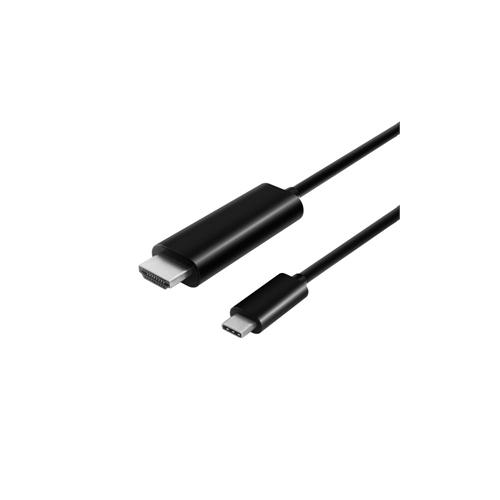
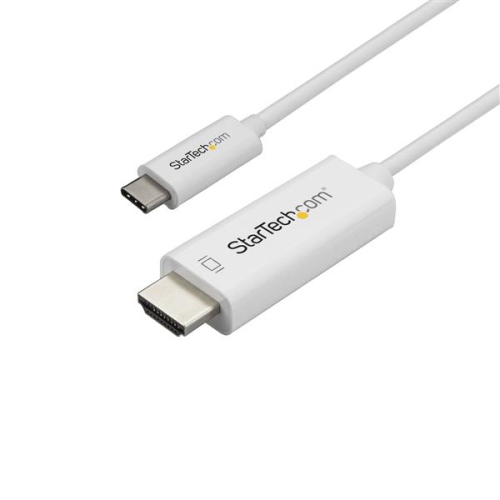
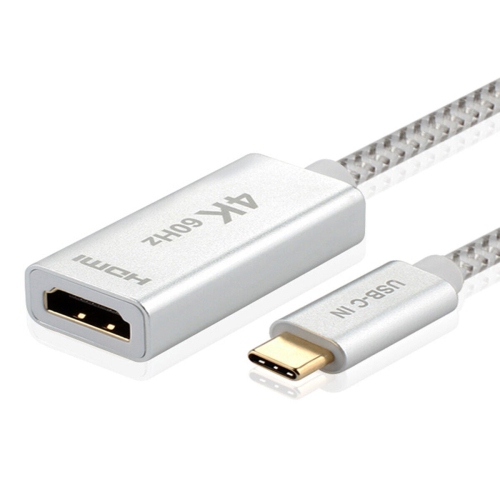
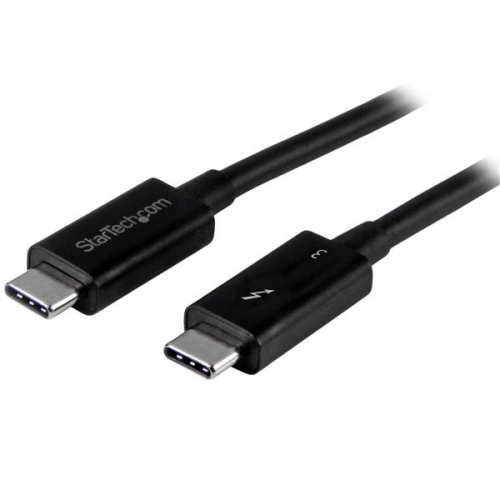
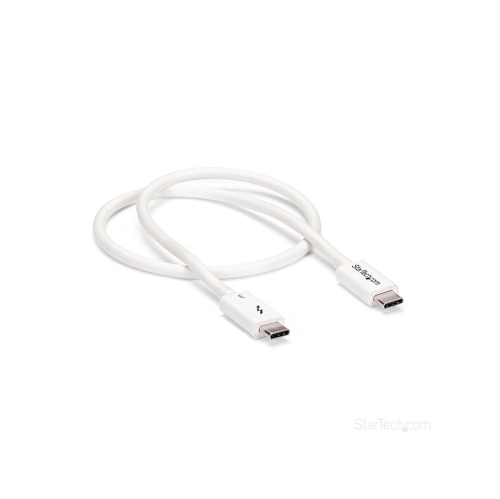
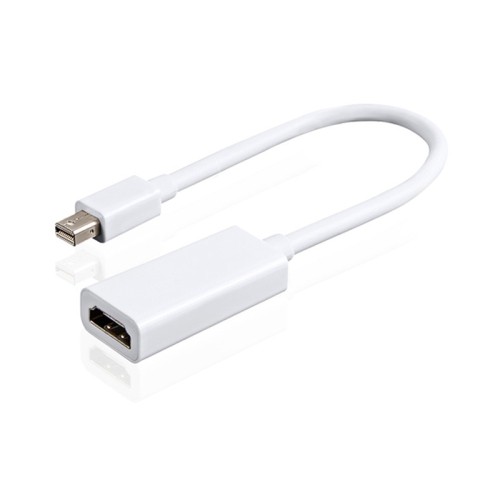
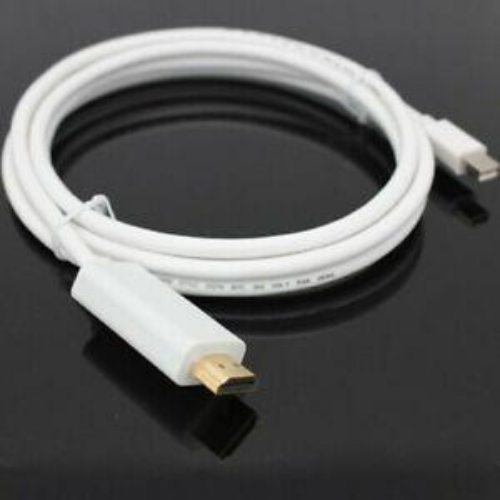
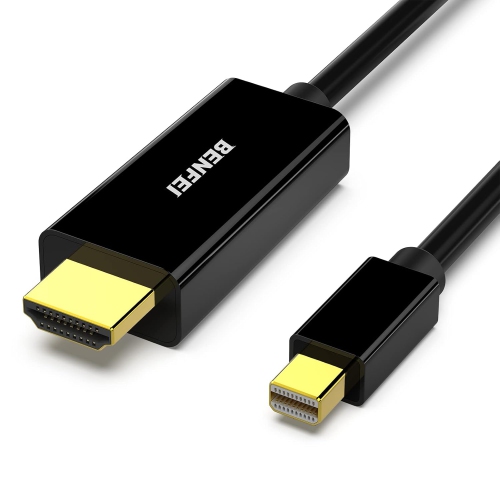
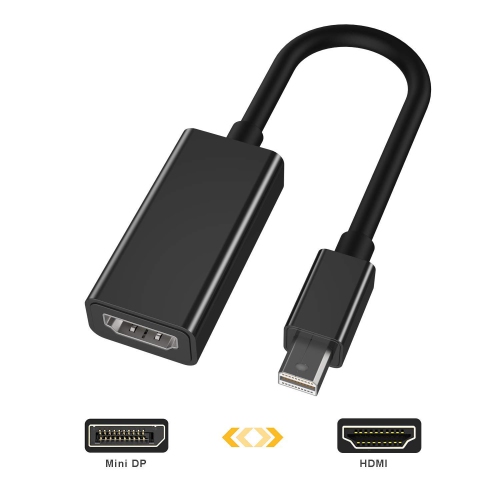
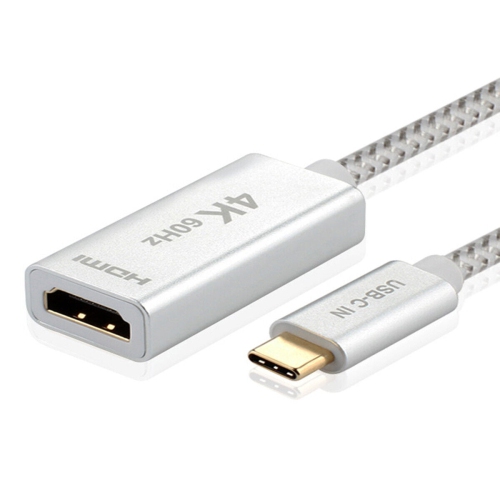
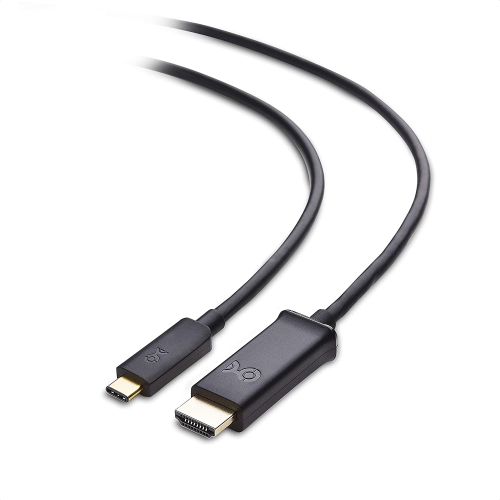
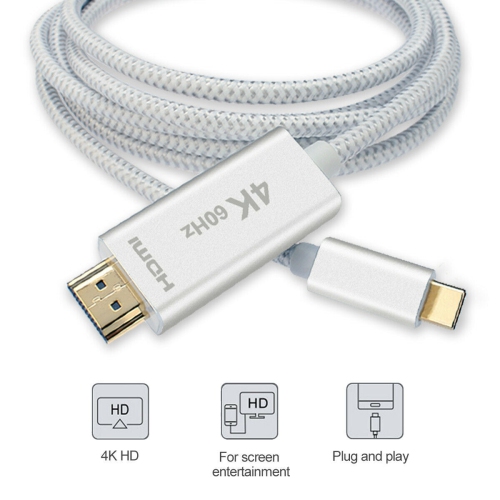
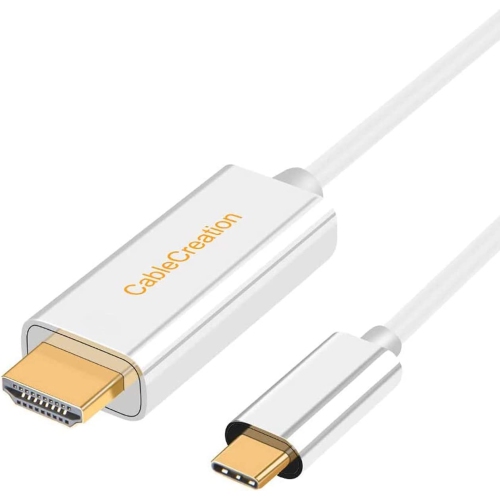
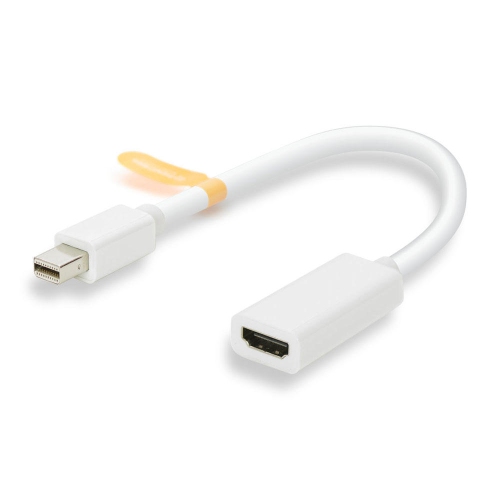
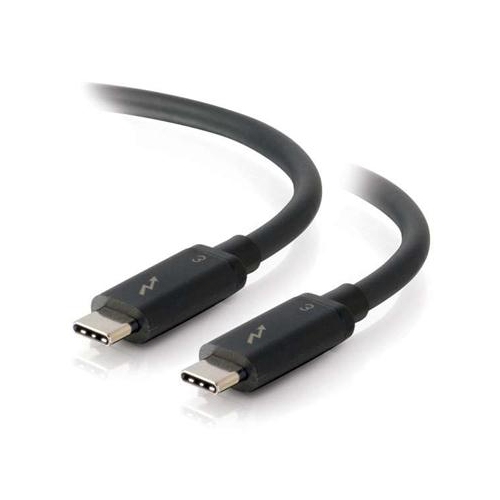
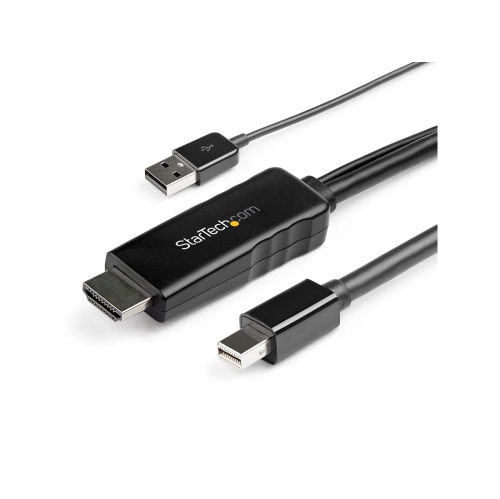
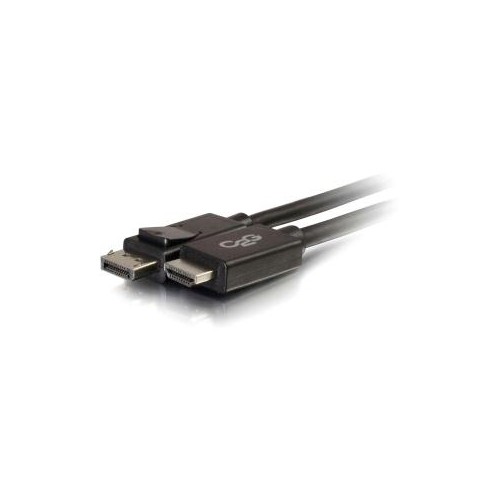
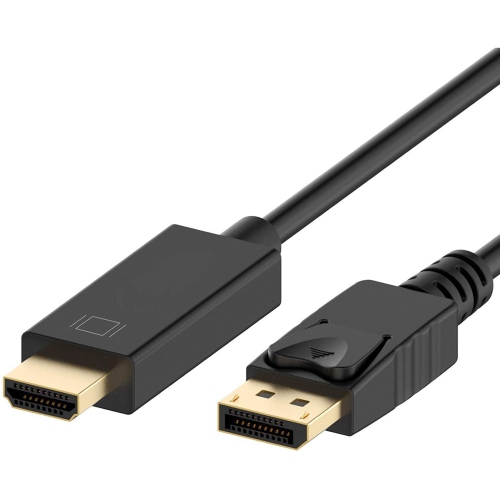
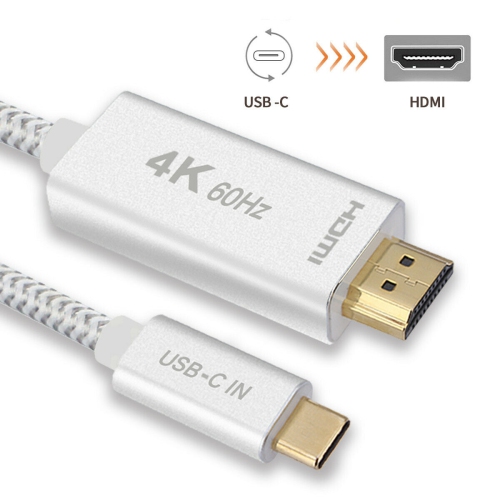
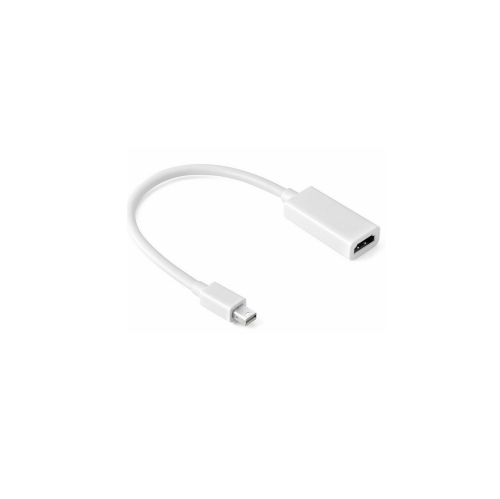
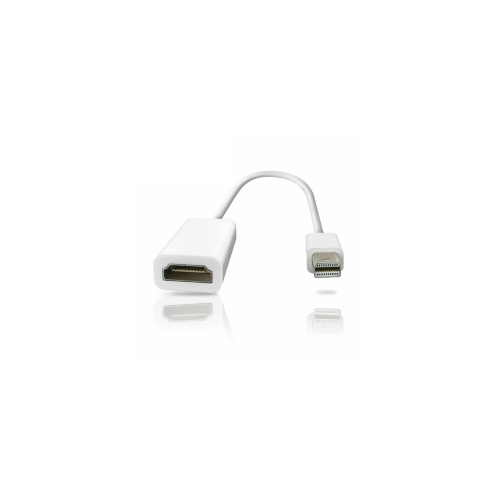
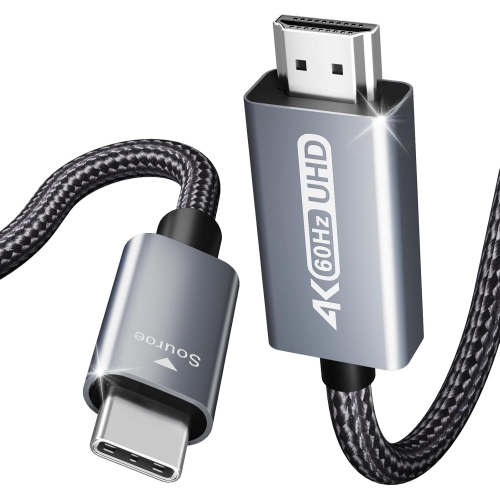
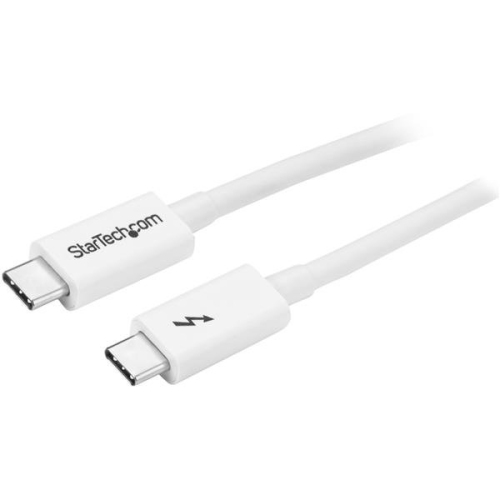
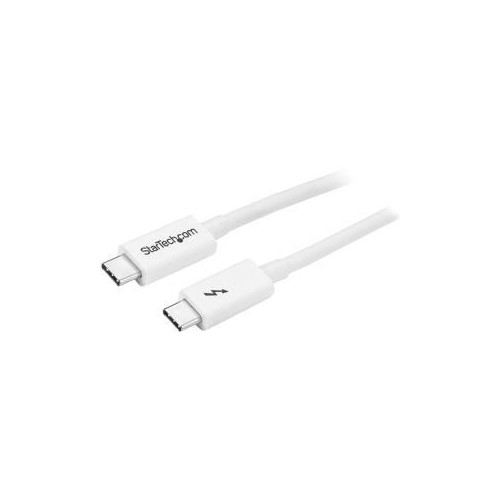
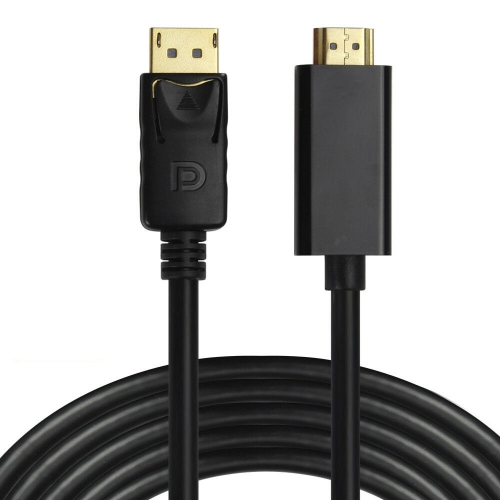
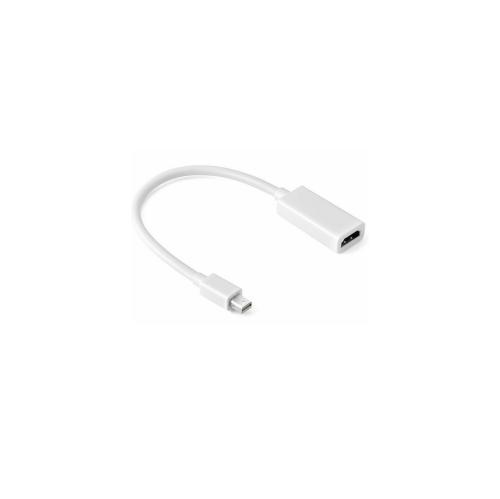
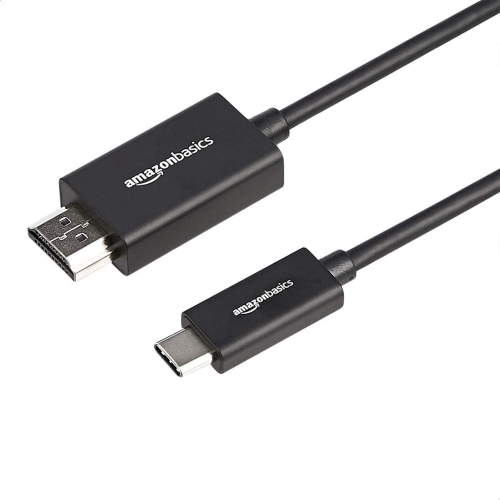
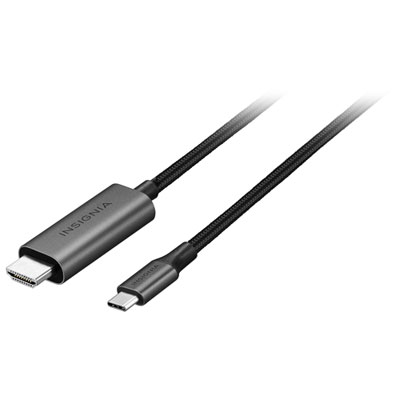
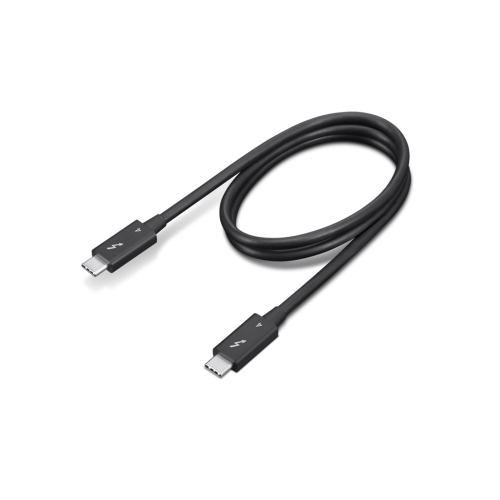
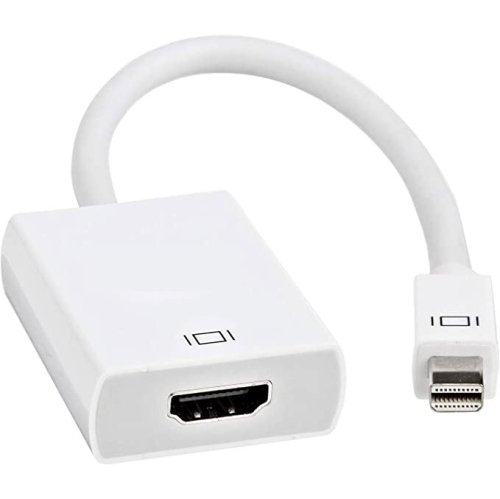
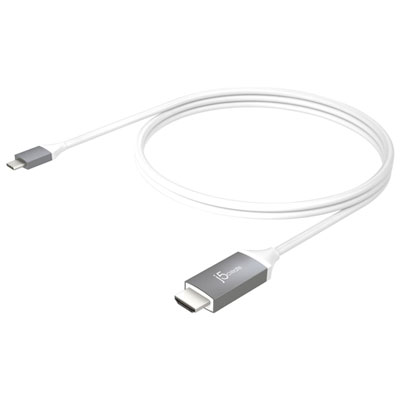
Thunderbolt to HDMI cables connect a compatible computer’s video output to the HDMI input on a monitor, television, or projector, carrying digital video and, when supported by both devices, audio through a single connection. They are useful for turning a laptop into a more comfortable desk setup, sharing a presentation on a meeting-room screen, or viewing a film on a larger display. A direct cable keeps the connection simple, with a computer-side connector at one end and an HDMI connector at the other, without a separate HDMI lead between them. The important distinction is the connector on the source device. Thunderbolt 3, Thunderbolt 4, and Thunderbolt 5 ports use the USB-C connector shape, while Thunderbolt 1 and Thunderbolt 2 use the Mini DisplayPort connector shape. These two shapes are not interchangeable, so a cable intended for an older Thunderbolt port will not physically fit a newer USB-C-shaped port. A USB-C socket alone does not confirm video support, either: a non-Thunderbolt USB-C port must support a suitable display-output mode, typically DisplayPort Alternate Mode, to work with a compatible USB-C to HDMI cable. Device specifications are more reliable than connector appearance when confirming compatibility. Cables described as Mini DisplayPort to HDMI may also suit video output from older Thunderbolt ports, provided their specifications support the intended connection. Most cables in this category are directional, sending a signal from the Thunderbolt or compatible USB-C source to an HDMI display. They generally cannot connect an HDMI-output computer or game console to a USB-C monitor in reverse. For anyone who already has a suitable HDMI cable or wants a detachable connection, Thunderbolt to HDMI adapters offer a different format for the same general purpose. A direct cable suits a straightforward device-to-screen connection, while an adapter can make it easier to use existing HDMI leads of different lengths.
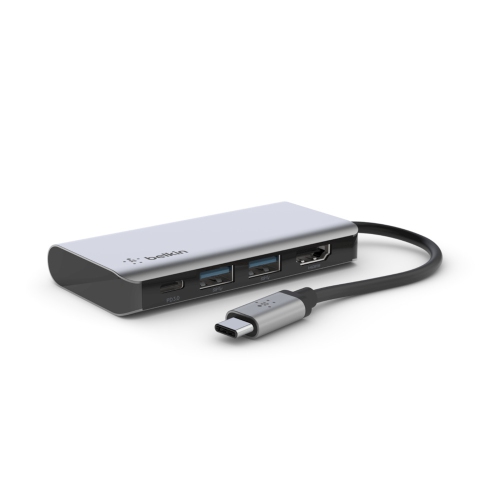
Resolution and refresh rate describe different parts of the viewing experience, and both matter when matching a Thunderbolt to HDMI cable to a screen. Resolution determines how much image detail can be displayed, while refresh rate describes how often the screen updates each second. A connection supporting 4K at 30Hz is not equivalent to one supporting 4K at 60Hz: both can deliver the same pixel dimensions, but the higher refresh rate can make pointer movement, scrolling, and motion look smoother. For spreadsheets, research, and everyday office work, a stable connection at the display’s native resolution helps keep text clear and the desktop comfortable to use. For fast-moving games or high-refresh-rate monitors, the cable’s supported resolution-and-refresh-rate combination deserves closer attention. A general “4K” or “8K” description does not establish every supported mode, and a newer Thunderbolt port does not automatically make every HDMI cable capable of the display’s highest settings. The achievable result depends on the computer’s graphics hardware, its video-output capabilities, the cable’s conversion electronics, and the HDMI input on the screen. Some televisions and monitors have different capabilities across their HDMI inputs, making the selected socket relevant as well. HDR, colour depth, variable refresh rate, and protected-content playback also require compatible support throughout the connection; they should not be assumed from resolution alone. Many compatible connections work without a separate driver installation, although the computer may still need its display mode, resolution, refresh rate, or sound output adjusted. Mirroring shows the same content on both screens, which suits presentations and shared viewing. Extending the desktop creates a separate workspace, allowing a document to stay open on the laptop while a larger monitor holds a spreadsheet or video call. A single cable normally serves one HDMI display; connecting several external screens depends on the computer’s display limits and may require additional connections or a suitable dock. Standard direct video cables also do not usually charge the laptop, so its power connection remains separate.
Cable length, connector design, and jacket construction affect how neatly a Thunderbolt to HDMI cable fits into everyday use. At a desk, the cable needs enough reach to follow a relaxed path from the laptop to the monitor without pulling against either port. A connection to a television across a room calls for a different length than a screen standing beside a computer, but unnecessary slack can gather behind furniture or catch under chair wheels. Longer runs require particular care when matching the cable’s stated capabilities to the intended resolution and refresh rate; length alone does not establish signal quality. Slim connector housings can be helpful beside closely spaced ports, while a bulkier plug may interfere with a neighbouring connection or a recessed HDMI input. Moulded strain relief at each end helps limit sharp bending where the cable meets the connector, an area that sees repeated movement during packing and unplugging. A braided jacket can offer abrasion resistance, while a smooth jacket may slide more easily through a desk opening or cable sleeve. Neither finish guarantees higher video performance, and flexibility can matter more than appearance in a compact workspace. Metal connector housings can feel sturdy, but the fit, internal construction, and supported display modes remain important. For care, unplug by holding the connector rather than pulling the cord, store the cable in loose coils, and avoid trapping it beneath furniture or bending it tightly behind a wall-mounted screen. Keep connectors clean and dry, and stop using a cable with exposed wiring or damaged plugs. Students moving between study spaces, professionals presenting in different rooms, and households sharing a larger screen all benefit from a cable matched to their actual equipment. As a practical gift for someone building a desk setup, compatibility with the recipient’s computer and display matters more than an impressive maximum-resolution label. The best fit is a cable with the right connector, supported display settings, and enough comfortable reach for the places it will be used.
Resolution and refresh rate describe different parts of the viewing experience, and both matter when matching a Thunderbolt to HDMI cable to a screen. Resolution determines how much image detail can be displayed, while refresh rate describes how often the screen updates each second. A connection supporting 4K at 30Hz is not equivalent to one supporting 4K at 60Hz: both can deliver the same pixel dimensions, but the higher refresh rate can make pointer movement, scrolling, and motion look smoother. For spreadsheets, research, and everyday office work, a stable connection at the display’s native resolution helps keep text clear and the desktop comfortable to use. For fast-moving games or high-refresh-rate monitors, the cable’s supported resolution-and-refresh-rate combination deserves closer attention. A general “4K” or “8K” description does not establish every supported mode, and a newer Thunderbolt port does not automatically make every HDMI cable capable of the display’s highest settings. The achievable result depends on the computer’s graphics hardware, its video-output capabilities, the cable’s conversion electronics, and the HDMI input on the screen. Some televisions and monitors have different capabilities across their HDMI inputs, making the selected socket relevant as well. HDR, colour depth, variable refresh rate, and protected-content playback also require compatible support throughout the connection; they should not be assumed from resolution alone. Many compatible connections work without a separate driver installation, although the computer may still need its display mode, resolution, refresh rate, or sound output adjusted. Mirroring shows the same content on both screens, which suits presentations and shared viewing. Extending the desktop creates a separate workspace, allowing a document to stay open on the laptop while a larger monitor holds a spreadsheet or video call. A single cable normally serves one HDMI display; connecting several external screens depends on the computer’s display limits and may require additional connections or a suitable dock. Standard direct video cables also do not usually charge the laptop, so its power connection remains separate.
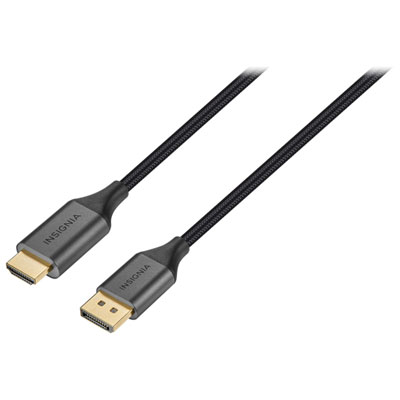
Cable length, connector design, and jacket construction affect how neatly a Thunderbolt to HDMI cable fits into everyday use. At a desk, the cable needs enough reach to follow a relaxed path from the laptop to the monitor without pulling against either port. A connection to a television across a room calls for a different length than a screen standing beside a computer, but unnecessary slack can gather behind furniture or catch under chair wheels. Longer runs require particular care when matching the cable’s stated capabilities to the intended resolution and refresh rate; length alone does not establish signal quality. Slim connector housings can be helpful beside closely spaced ports, while a bulkier plug may interfere with a neighbouring connection or a recessed HDMI input. Moulded strain relief at each end helps limit sharp bending where the cable meets the connector, an area that sees repeated movement during packing and unplugging. A braided jacket can offer abrasion resistance, while a smooth jacket may slide more easily through a desk opening or cable sleeve. Neither finish guarantees higher video performance, and flexibility can matter more than appearance in a compact workspace. Metal connector housings can feel sturdy, but the fit, internal construction, and supported display modes remain important. For care, unplug by holding the connector rather than pulling the cord, store the cable in loose coils, and avoid trapping it beneath furniture or bending it tightly behind a wall-mounted screen. Keep connectors clean and dry, and stop using a cable with exposed wiring or damaged plugs. Students moving between study spaces, professionals presenting in different rooms, and households sharing a larger screen all benefit from a cable matched to their actual equipment. As a practical gift for someone building a desk setup, compatibility with the recipient’s computer and display matters more than an impressive maximum-resolution label. The best fit is a cable with the right connector, supported display settings, and enough comfortable reach for the places it will be used.
Top selling and popular products
-
 Your price for this item is $39.95
 -
 Your price for this item is $62.99
 -
 Your price for this item is $29.95
 -
 Your price for this item is $14.99
 -
 Your price for this item is $29.99
 -
 Your price for this item is $39.99
 -
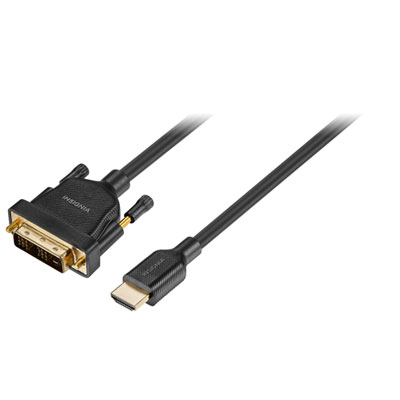 Your price for this item is $29.99
 -
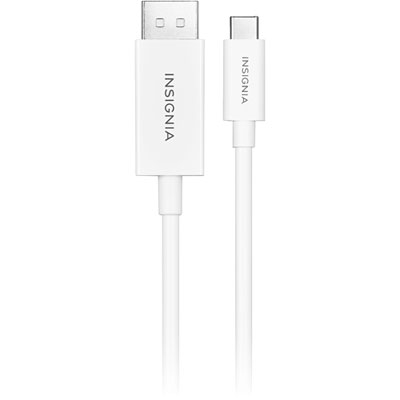 Your price for this item is $24.97
Discover more categories related to Thunderbolt To HDMI Cables

Top Collections:
Pokemon Centers, Kindle Devices, Best Budget Office Chairs, Apple iPhones 16, Best Laptops for Writers, iPhone 15 Apple, Canon G7X Cameras, Refurbished Apple Laptops, Alarm Clock, Motorola Razr Phones
Some products may be subject to Environmental Handling Fees
(EHF) depending on your province.
Learn more about EHFs.