USB Wireless Access Points
USB Wireless Access Points make it easy to expand and enhance your network connectivity without the need for complex installations. Ideal for both home and office environments, these devices offer a convenient solution for boosting wireless coverage and connecting multiple devices. Explore a variety of USB Wireless Access Points designed to help you enjoy reliable network access wherever you need it most.
Sort


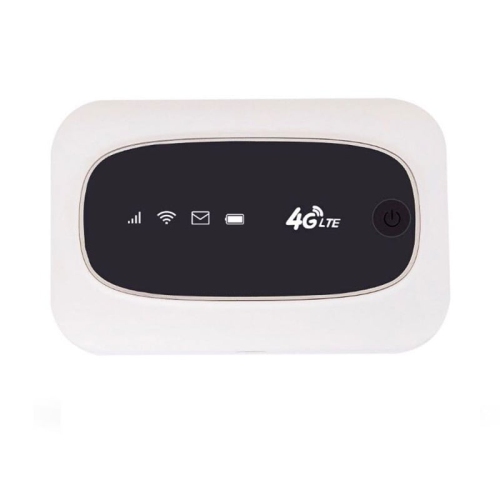
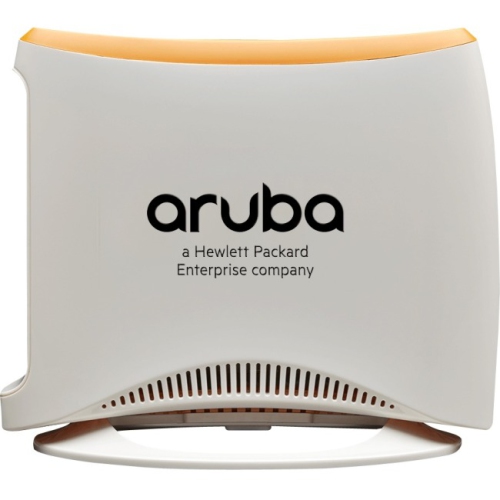
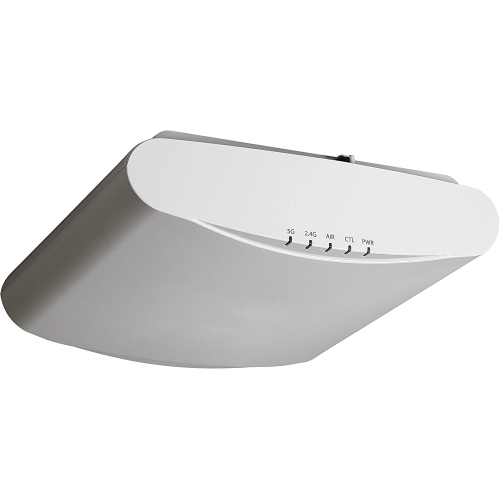
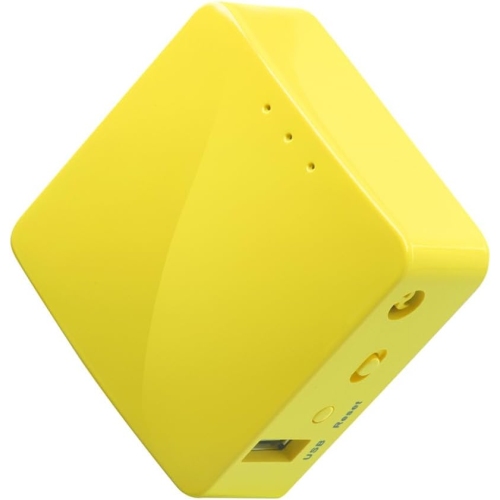

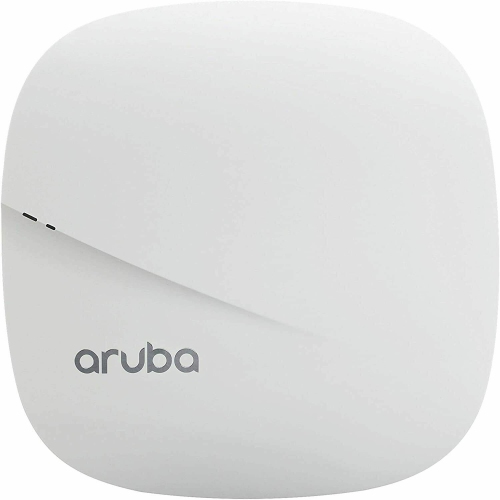
Why USB Wi-Fi adapters differ from access points
USB wireless access points and USB Wi-Fi adapters serve related but different purposes. A USB Wi-Fi adapter, also called a wireless network adapter or Wi-Fi dongle, plugs into a computer’s USB port so it can connect to an existing wireless network. It can add Wi-Fi to a desktop without built-in wireless connectivity or provide an alternative when a laptop’s internal wireless hardware no longer meets its needs. A true wireless access point creates a wireless connection to a network for other devices. Some access points use USB for power, but that does not necessarily mean the USB connection carries network data. Similarly, a USB adapter does not automatically function as an access point: sharing a connection requires suitable hardware, drivers and operating system support. For everyday computer use, USB Wi-Fi adapters offer a straightforward way to bring a desktop onto a home network without opening its case or running a cable across the room. They can also suit a student’s laptop, a shared family computer or a workstation moved away from an Ethernet outlet. Physical design makes a practical difference. A nano adapter sits close to the computer’s casing, taking up little space beside a mouse receiver or charging cable. That compact shape is convenient for a laptop that moves between a desk and a study space. Larger adapters may have adjustable external antennas or a separate desktop base, allowing more flexibility in positioning. On a tower tucked beneath a desk, an extension cable or base can move the adapter out from behind the metal case and into a clearer position. External antennas can help reception, but their presence alone does not guarantee a stronger connection through every wall. Connector fit matters too: check whether the computer has USB-A or USB-C ports, whether neighbouring ports remain accessible, and whether a projecting antenna would interfere with the way the computer is carried or stored.
Wireless performance depends on the adapter, the router, the USB connection and the layout of the space. Dual-band adapters can connect on the 2.4 GHz or 5 GHz band when supported by the router. The 2.4 GHz band generally offers greater reach, while 5 GHz often provides more capacity at shorter distances and may be less crowded. Neither band is always the better choice: a computer close to the router has different needs from one separated by several walls. Wi-Fi 5 and Wi-Fi 6 adapters also have different capabilities, with Wi-Fi 6 offering features that can improve network efficiency when paired with compatible equipment. Wi-Fi 6 does not, by itself, mean that an adapter supports the 6 GHz band. Performance labels such as AC1300 and AX1800 describe wireless speed classes based on combined theoretical rates across bands; they are not a promise that one computer will receive those totals as an internet download speed. An adapter normally connects to one band at a time, and actual throughput is lower than its wireless link rate. Internet service speed, router capabilities, signal strength and other network traffic all affect the result. For video calls and shared documents, a steady connection may matter more than the highest advertised speed. Large file transfers and high-resolution streaming can make greater use of a faster adapter, while online gaming also depends heavily on latency and interference. A wired connection remains worth considering when consistent latency is the priority. The USB interface can become another limit: a USB 3.0 adapter connected to a suitable USB 3.0 port has more bandwidth available than a USB 2.0 connection. Faster USB capability does not compensate for a weak wireless signal, though. Positioning still matters, and a short, suitable extension cable can sometimes help separate an adapter from obstructions or nearby sources of interference. A higher speed rating cannot increase the speed supplied by the internet plan.
Compatibility deserves as much attention as wireless speed. Support can vary by operating system version, processor architecture and driver release, so a familiar USB connector is not proof that an adapter will work with every computer. Some adapters install automatically on supported systems, while others require a driver download before they can connect. For a desktop with no working network connection, having the correct installation files ready on another device can prevent an awkward setup delay. Computers managed by an employer or school may also restrict driver installation or connection sharing. Security features need compatible support throughout the connection: WPA3 capability, for example, depends on more than the adapter alone, including the router, operating system and driver. Keeping supported software updated and obtaining drivers from the hardware maker’s official source helps maintain reliable operation. For hardware that specifically supports access point or hotspot functions, check the supported sharing mode and its limitations rather than assuming every wireless adapter can broadcast a network. A computer-based hotspot also depends on that computer remaining powered and connected, making it different from a dedicated access point. For offices, shops and shared workspaces that need wireless coverage for multiple users, Commercial Wireless Access Points provide a separate category to consider, with features that may include wired network connections, centralized management and guest access controls. For personal USB networking hardware, durability is often about protecting the connector and antenna joints. Lightweight plastic housings are practical for everyday handling, but a long adapter can place leverage on a laptop’s USB port if it catches against a bag or desk edge. Removing larger adapters before transport and storing them in a protective compartment helps prevent bent connectors. Adjustable antennas should move only within their intended range, and vents should remain unobstructed. Disconnecting the adapter before wiping its exterior with a soft, dry cloth keeps routine care simple. Matching the connection type, software support and physical design to the computer’s daily use matters more than choosing by speed rating alone.
Top selling and popular products
-
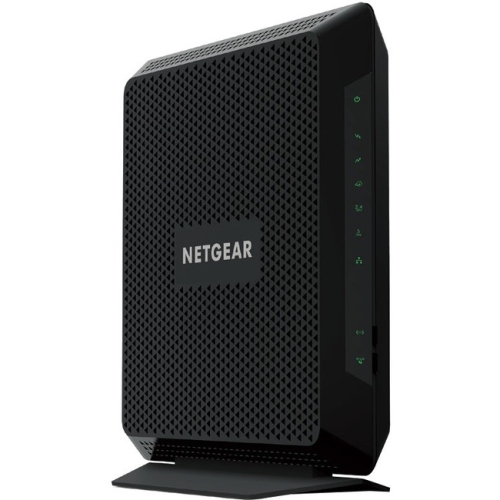 Your price for this item is $189.99
-
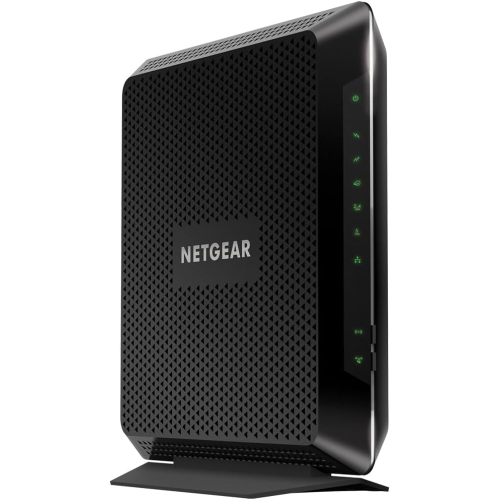 Your price for this item is $189.99
-
 Your price for this item is $219
-
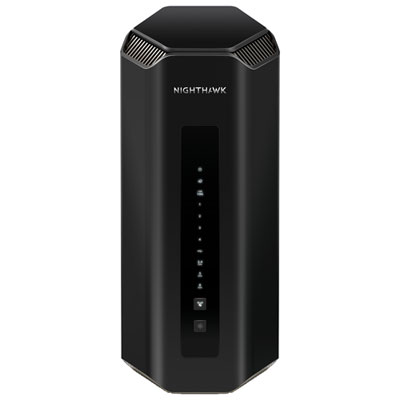 Your price for this item is $899.99
-
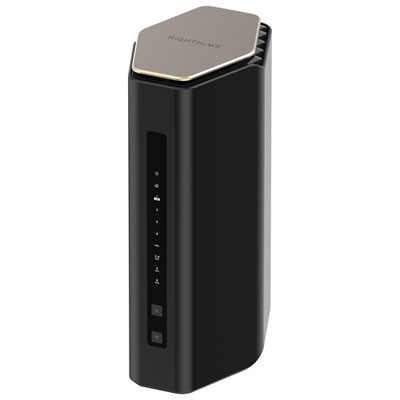 Your price for this item is $299.99
-
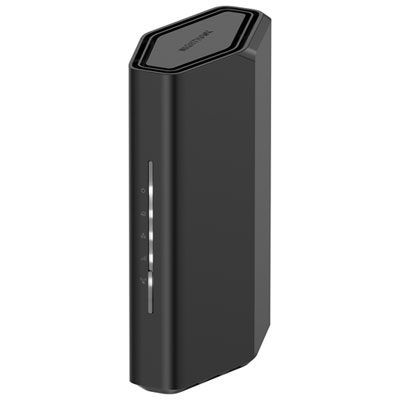 Your price for this item is $139.99
-
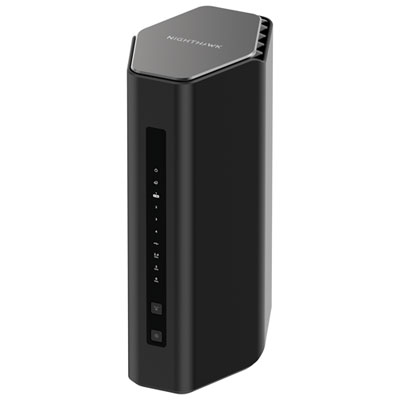 Your price for this item is $499.99
-
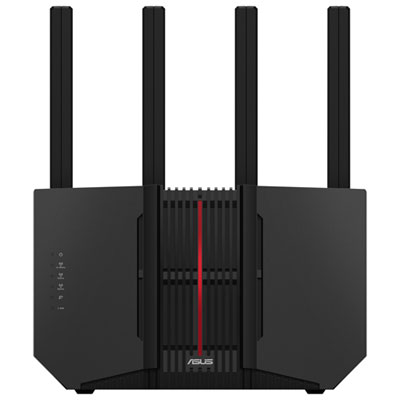 Your price for this item is $349.99
Discover more categories related to USB Wireless Access Points
Top Collections:
Best Black Friday Deals This Year, Best Black Friday Deals On Electronics, Kindle Devices, Pokemon Centers, Best Black Friday Deals On Apple Products, Best Cameras for Sports Photography, Dyson Airwrap, Pokémon 30th Celebration Cards, Apple iPhone 17 Pro, Canon G7X Cameras
Some products may be subject to Environmental Handling Fees
(EHF) depending on your province.
Learn more about EHFs.