Webcams for Streaming
Looking to take your streaming to the next level? Look no further than our collection of webcams designed specifically for streaming. Whether you're a seasoned gamer, a budding content creator, or simply looking to connect with friends and family through video calls, our selection of webcams offers crisp image quality, smooth video performance, and advanced features to ensure you always look your best on screen.
Sort
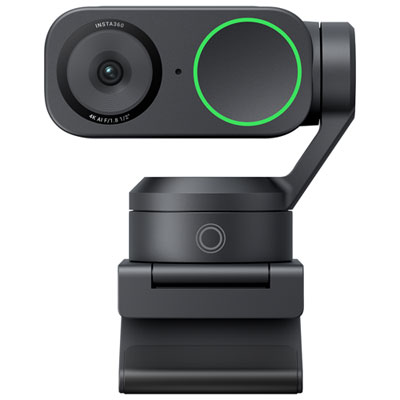
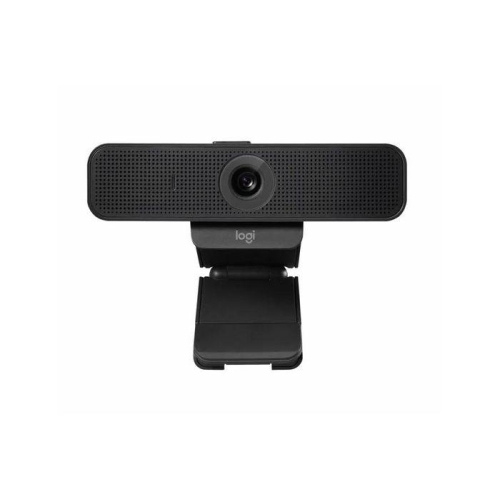
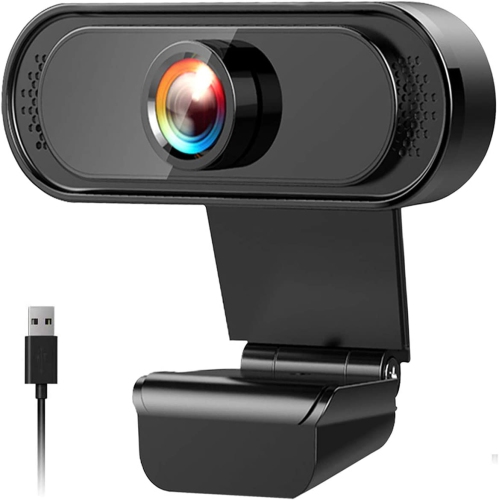
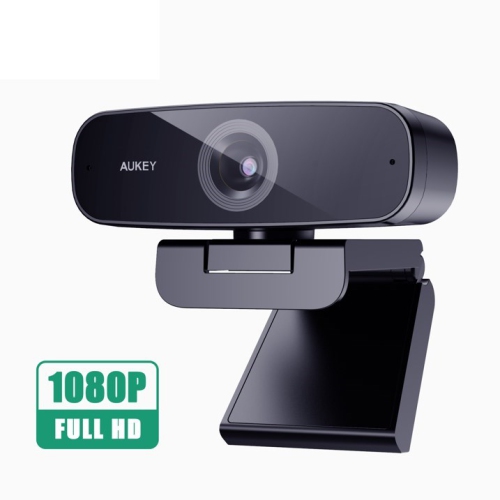
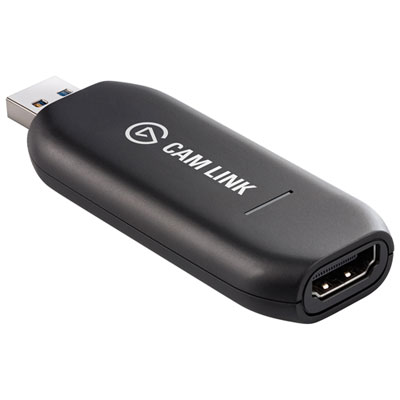
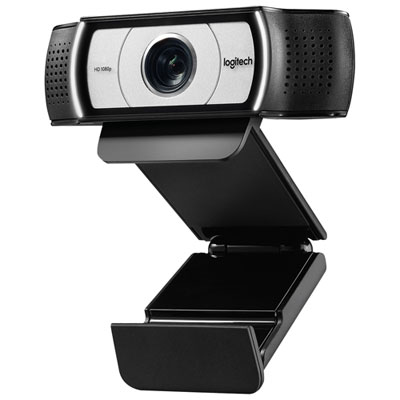

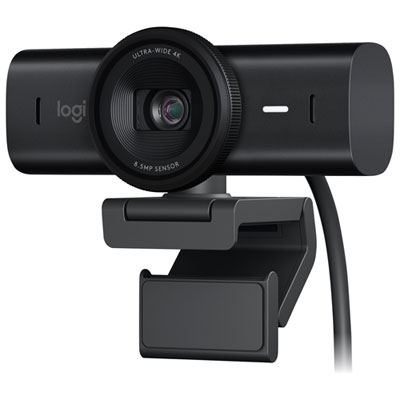
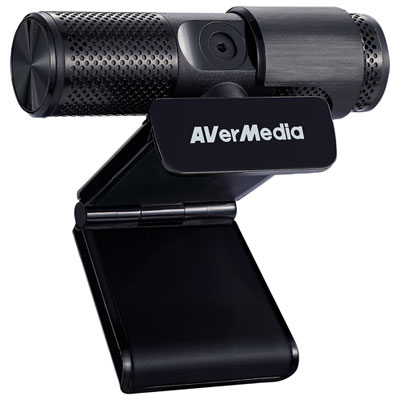
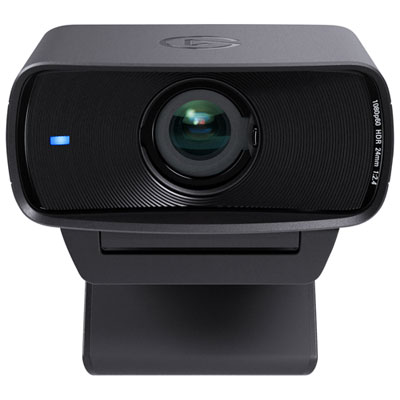
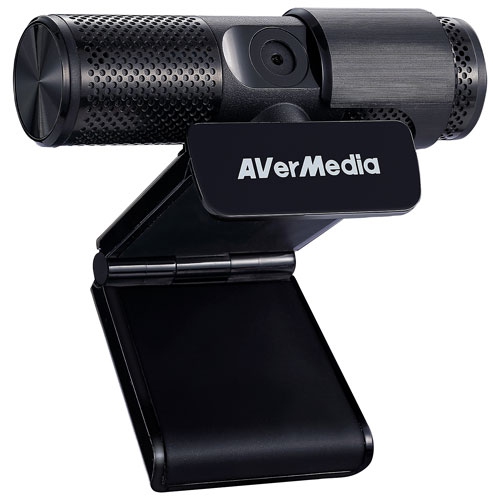
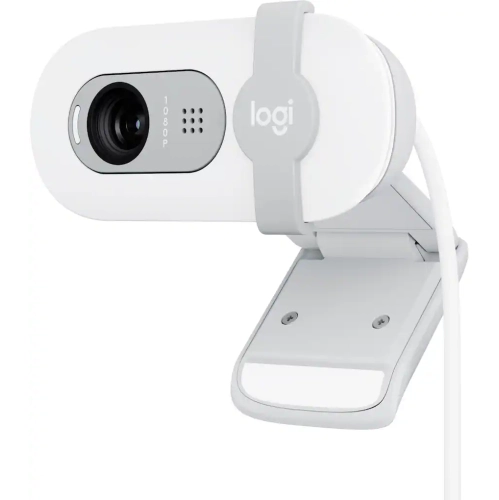
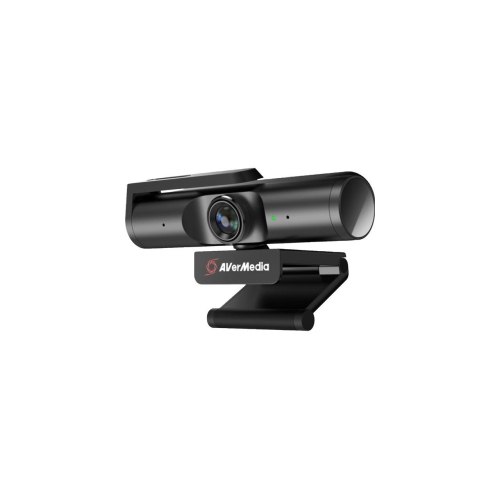
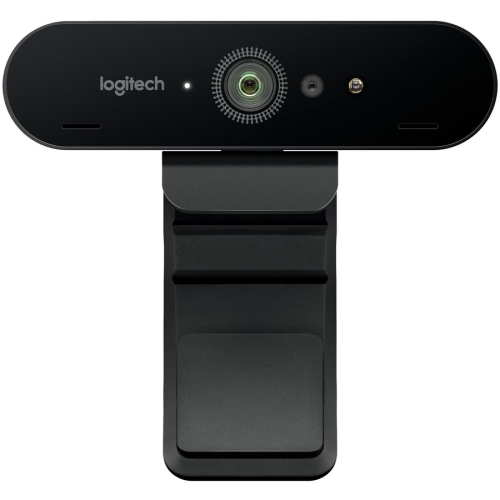
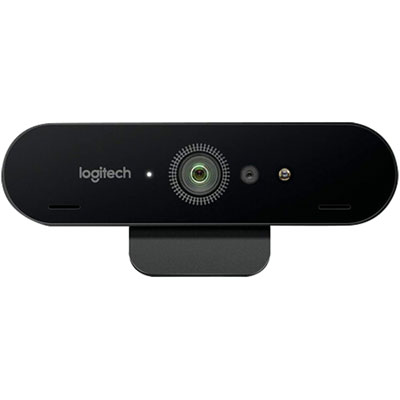
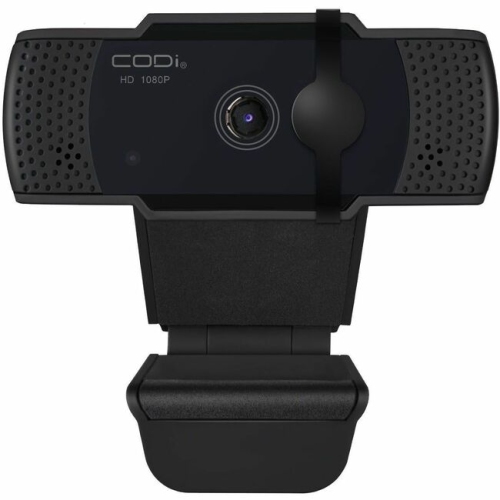
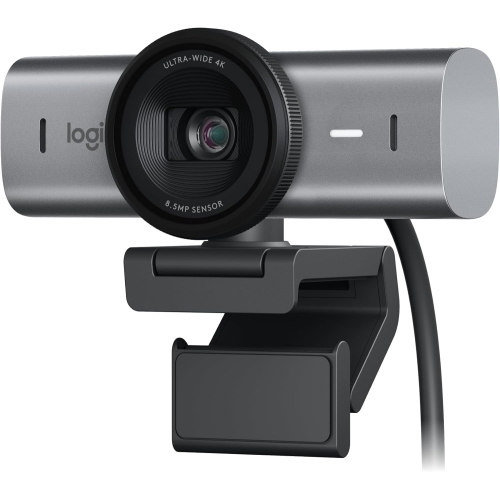
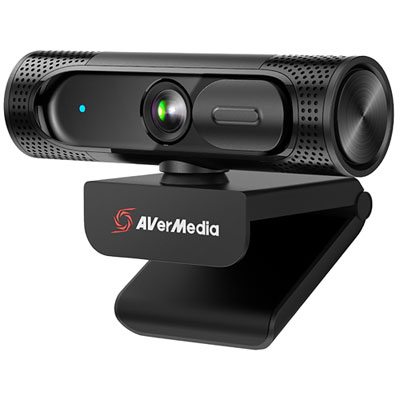
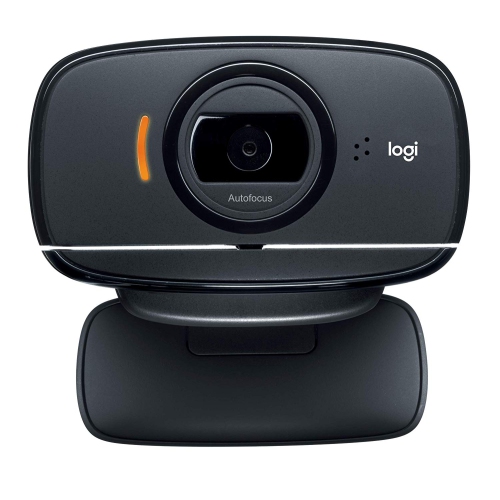
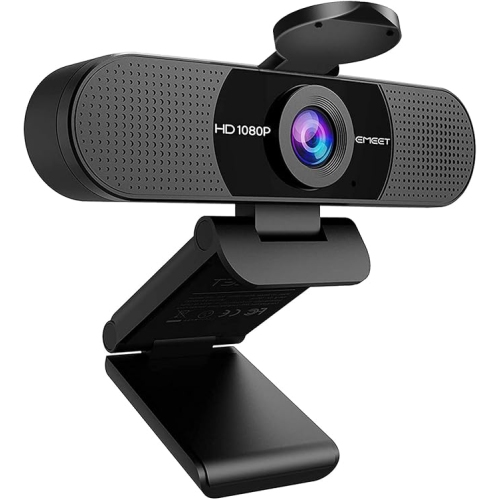
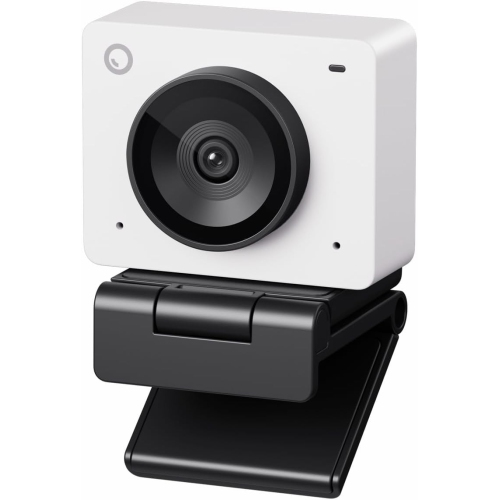
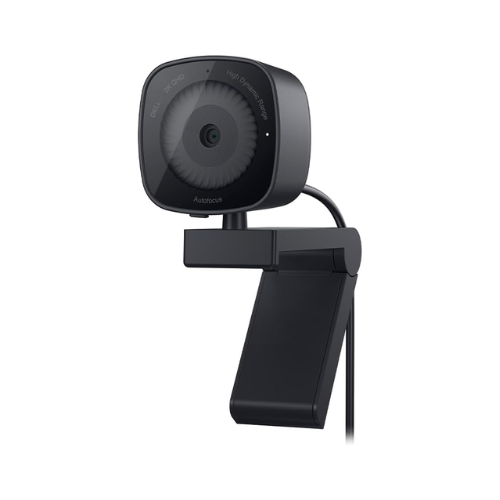
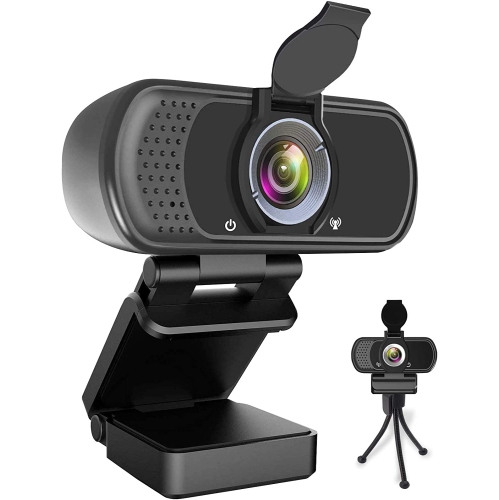
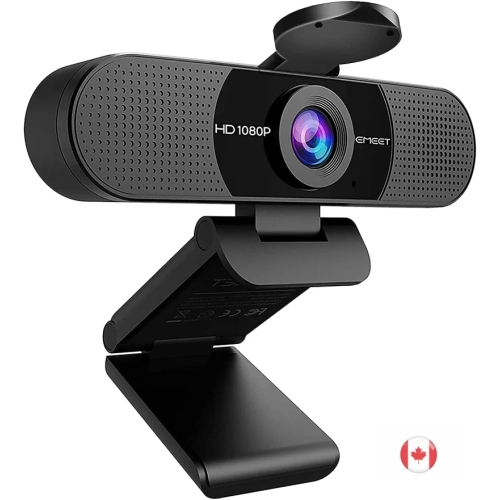
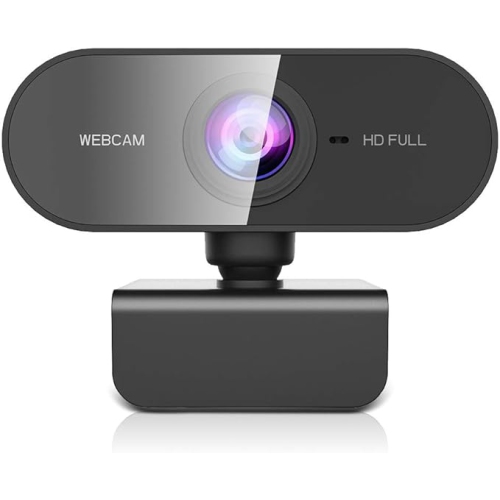



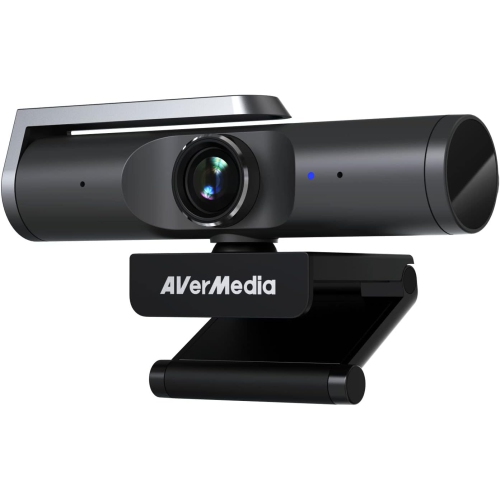
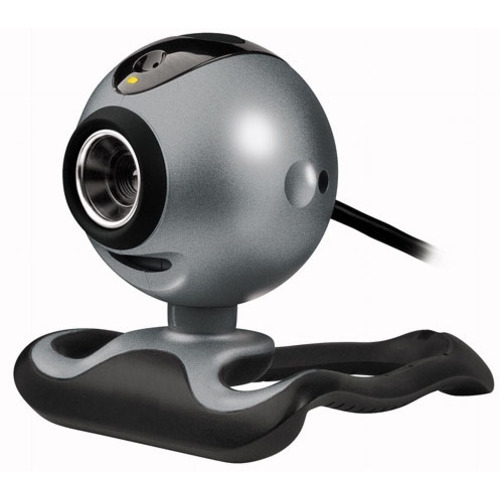
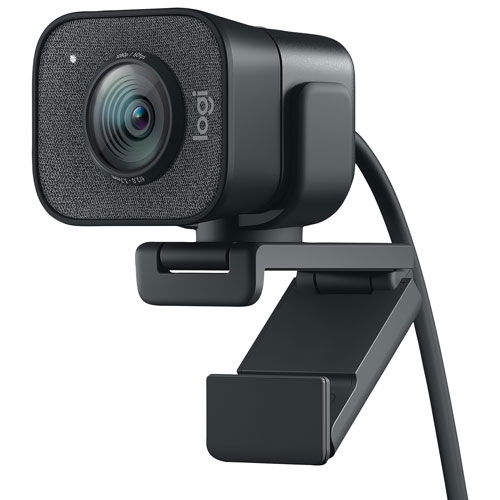
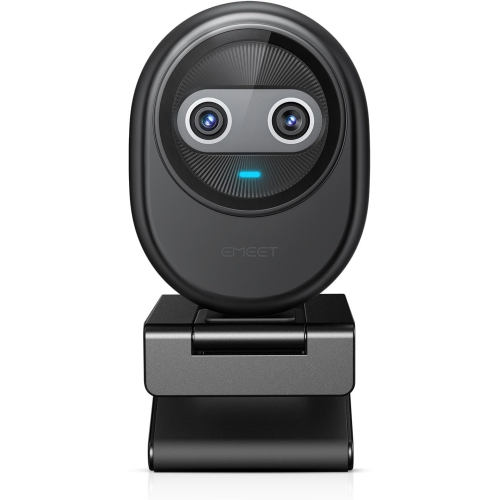

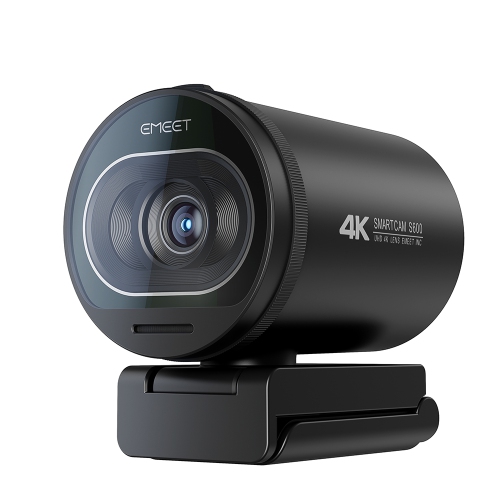
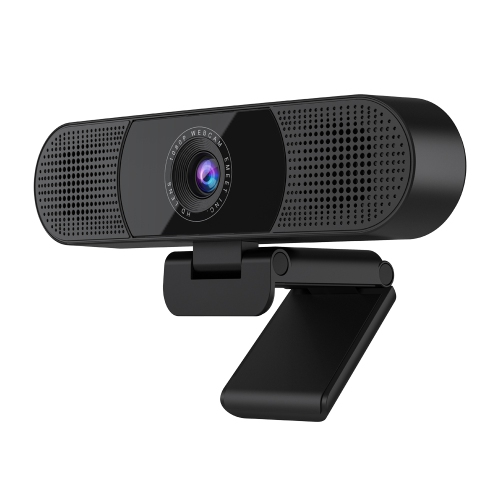
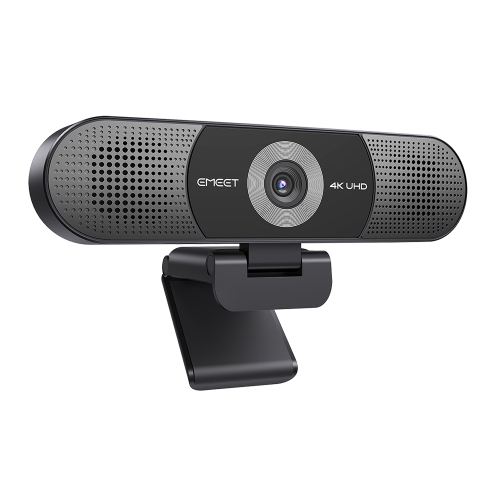
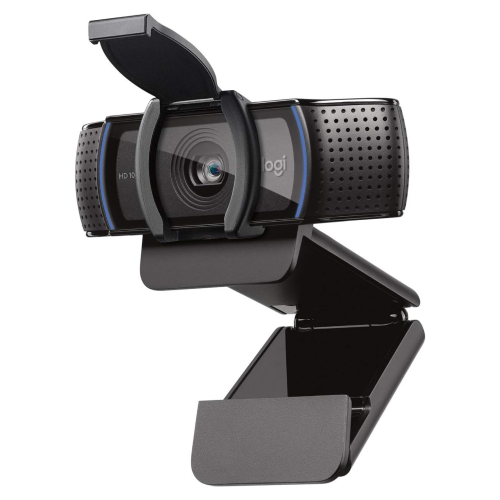

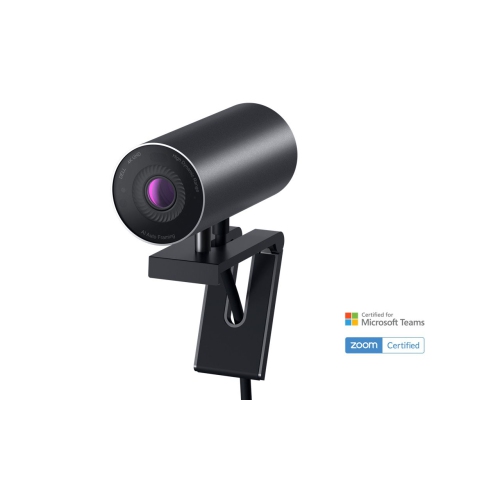
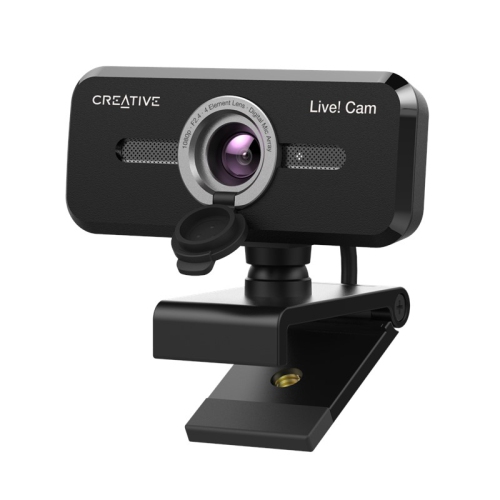
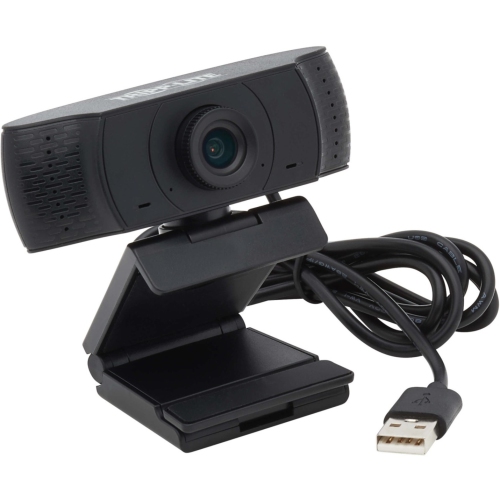
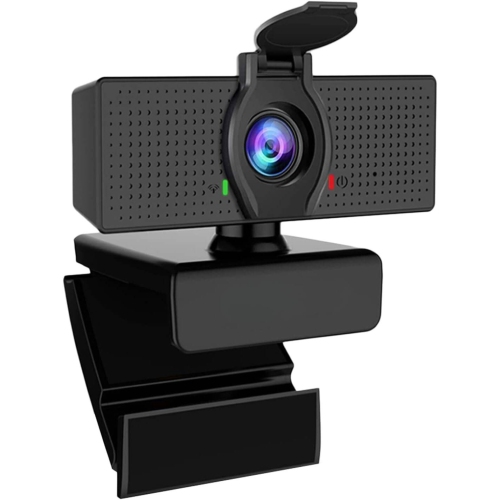
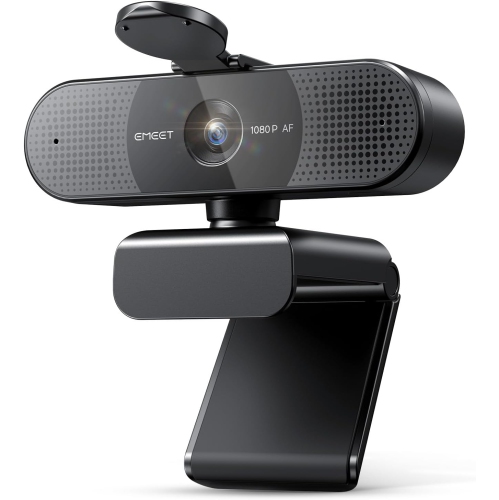
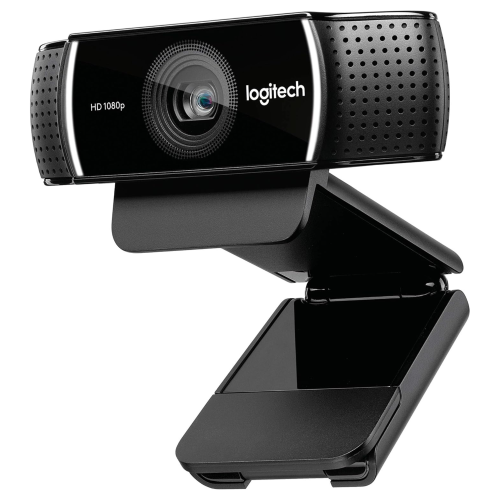

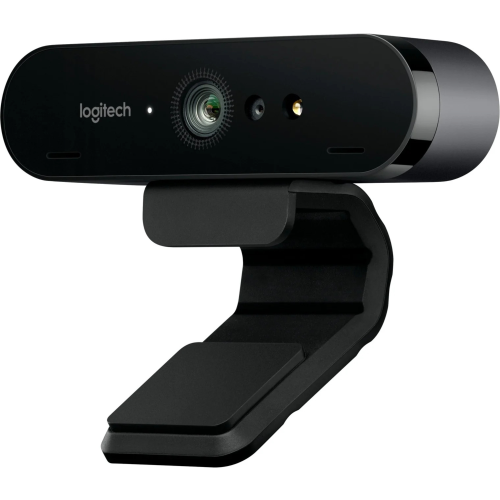
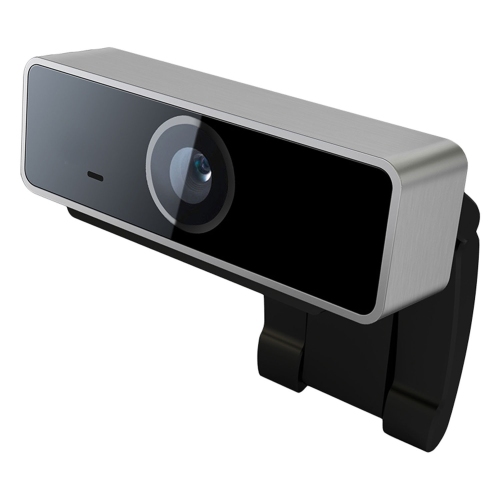
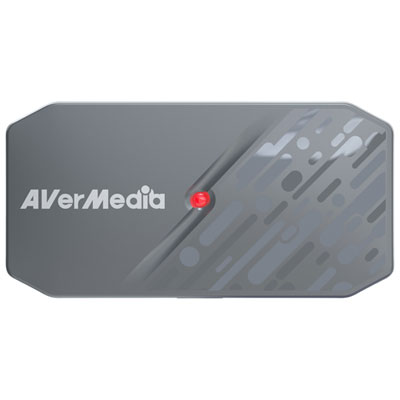
A clearer stream takes more than extra pixels
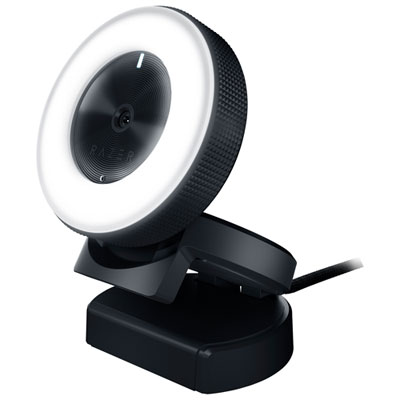
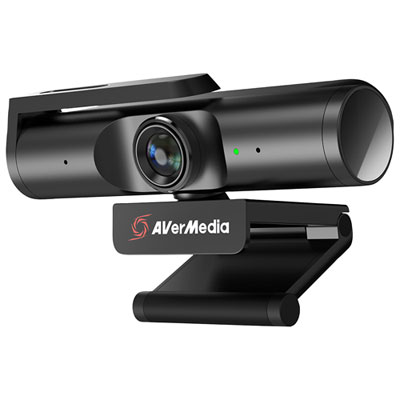
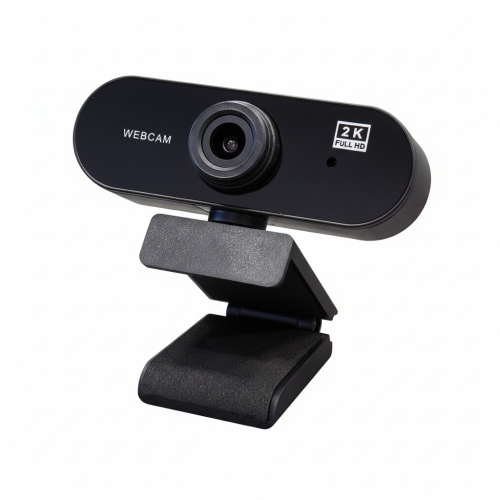
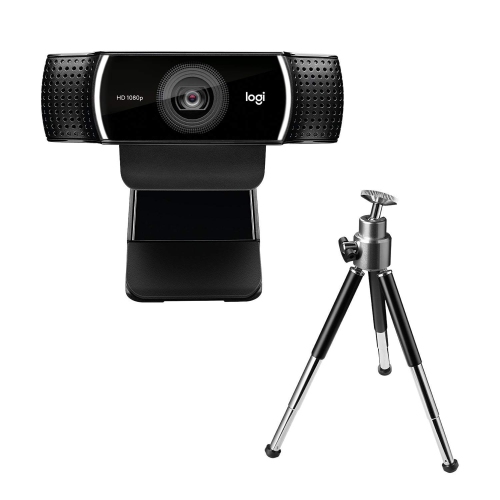
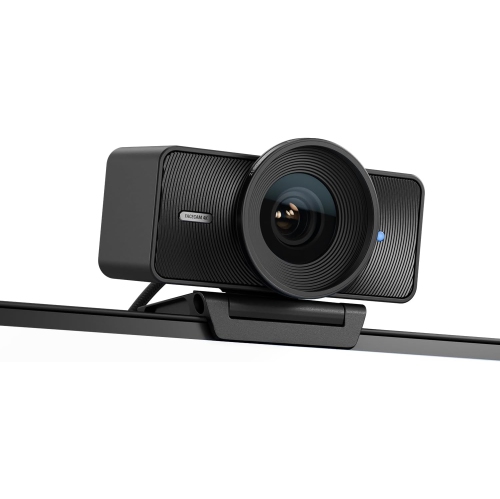
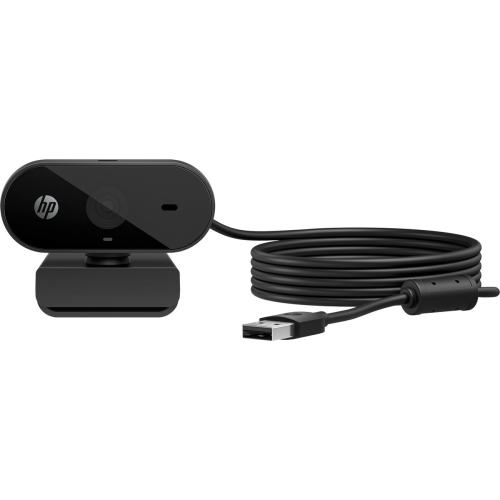
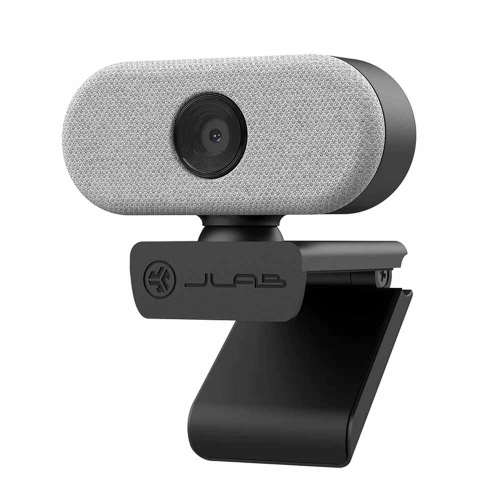
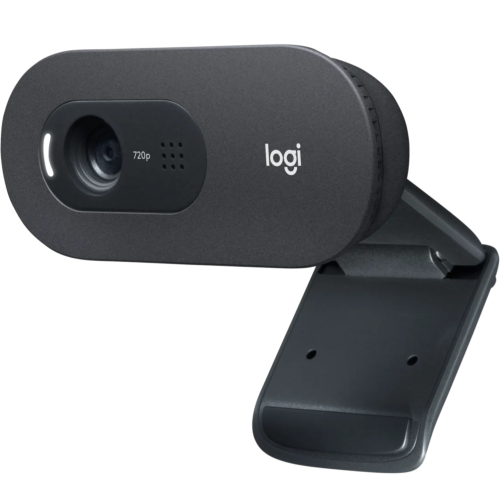
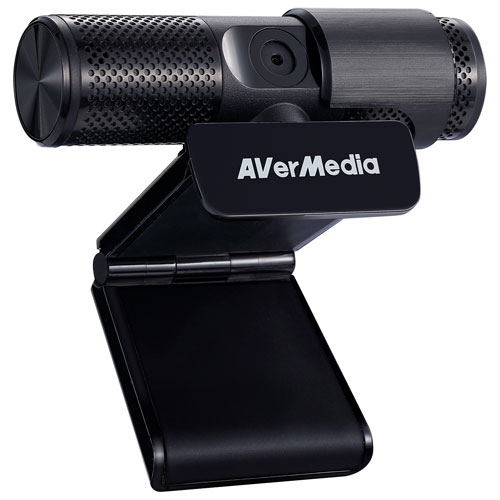
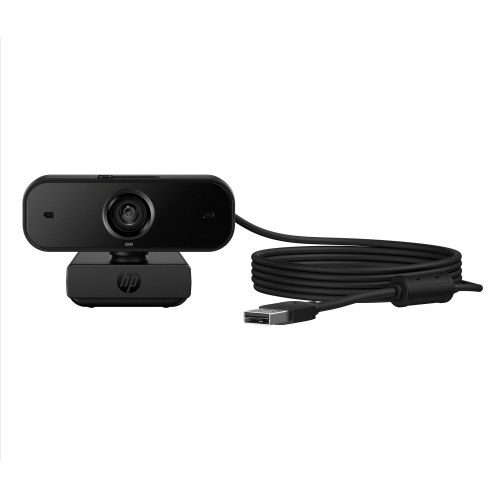
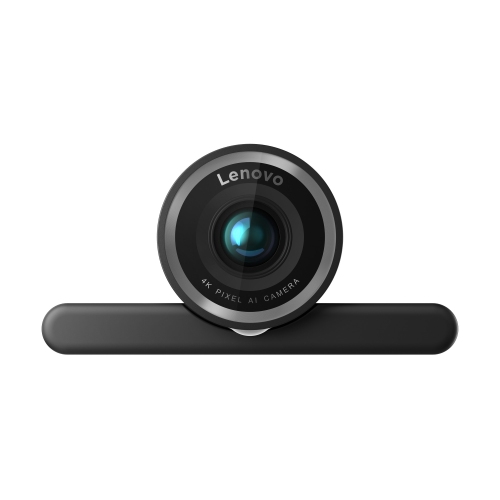
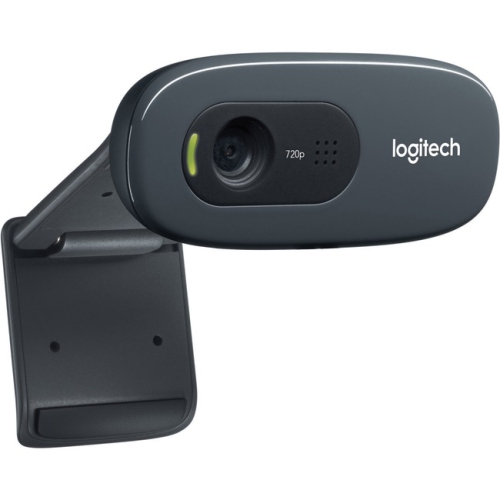
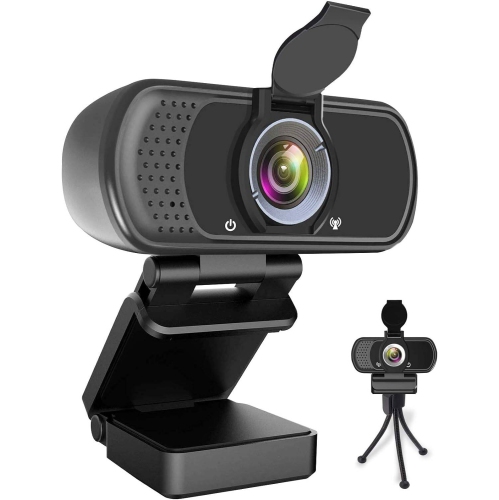
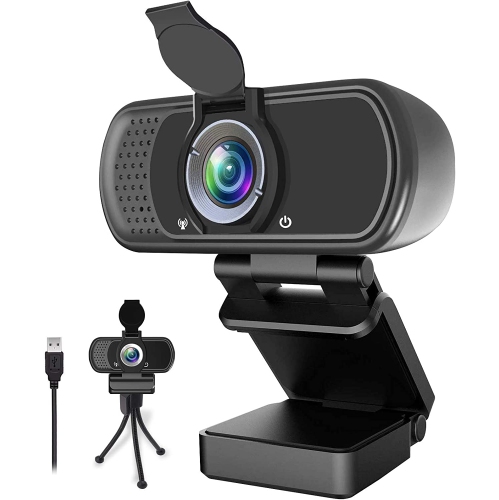
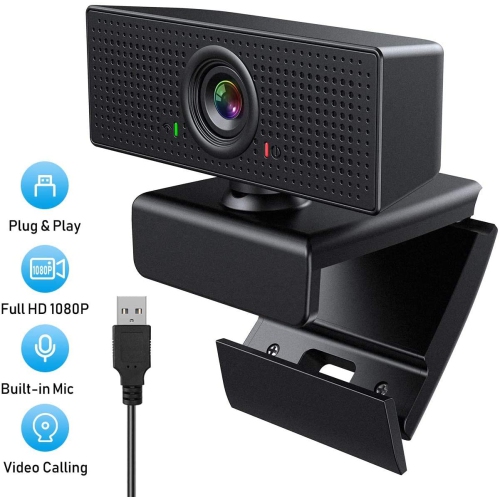
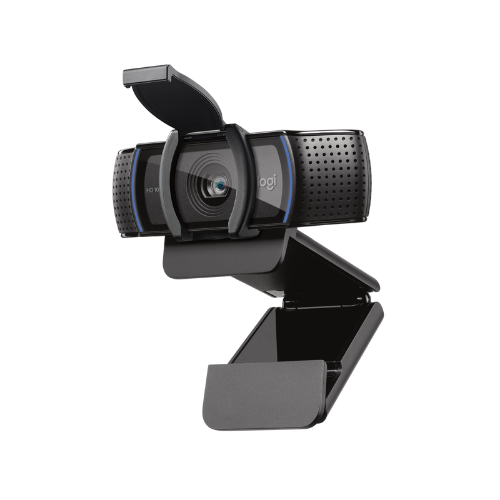
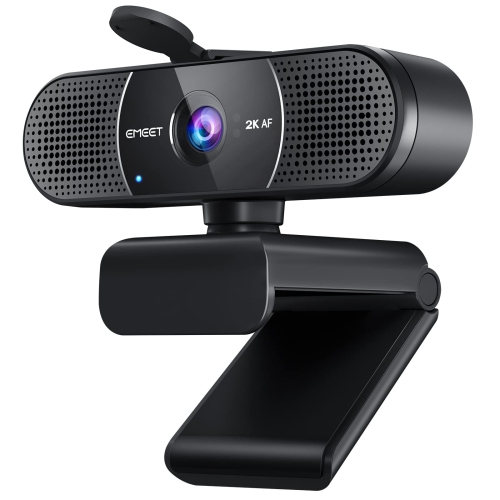
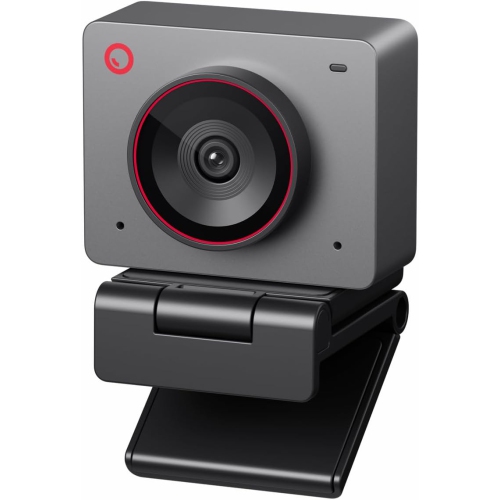
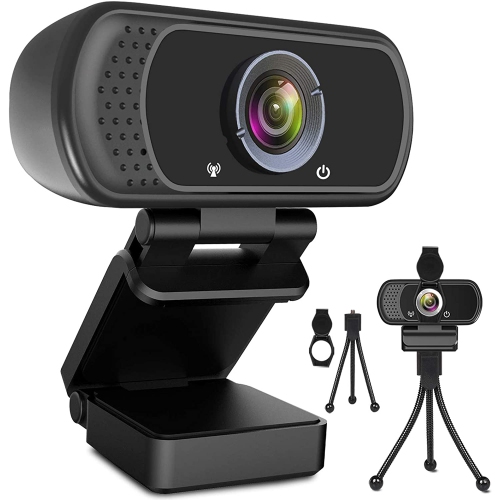
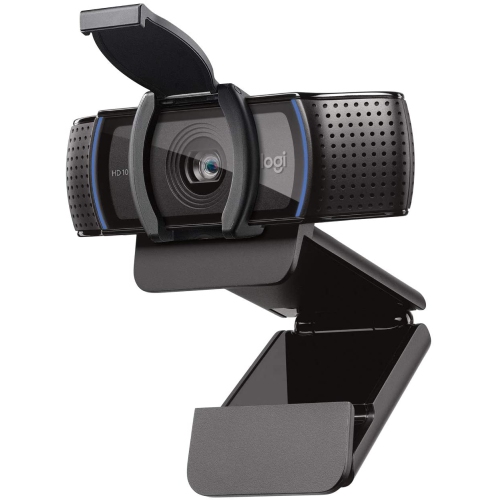
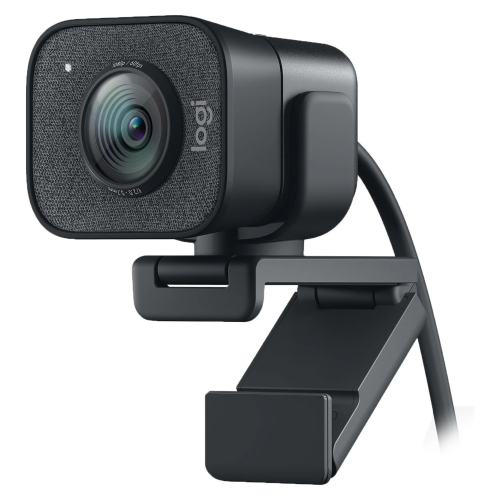
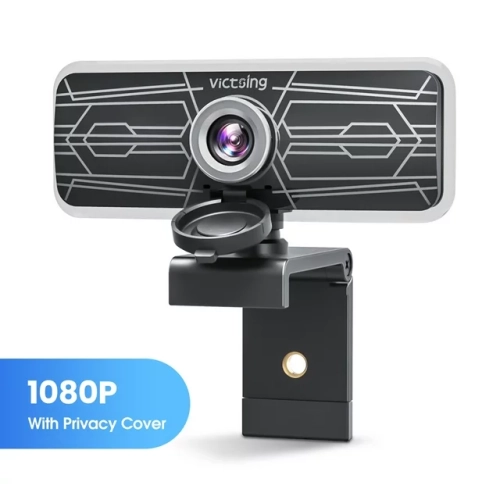
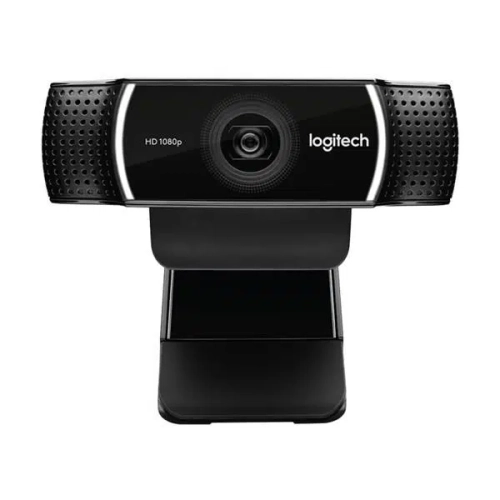
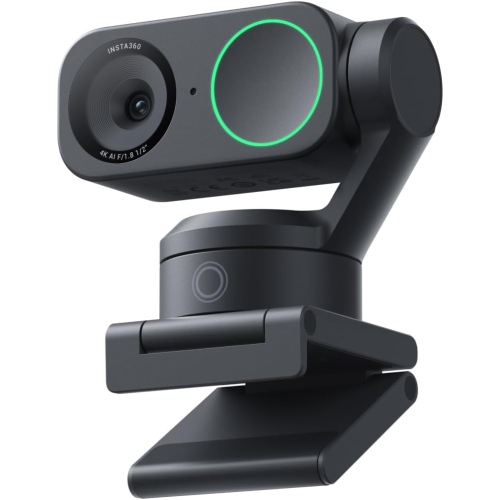
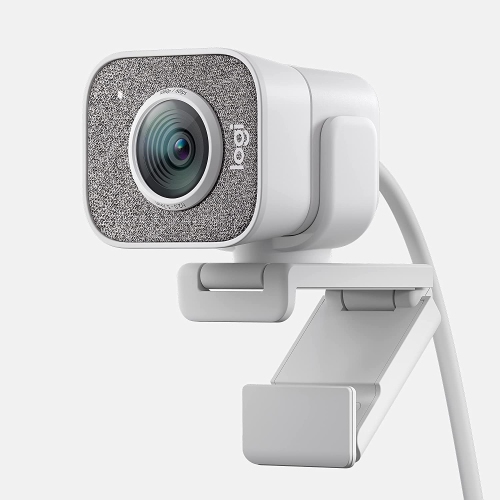
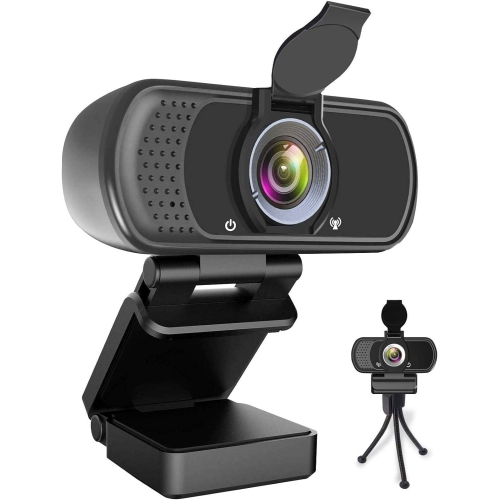
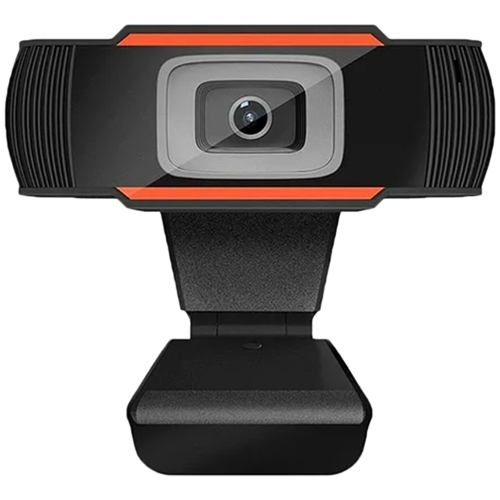
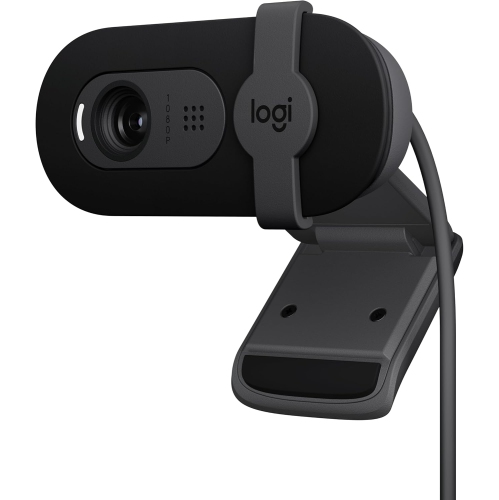
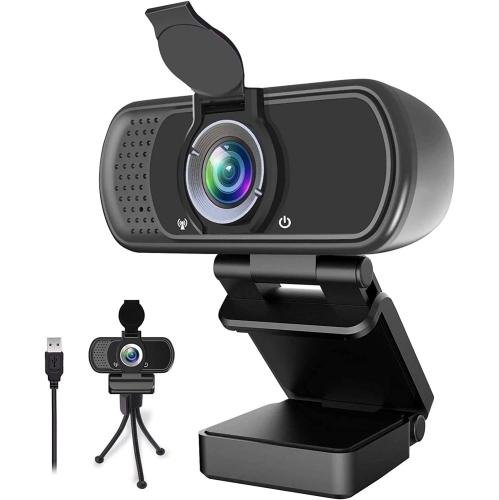
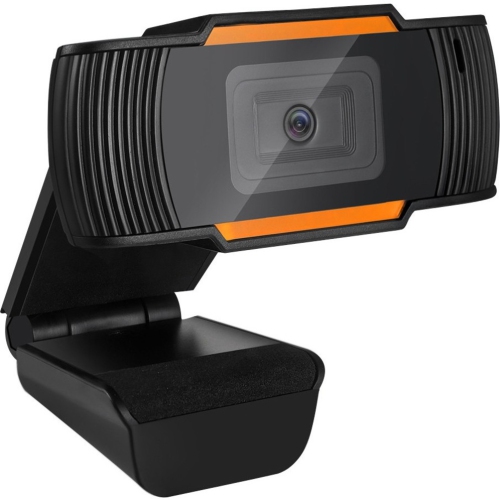
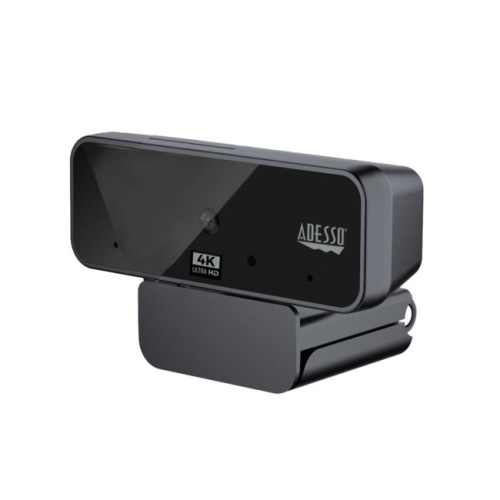
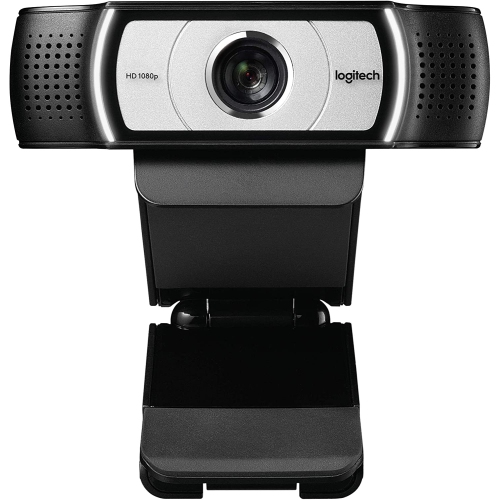
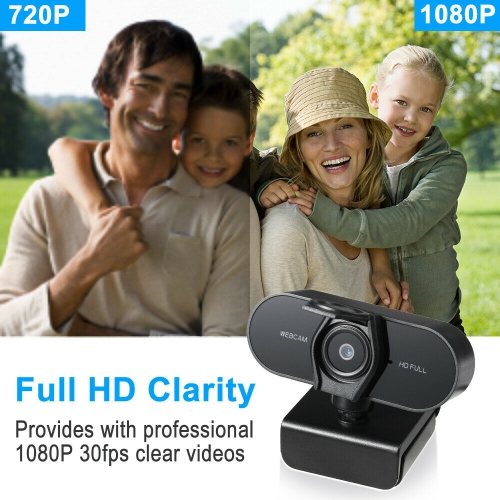
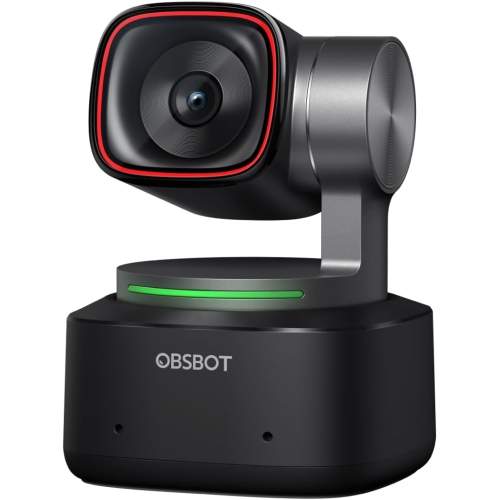
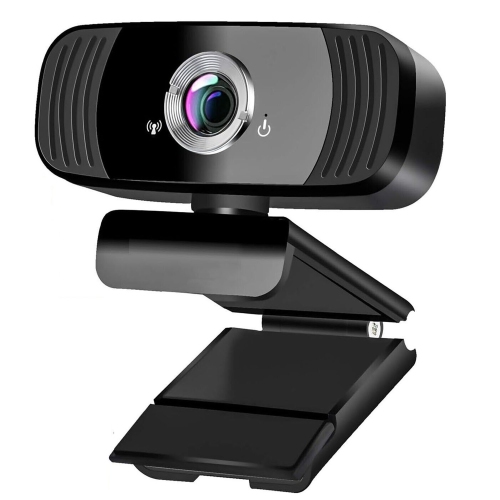
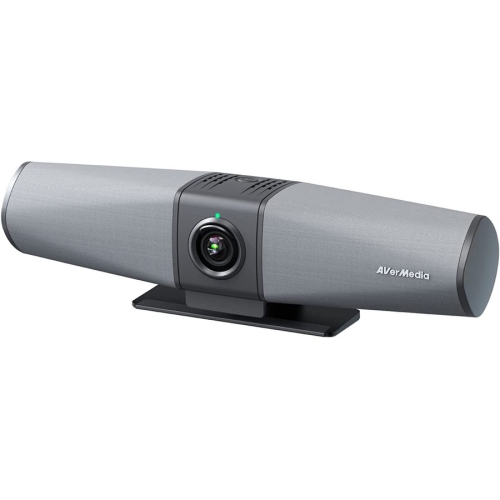
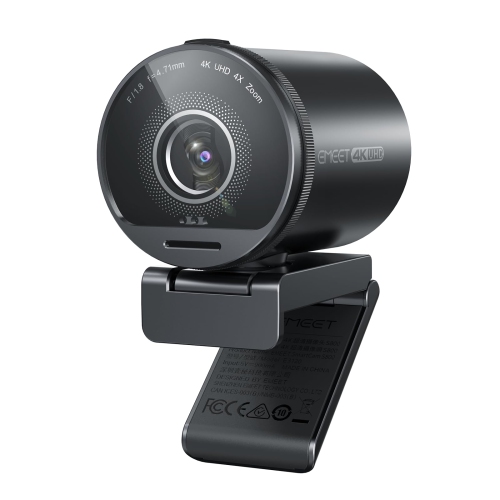
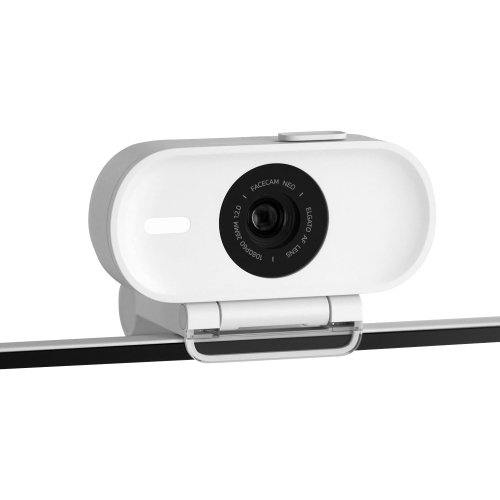
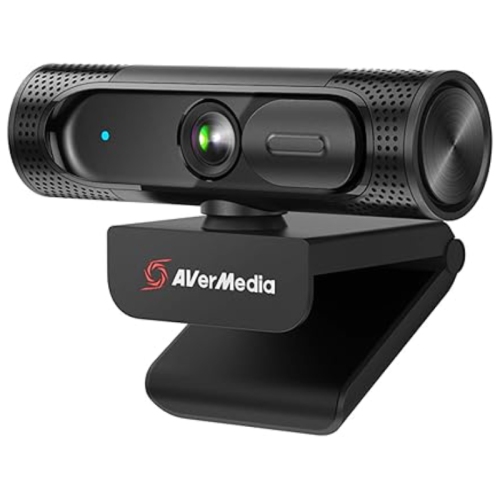
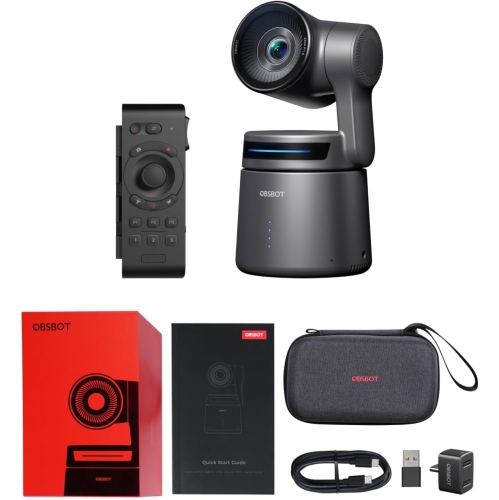
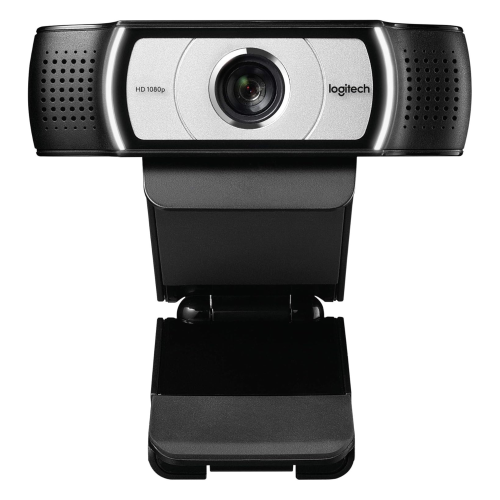
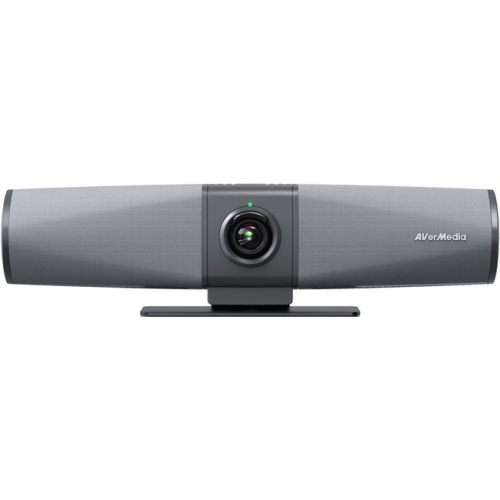
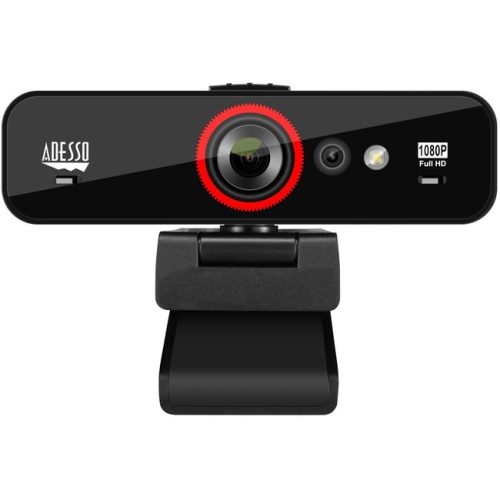
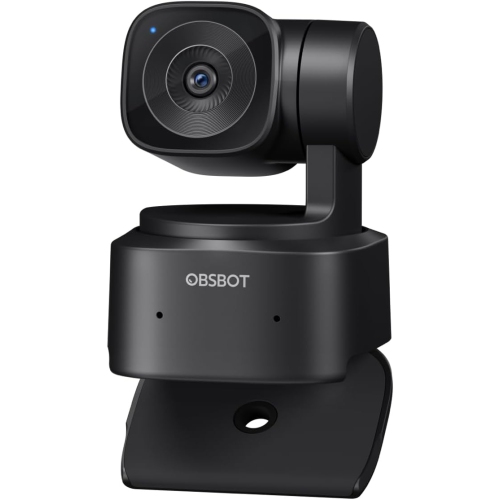
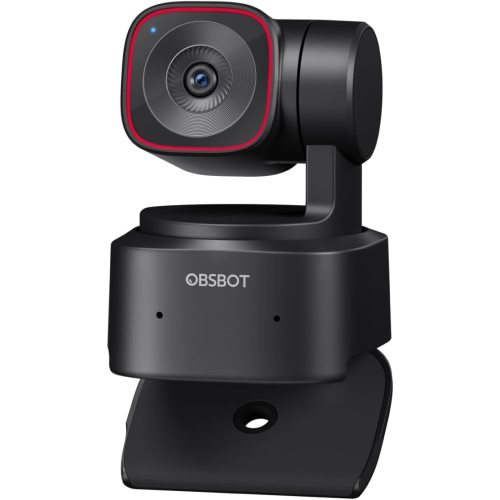
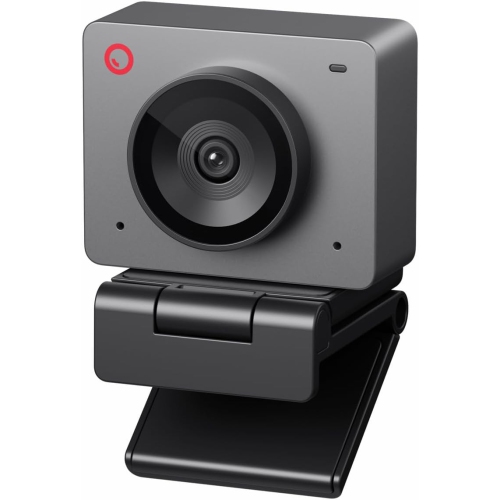
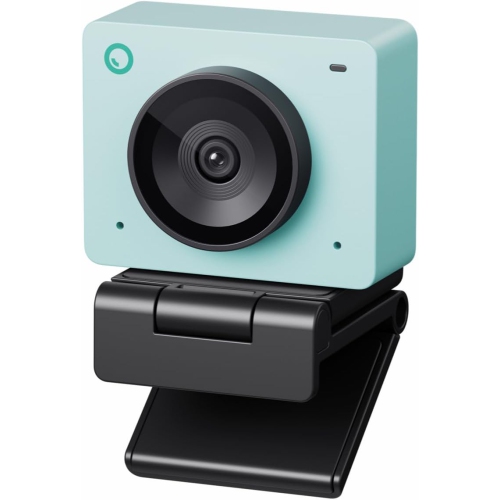
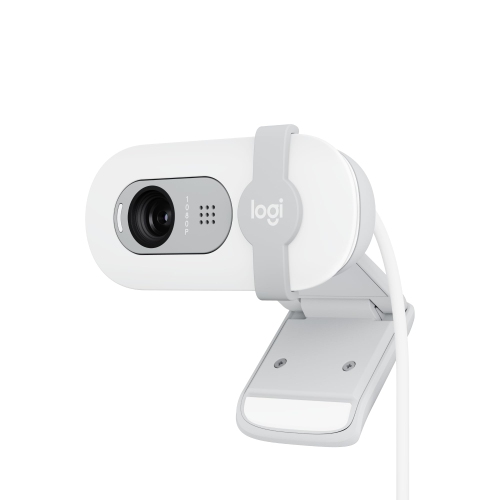
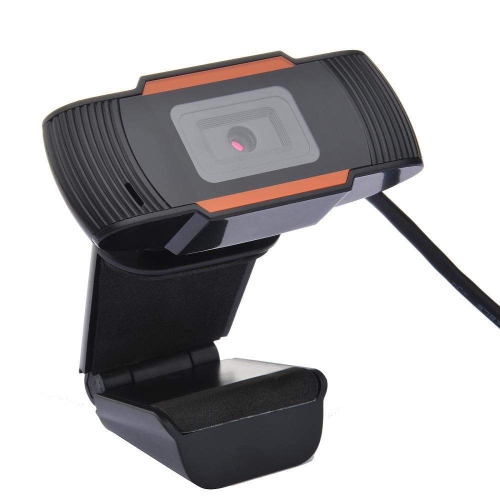
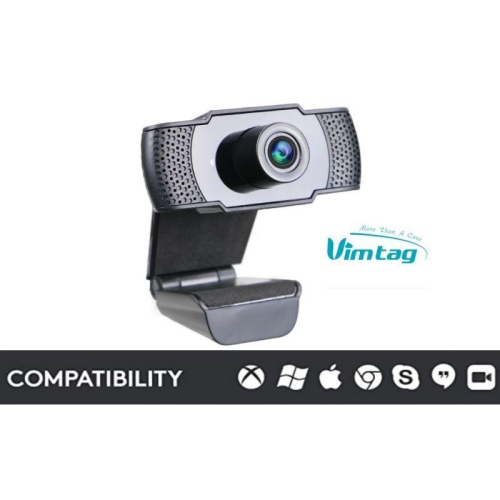
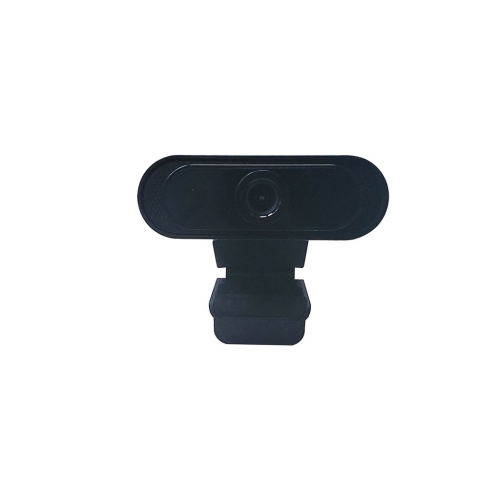
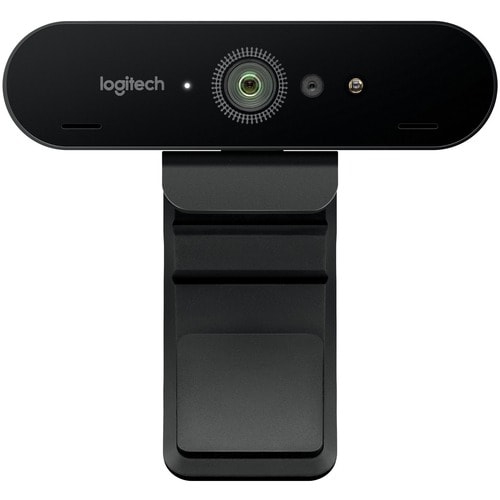
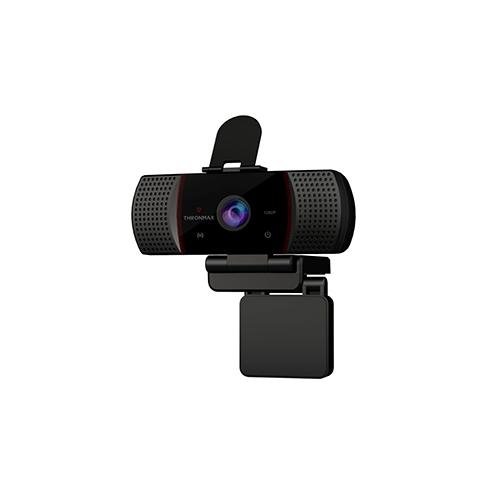
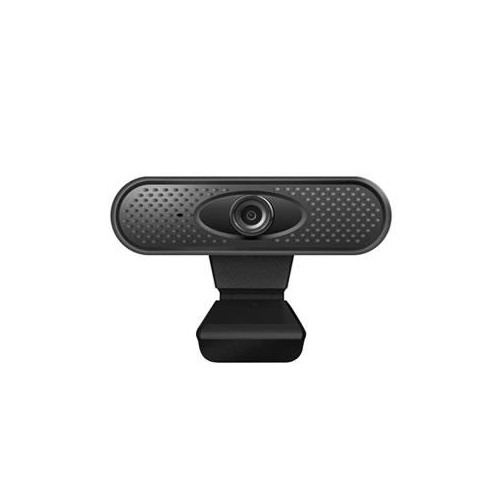
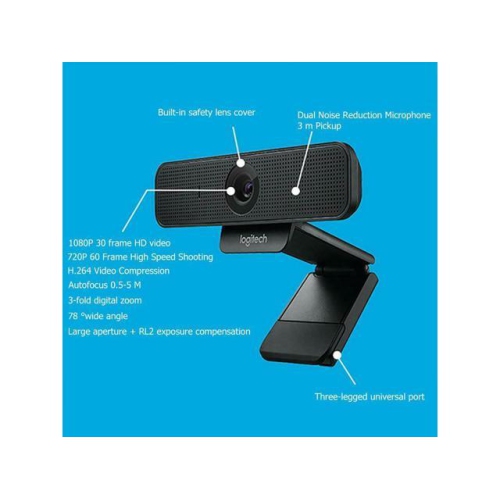
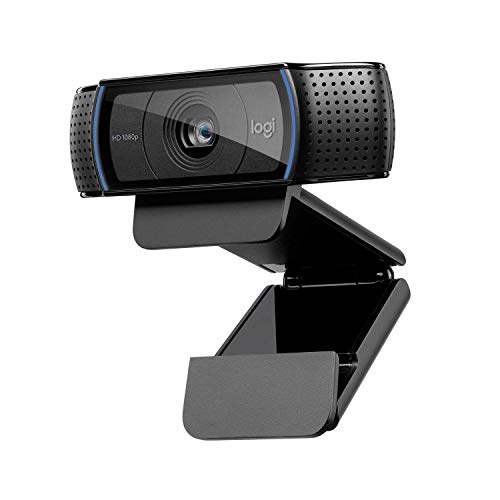
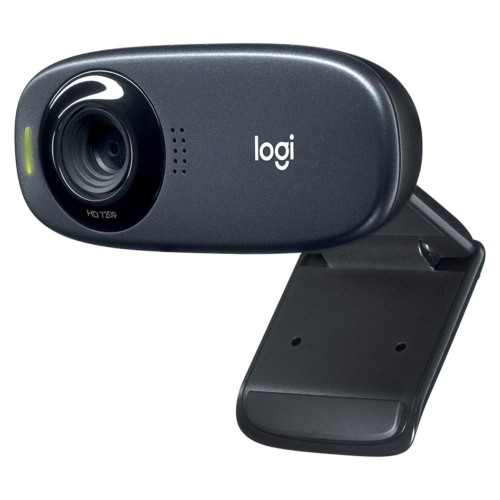
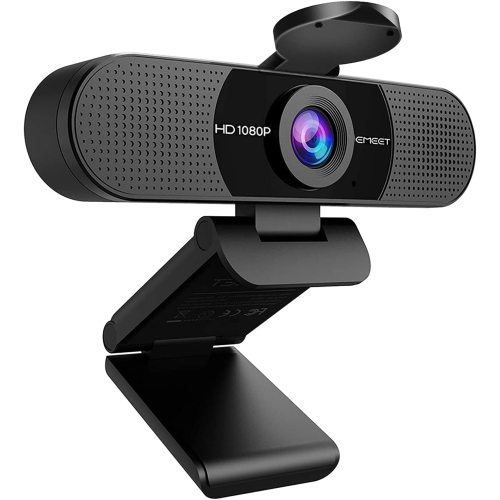
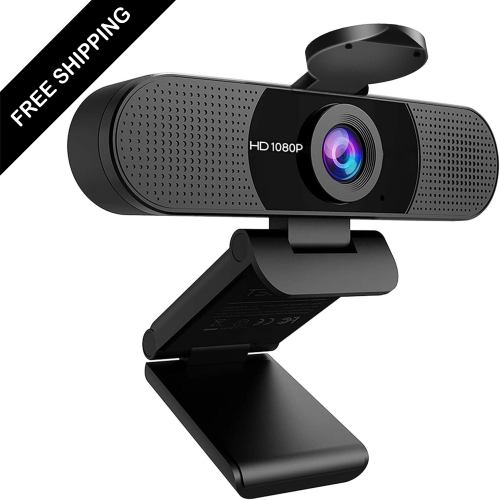
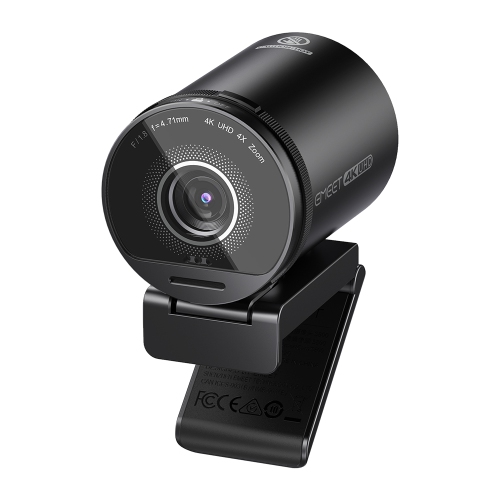
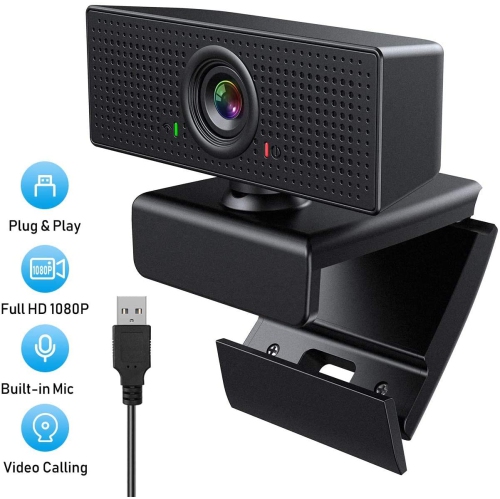
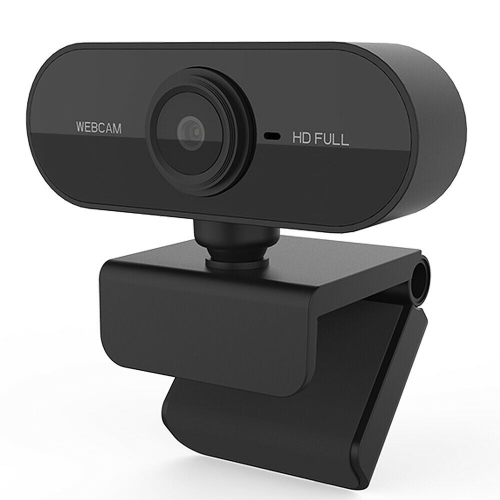
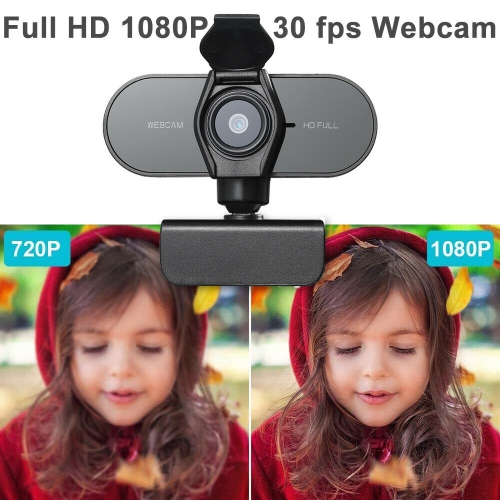
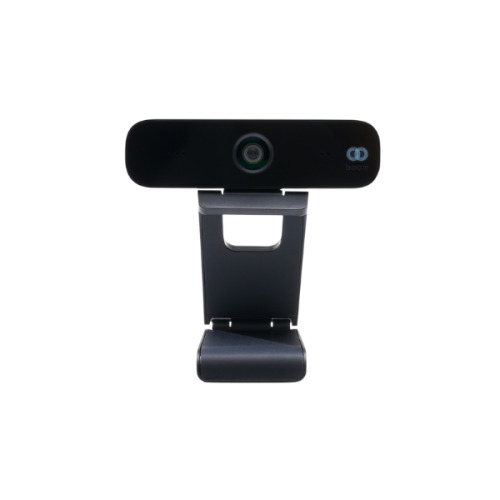
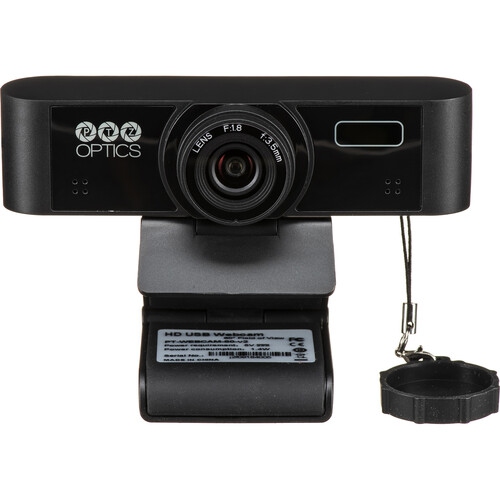
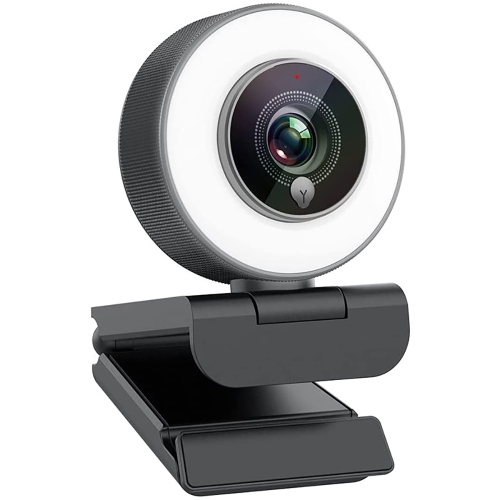
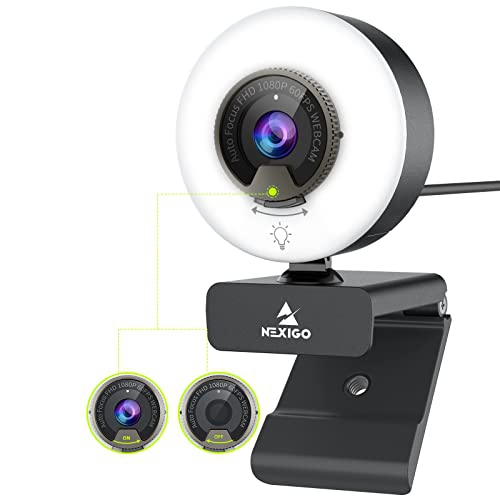
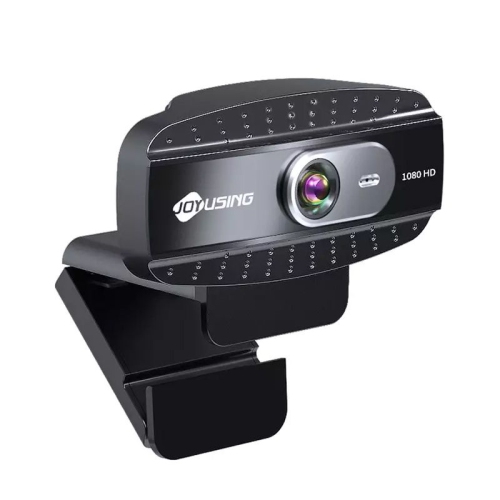
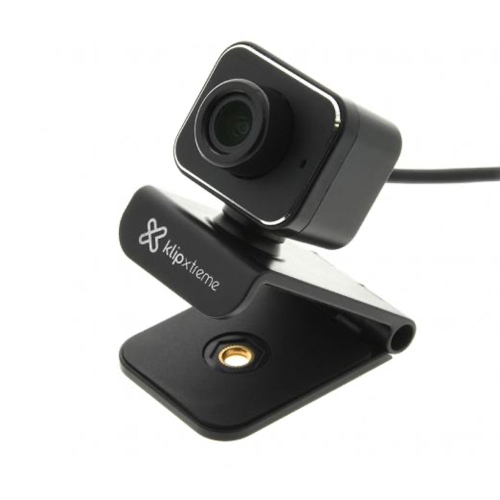
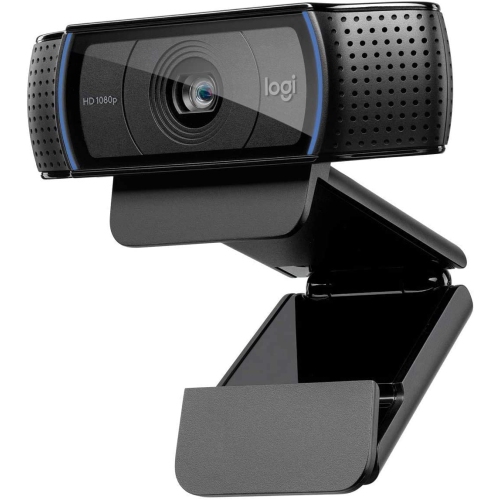
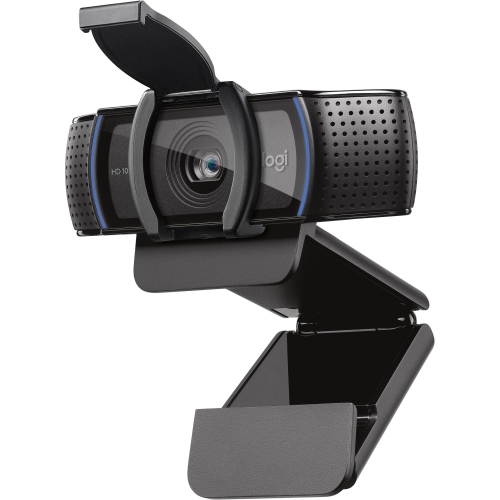
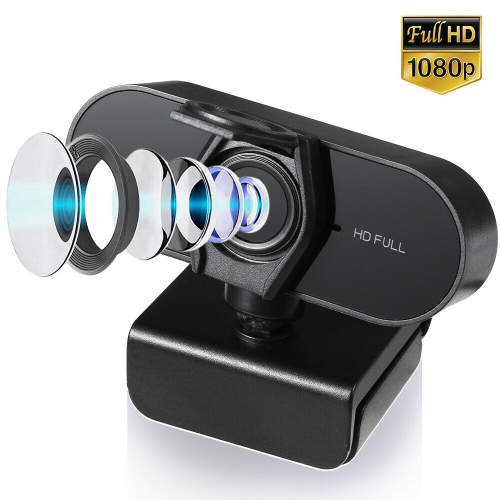
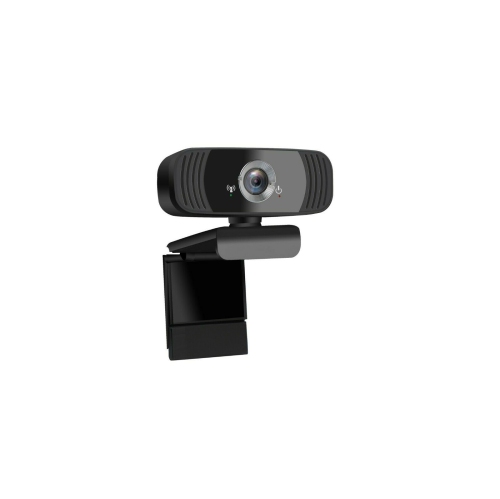
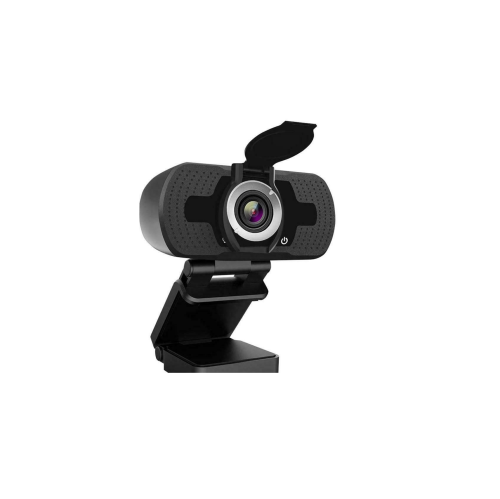
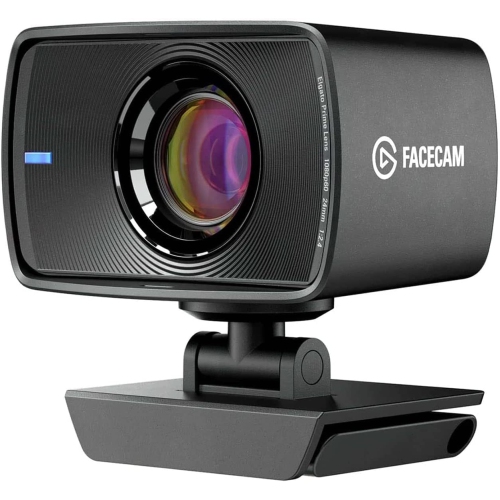
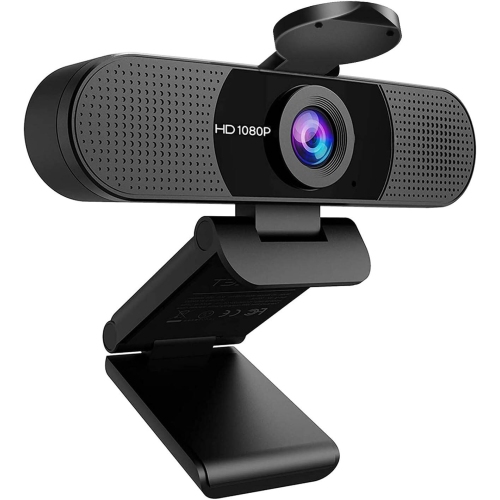
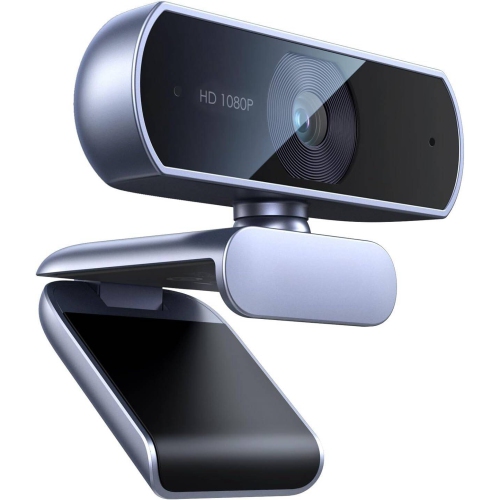
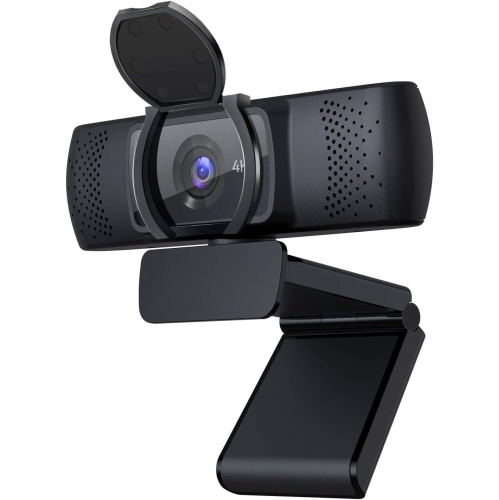
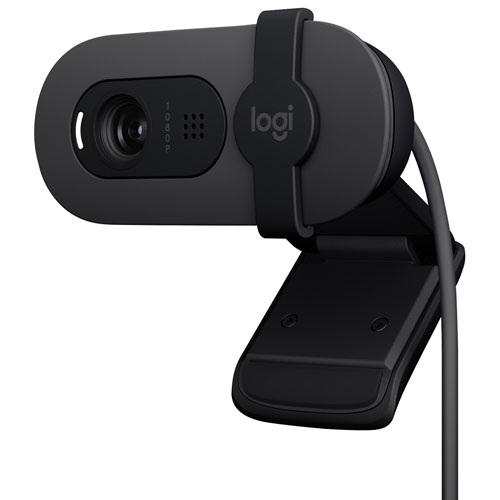
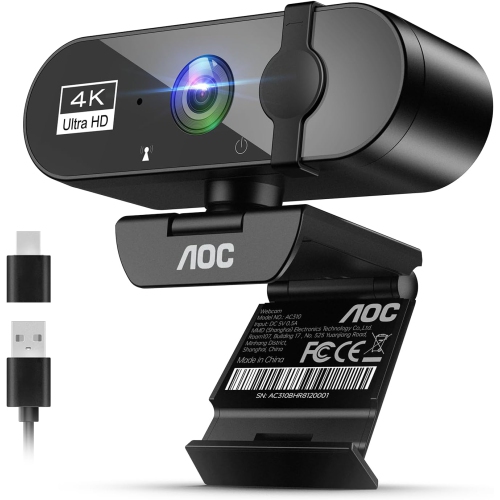
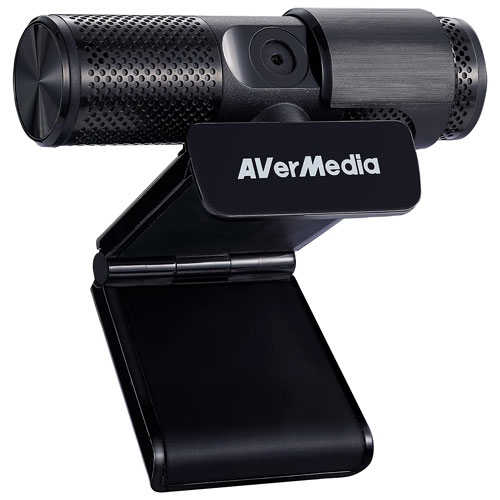
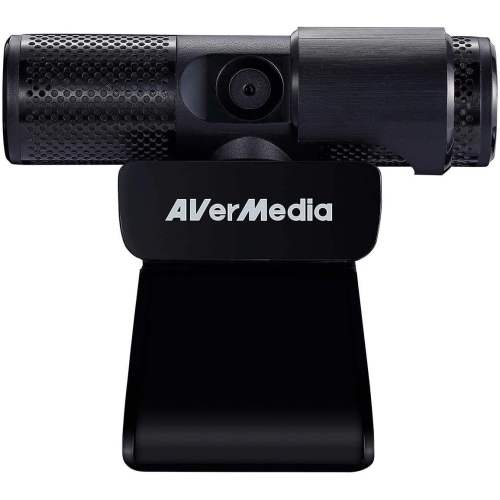
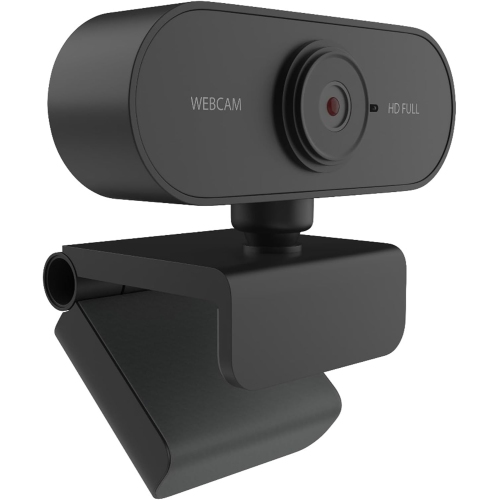
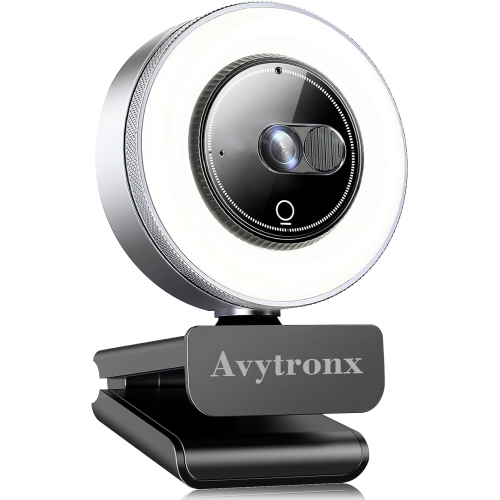
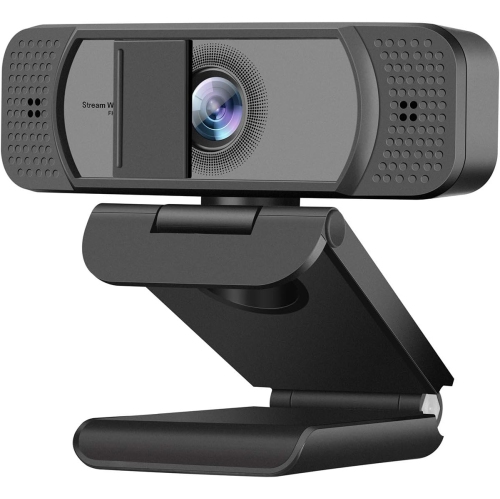
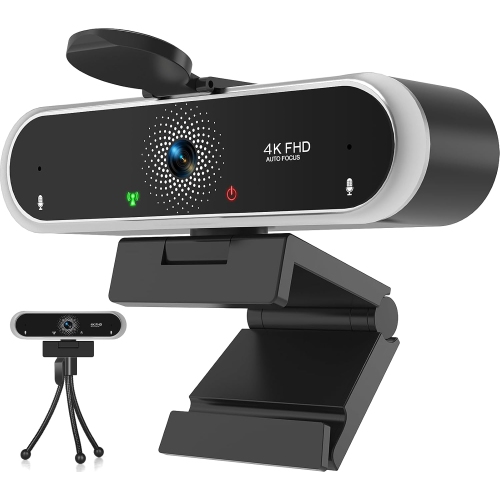
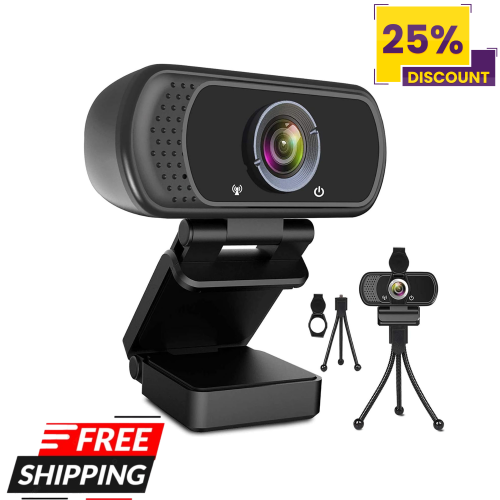
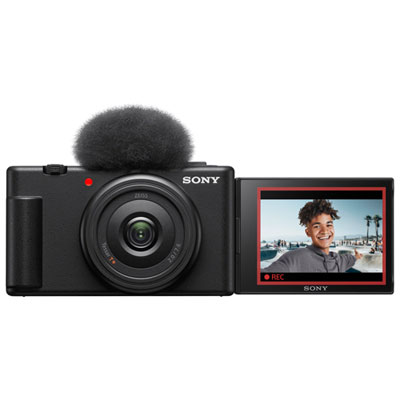
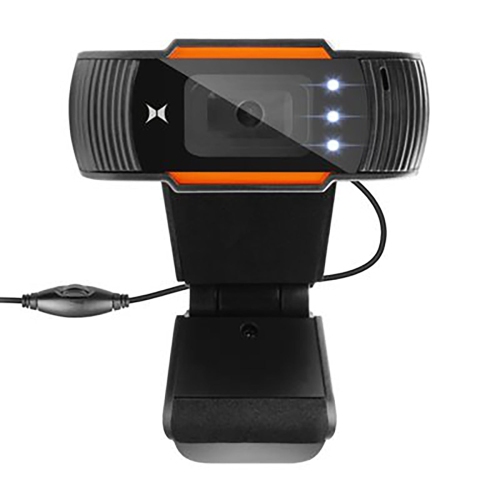
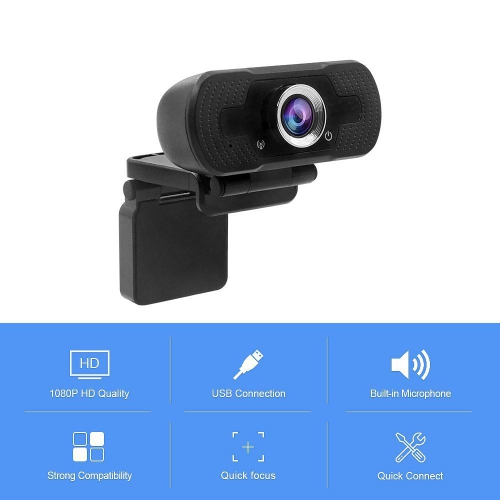
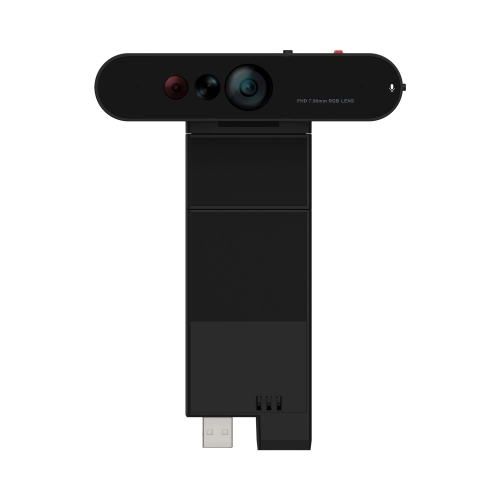
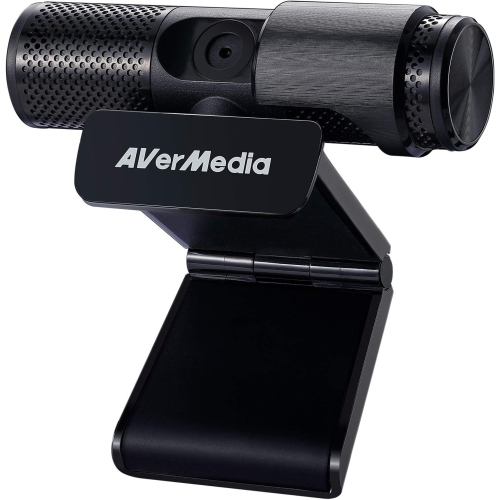
Webcams for streaming bring a clear, consistent camera view to live gaming, creative demonstrations, interviews, online performances, and everyday conversations with an audience. A dedicated webcam gives creators more freedom to position the camera than a built-in laptop camera, whether the frame needs to show a face beside gameplay or a tabletop covered with sketchbooks and paintbrushes. The best fit depends on how much detail the audience needs to see, how often the person on camera moves, and how the webcam works with the rest of the setup. Full HD 1080p is a practical resolution for many streams, particularly when the camera feed occupies a small corner of the screen. A 4K webcam captures more detail and can provide room to crop a wider image into a tighter shot, although that advantage depends on the camera’s software and output settings. Higher resolution does not automatically make a stream look better: lighting, focus, video compression, and the streaming platform’s output limits all affect the finished picture. Frame rate matters in a different way. Video at 30 frames per second generally suits seated conversations and presentations, while 60 frames per second can make gestures and other movement appear smoother. A webcam may support its highest frame rate only at a lower resolution, so the supported combinations matter more than either headline specification alone. For someone hosting a relaxed chat, dependable exposure and natural skin tones may be more useful than extra pixels. For an artist holding a miniature close to the lens, close-focus performance and crisp detail take on greater importance. Streamers who also make tutorials, demonstrations, or edited clips can explore Webcam for Video Recording options for related uses beyond a live broadcast. The same camera can often support both activities, with results shaped by its capabilities, the recording software, and the computer connected to it. This flexibility makes webcams useful for new creators building a first setup as well as experienced hosts refining a familiar one.
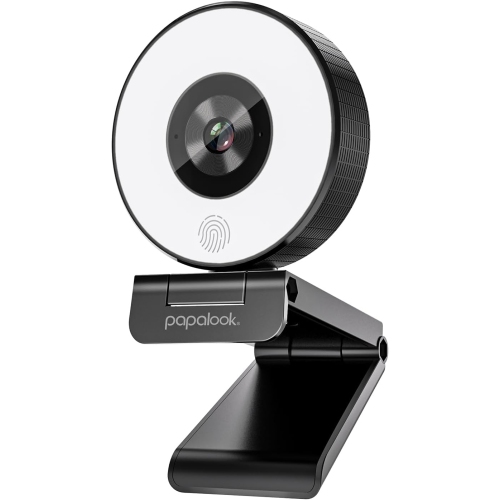
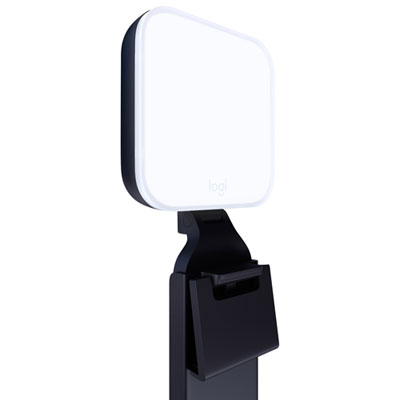
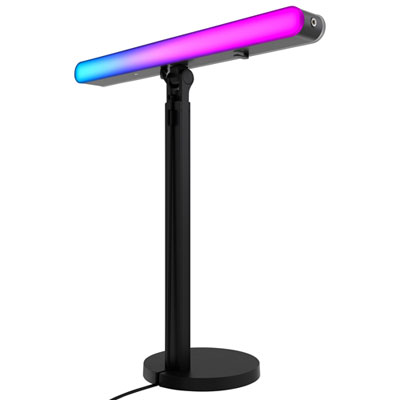
Image quality becomes especially noticeable when a stream includes movement, changing screen content, or objects held up for a closer look. Autofocus can keep a presenter sharp as they lean towards the camera, but some systems may briefly shift focus to the background or search when a small object enters the frame. Manual focus controls, where supported, offer a steadier alternative for a fixed chair position or an overhead craft view. Field of view affects the composition just as much. A narrower view places attention on one person and reveals less of the room; a wider view can include a co-host, a musical instrument, or space for a standing demonstration. Adjustable framing offers flexibility, though digital zoom typically reduces detail as the crop becomes tighter. Automatic framing can help keep a moving presenter visible, while motorized tracking on suitably equipped webcams physically changes the camera’s direction. These features serve different purposes and may depend on companion software. Lighting remains one of the most effective ways to improve a webcam image. Soft light facing the presenter helps preserve facial detail, while a bright window directly behind them can leave their face dark. Larger sensors and capable image processing can help in dim rooms, but no webcam removes the value of a well-placed light. Automatic exposure and white balance are useful for straightforward setups; adjustable controls can help keep brightness and colour consistent when a monitor switches between a dark game scene and a bright menu. Audio deserves equal attention because viewers need to follow the conversation as easily as the picture. Built-in microphones are convenient for casual use, but they may pick up keyboard taps, computer fans, and sound reflected from bare walls. A separate microphone positioned closer to the speaker often provides clearer speech and greater control. A webcam’s microphone still has value as a simple backup or for a compact setup where fewer separate devices are preferred. For shared streams, the microphone arrangement should also account for everyone who needs to be heard, not just the person nearest the camera.
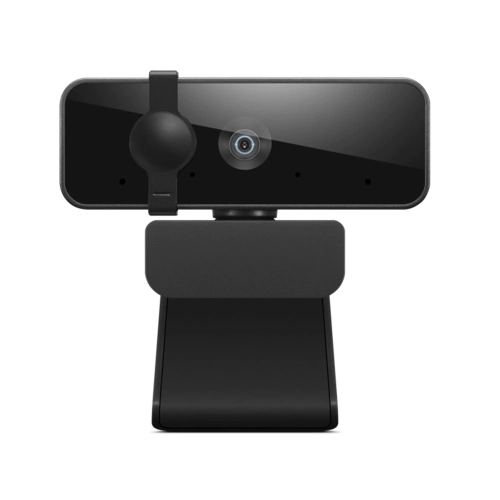
Physical fit, connection requirements, and everyday handling help determine how comfortably a streaming webcam becomes part of a desk setup. Monitor clips vary in shape and adjustment range, and a secure fit should not require pressing hard against a thin display or covering part of the screen. An adjustable hinge makes it easier to place the lens near eye level, creating a more direct view than a camera looking up from the desk. A compatible tripod socket or separate stand can support alternative angles, including a workbench view or a position beside a second monitor. For overhead use, the mount needs to hold the camera securely without drifting, and the cable should have enough slack to avoid pulling on it. Compact plastic housings keep weight low, while metal components can add rigidity; hinge quality, clip stability, and careful handling are also important to durability. Lens covers and privacy shutters vary by design, but a physical shutter offers a visible way to block the picture between sessions. It does not necessarily disable the microphone. Connection details deserve attention, particularly when a computer has a limited mix of USB-A and USB-C ports. Connector shape alone does not establish whether a port supports the bandwidth needed for a webcam’s highest video settings. Operating system compatibility, software requirements, and available camera controls can also differ, even when basic video works through a simple USB connection. A detachable cable can be convenient for packing and replacement, provided the replacement supports the required connection standard. Routine care is straightforward: a clean, dry microfibre cloth helps remove fingerprints from the lens without abrasive rubbing, and a padded compartment protects the webcam when carried between locations. Cables last better when stored loosely rather than tightly bent at the connector. For gamers, tutors, musicians, and hobbyists sharing their skills, these practical details can matter as much as the image specifications. A webcam can also make a thoughtful gift for an aspiring streamer when its mounting style, computer compatibility, and intended use match the recipient’s space. A well-matched setup stays stable, captures the intended view, and leaves the creator free to concentrate on the audience.
Image quality becomes especially noticeable when a stream includes movement, changing screen content, or objects held up for a closer look. Autofocus can keep a presenter sharp as they lean towards the camera, but some systems may briefly shift focus to the background or search when a small object enters the frame. Manual focus controls, where supported, offer a steadier alternative for a fixed chair position or an overhead craft view. Field of view affects the composition just as much. A narrower view places attention on one person and reveals less of the room; a wider view can include a co-host, a musical instrument, or space for a standing demonstration. Adjustable framing offers flexibility, though digital zoom typically reduces detail as the crop becomes tighter. Automatic framing can help keep a moving presenter visible, while motorized tracking on suitably equipped webcams physically changes the camera’s direction. These features serve different purposes and may depend on companion software. Lighting remains one of the most effective ways to improve a webcam image. Soft light facing the presenter helps preserve facial detail, while a bright window directly behind them can leave their face dark. Larger sensors and capable image processing can help in dim rooms, but no webcam removes the value of a well-placed light. Automatic exposure and white balance are useful for straightforward setups; adjustable controls can help keep brightness and colour consistent when a monitor switches between a dark game scene and a bright menu. Audio deserves equal attention because viewers need to follow the conversation as easily as the picture. Built-in microphones are convenient for casual use, but they may pick up keyboard taps, computer fans, and sound reflected from bare walls. A separate microphone positioned closer to the speaker often provides clearer speech and greater control. A webcam’s microphone still has value as a simple backup or for a compact setup where fewer separate devices are preferred. For shared streams, the microphone arrangement should also account for everyone who needs to be heard, not just the person nearest the camera.
Physical fit, connection requirements, and everyday handling help determine how comfortably a streaming webcam becomes part of a desk setup. Monitor clips vary in shape and adjustment range, and a secure fit should not require pressing hard against a thin display or covering part of the screen. An adjustable hinge makes it easier to place the lens near eye level, creating a more direct view than a camera looking up from the desk. A compatible tripod socket or separate stand can support alternative angles, including a workbench view or a position beside a second monitor. For overhead use, the mount needs to hold the camera securely without drifting, and the cable should have enough slack to avoid pulling on it. Compact plastic housings keep weight low, while metal components can add rigidity; hinge quality, clip stability, and careful handling are also important to durability. Lens covers and privacy shutters vary by design, but a physical shutter offers a visible way to block the picture between sessions. It does not necessarily disable the microphone. Connection details deserve attention, particularly when a computer has a limited mix of USB-A and USB-C ports. Connector shape alone does not establish whether a port supports the bandwidth needed for a webcam’s highest video settings. Operating system compatibility, software requirements, and available camera controls can also differ, even when basic video works through a simple USB connection. A detachable cable can be convenient for packing and replacement, provided the replacement supports the required connection standard. Routine care is straightforward: a clean, dry microfibre cloth helps remove fingerprints from the lens without abrasive rubbing, and a padded compartment protects the webcam when carried between locations. Cables last better when stored loosely rather than tightly bent at the connector. For gamers, tutors, musicians, and hobbyists sharing their skills, these practical details can matter as much as the image specifications. A webcam can also make a thoughtful gift for an aspiring streamer when its mounting style, computer compatibility, and intended use match the recipient’s space. A well-matched setup stays stable, captures the intended view, and leaves the creator free to concentrate on the audience.
Top selling and popular products
-
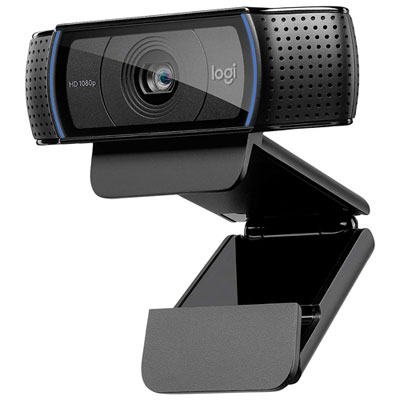 Your price for this item is $99.99
 -
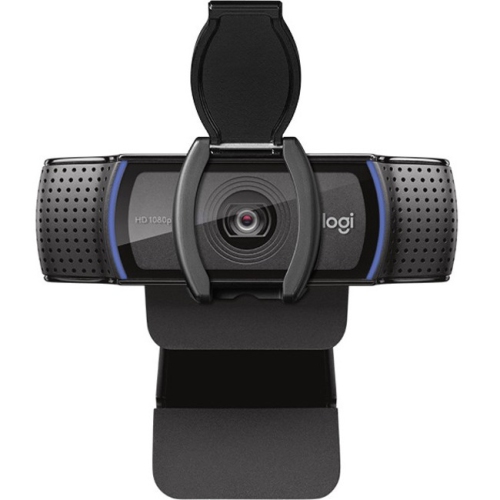 Your price for this item is $123.44
 -
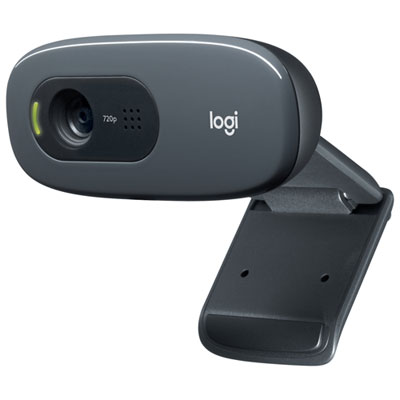 Your price for this item is $28.98
 -
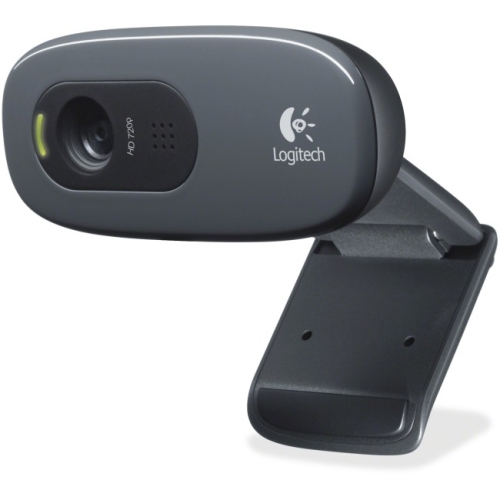 Your price for this item is $65.1
 -
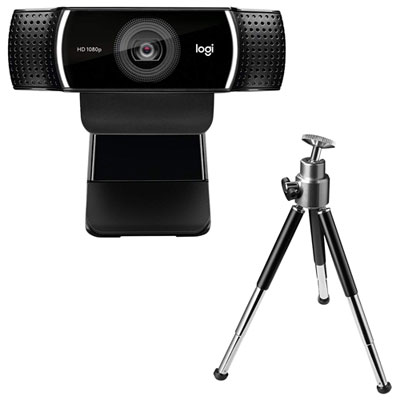 Your price for this item is $119.99
 -
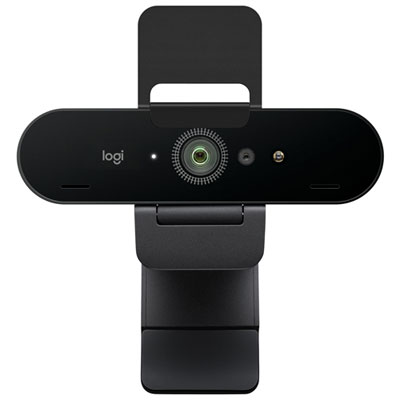 Your price for this item is $249.99
 -
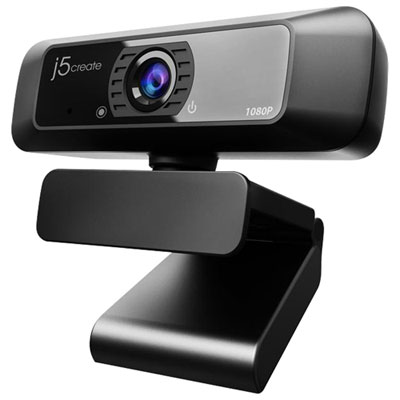 Your price for this item is $49.99
 -
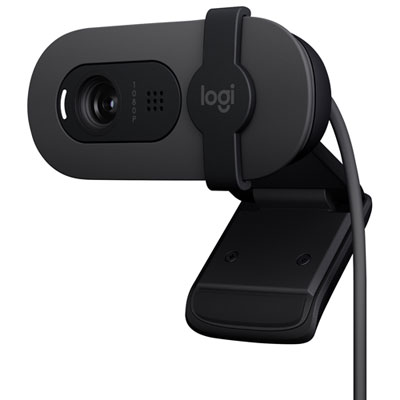 Your price for this item is $59.99
Discover more categories related to Webcams for Streaming
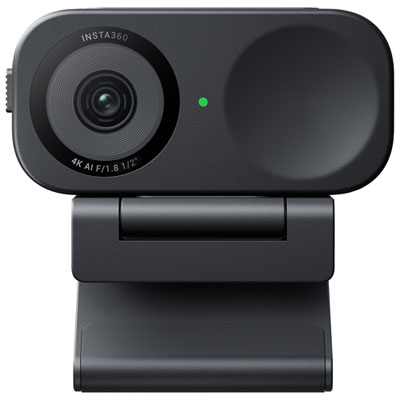
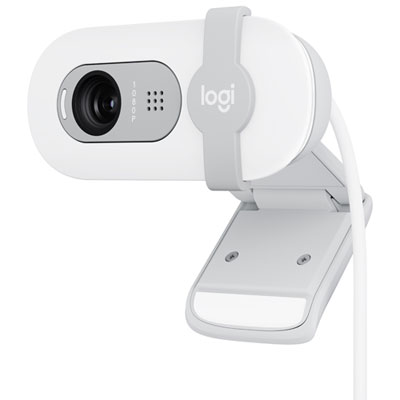
Top Collections:
Pokemon Centers, Kindle Devices, Best Budget Office Chairs, Apple iPhones 16, Best Laptops for Writers, iPhone 15 Apple, Canon G7X Cameras, Refurbished Apple Laptops, Alarm Clock, Motorola Razr Phones
Some products may be subject to Environmental Handling Fees
(EHF) depending on your province.
Learn more about EHFs.