Western Digital 2TB SATA
Upgrade your storage solutions with the Western Digital 2TB SATA, designed to meet your expanding data needs. Ideal for desktops, laptops, or external enclosures, these drives provide ample space for files, applications, and backups. Whether you're looking to boost performance or simply need more room for your digital content, the Western Digital 2TB SATA offers a reliable option for both personal and professional setups. Explore the range and find the right fit to keep your data organized and accessible.
Sort




Why equal capacity doesn’t mean equal drive performance
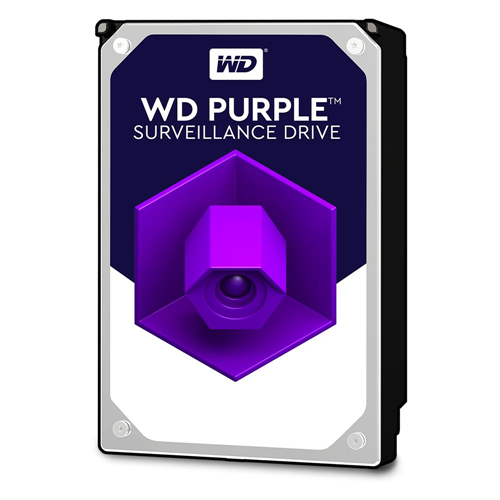
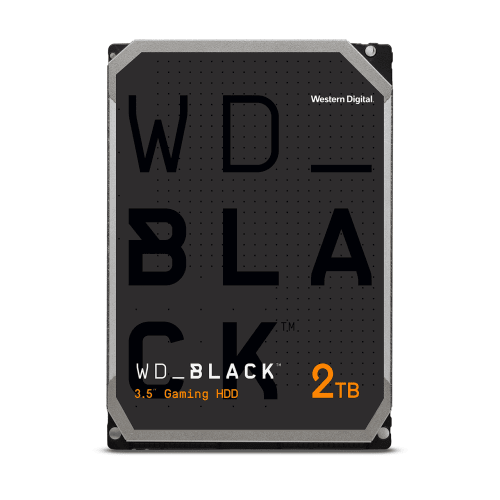
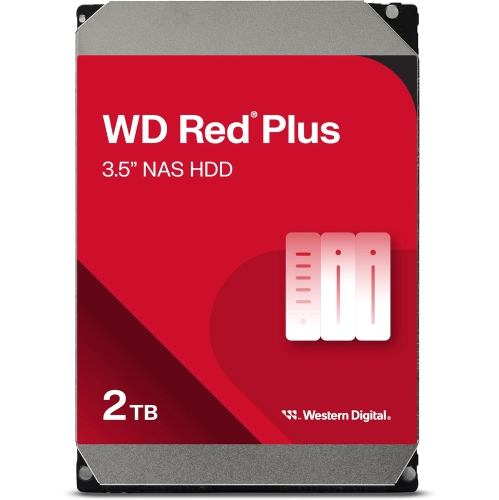
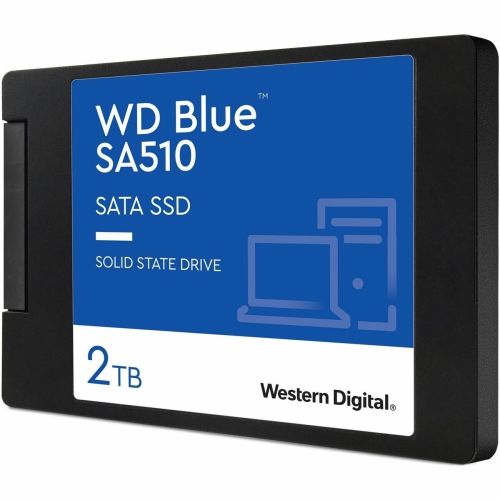
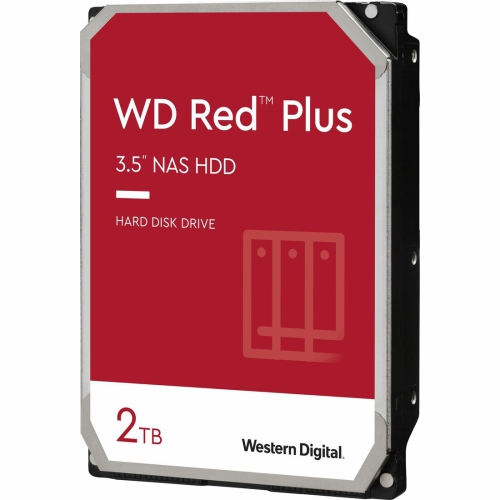
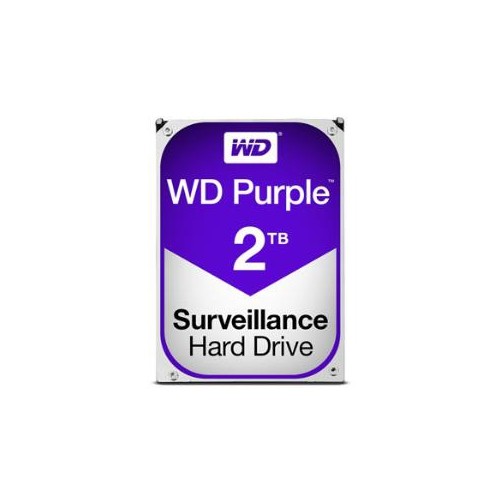
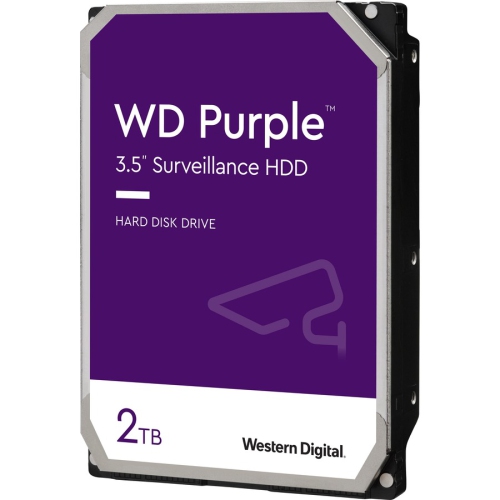
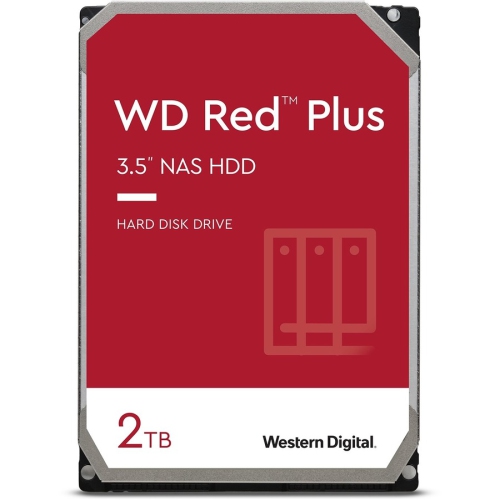
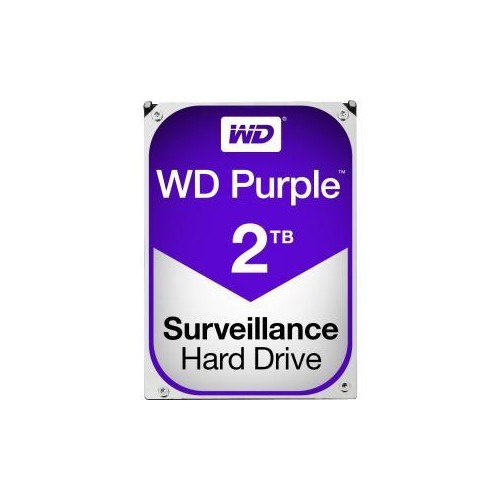
2TB SATA storage includes solid-state drives (SSDs) and hard disk drives (HDDs), with options designed for everyday computing, file storage, network-attached storage (NAS), and video recording. The 2TB figure describes capacity, while SATA identifies the connection used to transfer data between the drive and a compatible computer or storage system. These details describe different parts of the storage experience: two drives can have the same capacity and interface yet behave quite differently in daily use. A SATA SSD stores data in flash memory without moving mechanical parts, making it well suited to starting a computer, opening programs, and switching between files with less waiting. Its silent operation can also suit a desktop used for studying, audio work, or a shared home office. A SATA hard drive stores data on rotating magnetic platters and can serve as a spacious home for photo libraries, downloaded media, completed projects, and other large collections. Mechanical drives produce some sound and vibration during operation, unlike SSDs. For a family computer, 2TB provides room for a mixture of documents, applications, and personal media; for a gamer or content creator, usable space depends heavily on the size of game installations, footage, and project files. SATA connections rated at 6Gb/s are common, but that interface rating is not the same as a drive’s actual transfer speed. SSDs generally offer much quicker access to scattered files than mechanical drives, while large sequential transfers depend on the drive and the rest of the system. Intended workload matters as much as capacity. NAS-oriented hard drives are designed with shared storage and supported multi-drive systems in mind, while surveillance-oriented drives prioritize sustained video-recording workloads. Neither description makes a drive universally preferable for every computer. A desktop used for schoolwork, a household file server, and a camera recorder place different demands on storage, even when each needs the same 2TB capacity.
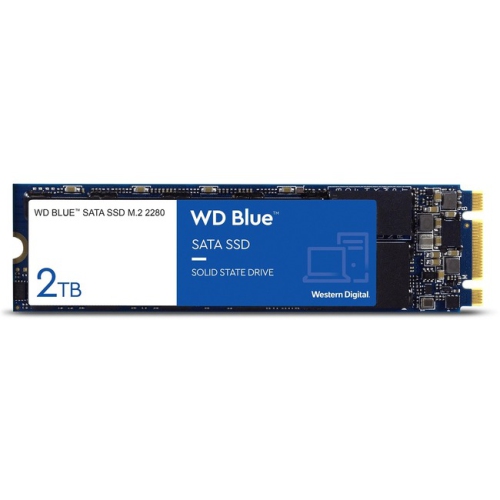
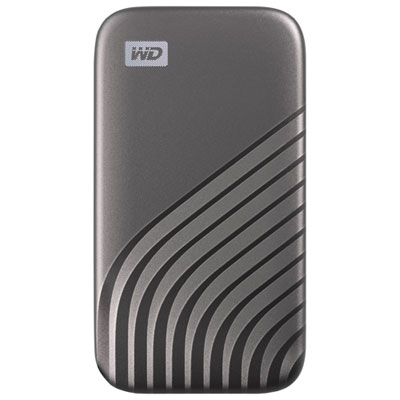
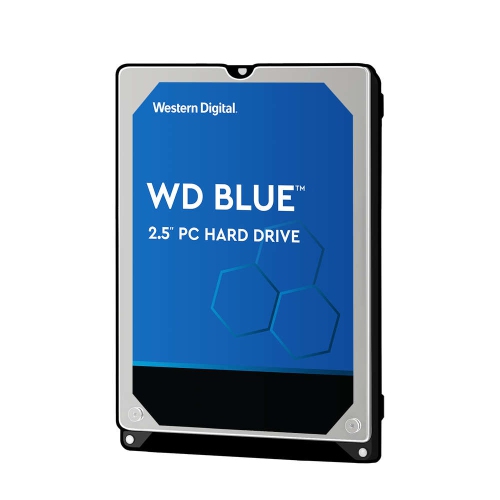
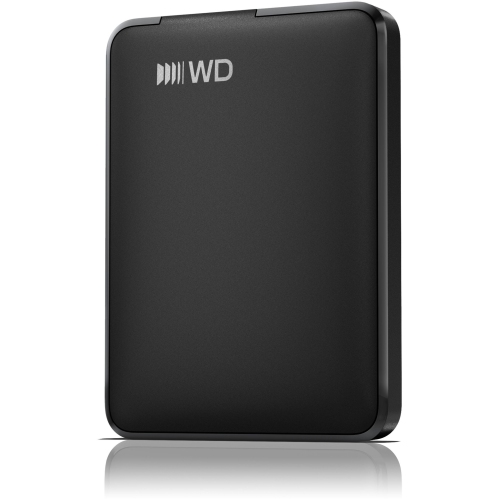
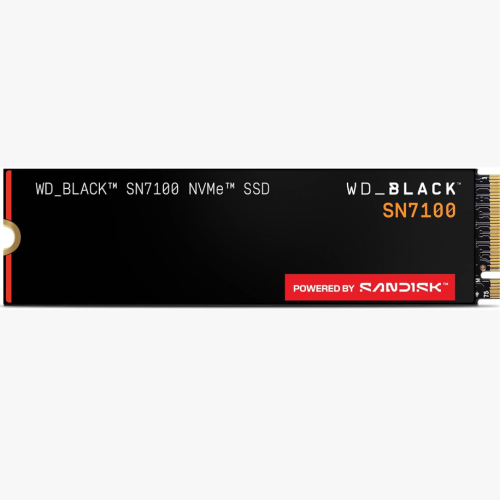
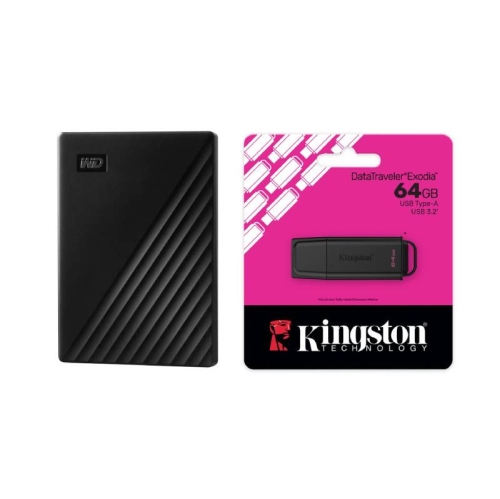
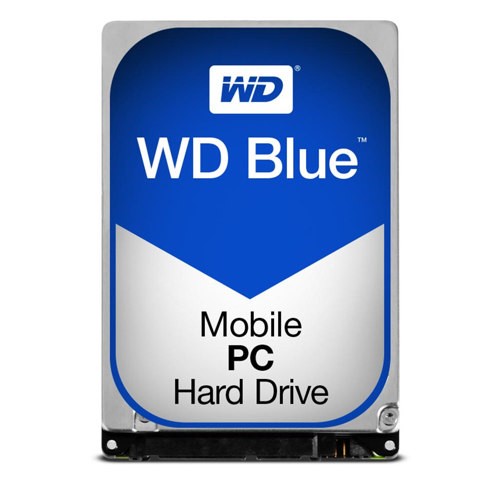
Physical fit is an important part of choosing SATA storage because a matching interface alone does not guarantee that a drive will install correctly. Many SATA SSDs use a 2.5-inch enclosure, while desktop, NAS, and surveillance hard drives commonly use a 3.5-inch format. Some laptops accept 2.5-inch SATA drives, but internal clearance, drive thickness, mounting hardware, and service access vary by computer. Other laptops use a different storage connection or have no replaceable drive bay at all. A desktop may have space for several drives, yet a smaller SSD can still need a mounting bracket or tray to sit securely in a larger bay. Conventional internal SATA installations typically require both a data connection to the motherboard and a power connection from the power supply; cables and brackets are not necessarily included with a drive. SATA SSDs also exist in the slim M.2 format, which introduces another compatibility distinction. M.2 describes a physical format, not a guarantee of SATA support, and an M.2 slot intended only for PCIe NVMe storage will not necessarily accept an M.2 SATA drive. The computer or enclosure specifications determine which connection types and drive sizes are supported. External use is possible through a compatible USB enclosure or dock, although 3.5-inch hard drives generally require an enclosure with its own power supply. Transfer performance then depends on the enclosure, USB connection, and drive together. Construction also differs across formats: enclosed drives may use metal or plastic outer housings, while an M.2 module has an exposed circuit board. These differences affect handling and installation rather than providing a simple measure of quality. Secure mounting helps prevent strain on connectors and limits unwanted movement, particularly with mechanical drives. In a compact desktop or living-room computer, physical clearance and operating noise may be just as noticeable as transfer speed once the storage is in everyday use.
Capacity planning is most useful when it reflects the files a household or workspace actually keeps. A 2TB drive has a nominal capacity of approximately two trillion bytes, but the space shown by an operating system can be lower because of reporting conventions, formatting, and system partitions. A collection of spreadsheets and text documents uses storage very differently from high-resolution video, large game installations, or multiple computer backups. Keeping active projects on an SSD and completed work on a separate hard drive can make sense for a desktop with room for both, while a single-drive laptop needs enough capacity for its operating system, programs, and personal files together. For a smaller library or a secondary computer, Western Digital 1TB offers a related capacity to compare when deciding how much space is appropriate. For any capacity, dependable ownership involves more than filling the drive. An additional internal drive is not automatically a backup if it holds the only copy of important files, and a NAS using RAID does not replace a separate backup against accidental deletion, theft, or other loss. Family photos, business records, and creative projects benefit from copies stored independently of the primary device. Drive specifications can also clarify suitability over time: SSD endurance ratings describe supported write volumes under stated conditions, while hard-drive workload ratings and supported operating patterns help distinguish everyday storage from more demanding recording or shared-storage duties. Warranty terms vary and are separate from the need to protect the data itself. During installation or removal, careful handling protects exposed connectors and circuit boards; power should be disconnected, and static-sensitive components need appropriate precautions. Mechanical drives are especially vulnerable to knocks while running. When replacing an existing system drive, a compatible cloning process can transfer the operating system and files, although encryption, partition layouts, and recovery arrangements may require additional preparation. A separate backup before migration preserves a fallback if the transfer does not go as planned. The right fit brings together capacity, connection, physical dimensions, and workload, whether the goal is a more responsive everyday computer or dedicated space for a growing media collection.
Top selling and popular products
-
 Your price for this item is $257.68
-
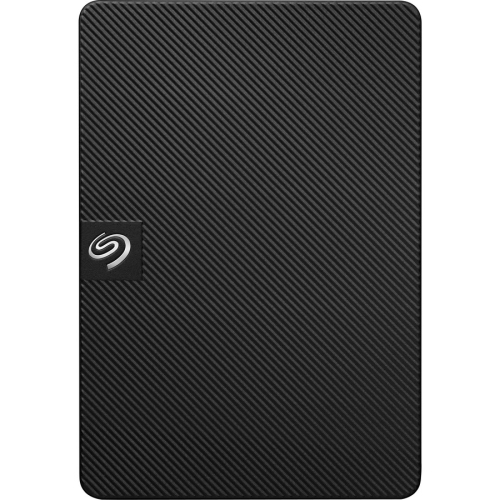 Your price for this item is $228.68
-
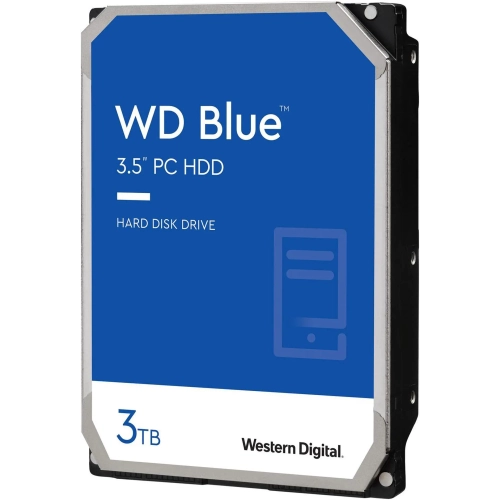 Your price for this item is $259.99
-
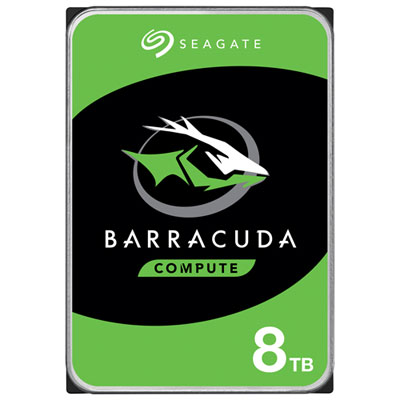 Your price for this item is $389.99
-
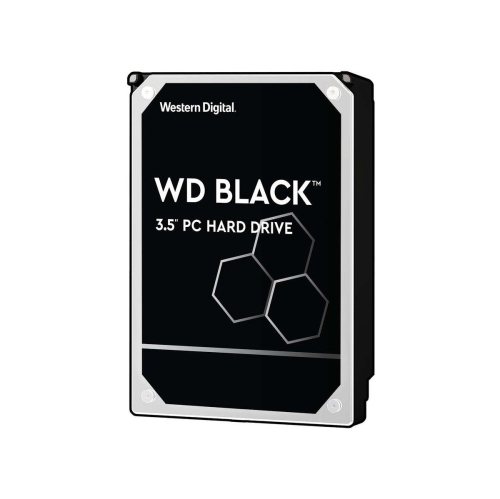 Your price for this item is $489.99
-
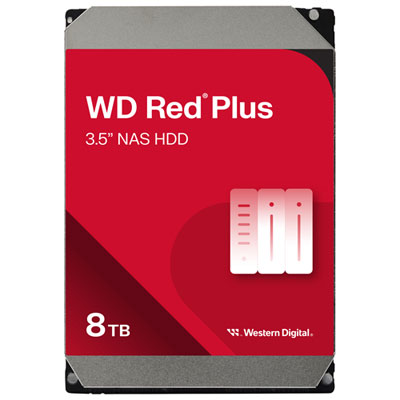 Your price for this item is $504.99
-
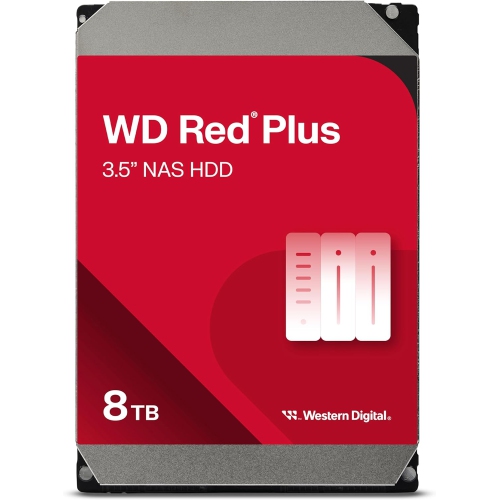 Your price for this item is $609.95
-
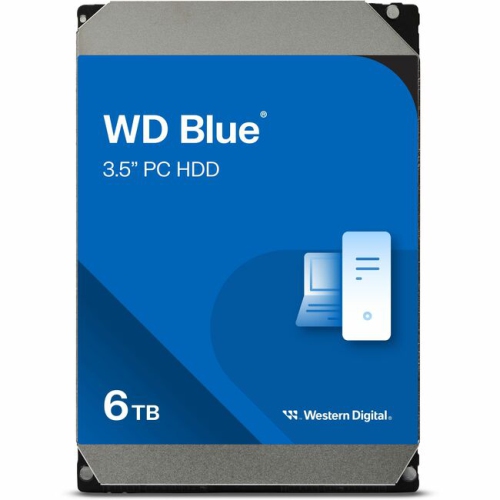 Your price for this item is $389.99
Discover more categories related to Western Digital 2TB SATA
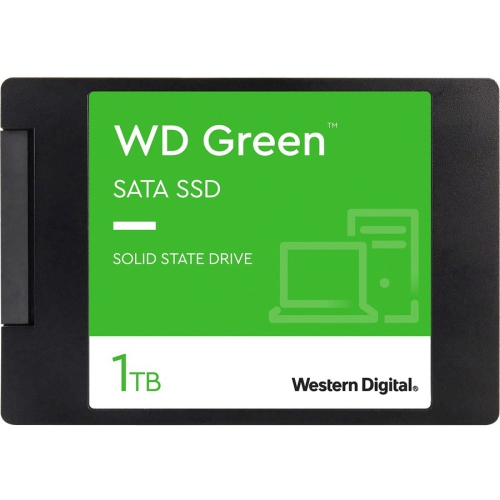
Top Collections:
Best Black Friday Deals This Year, Best Black Friday Deals On Electronics, Kindle Devices, Pokemon Centers, Best Black Friday Deals On Apple Products, Best Cameras for Sports Photography, Dyson Airwrap, Pokémon 30th Celebration Cards, Apple iPhone 17 Pro, Canon G7X Cameras
Some products may be subject to Environmental Handling Fees
(EHF) depending on your province.
Learn more about EHFs.