Windows Surface 2
Explore the possibilities with Windows Surface 2, designed to keep you connected, productive, and entertained wherever you go. Whether you're working from home, streaming your favorite shows, or tackling creative projects, Windows Surface 2 offers versatility to fit your lifestyle. Discover a range of options that combine sleek design with reliable performance, making it easy to find the perfect device for work, play, and everything in between.
Sort


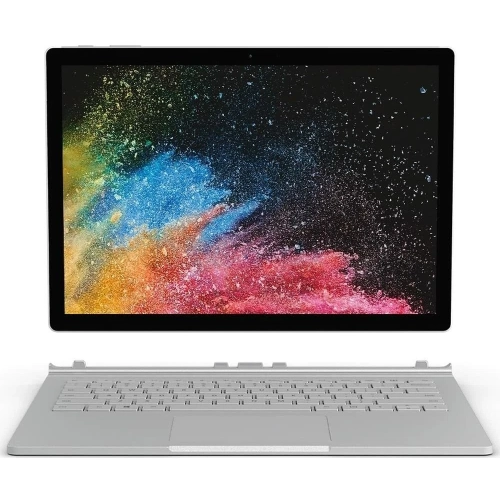


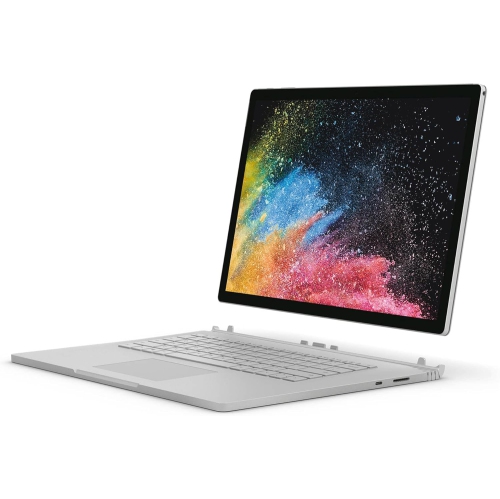


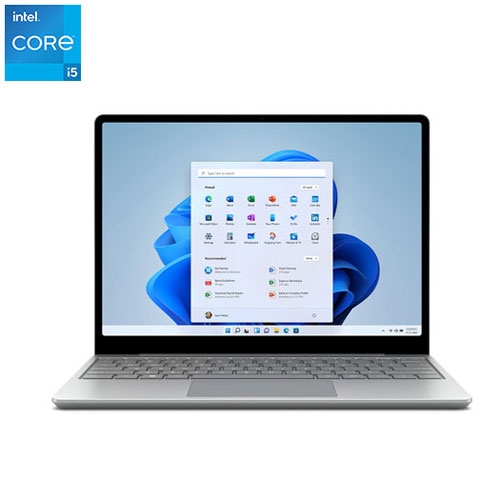

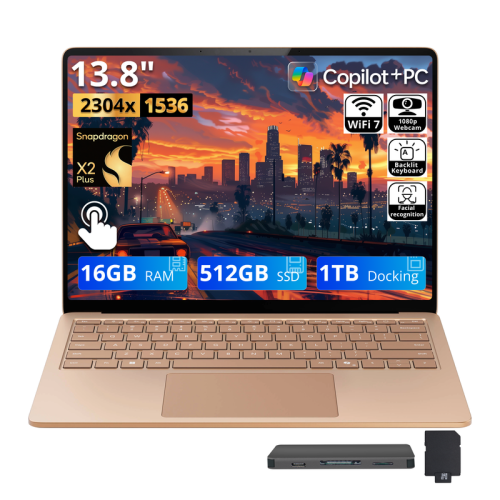
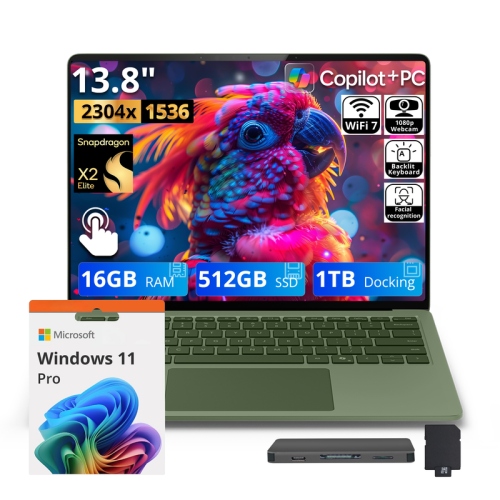
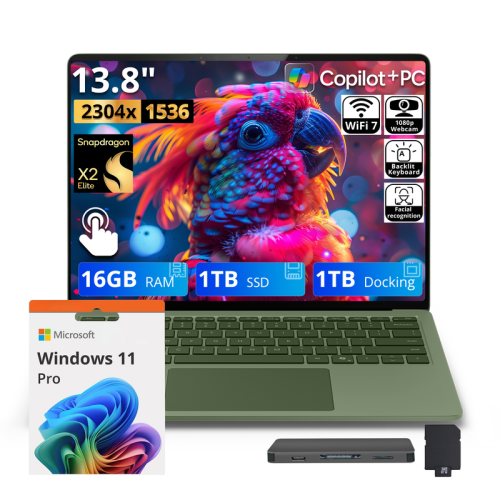
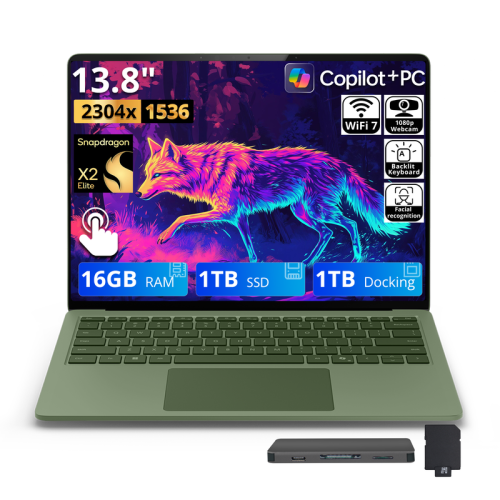
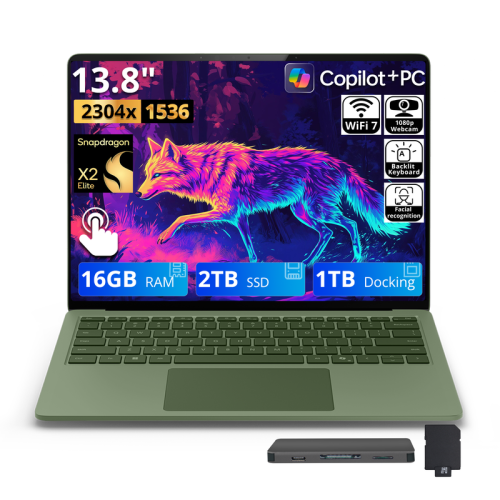
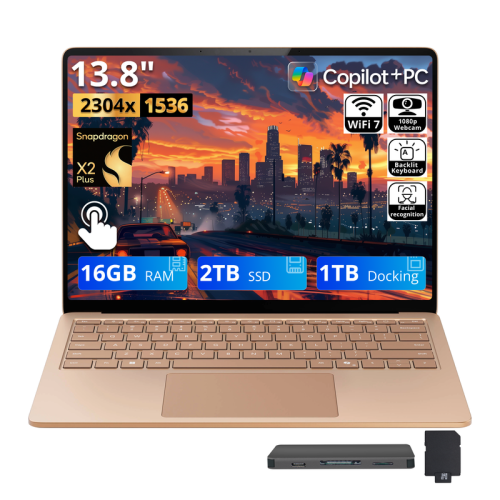
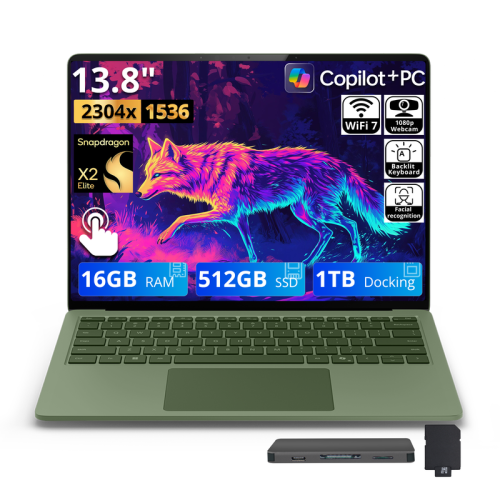
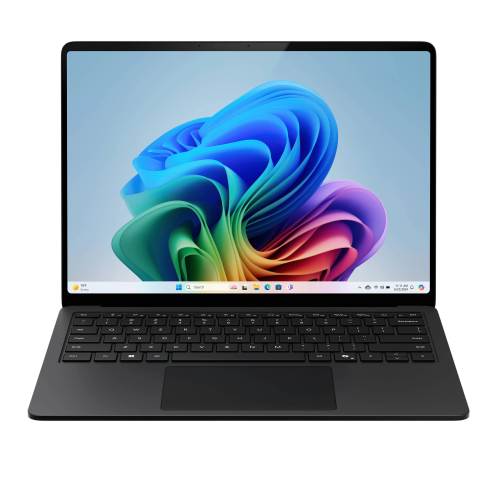
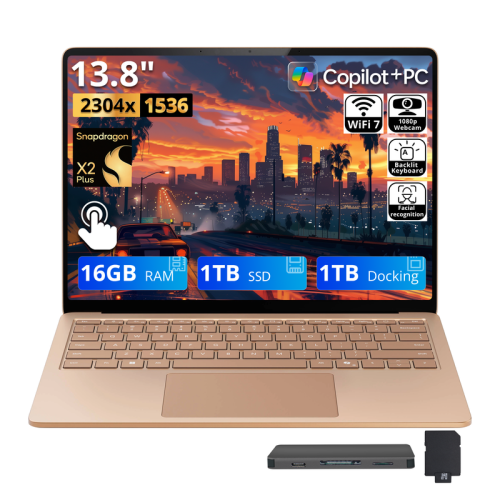
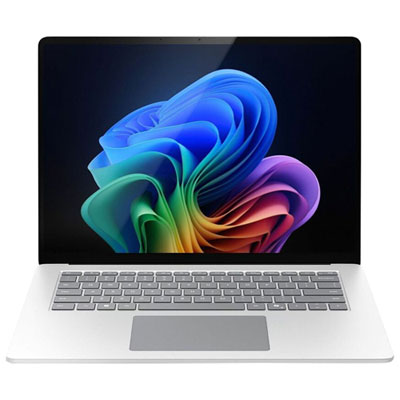
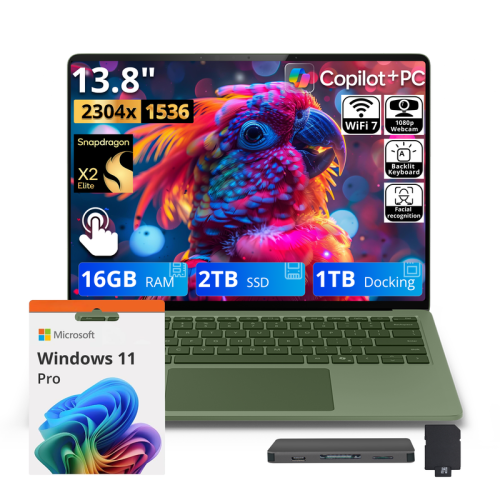
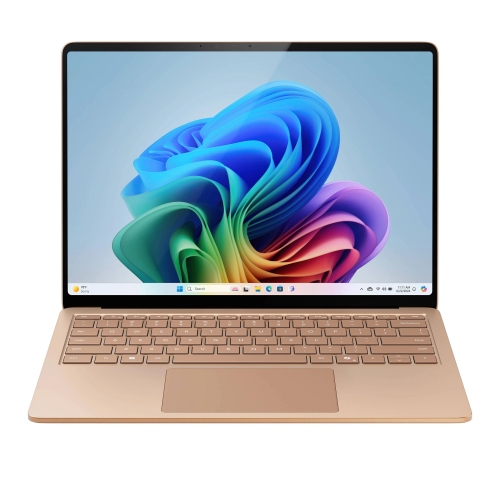
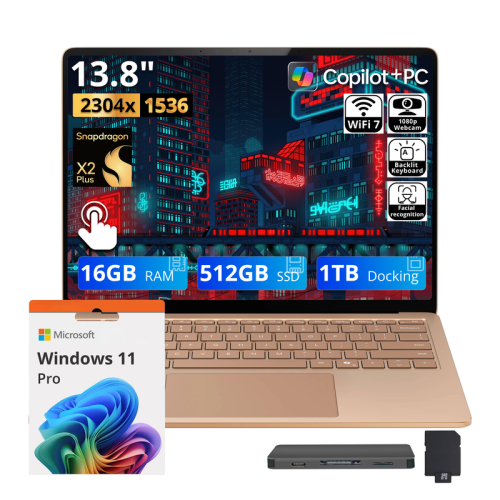
Similar device names do not mean similar capabilities
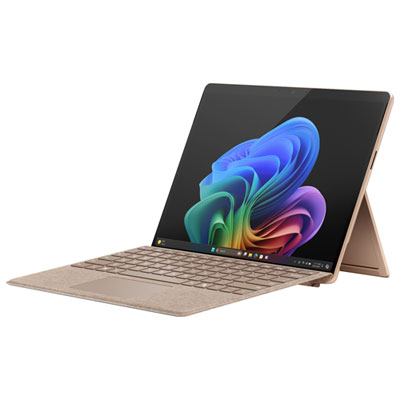
Second-generation touchscreen tablets and portable computers can serve quite different purposes, even when their names look similar. A generation number identifies a place within a particular device family; it does not, by itself, indicate screen size, operating system, processing power, or whether the keyboard detaches. Likewise, “2-in-1” describes a computer that combines laptop and tablet functions, rather than necessarily identifying a second-generation device. These distinctions matter when choosing something for reading documents on the sofa, typing assignments at a desk, or carrying presentations between meetings. A standalone tablet puts the screen and essential hardware in a thin body, with typing handled through an on-screen keyboard or a compatible physical keyboard. A conventional touchscreen laptop keeps its screen and keyboard attached, making it a familiar choice for longer writing sessions. A detachable computer separates its display from its keyboard base, while a convertible typically uses a hinge that folds the keyboard behind the screen. The broader Surface 2 In 1 category brings together the idea of touch interaction and keyboard-based work, though the exact design and capabilities depend on the device. For older hardware, the operating system is especially important: some early tablets use tablet-focused software that cannot run conventional desktop applications, despite having a desktop-like interface. A familiar-looking screen is therefore not proof that a computer will support a workplace program, a school application, or a newly released browser. Support status also deserves attention, because discontinued operating systems may no longer receive security updates. Such limitations can make older devices unsuitable for sensitive online tasks, including banking or accessing confidential work accounts. The most useful distinction is not simply tablet versus laptop, but whether the hardware, software, and physical design suit the tasks it will actually handle. A compact device for viewing existing files has different requirements from a primary computer expected to support daily work and new applications.
Screen quality, keyboard comfort, memory, and storage all affect how a portable computer feels during ordinary use. A smaller display is convenient for holding a document in one hand or setting a tablet beside a notebook, while a larger screen gives spreadsheets, reference material, and video calls more room. Resolution influences the sharpness of text, but brightness, reflections, and viewing angles also matter when a screen sits beneath overhead lighting. Touch input makes scrolling and zooming direct; it does not automatically mean a display supports an active pen, pressure-sensitive drawing, or every stylus attachment. For handwritten notes or diagrams, both pen compatibility and application support need to match. A student annotating lecture slides may appreciate a screen that lies flat, whereas someone writing reports for several hours will likely notice keyboard spacing and palm support more. Detachable keyboard covers can keep a bag slim, but a kickstand and keyboard may need more desk depth than a traditional laptop. On a narrow lecture-hall writing surface or a lap, that difference can be significant. Memory helps determine how comfortably a device handles several open applications, and storage must accommodate the operating system as well as documents, photos, and installed software. The capacity stated for a drive is not the same as the space left for personal files. Memory cards, where supported, can provide additional room for certain files without necessarily expanding the space available for applications. Processor architecture and operating system compatibility remain separate considerations from capacity: extra storage cannot make an unsupported program run. Connections deserve equally practical attention. A full-size USB port, a smaller reversible connector, a display output, and a charging socket can each have different roles, and matching plug shapes do not guarantee matching functions. A home setup with a monitor, keyboard, and mouse may depend on a compatible dock or adapter. Wi-Fi support, camera quality, microphone clarity, and functioning speakers round out the essentials for online learning, shared documents, and conversations with family.
Materials and condition become particularly important with older portable computers. Metal housings can feel firm in the hand, but they can still dent, and a glass touchscreen needs protection from pressure as well as scratches. A fitted sleeve helps separate a device from keys and charging plugs inside a bag; a rigid compartment offers additional protection against bending or concentrated weight. Fit should account for the exact body dimensions, camera position, ventilation openings, kickstand movement, and keyboard attachment, rather than screen size alone. Cases and keyboards made for a similar-looking generation may not line up correctly. Hinges and kickstands should move smoothly and hold their intended positions without excessive looseness, while detachable connections should seat securely without needing force. Battery condition can have a greater effect on portability than the original advertised runtime, especially after years of charging and storage. A device that works well beside an outlet may offer much less flexibility during a day of classes or meetings. Charging equipment should match the required connector and electrical specifications, and a cable that appears intact can still warrant attention if it disconnects intermittently. For routine care, power down and unplug the device before wiping the exterior with a soft, lint-free cloth, following the manufacturer's cleaning directions and keeping liquid away from openings. Avoid spraying cleaners directly onto the screen, and keep vents clear during use rather than resting the computer on bedding. Repairability also varies: some thin designs have sealed batteries or memory that cannot be upgraded, making starting condition and configuration more consequential. For a gift recipient, familiar software, comfortable text size, accessible controls, and straightforward charging may matter more than a particularly slim profile. Someone who mainly reads saved documents might value a lightweight tablet, while a frequent writer may prefer a stable keyboard and a screen that stays upright without a separate support. Matching those everyday habits with verified software support, suitable accessories, and sound physical condition creates a much clearer picture of a device's usefulness than its generation number alone.
Screen quality, keyboard comfort, memory, and storage all affect how a portable computer feels during ordinary use. A smaller display is convenient for holding a document in one hand or setting a tablet beside a notebook, while a larger screen gives spreadsheets, reference material, and video calls more room. Resolution influences the sharpness of text, but brightness, reflections, and viewing angles also matter when a screen sits beneath overhead lighting. Touch input makes scrolling and zooming direct; it does not automatically mean a display supports an active pen, pressure-sensitive drawing, or every stylus attachment. For handwritten notes or diagrams, both pen compatibility and application support need to match. A student annotating lecture slides may appreciate a screen that lies flat, whereas someone writing reports for several hours will likely notice keyboard spacing and palm support more. Detachable keyboard covers can keep a bag slim, but a kickstand and keyboard may need more desk depth than a traditional laptop. On a narrow lecture-hall writing surface or a lap, that difference can be significant. Memory helps determine how comfortably a device handles several open applications, and storage must accommodate the operating system as well as documents, photos, and installed software. The capacity stated for a drive is not the same as the space left for personal files. Memory cards, where supported, can provide additional room for certain files without necessarily expanding the space available for applications. Processor architecture and operating system compatibility remain separate considerations from capacity: extra storage cannot make an unsupported program run. Connections deserve equally practical attention. A full-size USB port, a smaller reversible connector, a display output, and a charging socket can each have different roles, and matching plug shapes do not guarantee matching functions. A home setup with a monitor, keyboard, and mouse may depend on a compatible dock or adapter. Wi-Fi support, camera quality, microphone clarity, and functioning speakers round out the essentials for online learning, shared documents, and conversations with family.
Materials and condition become particularly important with older portable computers. Metal housings can feel firm in the hand, but they can still dent, and a glass touchscreen needs protection from pressure as well as scratches. A fitted sleeve helps separate a device from keys and charging plugs inside a bag; a rigid compartment offers additional protection against bending or concentrated weight. Fit should account for the exact body dimensions, camera position, ventilation openings, kickstand movement, and keyboard attachment, rather than screen size alone. Cases and keyboards made for a similar-looking generation may not line up correctly. Hinges and kickstands should move smoothly and hold their intended positions without excessive looseness, while detachable connections should seat securely without needing force. Battery condition can have a greater effect on portability than the original advertised runtime, especially after years of charging and storage. A device that works well beside an outlet may offer much less flexibility during a day of classes or meetings. Charging equipment should match the required connector and electrical specifications, and a cable that appears intact can still warrant attention if it disconnects intermittently. For routine care, power down and unplug the device before wiping the exterior with a soft, lint-free cloth, following the manufacturer's cleaning directions and keeping liquid away from openings. Avoid spraying cleaners directly onto the screen, and keep vents clear during use rather than resting the computer on bedding. Repairability also varies: some thin designs have sealed batteries or memory that cannot be upgraded, making starting condition and configuration more consequential. For a gift recipient, familiar software, comfortable text size, accessible controls, and straightforward charging may matter more than a particularly slim profile. Someone who mainly reads saved documents might value a lightweight tablet, while a frequent writer may prefer a stable keyboard and a screen that stays upright without a separate support. Matching those everyday habits with verified software support, suitable accessories, and sound physical condition creates a much clearer picture of a device's usefulness than its generation number alone.
Top selling and popular products
-
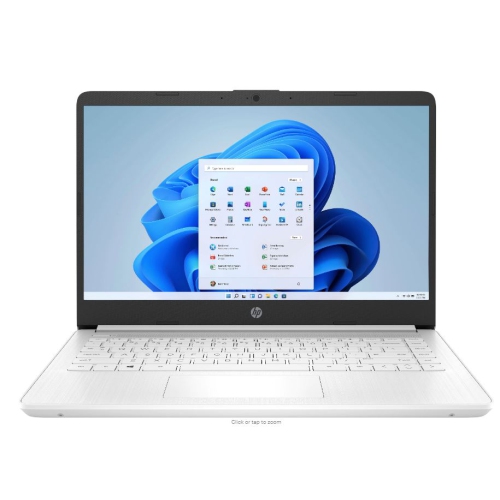 Your price for this item is $449
-
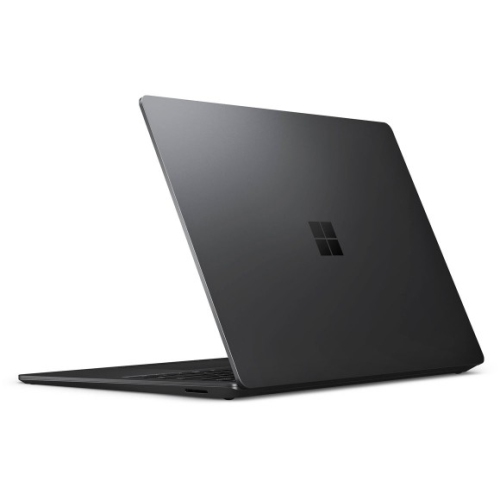 Your price for this item is $3099
-
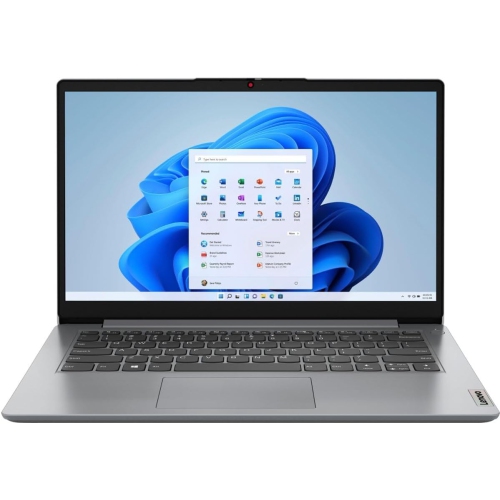 Your price for this item is $664.05
-
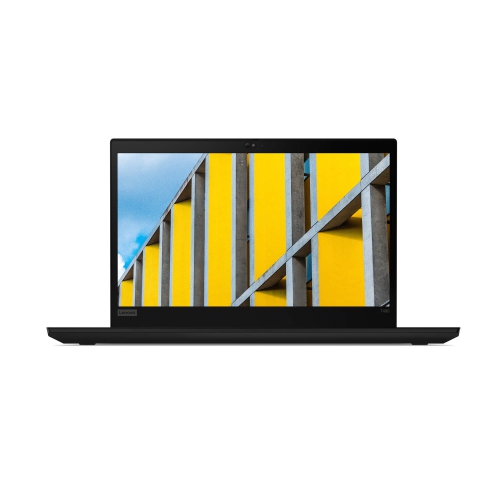 Your price for this item is $599.68
-
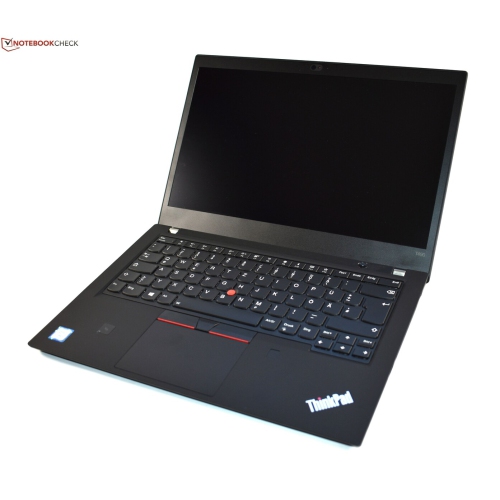 Your price for this item is $499.99
-
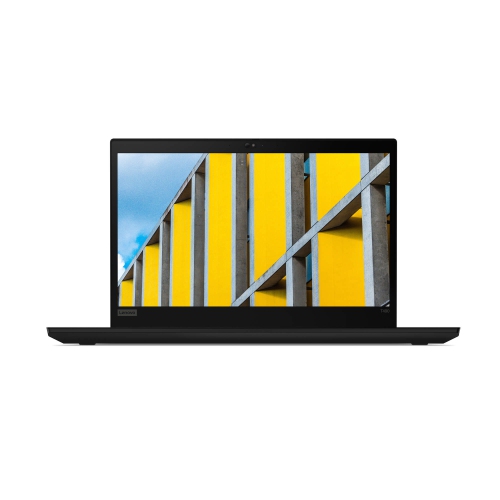 Your price for this item is $418.98
-
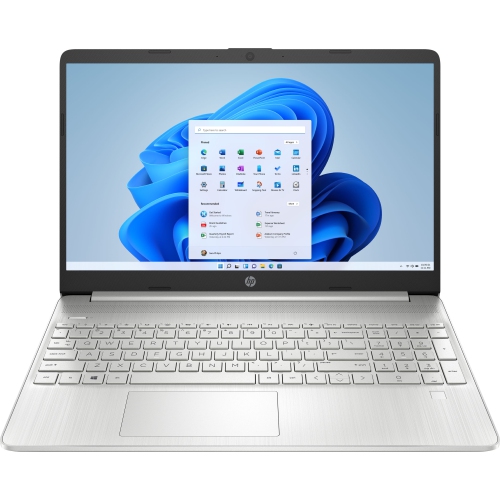 Your price for this item is $829
-
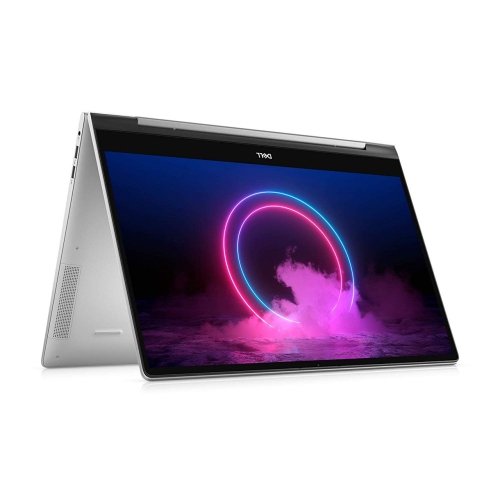 Your price for this item is $999.95
Discover more categories related to Windows Surface 2

Top Collections:
Pokemon Centers, Kindle Devices, Best Cameras for Sports Photography, Pokémon 30th Celebration Cards, Apple iPhones 16, Canon G7X Cameras, iPhone 15 Apple, Flip Phones, Samsung Galaxy Phones, Alarm Clock
Some products may be subject to Environmental Handling Fees
(EHF) depending on your province.
Learn more about EHFs.