Microsoft Surface Laptops 2
Experience a new level of productivity and style with the Microsoft Surface Laptop 2. Designed for those who value performance and elegance, this laptop offers a seamless blend of functionality and modern design. Whether you're working, studying, or enjoying entertainment, the Microsoft Surface Laptop 2 provides the versatility to keep up with your busy lifestyle. Explore a range of configurations to find the perfect fit for your needs and elevate your everyday computing experience.
Sort







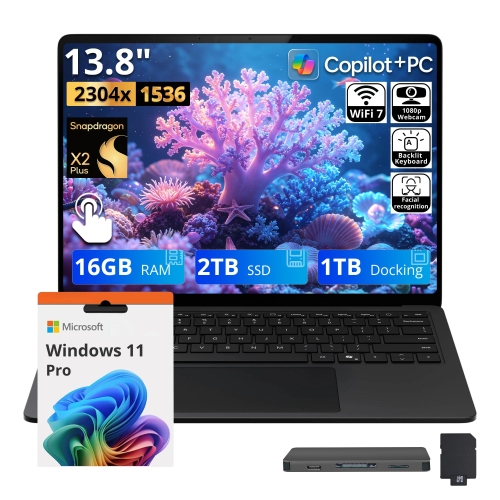
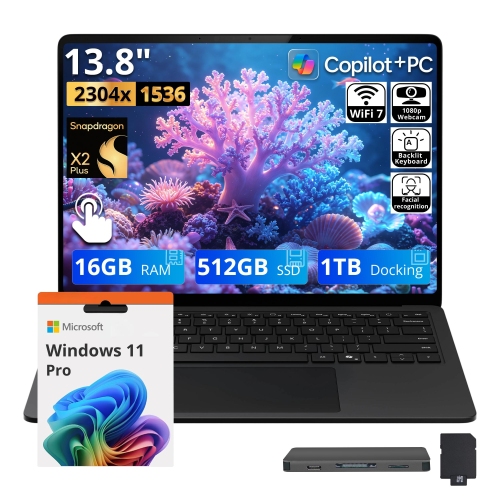
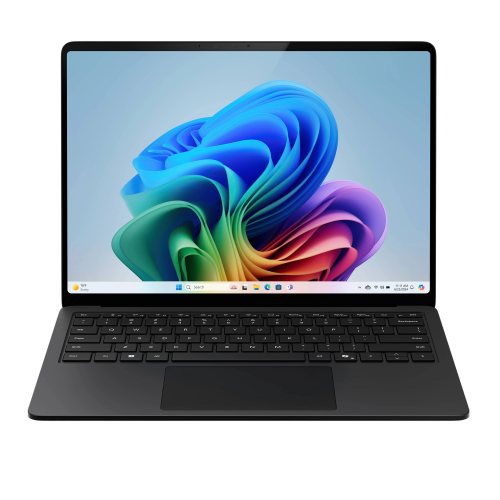
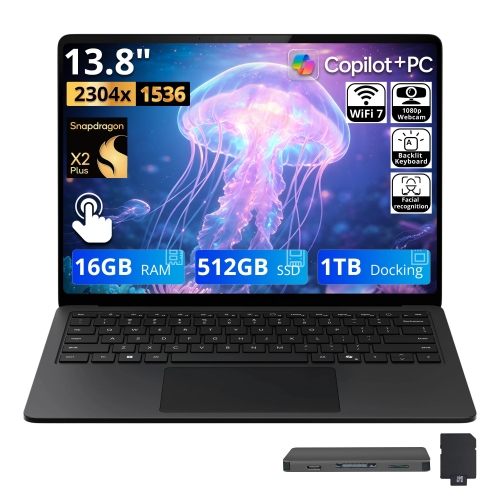
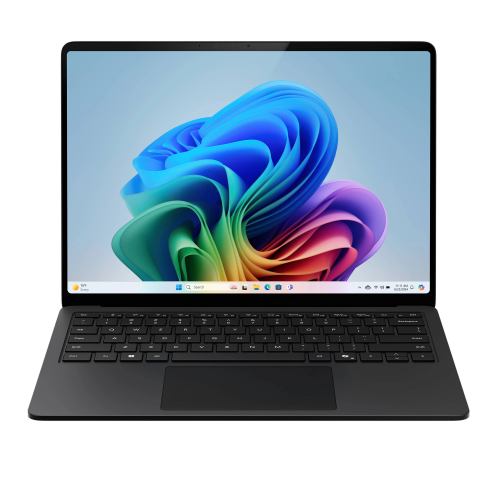
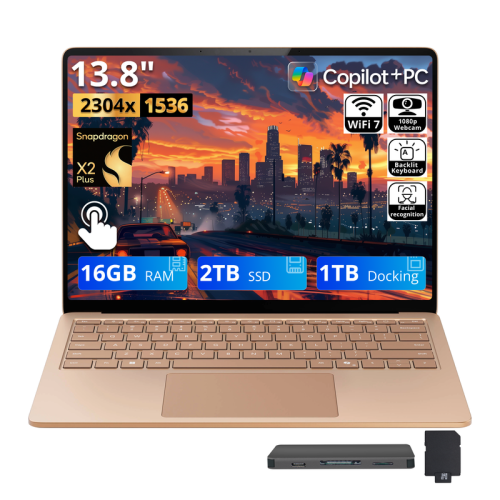
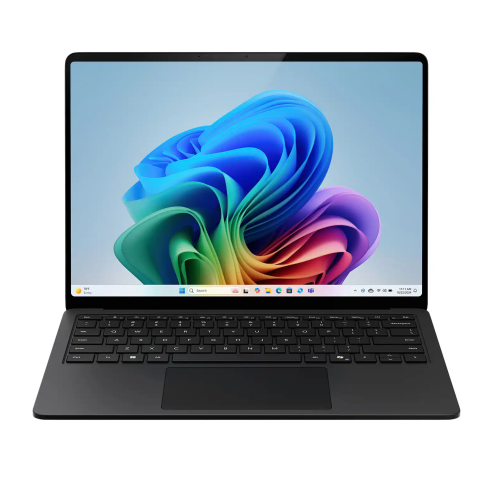
A taller touchscreen with room for everyday work
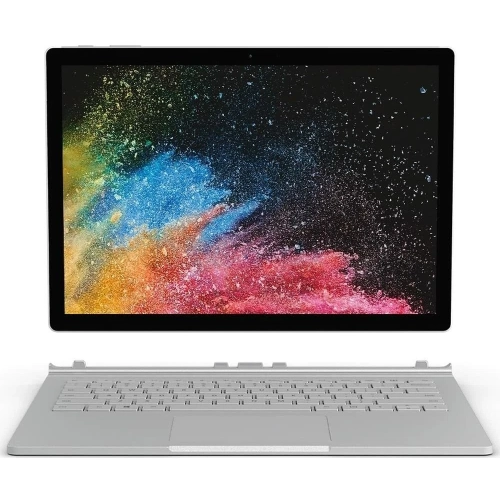
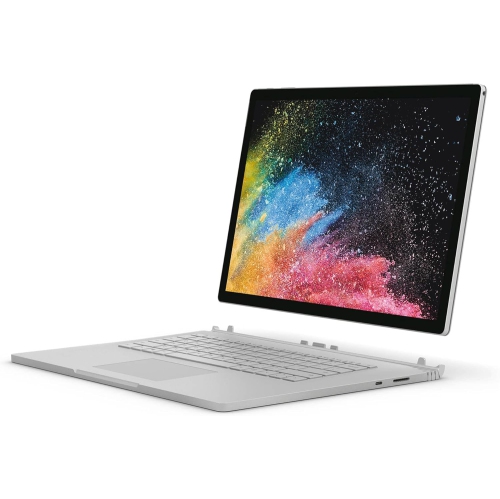
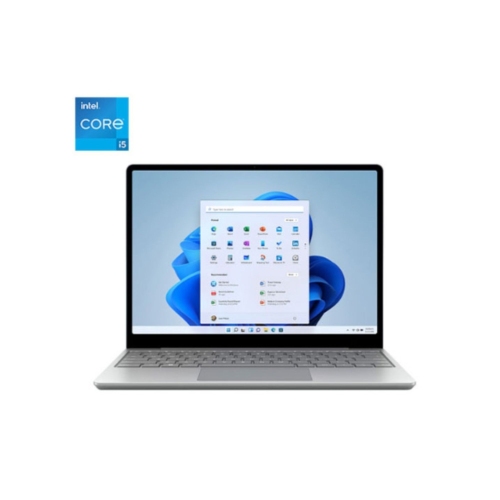
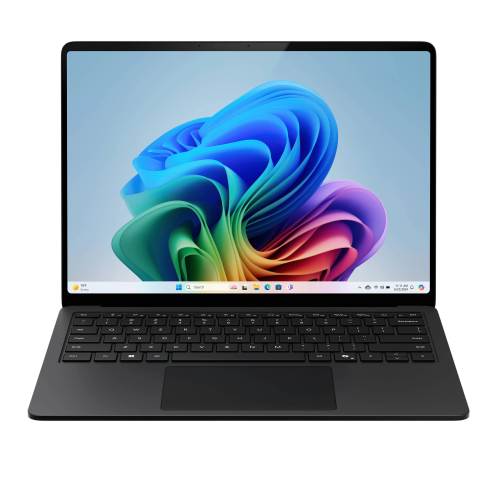
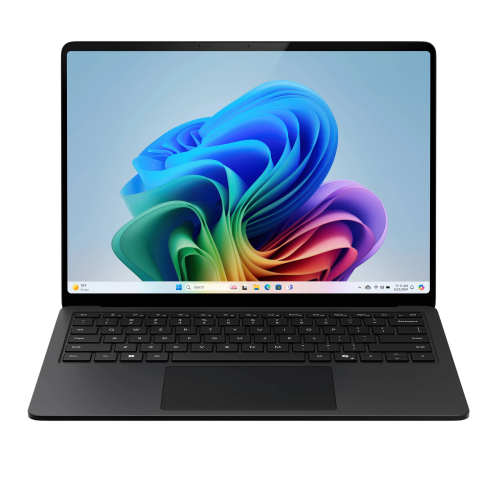
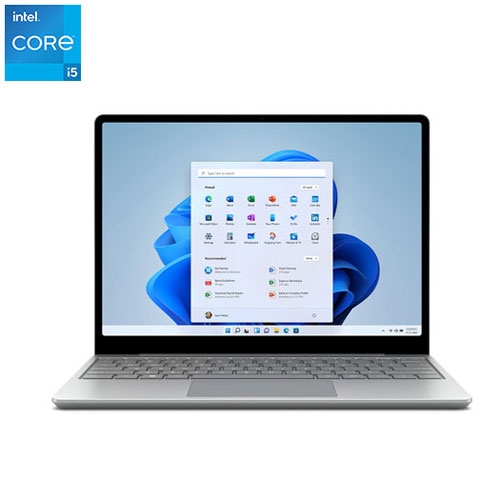
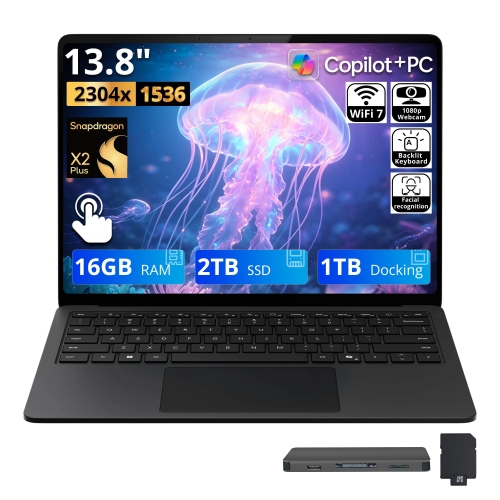
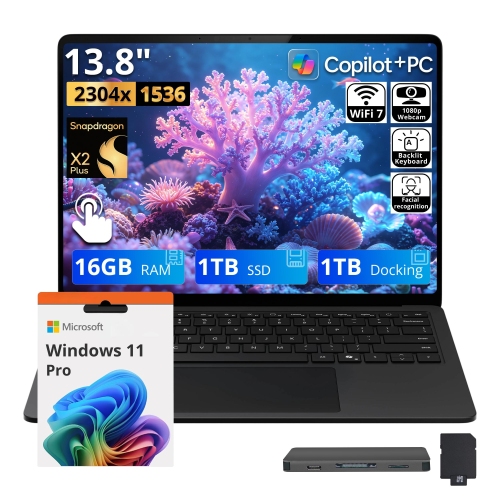
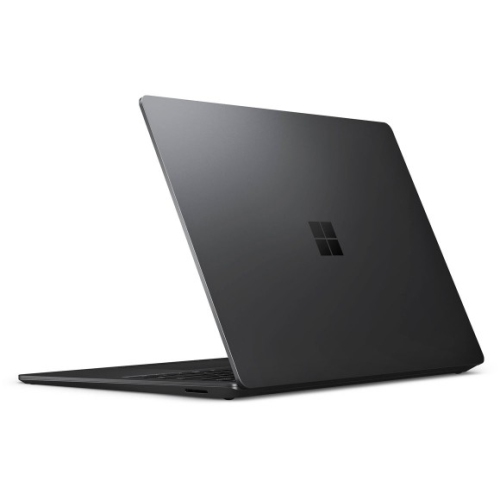
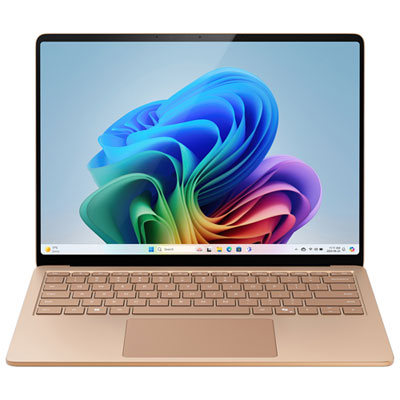
A slim touchscreen laptop brings together the familiarity of a full keyboard and the convenience of tapping directly on the display, making it a practical choice for everyday work, study, and personal projects. The 13.5-inch notebook format associated with this category offers enough room for comfortable document editing without taking up an entire café table or becoming cumbersome on a commute. A 3:2 display is particularly useful for reading articles, reviewing spreadsheets, and drafting assignments: its taller proportions show more vertical content than a widescreen display of a similar diagonal size. A resolution of 2256 × 1504 provides crisp text and detailed images, while touch input makes it easy to scroll through a recipe, enlarge a photograph, or move around a presentation. Touch capability does not necessarily mean a laptop folds into a tablet, however. A traditional clamshell keeps its keyboard attached beneath the screen and is intended primarily for use on a desk, table, or lap. Shoppers who want a detachable keyboard or a device designed around both tablet and notebook use can explore Surface 2 In 1 formats for that different style of interaction. For a conventional notebook, the appeal lies in a stable typing position, a built-in pointing surface, and a screen that opens quickly when it is time to get something done. That combination suits students moving between lectures, professionals answering messages between meetings, and households needing a compact computer for forms, video calls, and shared planning. It can also make a thoughtful gift for someone whose main activities involve writing, reading, and staying in touch, provided the computer supports their required applications. The most useful fit is not simply the smallest device; it is a laptop with screen proportions, keyboard spacing, and carrying weight that feel comfortable throughout an ordinary day. Around 1.25 kg is a manageable starting point for frequent travel, though the charger and protective sleeve add to the total carried weight.
Day-to-day performance depends on the processor, memory, storage, and condition of the individual configuration. Older thin-and-light notebooks with eighth-generation quad-core processors are generally best matched to web browsing, document editing, streaming, and light multitasking rather than demanding modern games or lengthy high-resolution video exports. A typical study session might involve an online course, a reference document, a notes application, and several browser tabs; a work session might add a video meeting and a large spreadsheet. Memory affects how comfortably these tasks run together. An 8 GB configuration can suit lighter routines, while 16 GB gives more room for multiple applications and larger files. Neither figure alone guarantees a smooth experience, since background software and the demands of each application also matter. Solid-state storage helps with starting the computer and opening files, but capacity deserves separate attention. A 128 GB drive leaves less space for local photographs, downloaded lectures, and large applications than a 256 GB, 512 GB, or 1 TB drive, and some of that capacity is used by the operating system. Built-in memory and internal storage on slim notebooks from this generation may not be designed for straightforward user upgrades, making the original configuration especially important. Software compatibility also extends beyond minimum processor and memory requirements: the operating system needs an appropriate security-support path, and essential school or workplace applications must support the installed version. Battery condition is another significant consideration with an older computer. Original battery-life claims describe testing under particular conditions, not a promise of how long a previously used battery will last. Display brightness, video calls, wireless activity, and battery wear all affect time away from an outlet. For someone working through several classes or spending an afternoon in meetings, a reliable charger and access to power can matter more than an original laboratory estimate. Where condition details are provided, battery information, keyboard function, touchscreen responsiveness, and the state of the charging connection help clarify how well a notebook will suit that routine.
Materials and connections shape the experience just as much as processing power. An aluminium exterior gives a slim notebook structure and a clean finish, while a fabric-covered keyboard deck offers a softer resting place for hands during long writing sessions. Fabric needs different care from bare metal: clean, dry hands help limit marks, and spills should be kept away from the keyboard and seams. Routine care generally means gently wiping the exterior with a soft, lint-free cloth and following the device maker’s directions for the palm rest and display. Cleaning liquid should never be sprayed directly onto the computer, and abrasive pads can damage finishes. A padded sleeve helps protect against scuffs from notebooks, keys, and other bag contents, but it should fit the laptop’s actual dimensions rather than relying only on a stated screen size. Pressure on the lid and impacts at the corners can still cause damage, so carrying the computer in a separate compartment is useful for busy commutes. At a desk, port selection determines how easily familiar accessories connect. On older notebooks equipped with USB-A, Mini DisplayPort, a headphone socket, and a dedicated charging connector, a wired mouse or USB flash drive may connect directly, while an external monitor may need a compatible display adapter. A USB-C accessory or charger should not be assumed to work with a computer that lacks the matching port. Checking the monitor input, cable type, and supported display output helps avoid an awkward first day at a new workspace. Built-in Wi-Fi is convenient for shared spaces, but wireless performance also depends on the router, distance, and network traffic. For video calls, camera placement, microphone clarity, and lighting influence the experience alongside the computer itself. A comfortable setup can be as simple as a clear desk, an external mouse, and a screen positioned away from window glare. Taken together, these everyday details distinguish a laptop that merely meets a specification from one that feels natural to carry, type on, and use throughout the day.
Day-to-day performance depends on the processor, memory, storage, and condition of the individual configuration. Older thin-and-light notebooks with eighth-generation quad-core processors are generally best matched to web browsing, document editing, streaming, and light multitasking rather than demanding modern games or lengthy high-resolution video exports. A typical study session might involve an online course, a reference document, a notes application, and several browser tabs; a work session might add a video meeting and a large spreadsheet. Memory affects how comfortably these tasks run together. An 8 GB configuration can suit lighter routines, while 16 GB gives more room for multiple applications and larger files. Neither figure alone guarantees a smooth experience, since background software and the demands of each application also matter. Solid-state storage helps with starting the computer and opening files, but capacity deserves separate attention. A 128 GB drive leaves less space for local photographs, downloaded lectures, and large applications than a 256 GB, 512 GB, or 1 TB drive, and some of that capacity is used by the operating system. Built-in memory and internal storage on slim notebooks from this generation may not be designed for straightforward user upgrades, making the original configuration especially important. Software compatibility also extends beyond minimum processor and memory requirements: the operating system needs an appropriate security-support path, and essential school or workplace applications must support the installed version. Battery condition is another significant consideration with an older computer. Original battery-life claims describe testing under particular conditions, not a promise of how long a previously used battery will last. Display brightness, video calls, wireless activity, and battery wear all affect time away from an outlet. For someone working through several classes or spending an afternoon in meetings, a reliable charger and access to power can matter more than an original laboratory estimate. Where condition details are provided, battery information, keyboard function, touchscreen responsiveness, and the state of the charging connection help clarify how well a notebook will suit that routine.
Materials and connections shape the experience just as much as processing power. An aluminium exterior gives a slim notebook structure and a clean finish, while a fabric-covered keyboard deck offers a softer resting place for hands during long writing sessions. Fabric needs different care from bare metal: clean, dry hands help limit marks, and spills should be kept away from the keyboard and seams. Routine care generally means gently wiping the exterior with a soft, lint-free cloth and following the device maker’s directions for the palm rest and display. Cleaning liquid should never be sprayed directly onto the computer, and abrasive pads can damage finishes. A padded sleeve helps protect against scuffs from notebooks, keys, and other bag contents, but it should fit the laptop’s actual dimensions rather than relying only on a stated screen size. Pressure on the lid and impacts at the corners can still cause damage, so carrying the computer in a separate compartment is useful for busy commutes. At a desk, port selection determines how easily familiar accessories connect. On older notebooks equipped with USB-A, Mini DisplayPort, a headphone socket, and a dedicated charging connector, a wired mouse or USB flash drive may connect directly, while an external monitor may need a compatible display adapter. A USB-C accessory or charger should not be assumed to work with a computer that lacks the matching port. Checking the monitor input, cable type, and supported display output helps avoid an awkward first day at a new workspace. Built-in Wi-Fi is convenient for shared spaces, but wireless performance also depends on the router, distance, and network traffic. For video calls, camera placement, microphone clarity, and lighting influence the experience alongside the computer itself. A comfortable setup can be as simple as a clear desk, an external mouse, and a screen positioned away from window glare. Taken together, these everyday details distinguish a laptop that merely meets a specification from one that feels natural to carry, type on, and use throughout the day.
Top selling and popular products
-
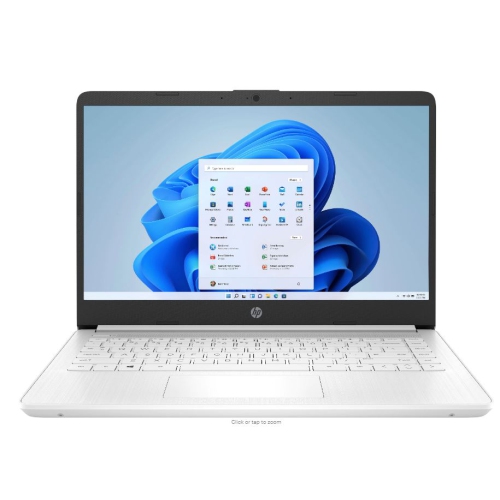 Your price for this item is $449
-
 Your price for this item is $3099
-
 Your price for this item is $664.05
-
 Your price for this item is $599.68
-
 Your price for this item is $499.99
-
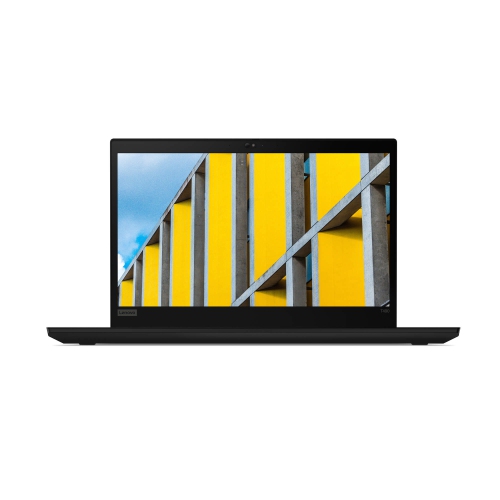 Your price for this item is $418.98
-
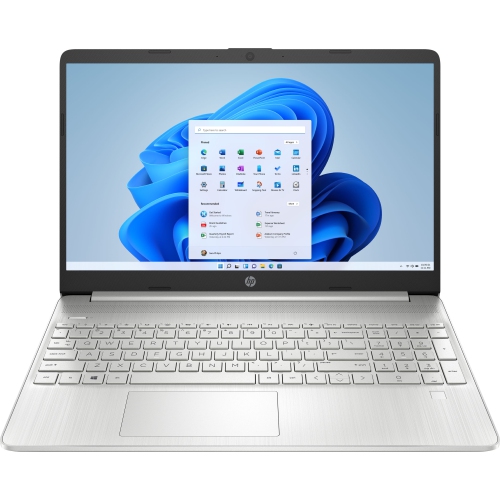 Your price for this item is $829
-
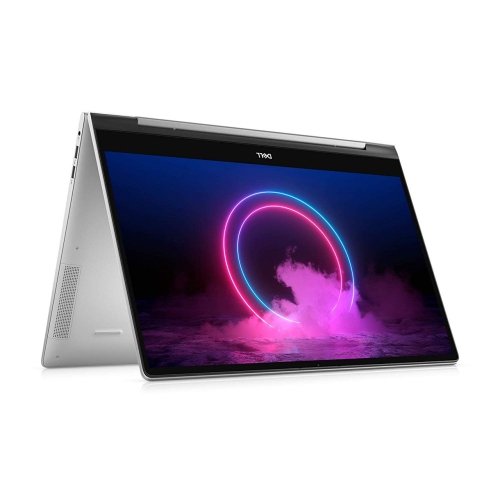 Your price for this item is $999.95
Discover more categories related to Microsoft Surface Laptops 2

Top Collections:
Pokemon Centers, Kindle Devices, Best Cameras for Sports Photography, Pokémon 30th Celebration Cards, Apple iPhones 16, Canon G7X Cameras, iPhone 15 Apple, Flip Phones, Samsung Galaxy Phones, Alarm Clock
Some products may be subject to Environmental Handling Fees
(EHF) depending on your province.
Learn more about EHFs.