Windows Microsoft Surface 2
Discover the versatility and performance of Windows Microsoft Surface 2 devices, designed to support your productivity, creativity, and entertainment needs. Whether you're working from home, attending virtual classes, or enjoying your favorite content on the go, these innovative devices offer seamless integration with Windows applications and services. Explore a range of configurations and styles to find the perfect fit for your lifestyle and computing requirements. Elevate your digital experience with Windows Microsoft Surface 2 and enjoy reliable performance wherever you are.
Sort


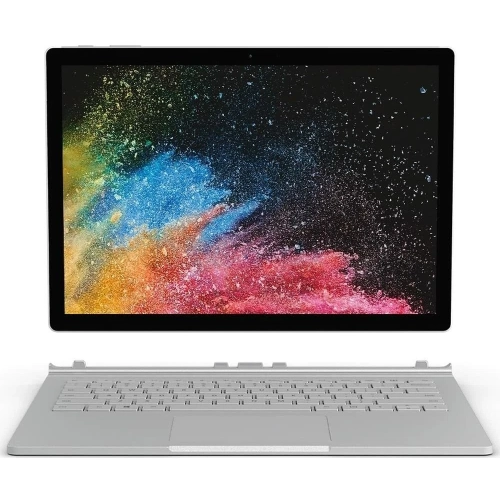

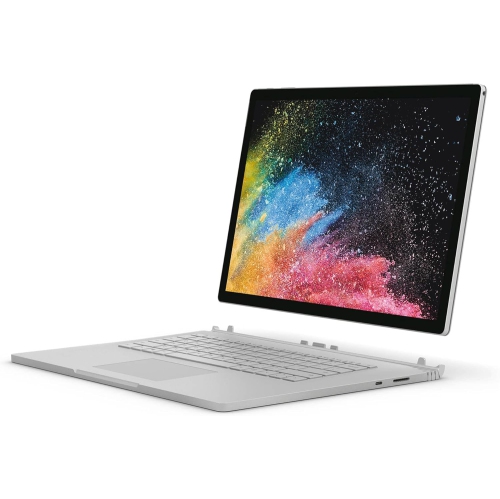


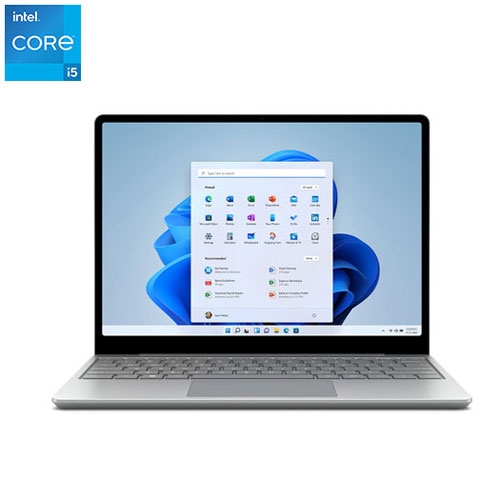

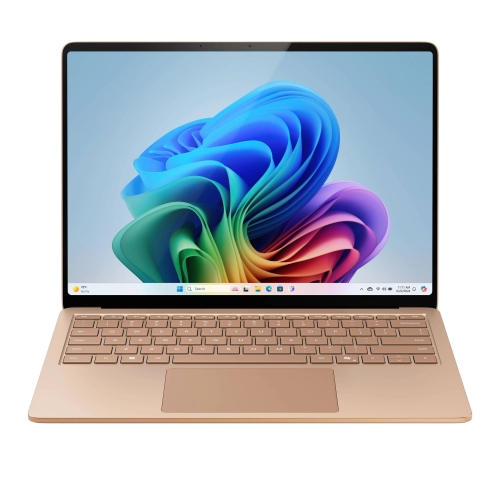
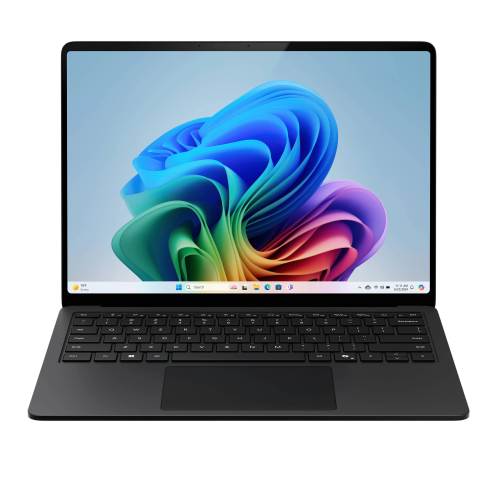
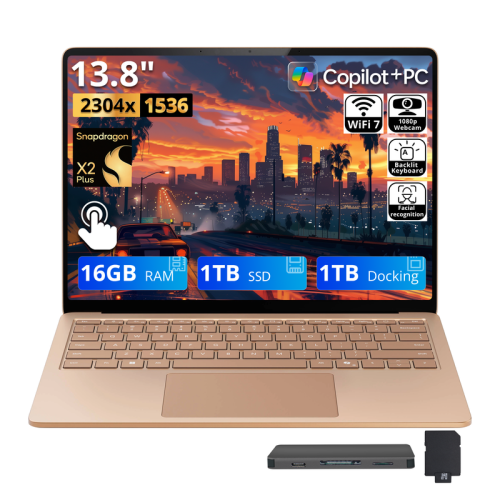
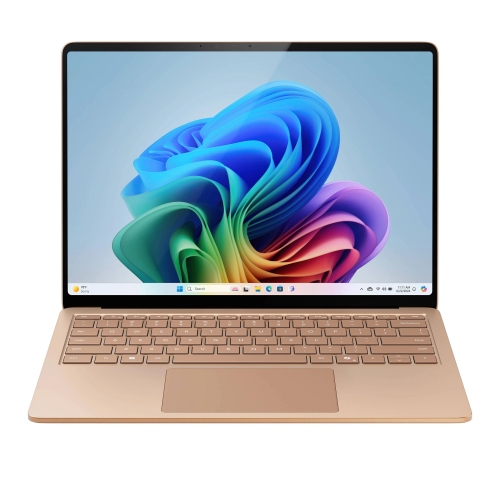
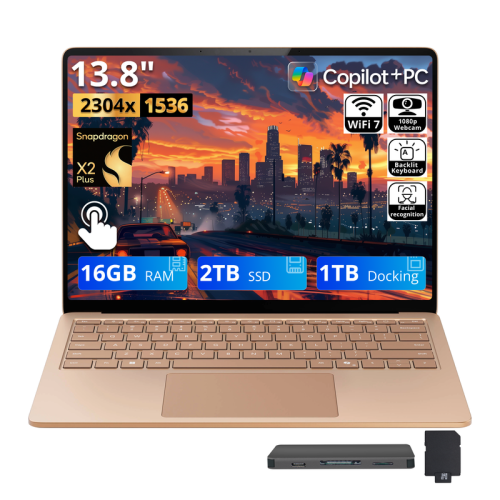

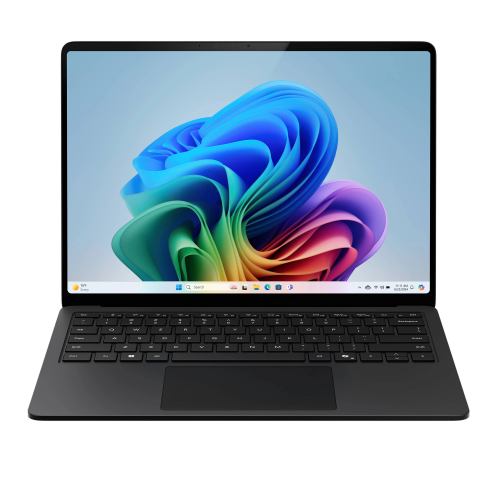
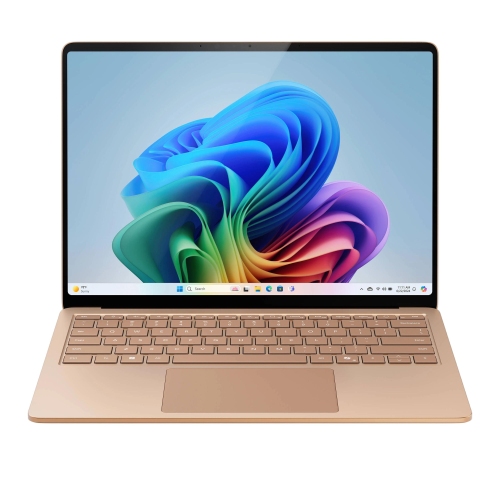
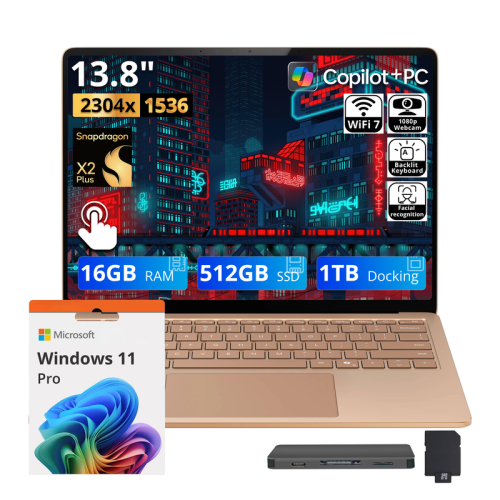
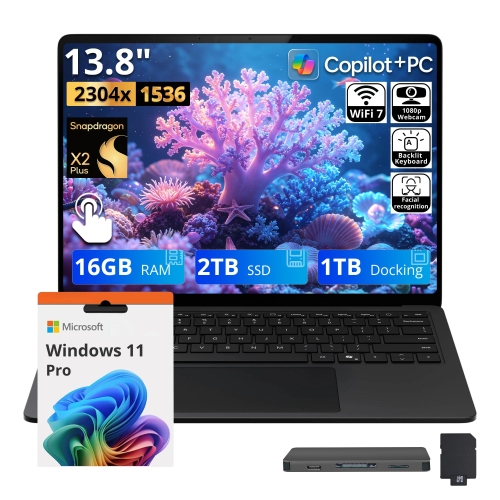
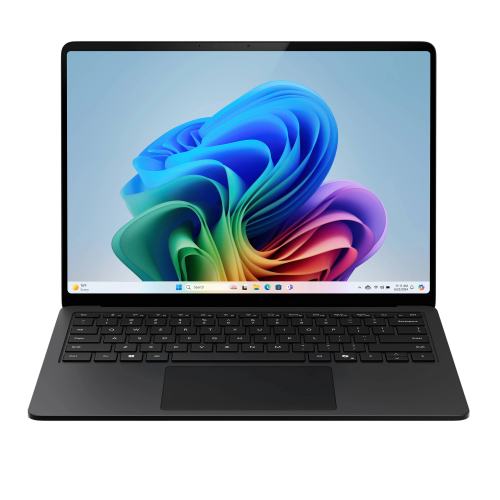
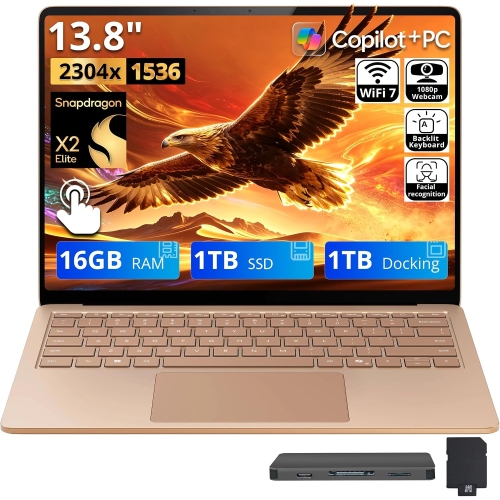
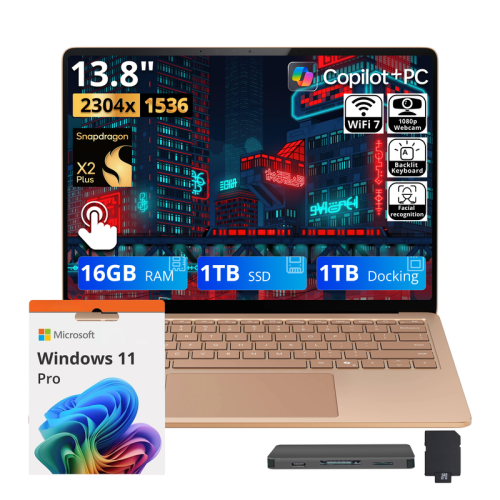
Similar device names can hide major software differences
Second-generation tablets, detachable computers, and laptops can have similar names without offering the same capabilities. The “2” in a device name may identify its generation, while “2-in-1” describes a computer that combines tablet and laptop functions; those labels are not interchangeable. This distinction matters when browsing older touchscreen devices alongside computers designed for desktop applications. Older RT-based tablets use a restricted operating system that cannot install and run standard desktop .exe programs, even when their screens and keyboards resemble those of a conventional laptop. Their software options depend on applications designed for that platform, and discontinued app services can further limit what remains usable. Full desktop operating systems offer a different range of possibilities, although application compatibility still depends on the processor, operating system version, memory, and other requirements. For older hardware, the end of security updates is particularly important: a device may still turn on and open existing files without being suitable for online banking, work accounts, or other sensitive activities. The exact model and operating system therefore say more about practical usefulness than the family name alone. Screen size, physical design, and the presence of a keyboard are helpful clues, but they do not establish software compatibility. For a broader look at the tablet-and-laptop format, the Surface 2 In 1 page provides a related category to explore. Across this type of computer, intended use is the most useful starting point. Reading documents on the sofa, typing a lengthy assignment at a desk, and joining a video call from a kitchen table place different demands on the same hardware. A lightweight touchscreen can be comfortable for reading and casual browsing, while sustained typing, larger spreadsheets, and several open applications call for closer attention to the keyboard, processor, memory, and supported software. For a student or family member receiving a device as a gift, compatibility with their school tools, accessibility needs, and everyday applications matters more than a familiar shape or name.
The physical differences between tablets, detachables, and conventional laptops become clearer during ordinary use. A detachable keyboard makes it possible to leave the typing surface behind when reading, while a built-in kickstand can hold the display at a comfortable angle on a firm table. On a lap, however, a kickstand and flexible keyboard may need more space and feel less steady than a traditional laptop base. A hinged convertible keeps its keyboard attached, which can be convenient when moving between rooms, though its weight remains in hand when folded into tablet mode. Screen dimensions describe only part of that experience. Display proportions affect how much of a document fits on screen, resolution influences text clarity, and brightness and reflections affect visibility beside a window. For carrying a computer between home, class, and the office, total weight includes the keyboard, protective cover, and charger rather than the tablet alone. Chassis materials also shape the feel of a device. Metal housings can feel rigid and substantial, while glass touchscreens benefit from protection against grit, impacts, and pressure inside a crowded bag. No material makes a portable computer immune to damage, and the condition of hinges, stands, ports, and keyboard attachment points deserves attention on older hardware. A fitted sleeve should accommodate the device’s actual dimensions and any attached keyboard without pressing tightly against the screen. Accessories require equally precise matching: similar-looking generations may use different connectors, keyboard fittings, charging systems, or pen technology. A touchscreen does not automatically support an active stylus, pressure sensitivity, or palm rejection. For handwritten notes, diagrams, or drawing, those features depend on the display and compatible pen working together. Everyday connections deserve the same consideration. A USB port, memory card slot, display output, or headphone connection can simplify a familiar routine, but capabilities vary by model. Wireless keyboards, headphones, and Wi-Fi connections also depend on supported standards and functioning drivers, especially with older operating systems.
Performance and condition determine whether a portable computer feels comfortable in daily use long after its exterior has made a good impression. Memory helps keep applications responsive when switching between a document, a browser, and a call, while storage holds software, personal files, and system data. The stated storage capacity is not the same as usable free space because the operating system and installed applications occupy part of it. Memory cards or external drives may provide room for files on compatible devices, but they do not increase working memory or guarantee that applications can be installed elsewhere. Battery condition is another important distinction between an older tablet and a newer computer with a similar form. Rechargeable batteries lose capacity with age and use, so original battery-life claims do not establish how long an individual device will last away from an outlet. A charging connection that works reliably and a correctly rated, compatible power adapter are essential for regular use. For refurbished or previously owned hardware, descriptions of cosmetic condition, battery testing, included accessories, and warranty coverage help clarify what the device is suited to. Surface scratches are different from a loose charging port, an unreliable touchscreen, or a worn hinge, all of which affect handling. Care is generally straightforward: a soft, lint-free cloth helps remove fingerprints, liquids should not be sprayed directly onto the screen, and cleaning methods should follow the manufacturer’s directions. Keeping ventilation openings clear and avoiding soft bedding beneath a running computer helps prevent heat from building up. During the cooler months, a device brought indoors from the cold should reach room temperature before use or charging, particularly if condensation is visible. For day-to-day practicality, a comfortable keyboard, readable display, reliable battery, and supported operating system often matter more than a slim profile alone. A compact device can fit neatly into a commuter’s bag or sit unobtrusively on a small desk, but its lasting usefulness comes from matching its capabilities and condition to the tasks it will actually perform.
The physical differences between tablets, detachables, and conventional laptops become clearer during ordinary use. A detachable keyboard makes it possible to leave the typing surface behind when reading, while a built-in kickstand can hold the display at a comfortable angle on a firm table. On a lap, however, a kickstand and flexible keyboard may need more space and feel less steady than a traditional laptop base. A hinged convertible keeps its keyboard attached, which can be convenient when moving between rooms, though its weight remains in hand when folded into tablet mode. Screen dimensions describe only part of that experience. Display proportions affect how much of a document fits on screen, resolution influences text clarity, and brightness and reflections affect visibility beside a window. For carrying a computer between home, class, and the office, total weight includes the keyboard, protective cover, and charger rather than the tablet alone. Chassis materials also shape the feel of a device. Metal housings can feel rigid and substantial, while glass touchscreens benefit from protection against grit, impacts, and pressure inside a crowded bag. No material makes a portable computer immune to damage, and the condition of hinges, stands, ports, and keyboard attachment points deserves attention on older hardware. A fitted sleeve should accommodate the device’s actual dimensions and any attached keyboard without pressing tightly against the screen. Accessories require equally precise matching: similar-looking generations may use different connectors, keyboard fittings, charging systems, or pen technology. A touchscreen does not automatically support an active stylus, pressure sensitivity, or palm rejection. For handwritten notes, diagrams, or drawing, those features depend on the display and compatible pen working together. Everyday connections deserve the same consideration. A USB port, memory card slot, display output, or headphone connection can simplify a familiar routine, but capabilities vary by model. Wireless keyboards, headphones, and Wi-Fi connections also depend on supported standards and functioning drivers, especially with older operating systems.
Performance and condition determine whether a portable computer feels comfortable in daily use long after its exterior has made a good impression. Memory helps keep applications responsive when switching between a document, a browser, and a call, while storage holds software, personal files, and system data. The stated storage capacity is not the same as usable free space because the operating system and installed applications occupy part of it. Memory cards or external drives may provide room for files on compatible devices, but they do not increase working memory or guarantee that applications can be installed elsewhere. Battery condition is another important distinction between an older tablet and a newer computer with a similar form. Rechargeable batteries lose capacity with age and use, so original battery-life claims do not establish how long an individual device will last away from an outlet. A charging connection that works reliably and a correctly rated, compatible power adapter are essential for regular use. For refurbished or previously owned hardware, descriptions of cosmetic condition, battery testing, included accessories, and warranty coverage help clarify what the device is suited to. Surface scratches are different from a loose charging port, an unreliable touchscreen, or a worn hinge, all of which affect handling. Care is generally straightforward: a soft, lint-free cloth helps remove fingerprints, liquids should not be sprayed directly onto the screen, and cleaning methods should follow the manufacturer’s directions. Keeping ventilation openings clear and avoiding soft bedding beneath a running computer helps prevent heat from building up. During the cooler months, a device brought indoors from the cold should reach room temperature before use or charging, particularly if condensation is visible. For day-to-day practicality, a comfortable keyboard, readable display, reliable battery, and supported operating system often matter more than a slim profile alone. A compact device can fit neatly into a commuter’s bag or sit unobtrusively on a small desk, but its lasting usefulness comes from matching its capabilities and condition to the tasks it will actually perform.
Top selling and popular products
-
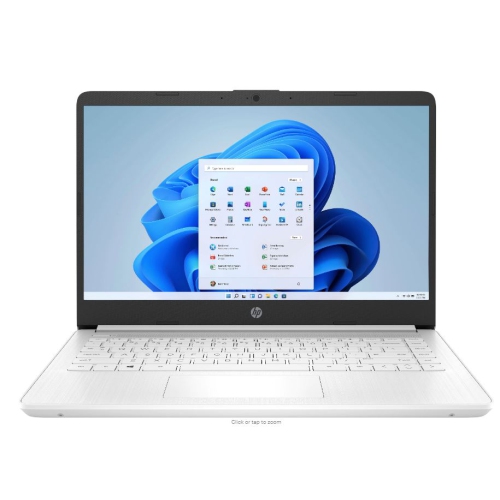 Your price for this item is $449
-
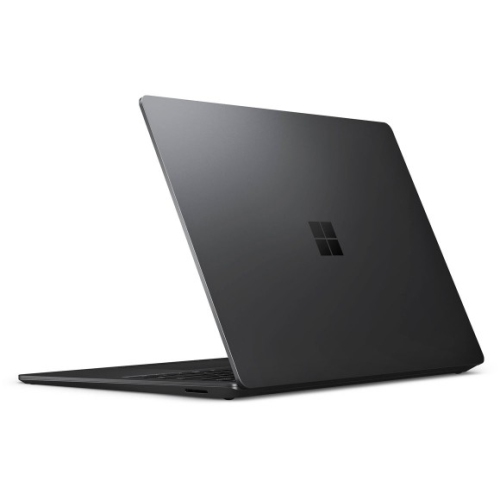 Your price for this item is $3099
-
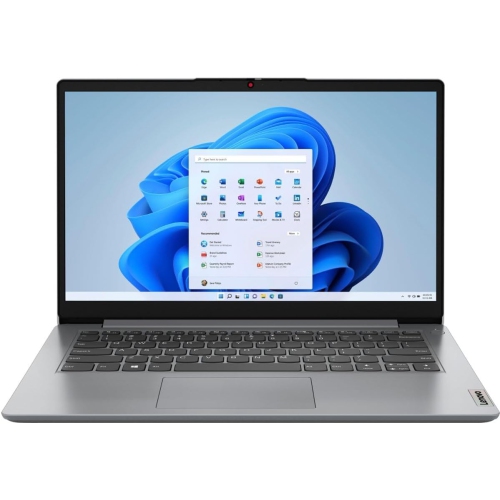 Your price for this item is $664.05
-
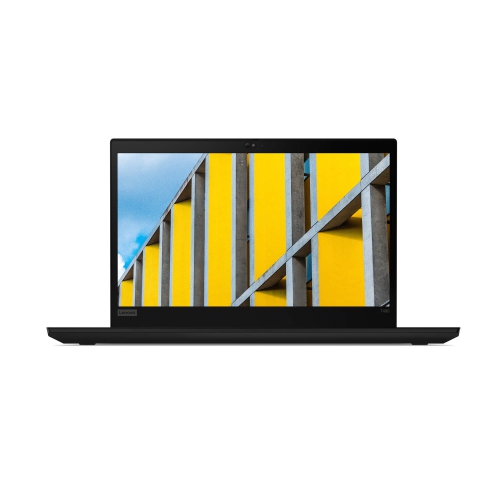 Your price for this item is $599.68
-
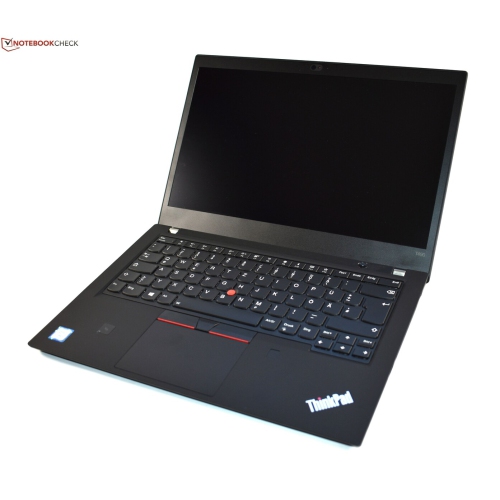 Your price for this item is $499.99
-
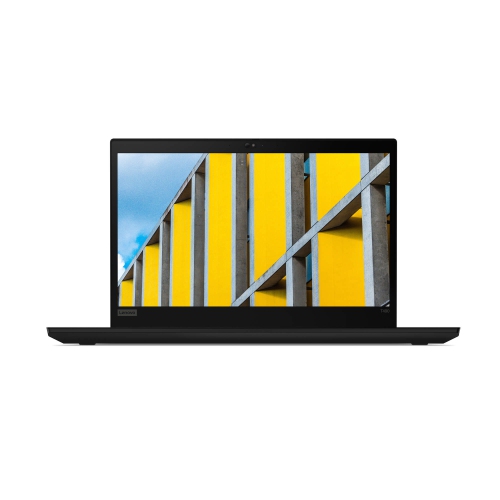 Your price for this item is $418.98
-
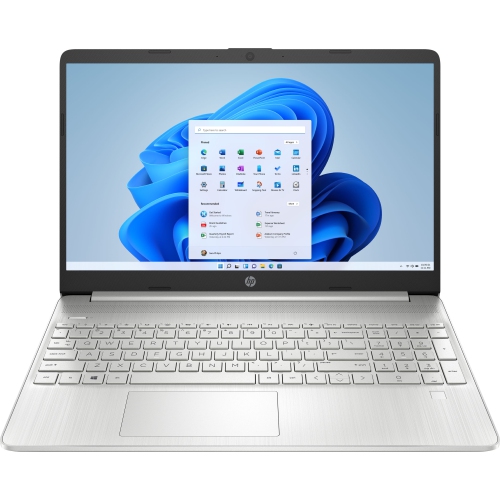 Your price for this item is $829
-
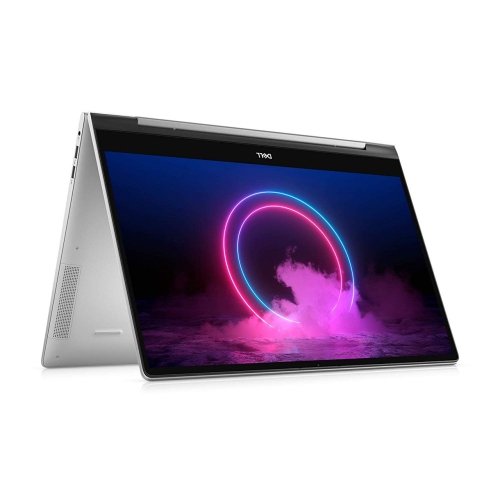 Your price for this item is $999.95
Discover more categories related to Windows Microsoft Surface 2

Top Collections:
Pokemon Centers, Kindle Devices, Best Cameras for Sports Photography, Pokémon 30th Celebration Cards, Apple iPhones 16, Canon G7X Cameras, iPhone 15 Apple, Flip Phones, Samsung Galaxy Phones, Alarm Clock
Some products may be subject to Environmental Handling Fees
(EHF) depending on your province.
Learn more about EHFs.