USB To HDMI Cables
Transform your viewing experience with a USB to HDMI cable, the perfect solution for connecting your devices to larger screens. Whether you're looking to enhance your home office setup, stream movies on your TV, or deliver impactful presentations, these versatile cables offer seamless connectivity and high-quality video output. With a simple plug-and-play design, they bridge the gap between computers and displays, making it easy to enjoy crisp visuals and vibrant colors. Explore our selection of USB to HDMI cables and find the ideal match for your tech needs today at Best Buy Canada.
Sort
![YELLOW-PRICE USB C to HDMI Adapter 4K60Hz Cable [Thunderbolt 3 Compatible]+HDMI 2.0 HD Cable](https://multimedia.bbycastatic.ca/multimedia/products/500x500/166/16600/16600781.jpeg)
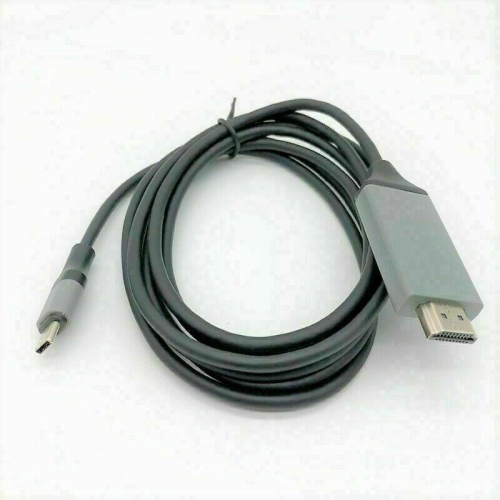
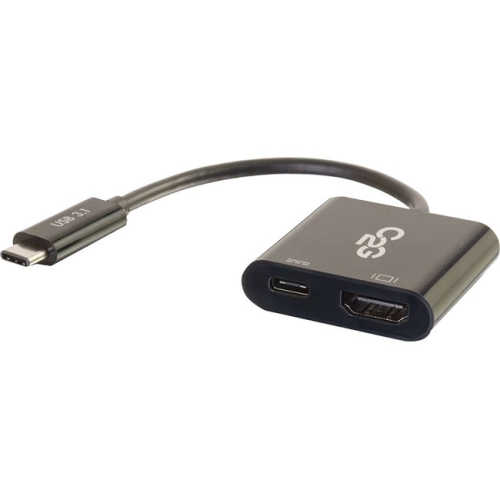
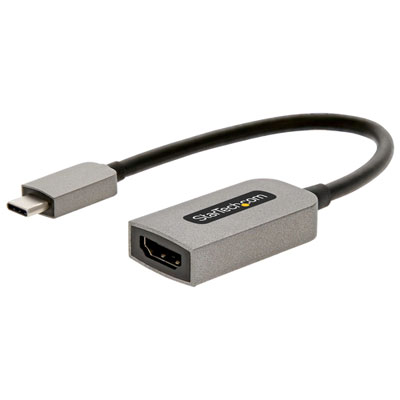
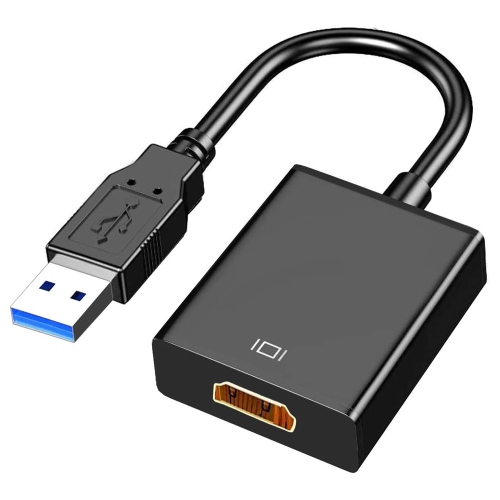
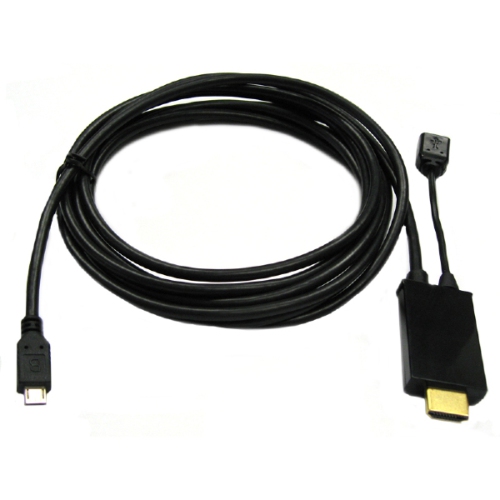
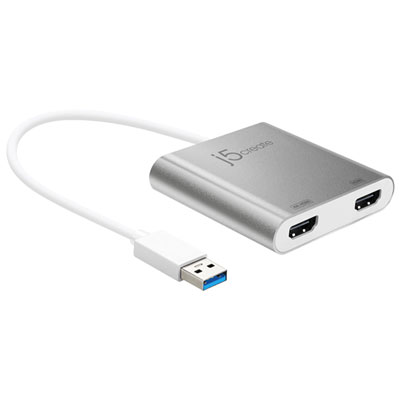

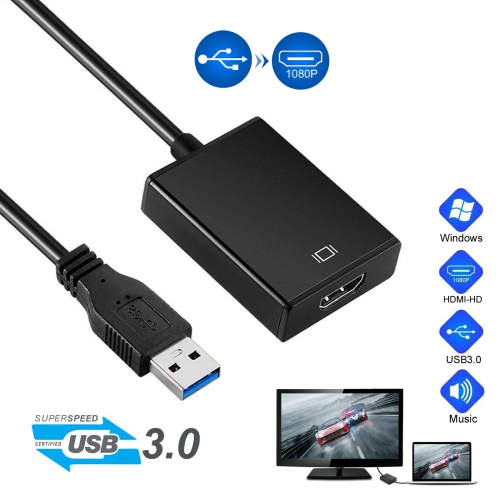
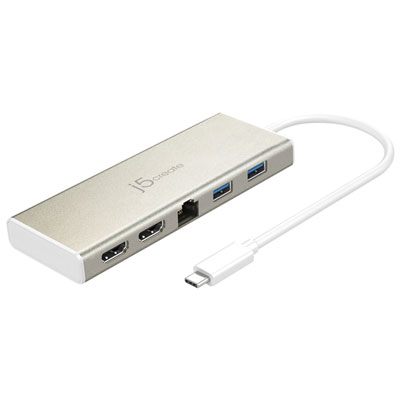
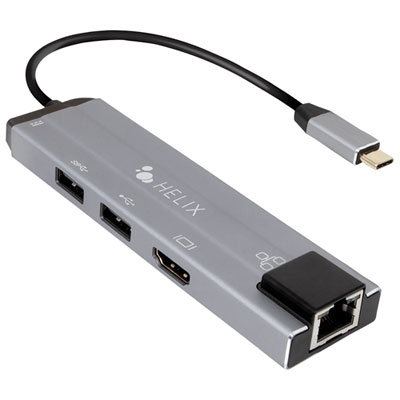
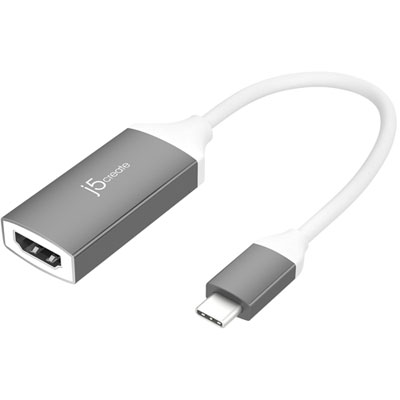
Port compatibility and display support shape every connection
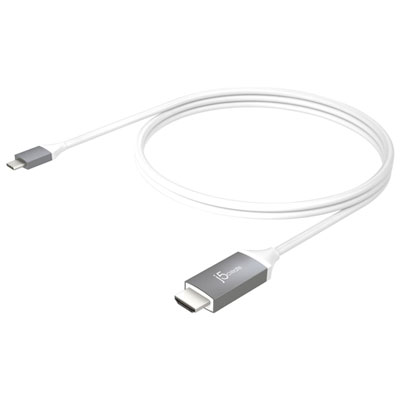
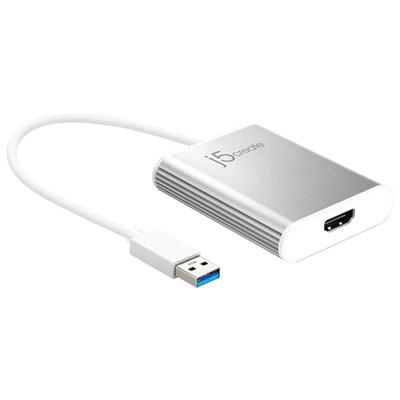
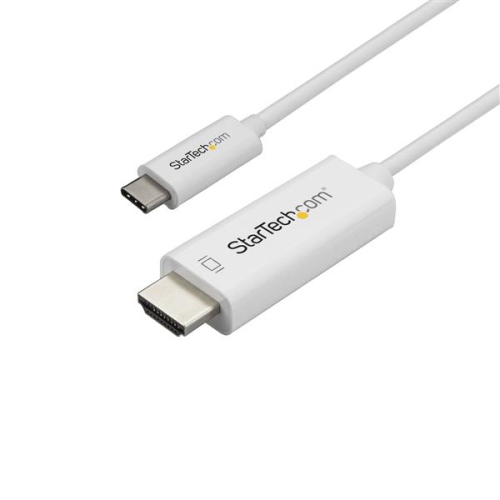
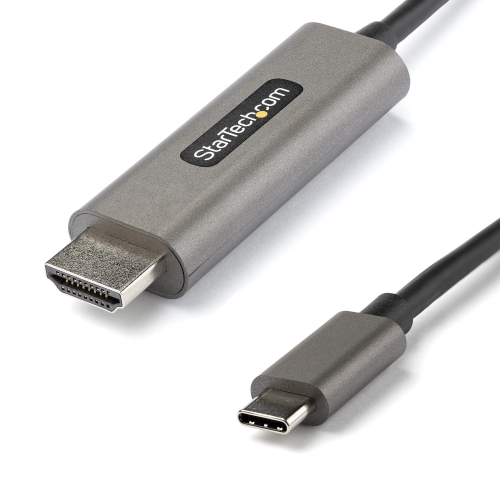
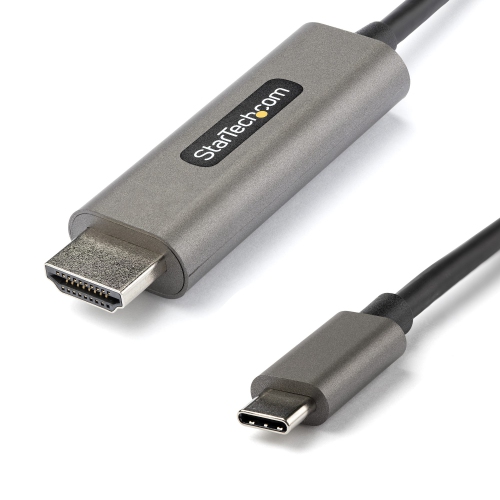
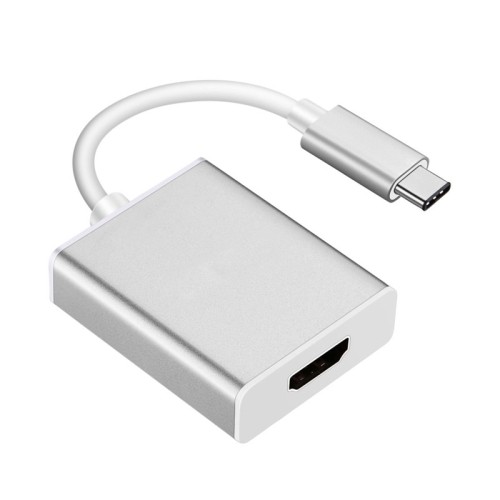
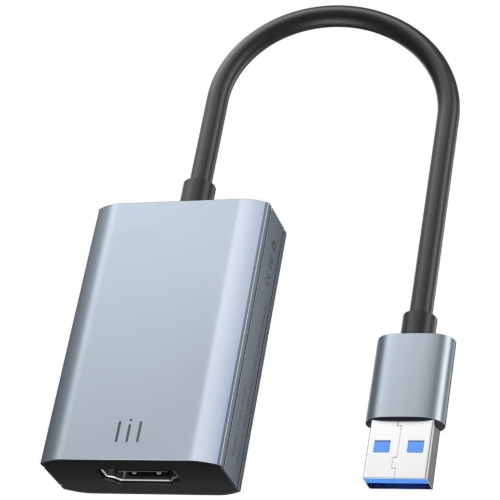
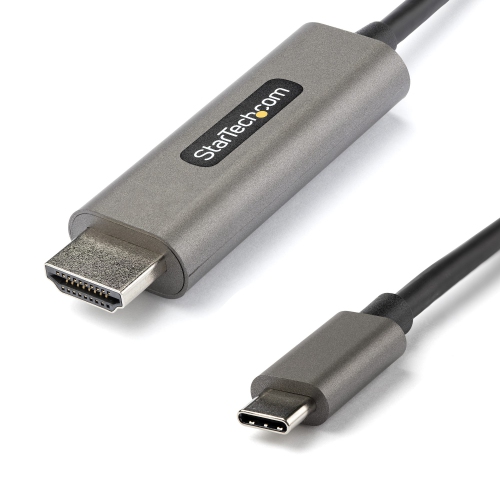
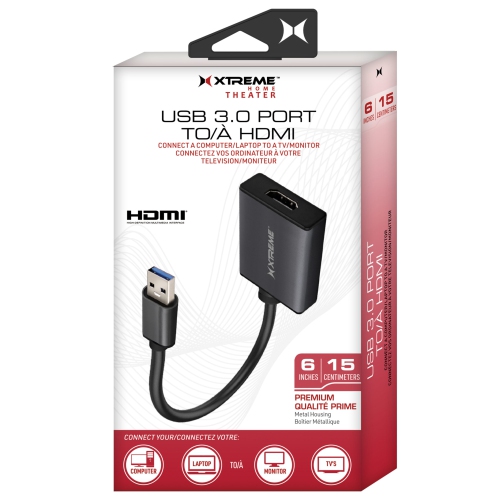
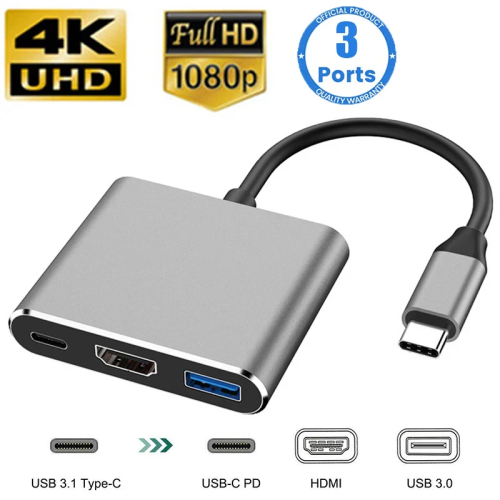
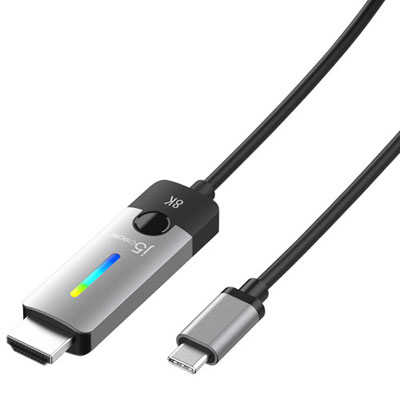
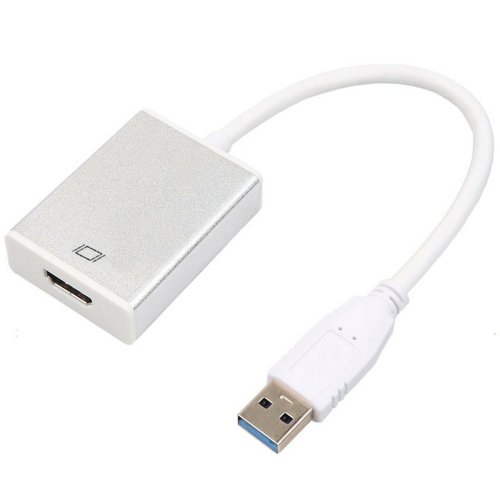
USB-to-HDMI cables and adapters provide a practical way to connect a computer, tablet, phone, or other compatible device to a television, monitor, projector, or other HDMI-equipped display. They are useful at home, in classrooms, at the office, and in entertainment spaces where a larger screen makes information easier to see. A laptop connected to a monitor can create a more comfortable workstation, while a phone with supported video output can share photos, streaming content, presentations, or games on a television. Some people keep one in a laptop bag for presentations and shared work, while others use one to make a spare television more useful as a second screen during the cooler months when more time is spent indoors. These cables can also make thoughtful gifts for students, remote workers, frequent travellers, home-office users, and anyone who enjoys watching content or displaying photos on a larger screen. Before choosing one, identify the ports on both devices and confirm the video-output capabilities of the source device. USB-C is a small, reversible connector, but not every USB-C port sends video. The computer, tablet, or phone must support DisplayPort Alternate Mode, often written as DisplayPort Alt Mode, for a direct USB-C-to-HDMI cable to work as expected. A USB-C port used only for charging or data may not produce a picture, even if the connector fits perfectly. If the source has a standard rectangular USB-A port, a simple passive cable generally cannot convert its data signal into HDMI video. A specialized USB-A-to-HDMI display adapter is usually required, and it may need software drivers to process the video signal. Some of these adapters also require a separate USB connection for power, particularly when driving larger displays or higher resolutions. Checking the device specifications before ordering helps prevent an inconvenient situation where a cable connects physically but cannot deliver an image.
Resolution, refresh rate, audio support, length, and construction all affect the best choice for a particular setup. For everyday documents, web browsing, video calls, and presentations, a cable supporting 1080p may be sufficient and can provide a dependable connection at a lower cost. A 4K-capable cable is a better match for newer televisions, detailed monitors, photography, design work, and high-resolution video. If smooth motion matters for gaming, scrolling, animation, or sports, look beyond the resolution alone and check the supported refresh rate. A cable advertised for 4K at 60 Hz can provide more fluid movement than one limited to 4K at 30 Hz, provided the computer, display, HDMI input, and graphics hardware all support that combination. The cable cannot increase the capabilities of the connected devices, so the final result is determined by the component with the lowest specification. Most direct digital USB-C-to-HDMI connections can carry high-definition video and audio together, allowing sound to play through the television or monitor without a separate audio cable. Audio may still depend on the operating system settings, the selected playback device, and the capabilities of the display. Cable length deserves equal attention: a short lead keeps a desk tidy when devices sit side by side, while a longer cable can reach a wall-mounted television or a projector across a room. Extra length may be convenient, but it can also leave more cable to manage, so measure the route between the source and display before choosing. Look for secure connectors, durable strain relief, and a cable thickness suited to regular handling. A compact adapter can be convenient for travel, whereas a longer cable may be more useful for a fixed home entertainment or work area. Prices commonly range from about $7 to $30, depending on length, resolution support, connector type, and whether the product includes active conversion hardware or driver-based functionality.
For a straightforward setup, connect the compatible USB-C end to the source device and the HDMI end to an available input on the display, then select that HDMI input using the television, monitor, or projector controls. On a computer, display settings can usually be adjusted to mirror the screen, extend the desktop, or use the external display as the main screen. Mirroring is convenient for presentations and showing photos, while extending the desktop gives more room for documents, browser windows, and creative applications. If there is no picture, start with the basics: confirm that the display is set to the correct HDMI input, reseat both connectors, try another HDMI input, and check whether the USB-C port supports DisplayPort Alt Mode. For USB-A display adapters, install the required driver from the supplied instructions and restart the computer if requested. A powered adapter may need to be connected to a wall charger or another power source before it can operate reliably. Flickering, a blank screen, or a lower-than-expected resolution can result from an unsupported refresh rate, an incompatible port, an underpowered adapter, or a cable that does not meet the required standard. It is also worth confirming that the device can output the desired resolution and that the display supports it through the selected HDMI input. Customers comparing USB-C options can explore USB-C Video Cables for connections designed around modern USB-C devices. Whether the goal is to create a dual-screen workspace, share a family photo collection, connect a portable computer to a television, or make presentations easier to follow, choosing the correct connector and video standard is the key to a reliable experience.
Resolution, refresh rate, audio support, length, and construction all affect the best choice for a particular setup. For everyday documents, web browsing, video calls, and presentations, a cable supporting 1080p may be sufficient and can provide a dependable connection at a lower cost. A 4K-capable cable is a better match for newer televisions, detailed monitors, photography, design work, and high-resolution video. If smooth motion matters for gaming, scrolling, animation, or sports, look beyond the resolution alone and check the supported refresh rate. A cable advertised for 4K at 60 Hz can provide more fluid movement than one limited to 4K at 30 Hz, provided the computer, display, HDMI input, and graphics hardware all support that combination. The cable cannot increase the capabilities of the connected devices, so the final result is determined by the component with the lowest specification. Most direct digital USB-C-to-HDMI connections can carry high-definition video and audio together, allowing sound to play through the television or monitor without a separate audio cable. Audio may still depend on the operating system settings, the selected playback device, and the capabilities of the display. Cable length deserves equal attention: a short lead keeps a desk tidy when devices sit side by side, while a longer cable can reach a wall-mounted television or a projector across a room. Extra length may be convenient, but it can also leave more cable to manage, so measure the route between the source and display before choosing. Look for secure connectors, durable strain relief, and a cable thickness suited to regular handling. A compact adapter can be convenient for travel, whereas a longer cable may be more useful for a fixed home entertainment or work area. Prices commonly range from about $7 to $30, depending on length, resolution support, connector type, and whether the product includes active conversion hardware or driver-based functionality.
For a straightforward setup, connect the compatible USB-C end to the source device and the HDMI end to an available input on the display, then select that HDMI input using the television, monitor, or projector controls. On a computer, display settings can usually be adjusted to mirror the screen, extend the desktop, or use the external display as the main screen. Mirroring is convenient for presentations and showing photos, while extending the desktop gives more room for documents, browser windows, and creative applications. If there is no picture, start with the basics: confirm that the display is set to the correct HDMI input, reseat both connectors, try another HDMI input, and check whether the USB-C port supports DisplayPort Alt Mode. For USB-A display adapters, install the required driver from the supplied instructions and restart the computer if requested. A powered adapter may need to be connected to a wall charger or another power source before it can operate reliably. Flickering, a blank screen, or a lower-than-expected resolution can result from an unsupported refresh rate, an incompatible port, an underpowered adapter, or a cable that does not meet the required standard. It is also worth confirming that the device can output the desired resolution and that the display supports it through the selected HDMI input. Customers comparing USB-C options can explore USB-C Video Cables for connections designed around modern USB-C devices. Whether the goal is to create a dual-screen workspace, share a family photo collection, connect a portable computer to a television, or make presentations easier to follow, choosing the correct connector and video standard is the key to a reliable experience.
Top selling and popular products
-
 Your price for this item is $95.68
 -
 Your price for this item is $33.99
 -
 Your price for this item is $48.99
 -
 Your price for this item is $30.99
 -
 Your price for this item is $61.68
 -
 Your price for this item is $78.99
 -
 Your price for this item is $42.68
 -
 Your price for this item is $65.86
Discover more categories related to USB To HDMI Cables
Top Collections:
Pokemon Centers, Kindle Devices, Best Budget Office Chairs, Apple iPhones 16, Best Laptops for Writers, iPhone 15 Apple, Canon G7X Cameras, Refurbished Apple Laptops, Alarm Clock, Motorola Razr Phones
Some products may be subject to Environmental Handling Fees
(EHF) depending on your province.
Learn more about EHFs.