Docking Stations for HP Laptops
Docking stations for HP laptops offer a convenient way to expand your workspace and enhance productivity at home, in the office, or on the go. With a docking station, connecting your HP laptop to multiple devices and accessories becomes quick and effortless, streamlining your daily workflow. Whether you need to add extra monitors, connect to external storage, or link up with other peripherals, finding the right docking station for HP laptops can help you create a seamless and efficient setup tailored to your needs.
Sort
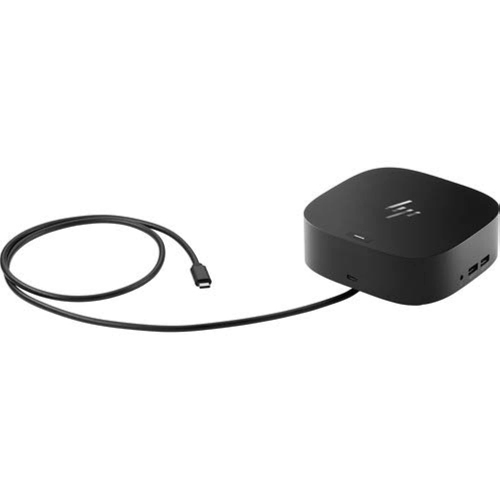
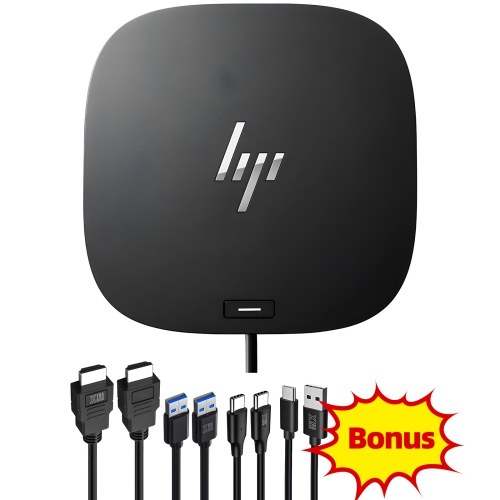
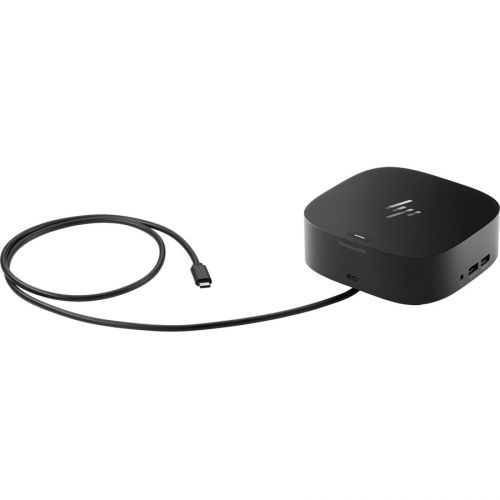
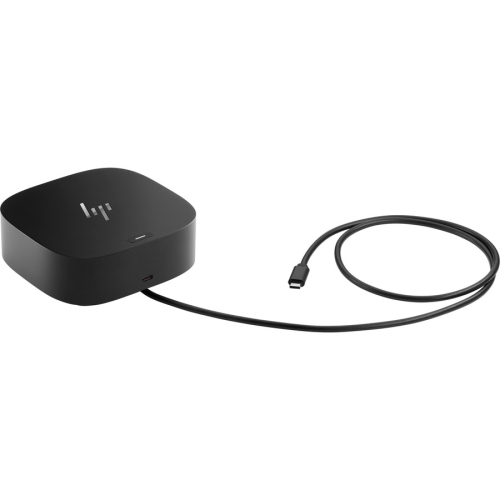

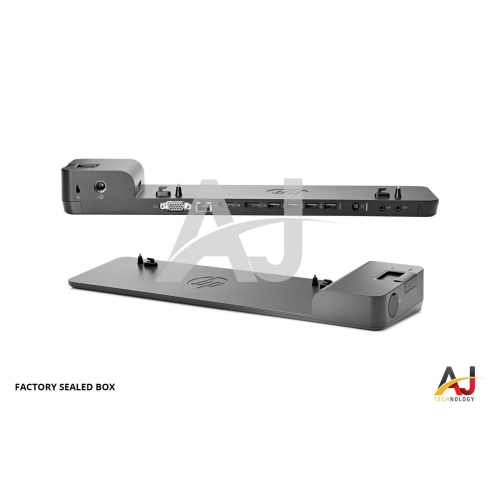
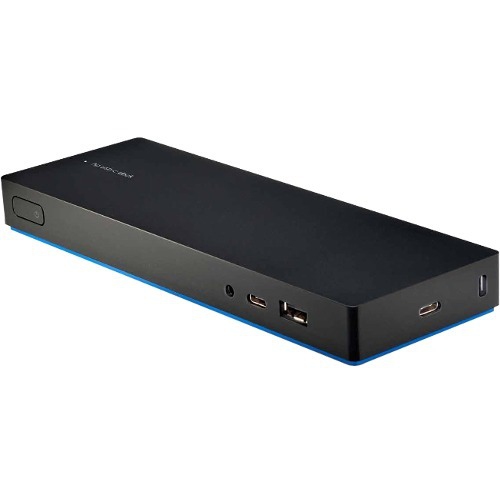
One connection can turn your laptop into a workstation
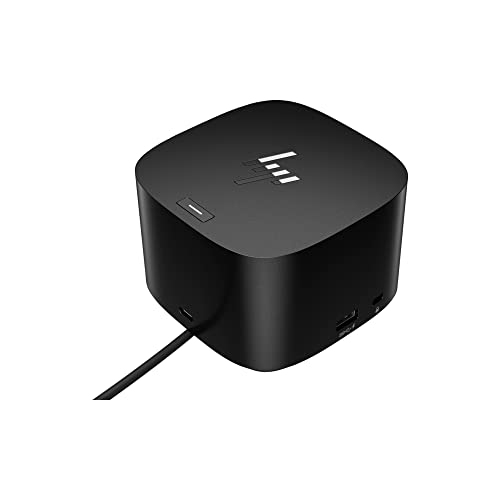
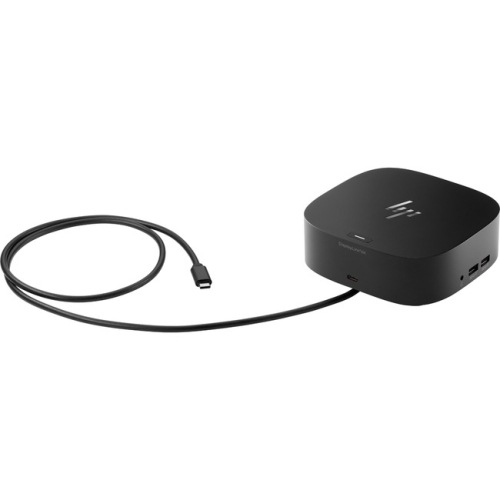
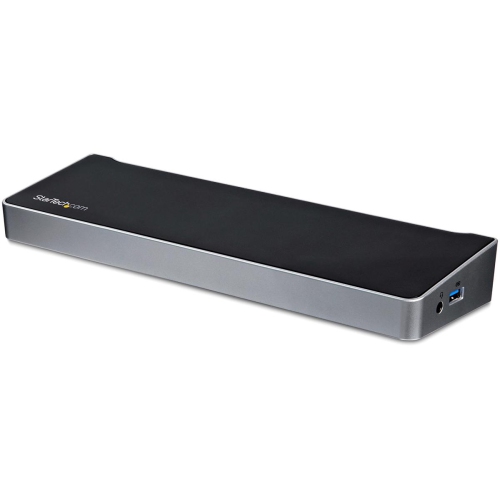
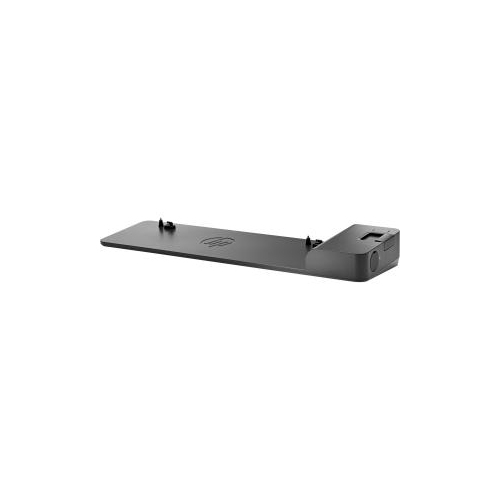
Docking stations for HP laptops make it easier to move between portable and desktop-style computing without reconnecting every accessory one cable at a time. A compatible dock can turn a laptop’s USB-C or Thunderbolt connection into a central hub for monitors, keyboards, mice, storage drives, wired networks, headsets and other everyday peripherals. Instead of reaching behind a desk to connect several cables, you can place the laptop on a workspace, connect one lead, and have your main accessories ready to use. This arrangement is useful for professionals working from home, students moving between classes and study spaces, families sharing a home office, and anyone who prefers the comfort of a larger screen and full-size keyboard while keeping the flexibility of a laptop. A docking station can also help create a more organised desk, particularly when monitors and accessories stay connected to the dock rather than to the laptop itself. Browse the available HP Laptop Docking Stations to compare configurations suited to different workspaces and connection needs. When choosing a model, start by checking the ports and charging capabilities of the HP laptop it will be used with. USB-C does not always support the same features on every computer, so confirm whether the laptop’s USB-C port supports power delivery, video output, or Thunderbolt technology. A dock that supports video output through USB-C can connect to one or more external displays, while a charging-enabled connection may allow the laptop to receive power through the same cable used for data and display signals. This can be especially convenient at a shared kitchen table or a compact desk where reducing cable clutter makes a noticeable difference.
Power delivery is an important consideration for a reliable setup. Check the laptop’s required wattage and choose a docking station that can provide equal or greater power when charging through the dock. Many models offer power delivery in the range of 100W to 120W, although the amount delivered to the computer may vary depending on the dock, power adapter and laptop requirements. A dock with insufficient power may still connect peripherals, but it may charge slowly or fail to maintain the laptop’s battery during demanding tasks. Port selection should match the equipment already on the desk and any accessories you may add later. USB-A ports remain useful for older keyboards, mice, printers, flash drives and other familiar accessories, while USB-C ports can support newer storage devices, phones and peripherals. An Ethernet, or RJ45, port is helpful when a stable wired network connection is preferred for video calls, large file transfers, online learning or office applications. Audio jacks can simplify the connection of headphones, speakers or a microphone, particularly when the laptop is positioned beside a monitor or tucked beneath a stand. Consider the location and direction of each port as well, since rear-facing connections can keep permanent cables out of the way, while front-facing ports are convenient for devices that are connected only occasionally. A docking station may be a thoughtful gift for someone setting up a first home office, returning to campus, upgrading a study area or replacing a crowded collection of adapters. It can also be useful for a household member who carries an HP laptop between rooms and wants a dependable workstation in one regular location.
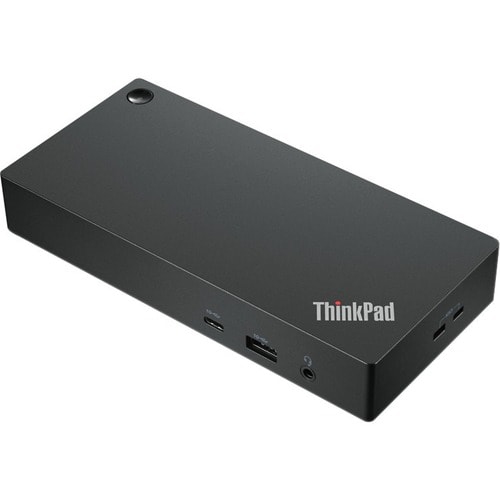
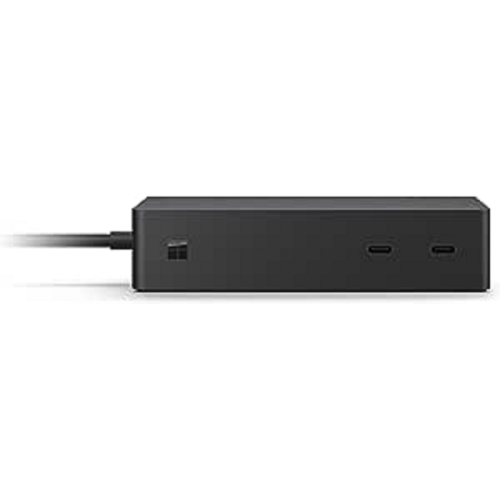
Display support deserves close attention when a laptop will be used with one or more monitors. Look for the correct combination of HDMI and DisplayPort outputs for the screens already in use, and confirm the supported resolution and refresh rate. A basic single-monitor arrangement may be well served by a dock with one suitable video output, while a productivity-focused workspace may benefit from dual-display support. Multiple monitors can make it easier to keep email, reference material, spreadsheets and video meetings visible at the same time, reducing the need to repeatedly switch between windows. Some docking stations support dual 4K output, but the actual result depends on the laptop, the dock, the display connections and the software environment. If a monitor uses a different connector from the dock, an appropriate cable or adapter may be required. Thunderbolt 4 docking stations can offer high-speed data transfer, broad peripheral support and flexible display connectivity for compatible laptops, making them worth considering for demanding office work, creative applications, large media files and advanced multitasking. USB-C docks may be a practical choice for everyday productivity, especially when the laptop, monitors and accessories use standard USB-C, HDMI or DisplayPort connections. For mixed device environments, universal options with both USB-A and USB-C connections can be useful when a desk includes newer and older equipment. Compatibility with the laptop’s operating system, network setup and display configuration should be checked before purchase, as features such as charging, monitor output and wake-from-sleep behaviour can vary. Firmware updates may also be required for certain functions. A well-matched docking station keeps the transition from travel mode to desktop mode simple: arrive at the desk, connect one cable, open the laptop and continue working with the displays, network and accessories already in place.
Power delivery is an important consideration for a reliable setup. Check the laptop’s required wattage and choose a docking station that can provide equal or greater power when charging through the dock. Many models offer power delivery in the range of 100W to 120W, although the amount delivered to the computer may vary depending on the dock, power adapter and laptop requirements. A dock with insufficient power may still connect peripherals, but it may charge slowly or fail to maintain the laptop’s battery during demanding tasks. Port selection should match the equipment already on the desk and any accessories you may add later. USB-A ports remain useful for older keyboards, mice, printers, flash drives and other familiar accessories, while USB-C ports can support newer storage devices, phones and peripherals. An Ethernet, or RJ45, port is helpful when a stable wired network connection is preferred for video calls, large file transfers, online learning or office applications. Audio jacks can simplify the connection of headphones, speakers or a microphone, particularly when the laptop is positioned beside a monitor or tucked beneath a stand. Consider the location and direction of each port as well, since rear-facing connections can keep permanent cables out of the way, while front-facing ports are convenient for devices that are connected only occasionally. A docking station may be a thoughtful gift for someone setting up a first home office, returning to campus, upgrading a study area or replacing a crowded collection of adapters. It can also be useful for a household member who carries an HP laptop between rooms and wants a dependable workstation in one regular location.
Display support deserves close attention when a laptop will be used with one or more monitors. Look for the correct combination of HDMI and DisplayPort outputs for the screens already in use, and confirm the supported resolution and refresh rate. A basic single-monitor arrangement may be well served by a dock with one suitable video output, while a productivity-focused workspace may benefit from dual-display support. Multiple monitors can make it easier to keep email, reference material, spreadsheets and video meetings visible at the same time, reducing the need to repeatedly switch between windows. Some docking stations support dual 4K output, but the actual result depends on the laptop, the dock, the display connections and the software environment. If a monitor uses a different connector from the dock, an appropriate cable or adapter may be required. Thunderbolt 4 docking stations can offer high-speed data transfer, broad peripheral support and flexible display connectivity for compatible laptops, making them worth considering for demanding office work, creative applications, large media files and advanced multitasking. USB-C docks may be a practical choice for everyday productivity, especially when the laptop, monitors and accessories use standard USB-C, HDMI or DisplayPort connections. For mixed device environments, universal options with both USB-A and USB-C connections can be useful when a desk includes newer and older equipment. Compatibility with the laptop’s operating system, network setup and display configuration should be checked before purchase, as features such as charging, monitor output and wake-from-sleep behaviour can vary. Firmware updates may also be required for certain functions. A well-matched docking station keeps the transition from travel mode to desktop mode simple: arrive at the desk, connect one cable, open the laptop and continue working with the displays, network and accessories already in place.
Top selling and popular products
-
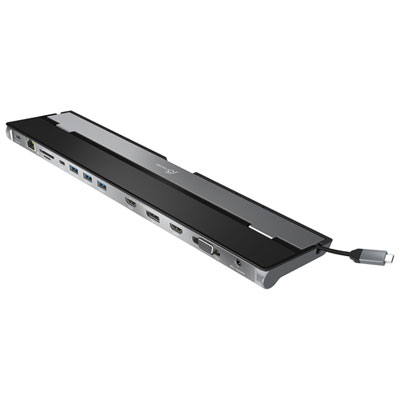 Your price for this item is $149.99
 -
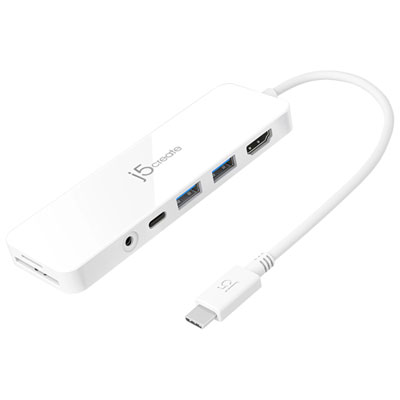 Your price for this item is $69.99
 -
 Your price for this item is $35
 -
 Your price for this item is $59.99
 -
 Your price for this item is $179.99
 -
 Your price for this item is $209.99
 -
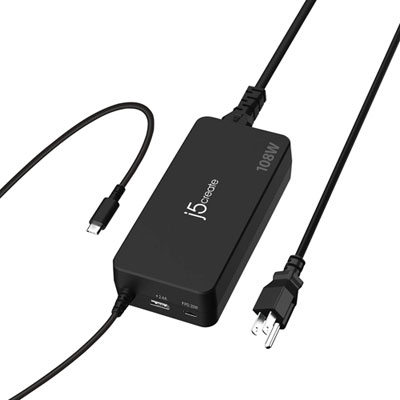 Your price for this item is $89.99
 -
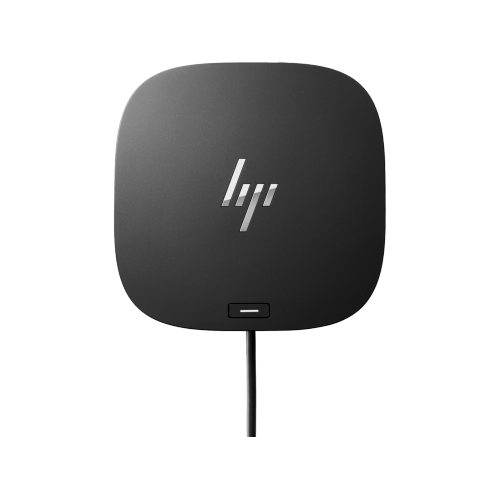 Your price for this item is $154.99
Discover more categories related to Docking Stations for HP Laptops
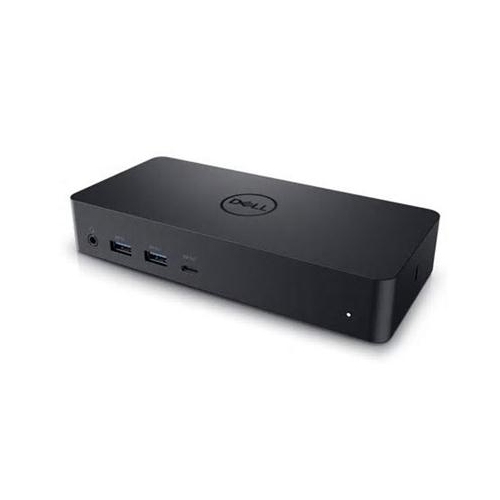
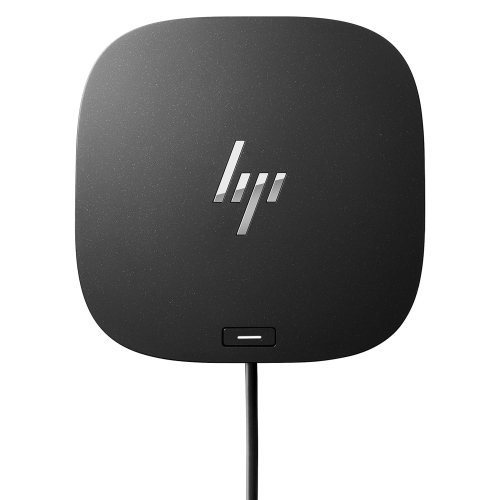

Top Collections:
Pokemon Centers, Kindle Devices, Best Budget Office Chairs, Apple iPhones 16, Best Laptops for Writers, iPhone 15 Apple, Canon G7X Cameras, Refurbished Apple Laptops, Alarm Clock, Motorola Razr Phones
Some products may be subject to Environmental Handling Fees
(EHF) depending on your province.
Learn more about EHFs.