HP Laptop Docking Stations
Enhance your workspace and streamline your daily routine with an HP Laptop Docking Station. Designed to simplify connectivity and boost productivity, these docking stations make it easy to connect multiple devices and peripherals to your laptop. Whether you're setting up a home office or upgrading your professional setup, an HP Laptop Docking Station offers a reliable solution for managing monitors, keyboards, and more. Discover options that help you stay organized and efficient throughout the day.
Sort

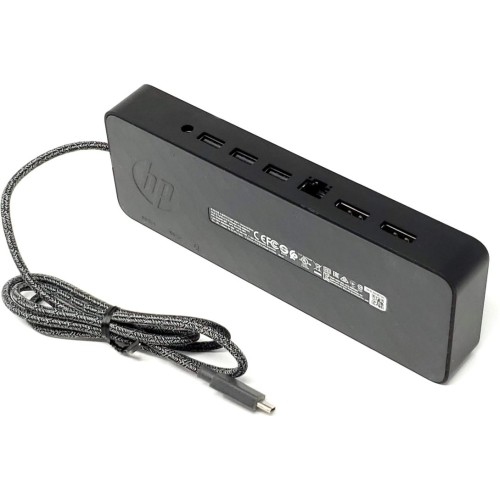
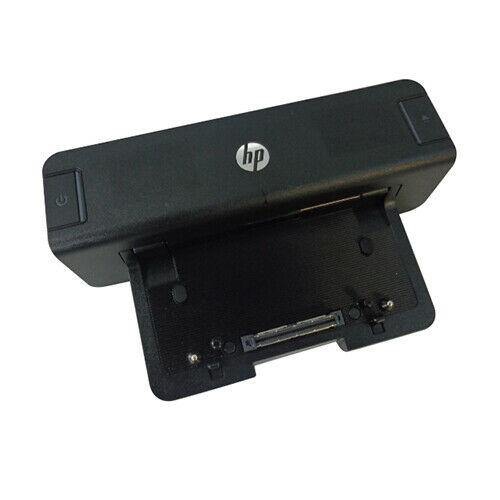
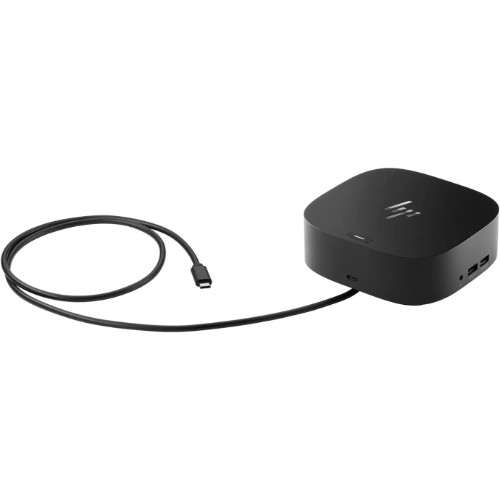
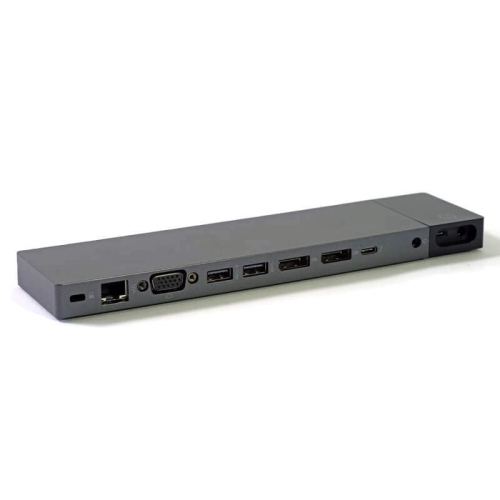
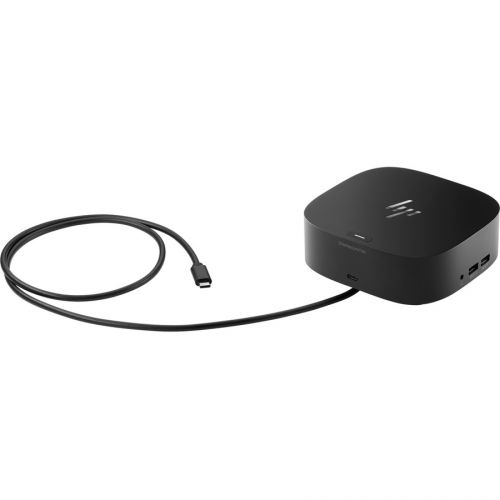
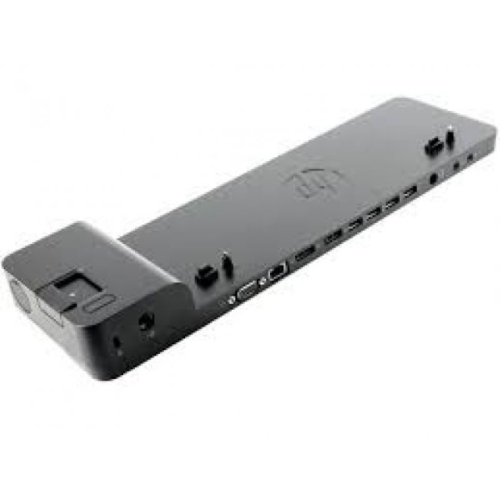
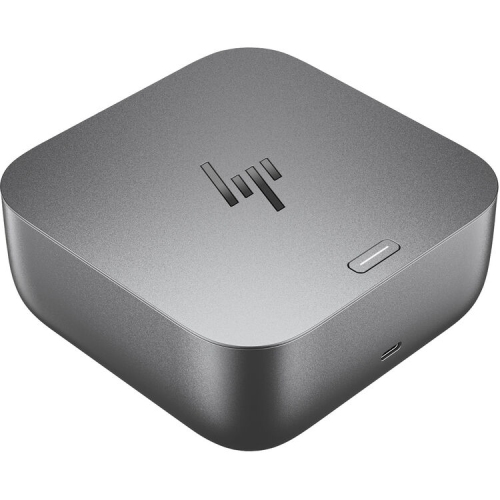
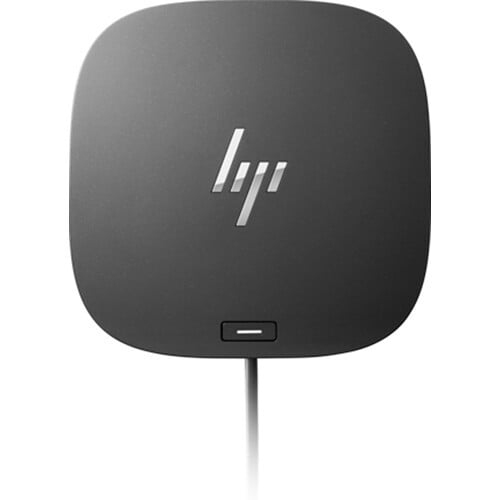
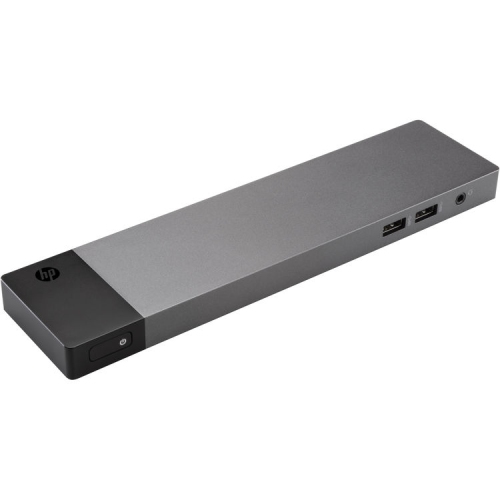
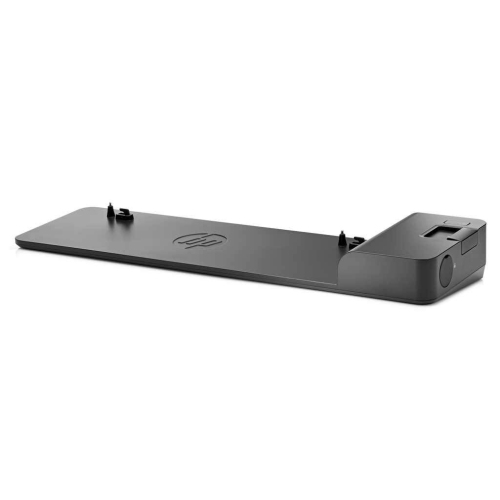
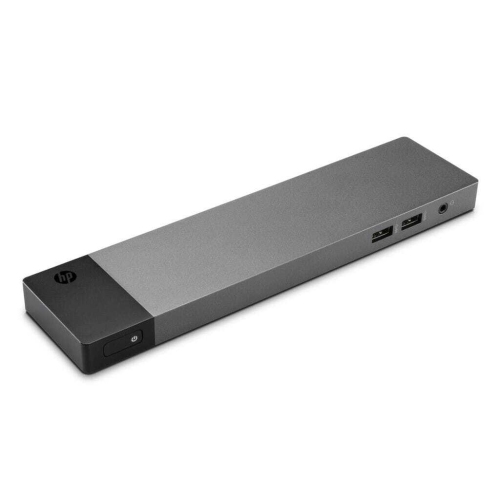
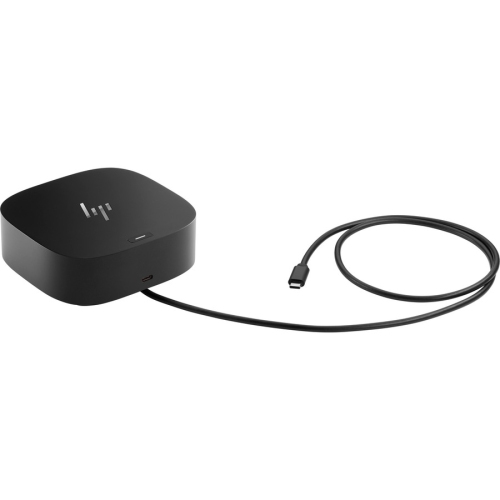
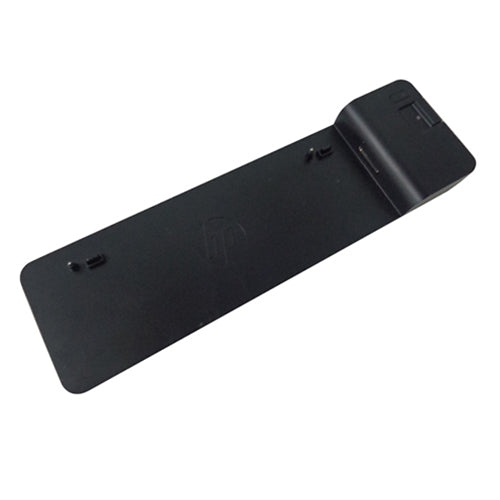
The right dock does more than match your ports
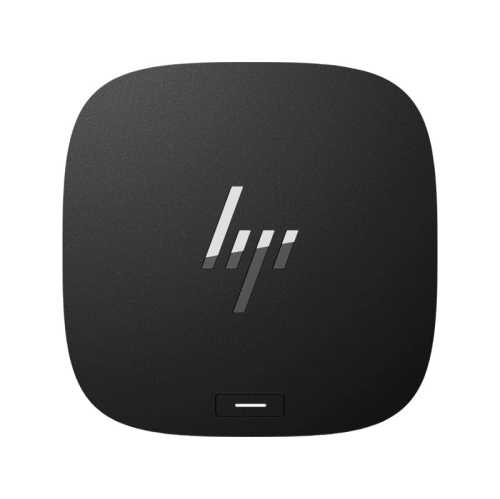
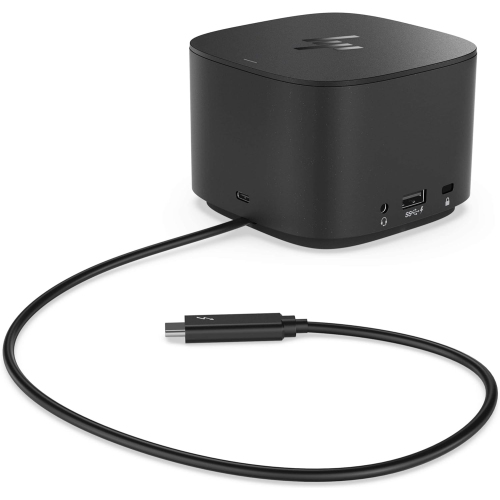
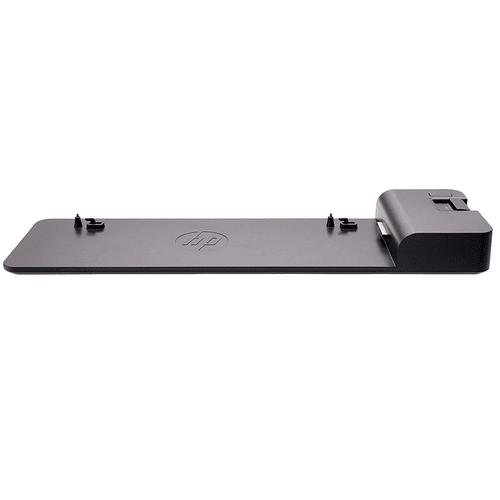
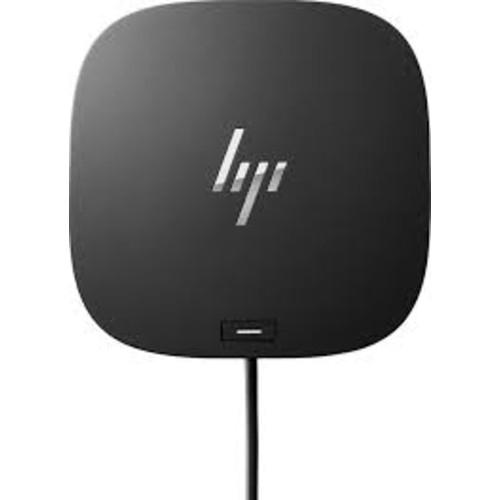
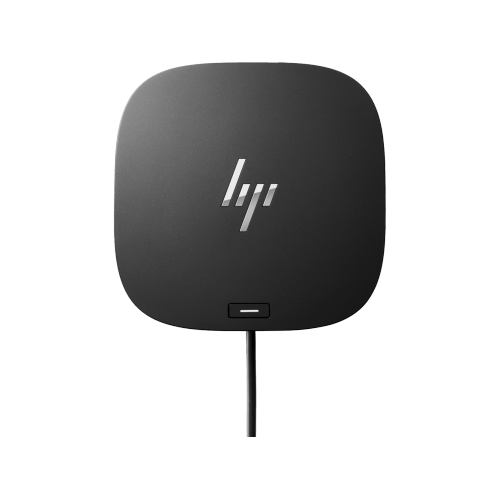
Laptop docking stations bring a notebook’s everyday connections together, turning a single connection into a convenient way to use an external monitor, keyboard, mouse, wired network and other desk accessories. They suit people who carry a laptop between locations but want a more settled workstation when they sit down. A home office might use a dock to keep a large display and webcam connected, while a shared desktop might need accessible ports for different users’ peripherals. The connection between the laptop and dock determines much of what the setup can do. USB-C describes the connector shape, but not every USB-C port supports video output, charging or the same data speeds. A USB-C dock that sends video through DisplayPort Alt Mode needs a laptop port that supports that feature. Thunderbolt docks can provide additional bandwidth for demanding combinations of displays and fast storage, although their full capabilities depend on the laptop, cable and connected equipment. Some support operation with other USB-C connections at reduced functionality; this is not a guarantee across all docks. Universal docks may use USB graphics technology and supporting software to connect displays through USB-A or USB-C. That approach can suit a mix of laptops, but driver requirements, operating system support and workplace software restrictions matter. A USB-A connection does not charge the laptop through the host cable, so a separate laptop charger remains necessary. Compatibility therefore goes beyond whether a plug fits. The laptop’s exact specifications, the dock’s supported features and any required software all contribute to the result. For someone who frequently moves between a meeting room and a desk, a well-matched dock reduces repeated cable handling. For someone who mainly works in one place, it can make limited laptop ports more useful without leaving every accessory plugged directly into the notebook. The most useful arrangement is one that supports the equipment already in use while leaving practical room for additions such as a headset, external drive or another display.
Display support is often the biggest difference between otherwise similar laptop docking stations. A dock with several video sockets does not necessarily drive every connected screen at its highest resolution and refresh rate at the same time. The total depends on the dock’s bandwidth, the laptop’s graphics capabilities, the host connection and the display cables. Dual 4K output, for example, requires support across the entire connection path, and a stated resolution should be considered alongside its supported refresh rate. A spreadsheet and an email window benefit from clear text and enough desktop space, while moving images and interactive work can make refresh rate more noticeable. Extended desktop support also differs from simple screen mirroring. Some operating systems limit how multiple displays behave when connected through particular display technologies, so two sockets do not always mean two independent workspaces. HDMI and DisplayPort connections are useful when they match the monitors already on the desk, avoiding unnecessary adapters. Beyond video, port placement can matter as much as port count. Front-facing USB ports make a temporary flash drive or headset easier to reach, while rear connections help keep a keyboard, mouse and Ethernet cable tucked away. Faster USB connections are useful for transferring large files to compatible external storage, although the drive and cable must also support the intended speed. Ethernet offers a wired networking option when a suitable network connection is nearby, rather than relying solely on Wi-Fi. Audio connections and memory card readers can be useful additions when they match a regular task. Charging deserves separate attention: a dock’s power adapter rating is not necessarily the power delivered to the laptop, because the dock also needs power for its own operation and attached devices. USB Power Delivery output should suit the laptop’s charging requirements. Higher-powered notebooks may still need their original charger, particularly during demanding workloads. A dock also does not add graphics processing power or make an older laptop run faster; its main role is to expand connectivity and simplify the workspace.
Physical fit and everyday handling help determine whether a docking station feels like a natural part of the desk or another object to work around. Compact housings are easier to carry in a laptop bag, while larger desktop designs can provide more spacing between connectors and a stable base for several attached cables. Metal and plastic housings each appear in different designs, but the material alone does not establish durability or performance. Connector support, cable strain relief, ventilation and a secure position on the work surface all matter during repeated use. A short host cable can keep a small desk tidy, yet it also limits where the dock can sit relative to the laptop’s ports. A detachable host cable offers flexibility only when the replacement has the correct data, video and power specifications. Generous spacing around ports helps accommodate wider plugs without crowding adjacent connections. At a permanent workstation, routing cables behind the monitor can leave more room for notes and make the desk easier to clean. Ventilation openings should remain clear, and a dock should not be buried beneath papers or placed where cables pull against its sockets. Routine care is straightforward: disconnect power before cleaning, use a soft, dry cloth and keep liquids away from ports. Pulling connectors by their plugs rather than their cables helps reduce strain over time. Students may value a setup that connects a monitor and full-size keyboard for assignments, then releases the laptop quickly for class; Student Laptop Docking Stations brings that study-focused use into view. Remote workers, instructors and people sharing a home workstation may have similar needs, with different priorities for displays, networking and portability. As a gift, a dock is most practical when the recipient’s laptop connections and monitor requirements are known. That compatibility makes the difference between a useful daily accessory and a device that needs extra adapters or cannot deliver the intended setup.
Top selling and popular products
-
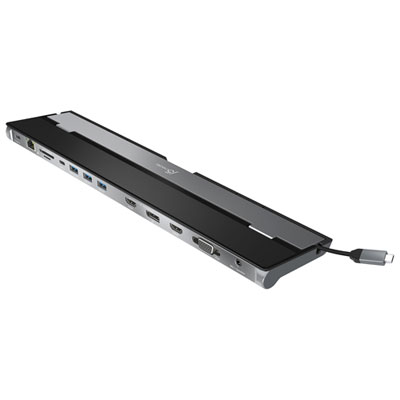 Your price for this item is $129.99
-
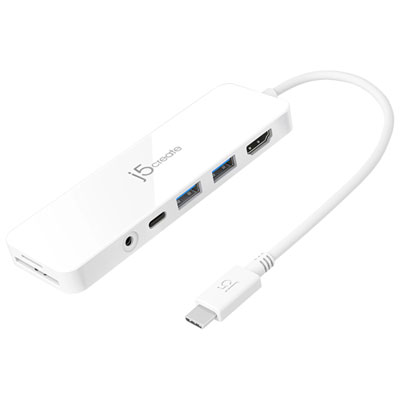 Your price for this item is $59.99
-
 Your price for this item is $44.99
-
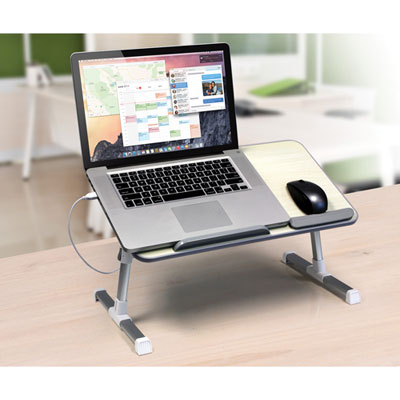 Your price for this item is $59.99
-
 Your price for this item is $96.17
-
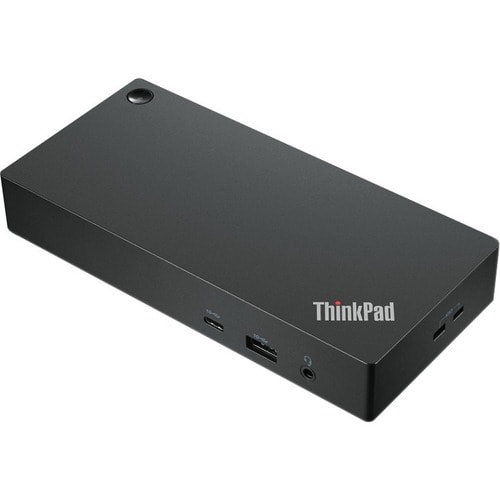 Your price for this item is $179.99
-
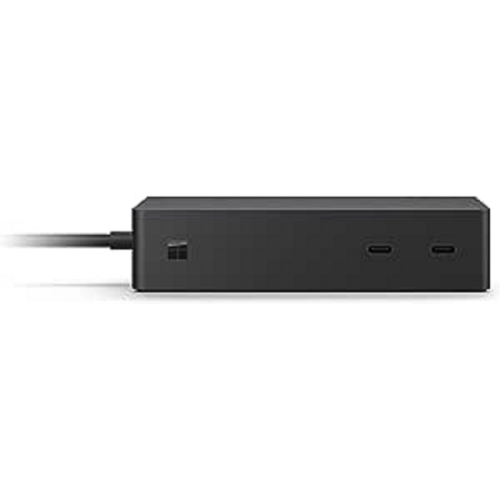 Your price for this item is $209.99
-
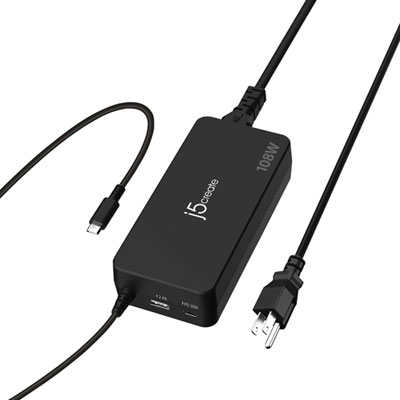 Your price for this item is $59.99
Discover more categories related to HP Laptop Docking Stations
Top Collections:
Best Black Friday Deals This Year, Best Black Friday Deals On Electronics, Kindle Devices, Dyson Airwrap, Best Cameras for Sports Photography, Best Black Friday Deals On Apple Products, PS5 Pro Consoles, Portable Snow Blowers, Canon G7X Cameras, Pokémon 30th Celebration Cards
Some products may be subject to Environmental Handling Fees
(EHF) depending on your province.
Learn more about EHFs.