Black Friday Deals on Now

Our Black Friday Sale is on now, so you can shop our top deals below.

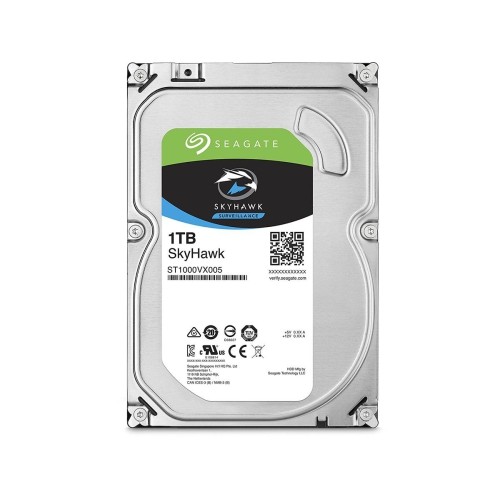
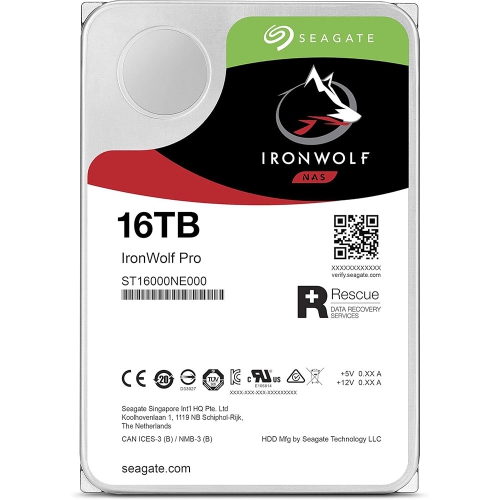
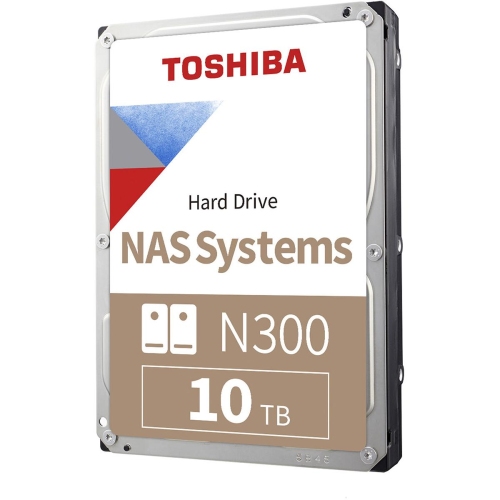
Black Friday Internal Hard Drives

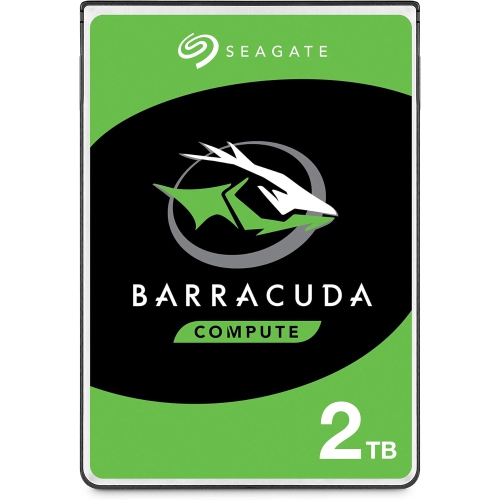
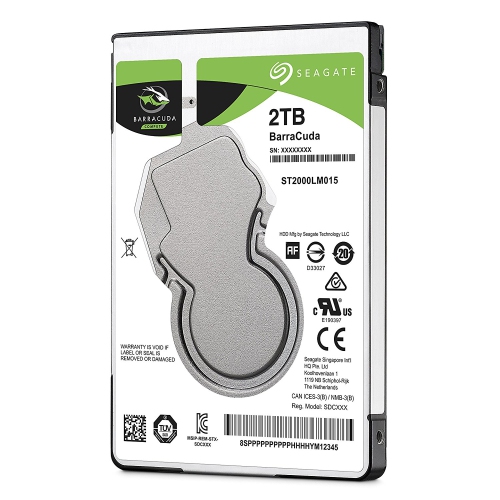
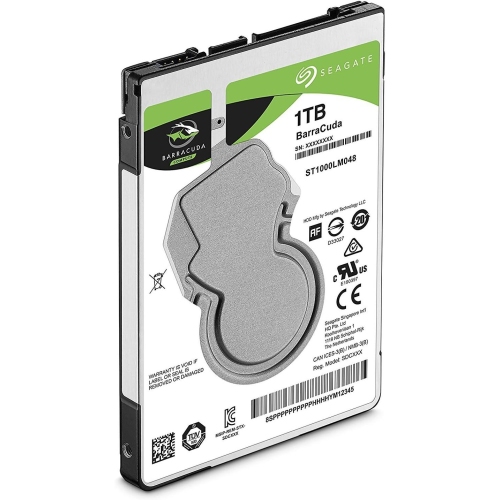
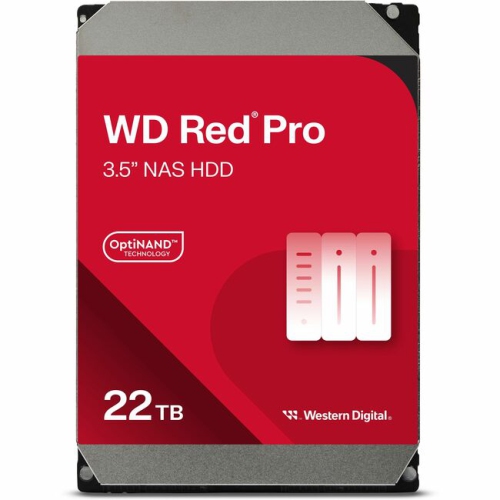
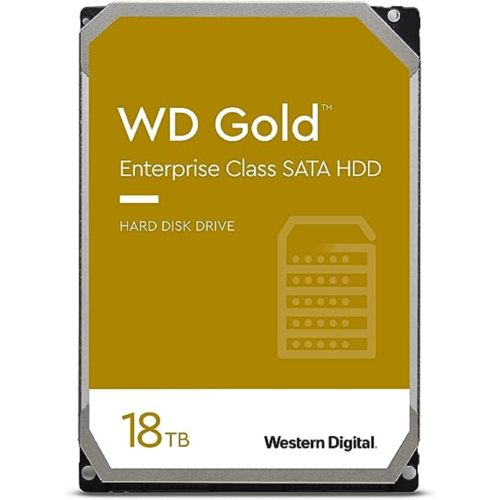
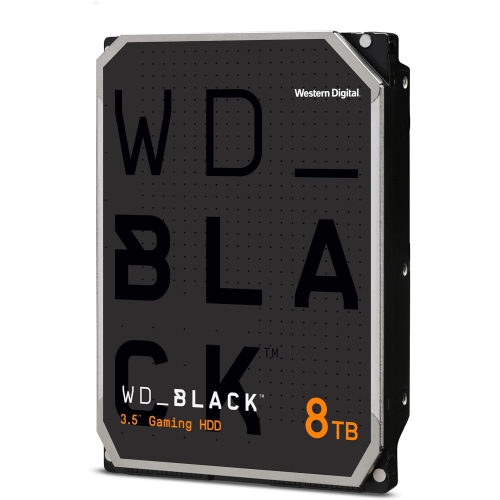
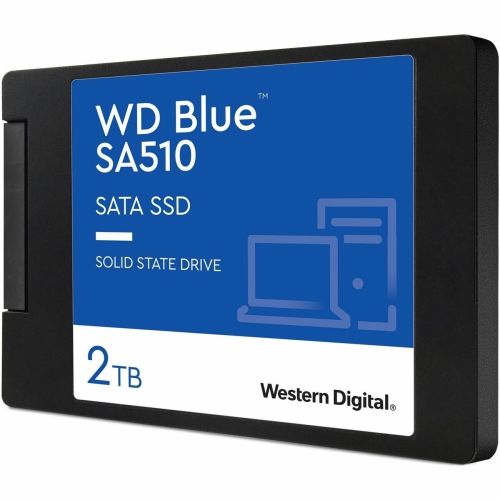
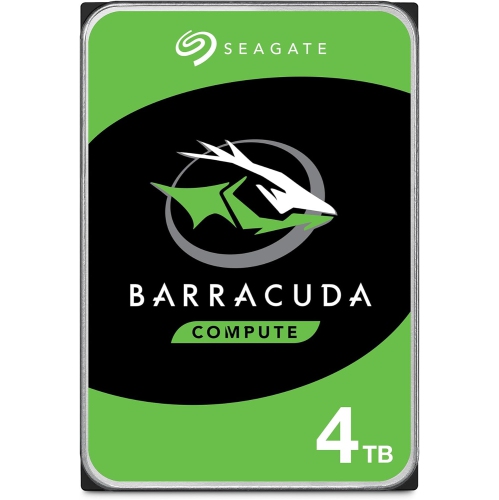
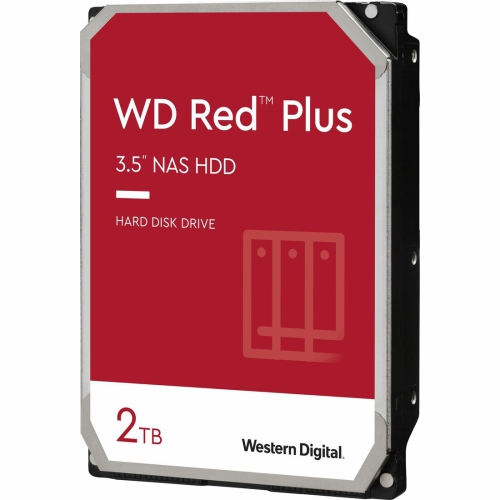
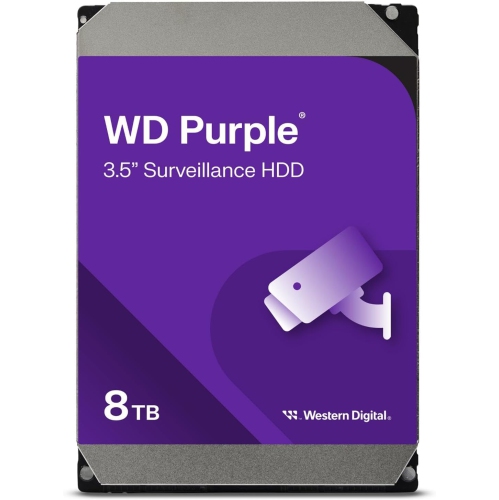
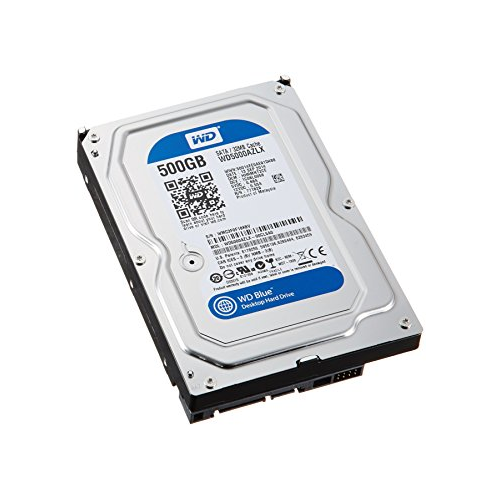
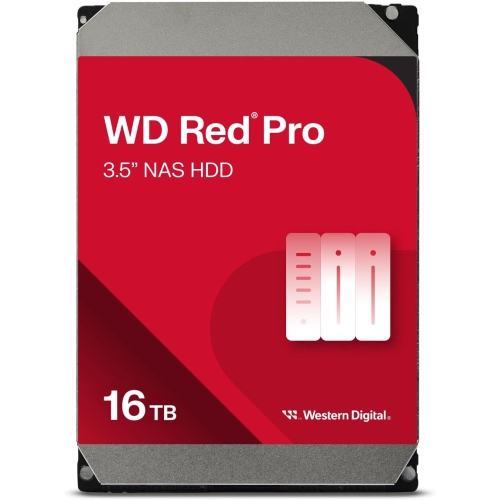
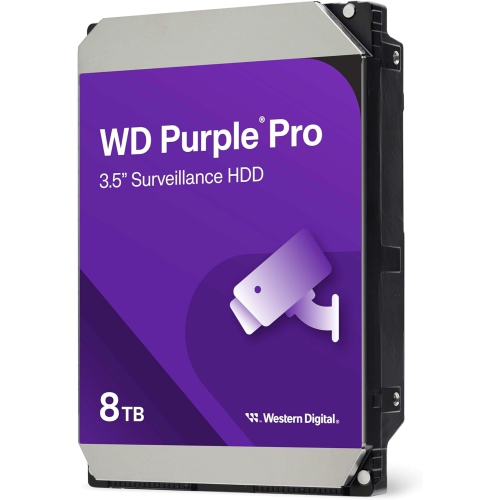
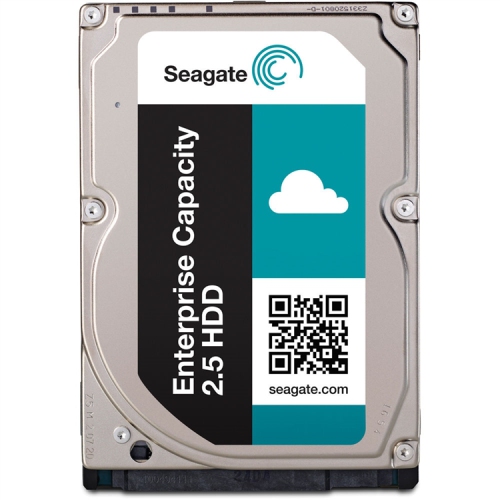
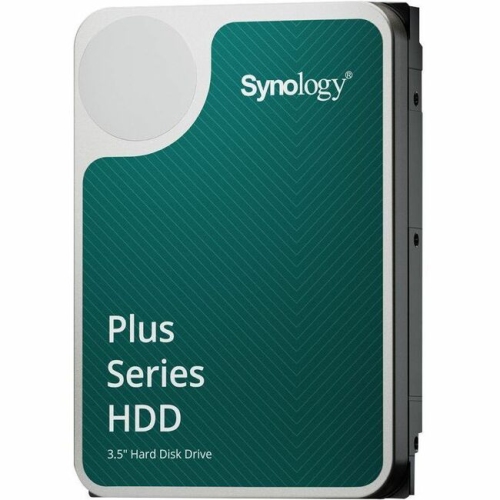
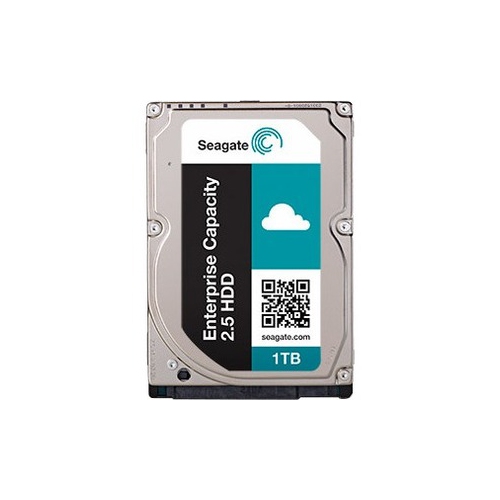
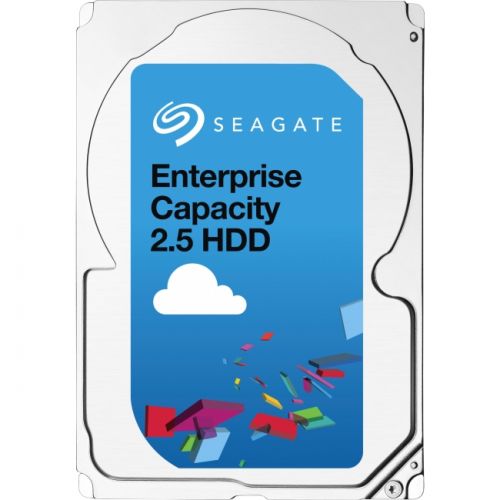
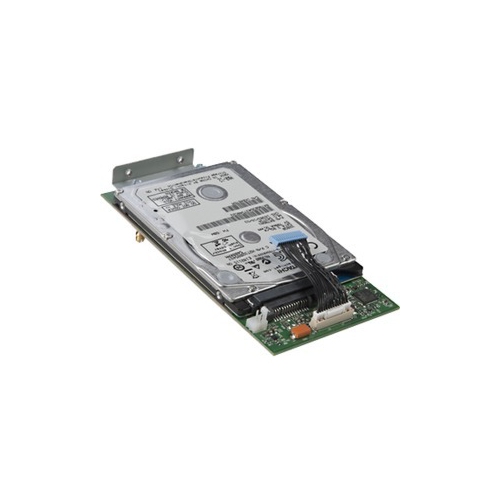
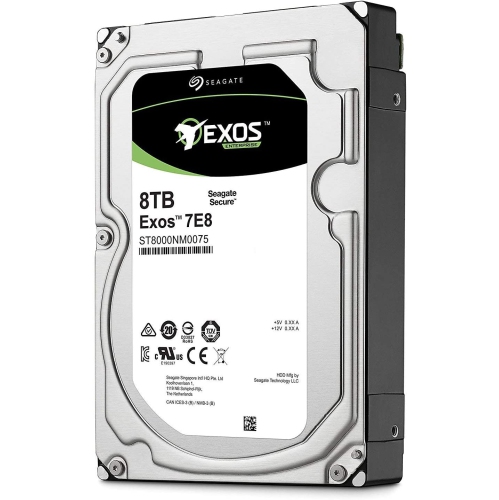
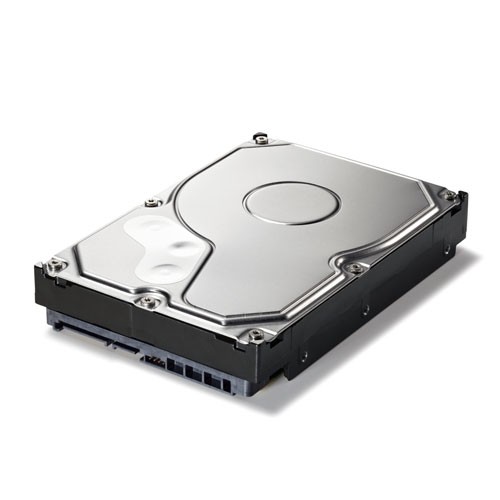
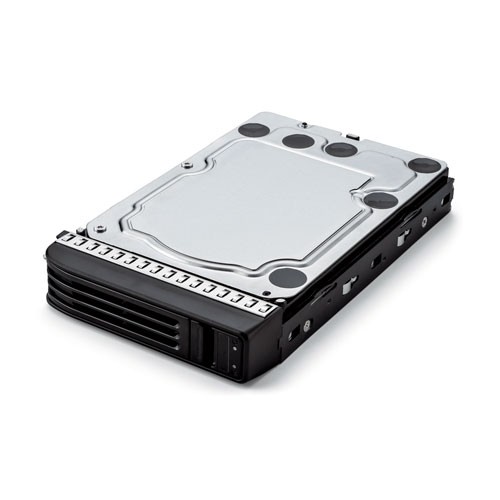
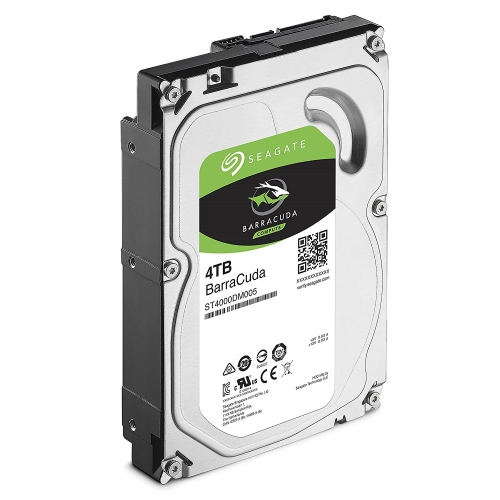
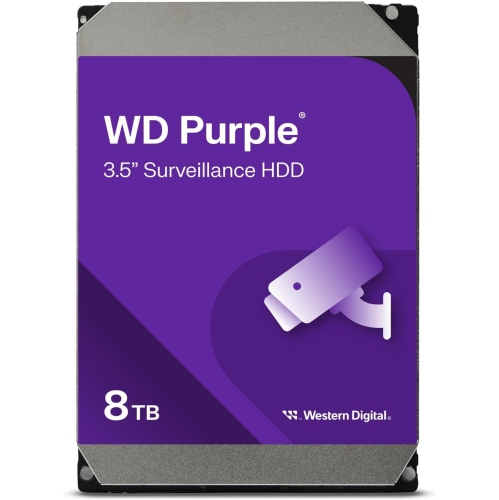
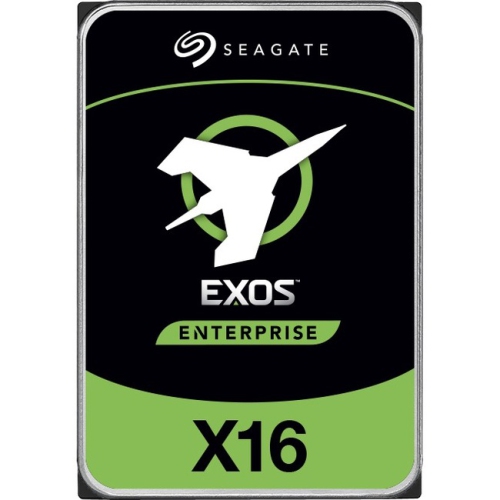
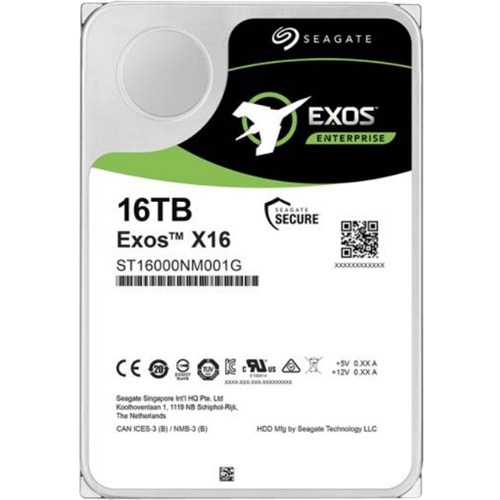
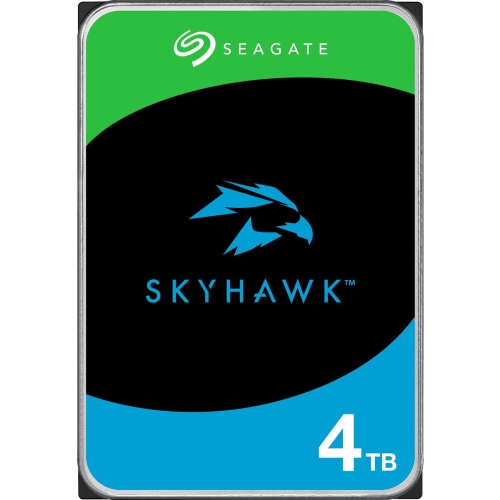
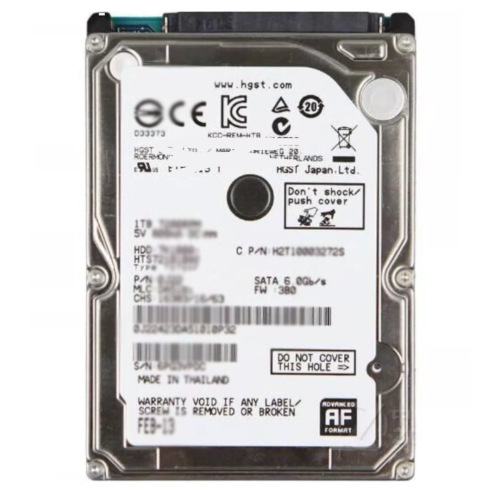
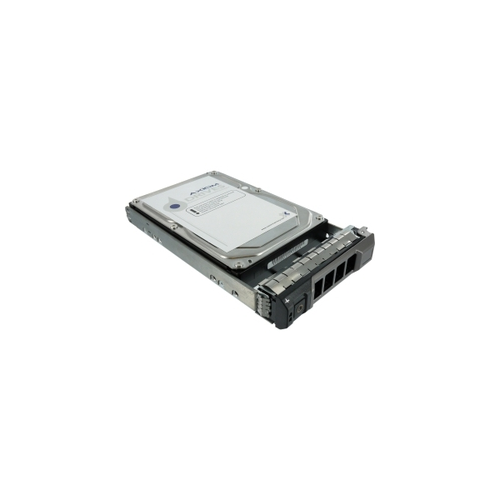
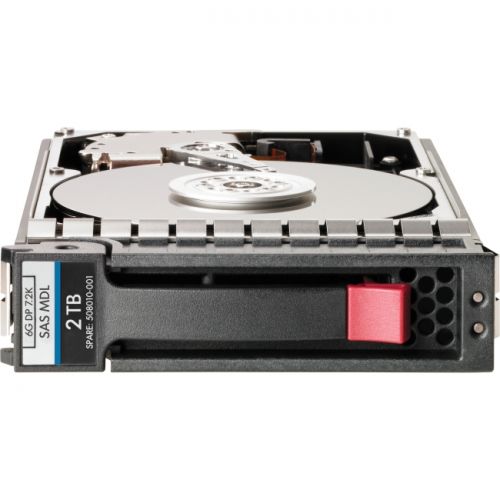
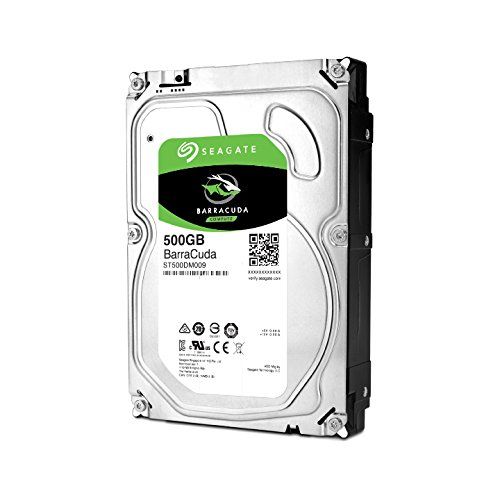
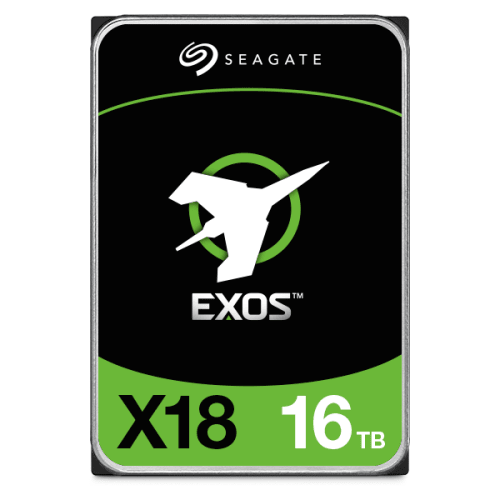
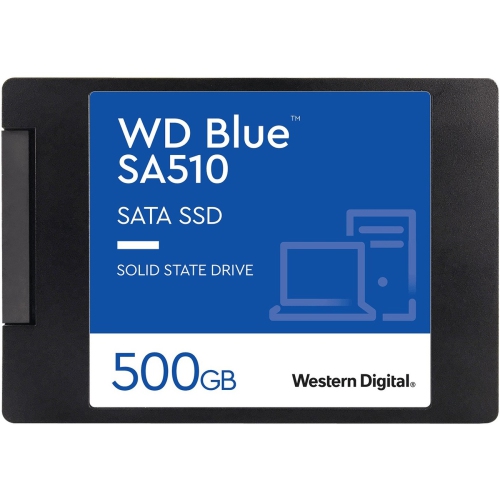
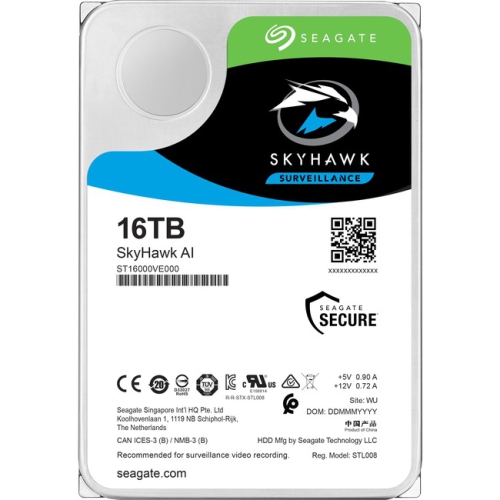
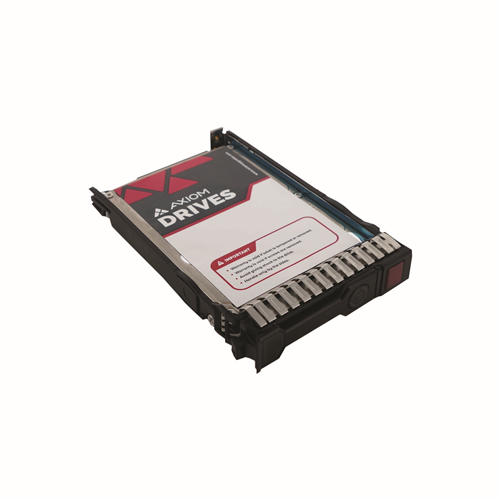
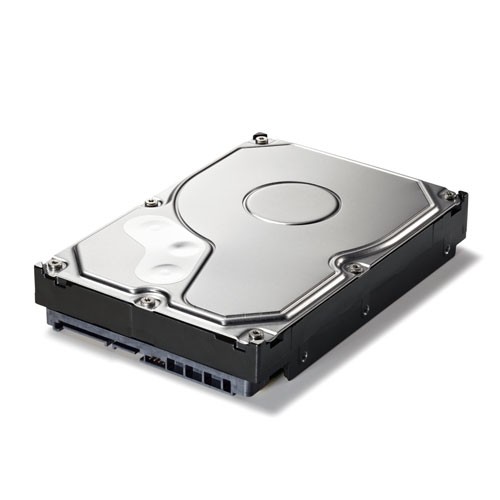
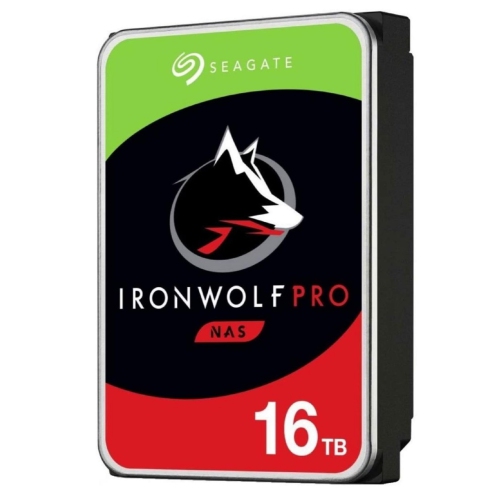
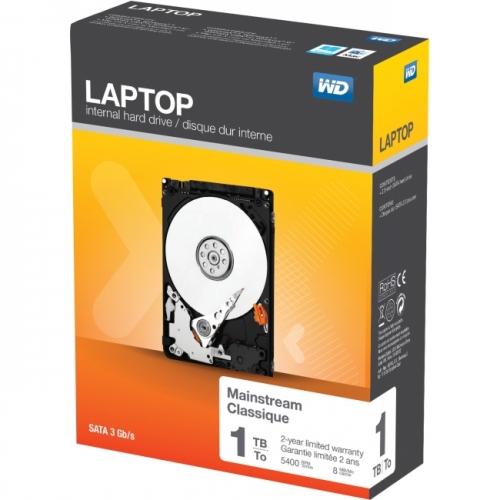
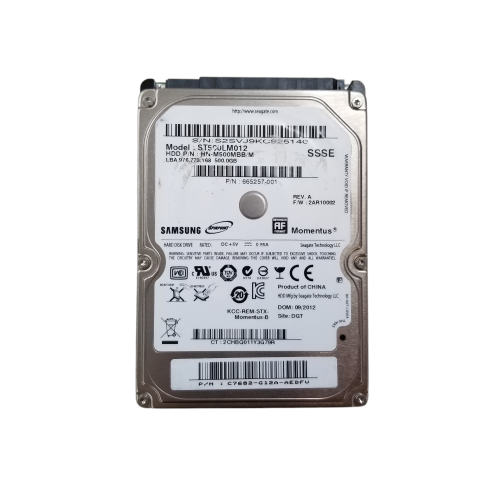
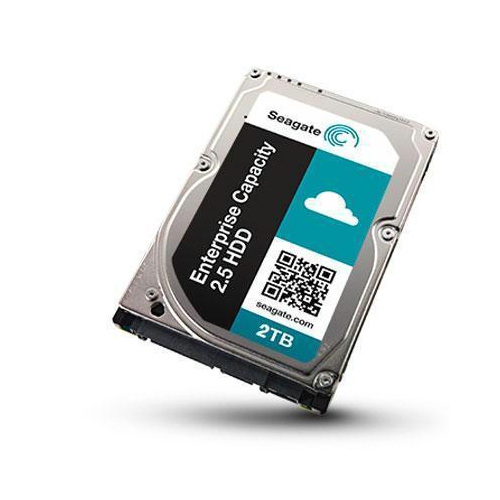
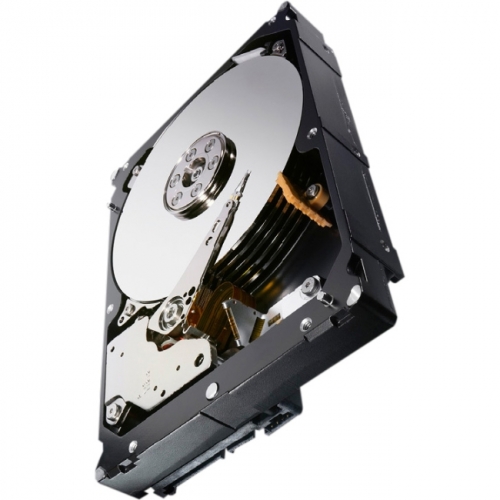
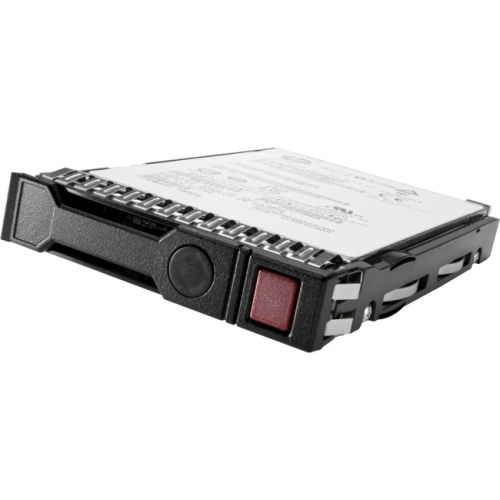
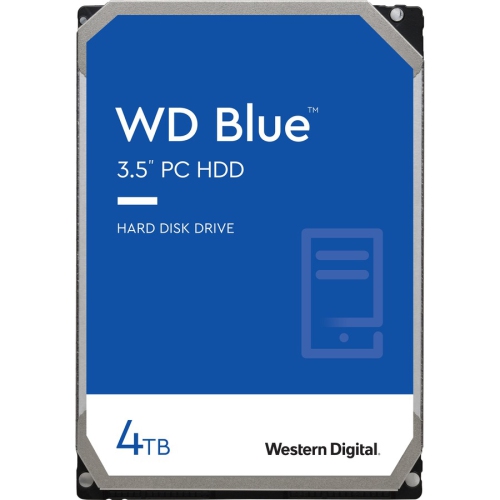
Shop Black Friday internal hard drives to add storage or replace an existing drive in your desktop or laptop. Compare capacities, form factors and interfaces to find an internal HDD that fits your computer and has room for your files, games and applications. Remember, our Low Price Guarantee means you can shop confidently knowing that you'll find the best price at Best Buy, all year round. We encourage you to check our website frequently for the most up-to-date information on our latest offers and savings opportunities.
Read More

Sort

Why hard drive compatibility matters as much as capacity

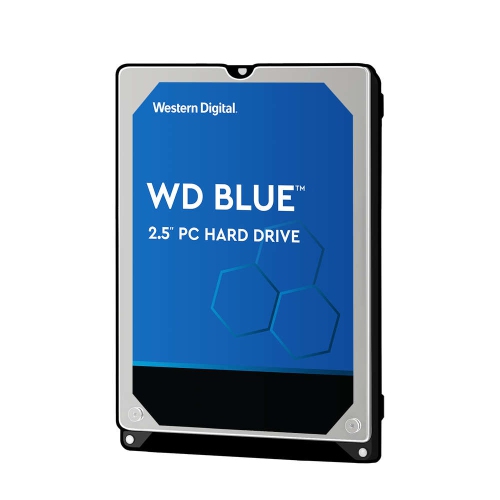
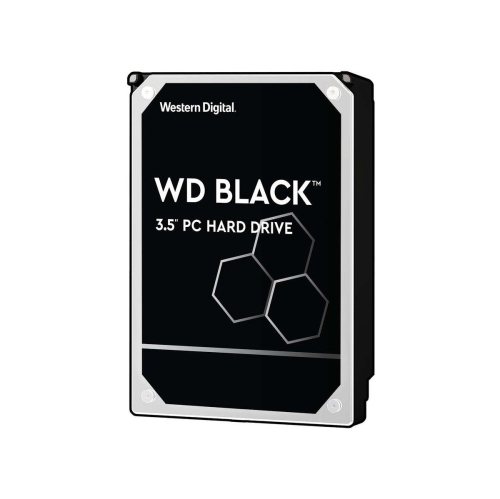
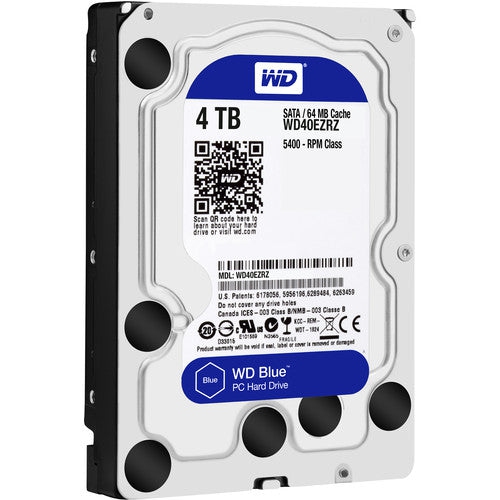
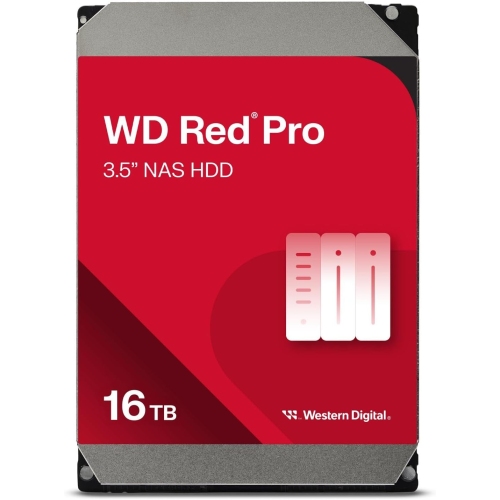
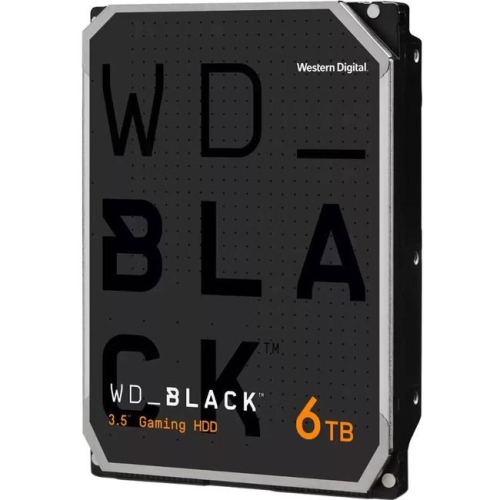
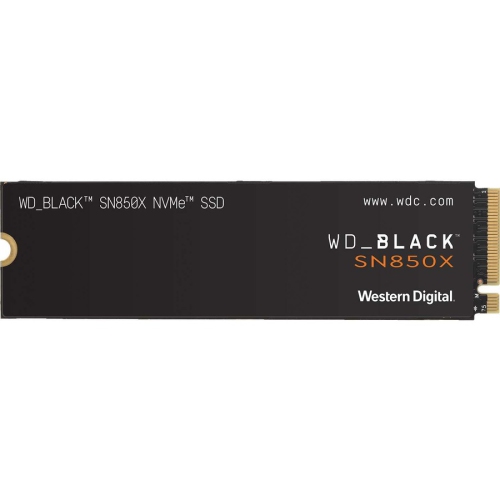
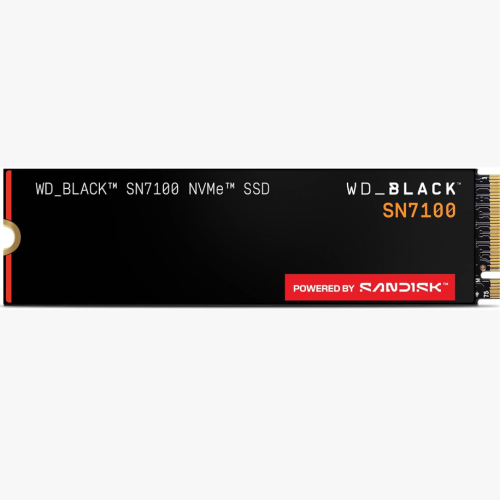
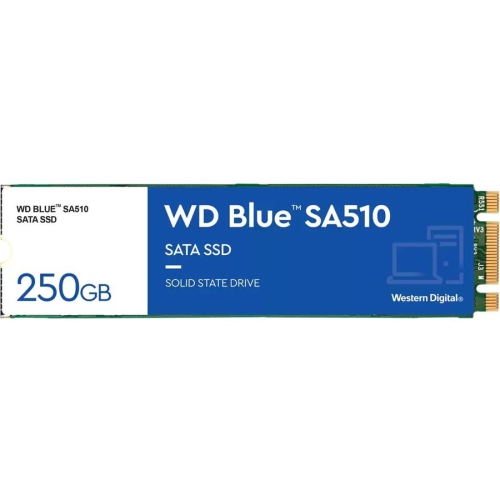
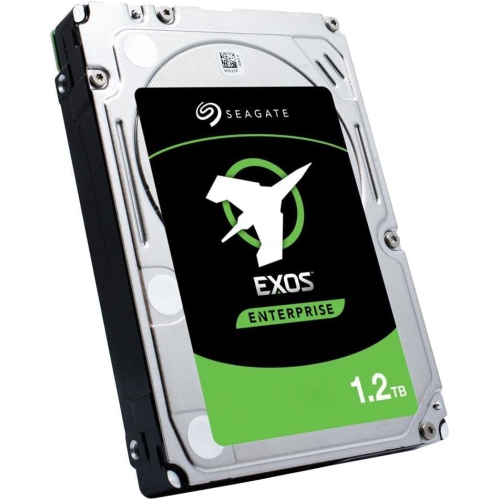
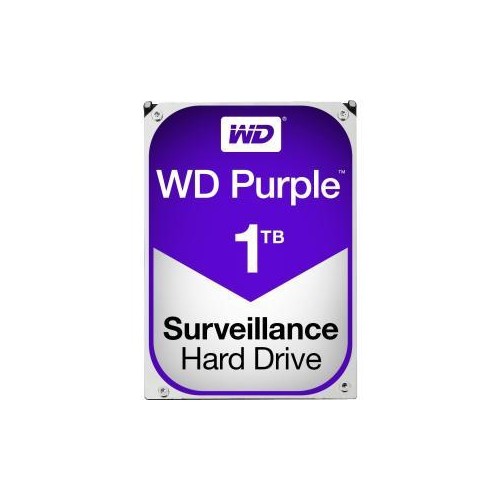
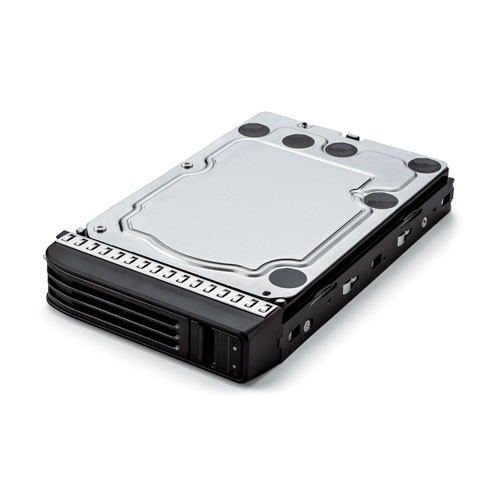
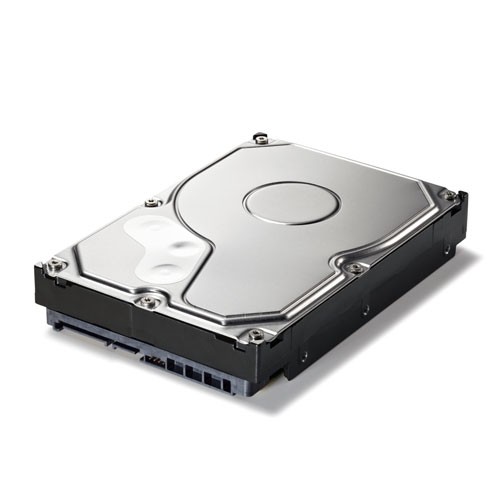
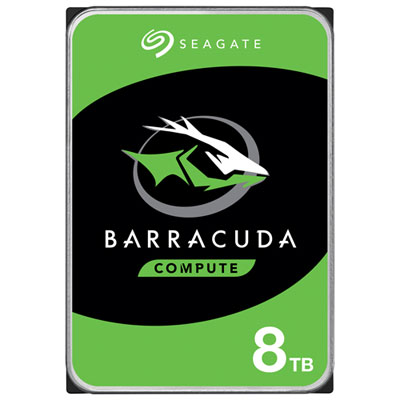
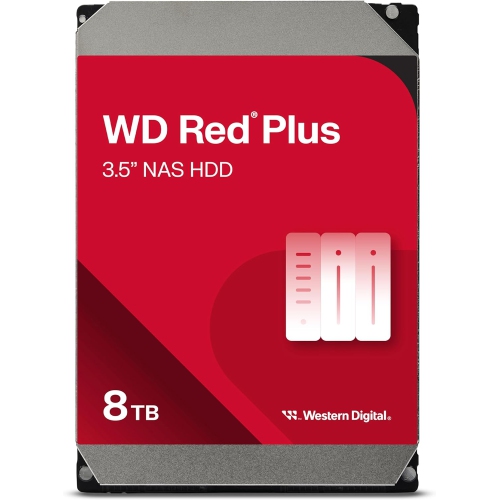
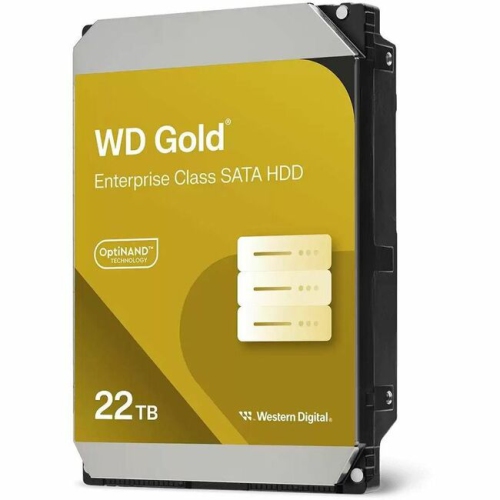
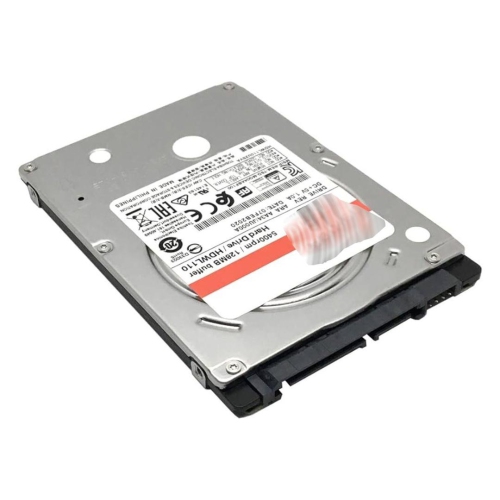
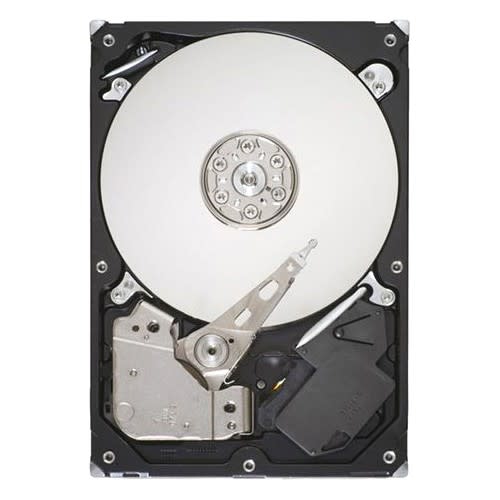
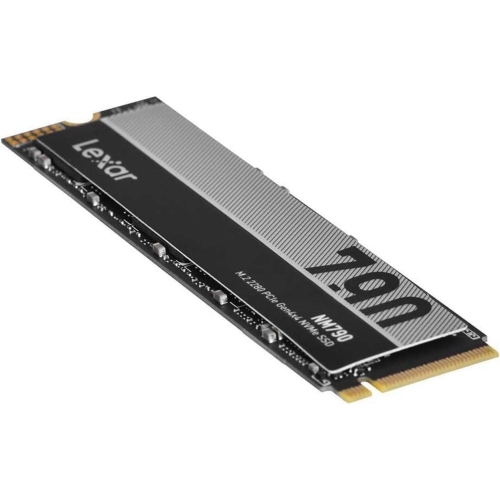
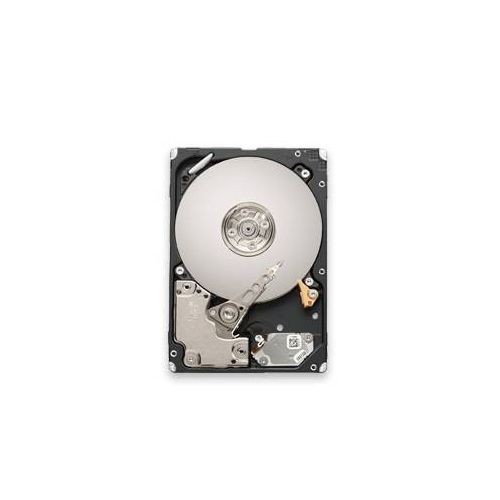
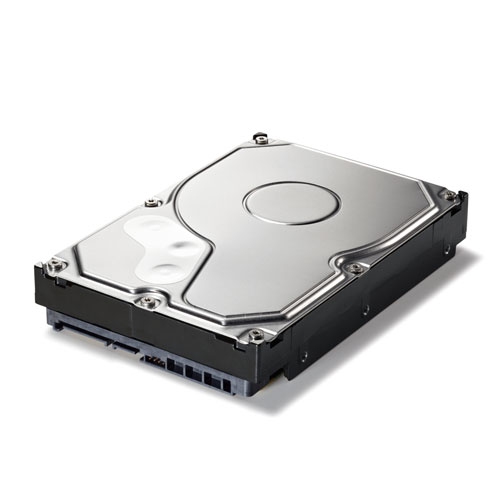
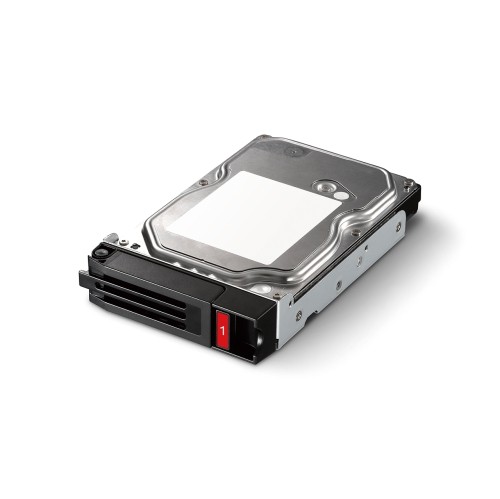
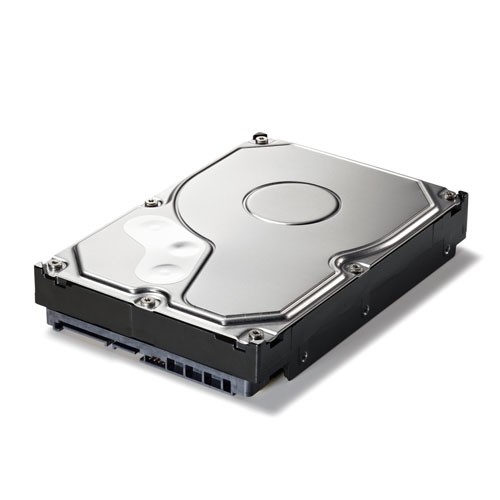
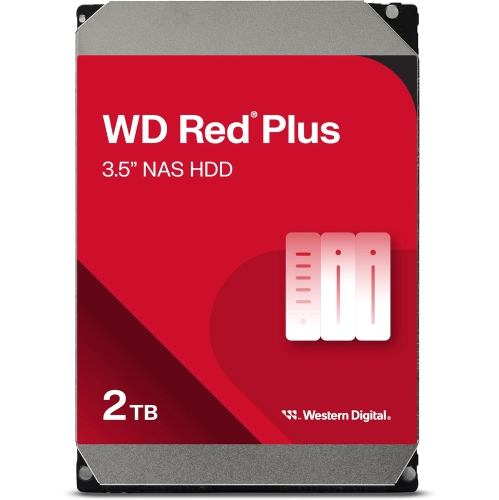
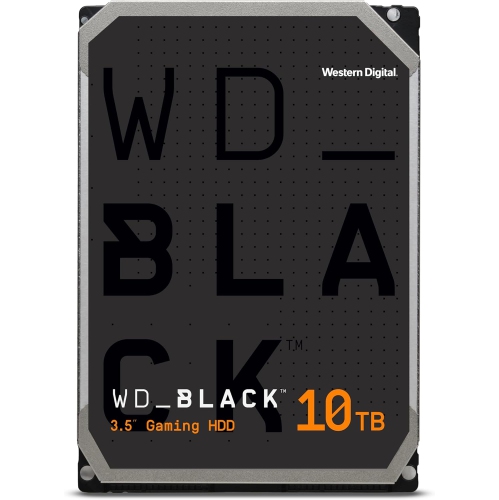
Black Friday is a familiar occasion to consider internal hard drives for a desktop upgrade, a growing media library, or a home storage system. These drives store files on rotating magnetic platters inside a protective metal housing, providing space for everything from family photographs and music collections to project folders and recorded video. Unlike an external drive, an internal hard drive fits inside a computer or compatible storage enclosure and connects directly to its storage interface. Physical fit matters as much as capacity. A 3.5-inch hard drive typically belongs in a desktop tower, server, or network-attached storage enclosure with an appropriate bay, while a 2.5-inch hard drive may fit certain laptops, compact computers, or desktop mounting brackets. Even within the same nominal size, drive thickness and mounting arrangements can differ. Many newer laptops have no bay for a mechanical hard drive, so a smaller drive is not automatically a suitable laptop upgrade. Connection type is another important distinction: SATA hard drives need compatible connections, and a desktop installation generally requires both a data connection to the motherboard and a power connection from the power supply. A drive designed for a different interface cannot be assumed to work simply because it fits in the case. An M.2 slot, commonly used for compact solid-state storage, does not accept a conventional internal hard drive. These details are especially relevant when adding storage to an existing computer rather than building a system from scratch. A spare drive bay, suitable mounting hardware, and accessible cables can make the difference between a straightforward addition and a project that needs extra components. For a shared family desktop, the goal might be keeping years of photos together without crowding the main system drive. For a hobbyist building a home server, the same purchase involves enclosure compatibility and support for multiple drives. The intended destination gives each specification a practical purpose.
Capacity is often the most visible difference between internal hard drives, but the useful amount depends on the files being stored and how quickly that collection grows. Documents and spreadsheets occupy relatively little space compared with high-resolution photographs, long video recordings, and large game installations. A household that regularly transfers phone videos to a computer may need room not just for existing files, but also for edited copies and future recordings. The capacity shown by an operating system can appear lower than the drive’s labelled capacity because of differences in measurement conventions, with formatting and system partitions using some space as well. Performance also depends on more than the connection standard printed in the specifications. Rotational speed, measured in revolutions per minute, influences access characteristics, while sustained transfer performance matters when moving large folders or reading long video files. A faster-spinning drive may provide stronger performance for some tasks, but it can also produce more audible activity and heat. Cache size is only one part of the design and does not, by itself, establish how responsive a drive will feel. Mechanical hard drives are particularly useful for large file collections and bulk storage; a solid-state drive is generally better suited to fast startup and applications that frequently access many small files. Some games specifically require solid-state storage, making their system requirements important even when a hard drive has enough capacity. In a computer with both types, the operating system and frequently used applications can sit on the solid-state drive while the hard drive holds photos, completed projects, and other larger files. Recording technology can matter for heavier workloads, too. Conventional magnetic recording and shingled magnetic recording handle repeated writes differently, so capacity alone does not establish suitability for frequent large rewrites or a multi-drive storage array. Published workload information and compatibility details help distinguish a drive intended for everyday desktop use from one designed for more demanding storage tasks.
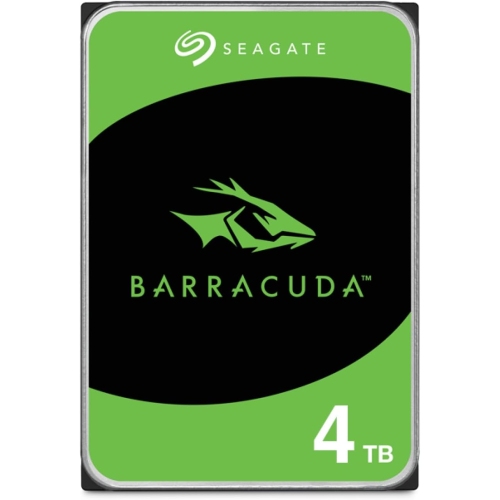
Long-term use brings reliability, noise, and data protection into the picture. A hard drive in a home office computer may run for a few hours at a time, while a drive in a network-attached storage system may remain active throughout the day and night. Drives intended for those roles can differ in firmware, vibration tolerance, workload ratings, and supported operating patterns. A higher workload rating is not a promise that files cannot be lost, and a longer warranty is not a substitute for a backup. Multiple drives in an array can help a compatible system remain accessible after certain failures, but an array alone does not protect against accidental deletion, theft, or damage to the whole device. Important family photos and work files benefit from a separate backup, ideally with an additional copy kept elsewhere. Physical care matters because mechanical drives contain moving parts. Secure mounting helps limit movement during operation, and adequate airflow helps the drive stay within its specified operating temperature range. The enclosure should support the drive without loose screws or strained connectors, especially in a computer that is moved occasionally. During installation, avoiding static discharge, keeping fingers away from exposed circuitry, and handling the drive gently help protect the hardware. Replacing an existing drive also involves deciding how files and software will move across: cloning a system drive and formatting a new storage drive are different tasks, and either requires care to avoid overwriting important data. For someone giving an internal hard drive as a gift, the recipient’s computer model, available bays, connection type, and intended workload are more useful starting points than capacity alone. It can be a thoughtful addition for a photographer with expanding archives, a video hobbyist keeping original footage, or a technically confident family member maintaining shared storage. Related storage browsing can continue with Cyber Monday Deals on Hard Drives, alongside a clear understanding of the fit, capacity, and workload needed for the intended setup.
Read More

FAQ

Some products may be subject to Environmental Handling Fees (EHF) depending on your province. Learn more about EHFs.