Chromebook for Schools
Equipping students and educators with the right technology is essential for fostering a dynamic learning environment, and a Chromebook for schools can be the perfect solution. Designed to seamlessly integrate into educational settings, these versatile devices offer a user-friendly experience that supports both teaching and learning. With a focus on simplicity, security, and collaboration, Chromebooks provide an effective platform for accessing educational apps and resources, ensuring that classrooms remain connected and productive. Explore our selection of Chromebooks tailored specifically for school use to find the ideal match for your educational needs.
Sort

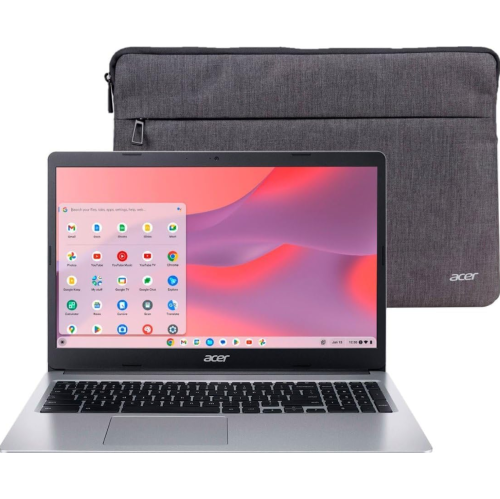
What to consider for schoolwork, comfort, and compatibility
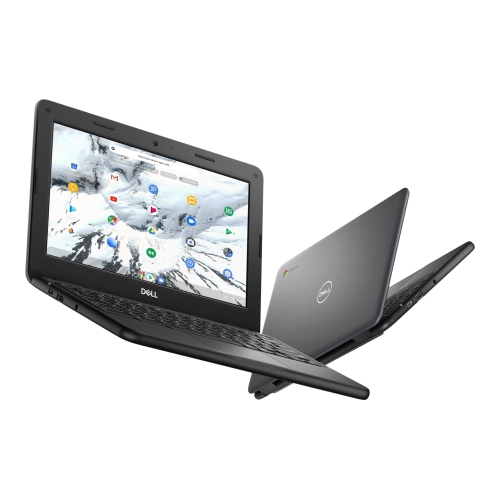
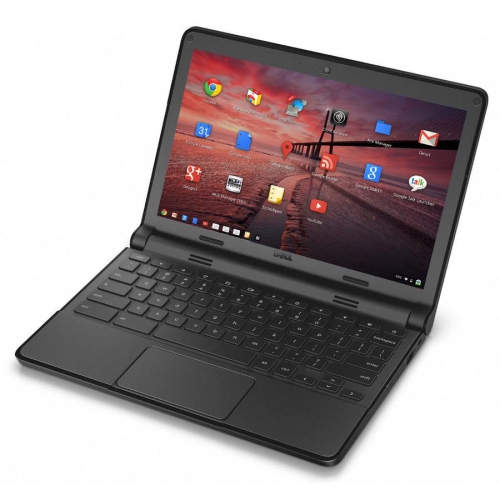
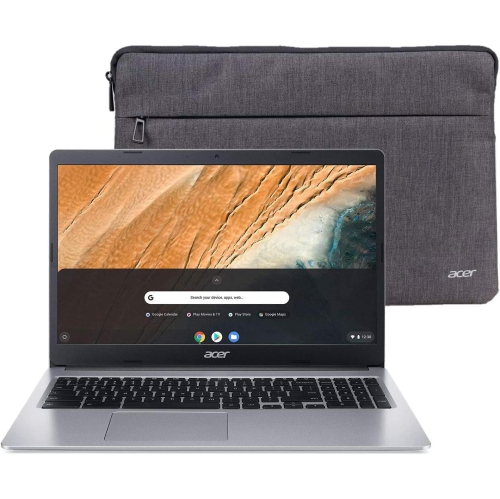
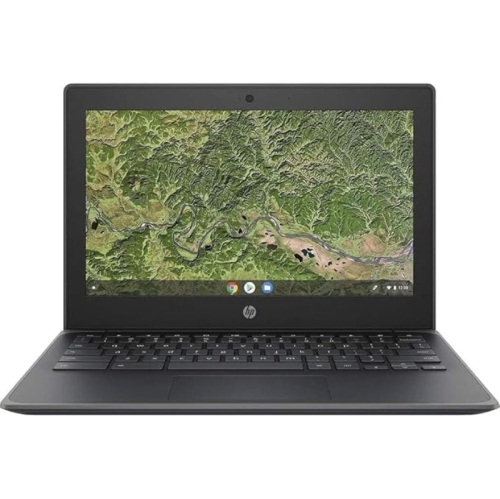
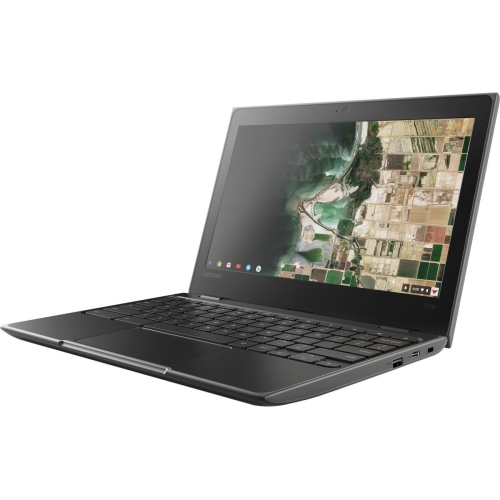
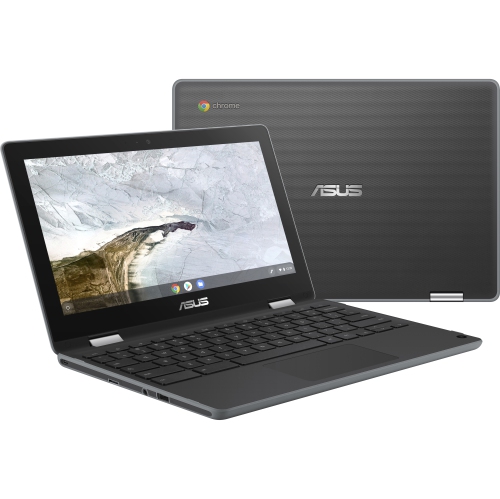
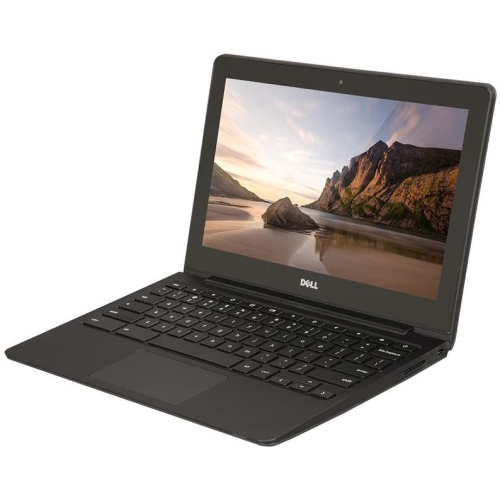
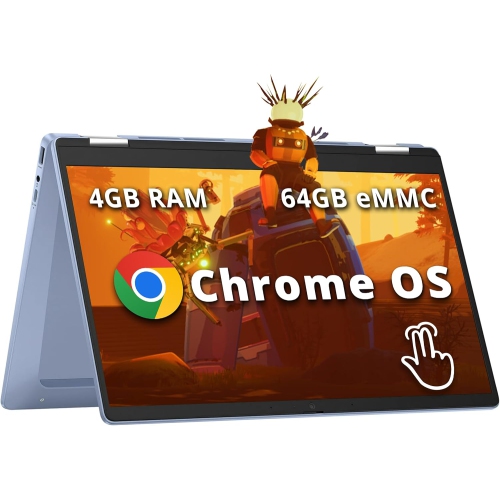
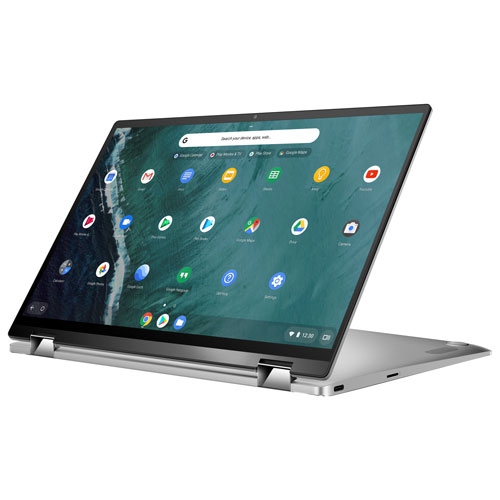
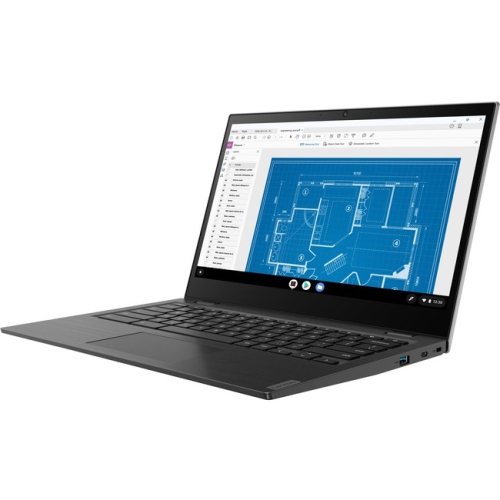
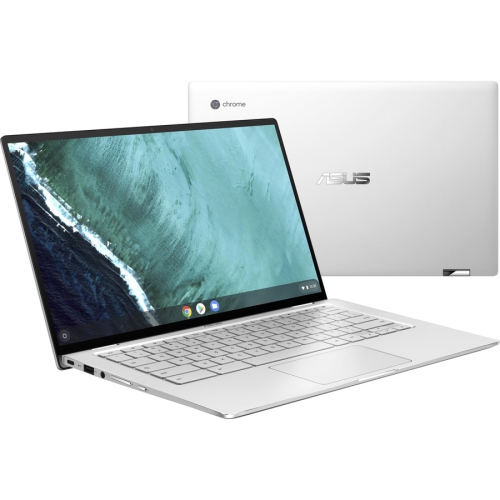
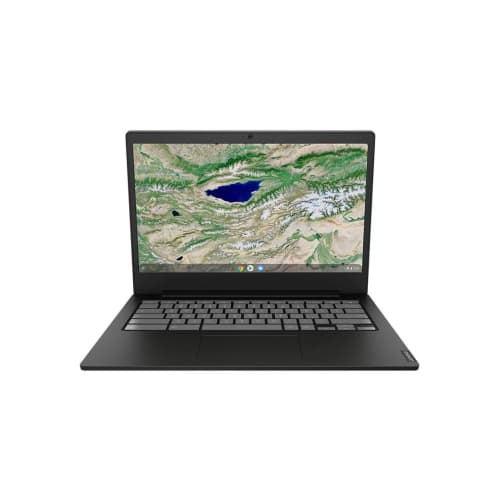
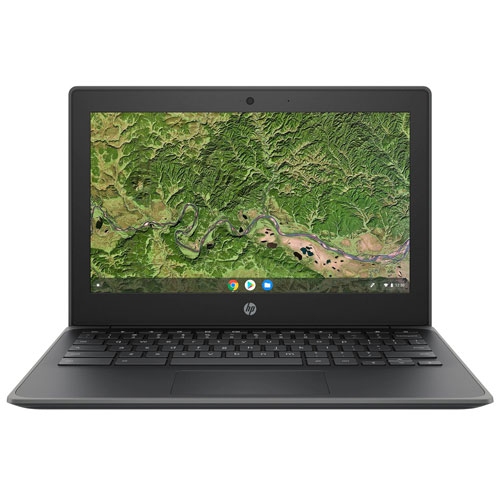
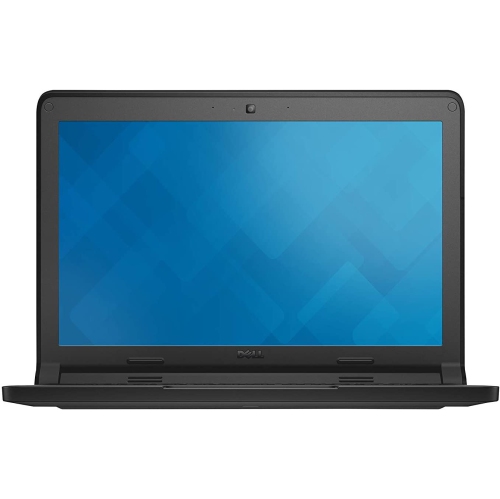
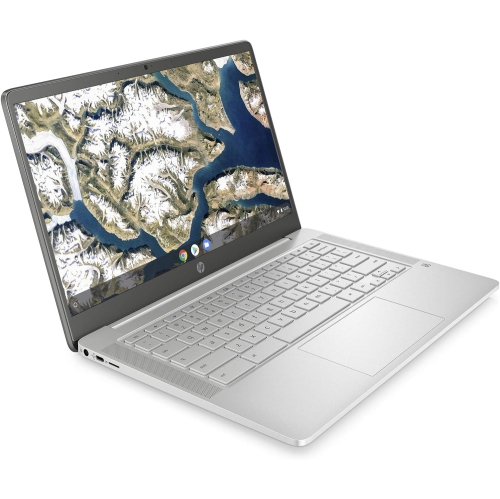
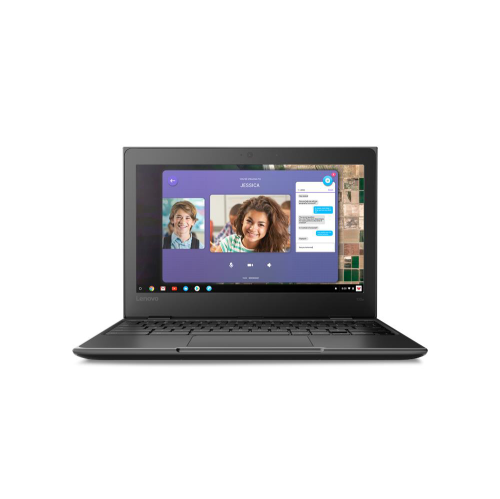
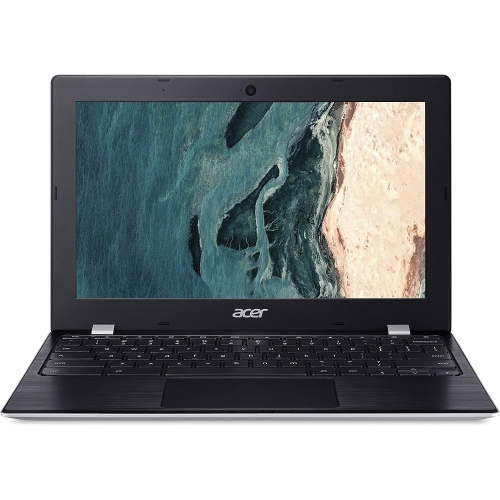
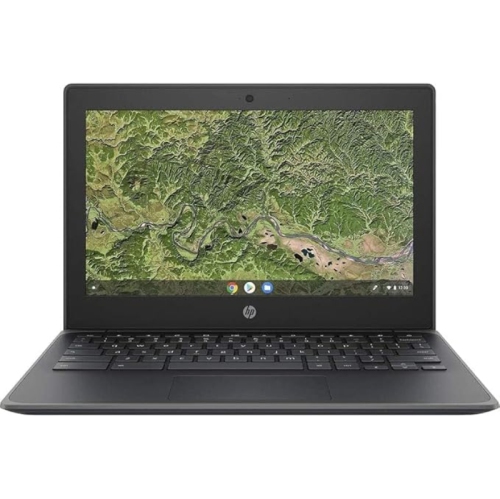
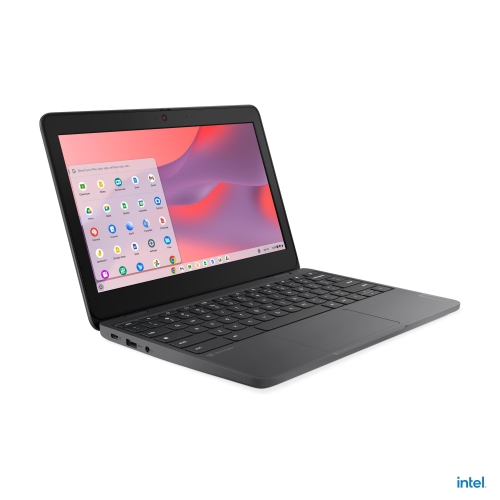
Chromebooks for schools are designed to make everyday learning straightforward, portable, and accessible. They run on ChromeOS, a streamlined operating system built around web-based applications, online research, cloud storage, and browser-based classroom tools. For students, that can mean opening the lid and getting to an assignment quickly, moving from a digital worksheet to a video lesson without a long start-up process, and keeping notes available across more than one device. Many school-focused models are compact enough to fit into a backpack without adding much weight, while their battery life is often sufficient for a full day of classes, study periods, and homework before recharging is needed. A Chromebook can be a practical choice for elementary students learning basic keyboard and file-management skills, middle school students balancing several subjects, or older students who spend much of their day writing, researching, presenting, and collaborating online. Families may also choose one as a back-to-school gift or as a dedicated home learning computer, especially when a shared family desktop is often occupied. During the warmer months, a lightweight Chromebook can travel easily between home, school, the library, and a quiet spot outdoors; as the weather cools, it can provide a dependable workspace for assignments at the kitchen table or in a bedroom study area. The most suitable model depends on the student’s routine. A younger child may benefit from a smaller screen, a sturdy exterior, and a keyboard that can handle frequent use, while a student working with long essays, spreadsheets, or multiple browser tabs may appreciate a larger display and more memory. Touchscreen capability can make navigation feel natural for younger users and can be useful for drawing, annotating, or interacting with educational content, although it is not essential for every student. A convertible design that folds into tablet, tent, or stand positions may offer added flexibility, while a traditional laptop form can be simpler and more familiar for typing.
When choosing a Chromebook for school, consider the tasks it will need to handle rather than focusing on a single specification. Processor performance, memory, and storage all contribute to how smoothly a device responds when several tabs and applications are open. Students who mainly complete documents, browse educational websites, attend online classes, and send messages may be well served by an entry-level configuration. Those who regularly use many tabs, work with larger files, or move between multiple online tools may prefer more memory for a smoother experience. Chromebooks generally rely on cloud storage, so local storage capacity may not need to match that of a conventional Windows or Mac computer; however, some built-in space is useful for downloaded files, offline documents, photos, and entertainment during travel. Offline support is another important consideration. Many core school tasks can be prepared for offline access, but full functionality may depend on an internet connection, and web-based applications may not offer every feature without one. Families should confirm the student’s school requirements before purchasing, particularly if coursework calls for specialized desktop software, advanced video editing, engineering programs, legacy applications, or locally installed tools that ChromeOS cannot run natively. Connectivity also matters. Reliable Wi-Fi support, Bluetooth for compatible accessories, a built-in camera and microphone for virtual classes, and a useful selection of ports can make the difference between a smooth lesson and a frustrating interruption. A USB port may be needed for a mouse, flash drive, or classroom accessory, while an HDMI connection or compatible display support can help with presentations. A clear webcam and a well-placed microphone are valuable for group discussions, oral presentations, and remote learning, and a comfortable keyboard is worth careful attention when a student spends hours drafting reports. For a child who carries the device between classrooms, look for a design with reinforced construction, a spill-resistant keyboard, and hinges that feel secure. No laptop is indestructible, but a school-ready build can offer extra reassurance when a backpack is set down quickly or a water bottle leaks. Weight, charger size, and screen brightness also deserve attention because small daily inconveniences become noticeable over an entire school term.
School administration and account compatibility are just as important as the hardware. Some devices are enrolled in a school board’s management system, which can apply restrictions, install required settings, or limit access to certain websites and functions. A personally purchased Chromebook may be intended for open home use, while a school-issued device may remain subject to administrator controls even when it is taken home. Families should review school policies around student accounts, required applications, device registration, and technical support before choosing a device. Automatic ChromeOS updates help keep the operating system current with minimal maintenance, but it is still wise to check the device’s supported update period so it remains useful throughout the student’s expected school years. Privacy settings, separate user profiles, screen locks, and strong account passwords can help keep schoolwork and personal information organized. Parents may also want to establish a comfortable charging routine, such as plugging in the Chromebook near the study area after homework, so it is ready for the next school day. A protective sleeve, compact mouse, headphones, and a suitable carrying case can make the setup more comfortable without changing the computer itself. Students in high school often need a device that can keep pace with longer written assignments, research-heavy projects, presentations, and collaborative work; families comparing options for that stage can also browse Chromebooks For High School Students. For younger learners, simple controls and physical durability may matter most, while older students may place greater value on display size, keyboard comfort, multitasking capability, and video-call quality. A school Chromebook works best when its capabilities match the student’s actual curriculum, the school’s technical environment, and the places where learning happens. With the right balance of portability, battery life, durability, connectivity, and ChromeOS compatibility, it can become a dependable part of the school routine—from the first morning lesson through evening reading and homework during the cooler months.
When choosing a Chromebook for school, consider the tasks it will need to handle rather than focusing on a single specification. Processor performance, memory, and storage all contribute to how smoothly a device responds when several tabs and applications are open. Students who mainly complete documents, browse educational websites, attend online classes, and send messages may be well served by an entry-level configuration. Those who regularly use many tabs, work with larger files, or move between multiple online tools may prefer more memory for a smoother experience. Chromebooks generally rely on cloud storage, so local storage capacity may not need to match that of a conventional Windows or Mac computer; however, some built-in space is useful for downloaded files, offline documents, photos, and entertainment during travel. Offline support is another important consideration. Many core school tasks can be prepared for offline access, but full functionality may depend on an internet connection, and web-based applications may not offer every feature without one. Families should confirm the student’s school requirements before purchasing, particularly if coursework calls for specialized desktop software, advanced video editing, engineering programs, legacy applications, or locally installed tools that ChromeOS cannot run natively. Connectivity also matters. Reliable Wi-Fi support, Bluetooth for compatible accessories, a built-in camera and microphone for virtual classes, and a useful selection of ports can make the difference between a smooth lesson and a frustrating interruption. A USB port may be needed for a mouse, flash drive, or classroom accessory, while an HDMI connection or compatible display support can help with presentations. A clear webcam and a well-placed microphone are valuable for group discussions, oral presentations, and remote learning, and a comfortable keyboard is worth careful attention when a student spends hours drafting reports. For a child who carries the device between classrooms, look for a design with reinforced construction, a spill-resistant keyboard, and hinges that feel secure. No laptop is indestructible, but a school-ready build can offer extra reassurance when a backpack is set down quickly or a water bottle leaks. Weight, charger size, and screen brightness also deserve attention because small daily inconveniences become noticeable over an entire school term.
School administration and account compatibility are just as important as the hardware. Some devices are enrolled in a school board’s management system, which can apply restrictions, install required settings, or limit access to certain websites and functions. A personally purchased Chromebook may be intended for open home use, while a school-issued device may remain subject to administrator controls even when it is taken home. Families should review school policies around student accounts, required applications, device registration, and technical support before choosing a device. Automatic ChromeOS updates help keep the operating system current with minimal maintenance, but it is still wise to check the device’s supported update period so it remains useful throughout the student’s expected school years. Privacy settings, separate user profiles, screen locks, and strong account passwords can help keep schoolwork and personal information organized. Parents may also want to establish a comfortable charging routine, such as plugging in the Chromebook near the study area after homework, so it is ready for the next school day. A protective sleeve, compact mouse, headphones, and a suitable carrying case can make the setup more comfortable without changing the computer itself. Students in high school often need a device that can keep pace with longer written assignments, research-heavy projects, presentations, and collaborative work; families comparing options for that stage can also browse Chromebooks For High School Students. For younger learners, simple controls and physical durability may matter most, while older students may place greater value on display size, keyboard comfort, multitasking capability, and video-call quality. A school Chromebook works best when its capabilities match the student’s actual curriculum, the school’s technical environment, and the places where learning happens. With the right balance of portability, battery life, durability, connectivity, and ChromeOS compatibility, it can become a dependable part of the school routine—from the first morning lesson through evening reading and homework during the cooler months.
Top selling and popular products
-
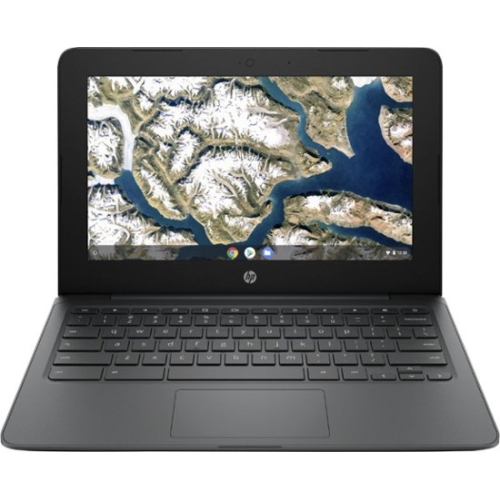 Your price for this item is $199.99
 -
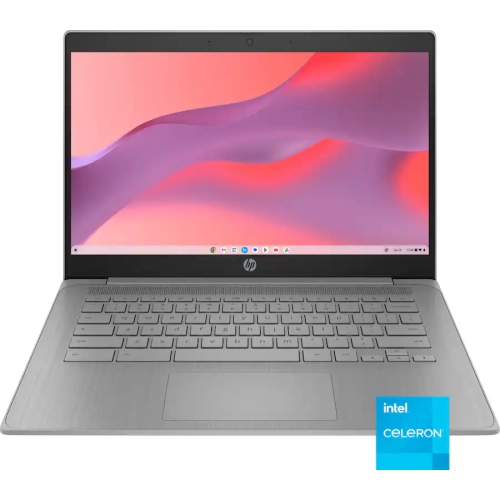 Your price for this item is $406.99
 -
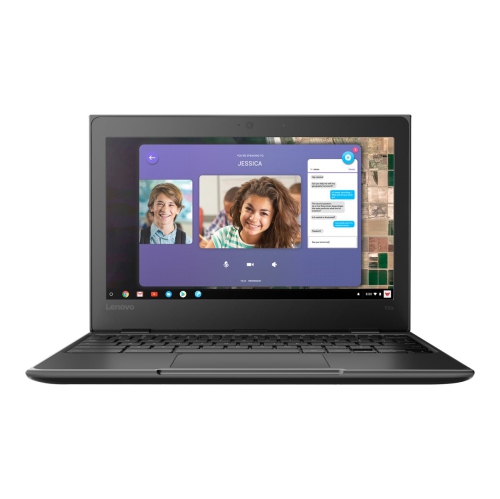 Your price for this item is $499.99
 -
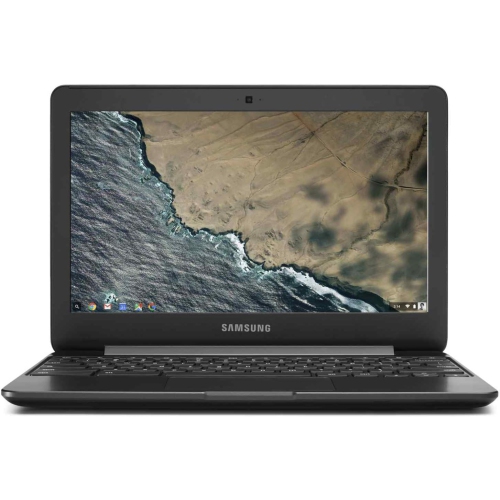 Your price for this item is $248
 -
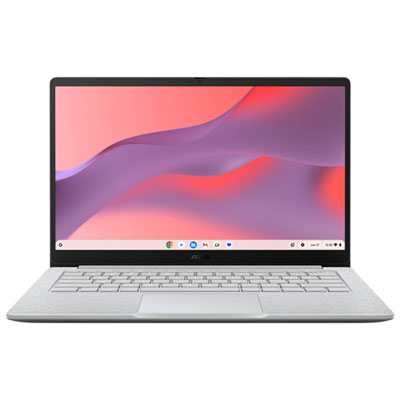 Your price for this item is $529.99
 -
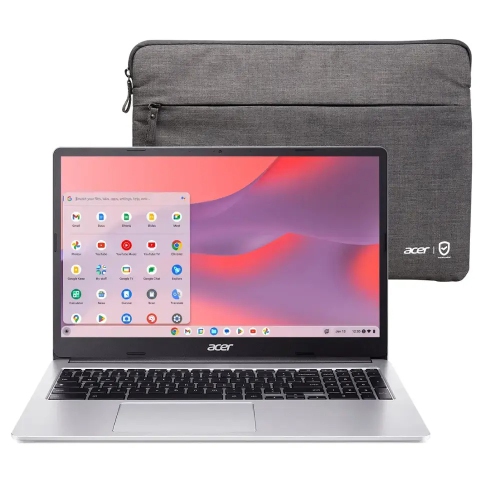 Your price for this item is $339.99
 -
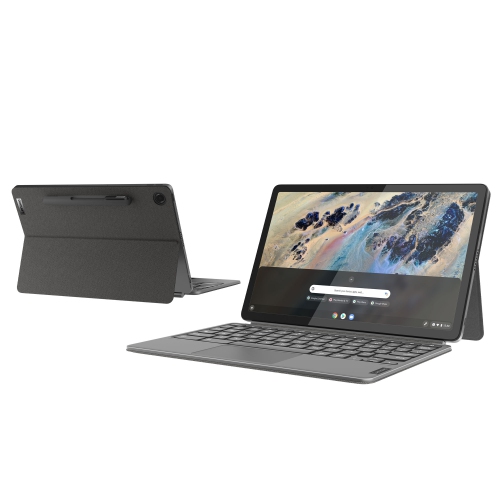 Your price for this item is $799
 -
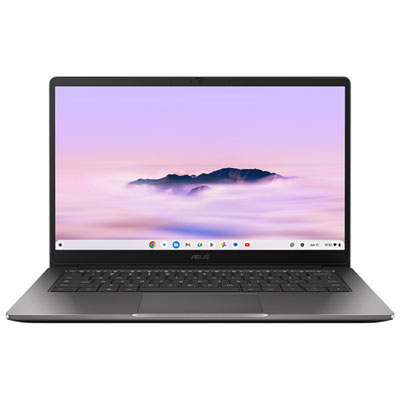 Your price for this item is $649.99
Discover more categories related to Chromebook for Schools
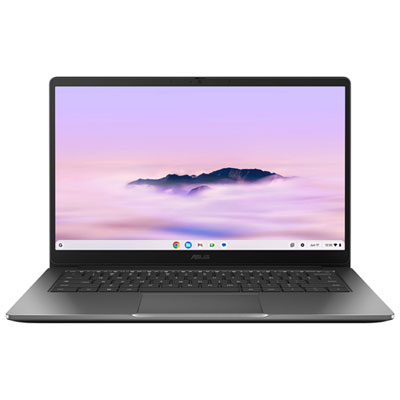
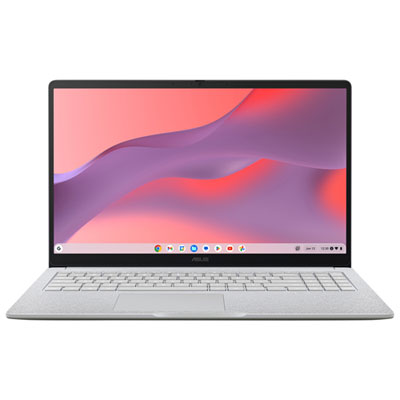
Top Collections:
Pokemon Centers, Kindle Devices, Best Budget Office Chairs, Apple iPhones 16, Best Laptops for Writers, iPhone 15 Apple, Canon G7X Cameras, Refurbished Apple Laptops, Alarm Clock, Motorola Razr Phones
Some products may be subject to Environmental Handling Fees
(EHF) depending on your province.
Learn more about EHFs.