27 Inch Monitors for Home Office
27 inch monitors for home office offer an ideal balance of screen space and clarity, making it easier to manage multiple tasks and stay productive throughout the day. With a range of display options designed for comfort and efficiency, these monitors help create a workspace that supports your workflow. Explore 27 inch monitors for home office to find the perfect fit for your setup, whether you’re handling documents, video calls, or creative projects.
Sort

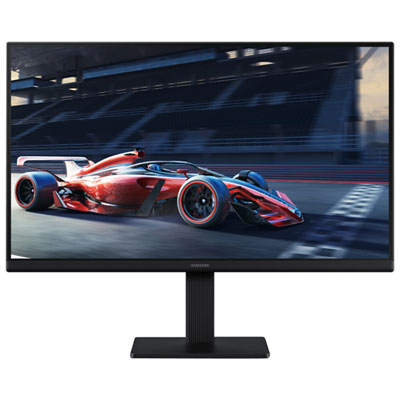
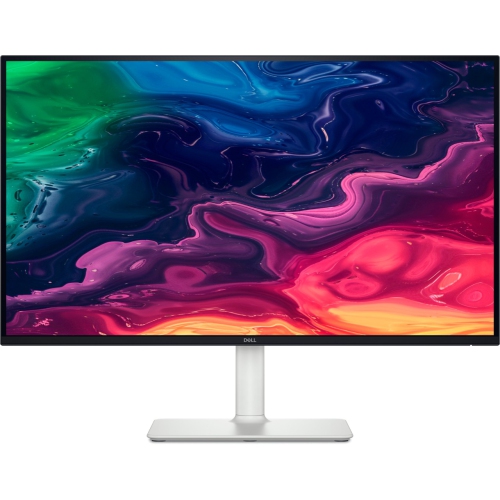
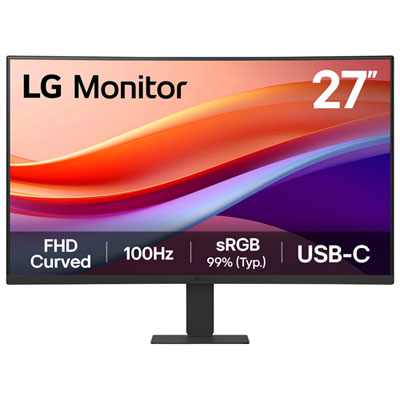

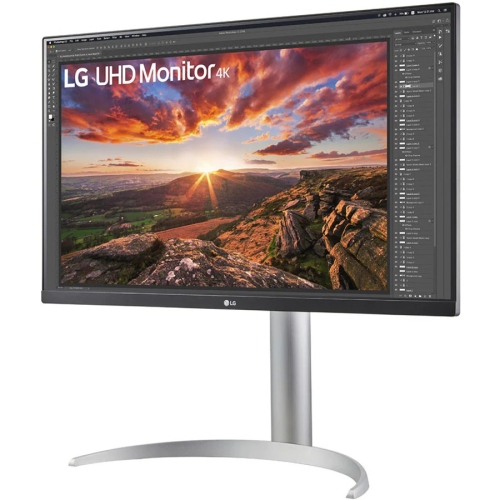

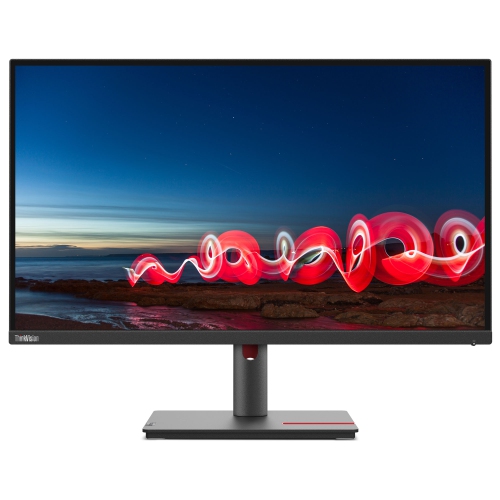
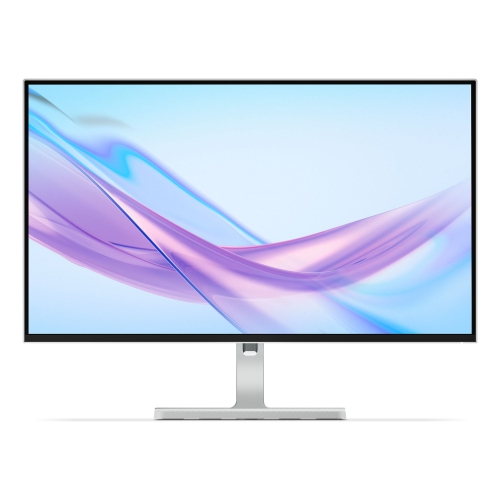
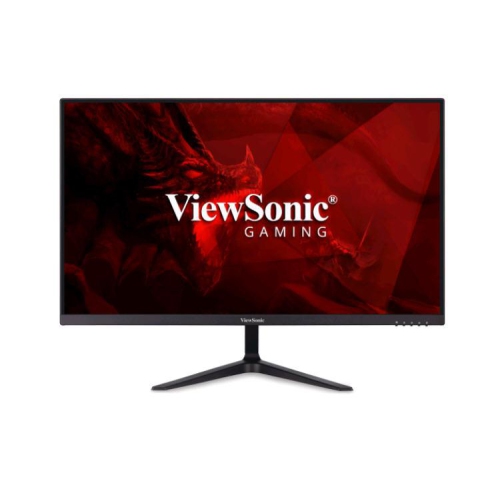


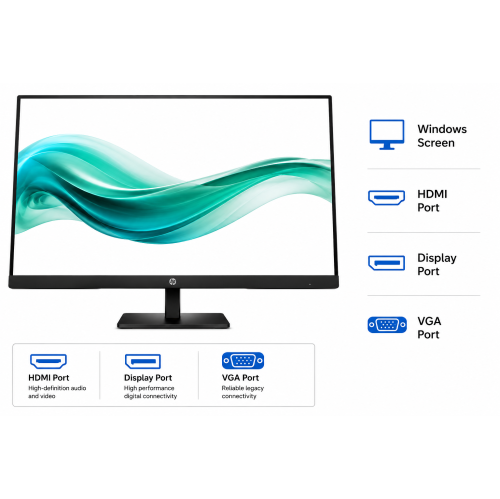
More room for spreadsheets without a wider monitor
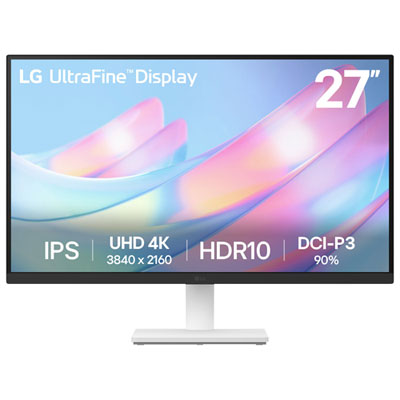
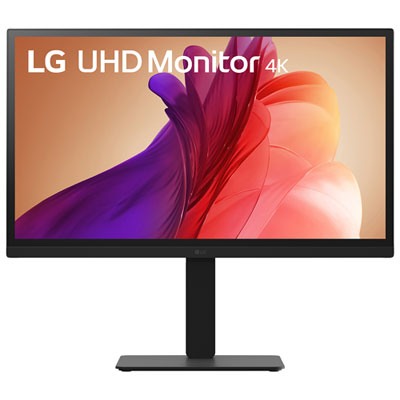
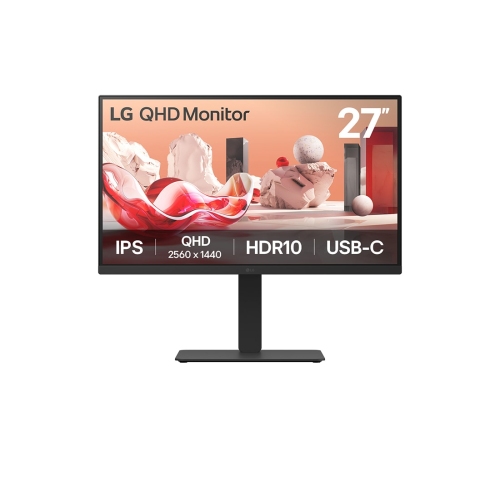
A 27-inch QHD monitor (2560 × 1440) is a practical fit for many home offices because it offers sharper text and more room for windows than a 27-inch Full HD monitor (1920 × 1080), without taking up more desk width when the frames are similar. That extra space is useful when a spreadsheet needs to stay open beside a set of invoices, or when meeting notes need to remain visible during a video call. At the same display scaling, QHD shows more of a document or spreadsheet at once, so there’s less need to scroll or switch tabs. Full HD can still suit a desk used mainly for email, web browsing and video calls, particularly if the screen sits a little farther away. A 27-inch 4K monitor (3840 × 2160) gives fine lines and small type more definition, which can be useful for reviewing layouts, editing photos or reading detailed drawings. Many people increase display scaling on a 4K screen to make menus and text easier to read. That preserves the sharper appearance, but it means the extra pixels don’t all translate into more usable workspace. A standard widescreen 27-inch panel measures about 60 centimetres across before the frame is counted. The 27-inch measurement refers to the diagonal, so the monitor’s full width and the depth of its stand matter more when working around a shelf, a lamp or an open laptop. One larger display can also simplify a desk where the laptop no longer needs to sit open all day. The 27-Inch Office Monitors selection includes displays suited to different kinds of desk setups, from a compact writing surface to a dedicated workstation with space for reference papers and a full-size keyboard.
The same 27-inch screen can feel roomy on a deep desktop and oversized on a narrow work surface, depending on where the stand places it. Roughly an arm’s length is a useful starting distance, with the top of the screen at or slightly below eye level. A height-adjustable stand leaves room to change that position when sharing a desk or switching between sitting and standing. Tilt helps when light from a window catches the panel; swivel is useful when turning a screen to show someone a document without moving the base. A stand that rotates into portrait orientation can make long documents or code easier to scan, provided there’s enough clearance above the desktop. A broad base can offer stability on a sit-stand desk, while a compatible monitor arm can free up space for a notebook or drawing tablet. For an arm, the monitor’s VESA mounting pattern and weight without its stand need to match the arm’s specifications. It’s also worth leaving clearance for the cables, especially if the desk sits against a wall. HDMI and DisplayPort are common connections, but the computer, cable and monitor all need to support the intended resolution and refresh rate. A USB-C monitor can make a laptop setup tidier if the laptop’s port supports video output and the monitor supplies enough charging power. On displays with a USB hub, a compatible connection can also let a keyboard and mouse stay plugged into the screen, making it easier to take the laptop away from the desk. Built-in speakers can be handy for a quick call, but a webcam and microphone aren’t standard features. If a separate webcam is part of the setup, a narrow top frame may leave little room for a clip without covering the edge of the picture.
Day-to-day comfort also comes down to the panel finish, the lighting around the desk and the kind of work on screen. A matte finish helps diffuse reflections from lamps and windows, while a glossy screen can show those reflections more distinctly. Turning the desk so a bright window is off to the side often makes more difference than simply raising the brightness. IPS panels generally hold colour and contrast more consistently when viewed off-centre, which is useful when two people are looking at a layout or when the monitor sits to one side of an open laptop. VA panels typically offer deeper blacks than IPS panels, a difference that can stand out in darker images. For colour-sensitive work such as editing photos for print, colour accuracy and the range of colours the display can reproduce matter more than the panel label alone. A standard 60 Hz refresh rate is generally adequate for email, documents and calls, while a higher refresh rate can make scrolling through a long report or moving between windows look smoother. The materials and moving parts matter in a different way: a plastic housing can keep weight down, and a stand with a metal base can add steadiness, but the hinge and base design also affect how much the screen moves when the desk is bumped. For routine care, a soft microfibre cloth is usually enough to lift dust from the screen. Follow the manufacturer’s cleaning directions for smudges, and avoid spraying liquid directly onto the panel or pressing hard on it. When moving the monitor, support it by the frame rather than gripping the screen. A 27-inch monitor can be a useful gift for a student who reads articles alongside lecture notes, a remote worker who spends the day in spreadsheets or a family member setting up a shared desk. Knowing the recipient’s desk dimensions and computer ports helps make the difference between a screen that fits into the daily routine and one that needs a new stand or adapter before it can be used.
Top selling and popular products
-
 Your price for this item is $2237.68
-
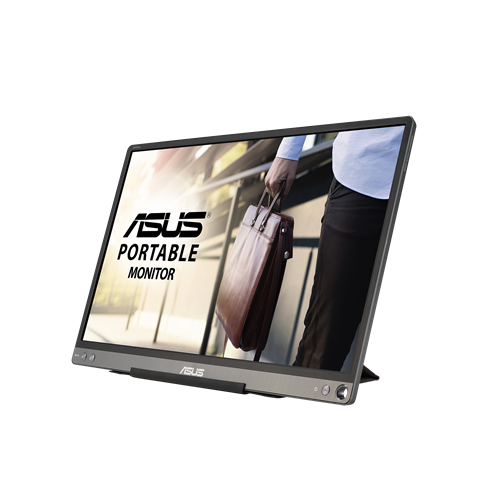 Your price for this item is $320.68
-
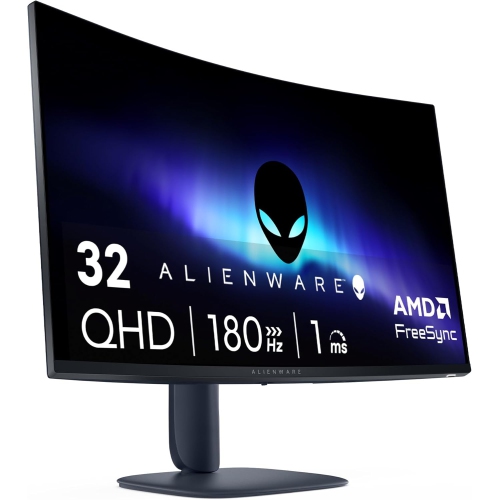 Your price for this item is $469
-
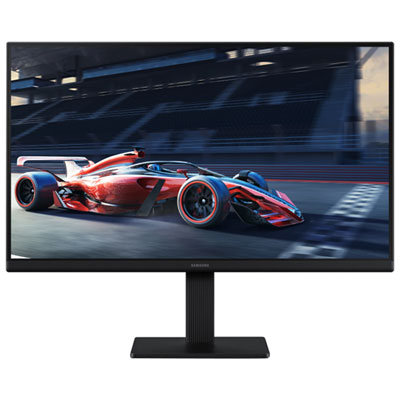 Your price for this item is $149.99
-
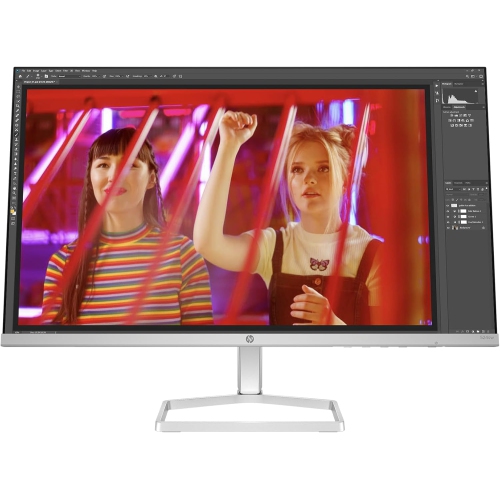 Your price for this item is $265.99
-
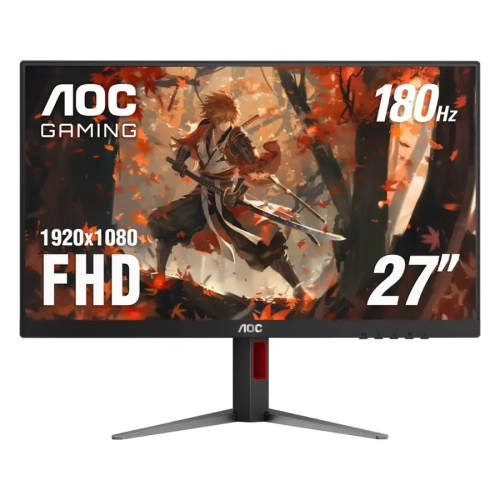 Your price for this item is $229.99
-
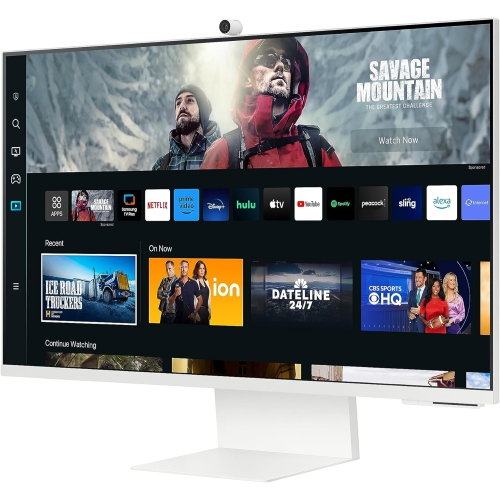 Your price for this item is $1138.68
-
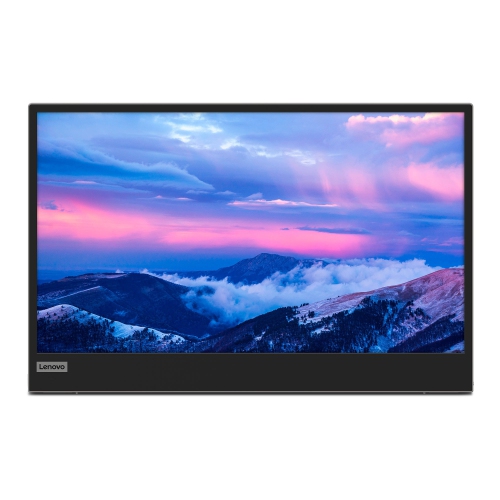 Your price for this item is $355.68
Discover more categories related to 27 Inch Monitors for Home Office
Top Collections:
Best Black Friday Deals This Year, Best Black Friday Deals On Electronics, Kindle Devices, Pokemon Centers, Best Black Friday Deals On Apple Products, Best Cameras for Sports Photography, Dyson Airwrap, Pokémon 30th Celebration Cards, Apple iPhone 17 Pro, Canon G7X Cameras
Some products may be subject to Environmental Handling Fees
(EHF) depending on your province.
Learn more about EHFs.