27 Inch Monitors for Work
Elevate your productivity with this selection of 27 inch monitors for work, designed to enhance your office setup with optimal screen real estate. Whether you're tackling spreadsheets, designing presentations, or managing multiple tasks at once, these monitors provide the perfect balance of size and clarity to keep you focused and efficient. Discover a range of options that cater to different work environments and preferences, ensuring you find the ideal display solution to boost your daily performance. Explore this collection today and transform your workspace into a hub of creativity and precision.
Sort



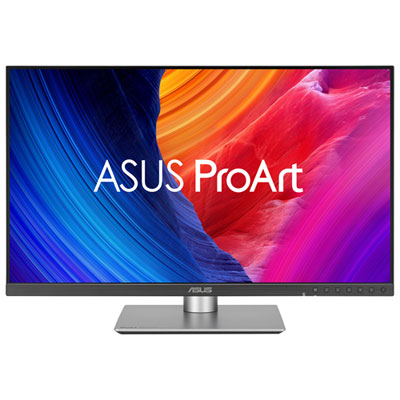
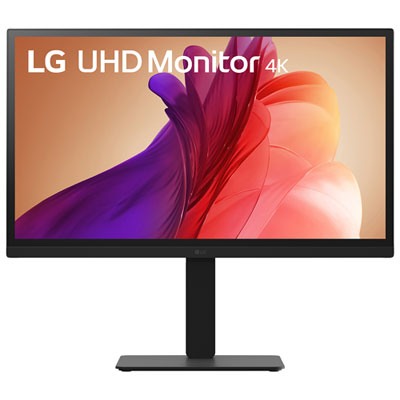
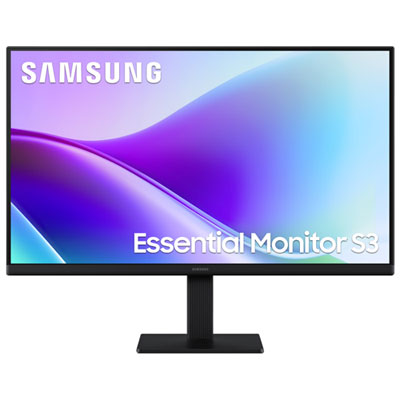
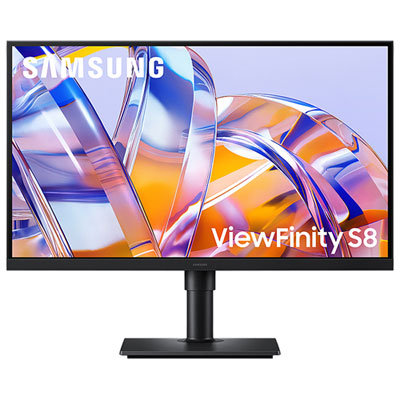


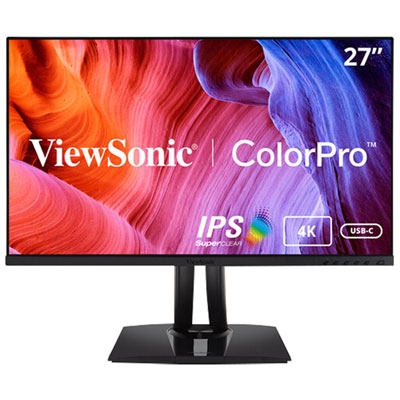
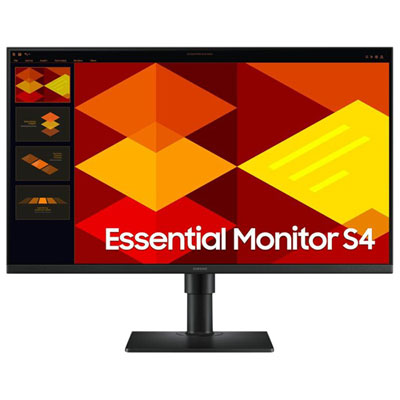
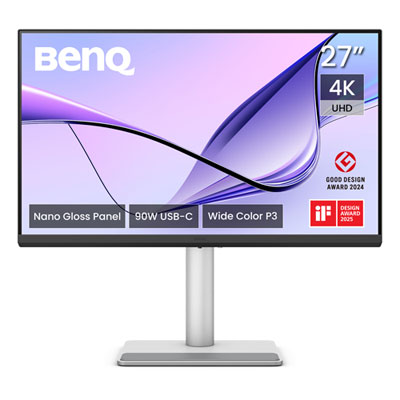
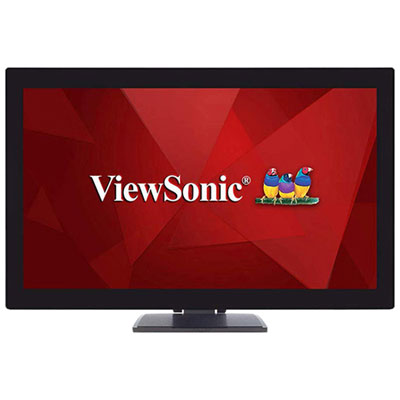
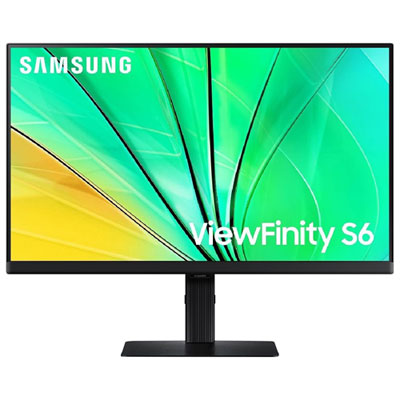
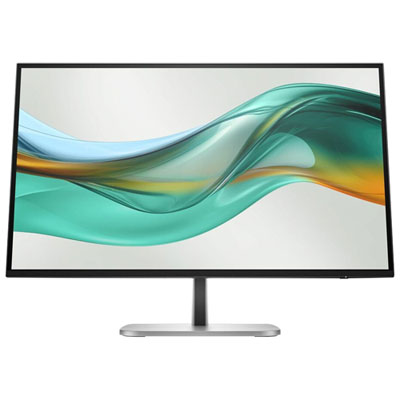
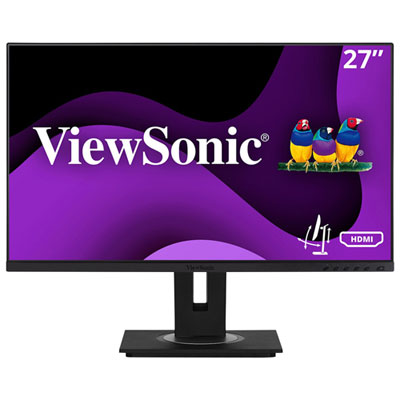
More room for documents without crowding your desk
27-inch monitors for work offer a useful balance between readable detail and desk space, with enough room to keep a document beside a browser window or review a spreadsheet without constantly switching between applications. The 27-inch measurement describes the screen’s diagonal, not its width, so the monitor’s overall dimensions and stand footprint still matter when fitting it onto a desk. Resolution is one of the most important differences within this size. Full HD, or 1920 × 1080, supports everyday email, video calls, and web browsing, but individual pixels and text edges are more noticeable on a 27-inch screen than at higher resolutions. QHD, also called 1440p, provides 2560 × 1440 pixels and is a practical choice for office work because it balances sharp text with room for side-by-side windows. A 4K UHD display, at 3840 × 2160, delivers finer detail for dense text, detailed drawings, and image editing. Operating system scaling is often helpful at 4K to keep menus and lettering comfortably sized; higher resolution does not mean everything needs to appear smaller. For someone reviewing contracts, comparing invoices, or working through lines of code, clear lettering can matter more than entertainment-focused features. Panel characteristics also affect the experience. IPS panels generally maintain consistent colour and visibility from different viewing angles, which is useful when sharing a screen with a colleague. VA panels typically offer stronger contrast, making dark areas look deeper, although viewing-angle performance varies. For design and photography, colour-gamut coverage, calibration information, and suitable colour modes deserve attention alongside resolution. A wide colour gamut alone does not guarantee accurate colour, and an sRGB mode can be useful for work intended for websites and everyday digital viewing. HDR support is a separate consideration and is not, by itself, evidence of colour accuracy. The most suitable work display is the one whose sharpness, viewing characteristics, and workspace match the applications used throughout the day.
Physical fit and adjustability have a lasting effect on how comfortably a monitor fits into a working routine. A screen can have excellent specifications yet feel awkward if its stand leaves it too low, occupies the space needed for a keyboard, or pushes the display too close to the chair. Height adjustment, tilt, swivel, and portrait rotation offer different ways to arrange the screen. Portrait orientation can suit long documents and coding, while swivel makes it easier to show a presentation across a desk without shifting the entire base. As a starting point, position the top of the visible screen around eye level or slightly below, then adjust the height, distance, and text size to suit posture and vision needs. People who use progressive lenses may prefer a lower position. A monitor arm can free the desktop for notebooks or paperwork, but the monitor’s VESA mounting pattern, weight, and mounting requirements must match the arm. Desk thickness and construction also matter for clamp-mounted supports. In a two-monitor arrangement, slim bezels reduce the visual interruption between screens, while similar heights and resolutions help create a more consistent workspace. Matte screen finishes can soften reflections from nearby windows and overhead lights, though positioning the display away from direct glare remains important. Brightness should suit the room rather than stay at its maximum setting. Flicker-reduction features and adjustable colour-temperature settings may support individual viewing preferences, but they do not replace regular breaks. For durability, look beyond the appearance of the housing to the stability of the base, the movement of adjustment joints, and accessible cable routing. Plastic housings can keep weight manageable, while metal stand components may add rigidity; construction quality matters more than the material name alone. Follow the manufacturer’s cleaning directions, switch off and unplug the display before cleaning, and use a clean microfibre cloth without pressing hard on the panel. Avoid spraying liquid directly onto the screen or allowing moisture into ports and seams.
Connections determine how easily a work monitor fits into an existing computer setup. HDMI and DisplayPort are common options, but the computer’s output, the monitor’s input, and the cable must all support the intended resolution and refresh rate. A 60Hz refresh rate is generally sufficient for documents, spreadsheets, and video meetings. Higher rates, such as 100Hz or 120Hz, can make scrolling and pointer movement look smoother when supported by the connected computer, although they do not increase the amount of information visible on screen. USB-C can simplify a laptop desk by carrying video, USB data, and charging through one cable, but these functions are not included with every USB-C connection. Check for video support through DisplayPort Alt Mode or another compatible connection standard, USB Power Delivery, and sufficient charging wattage for the laptop. A charging-capable cable with the required video and data support is also essential. A built-in USB hub can keep a keyboard, mouse, and other peripherals connected to the display, while an integrated Ethernet port may be useful where a wired network connection is preferred. Some monitors include a KVM switch, allowing compatible connected computers to share a keyboard and mouse; others offer picture-by-picture viewing for showing two sources at once. These features serve different purposes and should be checked separately. Built-in speakers and webcams can reduce desktop clutter, although a headset or separate camera may better suit frequent calls or shared spaces. For a workstation in a spare room or a desk that also handles household paperwork, 27-inch monitors for home office suit many of the same needs: readable text, practical connections, and a stand that fits the available surface. Hybrid workers may particularly appreciate a straightforward laptop connection, while analysts may place greater emphasis on resolution and designers on colour performance. Matching those everyday tasks with the right screen characteristics creates a workspace that feels considered, without adding features that have little bearing on the work.
Top selling and popular products
-
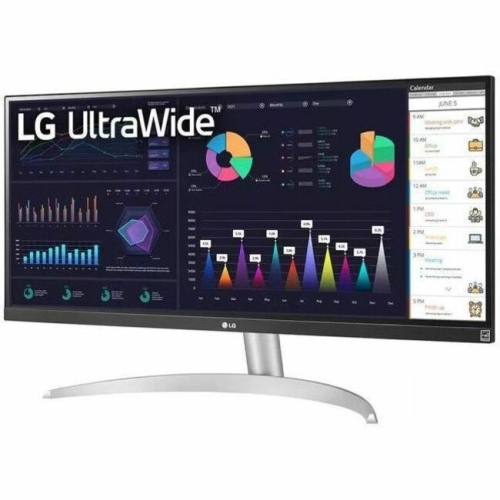 Your price for this item is $2237.68
-
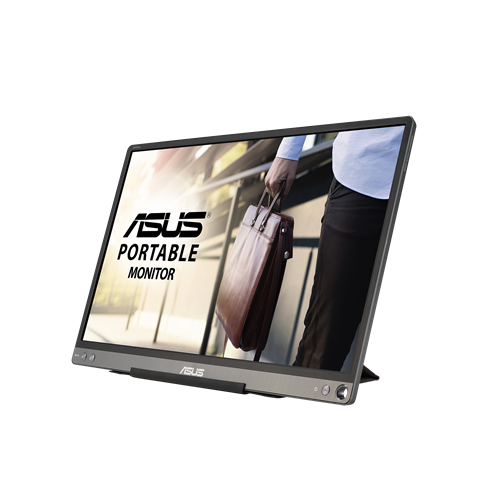 Your price for this item is $320.68
-
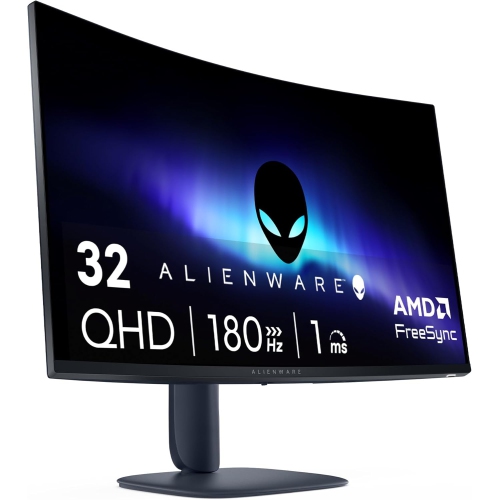 Your price for this item is $469
-
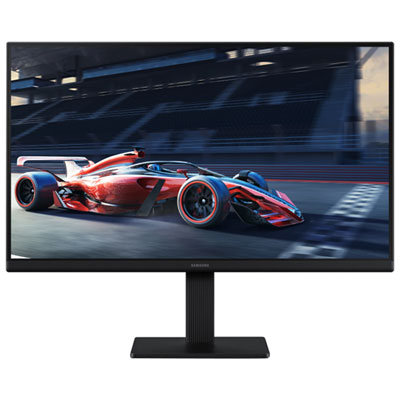 Your price for this item is $149.99
-
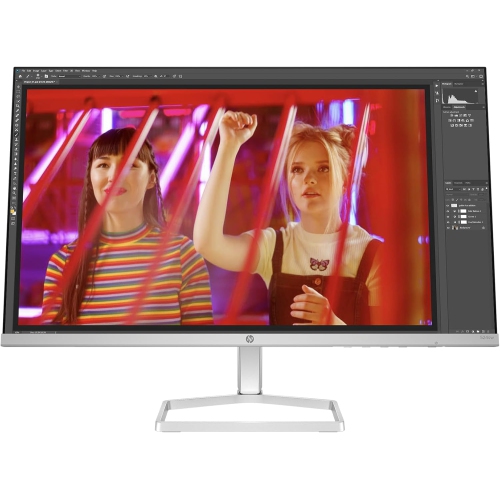 Your price for this item is $265.99
-
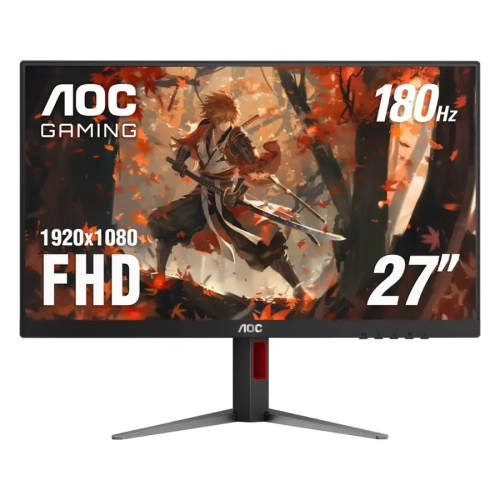 Your price for this item is $229.99
-
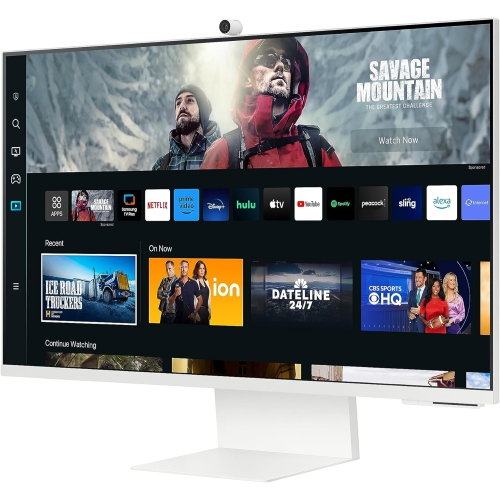 Your price for this item is $1138.68
-
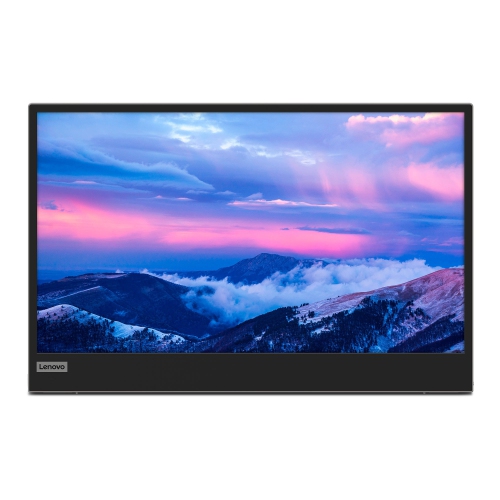 Your price for this item is $355.68
Discover more categories related to 27 Inch Monitors for Work

Top Collections:
Best Black Friday Deals This Year, Best Black Friday Deals On Electronics, Kindle Devices, Pokemon Centers, Best Black Friday Deals On Apple Products, Best Cameras for Sports Photography, Dyson Airwrap, Pokémon 30th Celebration Cards, Apple iPhone 17 Pro, Canon G7X Cameras
Some products may be subject to Environmental Handling Fees
(EHF) depending on your province.
Learn more about EHFs.