28 Inch Monitors
If you're looking for a new monitor, you've come to the right place. These 28-inch monitors are a great choice for those who need plenty of screen real estate and an immersive viewing experience. With their large size, they're perfect for gaming, watching movies, or working with multiple windows open at once. Here are some of the great options.
Sort
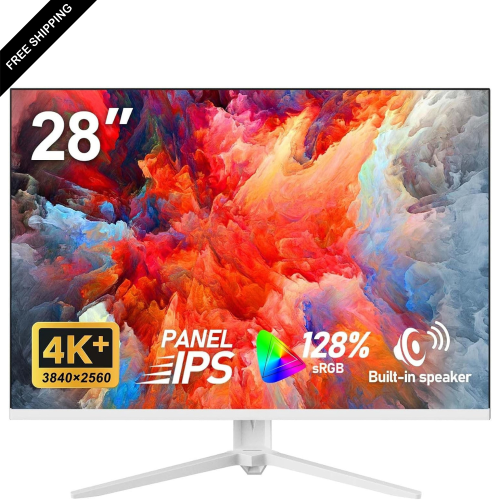

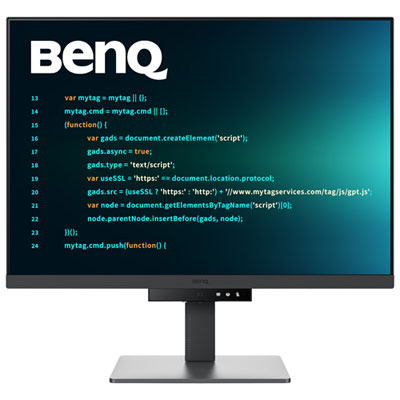
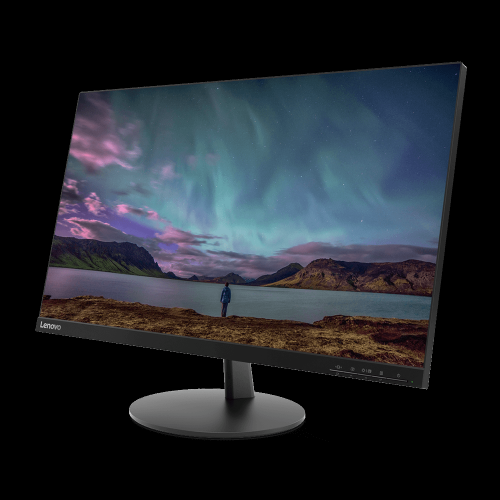
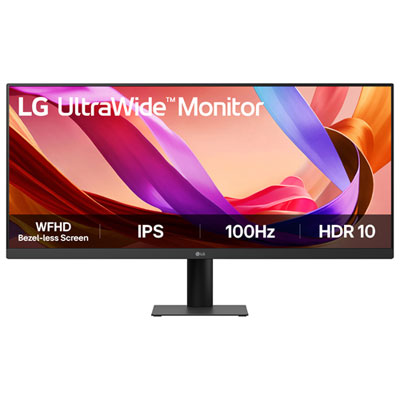
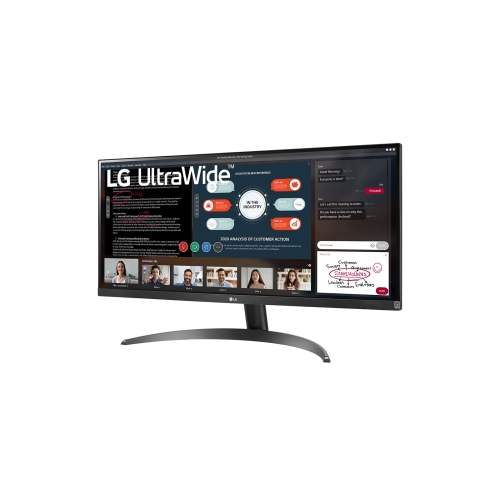
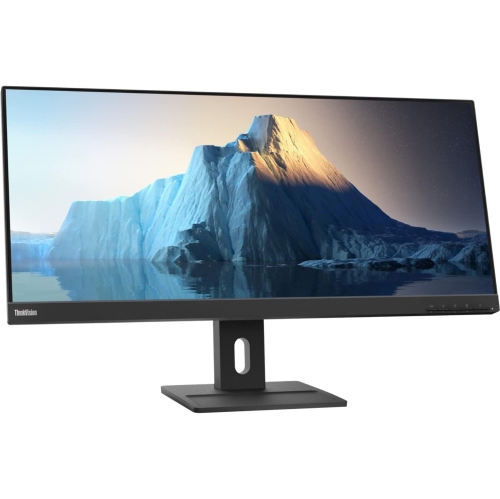
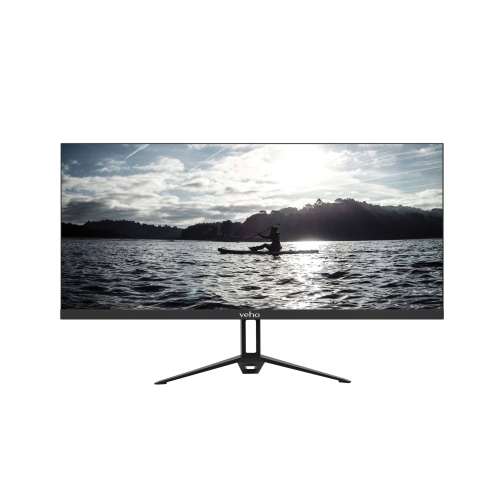
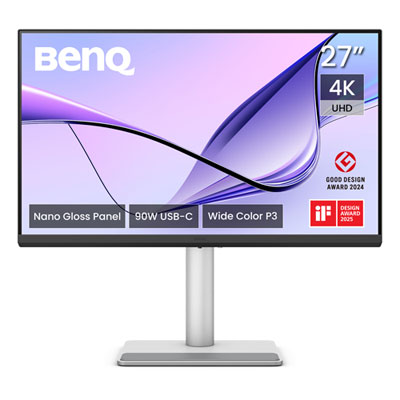
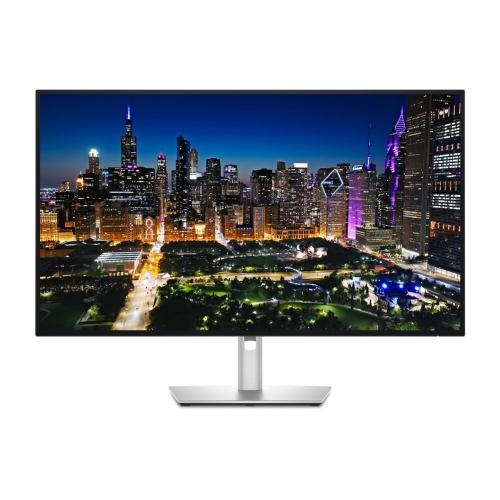
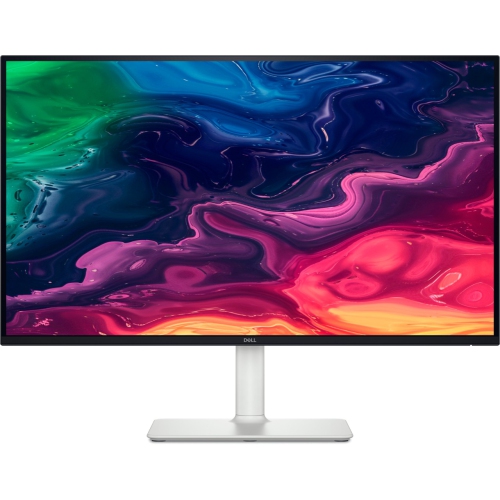

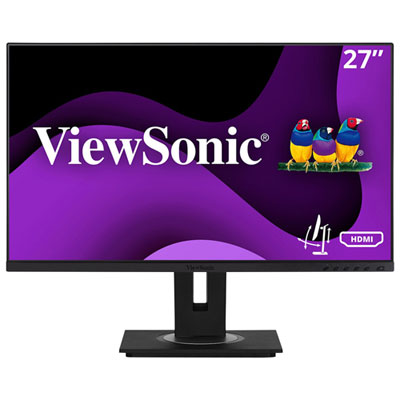
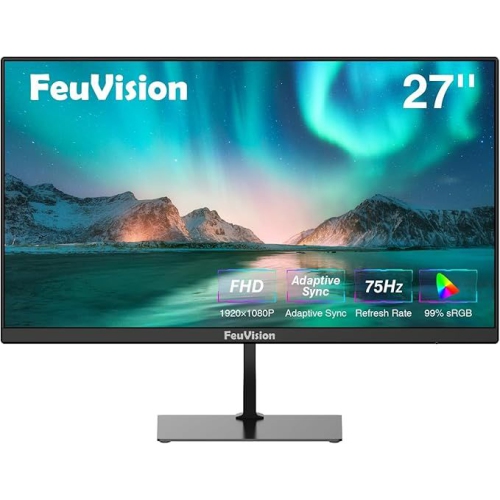
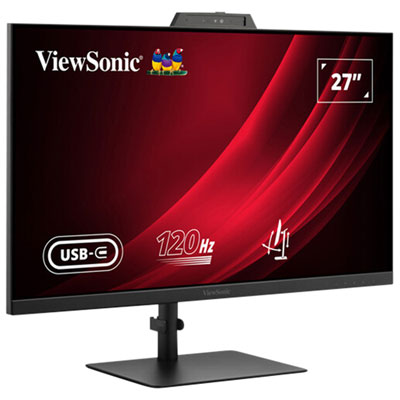
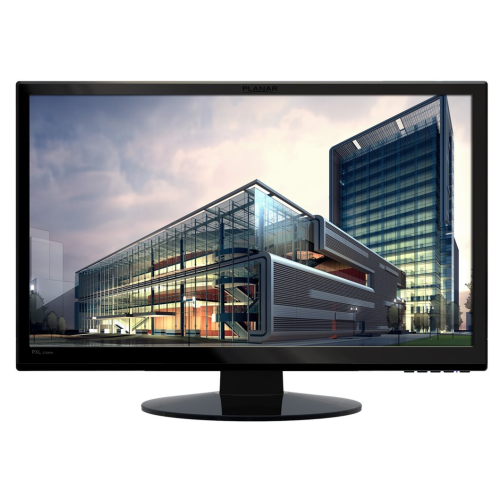
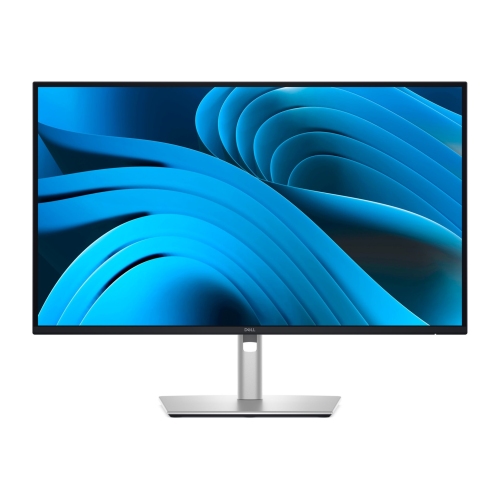
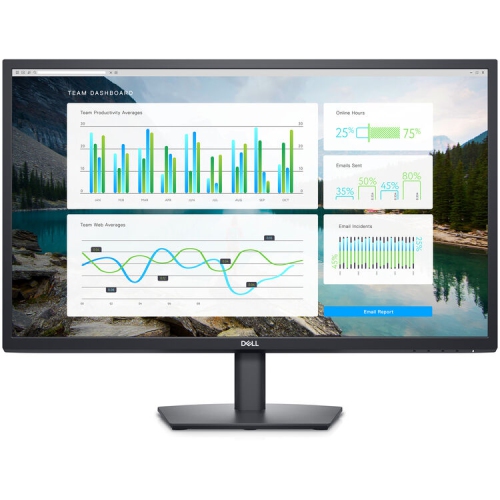
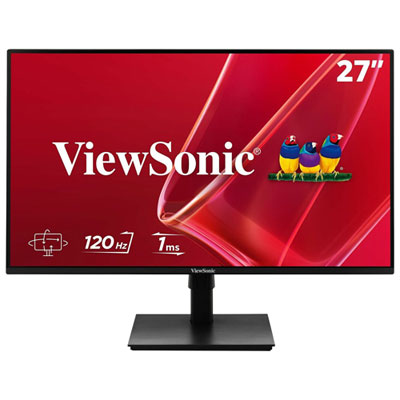
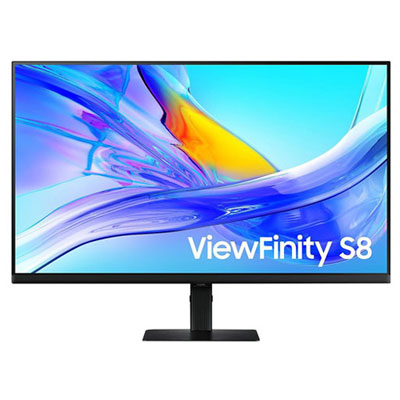
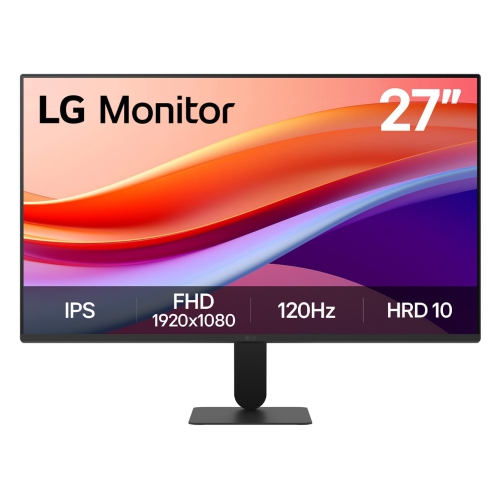
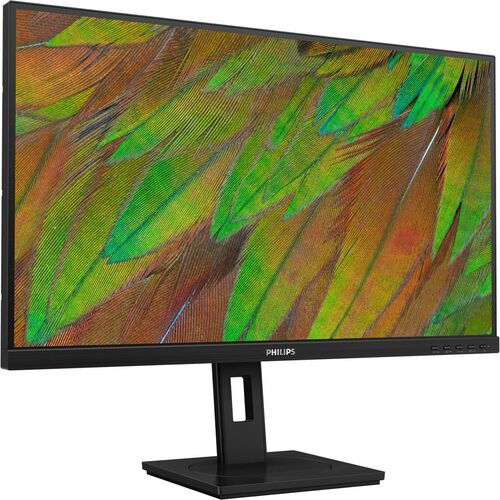
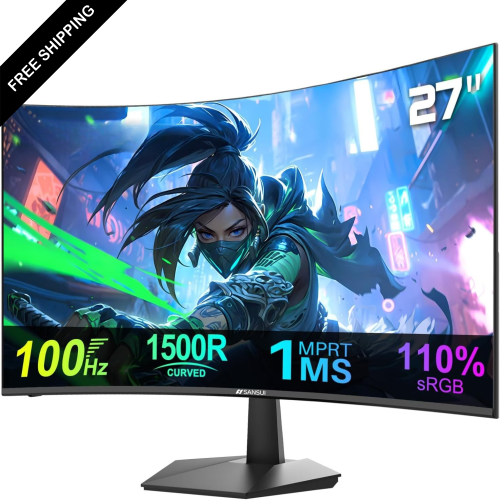
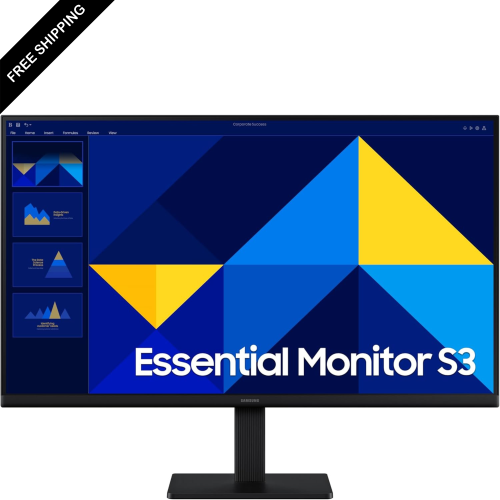
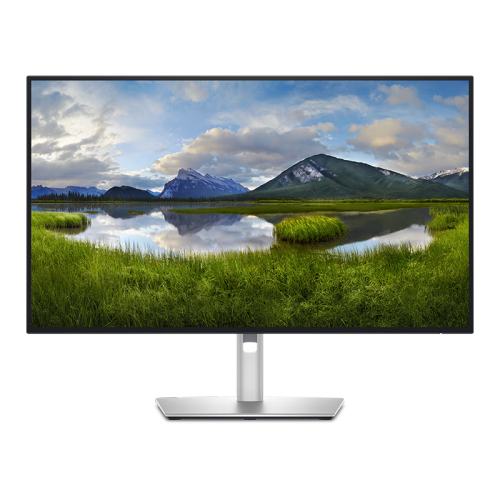
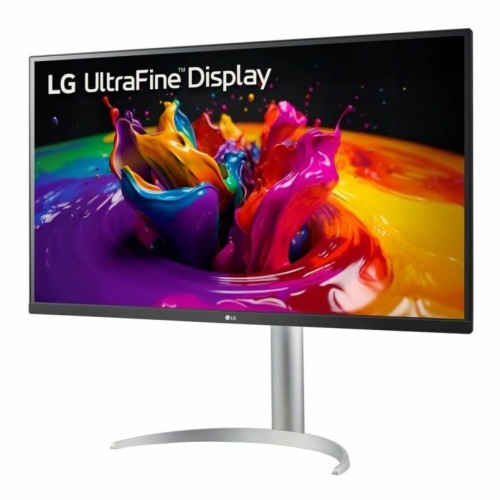
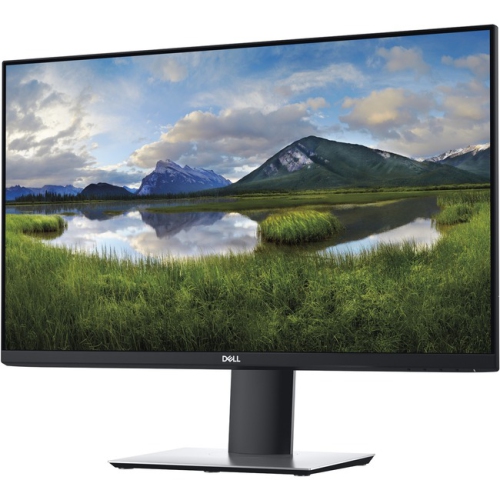
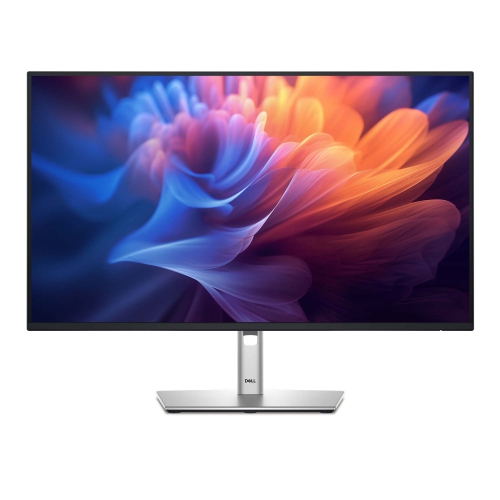
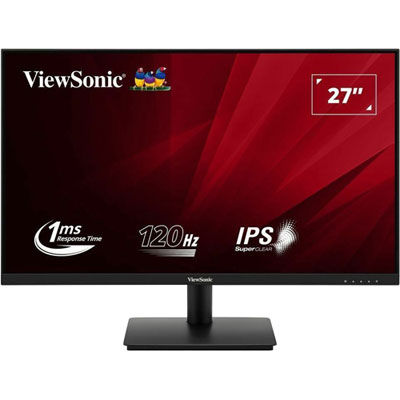
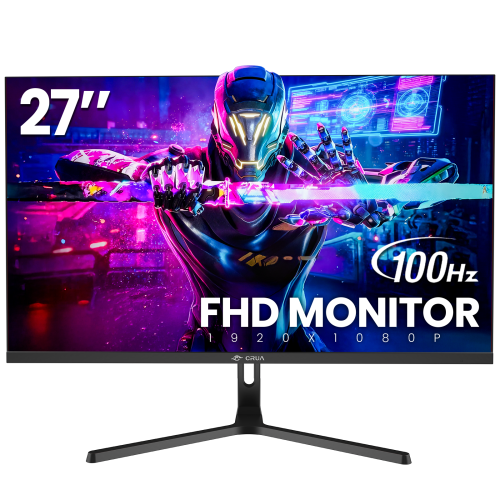
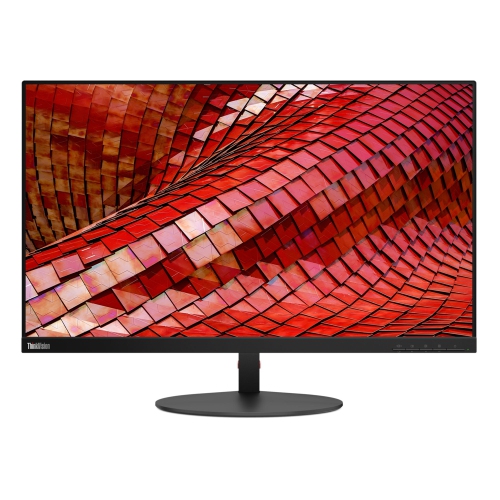
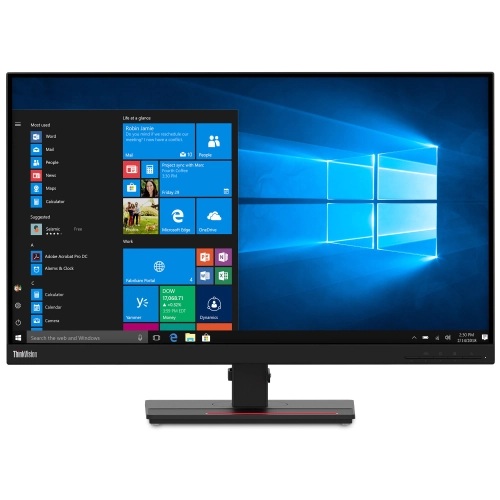
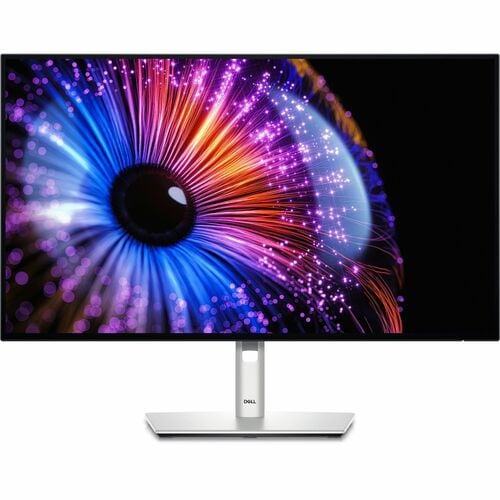
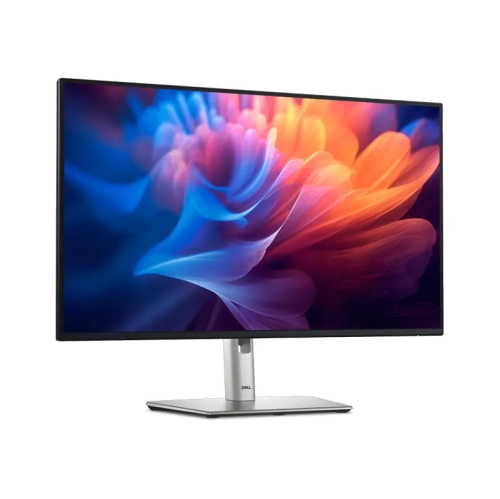
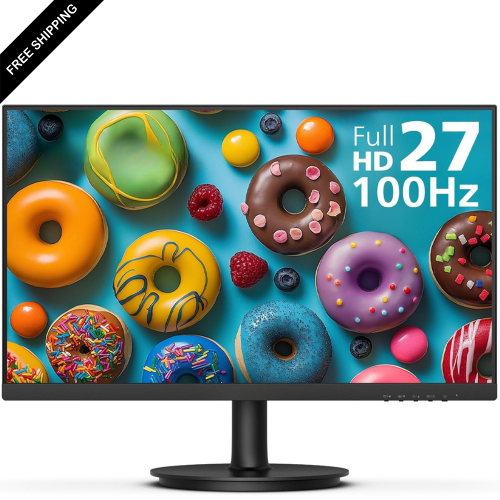
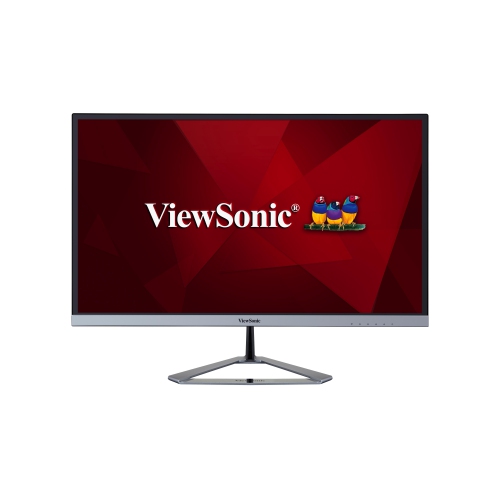
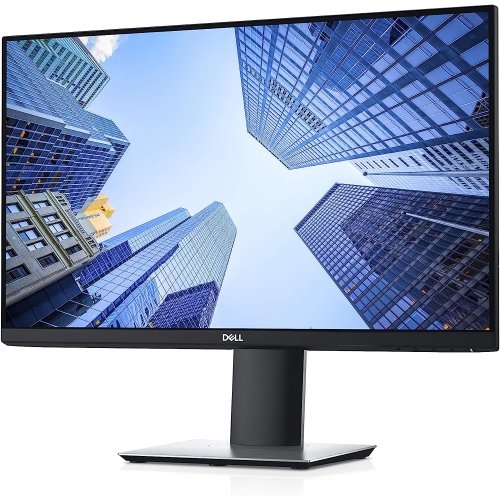
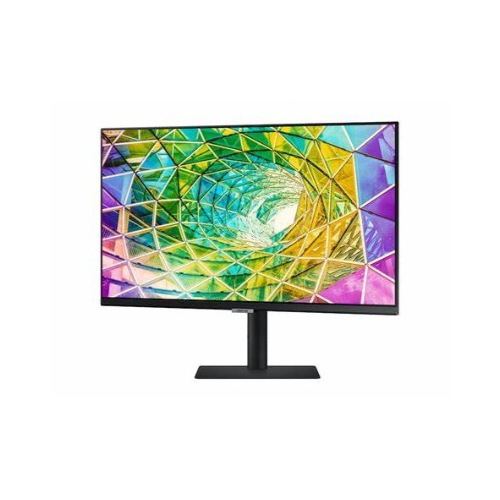
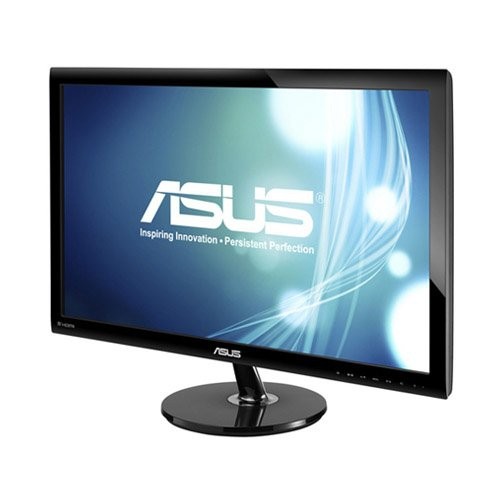
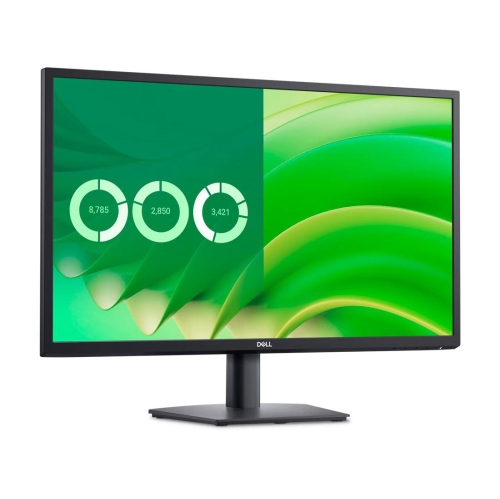
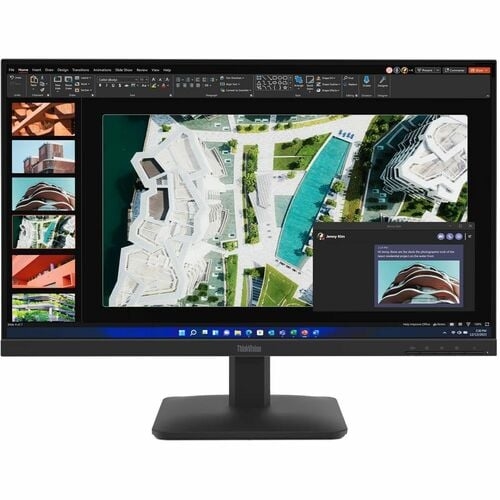

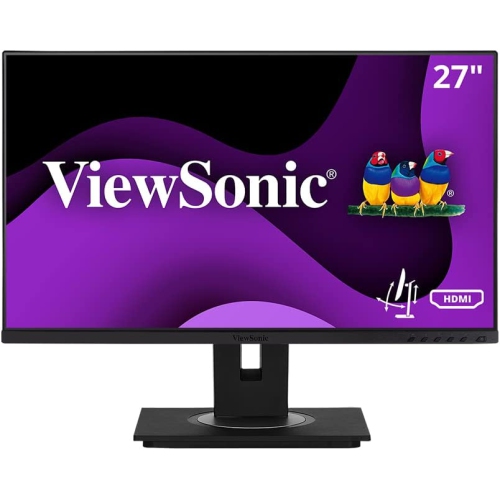
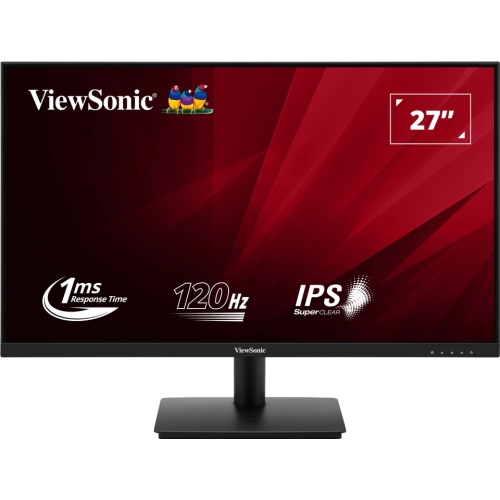
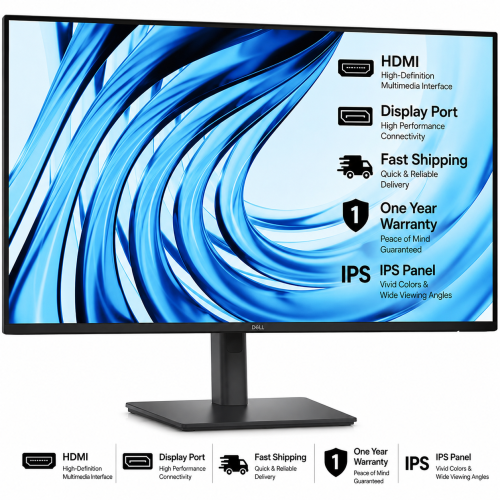
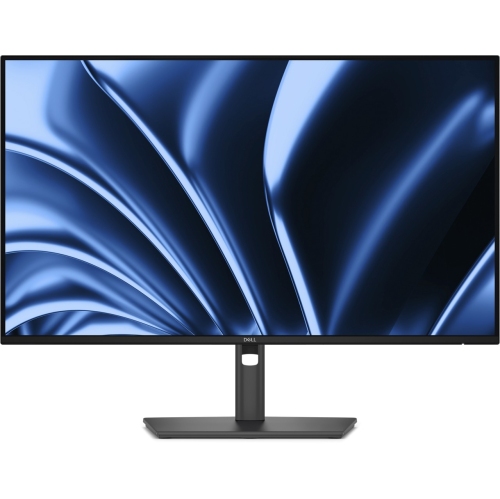
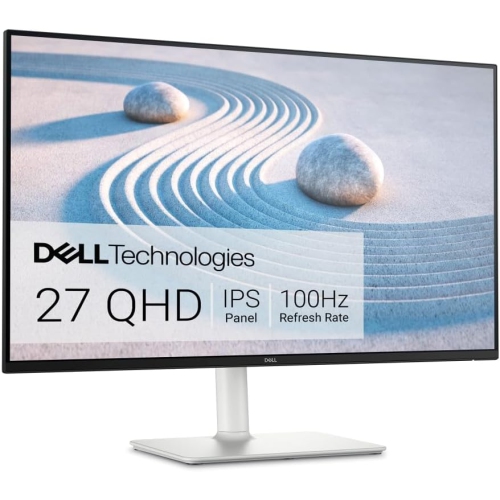
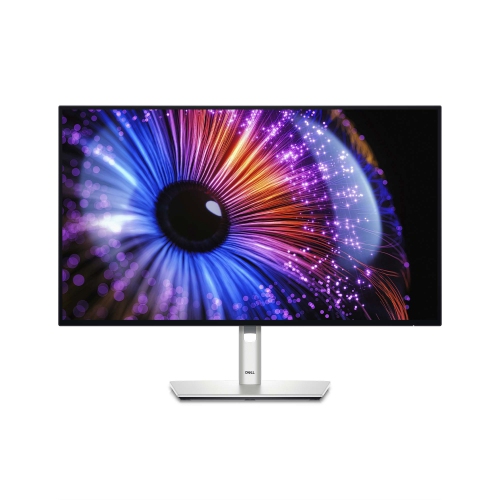
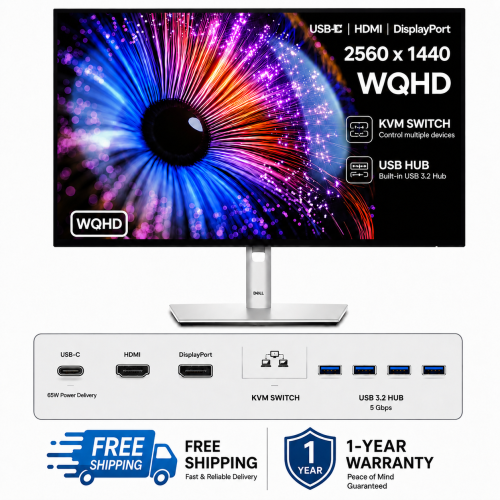
More screen space without taking over your desk
28-inch monitors offer a versatile screen size for office work, programming, studying, gaming, and everyday entertainment. The measurement refers to the diagonal distance across the visible screen, rather than its width, so the space needed on a desktop also depends on the aspect ratio, bezel, and stand. A typical 16:9 display at this size provides enough room to keep a document beside a browser window, compare spreadsheet columns, or follow a video lesson while taking notes. Resolution makes a noticeable difference to how that space feels. A 4K monitor, with 3840 × 2160 pixels, can display finer text and more image detail than a lower-resolution screen of the same size, making it useful for dense code, detailed diagrams, and photo editing. Higher resolution does not necessarily mean everything should appear smaller: operating system scaling can enlarge text and interface elements while retaining crisp edges. For someone moving from a laptop display, a 28-inch screen can make daily tasks feel less cramped without requiring an especially wide desk. Students can keep research material visible alongside an assignment, while someone working from home might use the extra room for a shared presentation and meeting controls. A programmer may appreciate being able to read longer lines of code or position documentation beside an editor. The most comfortable arrangement still depends on viewing distance, eyesight, and the applications being used. At a normal seated position, text should be readable without leaning forward, and frequently used windows should stay within an easy glance. Screen dimensions are also worth comparing carefully when considering 29 Inch Monitors, because a different aspect ratio can change usable width and height more than the diagonal measurement suggests. A wider screen may suit side-by-side windows, while a taller display area can be helpful for documents, web pages, and vertical sections of a timeline.
For gaming and entertainment, the character of a 28-inch monitor depends on more than screen size or resolution. Refresh rate describes how often the display updates each second, and a higher rate can make movement look smoother when the connected computer or console supplies enough frames. That difference is particularly useful in fast-paced games, where tracking a moving opponent or turning quickly through a scene benefits from clear motion. Response time is a separate measure related to how quickly pixels change, and advertised figures are not always directly comparable because testing methods and settings differ. Adaptive sync can help reduce visible tearing when the frame rate changes, provided the display and connected device support a compatible implementation. A sharp 4K picture can bring out small details in game scenery, but rendering games at that resolution also places greater demands on a computer’s graphics hardware. Console players should check support for the resolution and refresh-rate combination they intend to use, including the capabilities of the relevant input. For films, creative work, and general viewing, panel characteristics deserve equal attention. IPS-type panels are often chosen for consistent colour and wide viewing angles, while contrast performance affects how clearly dark scenes retain depth. Neither panel type nor a single specification tells the whole story; brightness, surface finish, viewing position, and display settings also influence the image. A matte finish can soften distracting reflections from nearby lighting, although placing a screen directly opposite a bright window can still make viewing difficult. HDR support varies considerably, and accepting an HDR signal does not by itself guarantee bright highlights, deep shadows, or precise backlight control. People editing photos or preparing visual projects may place more emphasis on colour accuracy, suitable colour-space coverage, and calibration options. Someone mainly watching videos or handling documents may instead value comfortable text, stable viewing angles, and easy access to brightness controls.
Connections, physical fit, and everyday handling help determine whether a 28-inch monitor works well over time. HDMI and DisplayPort are common display connections, but the supported resolution and refresh rate depend on the capabilities of both devices and the cable between them. USB-C can simplify a compatible laptop setup by carrying video, data, and sometimes charging through one connection, although these functions are not included on every USB-C port. Charging output also needs to suit the laptop’s requirements. A built-in USB hub can keep a keyboard, mouse, or webcam connected at the desk, while a headphone output or integrated speakers may be useful for casual listening. For regular calls or shared living spaces, separate speakers or a headset may still be preferable. Stand design matters just as much as port selection when the screen will be used for hours. Height adjustment, tilt, swivel, and, where supported, portrait rotation make it easier to position the display for different tasks. The top of the screen is commonly placed around eye level or slightly below, with the exact position adjusted for comfort and any vision needs. Check the stand’s footprint against desktop depth, leaving room for a keyboard, comfortable arm placement, and cable bends behind the display. A compatible monitor arm can free up work surface, but its mounting pattern and weight limits must match the monitor, and the desk must support the attachment securely. Housings commonly combine rigid plastic with metal structural components; a stable base and well-supported adjustment mechanism are especially useful on a desk that moves or is shared. For routine care, turn the monitor off and follow its cleaning directions, using a clean, soft cloth without pressing hard on the panel. Avoid spraying liquid directly onto the screen, and keep ventilation openings clear. Thoughtful placement, gentle cleaning, and cables routed away from snags help protect a display that may serve as a study space, work screen, and entertainment centre throughout the day.
Top selling and popular products
-
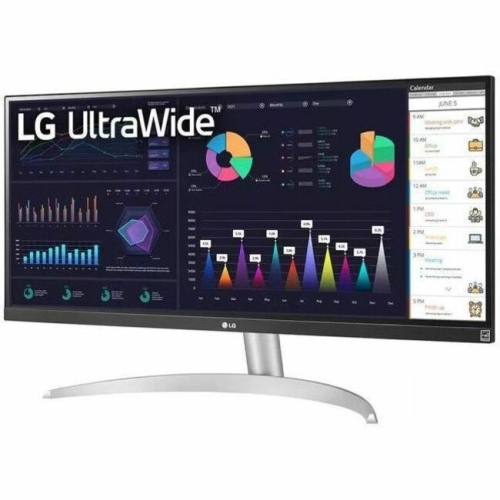 Your price for this item is $2237.68
-
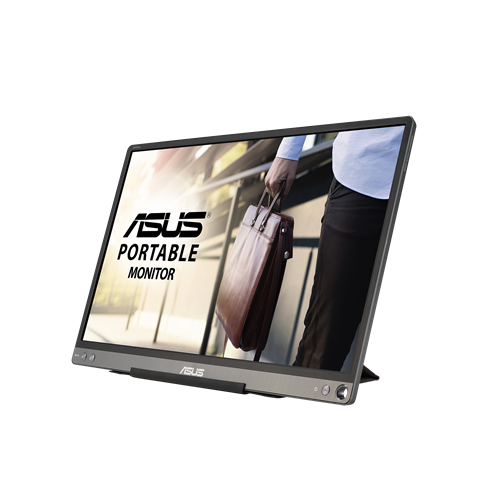 Your price for this item is $320.68
-
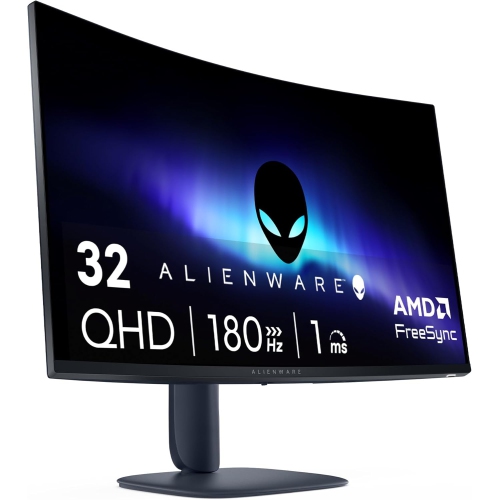 Your price for this item is $469
-
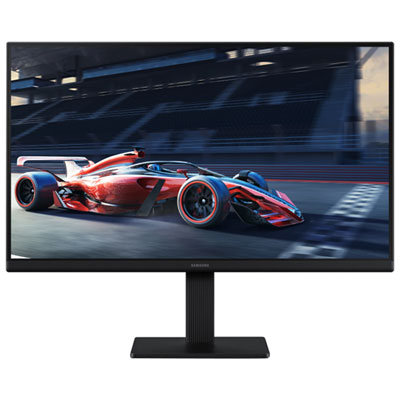 Your price for this item is $149.99
-
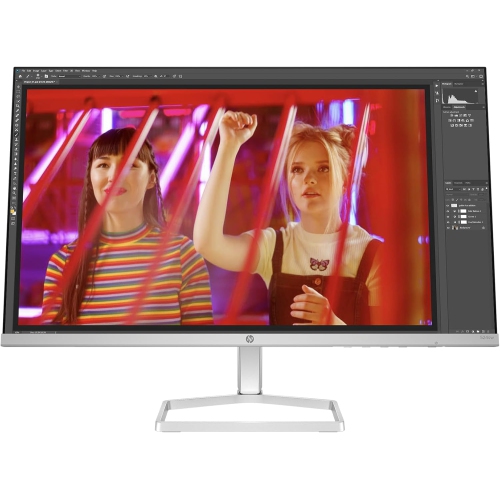 Your price for this item is $265.99
-
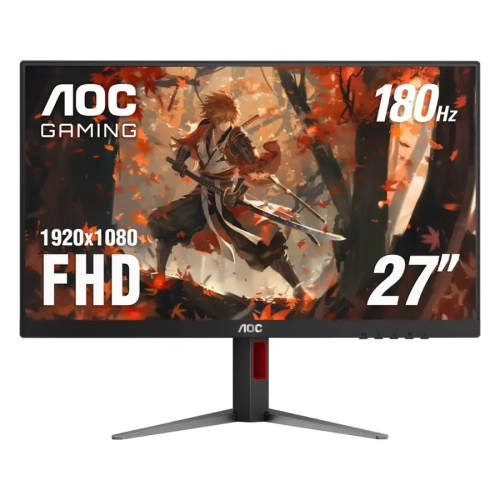 Your price for this item is $229.99
-
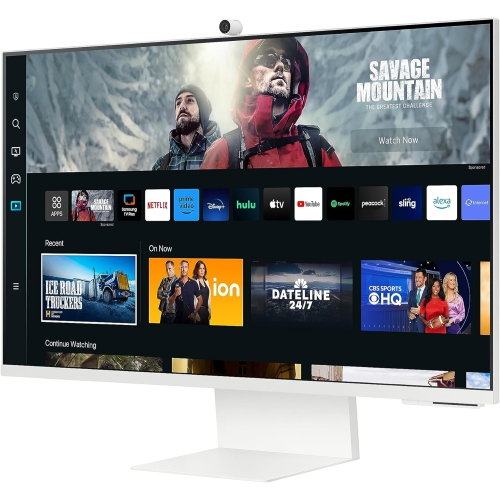 Your price for this item is $1138.68
-
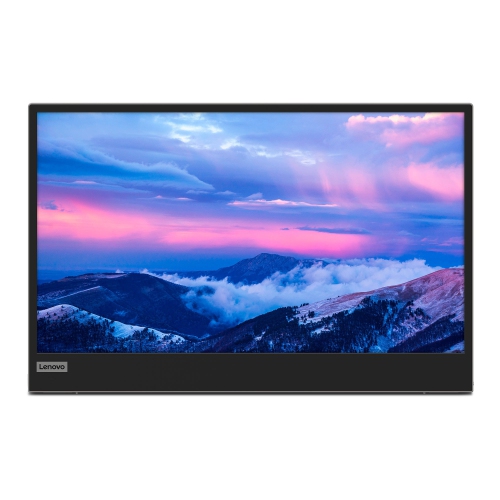 Your price for this item is $355.68
Discover more categories related to 28 Inch Monitors
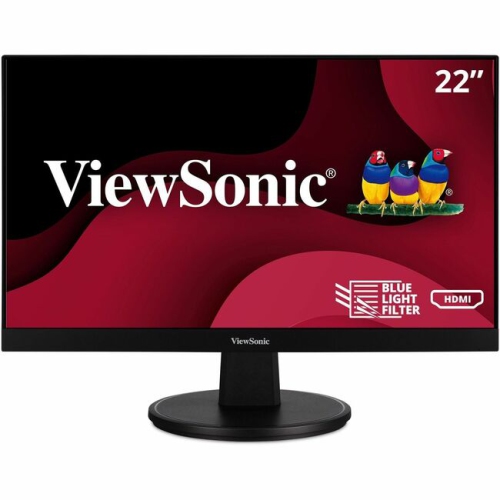
Top Collections:
Best Black Friday Deals This Year, Best Black Friday Deals On Electronics, Kindle Devices, Pokemon Centers, Best Black Friday Deals On Apple Products, Best Cameras for Sports Photography, Dyson Airwrap, Pokémon 30th Celebration Cards, Apple iPhone 17 Pro, Canon G7X Cameras
Some products may be subject to Environmental Handling Fees
(EHF) depending on your province.
Learn more about EHFs.