31 Inch Monitors
Discover the perfect viewing experience with a 31 In Monitor, designed to elevate productivity, entertainment, and everyday computing. Offering a spacious display that brings visuals to life, these monitors are an ideal choice for multitasking, streaming, gaming, or creative projects. Whether upgrading your home office or enhancing your setup for immersive visuals, a 31 In Monitor delivers the screen space you need to stay organized and engaged. Explore a variety of options to find the right fit for your workspace and lifestyle.
Sort

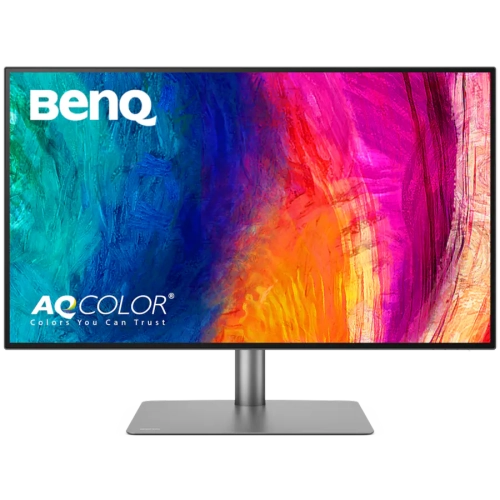
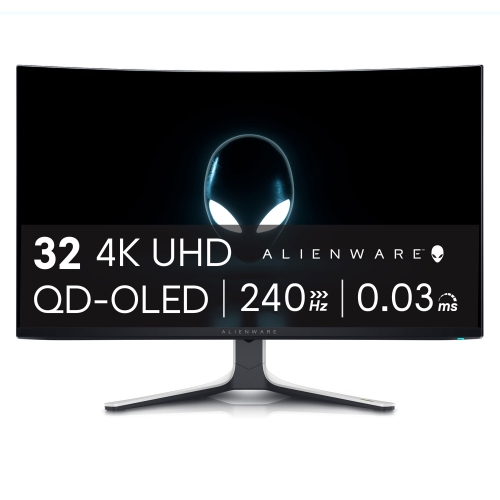
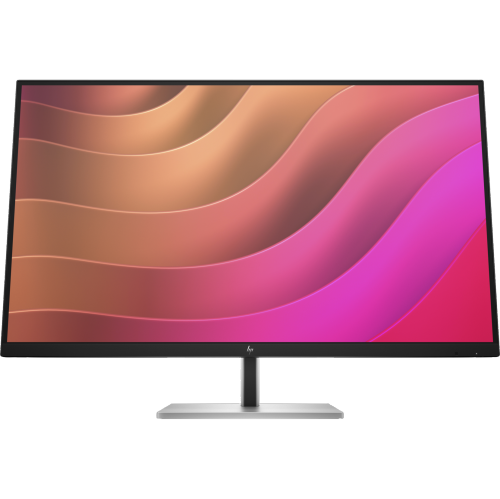
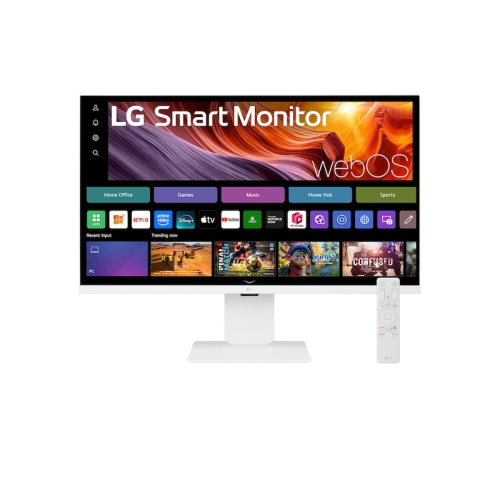
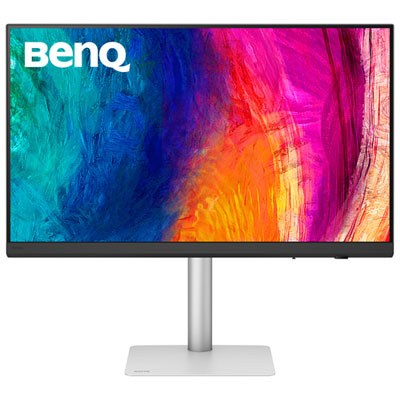
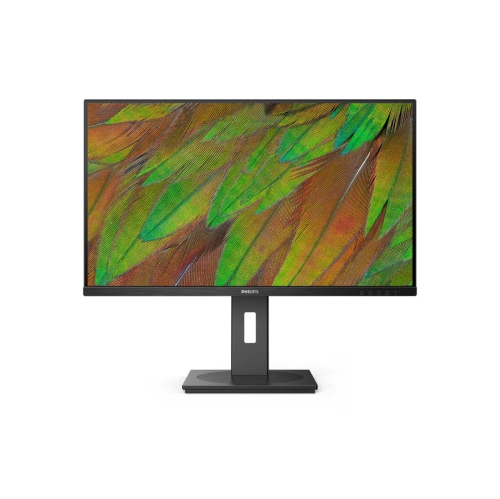
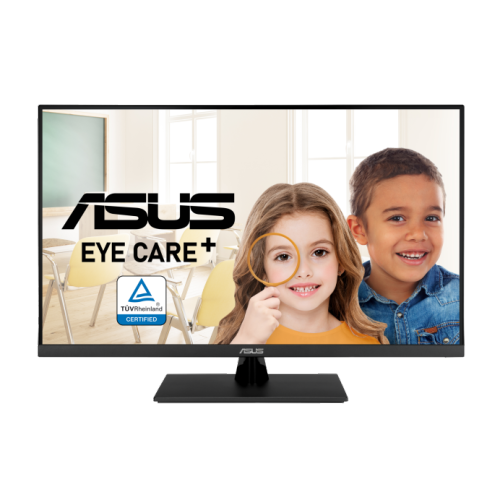
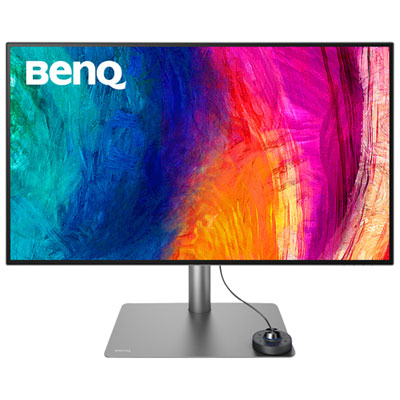
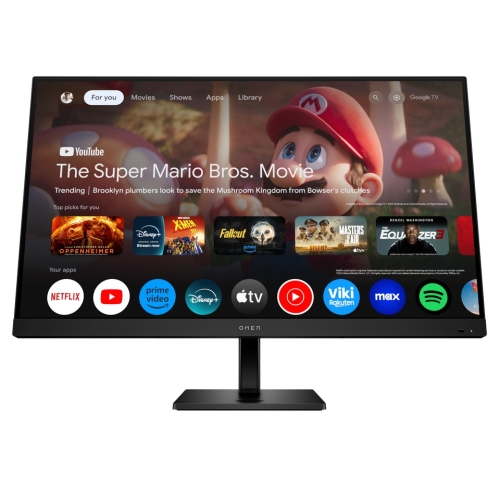
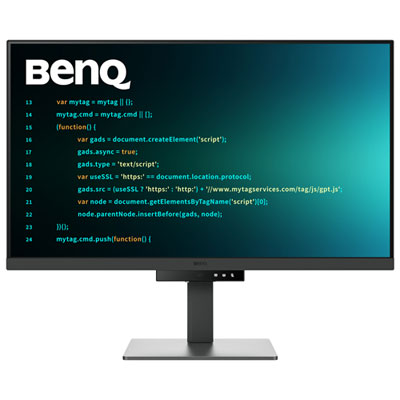
How screen size and resolution shape your workspace
31-inch monitors offer a generous viewing area for everyday computing, detailed work, and entertainment without requiring a multi-screen setup. Monitors described as 31-inch often have a measured diagonal of 31.5 inches, and some displays with that measurement are labelled as 32-inch class. The actual screen dimensions and overall measurements are more useful than the size label alone when planning a desk layout. This size can suit someone comparing spreadsheets side by side, keeping research beside a document, or viewing a video timeline with room for editing controls. A larger screen does not automatically provide more workspace, however: resolution determines how many pixels are available, while display scaling affects the size of text, icons, and menus. Full HD, at 1920 × 1080 pixels, can work well for video playback and applications with larger text, though individual pixels are more noticeable at typical desk distances on a screen this size. QHD, at 2560 × 1440 pixels, provides finer detail and more room for windows, making it a versatile option for office tasks and gaming. A 4K display, at 3840 × 2160 pixels, offers sharper text and finer image detail, particularly useful for photography, detailed diagrams, and high-resolution video. With 4K, scaling can make menus easier to read while retaining crisp lettering, although application support can vary. For someone who spends the day switching between email, browser tabs, and project files, the practical benefit is being able to keep useful information visible without constantly minimizing windows. For a student, it might mean reading source material alongside an assignment; for a home office, it could mean seeing a shared presentation clearly while keeping meeting notes open. The most useful balance of size and resolution depends on viewing distance, eyesight, and the kinds of content that fill the screen.
Image quality on 31-inch monitors depends on more than resolution. IPS panels typically maintain consistent colour and image appearance across wider viewing angles, which can be helpful when sharing a screen or working with images. VA panels generally offer stronger native contrast, giving dark scenes greater depth, although motion handling and viewing angles vary by display. A curved screen can bring the edges closer to the viewer’s eyes, creating a more enveloping feel when seated near the centre; a flat screen may feel more familiar for layouts, drawings, and shared viewing. Neither shape guarantees better image quality. For photo and design work, colour accuracy, coverage of the relevant colour space, and calibration options matter more than a vivid picture preset. HDR support also varies substantially: the ability to accept an HDR signal does not by itself guarantee bright highlights or detailed shadows, since panel brightness, contrast, and local dimming capabilities all play a part. Gaming places greater emphasis on refresh rate and motion clarity. A higher refresh rate can make movement and scrolling look smoother, but the computer must deliver enough frames to take advantage of it. Adaptive sync can help reduce screen tearing when supported by both the monitor and graphics hardware. Advertised response times are measured under particular conditions, so they are not a complete picture of how cleanly fast-moving objects appear; aggressive response settings can sometimes introduce visible trails or halos. Connections matter just as much as panel specifications. HDMI and DisplayPort capabilities should match the resolution and refresh rate required by the computer or console. USB-C can simplify a laptop setup when it supports video, and compatible power delivery may also charge the laptop through the same cable. Charging wattage, video support, and cable capability need to match the connected equipment. Built-in speakers can cover basic calls or casual viewing, while headphone connections and external audio options offer flexibility for more immersive listening.
The physical fit of a 31-inch monitor deserves as much attention as the picture. Screen size is measured diagonally, not across the width, and the stand can occupy a substantial portion of the desk. Overall width, stand depth, and clearance beneath shelves help determine whether there is still comfortable space for a keyboard, mouse, and notebook. A deeper desk allows more flexibility in viewing distance, so the full screen can remain easy to take in without frequent head movement. Height adjustment, tilt, and swivel make it easier to position the display for different users and sitting positions. The top of the visible screen is commonly placed at or slightly below eye level, with the exact height adjusted for posture and vision needs. A compatible monitor arm can free desk space, provided its mounting pattern and weight rating match the display and the desk can support the attachment. Narrow bezels can make adjacent screens feel less separated, but stability and accessible controls matter more in daily use than a slim appearance alone. Many monitor housings use plastic with metal structural components, while stand materials and construction vary; a steady base and secure adjustment mechanism help limit wobble when typing. Matte screen finishes can soften reflections from nearby windows or lamps, though thoughtful positioning is still useful for reducing glare. For a narrower workspace, 27 inch Monitors offer a smaller footprint while retaining room for everyday tasks. Routine care helps preserve visibility and keeps the setup tidy: a soft, clean microfibre cloth removes dust, and any cleaning method should follow the display manufacturer’s directions. Liquid should never be sprayed directly onto the panel, and pressure against the screen can damage its surface. Keeping ventilation openings clear, leaving gentle bends in cables, and supporting the monitor securely during repositioning all contribute to dependable everyday use, whether the screen anchors a study desk, a gaming setup, or a shared household workspace.
Top selling and popular products
-
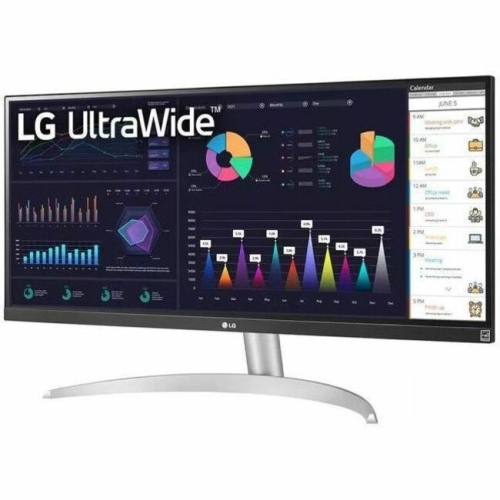 Your price for this item is $2237.68
-
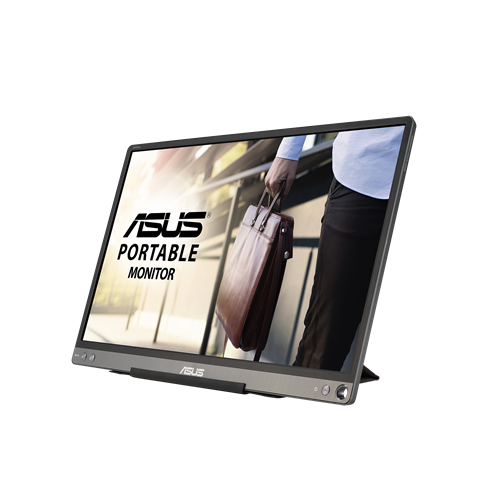 Your price for this item is $320.68
-
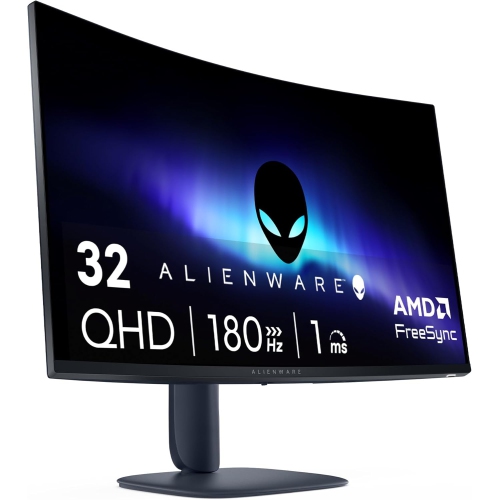 Your price for this item is $469
-
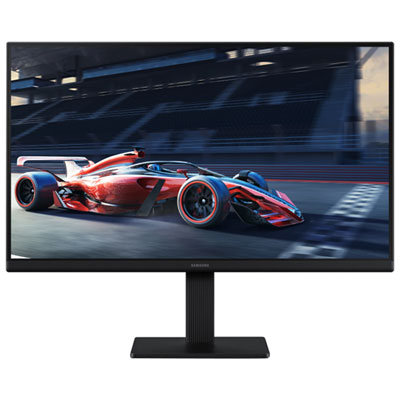 Your price for this item is $149.99
-
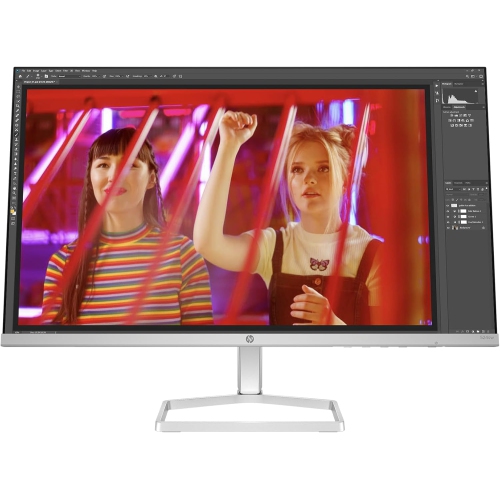 Your price for this item is $265.99
-
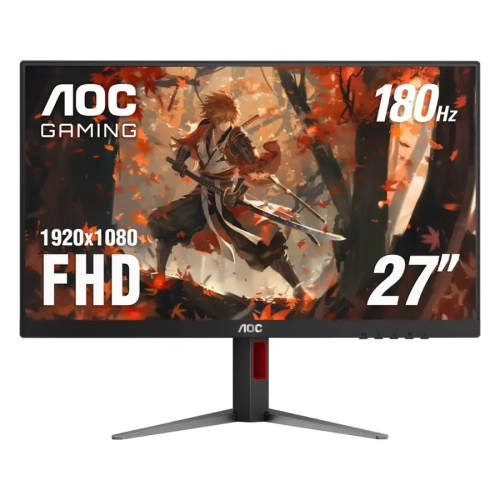 Your price for this item is $229.99
-
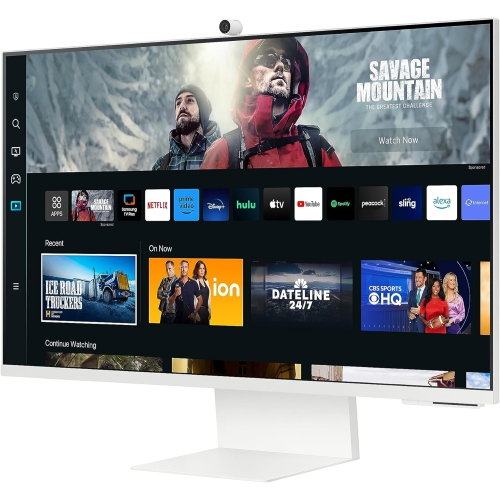 Your price for this item is $1138.68
-
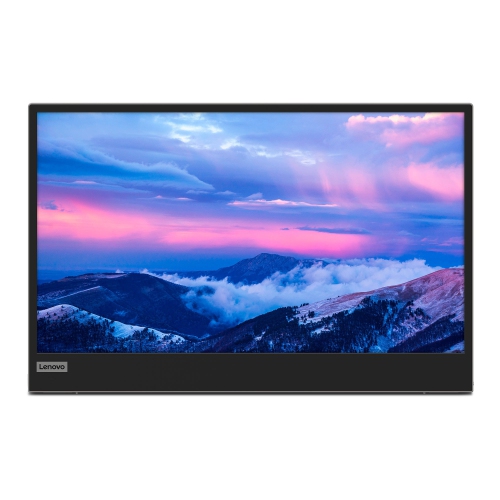 Your price for this item is $355.68
Discover more categories related to 31 Inch Monitors
Top Collections:
Best Black Friday Deals This Year, Best Black Friday Deals On Electronics, Kindle Devices, Pokemon Centers, Best Black Friday Deals On Apple Products, Best Cameras for Sports Photography, Dyson Airwrap, Pokémon 30th Celebration Cards, Apple iPhone 17 Pro, Canon G7X Cameras
Some products may be subject to Environmental Handling Fees
(EHF) depending on your province.
Learn more about EHFs.