Apple iPads for Home Office Productivity
Apple iPads for home office productivity offer a versatile solution for anyone looking to enhance their workspace. With a range of models designed to suit various needs, these devices make it easy to manage tasks, stay organized, and connect with colleagues from the comfort of your home. Whether you're attending virtual meetings, editing documents, or keeping track of your schedule, Apple iPads for home office productivity can help streamline your daily workflow and boost efficiency. Explore the options available to find the perfect fit for your professional needs.
Sort
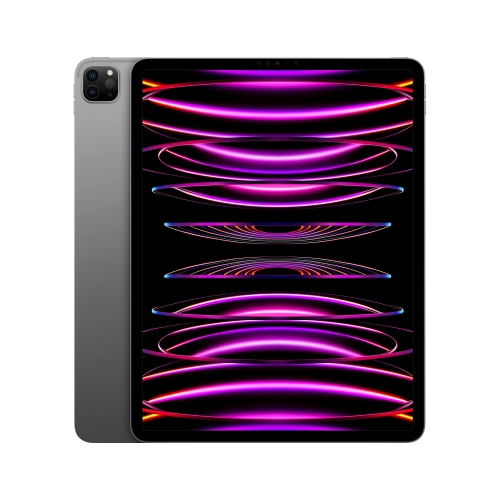
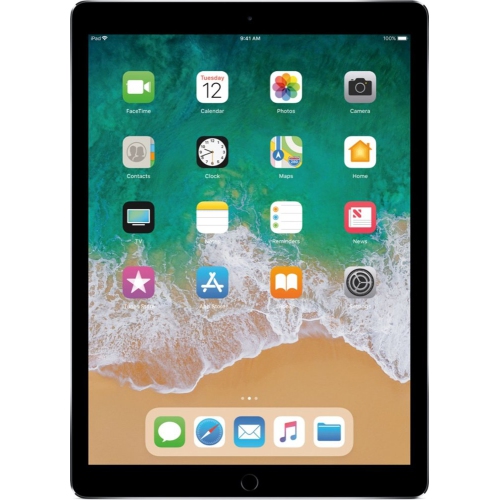
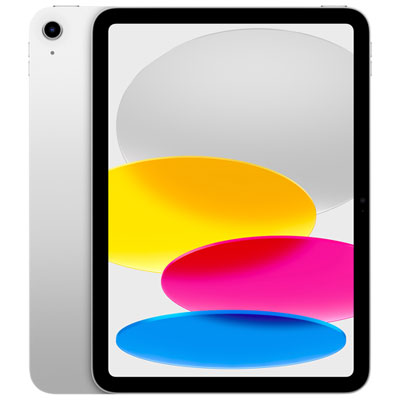

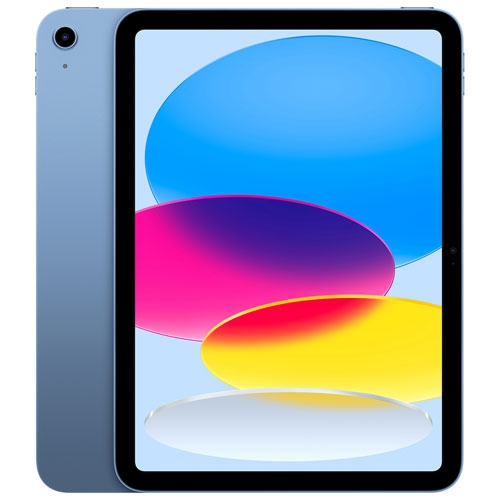
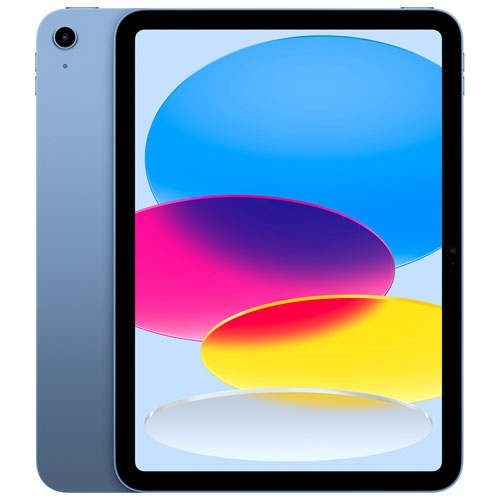
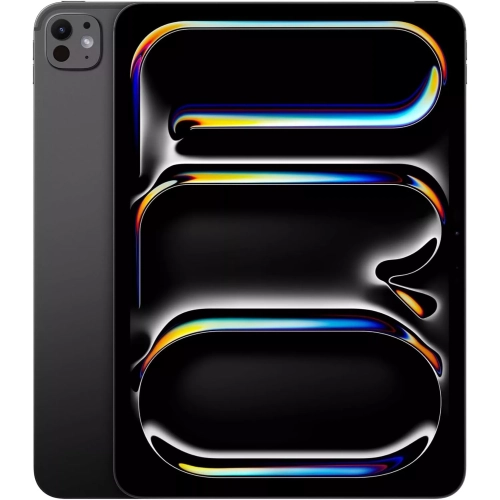

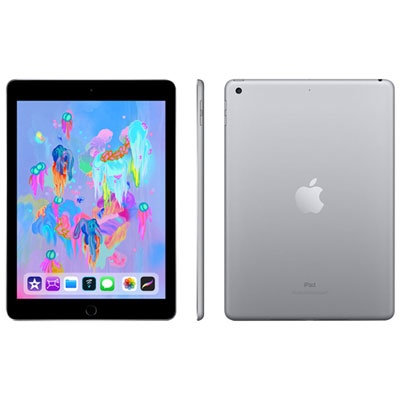

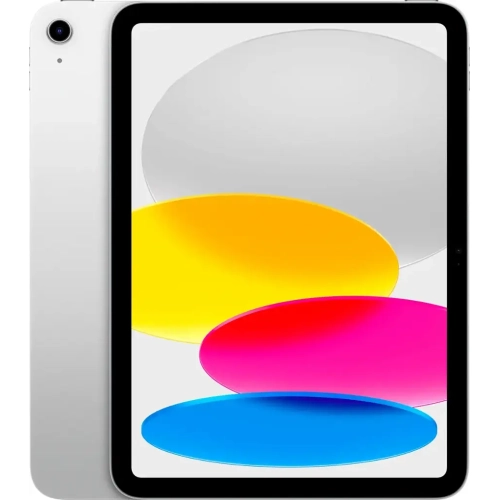
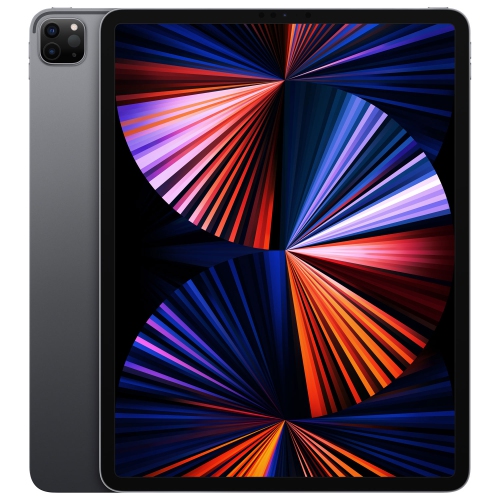


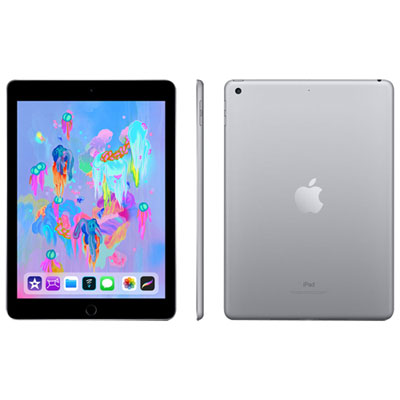
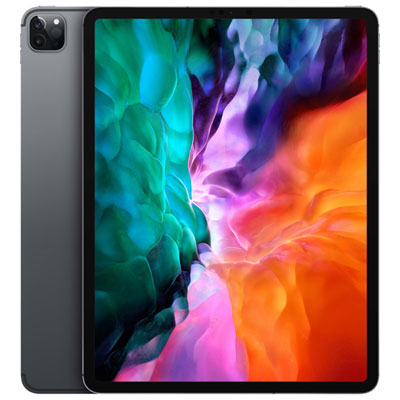
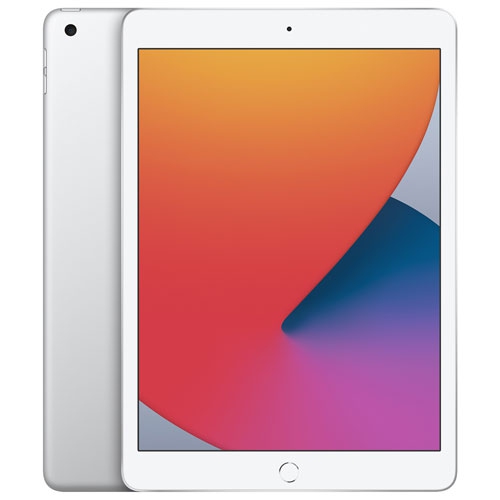
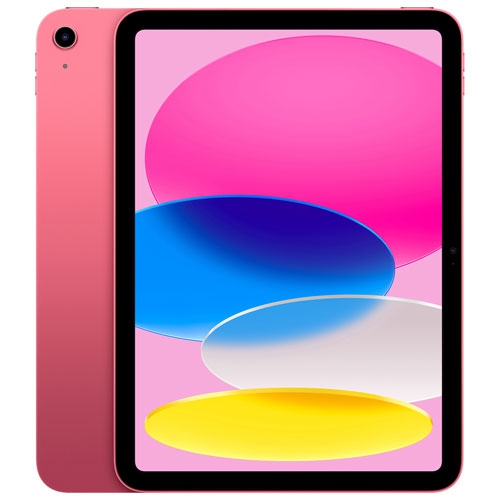
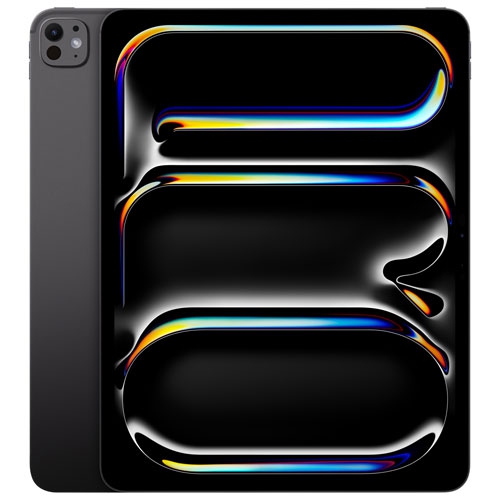
How apps and accessories shape your iPad workflow
Tablets for home office productivity combine a portable screen, touch controls, and access to compatible work apps in a device that can move easily between a desk, a meeting space, and a reading chair. For remote employees, freelancers, and small-business owners, iPads for Home Office Use can support everyday tasks such as reviewing documents, answering email, managing calendars, attending video calls, and annotating PDFs. Their usefulness comes from how well the device fits the work being done, rather than from processing power alone. A consultant reviewing a proposal may value a clear display and precise handwritten markup, while someone managing appointments may rely more on a comfortable keyboard and quick access to scheduling tools. Touch input makes it natural to highlight a passage, rearrange a presentation slide, or sign a compatible document without moving back to a mouse. With supported apps and accessories, a tablet can become a compact workstation for writing, research, and routine administrative work. It can also serve a distinct role beside a computer, keeping meeting notes or reference material visible while the main screen holds a spreadsheet or project dashboard. That supporting role is particularly useful on a smaller desk, where another full-size monitor may not fit comfortably. Whether a tablet can replace a laptop depends on the software, file types, peripherals, and workplace requirements involved. Mobile versions of familiar programs may handle everyday editing well but differ from desktop versions in advanced formatting, automation, extensions, or specialized functions. Browser-based tools can also behave differently with touch controls or a mobile operating system. For work involving complex spreadsheets, large creative files, or company-specific software, compatibility matters as much as speed. A productive setup gives frequently used tasks a comfortable home without assuming that every desktop workflow translates directly to a tablet.
Screen size and accessory fit have a noticeable effect on day-to-day comfort. A larger display provides more room for a document and reference notes to sit alongside each other where multitasking is supported, while a smaller tablet is easier to hold during reading or carry between workspaces. Display clarity helps with small spreadsheet text and detailed diagrams; adjustable brightness and sensible positioning help keep overhead lights from reflecting across the page. A sturdy stand can raise the screen closer to eye level for calls, although comfortable typing usually requires a separate keyboard rather than reaching up to an elevated touchscreen. Keyboard cases keep the essentials together, while separate keyboards offer more freedom to position the screen and keys independently. Key spacing, layout, palm support, and trackpad access can matter more during a long writing session than a slim profile alone. Compatibility is specific to the tablet generation, dimensions, connectors, and software, so accessories that look similar are not necessarily interchangeable. A supported stylus adds another input option for handwritten notes, sketches, and detailed document markup, with features that vary by device, stylus, and app. For video meetings, camera position affects framing, especially when the tablet is used horizontally with a keyboard. A stable viewing angle, clear microphone pickup, and compatible headphones can make a shared household workspace easier to work in without requiring a complicated setup. Wi-Fi performance also depends on the home network and distance from the router, not just the tablet itself. Some configurations support a mobile data connection, which requires a suitable service plan and coverage. Wired accessories, storage devices, and external displays may require compatible adapters or hubs, and external display features vary across hardware and software. These details shape whether the device feels like a convenient extension of the desk or an awkward compromise. For someone who spends hours in meetings and documents, the right physical arrangement can make a meaningful difference to everyday ease of use.
Materials, protection, and care help a work tablet stand up to repeated handling. Glass screens provide a smooth writing and viewing surface but remain vulnerable to scratches and impact, while metal enclosures offer a firm feel without making a device immune to dents or bending. A well-fitting case can protect corners and make the tablet easier to grip, provided it leaves the cameras, speakers, charging connection, and ventilation unobstructed. Cases with stable folding supports are useful for reading and calls, though their added weight changes how comfortable the device feels when held for longer periods. A padded sleeve offers another layer of protection when the tablet travels in a bag with keys, chargers, or other hard objects. Routine care is straightforward: a soft, lint-free cloth removes fingerprints, liquids should stay away from openings, and cleaning should follow the device manufacturer’s directions. Storage capacity deserves similar practical attention. Downloaded video meetings, scanned paperwork, presentation files, and creative projects can accumulate quickly, especially when work needs to remain accessible offline. Cloud storage can simplify access across devices, but it depends on account permissions, an internet connection for syncing, and the policies of the organization handling the files. Passcodes, biometric authentication where supported, automatic locking, and timely software updates help protect work information. Managed workplace accounts may also require specific security settings or approved apps. Battery life varies with screen brightness, calls, connected accessories, and workload, so dependable charging access remains useful even for a portable setup. Accessibility features such as text enlargement, voice input, screen reading, and compatible external controls can further shape how comfortably someone works. As a gift for a person beginning remote work or building a small business, a tablet is most useful when it matches their existing tools and preferred way of working. The strongest home office setup balances portability with comfortable input, reliable connectivity, appropriate software, and protection suited to daily use.
Screen size and accessory fit have a noticeable effect on day-to-day comfort. A larger display provides more room for a document and reference notes to sit alongside each other where multitasking is supported, while a smaller tablet is easier to hold during reading or carry between workspaces. Display clarity helps with small spreadsheet text and detailed diagrams; adjustable brightness and sensible positioning help keep overhead lights from reflecting across the page. A sturdy stand can raise the screen closer to eye level for calls, although comfortable typing usually requires a separate keyboard rather than reaching up to an elevated touchscreen. Keyboard cases keep the essentials together, while separate keyboards offer more freedom to position the screen and keys independently. Key spacing, layout, palm support, and trackpad access can matter more during a long writing session than a slim profile alone. Compatibility is specific to the tablet generation, dimensions, connectors, and software, so accessories that look similar are not necessarily interchangeable. A supported stylus adds another input option for handwritten notes, sketches, and detailed document markup, with features that vary by device, stylus, and app. For video meetings, camera position affects framing, especially when the tablet is used horizontally with a keyboard. A stable viewing angle, clear microphone pickup, and compatible headphones can make a shared household workspace easier to work in without requiring a complicated setup. Wi-Fi performance also depends on the home network and distance from the router, not just the tablet itself. Some configurations support a mobile data connection, which requires a suitable service plan and coverage. Wired accessories, storage devices, and external displays may require compatible adapters or hubs, and external display features vary across hardware and software. These details shape whether the device feels like a convenient extension of the desk or an awkward compromise. For someone who spends hours in meetings and documents, the right physical arrangement can make a meaningful difference to everyday ease of use.
Materials, protection, and care help a work tablet stand up to repeated handling. Glass screens provide a smooth writing and viewing surface but remain vulnerable to scratches and impact, while metal enclosures offer a firm feel without making a device immune to dents or bending. A well-fitting case can protect corners and make the tablet easier to grip, provided it leaves the cameras, speakers, charging connection, and ventilation unobstructed. Cases with stable folding supports are useful for reading and calls, though their added weight changes how comfortable the device feels when held for longer periods. A padded sleeve offers another layer of protection when the tablet travels in a bag with keys, chargers, or other hard objects. Routine care is straightforward: a soft, lint-free cloth removes fingerprints, liquids should stay away from openings, and cleaning should follow the device manufacturer’s directions. Storage capacity deserves similar practical attention. Downloaded video meetings, scanned paperwork, presentation files, and creative projects can accumulate quickly, especially when work needs to remain accessible offline. Cloud storage can simplify access across devices, but it depends on account permissions, an internet connection for syncing, and the policies of the organization handling the files. Passcodes, biometric authentication where supported, automatic locking, and timely software updates help protect work information. Managed workplace accounts may also require specific security settings or approved apps. Battery life varies with screen brightness, calls, connected accessories, and workload, so dependable charging access remains useful even for a portable setup. Accessibility features such as text enlargement, voice input, screen reading, and compatible external controls can further shape how comfortably someone works. As a gift for a person beginning remote work or building a small business, a tablet is most useful when it matches their existing tools and preferred way of working. The strongest home office setup balances portability with comfortable input, reliable connectivity, appropriate software, and protection suited to daily use.
Top selling and popular products
-
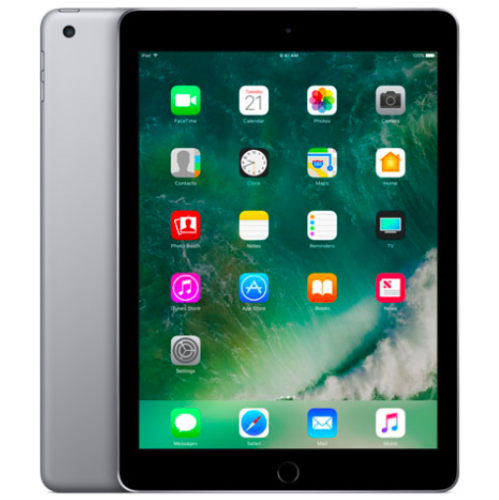 Your price for this item is $109.99
-
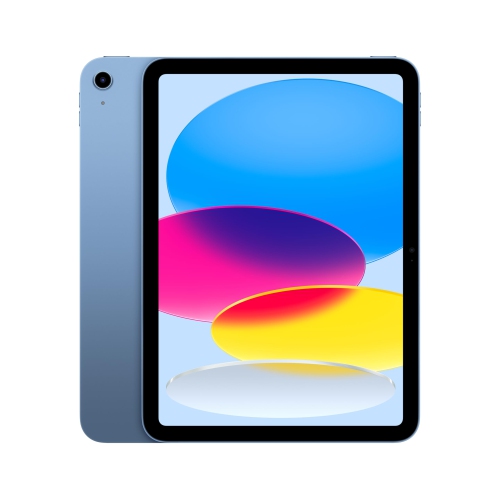 Your price for this item is $655.95
-
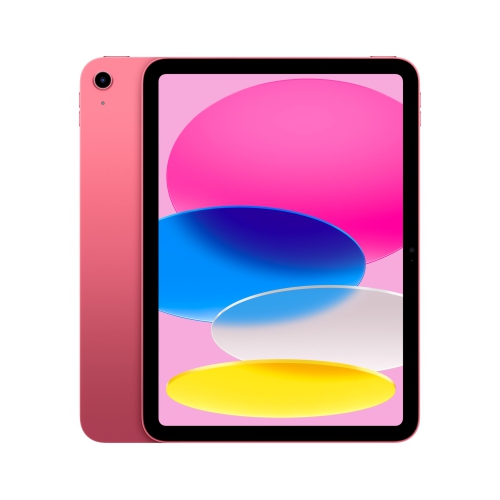 Your price for this item is $639
-
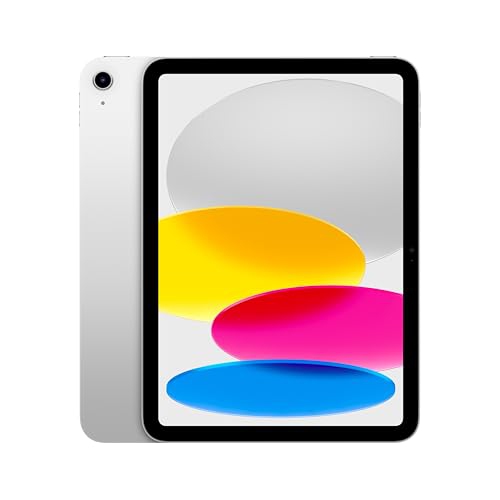 Your price for this item is $698.99
-
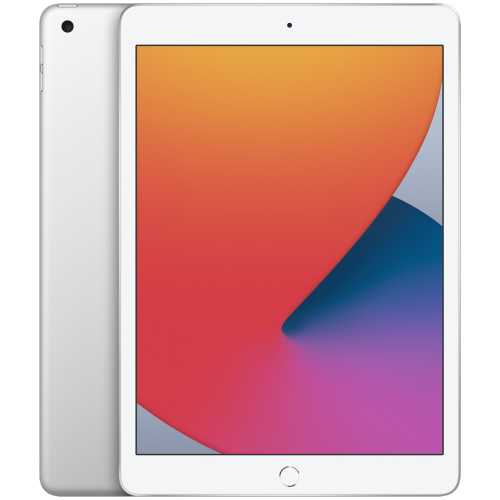 Your price for this item is $146.98
-
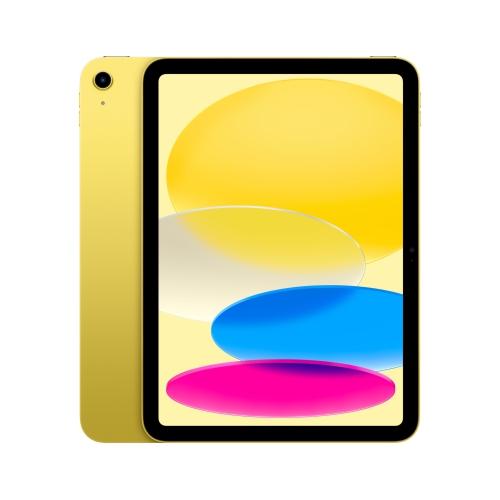 Your price for this item is $639.99
-
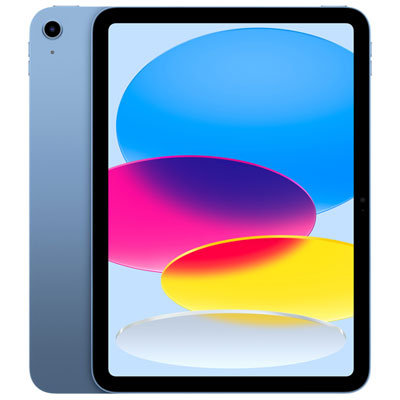 Your price for this item is $649.99
-
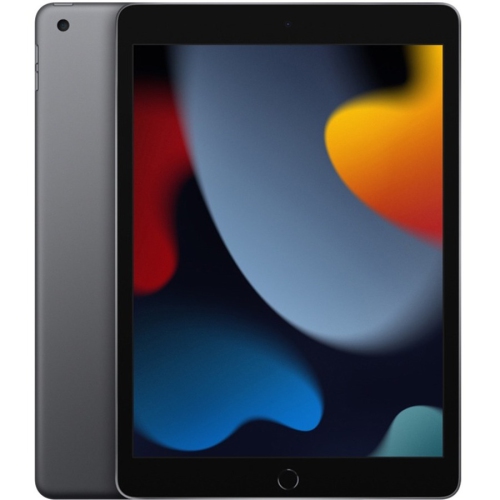 Your price for this item is $1000
Discover more categories related to Apple iPads for Home Office Productivity
Top Collections:
Pokemon Centers, Pokémon 30th Celebration Cards, Best Budget Office Chairs, Kindle Devices, Best Cameras for Sports Photography, Canon G7X Cameras, Best Black Friday Deals On Electronics, Best Laptops for Writers, iPhone 15 Apple, Jackery Power Stations
Some products may be subject to Environmental Handling Fees
(EHF) depending on your province.
Learn more about EHFs.