iPads for Home Office
iPads For Home Office offer a versatile solution for boosting productivity and staying organized while working from home. With their sleek design and user-friendly interface, these devices make it easy to manage tasks, attend virtual meetings, and collaborate with colleagues. Whether you're setting up a dedicated workspace or need a portable option for flexible workdays, iPads For Home Office provide the tools you need to streamline your daily routine and enhance your remote work experience. Explore a range of options to find the perfect fit for your home office setup.
Sort
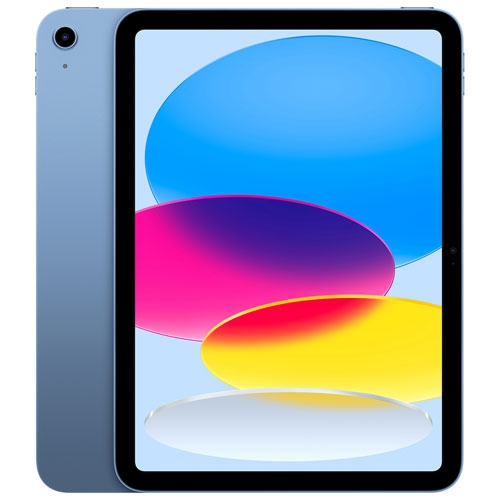
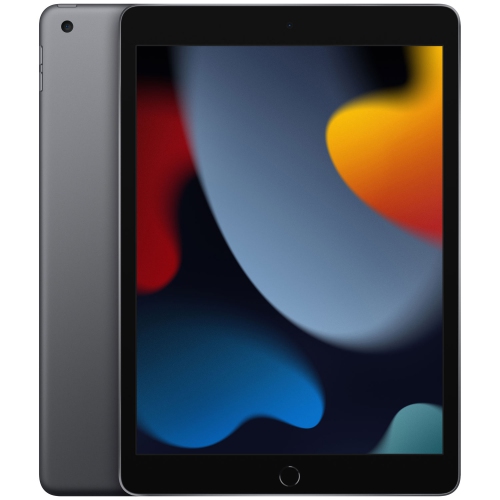
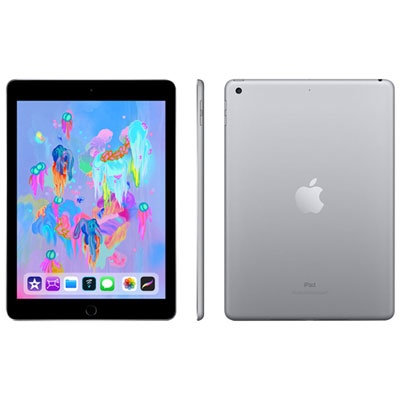








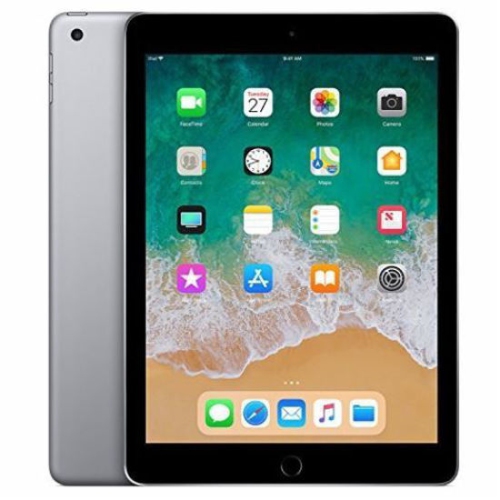
When an iPad can handle your everyday office work
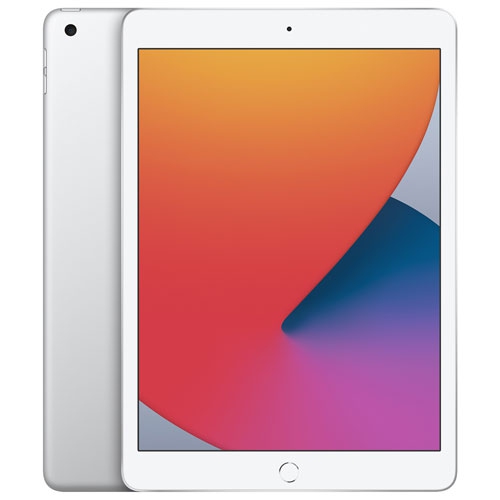
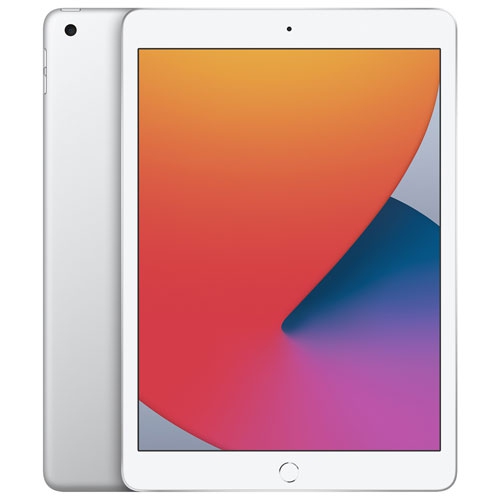
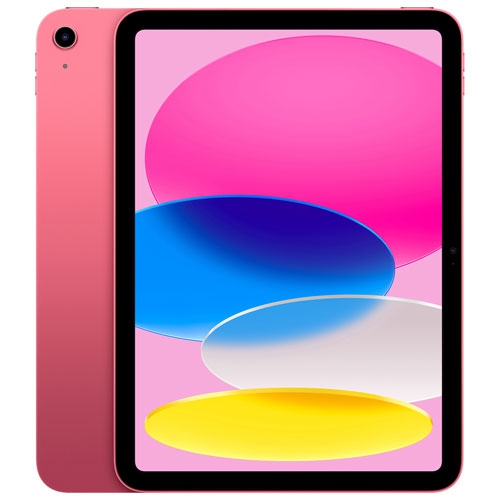
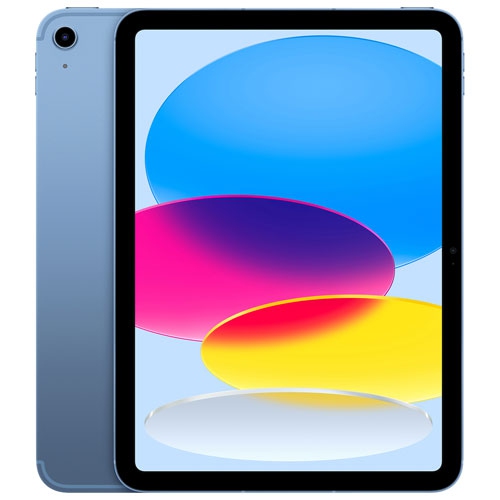
iPads for home office use work well for email, video meetings, document review, handwritten notes, and other tasks that benefit from a portable touchscreen. They can serve as a main device for lighter office work or as a companion to a computer when a job involves desktop software. A consultant might read a client brief at the kitchen table, mark up a proposal with a compatible stylus, then move to a desk for a call. A small-business owner might use a tablet to check appointments, send invoices, and review sales reports without carrying a laptop between rooms. For these routines, Home Office iPads offer a flexible way to keep everyday work close at hand. The most suitable screen size depends on how the device will be used: a larger display gives spreadsheets, presentations, and side-by-side documents more room, while a smaller tablet is easier to hold for reading and quick notes. Processing performance and memory matter more as workloads become demanding, particularly when switching among several apps, editing detailed visuals, or working with large files. Storage deserves attention, too. Downloaded presentations, scanned paperwork, project images, and offline videos can take up space even when most documents are kept in cloud storage. Wi-Fi connectivity supports a desk-based setup, while a cellular-capable model may suit work away from a trusted network, subject to a separate mobile service plan. A tablet is not automatically a replacement for a desktop or laptop, however. Some accounting tools, advanced spreadsheet functions, specialized applications, and workplace systems require software or features that may not be supported in a tablet app or browser. Compatibility with the actual workday matters more than a specification on its own. For someone who mainly writes, reviews, communicates, and organizes, a well-matched tablet can handle a substantial share of daily tasks; for someone running specialized software, it may be more useful for meetings, reference material, and follow-up work.
The physical setup makes a noticeable difference when a tablet moves from occasional browsing to regular office use. A compatible keyboard is helpful for writing reports, answering lengthy messages, or preparing meeting notes, while a trackpad or mouse can make selecting text and moving through documents more comfortable. A stable stand brings the display closer to a useful viewing height and leaves desk space for a notebook or full-size keyboard. Keyboard covers keep the arrangement compact, but their size and typing feel vary; a separate keyboard may better suit someone who spends several hours entering text. Fit is important because cases, keyboards, styluses, and screen protectors are not interchangeable across every tablet size and generation. Camera openings, button access, charging connections, and attachment points all need to match the device. Common case materials serve different purposes: rigid shells help guard against scuffs, flexible edges can cushion everyday bumps, and fabric-covered folios offer a softer surface to carry between rooms. Protection against drops or spills should never be assumed unless it is stated for the accessory. A secure closure and a stand that stays put are especially useful on a shared desk where paperwork and cables are frequently moved. For handwritten annotations, diagrams, or signatures, a compatible stylus adds precision beyond a fingertip, although supported features vary by tablet, stylus, and app. Ports and accessories also shape what the desk can support. Connecting storage, a wired headset, or an external display may require a compatible hub or adapter, and external display features differ by model and software. Charging arrangements deserve the same attention, particularly when accessories share a connection. Everyday care is straightforward: use a soft, lint-free cloth, follow the device maker’s cleaning directions, and avoid spraying liquid directly onto the screen or openings. Keeping grit out of a case and avoiding pressure on the display can help preserve its finish. A designated place to charge and store the tablet also reduces the chance of it being knocked from a crowded work surface.
A useful home office tablet setup fits the habits of the person using it, not just the dimensions of the desk. Someone who spends the morning in video meetings may value a comfortable camera position, clear audio, and a headset that limits distractions. Someone reviewing contracts may place more importance on readable text, accurate annotation, and a dependable way to return marked-up files. For a designer or educator, touch input can make it easier to sketch an idea, explain a process, or capture feedback during a discussion, provided the required apps support that workflow. Battery life varies with screen brightness, calls, apps, and connected accessories, so access to charging remains useful during a long workday. Remote access can sometimes extend what a tablet can do by connecting to another computer, but it depends on compatible software, a reliable network, and workplace approval. File management is equally practical: consistent folder names, reliable syncing, and offline copies of essential documents help keep work moving when a connection drops. Syncing is not always the same as having a separate backup, so important files still need an appropriate backup arrangement. For confidential work, a screen lock, supported security updates, and approved account settings help protect information. A shared household device may not be suitable for sensitive client records or employer-managed accounts, particularly where access restrictions apply. These details also matter when a tablet is being considered as a gift for a remote worker, freelancer, student with a part-time business, or family member setting up a dedicated workspace. Knowing their preferred screen size, required applications, and existing accessories makes the choice more personal and practical. The result can be a compact work companion that is easy to carry from a desk to a quieter room, comfortable for reviewing a document, and ready for the ordinary tasks that fill a home office day. Its greatest value comes from matching those routines with the right software, accessories, and level of capability.
The physical setup makes a noticeable difference when a tablet moves from occasional browsing to regular office use. A compatible keyboard is helpful for writing reports, answering lengthy messages, or preparing meeting notes, while a trackpad or mouse can make selecting text and moving through documents more comfortable. A stable stand brings the display closer to a useful viewing height and leaves desk space for a notebook or full-size keyboard. Keyboard covers keep the arrangement compact, but their size and typing feel vary; a separate keyboard may better suit someone who spends several hours entering text. Fit is important because cases, keyboards, styluses, and screen protectors are not interchangeable across every tablet size and generation. Camera openings, button access, charging connections, and attachment points all need to match the device. Common case materials serve different purposes: rigid shells help guard against scuffs, flexible edges can cushion everyday bumps, and fabric-covered folios offer a softer surface to carry between rooms. Protection against drops or spills should never be assumed unless it is stated for the accessory. A secure closure and a stand that stays put are especially useful on a shared desk where paperwork and cables are frequently moved. For handwritten annotations, diagrams, or signatures, a compatible stylus adds precision beyond a fingertip, although supported features vary by tablet, stylus, and app. Ports and accessories also shape what the desk can support. Connecting storage, a wired headset, or an external display may require a compatible hub or adapter, and external display features differ by model and software. Charging arrangements deserve the same attention, particularly when accessories share a connection. Everyday care is straightforward: use a soft, lint-free cloth, follow the device maker’s cleaning directions, and avoid spraying liquid directly onto the screen or openings. Keeping grit out of a case and avoiding pressure on the display can help preserve its finish. A designated place to charge and store the tablet also reduces the chance of it being knocked from a crowded work surface.
A useful home office tablet setup fits the habits of the person using it, not just the dimensions of the desk. Someone who spends the morning in video meetings may value a comfortable camera position, clear audio, and a headset that limits distractions. Someone reviewing contracts may place more importance on readable text, accurate annotation, and a dependable way to return marked-up files. For a designer or educator, touch input can make it easier to sketch an idea, explain a process, or capture feedback during a discussion, provided the required apps support that workflow. Battery life varies with screen brightness, calls, apps, and connected accessories, so access to charging remains useful during a long workday. Remote access can sometimes extend what a tablet can do by connecting to another computer, but it depends on compatible software, a reliable network, and workplace approval. File management is equally practical: consistent folder names, reliable syncing, and offline copies of essential documents help keep work moving when a connection drops. Syncing is not always the same as having a separate backup, so important files still need an appropriate backup arrangement. For confidential work, a screen lock, supported security updates, and approved account settings help protect information. A shared household device may not be suitable for sensitive client records or employer-managed accounts, particularly where access restrictions apply. These details also matter when a tablet is being considered as a gift for a remote worker, freelancer, student with a part-time business, or family member setting up a dedicated workspace. Knowing their preferred screen size, required applications, and existing accessories makes the choice more personal and practical. The result can be a compact work companion that is easy to carry from a desk to a quieter room, comfortable for reviewing a document, and ready for the ordinary tasks that fill a home office day. Its greatest value comes from matching those routines with the right software, accessories, and level of capability.
Top selling and popular products
-
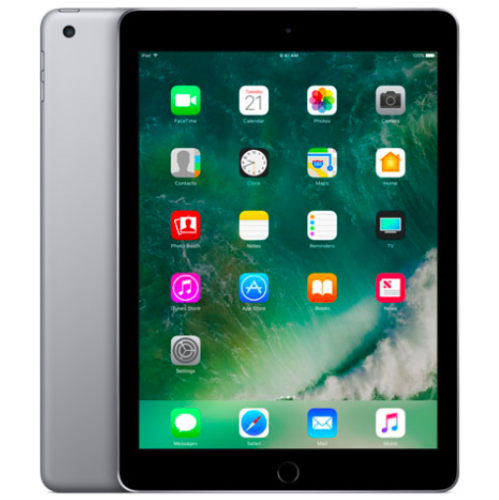 Your price for this item is $109.99
-
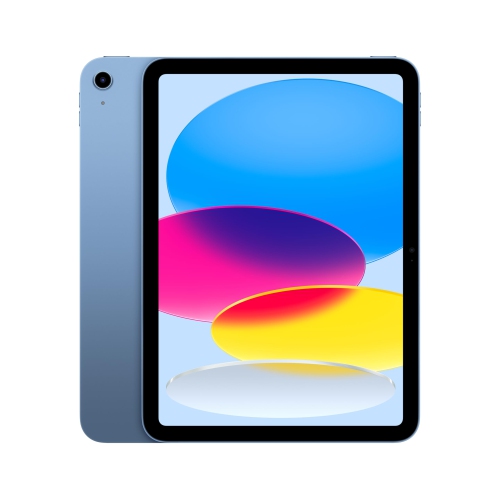 Your price for this item is $655.95
-
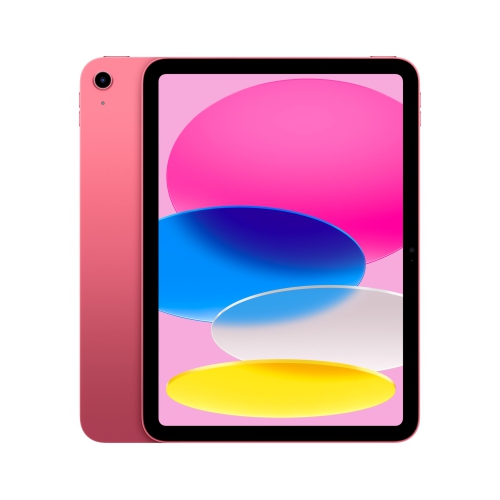 Your price for this item is $639
-
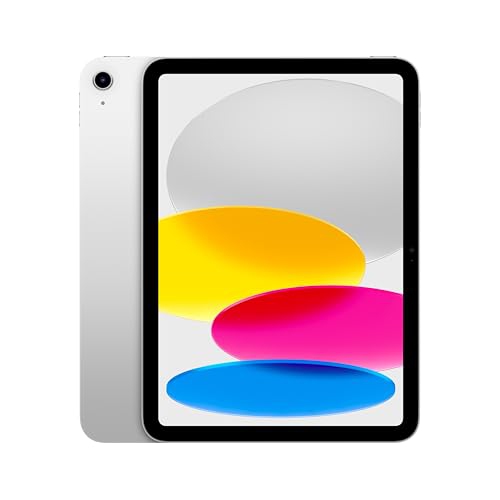 Your price for this item is $698.99
-
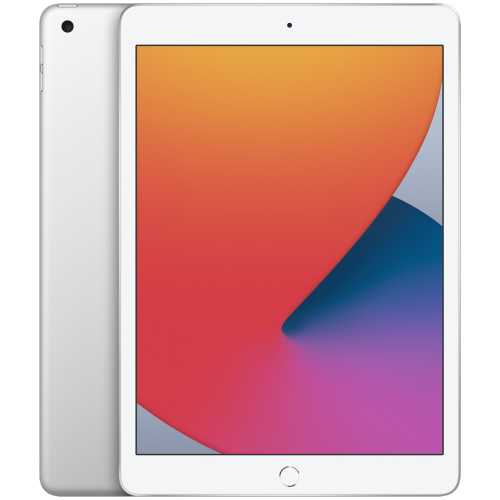 Your price for this item is $146.98
-
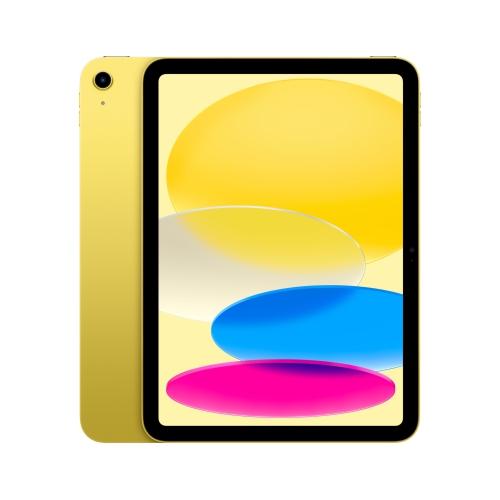 Your price for this item is $639.99
-
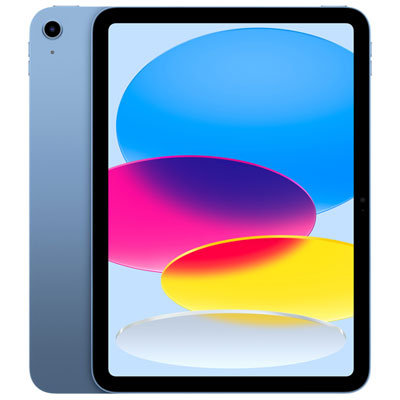 Your price for this item is $649.99
-
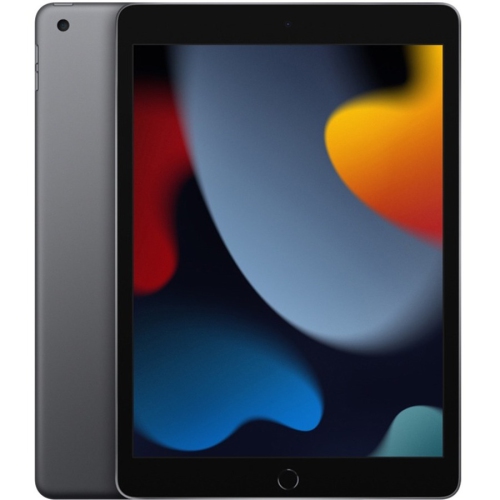 Your price for this item is $1000
Discover more categories related to iPads for Home Office

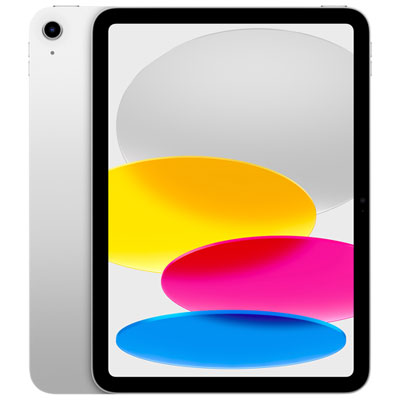
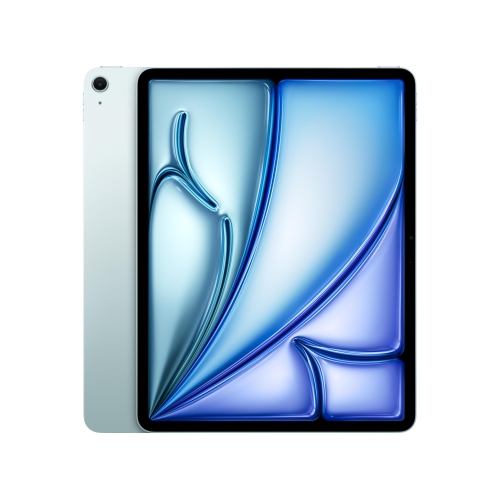
Top Collections:
Pokemon Centers, Pokémon 30th Celebration Cards, Best Budget Office Chairs, Kindle Devices, Best Cameras for Sports Photography, Canon G7X Cameras, Best Black Friday Deals On Electronics, Best Laptops for Writers, iPhone 15 Apple, Jackery Power Stations
Some products may be subject to Environmental Handling Fees
(EHF) depending on your province.
Learn more about EHFs.