iPads for Home Office Use
ipads for home office use offer a versatile solution for staying productive and connected while working from home. With their sleek design and user-friendly interface, these tablets make it easy to manage tasks, attend virtual meetings, and collaborate with colleagues. Whether you're setting up a dedicated workspace or need a portable device for multitasking throughout the day, ipads for home office use can help streamline your workflow and support your daily routines. Explore the options available to find the perfect fit for your professional needs.
Sort



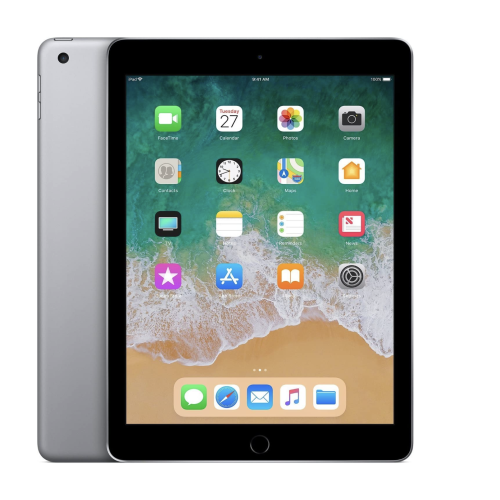
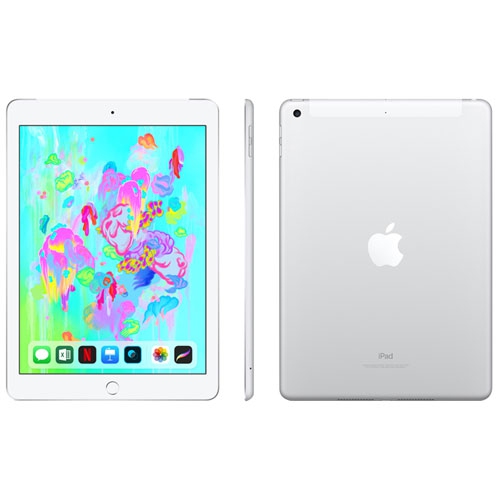
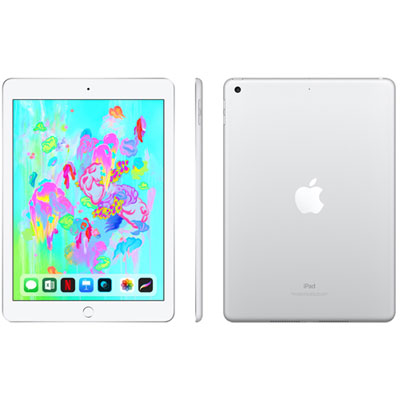

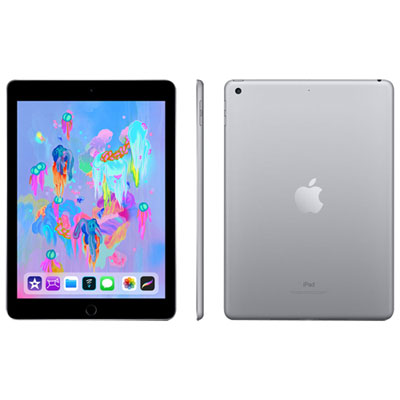
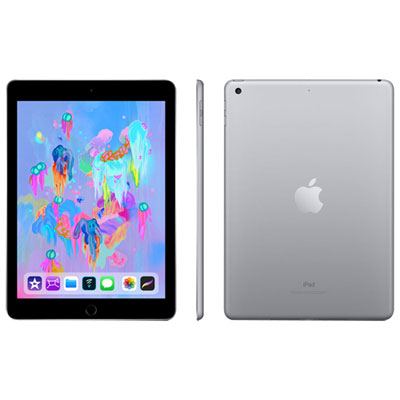

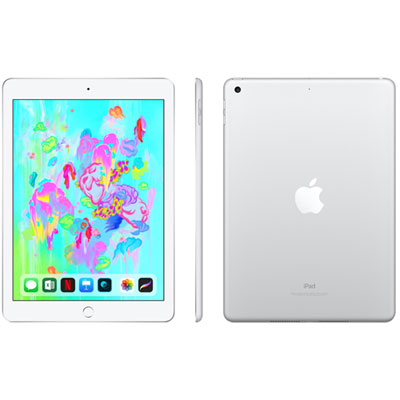

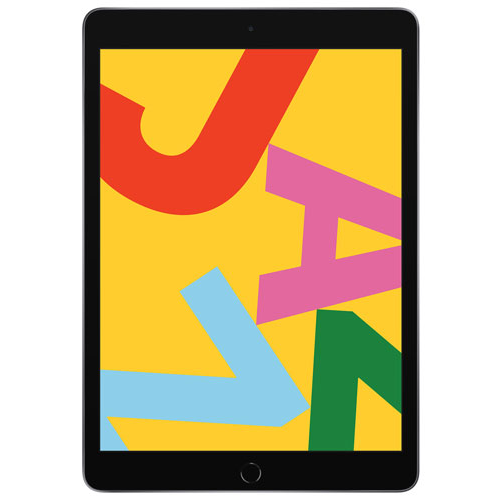
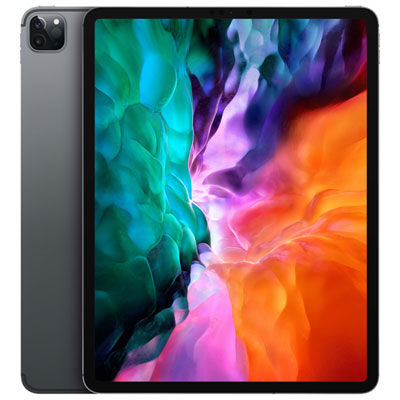


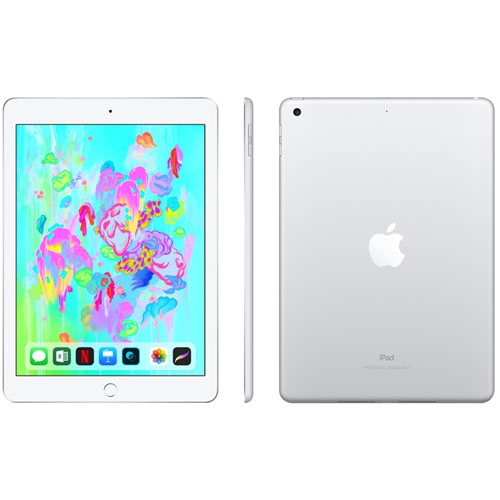

Where an iPad fits alongside your main computer
iPads for home office use are well suited to video calls, document review, email, scheduling, and note-taking, especially when paired with a compatible keyboard and a stable stand. Their value often comes from fitting into the spaces between larger tasks: reading a proposal beside a laptop, checking a calendar before a meeting, or marking up a document without printing it. A tablet can also provide a compact main workspace for people whose work happens largely in a browser, email app, or supported office software. The distinction is in the software requirements, not simply the amount of work being done. Mobile versions of workplace applications may have different features from their desktop equivalents, and some specialized programs, browser extensions, advanced spreadsheet functions, or organization-managed systems may require a computer. Compatibility with essential applications and workplace sign-in requirements matters more than choosing the largest screen or the most storage. For a remote employee, an iPad might hold meeting notes while the main computer displays a presentation. For a consultant, it might serve as a portable place to review contracts, respond to clients, and sketch ideas between calls. Someone managing a small business from home may appreciate having invoices, appointments, and reference documents close at hand without dedicating another large device to the desk. A physical keyboard makes longer messages and document edits more comfortable, while a supported mouse or trackpad offers more precise control over text selection and navigation. Touch input remains useful for quick annotations, scrolling through reference material, and moving between short tasks. Multitasking features can help keep related information together, although the available layouts and external display options vary by model, software version, and application. The strongest fit is a setup that handles routine work smoothly while leaving computer-only tasks on a suitable desktop or laptop. That balance makes a tablet useful without assuming it can replace every part of an established home office.
Screen size, working position, and accessory fit shape how comfortable an iPad feels over a full working day. A larger display provides more room for a document beside a notes app and can make detailed layouts easier to read, while a smaller device is simpler to carry from a desk to a meeting space or tuck into a work bag. Display brightness, glare, and text size also affect readability, particularly at a desk near a window or under bright overhead lighting. A stand that holds the screen securely at a useful viewing angle can reduce the need to lean over a tablet lying flat on the desk. For longer typing sessions, separating the keyboard from the screen allows more flexibility in positioning both. Keyboard cases offer a compact arrangement, but their fit depends on the tablet’s exact dimensions, camera placement, and connector design. Cases made with rigid shells help protect edges from everyday knocks, while fabric-covered or flexible covers can add grip and protect the screen when closed. The smooth glass display and metal body found on many tablets are easy to handle with care, though neither replaces the protection of a well-fitting case during travel. A compatible stylus can be useful for handwritten meeting notes, signatures, diagrams, and comments on documents; support varies between tablets, styluses, and apps. Video calls bring a different set of practical details into focus. Camera position, a steady stand, clear microphone pickup, and suitable headphones all influence how comfortably a call fits into the workspace. A headset can help keep conversations private in a shared home, while reliable Wi-Fi helps support calls and access to online documents. Battery life varies with screen brightness, video meetings, connected accessories, and other workloads, so convenient access to power remains useful at a permanent desk. Hubs, storage devices, and external displays also need the correct connection and software support rather than just a plug that appears to fit.
Everyday productivity also depends on how easily files, accounts, and shared information move through the workday. Cloud storage can make it simpler to open a document on a tablet and continue working on another device, provided the chosen service meets workplace requirements. Local storage is useful for downloaded reference files, large presentations, and documents needed away from a dependable connection. Some tasks work offline, but syncing, shared editing, and certain sign-in processes require internet access. A practical home office routine might involve reading a report on screen, adding handwritten comments, and returning the annotated file in a format a colleague can open. In that situation, document compatibility and export options matter as much as the writing experience. The same applies to printing, scanning paperwork with the camera, and joining meetings: support depends on the relevant app, connected equipment, and account permissions. Passcodes, supported biometric sign-in, software updates, and workplace-approved account settings help protect business information, especially when a device travels outside the home. A work tablet shared with household members needs particular care around access to messages, saved passwords, client files, and notifications. Physical care is straightforward but important for a device handled throughout the day. A soft, lint-free cloth helps remove fingerprints; cleaning should follow the manufacturer’s directions, with moisture kept away from openings. Keeping food, drinks, and loose objects away from the screen and connectors helps limit avoidable damage, while a padded sleeve adds protection when the tablet moves between locations. For freelancers, remote employees, students balancing coursework with paid work, or family members organizing household paperwork, the Apple iPads for Home Office Productivity collection reflects a range of everyday working needs. As a gift for someone setting up a home office, a tablet is most useful when its software compatibility, screen size, and accessory requirements match the recipient’s actual routine. A comfortable, dependable setup leaves room for both focused desk work and the flexibility that makes a tablet appealing in the first place.
Screen size, working position, and accessory fit shape how comfortable an iPad feels over a full working day. A larger display provides more room for a document beside a notes app and can make detailed layouts easier to read, while a smaller device is simpler to carry from a desk to a meeting space or tuck into a work bag. Display brightness, glare, and text size also affect readability, particularly at a desk near a window or under bright overhead lighting. A stand that holds the screen securely at a useful viewing angle can reduce the need to lean over a tablet lying flat on the desk. For longer typing sessions, separating the keyboard from the screen allows more flexibility in positioning both. Keyboard cases offer a compact arrangement, but their fit depends on the tablet’s exact dimensions, camera placement, and connector design. Cases made with rigid shells help protect edges from everyday knocks, while fabric-covered or flexible covers can add grip and protect the screen when closed. The smooth glass display and metal body found on many tablets are easy to handle with care, though neither replaces the protection of a well-fitting case during travel. A compatible stylus can be useful for handwritten meeting notes, signatures, diagrams, and comments on documents; support varies between tablets, styluses, and apps. Video calls bring a different set of practical details into focus. Camera position, a steady stand, clear microphone pickup, and suitable headphones all influence how comfortably a call fits into the workspace. A headset can help keep conversations private in a shared home, while reliable Wi-Fi helps support calls and access to online documents. Battery life varies with screen brightness, video meetings, connected accessories, and other workloads, so convenient access to power remains useful at a permanent desk. Hubs, storage devices, and external displays also need the correct connection and software support rather than just a plug that appears to fit.
Everyday productivity also depends on how easily files, accounts, and shared information move through the workday. Cloud storage can make it simpler to open a document on a tablet and continue working on another device, provided the chosen service meets workplace requirements. Local storage is useful for downloaded reference files, large presentations, and documents needed away from a dependable connection. Some tasks work offline, but syncing, shared editing, and certain sign-in processes require internet access. A practical home office routine might involve reading a report on screen, adding handwritten comments, and returning the annotated file in a format a colleague can open. In that situation, document compatibility and export options matter as much as the writing experience. The same applies to printing, scanning paperwork with the camera, and joining meetings: support depends on the relevant app, connected equipment, and account permissions. Passcodes, supported biometric sign-in, software updates, and workplace-approved account settings help protect business information, especially when a device travels outside the home. A work tablet shared with household members needs particular care around access to messages, saved passwords, client files, and notifications. Physical care is straightforward but important for a device handled throughout the day. A soft, lint-free cloth helps remove fingerprints; cleaning should follow the manufacturer’s directions, with moisture kept away from openings. Keeping food, drinks, and loose objects away from the screen and connectors helps limit avoidable damage, while a padded sleeve adds protection when the tablet moves between locations. For freelancers, remote employees, students balancing coursework with paid work, or family members organizing household paperwork, the Apple iPads for Home Office Productivity collection reflects a range of everyday working needs. As a gift for someone setting up a home office, a tablet is most useful when its software compatibility, screen size, and accessory requirements match the recipient’s actual routine. A comfortable, dependable setup leaves room for both focused desk work and the flexibility that makes a tablet appealing in the first place.
Top selling and popular products
-
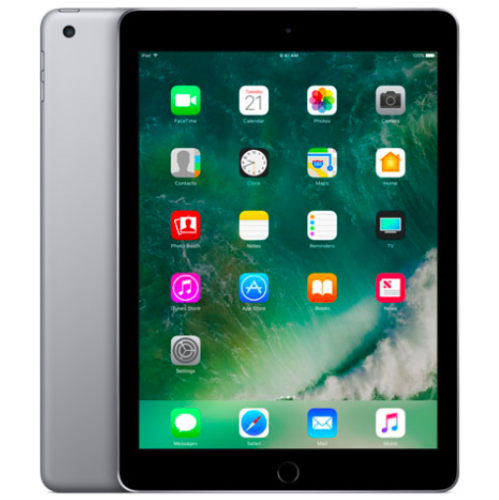 Your price for this item is $109.99
-
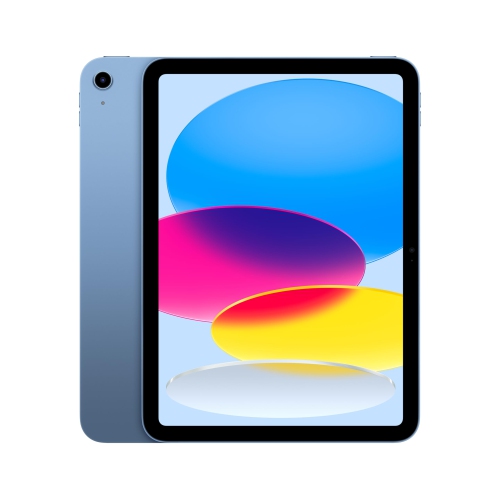 Your price for this item is $655.95
-
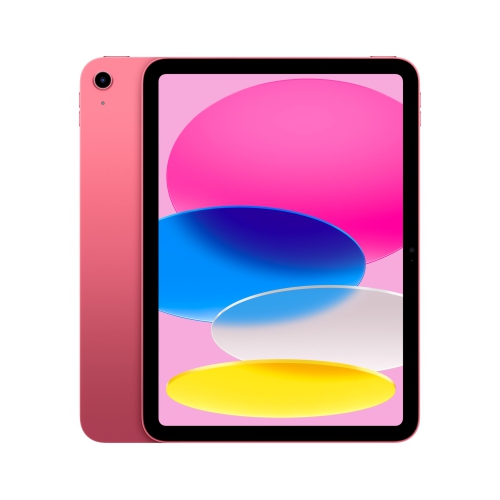 Your price for this item is $639
-
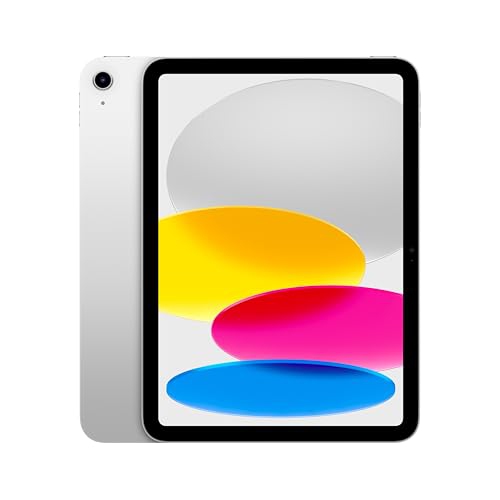 Your price for this item is $698.99
-
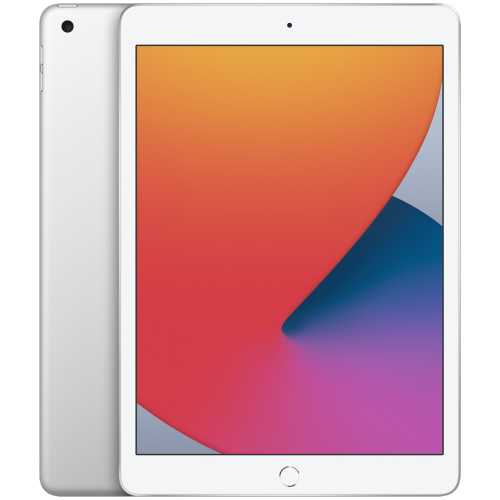 Your price for this item is $146.98
-
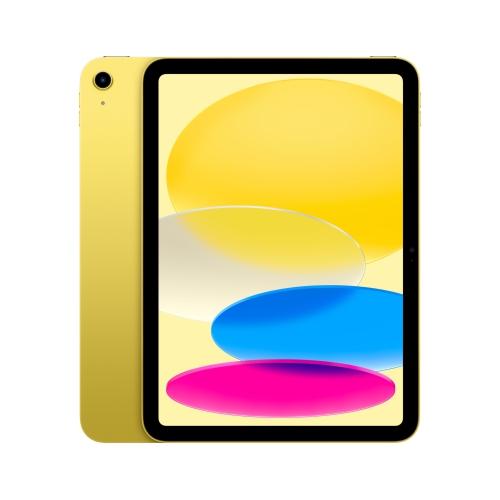 Your price for this item is $639.99
-
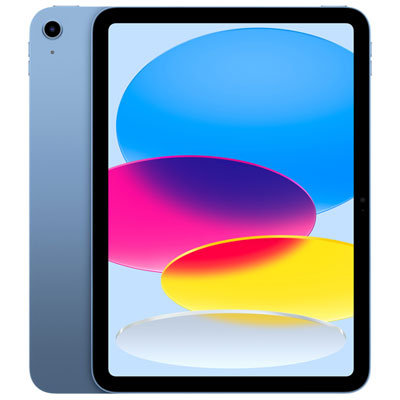 Your price for this item is $649.99
-
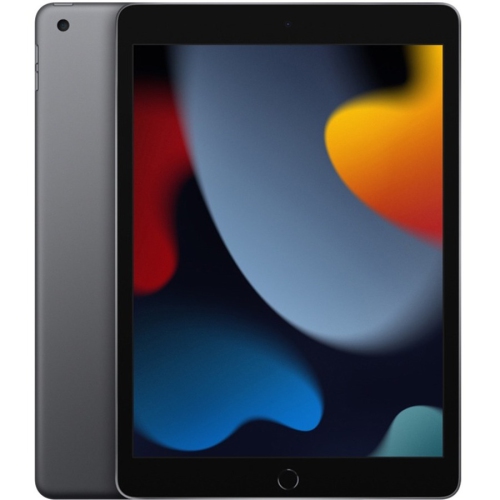 Your price for this item is $1000
Discover more categories related to iPads for Home Office Use

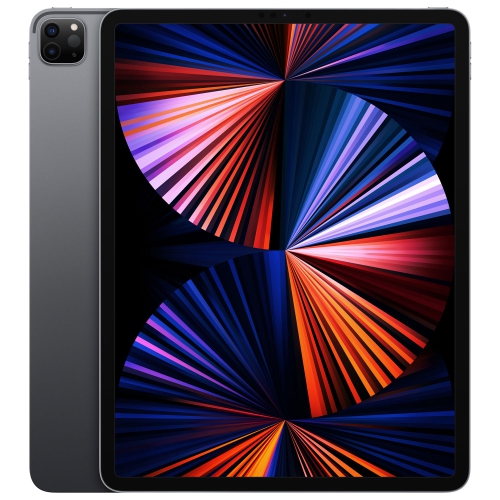
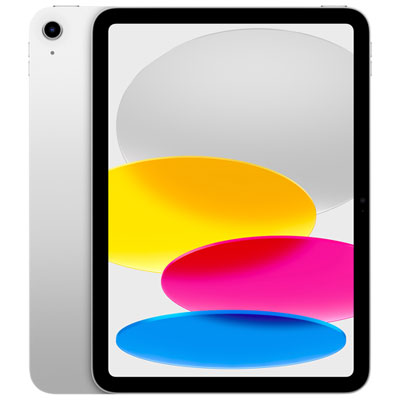
Top Collections:
Pokemon Centers, Pokémon 30th Celebration Cards, Best Budget Office Chairs, Kindle Devices, Best Cameras for Sports Photography, Canon G7X Cameras, Best Black Friday Deals On Electronics, Best Laptops for Writers, iPhone 15 Apple, Jackery Power Stations
Some products may be subject to Environmental Handling Fees
(EHF) depending on your province.
Learn more about EHFs.