Apple New iMac
Discover the latest in desktop computing with the Apple New iMac. Designed to deliver a seamless experience for work, creativity, and entertainment, the Apple New iMac brings style and performance to any workspace. Explore a range of configurations and accessories to find the perfect setup for your needs. Elevate your productivity and enjoy advanced technology with the Apple New iMac lineup available now.
Sort
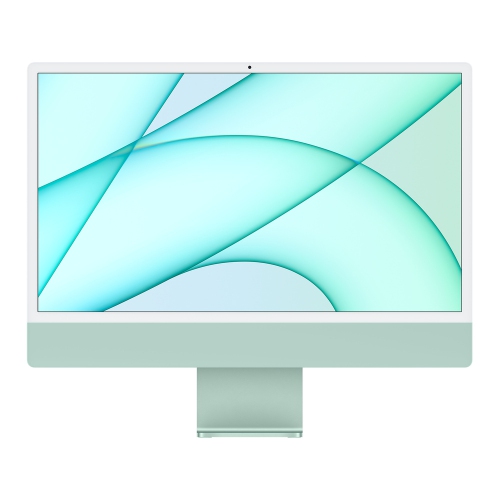
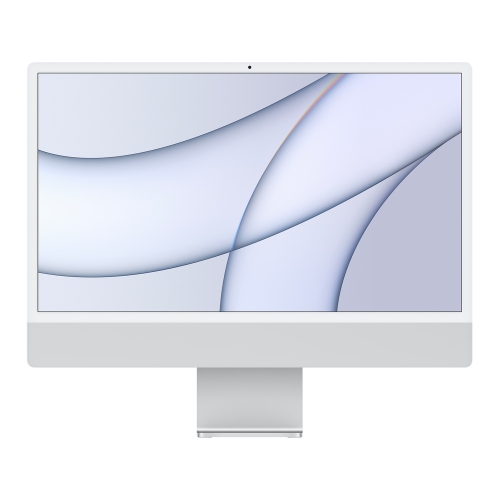
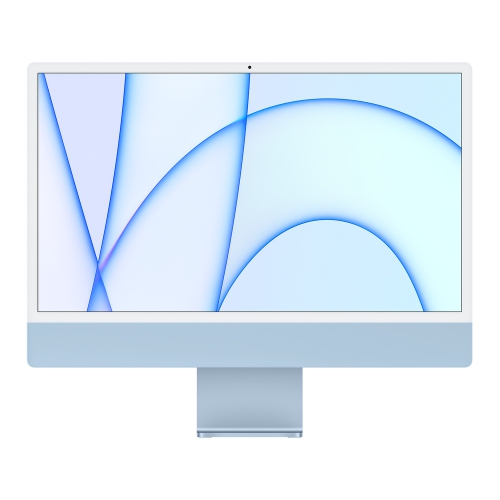
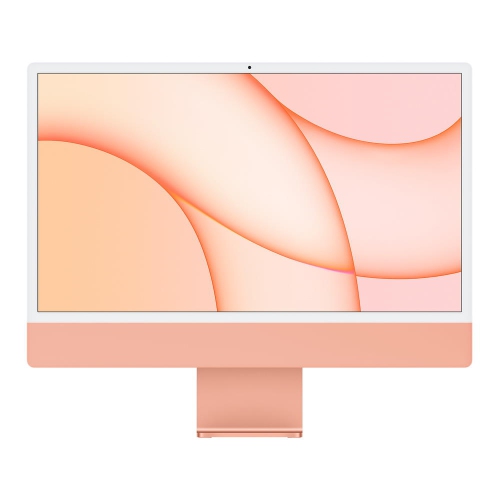
All-in-one design leaves more room on your desk
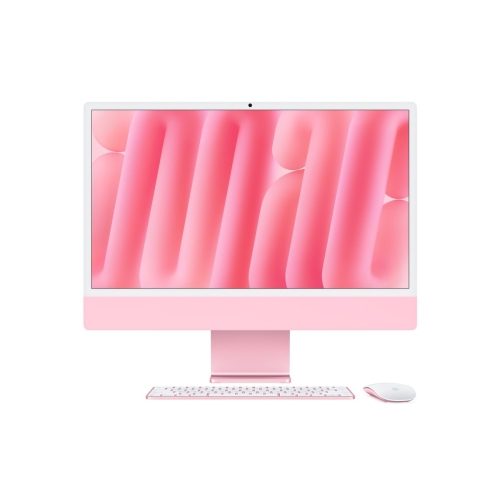
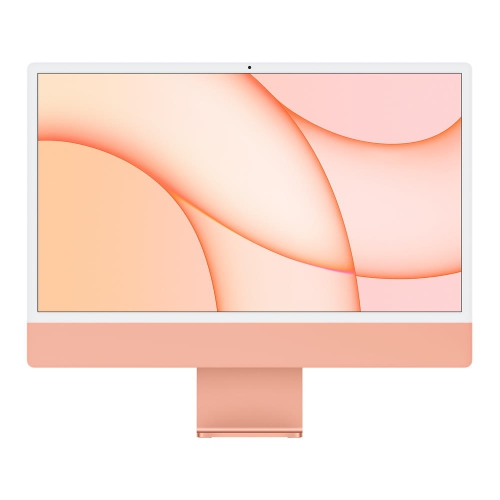
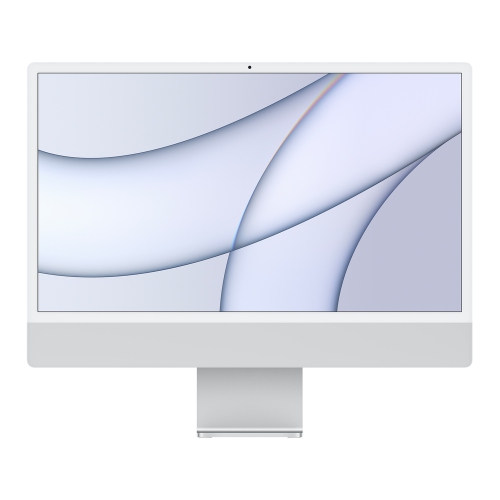
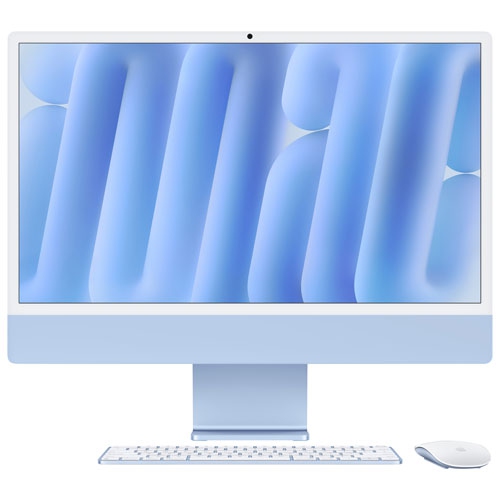
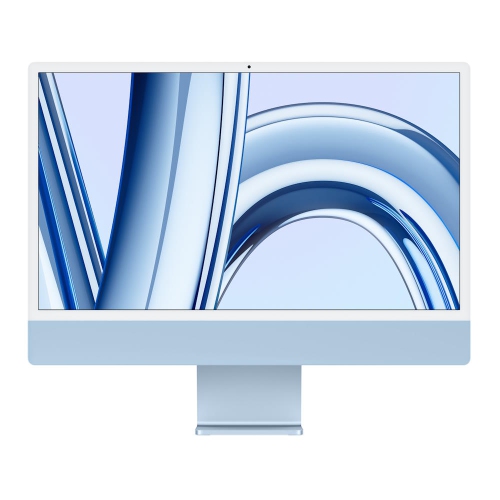
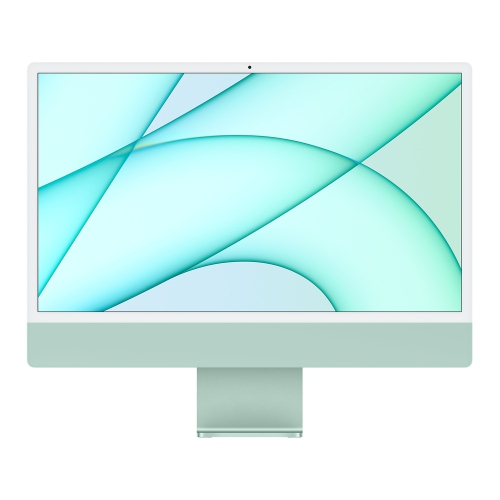
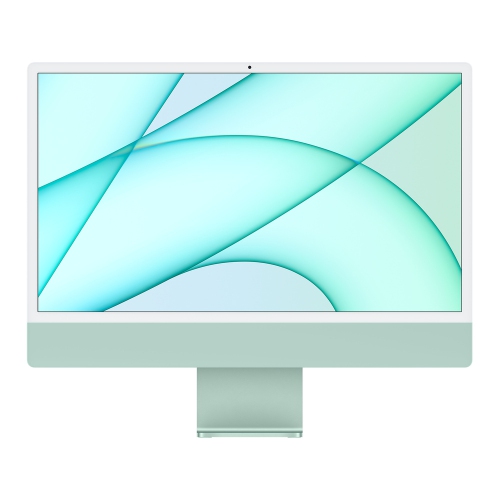
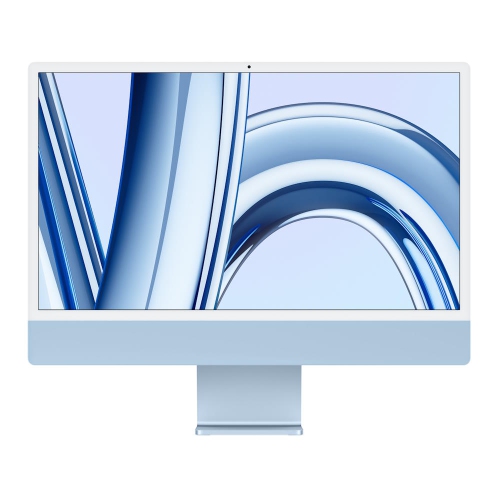
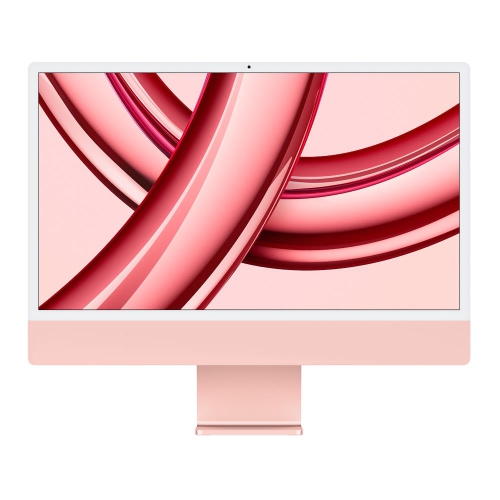
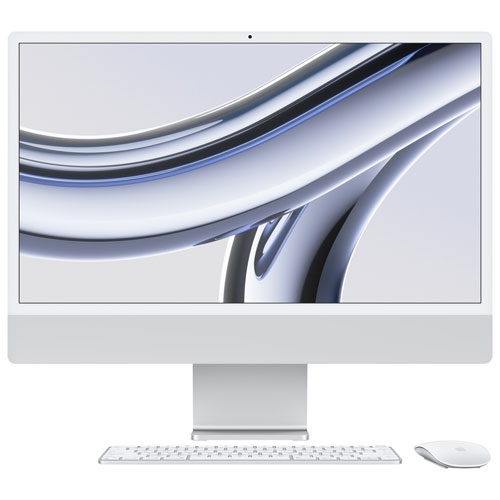
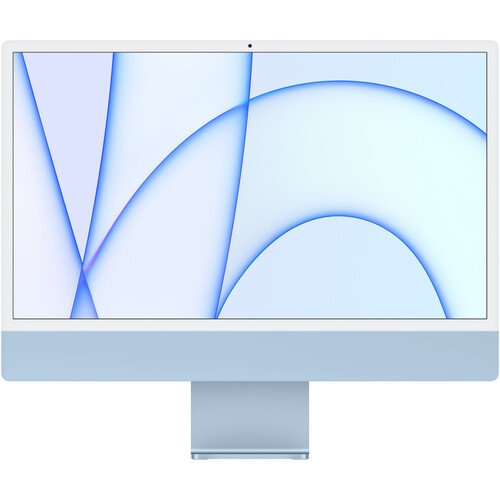
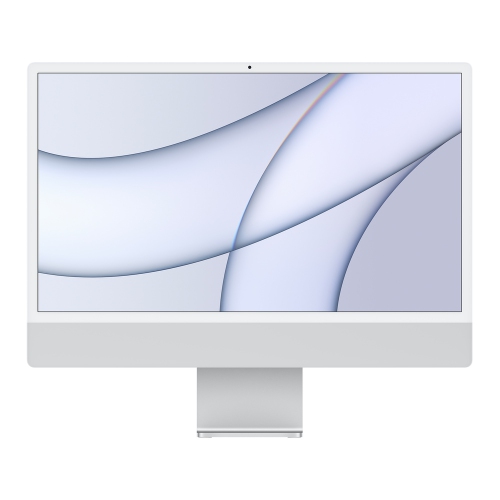
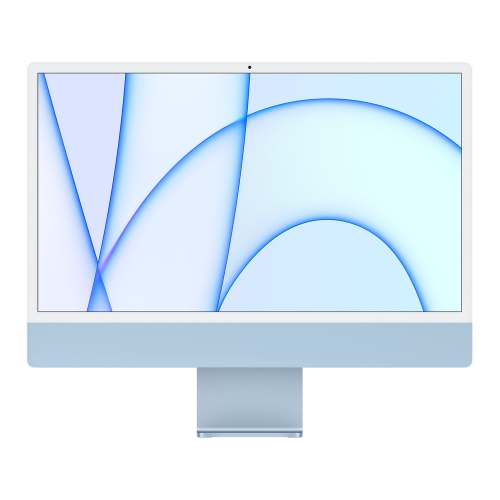
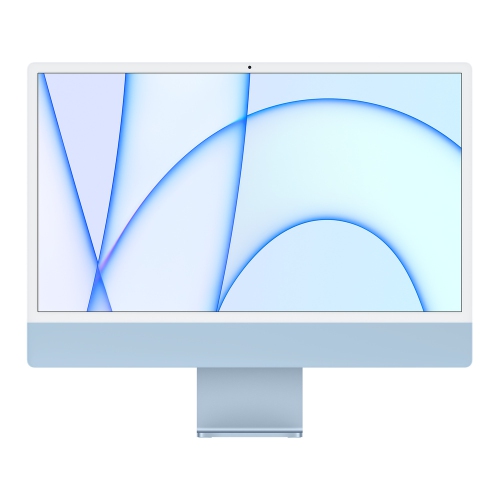
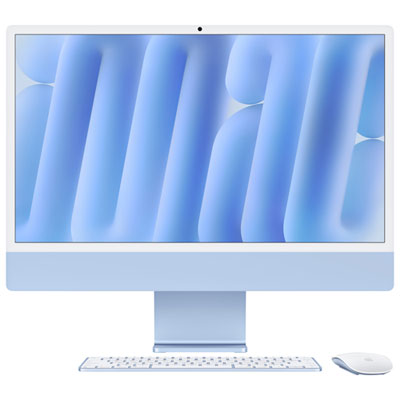
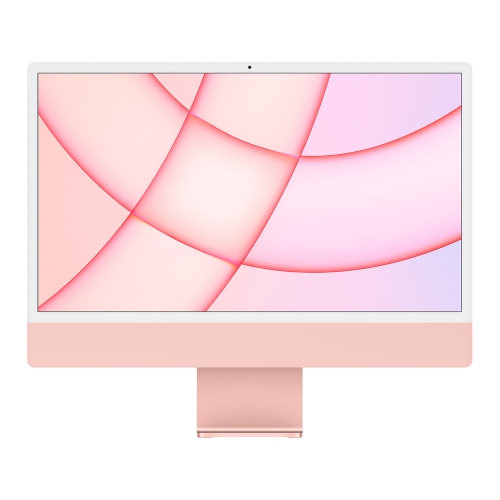
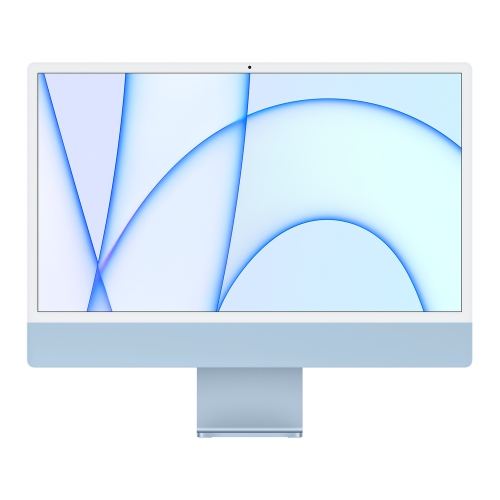
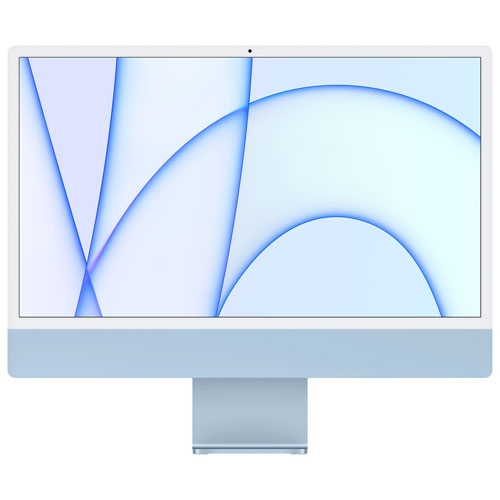
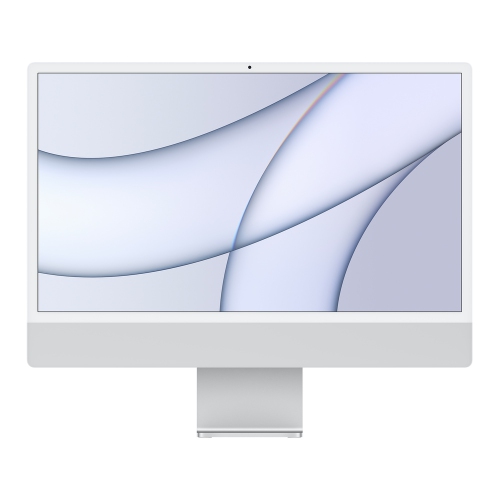
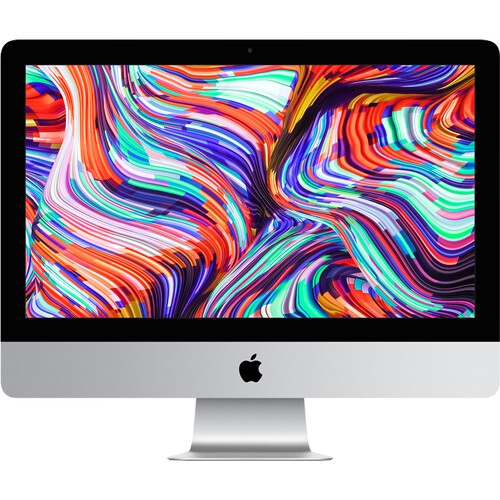
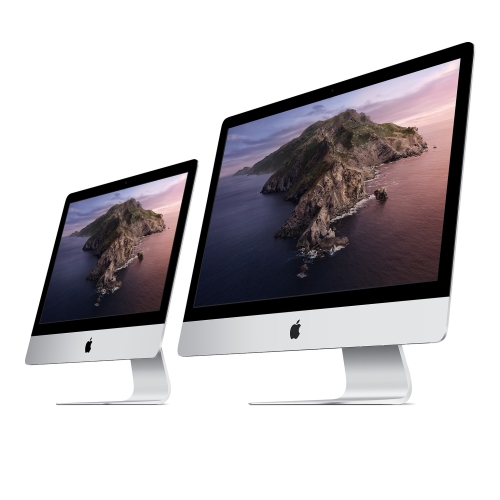
A new all-in-one desktop computer combines the display and main computing components in one enclosure, creating a dedicated workstation without a separate tower beside or beneath the desk. That layout suits a home office, a student’s study space, or a shared household desk where a tidy surface makes everyday tasks easier. A slim screen, integrated stand, and wireless keyboard and mouse can leave room for a notebook, drawing tablet, or the paperwork that still accompanies digital work. The appeal is practical as well as visual: fewer separate components mean less equipment to position, while built-in speakers, microphones, and a camera can support calls and entertainment without immediately adding accessories. High-resolution displays are especially useful for reading small text, reviewing photographs, and keeping a document open beside a browser window. Screen size and resolution describe different qualities, however. Size determines the physical viewing area, while resolution determines how many pixels make up the image; text scaling also affects how much content fits comfortably on screen. A display around 24 inches can provide a useful balance between workspace and desk footprint, although the stand depth and viewing distance matter just as much as the diagonal measurement. For those comparing screen formats, the 27 Inch iMac category provides another size reference, but display dimensions alone do not establish processor performance, connection options, or software compatibility. Colour and finish also influence how a computer fits into a room. A light-coloured enclosure may blend into an open living area, while a darker finish can suit a dedicated workspace. Metal housings can provide a rigid structure, and glass display surfaces give the front a smooth appearance, though neither material eliminates the need for careful handling. The best physical fit leaves enough room for a comfortable keyboard position, a mouse or trackpad, and unobstructed ventilation around the computer.
Performance depends on the combination of processor, graphics capability, memory, and storage rather than any single specification. Everyday tasks such as email, web browsing, video calls, and document editing generally place different demands on a desktop than editing high-resolution video or working with complex illustrations. A household computer might spend the morning handling school assignments, the afternoon organizing photographs, and the evening playing music while several browser tabs remain open. Memory helps keep those activities responsive when applications run together. Some all-in-one designs use unified memory, which allows the processor and graphics hardware to draw from a shared memory pool; the capacity still needs to suit the workload. Where memory cannot be upgraded after purchase, choosing sufficient capacity at the outset is particularly important. Solid-state storage provides responsive access to applications and files, but storage capacity determines how much can be kept locally. A collection of short video clips, downloaded media, and full-resolution photographs can occupy considerably more space than text documents. External drives can expand file storage and provide a separate location for backups, although connection speed and drive compatibility affect their usefulness. Creative work also benefits from a display with suitable colour reproduction and brightness controls. Someone preparing family photo books may value clear detail and consistent colours, while someone editing video needs to consider the demands of their editing software alongside the screen. A bright display does not remove reflections from a nearby window, so placement remains important. Camera resolution, microphone quality, and speaker performance contribute to the experience of remote classes, meetings, and calls with relatives, but room lighting and background noise still have a noticeable effect. Software compatibility deserves equal attention: accounting tools, design applications, games, and workplace systems must support the computer’s operating system and hardware. Features that use artificial intelligence can also depend on the operating system version, supported hardware, language, and region, so their requirements are separate from the basic ability to run familiar applications.
A desktop setup works best when its connections and accessories match the way it will be used. Wireless keyboards and pointing devices reduce visible cables, but they still need charging or replacement batteries, depending on their design. Wi-Fi is convenient when the desk is far from a router, while a wired network connection may be useful for large file transfers or a fixed workspace, provided the computer or a compatible adapter supports it. USB-C describes a connector shape rather than a guarantee of identical capabilities across every port. Charging, data transfer speeds, and support for an external display can differ, making port specifications important for anyone connecting a camera, external drive, audio interface, or second screen. Older printers and accessories may need adapters, and a compact hub can help organize several connections without stretching cables across the desk. Physical comfort matters during long stretches of work: the screen should sit at a comfortable viewing height, with enough distance to read without leaning forward. Stand adjustment varies, so desk height and seating position can affect whether an additional riser is useful. Care is straightforward but should follow the manufacturer’s directions. Dust can be removed from the enclosure with a soft cloth, while the display should be cleaned using the method specified for its particular surface; speciality glass finishes may have different requirements. Spraying liquid directly onto the screen, using abrasive materials, or allowing moisture near ports can damage the computer. Clear ventilation openings, careful cable routing, and secure placement help protect it through regular use, and keeping drinks away from the keyboard reduces the chance of an avoidable spill. Regular backups and supported software updates are also part of looking after a desktop, particularly when it holds schoolwork, business records, or irreplaceable photographs. As a gift, an all-in-one computer can suit a student establishing a study area, a relative replacing an older desktop, or someone building a creative workspace. The recipient’s preferred software, accessibility needs, desk space, and existing accessories are more useful starting points than appearance alone. A well-matched desktop should feel comfortable in the room and capable of handling the work its owner actually does.
Performance depends on the combination of processor, graphics capability, memory, and storage rather than any single specification. Everyday tasks such as email, web browsing, video calls, and document editing generally place different demands on a desktop than editing high-resolution video or working with complex illustrations. A household computer might spend the morning handling school assignments, the afternoon organizing photographs, and the evening playing music while several browser tabs remain open. Memory helps keep those activities responsive when applications run together. Some all-in-one designs use unified memory, which allows the processor and graphics hardware to draw from a shared memory pool; the capacity still needs to suit the workload. Where memory cannot be upgraded after purchase, choosing sufficient capacity at the outset is particularly important. Solid-state storage provides responsive access to applications and files, but storage capacity determines how much can be kept locally. A collection of short video clips, downloaded media, and full-resolution photographs can occupy considerably more space than text documents. External drives can expand file storage and provide a separate location for backups, although connection speed and drive compatibility affect their usefulness. Creative work also benefits from a display with suitable colour reproduction and brightness controls. Someone preparing family photo books may value clear detail and consistent colours, while someone editing video needs to consider the demands of their editing software alongside the screen. A bright display does not remove reflections from a nearby window, so placement remains important. Camera resolution, microphone quality, and speaker performance contribute to the experience of remote classes, meetings, and calls with relatives, but room lighting and background noise still have a noticeable effect. Software compatibility deserves equal attention: accounting tools, design applications, games, and workplace systems must support the computer’s operating system and hardware. Features that use artificial intelligence can also depend on the operating system version, supported hardware, language, and region, so their requirements are separate from the basic ability to run familiar applications.
A desktop setup works best when its connections and accessories match the way it will be used. Wireless keyboards and pointing devices reduce visible cables, but they still need charging or replacement batteries, depending on their design. Wi-Fi is convenient when the desk is far from a router, while a wired network connection may be useful for large file transfers or a fixed workspace, provided the computer or a compatible adapter supports it. USB-C describes a connector shape rather than a guarantee of identical capabilities across every port. Charging, data transfer speeds, and support for an external display can differ, making port specifications important for anyone connecting a camera, external drive, audio interface, or second screen. Older printers and accessories may need adapters, and a compact hub can help organize several connections without stretching cables across the desk. Physical comfort matters during long stretches of work: the screen should sit at a comfortable viewing height, with enough distance to read without leaning forward. Stand adjustment varies, so desk height and seating position can affect whether an additional riser is useful. Care is straightforward but should follow the manufacturer’s directions. Dust can be removed from the enclosure with a soft cloth, while the display should be cleaned using the method specified for its particular surface; speciality glass finishes may have different requirements. Spraying liquid directly onto the screen, using abrasive materials, or allowing moisture near ports can damage the computer. Clear ventilation openings, careful cable routing, and secure placement help protect it through regular use, and keeping drinks away from the keyboard reduces the chance of an avoidable spill. Regular backups and supported software updates are also part of looking after a desktop, particularly when it holds schoolwork, business records, or irreplaceable photographs. As a gift, an all-in-one computer can suit a student establishing a study area, a relative replacing an older desktop, or someone building a creative workspace. The recipient’s preferred software, accessibility needs, desk space, and existing accessories are more useful starting points than appearance alone. A well-matched desktop should feel comfortable in the room and capable of handling the work its owner actually does.
Top selling and popular products
-
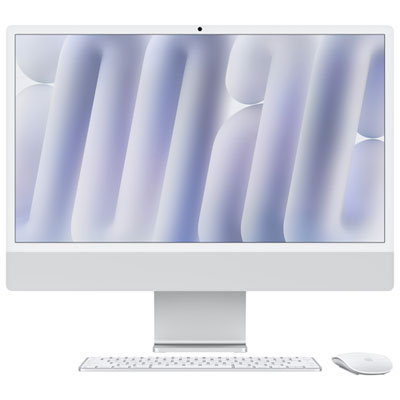 Your price for this item is $2099.99
 -
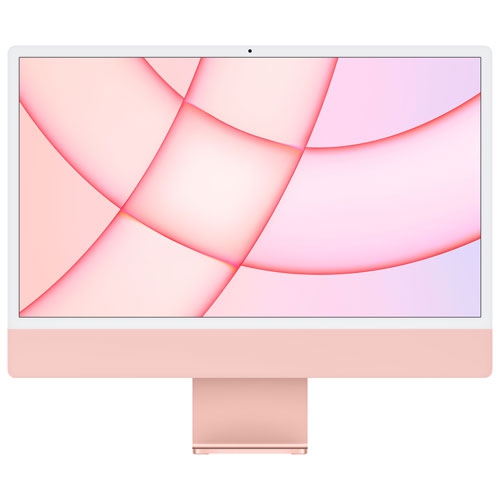 Your price for this item is $1529.97
 -
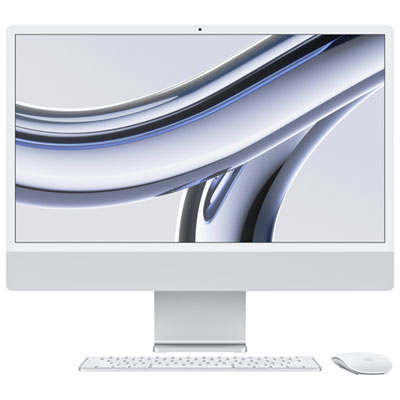 Your price for this item is $1799.99
 -
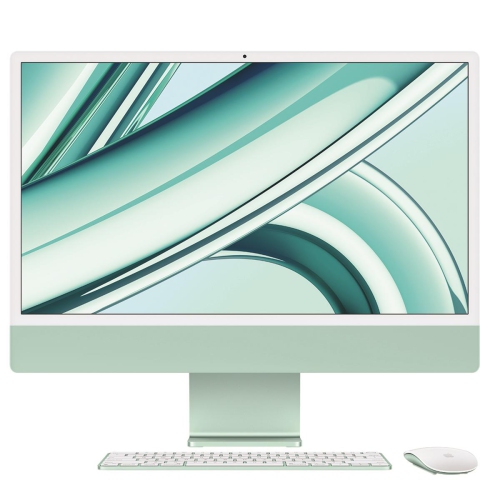 Your price for this item is $1804.05
 -
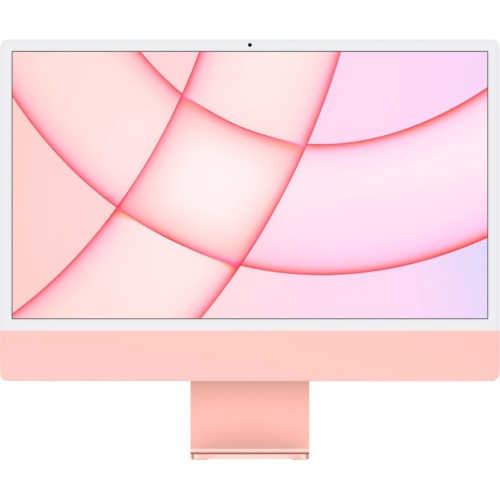 Your price for this item is $1299
 -
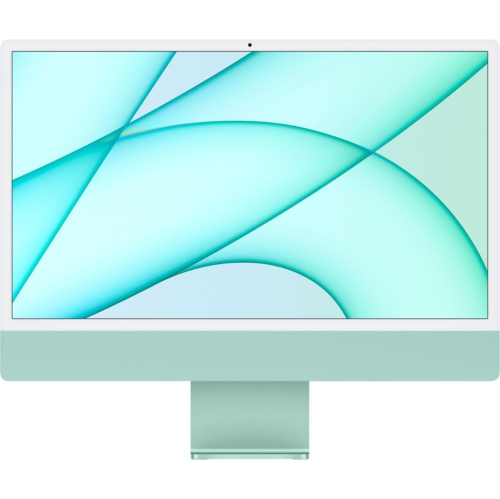 Your price for this item is $1499
 -
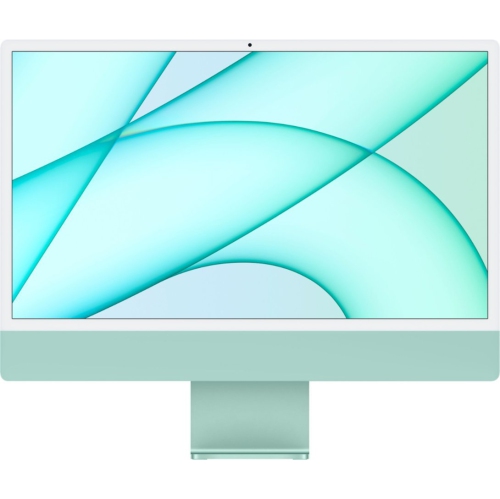 Your price for this item is $1199
 -
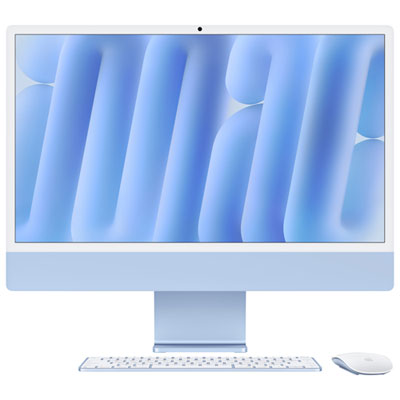 Your price for this item is $2299.99
Discover more categories related to Apple New iMac
Top Collections:
Pokemon Centers, Best Cameras for Sports Photography, Kindle Devices, Samsung Galaxy Phones, Canon G7X Cameras, Pokémon 30th Celebration Cards, Refurbished Apple Laptops, iPhone 15 Apple, Laptops for Students, Budget Smartphones
Some products may be subject to Environmental Handling Fees
(EHF) depending on your province.
Learn more about EHFs.