iMac 2024
Discover the latest in desktop computing with iMac 2024. Designed to elevate your workspace, these all-in-one computers combine style and performance to meet a variety of needs, from creative projects to everyday tasks. Explore a range of configurations and finishes to find the perfect fit for your home or office. Experience seamless integration, advanced technology, and a streamlined setup with iMac 2024, making it easier than ever to stay productive and connected.
Sort
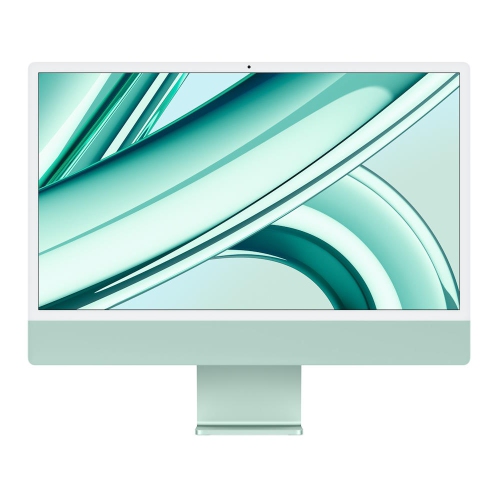
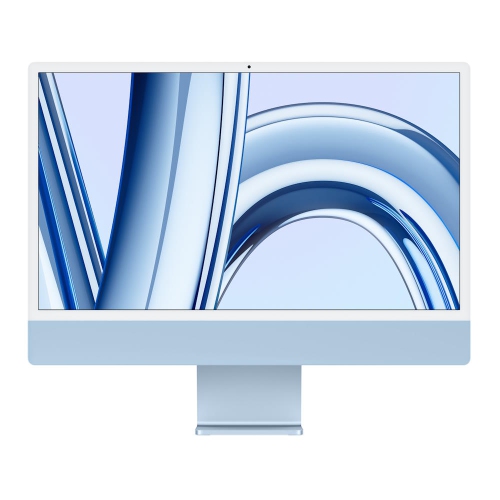
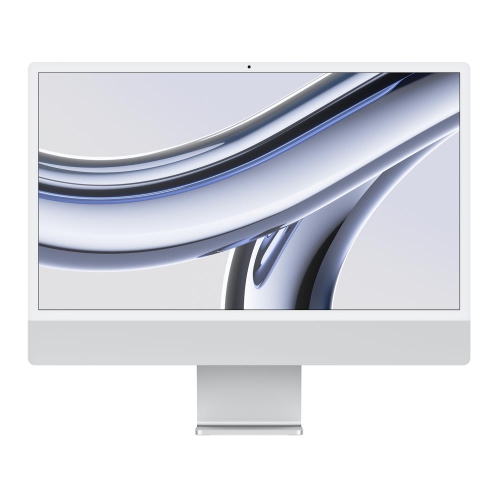
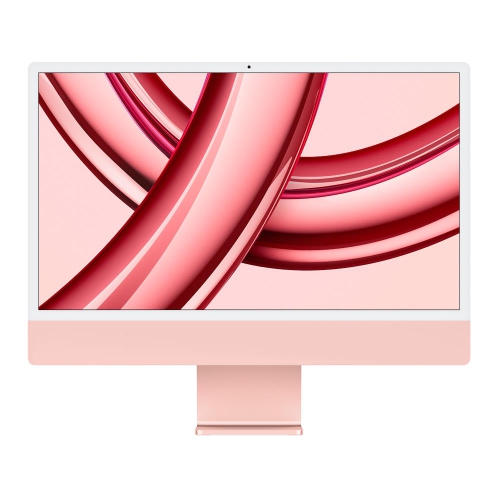
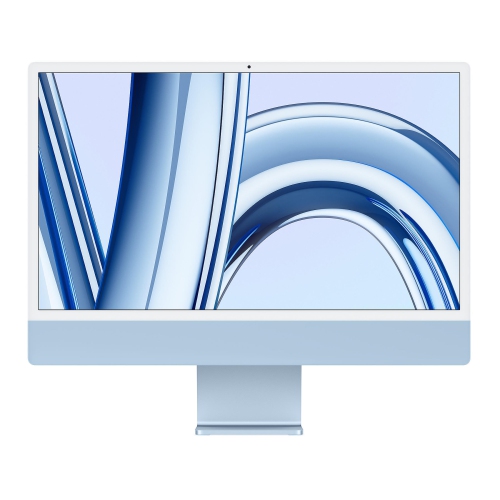
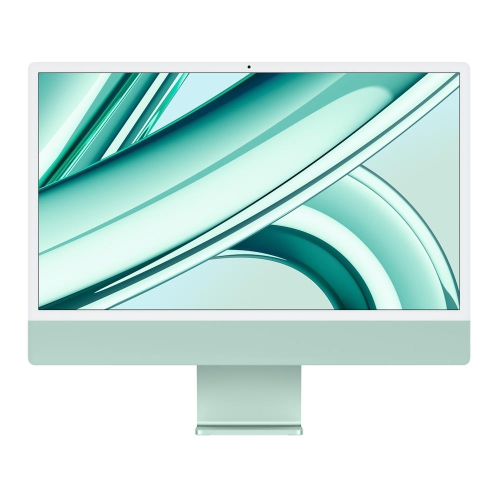
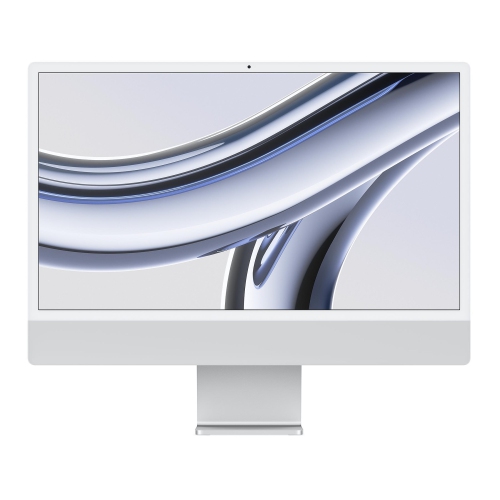
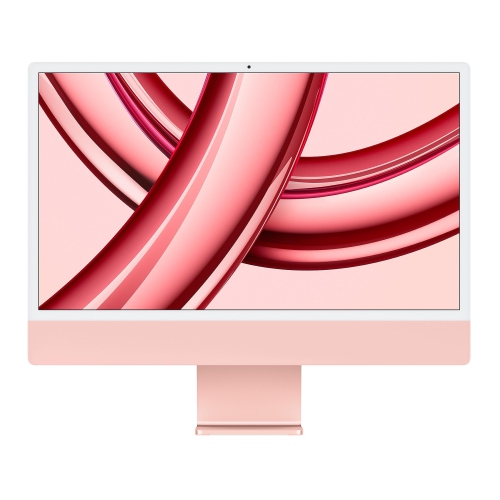
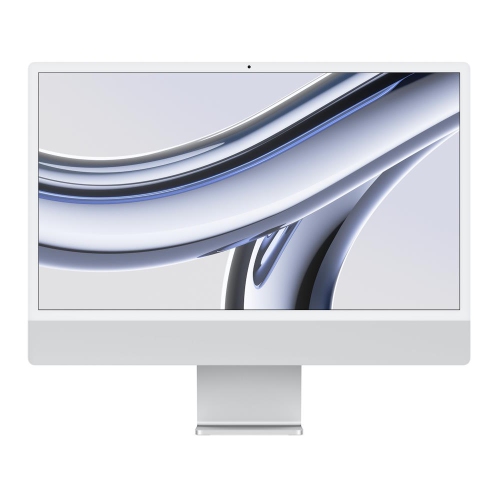
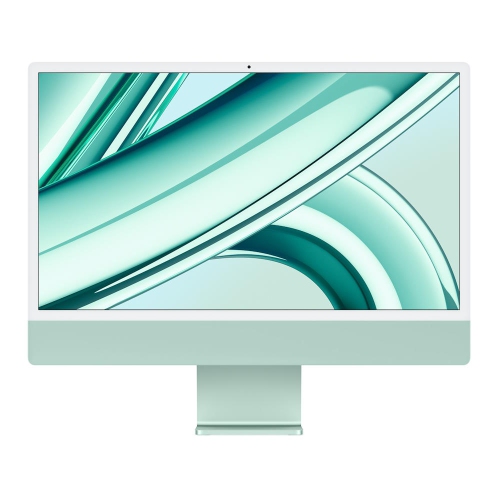
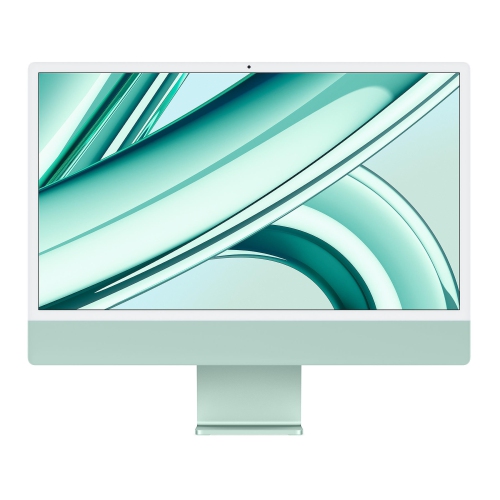
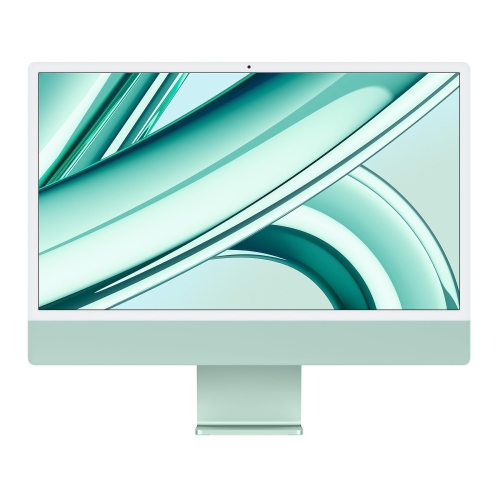
How an all-in-one fits your desk and routine
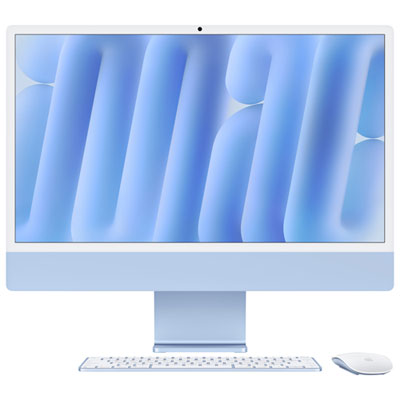
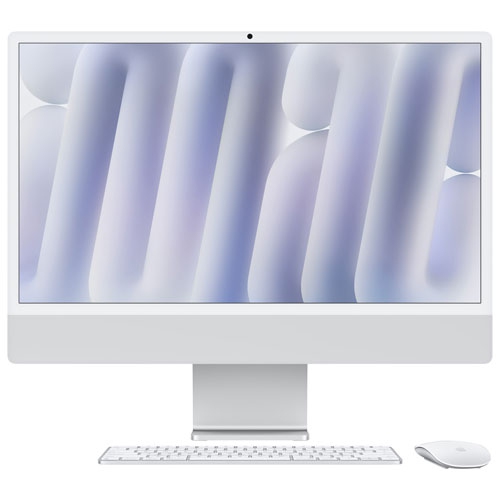
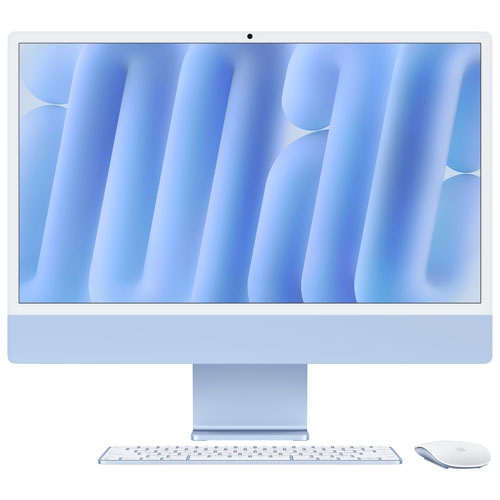
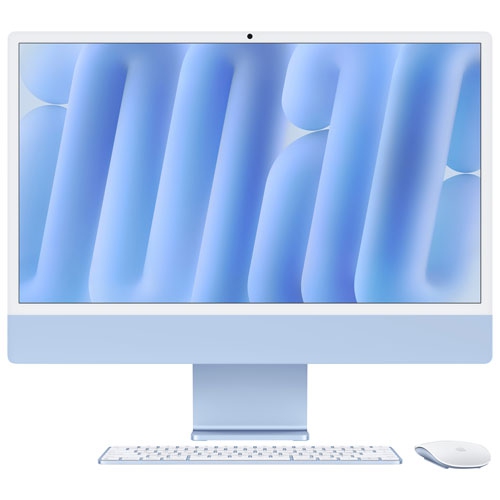
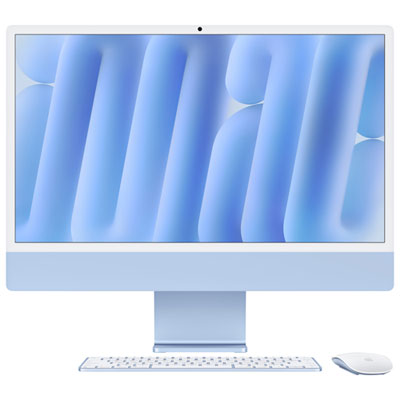
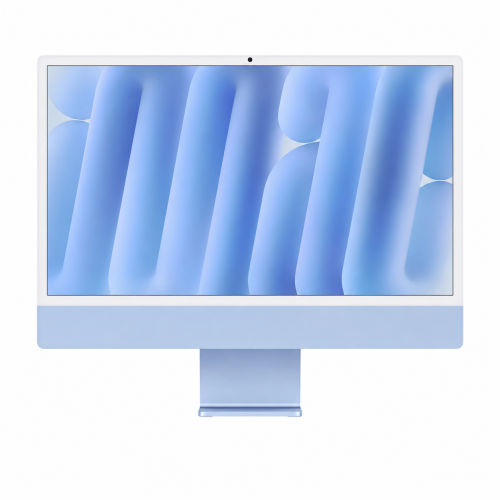
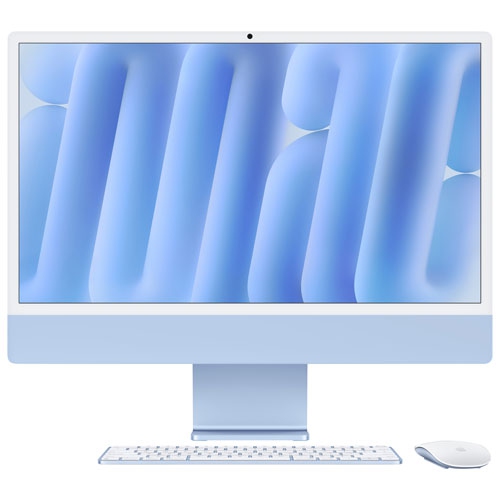
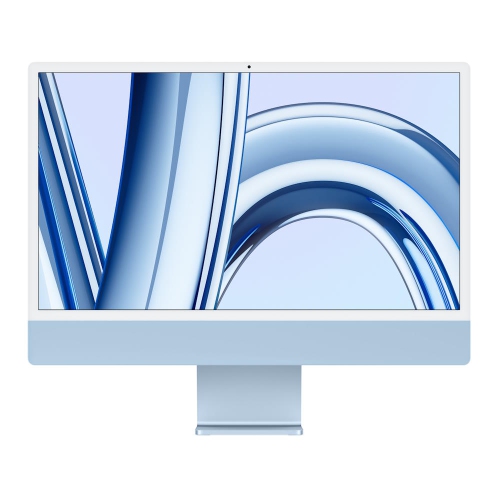
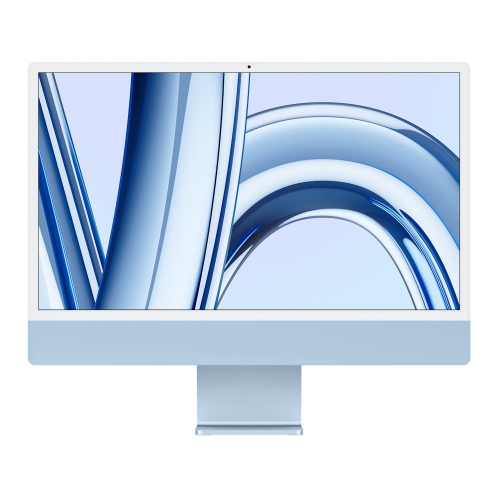
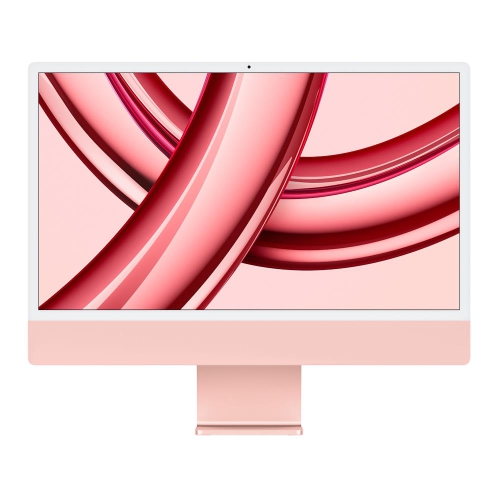
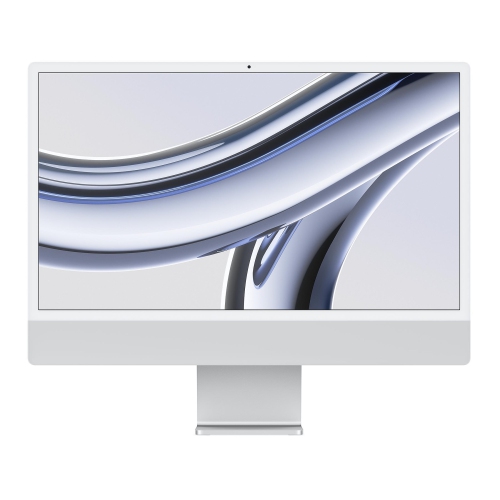
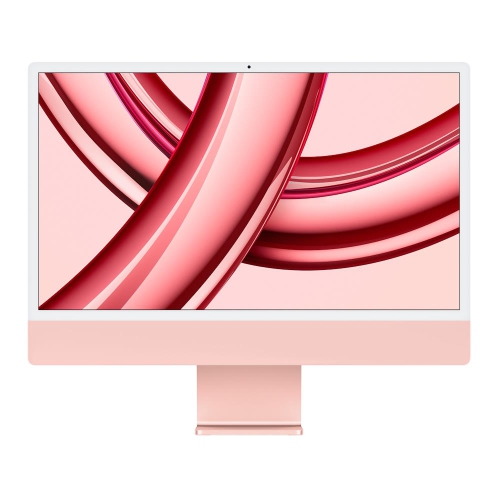
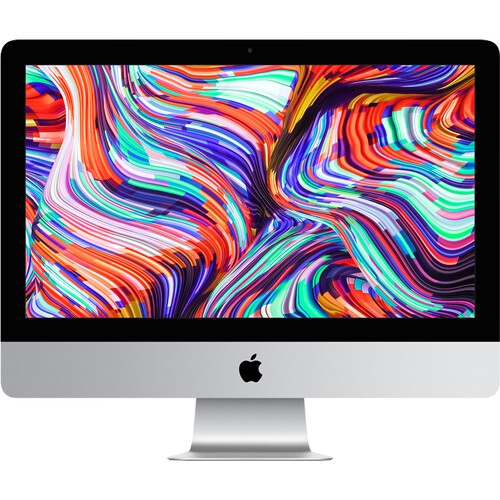
A 2024 all-in-one desktop brings the screen and computer together in a single enclosure, creating a dedicated place for work, study, creative projects, and everyday entertainment without a separate tower. The 24 inch 4.5K display format provides a sharp canvas for documents, photographs, video, and detailed layouts while keeping the overall footprint manageable on many home desks. That balance is useful when a computer needs to share space with a notebook, drawing tablet, or stack of reference books. High resolution makes small text and image detail easier to distinguish, although comfortable viewing also depends on text scaling, brightness, and the distance between the chair and screen. A glossy display benefits from thoughtful placement: a window directly behind the user can create reflections, while positioning the desk at an angle to the light often makes viewing more comfortable. The slim aluminium enclosure gives this desktop style a clean, finished appearance from different sides, which can matter on an open desk rather than one pushed against a wall. Colour is another practical design consideration when the computer will remain visible in a living room, studio, or shared workspace. Built-in speakers, microphones, and a camera help keep the setup self-contained for video calls, online lessons, and casual listening. A separate keyboard and pointing device allow more flexibility in hand placement than a laptop, though the display still needs to sit at a comfortable height. This format suits people who prefer a consistent workstation over a computer that travels between rooms. It can also make a shared household computer feel approachable, with one familiar screen for homework, appointments, photo libraries, and household administration. The trade-off is that the display and computing hardware form one system, so choosing an all-in-one involves thinking about both the screen experience and the performance needed over several years, rather than treating them as separate purchases.
Memory, storage, and connectivity are the main configuration details that shape everyday use. Memory supports active tasks, including open browser tabs, spreadsheets, video meetings, and creative applications running together. Someone writing assignments and managing email has different demands from someone editing large photographs while keeping several other applications open. Additional memory can provide useful headroom for heavier multitasking, especially because memory in this type of desktop is not generally something to add later. Storage serves a different purpose: it holds applications, documents, downloads, and locally saved media. A collection of short phone videos can grow surprisingly quickly, while a workflow built around online documents may require less local capacity. External drives can expand storage and support backups, but they also need space, cables, and a suitable connection. A backup should be a separate copy of important files, not simply the only place those files are stored. Port selection deserves similar attention. Connection counts and supported speeds can differ between configurations, and the shape of a USB-C connector does not by itself describe everything that port can do. An external display, fast storage drive, older printer, and memory card reader may each have different requirements. Mapping out those connections before choosing a configuration helps avoid a desk crowded with adapters. Wi-Fi is convenient for everyday access, while a wired network connection can be useful for large transfers or a workstation located where wireless reception is inconsistent; the connection hardware should be confirmed for the configuration being considered. Software compatibility matters just as much as hardware specifications. A student may need particular course applications, a photographer may depend on editing tools and plug-ins, and a home business may rely on accounting software or older peripherals. Checking supported operating systems and application requirements is especially worthwhile when replacing a computer with a long-established workflow. For demanding games, specialist engineering software, or complex video projects, the exact application requirements are more meaningful than a general description such as “powerful” or “fast.”
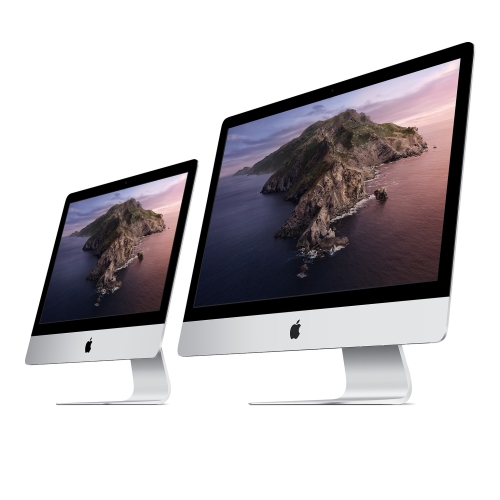
Living comfortably with an all-in-one desktop also depends on the small details around it. The stand needs a stable, level surface, with enough room for the keyboard, pointing device, and forearms rather than just enough depth for the computer itself. Cables should have slack so that moving the screen slightly does not pull on a connector, and ventilation openings should remain unobstructed. A raised desk shelf can free space underneath, but its dimensions and weight rating need to suit the computer and its stand. For long stretches of reading or typing, an adjustable chair and sensible screen placement contribute more to comfort than a tidy appearance alone. Aluminium is sturdy for everyday handling, but its finish can still scratch or dent, and the glass display needs protection from knocks. Before cleaning, shut down the computer and disconnect power; use a soft, lint-free cloth and follow the manufacturer’s cleaning directions rather than spraying liquid directly onto the screen or enclosure. Keeping drinks away from the keyboard and routing cables clear of feet are simple habits that help protect the whole setup. Screen size is another consideration, particularly for anyone comparing this format with a 27 inch iMac. A larger display changes the viewing area and desk requirements, but it should not be taken as proof of newer hardware, equivalent software support, or the same connection options. For gifting, an all-in-one desktop can be a thoughtful choice for someone establishing a home office, beginning postsecondary studies, or making more time for photography and other creative interests. The best fit depends on the recipient’s software, available desk space, preferred input devices, and whether a stationary computer suits daily life. Those practical details help turn an attractive desktop into a workstation that feels comfortable, capable, and easy to use beyond the initial setup.
Memory, storage, and connectivity are the main configuration details that shape everyday use. Memory supports active tasks, including open browser tabs, spreadsheets, video meetings, and creative applications running together. Someone writing assignments and managing email has different demands from someone editing large photographs while keeping several other applications open. Additional memory can provide useful headroom for heavier multitasking, especially because memory in this type of desktop is not generally something to add later. Storage serves a different purpose: it holds applications, documents, downloads, and locally saved media. A collection of short phone videos can grow surprisingly quickly, while a workflow built around online documents may require less local capacity. External drives can expand storage and support backups, but they also need space, cables, and a suitable connection. A backup should be a separate copy of important files, not simply the only place those files are stored. Port selection deserves similar attention. Connection counts and supported speeds can differ between configurations, and the shape of a USB-C connector does not by itself describe everything that port can do. An external display, fast storage drive, older printer, and memory card reader may each have different requirements. Mapping out those connections before choosing a configuration helps avoid a desk crowded with adapters. Wi-Fi is convenient for everyday access, while a wired network connection can be useful for large transfers or a workstation located where wireless reception is inconsistent; the connection hardware should be confirmed for the configuration being considered. Software compatibility matters just as much as hardware specifications. A student may need particular course applications, a photographer may depend on editing tools and plug-ins, and a home business may rely on accounting software or older peripherals. Checking supported operating systems and application requirements is especially worthwhile when replacing a computer with a long-established workflow. For demanding games, specialist engineering software, or complex video projects, the exact application requirements are more meaningful than a general description such as “powerful” or “fast.”
Living comfortably with an all-in-one desktop also depends on the small details around it. The stand needs a stable, level surface, with enough room for the keyboard, pointing device, and forearms rather than just enough depth for the computer itself. Cables should have slack so that moving the screen slightly does not pull on a connector, and ventilation openings should remain unobstructed. A raised desk shelf can free space underneath, but its dimensions and weight rating need to suit the computer and its stand. For long stretches of reading or typing, an adjustable chair and sensible screen placement contribute more to comfort than a tidy appearance alone. Aluminium is sturdy for everyday handling, but its finish can still scratch or dent, and the glass display needs protection from knocks. Before cleaning, shut down the computer and disconnect power; use a soft, lint-free cloth and follow the manufacturer’s cleaning directions rather than spraying liquid directly onto the screen or enclosure. Keeping drinks away from the keyboard and routing cables clear of feet are simple habits that help protect the whole setup. Screen size is another consideration, particularly for anyone comparing this format with a 27 inch iMac. A larger display changes the viewing area and desk requirements, but it should not be taken as proof of newer hardware, equivalent software support, or the same connection options. For gifting, an all-in-one desktop can be a thoughtful choice for someone establishing a home office, beginning postsecondary studies, or making more time for photography and other creative interests. The best fit depends on the recipient’s software, available desk space, preferred input devices, and whether a stationary computer suits daily life. Those practical details help turn an attractive desktop into a workstation that feels comfortable, capable, and easy to use beyond the initial setup.
Top selling and popular products
-
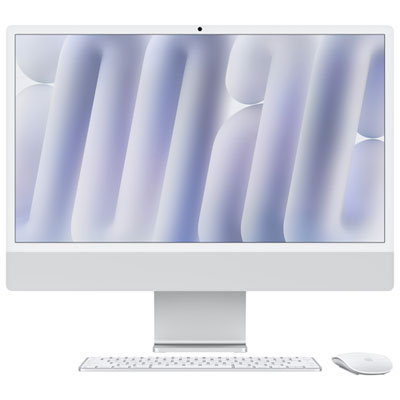 Your price for this item is $2099.99
 -
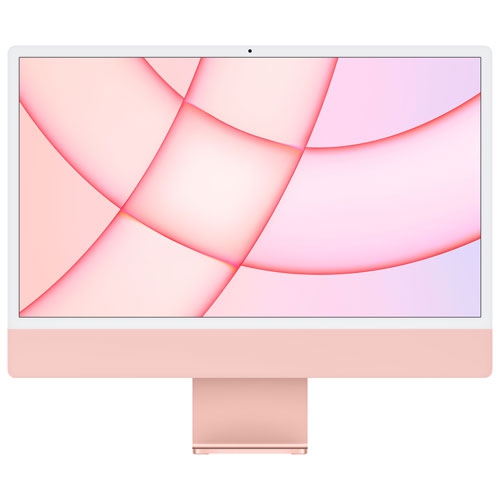 Your price for this item is $1529.97
 -
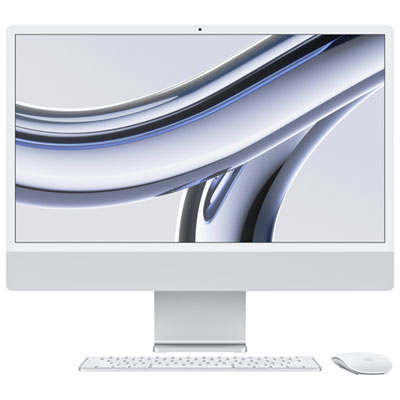 Your price for this item is $1799.99
 -
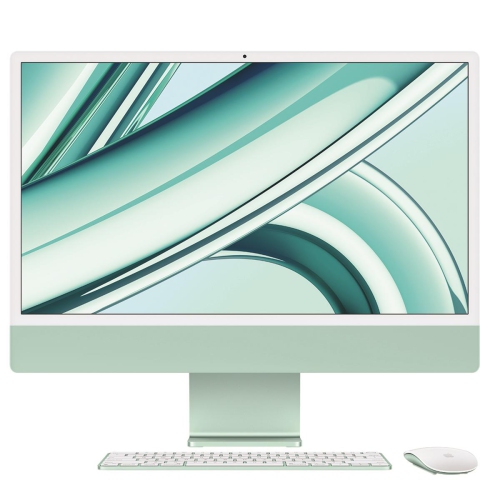 Your price for this item is $1804.05
 -
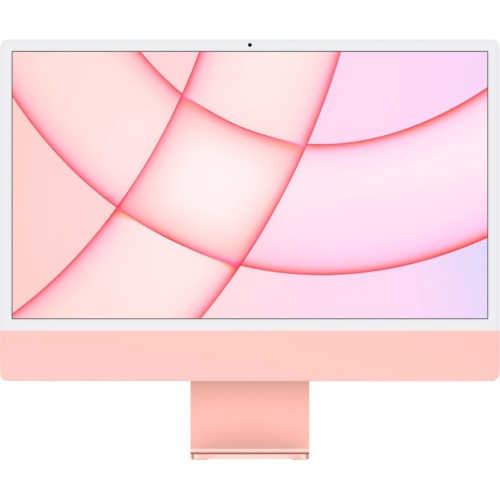 Your price for this item is $1299
 -
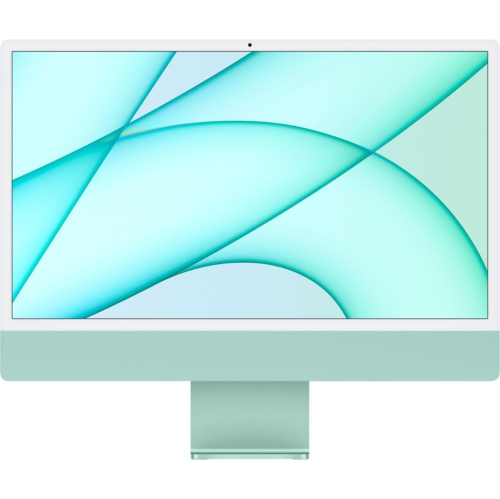 Your price for this item is $1499
 -
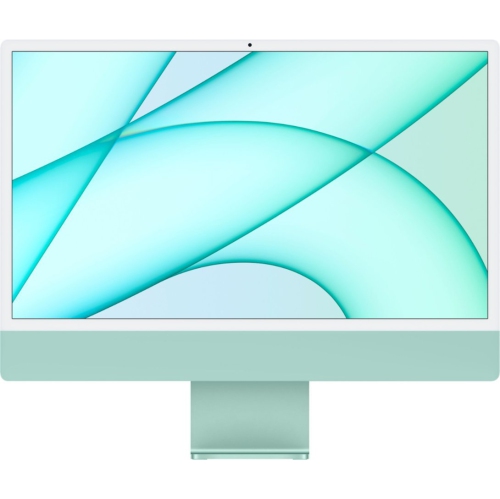 Your price for this item is $1199
 -
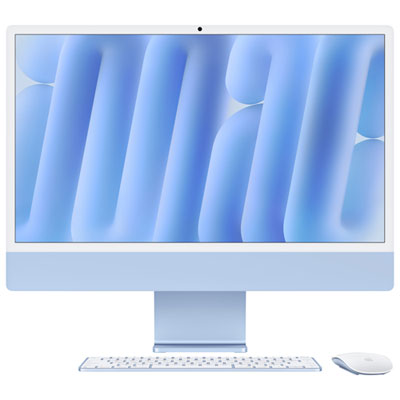 Your price for this item is $2299.99
Discover more categories related to iMac 2024
Top Collections:
Pokemon Centers, Best Cameras for Sports Photography, Kindle Devices, Samsung Galaxy Phones, Canon G7X Cameras, Pokémon 30th Celebration Cards, Refurbished Apple Laptops, iPhone 15 Apple, Laptops for Students, Budget Smartphones
Some products may be subject to Environmental Handling Fees
(EHF) depending on your province.
Learn more about EHFs.