Asus Touchscreen
Discover the versatility and convenience of Asus Touchscreen devices, designed to enhance your daily computing experience. Whether you're working, streaming, or staying connected on the go, these innovative options offer intuitive interaction and effortless navigation. Explore a wide selection of models to find the perfect fit for your needs, all backed by reliable performance and sleek design. Elevate your productivity and entertainment with an Asus Touchscreen that adapts seamlessly to your lifestyle.
Sort
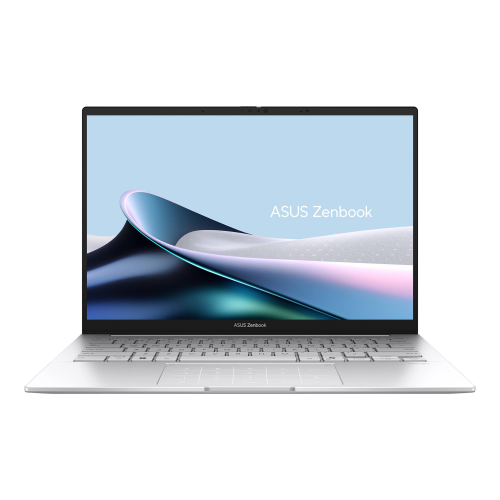
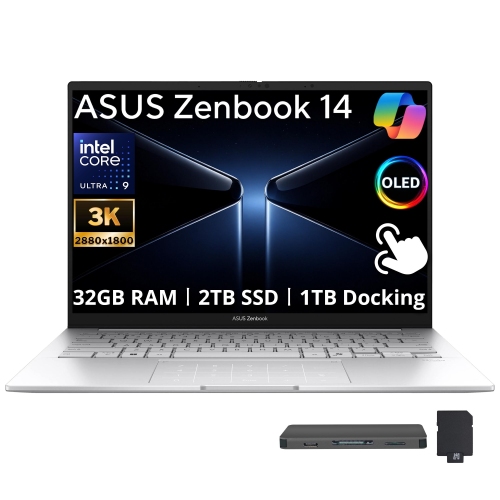
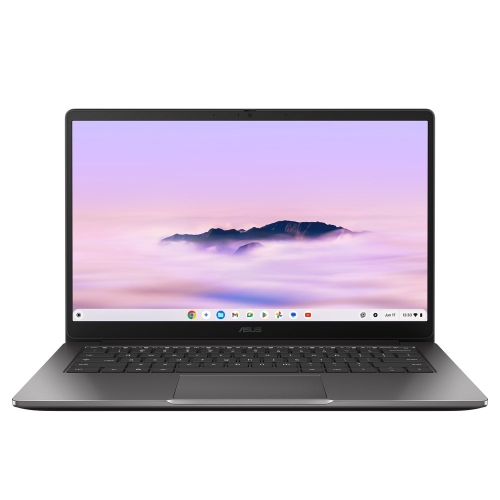
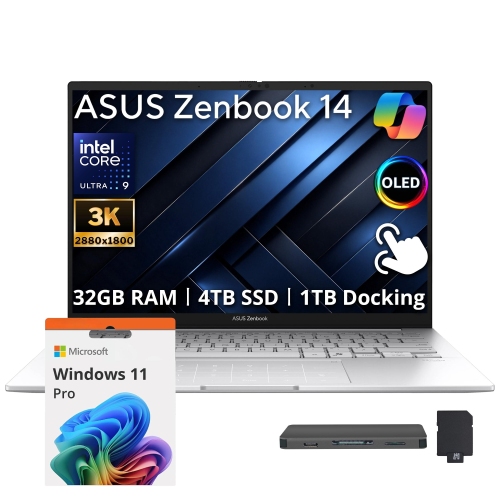
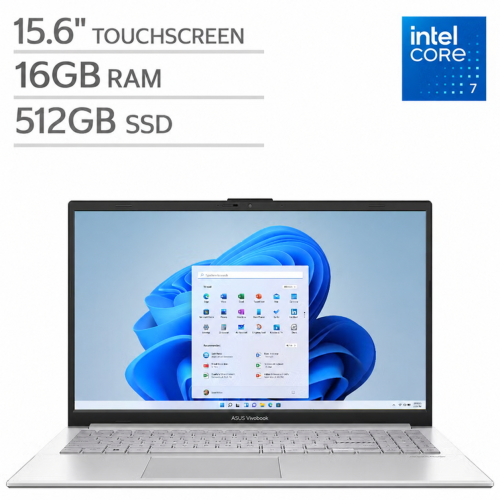
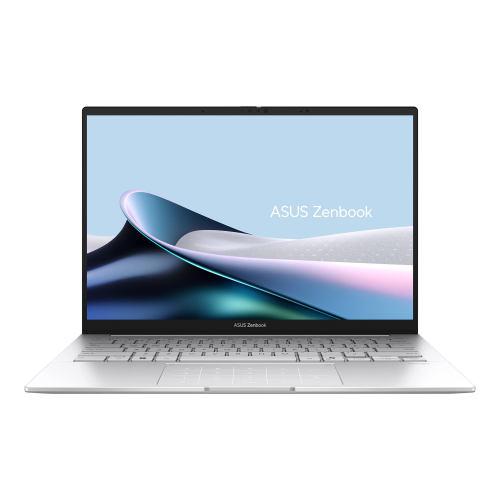
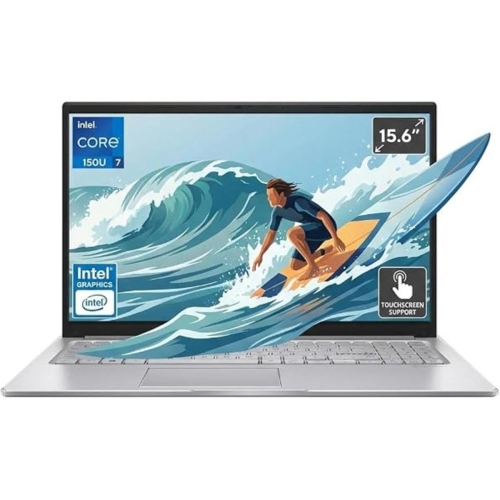
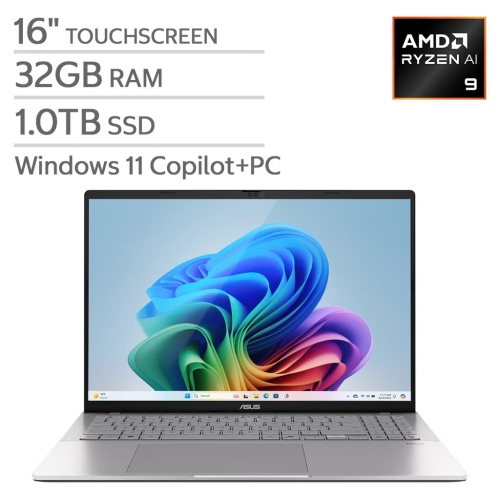
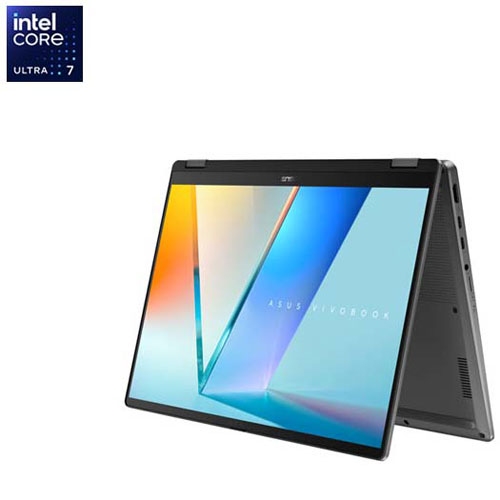
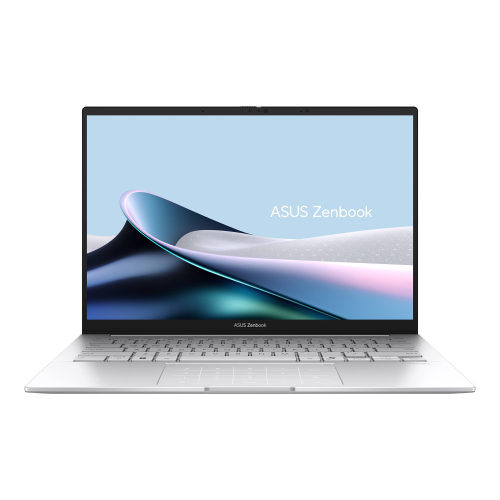
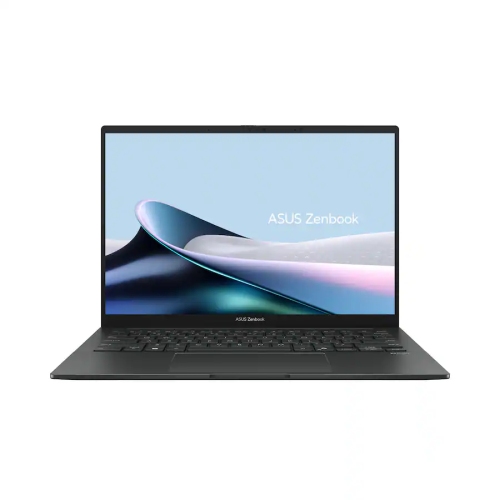
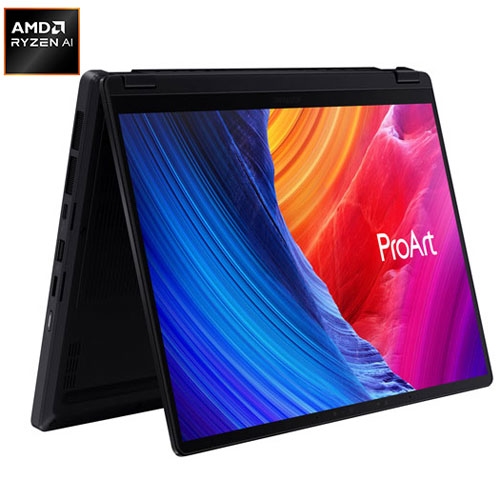
How touchscreen formats fit different tasks and spaces
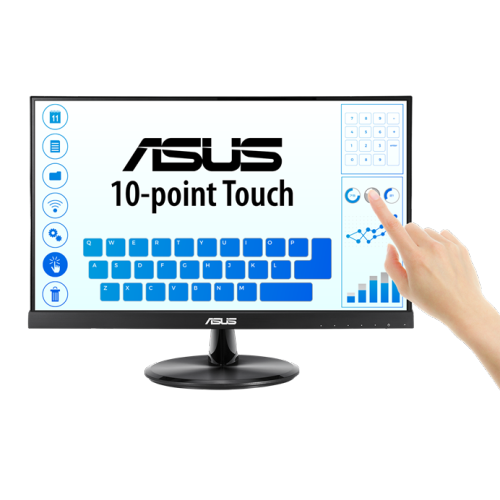
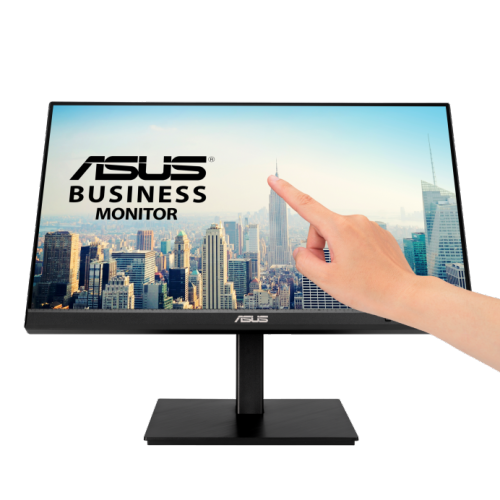
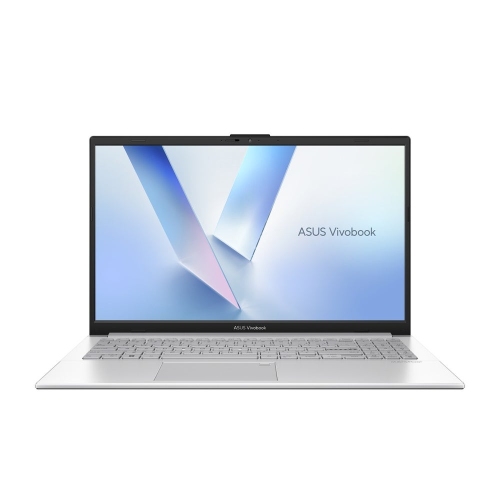
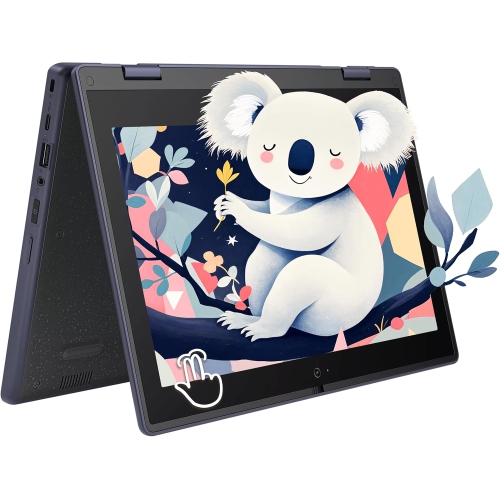
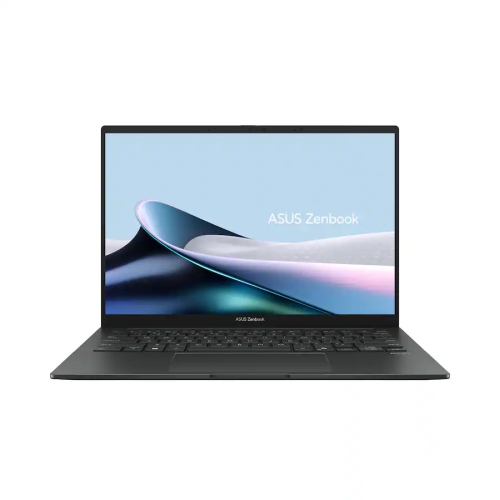
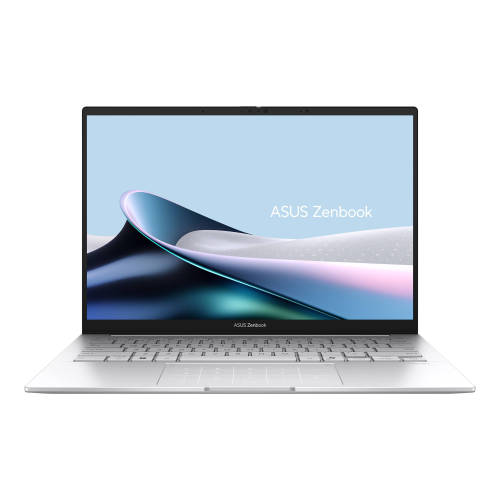
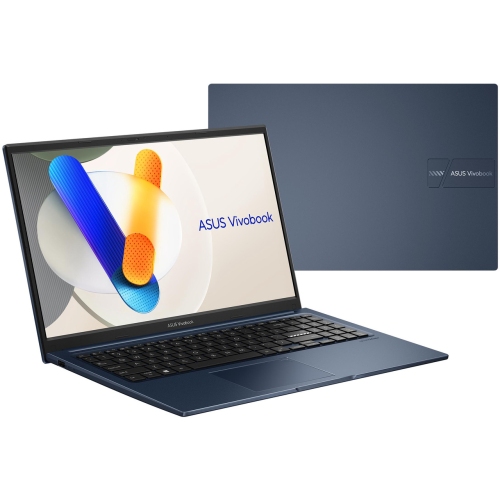
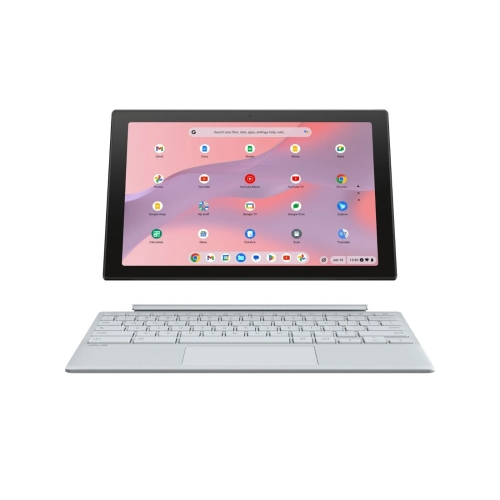
Touchscreen technology brings direct, fingertip control to laptops, convertible 2-in-1 computers, desktop monitors, and portable displays. Tapping a menu, swiping through photos, or enlarging a map can feel more immediate than moving a pointer across the screen, while a keyboard and touchpad remain useful for longer writing sessions and precise selections. A touchscreen laptop suits everyday tasks such as answering messages, reviewing documents, attending video calls, and following a recipe on the kitchen countertop. A convertible 2-in-1 adds a folding hinge that allows different positions, depending on its design: laptop mode for typing, tent mode for watching a demonstration, or a folded position for reading and handwritten notes. These formats can be particularly useful for students moving between lectures and study spaces, professionals marking up presentations, and people who prefer switching between typing and touch throughout the day. A conventional touchscreen laptop does not necessarily fold flat or function comfortably as a tablet, so hinge design and supported positions make a meaningful difference to how it feels in use. For people whose main priority is a handheld format for reading, browsing, and compatible apps, Asus Tablets offers a related category to explore. Touch-enabled desktop monitors serve a different purpose, adding an interactive surface to a compatible computer rather than replacing the computer itself. Portable touch displays can provide a second work surface for documents, reference images, or shared presentations, with a slim profile that fits more easily into a travel setup. Across these formats, screen size, weight, and stand or hinge stability shape the experience as much as touch capability does. A compact screen may fit neatly on a classroom desk or café table, while a larger display gives spreadsheets, drawings, and side-by-side windows more room. The most useful format is the one that supports the tasks and spaces it will encounter regularly, without making everyday carrying, typing, or viewing unnecessarily awkward.
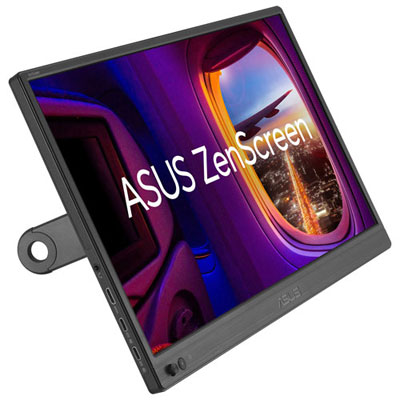
Display quality affects everything from the readability of small text to the appearance of photos and video. Resolution describes the number of pixels on the screen, but its practical benefit depends partly on screen size and viewing distance. A higher-resolution display can make fine text and detailed images look sharper, while suitable scaling keeps buttons and menus comfortable to select. Brightness and surface finish also matter: reflections from overhead lighting or a nearby window can be more noticeable on a glossy touch surface, and a screen that looks clear straight on may appear different when viewed from an angle. People editing photos, preparing visual presentations, or working with illustrations may place more emphasis on colour accuracy, whereas reading, email, and everyday office work depend heavily on clear text and comfortable sizing. Touch response is another separate consideration. Support for multiple touch points enables gestures such as pinch-to-zoom in compatible software, but touch alone does not guarantee active pen support. Handwriting and drawing depend on compatibility between the display, pen technology, operating system, and application. Pressure sensitivity, palm rejection, and a convenient place to store a pen can make a difference when annotating lecture slides or sketching a room layout, though these features vary by device. For laptops, the processor, memory, and storage still determine how comfortably the computer handles its workload; a touchscreen does not make demanding software run faster. For external touch displays, connection requirements deserve equal attention. A video connection may carry the picture without carrying touch input, and some setups require an additional USB connection. USB-C capabilities also differ between computers, cables, and displays, so a matching connector shape does not establish full compatibility. Operating-system support, power requirements, and the behaviour of frequently used applications all influence whether a touch display works smoothly within an existing setup. A balanced combination of image quality, input support, and computing capability is more useful than a single standout specification.
Materials and construction play a practical role in how a touchscreen device holds up to repeated handling. Glass touch surfaces provide a smooth area for gestures, while the surrounding chassis, hinge, and display frame contribute to the device’s overall rigidity. A firm hinge helps a laptop screen stay in position when tapped, and a stable monitor stand reduces movement during repeated selections. Thin, lightweight construction can make a computer easier to carry, but it does not by itself indicate resistance to drops, pressure, or scratches. A padded sleeve with the right dimensions helps protect a laptop in a bag, particularly when chargers, keys, and other hard objects travel alongside it. For portable monitors, a protective cover or fitted case can shield the panel between uses, while a dependable stand supports a comfortable viewing angle at the destination. Regular care is straightforward: a clean, soft microfibre cloth removes many fingerprints, and any cleaning solution should follow the display manufacturer’s directions rather than being sprayed directly onto the screen. Excess moisture, abrasive materials, and forceful rubbing can damage surfaces or allow liquid to reach openings. Comfortable daily use also depends on placement. Touch is convenient for quick interactions, but holding an arm out towards a vertical screen for long stretches can become tiring; a keyboard, mouse, or compatible pen can share the work. On a laptop, battery life varies with brightness, applications, wireless activity, and other settings, making real usage more informative than a single quoted maximum. These devices can be thoughtful gifts for a student who annotates course materials, a family member who enjoys browsing photos, or someone building a flexible home workspace. The recipient’s preferred software, comfort with touch controls, and existing accessories help determine suitability. A well-matched touchscreen device brings together familiar computing tasks and a more hands-on way to interact, without asking one input method to handle every activity.
Top selling and popular products
-
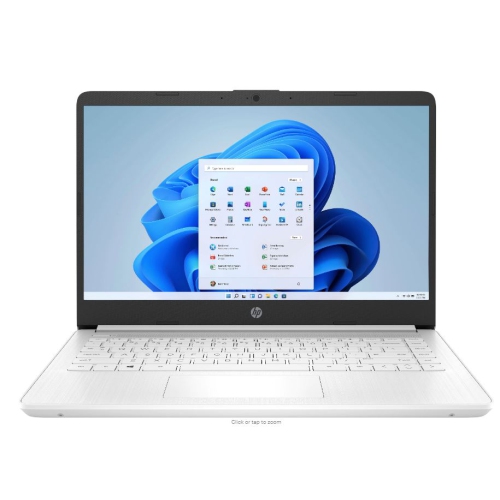 Your price for this item is $449
-
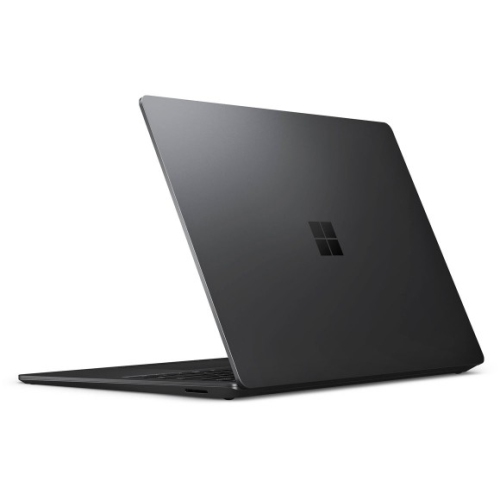 Your price for this item is $3099
-
 Your price for this item is $1800.68
-
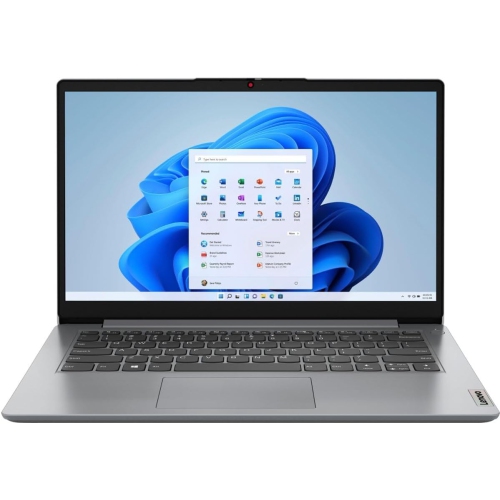 Your price for this item is $664.05
-
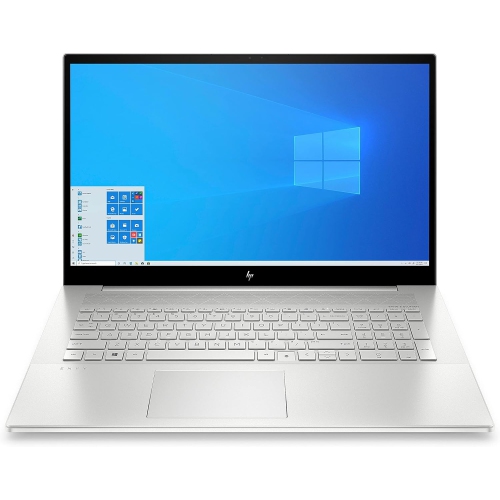 Your price for this item is $869.99
-
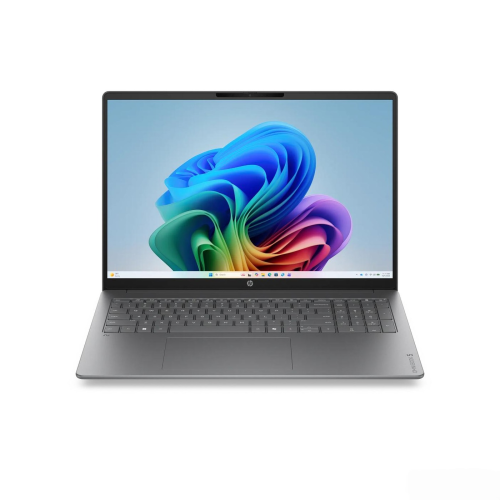 Your price for this item is $2960.48
-
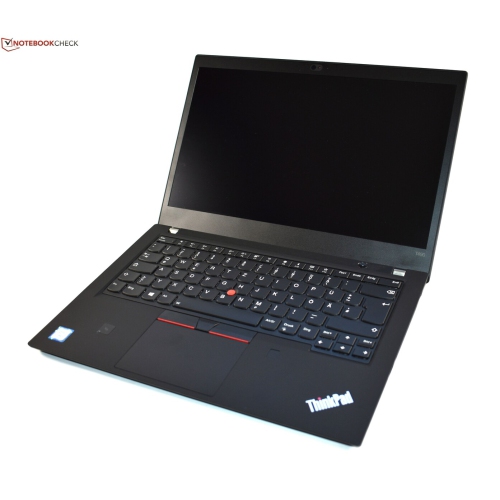 Your price for this item is $489.7
-
 Your price for this item is $1199
Discover more categories related to Asus Touchscreen

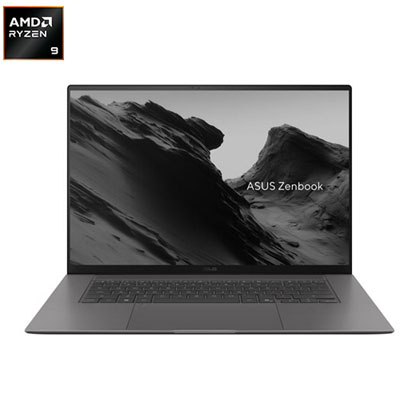
Top Collections:
Best Black Friday Deals This Year, Best Black Friday Deals On Electronics, Kindle Devices, Best Black Friday Deals On Apple Products, Best Budget Office Chairs, Best Cameras for Sports Photography, Dyson Airwrap, Canon G7X Cameras, Best Laptops for Writers, Samsung Galaxy Phones
Some products may be subject to Environmental Handling Fees
(EHF) depending on your province.
Learn more about EHFs.