Beginner Drawing Tablets for Students
Beginner drawing tablet for students is the perfect starting point for those looking to explore digital art and design. With easy-to-use interfaces and practical functions, these tablets support creative growth in classrooms or at home. Whether working on school projects or practicing new techniques, students can find a variety of options tailored to their needs and skill levels. Discover beginner drawing tablets that help make learning and creating more accessible for aspiring artists.
Sort
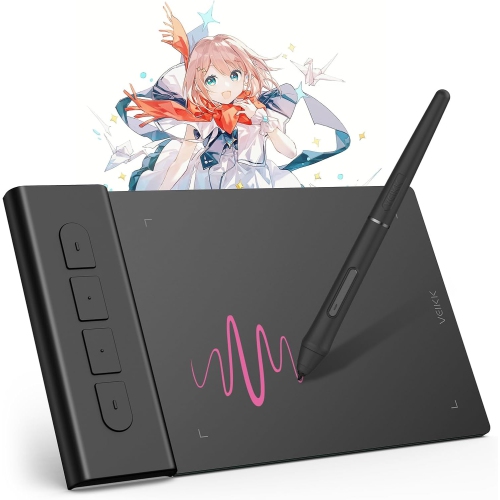
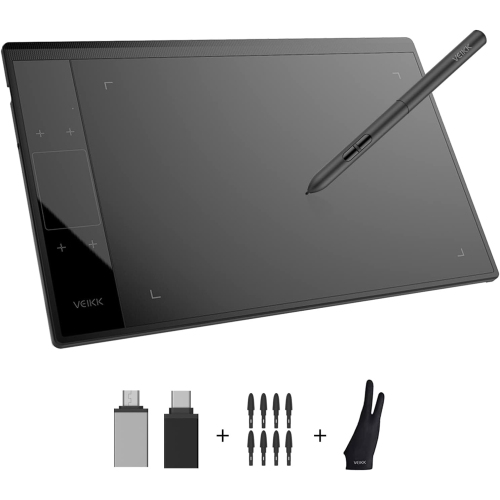
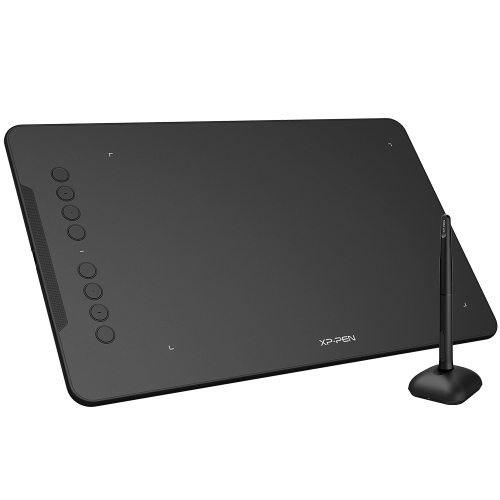
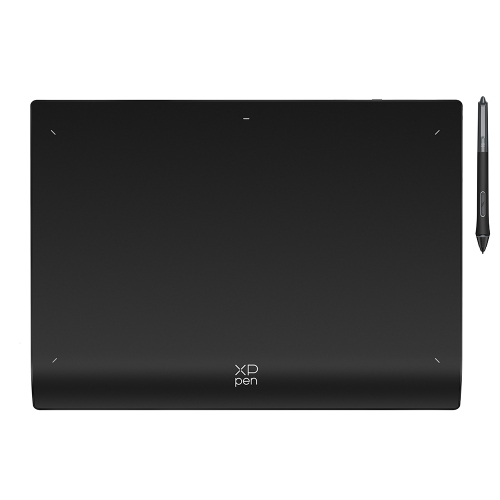
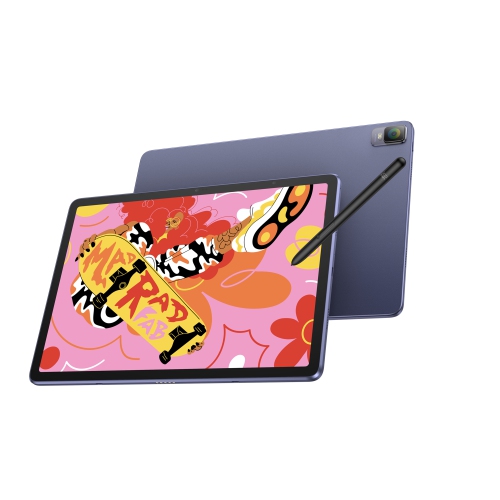
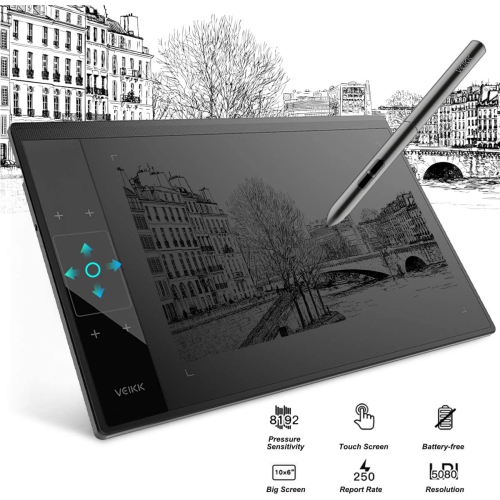

A screen doesn’t always mean drawing without a computer
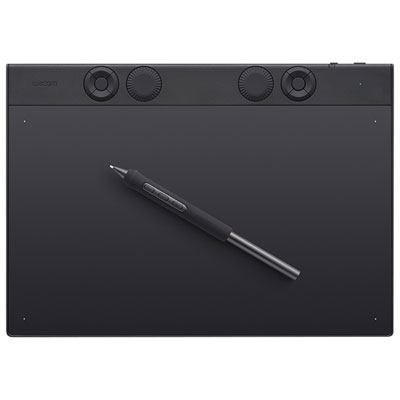
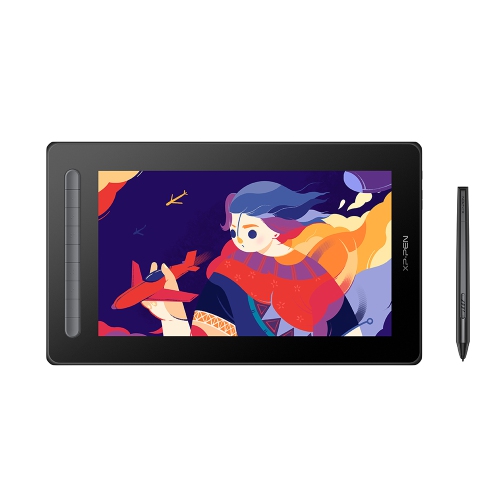
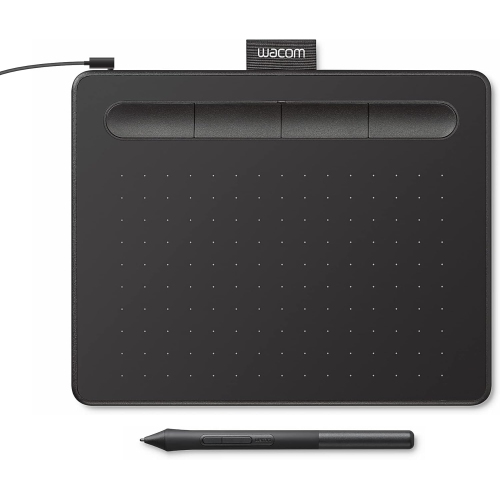
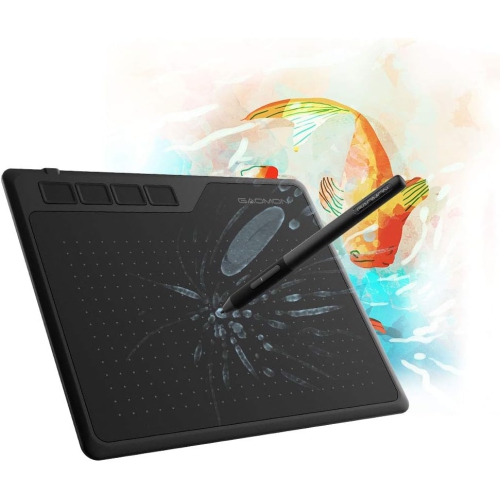
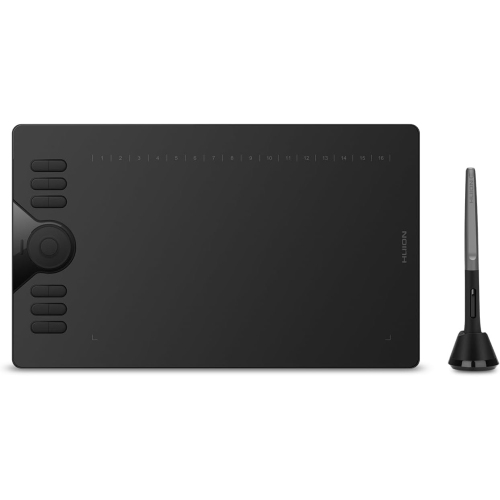
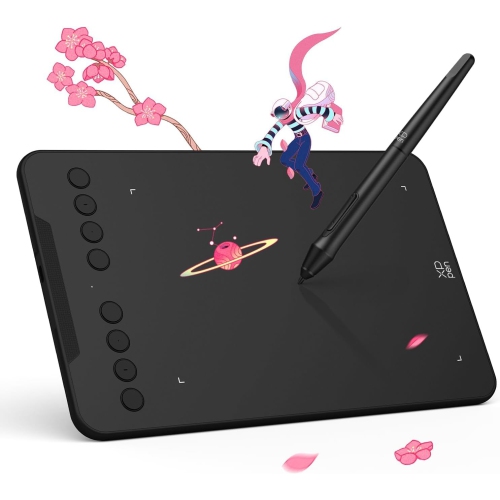
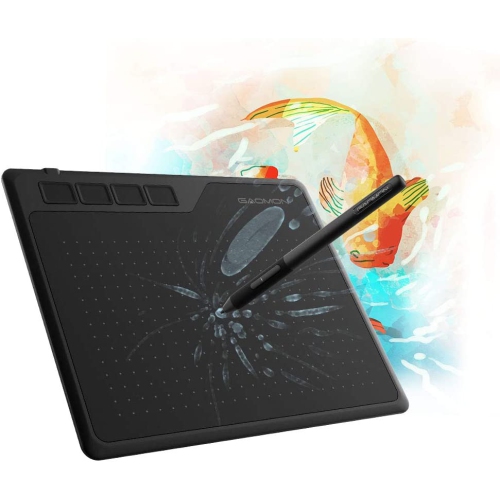
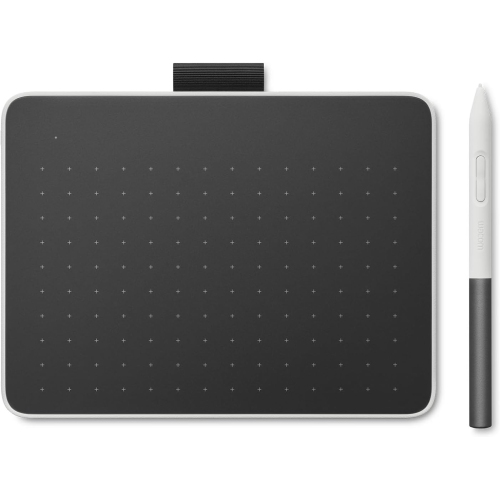
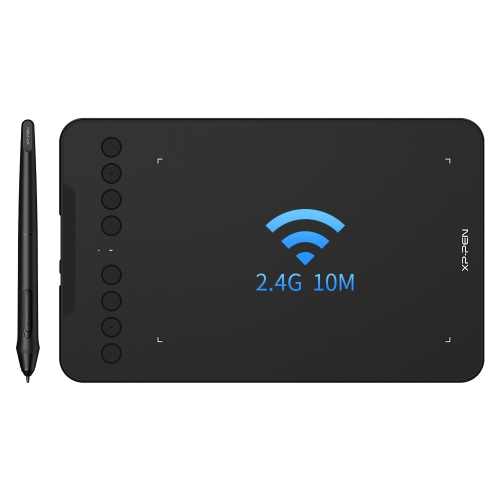
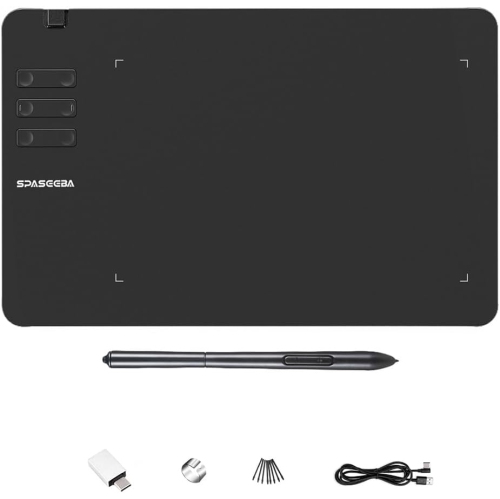
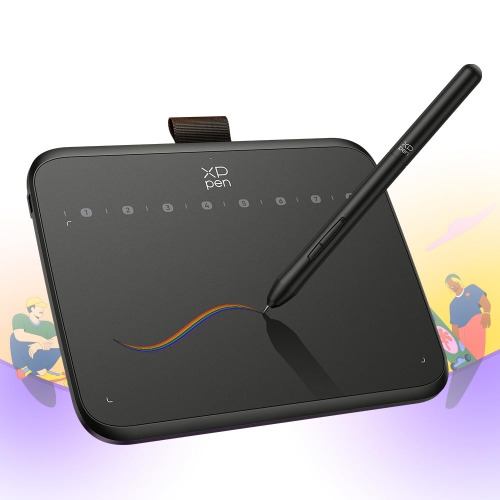
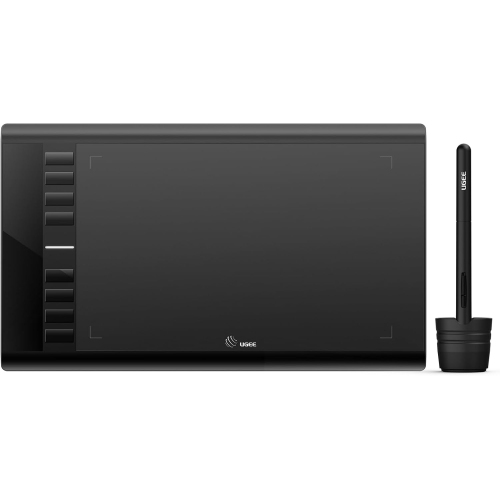
Beginner drawing tablets for students bring sketching, illustration and handwritten work into a digital workspace, giving a pencil study or a page of class notes room to develop without starting over each time. They can suit secondary school students exploring digital art, college students building a design portfolio, or learners who prefer drawing diagrams to typing explanations. The main distinction is between a pen tablet, a pen display and a standalone drawing tablet. A pen tablet has a drawing surface without a screen and typically connects to a computer; the pen moves across the tablet while the artwork appears on the computer monitor. That separation takes some practice, but a screenless design can be slim, portable and easy to position beside a keyboard. A pen display shows the artwork beneath the pen tip, making the movement feel closer to drawing on paper, although most pen displays still require a compatible computer and may need separate power. A standalone tablet runs drawing apps on the device itself, making it suitable for sketching away from a desk, provided it supports a compatible drawing stylus. These differences matter more than appearance alone: a screen does not necessarily mean a tablet works independently. Drawing space also deserves attention. The active area is the part of the surface that responds to the pen, rather than the full outer dimensions. An area measuring roughly 10 inches by 6 inches can provide room for broader strokes, while a smaller surface may fit more comfortably on a shared desk or in a school bag. For displays, screen size is usually measured diagonally, so it is not directly comparable to a screenless tablet’s active-area measurements. Students comparing these formats can also explore Art Tablets for Beginners for related options suited to early digital drawing projects.
The pen and drawing surface shape much of the everyday experience. Pressure sensitivity lets supported software respond to a lighter or firmer touch, changing line width, opacity or another brush setting. This can help a student move from faint construction lines to darker outlines without repeatedly adjusting a toolbar. A higher pressure-level count is not, by itself, a guarantee of a more natural stroke; gentle initial activation, accurate tracking and consistent response also matter. Tilt support can mimic the broad shading made with the side of a pencil, but the tablet, stylus and chosen brush must all support it. Battery-free pens do not need charging, while other stylus designs may require charging or replaceable batteries. Grip shape, weight and button placement become noticeable during longer assignments, especially when a student alternates between sketching small details and writing annotations. Customizable shortcut keys or pen buttons can put undo, brush size and canvas movement within reach, reducing trips to the keyboard. Their usefulness depends on software support and whether the controls suit the student’s working hand. Compatibility is equally important for school use. A tablet needs support for the computer’s operating system, the drawing or note-taking application, and the available connection ports. Some setups need a driver installation, which may require permission on a school-managed computer. A matching connector alone does not confirm compatibility: a display connection may require video support as well as data and power. Cable length and the number of connections can also affect how comfortably everything fits on a desk. For pen displays and standalone tablets, resolution and screen finish influence how fine lines and small text appear. Colour performance may matter more for illustration and design assignments than for handwritten notes. A lightly textured surface can add a pencil-like feel, while a smoother finish allows the pen to glide with less resistance.
Daily comfort and durability are especially relevant when a drawing tablet travels between home, school and study spaces. Many entry-level designs use lightweight plastic housings, while some include metal components or supports; solid construction, secure ports and a stable base matter more than a premium-looking finish. Non-slip feet can help keep a screenless tablet steady during quick strokes. A compatible stand can raise a pen display to a more comfortable angle, although the best position depends on desk height, seating and whether a keyboard is needed nearby. Left-handed students may benefit from layouts that support rotation or let shortcut controls sit on either side, with cable placement checked as part of the arrangement. At a small work surface, enough room to rest the forearm can be more useful than choosing the largest tablet. Care is generally straightforward, but the drawing surface and pen tip need attention. Dust or grit trapped beneath a nib can interfere with smooth movement, and a worn nib may become rough or uneven. A soft, clean cloth and cleaning methods approved for the device help protect the surface; liquid should not be sprayed directly onto the tablet. Replacement nib compatibility is worth checking because pen parts are not universally interchangeable. A fitted sleeve or padded compartment can protect the surface from loose keys and other objects in a bag, while a pen holder helps keep the stylus from being misplaced between assignments. Cables are best stored without sharp bends or strain near the connectors. For a standalone model, battery life, charging arrangements and storage capacity also influence how well it handles a full day of notes, sketches and reference images. As a gift, a beginner drawing tablet is most useful when it matches the student’s existing computer or preferred apps and includes a compatible pen. The right format leaves room for learning: tracing a clean outline on a separate layer, shading a character study, labelling a science diagram or revising a portfolio piece without losing the original sketch.
Top selling and popular products
-
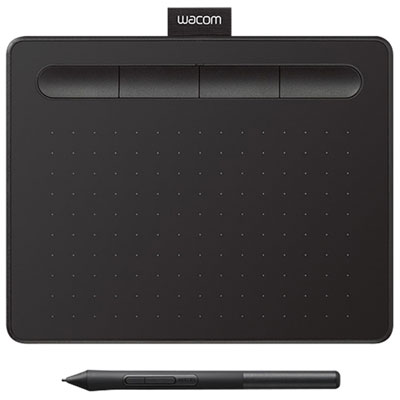 Your price for this item is $89.99
-
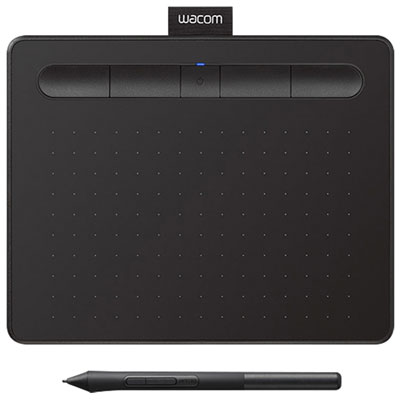 Your price for this item is $139.99
-
 Your price for this item is $21.97
-
 Your price for this item is $39.97
-
 Your price for this item is $39.97
-
 Your price for this item is $319.99
-
 Your price for this item is $699.99
-
 Your price for this item is $2118.68
Discover more categories related to Beginner Drawing Tablets for Students
Top Collections:
Best Black Friday Deals This Year, Best Black Friday Deals On Electronics, Kindle Devices, Pokemon Centers, Best Black Friday Deals On Apple Products, Best Cameras for Sports Photography, Dyson Airwrap, Pokémon 30th Celebration Cards, Apple iPhone 17 Pro, Canon G7X Cameras
Some products may be subject to Environmental Handling Fees
(EHF) depending on your province.
Learn more about EHFs.