Budget Tablets for School Assignments
Budget tablets for school assignments offer a practical solution for students who need reliable devices without exceeding their spending limits. Designed to support a range of classroom and homework tasks, these affordable options make it easy to access educational resources, complete assignments, and stay organized throughout the school year. Explore a selection of budget tablets for school assignments that balance performance and value, helping students stay productive and connected both in and out of the classroom.
Sort
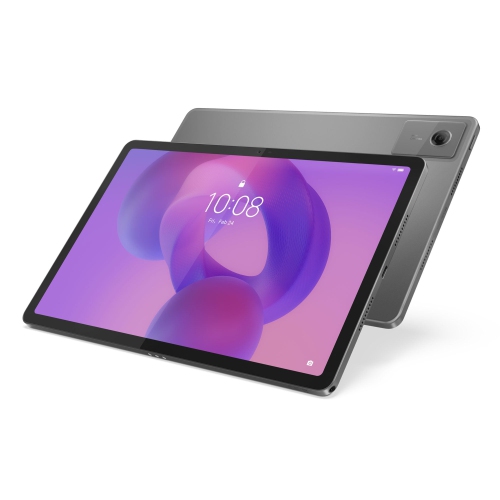
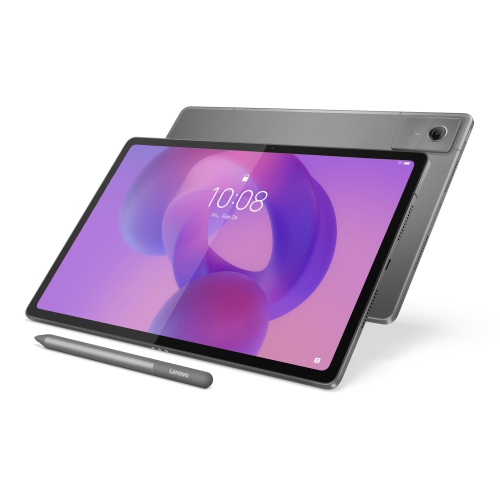
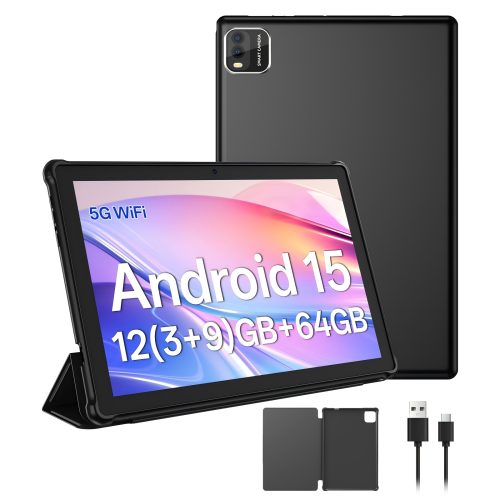
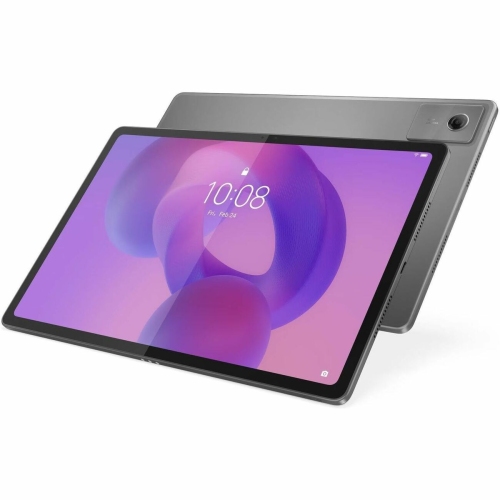
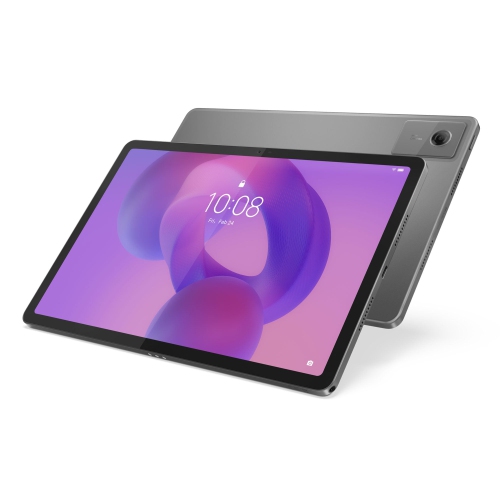
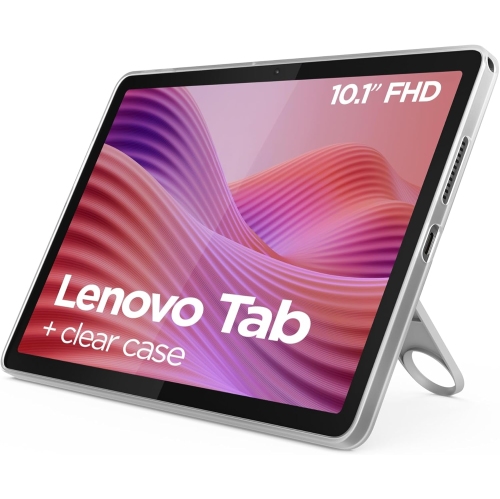
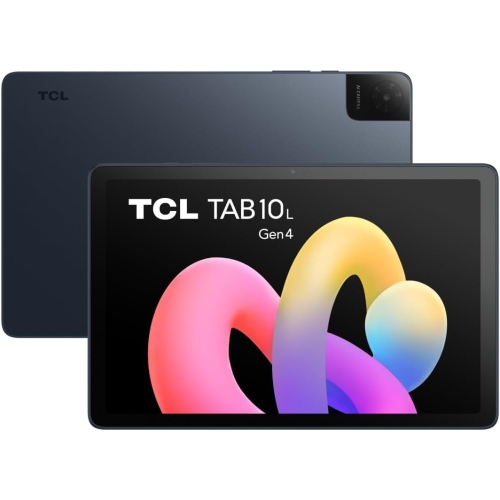
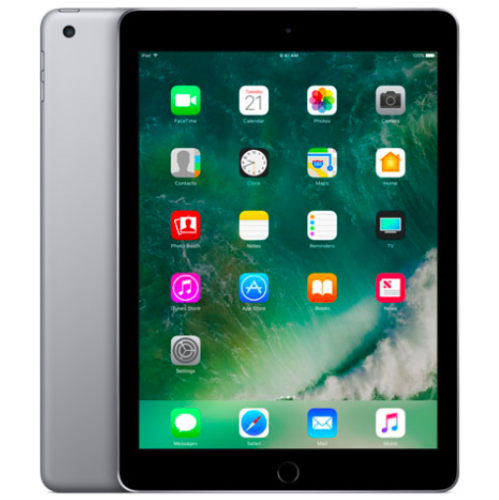
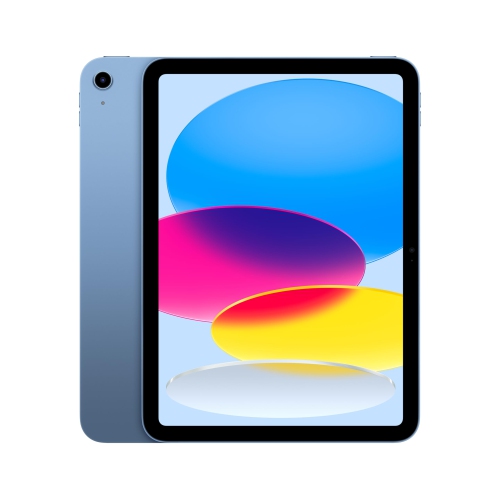
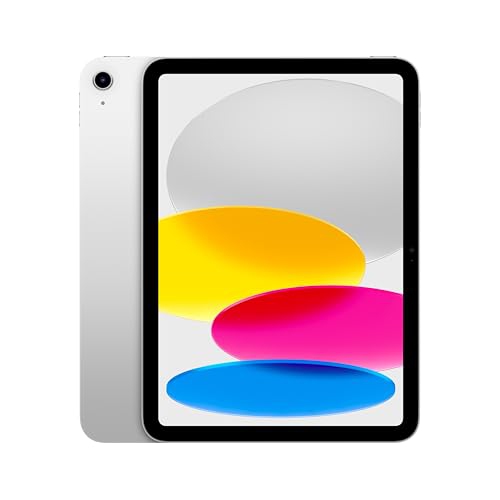
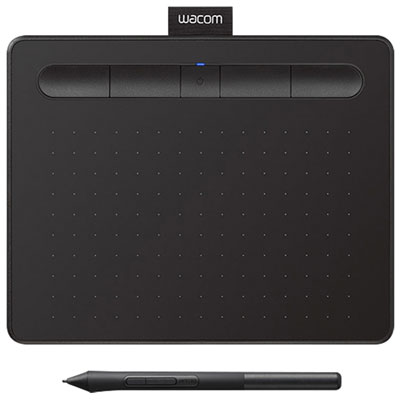
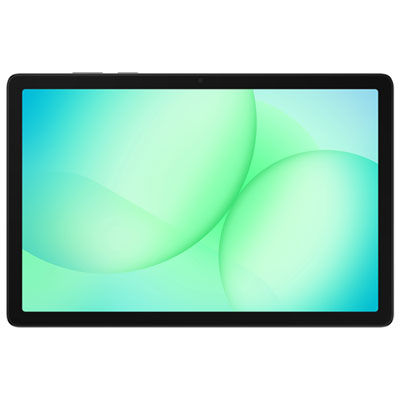
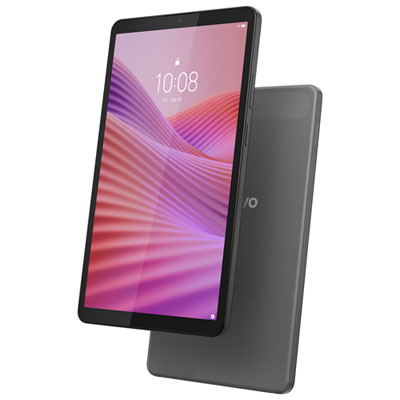
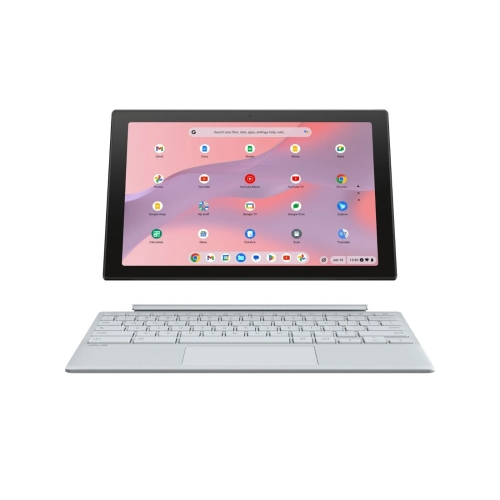
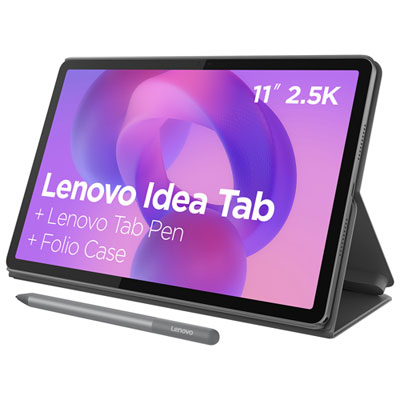
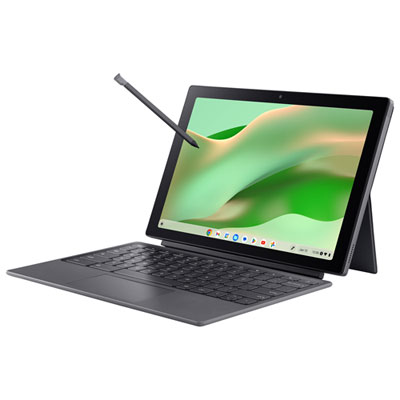
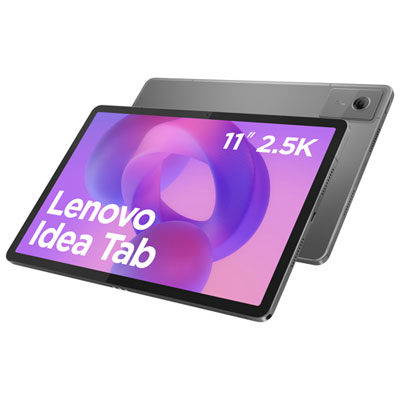
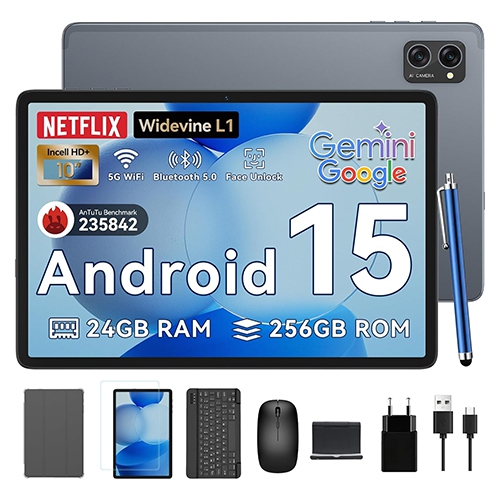
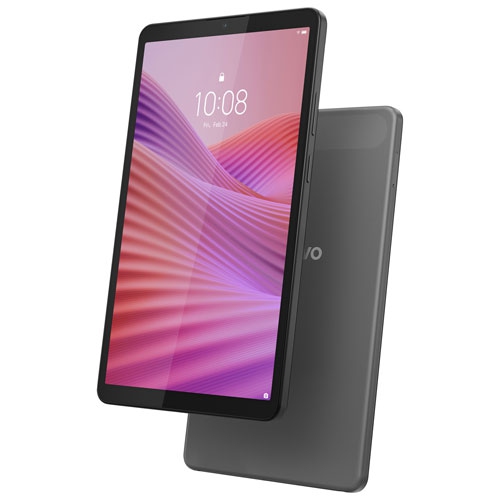

From reading a chapter to uploading a project
Budget tablets for school assignments can cover much of the everyday work of school: reading a chapter, looking up sources, filling in a worksheet and handing in a finished project. For a student who mostly reads and watches recorded lessons, a compact tablet is easy to hold on the bus or carry between classes. A 10- or 11-inch screen gives a two-column textbook page or a diagram with small labels more room, so there’s less need to zoom in and drag the page around. That extra space is also useful when the tablet supports split-screen viewing. A student can keep the assignment instructions open on one side and a draft on the other, rather than switching back every time there’s a detail to check. Screen size matters less, though, if the text looks fuzzy at a comfortable reading distance or reflections make the page hard to see under classroom lights. The apps a student uses make a difference to how responsive the tablet feels. A model with 4 GB of memory may be enough for basic reading, a few browser tabs and short documents, depending on the operating system and apps. More memory is useful when a student needs to keep a video call, class notes and several research tabs open together. Storage is a separate consideration: 64 GB can work for students who keep most of their assignments online, while 128 GB offers more room for downloaded textbooks, recorded lessons and projects with large photo or video files. The operating system and apps take up some of that space before the first assignment is saved. On tablets with a memory card slot, a card can be handy for storing PDFs and photos, although not every app can be moved to it. Offline storage is especially useful when a student wants to finish a reading or revise a draft somewhere without Wi-Fi.
The best fit also depends on how a student does the work, not just what the school asks them to submit. An on-screen keyboard works well for a short discussion post or a few lines in a shared document. A physical keyboard leaves more of the screen visible and gives a student room to settle into a longer essay. For handwritten work, a compatible active stylus can make it easier to put a fraction in the right place, sketch arrows on a science diagram or mark up a teacher’s comments in the margin. Stylus support varies by tablet, and palm rejection depends on the tablet, pen and app working together. It’s a noticeable difference when a student can rest a hand on the glass while writing instead of hovering above it. For paper work that needs to be submitted digitally, a rear camera can capture a clear copy when the page lies flat, the light is even and all four corners are visible. Several pages of handwritten calculations are often easier for a teacher to follow in a single PDF than in a string of separate photos. The last step matters as much as the writing: a tablet that opens a worksheet may not support every fillable field, and a mobile app may not have the same tools as its desktop version. Younger students who read, practise spelling and upload simple worksheets may need little beyond a browser and a few school apps. A secondary or post-secondary student working with complex spreadsheets, specialized software or a supervised exam platform may need a computer for those tasks, even if a tablet handles reading, notes and early drafts. Students whose schoolwork fits Android can find related options in Best Android Tablets for School Assignments.
A tablet that goes from a kitchen countertop to a classroom desk and then into a backpack needs to be comfortable to carry and easy to look after. A textured case can make a smooth plastic or metal body easier to grip, while cushioned corners and a raised rim can help protect the glass from everyday bumps. A fitted case leaves the buttons, ports and camera clear, and a folio stand can hold the screen at a steadier angle for a class call or a video lesson. On a narrow desk, it helps if there’s still room in front of the stand for a notebook. A slim tablet may feel light on its own, but a sturdy case and keyboard can make a noticeable difference when they’re carried alongside textbooks. Keeping the tablet in a separate backpack sleeve limits contact with keys and pencil cases, and keeping a water bottle in an outside pocket helps protect it from spills. For fingerprints, a soft microfibre cloth is a good starting point; the manufacturer’s care directions can clarify what’s safe to use on the screen. Battery life also depends on the school day. Reading a downloaded chapter with the brightness turned down is less demanding than joining video calls, streaming lessons and keeping several apps open. A student who moves from class to the library without a chance to plug in will notice that difference more than someone who does most assignments near an outlet. For a student receiving a tablet as a gift, knowing how the school handles sign-ins, which apps teachers use and whether assignments are mostly typed or handwritten makes it easier to find a good fit. The details that matter most tend to show up in ordinary moments: a worksheet that’s easy to read at its original size, a stand that doesn’t wobble while a student types or enough charge left to upload a project before packing up.
Top selling and popular products
-
 Your price for this item is $499.99
-
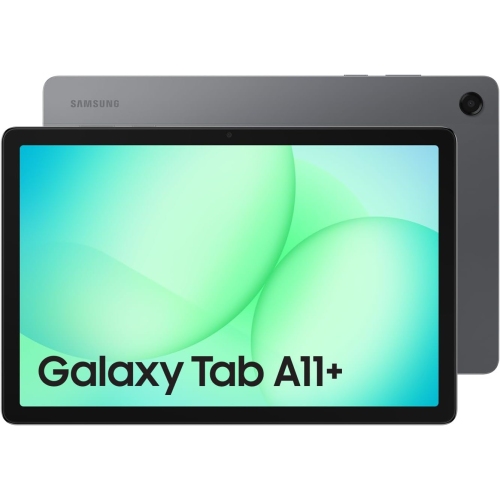 Your price for this item is $350
-
 Your price for this item is $399.99
-
 Your price for this item is $979.99
-
 Your price for this item is $399.99
-
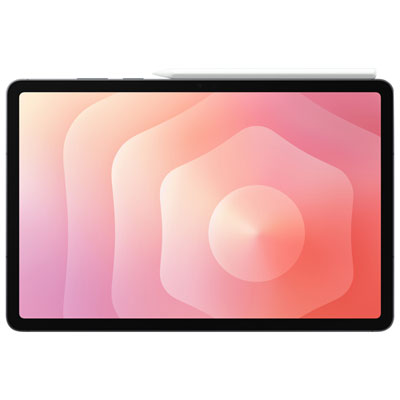 Your price for this item is $1399.99
-
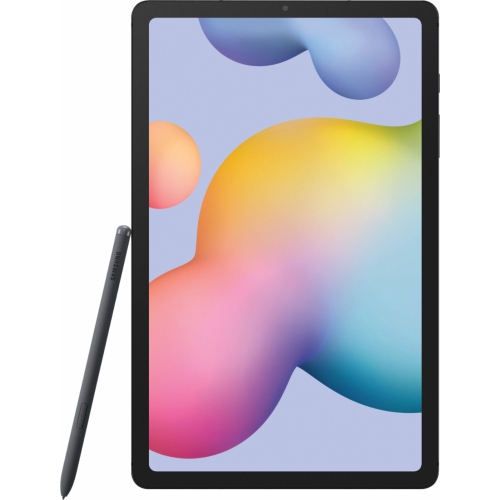 Your price for this item is $699.99
-
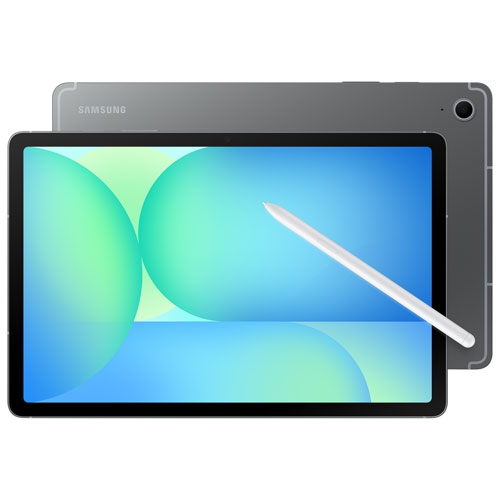 Your price for this item is $664.95
Discover more categories related to Budget Tablets for School Assignments
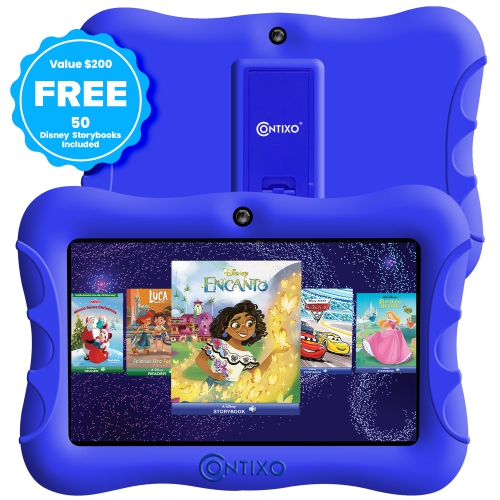
Top Collections:
Best Black Friday Deals This Year, Best Black Friday Deals On Electronics, Kindle Devices, Pokemon Centers, Best Black Friday Deals On Apple Products, Best Cameras for Sports Photography, Dyson Airwrap, Pokémon 30th Celebration Cards, Apple iPhone 17 Pro, Canon G7X Cameras
Some products may be subject to Environmental Handling Fees
(EHF) depending on your province.
Learn more about EHFs.