DisplayPort Cables for Dual Monitors
DisplayPort Cables for Dual Monitors provide a reliable solution for expanding your workstation or gaming setup with seamless multi-screen connectivity. Whether you're setting up an efficient home office, enhancing your productivity, or enjoying immersive entertainment, the right cable makes it easy to connect two monitors to your device. Explore a variety of DisplayPort Cables for Dual Monitors designed to support smooth visuals and flexible configurations, making it simple to get the most out of your dual display experience.
Sort
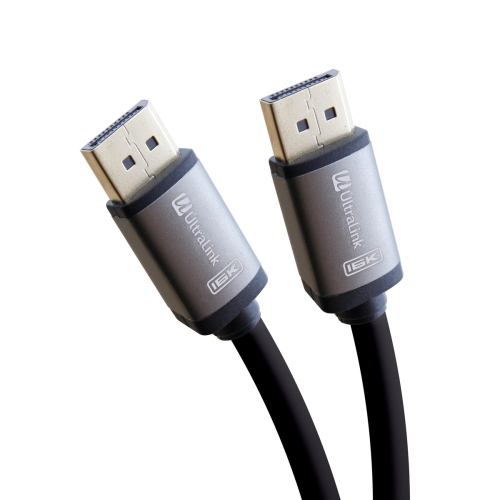
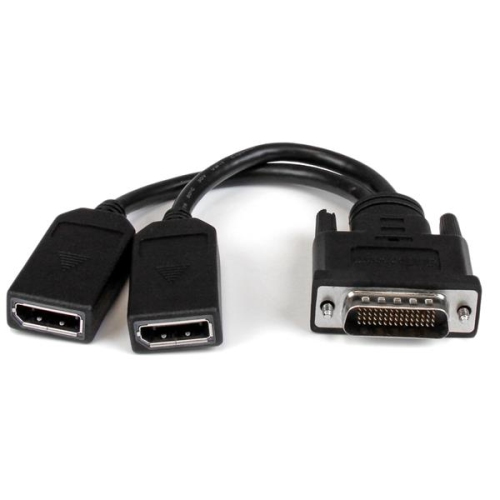
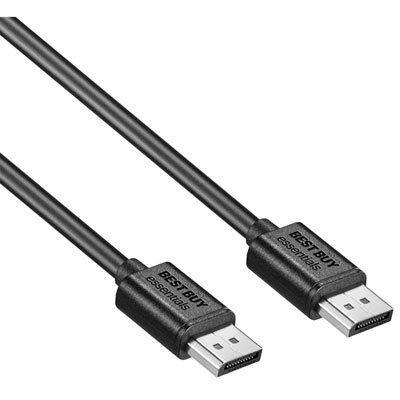
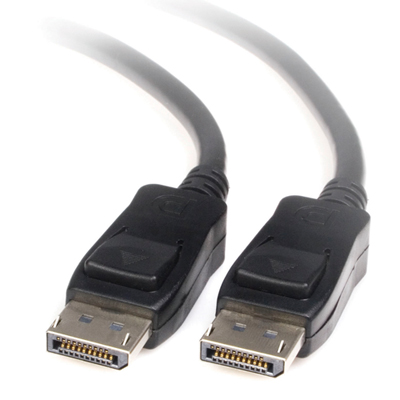

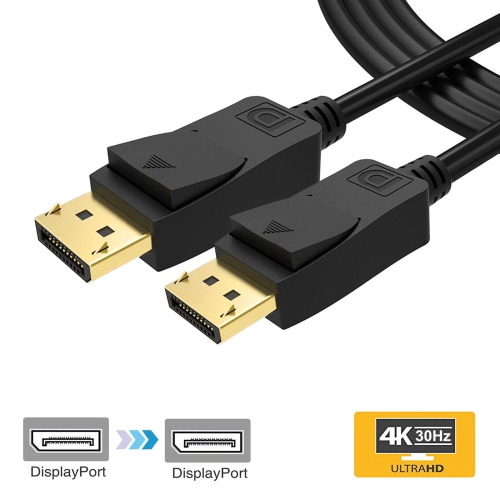
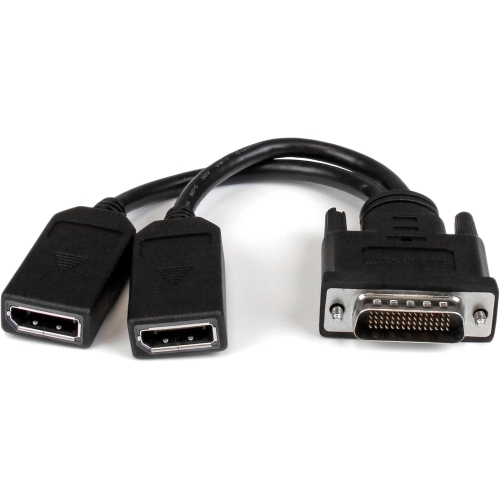
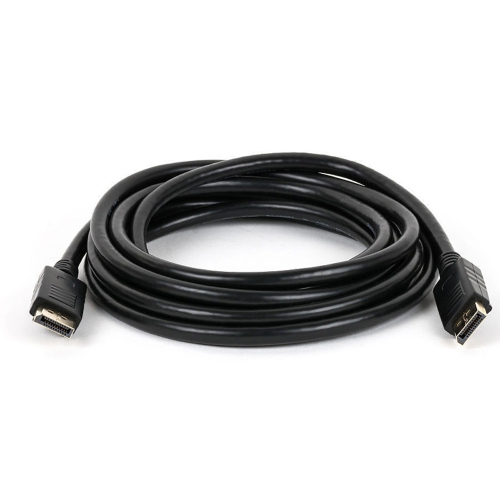
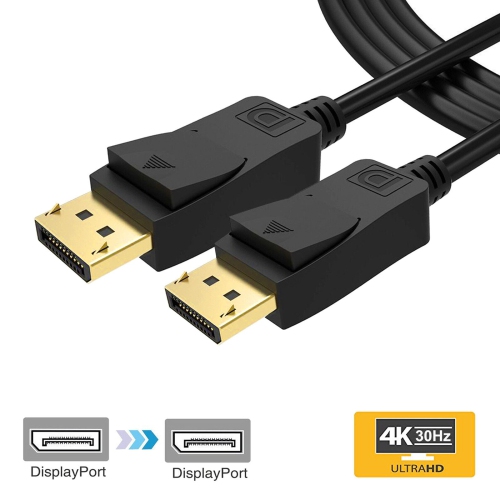
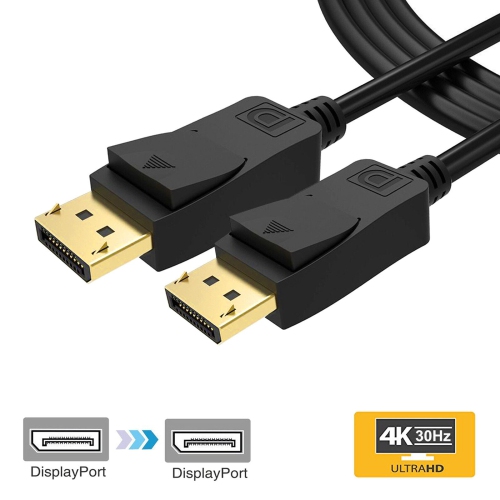
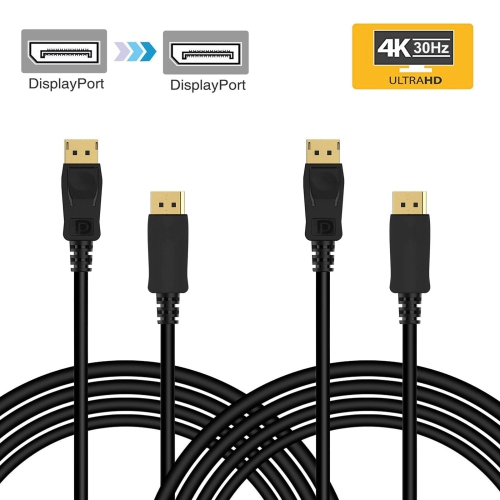
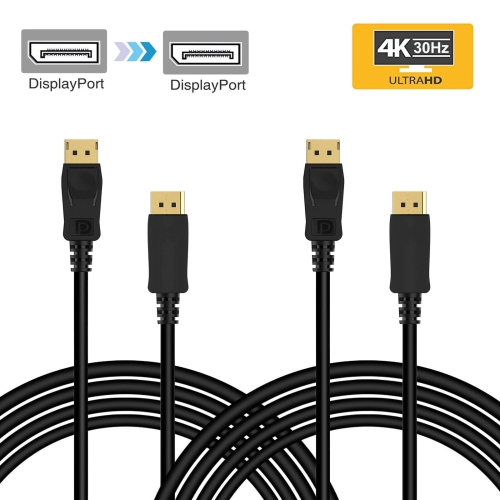
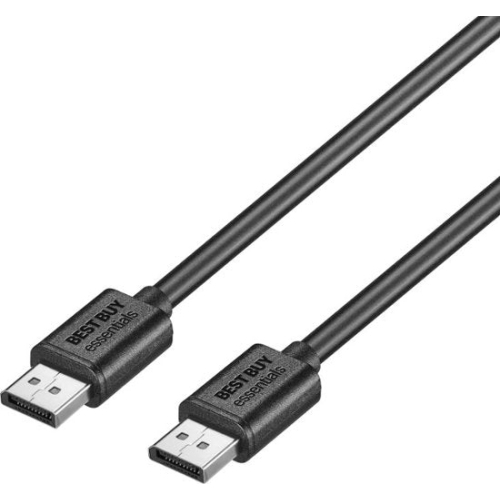

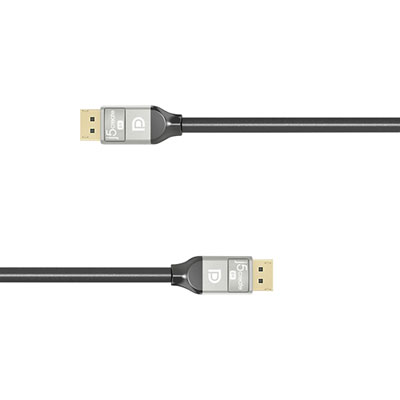
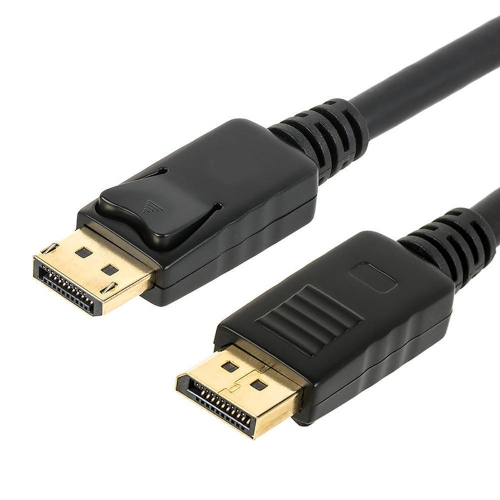

Two screens need more than matching connectors
DisplayPort cables for dual monitors carry digital video from a computer or compatible dock to two screens, giving documents, spreadsheets, creative applications, and games more room. A straightforward extended-desktop setup typically uses two cables: one from each compatible video output to the corresponding input on each monitor. The computer must support two external displays at the resolutions and refresh rates you want to use; having the right connector alone does not guarantee that capability. With independent display connections, one screen can hold a video call while the other shows meeting notes, or a wide spreadsheet can remain open beside a reference document. A different arrangement uses DisplayPort Multi-Stream Transport, commonly called MST, to send multiple display signals through a single compatible output. This requires support from the computer’s graphics hardware, operating system, and any dock or hub in the connection. For a daisy chain, the first monitor also needs an MST-capable DisplayPort output to pass the signal to the next screen. The final monitor only needs a suitable input. An MST hub can instead provide separate connections for two monitors without requiring a DisplayPort output on either display. These arrangements are not interchangeable with a simple splitter that only duplicates the same image. Extended mode gives each monitor its own desktop space, while mirrored mode shows the same content on both. Some operating systems and computer configurations do not support independent extended displays through an MST connection, making compatibility details especially important for a single-port setup. For laptops, the maximum number of supported displays may also depend on whether the built-in screen stays active. These distinctions matter whether the workspace belongs to a student comparing research sources, an analyst reviewing several worksheets, or a designer keeping editing tools away from the main canvas. The cable is part of the connection, but the whole display path determines what the two screens can do.
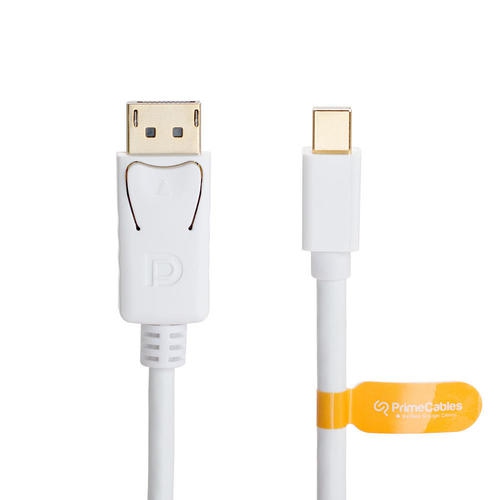
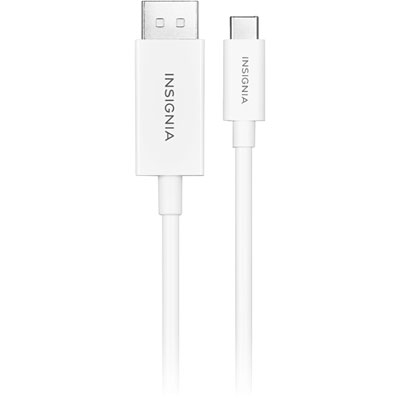
Connector fit and signal capability are central considerations when comparing DisplayPort cables for a dual-monitor arrangement. Full-size DisplayPort and Mini DisplayPort use different physical connectors, so matching both ends to the actual ports avoids an unnecessary adapter at the back of the desk. A USB-C port is a different connection again: it must support video output, such as DisplayPort Alternate Mode, to work with a compatible USB-C-to-DisplayPort cable. A charging or data-only port cannot gain display capability simply by attaching that cable. Direction also matters, particularly with conversion cables and active designs, which may be intended to carry a signal only from a specified source end to a display end. Resolution, refresh rate, colour depth, and HDR requirements all affect the bandwidth needed. Two office monitors showing text at a standard refresh rate place different demands on a connection than two high-resolution screens used for detailed editing or fast-moving gameplay. In an MST setup, the monitors share the bandwidth of the upstream DisplayPort connection, so support for one screen at a particular setting does not automatically mean support for two at that same setting. Features such as Display Stream Compression can help compatible hardware handle demanding display modes, but support must be present throughout the relevant connection. Cable specifications are most useful when they state supported performance clearly rather than relying on connector appearance or a broad resolution claim alone. If the two monitors have different capabilities, each may need its own resolution and refresh-rate settings within the limits of the computer and connection. A higher-capability cable does not upgrade the graphics hardware or monitor, but adequate bandwidth helps avoid making the cable the limiting part of the setup. For a desk that serves both detailed work and gaming, the intended settings on each screen provide a more useful basis for choosing cables than screen size alone.
Length, construction, and everyday handling make a noticeable difference once two monitors, a stand, and a computer share the same desk. The useful measurement is the cable’s routed path, not just the straight-line distance between ports. A computer beneath the desk may require the cable to travel down a monitor arm, across a cable tray, and around the back of the tower. Enough slack allows a screen to swivel or rise without pulling on its socket, while excessive spare length can become awkward behind a compact workstation. Longer runs can be more demanding at higher bandwidths, so supported performance should be checked at the actual cable length; some longer connections use active electronics or optical construction. Copper conductors, shielding, and well-fitted connector housings contribute to a dependable connection, while strain relief helps protect the point where the cable enters the plug. A braided jacket can provide abrasion resistance along a frequently moved cable, whereas a smooth, flexible jacket may route more easily through a narrow monitor-arm channel. Neither jacket style alone establishes video performance. Connector size matters too, especially when neighbouring ports are close together or a monitor’s inputs sit in a recessed compartment. Some DisplayPort plugs include a latch that should be released before removal rather than pulled against the socket. Gentle bends, light cable ties, and a little freedom at each connector help prevent unnecessary stress; tight folds and trapped cables are poor matches for an adjustable desk. For a mixed-generation workspace that includes older analogue inputs, VGA Cables for Dual Monitors cover a different connection type, with any conversion requiring its own compatibility check. For DisplayPort-equipped screens, two appropriately specified cables with comfortable routing can keep the space behind the monitors manageable and leave each display free to sit where it is easiest to read, view, and use.
Top selling and popular products
-
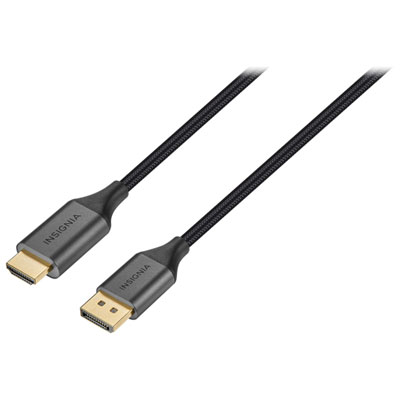 Your price for this item is $39.95
-
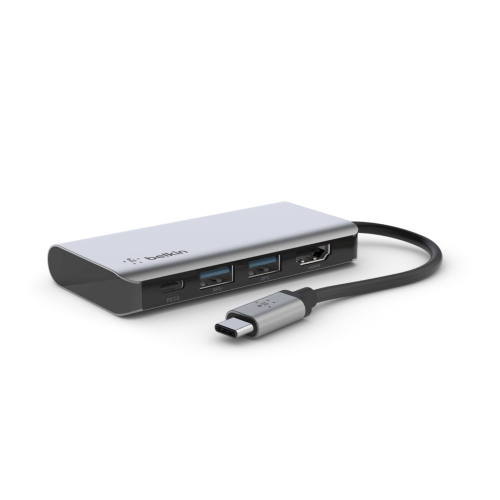 Your price for this item is $63.99
-
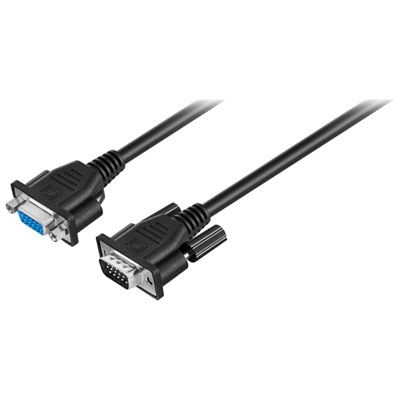 Your price for this item is $29.95
-
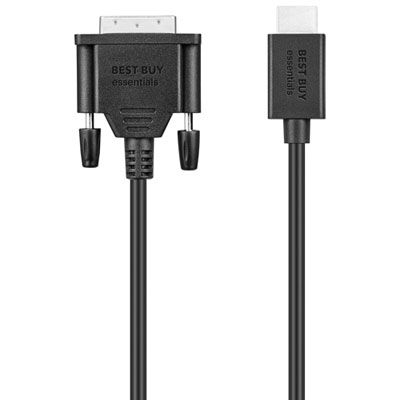 Your price for this item is $14.99
-
 Your price for this item is $29.99
-
 Your price for this item is $39.99
-
 Your price for this item is $29.99
-
 Your price for this item is $29.99
Discover more categories related to DisplayPort Cables for Dual Monitors
Top Collections:
Best Black Friday Deals This Year, Best Black Friday Deals On Electronics, Kindle Devices, Pokemon Centers, Best Black Friday Deals On Apple Products, Best Cameras for Sports Photography, Dyson Airwrap, Pokémon 30th Celebration Cards, Apple iPhone 17 Pro, Canon G7X Cameras
Some products may be subject to Environmental Handling Fees
(EHF) depending on your province.
Learn more about EHFs.