Dock Stations for Computer
Transform your computer into a multitasking powerhouse with a dock station. Whether you're a student, professional, or technology enthusiast, a dock station is an essential accessory that enhances your computing experience. With its ability to expand connectivity and streamline workflow, a dock station allows you to effortlessly connect multiple peripherals, such as monitors, keyboards, mice, and more, all through a single connection. Say goodbye to the hassle of constantly plugging and unplugging devices and say hello to ultimate convenience and productivity. Discover the endless possibilities that a dock station brings to your computer setup and take your computing experience to new heights.
Sort
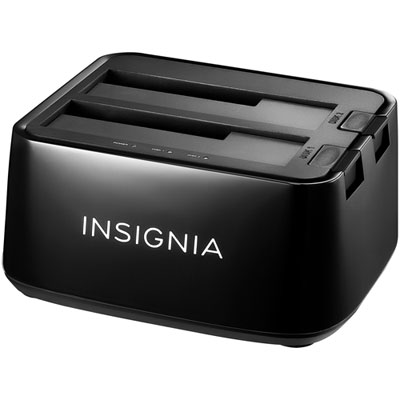
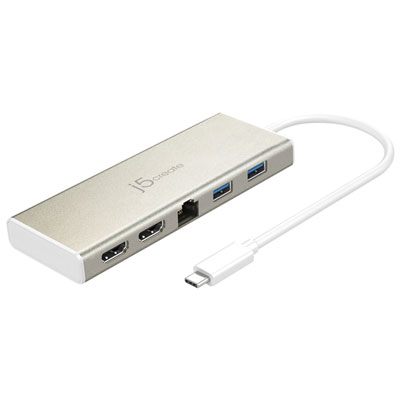
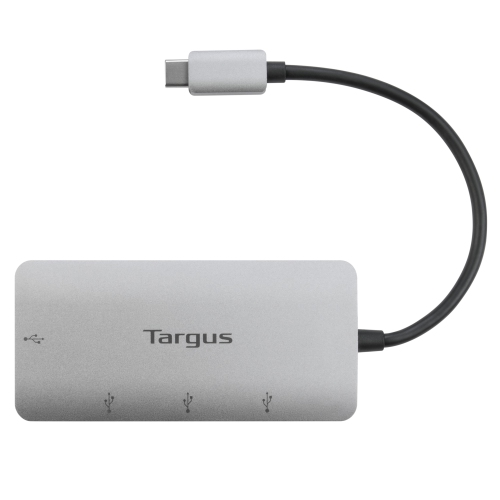
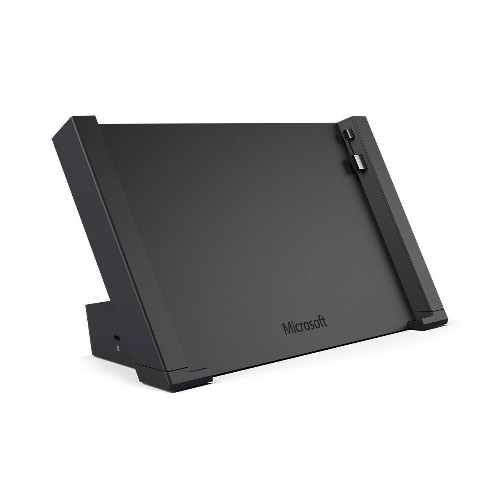
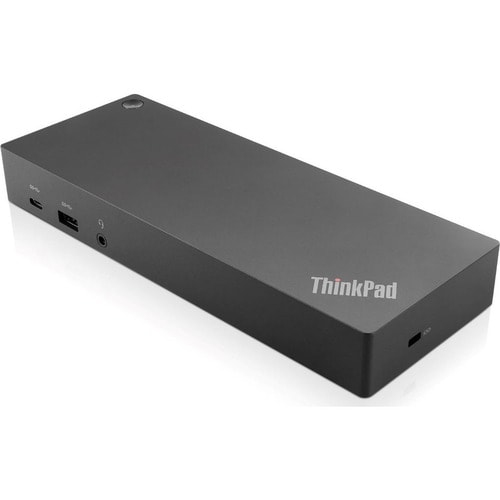
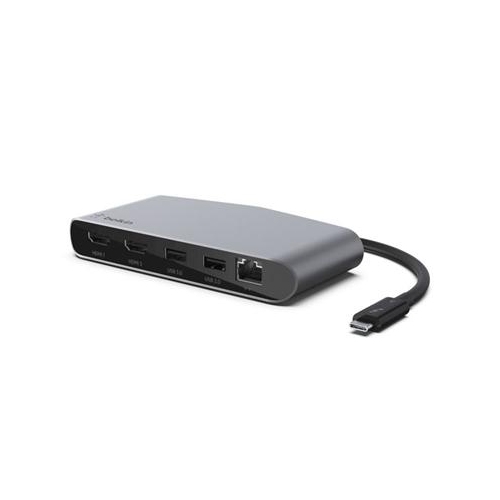
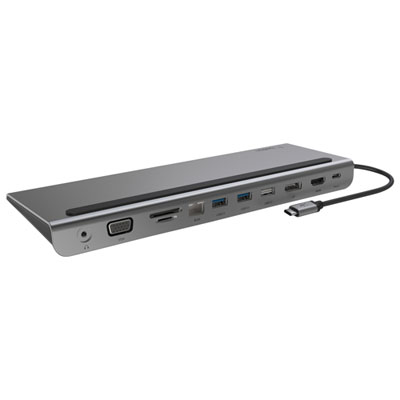
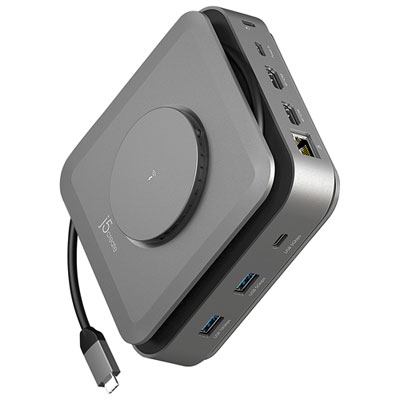
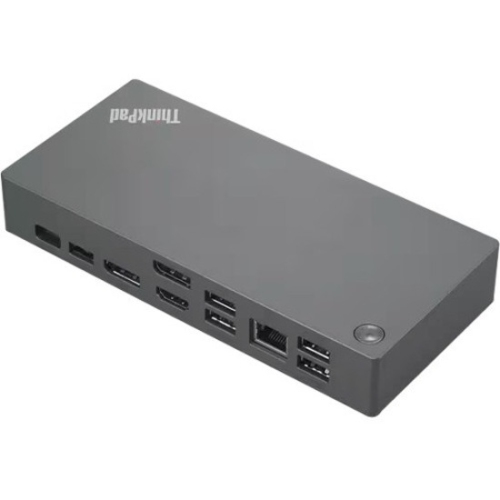
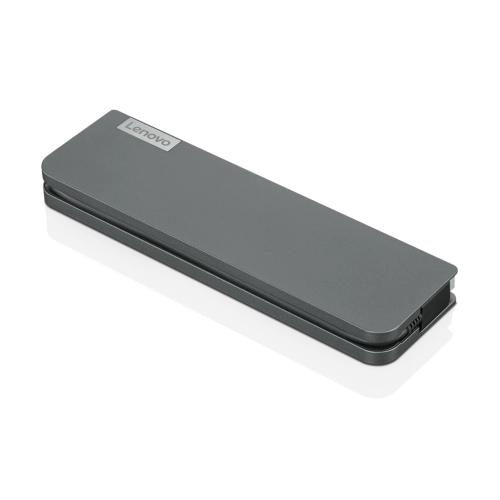
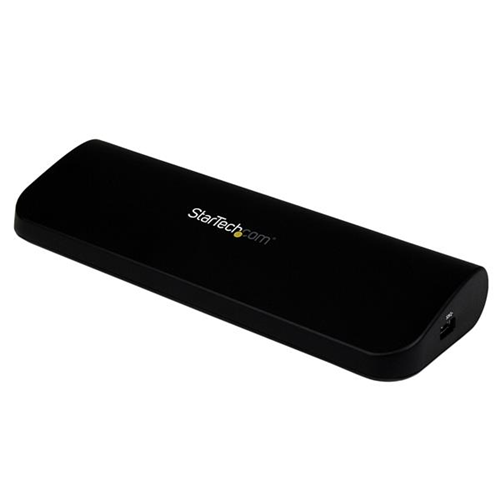

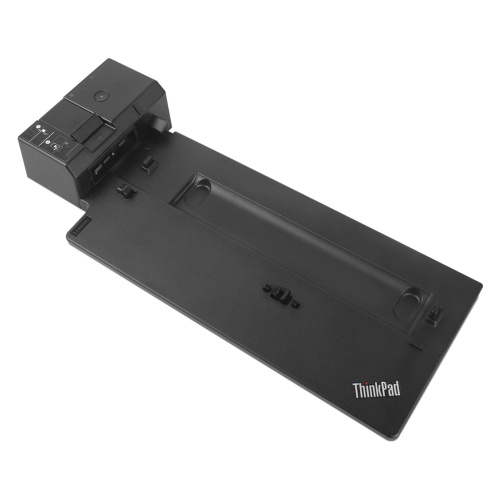
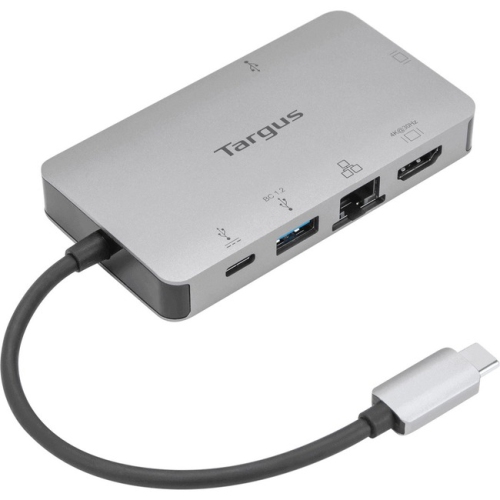
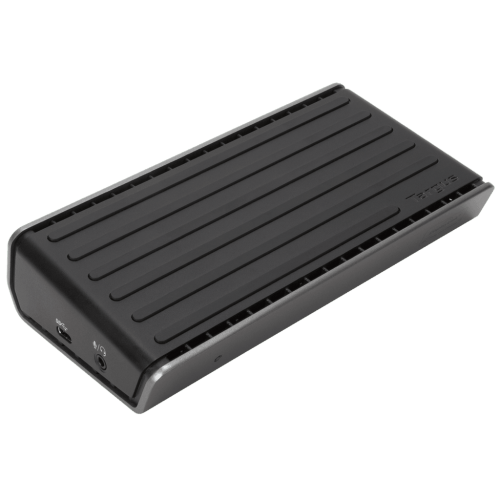
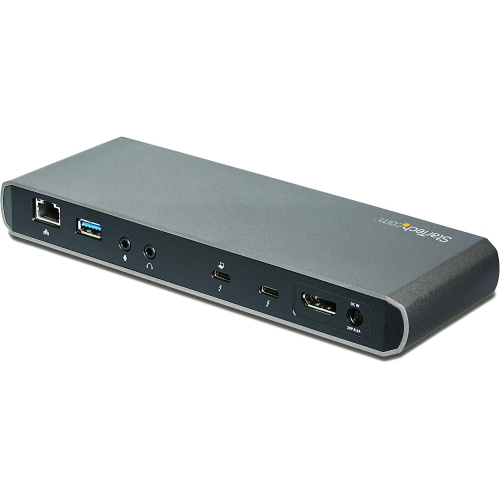
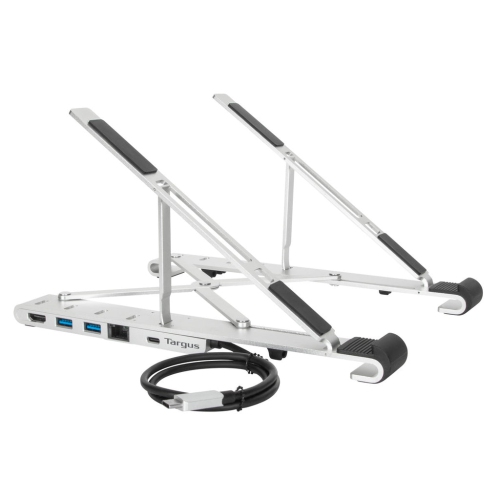
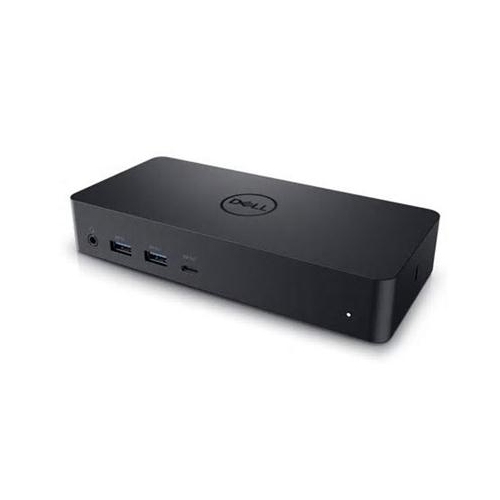
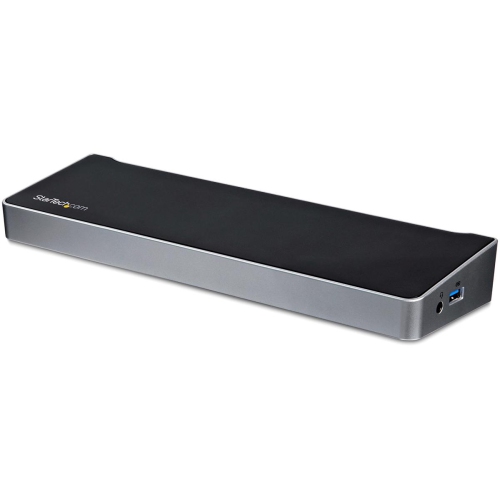
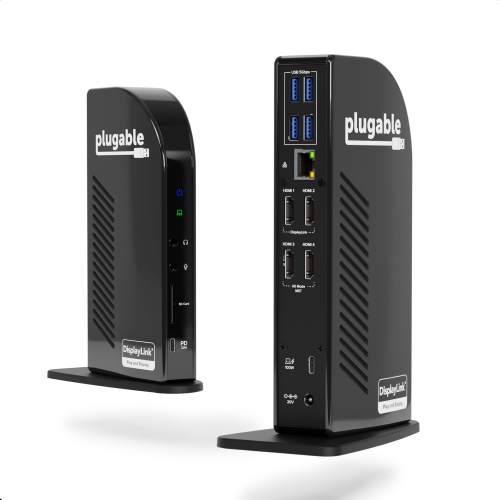
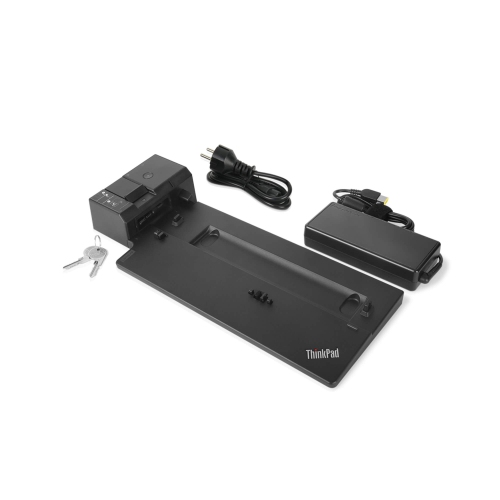
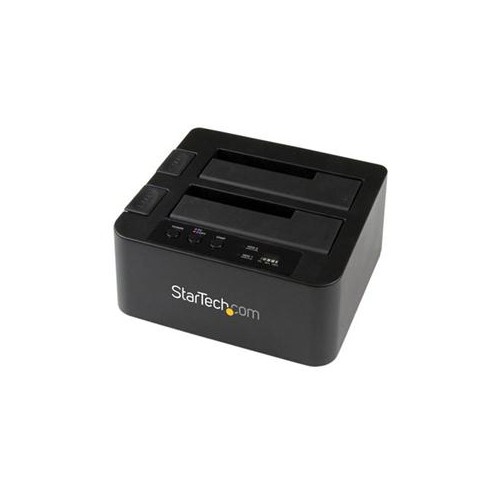
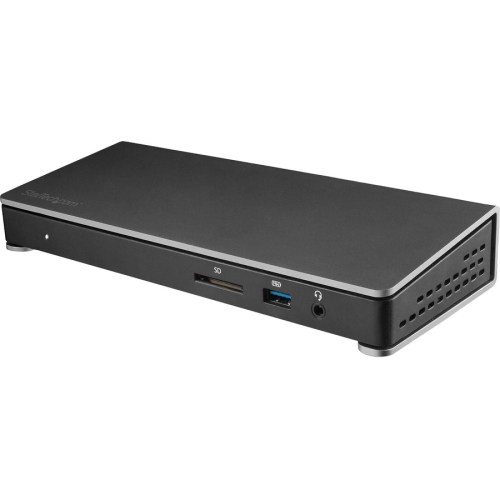
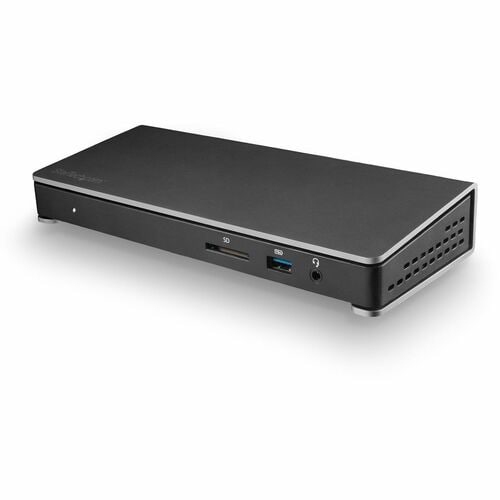
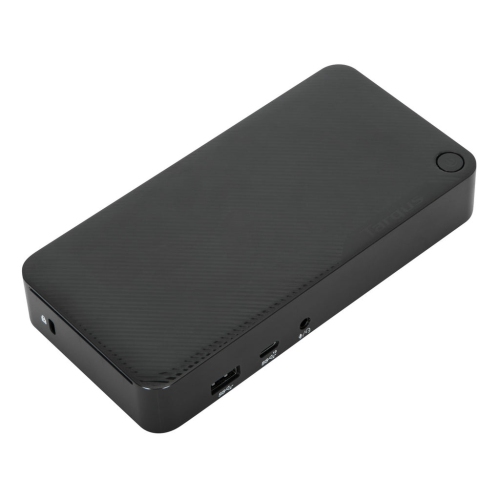
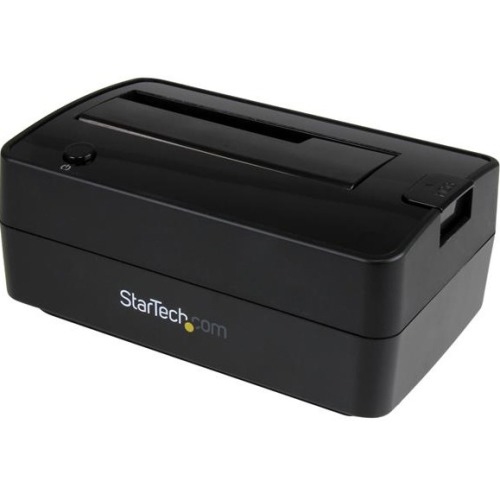
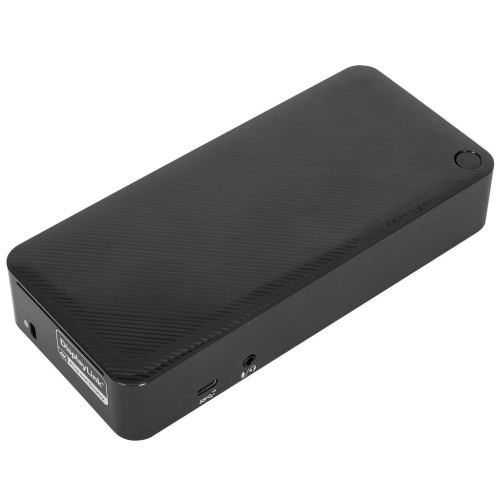
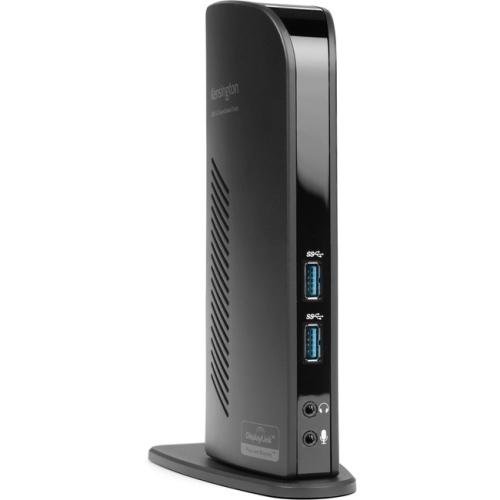
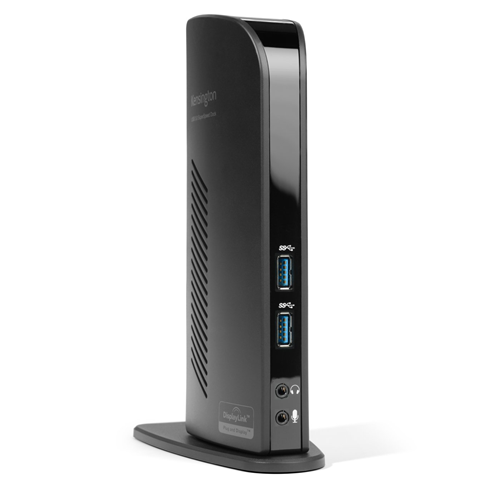
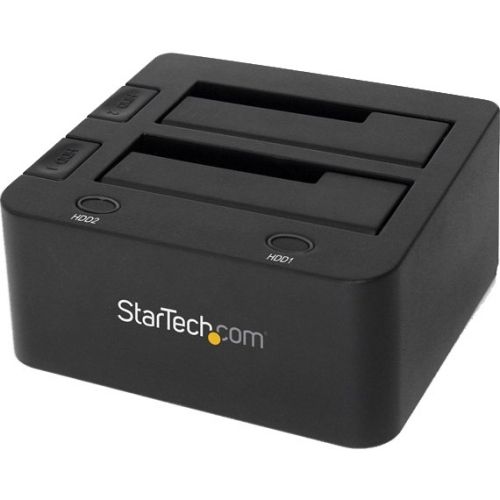
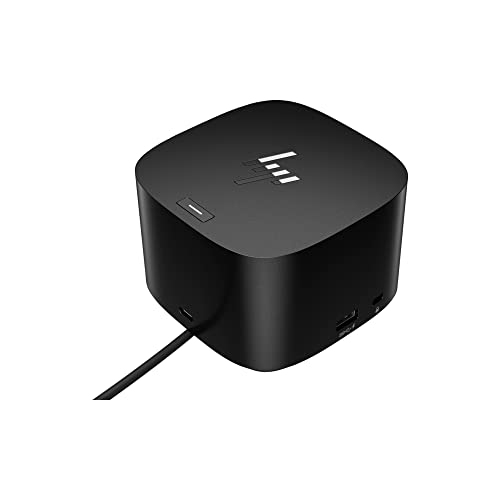
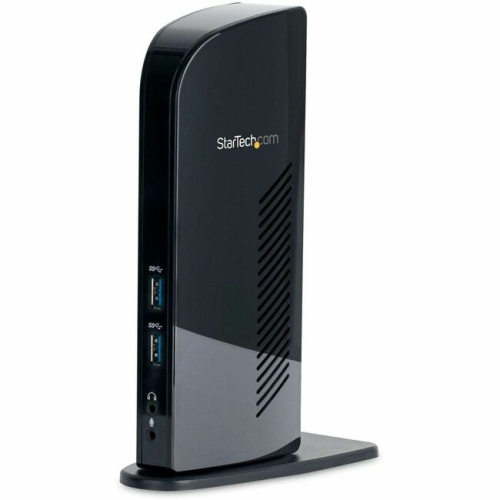
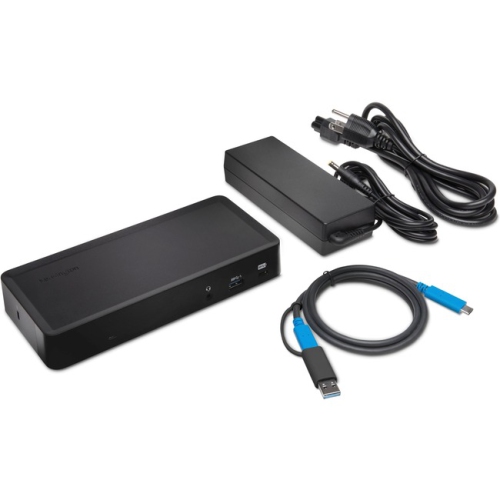
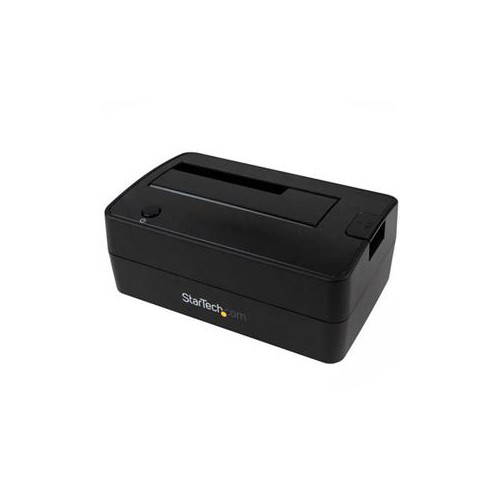
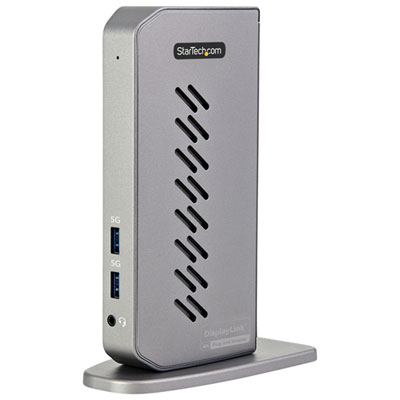
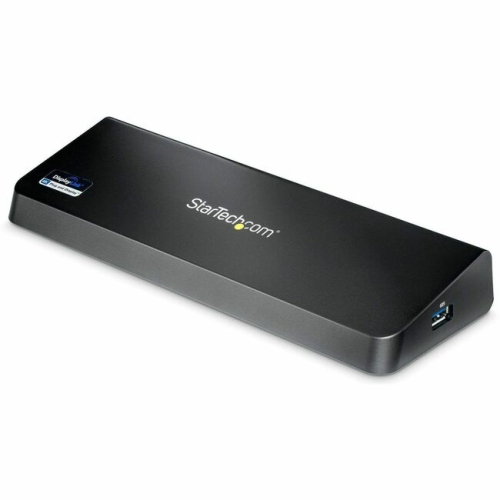
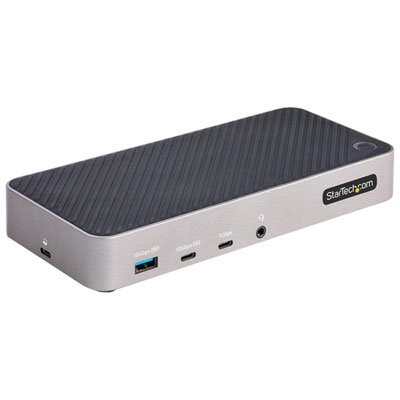
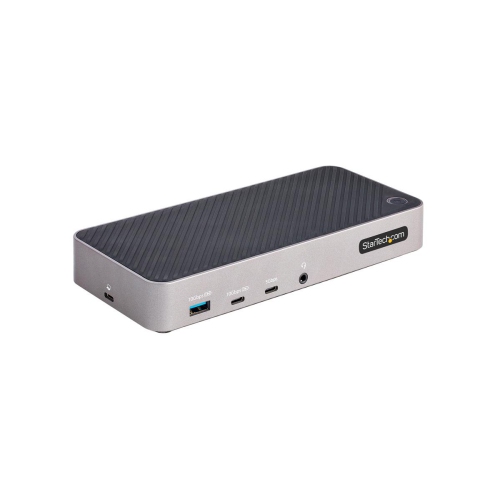
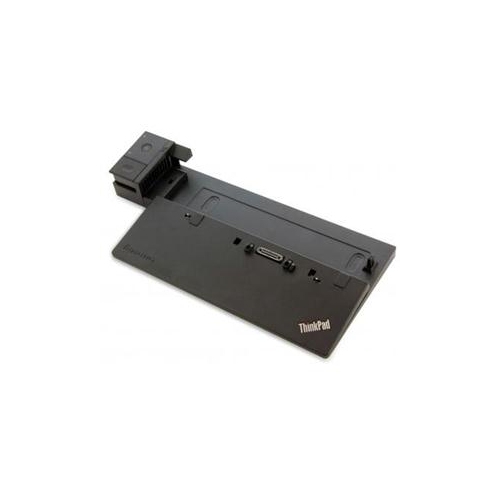
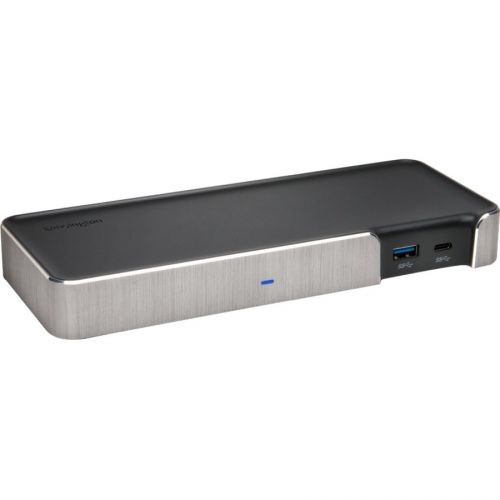
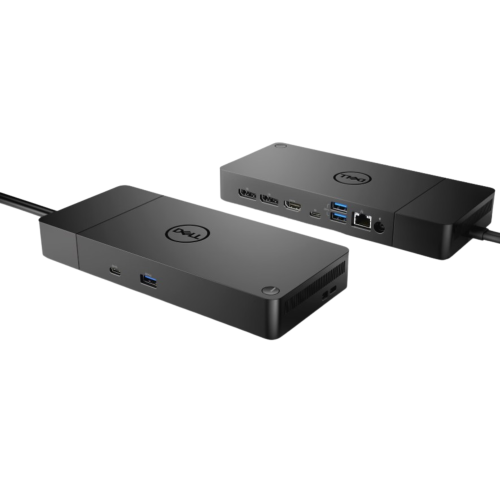
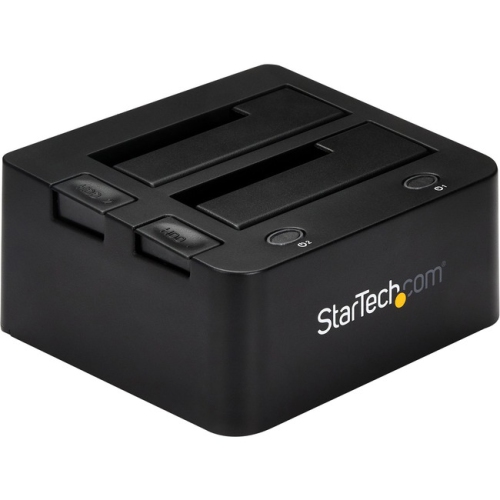
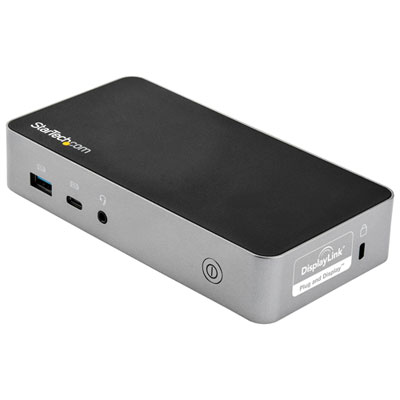
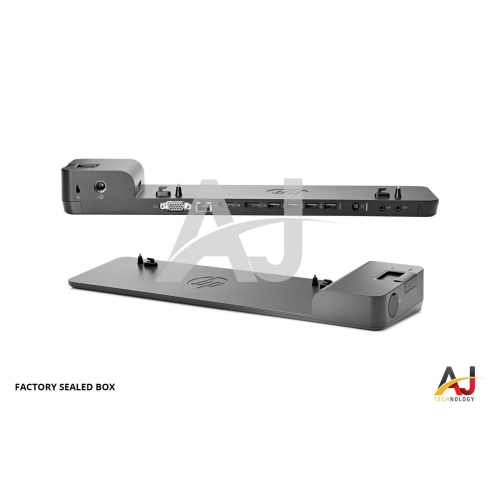

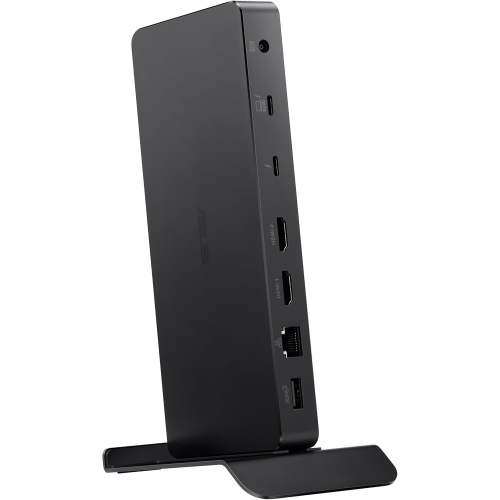
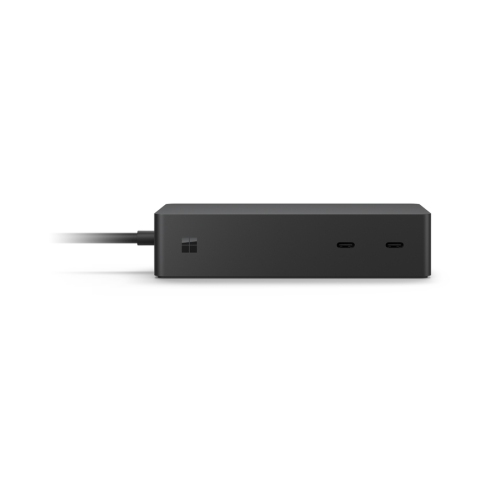
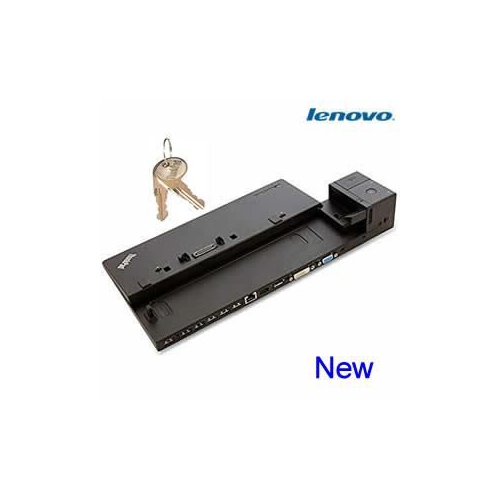
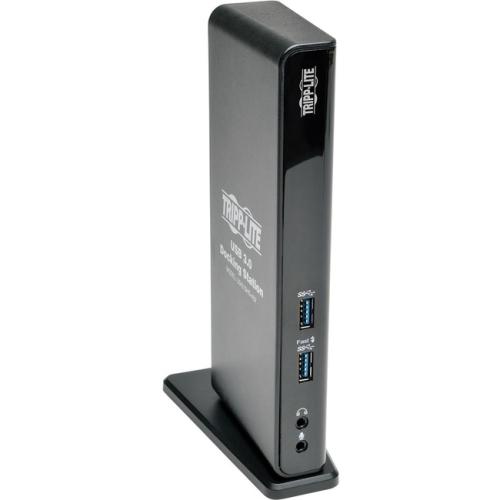
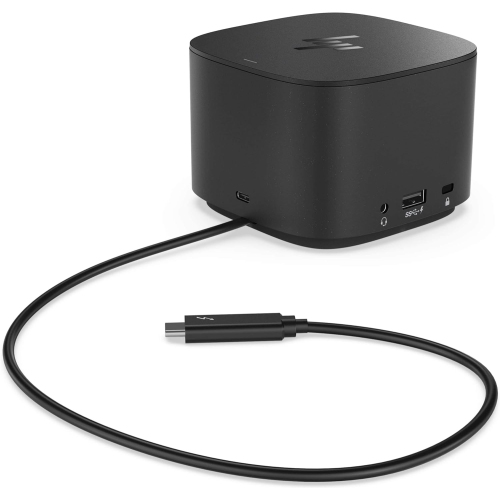
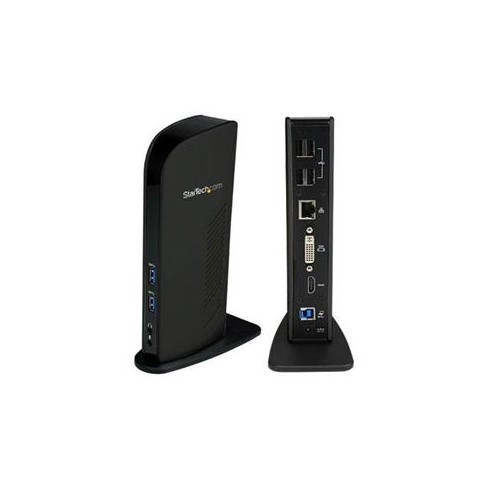
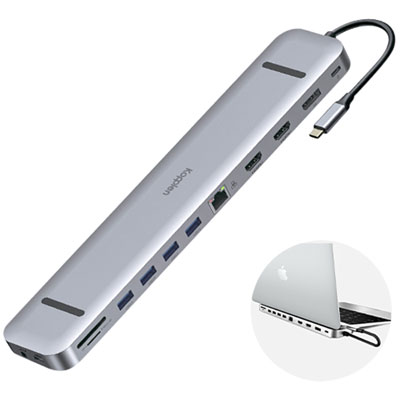
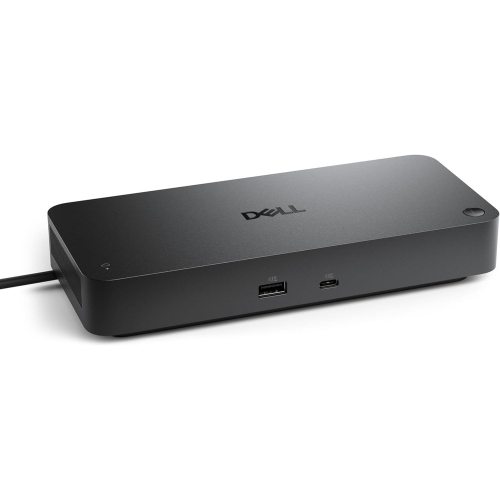

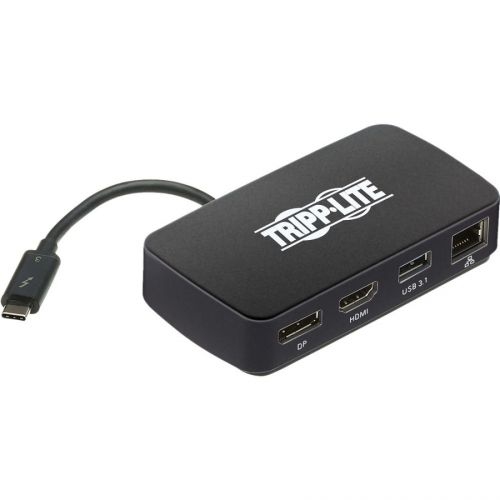
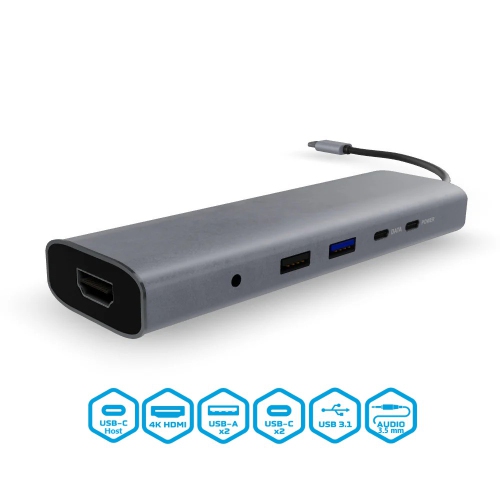
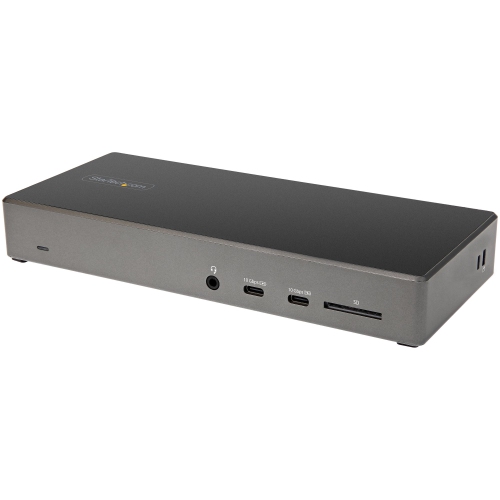
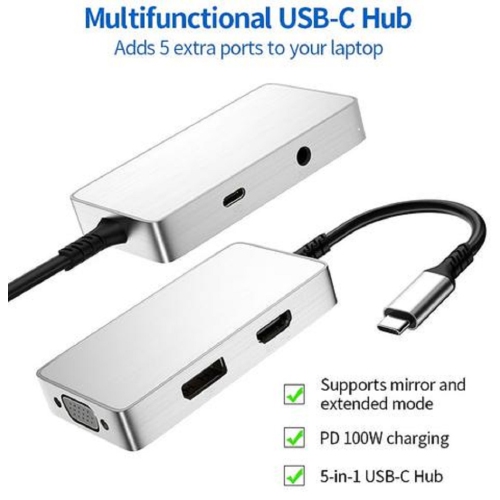
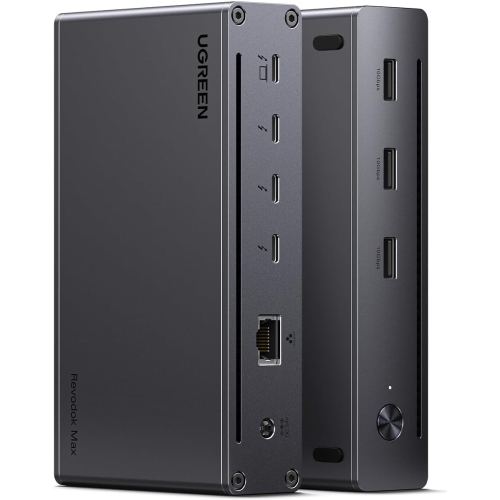
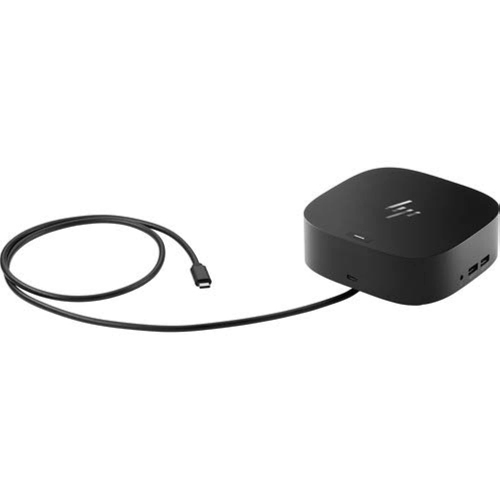
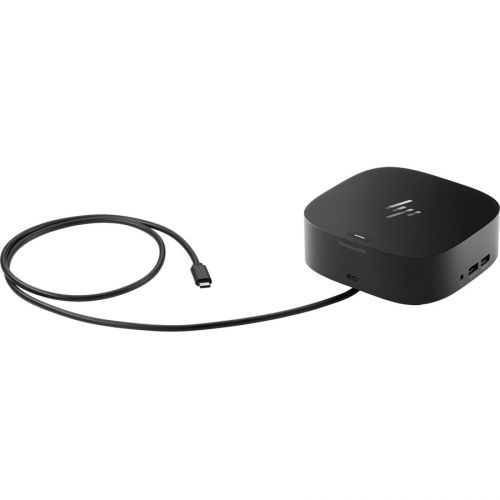
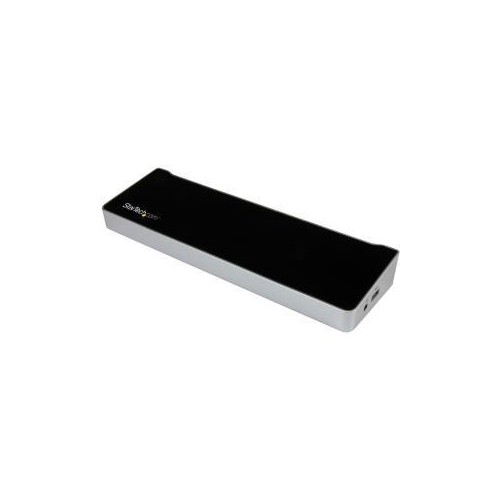
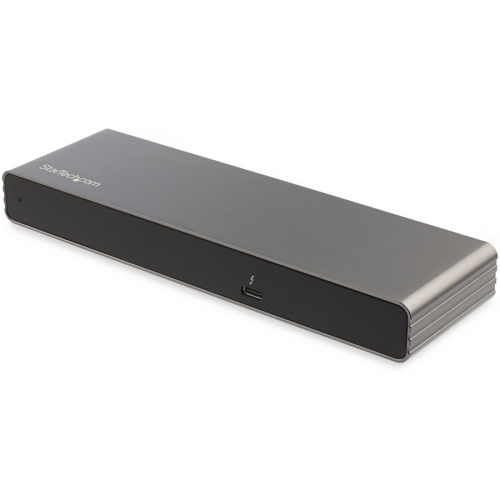
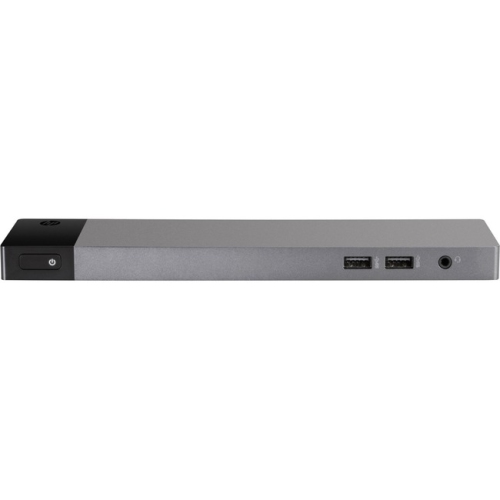
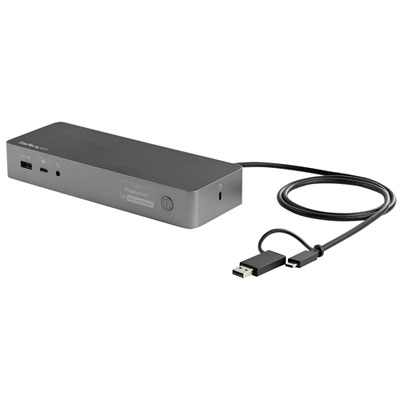
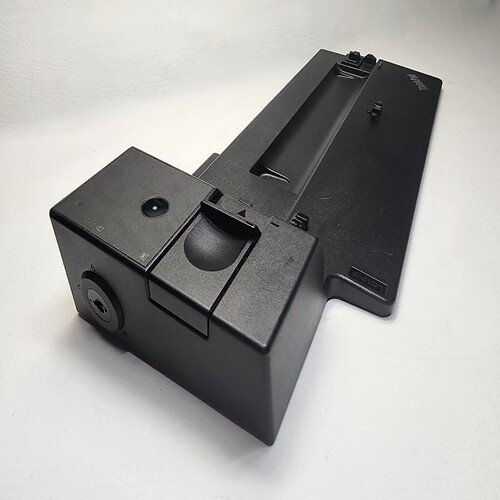
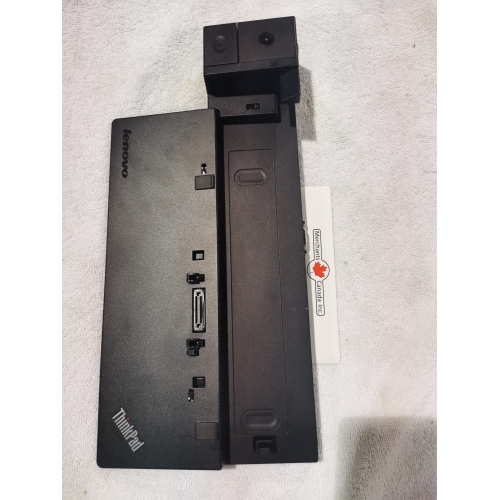
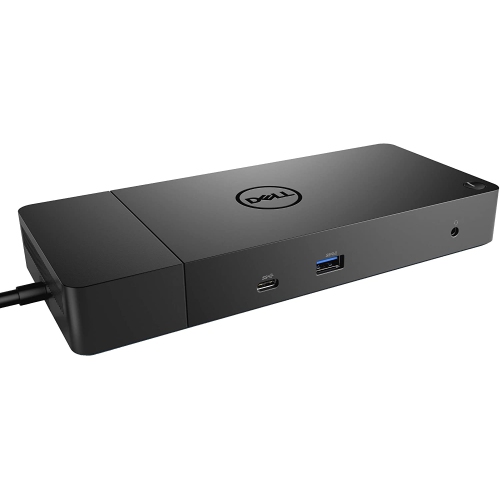
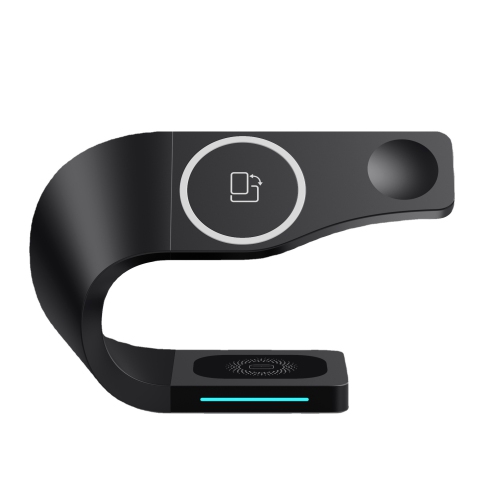
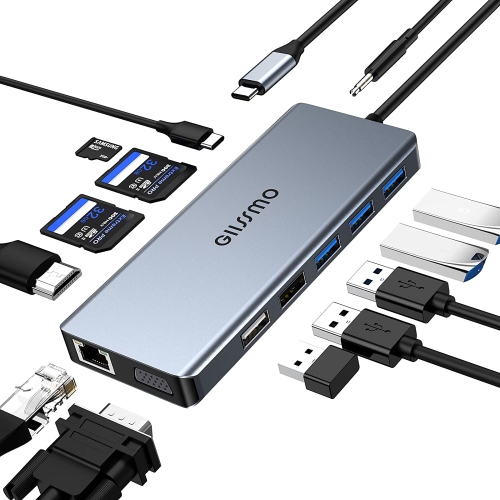
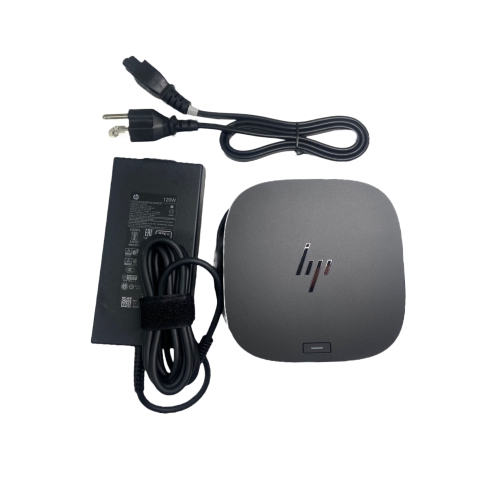
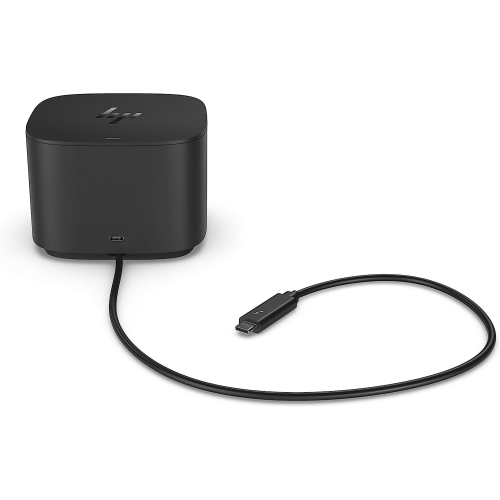
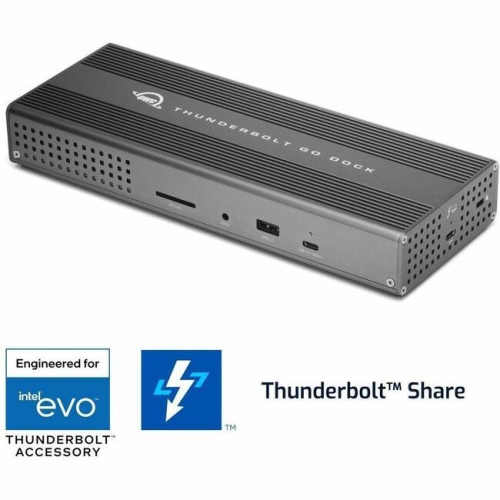
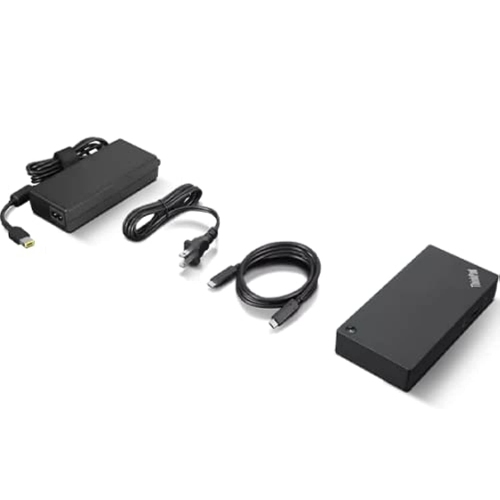
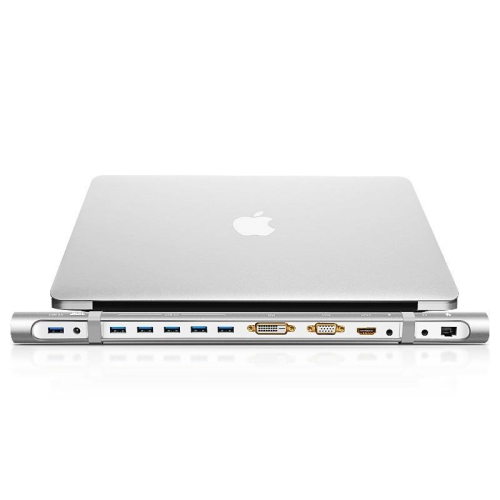
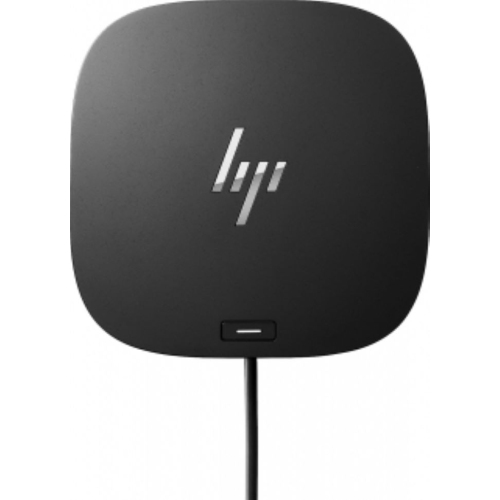
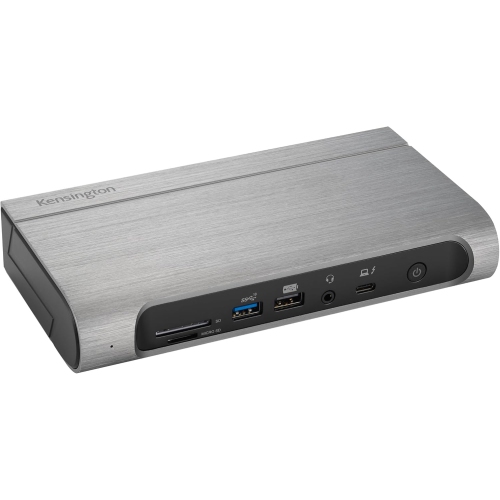
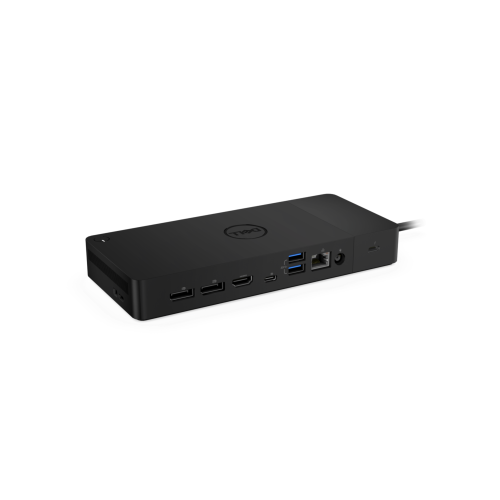
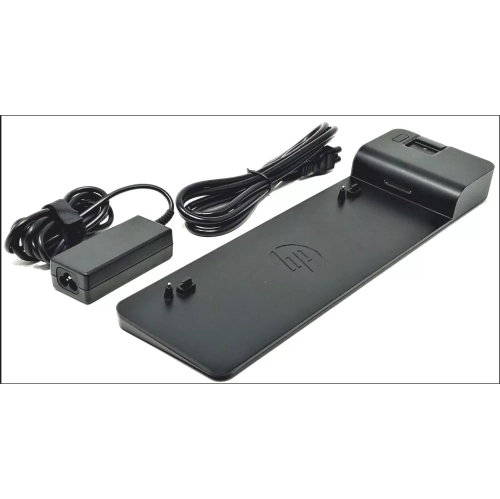


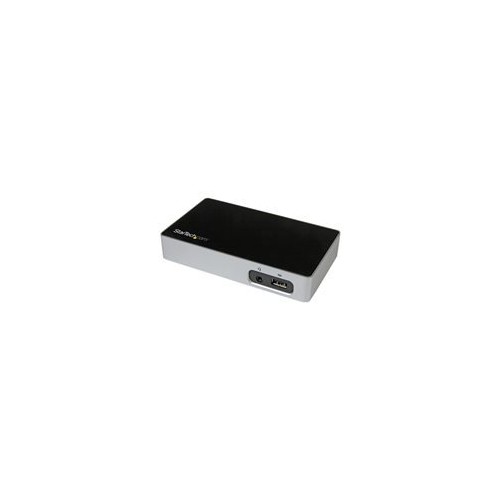
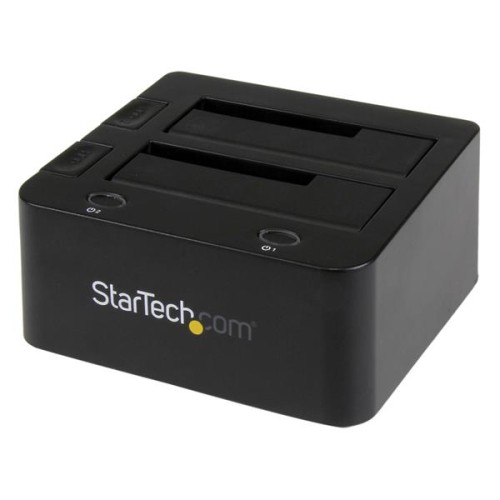
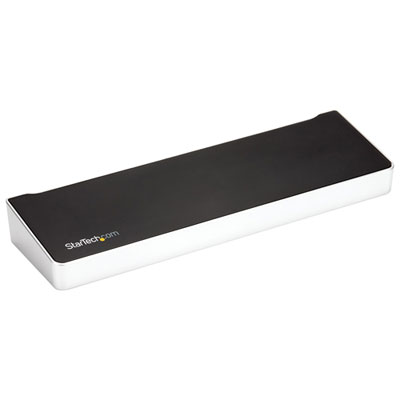
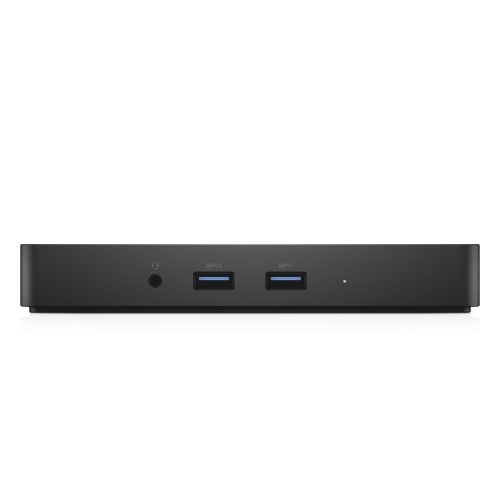
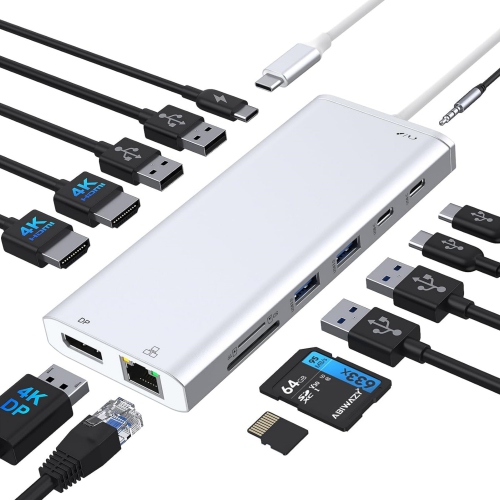
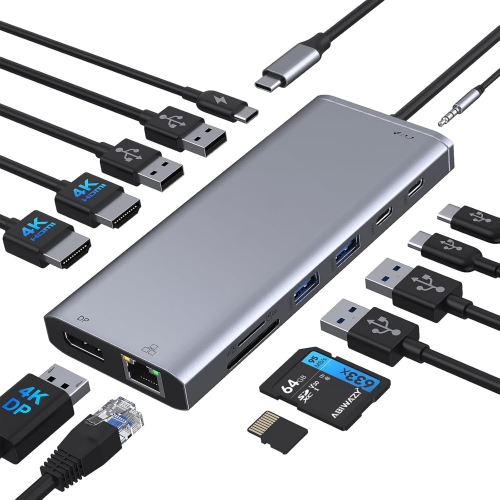
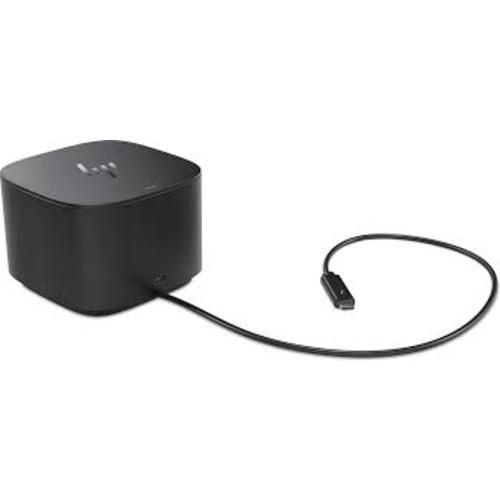
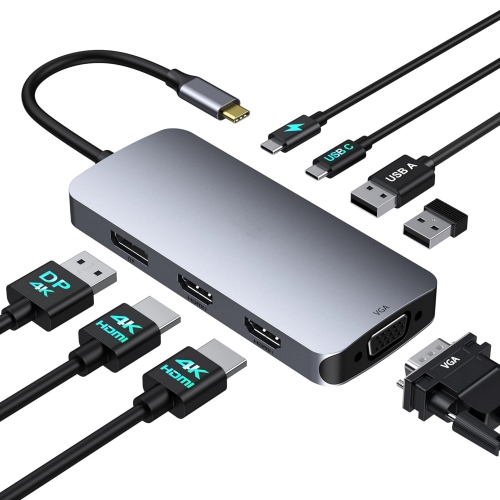

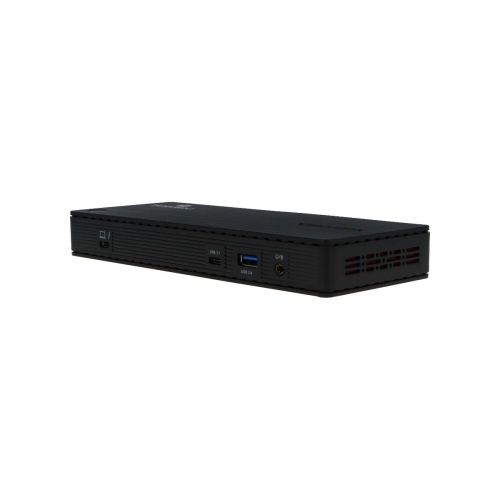
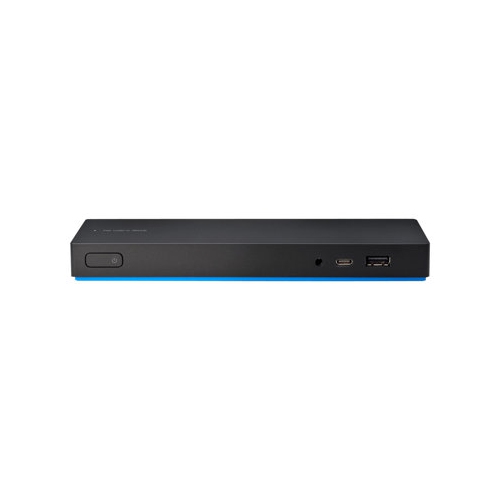
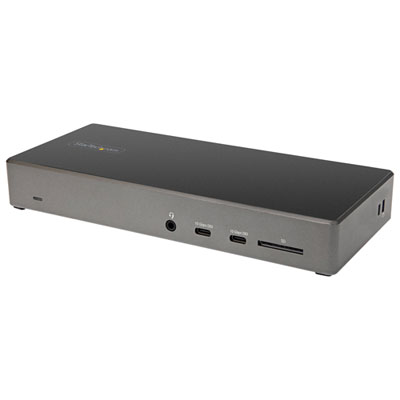
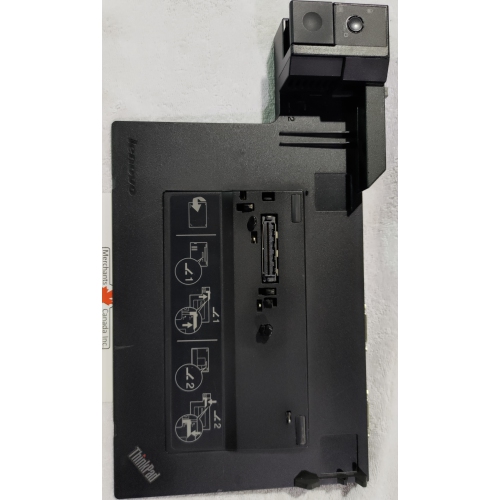
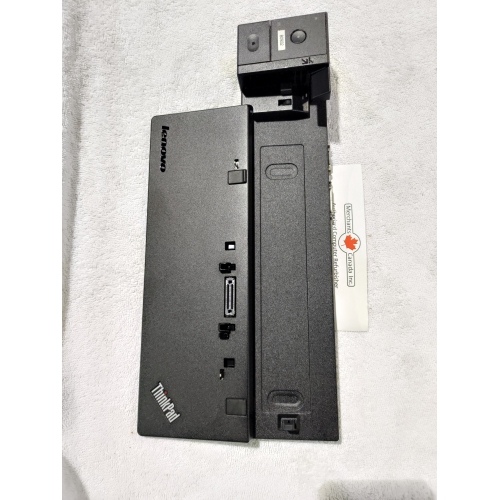


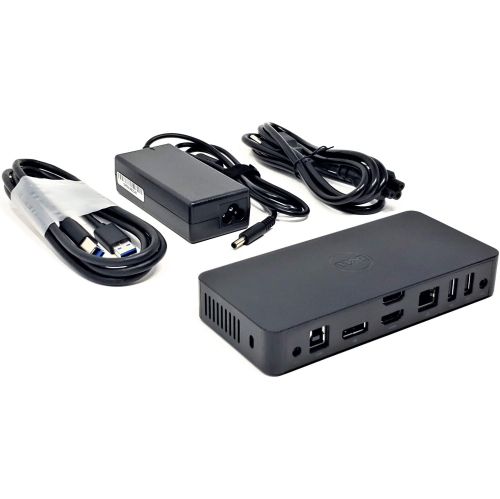
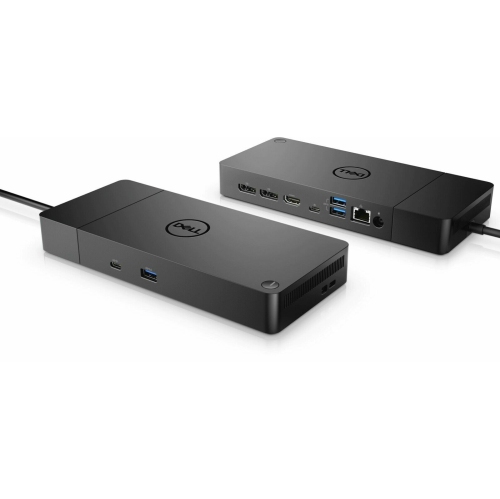
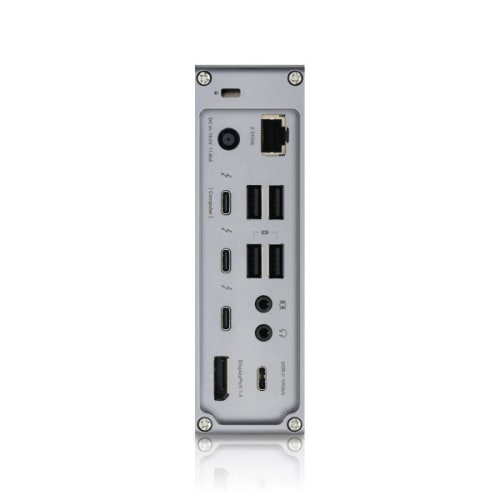
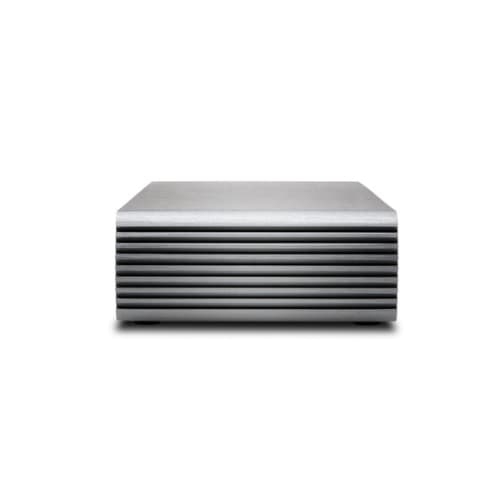
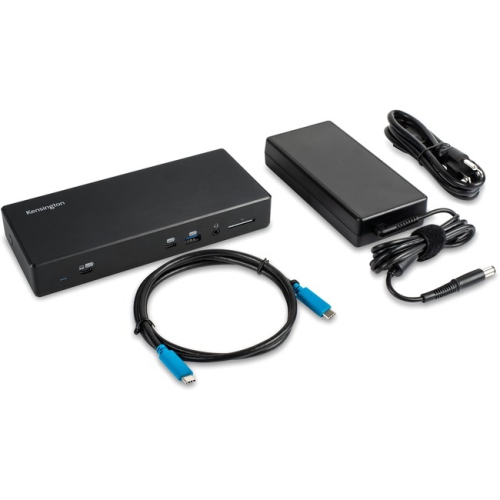
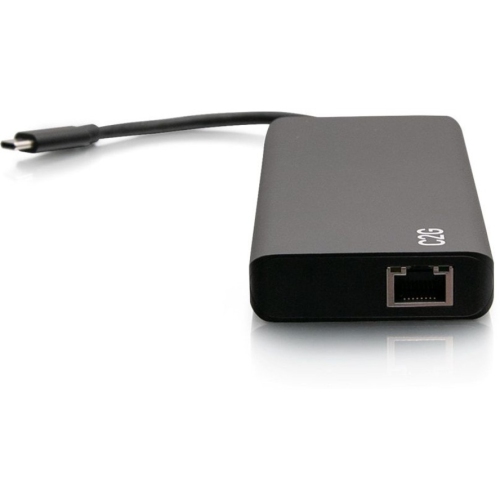
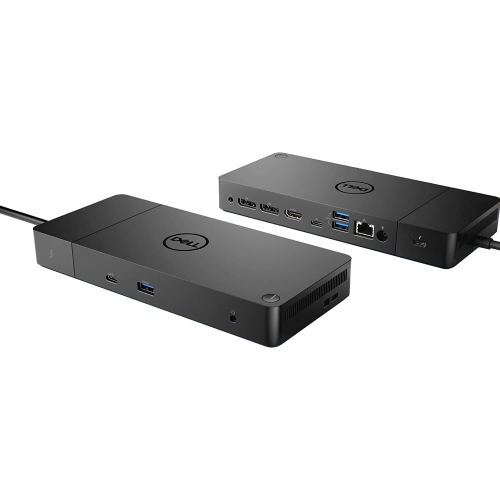
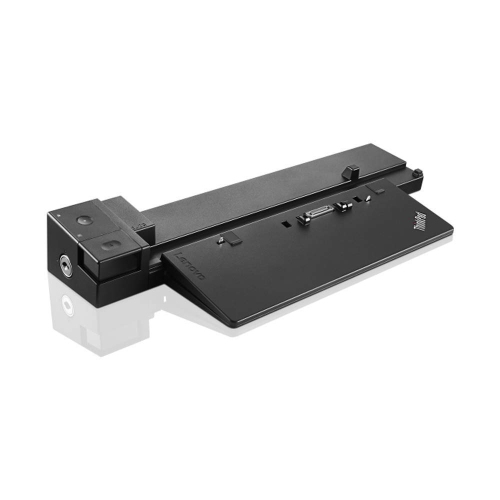
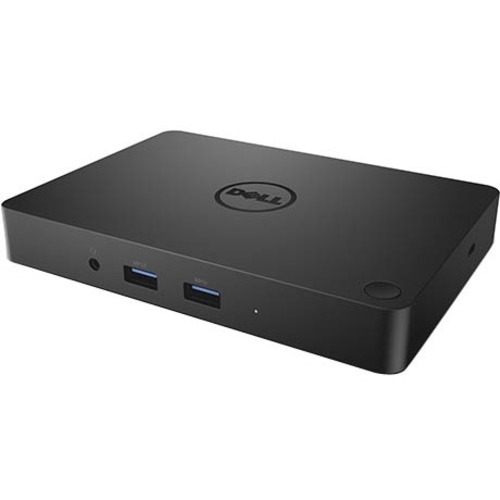
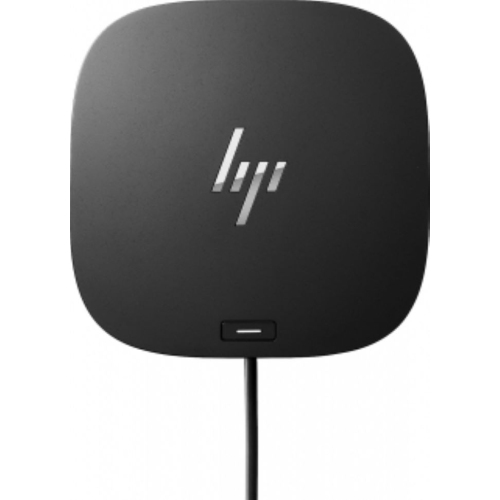
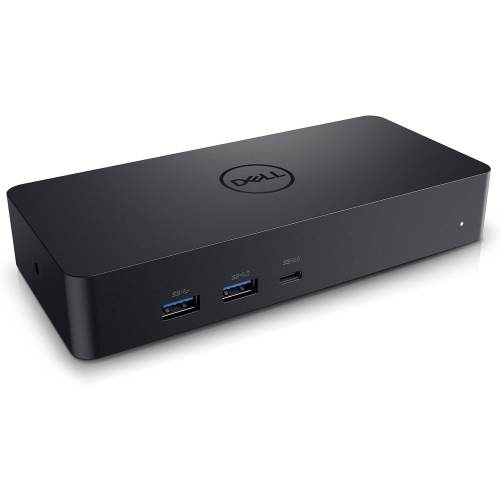
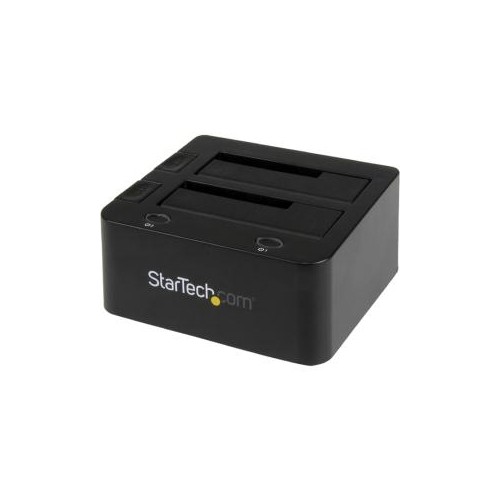
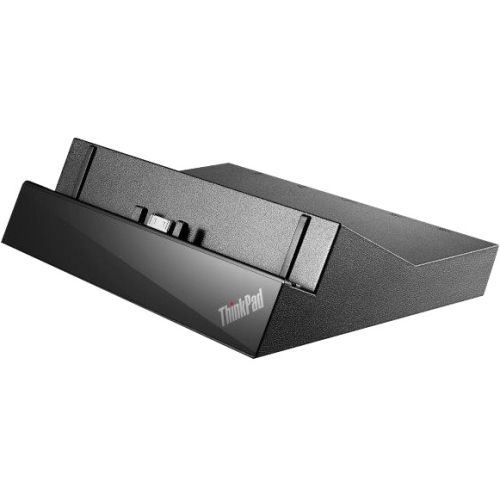
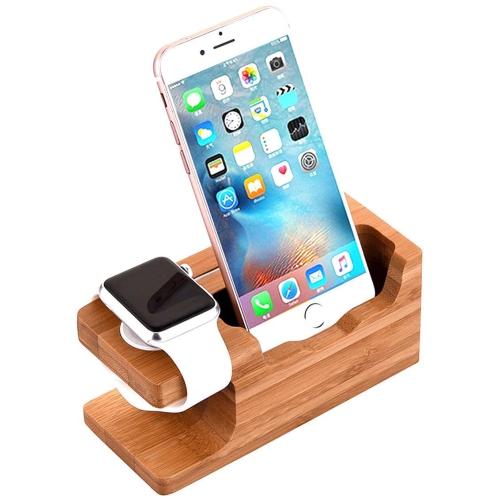
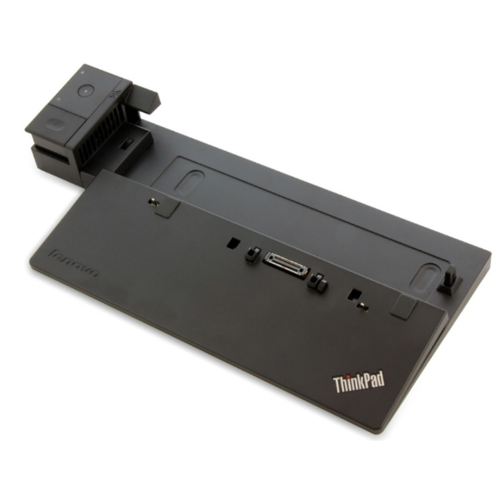
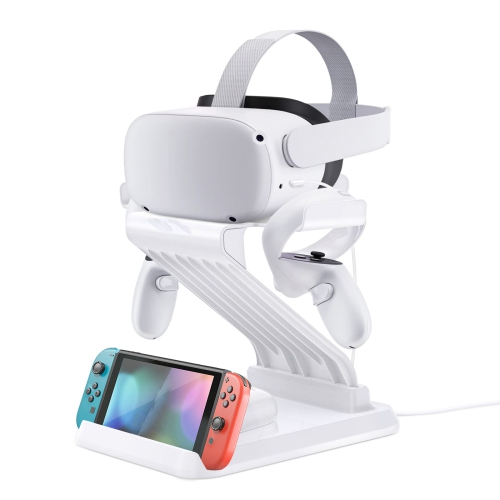
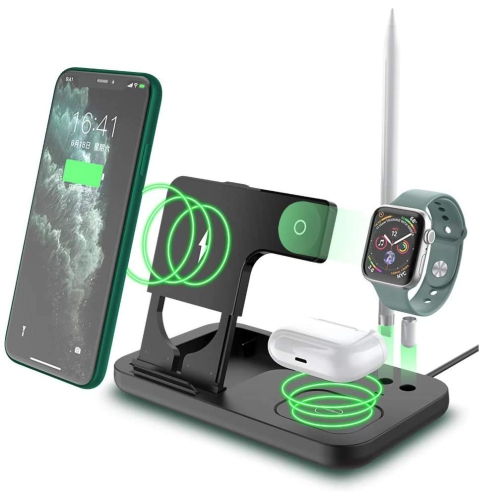
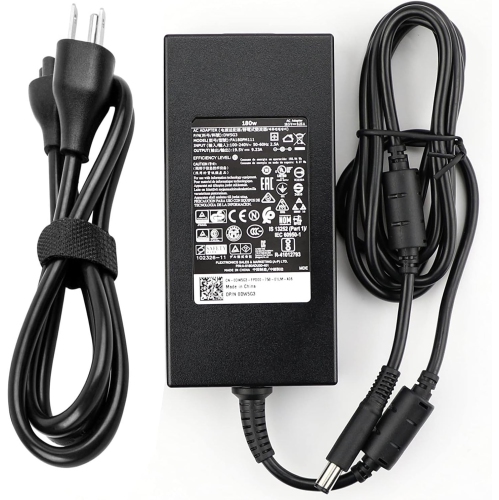
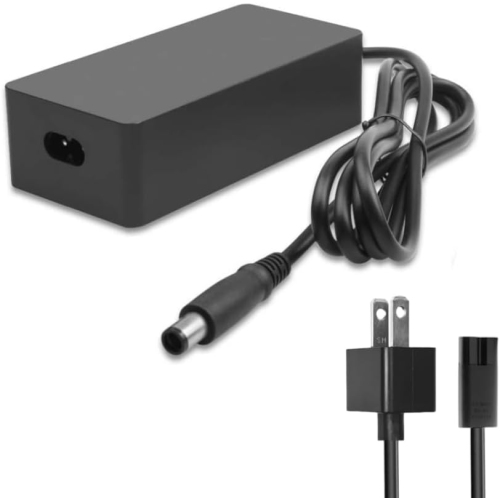
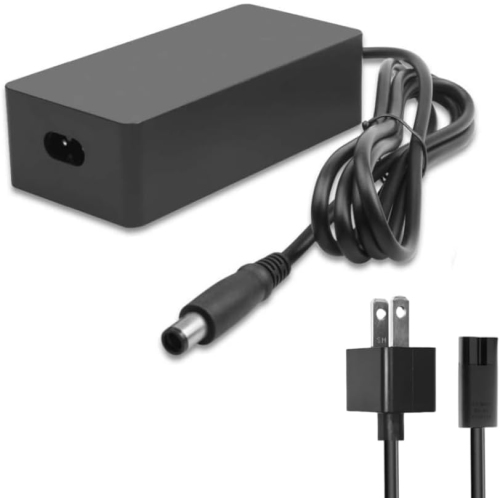
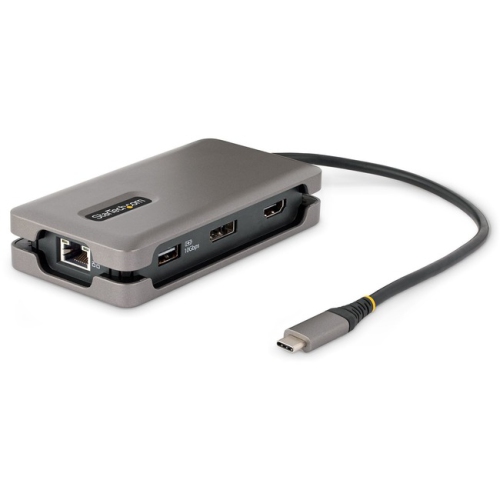
One connection can simplify a flexible laptop workstation
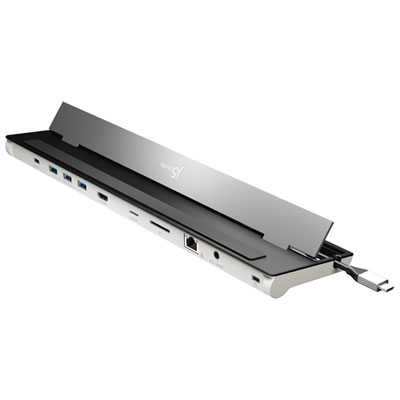
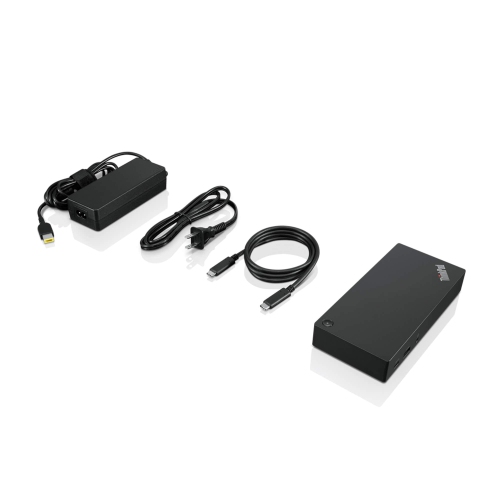
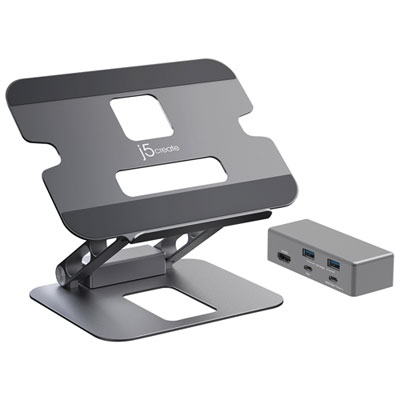
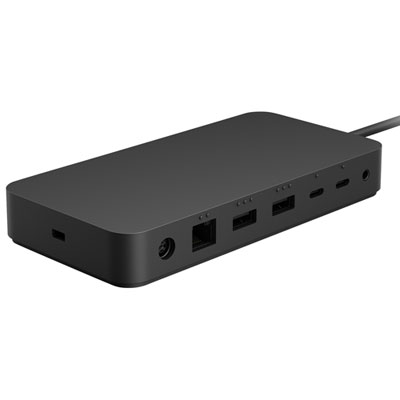
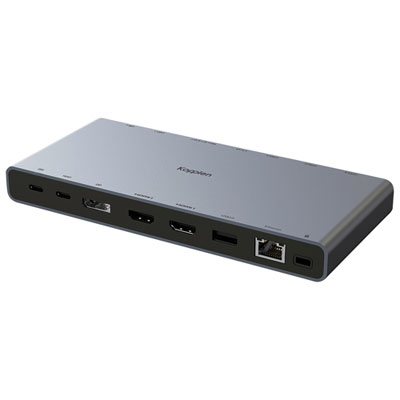
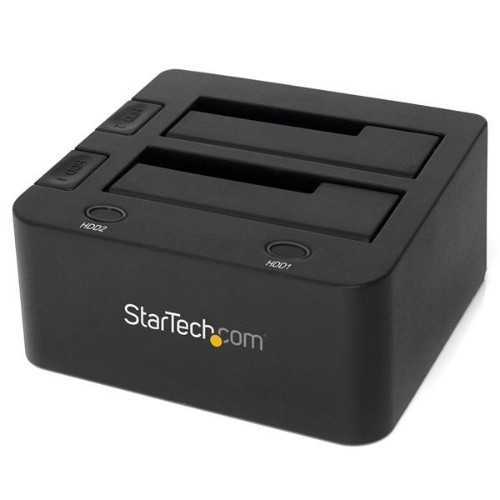
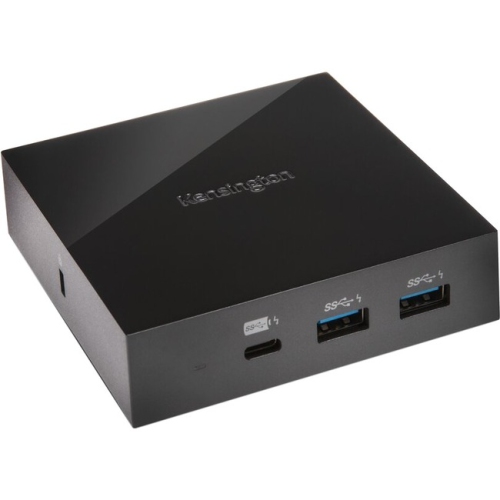
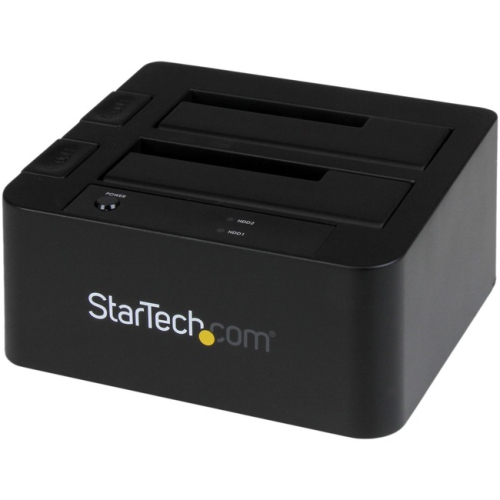
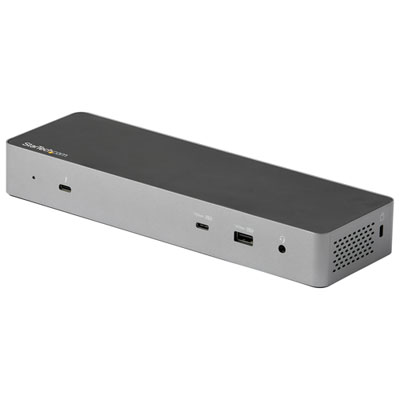
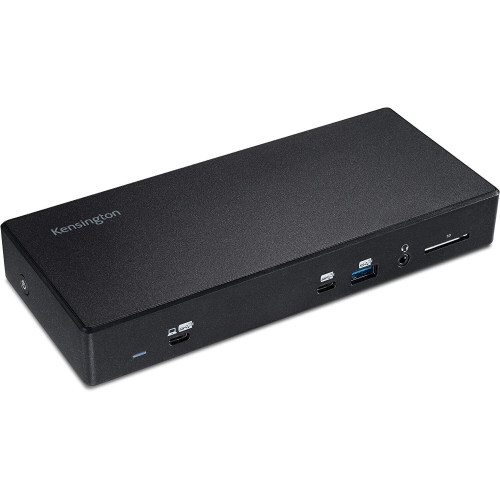
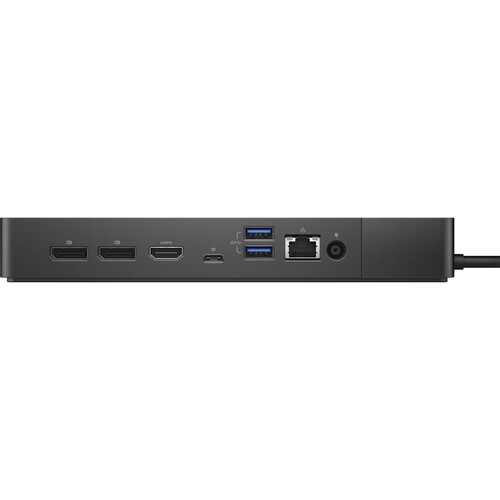
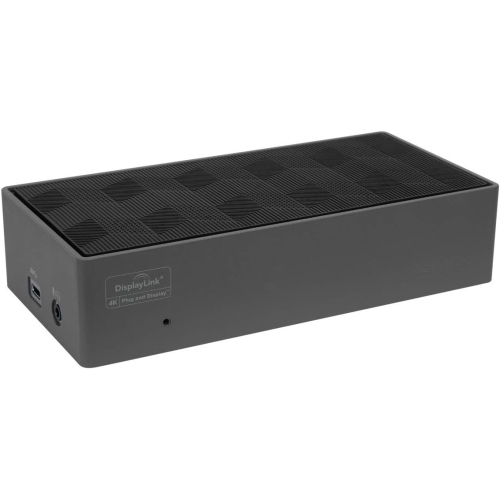
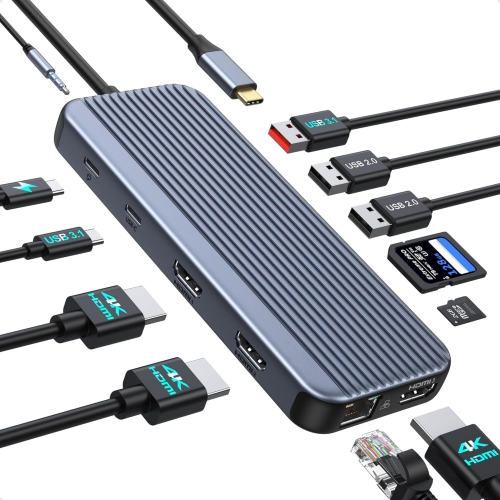
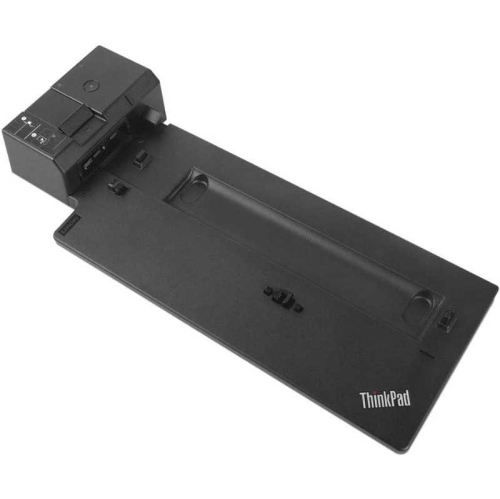
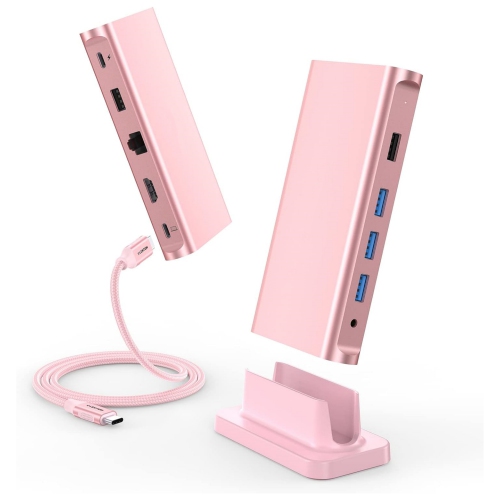
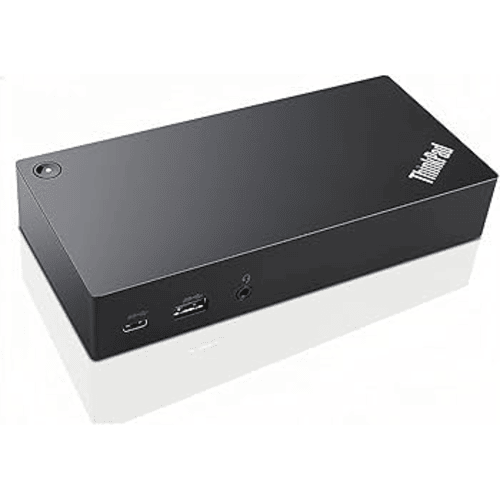
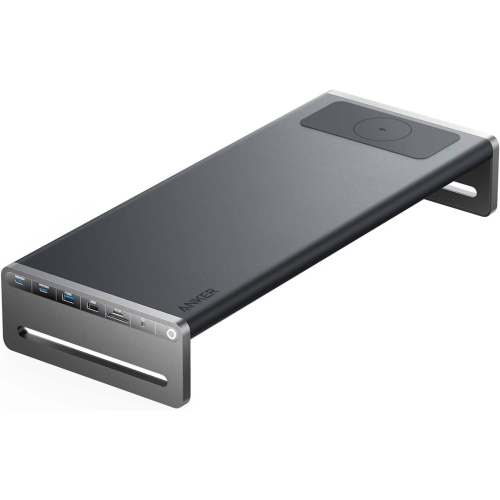
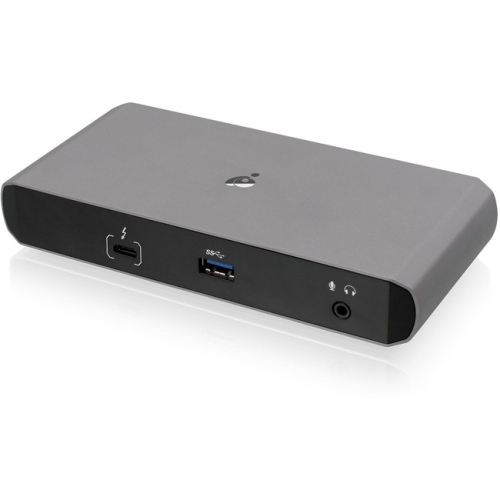
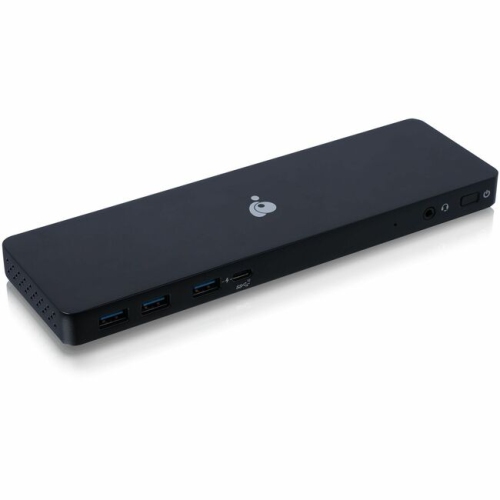
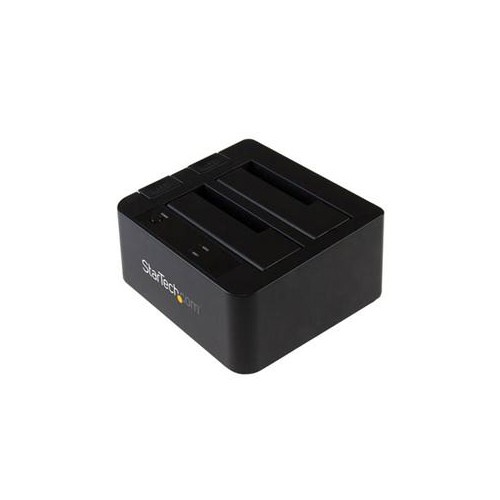
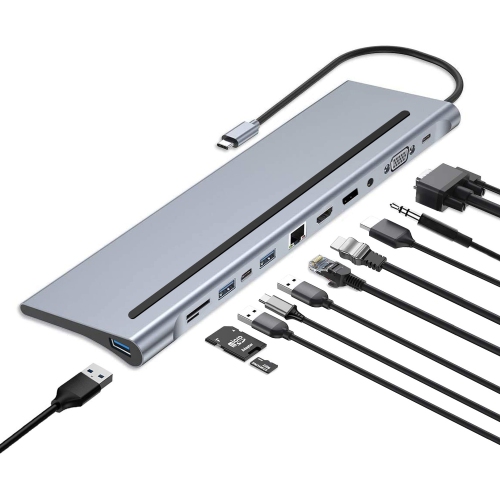
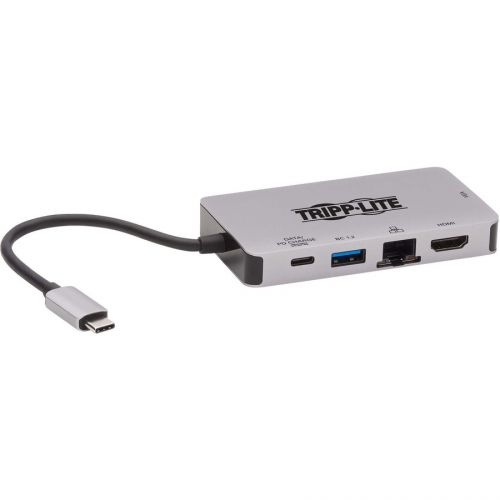
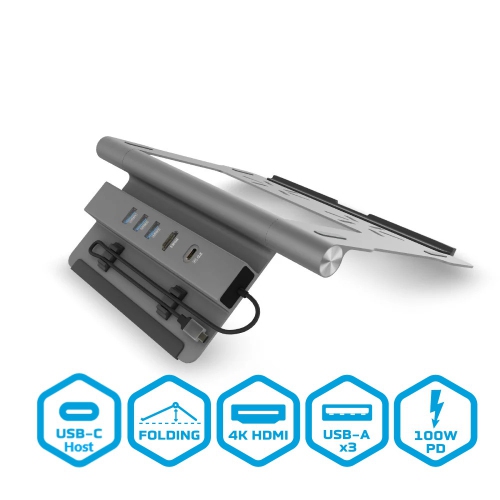
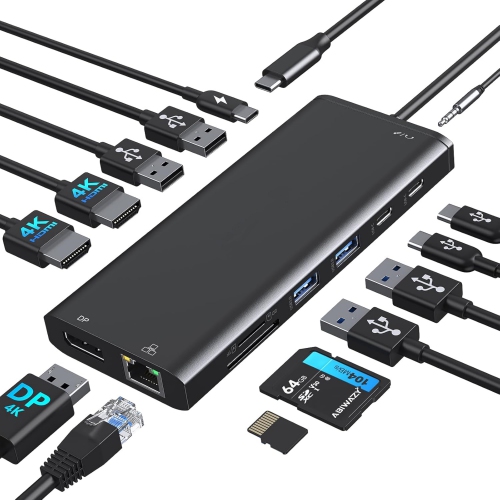
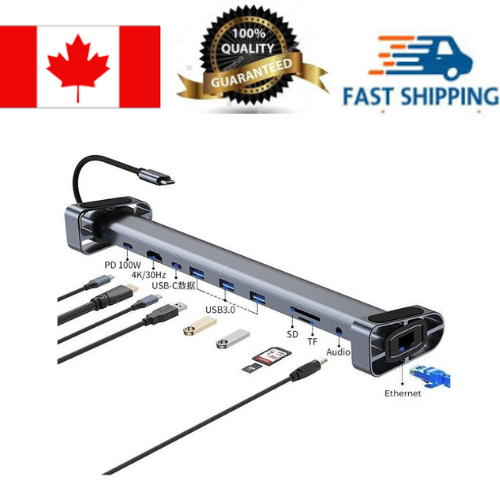
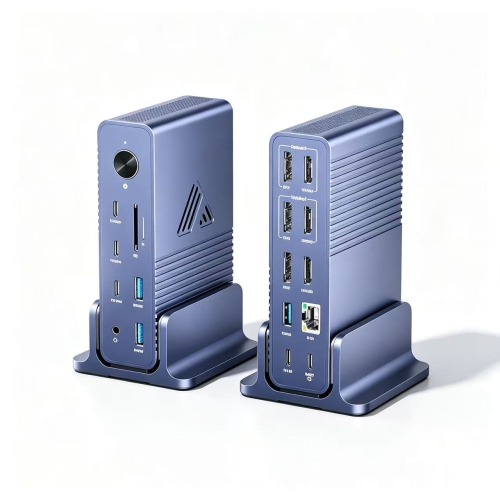
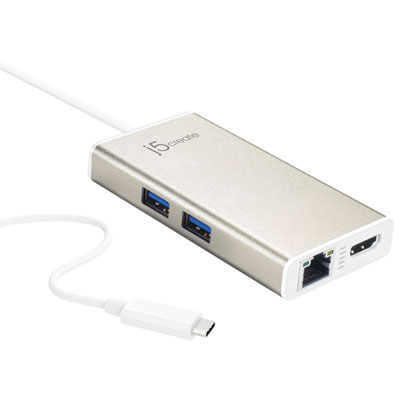
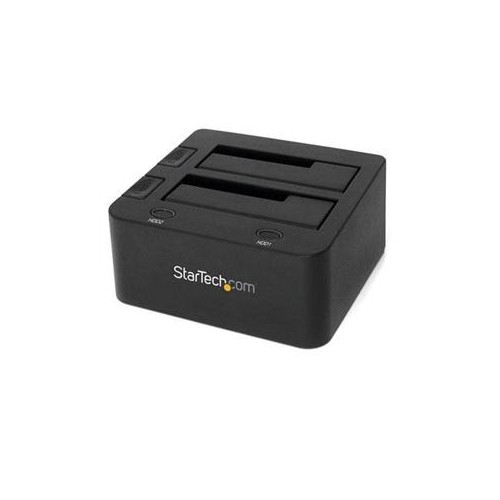
A computer docking station is a practical way to turn a laptop or compact computer into a more complete desktop workstation. With one connection, a compatible dock can bring together an external monitor, keyboard, mouse, wired network, speakers, storage drives, printer and other accessories, helping keep a desk organized and reducing the need to connect several cables individually. This is especially useful for people who carry a laptop between rooms, offices, classrooms or home and work, since a dock can remain connected to the desk while the computer is unplugged and taken on the go. At the end of the day, returning to a comfortable workstation may be as simple as connecting one cable. A docking station can also be helpful in a shared household office, where different users need access to the same screen, camera, Ethernet connection or USB accessories without rearranging the entire setup. Remote and hybrid workers may appreciate the added structure of a dedicated workstation, while students can use one to create a more spacious study area for research, assignments, creative projects and video calls. For anyone comparing options, the first step is matching the dock to the computer’s available ports. USB-C docks are common and may support charging, displays and data through a single USB-C connection, but not every USB-C port offers the same capabilities. Some computers support video output through USB-C, while others may require a DisplayLink-compatible solution or a different connection method. Thunderbolt docks are designed for systems with compatible Thunderbolt ports and can provide high-speed data transfers, robust display support and substantial power delivery. Older computers may use USB-A or another connection type, although compatibility and display features can vary. Checking the computer’s specifications before purchasing helps avoid a dock that cannot provide the desired functions. A convenient place to compare compatible options is Docking Stations for PC, where shoppers can consider different connection types and workstation requirements.
Power delivery is another important consideration, particularly for people who want to charge a laptop while using demanding applications. A dock with power delivery can pass electrical power to a compatible computer through the same cable that carries data and display signals, helping reduce desktop clutter. The amount of power supplied should be compared with the computer’s charging requirements; a lightweight notebook may need considerably less than a larger performance laptop. When the dock does not provide enough power, the computer may charge slowly, maintain its battery level or continue relying on its original adapter. It is also worth checking whether the dock includes a power adapter, as some compact hubs draw power from the computer rather than charging it. Display support should be assessed with equal care. Consider how many monitors are needed, the resolution and refresh rate desired, and whether the monitors use HDMI, DisplayPort or another connector. A basic setup with one Full HD screen has different requirements from a dual-monitor arrangement for spreadsheets, video editing or detailed design work. Some docks support multiple external displays, but the exact combination may depend on the computer’s operating system, graphics hardware and the dock’s display technology. A person who likes to keep email and reference material on one screen while working on another may benefit from dual-display support, while a photographer, developer or financial professional may value the ability to arrange several windows across a wider desktop. Compatibility information should be reviewed carefully for Mac and Windows computers, especially when using multiple monitors or mixing different display connections. Universal DisplayLink docks can be useful in mixed-device environments, but they may require software installation and are not identical to native video output. The computer, operating system, monitors and dock all work together, so confirming the complete setup is more reliable than choosing based on the number of ports alone.
The remaining ports can make a noticeable difference in everyday use. USB-A connections are useful for established accessories such as a mouse, keyboard, printer, headset receiver or external hard drive, while USB-C ports may support newer peripherals, faster data transfer or device charging. An SD or microSD card reader can be convenient for moving photos and videos from a camera, drone or other device without carrying a separate adapter. Gigabit Ethernet provides a wired network connection for people who prefer a steady link for video meetings, large downloads, cloud-based work or online gaming, particularly in areas where wireless coverage is inconsistent. Audio connections may be helpful for powered speakers, headphones or a microphone, and some docks include security features for use in shared offices, classrooms or public workspaces. Think about the accessories that already sit on the desk and count the connections they require, leaving room for future additions. A compact hub may suit a traveller who needs occasional access to a monitor, USB drive and memory card, while a larger desktop dock may be better for someone who keeps several peripherals permanently connected. Cable length, placement and build design also matter: a dock that can sit neatly beside or beneath a monitor is easier to use than one that leaves cables stretched across the work surface. Docking stations can make thoughtful gifts for students setting up a first study space, professionals improving a home office or family members who move regularly between a laptop and a larger screen. During the warmer months and through the cooler months, a flexible workstation can support changing routines, from working at home to returning to classes or organizing a dedicated corner for hobbies. Whether the goal is a cleaner desk, more display space, faster wired networking or simpler connections, the best choice is the one that fits the computer’s ports, charging needs, monitors and daily accessories.
Power delivery is another important consideration, particularly for people who want to charge a laptop while using demanding applications. A dock with power delivery can pass electrical power to a compatible computer through the same cable that carries data and display signals, helping reduce desktop clutter. The amount of power supplied should be compared with the computer’s charging requirements; a lightweight notebook may need considerably less than a larger performance laptop. When the dock does not provide enough power, the computer may charge slowly, maintain its battery level or continue relying on its original adapter. It is also worth checking whether the dock includes a power adapter, as some compact hubs draw power from the computer rather than charging it. Display support should be assessed with equal care. Consider how many monitors are needed, the resolution and refresh rate desired, and whether the monitors use HDMI, DisplayPort or another connector. A basic setup with one Full HD screen has different requirements from a dual-monitor arrangement for spreadsheets, video editing or detailed design work. Some docks support multiple external displays, but the exact combination may depend on the computer’s operating system, graphics hardware and the dock’s display technology. A person who likes to keep email and reference material on one screen while working on another may benefit from dual-display support, while a photographer, developer or financial professional may value the ability to arrange several windows across a wider desktop. Compatibility information should be reviewed carefully for Mac and Windows computers, especially when using multiple monitors or mixing different display connections. Universal DisplayLink docks can be useful in mixed-device environments, but they may require software installation and are not identical to native video output. The computer, operating system, monitors and dock all work together, so confirming the complete setup is more reliable than choosing based on the number of ports alone.
The remaining ports can make a noticeable difference in everyday use. USB-A connections are useful for established accessories such as a mouse, keyboard, printer, headset receiver or external hard drive, while USB-C ports may support newer peripherals, faster data transfer or device charging. An SD or microSD card reader can be convenient for moving photos and videos from a camera, drone or other device without carrying a separate adapter. Gigabit Ethernet provides a wired network connection for people who prefer a steady link for video meetings, large downloads, cloud-based work or online gaming, particularly in areas where wireless coverage is inconsistent. Audio connections may be helpful for powered speakers, headphones or a microphone, and some docks include security features for use in shared offices, classrooms or public workspaces. Think about the accessories that already sit on the desk and count the connections they require, leaving room for future additions. A compact hub may suit a traveller who needs occasional access to a monitor, USB drive and memory card, while a larger desktop dock may be better for someone who keeps several peripherals permanently connected. Cable length, placement and build design also matter: a dock that can sit neatly beside or beneath a monitor is easier to use than one that leaves cables stretched across the work surface. Docking stations can make thoughtful gifts for students setting up a first study space, professionals improving a home office or family members who move regularly between a laptop and a larger screen. During the warmer months and through the cooler months, a flexible workstation can support changing routines, from working at home to returning to classes or organizing a dedicated corner for hobbies. Whether the goal is a cleaner desk, more display space, faster wired networking or simpler connections, the best choice is the one that fits the computer’s ports, charging needs, monitors and daily accessories.
Top selling and popular products
-
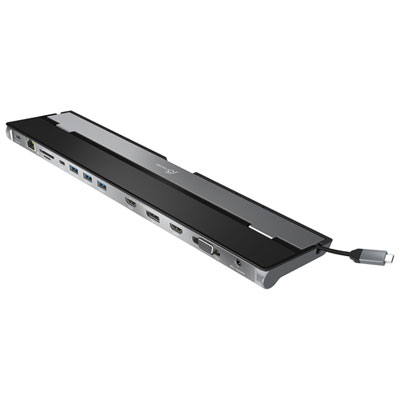 Your price for this item is $149.99
 -
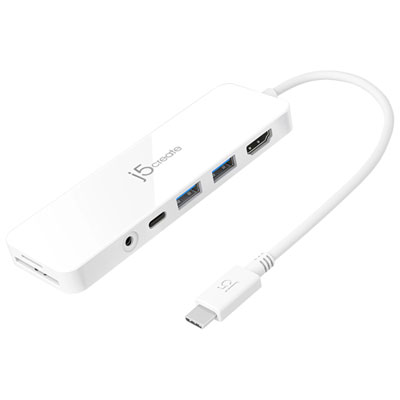 Your price for this item is $69.99
 -
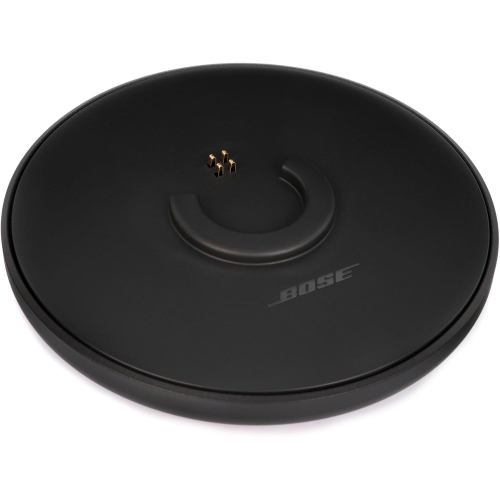 Your price for this item is $35
 -
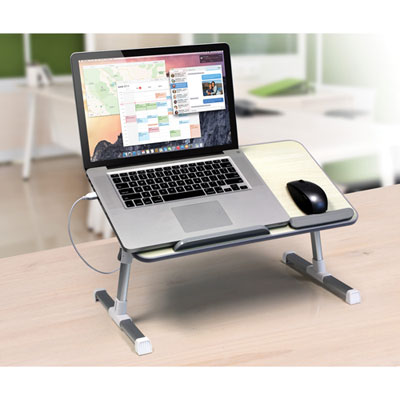 Your price for this item is $59.99
 -
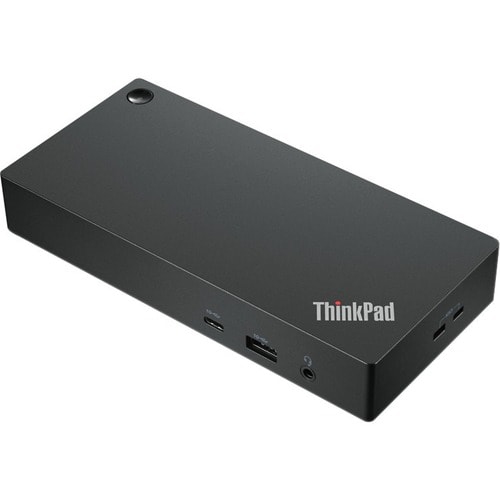 Your price for this item is $179.99
 -
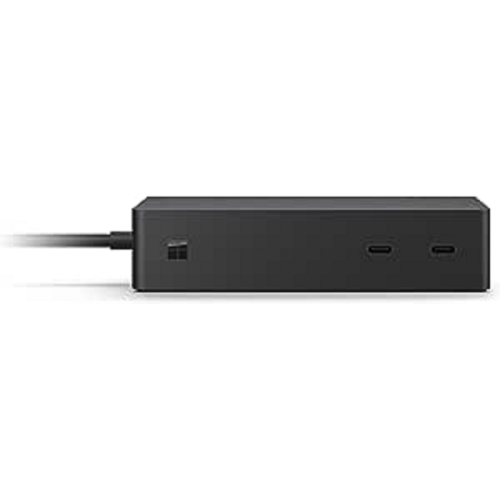 Your price for this item is $209.99
 -
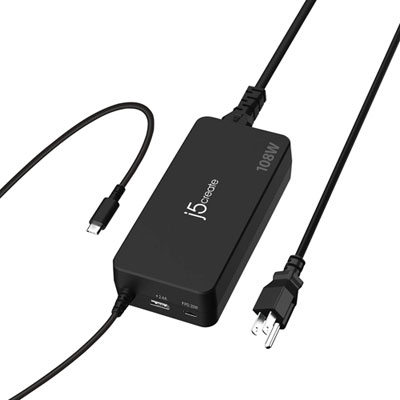 Your price for this item is $89.99
 -
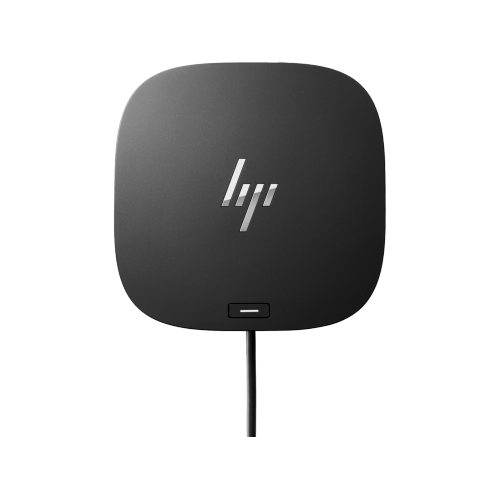 Your price for this item is $154.99
Discover more categories related to Dock Stations for Computer
Top Collections:
Pokemon Centers, Kindle Devices, Best Budget Office Chairs, Apple iPhones 16, Best Laptops for Writers, iPhone 15 Apple, Canon G7X Cameras, Refurbished Apple Laptops, Alarm Clock, Motorola Razr Phones
Some products may be subject to Environmental Handling Fees
(EHF) depending on your province.
Learn more about EHFs.