Docking Stations for Mac
Docking Stations for Mac offer a seamless way to expand your workspace and connect all your essential devices. Designed to complement your Mac, these docking solutions help you create an organized and efficient setup at home or in the office. With a variety of options available, it’s easy to find the right docking station to suit your workflow and connectivity needs. Explore our selection of Docking Stations for Mac and discover how simple it can be to enhance productivity and keep everything you need within reach.
Sort
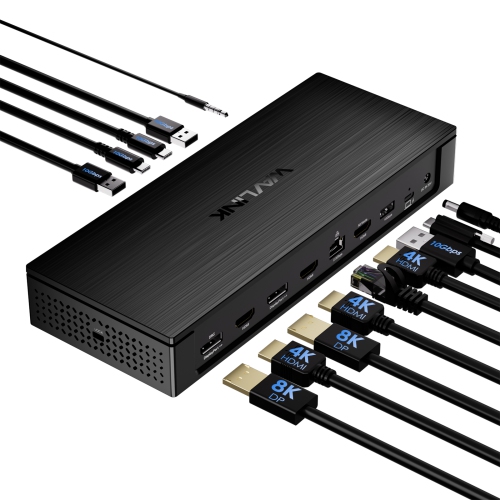
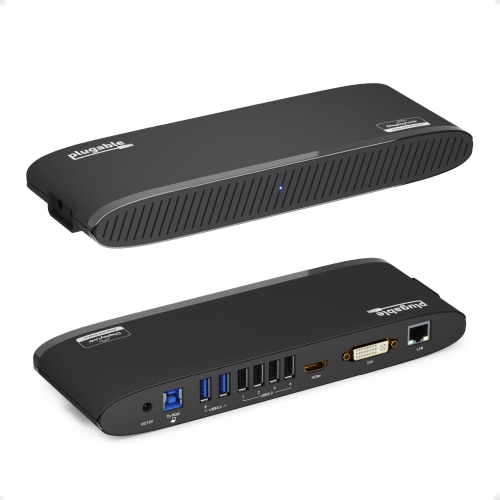
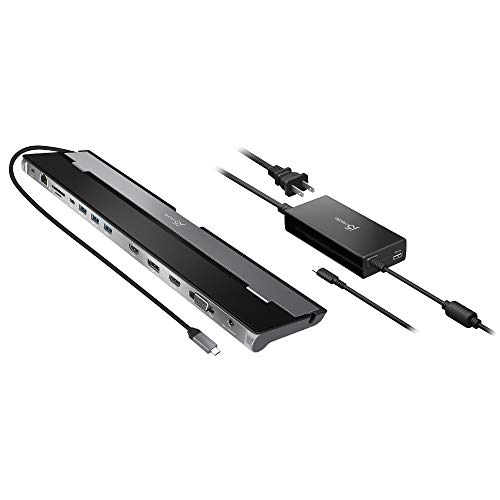
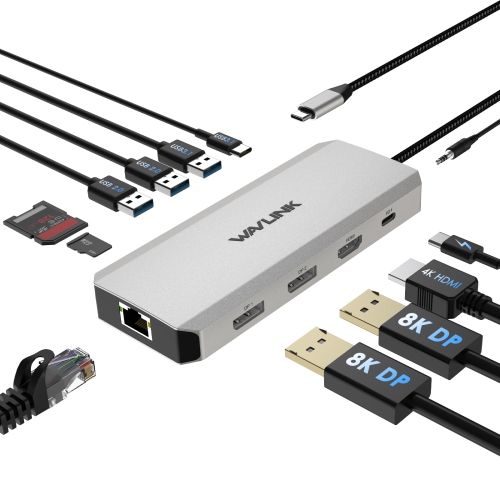
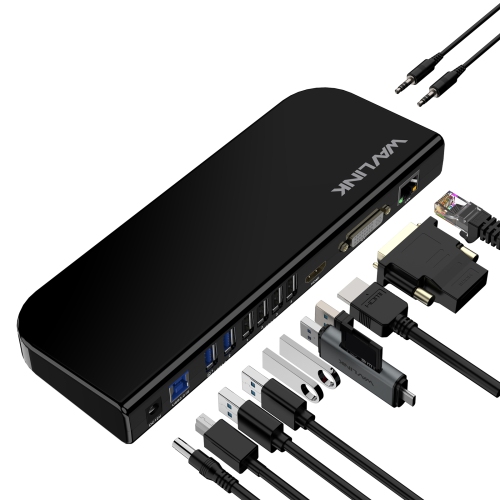
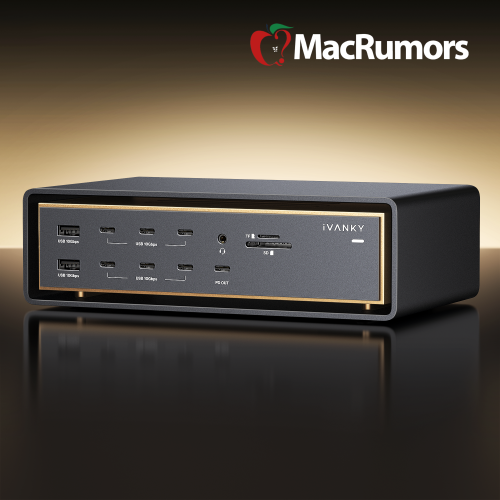
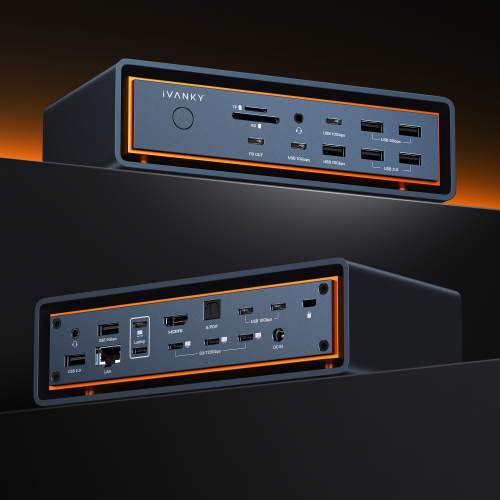
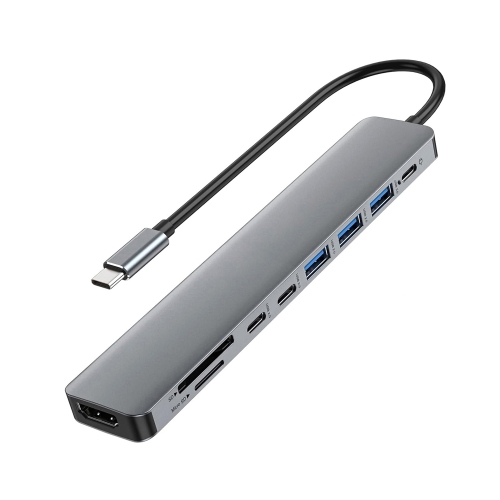
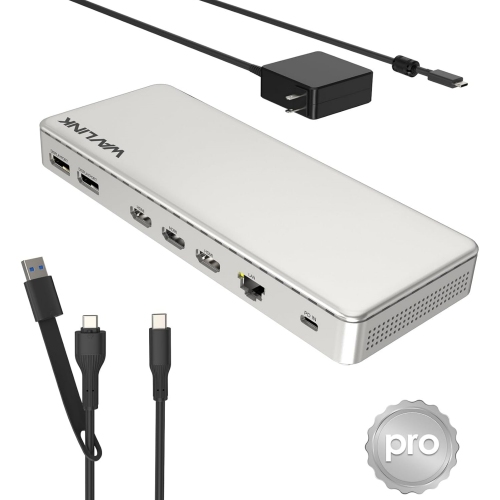
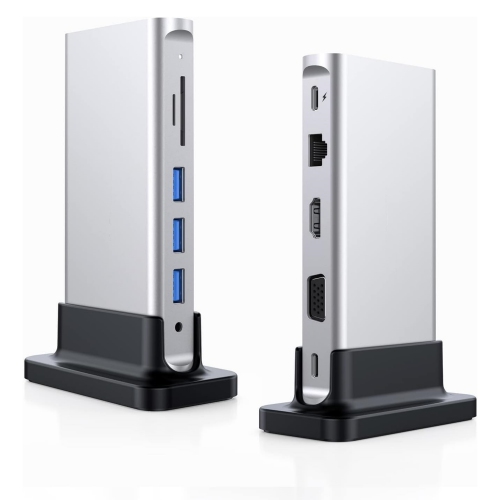
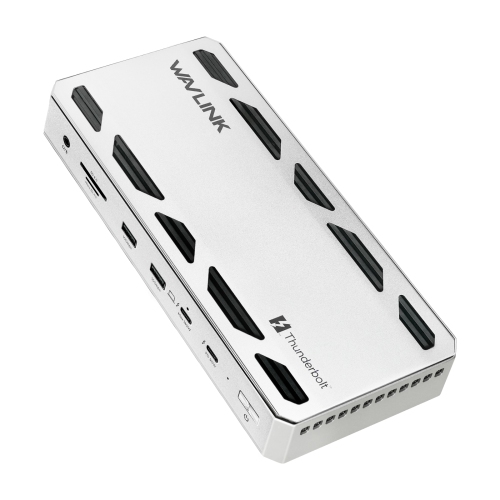
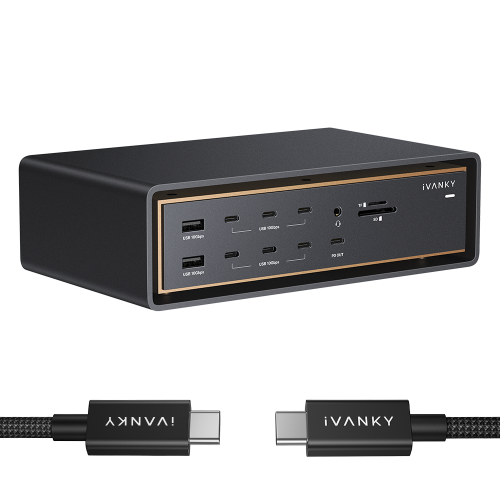
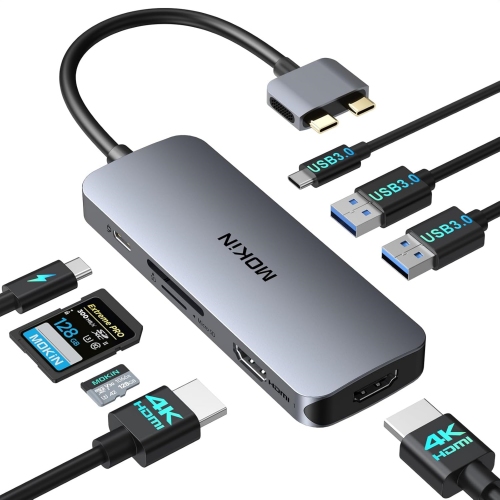
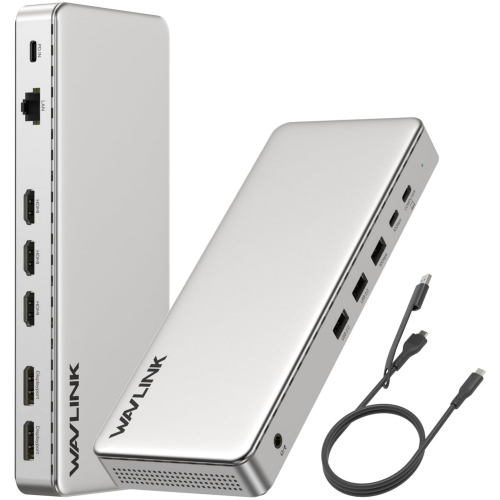
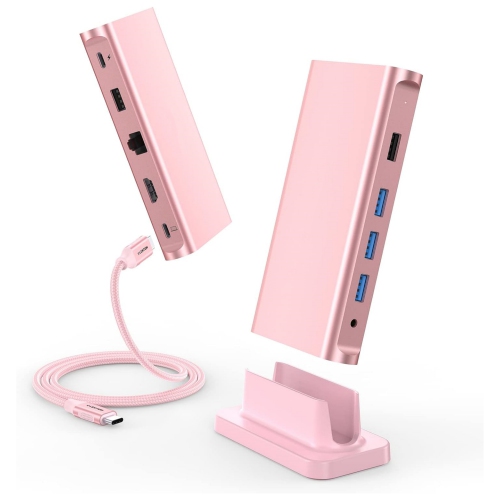
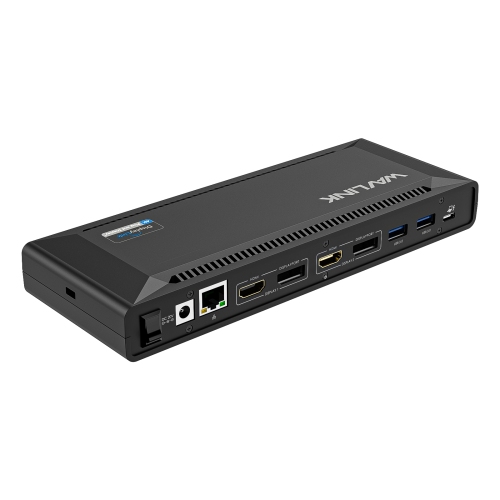
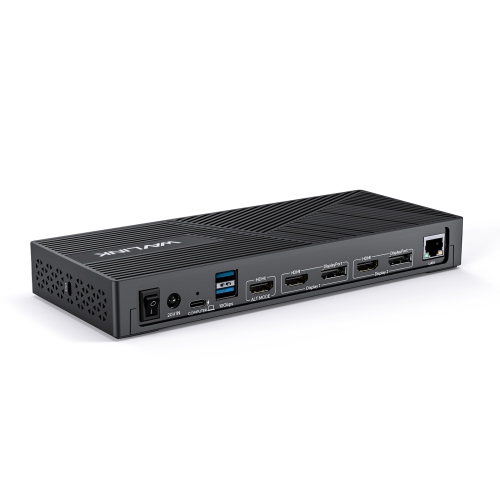
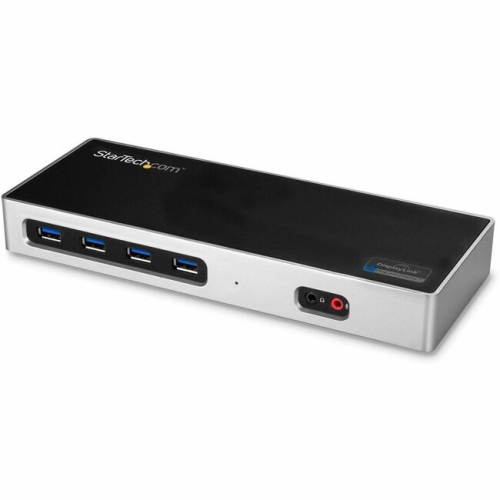
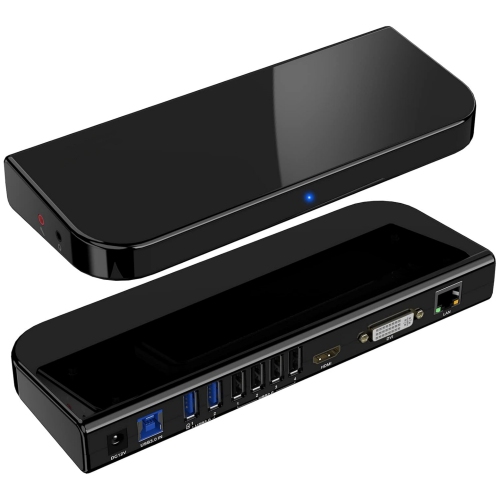
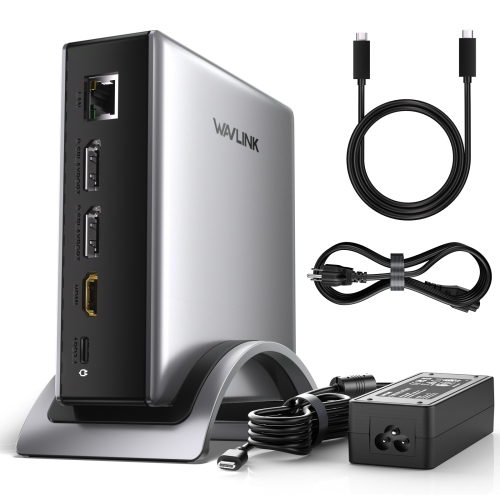
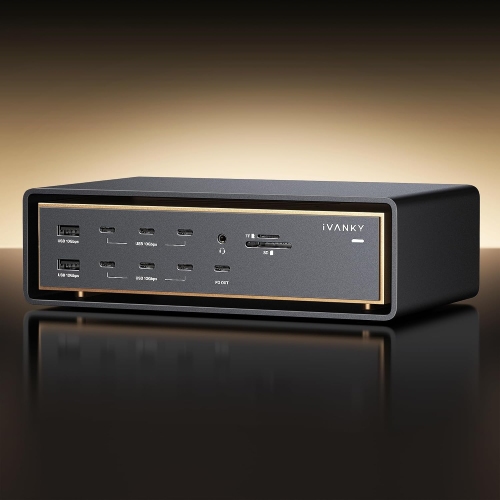
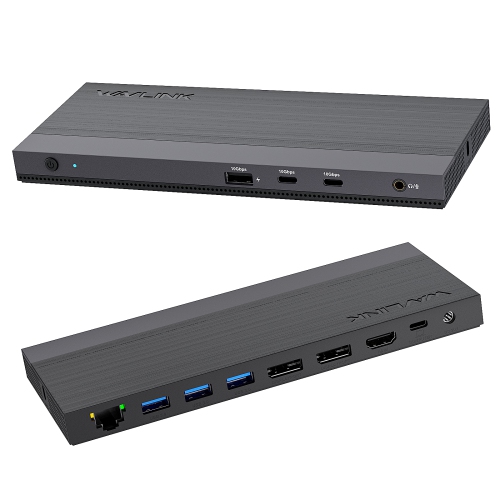
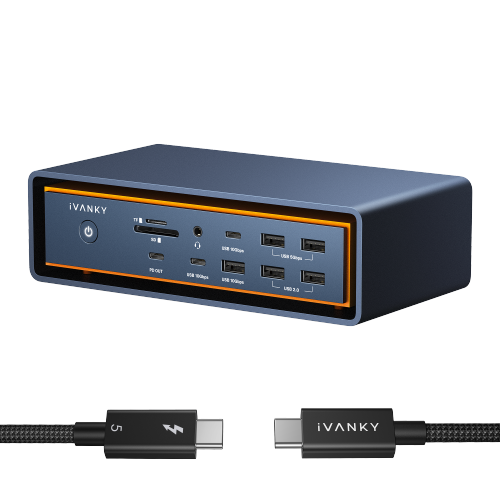
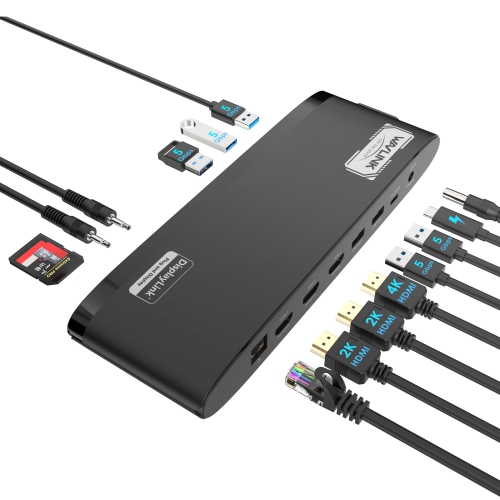
One connection can simplify your Mac desk setup
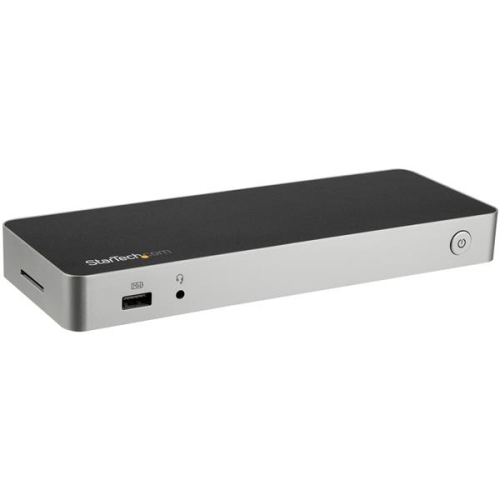
Docking stations for Mac bring monitors, storage, wired networking, and everyday accessories together through a single connection to a compatible computer. They can turn a laptop used between meetings into the centre of a full desk setup, with a larger screen, a comfortable keyboard, and fewer cables to reconnect each morning. The right docking station depends on the Mac’s connection standard, external display support, charging requirements, and the peripherals used most often. A compact USB-C dock can suit a small workspace with a monitor and a few accessories, while a compatible Thunderbolt dock can accommodate more demanding combinations of displays, fast external drives, and other connected equipment. The connector shape alone does not establish compatibility: USB-C ports and cables can support different data speeds, video capabilities, and power levels. Thunderbolt connections also use the USB-C connector, but their supported features depend on the computer, dock, and cable working together. Display support deserves particular attention because the number of screens shown in a dock’s specifications may not match what every Mac can run. Native external display limits vary by processor and computer configuration, and a dock does not automatically remove those limits. Some docks use software-assisted display technology to support additional screens, which can require a driver and may have restrictions with protected video, workplace security settings, or certain applications. For a desk built around separate documents, spreadsheets, and video calls, independently extended displays are different from two screens showing the same image. Some docks that extend multiple displays on other computers may only mirror those displays on a Mac, so explicit support for the intended arrangement matters. Resolution and refresh rate matter alongside screen count, especially for detailed design work or smoother motion. A useful match is a dock whose supported display arrangement is clearly compatible with the particular Mac and operating system, rather than one selected only for the number of video sockets on its back.
The mix and placement of ports shape how a docking station feels in daily use. USB-A connections remain useful for keyboards, mice, headsets, and other familiar accessories, while USB-C ports may connect newer peripherals or external storage. Not every USB-C port on a dock supports video output or laptop charging, so its stated function matters as much as its presence. HDMI and DisplayPort connections can make it easier to work with existing monitors, although the cable and display input must also support the intended resolution and refresh rate. A photographer moving files from a memory card may value an accessible card reader more than extra display outputs; someone editing large video files may place greater importance on fast storage connections. Ethernet provides a wired network connection where the workspace has suitable network access, with actual performance also depending on the network equipment, cabling, and internet service. An audio connection can keep wired headphones or desktop speakers within reach without occupying the computer’s own socket. These connections share the dock’s available bandwidth, so simultaneous file transfers and high-resolution displays can affect the performance available to individual devices. Power delivery is another practical distinction. A powered dock may charge a compatible Mac laptop through its host connection, but the wattage delivered to the computer can be lower than the power supply’s total rating because the dock and attached devices also draw power. Charging performance depends on the laptop’s requirements and workload; a setup that maintains battery charge during light office tasks may behave differently during sustained rendering or other intensive work. Compact docks may draw power from the computer or need a separate compatible charger for pass-through charging, depending on their design. For a shared workstation, a single host cable can simplify moving between a home desk and another workspace, provided each computer supports the required functions. Included cable length, power adapter requirements, operating system support, and any necessary software all contribute to how neatly that setup fits into an established routine.
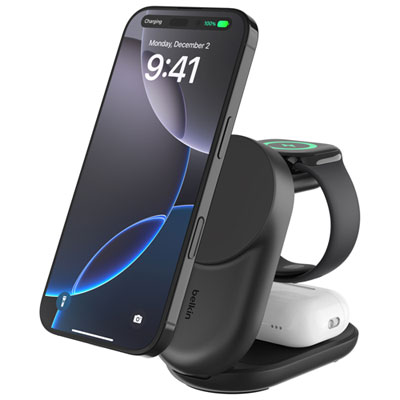
Construction and physical fit are especially noticeable on a desk used every day. Metal housings, often made from aluminum, can help dissipate heat and provide a solid feel, while lighter plastic designs can be convenient for travel. Warmth during operation can be normal, but ventilation openings need clear space rather than being pressed against papers, tucked under fabric, or enclosed in a crowded drawer. A stable base and non-slip feet help keep the dock in place when cables are connected or removed. Front-facing ports are useful for a memory card or headphones used intermittently; rear-facing connections can keep monitor, network, and power cables out of the main work area. A short attached cable reduces the number of loose pieces to carry, whereas a detachable host cable can offer more placement flexibility and may be easier to replace if damaged. In either case, the cable needs the appropriate rating for the dock’s data, display, and charging functions. Enough slack around the computer helps prevent strain on its ports, particularly when a laptop sits on a raised stand. For travel, a compact shape and protected connectors can make a dock easier to pack alongside a charger without putting pressure on either accessory. Basic care is straightforward: disconnect power before cleaning, use a soft, dry cloth on the housing, and keep liquids away from ports and ventilation openings. Docking stations can be thoughtful gifts for students building a study space, remote workers settling into a dedicated desk, or creative users connecting storage and larger displays, as long as compatibility is confirmed for the recipient’s computer. A phone charging stand serves a different role beside that setup; Magsafe Docks offer a separate category to consider for compatible phones, with case and power requirements to match. Together, thoughtfully placed accessories can leave more room for a notebook, a keyboard, and the work at hand without turning every arrival at the desk into a cable-sorting task.
Top selling and popular products
-
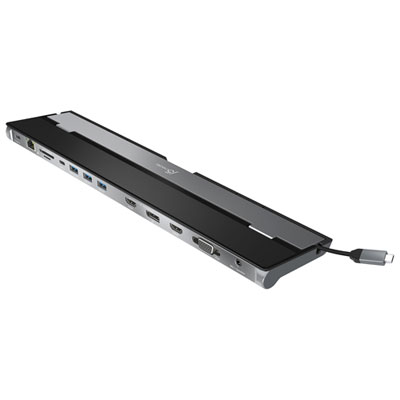 Your price for this item is $129.99
-
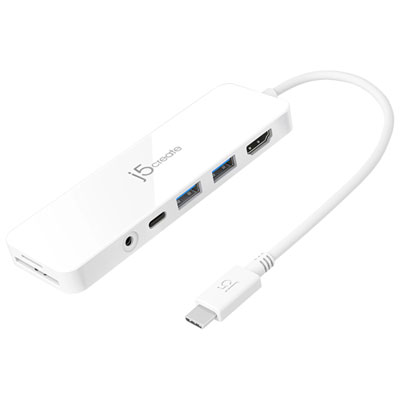 Your price for this item is $59.99
-
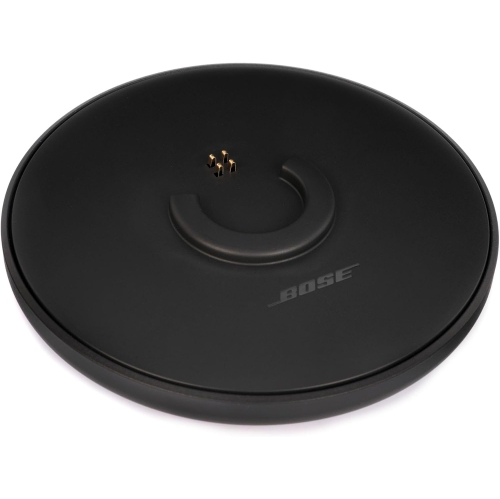 Your price for this item is $44.99
-
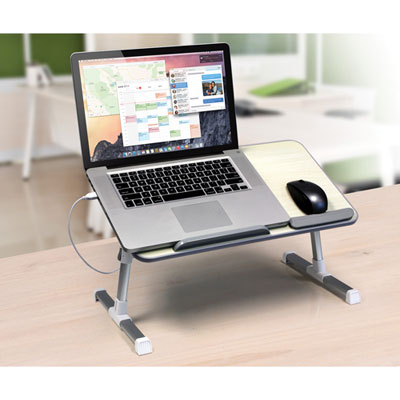 Your price for this item is $59.99
-
 Your price for this item is $96.61
-
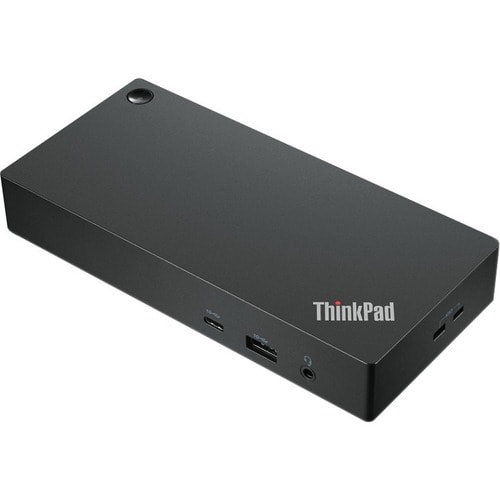 Your price for this item is $179.99
-
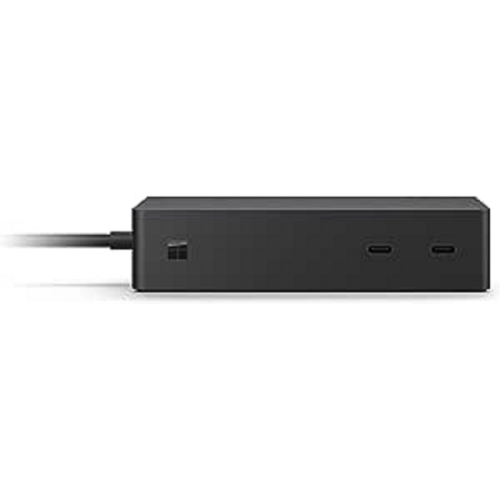 Your price for this item is $209.99
-
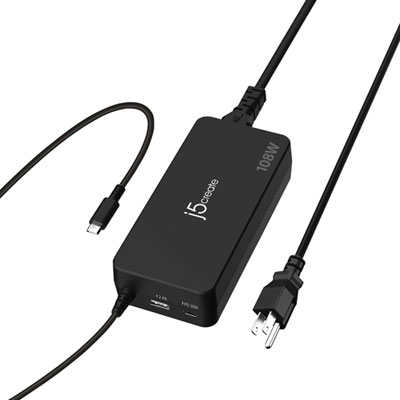 Your price for this item is $59.99
Discover more categories related to Docking Stations for Mac
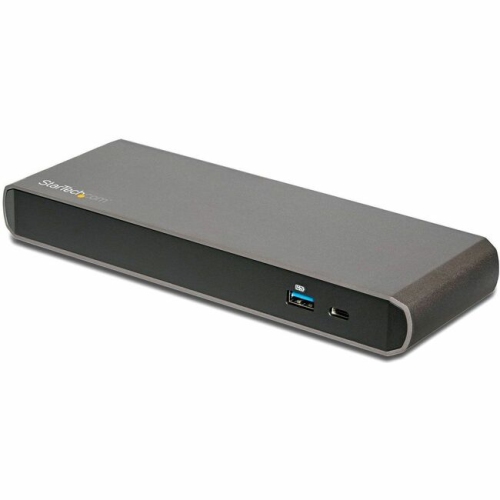
Top Collections:
Best Black Friday Deals This Year, Best Black Friday Deals On Electronics, Kindle Devices, Dyson Airwrap, Best Cameras for Sports Photography, Best Budget Office Chairs, Canon G7X Cameras, PS5 Pro Consoles, Best Black Friday Deals On Apple Products, XBOX One S Consoles
Some products may be subject to Environmental Handling Fees
(EHF) depending on your province.
Learn more about EHFs.