Dual Display Adapters
Enhance your workspace productivity with our selection of dual display adapters. These versatile devices allow you to easily connect multiple monitors to your computer, providing a seamless and efficient workflow. Whether you're a multitasking professional in need of extra screen real estate or a creative looking to expand your digital canvas, our dual display adapters offer the flexibility and performance you need to elevate your computing experience. Discover the possibilities of enhanced productivity and creativity with our range of dual display adapters today.
Sort
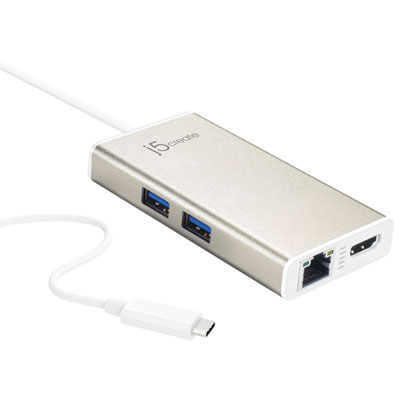
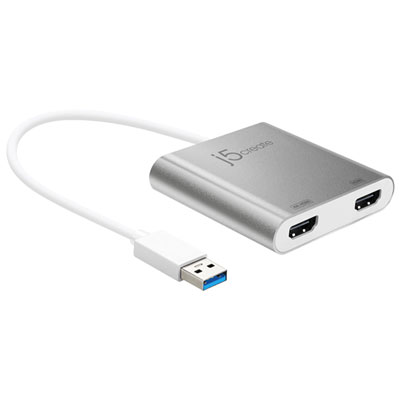

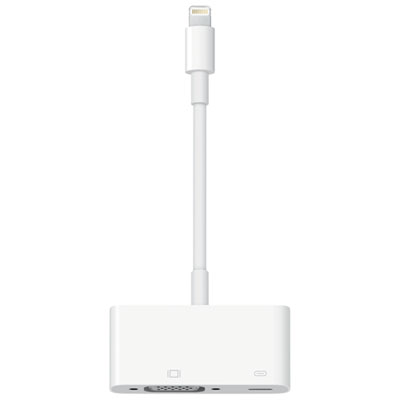
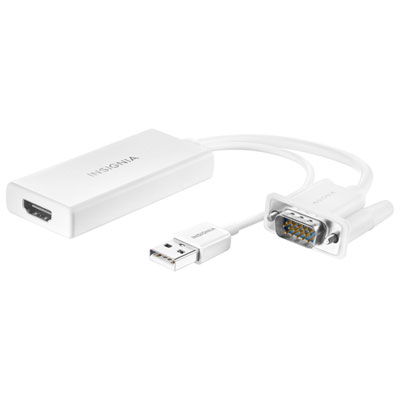
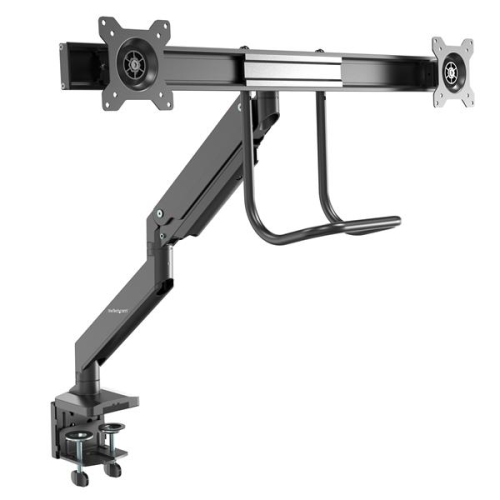
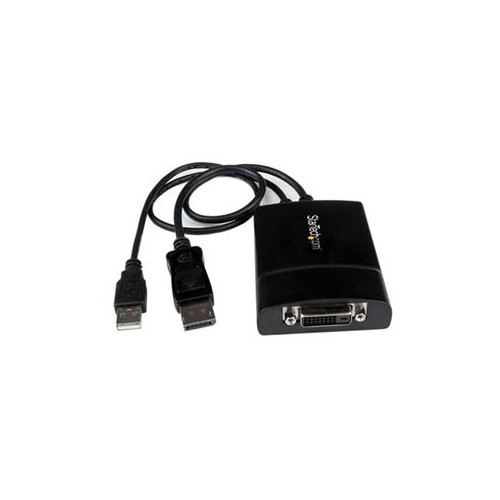
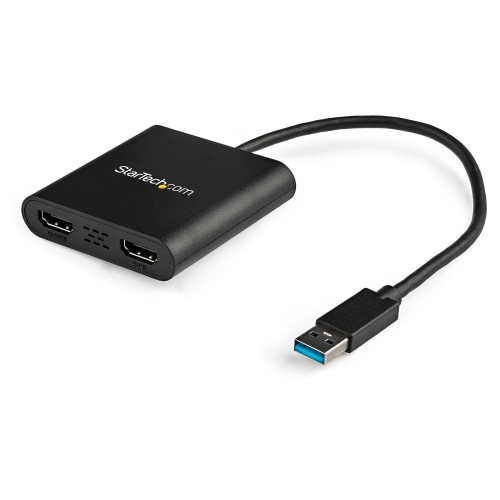
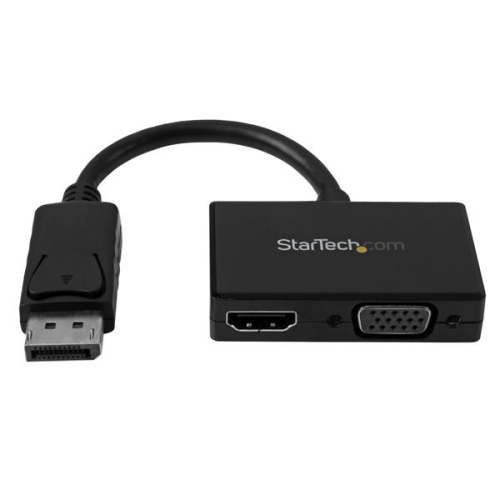
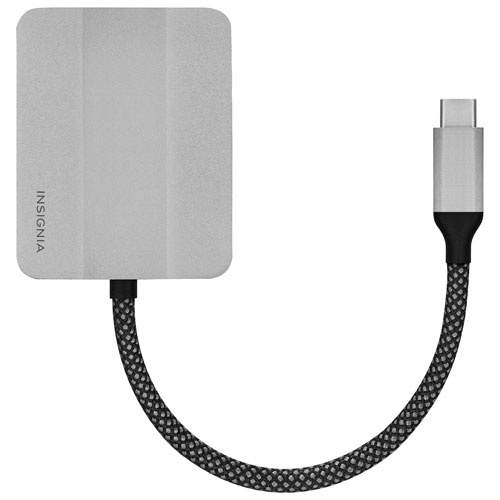
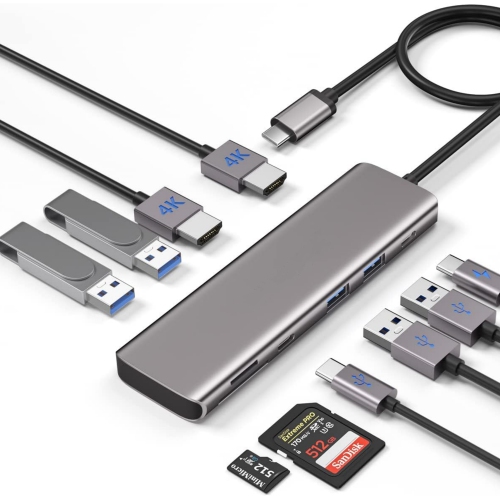
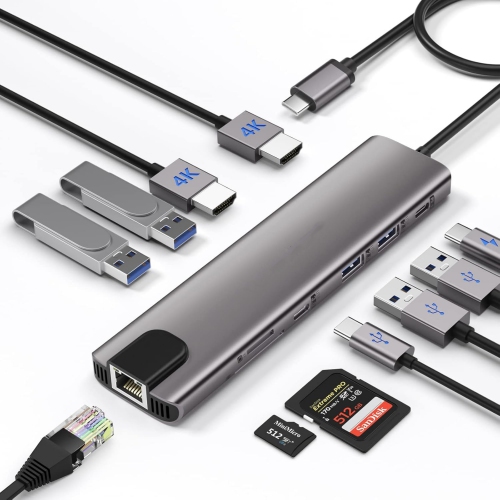
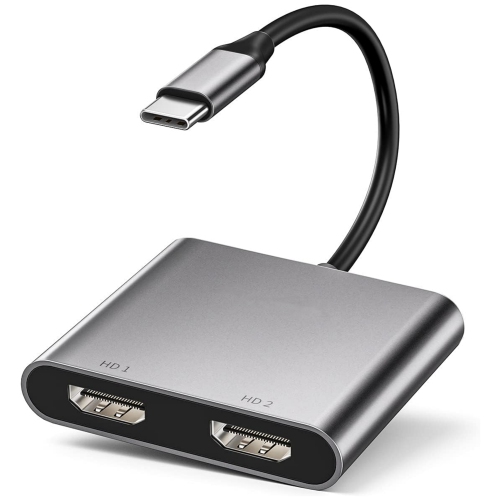
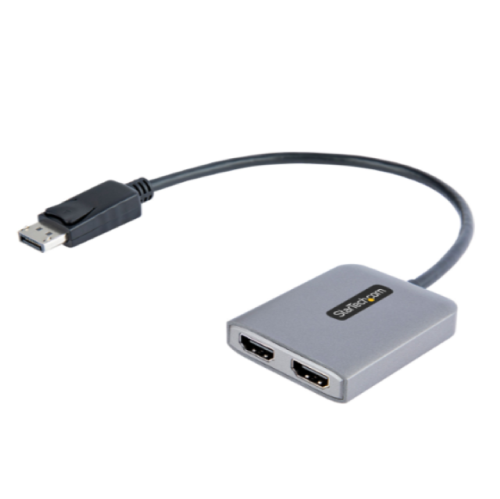
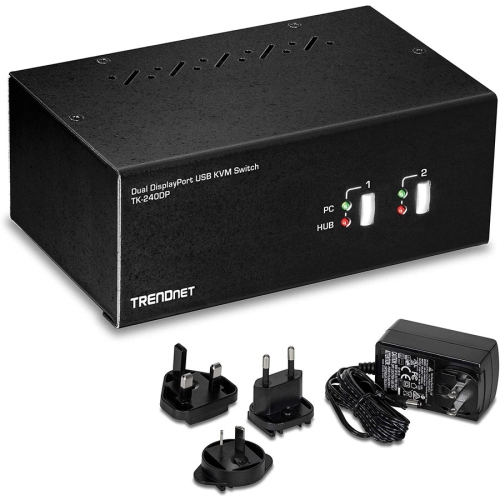
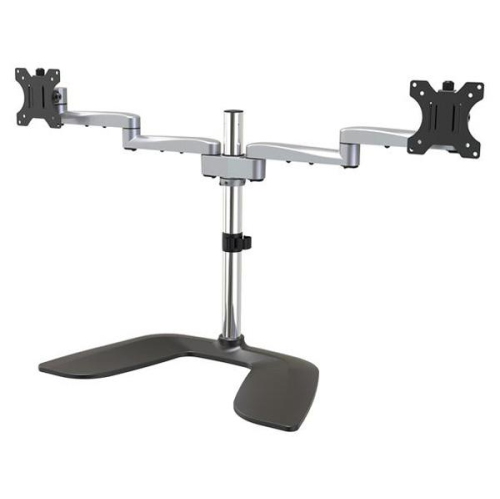
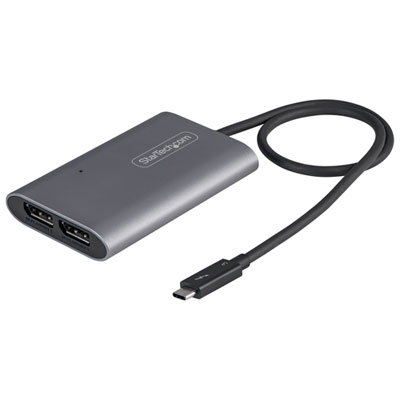


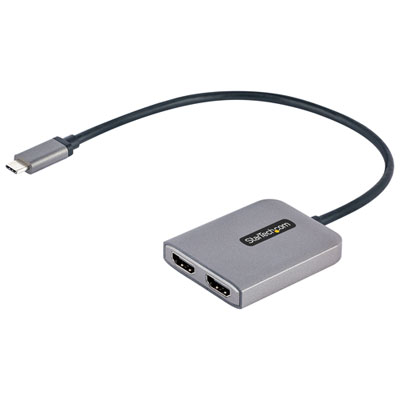
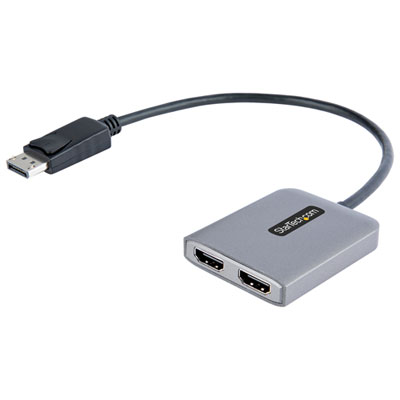
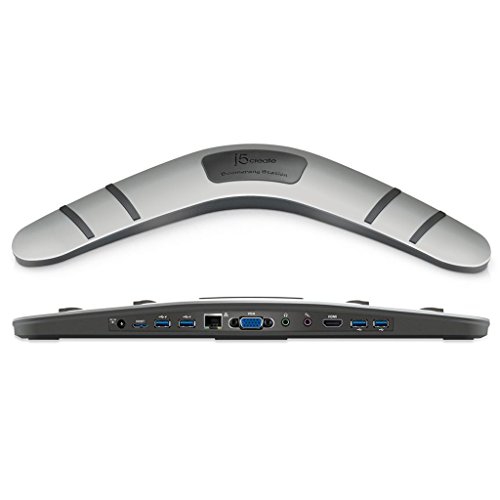
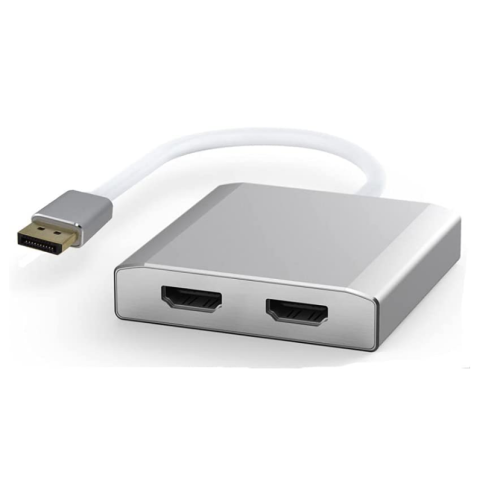
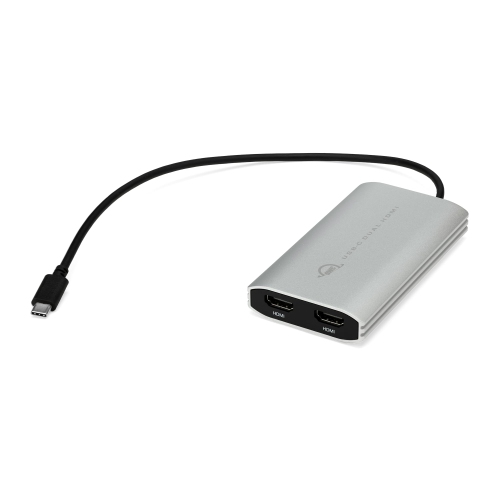
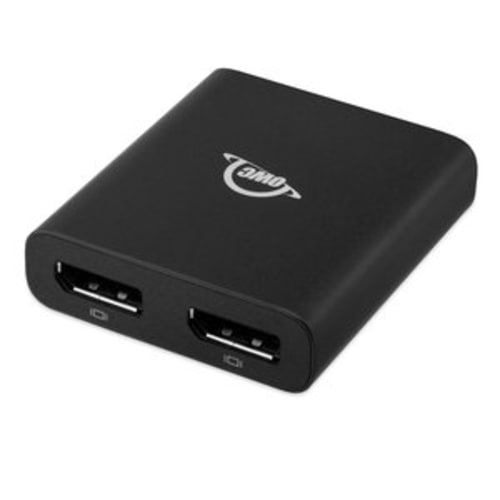
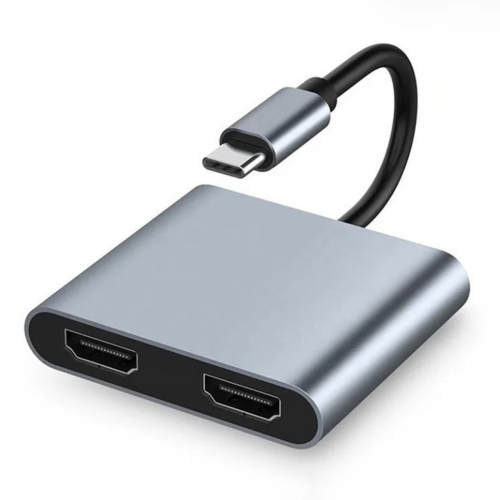
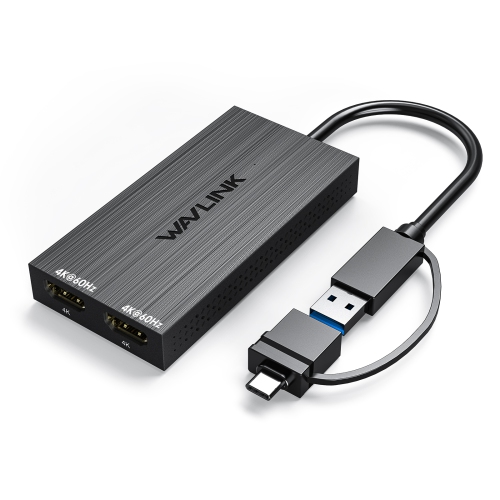
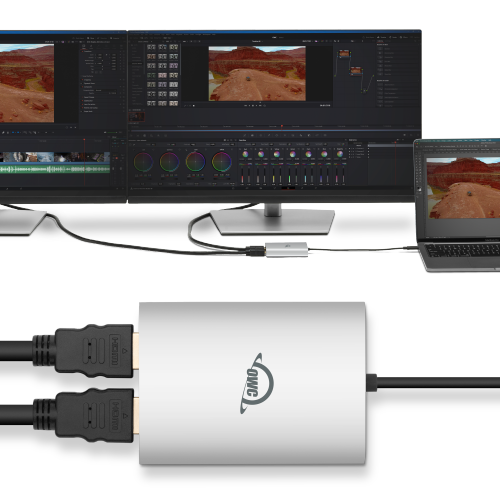
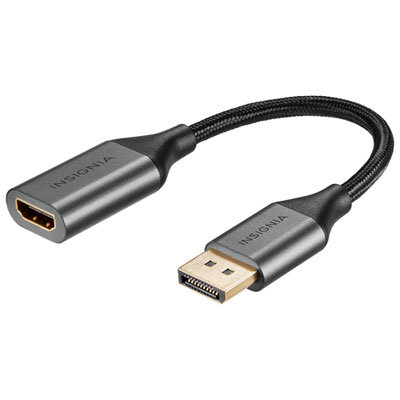
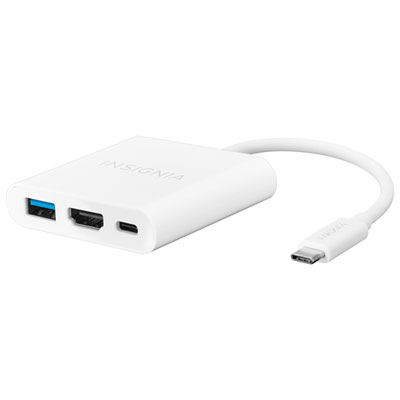
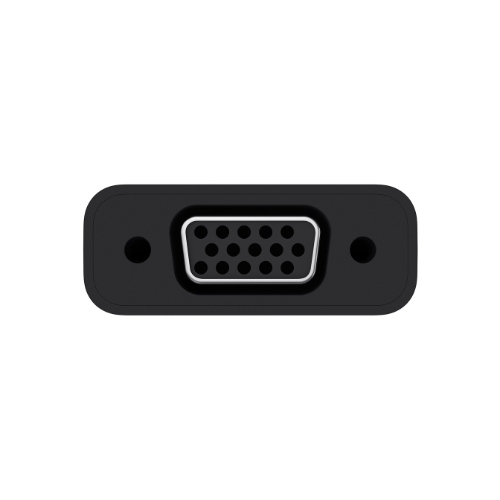
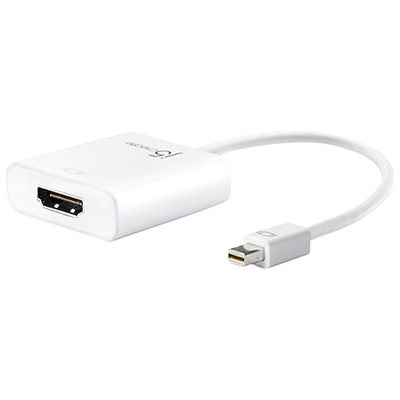
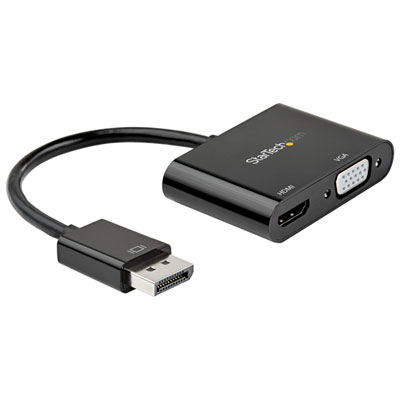
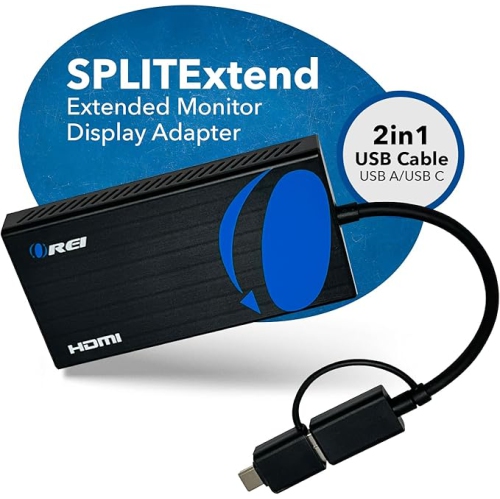

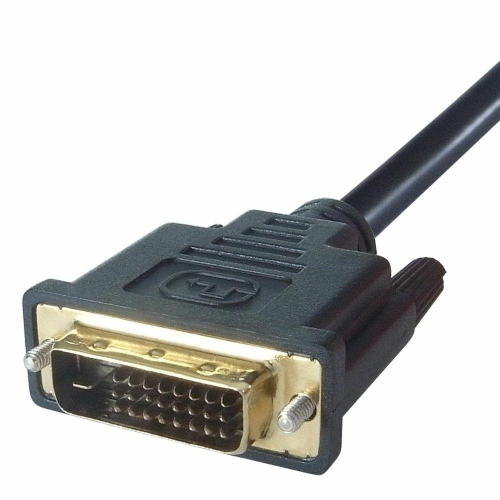
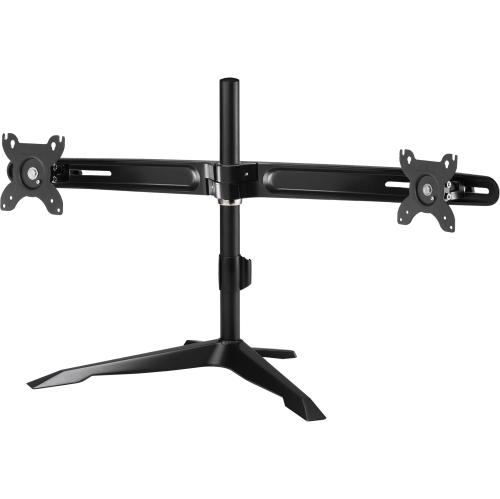
Two screens can mean more than mirrored content
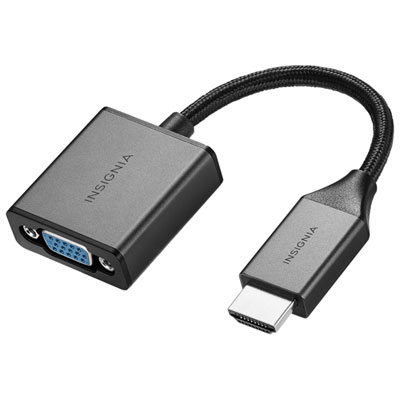
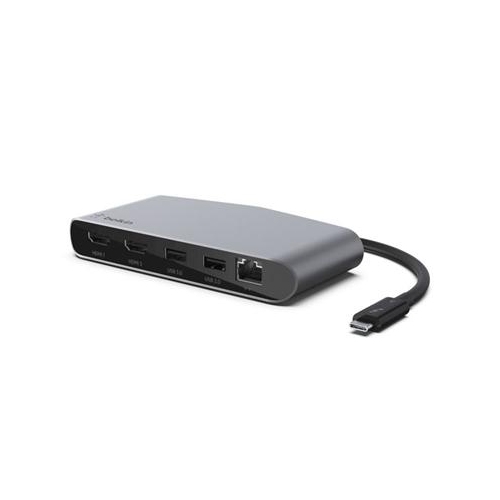
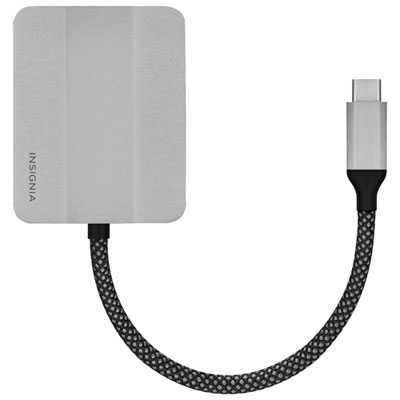
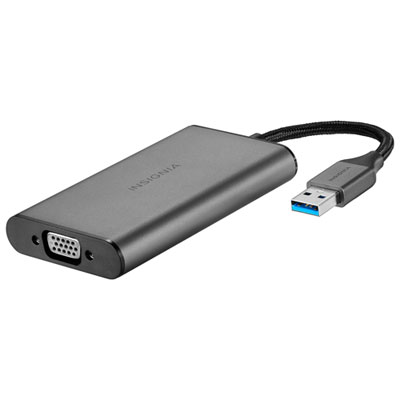
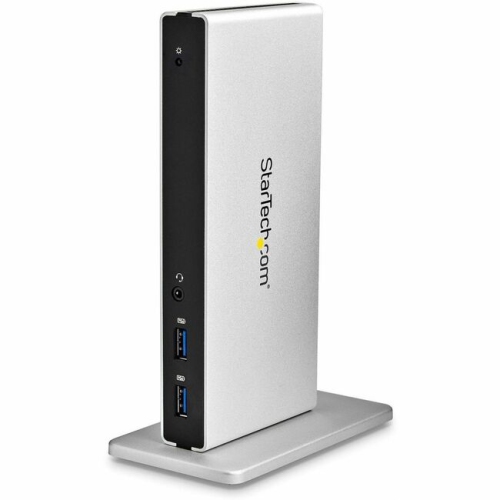
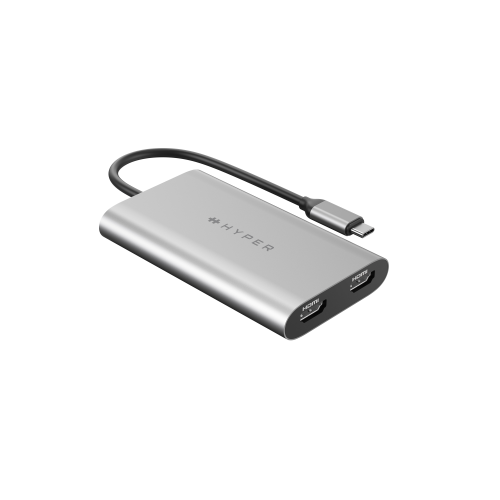
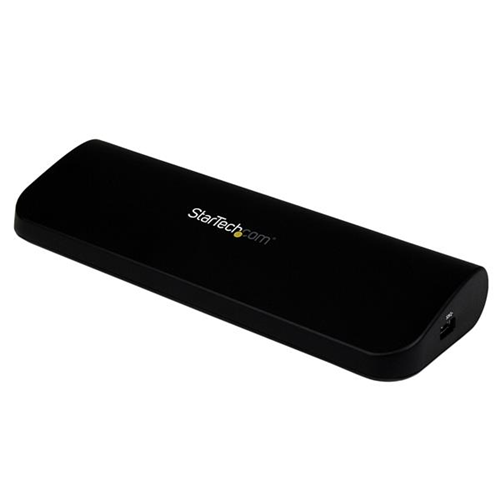
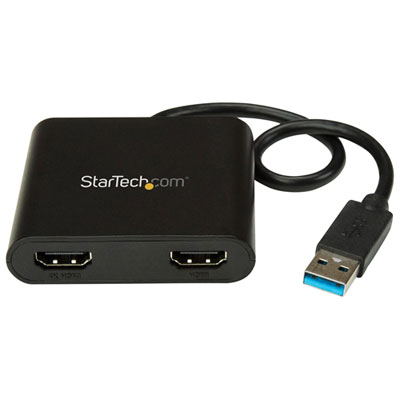
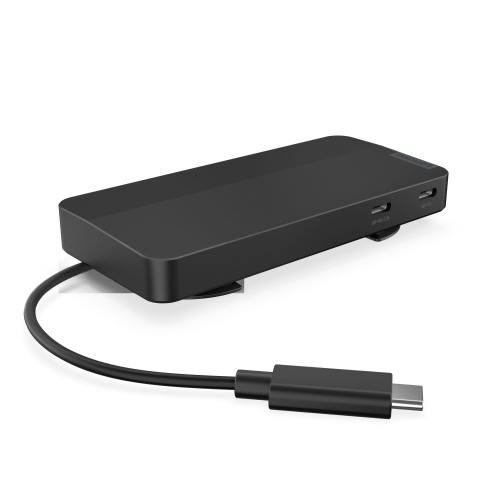
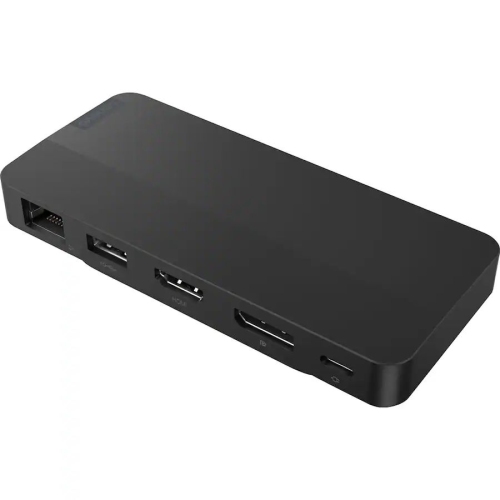
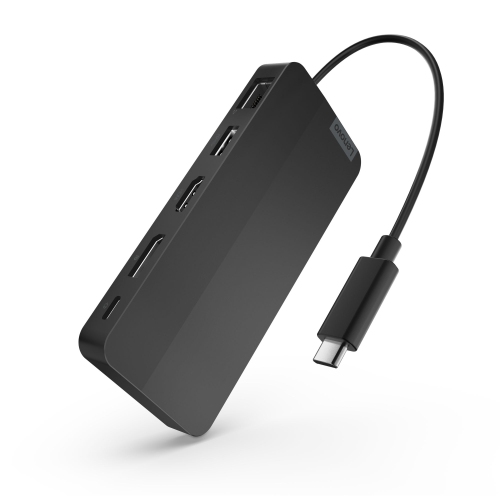
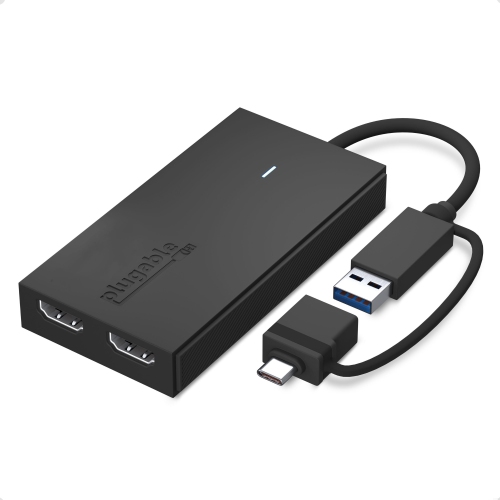
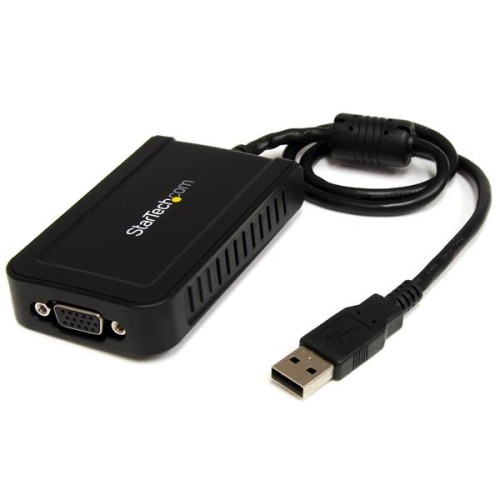
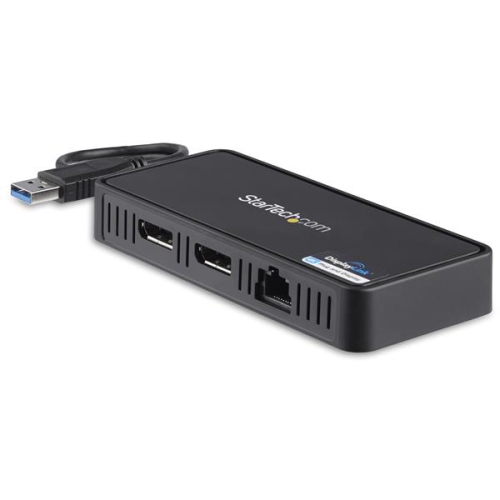
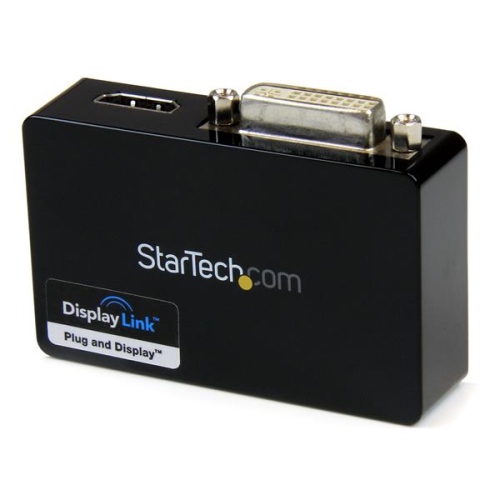
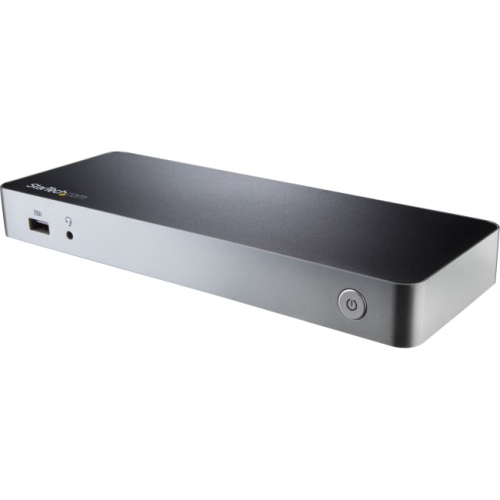
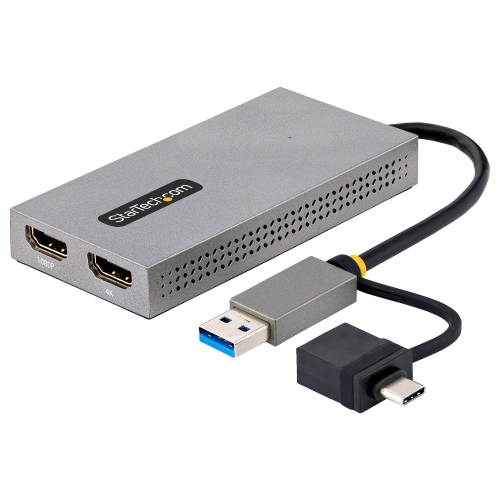
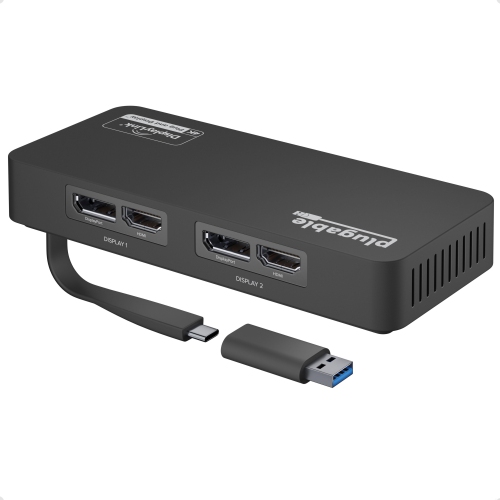
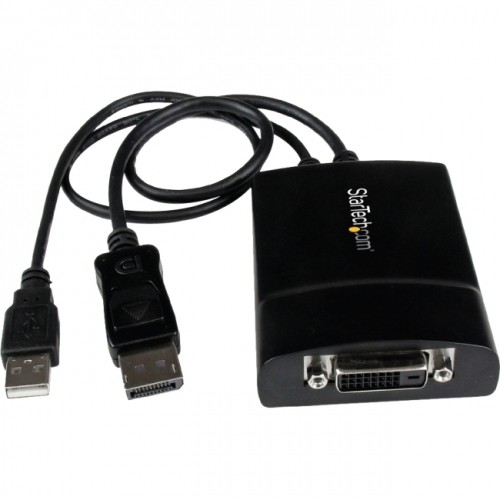
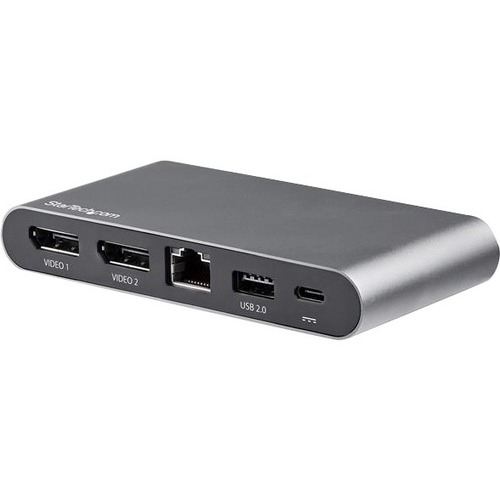
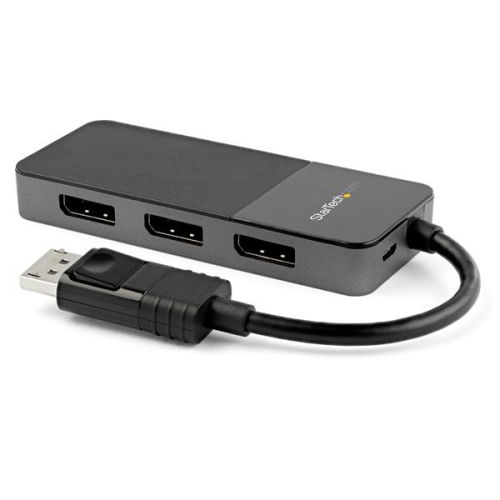
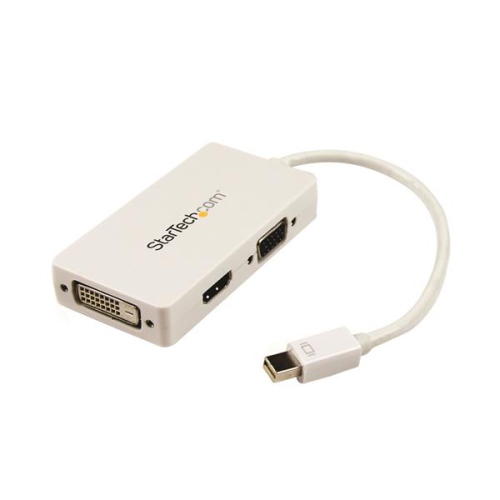
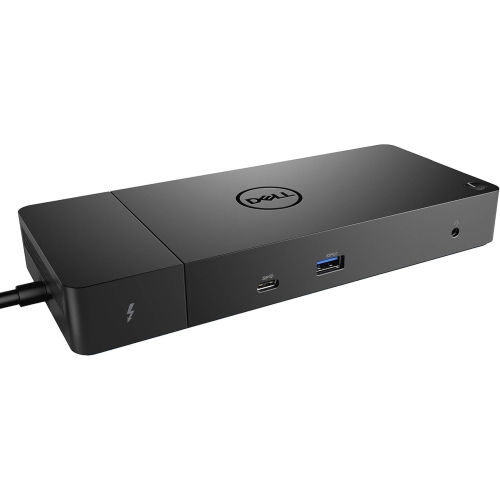
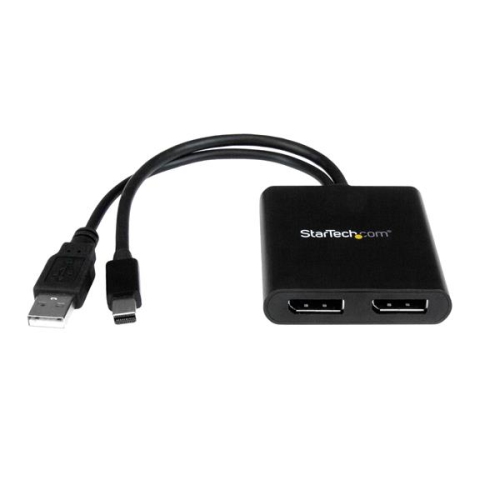
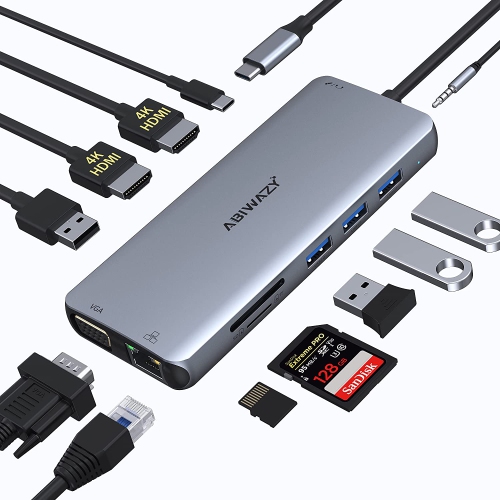
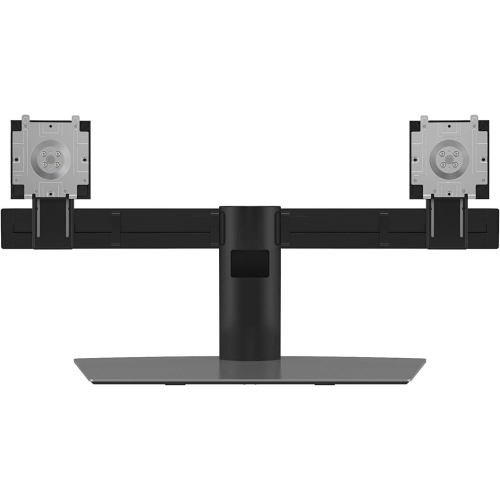
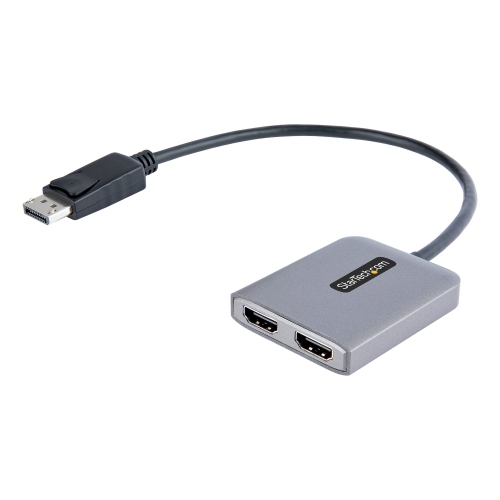
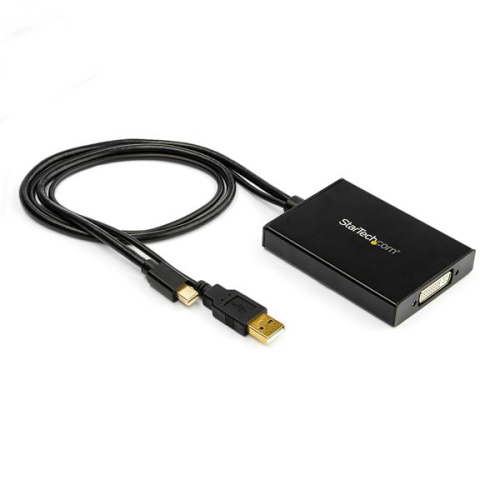
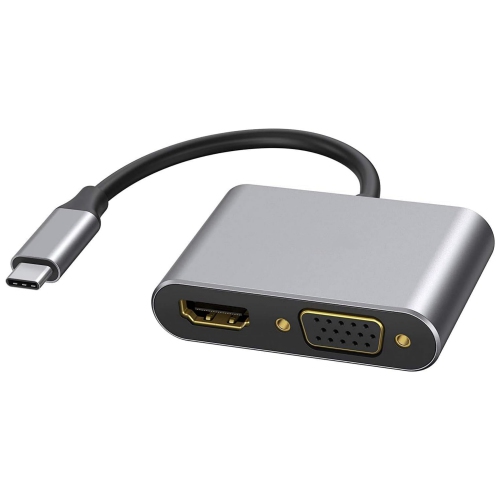
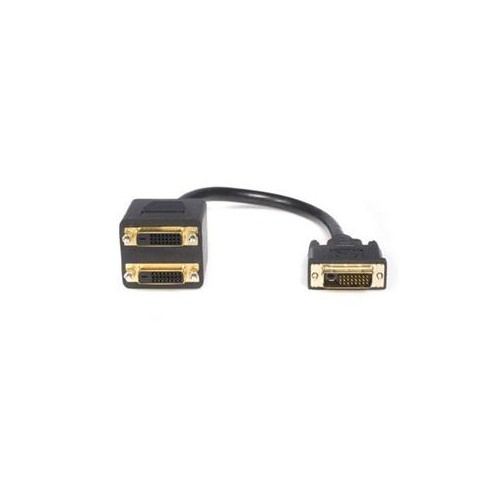
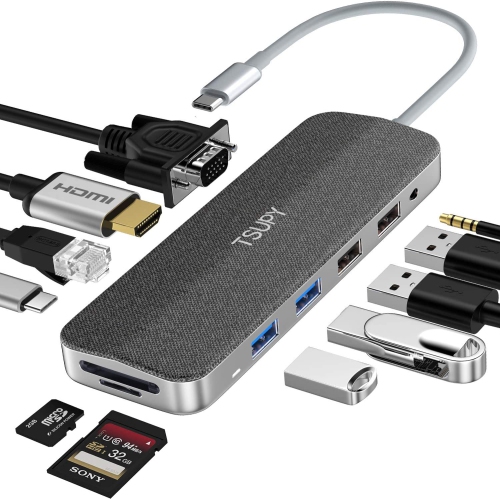
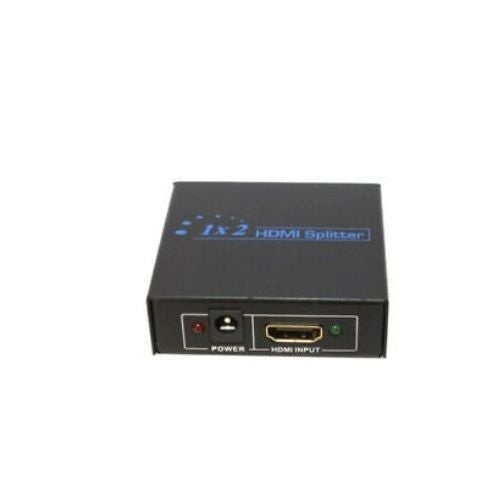
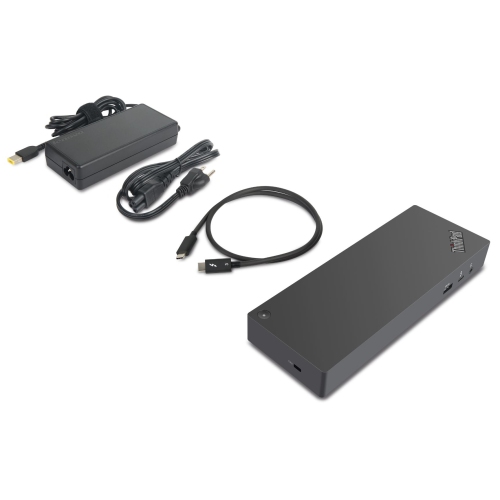
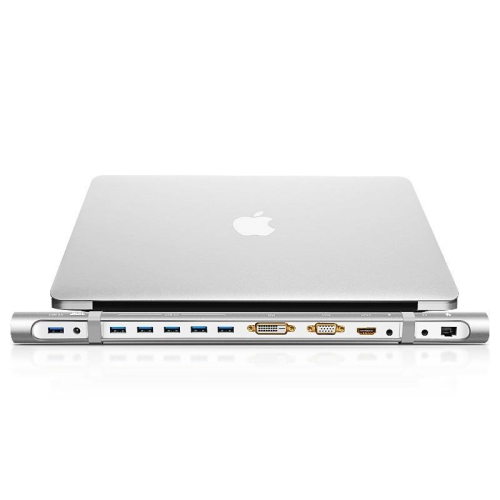
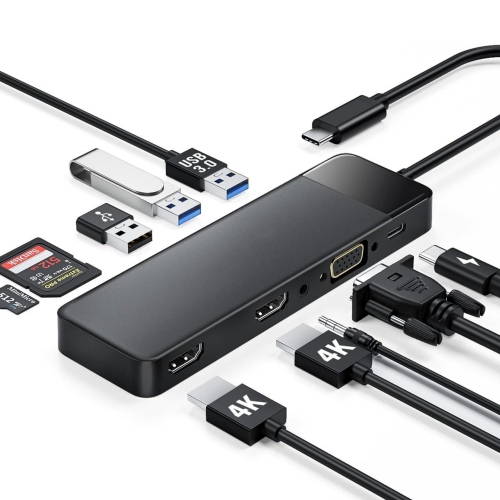
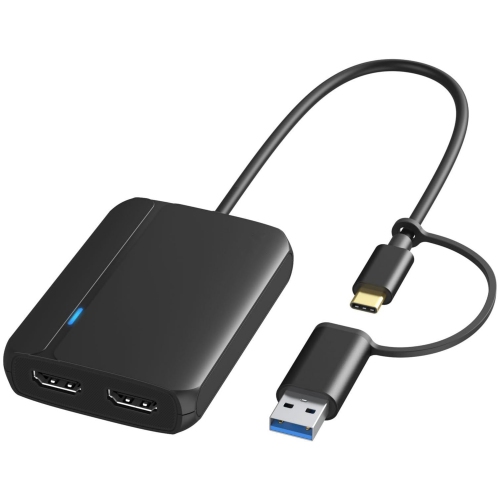
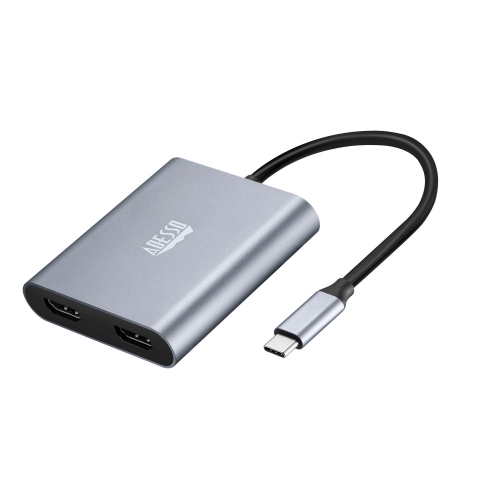
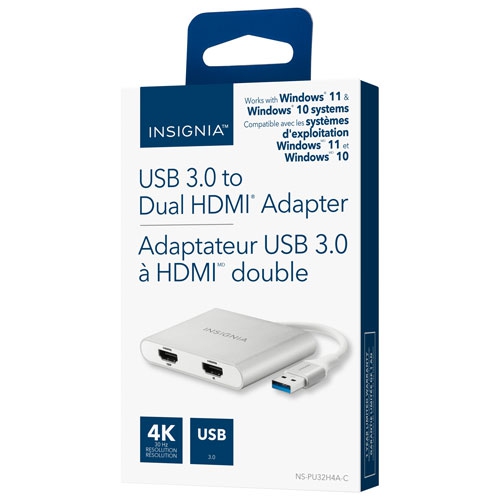
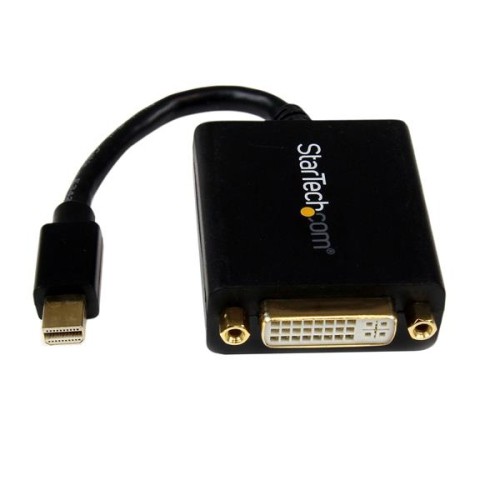
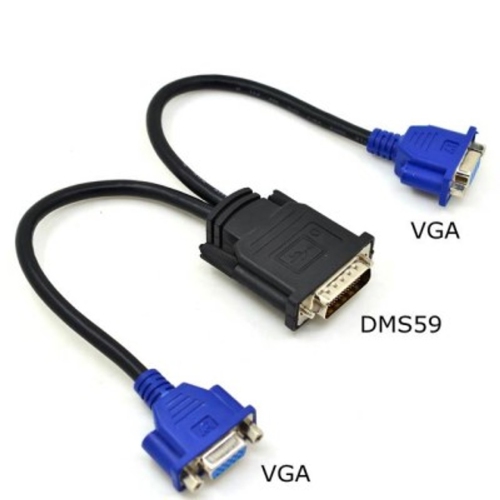
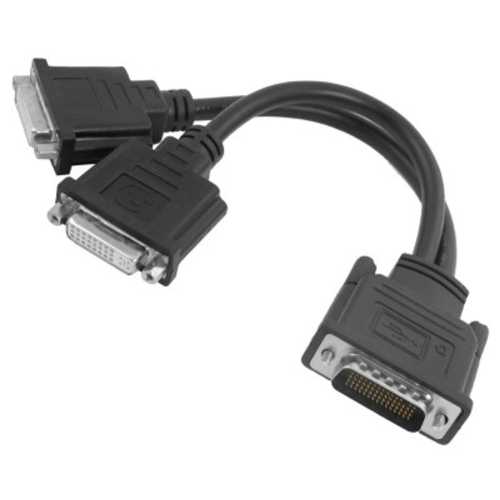
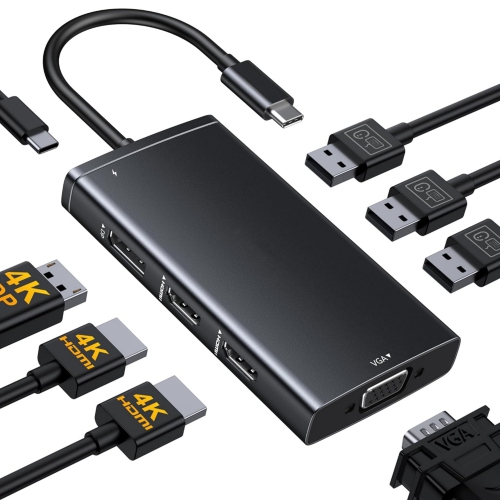
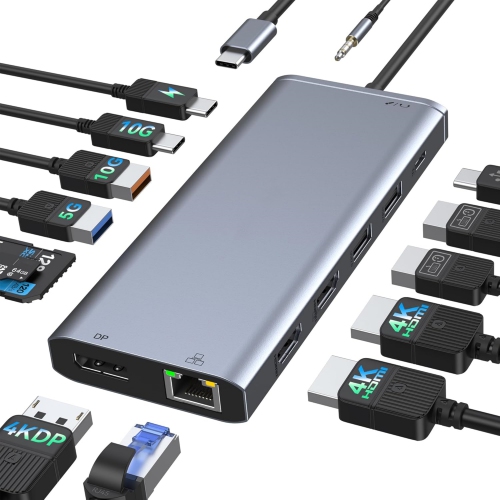
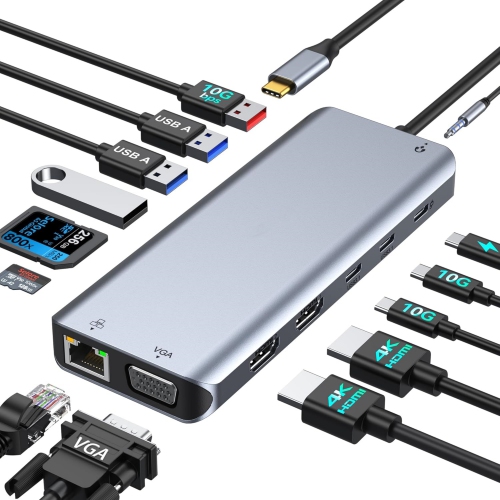
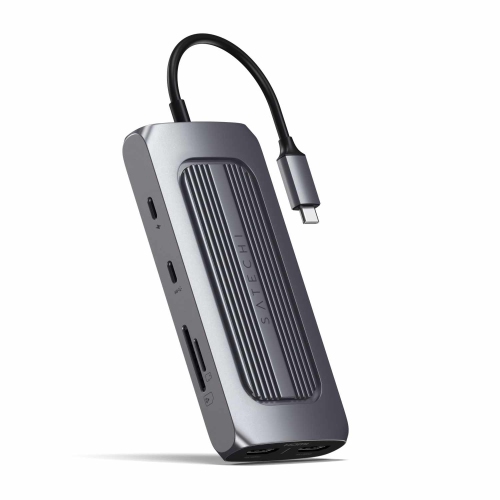
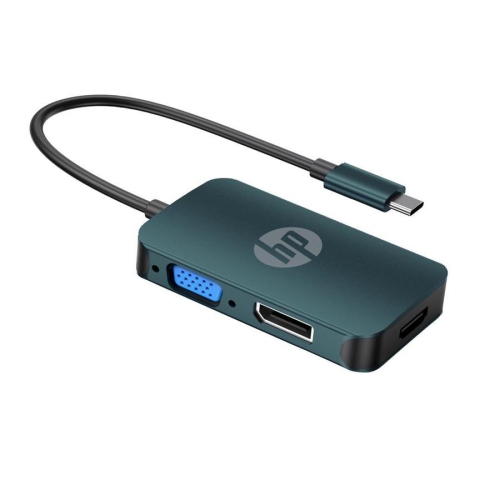
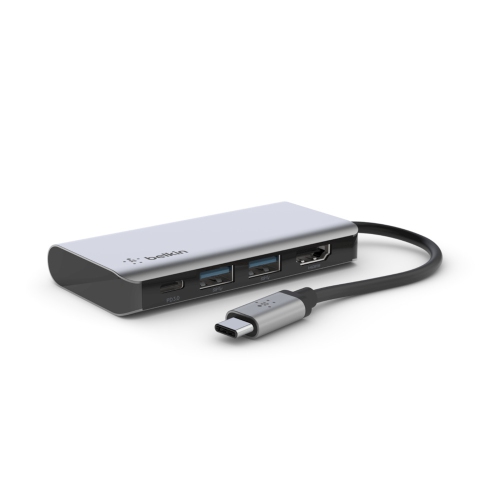
Dual display adapters connect two external monitors to a compatible computer through a single host connection, creating more room for documents, spreadsheets, video calls, and creative work. Depending on the adapter and computer, that connection may use USB-C, Thunderbolt, USB-A, or DisplayPort, with HDMI, DisplayPort, or VGA outputs leading to the screens. The main distinction is whether the adapter supports an extended desktop, which lets each monitor show different content, or mirrored output, which repeats the same image. For someone comparing figures across two spreadsheets, an extended desktop keeps both files visible without constant window switching. For a presentation shown on two screens, mirrored output may be exactly what is needed. A basic video splitter typically duplicates a signal rather than creating two independent workspaces, so two output sockets alone do not confirm extended-display support. Dual monitor adapters suit home offices, study spaces, shared desks, and reception counters where a compact computer needs a larger visual workspace. A student can keep research beside a draft, an accountant can view supporting documents next to a worksheet, and a designer can separate editing tools from a preview. Some setups use the laptop screen alongside both external monitors, while others use only the two larger displays; the computer’s supported display count determines which arrangements are possible. Compact adapters are convenient for moving between desks, while larger models with additional connections can form part of a more permanent workstation. Some include USB ports, wired networking, or charging pass-through, bringing several desk connections together in one place. The most useful configuration depends on the equipment already in use, including the computer’s exact port capabilities, each monitor’s inputs, and the resolution needed on both screens at once. For a practical workspace upgrade, compatibility matters more than the number of connectors on the housing. A well-matched adapter makes an existing pair of monitors easier to use together without requiring a full-size desktop computer or a complicated collection of separate converters.
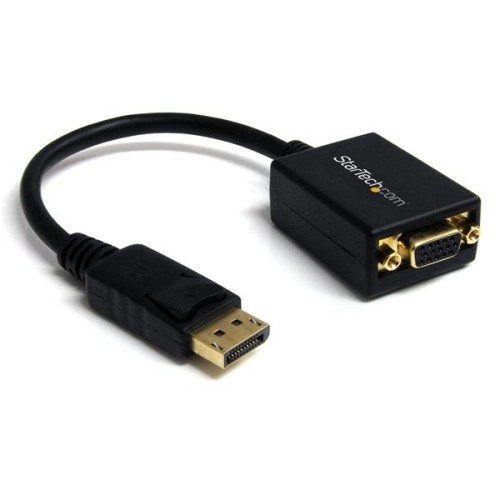
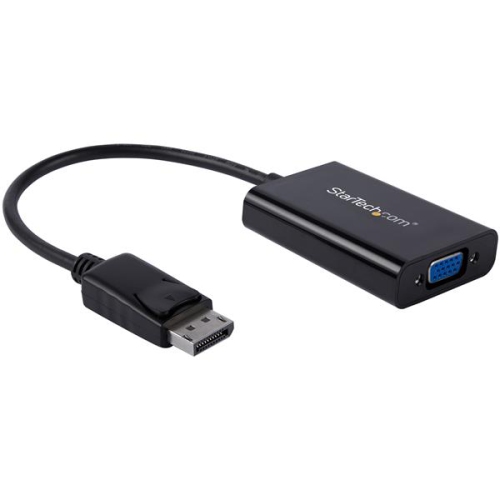
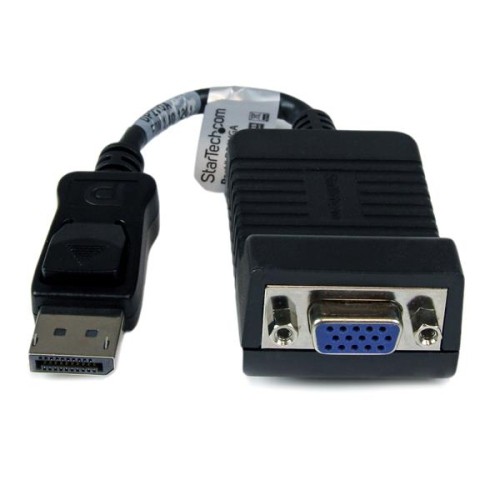
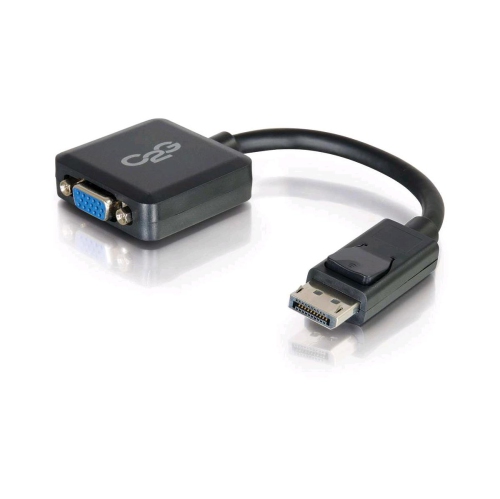
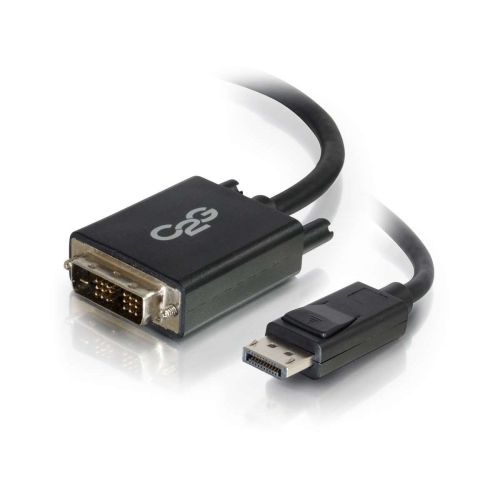
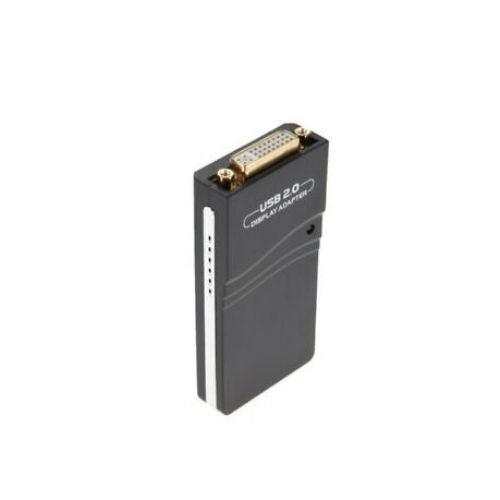
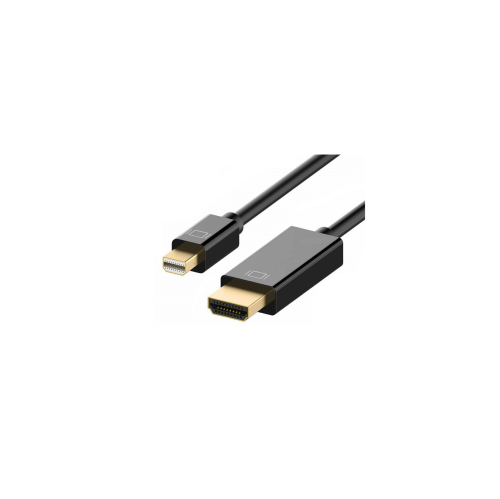
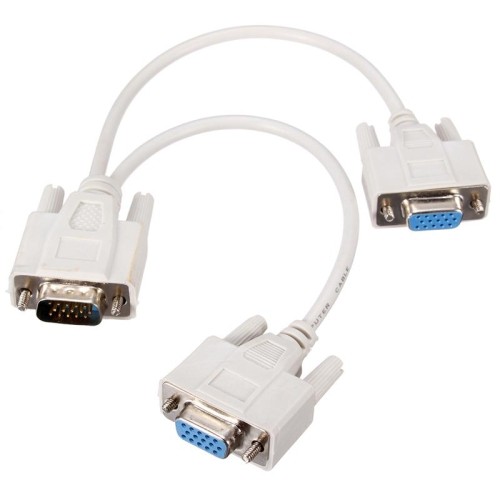
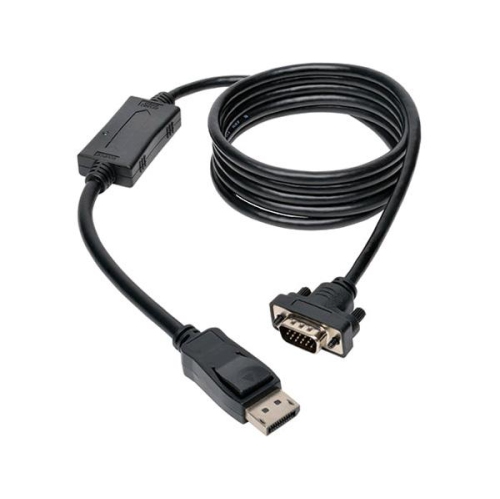
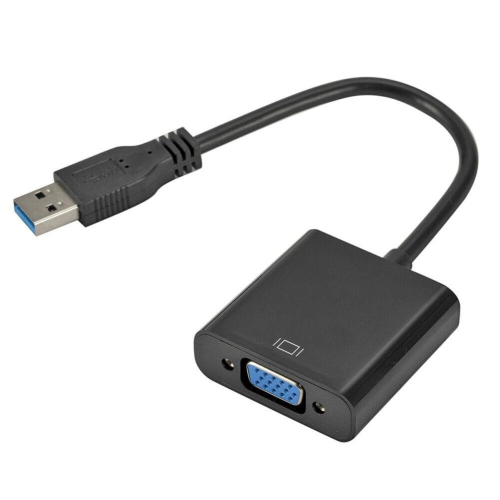
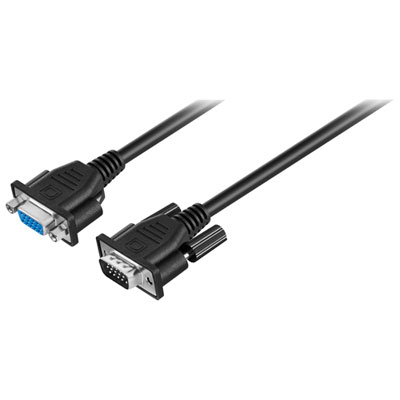
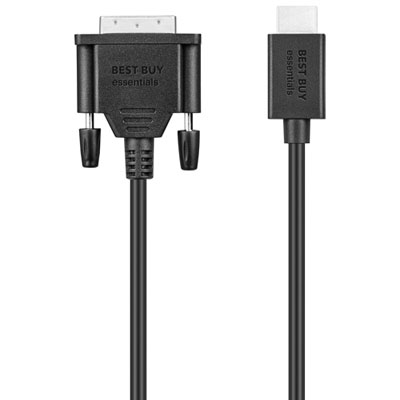
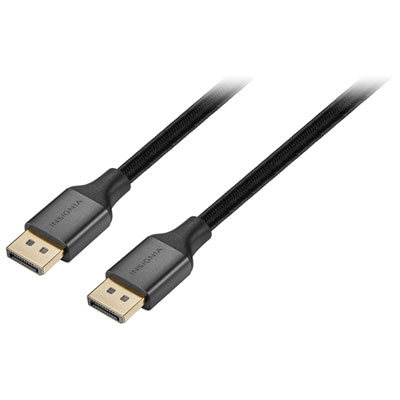
Port shape is only the starting point when matching a dual display adapter to a computer. A USB-C socket does not automatically carry video: native video adapters generally need a host port that supports DisplayPort Alternate Mode or an appropriate Thunderbolt connection. USB-A does not provide that same native video signal, so adapters that send display output through USB-A use USB graphics technology and usually require compatible software. Software-based USB-C adapters also exist, making the adapter’s stated connection method important. These approaches can serve similar desk layouts but have different requirements. Native video adapters draw on the computer’s display capabilities, while USB graphics adapters use a software-assisted path that can add external screens on certain systems with limited native display support. They do not remove every restriction, and compatibility with the operating system, software permissions, and intended applications still needs confirmation. On a work-issued laptop, permission to install a display driver can be just as important as having the correct port. Multi-Stream Transport, often shortened to MST, allows multiple display streams over a compatible DisplayPort connection, including through some USB-C adapters. However, support for extending those streams across separate monitors varies by operating system and computer hardware; a connection that provides two independent desktops on one computer may only mirror them on another. Thunderbolt adapters can use a different display arrangement, but their results also depend on the host computer’s supported number of external displays. Monitor-side connections deserve equal attention. HDMI and DisplayPort carry digital video, while VGA carries analogue video and does not carry audio. Older office monitors with VGA inputs may call for VGA Adapters for Dual Monitors, with particular attention to conversion direction and supported resolution. Cables and converters are not always reversible, and adding extra conversion stages can introduce further limits. Matching the adapter’s outputs directly to the monitors’ inputs usually keeps the setup simpler. Where monitors have different connections or resolutions, support for mixed displays helps determine whether both can run in the intended arrangement.
Resolution and refresh rate specifications are most useful when they describe both displays operating simultaneously. An adapter advertised for 4K output may support that resolution on only one screen, or may reduce the refresh rate when a second monitor is connected. Dual 4K at 60 Hz requires enough bandwidth across the computer, adapter, and cables, along with compatible monitors; it is not a guaranteed feature of every USB-C or Thunderbolt connection. A 60 Hz refresh rate generally makes scrolling and pointer movement look smoother than 30 Hz, while higher refresh rates for gaming demand more specific support throughout the connection. Software-based display connections can work well for documents and general office tasks, but latency, protected-video playback, and demanding graphics applications may warrant closer attention. For colour-sensitive work, support for the required colour depth and display features matters alongside resolution. Physical design also affects daily use. Lightweight plastic housings can be convenient for travel, while metal housings may offer a firmer feel and help dissipate heat, though material alone does not establish durability. Reinforced cable joints, secure connectors, and a short lead that reaches without pulling against the laptop port are useful details at a crowded desk. Closely spaced outputs may be awkward with wide cable plugs, and an integrated host cable limits how far the adapter can sit from the computer. Models with charging pass-through need a compatible charger and cable, and the power delivered to the laptop may be lower than the adapter’s stated input because some power runs the adapter itself. A tidy setup leaves enough cable slack to reposition a screen without straining a socket. For care, disconnect the adapter before cleaning it with a soft, dry cloth, keep liquids away from the ports, and avoid tightly folding attached cables during storage. Leaving the housing uncovered helps it release operating heat. These small details make a difference for adapters that travel in a laptop bag or stay connected through a full working day, supporting a practical two-screen workspace without unnecessary bulk.
Port shape is only the starting point when matching a dual display adapter to a computer. A USB-C socket does not automatically carry video: native video adapters generally need a host port that supports DisplayPort Alternate Mode or an appropriate Thunderbolt connection. USB-A does not provide that same native video signal, so adapters that send display output through USB-A use USB graphics technology and usually require compatible software. Software-based USB-C adapters also exist, making the adapter’s stated connection method important. These approaches can serve similar desk layouts but have different requirements. Native video adapters draw on the computer’s display capabilities, while USB graphics adapters use a software-assisted path that can add external screens on certain systems with limited native display support. They do not remove every restriction, and compatibility with the operating system, software permissions, and intended applications still needs confirmation. On a work-issued laptop, permission to install a display driver can be just as important as having the correct port. Multi-Stream Transport, often shortened to MST, allows multiple display streams over a compatible DisplayPort connection, including through some USB-C adapters. However, support for extending those streams across separate monitors varies by operating system and computer hardware; a connection that provides two independent desktops on one computer may only mirror them on another. Thunderbolt adapters can use a different display arrangement, but their results also depend on the host computer’s supported number of external displays. Monitor-side connections deserve equal attention. HDMI and DisplayPort carry digital video, while VGA carries analogue video and does not carry audio. Older office monitors with VGA inputs may call for VGA Adapters for Dual Monitors, with particular attention to conversion direction and supported resolution. Cables and converters are not always reversible, and adding extra conversion stages can introduce further limits. Matching the adapter’s outputs directly to the monitors’ inputs usually keeps the setup simpler. Where monitors have different connections or resolutions, support for mixed displays helps determine whether both can run in the intended arrangement.
Resolution and refresh rate specifications are most useful when they describe both displays operating simultaneously. An adapter advertised for 4K output may support that resolution on only one screen, or may reduce the refresh rate when a second monitor is connected. Dual 4K at 60 Hz requires enough bandwidth across the computer, adapter, and cables, along with compatible monitors; it is not a guaranteed feature of every USB-C or Thunderbolt connection. A 60 Hz refresh rate generally makes scrolling and pointer movement look smoother than 30 Hz, while higher refresh rates for gaming demand more specific support throughout the connection. Software-based display connections can work well for documents and general office tasks, but latency, protected-video playback, and demanding graphics applications may warrant closer attention. For colour-sensitive work, support for the required colour depth and display features matters alongside resolution. Physical design also affects daily use. Lightweight plastic housings can be convenient for travel, while metal housings may offer a firmer feel and help dissipate heat, though material alone does not establish durability. Reinforced cable joints, secure connectors, and a short lead that reaches without pulling against the laptop port are useful details at a crowded desk. Closely spaced outputs may be awkward with wide cable plugs, and an integrated host cable limits how far the adapter can sit from the computer. Models with charging pass-through need a compatible charger and cable, and the power delivered to the laptop may be lower than the adapter’s stated input because some power runs the adapter itself. A tidy setup leaves enough cable slack to reposition a screen without straining a socket. For care, disconnect the adapter before cleaning it with a soft, dry cloth, keep liquids away from the ports, and avoid tightly folding attached cables during storage. Leaving the housing uncovered helps it release operating heat. These small details make a difference for adapters that travel in a laptop bag or stay connected through a full working day, supporting a practical two-screen workspace without unnecessary bulk.
Top selling and popular products
-
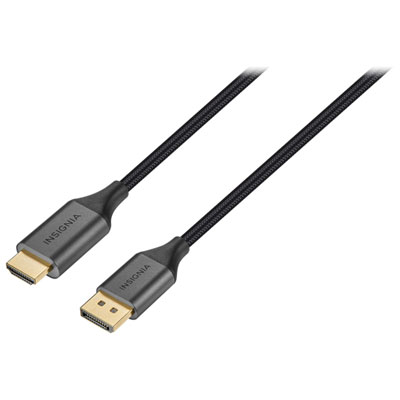 Your price for this item is $39.95
 -
 Your price for this item is $62.99
 -
 Your price for this item is $29.95
 -
 Your price for this item is $14.99
 -
 Your price for this item is $29.99
 -
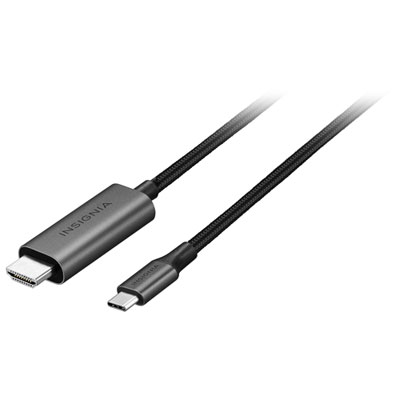 Your price for this item is $39.99
 -
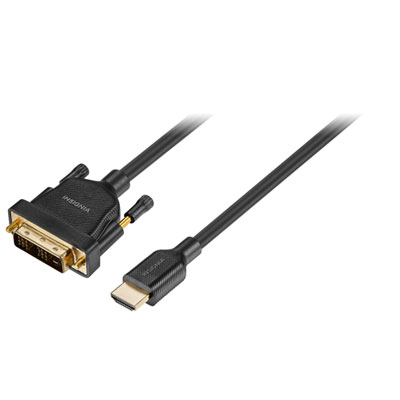 Your price for this item is $29.99
 -
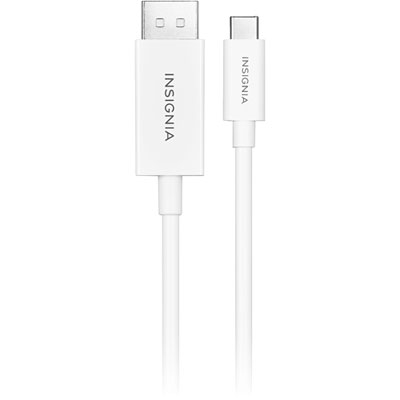 Your price for this item is $24.97
Discover more categories related to Dual Display Adapters
Top Collections:
Pokemon Centers, Kindle Devices, Best Budget Office Chairs, Apple iPhones 16, Best Laptops for Writers, iPhone 15 Apple, Canon G7X Cameras, Refurbished Apple Laptops, Alarm Clock, Motorola Razr Phones
Some products may be subject to Environmental Handling Fees
(EHF) depending on your province.
Learn more about EHFs.