Fastest Hard Drives
Looking to turbocharge your computer's storage capabilities? Look no further than our selection of the fastest hard drives on the market. With lightning-fast read and write speeds, these high-performance drives are designed to handle even the most demanding tasks with ease. Whether you're a gamer seeking seamless gameplay, a creative professional working with large files, or simply someone who wants their computer to run at blazing speeds, our collection of the fastest hard drives has got you covered. Upgrade your storage and experience a whole new level of speed and performance today.
Sort

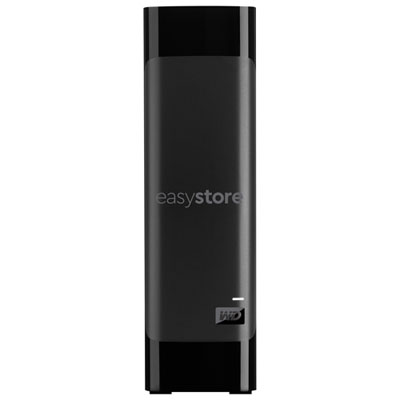
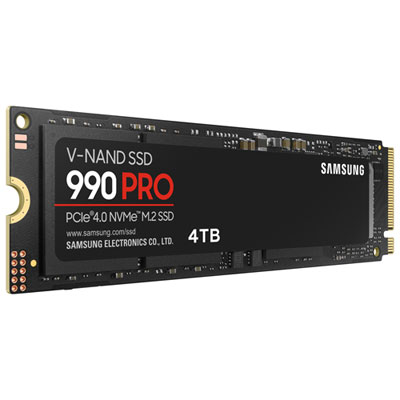
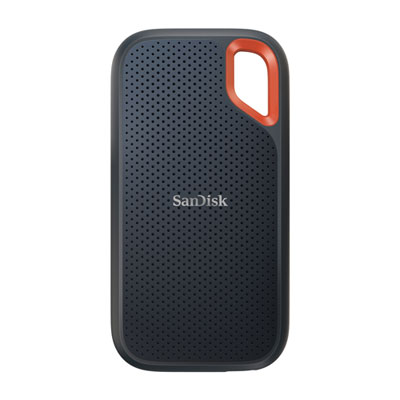
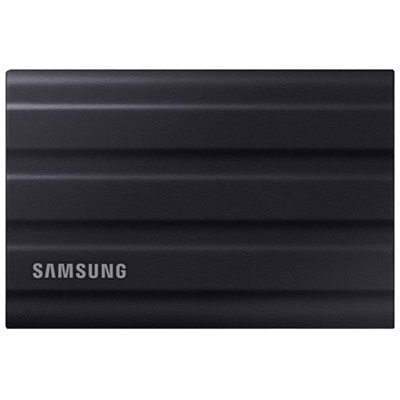
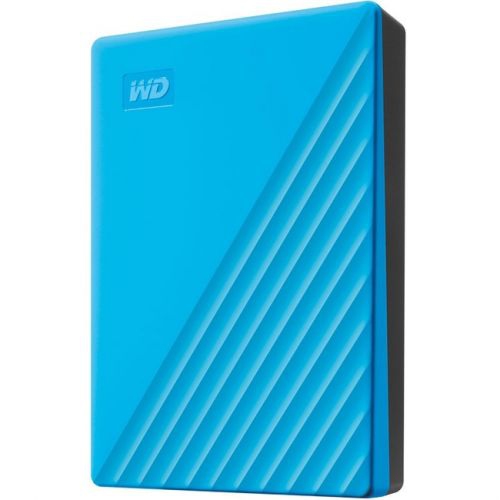
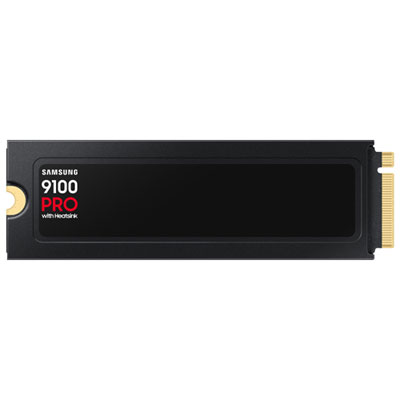
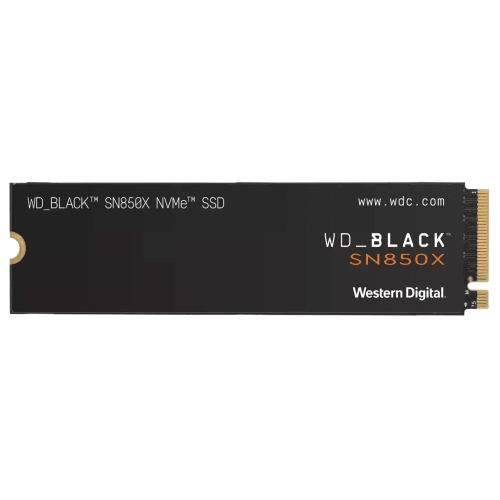
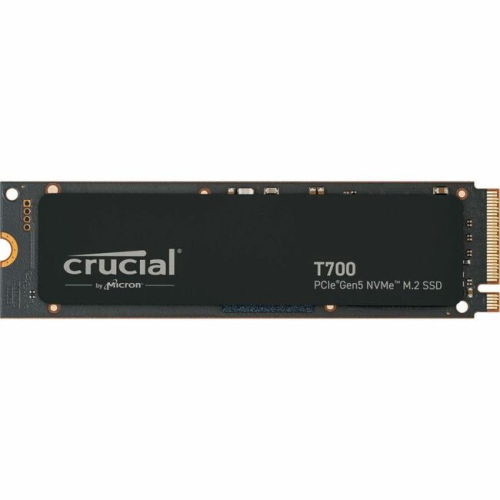
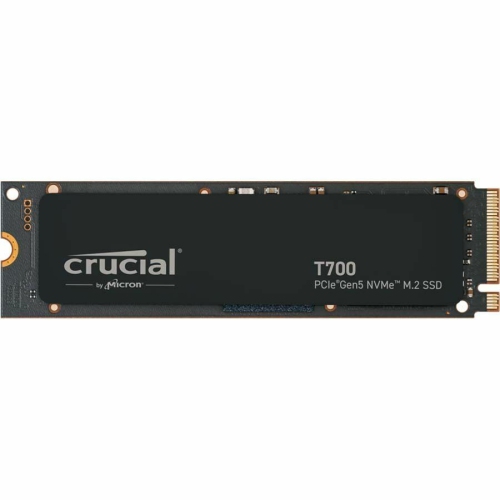
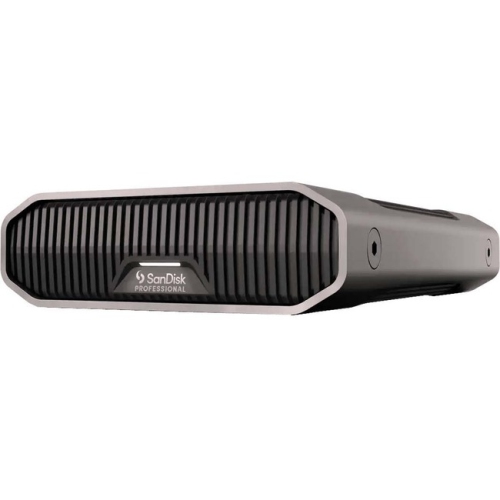
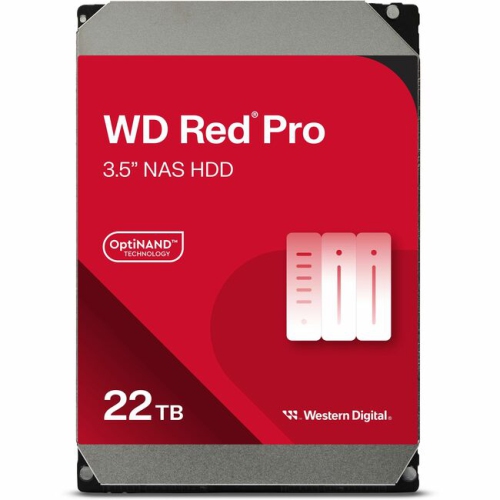
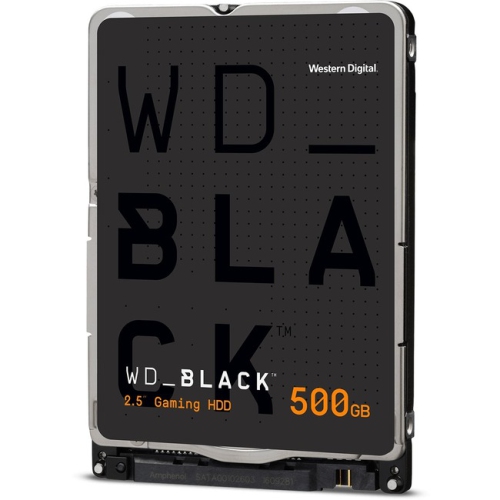
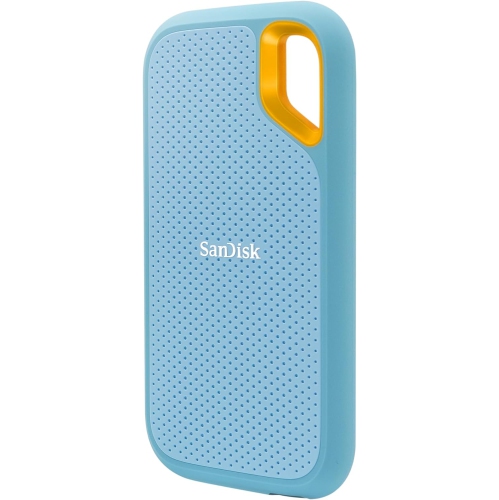
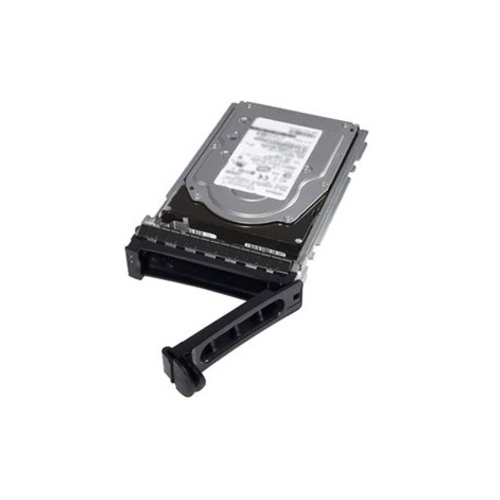
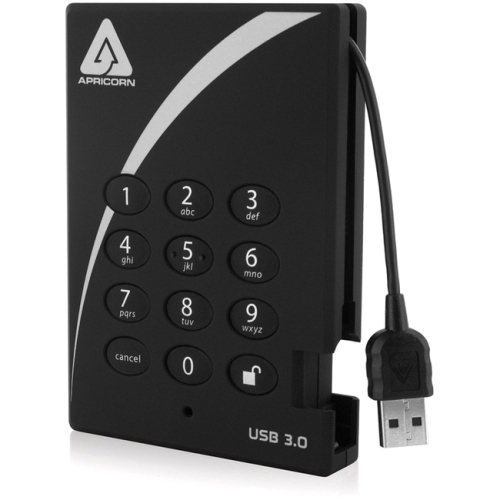
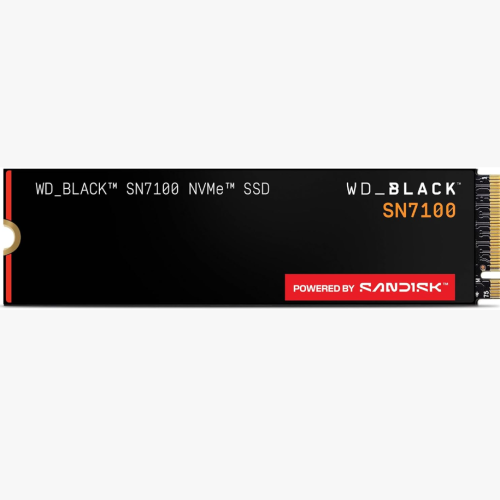
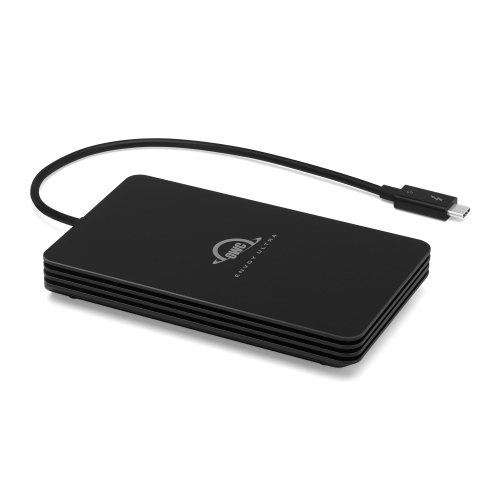
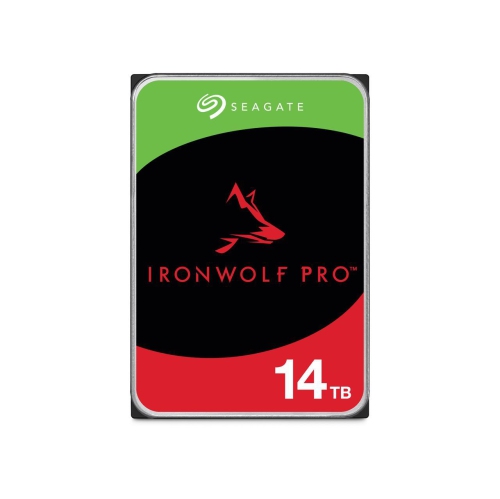
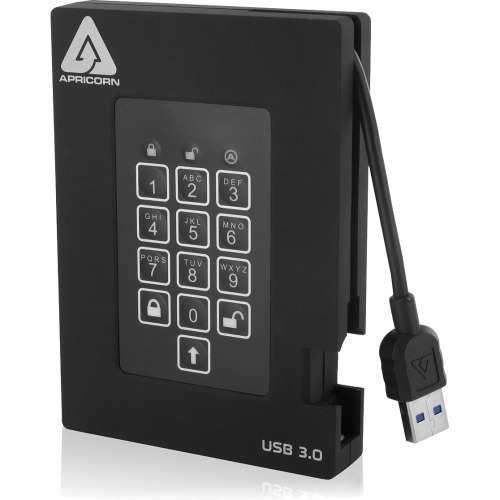
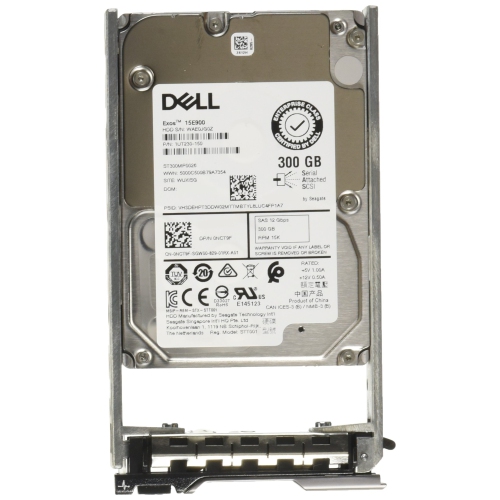

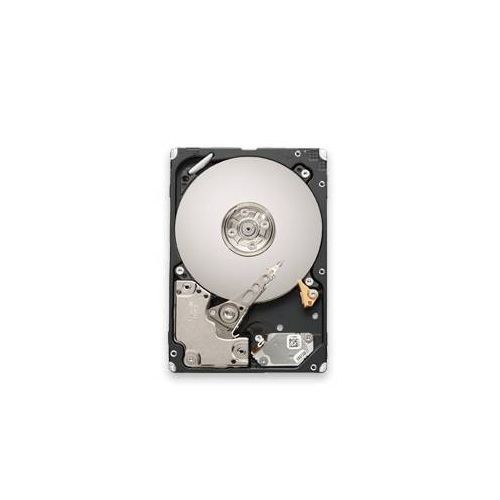
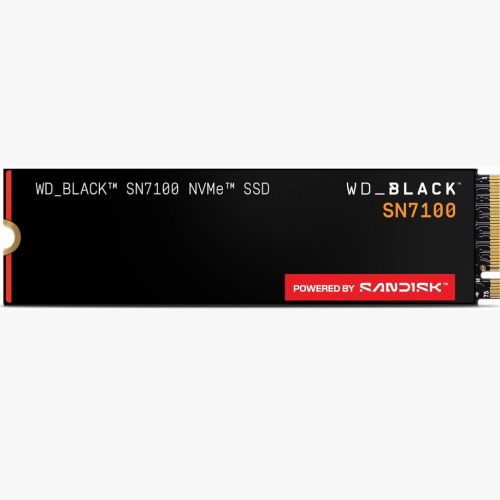
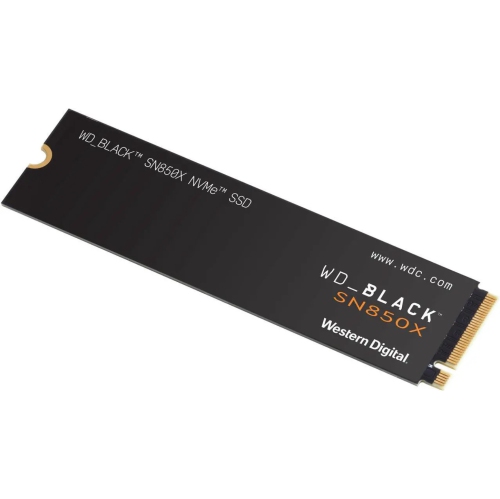
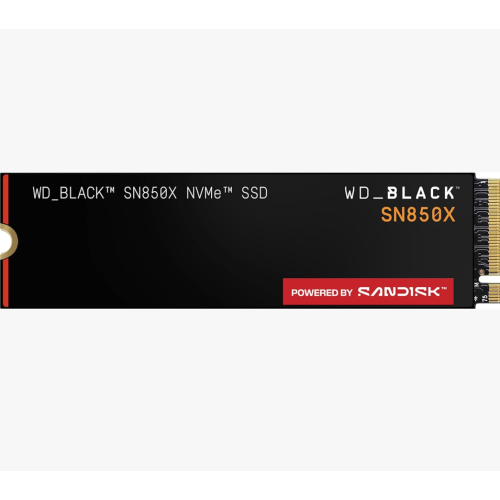
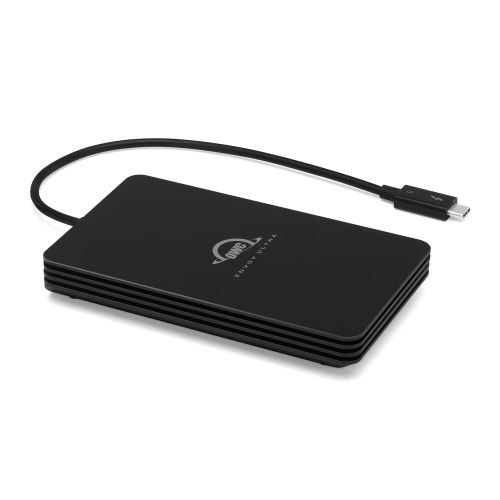
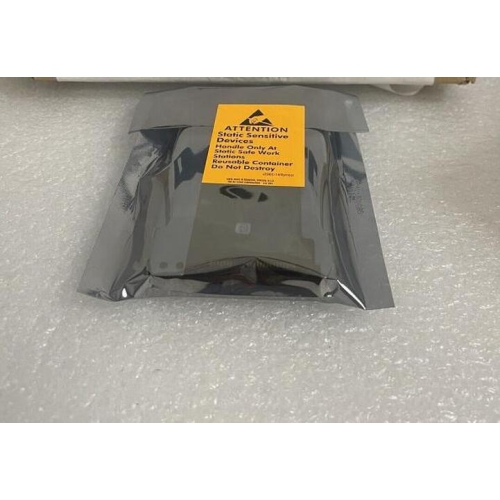
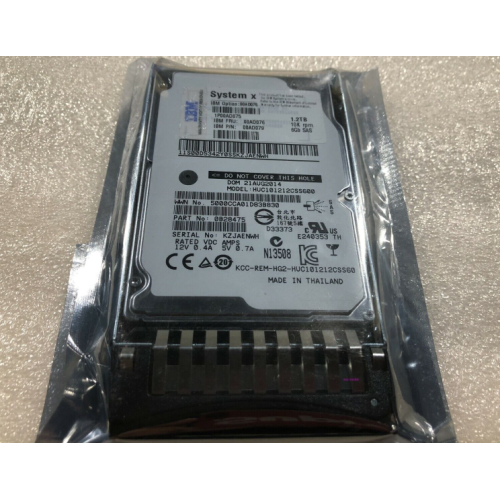

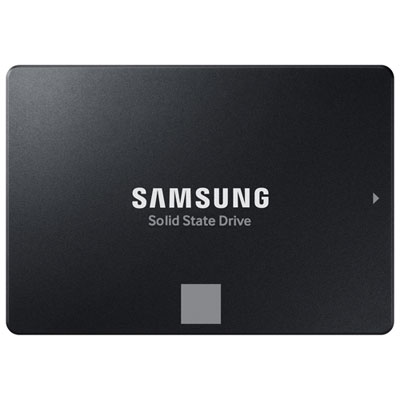
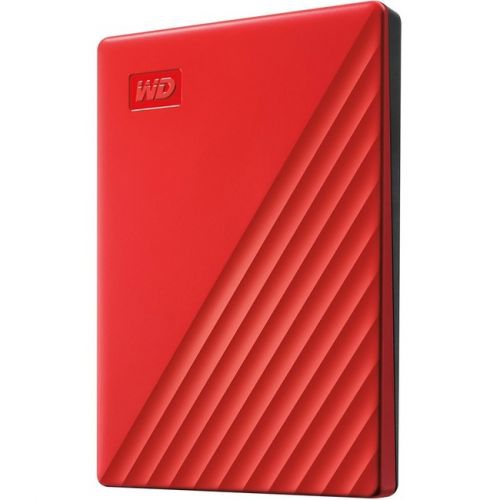
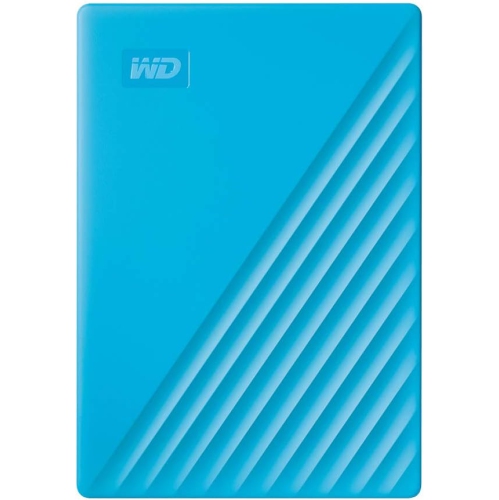
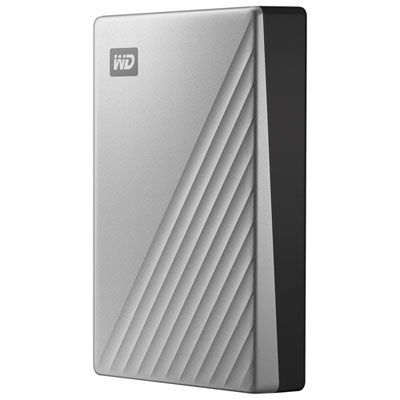

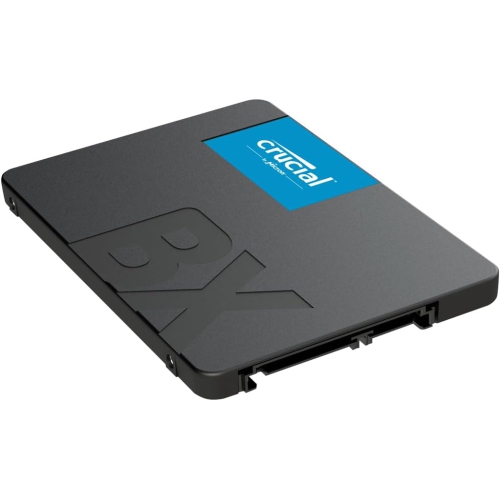
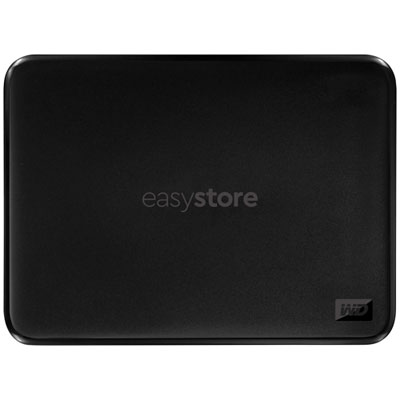
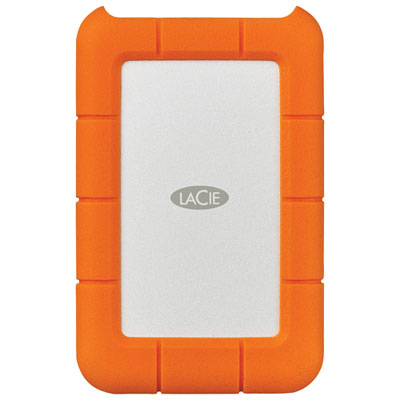
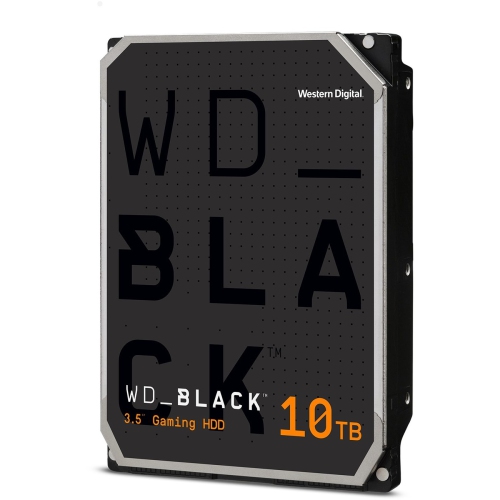
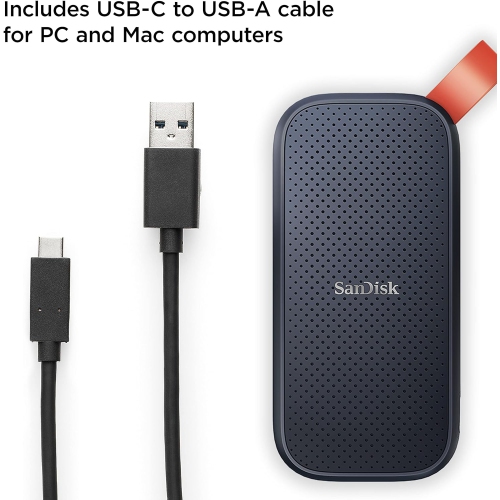
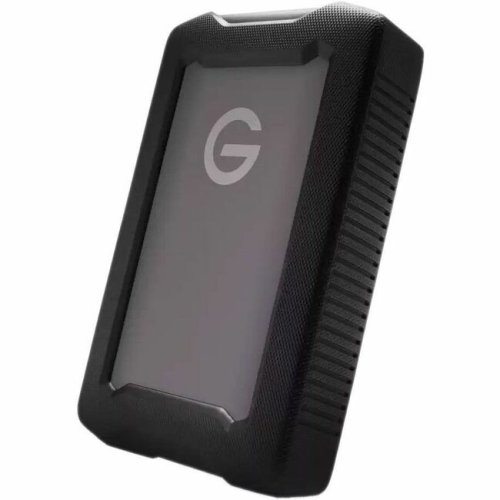

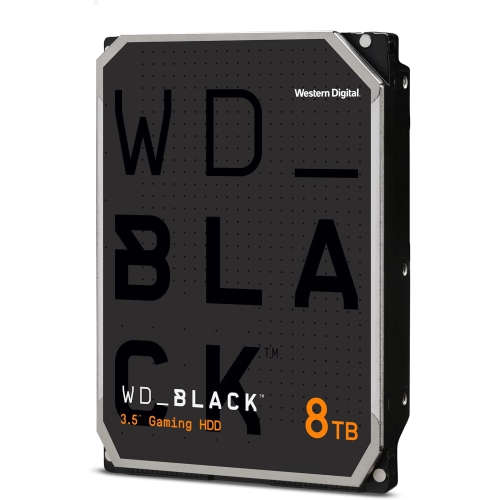
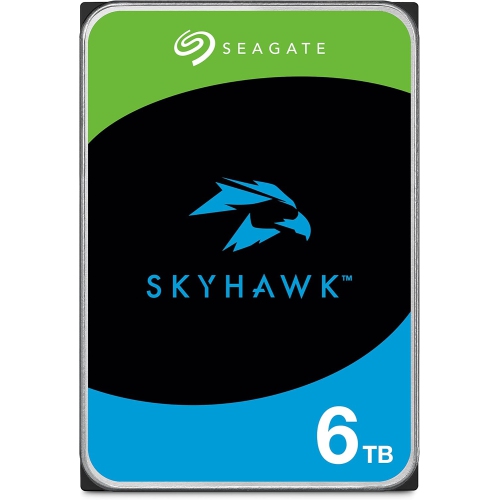
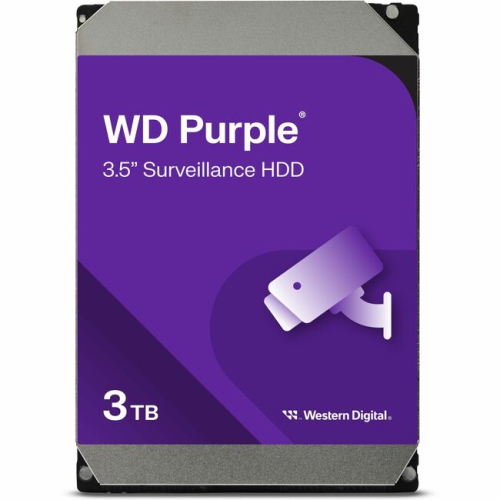
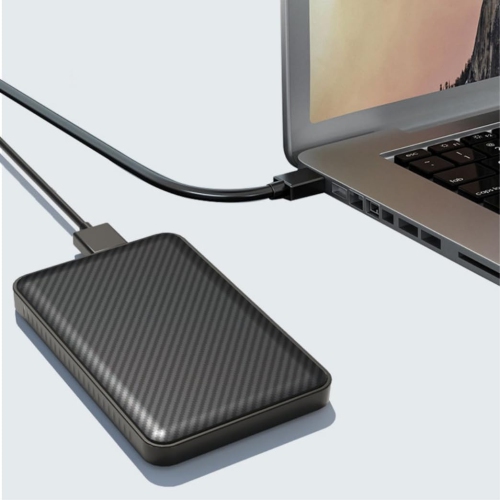
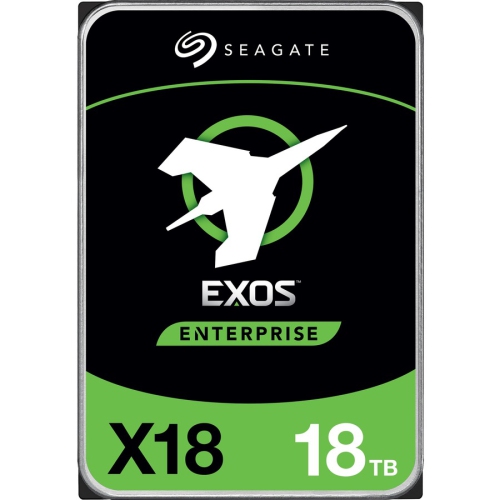
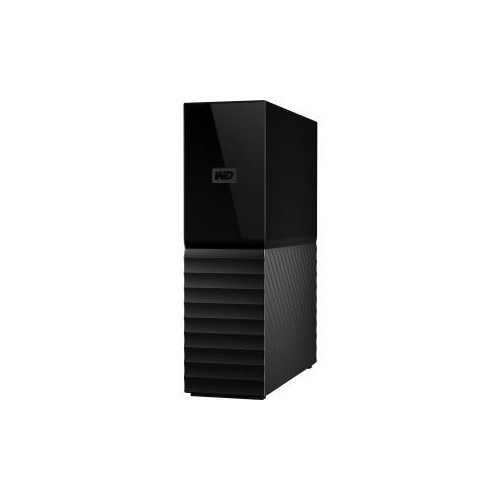
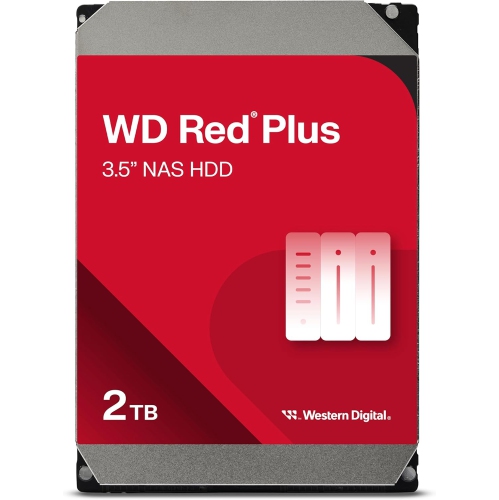
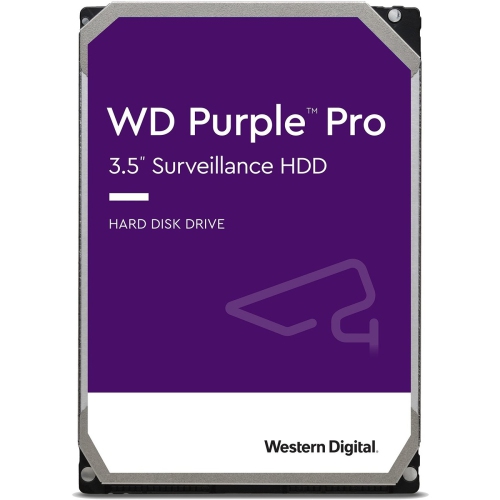
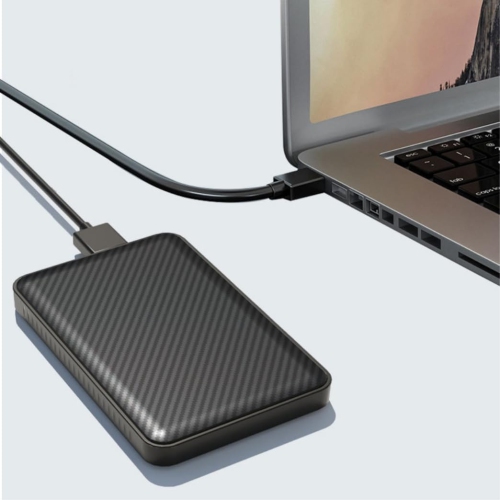
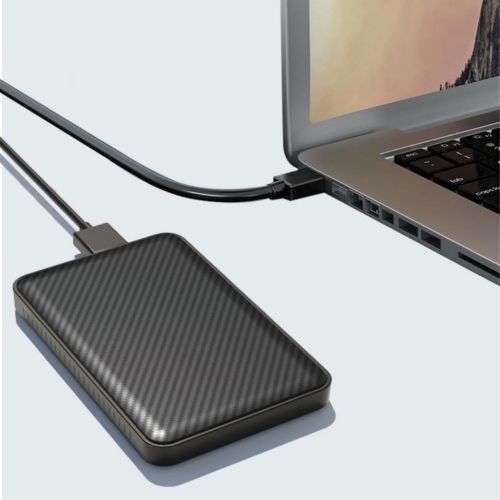
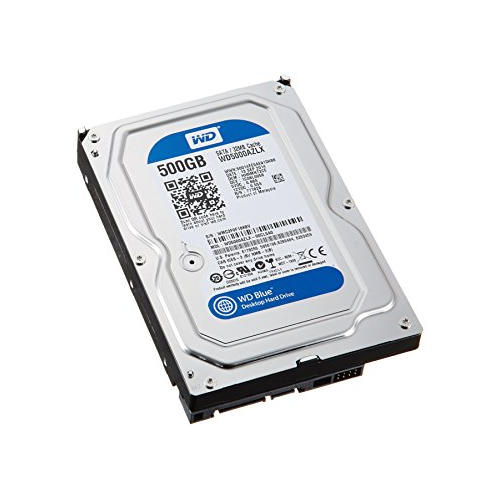
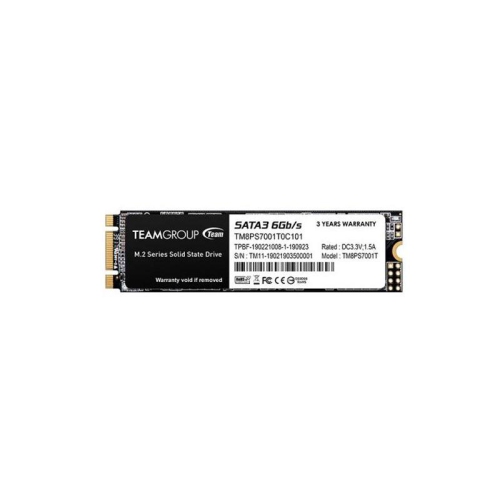
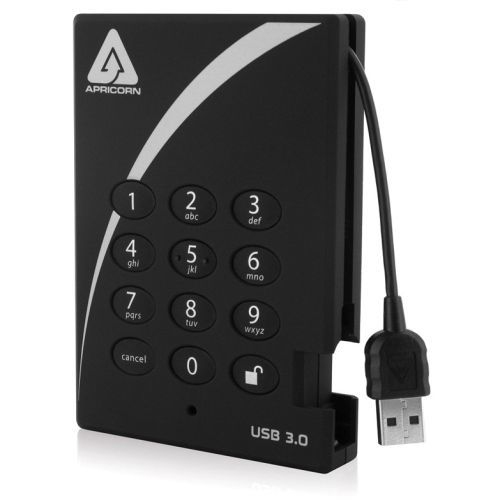
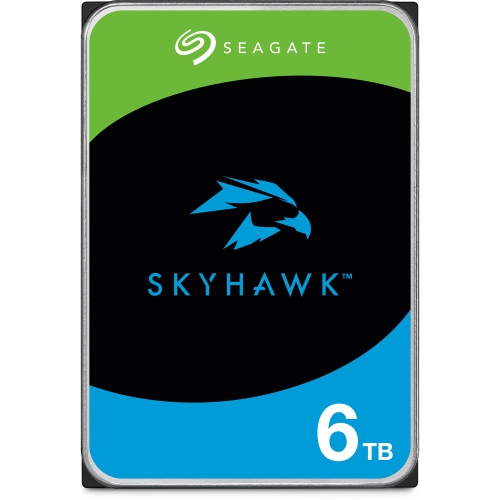
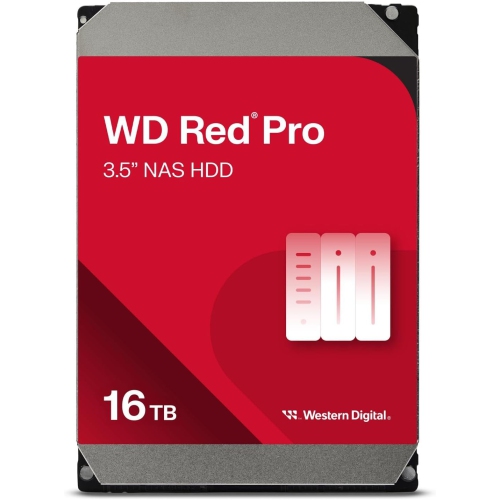
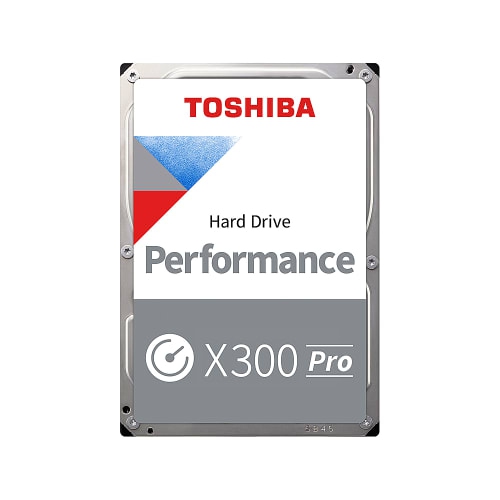
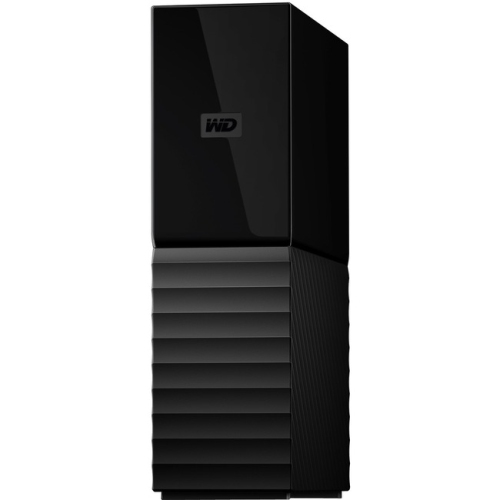
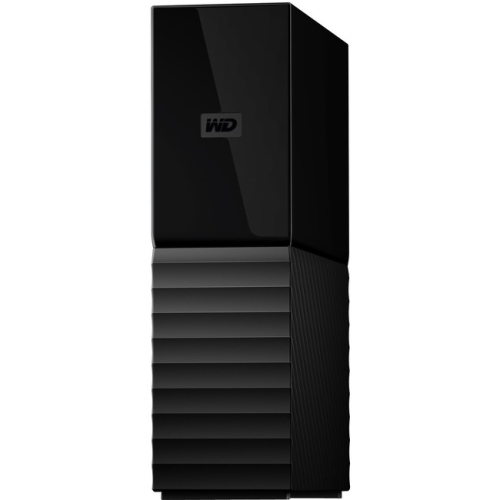
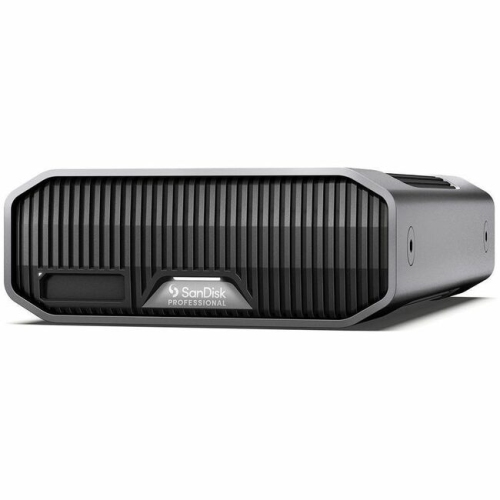
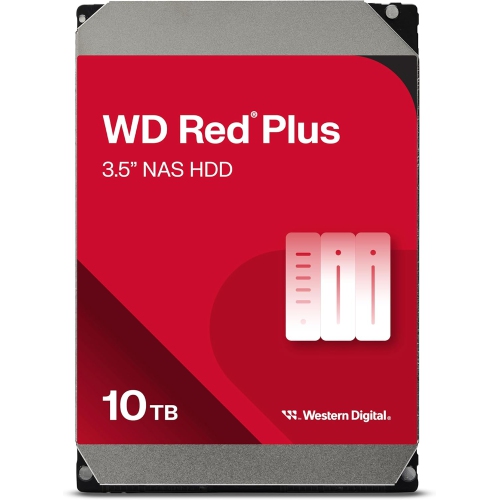
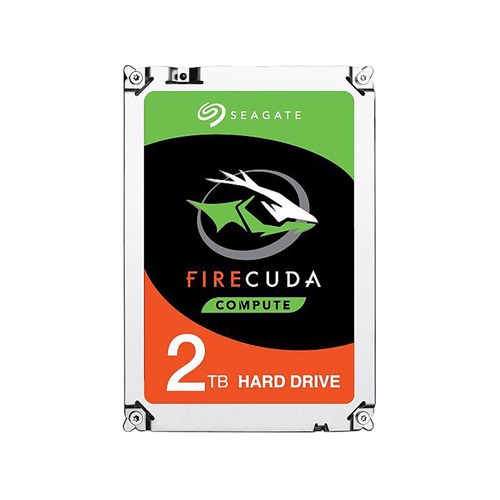
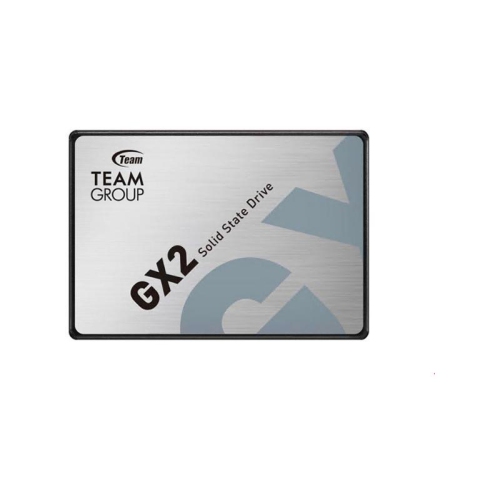
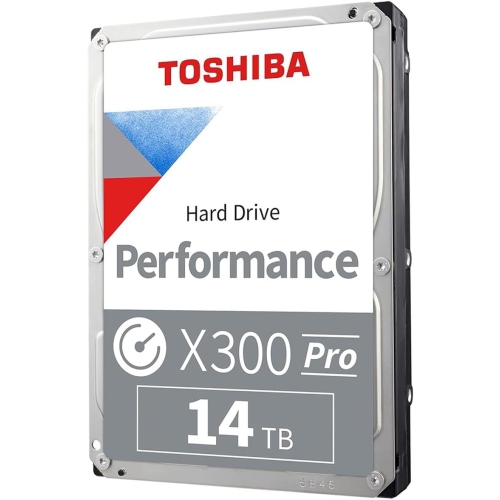
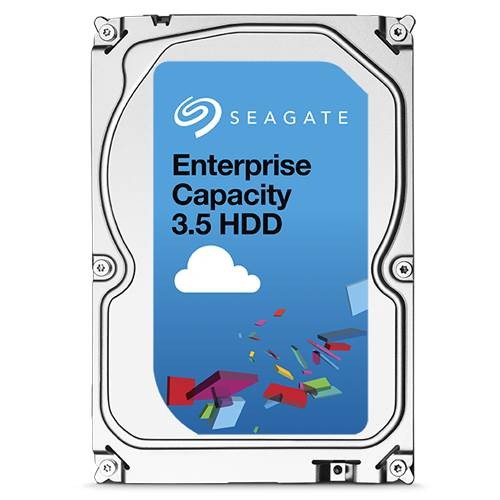

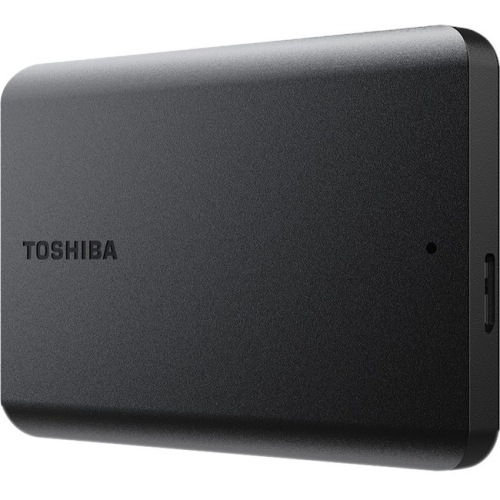
SSDs deliver speed, while HDDs maximize storage capacity
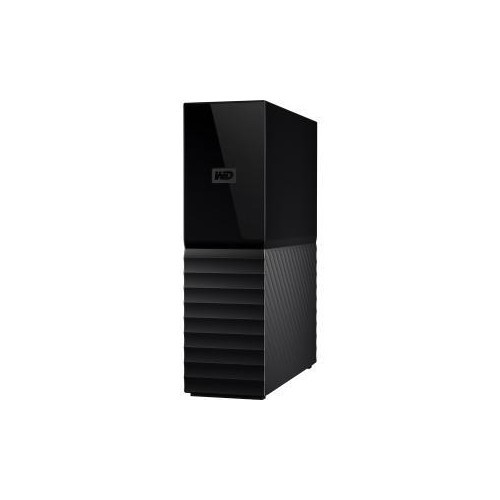
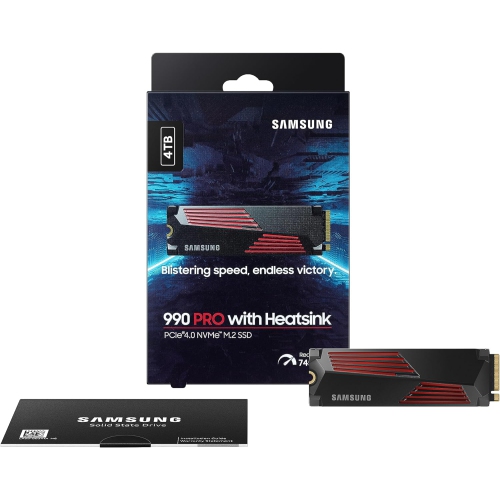
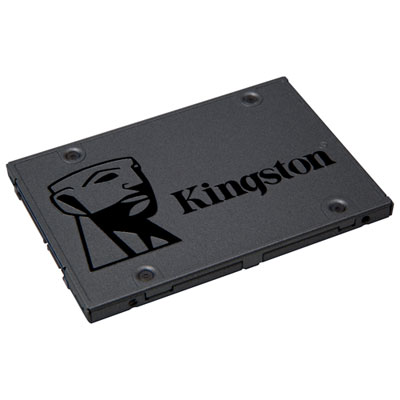
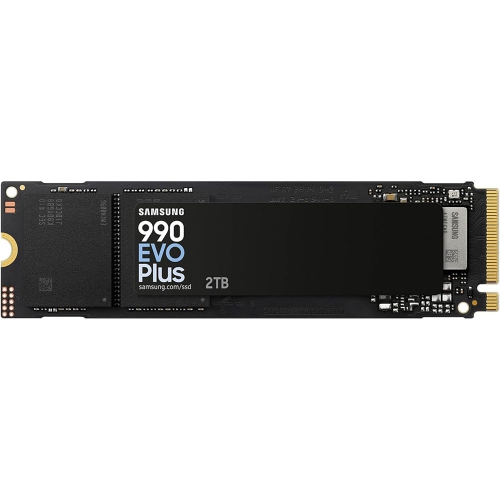
When people search for the fastest hard drives, they may be comparing two very different types of storage: solid-state drives (SSDs) and traditional hard disk drives (HDDs). Both are used to store files, games, applications, photos, videos, and operating systems, but they achieve speed in different ways. An SSD stores data on flash memory and has no moving parts, allowing it to access files electronically with very low latency. A modern NVMe SSD connected through a PCIe interface is generally the fastest choice for everyday computing, gaming, demanding creative work, large file transfers, and workloads that repeatedly read and write data. PCIe 5.0 NVMe SSDs sit at the leading edge of consumer storage, with sequential read speeds that can reach approximately 14,000 to 15,000 MB/s in compatible systems. PCIe 4.0 NVMe SSDs remain exceptionally quick and may offer an excellent balance of performance, capacity, and compatibility, while SATA SSDs are typically slower than NVMe models but still far more responsive than mechanical drives. Sequential speed is only part of the story: random read and write performance, access latency, thermal management, sustained performance, and the capabilities of the computer’s motherboard all affect how fast storage feels in real use. A drive rated for remarkable speeds will not reach its full potential in an older system with a slower interface, and some high-performance NVMe models may benefit from a heatsink or adequate airflow during long transfers. Before choosing, check whether the computer accepts a 2.5-inch SATA drive, an M.2 NVMe drive, or both, and confirm the supported PCIe generation. It is also worth checking physical clearance, especially in compact laptops, small-form-factor desktops, and gaming systems where a large heatsink may not fit. For a new desktop build, an NVMe SSD can shorten boot times, make large applications launch more quickly, and reduce waiting when moving a folder filled with high-resolution images or video clips. Gamers may notice faster level loading and more responsive installation and update processes, while content creators working with several video files at once can benefit from high sequential throughput. Students, home-office users, and families often appreciate the quieter operation and quick response of SSD storage when opening documents, organizing photographs, or moving between multiple applications. These drives can also make thoughtful gifts for someone upgrading an older computer, although compatibility should be confirmed before purchasing.
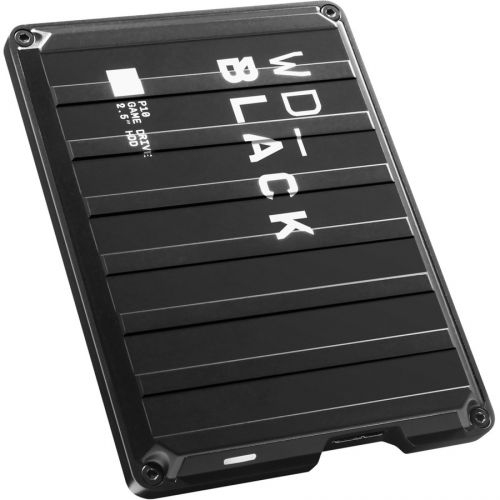
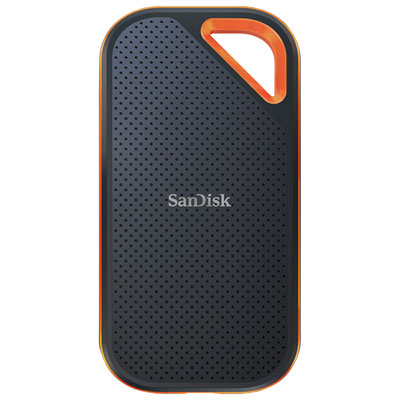
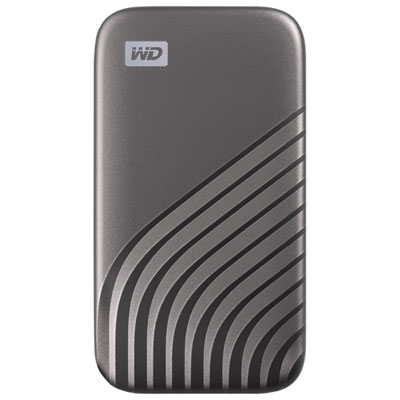
Traditional HDDs use spinning magnetic platters and mechanical read heads, so their performance is limited by rotational speed, seek time, cache, and the way data is arranged on the platters. They cannot match the low latency or peak transfer rates of NVMe SSDs, but they remain useful when high capacity matters more than instant response. A 7200 RPM hard drive is generally faster than a 5400 RPM model and can be a practical choice for desktop storage, media collections, game libraries, backups, and large folders that do not need SSD-level access speeds. Browse 7200 Rpm Hard Drives when comparing this category. Some high-performance mechanical drives use advanced designs, including dual-actuator technology, to access separate areas of the disk more efficiently and deliver substantially higher throughput than conventional HDDs; these specialized models are more commonly associated with demanding professional or data-centre environments than with ordinary home computers. When comparing any drive, look beyond the headline speed and consider capacity, interface, cache size, endurance ratings, warranty coverage, noise, power requirements, and intended installation. Internal drives are suited to upgrading a desktop or compatible laptop, while external drives offer convenient plug-and-play storage for computers, game consoles, cameras, and other devices. An external SSD is easy to carry between a home office and a classroom, and its resistance to movement makes it convenient for transporting an active project. An external HDD can provide more space for a growing collection of recorded video, music, documents, and family photos, though it should be handled carefully while operating. USB version and cable quality also influence external-drive performance, so a fast drive connected through an older port may transfer data more slowly than expected. Capacity planning deserves equal attention: leave room for operating-system updates, applications, temporary files, and future projects rather than filling a drive to its last few gigabytes. For valuable files, storage should not be treated as a complete backup by itself; keeping an additional copy on a separate drive or another suitable location helps protect against accidental deletion, hardware failure, and unexpected damage. During the cooler months, a fast drive can make it easier to organize photographs from recent trips, archive school assignments, and prepare a desktop for indoor gaming or creative projects. The best choice ultimately depends on the computer, the connection, the files being stored, and the kind of speed that matters most: an NVMe SSD for the quickest access and transfers, a SATA SSD for a responsive upgrade with broad compatibility, or a high-capacity HDD for economical bulk storage.
Traditional HDDs use spinning magnetic platters and mechanical read heads, so their performance is limited by rotational speed, seek time, cache, and the way data is arranged on the platters. They cannot match the low latency or peak transfer rates of NVMe SSDs, but they remain useful when high capacity matters more than instant response. A 7200 RPM hard drive is generally faster than a 5400 RPM model and can be a practical choice for desktop storage, media collections, game libraries, backups, and large folders that do not need SSD-level access speeds. Browse 7200 Rpm Hard Drives when comparing this category. Some high-performance mechanical drives use advanced designs, including dual-actuator technology, to access separate areas of the disk more efficiently and deliver substantially higher throughput than conventional HDDs; these specialized models are more commonly associated with demanding professional or data-centre environments than with ordinary home computers. When comparing any drive, look beyond the headline speed and consider capacity, interface, cache size, endurance ratings, warranty coverage, noise, power requirements, and intended installation. Internal drives are suited to upgrading a desktop or compatible laptop, while external drives offer convenient plug-and-play storage for computers, game consoles, cameras, and other devices. An external SSD is easy to carry between a home office and a classroom, and its resistance to movement makes it convenient for transporting an active project. An external HDD can provide more space for a growing collection of recorded video, music, documents, and family photos, though it should be handled carefully while operating. USB version and cable quality also influence external-drive performance, so a fast drive connected through an older port may transfer data more slowly than expected. Capacity planning deserves equal attention: leave room for operating-system updates, applications, temporary files, and future projects rather than filling a drive to its last few gigabytes. For valuable files, storage should not be treated as a complete backup by itself; keeping an additional copy on a separate drive or another suitable location helps protect against accidental deletion, hardware failure, and unexpected damage. During the cooler months, a fast drive can make it easier to organize photographs from recent trips, archive school assignments, and prepare a desktop for indoor gaming or creative projects. The best choice ultimately depends on the computer, the connection, the files being stored, and the kind of speed that matters most: an NVMe SSD for the quickest access and transfers, a SATA SSD for a responsive upgrade with broad compatibility, or a high-capacity HDD for economical bulk storage.
Top selling and popular products
-
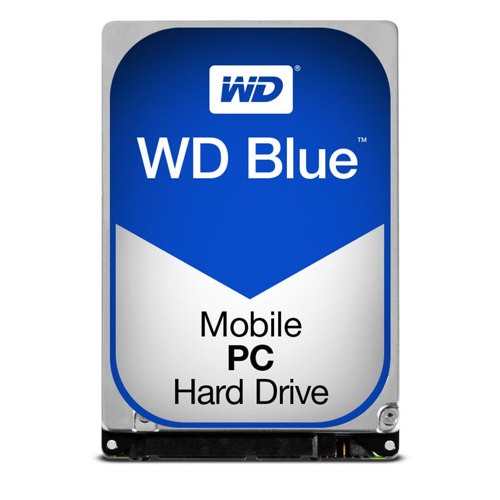 Your price for this item is $248.68
 -
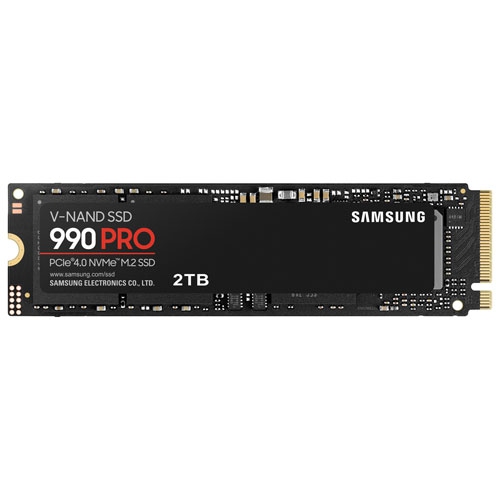 Your price for this item is $679.99
 -
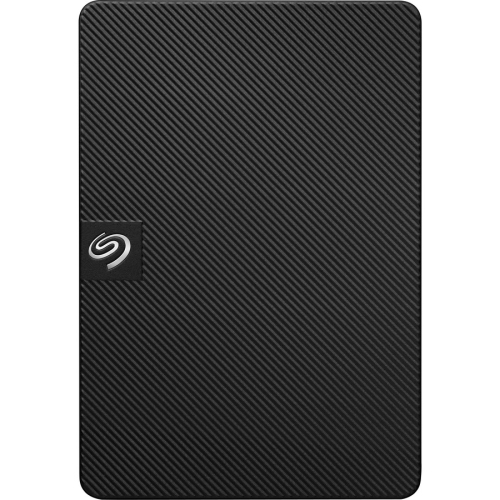 Your price for this item is $164.47
 -
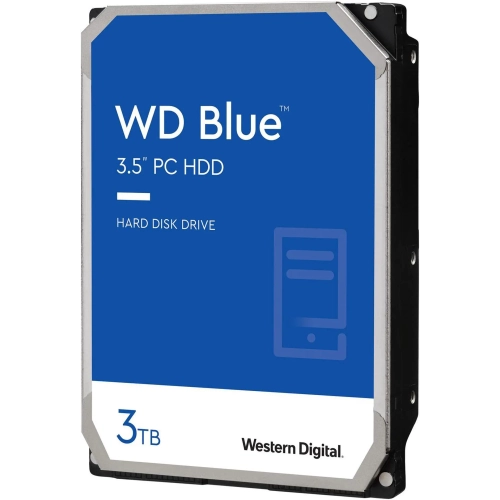 Your price for this item is $259.99
 -
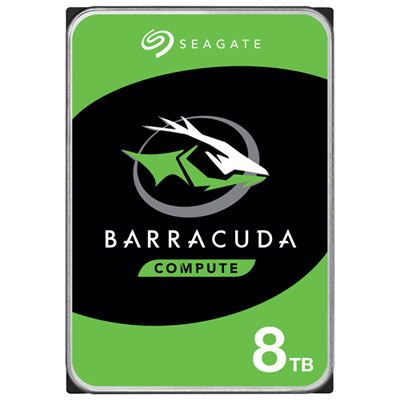 Your price for this item is $389.99
 -
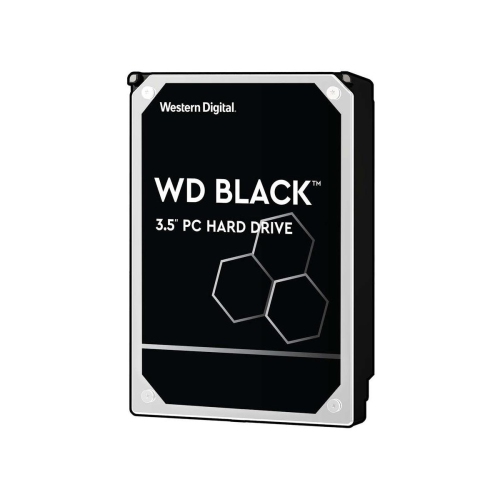 Your price for this item is $399.99
 -
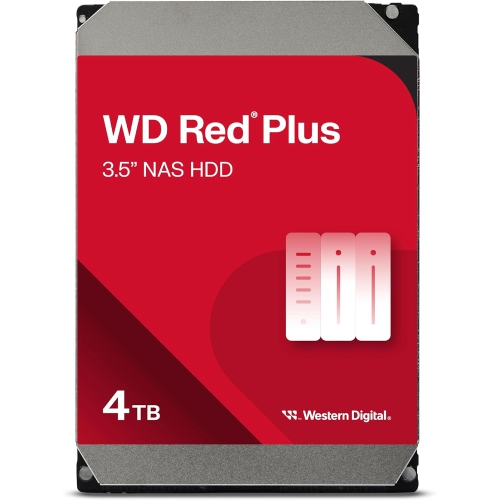 Your price for this item is $379.99
 -
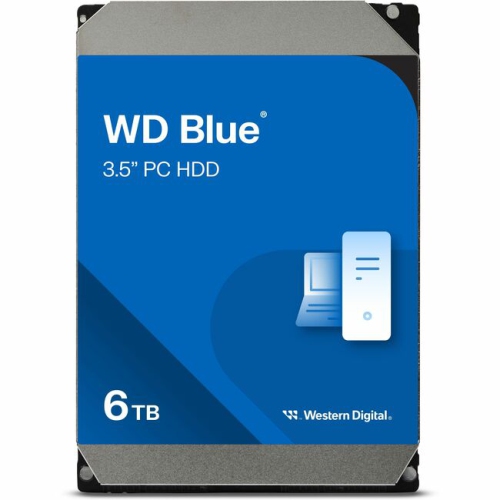 Your price for this item is $389.99
Discover more categories related to Fastest Hard Drives
Top Collections:
Pokemon Centers, Kindle Devices, Best Budget Office Chairs, Apple iPhones 16, Best Laptops for Writers, iPhone 15 Apple, Canon G7X Cameras, Refurbished Apple Laptops, Alarm Clock, Motorola Razr Phones
Some products may be subject to Environmental Handling Fees
(EHF) depending on your province.
Learn more about EHFs.