Hard Disk Drives
Looking to expand your digital storage space for all your important files, photos, and videos? Look no further than our selection of hard disk drives. With various capacities and speeds available, these reliable devices are essential for storing and backing up your data securely. Whether you're a professional needing high-performance storage solutions or a casual user looking to free up space on your computer, a hard disk drive is a must-have accessory for any tech-savvy individual. Browse our range of options to find the perfect HDD to meet your needs.
Sort
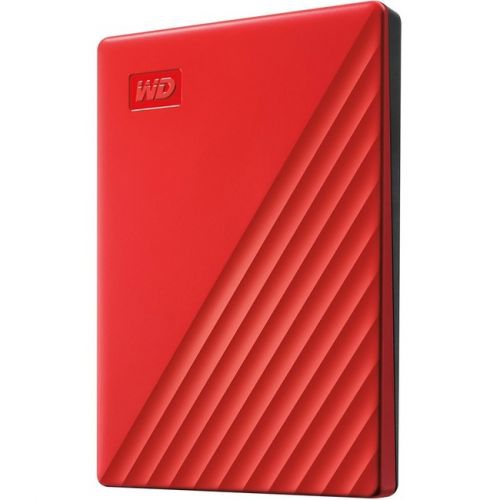
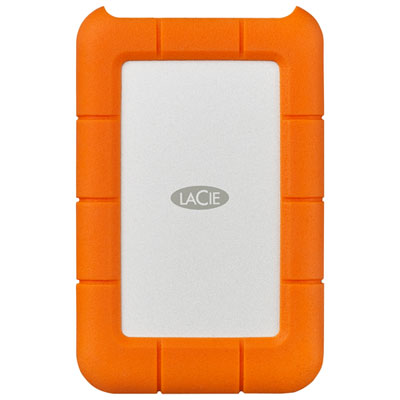
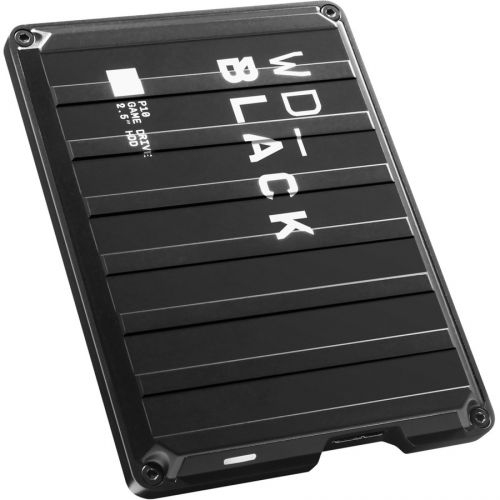
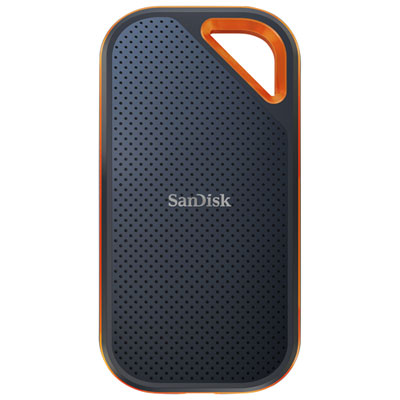
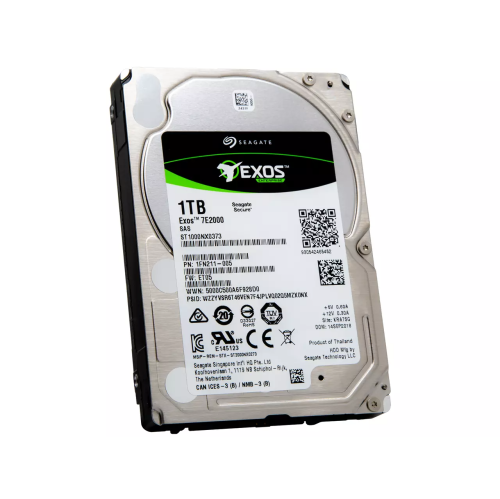
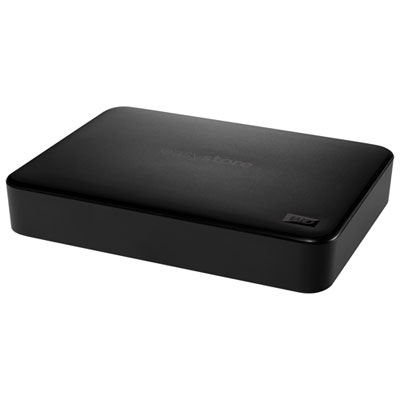
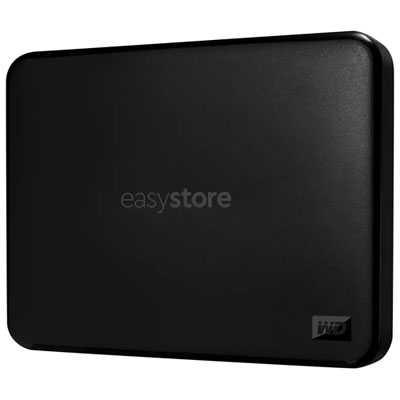
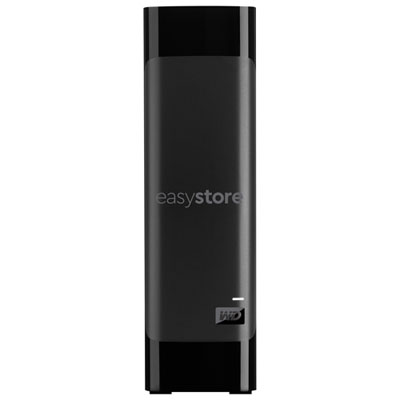
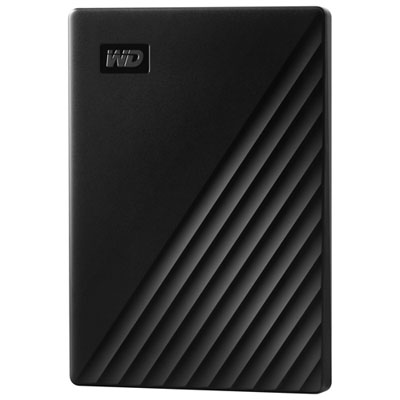
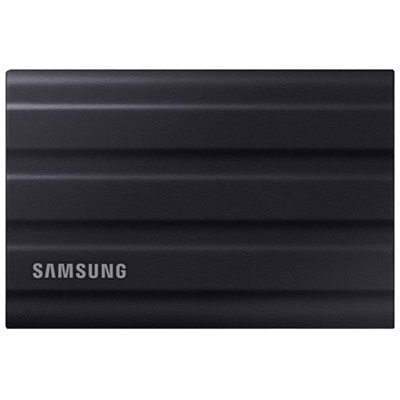
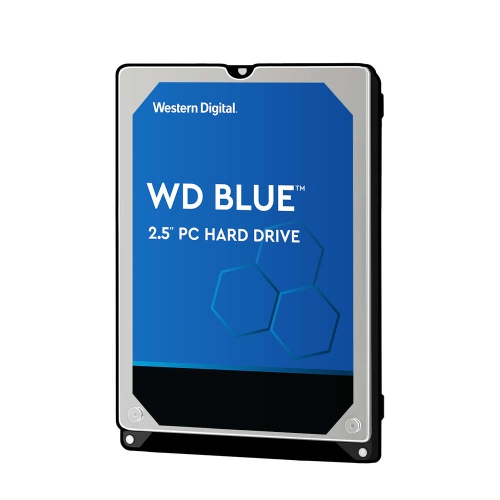
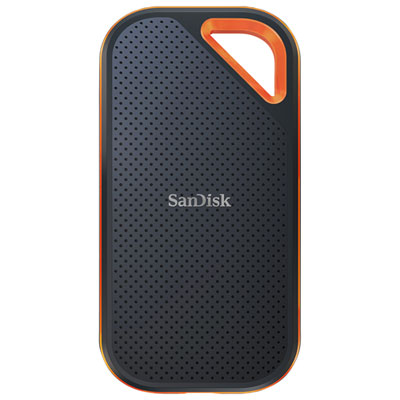
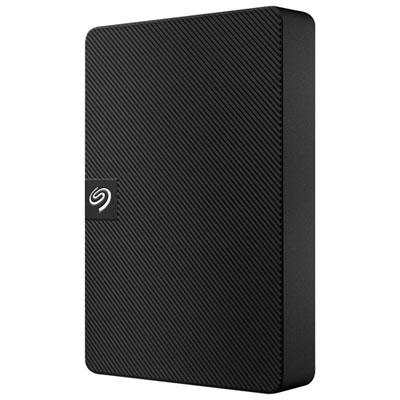
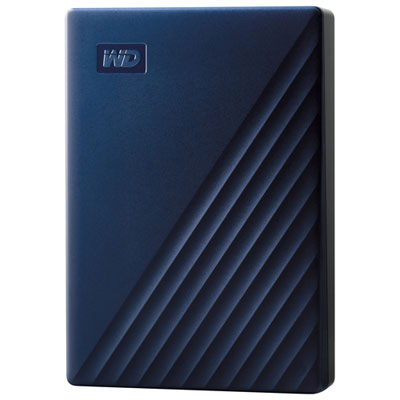
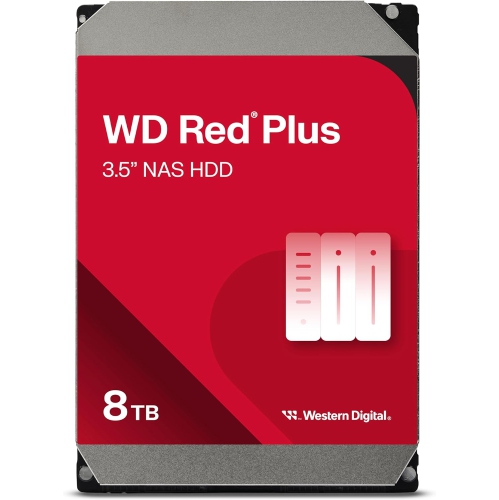
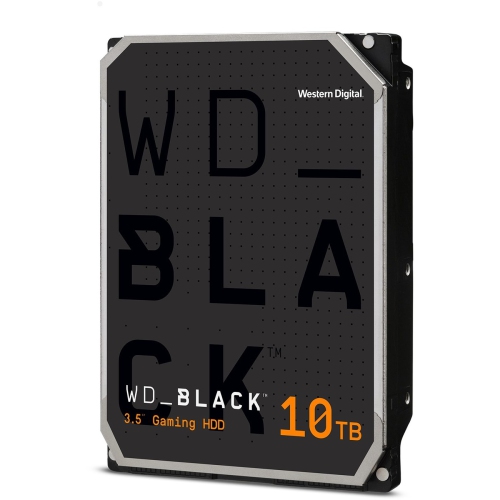
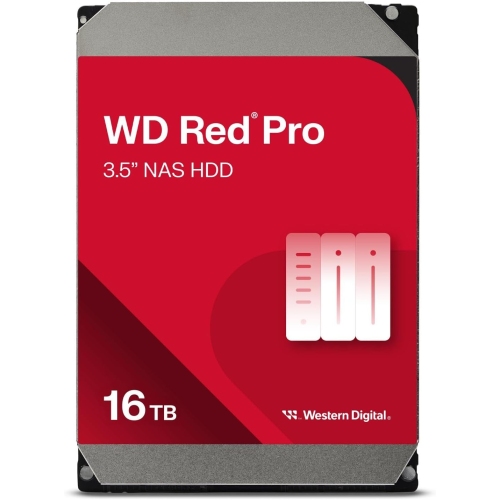
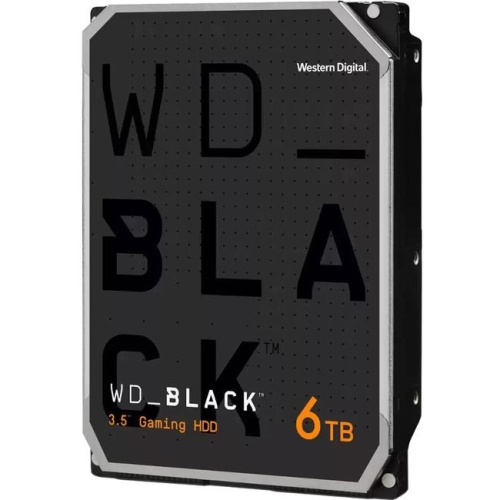
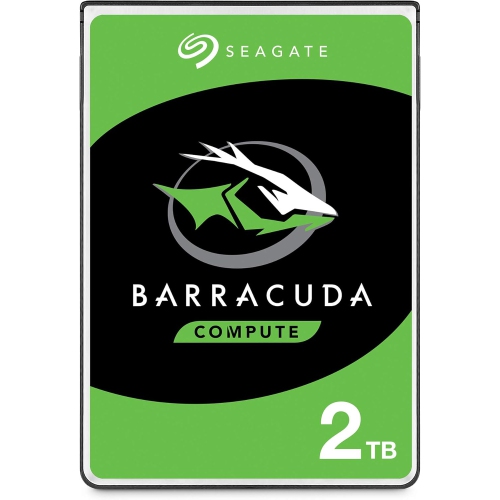
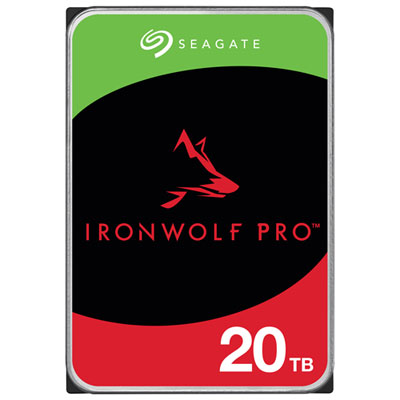
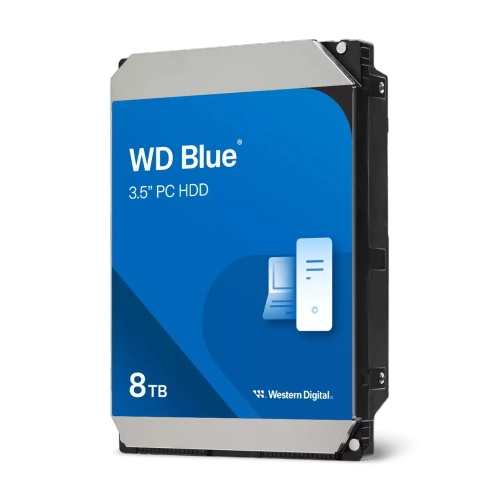

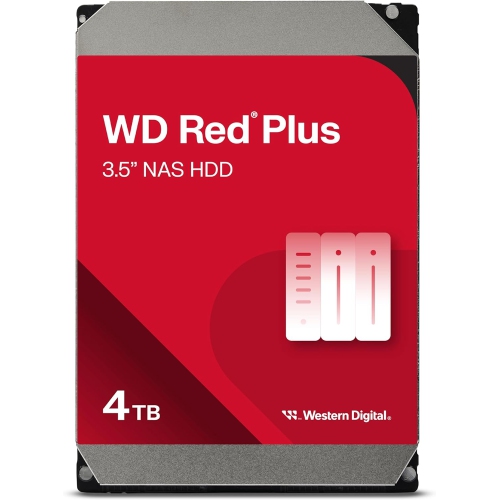
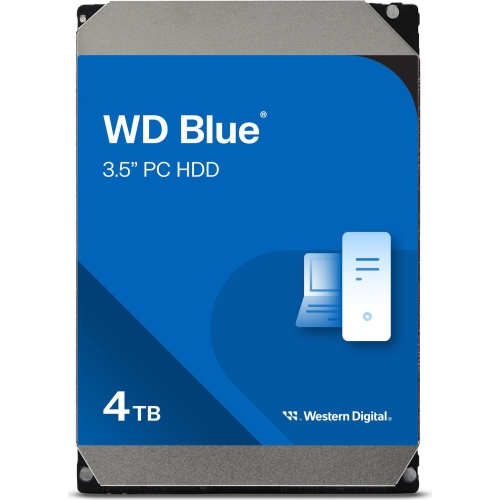
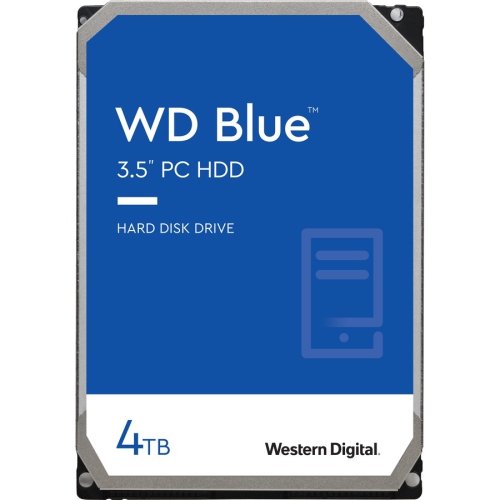
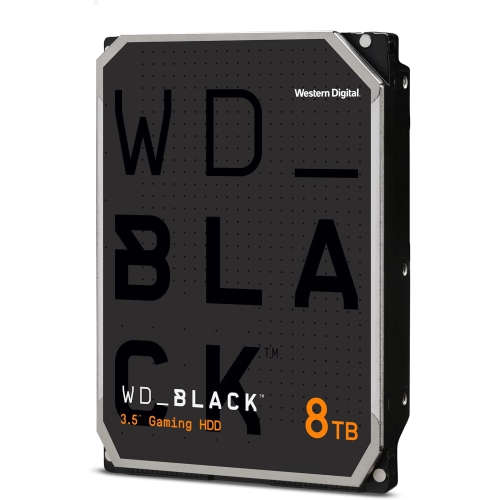
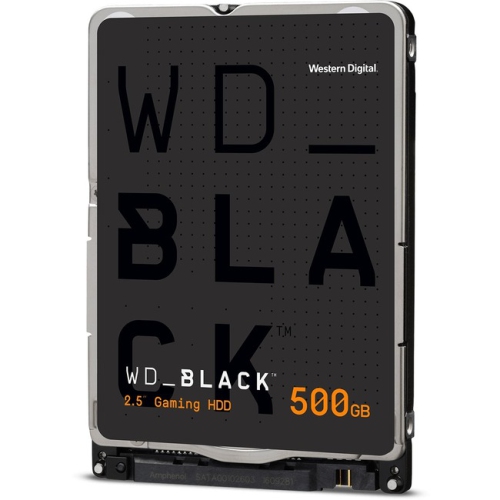
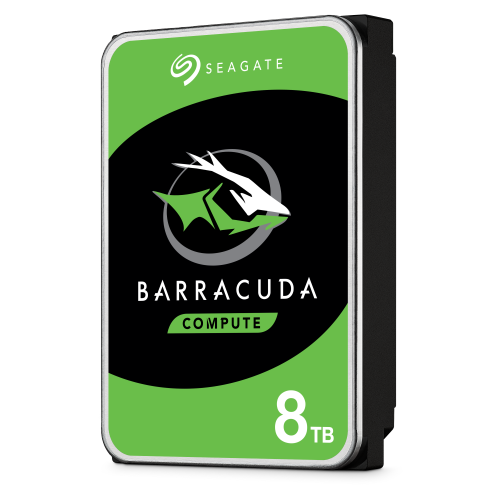
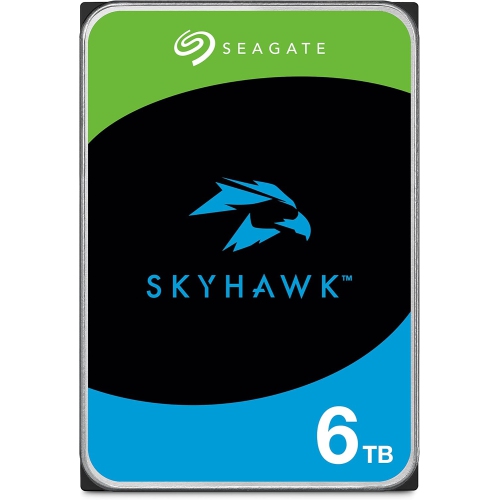
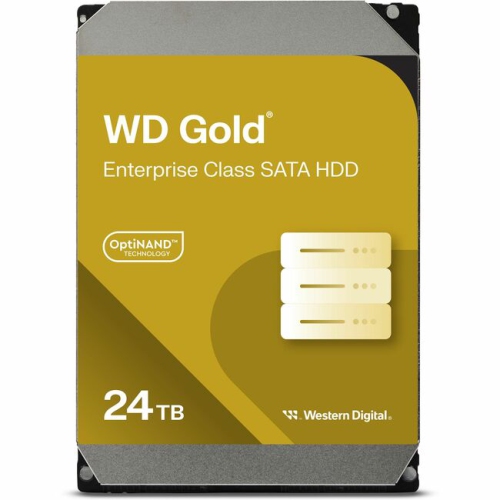
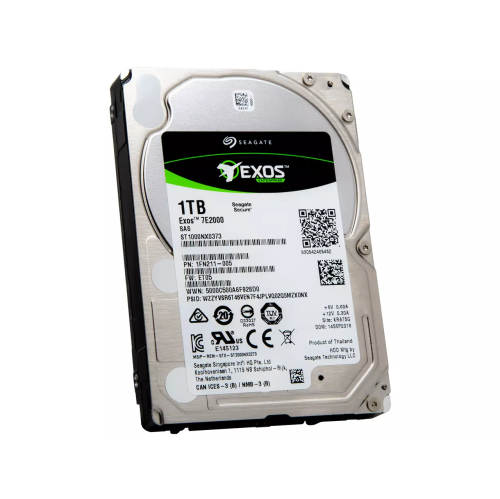
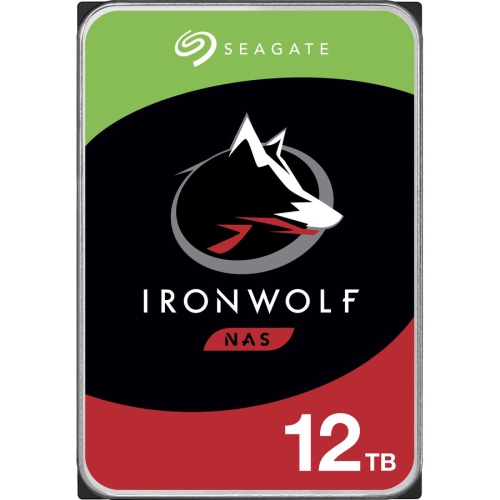
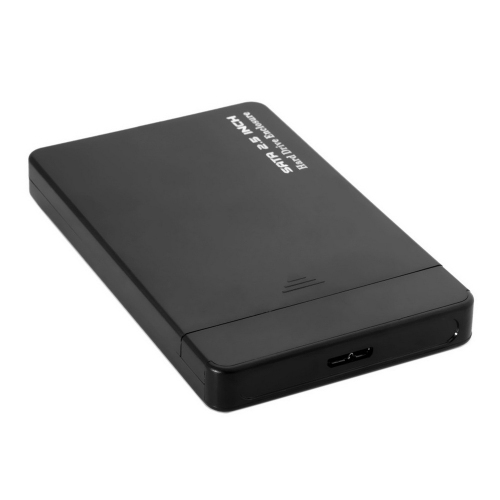
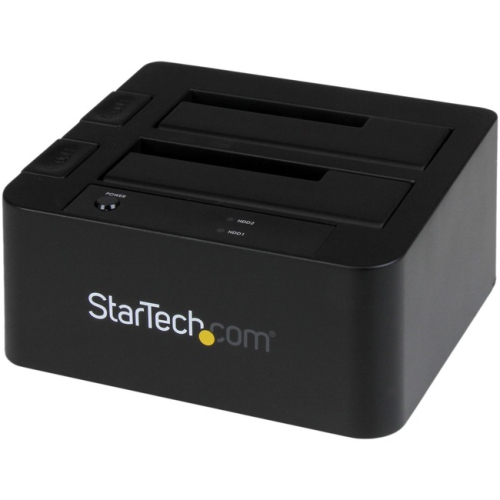
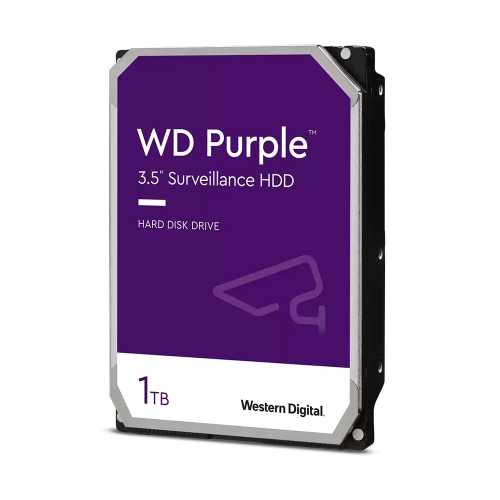

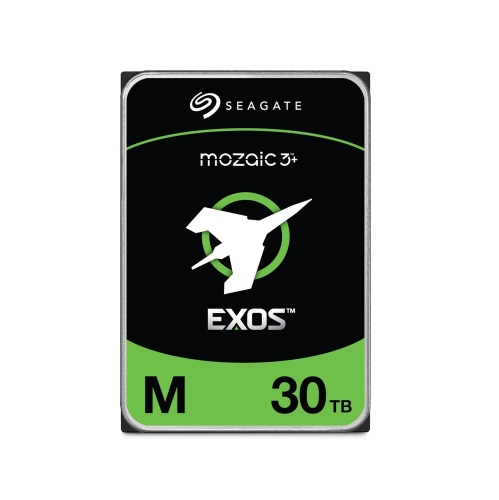
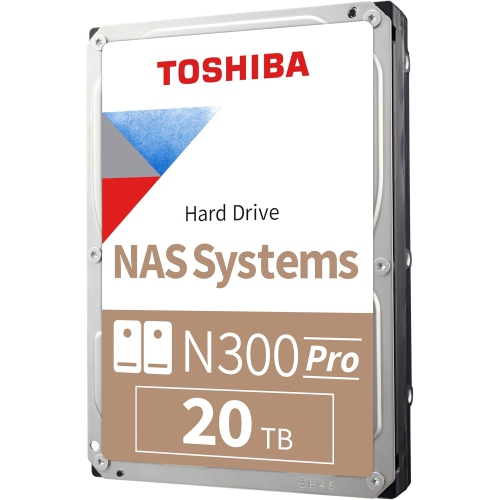
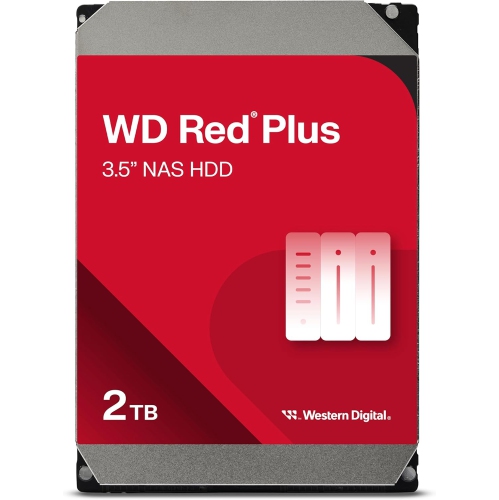
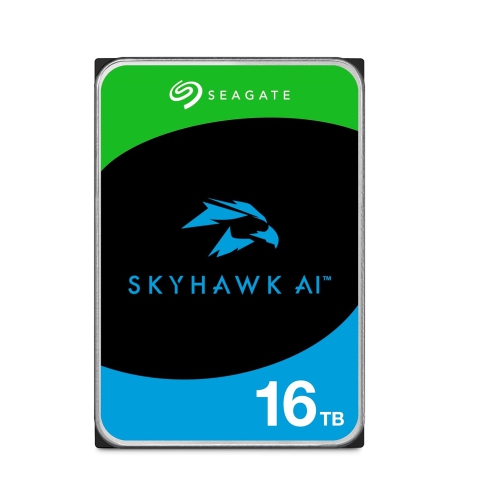
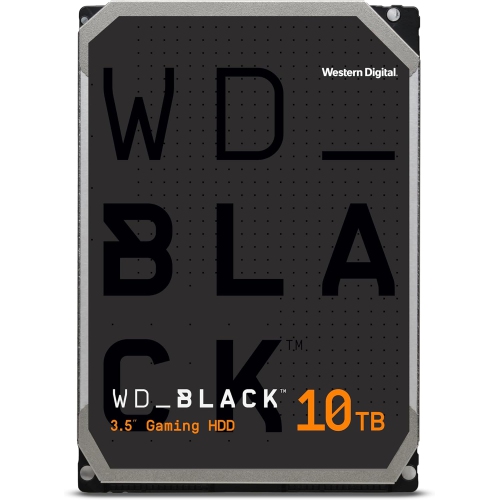
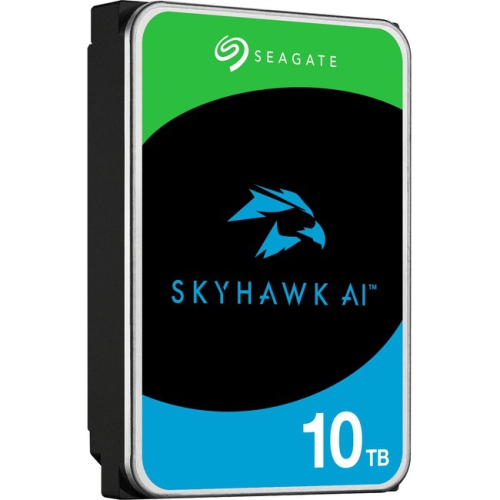
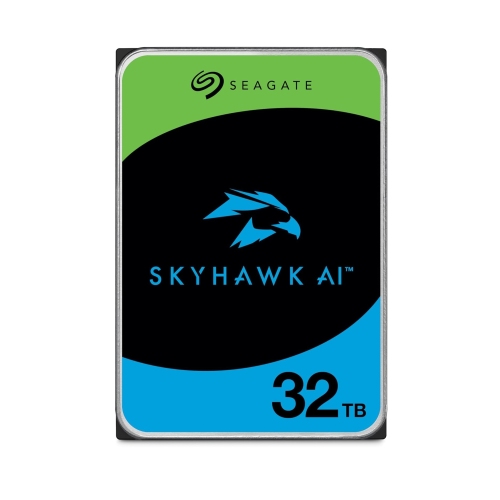
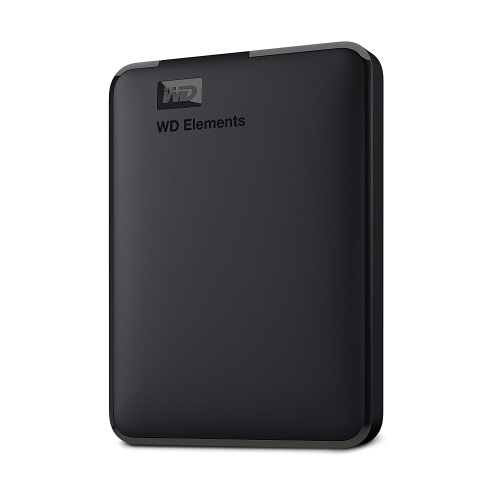
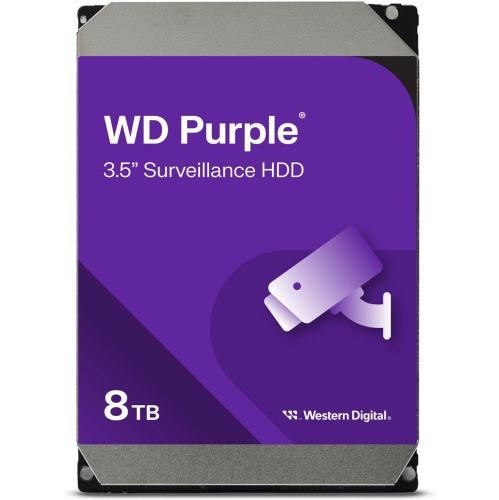
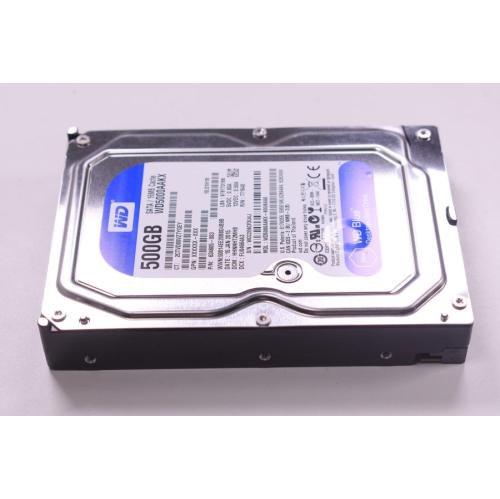
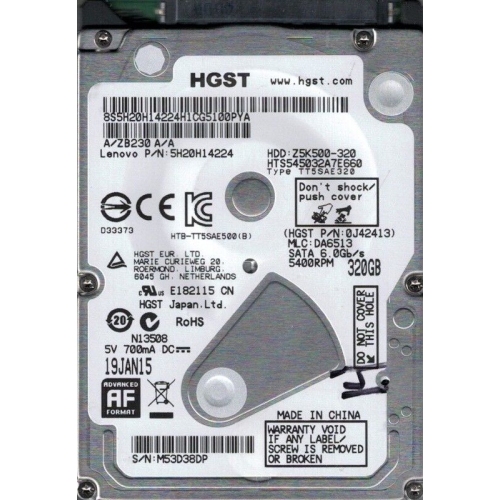
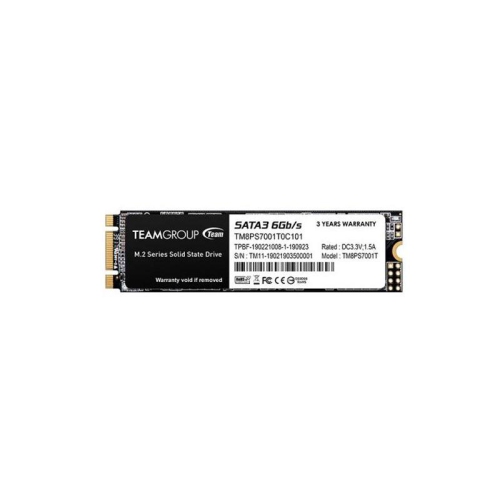
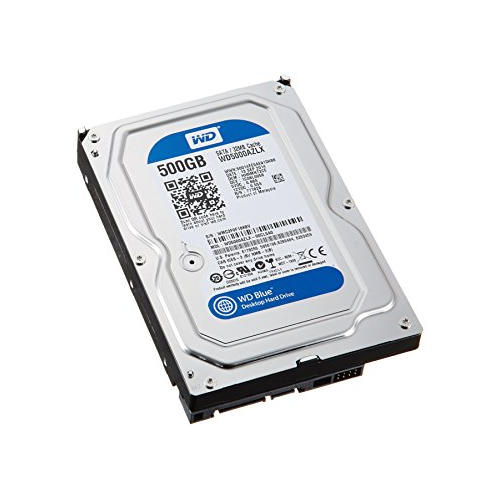
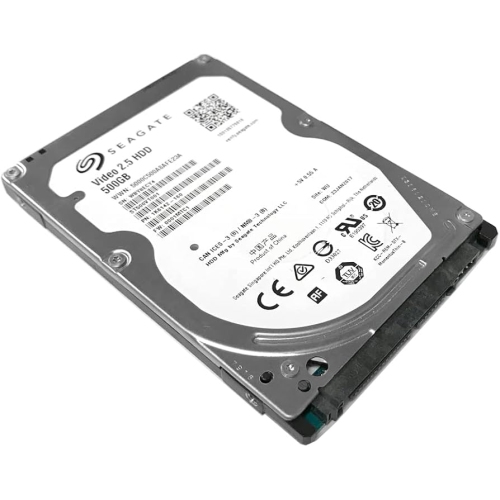
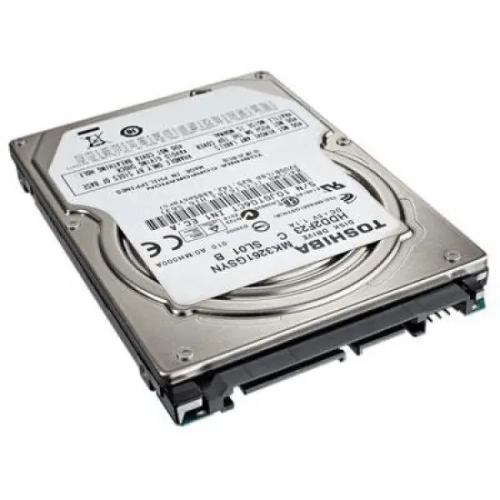
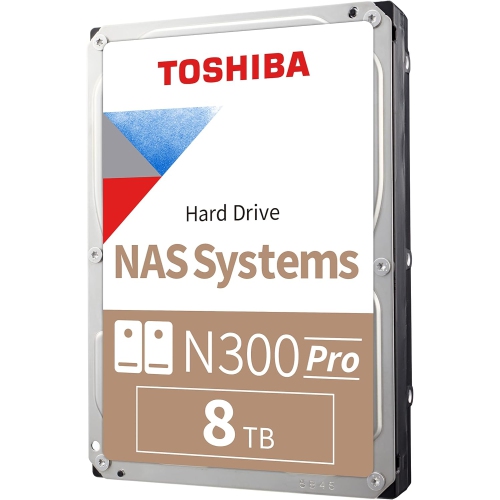
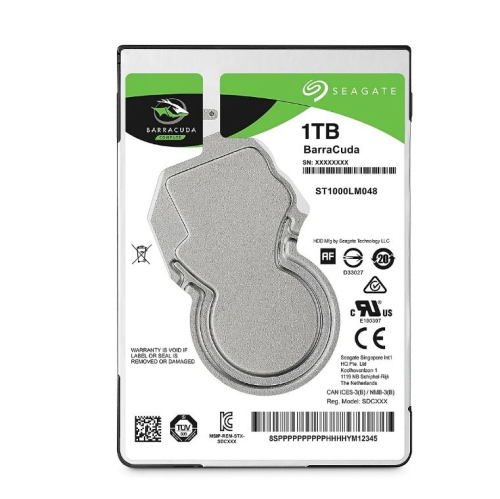
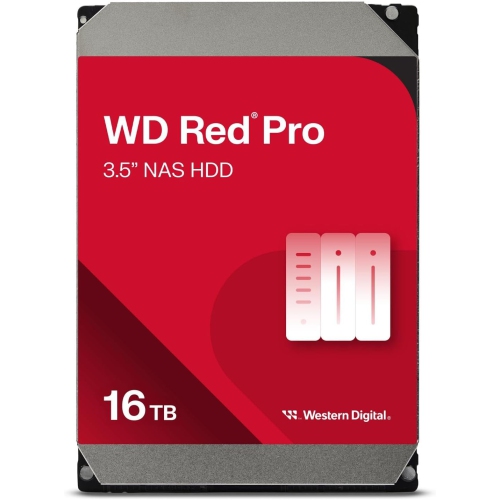
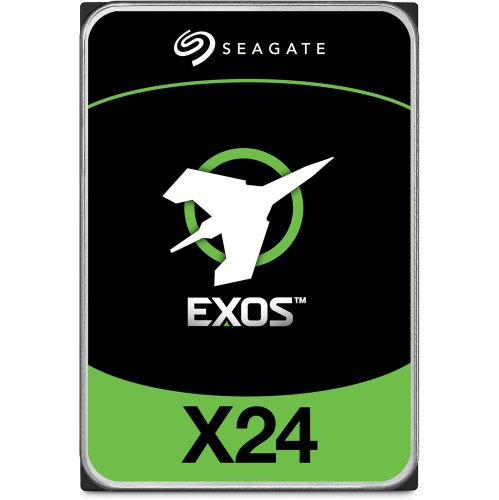
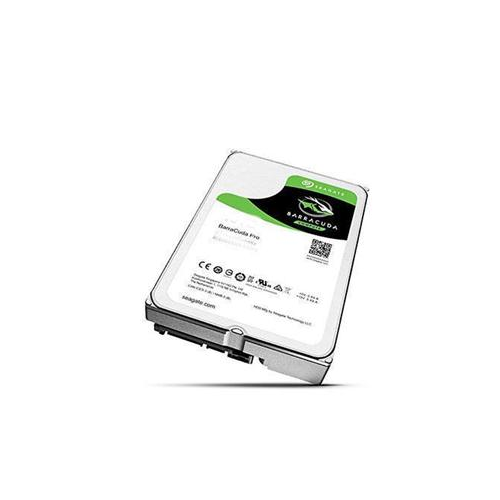
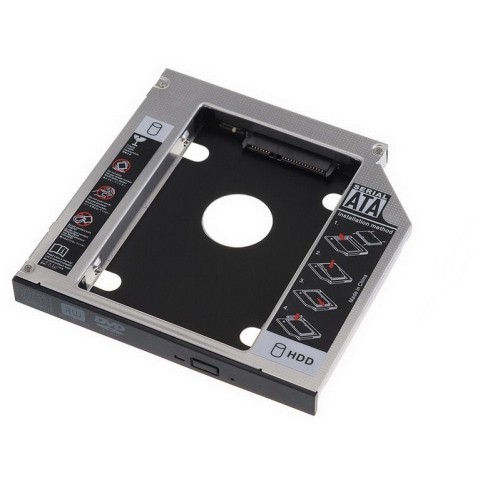
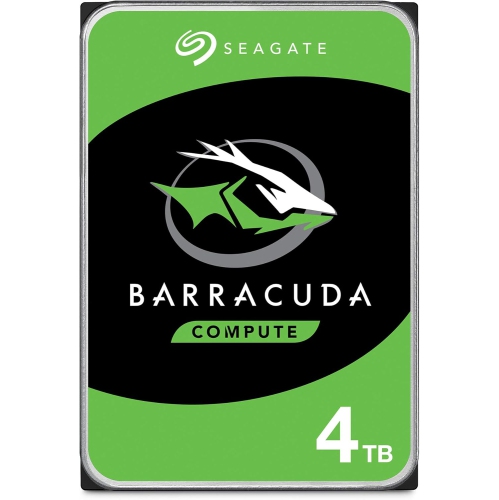
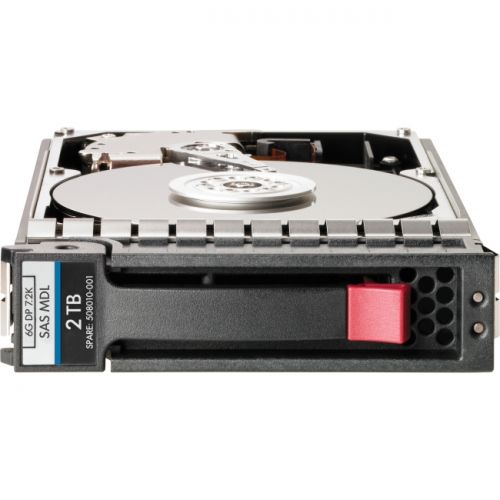
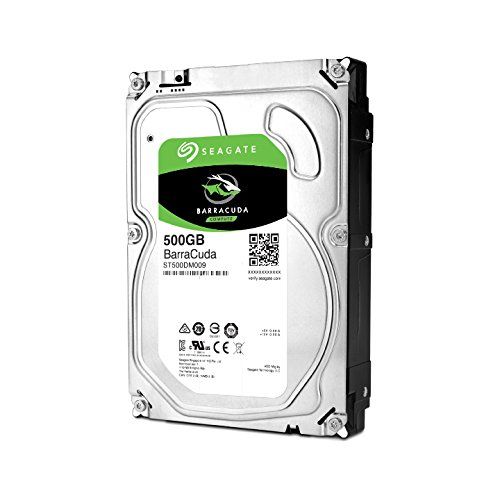
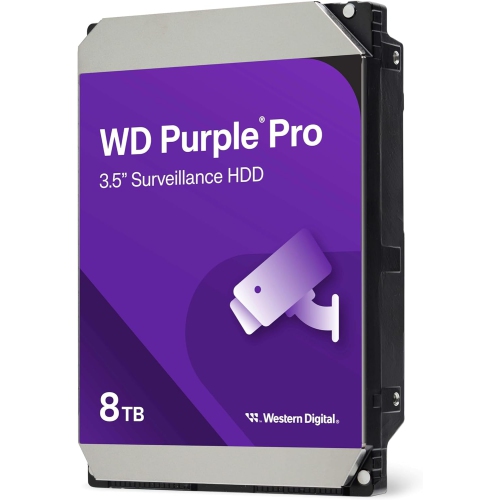
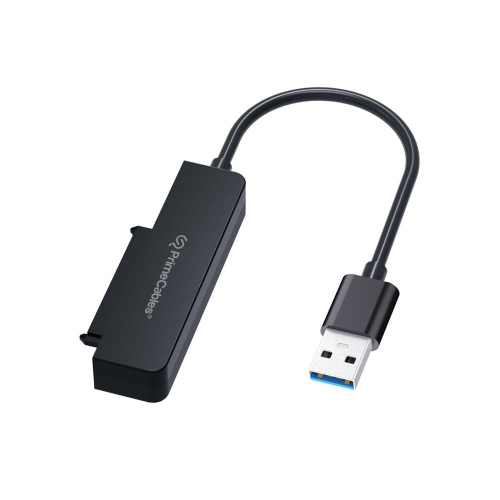
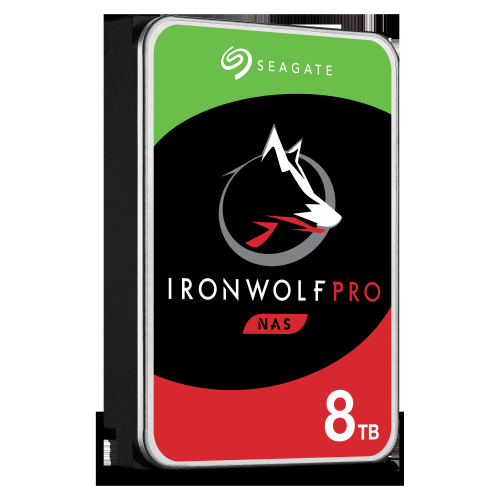
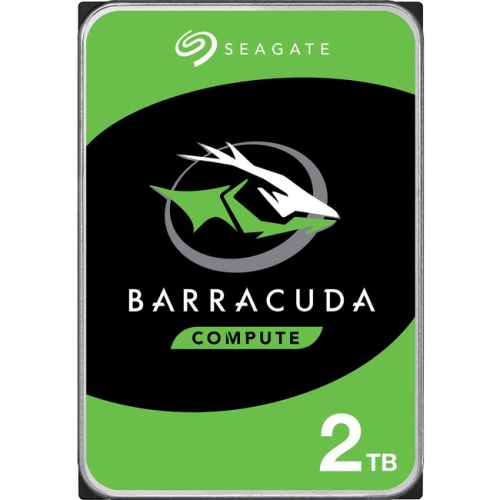
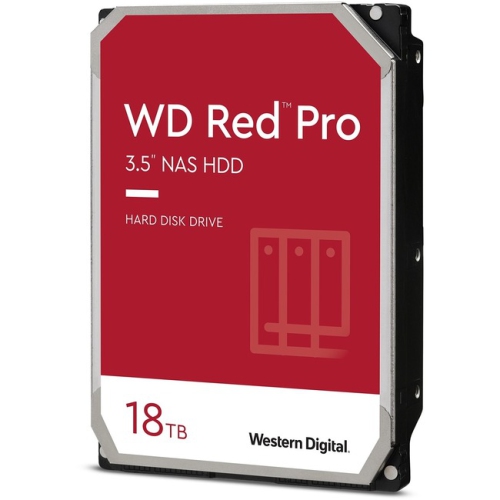
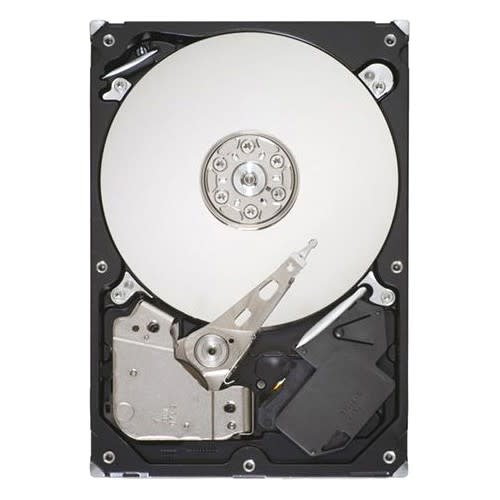
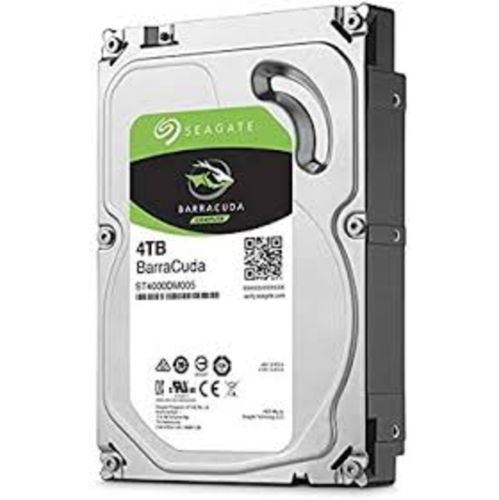
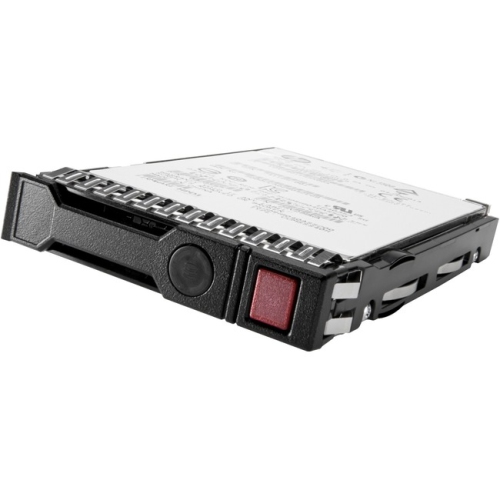
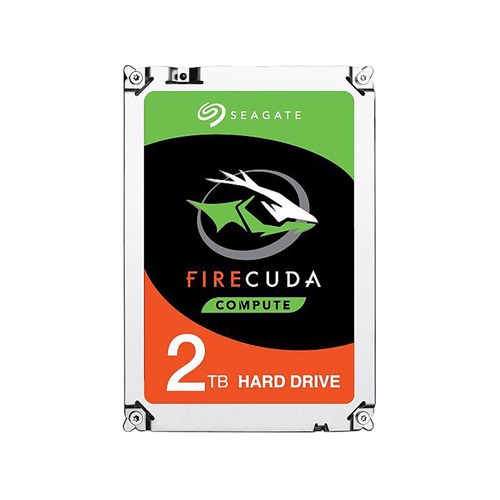
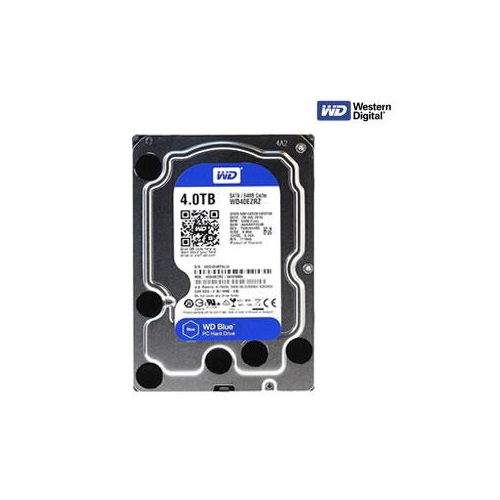
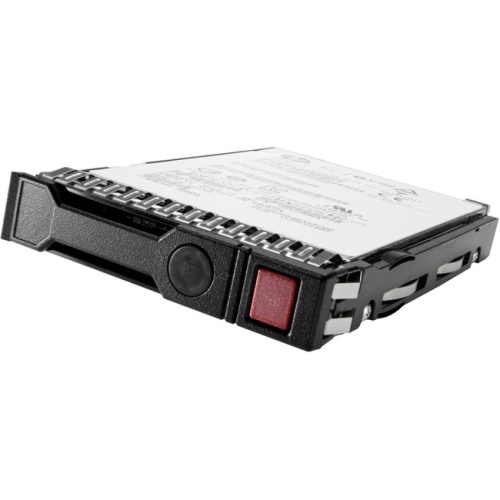
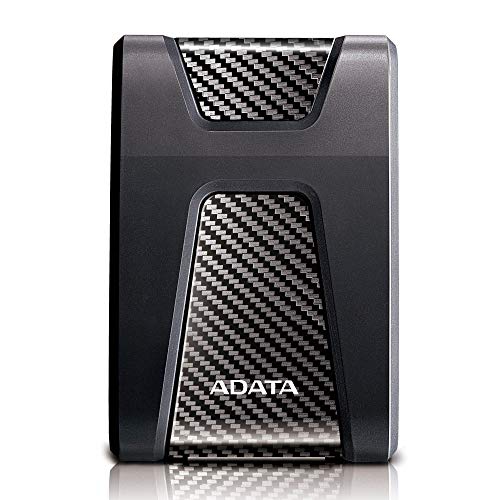

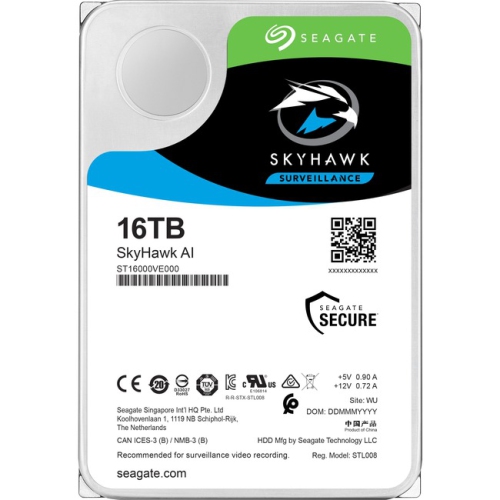
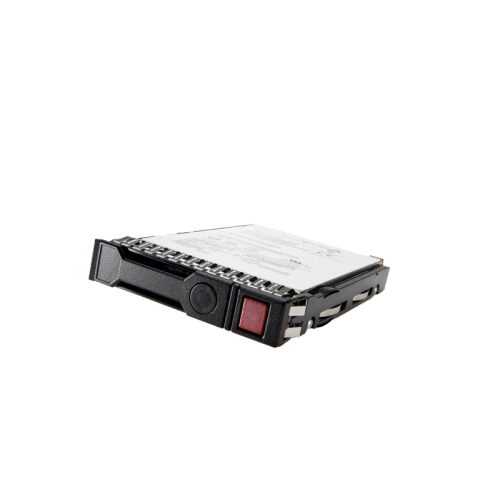

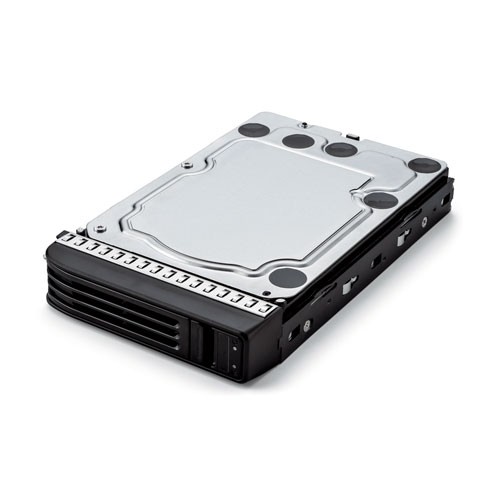
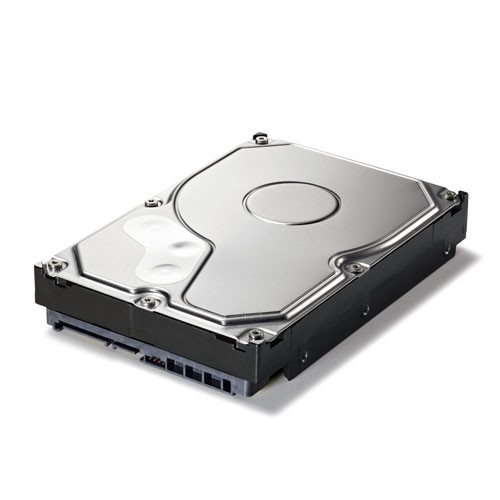
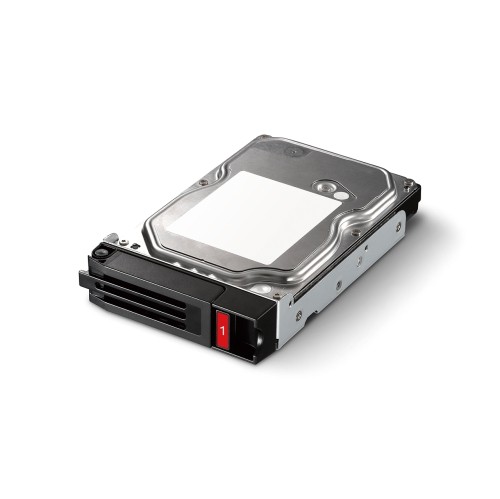
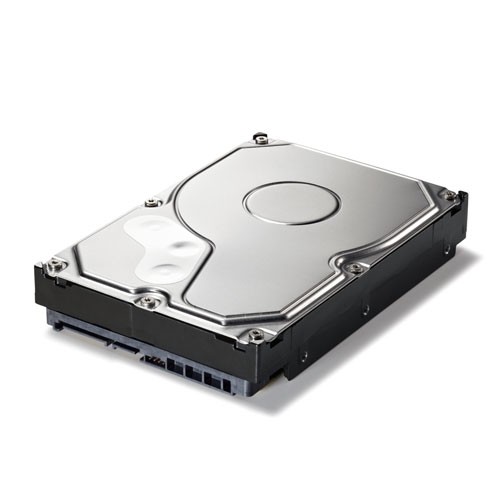
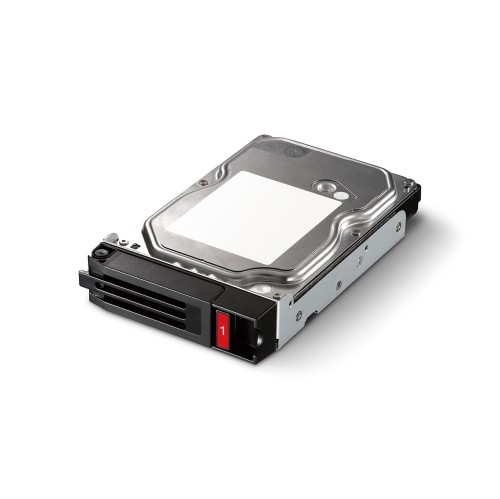
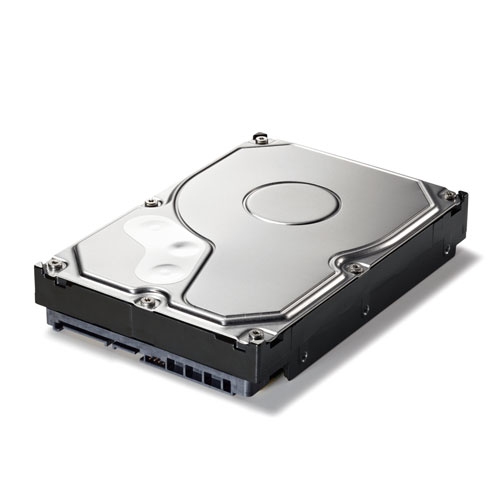
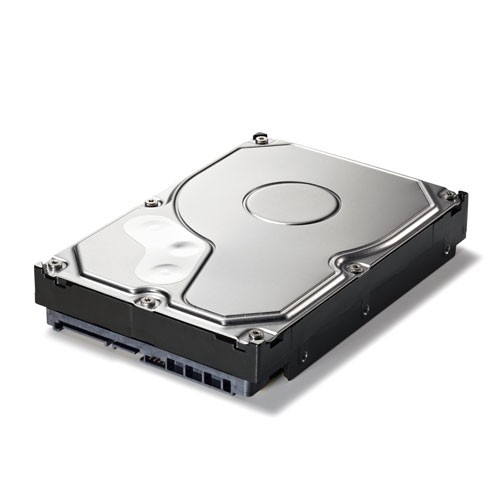
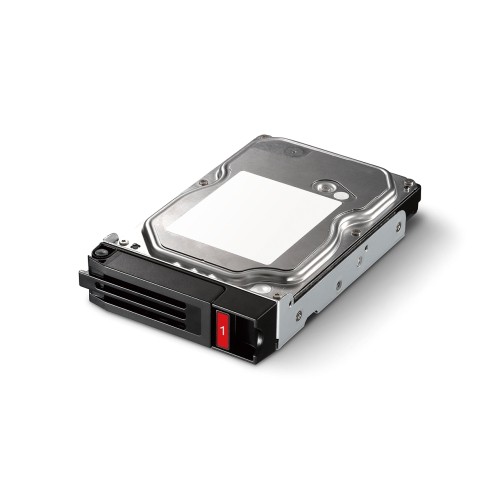
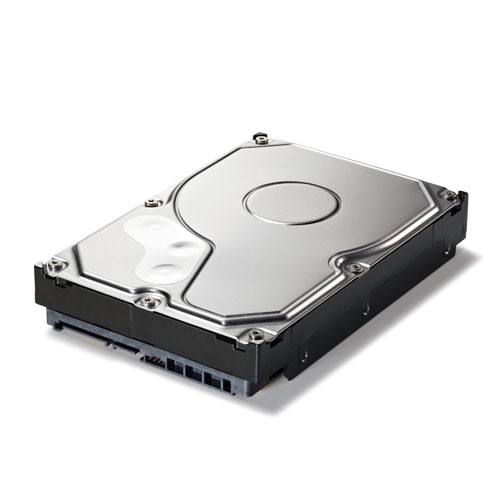
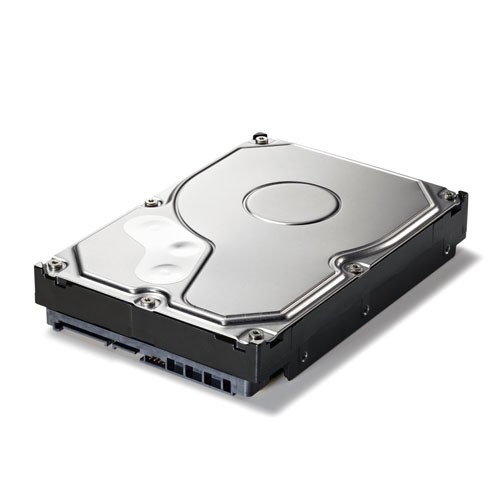
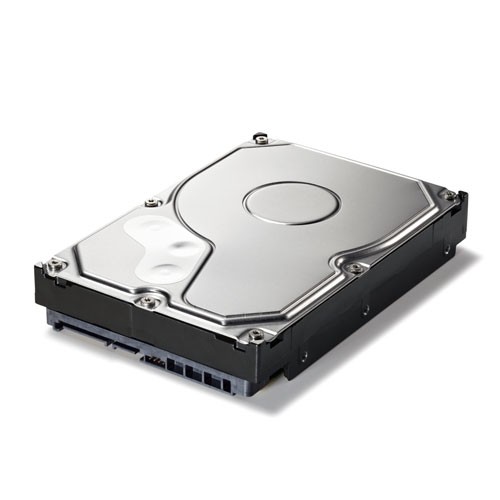
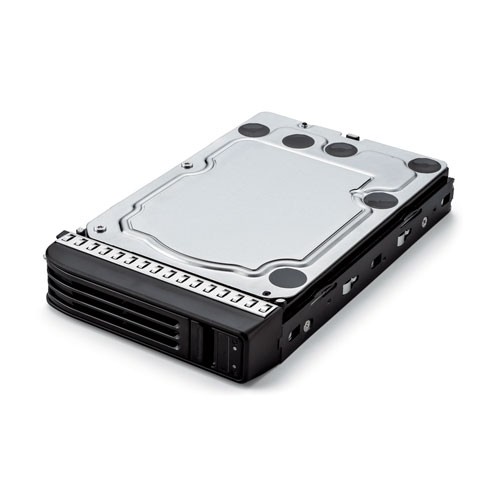
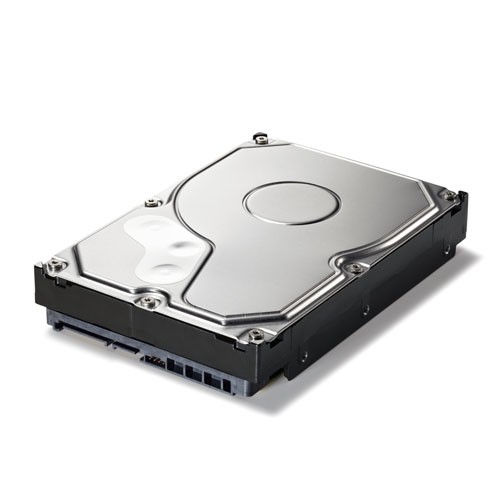
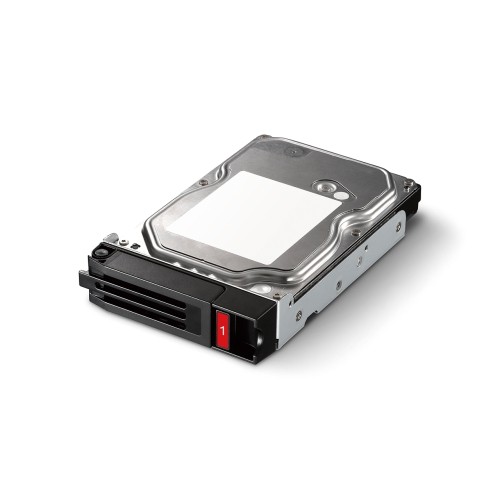
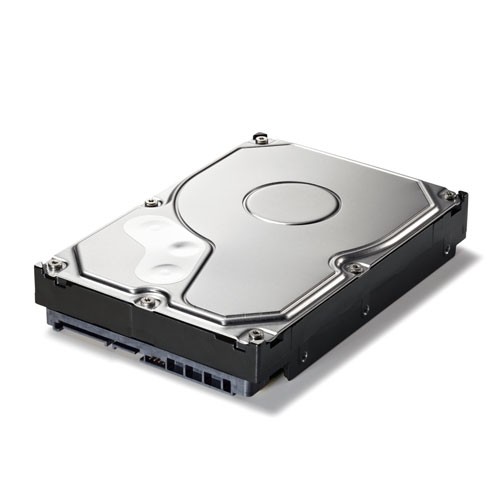
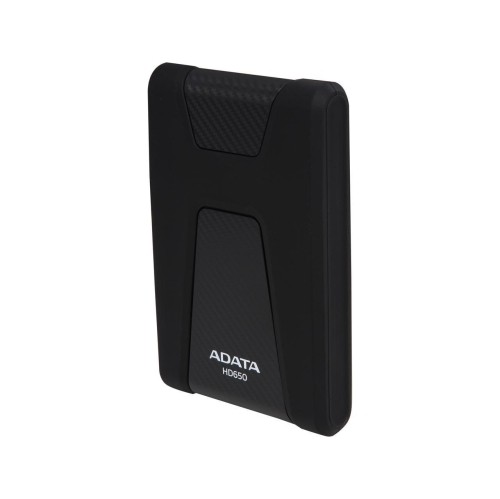
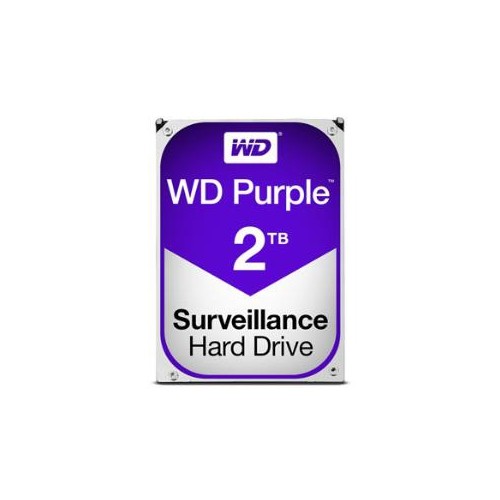
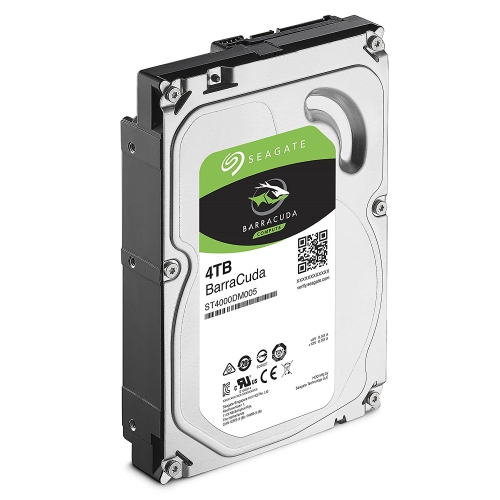
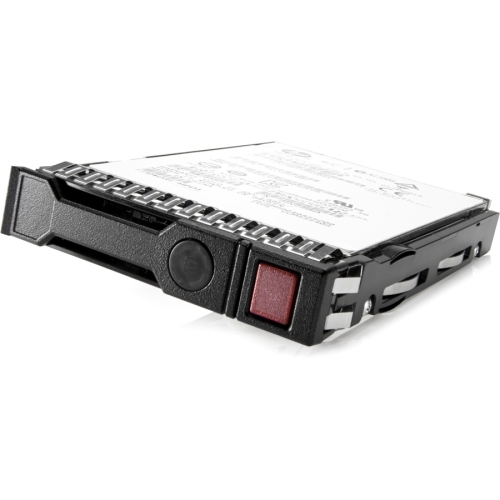
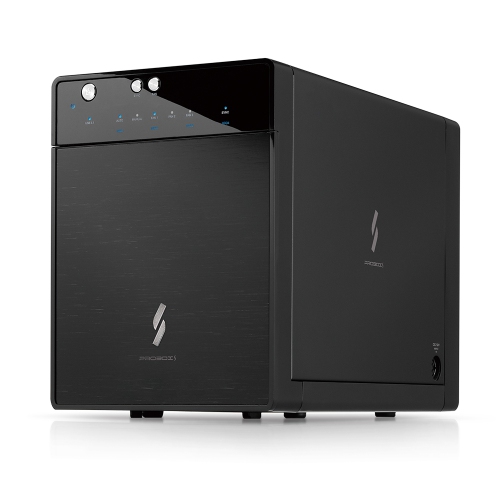
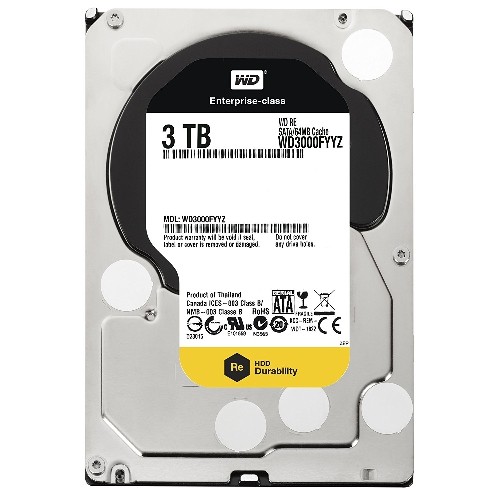
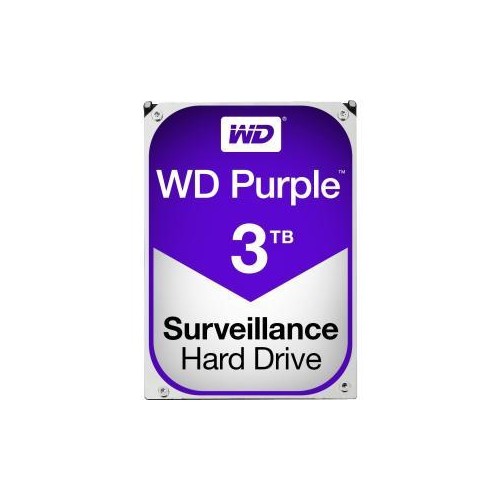
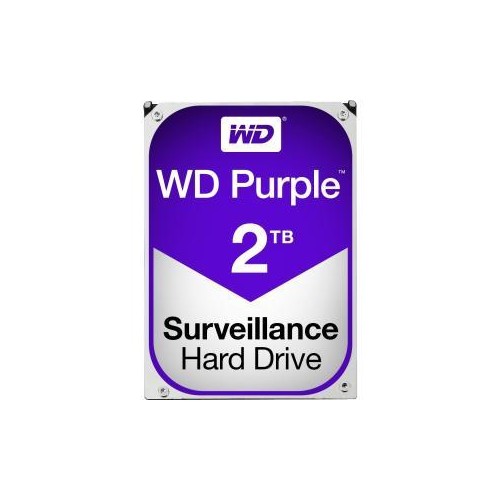
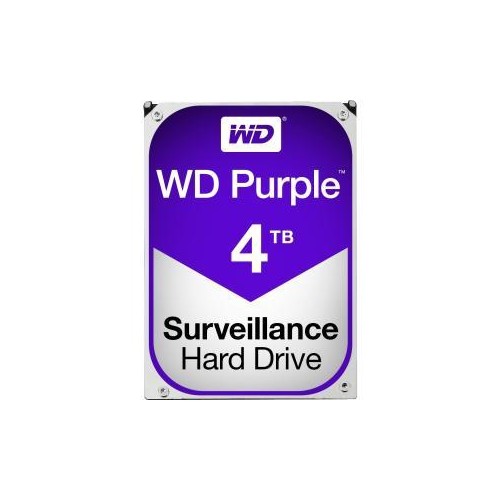
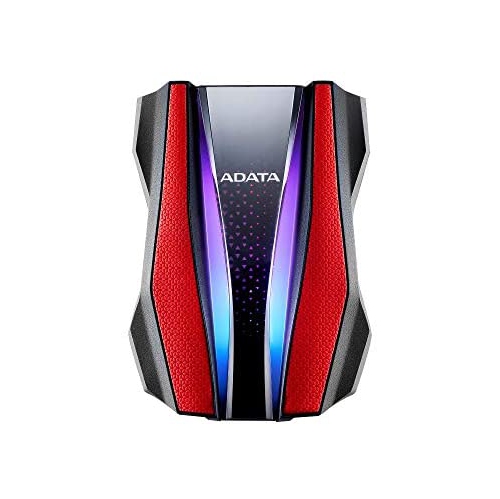
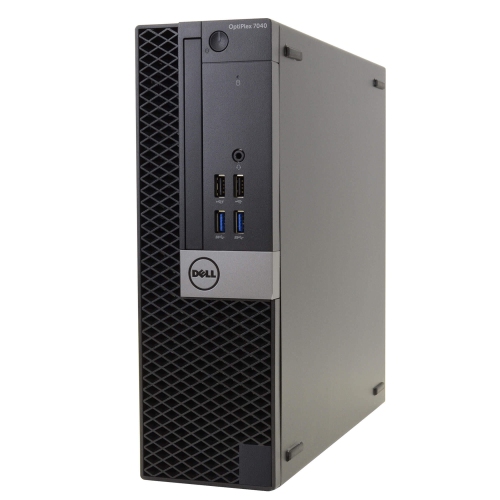

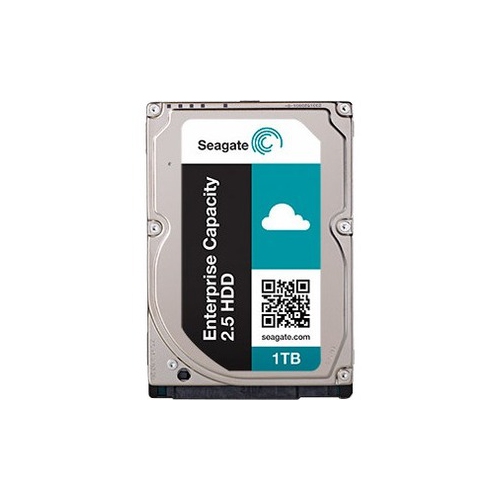

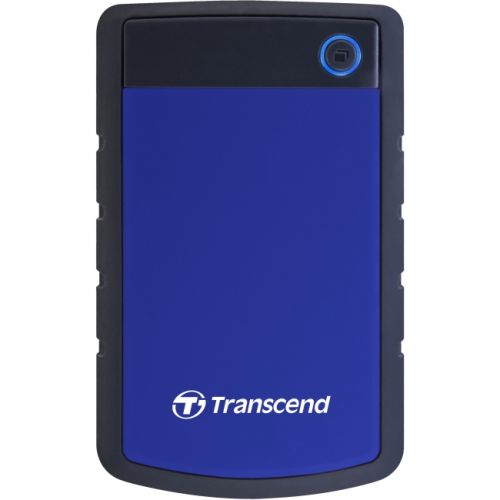
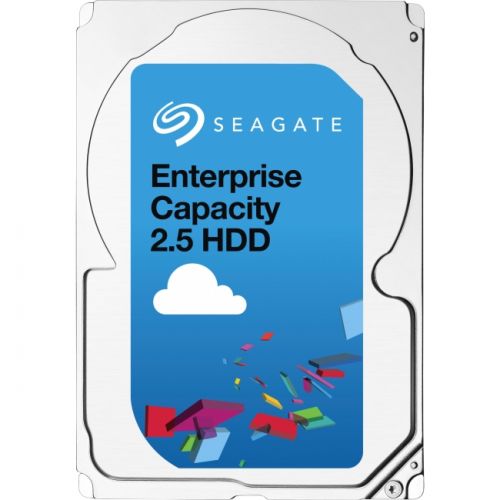
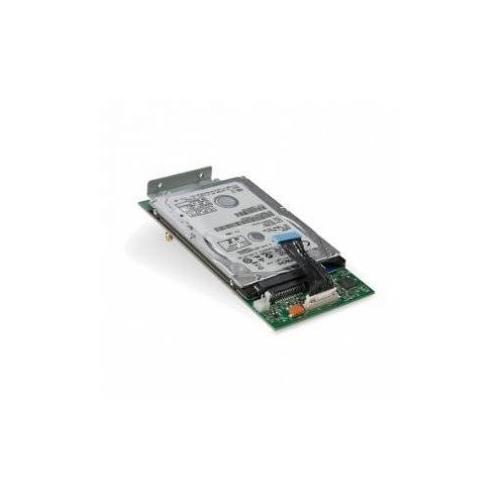
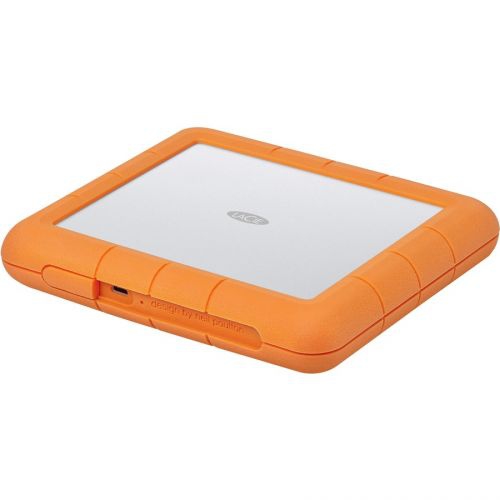
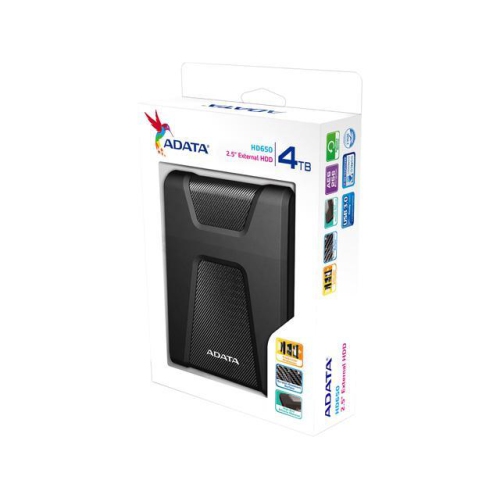
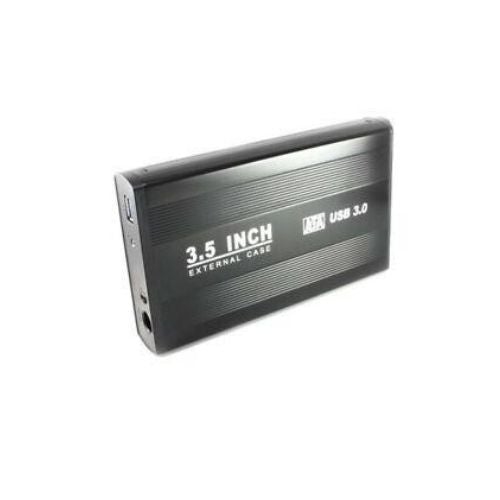
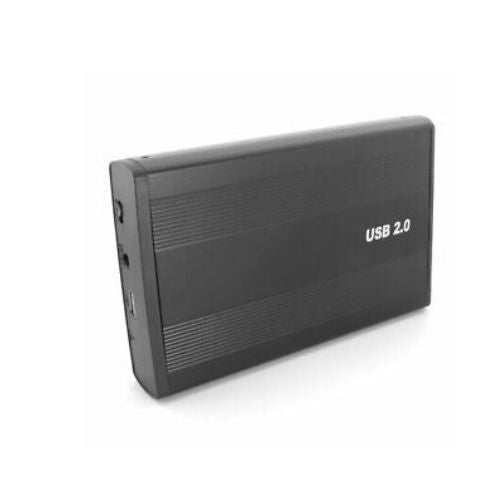

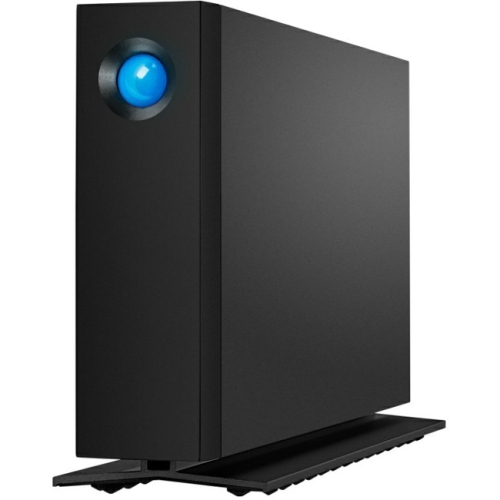
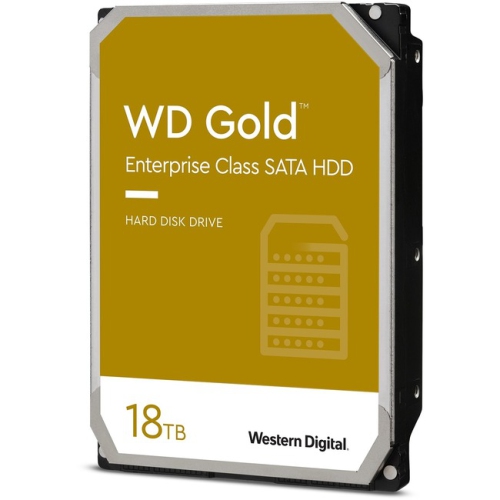
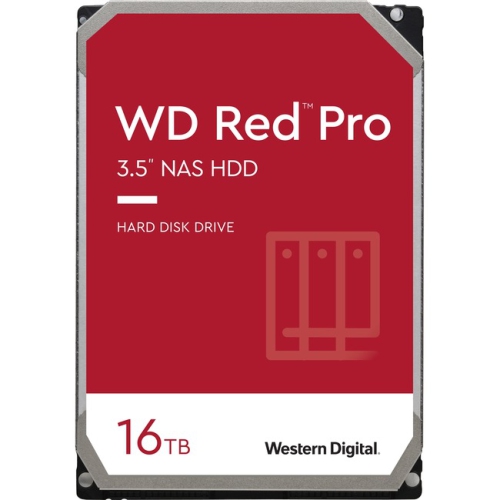
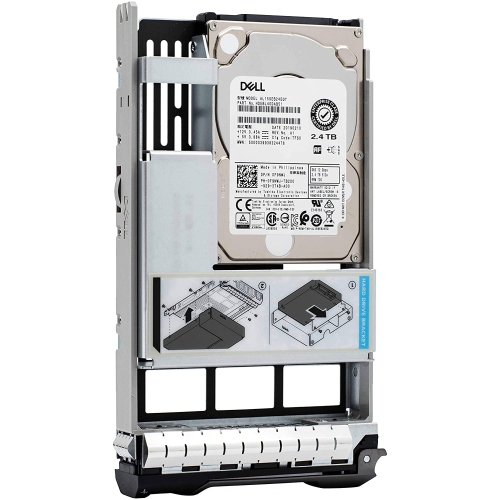

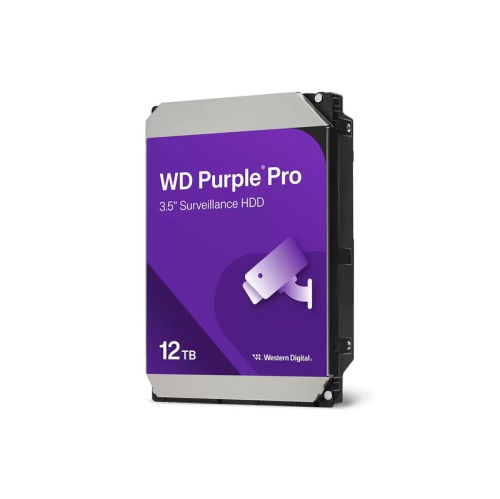
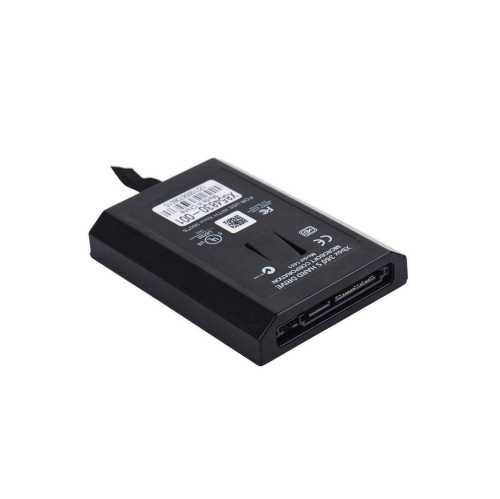
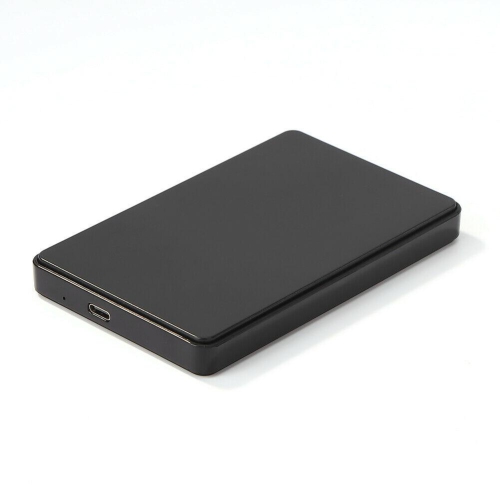
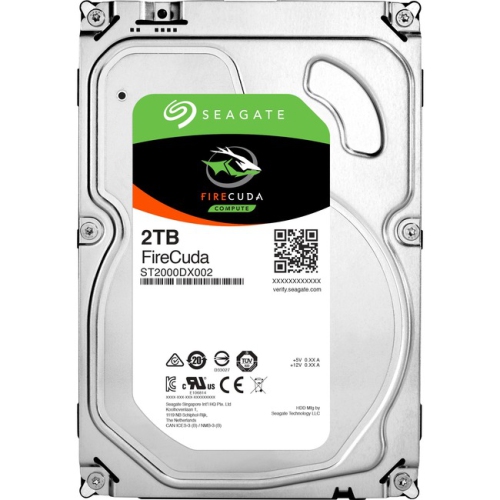
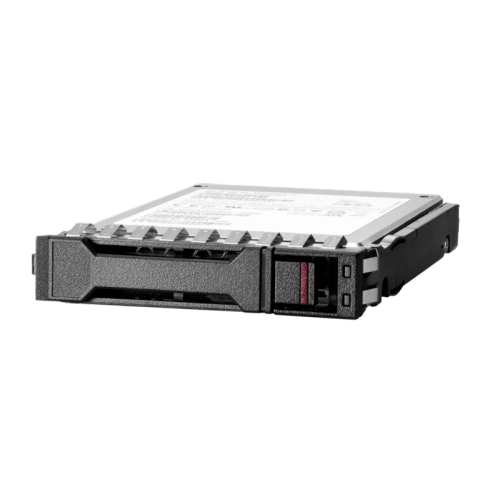
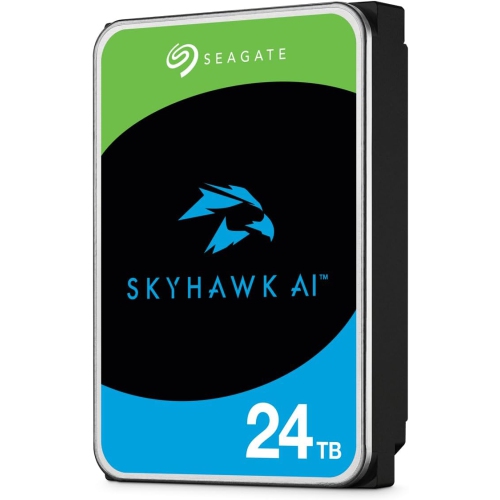
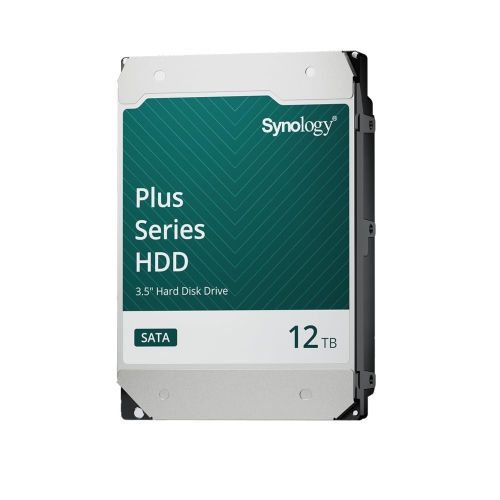
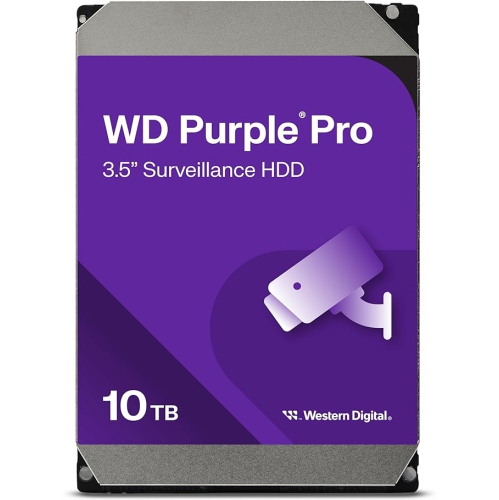
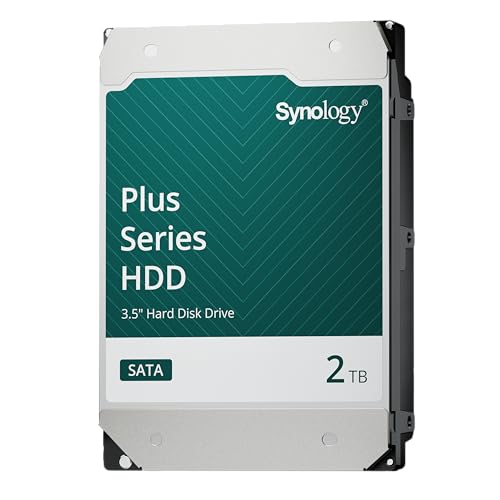
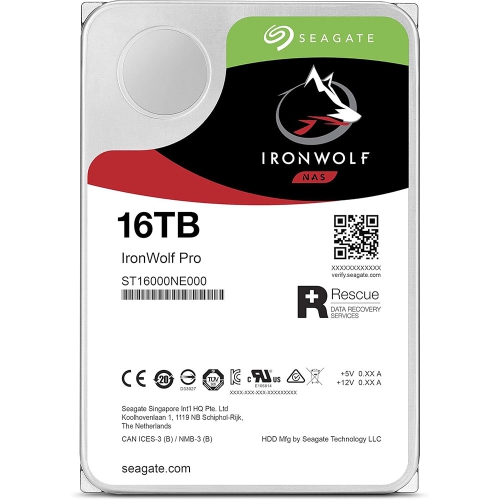
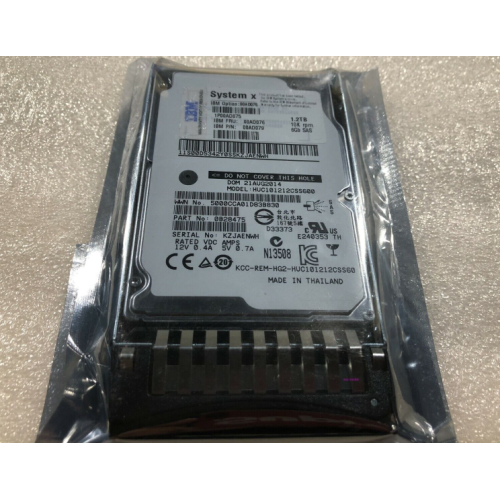
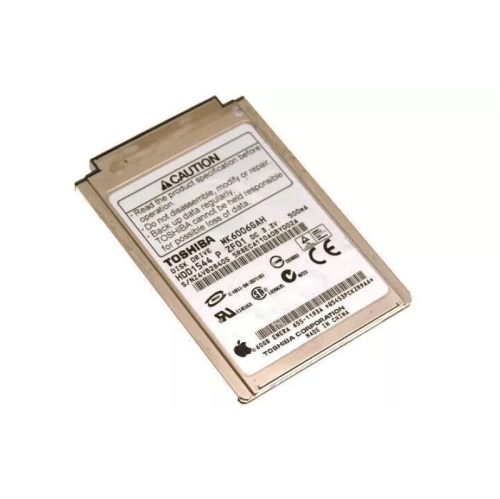
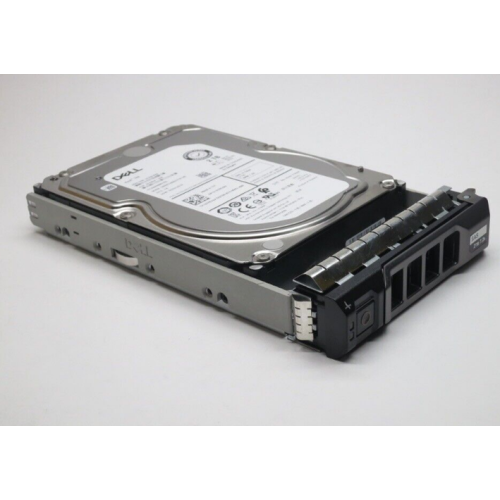

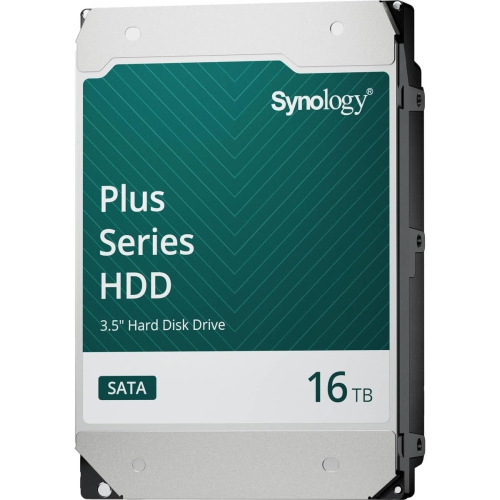
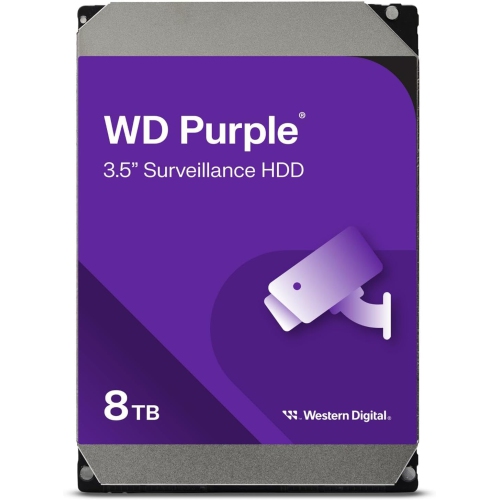
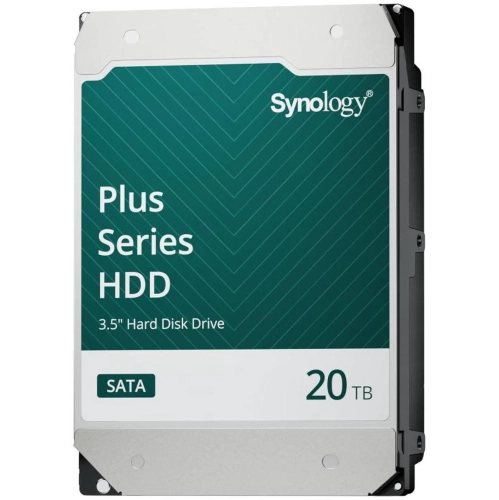
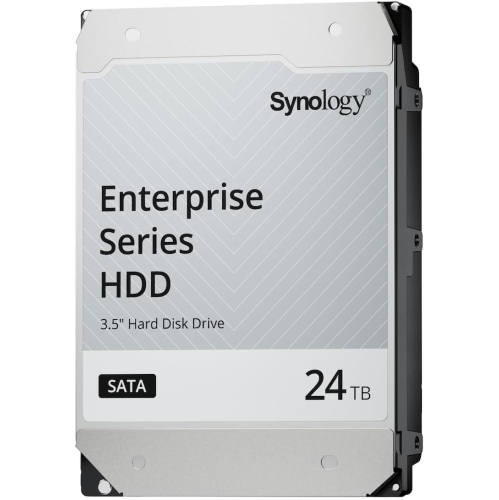
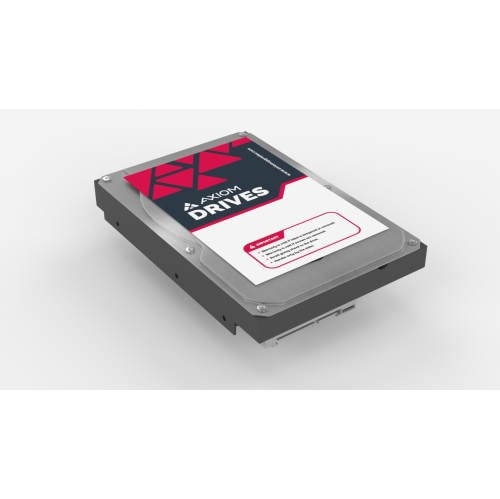
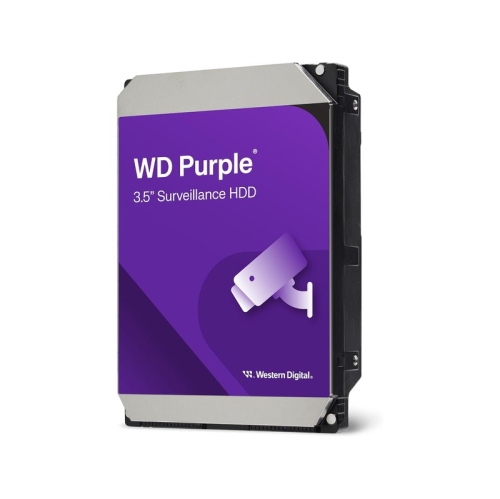
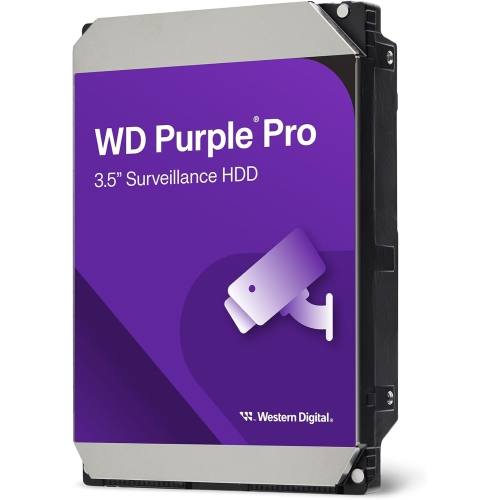
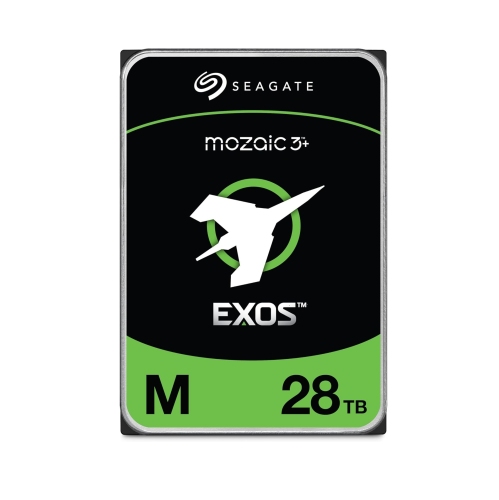
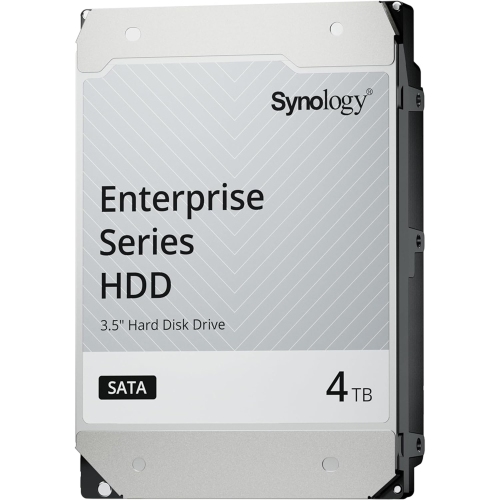
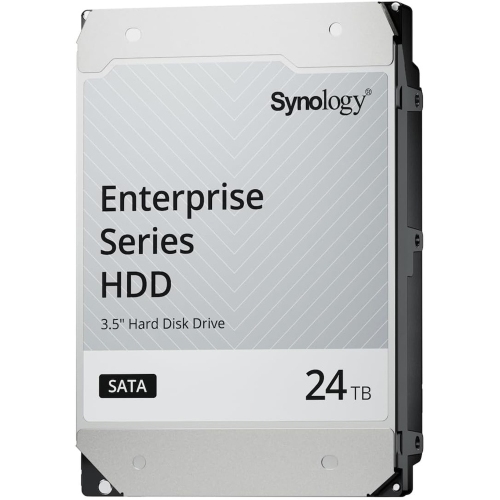
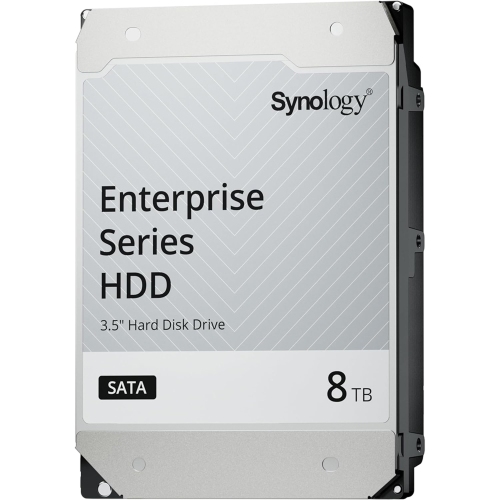
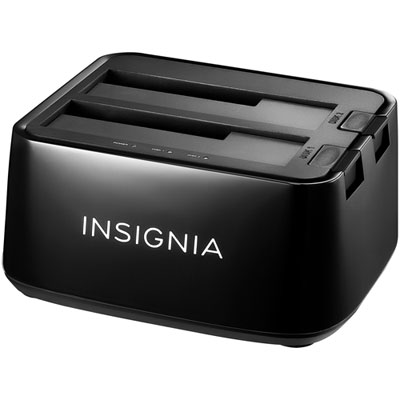
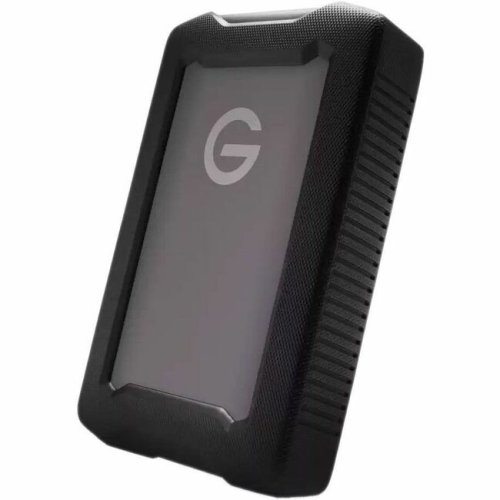
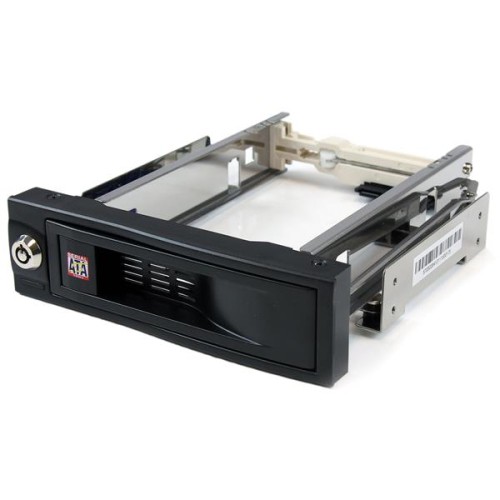
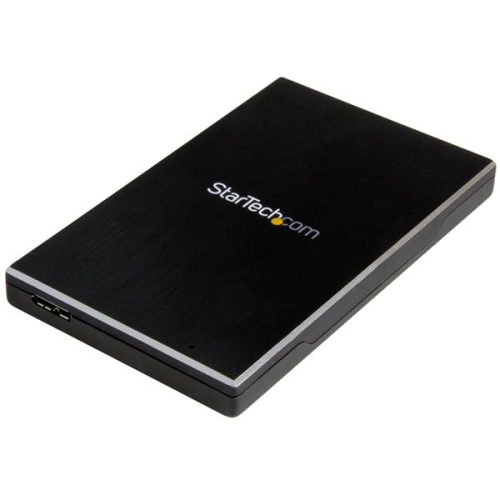
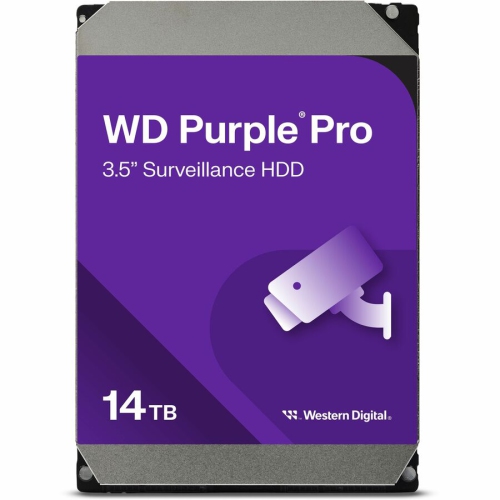
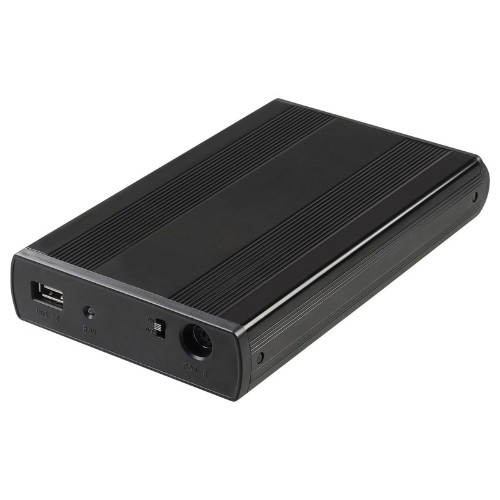
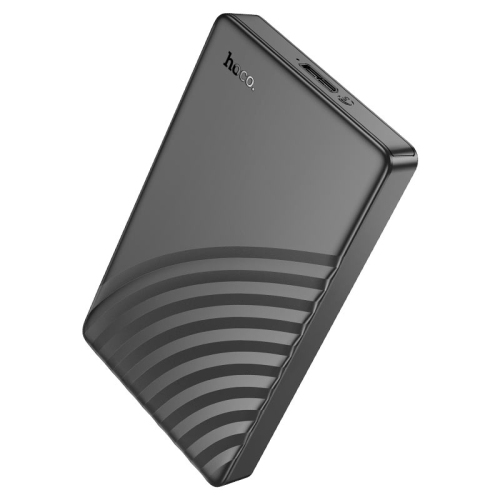
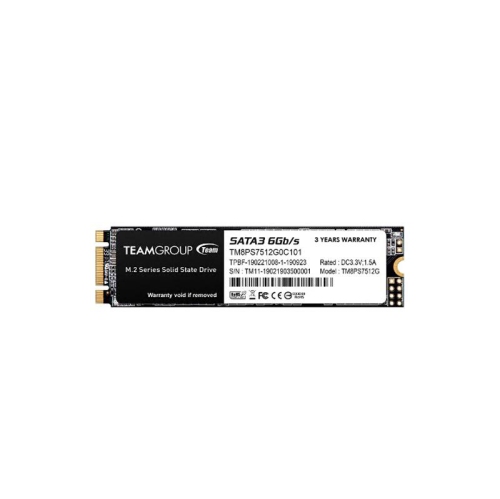
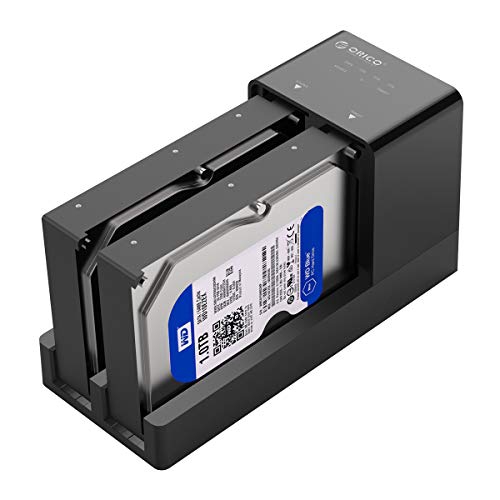

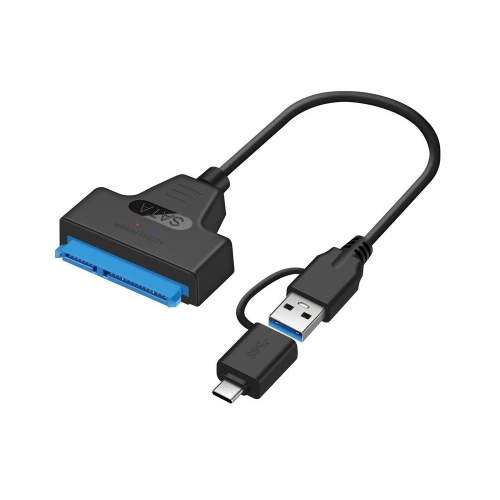
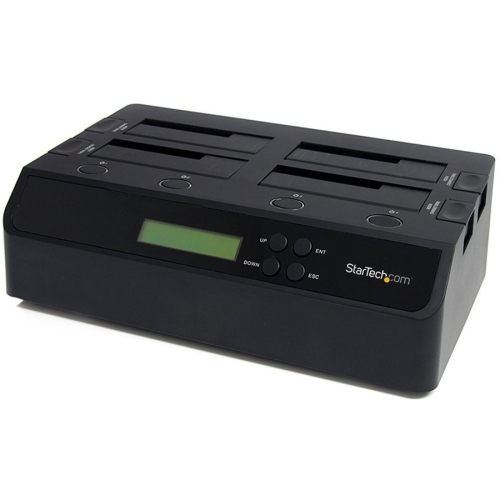
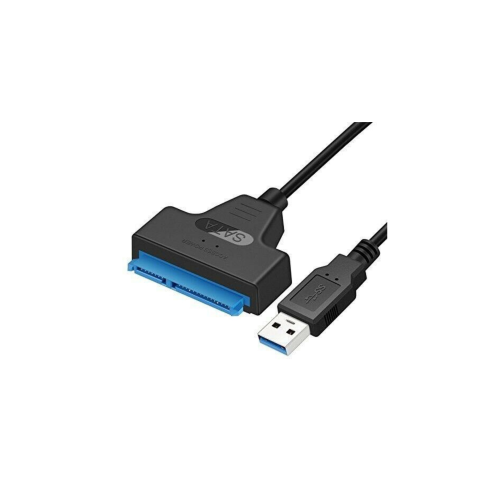
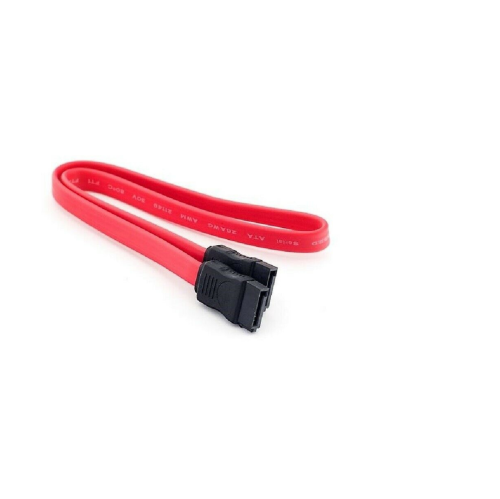
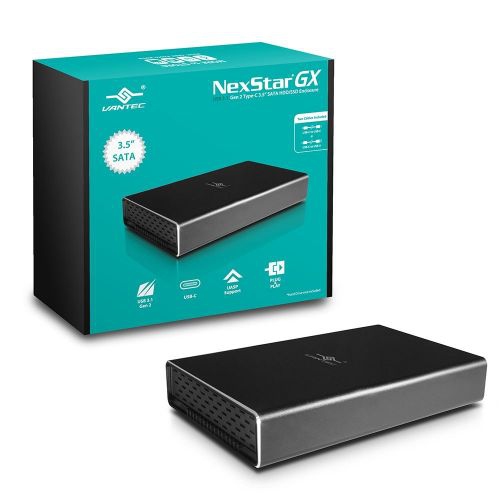

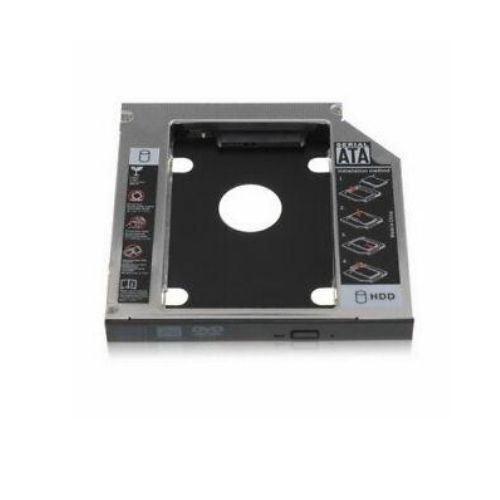
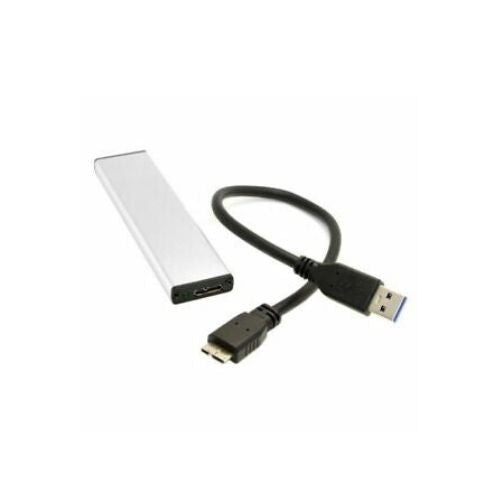
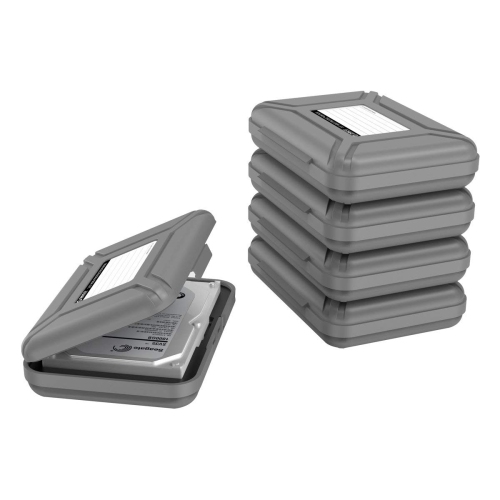
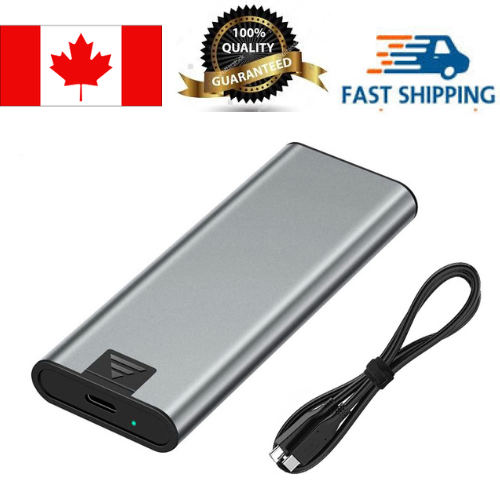
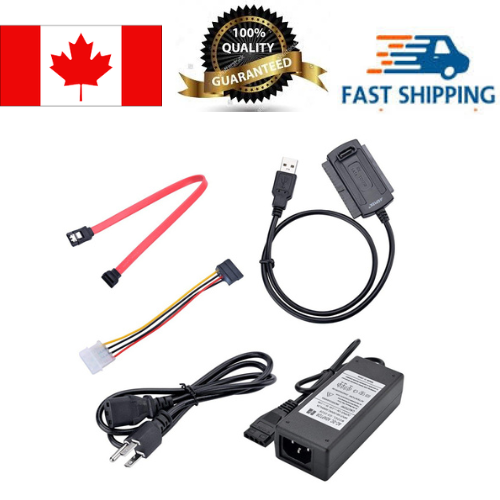
Spacious storage for growing libraries and important backups
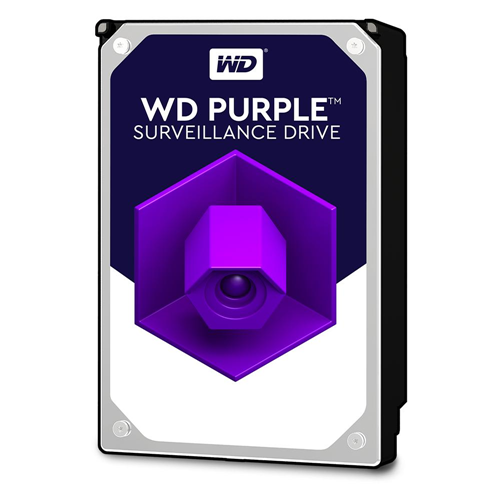
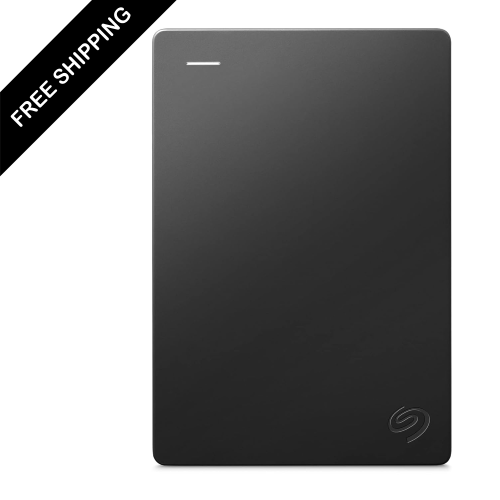
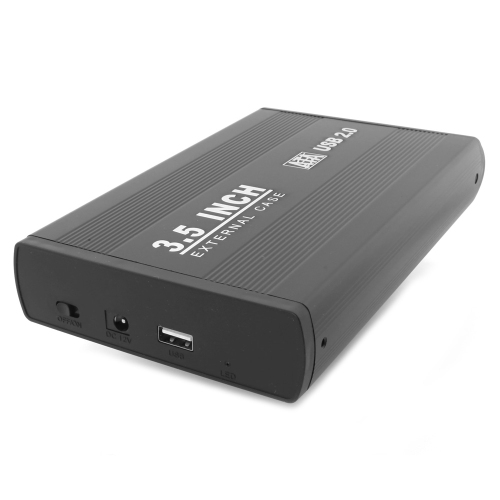
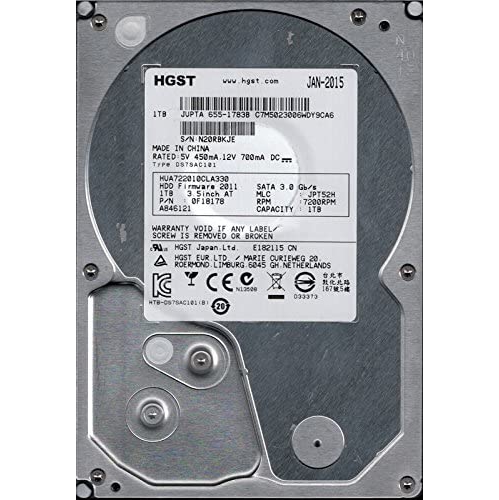
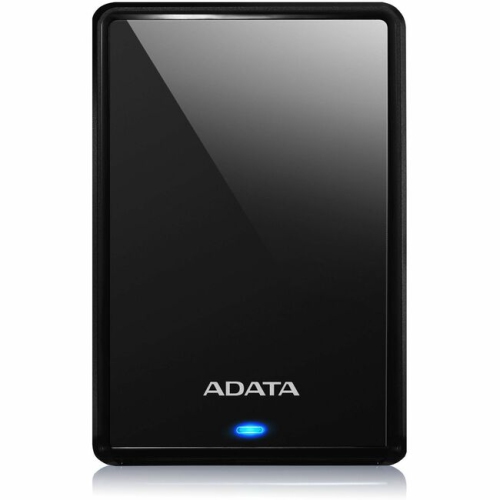
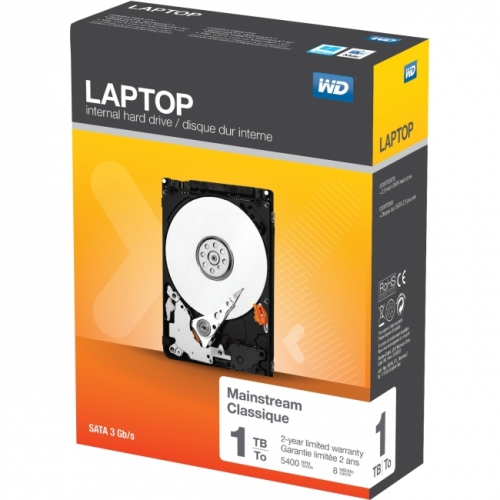
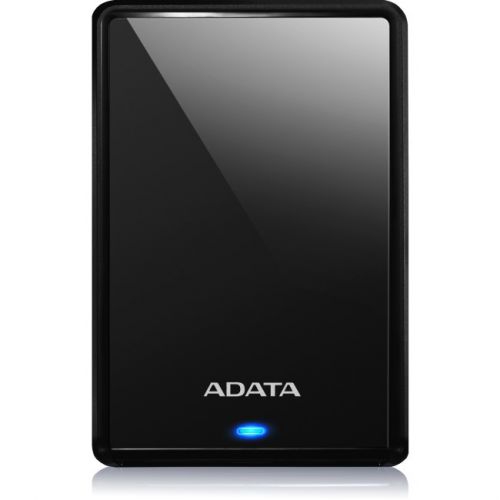
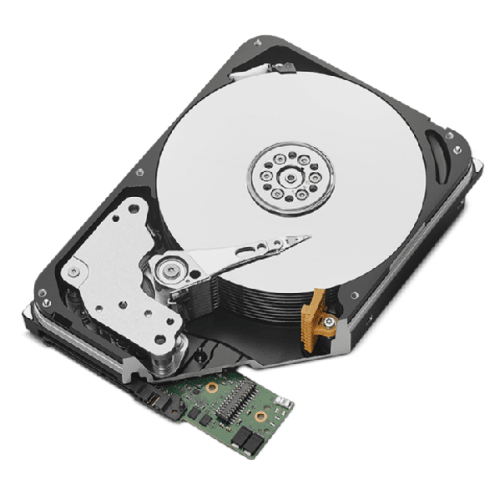
Hard disk drives (HDDs) store digital information on spinning platters coated with magnetic material, keeping files intact even when the power is turned off. Inside each drive, a moving read/write head accesses data just above the platter surface, while a controller manages communication with the connected computer or device. This mechanical design makes HDDs well suited to storing large collections of photos, videos, documents, music, and other files that do not need the fastest possible access speeds. For a household, that might mean years of family pictures and scanned paperwork; for a photographer, it could mean folders of full-resolution images from completed shoots. Internal hard drives fit inside compatible desktop computers, some laptops, and purpose-built storage systems. External hard drives place the storage mechanism inside a protective enclosure and connect through an external port, usually USB, making them convenient for backups and moving files between compatible devices. Portable models are generally smaller and often draw power through their USB connection, while desktop external drives usually need a separate power adapter and a permanent spot near an outlet. Capacity is commonly expressed in gigabytes (GB) or terabytes (TB), with the right size depending on both the files already on hand and how quickly that collection grows. Text documents take up relatively little space, while high-resolution video, large game installations, and uncompressed media can fill a drive much faster. Leaving room for future projects and multiple backup versions helps prevent a storage upgrade from becoming cramped too soon. The usable capacity displayed by a computer may be lower than the figure on the drive because of differences in measurement and space reserved for formatting or system functions. Unlike a solid-state drive, an HDD has moving parts, so it brings different expectations for speed, sound, and handling. Its particular strength is spacious storage for files, archives, and backups, whether it works alongside faster internal storage or serves as a separate destination for important copies.
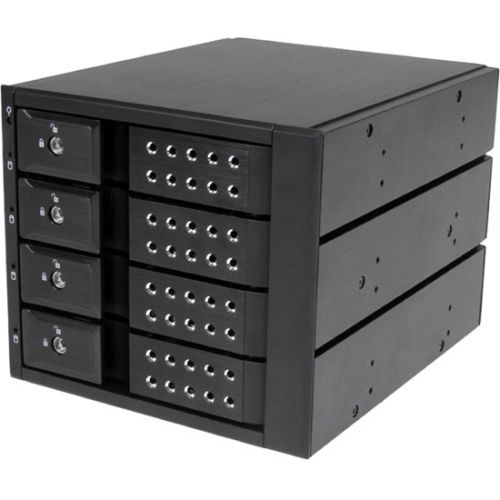
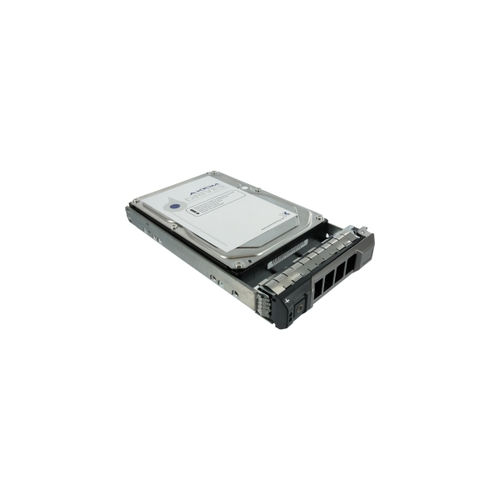
Fit and compatibility matter as much as capacity when choosing a hard disk drive. Common internal sizes include 3.5-inch drives for desktop computers and storage enclosures, and 2.5-inch drives for certain laptops, compact systems, and portable enclosures. These measurements describe the drive’s form factor, not a guarantee that it will fit every device: bay dimensions, drive thickness, mounting points, power connections, and the supported interface all need to match. Many internal HDDs use SATA, while some drives intended for business storage systems use interfaces that ordinary home computers do not support. For an external hard drive, the connector shape and the connection’s data standard are separate details. A USB-C port does not, by itself, establish transfer speed, and a suitable cable or adapter may be needed to connect the drive. Compatibility with the operating system also depends on the drive’s file system. Some formats work across both Windows and macOS, while others are better suited to features within one operating system; changing the format generally erases existing files, so any needed data should be copied elsewhere first. Performance varies with rotational speed, cache, recording technology, connection speed, and the workload itself. Many HDDs operate at 5,400 or 7,200 revolutions per minute, but that number alone does not tell the whole story. Copying one large video file is a different task from opening thousands of small images scattered across a drive. Conventional magnetic recording and shingled magnetic recording can also behave differently during sustained writing or repeated updates, making the intended workload an important consideration. For a network-attached storage (NAS) system, drives designed for multi-drive, extended-operation use may be more appropriate than general desktop models, subject to the enclosure manufacturer’s compatibility requirements. Console storage has its own limits: an external HDD may hold a game library, but whether games can run directly from it depends on the console and game generation. For musicians and home studios, Audio Hard Drives can provide space for session backups, exported mixes, and sample collections, with connection speed and software requirements helping determine suitability for active projects.
Day-to-day handling has a direct effect on how comfortably a hard disk drive fits into a home, office, or travel routine. External enclosures commonly use plastic, metal, or a combination of materials; the outer shell helps shield the mechanism, but its appearance alone does not establish drop resistance or water protection. Any protective rating should be checked against the manufacturer’s stated conditions. Because the internal heads operate extremely close to the spinning platters, bumps and drops are especially concerning while a drive is running. A desktop external drive belongs on a stable, level surface where its cable will not catch on a chair or pull it off a shelf. Ventilation openings should remain clear, and drives should be kept away from liquids, excessive heat, and heavy dust. Portable storage travels more comfortably in a padded case, with cables tucked separately so connectors are not bent or pressed against the enclosure. Ejecting an external drive through the operating system before unplugging it helps ensure that pending writes have finished; allowing it to stop before packing it away adds another sensible precaution. Some gentle spinning noise and occasional clicking during access can be normal, but a sudden change in sound, repeated disconnections, or unreadable files warrants attention and a prompt backup of accessible data. No hard drive should hold the only copy of irreplaceable material. Keeping several copies, including one stored separately from the computer, provides better protection against drive failure, accidental deletion, theft, or damage. Automated backups are useful for busy households and students, while clearly labelled folders make it easier to find a finished assignment, a tax document, or last year’s holiday photos. Periodically checking that backed-up files can actually be opened is just as important as creating the backup. For someone receiving a hard drive as a practical gift, matching their computer connections and intended use makes it easier to put that extra space to work. Whether the priority is a tidy desk-based archive or portable storage for projects on the move, a suitable HDD pairs the necessary capacity with compatible connections and careful handling.
Fit and compatibility matter as much as capacity when choosing a hard disk drive. Common internal sizes include 3.5-inch drives for desktop computers and storage enclosures, and 2.5-inch drives for certain laptops, compact systems, and portable enclosures. These measurements describe the drive’s form factor, not a guarantee that it will fit every device: bay dimensions, drive thickness, mounting points, power connections, and the supported interface all need to match. Many internal HDDs use SATA, while some drives intended for business storage systems use interfaces that ordinary home computers do not support. For an external hard drive, the connector shape and the connection’s data standard are separate details. A USB-C port does not, by itself, establish transfer speed, and a suitable cable or adapter may be needed to connect the drive. Compatibility with the operating system also depends on the drive’s file system. Some formats work across both Windows and macOS, while others are better suited to features within one operating system; changing the format generally erases existing files, so any needed data should be copied elsewhere first. Performance varies with rotational speed, cache, recording technology, connection speed, and the workload itself. Many HDDs operate at 5,400 or 7,200 revolutions per minute, but that number alone does not tell the whole story. Copying one large video file is a different task from opening thousands of small images scattered across a drive. Conventional magnetic recording and shingled magnetic recording can also behave differently during sustained writing or repeated updates, making the intended workload an important consideration. For a network-attached storage (NAS) system, drives designed for multi-drive, extended-operation use may be more appropriate than general desktop models, subject to the enclosure manufacturer’s compatibility requirements. Console storage has its own limits: an external HDD may hold a game library, but whether games can run directly from it depends on the console and game generation. For musicians and home studios, Audio Hard Drives can provide space for session backups, exported mixes, and sample collections, with connection speed and software requirements helping determine suitability for active projects.
Day-to-day handling has a direct effect on how comfortably a hard disk drive fits into a home, office, or travel routine. External enclosures commonly use plastic, metal, or a combination of materials; the outer shell helps shield the mechanism, but its appearance alone does not establish drop resistance or water protection. Any protective rating should be checked against the manufacturer’s stated conditions. Because the internal heads operate extremely close to the spinning platters, bumps and drops are especially concerning while a drive is running. A desktop external drive belongs on a stable, level surface where its cable will not catch on a chair or pull it off a shelf. Ventilation openings should remain clear, and drives should be kept away from liquids, excessive heat, and heavy dust. Portable storage travels more comfortably in a padded case, with cables tucked separately so connectors are not bent or pressed against the enclosure. Ejecting an external drive through the operating system before unplugging it helps ensure that pending writes have finished; allowing it to stop before packing it away adds another sensible precaution. Some gentle spinning noise and occasional clicking during access can be normal, but a sudden change in sound, repeated disconnections, or unreadable files warrants attention and a prompt backup of accessible data. No hard drive should hold the only copy of irreplaceable material. Keeping several copies, including one stored separately from the computer, provides better protection against drive failure, accidental deletion, theft, or damage. Automated backups are useful for busy households and students, while clearly labelled folders make it easier to find a finished assignment, a tax document, or last year’s holiday photos. Periodically checking that backed-up files can actually be opened is just as important as creating the backup. For someone receiving a hard drive as a practical gift, matching their computer connections and intended use makes it easier to put that extra space to work. Whether the priority is a tidy desk-based archive or portable storage for projects on the move, a suitable HDD pairs the necessary capacity with compatible connections and careful handling.
Top selling and popular products
-
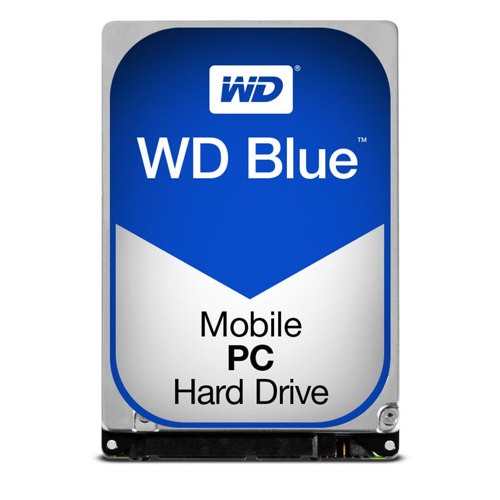 Your price for this item is $248.68
 -
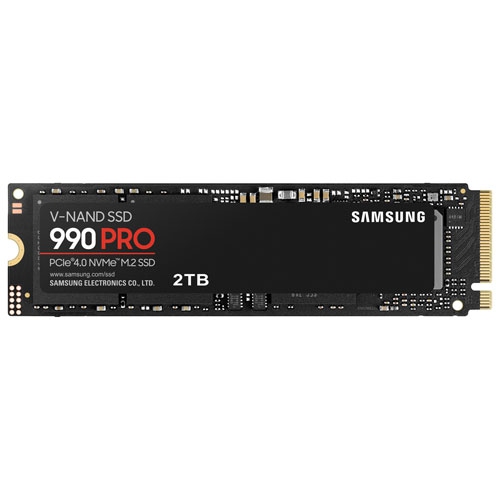 Your price for this item is $679.99
 -
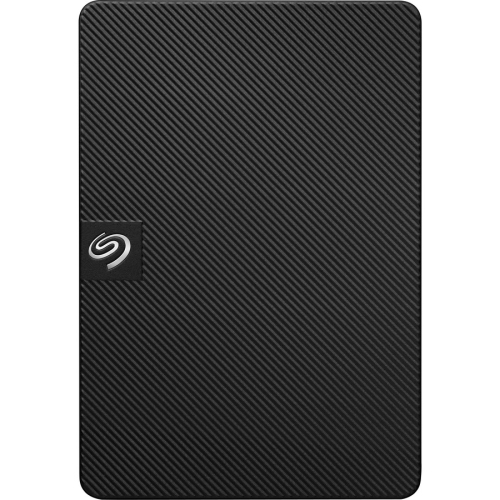 Your price for this item is $164.47
 -
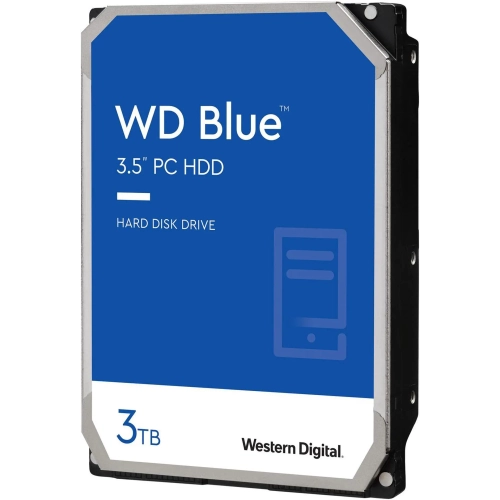 Your price for this item is $259.99
 -
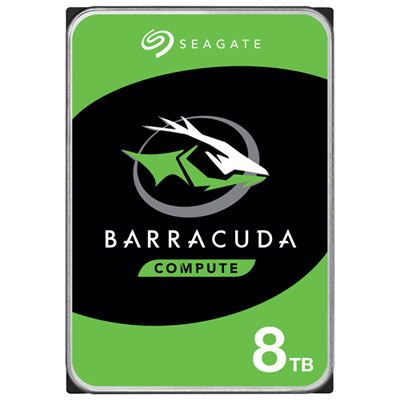 Your price for this item is $389.99
 -
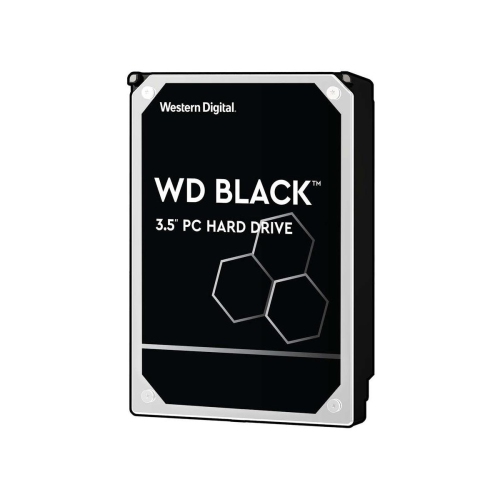 Your price for this item is $399.99
 -
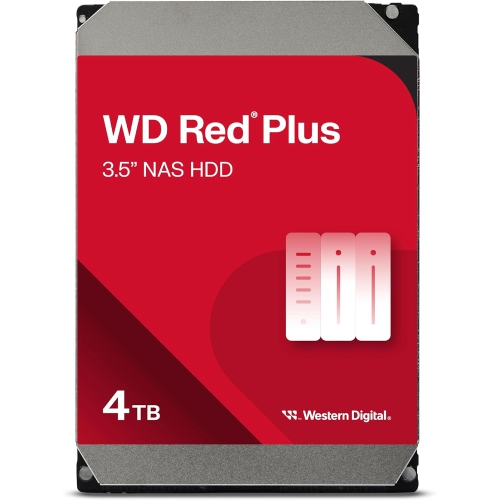 Your price for this item is $379.99
 -
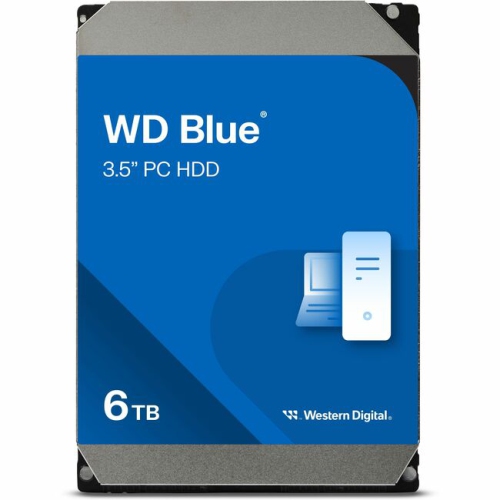 Your price for this item is $389.99
Discover more categories related to Hard Disk Drives
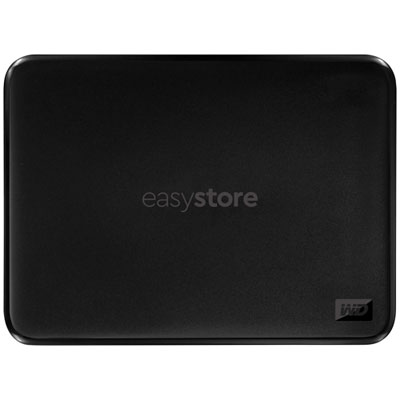
Top Collections:
Pokemon Centers, Kindle Devices, Best Budget Office Chairs, Apple iPhones 16, Best Laptops for Writers, iPhone 15 Apple, Canon G7X Cameras, Refurbished Apple Laptops, Alarm Clock, Motorola Razr Phones
Some products may be subject to Environmental Handling Fees
(EHF) depending on your province.
Learn more about EHFs.